# Intro (Full)

---
source: /docs/ai-tooling.md

# AI Tooling

Every page on bkper.com is available as clean Markdown so AI tools can read it, understand the platform, and help you use or build with it.

The root index of all pages is available at [`/llms.txt`](https://bkper.com/llms.txt), and a single-file dump of all site content at [`/llms-full.txt`](https://bkper.com/llms-full.txt).

## Page Options

Every documentation page and app detail page includes a **Page Options** dropdown in the right sidebar:

![Page Options dropdown showing copy, view, and AI actions](https://bkper.com/docs/_astro/page-options.QGgo36WO.png)

Copy the page as Markdown, open it directly in [Claude](https://claude.ai) or [ChatGPT](https://chatgpt.com), or grab a ready-made prompt for your AI tool of choice.

## Page Access

Marketing pages, documentation, and app listings are all available as Markdown. Navigation chrome (sidebar, header, footer) is stripped, reducing token usage for AI tools.

### `.md` suffix

Append `.md` to any page URL:

```
https://bkper.com/about              # HTML (browser)
https://bkper.com/about.md           # Markdown (AI tools)
https://bkper.com/docs/core-concepts.md
```

```sh
curl https://bkper.com/docs/core-concepts.md
```

### Section `.md`

Section URLs return prose from the section index plus a listing of child articles and subsections:

```sh
curl https://bkper.com/docs.md           # Documentation root
curl https://bkper.com/docs/guides.md    # Guides section
curl https://bkper.com/apps.md           # Apps directory
```

> **Tip: Starting points**
> Give your AI tool a section endpoint and let the conversation narrow from there:
> 
> - [`/docs/guides.md`](https://bkper.com/docs/guides.md) — user-facing guides
> - [`/docs/build.md`](https://bkper.com/docs/build.md) — developer docs
> - [`/docs/api.md`](https://bkper.com/docs/api.md) — all API libraries at a glance
### `Accept` header

Request Markdown via [content negotiation](https://developer.mozilla.org/en-US/docs/Web/HTTP/Guides/Content_negotiation) by including `text/markdown` in the `Accept` header. This works with the canonical page URL — no URL modification needed:

```sh
curl https://bkper.com/docs/core-concepts \
  -H "Accept: text/markdown"
```

The response includes an `x-markdown-tokens` header with the estimated token count, which agents can use to plan context window usage:

```
HTTP/2 200
content-type: text/markdown; charset=utf-8
vary: Accept
x-markdown-tokens: 1850
```

## API References

API reference endpoints compile the library overview and full spec into a single compact document optimized for agent workflows:

- [`/docs/api/rest.md`](https://bkper.com/docs/api/rest.md) — endpoints, parameters, and data models
- [`/docs/api/bkper-js.md`](https://bkper.com/docs/api/bkper-js.md) — bkper-js README + TypeScript definitions
- [`/docs/api/bkper-gs.md`](https://bkper.com/docs/api/bkper-gs.md) — bkper-gs README + TypeScript definitions
- [`/docs/api/bkper-api-types.md`](https://bkper.com/docs/api/bkper-api-types.md) — shared TypeScript type definitions
- [`/docs/api/bkper-web-auth.md`](https://bkper.com/docs/api/bkper-web-auth.md) — OAuth browser SDK

Compiled Markdown vs raw source (overview + `openapi.json` or `.d.ts`):

| Library | Raw (tokens) | `.md` (tokens) | Reduction |
|---|---|---|---|
| REST API | ~38K | ~9K | 4× |
| bkper-js | ~32K | ~18K | 1.8× |
| bkper-gs | ~22K | ~12K | 1.9× |
| bkper-api-types | ~12K | ~5K | 2.4× |
| bkper-web-auth | ~2K | ~2K | ~1× |

---
source: /docs/api.md

# API Reference

Technical reference documentation for all Bkper APIs and SDKs. Use the REST API directly or choose a client library for your platform.

  - [REST API](https://bkper.com/docs/api/rest.md): Full OpenAPI reference for the Bkper REST API — endpoints, parameters, and response schemas.
  - [bkper-js](https://bkper.com/docs/api/bkper-js.md): JavaScript/TypeScript client library for Bkper — classes, interfaces, and type definitions.
  - [bkper-gs](https://bkper.com/docs/api/bkper-gs.md): Google Apps Script library for Bkper — use Bkper directly in Google Sheets and Apps Script projects.
  - [bkper-web-auth](https://bkper.com/docs/api/bkper-web-auth.md): Web authentication SDK for Bkper — OAuth flows, token management, and session handling.
  - [bkper-api-types](https://bkper.com/docs/api/bkper-api-types.md): TypeScript type definitions for the Bkper API — shared interfaces and enumerations.
  - [Design Tokens](https://bkper.com/docs/api/bkper-web-design.md): CSS design tokens — typography, spacing, colors, and theming for Bkper web applications.

---
source: /docs/api/bkper-api-types.md

# bkper-api-types

This package contains Typescript definitions for the [Bkper REST API](https://bkper.com/docs/#rest-api).

The types are generated based on the Bkper [Open API spec](https://bkper.com/docs/api/rest/openapi.json) using the [dtsgenerator](https://github.com/horiuchi/dtsgenerator) tool.

More information at the [Bkper Developer Documentation](https://bkper.com/docs/#rest-api)

[![npm (scoped)](https://img.shields.io/npm/v/@bkper/bkper-api-types?color=%235889e4)](https://www.npmjs.com/package/@bkper/bkper-api-types) [![GitHub](https://img.shields.io/badge/bkper%2Fbkper--api--types-blue?logo=github)](https://github.com/bkper/bkper-api-types)

### 1) Add the package:

```bash
npm i -S @bkper/bkper-api-types
```
### 2) Configure tsconfig.json:

```
{
    "compilerOptions": {
        "typeRoots" : ["node_modules/@bkper", "node_modules/@types" ]
    }
}
```

[Learn more](https://www.typescriptlang.org/docs/handbook/tsconfig-json.html#types-typeroots-and-types) about **@types**, **typeRoots** and **types**

---
source: /docs/api/bkper-gs.md

# bkper-gs

[![clasp](https://img.shields.io/badge/built%20with-clasp-4285f4.svg)](https://github.com/google/clasp) [![npm (scoped)](https://img.shields.io/npm/v/@bkper/bkper-gs-types?color=%235889e4&label=types)](https://www.npmjs.com/package/@bkper/bkper-gs-types) [![GitHub](https://img.shields.io/badge/bkper%2Fbkper--gs-blue?logo=github)](https://github.com/bkper/bkper-gs)

## bkper-gs

`bkper-gs` library provides a simple and secure way to access the [Bkper REST API](https://bkper.com/docs/#rest-api) through [Google Apps Script](https://developers.google.com/apps-script/reference/) infrastructure.

With `bkper-gs` you can build [Apps and Bots](https://bkper.com/docs/) to your Books to create bookkeeping and accounting solutions on Google Workspace, such as the Bkper [Add-on for Google Sheets](https://workspace.google.com/marketplace/app/bkper/360398463400), simple automations or advanced solutions, and you can manage your scripts in the [Dashboard](https://script.google.com/home).

It works the same way your favorite Google Apps Script library works, providing a **BkperApp** entry point, like [CalendarApp](https://developers.google.com/apps-script/reference/calendar/calendar-app), [DocumentApp](https://developers.google.com/apps-script/reference/document/document-app), [SpreadsheetApp](https://developers.google.com/apps-script/reference/spreadsheet/spreadsheet-app) and the like.

### Setup

This library is already published as an [Apps Script](https://script.google.com/d/1hMJszJGSUVZDB3vmsWrUZfRhY1UWbhS0SQ6Lzl06gm1zhBF3ioTM7mpJ/edit?usp=sharing), making it easy to include in your project. To add it to your script, do the following in the Apps Script code editor:

1. Click on the menu item "Resources > Libraries..."
2. In the "Add a Library" text box, enter the Script ID "**1hMJszJGSUVZDB3vmsWrUZfRhY1UWbhS0SQ6Lzl06gm1zhBF3ioTM7mpJ**" and click the "Select" button.
3. Choose a version in the dropdown box (usually best to pick the latest version).
4. Click the "Save" button.

#### Typescript Definitions for autocomplete:

To use TypeScript in the development of an Apps Script project, see the [Develop Apps Script using TypeScript](https://developers.google.com/apps-script/guides/typescript) as reference.

##### 1) Add the package:

```bash
npm i -S @bkper/bkper-gs-types
```
##### 2) Configure tsconfig.json:

```
{
    "compilerOptions": {
        "typeRoots" : ["node_modules/@bkper", "node_modules/@types" ]
    }
}
```

[Learn more](https://www.typescriptlang.org/docs/handbook/tsconfig-json.html#types-typeroots-and-types) about **@types**, **typeRoots** and **types**

### Get a Book

The get a [Book](https://bkper.com/docs/bkper-gs/#book), use the parameter found on the URL accessed on [bkper.com](https://bkper.com):

![bookId](https://bkper.com/docs/images/bookId.png)

To get the Book name:

```javascript
function getBookName() {
    var book = BkperApp.getBook('agtzfmJrcGVyLWhyZHIOCxIGTGVkZ2VyGNKJAgw');
    var bookName = book.getName();
}
```

### Record Transactions

To record a simple transaction:

```javascript
function recordATransaction() {
    var book = BkperApp.getBook('agtzfmJrcGVyLWhyZHIOCxIGTGVkZ2VyGNKJAgw');
    book.record('#gas 63.23');
}
```

You can also record transactions in batch by passing an Array of strings as the [record](https://bkper.com/docs/bkper-gs/#book_record) method parameter:

```javascript
function batchRecordTransactions() {
    var book = BkperApp.getBook('agtzfmJrcGVyLWhyZHIOCxIGTGVkZ2VyGNKJAgw');

    var transactions = new Array();

    transactions.push('#breakfast 15.40');
    transactions.push('#lunch 27.45');
    transactions.push('#dinner 35.86');

    book.record(transactions);
}
```

The above code will send all records in a bulk. Very useful for importing large amount of data without the risk of reaching script limits.

### List Transactions

Each book is a large database and every interaction is done in terms of queries. Everytime you "select" an [Account](https://bkper.com/docs/bkper-gs/#account) by clicking on left menu at [bkper.com](https://bkper.com), you are actually filtering transactions by that [Account](https://bkper.com/docs/bkper-gs/#account).

When you retrieve transactions, the [getTransactions](https://bkper.com/docs/bkper-gs/#book_gettransactions) method returns an [TransactionIterator](https://bkper.com/docs/bkper-gs/#transactioniterator) to let you handle potentially large datasets:

```javascript
function listTransactions() {
    var book = BkperApp.getBook('agtzfmJrcGVyLWhyZHITCxIGTGVkZ2VyGICAgKCtg6MLDA');

    //GetTransactions returns an interator to deal with potencial large datasets
    var transactionIterator = book.getTransactions("account:'Bank' after:01/04/2014");

    while (transactionIterator.hasNext()) {
        var transaction = transactionIterator.next();
        Logger.log(transaction.getDescription());
    }
}
```

Run the **queryTransactions** function, exchanging your bookId, with the same query, check the log output and you will see the same descriptions:

![Search log](https://bkper.com/docs/images/logSearch.png)

### List Accounts

You can access all Account objects, in a way similar to the left sidebar:

```javascript
function listAccounts() {
    //Open the book
    var book = BkperApp.getBook('agtzfmJrcGVyLWhyZHIOCxIGTGVkZ2VyGNKJAgw');

    var accounts = book.getAccounts();
    for (var i = 0; i < accounts.length; i++) {
        var account = accounts[i];
        if (account.isPermanent() && account.isActive()) {
            Logger.log(account.getName() + ': ' + account.getBalance());
        }
    }
}
```

---
source: /docs/api/bkper-js.md

# bkper-js

bkper-js library is a simple and secure way to access the [Bkper REST API](https://bkper.com/docs/api/rest) on Node.js and modern browsers.

It provides a set of classes and functions to interact with the Bkper API, including authentication, authorization, and data manipulation.

[![npm](https://img.shields.io/npm/v/bkper-js?color=%235889e4)](https://www.npmjs.com/package/bkper-js) [![GitHub](https://img.shields.io/badge/bkper%2Fbkper--js-blue?logo=github)](https://github.com/bkper/bkper-js)

### Add the package:

```bash
npm i -S bkper-js
```

### CDN / Browser

The simplest way to use bkper-js in a browser — no build tools, no npm, just a `<script>` tag and a valid access token. Works on **any domain**.

```html
<script src="https://cdn.jsdelivr.net/npm/bkper-js@2/dist/bkper.min.js"></script>
<script>
    const { Bkper } = bkperjs;

    async function listBooks(token) {
        Bkper.setConfig({
            oauthTokenProvider: async () => token,
        });
        const bkper = new Bkper();
        return await bkper.getBooks();
    }

    // Example: prompt for a token and list books
    document.addEventListener('DOMContentLoaded', () => {
        document.getElementById('go').addEventListener('click', async () => {
            const token = document.getElementById('token').value;
            const books = await listBooks(token);
            document.getElementById('output').textContent = books.map(b => b.getName()).join('\n');
        });
    });
</script>

<input id="token" placeholder="Paste your access token" />
<button id="go">List Books</button>
<pre id="output"></pre>
```

Get an access token with the [Bkper CLI](https://www.npmjs.com/package/bkper):

```bash
bkper auth login   # one-time setup
bkper auth token   # prints a token (valid for 1 hour)
```

Pin to a specific version by replacing `@2` with e.g. `@2.31.0`.

### Node.js / CLI Scripts

For local scripts and CLI tools, use the [bkper](https://www.npmjs.com/package/bkper) CLI package for authentication:

```typescript
import { Bkper } from 'bkper-js';
import { getOAuthToken } from 'bkper';

// Configure with CLI authentication
Bkper.setConfig({
    oauthTokenProvider: async () => getOAuthToken(),
});

// Create Bkper instance
const bkper = new Bkper();

// Get a book and work with it
const book = await bkper.getBook('your-book-id');
console.log(`Book: ${book.getName()}`);

// List all books
const books = await bkper.getBooks();
console.log(`You have ${books.length} books`);
```

First, login via CLI: `bkper auth login`

### npm + Bundler

If you are using a bundler (Vite, webpack, esbuild, etc.), install from npm and provide an access token the same way as the CDN example:

```typescript
import { Bkper } from 'bkper-js';

Bkper.setConfig({
    oauthTokenProvider: async () => 'your-access-token',
});

const bkper = new Bkper();
const books = await bkper.getBooks();
```

### Web Applications on \*.bkper.app

> **Note:** `@bkper/web-auth` **only works on `*.bkper.app` subdomains**. Its session cookies are scoped to the `.bkper.app` domain and will not work on any other domain. For apps on other domains, use the [CDN / Browser](#cdn--browser) approach with an access token instead.

For apps hosted on `*.bkper.app` subdomains, use the [@bkper/web-auth](https://www.npmjs.com/package/@bkper/web-auth) SDK for built-in OAuth login flow:

```typescript
import { Bkper } from 'bkper-js';
import { BkperAuth } from '@bkper/web-auth';

// Initialize authentication
const auth = new BkperAuth({
    onLoginSuccess: () => initializeApp(),
    onLoginRequired: () => showLoginButton(),
});

// Restore session on app load
await auth.init();

// Configure Bkper with web auth
Bkper.setConfig({
    oauthTokenProvider: async () => auth.getAccessToken(),
});

// Create Bkper instance and use it
const bkper = new Bkper();
const books = await bkper.getBooks();
```

See the [@bkper/web-auth documentation](https://bkper.com/docs/auth-sdk) for more details.

### API Key (Optional)

API keys are optional and only needed for dedicated quota limits. If not provided, requests use a shared managed quota via the Bkper API proxy.

```typescript
Bkper.setConfig({
    oauthTokenProvider: async () => getOAuthToken(),
    apiKeyProvider: async () => process.env.BKPER_API_KEY, // Optional - for dedicated quota
});
```

---
source: /docs/api/bkper-web-auth.md

# @bkper/web-auth

[![npm](https://img.shields.io/npm/v/@bkper/web-auth?color=%235889e4)](https://www.npmjs.com/package/@bkper/web-auth) [![GitHub](https://img.shields.io/badge/bkper%2Fbkper--web--sdks-blue?logo=github)](https://github.com/bkper/bkper-web-sdks)

# @bkper/web-auth

OAuth authentication SDK for apps on the [Bkper Platform](https://bkper.com/docs/build/apps/overview) (`*.bkper.app` subdomains).

## Installation

```bash
bun add @bkper/web-auth
```
## Quick Start

```typescript
import { BkperAuth } from '@bkper/web-auth';

// Initialize client with callbacks
const auth = new BkperAuth({
    onLoginSuccess: () => {
        console.log('User authenticated!');
        loadUserData();
    },
    onLoginRequired: () => {
        console.log('Please sign in');
        showLoginButton();
    },
});

// Initialize authentication flow on app load
await auth.init();

// Get access token for API calls
const token = auth.getAccessToken();
if (token) {
    fetch('/api/data', {
        headers: { Authorization: `Bearer ${token}` },
    });
}
```

## Handling Token Expiration

Access tokens expire and need to be refreshed. The recommended pattern is to handle authentication errors and retry:

```typescript
async function apiRequest(url: string, options: RequestInit = {}) {
    // Add auth header
    const token = auth.getAccessToken();
    options.headers = {
        ...options.headers,
        Authorization: `Bearer ${token}`,
    };

    const response = await fetch(url, options);

    // Handle expired token
    if (response.status === 403) {
        try {
            await auth.refresh();
            options.headers = {
                ...options.headers,
                Authorization: `Bearer ${auth.getAccessToken()}`,
            };
            return fetch(url, options); // Retry once
        } catch (error) {
            // Refresh failed - the onError callback will be triggered
            // Handle the error appropriately (e.g., redirect to login, show error message)
            throw error;
        }
    }

    return response;
}
```

## What's Included

-   OAuth authentication SDK for apps on `*.bkper.app` subdomains
-   Callback-based API for authentication events
-   OAuth flow with in-memory token management
-   Token refresh mechanism
-   TypeScript support with full type definitions

## How It Works

**Session Persistence:**

-   Access tokens are stored in-memory (cleared on page refresh)
-   Sessions persist via HTTP-only cookies scoped to the `.bkper.app` domain
-   Call `init()` on app load to restore the session from cookies

> **Note:** This SDK only works for apps hosted on `*.bkper.app` subdomains. For apps on other domains, use a valid access token directly with [bkper-js](https://github.com/bkper/bkper-js#cdn--browser).

**Security:**

-   HTTP-only cookies protect refresh tokens from XSS
-   In-memory access tokens minimize exposure

## TypeScript Support

This package is written in TypeScript and provides full type definitions out of the box. All public APIs are fully typed, including callbacks and configuration options.

```typescript
import { BkperAuth, BkperAuthConfig } from '@bkper/web-auth';

const config: BkperAuthConfig = {
    onLoginSuccess: () => console.log('Authenticated'),
    onError: error => console.error('Auth error:', error),
};

const auth = new BkperAuth(config);
```

## Browser Compatibility

This package requires a modern browser with support for:

-   [Fetch API](https://developer.mozilla.org/en-US/docs/Web/API/Fetch_API#browser_compatibility) for HTTP requests
-   [Location API](https://developer.mozilla.org/en-US/docs/Web/API/Location) for login/logout redirects

The app must be deployed to a `*.bkper.app` subdomain for session cookies to work.

---
source: /docs/api/bkper-web-design.md

# Design Tokens

[![npm](https://img.shields.io/npm/v/@bkper/web-design?color=%235889e4)](https://www.npmjs.com/package/@bkper/web-design) [![GitHub](https://img.shields.io/badge/bkper%2Fbkper--web--sdks-blue?logo=github)](https://github.com/bkper/bkper-web-sdks)

# @bkper/web-design

Bkper's design system - CSS variables, tokens, and themes.

## Installation

```bash
npm install @bkper/web-design
```

## Usage

Import in your build system:

```css
@import '@bkper/web-design';
```

Or link directly in HTML:

```html
<link rel="stylesheet" href="node_modules/@bkper/web-design/src/bkper.css" />
```

Alternatively, skip installation and link directly to a hosted version (CDN):

```html
<link rel="stylesheet" href="https://bkper.app/design/v2/style.css" />
```

Note: The CDN serves the most recent npm release.

## Web Awesome Integration

This package works standalone with sensible default values. If [Web Awesome](https://www.webawesome.com/) is loaded, Bkper tokens will automatically inherit from Web Awesome's design system for seamless integration.

## Design Tokens

<!-- TOKENS:START -->

### Typography

| Token | Default | Web Awesome Fallback |
| :--- | :--- | :--- |
| `--bkper-font-family` | `ui-sans-serif, system-ui, sans-serif` | `--wa-font-family-body` |
| `--bkper-font-family-code` | `ui-monospace, monospace` | `--wa-font-family-code` |
| `--bkper-font-size-x-small` | `0.75rem` | `--wa-font-size-xs` |
| `--bkper-font-size-small` | `0.85rem` | — |
| `--bkper-font-size-medium` | `1rem` | `--wa-font-size-m` |
| `--bkper-font-size-large` | `1.25rem` | `--wa-font-size-l` |
| `--bkper-font-weight-bold` | `600` | `--wa-font-weight-bold` |
| `--bkper-line-height-normal` | `1.8` | — |

### Border

| Token | Default | Web Awesome Fallback |
| :--- | :--- | :--- |
| `--bkper-border` | `1px solid var(--bkper-color-border)` | — |
| `--bkper-border-radius` | `0.375rem` | `--wa-border-radius-m` |

### Spacing

| Token | Default | Web Awesome Fallback |
| :--- | :--- | :--- |
| `--bkper-spacing-3x-small` | `0.125rem` | `--wa-space-3xs` |
| `--bkper-spacing-2x-small` | `0.25rem` | `--wa-space-2xs` |
| `--bkper-spacing-x-small` | `0.5rem` | `--wa-space-xs` |
| `--bkper-spacing-small` | `0.75rem` | `--wa-space-s` |
| `--bkper-spacing-medium` | `1rem` | `--wa-space-m` |
| `--bkper-spacing-large` | `1.5rem` | `--wa-space-l` |
| `--bkper-spacing-x-large` | `2rem` | `--wa-space-xl` |
| `--bkper-spacing-2x-large` | `2.5rem` | `--wa-space-2xl` |
| `--bkper-spacing-3x-large` | `3rem` | `--wa-space-3xl` |
| `--bkper-spacing-4x-large` | `4rem` | `--wa-space-4xl` |

### Color

| Token | Default | Web Awesome Fallback |
| :--- | :--- | :--- |
| `--bkper-color-black` | `#1b1d26` | — |
| `--bkper-color-white` | `#f1f2f3` | — |
| `--bkper-color-primary` | `#0071ec` | `--wa-color-brand-50` |
| `--bkper-color-success` | `#00883c` | `--wa-color-success-50` |
| `--bkper-color-danger` | `#dc3146` | `--wa-color-danger-50` |
| `--bkper-color-warning` | `#b45f04` | `--wa-color-warning-50` |
| `--bkper-color-focus` | `#3e96ff` | `--wa-color-focus` |

### Contextual Colors

These tokens change between light and dark themes.

| Token | Light | Dark | Web Awesome Fallback |
| :--- | :--- | :--- | :--- |
| `--bkper-color-text` | `var(--bkper-color-black)` | `var(--bkper-color-white)` | `--wa-color-text-normal` |
| `--bkper-color-link` | `#0053c0` | `#6eb3ff` | `--wa-color-text-link` |
| `--bkper-color-background` | `white` | `#101219` | `--wa-color-surface-default` |
| `--bkper-color-border` | `#e4e5e9` | `#2f323f` | `--wa-color-surface-border` |
| `--bkper-color-neutral` | `#2f323f` | `#e4e5e9` | `--wa-color-neutral-20` |

#### Account Type Colors

Five color families map to Bkper account types, each at three intensity levels. Values change between themes for optimal contrast.

**Grey — Neutral**

| Level | Token | Light | Dark |
| :--- | :--- | :--- | :--- |
| low | `--bkper-color-grey-low` | `#f5f5f5` | `#3A3A3A` |
| medium | `--bkper-color-grey-medium` | `#ccc` | `#6d6d6d` |
| high | `--bkper-color-grey-high` | `#3A3A3A` | `#bfb8b8` |

**Blue — Assets**

| Level | Token | Light | Dark |
| :--- | :--- | :--- | :--- |
| low | `--bkper-color-blue-low` | `#dfedf6` | `#1d4268` |
| medium | `--bkper-color-blue-medium` | `#afd4e9` | `#3478bc` |
| high | `--bkper-color-blue-high` | `#3478bc` | `#50a4d9` |

**Yellow — Liabilities**

| Level | Token | Light | Dark |
| :--- | :--- | :--- | :--- |
| low | `--bkper-color-yellow-low` | `#fef3d8` | `#664900` |
| medium | `--bkper-color-yellow-medium` | `#fce39c` | `#cc9200` |
| high | `--bkper-color-yellow-high` | `#cc9200` | `#e3bb56` |

**Green — Incoming**

| Level | Token | Light | Dark |
| :--- | :--- | :--- | :--- |
| low | `--bkper-color-green-low` | `#e2f3e7` | `#0d3514` |
| medium | `--bkper-color-green-medium` | `#b8e0c3` | `#228c33` |
| high | `--bkper-color-green-high` | `#228c33` | `#36cf64` |

**Red — Outgoing**

| Level | Token | Light | Dark |
| :--- | :--- | :--- | :--- |
| low | `--bkper-color-red-low` | `#f6deda` | `#631b13` |
| medium | `--bkper-color-red-medium` | `#eebbb4` | `#bf4436` |
| high | `--bkper-color-red-high` | `#bf4436` | `#eb7763` |

### Deprecated Tokens

These aliases are kept for backward compatibility. Use the replacement token instead.

| Deprecated Token | Replacement |
| :--- | :--- |
| `--bkper-font-color-default` | `--bkper-color-text` |
| `--bkper-border-color` | `--bkper-color-border` |
| `--bkper-background-color` | `--bkper-color-background` |
| `--bkper-link-color` | `--bkper-color-link` |

<!-- TOKENS:END -->

---
source: /docs/build.md

# Build

Bkper is designed to be extended. Whether you're piping CLI commands in a shell script or building a full platform app with a UI, events, and managed hosting — the same APIs and tools power everything.

## The building spectrum

**Scripts & CLI** — Pipe data through the CLI, write Node.js scripts, or call the REST API directly. No infrastructure needed.

**Google Workspace** — Build automations with Apps Script, extend Google Sheets with custom functions and triggers.

**Platform Apps** — Full applications with managed hosting, authentication, event handling, and deployment on the [Bkper Platform](https://bkper.com/docs/build/apps/overview.md).

## Where to start

  - [Development Setup](https://bkper.com/docs/build/getting-started/setup.md): Install the CLI, authenticate, and verify your environment.
  - [Quick Wins](https://bkper.com/docs/build/getting-started/quick-wins.md): The fastest ways to create value with Bkper programmatically.
  - [Your First App](https://bkper.com/docs/build/getting-started/first-app.md): Build and deploy a platform app in minutes.
  - [The Agent Model](https://bkper.com/docs/build/concepts/agent-model.md): How apps, bots, and integrations are identified in Bkper.

## Build by section

  - [Scripts & Integrations](https://bkper.com/docs/build/scripts/cli-pipelines.md): CLI piping, Node.js scripts, and direct API usage.
  - [Apps](https://bkper.com/docs/build/apps/overview.md): The Bkper Platform — managed hosting, auth, events, and deployment.
  - [Google Workspace](https://bkper.com/docs/build/google-workspace/apps-script.md): Apps Script development and Sheets integrations.
  - [Tools](https://bkper.com/docs/build/tools/cli.md): CLI and libraries for building on Bkper.
  - [Examples & Patterns](https://bkper.com/docs/build/examples.md): Real-world open source projects to learn from.

---
source: /docs/build/apps/app-listing.md

# App Listing

All Bkper apps are listed on the Automations Portal at _[app.bkper.com](https://app.bkper.com/) > Automations > Apps_. Each app has its own page with logo, description, and details:

![App listing on the Automations Portal](https://bkper.com/docs/_astro/bkper-app-listing.BgcbAsjE.png)

App listings are populated from the fields you declare in [`bkper.yaml`](https://bkper.com/docs/build/apps/configuration.md). Sync metadata changes with `bkper app sync`. Deploying code is a separate step.

## Listing fields

Make sure your `bkper.yaml` has the following fields populated for a complete listing:

```yaml
id: your-app-id
name: Your App Name
description: A clear description of what your app does

logoUrl: https://your-app.bkper.app/images/logo.svg
logoUrlDark: https://your-app.bkper.app/images/logo-dark.svg

ownerName: Your Name or Organization
ownerWebsite: https://yourwebsite.com

website: https://your-app.bkper.app
```

See [App Configuration](https://bkper.com/docs/build/apps/configuration.md) for the full `bkper.yaml` reference.

## Default visibility

By default, installation is limited to the users you've declared in `bkper.yaml`:

```yaml
# Specific Bkper usernames
users: alice bob

# Your entire domain
users: *@yourcompany.com
```

Use Bkper usernames for individual access, not email addresses.

Your team can install and use the app, but it doesn't appear in the public Bkper app directory for other users.

## Publishing to all users

To make your app available to all Bkper users, contact us at [support@bkper.com](mailto:support@bkper.com?subject=Publish+Bkper+App). We'll review your app and, once approved, publish it.

### What the review involves

- **Functionality check** — The app works correctly and handles errors gracefully
- **Security review** — Event handlers are idempotent and include loop prevention
- **Listing quality** — The app has a clear name, description, and logo

### Where published apps appear

Once published, your app appears in:

- **[bkper.com/apps](https://bkper.com/apps)** — The public app directory
- **Automations Portal** — Inside every Bkper book, users can find and install your app

---
source: /docs/build/apps/architecture.md

# App Architecture

Bkper platform apps follow a three-package monorepo pattern. Each package handles a distinct concern, all deployed to the same `{appId}.bkper.app` domain.

## Structure

```
packages/
├── shared/     — Shared types and utilities
├── web/
│   ├── client/ — Frontend UI (Vite + Lit)
│   └── server/ — Backend API (Hono)
└── events/     — Event handler (webhooks)
```

The packages are connected via [Bun workspaces](https://bun.sh/docs/install/workspaces). Import shared code from `@my-app/shared` in any package.

## Web client

The client package builds a browser UI with [Lit](https://lit.dev/) and [@bkper/web-design](https://www.npmjs.com/package/@bkper/web-design) for consistent Bkper styling. Authentication uses [@bkper/web-auth](https://www.npmjs.com/package/@bkper/web-auth).

- Built with [Vite](https://vitejs.dev/) — configured in the project's `vite.config.ts` for fast builds and HMR during development
- Static assets served by the web server handler
- Communicates with Bkper via `bkper-js` (authenticated with the web-auth SDK)

This is where your app's UI lives — book pickers, account lists, reports, forms.

## Web server

The server package runs on [Cloudflare Workers](https://developers.cloudflare.com/workers/) using [Hono](https://hono.dev/) as the web framework. It handles:

- Serving the client's static assets
- Custom API routes for your app's backend logic
- Type-safe access to platform services (KV, secrets) via `c.env`

```ts
import { Hono } from 'hono';
import type { Env } from '../../../../env.js';

const app = new Hono<{ Bindings: Env }>();

app.get('/api/data', async c => {
    const cached = await c.env.KV.get('my-key');
    return c.json({ data: cached });
});

export default app;
```

## Events handler

The events package receives webhook calls from Bkper when subscribed [events](https://bkper.com/docs/build/concepts/events.md) occur. It's a separate Hono app that processes events and returns responses.

```ts
import { Hono } from 'hono';
import { Bkper, Book } from 'bkper-js';
import { handleTransactionChecked } from './handlers/transaction-checked.js';
import type { Env } from '../../../env.js';

const app = new Hono<{ Bindings: Env }>().basePath('/events');

app.post('/', async c => {
    const event: bkper.Event = await c.req.json();

    if (!event.book) {
        return c.json({ error: 'Missing book in event payload' }, 400);
    }

    const apiKey = c.env.BKPER_API_KEY;
    const bkper = new Bkper({
        apiKeyProvider: apiKey ? async () => apiKey : undefined,
        oauthTokenProvider: async () => c.req.header('bkper-oauth-token'),
        agentIdProvider: async () => c.req.header('bkper-agent-id'),
    });
    const book = new Book(event.book, bkper.getConfig());

    switch (event.type) {
        case 'TRANSACTION_CHECKED':
            return c.json(await handleTransactionChecked(book, event));
        default:
            return c.json({ result: false });
    }
});

export default app;
```

Event handlers run at `https://{appId}.bkper.app/events` in production. During development, a Cloudflare tunnel routes events to your local machine.

See [Event Handlers](https://bkper.com/docs/build/apps/event-handlers.md) for patterns and details.

## Shared package

Common types, utilities, and constants used across packages:

```ts
// packages/shared/src/types.ts
export interface EventResult {
    result?: string | string[] | boolean;
    error?: string;
    warning?: string;
}

// packages/shared/src/constants.ts
export const APP_NAME = 'my-app';
```

Import in any package:

```ts
import type { EventResult } from '@my-app/shared';
```

> **Note:** The `Env` type (KV bindings, secrets) lives in the root `env.d.ts` file, auto-generated from `bkper.yaml`. Import it as `import type { Env } from '../../../env.js'` — it is not part of the shared package.

## When you don't need all three

Not every app needs a UI, API, and event handler:

- **Event-only app** — Just the `events` package. Automates reactions to book events without a user interface. Remove the `web` section from `bkper.yaml`.
- **UI-only app** — Just the `web` packages. Opens via a [context menu](https://bkper.com/docs/build/apps/context-menu.md) to display data or collect input. Remove the `events` section from `bkper.yaml`.
- **Full app** — All three packages. Interactive UI with backend logic and event-driven automation.

The template includes all three by default. Remove what you don't need.

---
source: /docs/build/apps/configuration.md

# App Configuration

The `bkper.yaml` file is the single configuration file for your Bkper app. It defines the app's identity, access control, menu integration, event handling, and deployment settings.

It lives in the root of your project. Use `bkper app sync` to push metadata changes to Bkper, and use `bkper app deploy` to upload built code to the platform.

## Minimal example

```yaml
id: my-app
name: My App
description: A Bkper app that does something useful
developers: myuser
```

## Full example

From the [app template](https://github.com/bkper/bkper-app-template):

```yaml
id: my-app
name: My App
description: A Bkper app that does something useful

logoUrl: https://my-app.bkper.app/images/logo-light.svg
logoUrlDark: https://my-app.bkper.app/images/logo-dark.svg

website: https://bkper.com/apps/bkper-cli
ownerName: Bkper
ownerLogoUrl: https://avatars.githubusercontent.com/u/11943086?v=4
ownerWebsite: https://bkper.com

repoUrl: https://github.com/bkper/bkper-app-template
repoPrivate: true

developers: someuser *@yoursite.com
users: someuser *@yoursite.com

menuUrl: https://my-app.bkper.app?bookId=${book.id}
menuUrlDev: http://localhost:8787?bookId=${book.id}
menuPopupWidth: 500
menuPopupHeight: 300

webhookUrl: https://my-app.bkper.app/events
apiVersion: v5
events:
    - TRANSACTION_CHECKED

deployment:
    web:
        main: packages/web/server/src/index.ts
        client: packages/web/client
    events:
        main: packages/events/src/index.ts
    services:
        - KV
    secrets:
        - BKPER_API_KEY
    compatibility_date: '2026-01-28'
```

### App identity

| Field         | Description                                                                                               |
| ------------- | --------------------------------------------------------------------------------------------------------- |
| `id`          | Permanent app identifier. Lowercase letters, numbers, and hyphens only. Cannot be changed after creation. |
| `name`        | Display name shown in the Bkper UI.                                                                       |
| `description` | Brief description of what the app does.                                                                   |

### Branding

| Field         | Description                                |
| ------------- | ------------------------------------------ |
| `logoUrl`     | App logo for light mode (SVG recommended). |
| `logoUrlDark` | App logo for dark mode.                    |
| `website`     | App website or documentation URL.          |

### Ownership

| Field          | Description                                                  |
| -------------- | ------------------------------------------------------------ |
| `ownerName`    | Developer or company name.                                   |
| `ownerLogoUrl` | Owner's logo/avatar URL.                                     |
| `ownerWebsite` | Owner's website.                                             |
| `repoUrl`      | Source code repository URL.                                  |
| `repoPrivate`  | Whether the repository is private.                           |
| `deprecated`   | Hides from app listings; existing installs continue working. |

### Access control

| Field        | Description                                                                                                                   |
| ------------ | ----------------------------------------------------------------------------------------------------------------------------- |
| `developers` | Who can update the app and deploy new versions. Comma-separated Bkper usernames. Supports domain wildcards: `*@yoursite.com`. |
| `users`      | Who can install and use the app. Same format as developers. Leave empty for public apps.                                      |

### Menu integration

| Field             | Description                                                                 |
| ----------------- | --------------------------------------------------------------------------- |
| `menuUrl`         | Production menu URL. Supports [variable substitution](#menu-url-variables). |
| `menuUrlDev`      | Development menu URL (used when the developer clicks the menu).             |
| `menuText`        | Custom menu text (defaults to app name).                                    |
| `menuPopupWidth`  | Popup width in pixels.                                                      |
| `menuPopupHeight` | Popup height in pixels.                                                     |

See [Context Menu](https://bkper.com/docs/build/apps/context-menu.md) for details on building menu integrations.

### Menu URL variables

The following variables can be used in `menuUrl` and `menuUrlDev`:

| Variable                    | Description                              |
| --------------------------- | ---------------------------------------- |
| `${book.id}`                | Current book ID                          |
| `${book.properties.xxx}`    | Book property value                      |
| `${account.id}`             | Selected account ID                      |
| `${account.name}`           | Selected account name                    |
| `${account.properties.xxx}` | Account property value                   |
| `${group.id}`               | Selected group ID                        |
| `${group.name}`             | Selected group name                      |
| `${group.properties.xxx}`   | Group property value                     |
| `${transactions.ids}`       | Comma-separated selected transaction IDs |
| `${transactions.query}`     | Current search query                     |

### Event handling

| Field           | Description                                                                     |
| --------------- | ------------------------------------------------------------------------------- |
| `webhookUrl`    | Production webhook URL for receiving events.                                    |
| `webhookUrlDev` | Development webhook URL (auto-updated by `bkper app dev`).                      |
| `apiVersion`    | API version for event payloads (currently `v5`).                                |
| `events`        | List of [event types](https://bkper.com/docs/build/concepts/events.md#event-types) to subscribe to. |

See [Event Handlers](https://bkper.com/docs/build/apps/event-handlers.md) for details on handling events.

### File patterns

| Field          | Description                                                                                                            |
| -------------- | ---------------------------------------------------------------------------------------------------------------------- |
| `filePatterns` | List of glob patterns (e.g., `*.ofx`, `*.csv`). When a matching file is uploaded, a `FILE_CREATED` event is triggered. |

### Properties schema

The `propertiesSchema` field defines autocomplete suggestions for custom properties in the Bkper UI, helping users discover the correct property keys and values for your app:

```yaml
propertiesSchema:
    book:
        keys:
            - my_app_enabled
        values:
            - 'true'
            - 'false'
    group:
        keys:
            - my_app_category
    account:
        keys:
            - my_app_sync_id
    transaction:
        keys:
            - my_app_reference
```

### Deployment

For apps deployed to the [Bkper Platform](https://bkper.com/docs/build/apps/overview.md):

| Field                           | Description                                                                                                            |
| ------------------------------- | ---------------------------------------------------------------------------------------------------------------------- |
| `deployment.web.main`           | Entry point for the web handler (serves UI and API).                                                                   |
| `deployment.web.client`         | Directory for static client assets.                                                                                    |
| `deployment.events.main`        | Entry point for the events handler (processes webhooks).                                                               |
| `deployment.services`           | Platform services to provision. Currently: `KV` (key-value storage).                                                   |
| `deployment.secrets`            | Secret names used by the app. Managed via `bkper app secrets`.                                                         |
| `deployment.compatibility_date` | [Cloudflare Workers compatibility date](https://developers.cloudflare.com/workers/configuration/compatibility-dates/). |

See [Building & Deploying](https://bkper.com/docs/build/apps/deploying.md) for the full deployment workflow.

---
source: /docs/build/apps/context-menu.md

# Context Menu

Apps can add context menu items on the Transactions page **More** menu in your Books. This lets you open dynamically built URLs with reference to the current Book's context — the active query, selected account, date range, and more.

## How it works

Once you install an App with a menu configuration, a new menu item appears in your Book:

![Custom menu item in the More menu](https://bkper.com/docs/_astro/bkper-report-menu.eu_pyhWe.png)

When clicked, a popup opens carrying the particular context of that book at that moment:

![App menu popup with book context](https://bkper.com/docs/_astro/bkper-app-menu-popup.BQ95Y-ki.png)

## Configuration

Configure the menu URL in your [`bkper.yaml`](https://bkper.com/docs/build/apps/configuration.md):

```yaml
menuUrl: https://my-app.bkper.app?bookId=${book.id}&query=${transactions.query}
```

When the user clicks the menu item, the URL expressions `${xxxx}` are replaced with contextual information from the Book:

```
https://my-app.bkper.app?bookId=abc123&query=account:Sales
```

Where `abc123` is the current Book id and `account:Sales` is the current query being executed.

### Development URL

Use `menuUrlDev` for a separate URL during development:

```yaml
menuUrl: https://my-app.bkper.app?bookId=${book.id}&query=${transactions.query}
menuUrlDev: http://localhost:8787?bookId=${book.id}&query=${transactions.query}
```

The development URL is used when the app developer is the one clicking the menu item.

### Popup dimensions

Control the popup size with:

```yaml
menuPopupWidth: 800
menuPopupHeight: 600
```

### Available expressions

The menu URL supports these dynamic expressions:

| Expression | Description |
| --- | --- |
| `${book.id}` | The current Book ID |
| `${transactions.query}` | The current query string |
| `${account.id}` | The selected account ID |
| `${account.name}` | The selected account name |
| `${group.id}` | The selected group ID |
| `${group.name}` | The selected group name |

For the full list of accepted expressions, see the [Menu URL variables](https://bkper.com/docs/build/apps/configuration.md#menu-url-variables) reference.

---
source: /docs/build/apps/deploying.md

# Building & Deploying

## The deployment workflow

1. **Build** — Compile your code

   ```bash
   npm run build
   ```

   This runs two build steps:
   - Client (Vite) to static assets in `dist/web/client/`
   - Worker bundles (esbuild) — web server to `dist/web/server/`, events handler to `dist/events/`

   Build output includes size reporting so you can monitor bundle sizes.

2. **Sync** — Update app metadata

   ```bash
   bkper app sync
   ```

   Syncs your `bkper.yaml` configuration to Bkper — name, description, menu URLs, webhook URLs, access control, and branding. Run this whenever you change app settings.

3. **Deploy** — Upload code to the platform

   ```bash
   bkper app deploy
   ```

   Deploys your pre-built code from `dist/` to the Bkper Platform. Your app is live at `https://{appId}.bkper.app`.

The typical workflow combines all three:

```bash
npm run build && bkper app sync && bkper app deploy
```

### Production

The default deployment target. Your app runs at `https://{appId}.bkper.app`.

```bash
bkper app deploy
```

### Preview

Deploy to a separate preview environment for testing before production:

```bash
bkper app deploy --preview
```

Preview has independent secrets and KV storage from production.

### Independent handler deployment

Deploy only the events handler:

```bash
bkper app deploy --events
```

Useful when you've only changed the events handler and want a faster deployment. Web is deployed by default.

## Secrets management

Secrets are environment variables stored securely on the platform. Declare them in `bkper.yaml`:

```yaml
deployment:
    secrets:
        - BKPER_API_KEY
        - EXTERNAL_SERVICE_TOKEN
```

### Setting secrets

```bash
# Set for production
bkper app secrets put BKPER_API_KEY

# Set for preview
bkper app secrets put BKPER_API_KEY --preview
```

You'll be prompted to enter the value.

### Listing and deleting

```bash
# List all secrets
bkper app secrets list

# Delete a secret
bkper app secrets delete BKPER_API_KEY
```

### Accessing in code

Secrets are available as `c.env.SECRET_NAME` in your Hono handlers:

```ts
app.get('/api/data', async (c) => {
    const apiKey = c.env.BKPER_API_KEY;
    // use apiKey
});
```

During local development, use the `.dev.vars` file instead. See [Development Experience](https://bkper.com/docs/build/apps/development.md#local-secrets).

### KV storage

Declare KV in `bkper.yaml`:

```yaml
deployment:
    services:
        - KV
```

The platform provisions a KV namespace for your app. Access it via `c.env.KV`:

```ts
await c.env.KV.put('key', 'value', { expirationTtl: 3600 });
const value = await c.env.KV.get('key');
```

KV storage is separate between production and preview environments.

## Deployment status

Check the current state of your deployment:

```bash
bkper app status
```

## Installing on books

After deploying, install the app on specific books to activate it:

```bash
# Install on a book
bkper app install <appId> -b <bookId>

# Uninstall from a book
bkper app uninstall <appId> -b <bookId>
```

Once installed, the app's [event handlers](https://bkper.com/docs/build/apps/event-handlers.md) receive events from that book, and the app's [context menu](https://bkper.com/docs/build/apps/context-menu.md) appears in the book's UI.

---
source: /docs/build/apps/development.md

# Development Experience

Local development uses two composable processes — the worker runtime and the client dev server — that run concurrently.

## What runs

```bash
npm run dev
```

The project template runs both processes via `concurrently`:

1. **`vite dev`** — Client dev server with HMR. Changes to Lit components reflect instantly in the browser. Configured in `vite.config.ts`.
2. **`bkper app dev`** — The worker runtime:
   - **Miniflare** — Simulates the Cloudflare Workers runtime locally for the web server and events handler.
   - **Cloudflare tunnel** — Exposes the events handler via a public URL so Bkper can route webhook events to your machine.
   - **File watching** — Server and shared package changes trigger automatic rebuilds via esbuild.

You can also run them independently: `npm run dev:client` for just the UI, or `npm run dev:server` / `npm run dev:events` for specific workers.

## URLs

| Handler | URL |
| --- | --- |
| Client (Vite dev server) | `http://localhost:5173` |
| Web server (Miniflare) | `http://localhost:8787` |
| Events (via tunnel) | `https://<random>.trycloudflare.com/events` |

The Vite dev server proxies `/api` requests to `http://localhost:8787` (configured in `vite.config.ts`). The tunnel URL is automatically registered as the `webhookUrlDev` in Bkper, so events from books where you're the developer are routed to your local machine.

## Configuration flags

You can run specific handlers independently:

```bash
# Start only the web worker
bkper app dev --web

# Start only the events worker
bkper app dev --events

# Override default ports
bkper app dev --sp 8787 --ep 8791
```

## Client configuration

The client dev server is configured in `vite.config.ts` at the project root. This is a standard Vite config — add plugins, adjust settings, or customize the dev server as needed.

The template includes a Bkper auth middleware plugin that handles OAuth token refresh during local development, and an `/api` proxy to the Miniflare worker.

## Local secrets

Environment variables for local development live in a `.dev.vars` file at the project root:

```bash
# .dev.vars (gitignored)
BKPER_API_KEY=your-api-key-here
```

Copy from the provided template:

```bash
cp .dev.vars.example .dev.vars
```

These variables are available as `c.env.SECRET_NAME` in your Hono handlers during development.

## KV storage

KV data persists locally in the `.mf/kv/` directory during development. This means your data survives restarts — useful for testing caching and state patterns.

```ts
// Read
const value = await c.env.KV.get('my-key');

// Write with TTL
await c.env.KV.put('my-key', 'value', { expirationTtl: 3600 });
```

See the [Cloudflare KV documentation](https://developers.cloudflare.com/kv/) for more usage patterns.

## Type generation

The `env.d.ts` file provides TypeScript types for the Worker environment — KV bindings, secrets, and other platform services. It's auto-generated based on your `bkper.yaml` configuration and checked into version control.

Rebuild it after changing services or secrets in `bkper.yaml`:

```bash
bkper app build
```

## The development loop

1. Run `npm run dev`
2. Edit client code — see changes instantly via Vite HMR
3. Edit server code — auto-rebuilds and reloads via esbuild watch
4. Trigger events in Bkper — your local handler receives them via the tunnel
5. Check the activity stream in Bkper to see handler responses
6. Iterate

## Debugging

- **Server errors** — Check the terminal output from `bkper app dev`. Worker runtime errors appear here.
- **Event handler errors** — Check the Bkper activity stream. Click on an event handler response to see the result or error, and replay failed events.
- **Client errors** — Use browser DevTools. The Vite dev server provides source maps.

---
source: /docs/build/apps/event-handlers.md

# Event Handlers

Event handlers are the code that reacts to [events](https://bkper.com/docs/build/concepts/events.md) in your Bkper Books. When a transaction is checked, an account is created, or any other event occurs, your handler receives it and can take action — calculate taxes, sync data between books, post to external services, and more.

![Bkper Event Handler](https://bkper.com/images/bots/bkper-tax-bot/bkper-tax-bot.gif)

## How it works

1. You declare which events your app handles in [`bkper.yaml`](https://bkper.com/docs/build/apps/configuration.md)
2. Bkper sends an HTTP POST to your webhook URL when those events fire
3. Your handler processes the event and returns a response

On the [Bkper Platform](https://bkper.com/docs/build/apps/overview.md), events are routed to your `events` package automatically — including local development via tunnels. For [self-hosted](https://bkper.com/docs/build/apps/self-hosted.md) setups, you configure the webhook URL directly.

## Agent identity

Event handlers **run on behalf of the user who installed the app**. Their transactions and activities are identified in the UI by the app's logo and name:

![Event handler agents identified in the activity stream](https://bkper.com/docs/_astro/bkper-bot-agents.CtsWIZEd.png)

## Responses

Handler responses are recorded in the activity that triggered the event. You can view and replay them by clicking the response at the bottom of the activity:

![Event handler responses in the activity stream](https://bkper.com/docs/_astro/bkper-bot-responses.UQXhqdai.png)

### Response format

Your handler must return a response in this format:

```ts
{ result?: string | string[] | boolean; error?: string; warning?: string }
```

- The `result` is recorded as the handler response in the book activity
- If you return `{ result: false }`, the response is suppressed and not recorded
- Errors like `{ error: "This is an error" }` show up as error responses

To show the full error stack trace for debugging:

```ts
try {
    // handler logic
} catch (err) {
    return { error: err instanceof Error ? err.message : String(err) };
}
```

### HTML in responses

If you return an **HTML snippet** (e.g., a link) in the result, it will be rendered in the response popup.

## Development mode

Event handlers run in _Development Mode_ when executed by the **developer or owner** of the App.

In development mode, both successful results and errors are shown as responses:

![Event handler error in development mode](https://bkper.com/docs/_astro/bkper-bot-error.4eq2AKEM.png)

You can click a response to **replay** failed executions — useful for debugging without recreating the triggering event.

To find transactions with bot errors in a book, run the query:

```
error:true
```

## Preventing loops

When your event handler creates or modifies transactions, those changes fire new events. To prevent infinite loops, check the `event.agent.id` field:

```ts
function handleEvent(event: bkper.Event) {
    // Skip events triggered by this app
    if (event.agent?.id === 'your-app-id') {
        return { result: false };
    }

    // Process the event
    // ...
}
```

This pattern is essential for any handler that writes back to the same book.

## Event routing pattern

On the Bkper Platform, the `events` package uses [Hono](https://hono.dev) to receive webhook calls. A typical pattern routes events by type:

```ts
import { Bkper, Book } from 'bkper-js';

app.post('/', async c => {
    const event: bkper.Event = await c.req.json();

    if (!event.book) {
        return c.json({ error: 'Missing book in event payload' }, 400);
    }

    const bkper = new Bkper({
        oauthTokenProvider: async () => c.req.header('bkper-oauth-token'),
        agentIdProvider: async () => c.req.header('bkper-agent-id'),
    });
    const book = new Book(event.book, bkper.getConfig());

    switch (event.type) {
        case 'TRANSACTION_CHECKED':
            return c.json(await handleTransactionChecked(book, event));
        default:
            return c.json({ result: false });
    }
});
```

For the full event type reference, see [Events](https://bkper.com/docs/build/concepts/events.md).

---
source: /docs/build/apps/overview.md

# The Bkper Platform

The Bkper Platform is a complete managed environment for building, deploying, and hosting apps on Bkper. It removes infrastructure complexity so you can focus on business logic.

### Hosting

Apps are deployed to `{appId}.bkper.app` on a global edge network powered by [Cloudflare Workers for Platforms](https://developers.cloudflare.com/cloudflare-for-platforms/workers-for-platforms/). Your app runs close to your users, with zero infrastructure to manage.

Preview environments are built in — deploy to a preview URL to test before going to production.

### Authentication

OAuth is pre-configured. No client IDs, no redirect URIs, no consent screens to build. In your client code, call `auth.getAccessToken()` and the platform handles the rest. In your event handlers, the user's OAuth token arrives automatically in the request headers.

### Services

Declare the services you need in [`bkper.yaml`](https://bkper.com/docs/build/apps/configuration.md) and the platform provisions them:

- **KV storage** — Key-value storage for caching and state. Access via `c.env.KV` in your handlers.
- **Secrets** — Securely stored environment variables. Set via `bkper app secrets put`, access via `c.env.SECRET_NAME`.

### Developer experience

The project template composes the full development environment:

```bash
npm run dev
```

This runs two processes concurrently: `vite dev` for the client UI (HMR), and `bkper app dev` for the worker runtime (Miniflare for your server and event handlers, plus a Cloudflare tunnel so Bkper can route webhook events to your laptop). Your entire development environment, running locally.

### Deployment

Build and deploy your app:

```bash
npm run build && bkper app sync && bkper app deploy
```

Your app is live at `{appId}.bkper.app`. The platform handles routing, SSL, and edge distribution.

## What you'd build yourself without it

Without the platform, creating a Bkper app with a UI, event handling, and authentication requires:

| Concern | Without the platform | With the platform |
| --- | --- | --- |
| **Hosting** | Provision servers, configure domains, SSL, CDN | `bkper app deploy` |
| **Authentication** | Register OAuth client, build consent screen, handle token refresh, manage redirect URIs | `auth.getAccessToken()` |
| **Event webhooks** | Set up a public endpoint, configure DNS, handle JWT verification | Declare in `bkper.yaml`, platform routes events |
| **Local dev webhooks** | Install ngrok or similar, manually configure tunnel URL | `bkper app dev` starts tunnel automatically |
| **Secrets** | Set up a secrets manager, configure access | `bkper app secrets put` |
| **KV storage** | Deploy Redis/Memcached, manage connections | Declare `KV` in `bkper.yaml` |
| **Preview environments** | Build a staging pipeline | `bkper app deploy --preview` |
| **Type safety** | Manually create type definitions | `env.d.ts` auto-generated |

The platform eliminates all of this. You write business logic, the platform handles infrastructure.

## Getting started

```bash
# Create a new app from the template
bkper app init my-app

# Start developing
npm run dev
```

This gives you a working app with a client UI, server API, and event handler — all running locally with full HMR and webhook tunneling.

See [Your First App](https://bkper.com/docs/build/getting-started/first-app.md) for a complete walkthrough, or continue to [App Architecture](https://bkper.com/docs/build/apps/architecture.md) to understand how platform apps are structured.

---
source: /docs/build/apps/self-hosted.md

# Self-Hosted Alternative

The [Bkper Platform](https://bkper.com/docs/build/apps/overview.md) handles hosting, authentication, and deployment for you. However, you can host event handlers on your own infrastructure if you have specific requirements — existing cloud setup, compliance constraints, or legacy apps.

> **Tip**
> Use the Bkper Platform unless you have a specific reason to self-host. It eliminates the need to manage authentication, secrets, hosting, and deployment yourself.
## Cloud Functions

A Bkper event handler running on [Google Cloud Functions](https://cloud.google.com/functions/) receives authenticated calls from the `bkper-hrd@appspot.gserviceaccount.com` service account. You need to grant this service account the [Cloud Functions Invoker IAM role](https://cloud.google.com/functions/docs/securing/managing-access-iam) (`roles/cloudfunctions.invoker`).

Set the production endpoint in [`bkper.yaml`](https://bkper.com/docs/build/apps/configuration.md):

```yaml
webhookUrl: https://us-central1-my-project.cloudfunctions.net/events
```

### Authentication

An OAuth Access Token **of the user who installed the app** is sent to the production `webhookUrl` endpoint in the `bkper-oauth-token` HTTP header, along with the agent identifier in `bkper-agent-id`, on each event. Your handler uses this token to call the API back on behalf of the user.

The development endpoint (`webhookUrlDev`) does **not** receive these tokens. During development, you need to authenticate locally — this can be simplified using the [CLI](https://bkper.com/docs/build/tools/cli.md).

### Throughput and scaling

Event throughput can be high, especially when processing large batches. Set the [max instance limit](https://cloud.google.com/functions/docs/max-instances#setting_max_instances_limits) — usually **1-2 is enough**. When the function returns `429 Too Many Requests`, the event is automatically retried with incremental backoff until it receives an HTTP `200`.

### Response format

The function response must follow the standard format:

```ts
{ result?: any, error?: any }
```

See [Event Handlers](https://bkper.com/docs/build/apps/event-handlers.md#response-format) for details on response handling.

### Considerations

- Execution environment is subject to [Cloud Function Quotas](https://cloud.google.com/functions/quotas) — quota counts against the developer account, not the end user
- Recommended for scenarios where event throughput exceeds **1 event/second/user** and processing can be handled asynchronously
- Can be combined with context menus built with [Apps Script HTML Service](https://developers.google.com/apps-script/guides/html) or any other UI infrastructure

---

## Generic Webhooks

You can host event handlers on any infrastructure — other cloud providers, containers, on-premise servers.

Configure the same `webhookUrl` property in [`bkper.yaml`](https://bkper.com/docs/build/apps/configuration.md):

```yaml
webhookUrl: https://my-server.example.com/bkper/events
```

### Authentication

Calls to the production webhook URL are signed with a JWT token using the [Service to Function](https://cloud.google.com/functions/docs/securing/authenticating#service-to-function) method. You can verify this token to assert the identity of the Bkper service.

> **Note**
> Cloud Functions handles JWT verification automatically. For other infrastructure, you need to implement verification yourself. We strongly recommend Cloud Functions for this reason.
### Retry behavior

If your infrastructure returns an HTTP `429` status, the event is automatically retried with incremental backoff until it receives an HTTP `200`. Use this to handle temporary overload gracefully.

---
source: /docs/build/concepts/agent-model.md

# The Agent Model

When you build something that interacts with Bkper — a script, an automation, a full platform app, or even a bank integration — Bkper treats it as an **agent**: any application that can perform actions on books **on behalf of a user**.

These agents can take various forms such as Apps, Bots, Assistants, or even Banks that interact with your books:

<div style="display: grid; grid-template-columns: repeat(auto-fit, minmax(300px, 1fr)); gap: 20px; align-items: center;">
  <div style="padding-bottom: 20px;">
    [Image: Bkper Agents Model]
  </div>
  <div style="padding-bottom: 20px;">
    <div style="position: relative; padding-bottom: 70.25%; height: 0; overflow: hidden;">
      <iframe style="position: absolute; top: 0; left: 0; width: 100%; height: 100%; border: 4px solid lightgrey; border-radius: 8px; box-shadow: 0 4px 8px rgba(0,0,0,0.1);" src="https://www.youtube.com/embed/ZZ2QUCePgYw" frameborder="0" allow="accelerometer; autoplay; clipboard-write; encrypted-media; gyroscope; picture-in-picture" allowfullscreen></iframe>
    </div>
  </div>
</div>

## Permissions

Agents can only access books that have been explicitly shared with the user they're acting on behalf of. Your code never has elevated access — it operates within the same permission boundaries as the human user who authorized it.

## Identity

Every API request your app makes includes a `bkper-agent-id` header. This lets Bkper attribute actions to the correct agent, so activities and transactions appear with your app's logo and name throughout the Bkper interface — making it easy for book owners to see which entity performed specific actions:
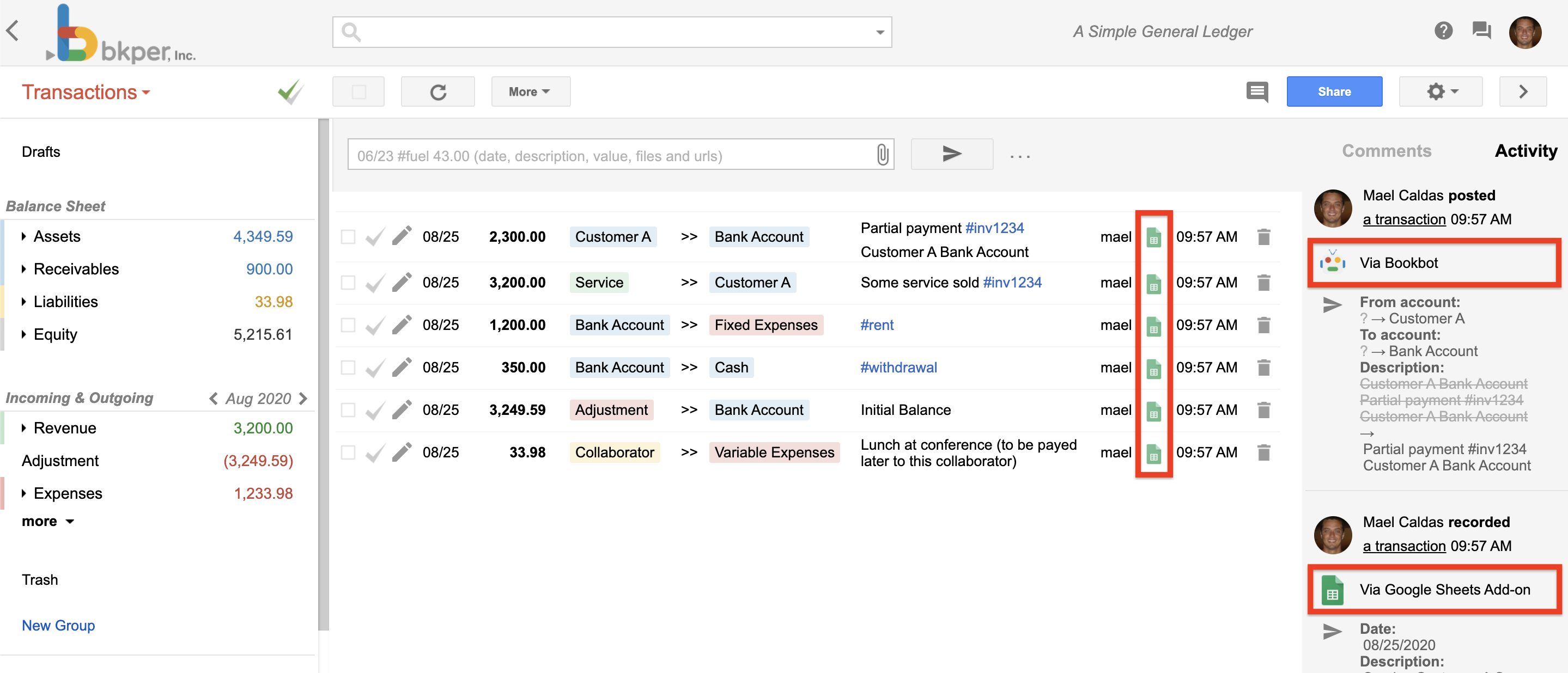
![Agents on Bkper](https://bkper.com/docs/_astro/bkper-app-agents.Dse93XFf.png)

## Bots vs AI Agents

The distinction between a "bot" and an "AI agent" is about capability, not a different type of Bkper primitive. Both are just apps:

| | **Bot** | **AI Agent** |
| --- | --- | --- |
| **Purpose** | Automating predefined tasks | Autonomously perform tasks |
| **Capabilities** | Follows rules; limited learning; basic interactions | Complex, multi-step actions; learns and adapts; makes decisions independently |
| **Interaction** | Reactive; responds to triggers or commands | Proactive; goal-oriented |

In Bkper, what people call "bots" are typically apps whose primary capability is [event handling](https://bkper.com/docs/build/apps/event-handlers.md) — reacting to things that happen in a book. AI agents go further, combining event handling with LLM reasoning to make decisions.

---
source: /docs/build/concepts/authentication.md

# Authentication

All Bkper API access uses [OAuth 2.0](https://developers.google.com/identity/protocols/oauth2) with the `email` scope. The approach depends on your environment.

## CLI and Node.js scripts

The simplest path. The CLI handles the OAuth flow and stores credentials locally.

```bash
bkper auth login
```

Then use `getOAuthToken()` as the auth provider for `bkper-js`:

```ts
import { Bkper } from 'bkper-js';
import { getOAuthToken } from 'bkper';

Bkper.setConfig({
    oauthTokenProvider: async () => getOAuthToken(),
});
```

This works for CLI scripts, Node.js automations, and local development of platform apps.

## Browser with an access token

For any browser environment, use `bkper-js` directly with a valid access token via CDN — no build tools required, works on **any domain**:

```html
<script src="https://cdn.jsdelivr.net/npm/bkper-js@2/dist/bkper.min.js"></script>
<script>
    const { Bkper } = bkperjs;

    async function listBooks(token) {
        Bkper.setConfig({
            oauthTokenProvider: async () => token,
        });
        const bkper = new Bkper();
        return await bkper.getBooks();
    }

    // Example: prompt for a token and list books
    document.addEventListener('DOMContentLoaded', () => {
        document.getElementById('go').addEventListener('click', async () => {
            const token = document.getElementById('token').value;
            const books = await listBooks(token);
            document.getElementById('output').textContent =
                books.map(b => b.getName()).join('\n');
        });
    });
</script>

<input id="token" placeholder="Paste your access token" />
<button id="go">List Books</button>
<pre id="output"></pre>
```

Get an access token via the [Bkper CLI](https://bkper.com/docs/build/tools/cli.md):

```bash
bkper auth login   # one-time setup
bkper auth token   # prints a token (valid for 1 hour)
```

Access tokens are automatically refreshed by the CLI and SDKs. When using a token directly (e.g. in a `<script>` tag or with `curl`), run `bkper auth token` again to get a fresh one.

## Web applications on the Bkper Platform

> **Note**
> `@bkper/web-auth` **only works on `*.bkper.app` subdomains**. Its session cookies are scoped to the `.bkper.app` domain and will not work on any other domain. For apps on other domains, use the [Browser with an access token](#browser-with-an-access-token) approach instead.
For apps hosted on `*.bkper.app` subdomains, use the [`@bkper/web-auth`](https://www.npmjs.com/package/@bkper/web-auth) SDK:

```ts
import { Bkper } from 'bkper-js';
import { BkperAuth } from '@bkper/web-auth';

const auth = new BkperAuth({
    onLoginSuccess: () => initializeApp(),
    onLoginRequired: () => showLoginButton(),
});
await auth.init();

Bkper.setConfig({
    oauthTokenProvider: async () => auth.getAccessToken(),
});
```

On the [Bkper Platform](https://bkper.com/docs/build/apps/overview.md), OAuth is pre-configured — no client IDs, redirect URIs, or consent screens to set up. Just use `auth.getAccessToken()` and the platform handles the rest.

See the [@bkper/web-auth API Reference](https://bkper.com/docs/api/bkper-web-auth.md) for the full SDK documentation.

## Google Apps Script

Authentication is handled automatically by the Apps Script runtime. The `bkper-gs` library uses the built-in OAuth token:

```js
function listBooks() {
    var books = BkperApp.getBooks();
    books.forEach(function (book) {
        Logger.log(book.getName());
    });
}
```

No additional authentication setup is needed. See [Apps Script Development](https://bkper.com/docs/build/google-workspace/apps-script.md) for library setup.

## Direct API calls

For any language or platform, send a Bearer token in the Authorization header:

```
Authorization: Bearer YOUR_ACCESS_TOKEN
```

The quickest way to get a token is via the CLI:

```bash
bkper auth token
```

Tokens expire after 1 hour. The CLI and SDKs handle refresh automatically; for direct usage, run the command again.

For custom OAuth 2.0 implementations, see the Google OAuth2 documentation:

- [Server-side Web Apps](https://developers.google.com/identity/protocols/oauth2/web-server)
- [JavaScript Web Apps](https://developers.google.com/identity/protocols/oauth2/javascript-implicit-flow)
- [Mobile and Desktop Apps](https://developers.google.com/identity/protocols/oauth2/native-app)

## Event handler authentication

When Bkper calls your event handler's webhook URL, it sends:

- `bkper-oauth-token` — An OAuth access token of the user who installed the app. Use this to call the API back on behalf of the user.
- `bkper-agent-id` — The app's agent identifier.

On the [Bkper Platform](https://bkper.com/docs/build/apps/overview.md), these headers are handled automatically. For [self-hosted](https://bkper.com/docs/build/apps/self-hosted.md) setups:

- **Cloud Functions** — The call comes from `bkper-hrd@appspot.gserviceaccount.com` with the user's OAuth token in the header.
- **Generic webhooks** — The call is signed with a JWT token using the [Service to Function](https://cloud.google.com/functions/docs/securing/authenticating#service-to-function) method.

> **Note**
> The development endpoint (`webhookUrlDev`) does **not** receive OAuth tokens. During local development on the Bkper Platform, the auth middleware in `vite.config.ts` handles token refresh for the client, using the CLI's stored credentials. For self-hosted setups, you need to authenticate locally.
## API keys (optional)

API keys are **not required** for authentication. They provide dedicated quota and project-level usage tracking.

If not provided, requests use a shared managed quota via the Bkper API proxy. The default shared quota is **60 requests per minute**.

```ts
Bkper.setConfig({
    oauthTokenProvider: async () => getOAuthToken(),
    apiKeyProvider: async () => process.env.BKPER_API_KEY,
});
```

See [Direct API Usage](https://bkper.com/docs/build/scripts/rest-api.md#custom-api-key) for API key setup instructions.

---
source: /docs/build/concepts/events.md

# Events

Bkper fires events whenever something changes in a Book — transactions created, accounts updated, collaborators added, and more. These events are the foundation for building automations with [event handlers](https://bkper.com/docs/build/apps/event-handlers.md).

## Subscribing to events

You declare which events your app receives in the `events` list of your [`bkper.yaml`](https://bkper.com/docs/build/apps/configuration.md):

```yaml
events:
    - TRANSACTION_CHECKED
    - TRANSACTION_POSTED
    - ACCOUNT_CREATED
```

When one of these events occurs in a Book where your app is installed, Bkper sends an HTTP POST to your configured webhook URL with the event payload.

## The Event object

When an event handler receives an event, the payload has the following structure:

```ts
{
    /** The id of the Book associated to the Event */
    bookId?: string;

    /** The Book object associated with the Event */
    book?: {
        agentId?: string;
        collection?: Collection;
        createdAt?: string;
        datePattern?: string;
        decimalSeparator?: "DOT" | "COMMA";
        fractionDigits?: number;
        id?: string;
        lastUpdateMs?: string;
        lockDate?: string;
        name?: string;
        ownerName?: string;
        pageSize?: number;
        period?: "MONTH" | "QUARTER" | "YEAR";
        periodStartMonth?: "JANUARY" | "FEBRUARY" | "MARCH" | "APRIL"
            | "MAY" | "JUNE" | "JULY" | "AUGUST" | "SEPTEMBER"
            | "OCTOBER" | "NOVEMBER" | "DECEMBER";
        permission?: "OWNER" | "EDITOR" | "POSTER" | "RECORDER"
            | "VIEWER" | "NONE";
        properties?: { [name: string]: string };
        timeZone?: string;
        timeZoneOffset?: number;
    };

    /** The user in charge of the Event */
    user?: {
        avatarUrl?: string;
        name?: string;
        username?: string;
    };

    /** The Event agent, such as the App, Bot or Bank institution */
    agent?: {
        id?: string;
        logo?: string;
        name?: string;
    };

    /** The creation timestamp, in milliseconds */
    createdAt?: string;

    /** The event data */
    data?: {
        /**
         * The object payload. Depends on the event type.
         * For example, ACCOUNT_CREATED receives an Account payload.
         */
        object?: any;
        /** The object previous attributes when updated */
        previousAttributes?: { [name: string]: string };
    };

    /** The unique id that identifies the Event */
    id?: string;

    /** The resource associated to the Event */
    resource?: string;

    /** The type of the Event */
    type?: EventType;
}
```

The event payload is the same structure exposed by the [REST API](https://bkper.com/docs/build/scripts/rest-api.md). If you use TypeScript, add the [`@bkper/bkper-api-types`](https://www.npmjs.com/package/@bkper/bkper-api-types) package to your project for full type definitions:

```ts
app.post('/', async c => {
    const event: bkper.Event = await c.req.json();
    // handle event...
});
```

## Event types

The list below is the complete current set of event types for API v5.

| Event                   | Description                                                     |
| ----------------------- | --------------------------------------------------------------- |
| `FILE_CREATED`          | A file was attached to the book.                                |
| `FILE_UPDATED`          | An attached file was updated.                                   |
| `TRANSACTION_CREATED`   | A draft transaction was created.                                |
| `TRANSACTION_UPDATED`   | A transaction was updated.                                      |
| `TRANSACTION_DELETED`   | A transaction was deleted.                                      |
| `TRANSACTION_POSTED`    | A draft transaction was posted and now affects balances.        |
| `TRANSACTION_CHECKED`   | A posted transaction was checked (reviewed and locked).         |
| `TRANSACTION_UNCHECKED` | A checked transaction was unchecked and becomes editable again. |
| `TRANSACTION_RESTORED`  | A deleted transaction was restored.                             |
| `ACCOUNT_CREATED`       | An account was created.                                         |
| `ACCOUNT_UPDATED`       | An account was updated.                                         |
| `ACCOUNT_DELETED`       | An account was deleted.                                         |
| `QUERY_CREATED`         | A saved query was created.                                      |
| `QUERY_UPDATED`         | A saved query was updated.                                      |
| `QUERY_DELETED`         | A saved query was deleted.                                      |
| `GROUP_CREATED`         | A group was created.                                            |
| `GROUP_UPDATED`         | A group was updated.                                            |
| `GROUP_DELETED`         | A group was deleted.                                            |
| `COMMENT_CREATED`       | A comment was added.                                            |
| `COMMENT_DELETED`       | A comment was deleted.                                          |
| `COLLABORATOR_ADDED`    | A collaborator was added to the book.                           |
| `COLLABORATOR_UPDATED`  | A collaborator's permissions were updated.                      |
| `COLLABORATOR_REMOVED`  | A collaborator was removed from the book.                       |
| `INTEGRATION_CREATED`   | An integration was created in the book.                         |
| `INTEGRATION_UPDATED`   | An integration was updated.                                     |
| `INTEGRATION_DELETED`   | An integration was deleted.                                     |
| `BOOK_CREATED`          | A book was created.                                             |
| `BOOK_AUDITED`          | A balances audit completed for the book.                        |
| `BOOK_UPDATED`          | Book settings were updated.                                     |
| `BOOK_DELETED`          | The book was deleted.                                           |

## Event data

The `data.object` field contains the resource that was affected. Its shape depends on the event type:

- **Transaction events**: The full Transaction object
- **Account events**: The full Account object
- **Group events**: The full Group object
- **Comment events**: The Comment object
- **Collaborator events**: The Collaborator object

For update events, `data.previousAttributes` contains the fields that changed and their previous values — useful for computing diffs or reacting only to specific field changes.

## The `agent` field

Every event includes information about which agent triggered it. This is important for [preventing loops](https://bkper.com/docs/build/apps/event-handlers.md#preventing-loops) — if your event handler creates a transaction, that will fire a new event, and you need to check `event.agent.id` to avoid reacting to your own actions.

---
source: /docs/build/examples.md

# Examples & Patterns

These are production apps built on Bkper, each demonstrating a different integration pattern. All are open source and available on GitHub.

## Tax Bot

[GitHub](https://github.com/bkper/bkper-tax-bot)

Calculates VAT, GST, and other taxes automatically when transactions are posted. Demonstrates **property-driven configuration** — tax rates and rules are stored in account and group properties, making the bot configurable per-book without code changes.

**What you'll learn:** Using account/group properties to drive behavior, creating related transactions automatically, working with transaction amounts.

## Exchange Bot

[GitHub](https://github.com/bkper/bkper-exchange-bot)

Converts transaction amounts between Books based on updated exchange rates and calculates realized gains and losses. Demonstrates **multi-book synchronization** — when a transaction is checked in one book, the bot creates corresponding entries in connected books.

**What you'll learn:** Mirroring transactions between books, working with exchange rates, gain/loss calculations, cross-book data flow.

## Portfolio Bot

[GitHub](https://github.com/bkper/bkper-portfolio-bot)

Keeps stocks/bonds instruments book in sync with financial books and calculates realized results using FIFO method. Demonstrates **quantity and instrument tracking** — managing financial instruments with both amounts and quantities.

**What you'll learn:** FIFO accounting patterns, tracking instruments with amounts and quantities, synchronized portfolio management.

## Inventory Bot

[GitHub](https://github.com/bkper/bkper-inventory-bot)

Calculates COGS (Cost of Goods Sold) automatically using FIFO method when inventory items are sold. Demonstrates **inventory management patterns** — tracking purchase and sale quantities to compute accurate costs.

**What you'll learn:** Inventory management patterns, purchase/sale quantity tracking, automatic COGS calculation.

## Subledger Bot

[GitHub](https://github.com/bkper/bkper-subledger-bot)

Manages hierarchical relationships between parent and subsidiary books, mapping accounts and groups across ledger levels. Demonstrates **hierarchical ledger relationships** — keeping consolidated and detailed views in sync.

**What you'll learn:** Parent-child book patterns, account/group mapping between books, consolidated reporting.

## Bkper Sheets

[GitHub](https://github.com/bkper/bkper-sheets)

The Google Sheets Add-on — extends Bkper with custom spreadsheet functions, data import/export, and formula-driven reporting. Demonstrates a full **Google Workspace integration**.

**What you'll learn:** Sheets add-on architecture, custom functions, data synchronization between Bkper and Sheets.

---
source: /docs/build/getting-started/agent-security.md

# Agent Security

AI coding agents are powerful but run with your permissions. A misconfigured agent can read credentials, overwrite files, or modify live financial data.

Three layers of protection keep your Bkper development safe:

[Image: Three layers of agent security: sandbox isolation restricts what the agent can reach, credential protection controls how the agent authenticates, and permission scoping limits what the agent can do in Bkper]

## Sandbox isolation

The most effective way to limit an agent is to run it inside a sandbox — a container, micro-VM, or OS-level boundary that restricts what it can reach.

[Image: Sandbox isolation: the agent can only access project files, CLI, and SDK inside the sandbox boundary, while credentials, SSH keys, and other sensitive files on the host machine remain unreachable]

Most agents support a "yolo" or auto-approve mode that skips permission prompts. The per-command approval model sounds safe but creates friction that kills productivity — agents frequently need to run builds, tests, and CLI commands. Pi Agent (and therefore Bkper Agent) runs in yolo mode by default.

Running in a sandbox makes this safe: **full autonomy inside a restricted boundary**.

### Built-in sandboxing

Some agents sandbox themselves without a container. [Claude Code](https://code.claude.com/docs/en/sandboxing) and [Codex](https://developers.openai.com/codex/concepts/sandboxing) both use OS-level primitives (Seatbelt on macOS, bubblewrap on Linux) to enforce filesystem and network isolation. If you use either, enable their sandbox mode before working with real data.

### Container-based sandboxing

For agents without built-in sandboxing — including Pi Agent and Bkper Agent — use a container. We use Docker with [DevContainers](https://containers.dev) and [DevPod](https://devpod.sh) to get reproducible, isolated environments that work the same way locally and in the cloud. Claude Code also publishes a [reference devcontainer](https://code.claude.com/docs/en/devcontainer) designed for autonomous operation with network allowlisting.

Other sandbox tools worth knowing about:

- [Docker Sandboxes](https://docs.docker.com/ai/sandboxes/) — microVM-based sandboxes built for coding agents, with host-side credential injection
- [Gondolin](https://earendil-works.github.io/gondolin/) — lightweight micro-VMs with programmable network egress and secret injection
- [Podman](https://podman.io) — rootless, daemonless Docker alternative

## Credential protection

Even inside a sandbox, the agent can access any credentials present in that environment. The Bkper CLI stores OAuth credentials (including a refresh token) at `~/.config/bkper/.bkper-credentials.json`. If the agent can read that file, it can make API calls as you.

### Host-side credential injection

The most secure option. Your credentials never enter the sandbox — an HTTP proxy on the host intercepts outbound API requests and injects authentication headers before forwarding them. [Docker Sandboxes](https://docs.docker.com/ai/sandboxes/security/credentials/) and [Gondolin](https://earendil-works.github.io/gondolin/) implement this pattern.

This works well with the Bkper CLI because only `bkper auth login` starts an interactive browser login. Regular CLI commands can proceed without local credentials and let the proxy add authentication.

### Login inside the sandbox, then logout cleanly

This is the simplest practical workflow for many teams. Authenticate inside the sandbox with a secondary low-permission account:

```bash
bkper auth login
```

When you are done, revoke the refresh token and remove the local credentials:

```bash
bkper auth logout
```

`bkper auth logout` does both:

- revokes the stored refresh token remotely when possible
- clears local credentials from disk

If remote revocation fails, the CLI still clears local credentials and warns that remote cleanup may need manual follow-up.

## Permission scoping

The Bkper CLI authenticates as the user who ran `bkper auth login`. If that user is the book owner, the agent has owner-level access — it can delete accounts, change sharing settings, and modify lock dates.

**Use a secondary account with limited permissions instead.** Log into the CLI with a different Google account (for example, a personal Gmail), then share the target book with that account at the appropriate level:

| Permission | What the agent can do | Good for |
| --- | --- | --- |
| **View Only** | Read accounts, transactions, and balances | Read-only scripts, reporting, analysis |
| **Record Only** | Create and delete drafts | Automated data entry with human review |
| **Record & View** | Record drafts, post transactions, view data | Most development and testing workflows |
| **Editor** | Full data management (accounts, groups, transactions) | Building apps that manage book structure |

Avoid granting **Owner** permission to the agent's account. Owner access allows sharing changes, closing-date modifications, and other irreversible operations that should remain under direct human control.

For the full permissions matrix, see [Book Sharing — Permissions](https://bkper.com/docs/guides/using-bkper/book-sharing.md#permissions).

### Combining layers

A typical secure setup:

1. **Sandbox** — agent runs inside a DevContainer, Docker Sandbox, or micro-VM with only the project directory mounted
2. **Credentials** — either injected from the host, or authenticated inside the sandbox and explicitly revoked with `bkper auth logout` when work is done
3. **Permissions** — CLI authenticated as a secondary account with Record & View access

No single layer is bulletproof, but together they limit exposure to a narrow, time-bound, permission-scoped window.

---
source: /docs/build/getting-started/building-with-ai.md

# Building with AI

AI coding agents are the fastest way to go from idea to working Bkper integration. They can scaffold projects, write SDK code, debug issues, and iterate with you in real time — as long as they have the right context about the platform.

Use whichever agent harness you're most comfortable with. They all work well. But we have a recommended starting point.

> **Caution: Security**
> Coding agents run with your permissions. Before using them with real Bkper data, read [Agent Security](https://bkper.com/docs/build/getting-started/agent-security.md) to understand container isolation, credential protection, and permission scoping.
## Bkper Agent (recommended)

The Bkper CLI ships with a built-in coding agent. It's powered by [Pi Agent](https://pi.dev) with a custom system prompt that gives it deep knowledge of Bkper — core concepts, the SDK, CLI commands, and the accounting model. It's what the Bkper team uses every day, and the choice of Pi as the engine was deliberate.

#### Why Pi

We spent over a year working heavily with coding agents — Claude Code, Cursor, OpenCode, Codex — before settling on Pi as the foundation for Bkper Agent. The reasoning comes down to three things:

- **Hackability** — Pi can be extended while it's running. Custom extensions, hot-reload with `/reload`, shape the agent to fit your project. Bkper Agent is itself an example: a Pi instance that reshaped itself for financial data, with the accounting model, SDK types, and CLI commands baked into its context. That kind of deep customization isn't possible with closed agents.

- **Context management** — `/tree` gives you a branching view of your entire session. When a line of exploration turns into a dead end, you go back to a previous branch instead of paying for that detour in tokens and degraded intelligence. For Bkper projects — where you're working across books, accounts, event handlers, and SDK types — keeping context focused directly affects output quality.

- **Model freedom** — 15+ providers (Anthropic, OpenAI, Google, and more). Pick the model that fits the task instead of being locked into one vendor.

> **Note: We're still early**
> Nobody knows what the ideal AI coding workflow looks like yet. Pi's bet — give developers a minimal, hackable foundation instead of an opinionated black box — matches how we think about developer tools at Bkper. [Lucas Meijer's talk](https://youtu.be/fdbXNWkpPMY?t=796) captures this mindset well:
<div style="position: relative; padding-bottom: 56.25%; height: 0; overflow: hidden; margin-bottom: 1.5rem;">
  <iframe style="position: absolute; top: 0; left: 0; width: 100%; height: 100%; border: 4px solid lightgrey; border-radius: 8px; box-shadow: 0 4px 8px rgba(0,0,0,0.1);" src="https://www.youtube.com/embed/fdbXNWkpPMY?start=796" frameborder="0" allow="accelerometer; autoplay; clipboard-write; encrypted-media; gyroscope; picture-in-picture" allowfullscreen></iframe>
</div>

Make sure the [CLI is installed and authenticated](https://bkper.com/docs/build/getting-started/setup.md), then start the agent:

```bash
bkper agent
```

> **Tip: Windows users**
> Run the agent inside [WSL](https://learn.microsoft.com/en-us/windows/wsl/install) for the best experience. Terminal agents rely on Linux tooling that works more reliably under WSL than native Windows. Clone your project into the WSL filesystem (e.g. `~/code/`) for best performance — Windows files are also accessible via `/mnt/c/`.
#### Connect a model provider

The agent needs access to a language model. On first launch, type `/login` and select a provider. We recommend **GitHub Copilot** — if you have a GitHub account with Copilot enabled, it gives you access to Claude, GPT, and Gemini models with no extra API keys.

Once logged in, you're in an interactive session. The agent can read your project files, run CLI commands, write code, and iterate with you — all with Bkper context already loaded.

#### Start asking questions

Just talk to it. Good starting prompts:

- `What are the main account types in Bkper?`
- `How do I query transactions using the CLI?`
- `What files are in this project?`
- `Help me create a script that lists all accounts in my book`

The agent reads your project's `AGENTS.md` and nearby files automatically, so it already has project-specific context. Since Bkper Agent wraps [Pi Agent](https://pi.dev), you can pass any Pi flag through — `--model`, `--continue`, `@file` references, and so on.

## Other coding agents

Any coding agent can build effectively with Bkper when given the right context. Here are the ones we've used and recommend:

| Agent | Type | Models | What it is |
| --- | --- | --- | --- |
| [Pi Agent](https://pi.dev) | Terminal | 15+ providers — Anthropic, OpenAI, Google, and more | Minimal, extensible harness — the engine behind Bkper Agent |
| [Claude Code](https://claude.com/product/claude-code) | Terminal, Desktop, IDE | Claude models | Anthropic's full-featured agent across all surfaces |
| [OpenCode](https://opencode.ai) | Terminal, Desktop, IDE | 75+ providers — free models included, works with Copilot and ChatGPT subscriptions | Open-source agent with the largest provider ecosystem |
| [Codex](https://github.com/openai/codex) | Terminal, Desktop, IDE | OpenAI — works with your ChatGPT plan | OpenAI's open-source coding agent |
| [Cursor](https://cursor.com) | Terminal, Desktop, IDE | Multiple providers built in | AI-native code editor with a terminal agent |

Each tool has its own way of loading project context. The next section explains how to provide Bkper knowledge to any of them.

## Giving your agent context

The Bkper Agent has context built in. For other agents, you need to provide it. Bkper makes this straightforward.

### Markdown access to all docs

Every page on bkper.com is available as clean Markdown — append `.md` to any URL:

```
https://bkper.com/docs/core-concepts.md
https://bkper.com/docs/api/bkper-js.md
https://bkper.com/docs/build.md
```

This strips navigation chrome and reduces token usage. See [AI Tooling](https://bkper.com/docs/ai-tooling.md) for all access methods.

### Published context URLs

Three URLs cover most Bkper development needs:

| URL | What it covers |
| --- | --- |
| [`/platform/agents.md`](https://bkper.com/platform/agents.md) | Technical instincts, quality standards, domain sensibilities |
| [`/docs/core-concepts.md`](https://bkper.com/docs/core-concepts.md) | The from-to model, account types, transactions, groups, queries |
| [`/docs/api/bkper-js.md`](https://bkper.com/docs/api/bkper-js.md) | Full bkper-js SDK reference with TypeScript types |

Use whichever combination your project needs. A script that only reads data might need core concepts and the SDK. A full app that handles events would benefit from all three.

### Project-level context files

For project-specific knowledge — which book you're working with, what accounts matter, what tags to use — add it to your agent's context file (`AGENTS.md`, `CLAUDE.md`, or equivalent):

```markdown
## Project context

- Book ID: abc123-def456
- Key accounts: Checking, Sales, Accounts Receivable
- Common tags: #invoice, #payment, #reconciled

## Rules

- All automated transactions must be created as drafts
- Use the #sync tag on all imported transactions
```

This gives the agent project-specific knowledge that no published doc can provide.

## Next steps

- [Your First App](https://bkper.com/docs/build/getting-started/first-app.md) — build and deploy a full Bkper app (a great task to pair with an AI agent)
- [CLI Scripting & Piping](https://bkper.com/docs/build/scripts/cli-pipelines.md) — automate data workflows with CLI pipes
- [Apps Overview](https://bkper.com/docs/build/apps/overview.md) — understand the Bkper Platform architecture

---
source: /docs/build/getting-started/first-app.md

# Your First App

This tutorial walks you through building and deploying a Bkper app from scratch. You'll use the [Bkper Platform](https://bkper.com/docs/build/apps/overview.md) — managed hosting, pre-configured OAuth, and automatic dev tunnels — so you can focus entirely on business logic.

By the end, you'll have a working app live at `https://my-app.bkper.app` that displays account balances and reacts to transaction events.

## Prerequisites

Make sure you've completed [Development Setup](https://bkper.com/docs/build/getting-started/setup.md) — the CLI installed and authenticated.

## Walkthrough

1. **Create from the template**

    ```bash
    bkper app init my-app
    cd my-app
    ```

    This scaffolds a new project from the official template. The structure you get:

    ```
    my-app/
    ├── bkper.yaml                    ← Your entire infrastructure config
    ├── vite.config.ts                ← Client dev server & build config
    ├── env.d.ts                      ← Auto-generated type definitions
    ├── .dev.vars.example             ← Template for local secrets
    └── packages/
        ├── shared/                   ← Shared types and utilities
        ├── web/
        │   ├── client/               ← Frontend UI (Lit + Vite)
        │   └── server/               ← Backend API (Hono on Workers)
        └── events/                   ← Event handlers (webhooks)
    ```

2. **Look at `bkper.yaml`**

    Open `bkper.yaml` — this single file is your entire infrastructure configuration:

    ```yaml
    id: my-app
    name: My App
    description: A Bkper app that does something useful

    # Context menu entry in Bkper
    menuUrl: https://my-app.bkper.app?bookId=${book.id}
    menuUrlDev: http://localhost:8787?bookId=${book.id}

    # Event subscriptions
    webhookUrl: https://my-app.bkper.app/events
    events:
        - TRANSACTION_CHECKED

    # Deployment config
    deployment:
        web:
            main: packages/web/server/src/index.ts
            client: packages/web/client
        events:
            main: packages/events/src/index.ts
        services:
            - KV
        secrets:
            - BKPER_API_KEY
    ```

    This declares hosting, OAuth integration, event subscriptions, KV storage, and secrets — no cloud console required.

    See [App Configuration](https://bkper.com/docs/build/apps/configuration.md) for the full `bkper.yaml` reference.

3. **Start developing**

    ```bash
    npm run dev
    ```

    This runs two processes concurrently:
    - **Vite dev server** — hot module replacement for your UI
    - **Worker runtime** — Miniflare simulates Cloudflare Workers locally, with a Cloudflare tunnel so Bkper can send webhooks to your laptop

    You'll see output like:

    ```
    [vite]   Local: http://localhost:5173/
    [bkper]  Events: https://a1b2c3.trycloudflare.com/events (tunneled)
    ```

4. **See the running app**

    Open [http://localhost:5173](http://localhost:5173).

    You're greeted with a book picker — no login screen, no redirect, no auth setup. The platform handled OAuth automatically. Select a book to see account balances.

    The client code that makes this work is about 30 lines in `packages/web/client/src/components/my-app.ts`:

    ```ts
    private auth = new BkperAuth({
      onLoginSuccess: () => this.loadData(),
      onLoginRequired: () => this.auth.login(),
    });

    private async loadData() {
      this.bkper = new Bkper({
        oauthTokenProvider: async () => this.auth.getAccessToken(),
      });
      this.user = await this.bkper.getUser();
      this.books = await this.bkper.getBooks();
    }
    ```

    That's all the auth code you write. The platform provides the token endpoint, consent screen, and refresh handling.

5. **Trigger an event**

    Go to your Bkper book and check (reconcile) any transaction.

    Back in your terminal, you'll see the event handler fire. The template handler in `packages/events/src/handlers/transaction-checked.ts` creates a 20% draft transaction:

    ```ts
    export async function handleTransactionChecked(
        book: Book,
        event: bkper.Event
    ): Promise {
        if (!event.data) return { result: false };

        const operation = event.data.object as bkper.TransactionOperation;
        const tx = operation.transaction;

        if (!tx) return { result: false };

        // Prevent loops — skip transactions created by this app
        if (event.agent?.id === 'my-app') return { result: false };

        const newAmount = Number(tx.amount) * 0.2;

        const draft = new Transaction(book)
            .setDate(tx.date)
            .setAmount(newAmount)
            .setDescription(`20% of ${tx.description}`)
            .setCreditAccount(tx.creditAccount)
            .setDebitAccount(tx.debitAccount);

        await draft.create();
        return { result: `Created draft: 20% of ${tx.description}` };
    }
    ```

    The event arrived via the Cloudflare tunnel the CLI started — no manual ngrok setup, no URL configuration.

6. **Make a change**

    Edit the handler to use 10% instead of 20%:

    ```ts
    const newAmount = Number(tx.amount) * 0.1; // changed from 0.2
    ```

    Save the file. The Workers runtime reloads automatically. Check another transaction — you'll see the new 10% amount.

7. **Deploy to production**

    ```bash
    npm run build
    bkper app sync
    bkper app deploy
    ```

    This builds both client and workers, syncs metadata from `bkper.yaml`, then deploys code to the platform:

    ```
    ✓ Built web server
    ✓ Built events handler
    ✓ Deployed to https://my-app.bkper.app
    ```

    Your app is now live. Bkper will route production webhook events to `https://my-app.bkper.app/events`.

    The template also includes `npm run deploy` as a convenience shortcut for build + code deploy. When you change `bkper.yaml`, run `bkper app sync` as well.

## What just happened

You built and deployed a full Bkper app. Here's what you wrote versus what the platform handled:

| You wrote                                 | Platform handled                             |
| ----------------------------------------- | -------------------------------------------- |
| ~30 lines: book picker + account list UI  | OAuth client registration and consent screen |
| ~40 lines: event handler (business logic) | Token endpoint and refresh                   |
| `bkper.yaml`: infrastructure as config    | Global edge hosting (`my-app.bkper.app`)     |
|                                           | Webhook routing and delivery                 |
|                                           | Dev tunnel (webhooks on localhost)           |
|                                           | KV storage provisioning                      |
|                                           | SSL certificates                             |
|                                           | `env.d.ts` type generation                   |

The platform handles the infrastructure. You handle the logic.

## Next steps

- [App Architecture](https://bkper.com/docs/build/apps/architecture.md) — Understand the three-package pattern in depth
- [Development Experience](https://bkper.com/docs/build/apps/development.md) — Full reference for `bkper app dev`
- [Building & Deploying](https://bkper.com/docs/build/apps/deploying.md) — Deployment workflow, preview environments, secrets
- [Event Handlers](https://bkper.com/docs/build/apps/event-handlers.md) — All event types and how to handle them
- [App Configuration](https://bkper.com/docs/build/apps/configuration.md) — Full `bkper.yaml` reference

---
source: /docs/build/getting-started/quick-wins.md

# Quick Wins

You've [set up your environment](https://bkper.com/docs/build/getting-started/setup.md). Here are three ways to start building immediately — from a 1-line shell command to a 20-line script.

## CLI piping

Copy all accounts from one book to another in a single line:

```bash
bkper account list -b $SOURCE_BOOK --format json | bkper account create -b $DEST_BOOK
```

The CLI outputs JSON that feeds directly into the next command. No code, no setup beyond the CLI itself.

Add a property to every matching transaction:

```bash
bkper transaction list -b $BOOK -q "account:Expenses" --format json | \
  bkper transaction update -b $BOOK -p "reviewed=true"
```

See [CLI Scripting & Piping](https://bkper.com/docs/build/scripts/cli-pipelines.md) for more patterns.

## Node.js script

A short script that lists all accounts with their current balances:

```ts
import { Bkper } from 'bkper-js';
import { getOAuthToken } from 'bkper';

Bkper.setConfig({
    oauthTokenProvider: async () => getOAuthToken(),
});

const bkper = new Bkper();
const book = await bkper.getBook('your-book-id');
const report = await book.getBalancesReport('');
const containers = report.getBalancesContainers();

for (const container of containers) {
    console.log(`${container.getName()}: ${container.getCumulativeBalance()}`);
}
```

Run it:

```bash
npm install bkper-js bkper
node script.mjs
```

See [Node.js Scripts](https://bkper.com/docs/build/scripts/node-scripts.md) for more examples.

## Direct API call

Call the REST API from any language. Here's a `curl` example:

```bash
# Get your OAuth token (after running bkper auth login)
TOKEN=$(bkper auth token)

# List your books
curl -s -H "Authorization: Bearer $TOKEN" \
  https://api.bkper.app/v5/books | jq '.items[].name'
```

See [Direct API Usage](https://bkper.com/docs/build/scripts/rest-api.md) for the full guide.

## What next?

These quick wins are just the beginning. Depending on what you want to build:

- **More automation** — [CLI Scripting & Piping](https://bkper.com/docs/build/scripts/cli-pipelines.md) for shell-based workflows, [Node.js Scripts](https://bkper.com/docs/build/scripts/node-scripts.md) for complex logic
- **A full app** — [Your First App](https://bkper.com/docs/build/getting-started/first-app.md) to build and deploy an app with UI and event handling on the [Bkper Platform](https://bkper.com/docs/build/apps/overview.md)
- **Google Workspace** — [Apps Script Development](https://bkper.com/docs/build/google-workspace/apps-script.md) for Sheets automation and triggers

---
source: /docs/build/getting-started/setup.md

# Development Setup

Everything you build on Bkper starts with the CLI. It handles authentication, provides the `bkper-js` library for programmatic access, and manages the full app lifecycle.

## Prerequisites

- [Node.js](https://nodejs.org/) >= 18

## Install and authenticate

1. **Install the CLI**

   ```bash
   npm i -g bkper
   ```

2. **Authenticate**

   ```bash
   bkper auth login
   ```

   This opens your browser for Google OAuth authentication. Once complete, the CLI stores your credentials locally. All API calls — from the CLI, from scripts, and from `bkper-js` — use this token. To clean up later, run `bkper auth logout`, which revokes the stored refresh token when possible and clears local credentials.

3. **Verify**

   ```bash
   bkper book list
   ```

   You should see a list of your Bkper Books. If you do, you're ready to build.

## What you now have

After setup, you have:

- **CLI commands** — Manage books, accounts, transactions, and apps from the terminal. Run `bkper --help` for the full command list.
- **Auth provider for scripts** — Use `getOAuthToken()` from the `bkper` package in any Node.js script:

  ```ts
  import { Bkper } from 'bkper-js';
  import { getOAuthToken } from 'bkper';

  Bkper.setConfig({
      oauthTokenProvider: async () => getOAuthToken(),
  });
  ```

- **App development tools** — Initialize, develop, and deploy platform apps with `bkper app` commands.

## Optional: API key

For dedicated API quota and project-level usage tracking, you can configure your own API key. This is optional — the default shared quota (60 requests per minute) works for most use cases.

See [Direct API Usage](https://bkper.com/docs/build/scripts/rest-api.md#custom-api-key) for setup instructions.

## Next steps

- [Quick Wins](https://bkper.com/docs/build/getting-started/quick-wins.md) — The fastest ways to create value with Bkper programmatically
- [Your First App](https://bkper.com/docs/build/getting-started/first-app.md) — Build and deploy a platform app
- [CLI reference](https://bkper.com/docs/build/tools/cli.md) — Overview of CLI capabilities

---
source: /docs/build/google-workspace/apps-script.md

# Apps Script Development

[Google Apps Script](https://developers.google.com/apps-script) is Google's serverless platform for extending Google Workspace. With the `bkper-gs` library, you can build Bkper automations that run inside Google's infrastructure — no servers, no deployment pipeline, and native access to Sheets, Drive, Calendar, and Gmail.

## When to use Apps Script

Use Apps Script when your automation lives in the Google Workspace ecosystem:

- Scheduled jobs that read from or write to Google Sheets
- Spreadsheet triggers (on-edit, on-form-submit) that record transactions
- Custom add-ons distributed to a team or domain
- Workflows that combine Bkper with other Google services (Drive, Calendar, Gmail)

If you need real-time event handling, a web UI, or automation that runs outside Google Workspace, use [Node.js scripts](https://bkper.com/docs/build/scripts/node-scripts.md) or a [platform app](https://bkper.com/docs/build/apps/overview.md) instead.

### Add the library

`bkper-gs` is published as an Apps Script library. To add it to your script:

1. Open your script in the [Apps Script editor](https://script.google.com)
2. Click **+** next to **Libraries** in the left-side panel
3. In the "Script ID" field, enter:
   ```
   1hMJszJGSUVZDB3vmsWrUZfRhY1UWbhS0SQ6Lzl06gm1zhBF3ioTM7mpJ
   ```
4. Click **Look up**, choose the latest version, and click **Add**

The `BkperApp` global is now available in your script.

### TypeScript definitions

For TypeScript development with autocomplete, install the type definitions:

```bash
npm i -S @bkper/bkper-gs-types
```

Configure `tsconfig.json`:

```json
{
  "compilerOptions": {
    "typeRoots": ["node_modules/@bkper", "node_modules/@types"]
  }
}
```

See [Develop Apps Script using TypeScript](https://developers.google.com/apps-script/guides/typescript) and use [clasp](https://github.com/google/clasp) to push TypeScript projects to Apps Script.

## The BkperApp entry point

`BkperApp` works the same way as `CalendarApp`, `DocumentApp`, and `SpreadsheetApp` — it's a global entry point that follows familiar Apps Script conventions.

The book ID comes from the URL when you open a book at [bkper.com](https://bkper.com):

```js
// Get a book by its ID (from the URL)
const book = BkperApp.getBook('agtzfmJrcGVyLWhyZHIOCxIGTGVkZ2VyGNKJAgw');
```

### Get a book

```js
function getBookName() {
  const book = BkperApp.getBook('agtzfmJrcGVyLWhyZHIOCxIGTGVkZ2VyGNKJAgw');
  Logger.log(book.getName());
}
```

### Record a transaction

```js
function recordTransaction() {
  const book = BkperApp.getBook('agtzfmJrcGVyLWhyZHIOCxIGTGVkZ2VyGNKJAgw');
  book.record('#gas 63.23');
}
```

Transactions use the same [shorthand syntax](https://bkper.com/docs/guides/using-bkper/record-transactions.md) you'd use in the Bkper UI.

### Batch record transactions

For bulk operations, pass an array. The library sends all records in a single API call — important for avoiding Apps Script execution time limits:

```js
function importExpenses() {
  const book = BkperApp.getBook('agtzfmJrcGVyLWhyZHIOCxIGTGVkZ2VyGNKJAgw');

  const transactions = [
    '#breakfast 15.40',
    '#lunch 27.45',
    '#dinner 35.86',
  ];

  book.record(transactions);
}
```

### Query transactions

The `getTransactions()` method returns a `TransactionIterator` for handling large datasets without loading everything into memory:

```js
function listTransactions() {
  const book = BkperApp.getBook('agtzfmJrcGVyLWhyZHIOCxIGTGVkZ2VyGNKJAgw');

  const iterator = book.getTransactions("account:'Bank' after:01/01/2024");

  while (iterator.hasNext()) {
    const transaction = iterator.next();
    Logger.log(transaction.getDescription());
  }
}
```

See [Querying Transactions](https://bkper.com/docs/guides/using-bkper/query-transactions.md) for the full query syntax.

### List accounts with balances

```js
function listAccountBalances() {
  const book = BkperApp.getBook('agtzfmJrcGVyLWhyZHIOCxIGTGVkZ2VyGNKJAgw');

  const accounts = book.getAccounts();
  for (const account of accounts) {
    if (account.isPermanent() && account.isActive()) {
      Logger.log(`${account.getName()}: ${account.getBalance()}`);
    }
  }
}
```

## Building triggers

Apps Script triggers let your automation run on a schedule or respond to spreadsheet events — without any always-on infrastructure.

### Time-based (scheduled)

```js
function setupDailySync() {
  ScriptApp.newTrigger('syncTransactions')
    .timeBased()
    .everyDays(1)
    .atHour(6)
    .create();
}

function syncTransactions() {
  const book = BkperApp.getBook('YOUR_BOOK_ID');
  const sheet = SpreadsheetApp.openById('YOUR_SHEET_ID').getActiveSheet();

  // Read rows from Sheets, record to Bkper
  const rows = sheet.getDataRange().getValues();
  const transactions = rows.slice(1).map(row => `${row[0]} ${row[1]} ${row[2]}`);
  book.record(transactions);
}
```

### Spreadsheet edit trigger

```js
function onEdit(e) {
  const sheet = e.source.getActiveSheet();
  if (sheet.getName() !== 'Expenses') return;

  const row = e.range.getRow();
  const amount = sheet.getRange(row, 3).getValue();
  const description = sheet.getRange(row, 2).getValue();

  if (amount && description) {
    const book = BkperApp.getBook('YOUR_BOOK_ID');
    book.record(`${description} ${amount}`);
  }
}
```

## TypeScript development workflow

For non-trivial scripts, use [clasp](https://github.com/google/clasp) for local development with TypeScript:

```bash
# Install clasp
npm install -g @google/clasp

# Log in
clasp login

# Clone an existing script
clasp clone <scriptId>

# Push changes
clasp push

# Watch for changes
clasp push --watch
```

With `@bkper/bkper-gs-types` configured, your editor provides full autocomplete for `BkperApp`, `Book`, `Transaction`, `Account`, and all other bkper-gs types.

## API reference

The complete `bkper-gs` reference is at [bkper.com/docs/bkper-gs](https://bkper.com/docs/bkper-gs/).

## Related

- [Building Sheets Integrations](https://bkper.com/docs/build/google-workspace/google-sheets.md) — Custom Sheets automations with bkper-gs
- [Node.js Scripts](https://bkper.com/docs/build/scripts/node-scripts.md) — When you need automation outside Google Workspace
- [Guides → Google Sheets Add-on](https://bkper.com/docs/guides/google-sheets.md) — End-user guide for recording and fetching data with the Bkper add-on

---
source: /docs/build/google-workspace/google-sheets.md

# Building Sheets Integrations

The [Bkper Add-on for Google Sheets](https://bkper.com/docs/guides/google-sheets.md) lets users record transactions and fetch data with built-in functions. This page covers the next level: building *custom* Sheets integrations with `bkper-gs` — automated pipelines, custom menus, scheduled reports, and two-way sync.

See [Apps Script Development](https://bkper.com/docs/build/google-workspace/apps-script.md) first to set up `bkper-gs` and understand the fundamentals.

## The boundary: add-on vs custom integrations

The built-in add-on covers the common cases well. Build a custom integration when:

- You need a **custom menu** tailored to your team's workflow
- You want **automated pipelines** that run on a schedule without user interaction
- You're building a **specialized report** that the standard functions don't cover
- You need **two-way sync** between a spreadsheet and Bkper (data flowing both directions)
- You're distributing a **custom add-on** to your domain or organization

## Custom menu functions

Add a Bkper-powered menu to any Google Sheet. Users can trigger operations directly from the spreadsheet without opening Bkper.

```js
function onOpen() {
  SpreadsheetApp.getUi()
    .createMenu('Bkper')
    .addItem('Import expenses from this sheet', 'importExpenses')
    .addItem('Fetch account balances', 'fetchBalances')
    .addSeparator()
    .addItem('Sync all', 'syncAll')
    .addToUi();
}

function importExpenses() {
  const sheet = SpreadsheetApp.getActiveSpreadsheet().getSheetByName('Expenses');
  const book = BkperApp.getBook(getBookId());

  const rows = sheet.getDataRange().getValues().slice(1); // skip header
  const transactions = rows
    .filter(row => row[0] && row[1] && row[2])     // date, description, amount
    .map(row => `${row[1]} ${row[2]} ${row[0]}`);  // "description amount date"

  book.record(transactions);
  SpreadsheetApp.getUi().alert(`Imported ${transactions.length} transactions.`);
}
```

### Sheets → Bkper (import)

Pull structured data from a spreadsheet and create transactions in bulk. Useful for importing bank exports, expense reports, or any data that lives in Sheets first.

```js
function importFromSheet() {
  const ss = SpreadsheetApp.openById('YOUR_SHEET_ID');
  const sheet = ss.getSheetByName('Transactions');
  const book = BkperApp.getBook('YOUR_BOOK_ID');

  const rows = sheet.getDataRange().getValues();
  const header = rows[0];
  const dateCol = header.indexOf('Date');
  const descCol = header.indexOf('Description');
  const amountCol = header.indexOf('Amount');
  const importedCol = header.indexOf('Imported');

  const toImport = [];

  for (let i = 1; i < rows.length; i++) {
    const row = rows[i];
    if (row[importedCol]) continue; // skip already imported

    const date = Utilities.formatDate(new Date(row[dateCol]), 'UTC', 'dd/MM/yyyy');
    toImport.push({
      row: i + 1,
      tx: `${row[descCol]} ${row[amountCol]} ${date}`,
    });
  }

  if (toImport.length === 0) return;

  book.record(toImport.map(item => item.tx));

  // Mark rows as imported
  for (const item of toImport) {
    sheet.getRange(item.row, importedCol + 1).setValue(true);
  }
}
```

### Bkper → Sheets (export/reporting)

Write Bkper data into a spreadsheet for dashboards, analysis, or sharing with stakeholders who work in Sheets.

```js
function exportBalancesToSheet() {
  const book = BkperApp.getBook('YOUR_BOOK_ID');
  const sheet = SpreadsheetApp.getActiveSpreadsheet()
    .getSheetByName('Balances');

  sheet.clearContents();
  sheet.appendRow(['Account', 'Balance']);

  const accounts = book.getAccounts();
  for (const account of accounts) {
    if (account.isPermanent() && account.isActive()) {
      sheet.appendRow([account.getName(), account.getBalance()]);
    }
  }
}
```

## Scheduled reporting

Use time-based triggers to run reports on a schedule — no user needs to be logged in.

```js
function setupWeeklyReport() {
  // Run every Monday at 8am
  ScriptApp.newTrigger('generateWeeklyReport')
    .timeBased()
    .onWeekDay(ScriptApp.WeekDay.MONDAY)
    .atHour(8)
    .create();
}

function generateWeeklyReport() {
  const book = BkperApp.getBook('YOUR_BOOK_ID');
  const ss = SpreadsheetApp.openById('YOUR_REPORT_SHEET_ID');
  const sheet = ss.getSheetByName('Weekly') || ss.insertSheet('Weekly');

  const lastWeek = new Date();
  lastWeek.setDate(lastWeek.getDate() - 7);
  const from = Utilities.formatDate(lastWeek, 'UTC', 'MM/dd/yyyy');

  sheet.clearContents();
  sheet.appendRow(['Description', 'Amount', 'Date', 'Account']);

  const iterator = book.getTransactions(`after:${from}`);
  while (iterator.hasNext()) {
    const tx = iterator.next();
    sheet.appendRow([
      tx.getDescription(),
      tx.getAmount(),
      tx.getDateFormatted(),
      tx.getCreditAccount()?.getName(),
    ]);
  }
}
```

## Working with Custom Properties

Custom Properties let you attach metadata to Bkper entities (accounts, transactions). Use them as a sync key between Sheets and Bkper to avoid duplicates and enable updates.

```js
// Store a Sheets row ID on a transaction as a custom property
function recordWithSheetId(book, txString, sheetRowId) {
  const transaction = book.newTransaction()
    .setDate(new Date())
    .setAmount(100)
    .setDescription(txString)
    .setProperty('sheet_row_id', sheetRowId);

  transaction.create();
}

// Later, look up transactions by their sheet row ID
function findBySheetId(book, sheetRowId) {
  const iterator = book.getTransactions(`properties.sheet_row_id:${sheetRowId}`);
  return iterator.hasNext() ? iterator.next() : null;
}
```

This pattern enables idempotent sync: check if a transaction already exists before creating it, and update rather than duplicate.

## When to move beyond Sheets

Google Sheets is powerful, but it has limits. Consider a [platform app](https://bkper.com/docs/build/apps/overview.md) when:

- You need **real-time event handling** — platform apps get webhook events pushed instantly; Sheets triggers have latency and quota limits
- You need **a web UI** outside of Sheets — platform apps get `{appId}.bkper.app` with full auth
- Your automation needs to **run at scale** — Workers have no cold starts and higher execution limits than Apps Script
- You want to **publish to all Bkper users** — platform apps appear in the Bkper app listing; Sheets add-ons have a separate distribution model

## Related

- [Apps Script Development](https://bkper.com/docs/build/google-workspace/apps-script.md) — Setting up `bkper-gs`, BkperApp patterns, triggers
- [The Bkper Platform](https://bkper.com/docs/build/apps/overview.md) — When to build a full platform app
- [Guides → Google Sheets Add-on](https://bkper.com/docs/guides/google-sheets.md) — End-user guide for the built-in add-on

---
source: /docs/build/scripts/cli-pipelines.md

# CLI Scripting & Piping

The Bkper CLI is designed for scripting. Every command supports multiple output formats, and selected write commands accept piped JSON input — making it easy to build data pipelines, batch operations, and automated workflows.

## Output formats

All commands support three output formats via the `--format` global flag:

| Format | Flag                       | Best for                                |
| ------ | -------------------------- | --------------------------------------- |
| Table  | `--format table` (default) | Human reading in the terminal           |
| JSON   | `--format json`            | Programmatic access, single-item detail |
| CSV    | `--format csv`             | Spreadsheets, AI agents, data pipelines |

```bash
# Table output (default)
bkper account list -b abc123

# JSON output
bkper account list -b abc123 --format json

# CSV output -- raw data, no truncation, RFC 4180
bkper account list -b abc123 --format csv
```

**CSV output details:**

- RFC 4180 compliant — proper quoting, CRLF line endings, no truncation
- All metadata included — IDs, properties, hidden properties, URLs, and timestamps
- Raw values — dates in ISO format, numbers unformatted

> **Tip: AI agent guidance**
> When using the CLI from an AI agent or automated script, prefer `--format csv` for list commands, `--format json` for single-item commands (`get`, `create`, `update`), and stdin piping for batch operations.
## Query semantics quick reference

Use these rules in scripts to avoid ambiguous or empty results:

- `on:` supports year, month, and day (`on:2025`, `on:2025-01`, `on:2025-01-31`).
- `after:` is **inclusive** and `before:` is **exclusive**.
- A full-year range uses next-year boundary:
    - `after:2025-01-01 before:2026-01-01`

```bash
# Full year with on:
bkper transaction list -b $BOOK_ID -q "on:2025" --format csv

# Same full year with explicit boundaries
bkper transaction list -b $BOOK_ID -q "after:2025-01-01 before:2026-01-01" --format csv
```

## Batch operations

Write commands (`account create`, `transaction create`, `transaction update`) accept JSON piped via stdin. The input format follows the [Bkper API Types](https://raw.githubusercontent.com/bkper/bkper-api-types/refs/heads/master/index.d.ts) — a single JSON object or an array of objects.

Groups are created explicitly with `bkper group create --name` and optional `--parent`, so hierarchy stays deterministic.

### Creating in batch

```bash
# Create transactions from JSON
echo '[{
  "date": "2025-01-15",
  "amount": "100.50",
  "creditAccount": {"name": "Bank Account"},
  "debitAccount": {"name": "Office Supplies"},
  "description": "Printer paper",
  "properties": {"invoice": "INV-001"}
}]' | bkper transaction create -b abc123

# Create accounts
echo '[{"name":"Cash","type":"ASSET"},{"name":"Revenue","type":"INCOMING"}]' | \
  bkper account create -b abc123

# Create a group explicitly
bkper group create -b abc123 --name "Fixed Costs" --hidden

# Pipe from any script that outputs JSON
python export_bank.py | bkper transaction create -b abc123
```

Batch results are output as a flat JSON array:

```bash
bkper account create -b abc123 < accounts.json
# [{"id":"acc-abc","name":"Cash",...}, {"id":"acc-def","name":"Revenue",...}]
```

### Adding properties via CLI flag

The `--property` flag can add or override properties from the stdin payload:

```bash
echo '[{"name":"Cash","type":"ASSET"}]' | \
  bkper account create -b abc123 -p "region=LATAM"
```

## Piping between commands

All JSON output is designed to feed directly into other commands. This is the most powerful pattern — combining commands into pipelines:

### Copy data between books

```bash
# Copy all accounts from one book to another
bkper account list -b $BOOK_A --format json | bkper account create -b $BOOK_B

# Copy transactions matching a query
bkper transaction list -b $BOOK_A -q "after:2025-01-01" --format json | \
  bkper transaction create -b $BOOK_B
```

Recreate groups explicitly with `bkper group create --name ... --parent ...` before copying accounts that reference them.

### Clone a full chart of accounts

```bash
# Recreate the group hierarchy explicitly
bkper group create -b $DEST --name "Assets"
bkper group create -b $DEST --name "Current Assets" --parent "Assets"

# Then copy accounts and transactions
bkper account list -b $SOURCE --format json | bkper account create -b $DEST
bkper transaction list -b $SOURCE -q "after:2025-01-01" --format json | \
  bkper transaction create -b $DEST
```

### Batch updates with jq

Use [jq](https://jqlang.github.io/jq/) to transform data between commands:

```bash
# List transactions, modify descriptions, pipe back to update
bkper transaction list -b $BOOK -q "after:2025-01-01" --format json | \
  jq '[.[] | .description = "Updated: " + .description]' | \
  bkper transaction update -b $BOOK

# Add a property to all matching transactions
bkper transaction list -b $BOOK -q "account:Expenses" --format json | \
  bkper transaction update -b $BOOK -p "reviewed=true"

# Batch update checked transactions
bkper transaction list -b $BOOK -q "is:checked after:2025-01-01" --format json | \
  bkper transaction update -b $BOOK --update-checked -p "migrated=true"
```

### Daily export

```bash
#!/bin/bash
# Export yesterday's transactions to CSV
DATE=$(date -d "yesterday" +%Y-%m-%d)
bkper transaction list -b $BOOK_ID \
  -q "on:$DATE" \
  --format csv > "export-$DATE.csv"
```

### Bulk categorization

```bash
#!/bin/bash
# Add a property to all uncategorized transactions
bkper transaction list -b $BOOK_ID \
  -q "account:Uncategorized" \
  --format json | \
  bkper transaction update -b $BOOK_ID -p "needs_review=true"
```

## Combining with other tools

The CLI works with standard Unix tools:

```bash
# Count transactions matching a query
bkper transaction list -b $BOOK_ID -q "after:2025-01-01" --format json | jq 'length'

# Extract specific fields with jq
bkper account list -b $BOOK_ID --format json | \
  jq '[.[] | {name, type}]'

# Sort by amount
bkper transaction list -b $BOOK_ID -q "after:1900-01-01" --format json | \
  jq 'sort_by(.amount | tonumber) | reverse'
```

## Full CLI reference

For the complete command reference including all options, see the [bkper-cli app page](https://bkper.com/apps/bkper-cli.md) or run `bkper --help`.

---
source: /docs/build/scripts/node-scripts.md

# Node.js Scripts

For tasks that go beyond CLI piping — complex logic, external API integration, scheduled jobs — write a Node.js script with `bkper-js`.

## Setup

```bash
# Create a script project
mkdir my-bkper-script && cd my-bkper-script
npm init -y
npm install bkper-js bkper
```

Authenticate once via the CLI:

```bash
bkper auth login
```

## The pattern

Every script follows the same structure: authenticate, get a book, do work.

```ts
import { Bkper } from 'bkper-js';
import { getOAuthToken } from 'bkper';

Bkper.setConfig({
    oauthTokenProvider: async () => getOAuthToken(),
});

const bkper = new Bkper();
const book = await bkper.getBook('your-book-id');

// Your logic here
```

### Export balances to JSON

```ts
import { Bkper } from 'bkper-js';
import { getOAuthToken } from 'bkper';
import { writeFileSync } from 'fs';

Bkper.setConfig({
    oauthTokenProvider: async () => getOAuthToken(),
});

const bkper = new Bkper();
const book = await bkper.getBook('your-book-id');

const report = await book.getBalancesReport('on:2025-12-31');
const rows = report.getBalancesContainers().map(container => ({
    name: container.getName(),
    balance: container.getCumulativeBalance().toString(),
}));

writeFileSync('balances.json', JSON.stringify(rows, null, 2));
console.log(`Exported ${rows.length} balances`);
```

### Bulk-create accounts from a JSON export

```ts
import { Account, Bkper } from 'bkper-js';
import { getOAuthToken } from 'bkper';
import { readFileSync } from 'fs';

type AccountInput = {
    name: string;
    type: 'ASSET' | 'LIABILITY' | 'INCOMING' | 'OUTGOING';
    groups?: Array<{ id?: string; name?: string }>;
};

Bkper.setConfig({
    oauthTokenProvider: async () => getOAuthToken(),
});

const bkper = new Bkper();
const book = await bkper.getBook('your-book-id');

const data: AccountInput[] = JSON.parse(readFileSync('accounts.json', 'utf-8'));

const accounts = data.map(acc => {
    const account = new Account(book).setName(acc.name).setType(acc.type);
    if (acc.groups?.length) {
        account.setGroups(acc.groups);
    }
    return account;
});

const created = await book.batchCreateAccounts(accounts);
console.log(`Created ${created.length} accounts`);
```

### Query transactions and generate a report

```ts
import { Amount, Bkper } from 'bkper-js';
import { getOAuthToken } from 'bkper';

Bkper.setConfig({
    oauthTokenProvider: async () => getOAuthToken(),
});

const bkper = new Bkper();
const book = await bkper.getBook('your-book-id');

const result = await book.listTransactions('account:Expenses after:2025-01-01');

let total = new Amount(0);
for (const tx of result.getItems()) {
    const amount = tx.getAmount();
    if (!amount) continue;

    total = total.plus(amount);
    console.log(`${tx.getDate()} | ${tx.getDescription()} | ${amount.toString()}`);
}
console.log(`\nTotal: ${total.toString()}`);
```

### With cron

```bash
# Run daily at 8am
0 8 * * * cd /path/to/script && node export.mjs
```

### In CI environments

The CLI helper `getOAuthToken()` is designed for local developer machines, where the CLI can store and refresh credentials. In GitHub Actions or other unattended environments, provide your own token source:

```ts
import { Bkper } from 'bkper-js';

const bkper = new Bkper({
    oauthTokenProvider: async () => {
        const token = process.env.BKPER_OAUTH_TOKEN;
        if (!token) {
            throw new Error('BKPER_OAUTH_TOKEN is not set');
        }
        return token;
    },
});
```

Use this pattern only when another system is already issuing and rotating the token for the job. For unattended long-running automation, implement your own OAuth flow instead of relying on the CLI's locally stored credentials.

## Error handling

Wrap API calls with proper error handling:

```ts
import { BkperError } from 'bkper-js';

try {
    const book = await bkper.getBook('your-book-id');
    // ...
} catch (error) {
    if (error instanceof BkperError && error.code === 404) {
        console.error('Book not found');
    } else if (error instanceof BkperError && error.code === 403) {
        console.error('No access to this book');
    } else if (error instanceof Error) {
        console.error('API error:', error.message);
    } else {
        console.error('Unknown error:', String(error));
    }
    process.exit(1);
}
```

## When to use scripts vs apps

| Scenario                                       | Use                                       |
| ---------------------------------------------- | ----------------------------------------- |
| One-off data migration                         | Script                                    |
| Scheduled export/report                        | Script                                    |
| Reacting to book events in real time           | [Platform app](https://bkper.com/docs/build/apps/overview.md) |
| Custom UI for users                            | [Platform app](https://bkper.com/docs/build/apps/overview.md) |
| Complex multi-step workflow with external APIs | Script or app, depending on trigger       |

## Next steps

- [bkper-js API Reference](https://bkper.com/docs/api/bkper-js.md) — Full SDK documentation
- [CLI Scripting & Piping](https://bkper.com/docs/build/scripts/cli-pipelines.md) — For simpler tasks, the CLI may be enough
- [Direct API Usage](https://bkper.com/docs/build/scripts/rest-api.md) — Use the REST API from any language

---
source: /docs/build/scripts/rest-api.md

# Direct API Usage

The Bkper REST API is the universal interface for interacting with Bkper Books. Every library and tool — [bkper-js](https://bkper.com/docs/build/tools/libraries.md#bkper-js), [bkper-gs](https://bkper.com/docs/build/tools/libraries.md#bkper-gs), the [CLI](https://bkper.com/docs/build/tools/cli.md) — is built on top of it. You can use it directly from any language or platform.

## Base URL

```
https://api.bkper.app
```

All API calls use this endpoint:

- `https://api.bkper.app/v5/books` — List books
- `https://api.bkper.app/v5/books/{bookId}` — Get a specific book

## Specifications

The API is built on [OpenAPI](https://swagger.io/resources/open-api/) and [Google API Discovery](https://developers.google.com/discovery) specifications:

- [OpenAPI specification](https://bkper.com/docs/api/rest/openapi.json)
- [Google API Discovery document](https://bkper.com/_ah/api/discovery/v1/apis/bkper/v5/rest)

You can use these specifications to generate client libraries with tools like [OpenAPI generator](https://openapi-generator.tech/) or [Google APIs code generator](https://github.com/google/apis-client-generator) in the language of your choice.

For **TypeScript**, we maintain an updated type definitions package:

- [`@bkper/bkper-api-types`](https://www.npmjs.com/package/@bkper/bkper-api-types)

## Getting started

To use the API, you need a valid OAuth2 access token. No API key is required — the Bkper API proxy provides a managed key with shared quota.

### CLI / Node.js

Use [bkper-js](https://www.npmjs.com/package/bkper-js) with the [CLI](https://bkper.com/docs/build/tools/cli.md) for authentication:

```ts
import { Bkper } from 'bkper-js';
import { getOAuthToken } from 'bkper';

Bkper.setConfig({
    oauthTokenProvider: async () => getOAuthToken(),
});

const bkper = new Bkper();
const books = await bkper.getBooks();
```

First authenticate via CLI: `bkper auth login`

### Web applications

Use [bkper-js](https://www.npmjs.com/package/bkper-js) with [@bkper/web-auth](https://www.npmjs.com/package/@bkper/web-auth) for browser authentication:

```ts
import { Bkper } from 'bkper-js';
import { BkperAuth } from '@bkper/web-auth';

const auth = new BkperAuth({ onLoginSuccess: () => initApp() });
await auth.init();

Bkper.setConfig({
    oauthTokenProvider: async () => auth.getAccessToken(),
});

const bkper = new Bkper();
const books = await bkper.getBooks();
```

### Google Apps Script

Use [bkper-gs](https://github.com/bkper/bkper-gs):

```js
function listBooks() {
    var books = BkperApp.getBooks();
    books.forEach(function (book) {
        Logger.log(book.getName());
    });
}
```

### Direct HTTP calls

For any language, send a Bearer token in the Authorization header:

```
Authorization: Bearer YOUR_ACCESS_TOKEN
```

For details on obtaining tokens, see [Authentication](https://bkper.com/docs/build/concepts/authentication.md).

## API Explorer

The REST API Explorer lets you browse endpoints, inspect payload formats, and try the API live:

[Open API Explorer](https://apis-explorer.appspot.com/apis-explorer/?base=https://bkper-hrd.appspot.com/_ah/api#p/bkper/v5/)

![API Explorer](https://bkper.com/docs/_astro/bkper-rest-api-explorer.CSBhktEB.png)

---

## Custom API key

For dedicated quota and project-level usage tracking, you can optionally configure your own API key:

1. Join [bkper@googlegroups.com](https://groups.google.com/g/bkper) to unlock access to enable the API on your project
2. [Create a new GCP project](https://console.cloud.google.com/projectcreate), or select an existing one
3. [Enable the Bkper API](https://console.cloud.google.com/apis/library/app.bkper.com) in the Google Cloud Console
4. [Create an API key](https://console.cloud.google.com/apis/credentials/key)
   - [Add API Restrictions](https://cloud.google.com/docs/authentication/api-keys#adding_api_restrictions) to `app.bkper.com` API only

Send your API key in the `bkper-api-key` HTTP header:

```
bkper-api-key: YOUR_API_KEY
```

> **Note**
> API keys are for project identification and quota management only, not for authentication. Do not store API keys in your code. See [securing an API key](https://cloud.google.com/docs/authentication/api-keys#securing_an_api_key) best practices.
> **Tip**
> For Google Apps Script, you can store the API key in the [Script Properties](https://developers.google.com/apps-script/reference/properties/properties-service#getScriptProperties()). To store it, open the online editor, *File > Project properties > Script properties*.
### Metrics

With your own API key, you can view detailed [metrics on the GCP Console](https://console.cloud.google.com/apis/api/app.bkper.com/metrics) for your project's API calls:

![REST API Metrics](https://bkper.com/docs/_astro/bkper-rest-api-metrics.DHXQ7CRF.png)

The [metrics dashboard](https://console.cloud.google.com/apis/api/app.bkper.com/metrics) provides information about endpoint calls, latency, and errors — a good overview of your integration's health.

### Quota

The [quotas dashboard](https://console.cloud.google.com/apis/api/app.bkper.com/quotas) provides details of the current default and quota exceeded errors.

The default shared quota is **60 requests per minute**. If you need higher limits with your own API key, please get in touch so we can discuss your case.

---
source: /docs/build/tools/cli.md

# CLI

The Bkper CLI is the command-line interface for everything you build on Bkper. It serves two roles:

- **Data management** — Work with books, accounts, transactions, and balances from the terminal
- **App development** — Initialize, develop, build, and deploy Bkper apps

## Installation

```bash
npm i -g bkper
```

## Authentication

```bash
bkper auth login   # authenticate via Google OAuth
bkper auth logout  # revoke the stored refresh token and clear local credentials
bkper auth token   # print the current access token (requires prior login)
```

`bkper auth login` authenticates via Google OAuth and stores credentials locally. The same credentials are used by:
- All CLI commands
- The `getOAuthToken()` function in scripts
- The `bkper app dev` local development server

`bkper auth token` is useful for direct API calls — pipe the output into a variable:

```bash
TOKEN=$(bkper auth token)
```

### App lifecycle

```bash
# Create a new app from the template
bkper app init my-app

# Start worker runtime (Miniflare + tunnel + file watching)
bkper app dev

# Build worker bundles
bkper app build

# Sync app metadata to Bkper
bkper app sync

# Deploy to the Bkper Platform
bkper app deploy

# Remove app from the Bkper Platform
bkper app undeploy

# Check deployment status
bkper app status
```

> **Note:** The project template composes the full workflow via `npm run dev` (runs Vite + `bkper app dev` concurrently) and `npm run build` (runs `vite build` + `bkper app build`). Use the template scripts for the complete development experience.

### Secrets management

```bash
# Set a secret for production
bkper app secrets put BKPER_API_KEY

# Set a secret for preview environment
bkper app secrets put BKPER_API_KEY --preview

# List secrets
bkper app secrets list

# Delete a secret
bkper app secrets delete BKPER_API_KEY
```

### App installation

```bash
# Install app on a book
bkper app install <appId> -b <bookId>

# Uninstall app from a book
bkper app uninstall <appId> -b <bookId>
```

### Auth provider for scripts

The CLI package exports `getOAuthToken()` for use in Node.js scripts:

```ts
import { Bkper } from 'bkper-js';
import { getOAuthToken } from 'bkper';

Bkper.setConfig({
    oauthTokenProvider: async () => getOAuthToken(),
});
```

## Data management commands

The CLI provides full data management capabilities:

```bash
# Books
bkper book list
bkper book get <bookId>
bkper book create --name "My Company"

# Accounts
bkper account list -b <bookId>
bkper account create -b <bookId> --name "Sales" --type INCOMING

# Transactions
bkper transaction list -b <bookId> -q "account:Sales after:2025-01-01"
bkper transaction create -b <bookId> --description "Office supplies 123.78"

# Balances
bkper balance list -b <bookId> -q "on:2025-12-31"
```

All data commands use `-b, --book <bookId>` to specify the book context.

## Query semantics (transactions and balances)

Use the same query language across Bkper web app, CLI, and Google Sheets integrations.

- `on:` supports different granularities:
  - `on:2025` → full year
  - `on:2025-01` → full month
  - `on:2025-01-31` → specific day
- `after:` is **inclusive** and `before:` is **exclusive**.
  - Full year 2025: `after:2025-01-01 before:2026-01-01`
- For point-in-time statements (typically permanent accounts: `ASSET`, `LIABILITY`), prefer `on:` or `before:`.
- For activity statements over a period (typically non-permanent accounts: `INCOMING`, `OUTGOING`), prefer `after:` + `before:`.
- For statement-level analysis, prefer report root groups (for example `group:'Balance Sheet'` or `group:'Profit & Loss'`) over isolated child groups.

```bash
# Transactions in full year 2025
bkper transaction list -b <bookId> -q "on:2025"

# Transactions in January 2025
bkper transaction list -b <bookId> -q "on:2025-01"

# Balance Sheet snapshot (point-in-time)
bkper balance list -b <bookId> -q "group:'Balance Sheet' before:2026-01-01"

# P&L activity over 2025
bkper balance list -b <bookId> -q "group:'Profit & Loss' after:2025-01-01 before:2026-01-01"
```

## Output formats

The CLI supports multiple output formats for scripting and piping:

```bash
# Table (default, human-readable)
bkper book list

# JSON (for programmatic use)
bkper book list --format json

# CSV (for spreadsheets and data tools)
bkper transaction list -b <bookId> --format csv
```

See [CLI Scripting & Piping](https://bkper.com/docs/build/scripts/cli-pipelines.md) for scripting patterns.

## Full reference

Run `bkper --help` or `bkper <command> --help` for built-in documentation on any command.

The complete CLI documentation, including all commands and options, is available on the [bkper-cli app page](https://bkper.com/apps/bkper-cli.md).

---
source: /docs/build/tools/libraries.md

# Libraries & SDKs

Choose the right library for your environment. All libraries are built on the [REST API](https://bkper.com/docs/build/scripts/rest-api.md) and are used by the Bkper team to build our own products.

## bkper-js

**JavaScript/TypeScript SDK for Node.js and browsers.**

The primary client library for programmatic access to Bkper. Use it for [scripts](https://bkper.com/docs/build/scripts/node-scripts.md), [platform apps](https://bkper.com/docs/build/apps/overview.md), and web applications.

```ts
import { Bkper } from 'bkper-js';
import { getOAuthToken } from 'bkper';

Bkper.setConfig({
    oauthTokenProvider: async () => getOAuthToken(),
});

const bkper = new Bkper();
const books = await bkper.getBooks();
```

- [npm package](https://www.npmjs.com/package/bkper-js)
- [API Reference](https://bkper.com/docs/api/bkper-js.md)

## bkper-gs

**Google Apps Script library.**

Access Bkper from Apps Script — Google Sheets automations, triggers, add-ons. Authentication is handled by the Apps Script runtime.

```js
function listBooks() {
    var books = BkperApp.getBooks();
    books.forEach(function (book) {
        Logger.log(book.getName());
    });
}
```

- [GitHub](https://github.com/bkper/bkper-gs)
- [API Reference](https://bkper.com/docs/api/bkper-gs.md)

## @bkper/web-auth

**Web authentication SDK for the Bkper Platform.**

Browser-based OAuth for apps hosted on `*.bkper.app` subdomains. Use with bkper-js when building platform apps.

```ts
import { BkperAuth } from '@bkper/web-auth';

const auth = new BkperAuth({ onLoginSuccess: () => initApp() });
await auth.init();

// Use with bkper-js
const token = await auth.getAccessToken();
```

- [npm package](https://www.npmjs.com/package/@bkper/web-auth)
- [API Reference](https://bkper.com/docs/api/bkper-web-auth.md)

## @bkper/web-design

**CSS design tokens for Bkper web applications.**

Provides typography, spacing, border, and color tokens as CSS custom properties. Includes light/dark theme support and account-type color families. Works standalone or integrates with [Web Awesome](https://www.webawesome.com/) — if Web Awesome is loaded, Bkper tokens automatically inherit its design system values.

```css
@import '@bkper/web-design';
```

Then use the tokens in your styles:

```css
.my-component {
    font-family: var(--bkper-font-family);
    padding: var(--bkper-spacing-medium);
    color: var(--bkper-color-text);
    border: var(--bkper-border);
}
```

- [npm package](https://www.npmjs.com/package/@bkper/web-design)
- [Token Reference](https://bkper.com/docs/api/bkper-web-design.md)

## @bkper/bkper-api-types

**TypeScript type definitions for the REST API.**

Add autocomplete and contextual documentation to any TypeScript project that works with Bkper API payloads.

```bash
npm install @bkper/bkper-api-types
```

Configure `tsconfig.json` to make the `bkper` namespace globally available:

```json
{
    "compilerOptions": {
        "types": ["@bkper/bkper-api-types"]
    }
}
```

Then use the `bkper` namespace directly — no import needed:

```ts
const event: bkper.Event = await c.req.json();
if (!event.book) {
    throw new Error('Missing book in event payload');
}
const book: bkper.Book = event.book;
```

- [npm package](https://www.npmjs.com/package/@bkper/bkper-api-types)
- [API Reference](https://bkper.com/docs/api/bkper-api-types.md)

## Which library to use

| Scenario                                       | Library                                                            |
| ---------------------------------------------- | ------------------------------------------------------------------ |
| Node.js scripts and automations                | bkper-js + CLI                                                     |
| Browser (any domain, with access token)        | [bkper-js via CDN](https://github.com/bkper/bkper-js#cdn--browser) |
| Platform apps (server-side)                    | bkper-js                                                           |
| Platform apps (client-side, \*.bkper.app only) | bkper-js + @bkper/web-auth                                         |
| Platform apps (styling)                        | @bkper/web-design                                                  |
| Google Apps Script                             | bkper-gs                                                           |
| Google Sheets add-ons                          | bkper-gs                                                           |
| Any language (direct HTTP)                     | [REST API](https://bkper.com/docs/build/scripts/rest-api.md) + @bkper/bkper-api-types  |

---
source: /docs/core-concepts.md

# Core Concepts

Bkper tracks resources — money, inventory, or anything countable — as movements between places. Every financial event is recorded as an amount moving **from** one Account **to** another. This from-to model replaces the traditional language of debits and credits with something intuitive: resources leave one place and arrive at another.

The system enforces a **zero-sum invariant** — the total of all records always equals zero. Nothing is created or destroyed, only transferred. This makes Bkper a double-entry bookkeeping system where every transaction automatically produces balanced entries.

For those familiar with traditional accounting, "from" corresponds to credit and "to" corresponds to debit — but the explicit flow eliminates the need to memorize these rules.

## Accounts

**Accounts** are the places where resources reside or flow through. An Account can represent a bank, a category, a customer, a project, or anything else that holds or transfers value. You define what each Account represents and structure them at whatever level of detail suits your needs.

An Account registers all incoming and outgoing amounts through transactions. The sum of these movements produces the account's **balance** — the net result of everything that has flowed in and out.

## Account Types

Bkper organizes Accounts into four types that determine how an Account behaves and where it appears in your financial structure:

- **Asset** (blue) — **permanent**. Real resources you own: bank accounts, cash, receivables. Balances carry forward continuously, showing your position at any point in time.
- **Liability** (yellow) — **permanent**. Obligations you owe: credit cards, loans, supplier debts. Balances also carry forward continuously.
- **Incoming** (green) — **non-permanent**. Revenue sources: salary, sales, interest. Balances track activity within a selected period rather than as a cumulative position.
- **Outgoing** (red) — **non-permanent**. Expenses and costs: rent, supplies, payroll. Balances also track activity within a selected period.

## Transactions

A **Transaction** is the atomic unit of financial activity. It captures:

- **Date** — when it happened
- **Amount** — how much moved
- **From Account** — where the resource came from
- **To Account** — where it went
- **Description** — what happened

The from-to model makes every event explicit and traceable.

A transaction is nothing more than moving a resource from one place to another. When you pay a taxi for a ride, the amount that goes from your wallet to the driver represents a transaction.

If any essential element is missing, the transaction is saved as an incomplete draft.

## Transaction States

Transactions move through a lifecycle with four states:

- **Draft** — incomplete or unposted. Does not affect balances.
- **Unchecked** — posted and updates balances, but remains editable.
- **Checked** — reviewed and locked for integrity.
- **Trashed** — removed from balances, but recoverable.

This structure puts a **human in the loop** — you review and confirm before records become permanent.

## Groups

**Groups** organize Accounts into hierarchies for reporting and analysis. They don't change the underlying data — they provide structure for understanding it. Groups consolidate account balances, so you can see totals for categories like "Expenses" or "Assets" at a glance.

Groups support hierarchies (groups of groups) and multiple perspectives — an Account can belong to different groups in different hierarchies.

Groups inherit the nature of the accounts they contain:

- **Asset-only group** — behaves as Asset (blue)
- **Liability-only group** — behaves as Liability (yellow)
- **Mixed Asset + Liability** — shows Equity (gray, net balance)
- **Incoming-only group** — behaves as Income (green)
- **Outgoing-only group** — behaves as Expense (red)
- **Mixed Incoming + Outgoing** — shows Net Result (gray)

## Books

A **Book** is a self-contained ledger — the complete scope of an entity, whether an individual, a project, or a business. Every Account, Transaction, and Group lives within a Book, and every Book balances to zero. Books can track any countable resource using the same from-to model.

The sum of all credits and debits recorded in a Book always tallies to zero — nothing is created or destroyed, only transferred. For more complex entities, multiple Books can be organized into a Collection.

## Example Flows

These examples show the same movement model in concrete situations. Some match the diagrams on this page. Others add common accrual flows that are easy to confuse.

These examples use Bkper's transaction shorthand `From >> To`, meaning the amount leaves the Account on the left and arrives at the Account on the right.

| Situation | Transaction |
| --- | --- |
| Salary received | `Salary >> Bank Account` |
| Investment funded | `Bank Account >> Investments` |
| Dividends received | `Dividends >> Bank Account` |
| Loan received | `Loan >> Bank Account` |
| Rent paid | `Bank Account >> Rent` |
| Transportation bought on credit card | `Credit Card >> Transportation` |

**Buy on a credit card now, pay it later**

| Step | Transaction |
| --- | --- |
| Purchase | `Credit Card >> Outgoing` |
| Payment | `Bank Account >> Credit Card` |

**Sell now and receive cash later**

| Step | Transaction |
| --- | --- |
| Sale on credit | `Incoming >> Accounts Receivable` |
| Interest added while unpaid | `Incoming >> Accounts Receivable` |
| Collection | `Accounts Receivable >> Bank Account` |

**Receive a supplier bill now and pay it later**

| Step | Transaction |
| --- | --- |
| Bill received | `Accounts Payable >> Outgoing` |
| Interest added while unpaid | `Accounts Payable >> Outgoing` |
| Payment | `Bank Account >> Accounts Payable` |

**Receive a loan now and repay principal later**

| Step | Transaction |
| --- | --- |
| Loan proceeds | `Loan >> Bank Account` |
| Principal repayment | `Bank Account >> Loan` |

In each case, the first movement records the position that was created — a receivable or a liability. The later movement settles that position. This keeps Incoming and Outgoing focused on activity, while Asset and Liability Accounts hold positions until they are cleared.

If a receivable or payable grows before settlement, record another movement to that same Account, then settle the total later.

## Balances

**Balances** are always calculated from Transactions, never stored independently. The total balance across all Accounts in a Book is always zero. Account type determines how balances behave over time:

- **Permanent Accounts** (Asset & Liability) — balance **to a date**, showing cumulative position at a point in time.
- **Non-permanent Accounts** (Incoming & Outgoing) — balance **within a period**, showing activity during a timeframe.

Bkper maintains a continuous ledger with no concept of closing periods — the same ledger serves all time-based queries automatically.

## Custom Properties

**Custom Properties** are key-value pairs attachable to any entity — Books, Accounts, Groups, Transactions, Collections, and Files. They add context, metadata, and meaning beyond core financial data.

By attaching properties like `invoice: inv123456` or `exc_code: BRL`, entities become rich with information that can drive automation and reporting — without changing the core model.

## Hashtags

**Hashtags** are lightweight labels on Transactions that enable multi-dimensional tracking. They complement the Account structure by adding dynamic categorization — a single transaction might carry `#team_marketing #project_alpha #q1_campaign`, enabling filtering and analysis from any perspective.

Unlike Account structures, Hashtags can be added or removed as needs evolve, making them ideal for cost allocation, project tracking, and ad-hoc analysis.

## Collections

**Collections** group related Books for organization and consolidated views. Each Book remains self-contained and balanced — Collections simply provide navigation and structure across multiple Books. You might track resources in multiple currencies, or organize branch offices in one collection.

Collections can also serve as references for automations (Bots or Apps) that work on all Books in the collection.

## Events

Every action in a Book — posting a transaction, editing an account, adding a comment — generates an **Event**. Events record _who_ (a user) or _what_ (a bot, an automation) performed the action and _when_, forming a complete audit trail essential for collaboration and trust.

Events are also the foundation of Bkper's automation model. Bots and Agents listen for specific event types and react automatically — for example, calculating taxes when a transaction is posted or converting currencies when one is checked.

---
source: /docs/guides.md

# Guides

Practical guides covering everything from your first sign-in to advanced financial workflows. Whether you're new to Bkper or looking to master specific features, start with the section that matches your needs.

  - [Getting Started](https://bkper.com/docs/guides/getting-started.md): A roadmap from your first Book and transaction to reporting, collaboration, and automation.
  - [Using Bkper](https://bkper.com/docs/guides/using-bkper/signing-in.md): Day-to-day workflows for Transactions, Accounts, Groups, Books, and features like properties and hashtags.
  - [Google Sheets](https://bkper.com/docs/guides/google-sheets.md): Use Bkper functions and features directly in Google Sheets for reporting and analysis.
  - [Automations](https://bkper.com/docs/guides/automations/bank-connections.md): Bank connections, automatic transaction imports, and workflow automations.
  - [Accounting Principles](https://bkper.com/docs/guides/accounting-principles/fundamentals/permanent-accounts.md): Double-entry bookkeeping, account types, receivables, payables, and financial modeling in Bkper.
  - [Account & Billing](https://bkper.com/docs/guides/account-and-billing/subscriptions.md): Plans, pricing, billing management, and account settings.
  - [Templates](https://bkper.com/docs/guides/templates/profit-and-loss.md): Pre-built Book templates for personal finances, business accounting, and more.
  - [Troubleshooting](https://bkper.com/docs/guides/troubleshooting/known-issues-google-sheets.md): Solutions to common issues and answers to frequently asked questions.

---
source: /docs/guides/account-and-billing/delete-account.md

# Delete Bkper Data and Close Account

You have full control over your data in Bkper. If you no longer need your data, you can delete it at any time without prior notice.

## Delete data

To delete recorded data from Bkper, **delete your books**. Before deleting a book, make a backup by using the Bkper Add-on for Google Sheets to fetch all transactions to a spreadsheet, or download a CSV file to your computer.

> **Caution**
> Once you delete a book, there is no way to recover the data.
## Remove Google account access

To revoke Bkper's access to your Google Account, go to [apps connected to your Google Account](https://security.google.com/settings/security/permissions).

Select **Bkper** on the list and click **Remove**.

![Google Account permissions page showing the option to remove Bkper access](https://bkper.com/docs/_astro/known-issues-web-app-2.2egYFMrX.png)

After revoking access, Bkper will no longer have access to any data from your Google Account. Note that this only removes the authorization — any recorded data is preserved in Bkper. To delete the data itself, delete your books as described above.

## Mobile app

To stop using Bkper on your phone, uninstall the Bkper app following the instructions for your device.

## Unsubscribe from emails

Stop receiving emails from Bkper by clicking any **unsubscribe** link at the bottom of Bkper emails.

![Bkper email footer showing the unsubscribe link](https://bkper.com/docs/_astro/delete-data-close-account-2.CJ0jAMdb.png)

## Deceased account holders

If you need to cancel the subscription or delete the data of someone who has passed away, send an email to [support@bkper.com](mailto:support@bkper.com). The Bkper team will help with the cancellation and any data removal.

---
source: /docs/guides/account-and-billing/google-cloud.md

# Bkper on Google Cloud

You can subscribe to Bkper through the Google Cloud Marketplace using your Google Cloud billing account. This gives you a single invoice from Google for all your GCP products and services, along with localized payment options.

If you subscribe directly through the Bkper web app (billed via Stripe), see [Manage Bkper Subscription](https://bkper.com/docs/guides/account-and-billing/manage-subscription.md) instead.

## Subscribe

Go to the [GCP Marketplace listing for Bkper](https://console.cloud.google.com/marketplace/details/bkper-public/bkper) and sign in with the book owner account.

Click the **VIEW ALL PLANS** button.

![Google Cloud Marketplace listing for Bkper with the View All Plans button](https://bkper.com/docs/_astro/subscribe-google-cloud-1.DFL36m2S.png)

Press the **SELECT** button on the plan of your choice.

![Plan selection screen on Google Cloud Marketplace](https://bkper.com/docs/_astro/subscribe-google-cloud-2.n2rg4lSE.png)

Select the correct billing account in the Purchase Details, accept the additional terms, and press **Subscribe** at the bottom of the page.

![Google Cloud Marketplace purchase details with billing account selection](https://bkper.com/docs/_astro/subscribe-google-cloud-3.pJ7L1HpN.png)

Once you have subscribed, press the **SIGN UP WITH BKPER** button.

![Google Cloud Marketplace page with the Sign Up With Bkper button](https://bkper.com/docs/_astro/subscribe-google-cloud-4.DtKA1aMn.png)

Go through the authorization and authentication flow to associate your GCP subscription with your Bkper login.

You are now subscribed to Bkper through the Google Cloud Marketplace. The GCP Marketplace page shows your subscription status.

![Google Cloud Marketplace showing the Bkper subscription status](https://bkper.com/docs/_astro/subscribe-google-cloud-5.DlTPq8za.png)

![Google Cloud Marketplace subscription detail for Bkper](https://bkper.com/docs/_astro/subscribe-google-cloud-6.Dbvxqm4V.png)

> **Note**
> - Bkper annual billing discounts are only available on the [Bkper Pricing page](https://app.bkper.com/b/#pricing:).
> - [Google Cloud Platform Terms](https://cloud.google.com/terms/) apply to payment, billing, and refund policies.
> - Bkper's [Refund Policy](https://bkper.com/docs/guides/account-and-billing/subscriptions.md#refund-policy) does **not** apply to Google Cloud purchases.
## Upgrade

To upgrade your Bkper subscription on Google Cloud, go to the [GCP Marketplace listing for Bkper](https://console.cloud.google.com/marketplace/details/bkper-public/bkper).

Scroll down to the pricing section and click **MANAGE ORDERS**.

![Google Cloud Marketplace Bkper listing with Manage Orders link](https://bkper.com/docs/_astro/upgrade-google-cloud-1.qkybJ5dF.png)

On the orders page, find the Bkper product, click the three-dot menu on the product line, and select **Change plan**.

![GCP orders page showing the Change plan option for Bkper](https://bkper.com/docs/_astro/upgrade-google-cloud-2.CXq4KJbj.png)

Choose the plan you want to upgrade to — for example, **Bkper Business**.

![Plan selection screen showing Bkper Business on Google Cloud](https://bkper.com/docs/_astro/upgrade-google-cloud-3.CCjtswnF.png)

Scroll to the end of the page, accept the additional terms, and press **CHANGE PLAN**.

![Google Cloud change plan confirmation with additional terms](https://bkper.com/docs/_astro/upgrade-google-cloud-4.C4zpk62P.png)

Confirm the change.

![Final confirmation dialog for the plan change on Google Cloud](https://bkper.com/docs/_astro/upgrade-google-cloud-5.B4L-Qxiz.png)

You are now on the upgraded plan. Verify it in the books you own by checking the bottom-left corner.

Please [contact the Bkper team](mailto:contact@bkper.com) to upgrade to the Bkper Professional tier.

## Downgrade

To downgrade your Bkper subscription on Google Cloud, go to the [GCP Marketplace listing for Bkper](https://console.cloud.google.com/marketplace/details/bkper-public/bkper).

Scroll down to the pricing section and click **MANAGE ORDERS**.

![Google Cloud Marketplace Bkper listing with Manage Orders link](https://bkper.com/docs/_astro/upgrade-google-cloud-1.qkybJ5dF.png)

On the orders page, find the Bkper product, click the three-dot menu on the product line, and select **Change plan**.

![GCP orders page showing the Change plan option for Bkper](https://bkper.com/docs/_astro/upgrade-google-cloud-2.CXq4KJbj.png)

Choose the plan you want to downgrade to — for example, **Bkper Standard**.

![Plan selection screen showing Bkper Standard on Google Cloud](https://bkper.com/docs/_astro/downgrade-google-cloud-1.Cxw629IO.png)

Scroll to the end of the page, accept the additional terms, and press **CHANGE PLAN**.

![Google Cloud change plan confirmation with additional terms](https://bkper.com/docs/_astro/upgrade-google-cloud-4.C4zpk62P.png)

Confirm the change.

![Final confirmation dialog for the plan change on Google Cloud](https://bkper.com/docs/_astro/upgrade-google-cloud-5.B4L-Qxiz.png)

You are now on the downgraded plan. Verify it in the books you own by checking the bottom-left corner.

## Cancel

To cancel your Bkper subscription on Google Cloud, you change your plan to **Bkper Free** through the GCP Marketplace.

Go to the [GCP Marketplace listing for Bkper](https://console.cloud.google.com/marketplace/details/bkper-public/bkper).

Scroll down to the pricing section and click **MANAGE ORDERS**.

![Google Cloud Marketplace Bkper listing with Manage Orders link](https://bkper.com/docs/_astro/upgrade-google-cloud-1.qkybJ5dF.png)

On the orders page, find the Bkper product, click the three-dot menu on the product line, and select **Change plan**.

![GCP orders page showing the Change plan option for Bkper](https://bkper.com/docs/_astro/upgrade-google-cloud-2.CXq4KJbj.png)

Choose the **Bkper Free** plan.

![Plan selection screen showing Bkper Free on Google Cloud](https://bkper.com/docs/_astro/cancel-google-cloud-1.Bw_1Guqw.png)

Scroll to the end of the page, accept the additional terms, and press **CHANGE PLAN**.

![Google Cloud change plan confirmation with additional terms](https://bkper.com/docs/_astro/upgrade-google-cloud-4.C4zpk62P.png)

Confirm the change.

![Final confirmation dialog for the plan change on Google Cloud](https://bkper.com/docs/_astro/upgrade-google-cloud-5.B4L-Qxiz.png)

You are now on the Bkper Free plan. Verify it in the books you own by checking the bottom-left corner.

## Free trial credits

New customers on Google Cloud Platform (GCP) can join a free trial period of one year with $300 in credits to spend on Cloud Platform services. You can use this credit to acquire a Bkper subscription on the GCP Marketplace. [Learn more about the GCP free trial](https://cloud.google.com/free).

### Activating your free trial

Go to your [Google Cloud Console](https://console.cloud.google.com/).

When you are new to Google Cloud, you are redirected to the welcome page. Click the **Activate** button on the credit banner in the top-right corner.

![Google Cloud Console welcome page with the Activate free trial button](https://bkper.com/docs/_astro/free-subscriptions-google-cloud-1.D2iX47QD.png)

Activate your full account.

![Google Cloud account activation screen](https://bkper.com/docs/_astro/free-subscriptions-google-cloud-2.8wlnjfLn.png)

Go to your Billing page.

![Google Cloud Console showing the Billing navigation](https://bkper.com/docs/_astro/free-subscriptions-google-cloud-3.yyZp6rQX.png)

Scroll down. In the right-hand menu, you can find the credits that apply to you or your organization.

![Google Cloud Billing page showing available free trial credits](https://bkper.com/docs/_astro/free-subscriptions-google-cloud-4.lK49vf-9.png)

These credits are consumed by everything you use on Google Cloud. When you [subscribe to Bkper on Google Cloud](#subscribe), the subscription cost is covered by the credits — effectively giving you a **Bkper Business subscription for free** during the first year.

---
source: /docs/guides/account-and-billing/manage-subscription.md

# Manage Bkper Subscription

This guide covers the full lifecycle of a Bkper subscription billed through Stripe — subscribing, upgrading, downgrading, cancelling, updating your payment method, and accessing invoices. If you subscribe through the Google Cloud Marketplace, see [Bkper on Google Cloud](https://bkper.com/docs/guides/account-and-billing/google-cloud.md) instead.

All subscription changes are managed from the **Billing** page. Sign in to [Bkper](https://app.bkper.com/) and click on your avatar in the top-right corner, then select **Billing**.

## Subscribing to a paid plan

Sign in to [Bkper](https://app.bkper.com/) and click on your avatar in the top-right corner of the web app.

![Bkper web app showing the avatar menu in the top-right corner](https://bkper.com/docs/_astro/subscribe-1._YJXv-Iz.png)

Select **Pricing**, then click **Choose** on the subscription plan you want. The checkout page opens with the subscription details and price on the left side.

![Bkper checkout page showing subscription details and price](https://bkper.com/docs/_astro/subscribe-2.Bn5bayjD.png)

Make sure you are signed in with the correct **book owner email account**. Fill out your card details on the right side and press the **Subscribe** button.

![Bkper checkout page with card details form and Subscribe button](https://bkper.com/docs/_astro/subscribe-3.B_QoGCQl.png)

Your subscription is now active. The subscription details appear in the bottom-left corner of the books you own, and the [Bkper Pricing page](https://app.bkper.com/b/#pricing:) reflects your current plan.

![Bkper book showing subscription details in the bottom-left corner](https://bkper.com/docs/_astro/subscribe-4.CGhyBMh2.png)

Bkper charges monthly or annually on the same day of the month or year. Each successful charge triggers an email with an invoice and receipt for your records. Contact details are included in the email and on the invoice for any billing questions.

Bkper sends email reminders when a payment is overdue and when a card is about to expire. After three failed charge attempts, the subscription is automatically cancelled — but you can return and resubscribe at any time.

> **Note**
> - Annual Bkper Standard subscriptions include a **25% discount**.
> - Bkper Business subscriptions are monthly only.
## Upgrading your plan

When you reach the transaction threshold of your current plan and need to continue posting during the current month, you can upgrade your Bkper subscription to the next tier.

On the Billing page, press the **Update plan** button.

![Bkper Billing page with the Update plan button](https://bkper.com/docs/_astro/upgrade-1.DFolSRQY.png)

Select the plan you want to upgrade to and press **Continue**.

![Plan selection screen showing available Bkper tiers](https://bkper.com/docs/_astro/upgrade-2.DMqQtsyf.png)

Confirm the update and press **Confirm**.

![Confirmation screen for the subscription upgrade](https://bkper.com/docs/_astro/upgrade-3.STS2b_7A.png)

Your subscription plan is now updated.

If you're upgrading from Bkper Free to a paid plan, follow the steps in [Subscribing to a paid plan](#subscribing-to-a-paid-plan) above.

Please [contact the Bkper team](mailto:contact@bkper.com) to upgrade to the Bkper Professional tier.

## Downgrading your plan

If you need fewer transactions than your current plan offers, you can downgrade to a lower tier.

Click on your avatar in the top-right corner.

![Bkper web app showing the avatar menu](https://bkper.com/docs/_astro/downgrade-1.DL5_KneV.png)

Select **Billing**. The Billing page opens. Press the **Update plan** button.

![Bkper Billing page with the Update plan button](https://bkper.com/docs/_astro/downgrade-2.f4QSCPVO.png)

Select the plan you want to downgrade to and press **Continue**.

![Plan selection screen showing available Bkper tiers](https://bkper.com/docs/_astro/downgrade-3.Q-7HgAQM.png)

Confirm the update and press **Confirm**.

![Confirmation screen for the subscription downgrade](https://bkper.com/docs/_astro/downgrade-4.DD4kR7a8.png)

Your subscription plan is now downgraded.

To downgrade to the Bkper Free tier, see [Cancelling your subscription](#cancelling-your-subscription) below.

## Cancelling your subscription

If you no longer need a paid plan, you can cancel your Bkper subscription at any time.

Open the Billing page by clicking on your avatar in the top-right corner and selecting **Billing**.

![Bkper avatar menu showing the Billing option](https://bkper.com/docs/_astro/cancel-1.C_8_3rAE.png)

On the Billing page, press the **Cancel plan** button.

![Bkper Billing page with the Cancel plan button](https://bkper.com/docs/_astro/cancel-2.pDTQ7Nel.png)

Press the **Cancel plan** button again to confirm the cancellation.

![Confirmation dialog for cancelling the Bkper subscription](https://bkper.com/docs/_astro/cancel-3.lE6C3dnn.png)

Your plan is now cancelled. Bkper will no longer charge you, and you can continue using the paid features of your tier until the end of the current billing period. After that, your account returns to the Bkper Free tier.

## Changing billing period

The Bkper Standard subscription offers a **25% discount** on annual billing. Once you've confirmed the value of the paid features, you can switch your billing period from monthly to annually — or back to monthly.

On the Billing page, press the **Update plan** button.

![Bkper Billing page with the Update plan button](https://bkper.com/docs/_astro/upgrade-1.DFolSRQY.png)

Click the **Yearly** toggle, then press **Continue**.

![Plan update screen with the Yearly billing option selected](https://bkper.com/docs/_astro/change-billing-period-1.BdT0lipe.png)

Confirm the update and press **Confirm**.

![Confirmation screen for the billing period change](https://bkper.com/docs/_astro/change-billing-period-2.BoW4OYDK.png)

Your billing period has now changed.

## Update payment method

You can update your payment details at any time from the Billing page.

Open the Billing page by clicking on your avatar in the top-right corner and selecting **Billing**.

![Bkper avatar menu showing the Billing option](https://bkper.com/docs/_astro/cancel-1.C_8_3rAE.png)

Press **+ Add payment method**.

![Bkper Billing page showing the Add payment method option](https://bkper.com/docs/_astro/update-payment-2.BvA2YPkN.png)

Fill out the form with the new card details and check **Use as default payment method**.

![Payment method form with card details and default payment checkbox](https://bkper.com/docs/_astro/update-payment-3.YZ5yax-c.png)

Press the **Add** button. Your payment method is now updated.

### Declined and failed payments

Payments can fail for a variety of reasons. Together with Stripe, Bkper does its best to avoid payment issues and collect charges normally. When a payment does not go through, Bkper tries to indicate the reason and provide steps to resolve the failure.

Unfortunately, for privacy and security reasons, card issuers only discuss the specific reasons for declined payments with the cardholder — they cannot share those details with Bkper. In these cases, the best course of action is to **contact your card issuer directly** and ask them for more information about the decline.

> **Tip**
> If repeated payment failures occur, consider updating your payment method with a different card using the steps above to avoid subscription interruption.
## Invoices and receipts

Sign in to [Bkper](https://app.bkper.com/) and click on your avatar in the top-right corner.

![Bkper avatar menu showing the Billing option](https://bkper.com/docs/_astro/billing-receipts-1.ByqI7tj7.png)

Select **Billing** from the dropdown menu. Your billing page opens.

On the billing page you can find information about your:

- **Subscription Plan**
- **Payment Methods**
- **Billing information**
- **Invoice History**

![Bkper billing page showing subscription, payment, and invoice sections](https://bkper.com/docs/_astro/billing-receipts-2.8WMgZJB9.png)

Scroll down to the **Invoice history** section and click on the date of the invoice or receipt you need.

![Bkper invoice history with download options for invoices and receipts](https://bkper.com/docs/_astro/billing-receipts-3.CDS1-_y5.png)

From the window that opens, select:

- **Download invoice**
- **Download receipt**

If you have any questions about your billing or subscription plans, reach out through [Bkper support](mailto:support@bkper.com).

---
source: /docs/guides/account-and-billing/subscriptions.md

# Bkper Subscriptions

Bkper is a consumption-based service where subscription plans are defined by the number of posted transactions per month, per owner. Higher-tier plans unlock additional features.

There are currently four subscription plans: **Bkper Free**, **Bkper Standard**, **Bkper Business**, and [Bkper Professional](https://bkper.com/professional/).

## Bkper Free

You start on Bkper for free with no credit card required. The Free plan is a fully functional version of Bkper with minor limitations that don't affect evaluation or personal and household use.

The Free plan includes:

- **100 posted transactions per month per owner**
- Unlimited Books and Accounts
- Unlimited Collaborators
- Comments and Activities
- Google Sheets add-on
- Bots and automations
- Chart reports

Bkper Free gives you plenty of room to explore every feature and understand how Bkper works for you.

Additionally, you can **test Bank Connections for 45 days** on the Free plan.

Bkper Free is always available — you can downgrade from a paid plan at any time and keep all your data accessible. Stay on Free for as long as you need until you're ready to [subscribe to a paid plan](https://bkper.com/docs/guides/account-and-billing/manage-subscription.md#subscribing-to-a-paid-plan).

## Bkper Standard

The Standard plan includes everything in Free, plus:

- **1,000 posted transactions per month per owner**
- **Saved Queries** for fast analysis
- **Bkper Bank Connections**

## Bkper Business

The Business plan includes everything in Standard, plus:

- **5,000 posted transactions per month per domain**
- **Book closing and lock dates**
- **White-label books**
- **Domain-wide activation**

All users with an email under your domain (e.g., mydomain.com) access Bkper as Business subscribers. Transactions posted in books created by those users count towards the domain's monthly transaction limit.

With Bkper Business, your domain's custom logo is automatically added to all books, boosting brand awareness among users. If you're on Google Workspace, Bkper uses your Workspace logo. Otherwise, the Bkper team can set the logo for you.

## Bkper Professional

If you need more than 5,000 transactions per month, please [contact the Bkper team](mailto:support@bkper.com) to discuss the Professional plan.

## Transaction counter

The monthly transaction counter tracks consumption against your subscription plan.

Posted transactions in a book increase the monthly counter for the **book owner**. Draft entries do not affect the counter. Deleted (posted) transactions do not decrease the counter — they remain part of the account's activity log and can be restored at any time.

You can find the total number of posted transactions for the current month in the summary at the bottom-left corner of each book you own. A per-book breakdown is available on the [Book list](https://app.bkper.com/#books:redirect=false).

> **Note**
> If you have a paid subscription and post a transaction on a book owned by someone else, those transactions count towards the **book owner's** plan — not yours.
> **Note**
> The counter reflects the current calendar month in which you post, regardless of the transaction's date. For example, posting a transaction in February with a date of 01/01/2025 increases February's count.
## Billing cycle

The monthly billing cycle follows the calendar month, running from the 1st to the last day. Transaction counters reset to zero on the first day of each month, regardless of your payment date.

If you reach your plan's transaction limit before the end of the month, you can continue recording drafts and post them in the next period. To resume posting immediately, [upgrade to a higher tier](https://bkper.com/docs/guides/account-and-billing/manage-subscription.md#upgrading-your-plan).

Find your [Billing, Invoices & Receipts](https://bkper.com/docs/guides/account-and-billing/manage-subscription.md#invoices-and-receipts).

## Limitations

You can create as many books and add as many shared users as you need, regardless of your plan.

While there are maximum monthly transaction thresholds, there is no limit to the total number of transactions you can store.

Transactions can include attachments of up to 20 MB each, with no limit on the total number of attachments or total storage space.

Activities remain available and accessible for four years.

## Refund policy

You can [cancel your Bkper subscription](https://bkper.com/docs/guides/account-and-billing/manage-subscription.md#cancelling-your-subscription) at any time and continue using the paid features of your tier through the end of the current billing period. After that, your account downgrades to the Bkper Free tier.

If you subscribed to a paid plan directly through Bkper (not through Google Cloud), Bkper offers a money-back guarantee for the **current subscription period** — whether monthly or annual. Send a simple request to [support@bkper.com](mailto:support@bkper.com), and the Bkper team will issue the refund right away for the current billing period to your registered card.

> **Caution**
> Refunds are not issued for past billing periods (previous months or years), regardless of whether the service was used or not.
Depending on your bank's processing time, it may take 5–10 business days for the refund to appear on your statement.

[Visit the Bkper Pricing Page](https://bkper.com/pricing/)

---
source: /docs/guides/accounting-principles/accounting-methods/accrual-basis.md

# Accrual Basis

The **accrual basis** records revenues and expenses at the moment they occur, regardless of when cash actually changes hands. This generates [payable](https://bkper.com/docs/guides/accounting-principles/payables/accounts-payable.md) or [receivable](https://bkper.com/docs/guides/accounting-principles/receivables/accounts-receivable.md) balances that represent outstanding obligations until the money moves.

When the cash does move — whether as a full settlement or a partial installment — a separate transaction records that payment.

## Example — a printing company

A printing company buys paper from a supplier and sells folders to a client, both on credit.

### The accounts

The book needs accounts that track the cash position, the counterparties, and the goods involved.

![Bkper accounts list showing Bank Account, Client, Supplier, Folders, and Paper](https://bkper.com/docs/_astro/accrual-basis-1.DreGYVwS.png)

### Recording the purchase

The company buys printing paper on credit, then pays the supplier later. Two [transactions](https://bkper.com/docs/core-concepts.md#transactions) capture this:

| Date | Amount | From Account | | To Account | Description |
| --- | --- | --- | --- | --- | --- |
| 05/07 | 3,000.00 | Supplier | >> | Paper | Printing Paper A4 300 |
| 31/07 | 3,000.00 | Bank Account | >> | Supplier | Payment |

![Bkper transactions showing a paper purchase on credit from Supplier followed by bank payment to Supplier](https://bkper.com/docs/_astro/accrual-basis-2.BoEZsbNx.png)

### Recording the sale

The company sells folders on credit, then receives the payment from the client:

| Date | Amount | From Account | | To Account | Description |
| --- | --- | --- | --- | --- | --- |
| 12/07 | 300.00 | Folders | >> | Client | 100 Color foldable Folders |
| 31/07 | 300.00 | Client | >> | Bank Account | Payment of the 100 Folders |

![Bkper transactions showing a folder sale on credit to Client followed by client payment to Bank Account](https://bkper.com/docs/_astro/accrual-basis-3.T4xtq814.png)

> **Note**
> With the accrual method you can track receivables and payables — obligations that remain visible in your balances until settled. This is not possible with the [cash basis](https://bkper.com/docs/guides/accounting-principles/accounting-methods/cash-basis.md) method, which only records transactions when money moves.

---
source: /docs/guides/accounting-principles/accounting-methods/cash-basis.md

# Cash Basis

The **cash basis** records revenue when a payment is received and expenses when a payment is made. Unlike the [accrual basis](https://bkper.com/docs/guides/accounting-principles/accounting-methods/accrual-basis.md), you do not track receivables or payables — every transaction reflects actual cash movement.

## Example — a printing company

A printing company buys paper and sells folders, recording each event only when money changes hands.

### The accounts

Because this cash-basis example does not track outstanding receivables or payables, the book only requires accounts for the cash position, income, and expenses.

![Bkper accounts list showing Bank Account, Client (incoming), and Papers (outgoing)](https://bkper.com/docs/_astro/cash-basis-1.DYmH7e05.png)

> **Note**
> In this simplified cash-basis example, there are no supplier or payable timing accounts — expenses are recorded directly when paid. Other liability accounts, such as loans, credit cards, or taxes payable, can still exist in a cash-basis book when they reflect real obligations.
### Recording the transactions

Each transaction corresponds to an actual cash movement:

| Date | Amount | From Account | | To Account | Description |
| --- | --- | --- | --- | --- | --- |
| 22/07 | 300.00 | Bank Account | >> | Papers | Expenses with papers |
| 26/07 | 30.00 | Client | >> | Bank Account | Client's payment |

![Bkper transactions showing a cash expense for papers and a cash receipt from a client](https://bkper.com/docs/_astro/cash-basis-2.BH5tEOKc.png)

The purchase is recorded on the date the bank pays, and the sale is recorded on the date the client's payment arrives — not when the order is placed or the invoice issued.

---
source: /docs/guides/accounting-principles/billing-invoicing.md

# Billing and Invoicing

Invoicing is handled by your preferred invoicing solution, and the generated invoices are recorded as receivables in Bkper through automations. This way, your receivable balances always reflect the actual amount to collect.

There are many online invoicing solutions available — such as [ZipBooks](https://zipbooks.com/), [Invoice Ninja](https://www.invoiceninja.com/), [Zoho](https://www.zoho.com/invoice/), and [Yamm](https://yet-another-mail-merge.com/) — that connect to Bkper without programming through automations like the [Google Sheets Add-on for Bkper](https://bkper.com/blog/turn-google-sheets-into-a-powerful-accounting-tool/).

The [Bkper API](https://bkper.com/api) also lets you customize and extend Bkper into Google Workspace, so you can build your own solutions and automate workflows — including invoicing — with simple Google Apps Scripts that fully integrate with Google Workspace.

---
source: /docs/guides/accounting-principles/bkper-for-accountants.md

# Bkper for Accountants

Bkper's core implements the same fundamentals as any double-entry bookkeeping or accounting system, with a key differentiating factor.

## A paradigm shift in transaction representation

Instead of working with traditional journal entries:

![Traditional double-entry bookkeeping with journal entries](https://bkper.com/docs/_astro/bkper-for-accountants-1.DEIHl0CU.png)

Bkper is driven by a **transaction flow** — resources move from one Account to another:

![Bkper's transaction flow representation showing resources moving between Accounts](https://bkper.com/docs/_astro/bkper-for-accountants-2.BGVuzEGe.png)

Both representations are fundamentally the same, but the shift in paradigm introduces a higher level of abstraction that changes how teams work with financial data:

- The flow representation is closer to reality.
- It is easier to understand for non-accountants.
- It sets a common language among clients, accountants, and developers.
- It enables much more effective financial modeling.
- It enhances control and audit.
- It presents accounting as a **strategic tool**, rather than a tax and compliance burden.

## An event-driven architecture

Instead of relying on databases and batch processes:

![Traditional batch processing with databases](https://bkper.com/docs/_astro/bkper-for-accountants-3.C9i6xoix.png)

Bkper is built as an **event-driven API**, converting a complex, rigid, compliance-driven environment into a consistent and organized ledger.

### What this architecture enables

- Effective [robot process automation](https://bkper.com/docs/guides/automations/apps-and-bots.md)
- Flexible and simple customizations
- Reusable components and services — Bots, Apps, and Templates
- Streamlined and safe [collaboration](https://bkper.com/docs/guides/using-bkper/book-sharing.md)

## Built on Google Cloud Platform

Bkper applies the highest security standards:

- **User management** outsourced to Google Workspace
- **API access** through OAuth2 and SSL
- **Distributed datastore**, [encrypted at rest](https://cloud.google.com/docs/security/encryption/default-encryption)
- **[Point-in-time disaster recovery](https://cloud.google.com/datastore/docs/pitr)** up to 7 days
- **Security infrastructure** outsourced to Google Cloud Platform

---
source: /docs/guides/accounting-principles/fundamentals/account-reconciliation.md

# Account Reconciliation

Reconciling your Bkper accounts against real-world bank statements ensures that your records match reality. Bkper's daily balance values — sometimes called a running or rolling balance — make it straightforward to spot and correct discrepancies.

## Selecting the account and period

Open your Book and select the Account that corresponds to the bank statement you want to reconcile. When you select an Account, the **daily balance value** appears on the **last Transaction of each day**.

![Bkper account view showing daily balance values on the last transaction of each day](https://bkper.com/docs/_astro/account-reconciliation-1.COjvYwPG.png)

This is the corresponding bank statement for the same Account and period.

![Bank statement showing daily balances for the same period](https://bkper.com/docs/_astro/account-reconciliation-2.DrvmXD94.png)

## Detecting differences

From the **final balance value** on the Book you can quickly detect the difference between the Book and the statement. In this example, the Book shows −72.47 while the statement shows −92.22.

## Comparing daily balances

Compare the daily balance values on the Transactions from the beginning of the period until you detect what causes the difference.

**The Book:**

![Bkper daily balance values on transactions for comparison with the bank statement](https://bkper.com/docs/_astro/account-reconciliation-3.LvmAu5p-.png)

**The statement:**

![Bank statement daily balances for comparison with the Bkper book](https://bkper.com/docs/_astro/account-reconciliation-4.wJlBZbd-.png)

Walk through the daily balances chronologically. When a day's balance in Bkper diverges from the statement, the Transaction causing the difference is on that day — it may be a wrong amount, a missing Transaction, or a duplicate.

## Correcting discrepancies

Correct any difference you find by editing the Transaction. After correcting all errors during the period, the daily balance values on all Transactions match the daily balance values on the statement.

![Bkper account view showing corrected daily balance values matching the bank statement](https://bkper.com/docs/_astro/account-reconciliation-5.DdjD17Lx.png)

## Marking reconciled Transactions

The **check mark** on Transactions serves as a powerful reconciliation aid. Beyond confirming the balance value, it can also signal that attachments, comments, and other details have been reviewed. Check each Transaction as you reconcile it to maintain a clear reference of what has been verified.

![Bkper transactions with check marks indicating they have been reconciled](https://bkper.com/docs/_astro/account-reconciliation-6.C1c5HATq.png)

> **Tip**
> Use the [check and uncheck](https://bkper.com/docs/guides/using-bkper/transactions.md#checking-and-unchecking) feature systematically during reconciliation. Unchecked Transactions give you a clear view of what still needs review — making it easy to pick up where you left off.

---
source: /docs/guides/accounting-principles/fundamentals/amortization.md

# Amortization

Amortization gradually writes down the balance of an intangible asset over its useful life, spreading the cost across the periods that benefit from it.

## The accounts

Two accounts handle the process: an **accumulated amortization** account (liability type) that tracks the total amount written down, and an **amortization expense** account (outgoing type) that records the periodic cost.

![Bkper accounts showing Accumulated amortization (Intangible Asset) and Amortization expense (Intangible asset)](https://bkper.com/docs/_astro/amortization-1.Cuux-Jdg.png)

## Recording amortization transactions

Each period, record a transaction that moves an amount from the accumulated amortization account to the expense account. In this example, an intangible asset worth 5,000.00 is amortized over five months at 1,000.00 per month:

| Date | Amount | From Account | | To Account | Description |
| --- | --- | --- | --- | --- | --- |
| 05/05 | 1,000.00 | Accumulated amortization | >> | Amortization expense | 5 x 1000 corresponding to Intangible asset XYZ |
| 04/06 | 1,000.00 | Accumulated amortization | >> | Amortization expense | - |
| 05/07 | 1,000.00 | Accumulated amortization | >> | Amortization expense | - |
| 05/08 | 1,000.00 | Accumulated amortization | >> | Amortization expense | - |
| 06/09 | 1,000.00 | Accumulated amortization | >> | Amortization expense | - |

![Bkper transaction list showing five monthly amortization entries of 1,000.00 each from Accumulated amortization to Amortization expense](https://bkper.com/docs/_astro/amortization-2.DnBByZ6f.png)

> **Tip: Recording in bulk**
> For linear amortization with equal amounts, use the [record multiplier](https://bkper.com/docs/guides/using-bkper/record-guide.md) on the single-entry input to record all transactions at once. Alternatively, prepare entries in a Google Sheet and record them with the [Add-on for Google Sheets](https://bkper.com/docs/guides/google-sheets.md).
## Sample book

Explore a working example: [Amortization](https://app.bkper.com/b/#transactions:bookId=agtzfmJrcGVyLWhyZHITCxIGTGVkZ2VyGICAoPCv0b0LDA).

---
source: /docs/guides/accounting-principles/fundamentals/balance-sheet-equity.md

# Balance Sheet and Equity

Equity is what remains when you subtract liabilities from assets on the balance sheet. Bkper can show this value in real-time, updating automatically after every posted transaction.

## Setting up an equity group

To view your equity, group all your asset and liability accounts into a single **Equity** group.

![Bkper group setup showing all asset and liability accounts grouped under an Equity group](https://bkper.com/docs/_astro/balance-sheet-equity-1.BD2yJs2s.png)

The Equity group in the balance sidebar combines all the movements from these accounts, providing an up-to-date equity balance after each posted transaction.

![Bkper balance sidebar showing the Equity group with a real-time balance](https://bkper.com/docs/_astro/balance-sheet-equity-2.DpbSHKJB.png)

## Viewing the balance sheet

Find your balance sheet on the left side of the dashboard. It shows all asset and liability accounts with their current balances, and the Equity group displays the net result.

![Bkper dashboard showing the balance sheet on the left sidebar](https://bkper.com/docs/_astro/balance-sheet-equity-3.DhL-aKYH.png)

---
source: /docs/guides/accounting-principles/fundamentals/bank-accounts.md

# Bank Accounts

When you operate with several bank accounts, consolidating the total balance across all of them can become difficult. In Bkper, you can group your bank accounts into a single [Group](https://bkper.com/docs/core-concepts.md#groups) and get the consolidated balance value effortlessly.

## Viewing individual balances

On the Balance Sheet in the left menu of your Book, you can find the balance values of each bank Account.

![Bkper sidebar showing individual balance values for each bank account](https://bkper.com/docs/_astro/bank-accounts-1.DXm_9w5R.png)

## Grouping for a consolidated balance

To get the **consolidated balance value of all bank accounts**, group them into a single Group. The Group total updates automatically as Transactions are recorded.

![Bkper sidebar showing bank accounts grouped together with a consolidated balance total](https://bkper.com/docs/_astro/bank-accounts-2.EgHVpxAn.png)

## Recording Transactions

Record incoming and outgoing Transactions to and from your bank accounts. Each Transaction moves an amount from one Account to another.

![Bkper transactions showing movements to and from bank accounts](https://bkper.com/docs/_astro/bank-accounts-3.CdaCSlv5.png)

## Tracking each account separately

Each bank Account maintains its own running balance based on all recorded Transactions. When you filter a single permanent Account, Bkper shows that running balance on each transaction row. See the [Accounts guide](https://bkper.com/docs/guides/using-bkper/accounts.md#running-balance) for where it appears in the interface.

![Bkper showing the Brex Cash account balance calculated from individual transactions](https://bkper.com/docs/_astro/bank-accounts-4.CbaajkHR.png)

**Brex Cash** 7,000 = +20,000 − 8,000 − 5,000

![Bkper showing the Citi Bank account balance calculated from individual transactions](https://bkper.com/docs/_astro/bank-accounts-5.DuASZjrp.png)

**Citi Bank** 500 = +8,000 − 5,000 − 2,000 − 500

The **Bank Accounts** Group updates together with the Transactions, always showing the consolidated balance value of all the bank accounts.

![Bkper sidebar showing the consolidated Bank Accounts group balance as the sum of individual accounts](https://bkper.com/docs/_astro/bank-accounts-6.CBKubQSe.png)

**Bank Accounts 7,500 = Brex Cash 7,000 + Citi Bank 500**

---
source: /docs/guides/accounting-principles/fundamentals/closing-a-period.md

# Closing a Period

**Closing a book** is a concept rooted in the early days of bookkeeping and accounting. Physical books were used to write down each transaction, and at some point those books reached their last page. To solve this, closing entries were recorded in that book and opening entries in a new one, so balances could carry forward correctly.

![Historical ledger showing closing entries in a physical book](https://bkper.com/docs/_astro/closing-a-period-1.By-VLQna.png)

From closing books came the concept of **closing a period**. If a book was closed after a fixed period, performance could be measured on a time basis. This became a standard practice — an important moment to assess how an entity performed, understand its new position, and share the results through standard reports.

These concepts became so deeply rooted in bookkeeping that many systems inherited them. But what if a book has no physical limitations, and entries can be endless?

## Continuous balance values

The most significant difference with a traditional book or system is Bkper's concept of **continuous balance values**. Balance values in Bkper are updated and [audited](https://bkper.com/docs/guides/using-bkper/balances-audit.md) on every posted transaction. Each posted transaction updates both the position and the performance up to that moment.

For the conceptual overview of how balances work in Bkper, see [Core Concepts — Balances](https://bkper.com/docs/core-concepts.md#balances).

Permanent accounts carry their balances forward continuously, while non-permanent accounts are read within the selected period. Period boundaries follow the timezone set on the book.

This means permanent account balances carry over to a new financial year, while Incoming and Outgoing accounts are reported by period — without closing entries or stored midnight resets.

![Running balance on a bank account showing continuous balance values](https://bkper.com/docs/_astro/closing-a-period-2.C-ydpiQJ.png)

A bank account's running balance illustrates this concept — the closing value of one day becomes the starting value for the next. To see where the running balance appears in the current interface, see the [Accounts guide](https://bkper.com/docs/guides/using-bkper/accounts.md#running-balance).

Since there is no limitation on the number of transactions in a Bkper book, **there is no need to close a book**. You simply continue recording transactions on the same book for as long as needed.

## Closing a period

Different from closing a book is the concept of **closing a period**. Since balances in Bkper are updated and [audited](https://bkper.com/docs/guides/using-bkper/balances-audit.md) on each posted transaction, there is no specific action required to close one period and open another. You can simply continue recording transactions.

## Reporting a period

With an endless book of transactions, continuous balance values, and no closing date — how do you report a period in Bkper?

Since balances are updated on each posted transaction and date boundaries naturally separate one reporting window from the next, a dynamically selected **[date range](https://bkper.com/docs/guides/using-bkper/date-range-slider.md)** reports both the performance and the closing position of that period.

Learn how to use dates and periods for reports in the [Query Guide](https://bkper.com/docs/guides/using-bkper/search-and-queries.md).

To illustrate, consider a book that holds transactions from **January 2018** through **February 2020**. To report the **position** (balance sheet) for 2018, query:

```
on:12/31/2018
```

And for 2019:

```
on:12/31/2019
```

To report the **performance** (profit & loss) for 2018, query:

```
after:01/01/2018 before:01/01/2019
```

And for 2019:

```
after:01/01/2019 before:01/01/2020
```

## Locking a period

To prevent spontaneous, malicious, or erroneous modifications to a reported or audited period, a [lock date](https://bkper.com/docs/guides/using-bkper/books.md#closing--lock-dates) can be set on each book. Once a lock date is set, no modifications or transactions can be recorded before that date. Only book owners and editors can change the lock date to an earlier date.

This is the option that most closely resembles closing a period in Bkper.

![Setting a lock date on a Bkper book to protect a closed period](https://bkper.com/docs/_astro/closing-a-period-3.P91m8zQ6.png)

---
source: /docs/guides/accounting-principles/fundamentals/credit-cards.md

# Credit Cards

A credit card represents money you owe — making it a **liability type** account (yellow in Bkper). Setting it up this way lets you track the outstanding balance, payments, and interest charges accurately.

## Setting up the account

Create a **Credit Card** account as a liability alongside your other accounts.

![Bkper chart of accounts showing a Credit Card as a liability type account](https://bkper.com/docs/_astro/credit-cards-1.6-3unno8.png)

## Recording expenses

When you charge expenses to the credit card, the **amount owed on the card increases**. Record each expense as a movement from the credit card account to the appropriate expense account.

![Bkper transactions showing expenses recorded to the Credit Card, increasing the amount owed to 505](https://bkper.com/docs/_astro/credit-cards-2.Dnp5u29C.png)

## Recording a partial payment

When you make a partial payment, the **amount owed on the credit card decreases** by the amount paid.

| Date | Amount | From Account | | To Account | Description |
| --- | --- | --- | --- | --- | --- |
| 04/03/2017 | 255.00 | Bank Account | >> | Credit Card | Partial credit card payment |

For simplicity, the examples shown here use the same date in the screenshot, but they represent a sequence: expenses increase the amount owed, payments reduce it, interest adds to the unpaid balance, and the final payment clears the liability.

![Bkper transaction showing a partial payment reducing the amount owed to 250](https://bkper.com/docs/_astro/credit-cards-3.DnqxVd9x.png)

## Recording interest charges

The credit card company charges interest on the remaining unpaid balance. Record this as a movement from the credit card account to an interest expense account, which increases the amount owed.

| Date | Amount | From Account | | To Account | Description |
| --- | --- | --- | --- | --- | --- |
| 04/03/2017 | 30.00 | Credit Card | >> | Credit Card Interests | Interest on outstanding balance |

![Bkper transaction showing interest charges added to the amount owed on the Credit Card](https://bkper.com/docs/_astro/credit-cards-4.Bs6sWI3s.png)

## Paying off the full balance

When you pay the remaining outstanding balance, the outstanding balance returns to zero.

| Date | Amount | From Account | | To Account | Description |
| --- | --- | --- | --- | --- | --- |
| 04/03/2017 | 280.00 | Bank Account | >> | Credit Card | Full credit card payoff |

![Bkper transaction showing the full payoff clearing the outstanding Credit Card balance](https://bkper.com/docs/_astro/credit-cards-5.DEE5jPAm.png)

---
source: /docs/guides/accounting-principles/fundamentals/double-entry-bookkeeping.md

# Double-Entry Bookkeeping

Bkper is a double-entry bookkeeping system. This guide takes you from the basics of double-entry — and how Bkper interprets it — through choosing accounts and [account types](https://bkper.com/docs/core-concepts.md#account-types), to [grouping accounts](https://bkper.com/docs/core-concepts.md#groups) so you can centralize control of your finances in one snapshot on the balance sidebar.

This is the level of control you can work toward:

> **Note**
> This level of detail is not mandatory — you can start with just a few accounts. The colors in the image correspond to the account type colors in Bkper.
## Double-entry bookkeeping

**How does double-entry bookkeeping work?** Each time you make a transaction — like paying someone — you make at least two entries in two different accounts, as the resource goes from one account to another.

**What is an account?** In Bkper, an account is a place where resources reside or flow through. For those familiar with traditional accounting, this can also be translated into a T-account with debit (left) and credit (right) sides.

Key principles of double-entry bookkeeping:

- A transaction always consists of a Debit and Credit entry in a book
- Debit and Credit entries are always in two different accounts
- Debit and Credit are always in balance in a book
- To start a book you make balance adjustments to your accounts
- On Debit-balance accounts, debit entries increase the balance
- On Debit-balance accounts, credit entries decrease the balance
- On Credit-balance accounts, debit entries decrease the balance
- On Credit-balance accounts, credit entries increase the balance

## A single transaction

The payment by bank transfer of a bus ticket becomes a **credit** entry on your Bank account and a **debit** entry on your Expenses account. The bank account decreased and the expenses account increased.

## Combining transactions

On a work trip, some expenses are made and at the end of the month the company reimburses them.

First, a pizza for lunch costs $50.00. The **credit** entry records the amount to be reimbursed (increasing) at $50.00, and the **debit** entry records the expense increasing by $50.00.

Next, a hotel stay costs $250.00. The **credit** entry records the reimbursable amount increasing by $250.00, and the **debit** entry records the expense increasing by $250.00.

The reimbursement of all expenses at the end of the month is done by bank transfer. The **credit** entry records the Bank account decreasing by $300.00, and the **debit** entry records the reimbursement on the Collaborator account decreasing by $300.00.

## How Bkper represents this

Bkper transactions follow the same bookkeeping principles. When you take the combination of transactions described above and put the account balances together, the Bkper representation matches exactly.

The simplified view of these transactions:

And how they appear in Bkper:

**Transactions**

![The three transactions as they appear in Bkper's transaction list](https://bkper.com/docs/_astro/advanced-transactions-view.BmFUBMzv.png)

**Accounts**

![Account balances in Bkper reflecting all three transactions](https://bkper.com/docs/_astro/advanced-accounts-view.BxNVIGmv.png)

## Starting with accounts

Transactions represent the exchange of resources between two accounts. If you are not familiar with bookkeeping or accounting concepts, start with just a few accounts that represent all your activities. With a few accounts, transaction identification can be done with searchable [#hashtags](https://bkper.com/docs/guides/using-bkper/hashtags.md) in the description.

As the need for more granularity grows naturally, you can add accounts that make sense for your activities. Add an online payment receivable alongside your bank account, or detail expenses into separate accounts to track their balances during a running period.

## Account types

Account types determine if an account appears on the balance sheet or the income statement in the balance sidebar.

**Asset** (blue) and **Liability** (yellow) accounts are permanent accounts shown on the upper part of the sidebar — together they represent your balance sheet. **Incoming** (green) and **Outgoing** (red) accounts are non-permanent accounts shown on the lower part — together they represent your income statement for a given period.

See also: [Permanent accounts, debit and credit balances](https://bkper.com/docs/guides/accounting-principles/fundamentals/permanent-accounts.md)

With account types assigned, the transactions and accounts look like this:

**Transactions**

![Transactions with color-coded accounts showing their types](https://bkper.com/docs/_astro/advanced-typed-transactions.BOhaXwGs.png)

**Accounts**

![Accounts in the sidebar showing color-coded types and balance values](https://bkper.com/docs/_astro/advanced-typed-accounts.CxiKNW_B.png)

## Grouping by account type

With accounts that represent financial movements, you can **group accounts** of the same kind and see their total balance on the sidebar. Group all customer accounts into one group to show the combined customer balance. The same applies for revenue, assets, liabilities, or expenses.

Bkper does not allow grouping Permanent Accounts with Non-Permanent accounts, but you can group Assets with Liabilities to see your **Equity**, and group Incoming with Outgoing to see your **Net Profit** for a given period.

**Transactions**

![Transactions view with grouped accounts showing totals on the balance sidebar](https://bkper.com/docs/_astro/advanced-grouped-transactions.Dej1Vxi6.png)

> **Note**
> The group totals on the balance sidebar now show the combined balance of all bank accounts in one place.
**Accounts**

![Grouped accounts with per-type totals visible on the sidebar](https://bkper.com/docs/_astro/advanced-grouped-accounts2.cuMR1axC.png)

## Grouping permanent accounts

Grouping permanent accounts shows the result of your balance sheet on the sidebar.

## Grouping non-permanent accounts

Grouping non-permanent accounts shows the result (net profit) of the selected running period on the sidebar.

> **Note**
> - The asset and liability accounts are omitted from the image above for visualization purposes
> - Groups that hold accounts from two different types are colored gray in Bkper
With all groupings in place:

**Transactions**

![Complete transaction view with all groups showing Equity and Net Profit on the sidebar](https://bkper.com/docs/_astro/advanced-final-transactions.BLb-pPOJ.png)

> **Note**
> - The **Equity** and **Net Profit** balance totals appear on the balance sidebar
> - **Permanent accounts** are organized on top; **non-permanent** accounts are shown for the current month below
**Accounts**

![Complete account view showing all groups with Equity and Net Profit](https://bkper.com/docs/_astro/advanced-final-accounts.Du9HO5Xl.png)

> **Note**
> - Permanent account groups and Non-Permanent account groups are colored gray
> - An account can be grouped into multiple groups across different hierarchies
Explore this concept hands-on by making your own copy of the [advanced concept book](https://app.bkper.com/b/#transactions:bookId=agtzfmJrcGVyLWhyZHITCxIGTGVkZ2VyGICAwPnMyPIIDA).

---
source: /docs/guides/accounting-principles/fundamentals/inventory-depreciation.md

# Inventory Depreciation

This guide shows a periodic asset write-down flow in Bkper. Whether you apply it to inventory obsolescence or another depreciating asset, you record periodic transactions that move value from the asset into a depreciation expense account, with an accumulated depreciation account reflecting the total reduction.

## The accounts

Set up your chart of accounts with the relevant asset, liability, and expense accounts to capture the full depreciation cycle.

![Chart of accounts for inventory depreciation showing asset, accumulated depreciation, and expense accounts](https://bkper.com/docs/_astro/inventory-depreciation-1.Br9UcxU_.png)

### Receive inventory

When inventory arrives, record the transaction that increases your asset account.

![Transaction recording the receipt of new inventory in Bkper](https://bkper.com/docs/_astro/inventory-depreciation-2.YnyVQnpf.png)

### Pay for the inventory

Record the payment to reflect the cash outflow.

![Transaction recording the payment for the new inventory](https://bkper.com/docs/_astro/inventory-depreciation-3.2_ZLEzZk.png)

### Depreciate inventory over time

Periodically record depreciation to reflect the loss of value. Each transaction moves a portion of the asset value into the depreciation expense.

![Depreciation transactions reducing inventory value over time in Bkper](https://bkper.com/docs/_astro/inventory-depreciation-4.hDduSiVc.png)

> **Tip**
> To record all depreciation transactions at once, prepare your entries in a Google Sheet and use the [Bkper Add-on for Google Sheets](https://bkper.com/docs/guides/google-sheets.md) to post them to your book in bulk.
## Sample book

Explore a working example of inventory depreciation in the [Inventory Depreciation sample book](https://app.bkper.com/#transactions:bookId=agtzfmJrcGVyLWhyZHITCxIGTGVkZ2VyGICAgN6_kKUKDA).

---
source: /docs/guides/accounting-principles/fundamentals/permanent-accounts.md

# Permanent Accounts and Balance Types

Bkper account types define two things at once:

- whether the balance carries forward continuously or is read within a period
- whether the account increases on the **From** side or the **To** side of a transaction

This guide explains those two dimensions together so you can read balances correctly.

If you need the broader model first, see [Core Concepts — Account Types](https://bkper.com/docs/core-concepts.md#account-types) and [Balances](https://bkper.com/docs/core-concepts.md#balances).

## The Two Dimensions That Matter

Every account in Bkper has:

1. a **time behavior**
2. a **balance direction**

### Time behavior

Accounts are either:

- **Permanent** — balances carry forward continuously
- **Non-permanent** — balances are interpreted within a selected period

### Balance direction

Accounts either increase when they appear on:

- the **From** side of a transaction
- the **To** side of a transaction

These two dimensions combine into the four account types used in Bkper.

## The Four Account Types

| Account type | Time behavior | Increases on | Typical examples | Main question it answers |
| --- | --- | --- | --- | --- |
| **Asset** | Permanent | **To** | Bank, cash, inventory, receivables | What do I have right now? |
| **Liability** | Permanent | **From** | Loans, credit card debt, suppliers | What do I owe right now? |
| **Incoming** | Non-permanent | **From** | Sales, salary, interest | How much did I earn in this period? |
| **Outgoing** | Non-permanent | **To** | Rent, payroll, supplies, fuel | How much did I spend in this period? |

## Permanent Accounts

**Permanent accounts** are the balance-sheet accounts in Bkper:

- **Asset** accounts
- **Liability** accounts

Their balances do not reset when the month or year changes. They accumulate continuously and show your financial position at a point in time.

A **Bank** account is a typical permanent Asset account. Each incoming transfer increases its balance, and each outgoing payment decreases it. A **Loan** account is a typical permanent Liability account. Each new borrowing increases the liability balance, and each repayment reduces it.

Permanent accounts answer position questions such as:

- How much cash do I have now?
- How much inventory do I hold now?
- How much do I still owe?

## From Balances: Liability and Incoming Accounts

Accounts with a **From** balance increase when they appear on the **From** side of a transaction.

This includes:

- **Liability** accounts
- **Incoming** accounts

Use this pattern when the source side of the movement is what should grow.

Typical examples:

- a **Loan Payable** account increases when borrowed money comes from that liability account into the bank
- a **Sales** or **Salary** account increases when income flows from that account into a bank or cash account

These accounts often answer period or obligation questions such as:

- How much revenue did I generate this month?
- How much salary income did I receive this year?
- How much do I still owe on this liability?

## To Balances: Asset and Outgoing Accounts

Accounts with a **To** balance increase when they appear on the **To** side of a transaction.

This includes:

- **Asset** accounts
- **Outgoing** accounts

Use this pattern when the destination side of the movement is what should grow.

Typical examples:

- a **Bank** account increases when money arrives in it
- an **Expense** account increases when money is assigned to that spending category

These accounts often answer questions such as:

- How much cash is in this bank account now?
- How much is still receivable from customers?
- How much did I spend on fuel this month?

## How This Appears in Bkper

In Bkper, account type determines both the color and how the balance should be interpreted.

**The Accounts**

**The Transactions**

When reading a balance, ask two questions:

1. Is this account **permanent** or **non-permanent**?
2. Does it increase on the **From** side or the **To** side?

Those two answers tell you whether you are looking at:

- a position that carries forward
- or activity within a period

## Why This Matters

Understanding this model helps you:

- choose the right account type when creating accounts
- interpret balances without relying on debit/credit memorization
- understand why Assets and Outgoing accounts grow on the **To** side
- understand why Liabilities and Incoming accounts grow on the **From** side
- read reports and grouped balances correctly

## Next Steps

- Learn the underlying movement model in [Double-Entry Bookkeeping](https://bkper.com/docs/guides/accounting-principles/fundamentals/double-entry-bookkeeping.md)
- Review the big picture in [Core Concepts](https://bkper.com/docs/core-concepts.md)
- See how time-based balances work in [Closing a Period](https://bkper.com/docs/guides/accounting-principles/fundamentals/closing-a-period.md)

---
source: /docs/guides/accounting-principles/fundamentals/profit-loss-net-income.md

# Profit & Loss and Net Income

**Net income** is the result of all revenues and gains minus the cost of goods sold, expenses, and losses over a given period. In Bkper, you can track this figure in real time by grouping your incoming and outgoing accounts under a single cross group.

## Setting up the Net Income group

Place all incoming and outgoing accounts into a cross group called **Net Income**. This group spans both account types, so its balance always reflects the difference — your profit or loss for the selected period.

![Bkper accounts view showing incoming and outgoing accounts all assigned to a Net Income cross group](https://bkper.com/docs/_astro/profit-loss-net-income-1.Dp_vtITJ.png)

## Reading the result

Once the group is in place, the sidebar shows the **Net Income** balance alongside the individual incoming and outgoing totals. The value updates automatically every time a transaction is posted against any account in the group.

![Bkper sidebar displaying Income, Outgoing, and Net Income balances for December 2016](https://bkper.com/docs/_astro/profit-loss-net-income-2.S5vzirV_.png)

Use the date slider above the balances to navigate between periods and compare results month by month.

> **Tip**
> The [Profit and Loss Report on Google Sheets](https://bkper.com/docs/guides/templates/profit-and-loss.md) guide shows how to pull these balances into a spreadsheet and build a shareable P&L statement.

---
source: /docs/guides/accounting-principles/fundamentals/recording-refunds.md

# Recording Refunds

Refunds are a common part of bookkeeping, whether you are receiving a refund on a purchase or issuing a refund on a sale. In Bkper, refunds are recorded by **inverting the original transaction**, effectively reversing its financial impact.

> **Caution**
> Deleting the original transaction is not recommended — it removes valuable financial history and disrupts account balances. Always record refunds as reversal transactions instead.
## The principle

A refund is simply the opposite of the original transaction. Instead of recording new income or expense, you reverse the original entry to reflect the return of funds. This ensures that the original transaction remains in your records, the refund is accurately accounted for, and account balances stay consistent and reconcilable.

## Refunding a sale

When you sell something, you typically record:

| Date | Amount | From Account | | To Account | Description |
| --- | --- | --- | --- | --- | --- |
| 01/01/2026 | 100.00 | Service | >> | Receivable | Original sale |

If you later issue a refund, reverse the transaction by swapping the accounts:

| Date | Amount | From Account | | To Account | Description |
| --- | --- | --- | --- | --- | --- |
| 01/02/2026 | 100.00 | Receivable | >> | Service | Refund on sale |

This removes the revenue from your books, clears the receivable (if it was unpaid) or adjusts the balance accordingly, and keeps the transaction history intact for accurate reporting.

## Refunding a purchase

When you make a purchase, you record:

| Date | Amount | From Account | | To Account | Description |
| --- | --- | --- | --- | --- | --- |
| 02/01/2026 | 200.00 | Payable | >> | Expense | Original purchase |

If you later receive a refund, invert the transaction:

| Date | Amount | From Account | | To Account | Description |
| --- | --- | --- | --- | --- | --- |
| 02/02/2026 | 200.00 | Expense | >> | Payable | Refund on purchase |

This removes the expense from your books and restores the payable amount, ensuring the correct balance. For a partial refund, simply adjust the amount accordingly.

![Refund transactions in Bkper showing the reversal of original entries](https://bkper.com/docs/_astro/recording-refunds-1.DI19Y4IO.png)

## Why reverse instead of delete

- **Keeps records accurate** by maintaining a clear transaction history
- **Ensures proper reconciliation** with bank statements and financial reports
- **Maintains the integrity of account balances**, making it easier to track incoming and outstanding amounts
- **Allows for adjustments**, such as deducting any fees charged on the refund, ensuring the net amount is correctly reflected

> **Note**
> Refund transactions may not always happen on the same day as the original sale or purchase. This method ensures that both the initial transaction and its refund are properly accounted for, even when they occur in different accounting periods.

---
source: /docs/guides/accounting-principles/fundamentals/sales-taxes-vat.md

# Sales Taxes / VAT

Recording sales taxes in Bkper lets you see your tax receivable or payable balance at any moment. The approach depends on whether tax is included in the sales price or added separately.

In all cases, tax accounts track what you owe the government (**Output Tax** — a liability) and what the government owes you (**Input Tax** — an asset).

> **Tip**
> These examples use simplified cash basis for easy understanding. You can also set up more complex tax flows involving [accounts payable](https://bkper.com/docs/guides/accounting-principles/payables/accounts-payable.md) and [accounts receivable](https://bkper.com/docs/guides/accounting-principles/receivables/accounts-receivable.md) instead of a direct bank account.
## Taxes included in the price

When the tax is already embedded in the price, each purchase or sale is recorded at the **full amount** first. A second transaction then extracts the tax portion into a dedicated tax account.

### Purchase (tax included)

You buy supplies for **220** (includes 20 tax at 10%). You pay 220, but your real expense is 200 — the other 20 is a tax credit you reclaim.

```mermaid
flowchart LR
    B["Bank"]:::asset -- "220" --> E["Expense"]:::outgoing
    E -- "20" --> IT["Input Tax"]:::asset
```

| # | Amount | From | | To | Description |
|---|---|---|---|---|---|
| 1 | **220.00** | Bank `Asset` | >> | Expense `Outgoing` | Service or product purchased |
| 2 | **20.00** | Expense `Outgoing` | >> | Input Tax `Asset` | #vatin |

**Result:** Expense = 200, Input Tax = 20 (reclaimable), Bank = −220

The second transaction corrects the expense — 20 of the 220 was never your cost, it's a tax credit.

### Sale (tax included)

You sell a product for **440** (includes 40 tax at 10%). The customer pays 440, but your real revenue is 400 — the other 40 is the government's money passing through you.

```mermaid
flowchart LR
    P["Product"]:::incoming -- "440" --> B["Bank"]:::asset
    OT["Output Tax"]:::liability -- "40" --> P
```

| # | Amount | From | | To | Description |
|---|---|---|---|---|---|
| 1 | **440.00** | Product `Incoming` | >> | Bank `Asset` | Service or product sold |
| 2 | **40.00** | Output Tax `Liability` | >> | Product `Incoming` | #vatout |

**Result:** Revenue = 400, Output Tax = 40 (owed to government), Bank = +440

The second transaction corrects the revenue — 40 of the 440 was never yours, it belongs to the government.

## Taxes not included in the price

When the tax is added separately from the price, the purchase or sale is recorded at the **net amount**. A separate transaction records the tax portion, increasing what the customer owes (or what you owe the supplier).

### Purchase (tax not included)

You buy a product for **500** net, plus 50 tax (10%). You owe the supplier a total of 550.

```mermaid
flowchart LR
    S["Supplier"]:::liability -- "500" --> E["Expense"]:::outgoing
    S -- "50" --> IT["Input Tax"]:::asset
```

| # | Amount | From | | To | Description |
|---|---|---|---|---|---|
| 1 | **500.00** | Supplier `Liability` | >> | Expense `Outgoing` | Product purchased |
| 2 | **50.00** | Supplier `Liability` | >> | Input Tax `Asset` | #vatin |

**Result:** Expense = 500, Input Tax = 50 (reclaimable), Supplier liability = 550

The tax transaction increases what you owe the supplier (liability goes up by 50) and creates a tax credit (Input Tax asset goes up by 50). When you pay, you settle the full 550.

### Sale (tax not included)

You sell a service for **600** net, plus 60 tax (10%). The client owes you a total of 660.

```mermaid
flowchart LR
    P["Product"]:::incoming -- "600" --> C["Client"]:::asset
    OT["Output Tax"]:::liability -- "60" --> C
```

| # | Amount | From | | To | Description |
|---|---|---|---|---|---|
| 1 | **600.00** | Product `Incoming` | >> | Client `Asset` | Service sold |
| 2 | **60.00** | Output Tax `Liability` | >> | Client `Asset` | #vatout |

**Result:** Revenue = 600, Output Tax = 60 (owed to government), Client receivable = 660

The tax transaction increases what the client owes you (receivable goes up by 60) and creates a tax liability (Output Tax goes up by 60). Revenue stays at 600 — the tax is the government's money, not yours.

## Settlement

At the end of a tax period, close the outstanding Input Tax and Output Tax balances. Offset the credits against the liability, then pay (or reclaim) the difference.

**Example:** Input Tax = 50 (credits), Output Tax = 60 (liability). You owe 10.

```mermaid
flowchart LR
    IT["Input Tax"]:::asset -- "50" --> OT["Output Tax"]:::liability
    B["Bank"]:::asset -- "10" --> OT
```

| # | Amount | From | | To | Description |
|---|---|---|---|---|---|
| 1 | **50.00** | Input Tax `Asset` | >> | Output Tax `Liability` | #settlement — offset credits |
| 2 | **10.00** | Bank `Asset` | >> | Output Tax `Liability` | #settlement — pay remaining |

After settlement, both Input Tax and Output Tax have zero balance.

---

You can automate tax-included transactions with the [Tax Bot](https://bkper.com/docs/guides/automations/tax-bot.md). The bot listens for posted transactions and automatically records the tax entry based on rates configured on your accounts or groups.

> **Caution**
> These are general and simplified examples of recording sales taxes. Always consult your local tax specialist on how to record sales taxes correctly in your bookkeeping.

---
source: /docs/guides/accounting-principles/modeling/multiple-currencies.md

# Multiple Currencies

When you work with multiple currencies, **keep a separate book for each currency**. How you structure the flow between books depends on your business processes, regulations, and local requirements. Some operations use intermediary accounts to track fees, taxes, and spread; others simply record mirror transactions in both books and reconcile exchange gains or losses periodically.

Regardless of your process, the principle is the same: one book per currency, linked through intercompany or operation accounts.

## Simple transfer example

Here is a straightforward remittance from Brazil to the United States.

### Book 1 — BRL

In the Brazilian book, the transfer moves funds from the local bank to an asset account representing the US operation:

| Date | Amount | From Account | | To Account | Description |
| --- | --- | --- | --- | --- | --- |
| 14/11 | 240.00 | Banco | >> | US Operation | Transfer to USA |

![Bkper BRL book showing a transaction from Banco to US Operation for 240.00](https://bkper.com/docs/_astro/multiple-currencies-1.Lmh8JipH.png)

The **US Operation** account is an asset — it represents money held abroad from the Brazilian perspective.

### Book 2 — USD

In the US book, the same transfer is recorded as funds arriving from the Brazilian operation:

| Date | Amount | From Account | | To Account | Description |
| --- | --- | --- | --- | --- | --- |
| 14/11 | 60.00 | Brazilian Operation | >> | Bank account | Transfer from Brazil |

![Bkper USD book showing a transaction from Brazilian Operation to Bank account for 60.00](https://bkper.com/docs/_astro/multiple-currencies-2.CcjJM3ay.png)

The **Brazilian Operation** account is a liability — it represents an obligation to the Brazilian entity from the US perspective.

You can later settle the intercompany balance by paying the Brazilian operation back, or clear the remaining balance as an outgoing expense or incoming revenue depending on exchange rate variations.

> **Note**
> This is a simplified example that reflects one possible process. Your actual setup may differ depending on regulations, intermediary banks, and how you handle exchange fees.
## Aggregating reports across currencies

You can consolidate the Balance Sheet and Profit & Loss statements from multiple currency books into a single report using the [Google Sheets Add-on](https://bkper.com/docs/guides/google-sheets.md).

![Diagram showing a US Dollar book and a Euro book both feeding data into a single Google Sheets report](https://bkper.com/docs/_astro/multiple-currencies-3.DBwt72hX.png)

## Tracking gains and losses from exchange variation

When you hold balances in multiple currencies, exchange rate fluctuations cause gains or losses over time. To track these periodically:

1. Fetch the relevant account balances from each book using the Google Sheets Add-on
2. Calculate the balance in the other currency using a formula like `=GoogleFinance("CURRENCY:USDEUR")`
3. Record the difference back to the book as incoming revenue (gain) or outgoing expense (loss)

![Diagram showing exchange rate data flowing through Google Sheets and back into a Bkper book as gain or loss transactions](https://bkper.com/docs/_astro/multiple-currencies-4.CnwbqhAr.png)

> **Tip**
> If you deal with many transfers and accounts across currencies, this process can become laborious. Consider automating it with the [Exchange Bot](https://bkper.com/docs/guides/automations/exchange-bot.md).

---
source: /docs/guides/accounting-principles/modeling/structuring-books-collections.md

# Structuring Books and Collections

## One Book per entity

The simplest way to use Bkper is with **one Book per entity**. An entity can be a company, department, individual, or any unit that operates within its own financial scope.

If you do not have a clear need for multiple units or operational segmentation, keeping one Book per entity is always preferable — it simplifies reconciliation and reduces overhead.

Still, the question often arises: when should you use more than one Book, or a Collection of Books?

## When to use more than one Book

Multiple Books are needed when your entity operates with more than one unit of measurement, or when your internal structure requires segmentation.

### Multiple units

Use a separate Book when the same entity tracks different units — for example:

- **Currencies** (USD, EUR, JPY)
- **Quantities and values** (inventory quantities alongside their monetary value)

A company operating in USD, EUR, and JPY would use three Books — one per currency. An entity tracking both inventory quantities and their financial value would use one Book for quantities and another for monetary value.

This separation ensures transaction consistency within each unit and enables accurate calculations such as gains, losses, or value changes.

### Internal segmentation

You may also split Books for organizational or managerial purposes:

- **Functional separation** — payables, receivables, HR
- **Access control** — giving different teams access only to relevant data (e.g., Department A and Department B)

Each part can be represented as a separate Book with its own permissions and scope. As operations scale, separating Books by department with tailored access becomes essential to maintain control and clarity.

## When to use a Collection

A [Collection](https://bkper.com/docs/core-concepts.md#collections) is a container for multiple Books that are logically related, typically belonging to the same entity or operational structure.

Collections help:

- **Simplify navigation** across related Books
- **Enable orchestrated automations** using Bkper Agents (Bots)

Collections are used in a wide range of real-world scenarios — from small startups operating in just two currencies, to large investment funds managing portfolios across 27 currencies — all under the same entity, organized through Books and Collections.

## Orchestrating automations with Bkper Agents

Bkper Agents operate within a Collection of Books to automate and synchronize operations.

### Portfolio Agent

The [Portfolio Agent](https://bkper.com/docs/guides/automations/portfolio-bot.md) tracks financial instruments such as stocks or bonds. It tracks both quantities and values, and computes unrealized results (market price changes) and realized results (gains and losses from operations). It works across Books — typically one for quantities and others for values.

### Exchange Bot

The [Exchange Bot](https://bkper.com/docs/guides/automations/exchange-bot.md) synchronizes balances and transactions between Books in different currencies. It tracks unrealized forex gains and losses and computes realized results on currency conversions. It is ideal for entities managing finances in multiple currencies under a unified structure.

### Inventory Bot

The [Inventory Bot](https://bkper.com/docs/guides/automations/inventory-bot.md) coordinates Books that track inventory quantities and inventory values (e.g., COGS, adjustments). It supports real-time inventory valuation and accurate COGS tracking.

### Subledger Bot

The [Subledger Bot](https://bkper.com/docs/guides/automations/subledger-bot.md) consolidates separate Books (e.g., payables, receivables, departments) into a central general ledger Book. Each subledger operates independently while the general ledger provides a consolidated view — keeping operations modular while unifying reporting.

---
source: /docs/guides/accounting-principles/modeling/tracking-departments-projects.md

# Tracking Departments, Projects, and Cost Centers

Managing multiple segments within your entity — whether departments, properties, projects, or cost centers — is a common need. You want to track how each segment performs financially while maintaining an organized view of your overall finances.

In Bkper, each Transaction moves an amount from one Account to another. You cannot record a single Transaction that splits across multiple departments the way traditional systems might handle multi-line entries. Instead, Bkper offers a flexible approach to track segments, adaptable to different scales and needs.

This guide presents several approaches — from very simple to more complex — helping you choose the right method for your situation.

## Hashtags — the simplest starting point

Record Transactions with [hashtags](https://bkper.com/docs/guides/using-bkper/hashtags.md) to segment your income and expenses while maintaining a single, clean Chart of Accounts organized by traditional financial categories.

Imagine you manage two rental properties: Lider and Prime. Instead of duplicating your Chart of Accounts for each property, you record Transactions like this:

```
01/15  2,500  Rent >> Tenant A #Lider
01/20  1,800  Rent >> Tenant B #Prime
01/22    300  Bank >> Maintenance #Lider
01/24    150  Bank >> Maintenance #Prime
```

Your Rent Account shows total rental income across all properties (4,300), while clicking `#Lider` instantly filters all Transactions for that property — showing rent recognized to Tenant A and 300 in maintenance expense. You can generate balance reports filtered by hashtag to see the financial performance of each segment.

### When to use hashtags

This approach works best when you have small to medium transaction volumes per segment and want simple, fast implementation. It is ideal when you want to avoid Chart of Accounts complexity and when reporting by segment is occasional rather than continuous.

### Advantages

Hashtags are very simple to implement and maintain. The approach scales easily as you add new departments or projects without changing your Chart of Accounts. Your Chart of Accounts remains clean and unified, making it fast to record Transactions. You can view balance totals filtered by hashtag, providing clear segment reporting.

### Limitations

Balance reporting for hashtags is limited to queries with up to 30,000 Transactions. Balance values are not automatically tied to hashtags — you need to generate reports to see segment balances. You cannot create sub-hierarchies or nested structures within hashtags.

> **Tip**
> See the [General Ledger Template](https://bkper.com/docs/guides/templates/general-ledger-template.md) for a working example of hashtag-based segment reporting. Also explore the [Search Assistant](https://bkper.com/docs/guides/using-bkper/search-and-queries.md#search-assistant) and [Query Guide](https://bkper.com/docs/guides/using-bkper/search-and-queries.md) for powerful filtering options.
## Accounts and Groups per segment

Create separate Accounts for each segment and use [Groups](https://bkper.com/docs/core-concepts.md#groups) to organize them for both segment-level and category-level views. This approach provides instant balance values for each segment through the Account structure.

For two properties, you create Accounts for each segment:

**From Accounts (green):**
- Rent_Lider
- Rent_Prime

**To Accounts (red):**
- Maintenance_Lider
- Maintenance_Prime

You can also create Groups organized by category. Since an Account can belong to different Groups in different hierarchies, the same Accounts can be grouped differently:

- **Income** (gray Group)
  - **Rent** (green Group) — Rent_Lider, Rent_Prime
- **Maintenance** (red Group) — Maintenance_Lider, Maintenance_Prime

> **Caution**
> In Bkper, Account and Group names are unique within a Book. You cannot create multiple "Rent" Accounts that exist independently under different parent Groups. Each Account name must be unique across the entire Book — this is why the example uses names like **Rent_Lider** and **Rent_Prime** rather than simply "Rent" in each property context.
A Group can only have one parent Group, meaning it exists in one hierarchy. However, Accounts can belong to multiple Groups in different hierarchies, giving you flexibility in how you view your data.

### When to use Accounts and Groups

This approach works well with moderate transaction volumes when you have a few segments that are relatively stable and do not change frequently. It is ideal when you need instant balance values per category (Expenses, Income) without generating separate reports, and when segment reporting is less critical to your operations.

### Advantages

Balance values are instantly available for each segment through Accounts, and consolidated balance values are instantly available through Groups. There is no transaction limit for balance reporting. The structure works well for stable organizational structures where segments remain consistent over time.

### Limitations

This approach creates a more complex [Chart of Accounts](https://bkper.com/docs/guides/using-bkper/chart-of-accounts.md) that requires careful maintenance. Adding new expense or income categories requires creating Accounts for all segments. The [Bkper Agent](https://bkper.com/docs/guides/automations/bkper-agent.md) autocomplete may struggle when you have similar Account names like Rent_Lider and Rent_Prime — it may need more context in your Transaction description to correctly allocate to the right Account.

## Separate hierarchies with dual organization

Build several Group hierarchies: ones organized by segment and another organized by traditional financial categories. This hybrid approach balances granular segment tracking with consolidated financial reporting.

Using the property example, you create the same segment-specific Accounts as above, but organize them into separate hierarchies:

**Hierarchy 1 — Property Lider:**
- **Lider Income** (gray Group) — Rent_Lider, Maintenance_Lider

**Hierarchy 2 — Property Prime:**
- **Prime Income** (gray Group) — Rent_Prime, Maintenance_Prime

**Hierarchy 3 — Financial Categories:**
- **Income** (gray Group)
  - **Revenue** (green Group)
    - **Rent** (green Group) — Rent_Lider, Rent_Prime
  - **Expenses** (red Group)
    - **Maintenance** (red Group) — Maintenance_Lider, Maintenance_Prime

This structure enables you to view financial performance both by individual property (Lider Income shows all income and expenses for that property) and by category (Rent Group shows total rental income across all properties).

While Accounts can belong to multiple Groups in different hierarchies, each Group can only have one parent. The Lider Income Group and the Income Group are separate hierarchies, both containing the Rent_Lider Account.

### When to use separate hierarchies

This approach works when you need both segment-level and category-level reporting perspectives. It suits operations with a moderate number of segments (typically 3–10) that have a stable structure. Use it when higher transaction volumes make the 30,000 Transaction hashtag limit restrictive.

### Advantages

You gain dual reporting perspectives, viewing your finances both by segment and by category. All balance values are instantly available without generating reports. There are no transaction limits. The structure provides flexible reporting across different dimensions of your operation.

### Limitations

This approach creates a complex Chart of Accounts. Creating new categories requires updates across all segments. You need careful planning of your hierarchy structure. The Group hierarchy limitations still apply — one parent per Group. The [Bkper Agent](https://bkper.com/docs/guides/automations/bkper-agent.md) autocomplete may also struggle with similar Account names.

## Separate Books with the Subledger Bot — most complex

Create a separate Book for each segment with its own complete Chart of Accounts, then use the [Subledger Bot](https://bkper.com/docs/guides/automations/subledger-bot.md) to consolidate all segment Books into one General Ledger Book. Each segment Book can have its own permissions, access controls, bank connections, language, and automations.

For the property example, create three Books:

- **Lider Book** — complete Chart of Accounts for this property
- **Prime Book** — complete Chart of Accounts for this property
- **General Ledger Book** — consolidated view of all properties

Record Transactions in each property Book using simple Account names:

**Lider Book:**
```
01/15  2,500  Rent >> Tenant A
01/17  2,500  Tenant A >> Bank
01/22    300  Bank >> Maintenance
```

**Prime Book:**
```
01/20  1,800  Rent >> Tenant B
01/23  1,800  Tenant B >> Bank
01/24    150  Bank >> Maintenance
```

The Subledger Bot automatically records these Transactions in the General Ledger Book. It consolidates segment-level Accounts into aggregated Accounts, so your General Ledger shows Rent as the consolidated total of the Rent_Lider and Rent_Prime Accounts — giving you individual property performance per property Book and total consolidated results in the General Ledger.

Each segment Book operates independently with its own Transaction history and Chart of Accounts. You can [share](https://bkper.com/docs/guides/using-bkper/book-sharing.md) the Lider Book with the property manager for Lider without giving them access to Prime data or the entire operation data. The General Ledger provides the consolidated financial view across all operations.

### When to use separate Books

This approach is designed for operations with a large number of segments and high transaction volumes. Use it when you need data separation between segments for different teams, confidentiality requirements, different bank connections, and slightly different operations per segment. It works well when different people manage different segments and should not see each other's data. The approach also shines when you want to use a template Book to quickly spin up new segments, and when you require advanced access control.

### Advantages

Separate Books provide clean data separation between segments. Each segment operates independently with its own scope. You gain granular access control, sharing each Book with different teams. Adding new segments is easy — copy your template Book and configure it. Balance values are available instantly in all Books with no transaction limits. The approach scales well for larger organizations where segments are more complex.

### Limitations

This approach has the **highest maintenance overhead**. Changes to your Chart of Accounts structure must be replicated to the General Ledger and other Books. The initial setup is more complex, requiring understanding of custom properties for the Subledger Bot. Reporting requires accessing multiple Books. You face additional overhead in consolidation management. The approach requires [Subledger Bot](https://bkper.com/docs/guides/automations/subledger-bot.md) installation and configuration.

## Which approach should you choose?

Start by asking yourself these questions:

**What is your transaction volume per segment?** If you have under 30,000 total Transactions to report per hashtag at once, hashtags work perfectly. Beyond that limit, use Accounts with Groups, Separate Hierarchies, or Separate Books.

**How often do your segments change?** For frequently changing segments, hashtags offer the most flexibility. With stable segments that rarely change, any approach works. For segments that never change, Separate Books provide the best scalability.

**Do you need instant balance values per segment?** If occasional reports are sufficient, hashtags work fine. If you need continuous monitoring with instant balance values, use Accounts with Groups, Separate Hierarchies, or Separate Books.

**Do different teams need different access?** If everyone sees everything, use hashtags, Accounts with Groups, or Separate Hierarchies. If you need confidential separation with different access levels, use Separate Books.

**How do segments differ operationally?** If segments operate differently, Separate Hierarchies or Separate Books best reflect those differences.

**How important is ease of recording?** If speed matters greatly, hashtags are fastest. If you are willing to be more careful with Account selection, Accounts with Groups work well. If accuracy matters more than speed, Separate Books provide the clearest structure.

> **Tip**
> Start as simple as you can — most likely with hashtags. As your operation grows and you reach the 30,000 Transaction limit or need more sophisticated reporting, migrate to Accounts with Groups or Separate Hierarchies. As you scale further or need access control, move to Separate Books. Bkper's flexibility allows you to evolve your approach as your needs change.
## Summary

Tracking multiple segments within your entity requires choosing the right organizational approach. **Hashtags** offer simplicity and speed. **Accounts and Groups** provide instant balance values with moderate complexity. **Separate Hierarchies** add dual reporting perspectives for growing reporting needs. **Separate Books** with the Subledger Bot deliver full separation and access control for operations with different teams and workflows.

Start simple, measure your needs, and evolve your approach as your understanding and operation grows. Bkper's flexibility ensures you can restructure your organization without losing historical data or disrupting ongoing operations.

---
source: /docs/guides/accounting-principles/owners-equity/capital-contributions.md

# Capital Contributions

A capital contribution is an act of giving money or assets to a company or organization.

There are two main types of contribution agreements. The first requires the business to take on a debt — essentially a [loan payable](https://bkper.com/docs/guides/accounting-principles/payables/loan-payable.md). The second lacks the characteristics of debt: there is no execution date, no interest, and the capital does not necessarily have to be paid back.

Capital contribution agreements are usually made with investors, but they can also come from someone interested in partnering with your company.

![Capital contribution accounts in Bkper showing investor contributions](https://bkper.com/docs/_astro/capital-contributions-1.D4Z-esaa.png)

Both types of contributions are represented by the **Liability** Account type, which holds a permanent "From Account" balance.

The key difference in how you record them in Bkper is that **non-debt agreements** are included in the [Equity](https://bkper.com/docs/guides/accounting-principles/fundamentals/balance-sheet-equity.md) Group, while **debt agreements** are not. Non-debt contributions increase the Equity of the business and should not appear as an account payable on the balance sheet. Debt-like contributions remain liabilities and are better grouped with other obligations, such as loans payable.

---
source: /docs/guides/accounting-principles/owners-equity/owners-withdrawal.md

# Owner's Withdrawal

The owner's withdrawal (or draw) account is essential for managing finances as a sole proprietor. Setting it up correctly in Bkper lets you track money taken out of the business for personal use while maintaining accurate financial records.

## Setting up the account

The owner's withdrawal account is a **liability type** account (yellow in Bkper) grouped under **Owner's Equity**.

> **Note**
> An owner's withdrawal account can alternatively be created as an asset type account (blue) representing a "receivable" to the company. However, since withdrawals directly reduce owner's equity on the Balance Sheet, it is more logical to include it in the Owner's Equity group as a liability type account.
## How it works

Owner's withdrawal accounts are **contra equity accounts** — they reduce the owner's equity, which from the company's perspective is a liability.

When you make a **capital contribution**, the movement flows from the owner's equity account to the bank account, increasing the owner's stake in the business.

When you make a **withdrawal**, the movement is reversed — from the bank account to the owner's withdrawal account, decreasing the owner's equity.

![Bkper chart of accounts showing Owner's Equity group with Owner's Draw and Owner's Contribution accounts](https://bkper.com/docs/_astro/owners-withdrawal-accounts.BPDaZ3Mh.png)

## Recording transactions

**Capital contribution** — adding funds to the business:

| Date | Amount | From Account | | To Account | Description |
| --- | --- | --- | --- | --- | --- |
| 01/09/2023 | 5,000.00 | Owner's Equity | >> | Bank Account | Capital contribution |

![Bkper transaction showing a capital contribution recorded from Owner's Equity to Bank Account](https://bkper.com/docs/_astro/owners-withdrawal-contribution.DaYfm6u8.png)

**Owner's draw** — withdrawing money for personal use:

| Date | Amount | From Account | | To Account | Description |
| --- | --- | --- | --- | --- | --- |
| 01/09/2023 | 2,000.00 | Bank Account | >> | Owner's Draw | Personal withdrawal |

![Bkper transaction showing an owner's withdrawal recorded from Bank Account to Owner's Draw](https://bkper.com/docs/_astro/owners-withdrawal-draw.Dx7UCerO.png)

---
source: /docs/guides/accounting-principles/owners-equity/retained-earnings.md

# Retained Earnings

Retained earnings is a component of owner's equity that represents net income reinvested in the business. By recording periodic results correctly, you can track how profits and losses accumulate on the balance sheet over time.

## Setting up the account

The retained earnings account is a **liability type** account (yellow in Bkper), grouped within **Owner's Equity**.

![Bkper account setup showing Retained Earnings as a liability type account within the Owner's Equity group](https://bkper.com/docs/_astro/retained-earnings-1.Di1qUXlR.png)

## Understanding the accounting

After an operating period, the financial result is either positive (profit) or negative (loss). That result can then be presented on the balance sheet through retained earnings as part of owner's equity.

![Balance sheet showing the difference between assets and liabilities plus owner's equity representing net income](https://bkper.com/docs/_astro/retained-earnings-2.5cHOMi-5.png)

### Transitioning the result to the balance sheet

Moving the periodic result from the income statement to the balance sheet via the retained earnings account presents accumulated results within owner's equity. The book itself remains balanced throughout.

![Diagram showing how the periodic result transitions from the income statement to the balance sheet through retained earnings](https://bkper.com/docs/_astro/retained-earnings-3.5XAfg4Or.png)

**Profits increase owner's equity** — A profit is recorded to the retained earnings account, growing the owner's stake in the business.

**Losses decrease owner's equity** — A loss is recorded from the retained earnings account, reducing the owner's stake.

## Sample transactions

An operating period that ends with a **profit** increases owner's equity:

| Date | Amount | From Account | | To Account | Description |
| --- | --- | --- | --- | --- | --- |
| 31/12/2023 | 10,000.00 | Income Summary | >> | Retained Earnings | Net income for the period |

![Bkper transaction recording a profit from Income Summary to Retained Earnings](https://bkper.com/docs/_astro/retained-earnings-4.RACg8iY3.png)

An operating period that ends with a **loss** decreases owner's equity:

| Date | Amount | From Account | | To Account | Description |
| --- | --- | --- | --- | --- | --- |
| 31/12/2023 | 5,000.00 | Retained Earnings | >> | Income Summary | Net loss for the period |

![Bkper transaction recording a loss from Retained Earnings to Income Summary](https://bkper.com/docs/_astro/retained-earnings-5.2DB77Y0Z.png)

> **Tip: Practical tips**
> - **Account type for the income summary** — You can use either an incoming or outgoing type account. For clarity, consider using an incoming type account (green) for profits and an outgoing type account (red) for losses.
> - **Exclude from the income hierarchy** — The income summary account should be omitted from the income hierarchy, since it would zero out the actual result.
> - **Keep things tidy** — Place the income summary account in the lower section of incoming and outgoing type accounts. Consider grouping summary accounts into one hidden group to keep the sidebar organized.

---
source: /docs/guides/accounting-principles/payables/accounts-payable.md

# Accounts Payable

Sometimes you incur expenses — ordering goods or services from suppliers — that you will not pay immediately. The payment may come later or even in installments. Accounts payable tracking in Bkper makes it easy to see exactly how much you owe each supplier at any time.

## Setting up supplier accounts

Create an intermediate **liability type** account (yellow in Bkper) for each supplier. All expenses you incur with that supplier are recorded from this account to the appropriate expense account, which increases the amount owed to that supplier.

## Recording expenses

When you receive goods or services from a supplier, record the expense from the supplier's payable account to the relevant expense account.

| Date | Amount | From Account | | To Account | Description |
| --- | --- | --- | --- | --- | --- |
| 01/01/2024 | 180.00 | Supplier A | >> | Office Supplies | Invoice #1001 |
| 05/01/2024 | 150.00 | Supplier A | >> | Raw Materials | Invoice #1002 |

![Bkper transactions showing expenses recorded to a supplier payable account, building a balance of 330](https://bkper.com/docs/_astro/accounts-payable-1.ClYjwKdj.png)

This generates a payable balance of 330.00 for the supplier — meaning you owe this amount. Attaching the invoice to each transaction is good practice for your records.

## Recording payments

When you pay the supplier, record a transaction from your asset account (bank or cash) to the supplier's payable account.

| Date | Amount | From Account | | To Account | Description |
| --- | --- | --- | --- | --- | --- |
| 15/01/2024 | 330.00 | Bank Account | >> | Supplier A | Payment invoices #1001 #1002 |

![Bkper transaction showing a payment that clears the supplier's payable balance](https://bkper.com/docs/_astro/accounts-payable-2.DILpkj5C.png)

This clears the payable balance with that supplier — you no longer owe them.

> **Tip: Practical tips**
> - **One account per supplier** — Create as many supplier accounts as you need. Each one independently tracks how much you owe that supplier.
> - **Partial payments** — You can record partial payments and reference the invoice numbers to track exactly which invoices have been settled.
> - **At a glance** — The balance on each supplier account always shows the current amount owed, giving you a real-time view of your total payables.

---
source: /docs/guides/accounting-principles/payables/loan-payable.md

# Loan Payable

A loan payable is a **liability account** (yellow in Bkper) used to track the amount you owe to a lender, including the interest that accrues over time.

**Example:** Your business takes out a **$100,000** loan from a bank at 7% annual interest.

Before recording, it helps to understand two key components:

- **Principal** — The original sum borrowed. If you repay a $10,000 loan in 10 installments, $1,000 of each installment corresponds to principal.
- **Interest** — The cost of borrowing, expressed as a percentage of the principal over a period. At 5% annual interest on $10,000, the yearly interest is $500.

## Setting up accounts

You need four accounts to track a loan properly:

- **Asset account** (Bank or Cash) — Where the loan proceeds become available.
- **Liability account** (Loan Payable) — Tracks the outstanding loan balance.
- **Expense account** (Interest Expense) — Tracks the cost of borrowing.
- **Asset account** (Loan Payment) — Splits each payment into principal and interest portions, making it easier to reconcile with bank and loan statements.

![Bkper chart of accounts showing the four accounts needed for tracking a loan: Bank, Loan Payable, Interest Expense, and Loan Payment](https://bkper.com/docs/_astro/bkper-loan-payable-accounts.Bm0PWDFp.png)

## Recording the loan

Record the initial loan amount as a movement from the Loan Payable account to the Bank account:

| Date | Amount | From Account | | To Account | Description |
| --- | --- | --- | --- | --- | --- |
| 01/01/2024 | 100,000.00 | Loan Payable | >> | Bank Account | Loan received |

![Bkper transaction showing the initial loan recorded from Loan Payable to Bank Account](https://bkper.com/docs/_astro/bkper-loan-payable-loan.D1SkJFwT.png)

## Recording payments

Each periodic payment involves separating the principal repayment from the interest expense:

**Record the total monthly payment** from the Bank to the Loan Payment account. Then split the Loan Payment into its two components:

| Date | Amount | From Account | | To Account | Description |
| --- | --- | --- | --- | --- | --- |
| 01/02/2024 | 1,500.00 | Bank Account | >> | Loan Payment | Monthly payment #loan |
| 01/02/2024 | 917.00 | Loan Payment | >> | Loan Payable | Principal repayment #loan |
| 01/02/2024 | 583.00 | Loan Payment | >> | Interest Expense | Interest portion #loan |

![Bkper transactions showing a loan payment split into principal and interest portions](https://bkper.com/docs/_astro/bkper-loan-payable-installments.BjakOYEe.png)

> **Tip: Practical tips**
> - **Hashtags** — Use a hashtag like `#loan` to easily filter loan transactions from other entries.
> - **Cash flow** — Record future loan payments to identify potential cash-flow issues ahead of time.
> - **Tax implications** — In many regions, interest expenses on business loans are tax-deductible, making it important to separate principal from interest. Consult your tax advisor for specific guidance.

---
source: /docs/guides/accounting-principles/receivables/accounts-receivable.md

# Accounts Receivable

Sometimes you generate revenue — by invoicing a customer, for example — but the customer does not pay right away. Payment may come later, even in installments. Accounts receivable tracking in Bkper lets you see exactly how much each customer owes you at any time.

## Setting up customer accounts

Create an intermediate **asset type** account (blue in Bkper) for each customer. Revenue you earn from that customer is recorded from the income account to this receivable account, which increases the amount the customer owes you.

## Recording revenue

When you invoice a customer, record the revenue from the appropriate income account to the customer's receivable account.

| Date | Amount | From Account | | To Account | Description |
| --- | --- | --- | --- | --- | --- |
| 01/01/2024 | 1,000.00 | Sales Revenue | >> | Customer A | Invoice #2001 |
| 15/01/2024 | 2,000.00 | Sales Revenue | >> | Customer A | Invoice #2002 |

![Bkper transactions showing invoiced revenue recorded to a customer receivable account, building a balance of 3,000](https://bkper.com/docs/_astro/accounts-receivable-1.D-uIrlc5.png)

This generates a total receivable balance of 3,000.00 — the amount the customer owes you. Attaching the invoice to each transaction is good practice for your records.

## Recording payments received

When the customer pays you, record a transaction from the customer's receivable account to your asset account (bank or cash).

| Date | Amount | From Account | | To Account | Description |
| --- | --- | --- | --- | --- | --- |
| 01/02/2024 | 3,000.00 | Customer A | >> | Bank Account | Payment invoices #2001 #2002 |

![Bkper transaction showing a customer payment that clears the receivable balance](https://bkper.com/docs/_astro/accounts-receivable-2.Dyph13FC.png)

This clears the receivable balance for that customer — they no longer owe you.

> **Tip: Practical tips**
> - **One account per customer** — Create as many customer accounts as you need. Each one independently tracks how much that customer owes.
> - **Partial payments** — Record partial payments and reference the invoice numbers to track exactly which invoices have been settled.
> - **At a glance** — The balance on each customer account always shows the current amount owed, giving you a real-time view of your total receivables.

---
source: /docs/guides/accounting-principles/receivables/aging-accounts-receivable.md

# Aging Accounts Receivable

Aging is the process of categorizing accounts receivable by time periods. It shows how long you have held an asset or how long a bill has gone unpaid — giving you a clear picture of which customers are current and which are overdue.

## Setting up receivable accounts

The first step is to create a [receivable account](https://bkper.com/docs/guides/accounting-principles/receivables/accounts-receivable.md) for each customer you want to track.

![Creating a receivable account for a customer in Bkper](https://bkper.com/docs/_astro/aging-accounts-receivable-1.BD3_Y9UE.png)

Imagine you sold a product to two customers — John will pay in two installments and Kate will pay at once.

## Recording the sales

Record the products or services you sold, which builds up the receivable balance for each customer.

![Recording sales transactions to customer receivable accounts](https://bkper.com/docs/_astro/aging-accounts-receivable-2.BqOl5Wt4.png)

## Scheduling expected payments

If you want planned collections to appear on the timeline, you can record future-dated payment transactions at the dates you anticipate receiving them. Treat these as expected settlements, not proof that cash has already been collected, and update or remove them if the customer pays a different amount or on a different date.

![Expected payment transactions scheduled at future dates](https://bkper.com/docs/_astro/aging-accounts-receivable-3.B8OZjkt4.png)

## Monitoring collection status

Check whether you received all payments by reviewing the receivable balance. A zero balance means the customer has paid in full, while an outstanding balance tells you exactly how much is still owed and for how long.

![Checking the receivable balance to track payment status](https://bkper.com/docs/_astro/aging-accounts-receivable-4.BLxxWaeB.png)

> **Tip**
> By keeping one receivable account per customer, you can see at a glance who has paid, who is overdue, and by how much — making follow-up straightforward.

---
source: /docs/guides/accounting-principles/receivables/loan-receivable.md

# Loan Receivable

A Loan Receivable is a type of [account receivable](https://bkper.com/docs/guides/accounting-principles/receivables/accounts-receivable.md) where you track all the money owed to you by someone you lent money to, plus the interest revenue generated periodically by the outstanding balance.

In this example, imagine you loan $100 to John at a 10% interest rate.

## Setting Up the Accounts

Start by creating an **Asset** Account to track the outstanding loan balance, and an **Incoming** Account to track the interest revenue:

![Asset account for the loan balance and Incoming account for interest revenue](https://bkper.com/docs/_astro/loan-receivable-1.-XsKdGyD.png)

## Recording the Loan

Record the initial loan amount as a transaction moving resources from your bank to the loan receivable Account:

![Recording the loan of 100 from Bank to John Loan Receivable](https://bkper.com/docs/_astro/loan-receivable-2.2NgHyENR.png)

## Recording Interest

Record interest periodically (usually monthly) as it accrues on the outstanding balance:

![Recording periodic interest on the loan receivable](https://bkper.com/docs/_astro/loan-receivable-3.DijFdAt7.png)

> **Tip**
> To calculate and record interest periodically, you can use the [Bkper Add-on for Google Sheets](https://bkper.com/docs/guides/google-sheets.md).

---
source: /docs/guides/automations/apps-and-bots.md

# Apps & Bots

![Bkper Apps and Bots for automating bookkeeping tasks](https://bkper.com/docs/_astro/automate-tasks-1.Banj0GTL.png)

Bkper apps and bots take care of repetitive bookkeeping so you can focus on decisions instead of data entry. Once installed on a book, they listen for Events — a transaction posted, checked, or edited — and react automatically, without manual intervention.

## Apps vs Bots

**Bots** are event-driven automations. They run silently in the background and react to activity in your books — recording tax entries, mirroring transactions, or updating inventory every time a relevant transaction is checked.

**Apps** provide a user interface alongside their automation. They add menu items to your book and may also handle events, but they're designed to be interacted with directly — not just to run in the background.

In practice, the distinction rarely matters when choosing what to use. Browse the available automations, start with the one that matches your workflow, and use the [Automations Portal](https://bkper.com/docs/guides/automations/automations-portal.md) when you are ready to install it.

> **Note**
> Apps and bots run on behalf of the user who installed them. Their actions appear in your book's **Activities panel**, where you can review what happened and investigate errors.

### Bkper Agent

The [Bkper Agent](https://bkper.com/docs/guides/automations/bkper-agent.md) automates bookkeeping using AI. It handles two things: parsing documents (invoices, receipts, bank statements) into draft transactions, and intelligently categorizing transactions by learning from your bookkeeping history. The more you use it, the more accurate it becomes.

### Exchange Bot

The [Exchange Bot](https://bkper.com/docs/guides/automations/exchange-bot.md) handles multi-currency accounting. It automatically mirrors transactions across currency books and calculates unrealized foreign exchange gains and losses — essential if you operate in more than one currency.

### Tax Bot

The [Tax Bot](https://bkper.com/docs/guides/automations/tax-bot.md) calculates and records tax entries automatically. When you post a purchase or sale transaction, it applies the configured tax rates and creates the corresponding tax account entries — no manual calculation required.

### Subledger Bot

The [Subledger Bot](https://bkper.com/docs/guides/automations/subledger-bot.md) keeps subsidiary books and a general ledger in sync. Transactions recorded in subledger books are automatically consolidated into the parent book, giving you both detailed records and a consolidated view.

### Portfolio Bot

The [Portfolio Bot](https://bkper.com/docs/guides/automations/portfolio-bot.md) tracks financial instruments — stocks, bonds, funds, or any asset with a quantity. It calculates realized profits and losses using FIFO, and supports periodic revaluations to reflect current market prices.

### Inventory Bot

The [Inventory Bot](https://bkper.com/docs/guides/automations/inventory-bot.md) tracks physical inventory quantities and calculates cost of goods sold using FIFO. It bridges your Financial Books (which track money) with a dedicated Inventory Book (which tracks units), keeping both in sync automatically.

## How automations appear in your book

Each automation has its own configuration requirements. Most bots are configured through [properties](https://bkper.com/docs/guides/using-bkper/properties.md) on your accounts, groups, or book, while apps may also provide menus or screens of their own.

After installation, automations appear in your book through the actions they perform. Their responses are recorded in the **Activities panel**, where you can identify the acting bot or app by its logo and name.

## Where to go next

- **Install, authorize, reconnect, or remove an automation** — use the [Automations Portal](https://bkper.com/docs/guides/automations/automations-portal.md)
- **Inspect app or bot responses, review errors, or replay failed runs** — use [Events](https://bkper.com/docs/guides/using-bkper/events.md)
- **Configure a specific automation** — open the guide for that bot or app from the list above

> **Tip: Need something custom?**
> The available bots cover the most common automation needs. If your workflow requires something that doesn't exist yet, you can build your own event-driven app on the Bkper Platform. See the [Build](https://bkper.com/docs/build.md) section to get started.

---
source: /docs/guides/automations/automations-portal.md

# Automations Portal

The Automations Portal is where you find, install, and manage all available apps, bots, and bank connections for your Bkper books.

The portal is organized into sections for discovering automations and managing them:

- **Apps** — tools with a user interface, such as the Google Sheets add-on and CSV import/export tools
- **Bots** — background automations such as the Exchange Bot, Tax Bot, and Subledger Bot
- **Bank Connections** — links to your banking institutions
- **User Connections** — your personal authorization status across automations
- **Book Integrations** — the automations configured on the current book

If you first need help choosing the right automation, start with [Apps & Bots](https://bkper.com/docs/guides/automations/apps-and-bots.md).

## Accessing the Automations Portal

The portal is accessed from within any book. Open your book, click the Settings menu (gear icon), and select **Automations**.

![Accessing the Automations Portal from the book settings menu](https://bkper.com/docs/_astro/automations-portal-1.BL6z1Ybq.png)

## Installing an automation

Open the **Apps** or **Bots** tab, select the automation you want, and click **Install** to add it to your book.

![Installing a bot from the Automations portal](https://bkper.com/docs/_astro/apps-installation-1.DFkrQfQX.png)

After installation, follow any configuration instructions documented in the guide for that specific automation.

## Authenticate and authorize

The first time you install an automation, you may need to complete two steps:

- **Authenticate** with your Google account to confirm your identity
- **Authorize** the requested permission scopes so the automation can access the resources it needs

Some bots only use your existing Bkper authorization, while others — especially apps and bank connections — may require additional consent.

## User connections vs. book integrations

A **User Connection** represents the authorization link between your user account and an App, Bot, or Bank Connection. A single connection can be used across many books.

A **Book Integration** represents the configuration of an automation on a specific book. You can have different configurations per book while sharing the same user connection.

This distinction matters when troubleshooting setup issues:

- **User Connections** control whether the automation is authorized for your user
- **Book Integrations** control whether the automation is configured on the current book

## User connections

The **User Connections** tab shows all automations connected to your user account, regardless of which book is open.

![User connections list showing connected automations](https://bkper.com/docs/_astro/automations-portal-2.BJRUjhtG.png)

Click a **Connected** automation to revoke authorization with **Disconnect**. Disconnecting immediately stops the automation on all books where your connection is being used.

![Disconnecting an automation to revoke authorization](https://bkper.com/docs/_astro/automations-portal-3.DdwL1LPH.png)

Click a **Disconnected** automation to restore authorization with **Reconnect**.

![Reconnecting a previously disconnected automation](https://bkper.com/docs/_astro/automations-portal-4.C2i8gOku.png)

> **Note**
> If you collaborate on a shared book that has a Bank Connection, you will not see that connection on your User Connections — it was authorized by the book owner. Bots that only access Bkper, without additional authorization scopes, may also be absent here because they rely on your Bkper authorization itself.
## Book integrations

The **Book Integrations** tab shows all automations configured on the current book. Click any automation to view its configuration details.

![Book integrations showing configured automations and their details](https://bkper.com/docs/_astro/automations-portal-5.UYx8GO3Z.png)

- **Bank configurations** define which Bkper account receives the transactions imported from the bank connection
- **Bot and App configurations** show the configuration reference for the current book

## Removing an automation from a book

Use **Remove** in **Book Integrations** when you want to detach an automation from the current book.

Removing an automation from a book does **not** revoke your user connection. It only removes the configuration from that specific book. The same user connection can still be used on other books.

## After installation

The Automations Portal is for setup and management. It is not the main place to inspect what an automation did after it ran.

- To **review app or bot activity in the Activities panel, inspect errors, or replay a failed response when available**, use [Events](https://bkper.com/docs/guides/using-bkper/events.md)
- To **understand what a specific automation is for before installing it**, use [Apps & Bots](https://bkper.com/docs/guides/automations/apps-and-bots.md)

---
source: /docs/guides/automations/bank-connections.md

# Bank Connections

Bkper Bank Connections let you connect directly to your financial institution — banks, credit card operators, credit unions, and more — and record transactions in your Book as they happen at the institution.

Bkper integrates with institutions in **North America and Europe** via [Plaid](https://plaid.com/) and in **Brazil** via [Pluggy](https://pluggy.ai/en).

## How Bank Connections work

A Bank Connection consists of three parts:

**User Connection** — the authentication and authorization step where a user connects to a financial institution. The user controls the credentials and can disconnect at any time.

**Book Integration** — the configuration that tells Bkper which Account in which Book should receive the transaction data from the financial institution.

**Post Transactions** — once the integration is active, transactions from the institution are recorded in your Book.

This separation is important for professional workflows. For example, a client can create the User Connection — keeping credentials private — while their bookkeeper or CPA integrates that connection with a specific Account in a shared Book.

## Create a Bank Connection

To create a new Bank Connection, open your Book and navigate to the **Settings menu** (⚙️). Select **Automations**, then click **Banks** in the left panel. Choose your country (highlighted in green) and select your bank from the list. Complete the authentication and authorization flow — this process varies by country and institution.

> **Note**
> A video tutorial is available: [Create a Bank Connection](https://youtu.be/wIVIZ_R9kj8?si=sTS52syFD_DvPhSQ&t=66).
Once authenticated, your User Connection is established. The next step is to integrate the connection with a Book so that transactions start flowing into your Accounts.

## Integrate with a Book

After creating a User Connection, integrate it with a Book so that transactions from your financial institution are recorded in the right Account.

Open your Book and go to **Settings** (⚙️) → **Automations**. Click **User Connections** in the left panel, then select the connection you want to integrate.

![Selecting a User Connection in the Automations portal](https://bkper.com/docs/_astro/integrate-with-book-1.D46yH6wj.png)

Click **Link Account** next to the specific account at your financial institution.

![Clicking Link Account to start the integration](https://bkper.com/docs/_astro/integrate-with-book-2.BK6G_Oy0.png)

Select or create the **Account** in your Book that should receive the transactions, choose the **period** of historical data to retrieve, and press **Save**.

![Configuring the Account and period for the bank integration](https://bkper.com/docs/_astro/integrate-with-book-3.vYDtrTK9.png)

> **Note**
> A video tutorial is available: [Integrate a Bank Connection with your Book](https://youtu.be/wIVIZ_R9kj8?si=kngwSYXq1RJrU2Xo&t=159).
> **Caution**
> It can take up to 48 hours for transactions to appear in your Book after creating an integration. The larger the historical period you select, the longer it may take for the data to arrive. Some financial institutions do not support historical data — in that case you need to [import the data manually](https://bkper.com/docs/guides/using-bkper/data-import-export/import-data.md).
## Reconnect

If a Bank Connection has been disconnected — whether intentionally or due to a session expiration — you can reconnect it from the [Automations portal](https://bkper.com/docs/guides/automations/automations-portal.md).

Open your Book and go to **Settings** (⚙️) → **Automations**. Click **User Connections**, select the disconnected bank, and click the **Reconnect** button.

![Clicking the Reconnect button on a disconnected bank connection](https://bkper.com/docs/_astro/reconnect-1.BZn4Y8U8.png)

> **Tip**
> To prevent duplicate transactions, always use the **Reconnect** button on the original connection rather than creating a new one.
## Remove an integration

Removing an integration stops transactions from a specific financial institution account from being recorded in your Book. The User Connection itself remains active, so you can re-integrate it later or use it with a different Book.

Open your Book and go to **Settings** (⚙️) → **Automations**. Click **Book Integrations**, select the bank or credit card you want to remove, and click **Remove**.

![Removing a bank integration from a Bkper Book](https://bkper.com/docs/_astro/remove-integration-1.DeJp-HQR.png)

> **Note**
> Removing an integration does not delete any transactions that have already been recorded in your Book. It only stops new transactions from being synced.
## Disconnect

When you no longer need a connection to a financial institution, you can disconnect it entirely from the [Automations portal](https://bkper.com/docs/guides/automations/automations-portal.md).

Open your Book and go to **Settings** (⚙️) → **Automations**. Click **User Connections** in the left panel and select the Bank Connection you want to remove.

![Selecting the Bank Connection to disconnect](https://bkper.com/docs/_astro/disconnect-1.xoPZg2Kv.png)

Click **Disconnect**.

![Clicking the Disconnect button](https://bkper.com/docs/_astro/disconnect-2.DoBq5t81.png)

Confirm by clicking **Yes**.

![Confirming the disconnection](https://bkper.com/docs/_astro/disconnect-3.UGq336Sa.png)

> **Caution**
> All Book Integrations linked to this User Connection will be removed as well. If you only want to stop syncing transactions to a specific Book, [remove the integration](#remove-an-integration) instead.
## Troubleshooting

If you are experiencing issues connecting or reconnecting your bank to Bkper, try the suggestions below.

### Transactions are not arriving

**Wait a little.** After creating your first Book integration, it typically takes some time for transactions to appear.

**Resave the historical period.** Go to **Settings** (⚙️) → **Automations** → **Book Integrations**, select the integration, choose a new historical period, and click **Save Configuration**.

[Image: Animated walkthrough of resaving the historical period in Book Integrations]

### Could not connect to your institution

**Invalid credentials** — double-check the username and password you entered. Extra spaces, incorrect capitalization, and punctuation errors are the most common causes.

**Temporary technical problems** — the financial institution may be experiencing downtime. Try again later.

### Transactions stopped syncing

After a period of working smoothly, your Bank Connection may stop recording transactions. This can happen due to technical issues, periodic disconnections, or security measures enforced by your bank.

To re-establish the connection:

1. **Remove the integration** — go to **Settings** (⚙️) → **Automations** → **Book Integrations**, select the bank account that stopped syncing, and click **Remove**.
2. **Disconnect the User Connection** — still in Automations, go to **User Connections**, select the connection, and click **Disconnect**.
3. **Create a new connection** — follow the steps in [Create a Bank Connection](#create-a-bank-connection).
4. **Integrate with your Book** — follow the steps in [Integrate with a Book](#integrate-with-a-book).

This process refreshes the integration and ensures that the connection is correctly established.

> **Tip**
> If the issue persists after trying these steps, contact Bkper support with the name of your financial institution so the team can investigate. You can also check directly with your bank whether they have any known issues with third-party connections.

---
source: /docs/guides/automations/bkper-agent.md

# Bkper Agent

![Bkper Agent](https://bkper.com/docs/_astro/bkper-agent-1.CKNuCz-0.png)

The Bkper Agent automates the tedious parts of bookkeeping by combining two powerful capabilities: intelligent data parsing and smart categorization.

## Installation

Open your [Bkper account](https://app.bkper.com/) and the book where you want to use the Agent. Click the Settings button (gear icon), select **Automations**, find the Bkper Agent, and click **Install**.

## Document parsing

The Agent interprets data and correctly categorizes it into transactions, whether it comes from Google Sheets, Bank Connections, or file uploads.

This power is especially evident when uploading documents. Drag and drop an invoice, receipt, or bank statement (as an image or PDF) directly into your book, and the Agent performs parsing and categorization in one seamless action. It extracts dates, amounts, and descriptions while referencing your book history and learning from your patterns to apply the correct accounts.

The result is a list of fully populated and categorized draft transactions ready for your review — whether from a single receipt or a multi-page bank statement.

### Supported document types

**Bank Statements and Credit Card Statements** — extracts multiple transactions from a single statement, supports CSV files and scanned/photographed statements, and automatically organizes transactions by date.

**Invoices** — extracts a single transaction with vendor or customer details, identifies invoice numbers, dates, and amounts, and captures custom fields like tax amounts.

**Receipts** — extracts purchase details and amounts, identifies merchant names and transaction dates. Ideal for expense tracking.

> **Note**
> The Agent reads PDF, CSV, and image files.
### Uploading files to your book

Select the Account related to the file you are uploading — for example, select the *Brex Cash* account when uploading a Brex statement. Then drag and drop the file (PDF, image, or CSV) into the transaction area.

The Agent processes the file, records draft transactions, and completes the other account based on transaction history in the book. Review and post the transactions.

> **Note**
> For bank statements and CSV files, the Agent creates multiple draft transactions (one per line item). For invoices, it creates a single draft transaction.
### Attaching files to existing transactions

Drag and drop a file directly onto an existing transaction. The Agent extracts data and updates the transaction with the extracted details — perfect for adding invoices to expense entries or attaching receipts for documentation.

### How the Agent learns and improves

The Agent gets smarter over time through a process called Agentic Context Engineering (ACE).

**What the Agent learns from:**
- Your existing transactions — analyzing patterns in your transaction history
- Your corrections — when you edit AI-extracted data, the Agent learns what's correct
- Your account structure — understanding how you organize your chart of accounts

**How corrections work:**
1. Edit the transaction as needed (change amount, date, description, or accounts)
2. Post the corrected transaction
3. The Agent flags the extraction for improvement
4. Behind the scenes, it analyzes what went wrong and updates its extraction instructions
5. Future documents are processed with improved accuracy

This learning happens automatically — no configuration required.

### Smart account discovery

When extracting transactions, the Agent automatically suggests From and To accounts by:

- Analyzing transaction descriptions and extracting key terms
- Searching transaction history for similar patterns
- Matching based on past behavior (e.g. "Uber" always goes to *Transport Expense*)
- Learning from the creator (your patterns vs. team members' patterns)

The more you use Bkper, the better the Agent becomes at finding the right accounts.

### Advanced configuration

While the Agent works well out of the box, you can customize its behavior for specific use cases.

**Custom extraction instructions** — add an `agent_prompt` property to accounts or groups to control how the Agent extracts data. For example, on a *Bank Statement - Chase* account:

- **Key:** `agent_prompt`
- **Value:** `Extract transactions from the statement table. Include the reference number as a custom property called "ref". Extract merchant category if available.`

**Centralized prompt configuration** — for teams managing multiple books, store extraction instructions in a central "prompt book":

1. Create a dedicated book for storing prompts (e.g. *Company Extraction Rules*)
2. In your operational book, add a book property: `agent_prompt_book_id` with the ID of your prompt book

This maintains consistent extraction rules across all your books.

**Account-specific prompts** — match prompts from the remote book using `agent_prompt_id`:

- **Key:** `agent_prompt_id`
- **Value:** Name or ID to match in the remote prompt book

Useful when different statement types (bank, credit card) need different extraction rules.

### Best practices

**For bank statements:**
- Upload regularly (monthly or weekly)
- Select the bank account before uploading for better account discovery
- Review and post draft transactions in batch
- Correct any errors — the Agent learns from them

**For invoices and receipts:**
- Select the related account before uploading
- Upload immediately after receiving
- Clear, readable scans produce the best results
- Add custom properties if you need specific fields extracted

**For maximum accuracy:**
- Post transactions regularly so the Agent has more data to learn from
- Be consistent with account names and transaction descriptions
- Correct mistakes immediately to trigger learning
- Use groups to organize accounts by document type

### Workflow example

**First upload:** Select the Bank Account, drag in a statement. Most accounts are likely missing (the Agent is learning). Assign accounts manually and post.

**Second upload:** The Agent auto-assigns accounts for roughly 60% of transactions. Review and correct the rest.

**Third upload:** The Agent handles roughly 85% of transactions. Only minor corrections needed.

**Ongoing:** The Agent correctly extracts 95%+ of transactions. Quick review and post — bookkeeping in minutes.

### Monitoring Agent performance

The Agent stores metadata on each transaction:

- `agent_extracted_` — original AI extraction (before corrections)
- `agent_credit_account_id_` / `agent_debit_account_id_` — discovered accounts
- `agent_description_part_` — key terms used for discovery
- `agent_file_id_` — links transaction to source document

View these properties in transaction details to understand how the Agent processed each entry.

### Troubleshooting

**Agent didn't extract anything** — verify the Agent is installed (Settings > Automations), check file format (PDF, image, or CSV), and ensure the file is readable.

**Extracted data is incorrect** — correct the transaction and post it. The Agent learns from your correction and improves future extractions.

**Accounts not auto-assigned** — normal for new books with limited history. Keep posting transactions so the Agent has data to learn from. Try selecting an account before uploading.

**Same mistakes keep happening** — make sure you're posting corrected transactions (not just viewing). The Agent learns incrementally — give it a few correction cycles.

### Privacy and security

- File processing uses Google Gemini AI with enterprise-grade security
- Files are processed through Cloudflare's AI Gateway for additional protection
- Your data never trains public AI models — it only improves your private Agent
- Files are stored securely in your Bkper book and can be deleted at any time
- The Agent learns per book, so each learning path is unique

## Categorization: finding the right accounts

Once transaction information is available — from a document or any other source — the Agent completes the transaction by assigning From and To accounts. This happens automatically based on patterns from your bookkeeping history.

The Agent follows a logical sequence, checking each method in order and stopping as soon as it finds a match:

**Explicit account names in the description.** If you write `Bank Household rent 1900` and both *Bank* and *Household* accounts exist in your book, the Agent assigns them as the From and To accounts respectively. The first account becomes the From Account (where money comes from), and the second becomes the To Account (where money goes to).

**Matching descriptions.** When you've previously recorded `Bank Household rent 1900` and later enter just `rent 2000`, the Agent recognizes the description and applies the same accounts.

**Matching hashtags.** If you've used a hashtag like `#rent` in a previous transaction, you can enter `#rent 2000` and the Agent applies the same accounts associated with that hashtag.

**Location (mobile).** When you record a transaction at a physical location and later return to that same place, you only need to enter the amount — the Agent remembers the accounts you used there before.

Every action the Agent takes appears in your activity history, creating a transparent record of the automation at work.

## Ignoring unwanted text

Sometimes descriptions include information you want to keep but don't want the Agent to process — like timestamps or reference numbers. Wrap text in quotes to tell the Agent to ignore it for matching purposes.

For example, `10 Gas "at 10:56"` causes the Agent to use only "10 Gas" for finding accounts, while the complete description including "at 10:56" is saved with the transaction. This is especially useful when integrations automatically append metadata.

---
source: /docs/guides/automations/csv-export-app.md

# CSV Export App

> **Caution**
> The CSV Export App has been deprecated.
To export data in CSV format, use the [Bkper Add-on for Google Sheets](https://bkper.com/docs/guides/google-sheets.md) to fetch your data into a spreadsheet, then download it as a CSV file from Google Sheets.

To import CSV data, simply [drag and drop](https://bkper.com/docs/guides/using-bkper/drag-and-drop.md) the CSV file into the Transactions area of your Book. Each row in the file is recorded as an individual draft, and the **Bkper Agent** completes the transactions based on your Book's history and Account structure.

---
source: /docs/guides/automations/exchange-bot.md

# Exchange Bot

The Exchange Bot keeps balance values of accounts across multiple currencies in sync with every transaction — no manual replication or batch processes required.

It can also calculate unrealized FX gains and losses at any moment from the perspective of any operating currency, giving you tighter control over foreign exchange risk.

## Multiple currency accounting

To track finances in multiple currencies, create a separate Bkper book for each currency with a name and currency suffix (e.g. *MyBusiness USD*, *MyBusiness EUR*, *MyBusiness JPY*) and place them all in one [collection](https://bkper.com/docs/core-concepts.md#collections) named without the suffix (e.g. *MyBusiness*).

![Multiple currency books organized in a Bkper collection](https://bkper.com/docs/_astro/exchange-bot-1.Ci2jodgx.png)

Install the Exchange Bot on every book in the collection and set the required properties on each book.

## Transaction mirroring

![Diagram showing how transactions are mirrored across currency books](https://bkper.com/docs/_astro/exchange-bot-2.DI5WUi4N.png)

Once the Exchange Bot is installed and book properties are set, transactions posted in one currency are automatically mirrored in the other currency books at the exchange rate at the time of posting.

![A transaction mirrored from USD to EUR and JPY](https://bkper.com/docs/_astro/exchange-bot-3.q1Rcso6F.png)

Transaction properties can override the fetched exchange rate when the actual rate differs — common with international wire transfers.

## FX gains and losses

The Exchange Bot menu (accessible from **More** on any book in the collection) runs an exchange update process. This calculates and records foreign exchange gains or losses on your assets according to real-time rates.

![Exchange Bot calculating FX gains and losses](https://bkper.com/docs/_astro/exchange-bot-4.DBH7YQfc.png)

The bot records exchange differences in liability accounts with the same name as the permanent account plus an **EXC** suffix. These accounts are created automatically.

> **Note**
> When the Exchange Bot works alongside the [Portfolio Bot](https://bkper.com/docs/guides/automations/portfolio-bot.md), unrealized and realized FX gains and losses for traded assets are recorded in incoming-type accounts (due to their trading nature) rather than liability accounts.
## Exchange Bot status

- **Gray icon** — working properly
- **Red icon** — error
- **No icon** — not installed

## How the Exchange Bot works

The flow for a single transaction:

1. You post a transaction in one currency book (e.g. USD): `100 Bank Account >> Accounts Payable`
2. The post event triggers the Exchange Bot, which determines which other currencies need this transaction.
3. The bot fetches current exchange rates.
4. The bot posts the same transaction in the other book(s) converted to each currency (e.g. EUR): `98.50 Bank Account >> Accounts Payable`

### Books and collection

Create at least two currency books, add them all to one Bkper [collection](https://bkper.com/docs/core-concepts.md#collections), and [install](https://bkper.com/docs/guides/automations/automations-portal.md) the Exchange Bot on every book.

> **Note**
> If your books are already in a collection for the Portfolio Bot or any other bot, you do not need a separate collection — the same one works.
### Accounts

Create a chart of accounts in each book representing all your assets and liabilities across currencies. For example, if you have a Citi Bank account in the USA and a Deutsche Bank account in Europe, create both accounts in both the USD and EUR books. The European bank balance in the USD book is represented in USD value, and vice versa.

> **Note**
> Exchange gain and loss accounts (realized and unrealized) are created automatically by the bot when you run Exchange Gain/Loss from the context menu.
### Groups

Optionally, create groups for each currency and place all accounts that should be mirrored into that group. This simplifies managing which accounts participate in multi-currency replication. See group configuration below.

### Book properties

Set the `exc_code` property on every currency book in the collection:

```
exc_code: USD
```

```
exc_code: EUR
```

```
exc_code: JPY
```

### Group properties

Group properties are optional. The Exchange Bot generally matches accounts by name across books. Adding an `exc_code` to a group ensures its accounts are replicated in the correct currencies:

```
exc_code: USD
```

### Transaction properties

Transaction properties are optional but allow you to override fetched exchange rates — useful when the actual rate differs from the market rate:

```
exc_code: USD
exc_amount: 1200
```

The `exc_code` specifies which currency to override, and `exc_amount` indicates the correct amount. For example, when wiring money from a European bank to a USD account, you specify that the exact amount in the target currency was 1200.

Find all configuration settings at [bkper.com/apps/exchange-bot](https://bkper.com/apps/exchange-bot).

### Regular transactions

Regular transactions in any currency are mirrored in other currencies with the exchange rate applied.

**You** post in the USD book:

```
05/06/2025 100 Citi Bank >> Expense
```

The Exchange Bot detects the `exc_code: USD` on the accounts or their group, and posts the transaction in the other currency books:

In the EUR book:
```
05/06/2025 101.12 Citi Bank >> Expense
```

In the JPY book:
```
05/06/2025 14,615.60 Citi Bank >> Expense
```

### International wire transfers

**You** post an international wire from EUR to USD in the EUR book:

```
05/06/2025 5,000.00 Bank of Europe >> Citi Bank
exc_amount: 5408.75
exc_code: USD
```

The Exchange Bot detects the transaction properties and posts with the specified `exc_amount`:

In the USD book:
```
05/06/2025 5,408.75 Bank of Europe >> Citi Bank
exc_amount: 5,000.00
exc_code: EUR
exc_rate: 1.08175
```

In the JPY book:
```
05/06/2025 808,696.57 Bank of Europe >> Citi Bank
exc_amount: 5,000.00
exc_code: EUR
exc_rate: 161.739313539692
```

## Calculating unrealized results

The Exchange Bot calculates currency gains and losses across all books in your collection and posts the results.

Open any book in the collection and select **Exchange Bot** from the **More** menu. Set the calculation date and click **Gain/Loss** to start the process.

> **Note**
> First-time users need to authenticate the Exchange Bot before running calculations.
The bot will:
- Create unrealized results accounts (with "EXC" suffix) if they don't exist
- Post gain/loss transactions to each currency book based on exchange rate differences on the calculation date

> **Note**
> When used together with the [Portfolio Bot](https://bkper.com/docs/guides/automations/portfolio-bot.md), the Exchange Bot also calculates and posts realized gains and losses from portfolio operations.
## Multi-currency accounting template

Explore the template books to see the Exchange Bot in action:

- [EUR Book](https://app.bkper.com/b/#transactions:bookId=agtzfmJrcGVyLWhyZHITCxIGTGVkZ2VyGICA4Niy--sKDA)
- [JPY Book](https://app.bkper.com/b/#transactions:bookId=agtzfmJrcGVyLWhyZHITCxIGTGVkZ2VyGICA4PjE268JDA)
- [USD Book](https://app.bkper.com/b/#transactions:bookId=agtzfmJrcGVyLWhyZHITCxIGTGVkZ2VyGICA4JiIxbcJDA)
- [Google Sheets MCA Report](https://docs.google.com/spreadsheets/d/1_ORBH2fBV_JjdcAI8f_3sxOIpDC3BVx-ovXT9lCSHFY/edit?gid=111248651#gid=111248651)

> **Note**
> You must place the books into a collection for the Exchange Bot to work.

---
source: /docs/guides/automations/inventory-bot.md

# Inventory Bot

The Inventory Bot automatically tracks how many units of each item you have in stock and calculates the true cost of goods sold (COGS) when you make a sale. It bridges your Financial Books (which track money) with a dedicated Inventory Book (which tracks quantities), ensuring your profit calculations account for what items actually cost.

## Why this matters

When running a business with inventory, two questions matter most:

- **How many units do I have right now?**
- **When I sold those units, what did they cost me?**

Without the Inventory Bot, you would manually track quantities in spreadsheets and struggle to calculate accurate profit. With it, the bot maintains both automatically and ensures your profit calculations reflect the real cost of goods sold.

## How it works

The bot operates in three phases: you record purchases and sales in your Financial Book, the bot mirrors them in the Inventory Book with quantities, and finally you run a calculation that matches purchases to sales using FIFO.

### Recording a purchase

You buy 100 units of T-shirts for $1,000. In your Financial Book, record:

| Date | Amount | From Account | To Account | Description | Properties |
|------|--------|-------------|------------|-------------|------------|
| 01/15/2025 | $1,000 | Bank | T-shirts | Purchase order | `purchase_invoice: INV-001` `purchase_code: TSHIRT-001` `quantity: 100` |

When you check this transaction, the bot detects it as a purchase and creates a matching entry in your Inventory Book: "100 units acquired at $10 per unit cost."

### Recording a sale

You sell 30 T-shirts for $900. In your Financial Book:

| Date | Amount | From Account | To Account | Description | Properties |
|------|--------|-------------|------------|-------------|------------|
| 02/01/2025 | $900 | Sales Revenue | Bank | Sale | `sale_invoice: SALE-001` `good: T-shirts` `quantity: 30` |

When you check this transaction, the bot records it in the Inventory Book: "30 units sold." The cost hasn't been calculated yet — that happens in the next step.

### Calculating cost of goods sold

Open the Inventory Bot menu (**More** > **Cost of Sales**) and click **Calculate**. The bot matches recorded sales to purchase history using FIFO (First-In, First-Out):

- The 30 units sold came from the original purchase at $10 each
- Cost of goods sold = 30 x $10 = $300
- Profit = $900 (revenue) - $300 (cost) = $600

The bot maintains a liquidation log showing exactly which purchases were matched to which sales — a complete audit trail.

## FIFO: First-In, First-Out

FIFO determines which purchase costs apply to which sales. The oldest stock moves first:

```
Oldest purchase → [100 units @ $10 each]
                  [50 units @ $12 each]
Newest purchase → [20 units @ $15 each]
```

When you sell 120 units, the bot takes from the oldest first:
- 100 units @ $10 = $1,000
- 20 units @ $12 = $240
- **Total COGS = $1,240**

FIFO reflects how real warehouses work and is accepted by tax authorities worldwide.

### Collection structure

Your Financial Books and Inventory Book must belong to the same [collection](https://bkper.com/docs/core-concepts.md#collections):

**Financial Book** — records money flowing in and out (one per currency):
```
exc_code: USD
```

**Inventory Book** — tracks quantities (one per collection):
```
inventory_book: true
```

### Account groups

Any group containing inventory items must have:
```
exc_code: USD
```

The bot uses this to match items to the correct currency's financial data.

### Purchase

Records items coming in. Required properties:
- `purchase_invoice` — reference number
- `purchase_code` — links to related additional costs or credit notes
- `quantity` — how many units

Optional: `order` (sequence when multiple purchases happen on the same day)

### Sale

Records items going out. Required properties:
- `good` — the account name of the item being sold (must match exactly, case-sensitive)
- `quantity` — how many units

Optional: `sale_invoice`, `order`

### Additional costs

Records extra costs added to a purchase (shipping, import duties). Required:
- `purchase_code` — must match the original purchase
- `purchase_invoice` — reference for the cost invoice

The bot adds this to the original purchase cost, raising the per-unit cost for COGS calculations.

### Credit note

Records a refund or discount on a purchase. Required:
- `purchase_code` — must match the original purchase
- `credit_note` — invoice number of the credit

Optional: `quantity` (for partial returns)

## Key rules

> **Caution**
> Always **check** transactions after recording them. This is how the bot knows to process them and sync to the Inventory Book — it gives you a chance to verify purchases and sales before they enter your inventory.
> **Caution**
> Only edit the Financial Book. The Inventory Book is managed entirely by the bot and maintains the audit trail. Manually editing Inventory Book transactions or properties will break calculations.
- The `good` property on sales must match your account name exactly (case-sensitive).
- Include all required properties on every transaction.
- The bot automatically protects FIFO accuracy across periods — backdated transactions trigger a rebuild flag.

## Real example: Coffee Roastery

**January:**
- Buy 100 bags @ $5 each = $500 (`purchase_code: COFFEE-001`)
- Sell 60 bags for $900
- COGS: 60 bags x $5 = $300 | Profit: $600
- Remaining inventory: 40 bags @ $5

**February:**
- Buy 80 bags @ $6 each = $480 (`purchase_code: COFFEE-002`)
- Sell 100 bags for $1,500
- COGS (FIFO): 40 bags from January @ $5 = $200, then 60 bags from February @ $6 = $360
- Total COGS: $560 | Profit: $940
- Remaining inventory: 20 bags @ $6

## Calculating and resetting

**To calculate COGS:** Open the Inventory Bot menu and select **Calculate Cost of Sales**. You can calculate for a single account, all accounts in a group, or all inventory accounts.

**To reset:** If you need to recalculate (perhaps you added a backdated transaction), click **Reset** to clear previous calculations, then **Calculate** again.

## Forward date and period closure

The Inventory Bot uses an automatic **forward date mechanism** that activates when you calculate COGS. The calculation date is stored on each inventory account and acts as a period boundary.

- **Transactions after this date** — processed normally in the next calculation
- **Transactions before this date** — trigger a rebuild flag to protect FIFO accuracy

This prevents accidentally inserting past-period transactions without the bot detecting the inconsistency.

> **Tip**
> The automatic forward mechanism prevents a common mistake: manually forwarding while leaving uncalculated transactions. By tying it to the calculation, the bot ensures period boundaries always align with actual COGS calculations.
## Common issues

- **"Inventory Book has pending tasks"** — wait or refresh; the Inventory Book has uncompleted transactions.
- **"Sale quantity exceeds available inventory"** — you recorded a sale with more units than purchased. Check your purchase quantities.
- **"Account flagged for rebuild"** — you recorded a transaction dated before your last COGS calculation. See [Rebuilding inventory](#rebuilding-inventory) below for how to fix it.
- **"Financial Book not found"** — the item's group `exc_code` doesn't match any Financial Book in the collection.

## What you get

- **Automatic inventory tracking** — just record and check transactions
- **Accurate COGS** — based on actual purchase costs matched to sales via FIFO
- **Audit trail** — every COGS calculation shows which purchases matched which sales
- **True profit** — revenue minus actual cost of goods sold
- **Real-time inventory visibility** — unit counts and cost-basis values always current
- **Tax compliance** — FIFO is accepted worldwide and produces the documentation needed for audits
- **One source of truth** — Financial Book and Inventory Book stay in sync automatically

## Rebuilding inventory

When an inventory account is marked for rebuild, it means you recorded a transaction with a date **earlier than your last COGS calculation**. The bot flags it to prevent incorrect profit calculations.

### The problem this solves

FIFO cost matching depends on perfect chronological order. Adding a transaction out of sequence breaks the FIFO logic:

- **January 31:** You calculate COGS (the bot locks in this date)
- **February 15:** You discover a sale from January 15 that you missed
- **Problem:** The January 15 sale should have been matched to January purchases, but COGS was already calculated with February purchases in the mix
- **Result:** Your profit calculation is wrong — the wrong purchases were matched to the wrong sales

The rebuild flag catches this so you can fix it.

### Key causes for the rebuild flag

**Backdated transactions** — you recorded a transaction with a date before the last COGS calculation date.

| When it happens | Example |
|---|---|
| After calculating COGS | You calculate on Feb 28 |
| Then add an earlier transaction | You record a Jan 15 sale you forgot |
| The bot flags the account | Marked for rebuild |

**Manual edits to the Inventory Book** — someone manually edited a transaction in the Inventory Book after the bot created it.

| What you did | Why it's dangerous |
|---|---|
| Changed a quantity in the Inventory Book | Breaks the link to your Financial Book |
| Modified a property or date | Invalidates the FIFO matching |
| Deleted a transaction | Audit trail is incomplete |

> **Caution**
> Only edit the Financial Book. The Inventory Book is managed by the bot and maintains your audit trail.
### What to do

1. **Understand why it was flagged** — check if you added a backdated transaction or manually edited the Inventory Book.
2. **Verify the transaction is correct** — confirm the transaction date is accurate and all properties (`quantity`, `good`, `purchase_code`, etc.) are correct. If not, fix it in the Financial Book and re-check it.
3. **Recalculate** — click **Reset** (clears previous COGS calculations), then click **Calculate Cost of Sales** (recalculates with the correct order). The rebuild flag clears automatically.

> **Caution**
> Never ignore this warning. FIFO accuracy is essential for correct profit reporting and tax compliance.

---
source: /docs/guides/automations/portfolio-bot.md

# Portfolio Bot

The Portfolio Bot (formerly the Stock Bot) tracks quantities, profits and losses, and revaluations related to financial instrument operations. Profit or Loss is calculated on a FIFO (First-In, First-Out) basis.

![Portfolio Bot overview showing financial and portfolio books](https://bkper.com/docs/_astro/portfolio-bot-1.-8doSEox.png)

## How it works

Bkper uses separate books to track different entities: a **Financial Book** tracks money and a **Portfolio Book** tracks quantities of securities or other assets.

All books must belong to one [Bkper Collection](https://bkper.com/docs/core-concepts.md#collections) so the Portfolio Bot knows its boundaries of operation.

![Financial and Portfolio books organized in a collection](https://bkper.com/docs/_astro/portfolio-bot-2.B3c2dXIb.png)

> **Note**
> You can have as many currencies in one collection as you need.
The Portfolio Bot is triggered in financial books on each **Post** and **Check** transaction event. When it identifies a stock operation through specific properties, it sends the transaction data to the Portfolio Book, which records the corresponding quantity entry.

> **Caution**
> Always work (record, post, trash) on the Financial Book — never directly on the Portfolio Book.
### Portfolio Bot status

- **Gray icon** — working properly
- **Red icon** — error
- **No icon** — not installed

### Portfolio Bot flow

1. Post a transaction representing a stock purchase order on the Financial Book: `100 Bank Account >> Exchange buy 10 GOOG`
2. The **Post Event** triggers the Portfolio Bot, which finds the required stock properties.
3. The bot posts a **Fee** transaction and a **Stock purchase** transaction on the Financial Book: `10 Exchange >> Fees` and `90 Exchange >> GOOG`
4. **Check** the stock purchase transaction: `90 Exchange >> GOOG`
5. The **Check Event** triggers the Portfolio Bot to post the quantity on the Portfolio Book: `10 Buy >> GOOG`

### Books and collection

1. Create the Financial Book(s) — one per currency
2. Create one Portfolio Book
3. Add all books to one [collection](https://bkper.com/docs/core-concepts.md#collections)
4. [Install the Portfolio Bot](https://bkper.com/docs/guides/automations/automations-portal.md) on all books in the collection

### Accounts

**On the Financial Book:**
- **Asset type** — a bank account (*JP Morgan*), an exchange/broker account (*JP Morgan Broker*), and a stock account (*GOOG*)
- **Outgoing type** — a fees account (*Broker Fees*)

**On the Portfolio Book:**
- **Asset type** — the same stock account (*GOOG*)

### Groups

**On the Financial Book:** Create a group (e.g. *NASDAQ* or *Portfolio US*) and add the securities to it.

**On the Portfolio Book:** Create a matching group with the same securities.

> **Note**
> Once installed, the Portfolio Bot keeps the group in sync between your Financial and Portfolio books.
## Configuration

The Portfolio Bot requires **Book**, **Group**, **Account**, and **Transaction** [properties](https://bkper.com/docs/guides/using-bkper/properties.md).

### Book properties

**On Financial Books** — the exchange code is required:

```
exc_code: USD
```

**On the Portfolio Book** — indicate this is the quantity-tracking book:

```
stock_book: true
stock_historical: true   (optional)
stock_fair: true          (optional)
```

> **Note**
> Setting either `stock_historical` or `stock_fair` to `true` tells the Portfolio Bot to skip calculating realized results with the other method.
### Group properties

Add `stock_exc_code` to all stock groups in both Financial and Portfolio Books:

**Financial Book USD** — on the *NASDAQ* or *Portfolio US* group:
```
stock_exc_code: USD
```

**Financial Book EUR** — on the *DAX* or *Portfolio EUR* group:
```
stock_exc_code: EUR
```

**Portfolio Book** — matching groups get the same values:
```
stock_exc_code: USD
```

The bot uses this code to keep accounts in sync and to find the way back to the transaction origin.

> **Note**
> The `stock_exc_code` value on a portfolio group should match the `exc_code` value on the corresponding financial book.
### Account properties

The exchange/broker account requires a fee account property:

```
stock_fees_account: Broker Fees
```

> **Note**
> This property is required even if you do not record fees.
### Transaction properties

Transactions representing purchase or sale orders need these properties:

```
instrument: GOOG
quantity: 10
trade_date: 05/07/2025
fees: 10         (optional)
interest: 0      (optional)
order: 1         (optional)
```

### Purchase of portfolio assets

**You** post a purchase with required properties in the Financial Book:

```
05/06/2025 165 JP Morgan >> JP Morgan Exchange buy
instrument: GOOG
quantity: 1
trade_date: 05/07/2025
```

**Portfolio Bot** (on Post Event) posts the actual purchase:

```
05/06/2025 165 JP Morgan Exchange >> GOOG buy
fees: 0
interests: 0
price: 165
quantity: 1
settlement_date: 2025-05-07
```

**You** check the purchase transaction.

**Portfolio Bot** (on Check Event) posts the quantity in the Portfolio Book:

```
05/06/2025 1 Buy >> GOOG buy
original_amount: 165
original_quantity: 1
purchase_price: 165
stock_exc_code: USD
```

### Sale of portfolio assets

**You** post a sale in the Financial Book:

```
05/06/2025 166 JP Morgan Exchange >> JP Morgan sell
instrument: GOOG
quantity: 1
trade_date: 05/07/2025
```

**Portfolio Bot** posts the actual sale and, after you check it, records the quantity reduction in the Portfolio Book.

### Calculate realized results

Open the Portfolio Book, select the asset(s) to calculate, and choose **Portfolio Bot** from the **More** menu. Check the mark-to-market checkbox, set the date, and press **Calculate**.

The bot updates transaction properties, checks transactions in the Portfolio Book, and posts two transactions in the Financial Book representing the gain or loss.

### Setting a forward date

Forwarding preserves remaining inventory lots, mark-to-market valuations, and realized results across periods — ensuring the next period starts with the correct FIFO baseline.

Open the Portfolio Book, select the asset(s), choose **Portfolio Bot** from the **More** menu, set the forward date, and press **Set Forward Date**. Calculate any remaining realized results first with **Calculate RR**, then press **Forward Date**.

### Reset portfolio operations

If you need to correct operations, use **Reset** to revert all realized result and exchange result transactions back to the last forward date (or the start of the book if no forward date exists).

> **Note**
> If the [Exchange Bot](https://bkper.com/docs/guides/automations/exchange-bot.md) is also installed on the collection, reset does not undo Exchange Bot entries — those must be handled separately.
## Template

Explore the template books to see the Portfolio Bot in action:

- [Financial Book (USD)](https://app.bkper.com/b/#transactions:bookId=agtzfmJrcGVyLWhyZHITCxIGTGVkZ2VyGICA4MjCmacJDA)
- [Portfolio Book](https://app.bkper.com/b/#transactions:bookId=agtzfmJrcGVyLWhyZHITCxIGTGVkZ2VyGICA4Jja2KcJDA)

> **Note**
> To use the template, make a copy, place the books in a collection, and install the Portfolio Bot on all books.
## Developer reference

Find the documentation and source code for the [Portfolio Agent on GitHub](https://github.com/bkper/bkper-portfolio-bot?tab=readme-ov-file#bkper-portfolio-bot).

---
source: /docs/guides/automations/subledger-bot.md

# Subledger Bot

The Subledger Bot records transactions from subledger books into a general ledger, automating the consolidation of partial administrations. This is useful for dividing work between teams (e.g. one team tracking receivables, another tracking payables) or consolidating subsidiary books into a single parent book.

![Subledger Bot overview — child books consolidating into a parent book](https://bkper.com/docs/_astro/subledger-bot-1.DhugjFBb.png)

### Create your books

Create a **General Ledger** book (the parent) and one or more **Subledger** books (the children). The parent book can itself be a child to another parent, forming a tree structure.

### Install the Subledger Bot

Open each book that participates in the consolidation, go to the [Automations Portal](https://bkper.com/docs/guides/automations/automations-portal.md), select the **Subledger Bot**, and click **Install**.

[Image: Installing the Subledger Bot from the Automations Portal]

> **Note**
> Installing the Subledger Bot on the parent book is not required unless you use the `child_book_id` property to sync accounts from incoming or outgoing groups (see below).
### Associate child with parent

In your child book, open the book properties (gear icon) and add the `parent_book_id` property with the [bookId](https://bkper.com/docs/guides/using-bkper/books.md#bookid) of the parent book as the value.

[Image: Setting the parent_book_id property on a child book]

From this point, transactions posted in the child book are automatically recorded on the parent book.

### Map child accounts to a single parent account

To consolidate multiple child accounts (e.g. individual customer accounts) into one parent account (e.g. *Accounts Receivable*), add a `parent_account` property to the group or account on the child book.

![Editing a group on the child book to add the parent_account property](https://bkper.com/docs/_astro/subledger-bot-4.Dfr6tNIE.png)

![The parent_account property set on the Accounts Receivable group](https://bkper.com/docs/_astro/subledger-bot-5.DxTjVrYC.png)

All transactions involving accounts in that group are recorded on the parent book using the single parent account instead of the individual child accounts.

### Sync accounts from parent to child books

To keep incoming (revenue) and outgoing (expense) accounts synchronized across parent and child books, add a `child_book_id` property to a group on the parent book with the child book's [bookId](https://bkper.com/docs/guides/using-bkper/books.md#bookid) as the value.

![Editing a group on the parent book to set child_book_id](https://bkper.com/docs/_astro/subledger-bot-6.BeyU4qQ-.png)

![The child_book_id property configured on a parent group](https://bkper.com/docs/_astro/subledger-bot-7.lteuKlTX.png)

Whenever you add an account to that group on the parent book, the Subledger Bot automatically creates the same account on the child book.

> **Note**
> This requires the Subledger Bot to be installed on the parent book as well.
### Change transaction amounts

Use the `parent_amount` transaction property to record a different amount on the parent book — useful when the parent should reflect an amount after taxes, for example.

![Recording a transaction with a parent_amount property on the child book](https://bkper.com/docs/_astro/subledger-bot-16.BEWqINdx.png)

![The transaction as it appears on the child book](https://bkper.com/docs/_astro/subledger-bot-18.D8Fg6sWv.png)

![The transaction recorded on the parent book with the parent_amount value](https://bkper.com/docs/_astro/subledger-bot-17.BRgSKl3p.png)

> **Note**
> When `parent_amount` is set to **0**, the Subledger Bot skips recording the transaction on the parent book entirely.
## Example with permanent accounts

On the child book, customer accounts (Customer A, Customer B) are grouped under *Accounts Receivable*. On the parent book, only the consolidated *Accounts Receivable A* account is needed.

Set the `parent_account` property on the child book's *Accounts Receivable* group with the value *Accounts Receivable A* — the suffix distinguishes entries from different child books.

![Parent account property set on the child book's Accounts Receivable group](https://bkper.com/docs/_astro/subledger-bot-8.DDqMwdL4.png)

Post a transaction involving Customer A on the child book:

![Posting a transaction on the child book with a customer account](https://bkper.com/docs/_astro/subledger-bot-9.BhpL_ciN.png)

The Subledger Bot records it on the parent book using the consolidated account:

![The transaction on the parent book using Accounts Receivable A](https://bkper.com/docs/_astro/subledger-bot-10.DvjCNkpR.png)

## Example with non-permanent accounts

For incoming and outgoing accounts (revenue, expenses), both the parent and child books share the same account names. To keep them in sync automatically, set `child_book_id` on the parent book's group.

![Revenue group with the same accounts on parent and child books](https://bkper.com/docs/_astro/subledger-bot-11.B2rdhy7p.png)

![Setting child_book_id on the parent group for account sync](https://bkper.com/docs/_astro/subledger-bot-12.BTRX36kf.png)

Adding a new account to the group on the parent book:

![Adding a new account to the revenue group on the parent book](https://bkper.com/docs/_astro/subledger-bot-13.BEoZr68z.png)

![Creating the new revenue account](https://bkper.com/docs/_astro/subledger-bot-14.uwmed5rQ.png)

The Subledger Bot automatically creates it on the child book:

![The account automatically created on the child book by the Subledger Bot](https://bkper.com/docs/_astro/subledger-bot-15.BjcbOgki.png)

---
source: /docs/guides/automations/tax-bot.md

# Tax Bot

The Tax Bot automatically records tax entries on purchase or sales transactions posted in your book. Taxes are calculated based on the transaction amount and properties set on accounts or groups that specify the rates to apply.

Tax can be **included** in the overall transaction amount (such as VAT) or **excluded** and added on top (such as income taxes). Once calculated, the Tax Bot records one or more additional transactions representing the tax entries.

## Installation

Open your book, go to the [Automations Portal](https://bkper.com/docs/guides/automations/automations-portal.md), click **Apps**, select **Tax Bot**, and click **Install**.

## Tax Bot status

![Tax Bot status icons — blue means working, red means error, absent means not installed](https://bkper.com/docs/_astro/tax-bot-1.BCoN-5Be.png)

- **Blue icon** — working properly
- **Red icon** — error
- **No icon** — not installed

## Sales scenario

To configure the Tax Bot for sales transactions:

### Set up the tax output account

Create a liability account for the tax output (e.g. *Output Tax*). Tax properties are not set on liability accounts — they are only set on the incoming accounts that trigger the tax calculation.

![Liability account created for tax output](https://bkper.com/docs/_astro/tax-bot-2.DVuOc2ek.png)

### Configure the incoming account

Create an incoming account for the service or product you sell, then add [custom properties](https://bkper.com/docs/guides/using-bkper/properties.md) to it:

- **`tax_description`** — the description for the generated tax transaction. It can include the tax output account name and the expression `${account.name}` to dynamically complete the accounts (see Expressions below).
- **`tax_excluded_rate`** — the tax rate to apply on top of the transaction amount.

**OR**

- **`tax_included_rate`** — the tax rate to extract from within the transaction amount (for taxes already included in the price).

![Incoming account with tax properties configured](https://bkper.com/docs/_astro/tax-bot-3.BQLUJXQ7.png)

When you post a sales transaction, the Tax Bot automatically records the corresponding tax entry:

[Image: Tax Bot automatically recording a tax entry after posting a sales transaction]

![The resulting tax transaction recorded by the Tax Bot](https://bkper.com/docs/_astro/tax-bot-5.C8P771-N.png)

> **Note**
> Tax Bot properties can be set on individual accounts or on groups to apply to multiple accounts at once.
### Other examples

Generating an additional 7% income tax:

```
tax_description: #incometax
tax_excluded_rate: 7
```

Extracting 12.85% VAT already included in the transaction:

```
tax_description: #vatin
tax_included_rate: 12.85
```

## Purchase scenario

For purchase transactions, create an asset account for the Tax Input (representing taxes you can reclaim) and an outgoing account or group for the products or services you acquire. Set the tax properties on the outgoing account or group.

## Expressions

Expressions are dynamic variables that reference values from the posting event that triggered the Tax Bot. Use them in the `tax_description` property to dynamically generate accounts and descriptions on the new tax transaction.

- `${account.name}` — the account that triggered the Tax Bot
- `${account.name.origin}` — the account when it participates as the From Account (empty otherwise)
- `${account.name.destinaton}` — the account when it participates as the To Account (empty otherwise)
- `${account.contra.name}` — the contra account that triggered the Tax Bot
- `${account.contra.name.origin}` — the contra account as the From Account (empty otherwise)
- `${account.contra.name.destinaton}` — the contra account as the To Account (empty otherwise)
- `${transaction.description}` — the description from the posted transaction

## How the Tax Bot works

**Trigger** — The Tax Bot is triggered by the post transaction event. It checks both accounts for tax properties and takes action when either account has `tax_description` with `tax_included_rate` or `tax_excluded_rate`.

**Action** — The bot collects all data from the transaction including tax properties and records another transaction resembling the tax operation.

![Diagram showing the Tax Bot trigger and action flow](https://bkper.com/docs/_astro/tax-bot-6.2radhopC.png)

> **Note**
> The tax transaction may take a moment to appear. As long as the Tax Bot icon is blue, the transaction is being processed.
## Closing an outstanding tax balance

At the end of a tax period, close the outstanding Input and Output tax balances by deducting one from the other and paying the amount due or claiming the amount receivable.

![Closing the tax period by balancing Input and Output tax accounts](https://bkper.com/docs/_astro/tax-bot-7.t4mJNRyw.png)

## Multiple taxes on one transaction

You cannot add two `tax_included_rate` or `tax_excluded_rate` properties to one account. To record multiple taxes (e.g. state and federal) on a single transaction, use groups.

Create two groups — one for the state tax and another for the federal tax — each with its own tax rate properties. Then add the relevant accounts to both groups.

![Two groups configured with different tax rates](https://bkper.com/docs/_astro/tax-bot-8.BUz-zExI.png)

For each posted transaction involving accounts in both groups, the Tax Bot records two separate tax entries.

![Two tax transactions recorded from a single posted transaction](https://bkper.com/docs/_astro/tax-bot-9.Dt1YguxU.png)

## Removing the Tax Bot

Open your book, go to the [Automations Portal](https://bkper.com/docs/guides/automations/automations-portal.md), click **Book integrations**, select **Tax Bot**, and click **Remove**.

---
source: /docs/guides/getting-started.md

# Your First Steps

Bkper tracks the movement of resources — money, inventory, instruments — between accounts using double-entry bookkeeping. To see it in action, you need three things: a **Book**, some **Accounts**, and a **Transaction**.

## See Bkper in action

Start here. These three guides take you from zero to a working Book with real balance values:

1. **[Books](https://bkper.com/docs/guides/using-bkper/books.md)** — Create a Book for the entity you want to track (a business, a project, a portfolio).
2. **[Accounts](https://bkper.com/docs/guides/using-bkper/accounts.md)** — Add Accounts that represent where resources sit or flow (bank accounts, revenue, expenses).
3. **[Transactions](https://bkper.com/docs/guides/using-bkper/transactions.md)** — Record a transaction between two accounts and post it. Balance values update instantly.

That's the aha moment — every transaction moves a precise amount from one account to another, and the books always balance. Everything else in Bkper builds on this foundation.

## Organize and grow

Once you have transactions flowing, structure your Book for clarity and reporting:

- **[Groups](https://bkper.com/docs/guides/using-bkper/groups.md)** — Group related accounts (all expense accounts under "Operating Expenses") for subtotals and cleaner reports.
- **[Chart of Accounts](https://bkper.com/docs/guides/using-bkper/chart-of-accounts.md)** — Design your account structure to match your business or use case.
- **[Collections](https://bkper.com/docs/guides/using-bkper/collections.md)** — Link multiple Books together when you track separate entities that need consolidated views.

## Report and analyze

Find answers in your data without leaving Bkper:

- **[Search & Queries](https://bkper.com/docs/guides/using-bkper/search-and-queries.md)** — Filter transactions by account, date, status, amount, or any combination. Save queries for periodic reports.
- **[Google Sheets](https://bkper.com/docs/guides/google-sheets.md)** — Pull live Bkper data into spreadsheets for custom dashboards, financial statements, and analysis.
- **[Chart Reports](https://bkper.com/docs/guides/using-bkper/chart-reports.md)** — Visualize balances and trends directly in the Bkper web app.

## Work with your team

Bkper is collaborative by design — everyone sees the same real-time data:

- **[Book Sharing](https://bkper.com/docs/guides/using-bkper/book-sharing.md)** — Invite collaborators with the right permission level (Owner, Editor, View Only, and more).
- **[Comments](https://bkper.com/docs/guides/using-bkper/comments.md)** — Discuss transactions, flag issues, and leave audit notes in context. Mentions send email notifications.
- **[Events](https://bkper.com/docs/guides/using-bkper/events.md)** — Every action generates an event — a complete audit trail of who did what and when.

## Automate

Let Bkper handle repetitive work so you can focus on decisions:

- **[Bkper Agent](https://bkper.com/docs/guides/automations/bkper-agent.md)** — An AI assistant that drafts transactions from natural language, learns your patterns, and processes document attachments.
- **[Automations](https://bkper.com/docs/guides/automations/apps-and-bots.md)** — Bots react to events automatically — calculating taxes, converting currencies, syncing sub-ledgers.
- **[Bank Connections](https://bkper.com/docs/guides/automations/bank-connections.md)** — Import bank transactions automatically and keep your Book in sync with your financial institutions.

---
source: /docs/guides/getting-started/best-practices.md

# Best Practices

## Less is better

This principle applies to Collections, Books, Groups, and Accounts, and is grounded in three key benefits:

**Fewer choices to make** for [agents](https://bkper.com/docs/guides/automations/bkper-agent.md) and users, which speeds up operations.

**Less maintenance**, especially for reports and integrations.

**Leverage Bkper's flexibility** when more detail, granularity, or units are needed.

For example, you can start tracking your results with just two accounts: **Revenues** (Incoming type) and **Expenses** (Outgoing type). As your business grows, add more detail to your [Chart of Accounts](https://bkper.com/docs/guides/using-bkper/chart-of-accounts.md) — a **Revenue** group with accounts like Services and Subscriptions, and an **Expenses** group with accounts like Rent, Salary, and Insurance.

Create Bkper components (Collections, Books, Groups, Accounts) referring to one unique entity — a business, an asset, a project.

## Avoid periods or dates in names

Don't create Bkper elements that refer to periods or dates (e.g., "Books for My Business 2024" or "My Business 2025"). This might seem practical at first, but over time your list of books will grow, and if applied to accounts will turn your Chart of Accounts into a mess, making reporting complicated.

Instead, create one Book for a specific entity — such as **My Business** — or one Account for a specific expense — such as **Transport**.

To retrieve balance values for a specific date or period, use the search conditions outlined in the [Query Guide](https://bkper.com/docs/guides/using-bkper/search-and-queries.md).

For example, instead of creating a separate receivable account for each customer per month (e.g., "Customer_A_0125", "Customer_A_0225"), create one receivable account **Customer_A**. To search for its outstanding balance for a specific date or period:

- `Customer_A on:01/31/2025`
- `Customer_A after:12/31/2024`

## Avoid units in names

If you track different units — such as currencies, or quantities and values — do not create separate accounts for quantity and value of the same asset in one Book (e.g., "Material_A_qt", "Material_A_value"). Instead, keep one Book for the asset's value and another Book for its quantities.

For a stock portfolio, for example, track the quantity of instruments in one Book and the value of each instrument in another.

> **Tip**
> You might think that having many years of transaction history in one Book could affect performance. This is not the case with Bkper — no matter how many transactions are in your Book, search speed remains unaffected.
## Unusual transactions

Some direct flows between account types can be misleading because they skip the Asset or Liability account that represents the real position being created or settled. Prefer the flow that best reflects business reality.

For example, instead of recording:

`Sales >> Transport`

it is often clearer to record:
- `Sales >> Bank Account`
- `Bank Account >> Transport`

Likewise, instead of:

`Sales >> Supplier`

it is often clearer to record:
- `Sales >> Bank Account`
- `Bank Account >> Supplier`

Direct flows can still be valid when they reflect the real event — such as settlements, refunds, taxes, or accrual positions.

---
source: /docs/guides/getting-started/get-help.md

# Get Help

Bkper offers several channels for learning the platform, getting assistance, and connecting with other users. Here are the best ways to find help and make the most of your experience.

## Bkper Learning Center

The **[Bkper Learning Center](https://bkper.com/learn/)** is your essential starting point for mastering the platform. It covers key concepts like accounting principles, how Bkper works, and how to properly set up your system. These foundational lessons lay the groundwork for unlocking the full potential of Bkper's features.

## Documentation

Beyond the Learning Center, this help center provides detailed [guides](https://bkper.com/docs/guides.md) for everyday use, [developer resources](https://bkper.com/docs/build.md) for building custom solutions, and complete API references. The content is structured for both humans and AI agents.

## Email Support

For detailed inquiries, send your questions to [support@bkper.com](mailto:support@bkper.com). The Bkper team reviews all messages and replies as available.

## YouTube Channel

The [Bkper YouTube channel](https://www.youtube.com/channel/UCN5aeBRFWOG70X8eYk8qZFQ) offers videos ranging from getting-started tutorials to conceptual explanations of bookkeeping and accounting principles on Bkper. These visual demonstrations complement the Learning Center and documentation.

## Community

Join the [Bkper Community on Discord](https://discord.com/invite/kJMNcV8hE5) to get updates about new features, participate in discussions, ask questions, and connect with other users.

---
source: /docs/guides/google-sheets.md

# Google Sheets Add-on

The Bkper Add-on for Google Sheets connects your Bkper Books to Google Sheets in both directions — fetch live data from Bkper for reports, and record data from Sheets into your Books.

For the complete reference — all Bkper Functions, column headers, recording behavior, and Auto Record — see the [Google Sheets Add-on README](https://github.com/bkper/bkper-sheets#readme).

## Tutorials

- [Install the Add-on](https://bkper.com/docs/guides/google-sheets/install.md) — step-by-step installation and sidebar walkthrough
- [Build Your First Report](https://bkper.com/docs/guides/google-sheets/first-report.md) — hands-on tutorial from zero to a working balance report

## Report Templates

Working examples of complete reports built with Bkper Functions:

- [Financial Statements](https://bkper.com/docs/guides/templates/financial-statements.md) — Balance Sheet, Income Statement, and Retained Earnings on Google Sheets
- [Profit and Loss](https://bkper.com/docs/guides/templates/profit-and-loss.md) — Dynamic P&L report using balance period functions

## Troubleshooting

For common issues with Bkper Functions, see [Known Issues - Google Sheets](https://bkper.com/docs/guides/troubleshooting/known-issues-google-sheets.md).

## Source

The Add-on is free and [open-source on GitHub](https://github.com/bkper/bkper-sheets). Install it from the [Google Workspace Marketplace](https://workspace.google.com/marketplace/app/bkper/360398463400).

---
source: /docs/guides/google-sheets/first-report.md

# Build Your First Report

This tutorial walks you through creating a live financial report on Google Sheets using data from your Bkper Book. By the end, you'll have a working balance report that updates automatically as Transactions are recorded in Bkper.

**Prerequisites**: [Install the Bkper Add-on](https://bkper.com/docs/guides/google-sheets/install.md) and have at least one Book with recorded Transactions.

## Step 1 — Open the Sidebar

Open a Google Sheet and go to **Extensions >> Bkper >> Open**. The Bkper sidebar appears on the right side of your Sheet.

![Bkper Add-on sidebar open in Google Sheets showing Book selection](https://bkper.com/docs/_astro/sidebar-overview.DFYK11zt.png)

The sidebar is your main interface for working with Bkper in Google Sheets. It lets you browse your Books and fetch or save data without writing formulas manually.

Select the **Book** you want to report on from the dropdown. This tells the Add-on which Book to pull data from.

## Step 2 — Fetch Balance Data

Click the **Fetch** tab in the sidebar. This tab lets you pull different types of data from your Book into your Sheet.

![Bkper Add-on sidebar showing the Fetch tab with data type options](https://bkper.com/docs/_astro/sidebar-fetch-tab.CKScWuyK.png)

Select **Balances** as the data type. The sidebar expands to show balance-specific options.

![Bkper Add-on sidebar showing the Fetch Balances options with query input](https://bkper.com/docs/_astro/fetch-balances-sidebar.i-rQLN_U.png)

Configure your fetch:

- **Query** — Enter a query to filter the data. For example, `group:'Revenue' after:01/2024 before:01/2025` fetches revenue balances for the year 2024.
- **Total** — Select this to get total balance values.
- **Function** — Select this so the formula stays connected to your Book (the data updates when you refresh).

Click in a cell where you want the report to start, then press **Fetch**.

## Step 3 — See the Live Connection

The sidebar inserts a formula into your selected cell and the balance data appears in your Sheet.

![Fetching balance data from Bkper into Google Sheets for reporting](https://bkper.com/docs/_astro/intro-fetch-from-bkper.DQ7virNP.png)

What just happened:

- The Add-on created a `BKPER_BALANCES_TOTAL` formula in your cell
- The formula contains your **Book ID** — a unique identifier that connects this Sheet to your specific Book
- The formula fetched live data from Bkper and displayed it in your Sheet

This is the key concept: **Bkper formulas are live connections to your Books**. Unlike static data, these values update whenever you refresh. Post a new Transaction in Bkper, click **Extensions >> Bkper >> Update**, and the report reflects the change.

## Step 4 — Understand the Formula

Click the cell with the formula to see it in the formula bar. It looks something like this:

```
=BKPER_BALANCES_TOTAL("agtzfmJrcGVyLWhyZH...", 1, "group:'Revenue' after:01/2024 before:01/2025", TRUE, FALSE, FALSE)
```

Breaking it down:

| Parameter | Value | Purpose |
|:---|:---|:---|
| **bookId** | `"agtzfmJrcGVyLWhyZH..."` | Identifies which Book to fetch from |
| **cache** | `1` | Controls caching — the Update menu increments this to force a refresh |
| **query** | `"group:'Revenue' after:..."` | Filters which balances to return |
| **expanded** | `TRUE` | Shows individual Accounts within the Group |
| **transposed** | `FALSE` | Results appear in rows (set `TRUE` for columns) |
| **hideNames** | `FALSE` | Shows Account/Group names alongside values |

You can edit any of these parameters directly in the formula bar. For example:

- Change the date range to see a different period
- Change `expanded` to `FALSE` to see only the Group total
- Change the query to `group:'Assets'` to report on a different Group

## Step 5 — Add More Data to Your Report

Now that you understand how the formulas work, build out your report by adding more balance fetches. You can either:

**Use the sidebar again** — Click a new cell, adjust the query in the sidebar, and press Fetch. Each fetch creates a new formula in the selected cell.

**Type formulas directly** — Type `=BKPER_` in any cell and Google Sheets suggests available Bkper functions.

![Google Sheets autocomplete showing available Bkper functions](https://bkper.com/docs/_astro/functions-reference-autocomplete.DeBhL98W.png)

A typical financial report might include:

- `BKPER_BALANCES_TOTAL` with `group:'Assets'` for the Balance Sheet
- `BKPER_BALANCES_TOTAL` with `group:'Revenue'` for Income
- `BKPER_BALANCES_PERIOD` with `group:'Expenses'` for monthly expense breakdown
- `BKPER_BALANCES_CUMULATIVE` with `group:'Assets'` for a running balance over time

## Step 6 — Format Your Report

Use standard Google Sheets formatting to make your report presentable:

- Add a title and date range header
- Apply number formatting to balance values
- Add borders and shading to separate sections
- Use Google Sheets' built-in **Print** to generate a PDF

The Bkper formulas are regular spreadsheet formulas — they work with all standard Google Sheets features like `SUM`, `IF`, conditional formatting, and charts.

## Next Steps

- [Google Sheets Add-on README](https://github.com/bkper/bkper-sheets#readme) — Complete reference for all functions, column headers, and recording behavior
- [Financial Statements template](https://bkper.com/docs/guides/templates/financial-statements.md) — A working example of a complete Balance Sheet and Income Statement
- [Profit and Loss template](https://bkper.com/docs/guides/templates/profit-and-loss.md) — A working example of a dynamic P&L report

---
source: /docs/guides/google-sheets/install.md

# Install the Add-on

The Bkper Add-on for Google Sheets connects your Bkper Books to Google Sheets, enabling custom reports, data analysis, and automated Transaction recording.

For the complete reference — all Bkper Functions, column headers, and recording behavior — see the [Google Sheets Add-on README](https://github.com/bkper/bkper-sheets#readme).

## Installing the Add-on

Open a new or existing [Google Sheet](https://docs.google.com/spreadsheets/create) and navigate to **Extensions >> Add-ons >> Get Add-ons**. Search for "Bkper" and select it from the results. Click **Install**, then **Continue**, and choose your Google account. Review the permissions Bkper requires and click **Allow** to complete the installation.

## Authenticating for First Use

The first time you use the Add-on, you need to connect it to your Bkper account. Open the Add-on from **Extensions >> Bkper >> Open**.

![Opening the Bkper Add-on from the Extensions menu in Google Sheets](https://bkper.com/docs/_astro/install-extensions-menu.DjeiOldV.png)

In the sidebar, click **Sign in with Google** and select the account associated with your Bkper Books.

![Sign in with Google button in the Bkper Add-on sidebar](https://bkper.com/docs/_astro/install-sign-in.DGwtKkg3.png)

![Google account authorization dialog for the Bkper Add-on](https://bkper.com/docs/_astro/install-authorize.DML_jIMW.png)

Once authorized, close the confirmation window and you're ready to use the Add-on.

![Bkper Add-on successfully authorized and ready to use](https://bkper.com/docs/_astro/install-complete.yNbQ5Z-M.png)

## What's Included

![Bkper extension menu options in Google Sheets](https://bkper.com/docs/_astro/install-whats-included.DMbgn8x-.png)

The Add-on provides several features accessible from **Extensions >> Bkper**:

**[Sidebar](#using-the-add-on-sidebar)** — Browse and select Books directly within Sheets.

**[Auto Record](#auto-record)** — Automatically record Transactions from spreadsheet data as new rows are added.

**[Update](https://github.com/bkper/bkper-sheets#update-reports)** — Refresh all Bkper functions in your Sheet with current data.

**[Generate Transaction IDs](#generating-unique-ids)** — Create unique identifiers for Transactions to prevent duplicates.

**[Bkper Functions](https://github.com/bkper/bkper-sheets#functions-reference)** — Type `=BKPER_` in any cell to access custom functions for pulling Account balances, Transaction data, and more.

## Using the Add-on Sidebar

The **Add-on Sidebar** is a Bkper extension that turns Google Sheets into a powerful accounting tool. It helps you build financial statements, and batch **record** and batch **edit** Transactions in your Books in an easy and intuitive way.

![Bkper Add-on sidebar open in Google Sheets showing Book selection](https://bkper.com/docs/_astro/sidebar-overview.DFYK11zt.png)

### Fetch Tab

Build reports on Google Sheets by **fetching** balance values from Bkper. The sidebar is a wizard that helps you fetch relevant data for your reports intuitively.

![Bkper Add-on sidebar showing the Fetch tab with balance query options](https://bkper.com/docs/_astro/sidebar-fetch-tab.CKScWuyK.png)

Besides Balance Values, you can also fetch Transactions, Accounts, and Groups from your Book. See the [Functions Reference](https://github.com/bkper/bkper-sheets#functions-reference) for all available functions and their parameters.

When you fetch data with the sidebar wizard, it automatically generates the correct Bkper Function and inserts it in the selected cell.

> **Tip**
> Need a backup? Fetch all your Transactions with a query like `after:1900`.
### Save Tab

Save Transactions, Accounts, and Groups from the sidebar. See the [Recording Reference](https://github.com/bkper/bkper-sheets#recording-data) for all recognized column headers and recording behavior.

![Bkper Add-on sidebar showing the Save tab for recording data](https://bkper.com/docs/_astro/sidebar-save-tab.BZbgYvrb.png)

> **Note**
> Rows **with** an existing Transaction Id are **updated**. Rows **without** a Transaction Id are **recorded** as new entries in your Book.
## Generating Unique IDs

Assigning a **unique ID** to records on Google Sheets makes Transactions **idempotent** — a Transaction with a unique ID cannot be recorded twice in the same Book.

Freeze the first row of your Sheet with the column headers, and add an **ID** column alongside the system properties.

![Google Sheet with frozen headers including an ID column for unique identifiers](https://bkper.com/docs/_astro/unique-ids-headers.sGALPzTL.png)

After freezing the first row, go to the Bkper extension and select **Generate Transaction IDs**.

![Bkper extension menu showing the Generate Transaction IDs option](https://bkper.com/docs/_astro/unique-ids-menu.D-rIygIO.png)

The unique IDs are inserted in each row that has data.

![Google Sheet showing generated unique IDs in the ID column for each Transaction row](https://bkper.com/docs/_astro/unique-ids-generated.C4vFmP9K.png)

## Auto Record

Activate **Auto Record** on a tab, and each new row added to a Google Sheet is automatically recorded as a new entry in your Bkper Book. This is especially handy when data flows into your Sheet automatically — from a Google Form, a `QUERY` formula, or another integration.

### Setting Up Auto Record

Open the sidebar from the Add-on menu and select the Book where you want to record the Transactions. Prepare the data you want to record automatically.

![Google Sheet with transaction data prepared for automatic recording](https://bkper.com/docs/_astro/auto-record-prepare.Bo8eldmx.png)

Select **Auto Record** on the Bkper Add-on menu.

![Bkper extension menu showing the Auto Record option](https://bkper.com/docs/_astro/auto-record-menu.BAZ8ZNJp.png)

Toggle the Auto Record switch to **YES**.

![Auto Record toggle switched to YES in the Bkper Add-on](https://bkper.com/docs/_astro/auto-record-toggle.bmQYSNQh.png)

New rows on the tab are now automatically recorded in your Bkper Book.

![New rows being automatically recorded as Transactions in Bkper](https://bkper.com/docs/_astro/auto-record-result.BFObX211.png)

> **Caution**
> When new rows are recorded, a pointer to the last recorded row is stored in the spreadsheet. **Deleting a row already recorded may make the pointer stale**, pointing to a blank row and preventing new lines from being recorded until the pointer is reached again. **Avoid deleting already recorded rows.** If you must delete one, reset the pointer by turning Auto Record off and back on for that tab.

---
source: /docs/guides/templates/financial-statements.md

# Financial Statements on Google Sheets

Bkper integrates with Google Sheets so you can prepare financial statements with live data from your books. This lets you simplify periodic reporting obligations and gain a clear view of your business's financial position and performance — all in a format you can safely share with your team.

![A Balance Sheet on Google Sheets populated with data from a Bkper book](https://bkper.com/docs/_astro/bkper-balance-sheet.CucHtBxE.png)

The working example in this guide models a small team launching an online subscription-based service. It includes a **Bkper sample book** covering just over two years of operations and a **Google Sheets report** that presents a **Balance Sheet**, an **Income Statement**, and **Retained Earnings** — giving insight into both the financial position and the performance of the business.

## Concepts covered in the example

**Shareholders** — The [Shareholders](https://app.bkper.com/b/#transactions:bookId=agtzfmJrcGVyLWhyZHITCxIGTGVkZ2VyGICAwMWc48ELDA&query=group%253A) group contains transactions related to the distribution of shares. Two shareholders are founders; two others buy in at par value plus a premium.

**Investment** — The [Capital Contributions](https://app.bkper.com/b/#transactions:bookId=agtzfmJrcGVyLWhyZHITCxIGTGVkZ2VyGICAwMWc48ELDA&query=group%253A) group tracks investment transactions.

**Reimbursement** — The [Reimbursements](https://app.bkper.com/b/#transactions:bookId=agtzfmJrcGVyLWhyZHITCxIGTGVkZ2VyGICAwMWc48ELDA&query=group%253A) group records expenses paid by founders before the business generated revenue.

**Payment Gateway** — The [Accounts Receivable](https://app.bkper.com/b/#transactions:bookId=agtzfmJrcGVyLWhyZHITCxIGTGVkZ2VyGICAwMWc48ELDA&query=group%253A) group represents a payment gateway that handles customer billing.

**Gross Margin / Net Income** — The [Gross Margin](https://app.bkper.com/b/#transactions:bookId=agtzfmJrcGVyLWhyZHITCxIGTGVkZ2VyGICAwMWc48ELDA&query=group%253A) group captures revenue from operations minus cost of goods sold. [Net Income](https://app.bkper.com/b/#transactions:bookId=agtzfmJrcGVyLWhyZHITCxIGTGVkZ2VyGICAwMWc48ELDA&query=group%253A) includes all income and expenses.

**Retained Earnings** — The [Retained Earnings](https://app.bkper.com/b/#transactions:bookId=agtzfmJrcGVyLWhyZHITCxIGTGVkZ2VyGICAwMWc48ELDA&query=group%253A) at the end of the covered period reflect a profit from 2023 and a loss in 2024.

> **Note**
> Payroll in this example is simplified to salary expenses only.
## The financial statement

**Balance Sheet** — The Google Sheet fetches the [Balance Sheet](https://docs.google.com/spreadsheets/d/1GTFJAk3ZXpuxSiXxoTEX012LDNoQMdbEHkKukVborew/edit#gid=488070461) as of December 31, 2024, alongside the previous year, showing Assets, Liabilities, and Equity and how they evolved over the period.

**Income Statement** — The sheet also fetches an [Income Statement](https://docs.google.com/spreadsheets/d/1GTFJAk3ZXpuxSiXxoTEX012LDNoQMdbEHkKukVborew/edit#gid=726307163) covering the performance for 2024 and 2023.

**Retained Earnings** — The [Retained Earnings](https://docs.google.com/spreadsheets/d/1GTFJAk3ZXpuxSiXxoTEX012LDNoQMdbEHkKukVborew/edit#gid=177175078) tab tracks the Profit and Loss evolution across periods.

## Prerequisites

To follow this guide you should have some experience with Google Sheets and Bkper, along with a basic understanding of bookkeeping or accounting principles.

You will need:

- A [Bkper book](https://app.bkper.com/b/#transactions:bookId=agtzfmJrcGVyLWhyZHITCxIGTGVkZ2VyGICAwMWc48ELDA) — the foundation for organizing and consistently tracking all transactions and balances.
- A [Google Sheets](https://docs.google.com/spreadsheets/d/1GTFJAk3ZXpuxSiXxoTEX012LDNoQMdbEHkKukVborew) report — where Bkper data is transformed into financial statements.
- The [Bkper Add-on for Google Sheets](https://gsuite.google.com/marketplace/app/bkper/360398463400) — the integration that connects both platforms.

## How it works

The Bkper Add-on for Google Sheets integrates both services, enabling direct retrieval of financial data from your Bkper book into your spreadsheet.

![Diagram showing data flow from a Bkper book to a Google Sheets financial statement](https://bkper.com/docs/_astro/financial-statements-flow._53cQn-y.png)

A financial statement connected to a Bkper book updates automatically as new transactions change account balances. The data is fetched using OAuth2 authentication. The Bkper Add-on and Bkper Functions are open-source projects built on the BkperApp library for Google Apps Script, which accesses the Bkper API.

You can fetch financial data through the [Bkper Add-on wizard](https://bkper.com/docs/guides/google-sheets/first-report.md) or by writing [Bkper Functions](https://github.com/bkper/bkper-sheets#functions-reference) directly in your spreadsheet.

## Statement details

**Sheet FS 2024** — The **bookid** in cell [C6](https://docs.google.com/spreadsheets/d/1GTFJAk3ZXpuxSiXxoTEX012LDNoQMdbEHkKukVborew/edit#gid=0&range=C6) identifies the source book. The **dates** in cells [C8](https://docs.google.com/spreadsheets/d/1GTFJAk3ZXpuxSiXxoTEX012LDNoQMdbEHkKukVborew/edit#gid=0&range=C8) and [C9](https://docs.google.com/spreadsheets/d/1GTFJAk3ZXpuxSiXxoTEX012LDNoQMdbEHkKukVborew/edit#gid=0&range=C9) define the reporting period.

**Sheet Balance Sheet** — Bkper Formulas in cells [B7](https://docs.google.com/spreadsheets/d/1GTFJAk3ZXpuxSiXxoTEX012LDNoQMdbEHkKukVborew/edit#gid=488070461&range=B7) (2024) and [D7](https://docs.google.com/spreadsheets/d/1GTFJAk3ZXpuxSiXxoTEX012LDNoQMdbEHkKukVborew/edit#gid=488070461&range=D7) (2023) pull in the balance data. Here is what the dynamic formula looks like:

```
=BKPER_BALANCES_TOTAL('FS 2024'!C6, 1, "group:'Net Assets' on:"& C6, 5, FALSE, FALSE)
```

These formulas are **dynamic** — changing the bookid or dates on the FS 2024 tab causes the entire statement to adjust. This makes it straightforward to template and standardize reports across multiple books and clients.

**Tab Income Statement** — The Income Statement uses Bkper Formulas in cells [B7](https://docs.google.com/spreadsheets/d/1GTFJAk3ZXpuxSiXxoTEX012LDNoQMdbEHkKukVborew/edit#gid=726307163&range=B7) and [Q7](https://docs.google.com/spreadsheets/d/1GTFJAk3ZXpuxSiXxoTEX012LDNoQMdbEHkKukVborew/edit#gid=726307163&range=Q7) for extended P&L data, and [O8](https://docs.google.com/spreadsheets/d/1GTFJAk3ZXpuxSiXxoTEX012LDNoQMdbEHkKukVborew/edit#gid=726307163&range=O8) and [AD8](https://docs.google.com/spreadsheets/d/1GTFJAk3ZXpuxSiXxoTEX012LDNoQMdbEHkKukVborew/edit#gid=726307163&range=AD8) for P&L totals. Fetching the same data in both extended and totals formats provides a natural way to audit for discrepancies.

**Tab Retained Earnings** — This tab demonstrates how a wide range of reports can be derived from balance values. Cells [G9](https://docs.google.com/spreadsheets/d/1GTFJAk3ZXpuxSiXxoTEX012LDNoQMdbEHkKukVborew/edit#gid=177175078&range=G9) and [G10](https://docs.google.com/spreadsheets/d/1GTFJAk3ZXpuxSiXxoTEX012LDNoQMdbEHkKukVborew/edit#gid=177175078&range=G10) hold the Bkper Formulas for retained earnings totals, including comparisons across different periods.

## Try it yourself

The best way to learn is to experiment with your own copy of this working example.

Copy the [Bkper book template](https://app.bkper.com/b/#transactions:bookId=agtzfmJrcGVyLWhyZHITCxIGTGVkZ2VyGICAwMWc48ELDA) and the [Google Sheets template](https://docs.google.com/spreadsheets/d/1GTFJAk3ZXpuxSiXxoTEX012LDNoQMdbEHkKukVborew), then [install the Bkper Add-on](https://gsuite.google.com/marketplace/app/bkper/360398463400). [Record some transactions](https://www.youtube.com/watch?v=h9iF8wsjI5w) in your book, then open your copy of the financial statement. On the **FS 2024** tab, update the [bookid](https://bkper.com/docs/guides/using-bkper/books.md#bookid) to match your copied book, and adjust the start and end dates to cover the period of your transactions.

![Google Sheets showing where to update the bookid and date range on the FS 2024 tab](https://bkper.com/docs/_astro/bkper-financial-statement-instructions.BmBzZsjJ.png)

> **Note**
> It can take up to 24 hours for Google Sheets to recognize the Bkper Functions on a copied spreadsheet.
## Collaboration

This guide links directly to specific data in both the Bkper book and the Google Sheet — pointing you to exact values without any searching. This same approach works when collaborating with your team. Share links to specific cells, accounts, or transaction queries with clients, bookkeepers, CPAs, and auditors to communicate financial context with precision.

> **Caution: Disclaimer**
> This article is intended as an example and should not be considered professional advice. We recommend working with a local professional — such as a tax advisor or accountant — to ensure compliance with local regulations. Using this guide does not establish a professional-client relationship.

---
source: /docs/guides/templates/general-ledger-template.md

# Business General Ledger Template

If you are new to the Bkper Add-on for Google Sheets, the Business General Ledger Template is a great starting point. It pairs a Bkper Book with a simple Chart of Accounts and a Google Sheet report that fetches data directly from the Book.

- [The Bkper Book Template](https://app.bkper.com/b/#transactions:bookId=agtzfmJrcGVyLWhyZHITCxIGTGVkZ2VyGICAgKD_4bMLDA&viewer=true)
- [The Google Sheet Template](https://docs.google.com/spreadsheets/d/1icR8z8F3RSBeedfMbNE4-Q2FZvxyDhZeSrHuSXvPXr8/edit?gid=868176831)

## Copy the Book Template

Open the Bkper Book Template and click **Copy this Book** to create your own copy.

![Copy this Book button in the Bkper Book Template](https://bkper.com/docs/_astro/general-ledger-template-3.CaLZD796.png)

## Copy the Sheet Template

Open the Google Sheet Template and select **File > Make a copy** to save it to your own Google Drive.

![Make a copy of the Google Sheet Template](https://bkper.com/docs/_astro/general-ledger-template-4.BxgMGWKN.png)

> **Note**
> Select **My Drive** in the copy dialog to save the copy.
![Select My Drive in the Google Sheets copy dialog](https://bkper.com/docs/_astro/general-ledger-template-5.yx1C0y0E.png)

## Connect the Sheet to Your Book

Once you have both copies, retrieve the [bookId](https://bkper.com/docs/guides/using-bkper/books.md#bookid) from **your copy** of the Book Template.

![Finding the bookId in the Bkper Book URL](https://bkper.com/docs/_astro/general-ledger-template-6.DS-RnAxa.png)

Then open the **Instructions** tab in your copy of the Sheet and replace the bookId with your own.

![Replacing the bookId on the Instructions tab of the Google Sheet](https://bkper.com/docs/_astro/general-ledger-template-7.sIfowkw2.png)

## Record a Transaction and Explore

Record a [Transaction](https://bkper.com/docs/core-concepts.md#transactions) in your Book to generate some data. Then change the **year** on the Instructions tab and explore the other tabs to see your financial data flowing into the report.

![Changing the year on the Instructions tab of the Google Sheet Template](https://bkper.com/docs/_astro/general-ledger-template-8.C9bm8rTT.png)

## Important Notes

> **Caution**
> When you copy a Sheet with Bkper Functions, it may take some time (up to 24 hours) for the cache to update and recognize the formulas. You may initially see **#ERROR!** in cells with Bkper functions. Closing and reopening the Sheet can speed up the process. Eventually the errors disappear and balance values from your Book appear.
If you change the name of the **Total Equity** Group in your copy of the Book, you must also update that name in the query used by the Bkper Function in your copy of the Sheet report.

![Bkper Function referencing the Total Equity group name in the Sheet](https://bkper.com/docs/_astro/general-ledger-template-9.DL75qK2t.png)

---
source: /docs/guides/templates/profit-and-loss.md

# Profit and Loss Report

This guide walks through how to fetch data from a Bkper book and use Google Sheets to produce a Profit & Loss statement. Beyond the P&L itself, it explains how each piece connects so you can build your own reports.

![A Profit and Loss report on Google Sheets built with data from a Bkper book](https://bkper.com/docs/_astro/bkper-p-l-on-google-sheets.C6vS88cl.png)

## The key parts

A **Bkper book** is a ledger that tracks transactions between accounts. Each posted transaction updates the balance values of both accounts, keeping balances consistent over time.

The **chart of accounts** on a Bkper book organizes accounts into categories that can resemble a Balance Sheet and an Income Statement, or be structured around more managerial categories.

The **Bkper Add-on for Google Sheets** integrates Bkper with Google Sheets, enabling you to fetch financial data from a book directly into a spreadsheet.

![Diagram showing data flow from a Bkper book to a Google Sheets report via the Bkper Add-on](https://bkper.com/docs/_astro/financial-statements-flow._53cQn-y.png)

A **Bkper Function** is inserted into the Google Sheet by the Add-on to maintain a live connection to your book. From that point on, each newly posted transaction automatically updates your P&L report.

## Working example

To follow along, use these samples (you can make your own copies to experiment):

- [Bkper Sample Book](https://app.bkper.com/b/#transactions:bookId=agtzfmJrcGVyLWhyZHITCxIGTGVkZ2VyGICAwMWc48ELDA)
- [P&L Report on Google Sheets](https://docs.google.com/spreadsheets/d/1_jQHHnoHFjJ4JnuEkJ-zenMLvQSAjiFD8hLZ6TeN6ZI/edit#gid=168077234)

## Chart of accounts

A well-organized chart of accounts is essential to a P&L report — its structure should reflect the data you want to present.

Bkper's group hierarchy lets you organize accounts to mirror accounting definitions. For example, **[Gross Margin](https://app.bkper.com/b/#transactions:bookId=agtzfmJrcGVyLWhyZHITCxIGTGVkZ2VyGICAwMWc48ELDA&query=group%253A)** = **Revenue** - **Cost of Goods Sold**.

![Bkper chart of accounts showing Gross Margin as Revenue minus Cost of Goods Sold](https://bkper.com/docs/_astro/bkper-gross-margin.DsY8jAud.png)

This hierarchy continues: **Income** = Gross Margin - Expenses, and further, **Net Income** = Income + Non-operational income.

![Bkper chart of accounts showing the full Net Income hierarchy](https://bkper.com/docs/_astro/bkper-net-income.riCp_w-b.png)

**Learn more:** [Groups](https://bkper.com/docs/core-concepts.md#groups)

## The Bkper Add-on for Google Sheets

The Bkper Add-on sidebar opens within Google Sheets, where a form on the **Fetch** tab helps you define the scope of data to retrieve.

![Bkper Add-on sidebar in Google Sheets showing the fetch form configured for the Net Income group](https://bkper.com/docs/_astro/bkper-addon-sidebar.Ybb3EJq6.png)

In this example, the query field is set to the **Net Income** group for the year **2024**. Pressing the **Fetch** button inserts a Bkper Function into the sheet that retrieves the corresponding data:

```
=BKPER_BALANCES_TOTAL("agtzfmJrcGVyLWhyZHITCxIGTGVkZ2VyGICAwMWc48ELDA", 1, "group:'Net Income' on:2024", 2, FALSE, FALSE)
```

![Google Sheets showing the result of the Bkper Function fetching Net Income data](https://bkper.com/docs/_astro/bkper-addon-result.B4SVBlm_.png)

**Learn more:** [Bkper Add-on for Google Sheets](https://bkper.com/docs/guides/google-sheets.md) | [Build Your First Report](https://bkper.com/docs/guides/google-sheets/first-report.md) | [Bkper Query Guide](https://bkper.com/docs/guides/using-bkper/search-and-queries.md)

## The Bkper Function

The Bkper Function may look complex at first, but the Add-on sidebar can generate it for you. In cell [B5](https://docs.google.com/spreadsheets/d/1_jQHHnoHFjJ4JnuEkJ-zenMLvQSAjiFD8hLZ6TeN6ZI/edit#gid=168077234&range=B5) on the P&L sheet:

```
=BKPER_BALANCES_PERIOD("agtzfmJrcGVyLWhyZHITCxIGTGVkZ2VyGICAwMWc48ELDA", 1, "group:'Net Income' on:2024", 5, TRUE, FALSE)
```

Each parameter serves a purpose:

- **BKPER_BALANCES_PERIOD** — The function that fetches totals for a period (as opposed to a point in time).
- **First parameter** — The [bookid](https://bkper.com/docs/guides/using-bkper/books.md#bookid) identifying the source book.
- **1** — A cache number used to trigger dynamic updates. It is generated and updated automatically; change it manually to force a new fetch.
- **"group:'Net Income' on:2024"** — The [query](https://bkper.com/docs/guides/using-bkper/search-and-queries.md) defining which data to retrieve.
- **5** — The depth level in the group hierarchy to fetch.

![Bkper group hierarchy showing the depth levels used by the BKPER_BALANCES_PERIOD function](https://bkper.com/docs/_astro/bkper-group-hierarchy.DxidDUcK.png)

- **TRUE** — Transposes the result in the sheet.
- **FALSE** — Controls whether the date column is hidden.

> **Caution: Disclaimer**
> This article is intended as an example and should not be considered professional advice. We recommend working with a local professional — such as a tax advisor or accountant — to ensure compliance with local regulations. Using this guide does not establish a professional-client relationship.
**See also:** [Financial Statements on Google Sheets](https://bkper.com/docs/guides/templates/financial-statements.md)

---
source: /docs/guides/templates/spend-management.md

# Spend Management Template

Managing team expenses, tracking budgets, and processing reimbursements can be complex and time-consuming. Bkper's Spend Management template demonstrates how a Book can handle the complete expense management lifecycle using the fundamental principle of tracking resources as they flow between places.

The workflow is naturally embedded in the Book structure using core Bkper features. Transactions represent expense submissions, file attachments hold receipts, the Checked field serves as approval status, and custom properties enable policy enforcement. No specialized expense module is needed — everything works through the elegant flow of resources between Accounts.

## Copy the Template

Access the [Spend Management Book Template](https://bkper.app/b/#transactions:bookId=agtzfmJrcGVyLWhyZHITCxIGTGVkZ2VyGICA4Kz_5bIJDA&range=after%253A01%252F2026%2520before%253A01%252F2027) in Bkper and select **Copy this Book** to create your own version. The template includes a pre-configured Account structure and sample Transactions that demonstrate the complete workflow.

Access the [Team Member Report](https://docs.google.com/spreadsheets/d/1rXFzocdZk6VOlGEAK-gLLlvcVpRIUq27aMK8QtsppiE/edit?gid=1593013320#gid=1593013320) in Google Sheets and make a copy to **your Google Drive**, then follow the instructions on the first tab to connect the report to your own Book.

> **Note**
> This template is for didactic purposes. You may want to adjust access options and remove team member selection options to match your organization's needs.
## Understanding the Structure

The Spend Management Book organizes Accounts into Groups, each serving a specific role in the workflow.

**Total Allocated Budget** is an Asset Group (blue) containing individual budget allocation Accounts for each team member, such as *Arun Allocated Budget* or *Daniella Allocated Budget*. These Asset Accounts track each person's available funds throughout the period, showing exactly how much budget remains at any point in time.

**Expenses** is an Outgoing Group (red) containing category Accounts like Food, Lodging, Transportation, and Materials. These Outgoing Accounts track where money is being spent. Separating expenses into categories gives you visibility into spending patterns across the team.

**Budget allocation** is an Incoming Group (green) that serves as the source for funding team budgets. This Incoming Account represents where the budget comes from when allocating funds to team members. You can hide this Group from regular views since it is primarily used for administrative Transactions.

**Reimbursement** is an Incoming Account (green) that serves as the source for replenishing team member budgets after approved expenses. While Budget allocation funds the initial setup, Reimbursement represents the actual payment back to team members. This separation provides clarity — you can easily distinguish between initial budget allocations and ongoing reimbursements throughout the period.

![Spend Management Book structure showing budget, expense, and allocation Accounts](https://bkper.com/docs/_astro/spend-management-1.BPeKoWtq.png)

## The Workflow

The expense management cycle flows naturally through four stages, each represented by Transactions that move resources between Accounts.

### Budget Allocation

At the start of each period, budgets are allocated to team members. You record a Transaction from the Budget allocation Account to each team member's Allocated Budget Account. For example, if Arun receives a monthly budget of 5,000:

| Date | Amount | From Account | | To Account | Description |
|------|--------|------|---|-----|-------------|
| 09/01/2026 | 5,000.00 | Budget allocation | >> | Arun Allocated budget | Monthly budget allocation |

This Transaction moves 5,000 into Arun's budget, making it available for expenses.

### Expense Submission

When team members incur expenses, they record Transactions from their Allocated Budget Account to the appropriate Expense category Account. The key is attaching the receipt using Bkper's file attachment feature. For example, when Arun pays for a hotel:

| Date | Amount | From Account | | To Account | Description |
|------|--------|------|---|-----|-------------|
| 09/11/2026 | 1,060.00 | Arun Allocated budget | >> | Lodging | Contezza hotel #arun |

### Expense Approval

Managers review submitted expenses by examining Transactions and their attached receipts. When an expense meets policy requirements and has proper documentation, the manager checks the Transaction. The **Checked status** serves as the approval flag — only Checked Transactions are reimbursed at period end. Unchecked Transactions remain pending until approved.

Managers can send [comments](https://bkper.com/docs/guides/using-bkper/comments.md) to team members with Unchecked Transactions to request receipts or additional details.

### Reimbursement

On the first of the following month, approved expenses are reimbursed. You record a Transaction from the Reimbursement Account to each team member's Allocated Budget Account for the total of their Checked expenses:

| Date | Amount | From Account | | To Account | Description |
|------|--------|------|---|-----|-------------|
| 10/01/2026 | 1,136.39 | Reimbursement | >> | Arun Allocated budget | Budget reset - approved expenses |

This amount represents only the approved expenses — any Unchecked Transactions are excluded until reviewed and Checked.

## Transaction Flow Example

Here is a complete cycle showing how resources flow through the system.

### Budget Allocation

| Date | Amount | From Account | | To Account | Description |
|------|--------|------|---|-----|-------------|
| 09/01/2026 | 5,000 | Budget allocation | >> | Arun Allocated budget | Monthly Budget |
| 09/01/2026 | 1,000 | Budget allocation | >> | Daniella Allocated budget | Monthly Budget |

### Expense Submissions

| State | Date | Amount | From Account | | To Account | Description |
|-------|------|--------|------|---|-----|-------------|
| ☑️ | 09/11/2026 | 1,060.00 | Arun Allocated budget | >> | Lodging #arun | 📎 |
| ☑️ | 09/11/2026 | 31.39 | Arun Allocated budget | >> | Food #arun | 📎 |
| ☑️ | 09/11/2026 | 45.00 | Arun Allocated budget | >> | Food #arun | 📎 |
| ☑️ | 09/15/2026 | 17.00 | Daniella Allocated budget | >> | Transportation #daniella | Lyft - personal card |

### Approval

| State | Date | Amount | From Account | | To Account | Description |
|-------|------|--------|------|---|-----|-------------|
| ✅ | 09/11/2026 | 1,060.00 | Arun Allocated budget | >> | Lodging #arun | 📎 |
| ✅ | 09/11/2026 | 31.39 | Arun Allocated budget | >> | Food #arun | 📎 |
| ✅ | 09/11/2026 | 45.00 | Arun Allocated budget | >> | Food #arun | 📎 |
| ☑️ | 09/15/2026 | 17.00 | Daniella Allocated budget | >> | Transportation #daniella | Lyft - personal card |

> **Note**
> The gray check mark indicates the expense was not approved — in this case because the receipt attachment is missing.
### Monthly Reimbursement

| Date | Amount | From Account | | To Account | Description |
|------|--------|------|---|-----|-------------|
| 10/01/2026 | 1,136.39 | Reimbursement | >> | Arun Allocated budget | Budget reset - approved expenses |

> **Note**
> The reimbursement amount (1,136.39) equals only the Checked Transactions (1,060.00 + 31.39 + 45.00). The Unchecked Lyft expense (17.00) is excluded until it receives approval.
## Customization Options

The template is designed to be flexible and adapt to your team's specific policies and workflows.

**Account Properties** enable policy enforcement. You can add custom properties to team member Accounts defining spending limits:

```
monthly_budget: 5000
food_limit: 200
lodging_limit: 2500
transport_limit: 300
```

These properties can guide manual approvals or enable automated policy enforcement using AI agents, bots, or scripts. For example, a Bot could automatically flag or reject Transactions that exceed category limits, or send reimbursement orders to payment gateways.

**Workflow variations** are easy to implement through properties and Transactions. To distinguish personal card expenses from company card expenses, add a property like `payment_method: personal_card` to Transactions requiring reimbursement. To implement aging policies, you might configure automation that automatically disregards Unchecked Transactions older than three months.

## Incurring Expenses on the Go

Team members often incur expenses while traveling or working remotely, making it impractical to record detailed Transactions immediately. Bkper's mobile app transforms this challenge into a seamless workflow by enabling instant receipt capture with minimal effort.

When a team member makes a purchase, they take a photo of the receipt from within the Bkper mobile app and post the image with a brief description — perhaps just the vendor name or expense type. The Transaction is recorded in the Book but remains in an unposted state, waiting for review.

**Bkper Agent** can then analyze the receipt image, extracting key information such as the amount, vendor name, date, and nature of the expense. Based on the Book's Account structure and historical patterns, the Agent suggests the appropriate categorization and auto-completes the Transaction details.

The team member can review the Agent's suggestions and post the Transaction immediately, or leave it unposted for later review. A team manager can also review all unposted Transactions, verify the categorization against the receipt image, make adjustments, and post them in batch. This flexibility accommodates different trust levels and approval workflows.

The combination of mobile receipt capture and AI-assisted completion dramatically reduces the burden on team members. Instead of manually entering amounts, dates, categories, and descriptions while juggling receipts, they simply snap a photo and let the Agent handle the details — capturing expenses in real time while maintaining the accuracy required for proper expense management.

## Team Member Dashboards

While team members can view their budget status directly in the Book, many organizations create personalized dashboards using Google Sheets. These dashboards connect to the Book through Bkper Functions, displaying real-time data filtered to each team member's activities.

![Team member expense dashboard built with Google Sheets and Bkper Functions](https://bkper.com/docs/_astro/spend-management-2.B39POkqf.png)

A typical dashboard shows the team member's allocated budget for the period, their available balance after recorded expenses, and total amount spent. The dashboard breaks down spending by expense category — Food, Transportation, Lodging, Materials — helping team members understand their spending patterns at a glance.

The most valuable feature is the pending approval section, which lists Transactions that remain Unchecked. Each pending Transaction displays its date, amount, description, and a direct link to view the details in Bkper. This visibility eliminates the need for team members to repeatedly ask whether their expenses were approved.

The dashboard requires minimal setup — connecting to the Book through its identifier and filtering data by team member name and date range. Once configured, it updates automatically as Transactions are recorded, posted, and Checked.

## Managing External Team Members

Organizations frequently work with contractors, freelancers, or consultants who need to incur expenses against project budgets but should not access the organization's broader financial information. Bkper handles this through permission controls.

External members can be added to the Book with **post only** permission. This allows them to record Transactions and capture expenses with receipts through the mobile workflow, while preventing them from viewing the Book's structure, other team members' activities, or financial details beyond their own submissions.

To provide external members with budget visibility, you can create personalized dashboards as described above, showing only their allocated budget, submitted expenses, and approval status.

When an external member's engagement ends, you remove their Book access and revoke dashboard access. Their historical Transactions remain in the Book for audit purposes, but they can no longer record expenses or view information.

## Key Concepts

The **Checked** status is central to this workflow. When a Transaction is Checked, it signals approval and eligibility for reimbursement. Unchecked Transactions remain pending. Transactions can also be Trashed to indicate rejection, excluding them from calculations.

Receipts should be attached to Transactions before considering approval. The file attachment feature creates a permanent link between the expense record and its supporting documentation, establishing a complete audit trail.

The monthly reimbursement cycle aligns naturally with payroll and accounting periods, but you can adjust the timing to match your organization's needs — some teams reimburse weekly, others quarterly.

Every Transaction maintains a complete audit trail showing who spent what amount, when it occurred, which category it belongs to, and whether it was approved. Communication via [Comments](https://bkper.com/docs/guides/using-bkper/comments.md) stays within the context of the Book and is part of the historical record, even for Trashed Transactions.

The template demonstrates that Bkper handles sophisticated expense management workflows using only core features — Books, Accounts, Groups, Transactions, file attachments, the Checked field, and custom properties. By understanding resources as movements between places, complex workflows become simple, intuitive, and powerful.

---
source: /docs/guides/troubleshooting/issue-tracker-status.md

# Issue Tracker and Service Status

Bkper provides dedicated channels for reporting issues, requesting new features, and monitoring service availability. These resources help you stay informed and get problems resolved quickly.

## Report Issues and Request Features

The **[Bkper Issue Tracker](https://github.com/bkper/bkper-issues/issues)** on GitHub is the central place to report bugs and file feature requests. Whether you encounter unexpected behavior or have an idea for improving the platform, opening an issue on the tracker ensures your feedback reaches the development team and can be prioritized alongside other requests.

## Service Status

The **[Bkper Status Page](https://bkper.com/status/)** provides real-time information about the availability of Bkper services. Check this page if you experience connectivity issues or unexpected errors to see whether a known incident is in progress.

Since Bkper runs on Google Cloud Platform, the **[Google Cloud Status Page](https://status.cloud.google.com/)** is also a useful reference for checking the health of the underlying infrastructure.

---
source: /docs/guides/troubleshooting/known-issues-google-sheets.md

# Known Issues - Google Sheets

If you have trouble using [Bkper Functions](https://github.com/bkper/bkper-sheets#functions-reference), the solutions below address the most common issues.

## Where Can I Find the Book ID?

The Book ID is located in the URL of your Bkper Book.

![Bkper Book URL highlighting the Book ID](https://bkper.com/docs/_astro/known-issues-bookid.C6bTn7w-.png)

You can also copy it from the [Add-on Sidebar](https://bkper.com/docs/guides/google-sheets/install.md#using-the-add-on-sidebar) or learn more about [finding your Book ID](https://bkper.com/docs/guides/using-bkper/books.md#bookid).

## How to Identify an Error

When executing a function, you may encounter an error. Identify errors by hovering the mouse over cells showing **#ERROR!** or **#REF** results.

## 1. #NAME? Error: Unknown Function

When you copy a Google Sheet that contains Bkper Functions (such as one of Bkper's templates), Google Sheets may not immediately recognize the copied functions. The Sheet displays a **#NAME?** error in cells that call a Bkper Function.

![Google Sheet showing #NAME? error for an unknown Bkper function](https://bkper.com/docs/_astro/known-issues-name-error.CDClLvUi.png)

Often this error clears itself, but it can take up to 24 hours. Try running **Extensions >> Bkper >> Update** to trigger recognition.

If the problem persists, try these solutions (or a combination):

**1. The Add-on is not installed** — [Install the Add-on](https://bkper.com/docs/guides/google-sheets/install.md) from the [Google Workspace Marketplace](https://workspace.google.com/marketplace/app/bkper/360398463400), open it from **Extensions >> Bkper >> Open**, and reload your Google Sheet.

**2. The Add-on hasn't been opened yet** — Open the Add-on once from **Extensions >> Bkper >> Open**.

**3. The spreadsheet copy is broken** — Make another copy of the broken spreadsheet. If this works, you can track [this issue](https://issuetracker.google.com/issues/161245054) for a future fix.

**4. The Add-on installation is broken** — [Remove the Add-on](https://support.google.com/docs/answer/2942256) from Google Sheets and [install](https://workspace.google.com/marketplace/app/bkper/360398463400) it again.

## 2. Error: Invalid Query

![Google Sheet cell showing an Invalid Query error from a Bkper function](https://bkper.com/docs/_astro/known-issues-invalid-query.CSNx-zFW.png)

This means the query you are running is not valid. Copy the query and paste it in the Bkper dashboard search to verify it works:

![Bkper dashboard search bar where you can test your query](https://bkper.com/docs/_astro/known-issues-search.qO5nksh0.png)

Some tips:

- When building dynamic queries with `TEXT()` and `&` concatenation, construct the query in a cell first, then reference that cell in the Bkper function (as in the [Simple General Ledger Report example](https://docs.google.com/spreadsheets/d/1ynzuvDElnz5zLYaMSmANy1t9c4Vv9eKeZ4vXjteGCsY/edit#gid=1349638172))
- Check that the date format in your query matches the format in your Book Settings
- Check quotes around Account and Group names
- Check the operators in the [Query Guide](https://bkper.com/docs/guides/using-bkper/search-and-queries.md)

## 3. Error: Array Result Was Not Expanded

![Google Sheet showing an Array result was not expanded error](https://bkper.com/docs/_astro/known-issues-array-error.OO3OF_Yx.png)

This means the result returned from Bkper needs more rows in your spreadsheet. Select some rows in the middle of the dataset and add more rows until the result appears:

[Image: Adding rows to a Google Sheet to resolve the array expansion error]

**See also:** [Google Sheets Add-on](https://bkper.com/docs/guides/google-sheets.md) | [Bkper Functions Reference](https://github.com/bkper/bkper-sheets#functions-reference)

---
source: /docs/guides/troubleshooting/known-issues-web-app.md

# Known Issues - Bkper Web App

Bkper is constantly improving, but there are a few known issues you might encounter. Some are browser-related and outside of Bkper's control.

## Login issues

Some browser default configurations can block the login to Bkper with your Google Account. If you cannot log in, check the three scenarios below.

### Third-party cookies

The Google login requires third-party cookies to function. If they are blocked, the Bkper login will not work.

**Chrome**: Go to your cookie settings at `chrome://settings/content/cookies` and select **Allow all cookies**.

**Other browsers**: Check the cookie settings documentation for [Firefox](https://support.mozilla.org/en-US/kb/enable-and-disable-cookies-website-preferences#w_how-do-i-change-cookie-settings), [Internet Explorer](https://support.microsoft.com/en-us/help/17442/windows-internet-explorer-delete-manage-cookies), or [Safari](https://support.apple.com/guide/safari/manage-cookies-and-website-data-sfri11471/mac).

### Multiple Google Accounts in the same session

When you are signed in to more than one Google Account in the same browser session, the authentication on login may not work properly.

To resolve this:

- Sign out from Google by visiting [https://mail.google.com/mail/logout?hl=en](https://mail.google.com/mail/logout?hl=en)
- Sign in again at [https://app.bkper.com/](https://app.bkper.com/)

To prevent this problem, create different browser profiles — one for each Google account.

### Error 400: admin_policy_enforced

![Browser showing Error 400 admin_policy_enforced when trying to log in to Bkper](https://bkper.com/docs/_astro/known-issues-web-app-1.BiBlZCVc.png)

To resolve this error:

- Go to [https://myaccount.google.com/permissions](https://myaccount.google.com/permissions)
- Find **Bkper** and revoke access

![Google Account permissions page showing the option to revoke Bkper access](https://bkper.com/docs/_astro/known-issues-web-app-2.2egYFMrX.png)

- Go to [https://app.bkper.com/](https://app.bkper.com/) and sign in again

> **Note**
> After re-authorizing, if you use any add-on such as the Google Sheets add-on or Google integrations, you may need to reopen and re-authorize them as well.

---
source: /docs/guides/using-bkper/accounts.md

# Accounts

Accounts are the foundation of every Bkper Book. Every transaction is recorded between two Accounts, so the way you organize them determines the clarity of your financial data. For the conceptual overview, see [Core Concepts — Accounts](https://bkper.com/docs/core-concepts.md#accounts).

## Create an Account

Open your Book and navigate to the **Chart of Accounts** page. Click **New Account**, enter a name, and select the appropriate [Account Type](https://bkper.com/docs/core-concepts.md#account-types) (Asset, Liability, Incoming, or Outgoing). Press **Save** and the Account is ready for use.

- If it represents something you **own**, like a bank balance or cash, select **Asset**
- If it tracks what you **owe**, like loans or credit cards, choose **Liability**
- If it's for **money coming in**, such as sales or salary, go with **Incoming**
- If it's for **expenses**, like rent or transportation, select **Outgoing**

[Image: Animated walkthrough of creating a new Account in the Chart of Accounts]

> **Note**
> Account names must be unique within a Book.
### Creating from a Group

If your Book already has Groups, you can add an Account directly from the left menu. On the Transactions page, click the **three dots** next to the Group, select **Add New Account**, enter a name, and save. The new Account is automatically part of that Group.

[Image: Animated walkthrough of creating an Account directly from a Group in the left menu]

### From the Accounts page

Open the **Accounts** page, hover over the Account you want to modify, and click the **pencil icon**. Update the name or type, then press **Save**.

![Editing an Account from the Accounts page](https://bkper.com/docs/_astro/accounts-manage-3.C211F2KR.png)

### From the Transactions page

In the left menu, hover over the Account and click the **three dots**. Select **Edit**, make your changes, and save.

![Editing an Account from the Transactions page left menu](https://bkper.com/docs/_astro/accounts-manage-4.CqTH3Ldz.png)

> **Note**
> - Editing an Account does not affect its balance values.
> - All transactions that reference the Account are updated with the new name automatically.
### Account properties

You can attach [custom properties](https://bkper.com/docs/guides/using-bkper/properties.md) to any Account — contact information, external identifiers, or metadata for automations. Emails, URLs, and phone numbers stored as properties are rendered as **clickable links** in the chart of accounts, so clicking a phone number opens your calling app and clicking an email opens your mail client.

Account properties are managed from the account editor's properties section. They are commonly used to store values that bots need — for example, the [Exchange Bot](https://bkper.com/docs/guides/automations/exchange-bot.md) reads `exc_code` from each account to know its currency. See the [Properties guide](https://bkper.com/docs/guides/using-bkper/properties.md#account-properties) for details.

### Comments on accounts

You can leave [comments](https://bkper.com/docs/guides/using-bkper/comments.md) on any account — notes about its purpose, requests for a collaborator, or context for auditors. Select the account and click the comment icon. Mention a teammate with **@username** to notify them directly.

## Archive and Unarchive

Archiving removes an Account from the active list while keeping it in your historical records. This prevents new transactions from being recorded under it and keeps your Balance Sheet consistent.

Open the **Accounts** page, select the Account, and click **Archive**.

![Archiving an Account from the Accounts page](https://bkper.com/docs/_astro/accounts-manage-6.D8NtR11E.png)

> **Note**
> Archived Accounts cannot be used in [search queries](https://bkper.com/docs/guides/using-bkper/search-and-queries.md).
To restore an archived Account, open the **Accounts** page, select the **Archived** section from the left menu, find the Account, check the box next to it, and click **Unarchive**. The Account becomes available for new transactions again.

[Image: Animated walkthrough of unarchiving an Account]

### Searching by account

Use the [query language](https://bkper.com/docs/guides/using-bkper/search-and-queries.md) to filter transactions by account. The `account:` operator matches both From and To sides, while `from:` and `to:` target a specific direction — for example, `from:Cash after:$m-3` shows all outflows from Cash in the last 3 months. Archived accounts are excluded from query results.

## Delete an Account

An Account that has **never been used in any transaction** can be permanently deleted. Open the **Accounts** page, select the Account, click the **Trash Bin icon**, and confirm.

![Deleting an unused Account from the Accounts page](https://bkper.com/docs/_astro/accounts-manage-5.A3Xn06rC.png)

> **Caution**
> If an Account has been used in at least one transaction, it cannot be deleted — it can only be **archived** to preserve historical records.
## Accounts Menu

The **Accounts Menu** is located on the left side of the Bkper dashboard. It displays the balances of all your Assets, Liabilities, Incoming, and Outgoing Accounts and Groups in one consolidated view.

![The Accounts Menu showing all Account and Group balances](https://bkper.com/docs/_astro/accounts-menu-1.mBI_6_cL.png)

Balance values are presented with two visual cues:

- **Colors** — each balance uses the same color as its Account Type or Group, making it easy to distinguish between Assets, Liabilities, Incoming, and Outgoing items.
- **Parentheses** — a number wrapped in parentheses indicates a negative balance.

![Color-coded balances with parentheses indicating negative values](https://bkper.com/docs/_astro/accounts-menu-2.28EwKLXO.png)

Click any **Account or Group name** to filter the transaction list. Click a **balance value** to open both the filtered transactions and the [Chart Reports](https://bkper.com/docs/guides/using-bkper/chart-reports.md).

### Running balance

When you filter transactions by a single permanent Account, Bkper shows that Account's running balance for each transaction. This value appears toward the end of the transaction row and represents the Account balance immediately after that transaction is applied. Use it to follow how a bank, cash, or credit card balance changes over time and to confirm end-of-day or end-of-period positions.

## Opening Balances

When you start using Bkper, your Accounts need to reflect their real-world values. If your bank account has $1,000 today, your Bkper Bank Account should show $1,000. This is called setting an **opening balance**.

### Setting Your Opening Balance

To set the balance of any Account, right-click on it in the sidebar and select **Adjust balance**. Enter the actual balance value and click **Continue**. Your Account now shows the correct balance.

Bkper automatically records a Transaction to set the balance. You will see this Transaction in your ledger with the description "Balance adjustment", moving resources from an "initialize" Account to your target Account.

This works for any permanent Account — whether it is a bank balance (Asset), a credit card debt (Liability), or a loan you owe (Liability). Right-click, adjust, and you are done.

[Image: Setting an opening balance in Bkper using the Adjust balance feature]

### Example: Starting Fresh

Imagine you are setting up Bkper for the first time. Your bank shows $5,000, you have $2,000 on your credit card, and you owe $10,000 on a car loan.

Right-click each Account and adjust:

- **Bank Account** → adjust to 5,000
- **Credit Card** → adjust to 2,000
- **Car Loan** → adjust to 10,000

Each adjustment creates a Transaction, and your Book now mirrors reality. You are ready to start recording your daily Transactions.

### What Happens Behind the Scenes

When you adjust a balance, Bkper records a Transaction using an "initialize" Account. This Account is created automatically and serves as the counterpart for all opening balance entries.

For an Asset like a bank account:

`11/02/2026 1,000 initialize >> Bank Account Balance adjustment`

For a Liability like a credit card:

`11/02/2026 2,000 Credit Card >> initialize Balance adjustment`

The initialize Account is an Incoming type Account. Once you have set all your opening balances, you can archive it to keep your Account list clean. Archiving only hides it from active use — the opening balance transactions and their effect on the ledger remain part of your records.

### When to Use Opening Balances

Opening balances are typically set when:

- You first start using Bkper
- You migrate from another system
- You begin tracking a new Account mid-year

Only permanent Accounts (Asset and Liability types) need opening balances. Incoming and Outgoing Accounts track activity within the selected reporting period rather than carrying a position forward like Asset and Liability accounts do.

### Making Corrections Later

If you need to correct a balance after initial setup — perhaps you discovered a discrepancy or need to account for an unexpected adjustment — you can use the same **Adjust balance** feature at any time. Bkper will record the necessary Transaction to bring the balance to your specified value.

## Batch Export and Import

You can manage Accounts in bulk using the [Bkper Add-on for Google Sheets](https://bkper.com/docs/guides/google-sheets.md). Use **[Fetch Accounts](https://github.com/bkper/bkper-sheets#bkper_accounts)** to export your Chart of Accounts to a spreadsheet, and **[Save Accounts](https://github.com/bkper/bkper-sheets#account-columns)** to create Accounts in batch — including types, Groups, and Custom Properties.

[Image: Animated walkthrough of exporting Accounts to Google Sheets]

[Image: Animated walkthrough of importing Accounts from Google Sheets]

## Related

- **[Chart of Accounts](https://bkper.com/docs/guides/using-bkper/chart-of-accounts.md)** — build and organize your account structure with Groups and hierarchies
- **[Balances Audit](https://bkper.com/docs/guides/using-bkper/balances-audit.md)** — how Bkper automatically checks balance consistency

---
source: /docs/guides/using-bkper/attachments.md

# Attachments

Attachments keep all supporting documents — receipts, invoices, contracts — together with the transactions they belong to, enabling fully paperless bookkeeping. Instead of filing documents in separate folders or email threads, you attach them directly to the financial entry they support.

## File types and limits

You can add **multiple files** to any transaction, and there is no limit on the total number of attachments per Book. The maximum size per file is **20 MB**. Any file type is supported.

| File type | Behavior |
| --- | --- |
| Images (`.jpeg`, `.jpg`, `.png`, `.gif`, `.webp`) | Rendered inline in the browser |
| `.pdf` | Rendered inline in the browser |
| `.txt` or `.csv` | Each row is converted into a transaction |
| All other types | Available for download, not previewed inline |

> **Note**
> CSV and TXT files are a special case — dropping one into your Book creates individual draft transactions for each row, rather than attaching the file to a single transaction. This is useful for importing bank statements or bulk entries.
## Adding attachments

There are several ways to attach files to transactions.

### Via the paperclip icon

Click the **paperclip** on the input bar and follow the upload flow. The file is attached to the transaction you are recording.

![Clicking the paperclip icon on the Bkper input bar to attach a file](https://bkper.com/docs/_astro/attachments-1.D8zRQ2nd.png)

### Drop onto the form area

Drag and drop files onto the **gray form section** above the transaction list. This automatically creates a new transaction with all dropped files attached.

![Dragging a file onto the gray form section to create a transaction with an attachment](https://bkper.com/docs/_astro/attachments-2.CVD7v7B3.png)

### Drop into the white space

Drop files into the **white space below** the transaction list. Each file becomes a separate new **draft**.

![Dropping files into the white space to create individual drafts](https://bkper.com/docs/_astro/attachments-3.Da5jQPEn.png)

### Drop onto an existing transaction

Drop one or more files directly **onto a transaction row** to attach them to that existing transaction.

![Dropping a file onto an existing transaction to add it as an attachment](https://bkper.com/docs/_astro/attachments-4.BXus-4ml.png)

### Email forwarding

Forward invoices, receipts, or other documents to your Book's email address and the [Bkper Agent](https://bkper.com/docs/guides/automations/bkper-agent.md) creates a draft transaction with the files attached. This is especially useful for processing documents that arrive by email — forward them directly without downloading first. See [Record by Email](https://bkper.com/docs/guides/using-bkper/record-by-email.md) for setup details.

### Comment email replies

When you [reply to a comment notification email](https://bkper.com/docs/guides/using-bkper/comments.md#email-replies) with an attachment, Bkper automatically attaches the file to the same transaction the comment is on.

### Mobile capture

On mobile devices, use the camera or file picker to attach photos of receipts or documents. Transactions recorded from a mobile device also include a **geo-reference link** automatically, adding location context to the entry.

## Viewing attachments

Click the **paperclip icon** on a transaction row to expand it and view the attached files inline.

![Viewing an attachment inline by clicking the paperclip on a transaction](https://bkper.com/docs/_astro/attachments-6.BKipHcJ7.png)

## Removing attachments

Open the transaction and click the **X** on the attachment you want to remove. To add more files to the same transaction, click the **paperclip** inside the open transaction.

![Removing an attachment from a transaction by clicking the X icon](https://bkper.com/docs/_astro/attachments-5.BpreGMQh.png)

## Audit trail

Every attachment action — adding or removing a file — generates an [Event](https://bkper.com/docs/guides/using-bkper/events.md) recording who performed the action and when. This means you always have a complete history of document changes, even for removed attachments.

## Combining with external links

You can use both attachments and [external links](https://bkper.com/docs/guides/using-bkper/external-links.md) on the same transaction. Attach the receipt as a file and link to the invoice in your billing system — giving you both a local copy and a reference to the source.

---
source: /docs/guides/using-bkper/balances-audit.md

# Balances Audit

Accounts with recent balance changes are subject to an **Automatic Balance Audit** that runs periodically — approximately every hour on books where balances have changed. The audit takes anywhere from a few seconds to a few minutes, depending on the volume of transaction history that has not yet been audited.

For the conceptual overview of how balances work, see [Core Concepts — Balances](https://bkper.com/docs/core-concepts.md#balances).

A clock icon next to balance values in the left menu indicates the audit has not yet run. Once the audit completes, the icon disappears.

![Bkper sidebar showing the clock icon next to account balances that have not yet been audited](https://bkper.com/docs/_astro/balance-not-audited-yet.D5P4gIqF.png)

The automatic audit guarantees that balance values are consistent with the transaction history in your book. Although extremely unlikely, any inconsistency detected by the audit triggers an automatic settlement that restores the correct balance based on the transaction history.

> **Note**
> The Balance Audit is not the same as a reconciliation with real-life accounts. It is an internal consistency check that ensures balances match the recorded transactions.
## Triggering an audit manually

If you need the audit to run immediately rather than waiting for the next automatic cycle, hold the **Shift** key and click the **reload** button in your book.

![Bkper interface showing how to trigger a manual balance audit by holding Shift and clicking the reload button](https://bkper.com/docs/_astro/bkper-trigger-balanceaudit.DU_NmZe1.png)

The audit runs asynchronously. You can confirm it has finished when the clock icon next to the affected balances disappears.

## Background

Bkper stores accounts and transactions in a distributed, highly scalable database that replicates data across a wide geographic area for reliability and fault tolerance.

This architecture provides a robust foundation for finance and accounting in the cloud, but it introduces a potential [double-spending](https://en.wikipedia.org/wiki/Double-spending) problem — a scenario where concurrent operations could, in very rare cases, lead to balance inconsistencies.

To address this, Bkper developed an audit infrastructure based on [consensus](https://en.wikipedia.org/wiki/Consensus_(computer_science)) that has been refined over more than six years. This system runs periodically and ensures all balances remain strictly consistent.

---
source: /docs/guides/using-bkper/book-sharing.md

# Book Sharing

Bkper is a collaborative bookkeeping service that allows multiple people to access and work in the same Book, each with different levels of permissions. Everyone sees real-time balance sheets and profit & loss statements, keeping the whole team aligned.

![Bkper collaboration overview showing multiple users working in a shared Book](https://bkper.com/docs/_astro/book-sharing-1.-A0Ggeo8.png)

## Sharing a Book

Share a Book by choosing the type of access each person should have. Open the Book you want to share and click the blue **Share** button.

![Share button location in a Bkper Book](https://bkper.com/docs/_astro/book-sharing-2.DVu2tiEw.png)

In the **Sharing Settings** dialog, use the dropdown menu next to each email address to select the permission level. Click **Save** for the changes to take effect.

![Sharing settings dialog with permission dropdown menus](https://bkper.com/docs/_astro/book-sharing-3.DBPUiMqk.png)

## Visibility

You can control how visible your Books are to other people, from completely private to accessible by anyone with the link.

To change the visibility of a Book, open it and click the blue **Share** button. In the **Sharing Settings** dialog, click **Change** on the first line to choose between "available to anyone" or "restricted to only the people with access." Click **Save** to apply.

[Image: Animated walkthrough of changing Book visibility in Bkper]

> **Caution**
> Any data in a publicly visible Book can be accessed by anyone with the link. Login is still required.
## Permissions

When you share a Book with other people, you choose between **Owner**, **Editor**, **Record and View**, **View Only**, and **Record Only** access. You can change these permissions at any time.

| Capability | Owner | Editor | Record & View | View Only | Record Only |
|---|---|---|---|---|---|
| Create, modify, and delete Accounts and Groups | ✓ | ✓ | | | |
| Record Drafts | ✓ | ✓ | ✓ | | ✓ |
| Post Transactions | ✓ | ✓ | ✓ | | |
| Check / Uncheck Transactions | ✓ | ✓ | | | |
| Delete Drafts | ✓ | ✓ | ✓ | | ✓ |
| Revert Posted Transactions | ✓ | ✓ | ✓ | | |
| View Records & Balance Values | ✓ | ✓ | ✓ | ✓ | |
| Share and Visibility | ✓ | ✓ | | | |
| Lock Transactions | ✓ | ✓ | | | |
| Unlock Transactions | ✓ | | | | |

> **Note**
> The **lock date** feature is only available on Bkper Business or higher subscription tiers.
![Permission levels displayed in the Bkper sharing dialog](https://bkper.com/docs/_astro/book-sharing-5.CD1noavl.png)

> **Note**
> Record Only users can only use their smartphones (iOS and Android) to record and delete drafts with the Bkper App.
## Removing sharing privileges

As the owner of a Book, you can remove or change the permission settings for any collaborator at any time, giving you full control over who can access the Book.

---
source: /docs/guides/using-bkper/books.md

# Books

A **Book** is a self-contained ledger — the complete scope of an entity, whether an individual, a project, or a business. Every Account, Transaction, and Group lives within a Book, and every Book balances to zero. For a deeper look at the model, see [Core Concepts — Books](https://bkper.com/docs/core-concepts.md#books).

## Create a Book

On the [Book list](https://bkper.app/books/), click **New Book (+)** at the top. Your new empty Book is ready immediately.

To start with pre-configured accounts, choose a template from the Book list instead — such as **Business General Ledger** or **Personal Finances** — then click **View Book Template** and **Copy this Book**. Rename it and adjust the accounts and groups to fit your situation.

## Book Settings

Book settings are configured individually per Book. Open your Book and click the Configuration Menu (⚙️) on the right side. Select **Settings** to configure your preferences.

### Settings & Preferences

The following settings are available:

- **Time zone**
- **Date pattern**
- **Decimal places** — up to 8 digits, supporting cryptocurrencies
- **Number format**
- **Page size**
- **Lock date** — see [Closing & Lock Dates](#closing--lock-dates)
- **Closing date** — see [Closing & Lock Dates](#closing--lock-dates)

### Book properties

You can attach [custom properties](https://bkper.com/docs/guides/using-bkper/properties.md) to a Book to store metadata that applies to the entire ledger — a tax ID, company address, or base currency code. These key/value pairs are especially valuable in automated workflows: bots read Book properties to determine how they should behave, such as the [Exchange Bot](https://bkper.com/docs/guides/automations/exchange-bot.md) reading `exc_code` to know the base currency.

To manage Book properties, open **Settings** (⚙️) → **Configurations > Book Properties** and add or modify key/value pairs. See the [Properties guide](https://bkper.com/docs/guides/using-bkper/properties.md#book-properties) for details and examples.

### Renaming a Book

To rename a Book, open it and navigate to the Transactions or Accounts page. Click the Book name at the top-right and type a new name.

### Changing Book Ownership

Only the current owner can request an ownership transfer:

- Have the current owner send a request to [support@bkper.com](mailto:support@bkper.com).
- [Share the Book](https://bkper.com/docs/guides/using-bkper/book-sharing.md) with the new owner, granting them edit permissions.
- Include the new owner's email address and the Book ID (found in the Book URL) in the request.

> **Note**
> Ownership transfers are handled by the Bkper support team and cannot be done self-service at this time.
### Language

The **user language** is set by each individual user and applies system-wide across all their Books. Two users can work on the same shared Book, each with a different language.

Change your language from the Book overview, or from the Configuration Menu (⚙️) → **Settings**.

> **Tip**
> Bkper supports recording and querying in multiple languages, including a mix of left-to-right (LTR) and right-to-left (RTL) scripts.
### Closing & Lock Dates

Bkper provides two mechanisms to protect past periods from modifications: the **lock date** and the **closing date**. Both prevent changes to Transactions before a given date, but differ in who can adjust them.

#### Lock date

The lock date **prevents any modification prior to its date**. Set it after filing a tax return or completing an interim review to protect the corresponding period. Both the Book owner and editors can set or adjust the lock date.

To set a lock date, open the Configuration Menu (⚙️) → **Settings**, set the **Lock date**, and press **Save**.

> **Note**
> The lock date is available on the **Bkper Business Plan**.
#### Closing date

The closing date enforces a **permanent closed period**. It works like the lock date — blocking Transaction changes before the date — but only the Book **owner** can remove it or set it backward.

To set a closing date, open the Configuration Menu (⚙️) → **Settings**, set the **Closing date**, and press **Save**.

> **Note**
> The closing date is available on the **Bkper Business Plan**. Only the Book **owner** can remove the closing date or set it backward.
#### Lock date vs. closing date

| Feature | Who can set it | Who can remove or move it backward |
| --- | --- | --- |
| **Lock date** | Owner and editors | Owner and editors |
| **Closing date** | Owner and editors | **Owner only** |

If both are set on the same Book, Transactions are blocked up to the **most recent** of the two dates. Use the lock date for day-to-day operational locks and the closing date for definitive period closes.

## Copy a Book

To copy a Book, open it and click the Configuration Menu (⚙️), then select **Make a copy...**

Give the copied Book a name. To include transactions, check **Copy Transactions** and optionally enter a date from which transactions will be copied — leave blank to copy all. Press **Save**.

> **Note**
> Only Book owners can copy a Book with its transactions.
## Delete a Book

> **Caution**
> Deleted Books **cannot** be recovered. Make sure you no longer need the data before proceeding.
To delete a Book, open it and click the Configuration Menu (⚙️), then select **Delete this book**. In the confirmation dialog, mark the checkbox and click **Remove**.

## BookID

The **bookid** is a unique identifier for each Book in your Bkper account — a combination of letters, numbers, and symbols that appears in the URL when you open a Book. It is generated when the Book is created and **cannot be changed**.

### Where to find it

Open any Book in Bkper and look at the address bar — the bookid is the string between `/books/` and the next `/` in the URL.

### Using the bookid in integrations

Use the bookid whenever you need to reference your Book from external tools — Google Sheets, Google Apps Script, the REST API, or other integrations.

In Bkper Functions on Google Sheets, the bookid tells each function which Book to fetch data from. Placing it in a configuration cell lets you repoint an entire report to a different Book by changing one value.

**See also:** [Google Sheets — Financial Statements](https://bkper.com/docs/guides/templates/financial-statements.md) | [Profit and Loss Report](https://bkper.com/docs/guides/templates/profit-and-loss.md)

---
source: /docs/guides/using-bkper/chart-of-accounts.md

# Chart of Accounts

A Chart of Accounts is a list of accounts used by an entity, often following a Generally Accepted Accounting Standard (GAAP) for uniformity and understanding by third parties like analysts and auditors.

Bkper's Chart of Accounts offers the same functionality with greater flexibility, aligning with GAAP standards like Balance Sheets and Income Statements, while also serving managerial purposes such as tracking results and cost management.

![A Chart of Accounts in Bkper showing groups and accounts organized in a structured hierarchy](https://bkper.com/docs/_astro/chart-of-accounts-overview.BFgwe5CW.png)

## Grouping accounts

A [Group](https://bkper.com/docs/core-concepts.md#groups) in Bkper's Chart of Accounts is a powerful tool for categorizing related accounts. It combines and calculates the total balance of all accounts within the group, simplifying data presentation and improving financial analysis.

Think of a Group as a container for similar accounts. For example, an **Expenses** group gathers various related accounts together.

![An Expenses group containing multiple expense accounts with a consolidated total](https://bkper.com/docs/_astro/chart-of-accounts-grouping.DA1AqJGL.png)

As your financial records evolve, you might need more specific categories like **Marketing Expenses** and **Operational Expenses**. You can create these subgroups and categorize your existing accounts accordingly.

![Expenses group divided into Marketing Expenses and Operational Expenses subgroups](https://bkper.com/docs/_astro/chart-of-accounts-subgroups.B82aPKk1.png)

The beauty of this flexibility is that you can maintain the original group as the parent while further detailing subcategories and accounts.

## Financial insights through grouping

In your Chart of Accounts, you can represent different financial categories — Expenses, Costs, Revenues, Assets, Liabilities — but you can also represent Incomes and Equities by grouping different [Account Types](https://bkper.com/docs/core-concepts.md#account-types).

Incoming (green) and Outgoing (red) type accounts together in one group give an **Income** result.

![Incoming and Outgoing accounts grouped together showing the Income result](https://bkper.com/docs/_astro/chart-of-accounts-income.B3TlQhy_.png)

On the Balance Sheet, grouping Asset (blue) and Liability (yellow) type accounts gives you the **Equity** position.

![Asset and Liability accounts grouped together showing the Equity position](https://bkper.com/docs/_astro/chart-of-accounts-equity.DP7AhXUl.png)

## Scaling your Chart of Accounts

**Start simple** — Begin with a basic Chart of Accounts that covers your essentials. You can start with just four accounts (Assets, Liabilities, Revenue, and Expenses) and two groups (Equity and Income). Minimalistic, yet it provides a solid foundation for understanding your financial position and performance.

![A minimal Chart of Accounts with four accounts and two groups](https://bkper.com/docs/_astro/chart-of-accounts-simple.ImmZlfal.png)

**Add detail** — As your operations expand, questions arise. How much are we spending? Who owes us money? Who do we need to pay quickly? To answer these questions efficiently, enhance your Chart of Accounts with more specific categories:

- **Expense Categories** — Add general categories under Expenses to gain more control over spending
- **Balance Sheet** — Include receivables under Assets and payables under Liabilities for deeper insights into financial performance and position

![A more detailed Chart of Accounts with expense categories and balance sheet detail](https://bkper.com/docs/_astro/chart-of-accounts-detailed.BSRjA-0j.png)

**Meet external requirements** — As your business grows, so do external requirements like provisioning, taxes, reporting, and compliance. Your Chart of Accounts adapts to reflect these obligations. Beyond external demands, a robust Chart of Accounts empowers you to analyze your business deeply — implementing cost accounting for multiple product lines, enabling data-driven decisions with precision.

Your Chart of Accounts is not static; it's a flexible tool that evolves with your activities.

### Adding accounts to a Group

Navigate to your Book and select the Group in the left menu by clicking the sandwich button to its right. Click **Add New Account** on the popup, enter the account name, and click **Save**. Repeat for each account you want to add.

![Adding a new account to the Marketing Expenses group through the popup menu](https://bkper.com/docs/_astro/chart-of-accounts-add-account.BRC_riYy.png)

### Adding a parent Group

Click on the Group you want to nest, then click **Edit** on the popup. In the group's settings, select the **Parent** from the dropdown list and save. The group hierarchy updates automatically.

![Setting Expenses as the parent group for Marketing Expenses in the group editor](https://bkper.com/docs/_astro/chart-of-accounts-parent-group.Bjcq0Ra0.png)

## Hierarchy rules

![A Chart of Accounts hierarchy showing the grouping rules and constraints](https://bkper.com/docs/_astro/chart-of-accounts-hierarchies.Coq4RU37.png)

When building hierarchies, keep these conditions in mind:

- **Unique group placement** — A group can be part of only one hierarchy. Once placed within a hierarchy, it cannot simultaneously belong to another
- **Non-grouping parent** — A parent group cannot contain accounts directly. It serves as a higher-level category for subgroups, ensuring that balance totals always sum correctly
- **Single account use per hierarchy** — Each account can only appear once within a hierarchical structure. An asset can only be counted once on the Balance Sheet, but you can use that same asset in a separate hierarchy — for example, to track your portfolio
- **Balance Sheet grouping** — Groups under the Balance Sheet can only hold Asset and Liability type accounts
- **Income Statement grouping** — Groups under the Income Statement can only include Incoming and Outgoing type accounts

---
source: /docs/guides/using-bkper/chart-reports.md

# Chart Reports

Bkper Charts represent balance values across any range of time, giving you a fast and visual way to analyze financial trends.

## Opening Charts

There are two ways to open Charts in a Book.

**From a balance value** — on the Transactions page, click a **balance value** next to any Account or Group in the left menu. Both the chart and the filtered transactions appear.

![Opening charts by clicking a balance value in the left menu](https://bkper.com/docs/_astro/chart-reports-1.Bnp8D2iw.png)

> **Note**
> Clicking an **Account or Group name** shows only the filtered transactions. Clicking the **balance value** opens both the Charts and the transactions.
**From the Charts button** — click the **Charts button** wherever it appears in your Book to open the Charts panel.

{/* soft-remove
![Opening charts via the Charts button](https://bkper.com/docs/_astro/chart-reports-2.Caq_daCi.png)
*/}

## Closing Charts

Click the **X** in the top-right corner of the Charts panel, or click the **sidebar toggle button** in the menu bar.

![Closing the Charts panel](https://bkper.com/docs/_astro/chart-reports-3.CEa5fEBl.png)

## Interacting with Charts

Hover over any line or bar to see the balance value on a specific date. The level of detail depends on the query in the search bar.

![Hovering over a chart line to see the balance value on a specific date](https://bkper.com/docs/_astro/chart-reports-4.f6tNeUE_.png)

## Drilling down through the hierarchy

Charts mirror the [Chart of Accounts](https://bkper.com/docs/guides/using-bkper/chart-of-accounts.md) hierarchy. Click on a **line or bar** that represents a **Group** to expand the next level of the hierarchy in the chart.

For example, starting at the top-level **Net Assets** Group:

![Chart showing the Net Assets root Group](https://bkper.com/docs/_astro/chart-reports-5.DMrs999v.png)

Click the **Net Assets** line to reveal **Assets** and **Liabilities**:

![Chart drilled down to show Assets and Liabilities](https://bkper.com/docs/_astro/chart-reports-6.BaQAn1Bp.png)

Continue clicking to reach the individual Accounts at the deepest level:

![Chart drilled down to individual Accounts](https://bkper.com/docs/_astro/chart-reports-7.BDUGl3wV.png)

Click the **back arrow** in the top-left corner of the Charts panel to move up one level in the hierarchy.

![Using the back arrow to navigate up one level in the chart hierarchy](https://bkper.com/docs/_astro/chart-reports-8.CH9GqcXs.png)

## Analyzing transactions from Charts

Click on an **Account line or bar** in the chart to update the transaction list below with only that Account's transactions.

![Transaction list filtered by clicking an Account in the chart](https://bkper.com/docs/_astro/chart-reports-9.OyIK0uFV.png)

> **Note**
> - Charts always reflect the current search query.
> - With Charts open, you can click any Account or Group in the transaction list to switch the chart to that item.

---
source: /docs/guides/using-bkper/collections.md

# Collections

[Collections](https://bkper.com/docs/core-concepts.md#collections) create a relationship between Books that streamlines working with multiple Books. This can be as simple as opening multiple Books in a collection at once and switching between them in one click, or as sophisticated as creating a reference for automations (Bots or Apps) that work on all the Books in the collection.

You might track the same resources in multiple currencies, or have several branch offices in one collection and switch between them with ease.

## Creating a collection

On the Book list, press **More** in the top right corner and select **Create new collection**. Enter a name for the collection and press **Save**.

[Image: Animated walkthrough of creating a new collection in Bkper]

## Adding a Book to a collection

Click and hold the Book you want to move, drag it over the collection, and release.

[Image: Animated walkthrough of dragging a Book into a collection]

## Removing a Book from a collection

Click **More** on the right side of the Book you want to take out of the collection.

[Image: Animated walkthrough of removing a Book from a collection]

> **Note**
> The Book stays available on your Book list — it is not deleted.
## Deleting a collection

Click **More** on the right side of the collection, then select **Delete** and confirm.

[Image: Animated walkthrough of deleting a collection in Bkper]

> **Note**
> The Books in the removed collection remain available on your Book list — only the collection is removed.
## Switching between Books

Open a Book that is part of a collection. Click on the tabs at the bottom of the browser to move between Books in the collection.

[Image: Animated walkthrough of switching between Books in a collection using tabs]

> **Tip**
> Switching between Books in a collection maintains the current context — the current query being executed is preserved between tabs.
## Permissions

Collections are unique per user or domain. Only the owner who created the collection can edit it or add/remove Books. To share Books from your collection, grant permission for each Book separately, as access permissions are managed at the Book level. See [Book Sharing](https://bkper.com/docs/guides/using-bkper/book-sharing.md).

---
source: /docs/guides/using-bkper/comments.md

# Comments

Comments let you communicate directly within the context of your financial data — leave requests for collaborators, add contextual notes, maintain a historic reference, and move toward paperless bookkeeping without leaving Bkper.

## Where comments attach

Every comment is **contextual** — it references whatever is on your screen at the time. Comments can attach to five different contexts:

- **A single transaction** — select a transaction and comment to annotate that specific entry
- **A search query result** — run a query and comment to discuss the filtered set of transactions
- **An account** — select an account to leave a note visible to anyone viewing that account
- **A group** — select a group to coordinate with your team about that category
- **A hashtag** — select a hashtag to discuss all entries carrying that tag

This contextual attachment means comments stay relevant — they live where the conversation naturally belongs, not in a separate thread or email chain.

## Making a comment

Select a transaction, account, group, hashtag, or run a search query, then click the **comment icon**. Write your comment — mention a collaborator with **@username** to notify them — and click **Save**.

[Image: Making a comment on a search query result in Bkper — selecting items, writing a comment, and saving]

> **Tip**
> Add **@username** to your comments to make sure the mentioned user receives a notification.
## Deleting a comment

Open the comments sidebar and press the **trash bin icon** on the comment you want to remove.

![Deleting a comment from the comments sidebar in Bkper](https://bkper.com/docs/_astro/comments-2.Bu6XKnVg.png)

Deleted comments are recorded in the [Events](https://bkper.com/docs/guides/using-bkper/events.md) history, so there is always an audit trail — you can see who deleted what and when.

![Activity history showing a deleted comment entry in Bkper](https://bkper.com/docs/_astro/comments-3.BFMFSIe2.png)

> **Note**
> Comments cannot be edited — only deleted. If you need to correct a comment, delete it and post a new one.
## Notifications and @mentions

When a comment includes **@username**, that user receives an **email notification** and sees a **red dot** on the comment icon the next time they open the Book. Comments attached to a specific transaction also display a **black comment icon** on that transaction row.

![Comment notification indicators — red dot on the comment icon and black icon on a transaction](https://bkper.com/docs/_astro/comments-4.Bz6fSDhP.png)

The comment icon on a transaction turns **white** once you have read the comment, so you can easily distinguish between new and seen comments.

## Email replies

When a user is mentioned with **@username** in a comment attached to a single transaction, they receive an email notification. They can **reply directly to that email** — even including an attachment. Bkper adds the reply as a new comment on the same transaction, and attaches any files to that transaction automatically.

[Image: Email notification for a Bkper comment with a reply that creates a new comment and attachment]

> **Note**
> When the comment is not attached to a single transaction (for example, it references a search result), any attachment in the email reply is added to a newly created draft instead.
## Audit trail

Every comment action generates an [Event](https://bkper.com/docs/guides/using-bkper/events.md) — both creation and deletion are logged with who performed the action and when. This means comments form part of your Book's complete audit trail, even after deletion. You cannot silently remove a comment.

## Limitations

- Comments **cannot be edited** — only deleted and re-posted. This preserves the integrity of the conversation history.
- Email reply attachments only auto-attach to the transaction when the original comment was on a **single transaction**. For query-context comments, attachments go to a new draft.

---
source: /docs/guides/using-bkper/data-import-export/export-data.md

# Export Data from Bkper

You own the data in your Bkper Books and can export it at any time. Common reasons to export:

- Make periodic **backups**
- **Merge** or copy transactions to another Book
- Use the data in **another system**

## Exporting to Google Sheets

Use the [Bkper Add-on for Google Sheets](https://bkper.com/docs/guides/google-sheets.md) to export data directly into a spreadsheet.

Open the add-on from **Extensions > Bkper > Open**:

![Opening the Bkper Add-on from the Extensions menu in Google Sheets](https://bkper.com/docs/_astro/export-data-1.C7Jzi46s.png)

Select your **Book**, choose **Transactions**, enter a **query** that covers the date range you need (for example, `before:$y+10` to include all transactions), and press **Fetch**.

![Configuring the Fetch options — Book, Transactions, and query](https://bkper.com/docs/_astro/export-data-2.Cq8F8pnQ.png)

All matching transactions are exported to the spreadsheet:

![Transactions fetched from Bkper into a Google Sheet](https://bkper.com/docs/_astro/export-data-3.CgOULgiM.png)

> **Tip**
> - To export all transactions, use a query that spans the entire date range of your Book, such as `before:$y+10`.
> - Attachments are exported as links.
> - Enable the **Properties** option in the add-on to include custom property keys and values.
> - Each time you open the Google Sheet, Bkper Functions automatically refresh the fetched data.
> - From Google Sheets you can download the data as **CSV**, **Microsoft Excel**, or **PDF**.
To copy or merge transactions into another Book, export them to a spreadsheet first, then [import](https://bkper.com/docs/guides/using-bkper/data-import-export/import-data.md) them into the target Book.

## BkperApp for Google Apps Script

The [BkperApp library](https://bkper.com/api) for Google Apps Script gives you programmatic access to export data to any destination you need.

## Batch exporting Accounts

The [Bkper Add-on for Google Sheets](https://bkper.com/docs/guides/google-sheets.md) lets you export all Accounts from a Book in one step. This is useful for creating backups, building templates, or reviewing your Account structure outside of Bkper.

Open a Google Sheet and go to **Extensions > Bkper > Open**. Select your Book, switch to the **Fetch** tab, and choose **Accounts**. Click the cell where you want the data to start, then press **Fetch**.

[Image: Animated walkthrough of batch exporting Accounts from Bkper to Google Sheets]

The **Name**, **Type**, and **[Groups](https://bkper.com/docs/core-concepts.md#groups)** of each Account are listed in the spreadsheet, ready for reuse as a template or further processing.

---
source: /docs/guides/using-bkper/data-import-export/import-data.md

# Import Data into Bkper

Importing data into Bkper is straightforward because it leverages the [Bkper Agent's](https://bkper.com/docs/guides/automations/bkper-agent.md) capabilities to match transactions to the right Accounts — avoiding the complexity of mapping fields between systems.

You can import data from several sources, including Bank Connections, CSV files, Google Sheets, and Google Apps Script.

Common reasons to import data:

- Start a Book with **historical data**
- **Periodically update** a Book from an external source
- **Merge** transactions from another Book
- Copy transactions from another Book

## Importing from Google Sheets

Use the [Bkper Add-on for Google Sheets](https://bkper.com/docs/guides/google-sheets.md) to import data directly from a spreadsheet.

Open the add-on from **Extensions > Bkper > Open**.

![Opening the Bkper Add-on from the Extensions menu in Google Sheets](https://bkper.com/docs/_astro/export-data-1.C7Jzi46s.png)

Select the cells containing the data you want to record.

![Selecting cells in Google Sheets to import into Bkper](https://bkper.com/docs/_astro/import-data-2.CicwyL9E.png)

Choose the Book where you want to import the data, then press **Record**. The selected rows are recorded as drafts in your Book.

![Pressing Record to import the selected data into Bkper](https://bkper.com/docs/_astro/import-data-3.DGtKrhgI.png)

> **Tip**
> For the best results with the Bkper Agent's auto-discovery, order your data as:
> **Date | Amount | From Account | To Account | Description | URLs**
> 
> For example: `01/25/2018 34.67 Bank Transportation filling gas https://receipturl`
To copy or merge transactions between Books, first [export](https://bkper.com/docs/guides/using-bkper/data-import-export/export-data.md) the transactions to a Google Sheet, then import them into the target Book using the steps above.

## Batch importing Accounts

The [Bkper Add-on for Google Sheets](https://bkper.com/docs/guides/google-sheets.md) also makes it easy to create Accounts in bulk. This is especially useful when setting up a new Book from a template or migrating an existing [Chart of Accounts](https://bkper.com/docs/guides/using-bkper/chart-of-accounts.md).

Open a Google Sheet and go to **Extensions > Bkper > Open**. Select your Book, switch to the **Record** tab, and choose **Accounts**. Highlight the cells containing the Account data you want to import, then click **Record**.

[Image: Animated walkthrough of batch importing Accounts from Google Sheets into Bkper]

The new Accounts appear immediately in your Book, ready for use.

> **Tip**
> Enable the **Highlight** checkbox in the add-on so that Account rows in Google Sheets are color-coded to match their [Account Type](https://bkper.com/docs/core-concepts.md#account-types) in Bkper, making it easier to review what you imported.

---
source: /docs/guides/using-bkper/date-range-slider.md

# Date Range Slider

The **Date Range Slider** lets you navigate through account balances over time, providing valuable insights into the historical, current, and future financial position and performance of your business. It is especially useful for spotting trends quickly and making informed decisions based on accurate, up-to-date data.

![The Date Range Slider at the top of the Balance Sheet](https://bkper.com/docs/_astro/date-range-slider-1.AW1j3CuU.png)

Access the Range Slider by clicking the date range displayed at the top of the Balance Sheet.

- **The date on the Balance Sheet** represents the balance values at the end of the selected period.
- **The date range on Incoming & Outgoing values** represents the accumulated balance values during the selected period.

## Selecting a range

Click the dates in the Range Slider and choose a **Month**, **Quarter**, or **Year** from the pop-up menu.

Permanent accounts on the Balance Sheet show the position at the end of the selected range, while non-permanent accounts show the performance (accumulated values) during that range.

![Selecting a range period — Month, Quarter, or Year](https://bkper.com/docs/_astro/date-range-slider-2.ys9SPVPk.png)

## Changing the period

Click the **arrows** on the Range Slider to move the selected range forward or backward.

![Using arrows to change the period of the Range Slider](https://bkper.com/docs/_astro/date-range-slider-3.B71oKaOP.png)

## Changing the starting month of the annual range

To set a fiscal year that does not start in January, click the dates in the Range Slider, select the **Year** range, and pick the month in which your fiscal year begins.

![Selecting a custom starting month for the annual range](https://bkper.com/docs/_astro/date-range-slider-4.BXVMXMFw.png)

## Daily balance values

The Range Slider does not define a fixed daily period, but you can still identify a daily closing balance by filtering a single permanent Account and reading the running balance shown toward the end of the last transaction row for that day. Learn more in the [Accounts guide](https://bkper.com/docs/guides/using-bkper/accounts.md#running-balance).

![Viewing the running balance toward the end of a transaction row for a permanent account](https://bkper.com/docs/_astro/date-range-slider-5.D_43nmhu.png)

[Image: Animated walkthrough of the Date Range Slider in action]

---
source: /docs/guides/using-bkper/drag-and-drop.md

# Drag and Drop Files

Drag and drop is a fast way to get files into Bkper. Instead of navigating through menus, you simply drop files directly into your Book. Supported file types include images (`.jpeg`, `.jpg`, `.png`, `.gif`, `.tiff`, `.webp`), documents (`.pdf`, `.txt`), and data files (`.csv`).

With drag and drop you can:

- Upload **attachments** to a transaction
- Record batch entries from **CSV** files
- Record new **drafts** from files
- Add **multiple attachments** per transaction

## Three ways to drag and drop

**Record a single transaction** — drop one or more files onto the **input form area** (the gray section at the top). All files become part of one new transaction.

![Dropping files onto the input form to record a new transaction with attachments](https://bkper.com/docs/_astro/attachments-3.Da5jQPEn.png)

**Record multiple drafts** — drop files onto the **white space below the transaction list**. Each file becomes its own new draft.

![Dropping files below the transaction list to create individual drafts](https://bkper.com/docs/_astro/attachments-2.CVD7v7B3.png)

**Attach to an existing transaction** — drop one or more files directly onto a **transaction row** to add them as attachments.

![Dropping files onto an existing transaction to add attachments](https://bkper.com/docs/_astro/attachments-4.BXus-4ml.png)

> **Note**
> When you drop a CSV file, every row in the file is recorded as an individual draft. The Bkper Agent then helps complete each transaction by suggesting the appropriate Accounts.

---
source: /docs/guides/using-bkper/events.md

# Events

Every action in a Book — posting a transaction, editing an account, adding a comment, attaching a file — generates an **Event**. Events record _who_ performed the action (a person, a bot, or a bank connection), _what_ changed, and _when_. Together they form a complete, tamper-proof audit trail that is essential for collaboration and trust. For a deeper look at the model, see [Core Concepts — Events](https://bkper.com/docs/core-concepts.md#events).

Events are not just a log. They are the mechanism that powers automations across Bkper — bots, apps, AI agents, and integrations all listen for Events and react to them in real time.

## The Activities panel

The Activities panel is where you view Events in your Book. Click the **Activities button** in the top-right corner to open it.

![The Activities button in the top-right corner of a Bkper Book](https://bkper.com/docs/_astro/activities-1.DNfLn91C.png)

The panel shows a chronological feed of every action taken on the Book — transactions created, accounts edited, collaborators added, comments posted, and more. You can review exactly what each team member, app, or bot has been doing.

![The Activities panel showing a chronological feed of Events in the Book](https://bkper.com/docs/_astro/activities-2.B805kMXP.png)

## Reading an Event

Each entry in the Activities panel shows:

- **Who acted** — The user's avatar and name, or the agent's logo and name for bots, apps, and bank connections. This makes it immediately clear whether a human or an automation performed the action.
- **What changed** — The entity affected (a transaction, account, group, or other object) and the nature of the change (created, updated, deleted, posted, checked, etc.).
- **When it happened** — A timestamp for every action, so you can reconstruct exactly what occurred and in what order.

## Filtering Events

Select any transaction in the list and the Activities panel instantly filters to show only the Events relevant to that specific record — every edit, state change, comment, and attachment across its entire lifecycle.

[Image: Animated walkthrough of filtering Events by selecting a transaction]

This is useful for auditing a specific transaction: you can see who created it, who posted it, whether a bot modified it, and who ultimately checked it.

## Humans and agents

Bkper treats human users and automated agents the same way — both generate Events, and both are clearly identified in the Activities panel. When a bot calculates taxes on a checked transaction, or a bank connection imports a statement, or an AI agent processes a document, each action appears as an Event with the agent's distinct logo and name.

![Events from automated agents identified by their logo and name in the Activities panel](https://bkper.com/docs/_astro/bkper-bot-agents.CtsWIZEd.png)

This means you always know _what_ acted and _why_, whether the action was manual or automated. There is no hidden behavior — every automation is transparent and auditable.

## Automation responses

When an app or bot reacts to an Event, its response is recorded directly on the Event that triggered it. Click the response at the bottom of an Event entry to see what the automation did — for example, the tax amount it calculated, the currency conversion it applied, or the subledger entry it created.

![A bot response recorded on the Event that triggered it](https://bkper.com/docs/_astro/bkper-bot-responses.UQXhqdai.png)

If an automation encounters an error, the error is also recorded on the Event, so you can review and troubleshoot without guessing what went wrong.

## Troubleshooting automations

Use Events when you need to understand what happened after an automation ran.

- To **inspect app or bot responses, review errors, or replay a failed response when available**, open the relevant Event in the **Activities panel**
- To **install, reconnect, disconnect, or remove an automation**, use the [Automations Portal](https://bkper.com/docs/guides/automations/automations-portal.md)
- To **understand what an app or bot is for before changing it**, see [Apps & Bots](https://bkper.com/docs/guides/automations/apps-and-bots.md)

## How Events power Bkper

Events are the foundation of Bkper's automation model. Rather than running on a schedule, automations in Bkper are **event-driven** — they react the moment something happens:

- **[Apps and bots](https://bkper.com/docs/guides/automations/apps-and-bots.md)** listen for specific Event types and respond automatically. When you check a transaction, a Tax Bot can calculate and post the tax entry, an Exchange Bot can convert the amount to another currency, or a Subledger Bot can mirror the transaction in a related Book — all within seconds.

- **[AI Agents](https://bkper.com/docs/guides/automations/bkper-agent.md)** use Events to understand context and take action. The Bkper Agent can parse documents, extract transaction data, and record entries — each action generating its own Events for full traceability.

- **[Bank connections](https://bkper.com/docs/guides/automations/bank-connections.md)** import transactions from your bank and each import appears as Events, so you can trace every imported record back to its source.

- **Reports and analysis** — because Events capture every change with precise timestamps, they provide the data needed for compliance, auditing, and operational reporting.

The event-driven model means automations compose naturally: one bot's action generates a new Event that another bot can react to. A posted transaction can trigger a tax calculation, which triggers a currency conversion, which triggers a subledger entry — each step fully visible in the Activities panel.

For developers building custom automations, see the [Events reference](https://bkper.com/docs/build/concepts/events.md) and [Event Handlers guide](https://bkper.com/docs/build/apps/event-handlers.md).

---
source: /docs/guides/using-bkper/external-links.md

# External Links

External links let you reference related information — invoices in another system, supporting documents, or any web resource — directly from a transaction. Unlike [attachments](https://bkper.com/docs/guides/using-bkper/attachments.md) (which store the file in Bkper), external links point to a URL in an external system. You can add more than one link to the same transaction.

## Inserting links

There are two ways to add an external link.

### Via the link icon

Click the **link icon** on the transaction and paste the URL.

![Clicking the link icon on a transaction to insert an external URL](https://bkper.com/docs/_astro/insert-urls-links-1.Cakoxgy_.png)

### Directly in the input field

Include the URL in the input field when recording the transaction. Bkper detects it automatically and stores it as an external link.

![Typing a URL directly in the Bkper input field to attach it to a transaction](https://bkper.com/docs/_astro/insert-urls-links-2.XyhXGu_9.png)

## Removing links

Open the transaction and click the **trash icon** next to the link you want to remove.

![Removing an external link from a transaction by clicking the trash icon](https://bkper.com/docs/_astro/insert-urls-links-3.BRi-J36C.png)

## Accessing links

Click the **link icon** on the transaction row to open the attached URL in a new tab.

![Clicking the link icon on a transaction to open the external URL](https://bkper.com/docs/_astro/insert-urls-links-4.Ck1rqmkV.png)

## Combining with attachments

You can use both external links and [file attachments](https://bkper.com/docs/guides/using-bkper/attachments.md) on the same transaction. Attach the receipt as a file and link to the invoice in your billing system — giving you both a local copy and a reference to the source. Transactions recorded from a mobile device also include a **geo-reference link** automatically.

---
source: /docs/guides/using-bkper/groups.md

# Groups

[Groups](https://bkper.com/docs/core-concepts.md#groups) in Bkper help you categorize and structure Accounts, making financial analysis and reporting easier. Unlike rigid structures in traditional accounting systems, Bkper Groups are fully flexible — you can modify and reorganize them at any time while balance values stay in sync.

Groups offer several advantages:

- **Simplified reporting** — view consolidated balances of multiple Accounts at once
- **Organized data** — structure your [Chart of Accounts](https://bkper.com/docs/guides/using-bkper/chart-of-accounts.md) logically
- **Meaningful insights** — enable better financial analysis
- **Hierarchy support** — Groups can contain both Accounts and other Groups

## Create a Group

In your Book, look for the **New Group** option in the left menu. Give your Group a name that reflects its purpose — like **Travel Expenses**, **Revenue Streams**, or **Operational Costs** — then click **Save**.

Your new Group appears alongside the others in the left menu, ready to hold Accounts. From here, you can **drag and drop Accounts into the Group** or adjust its hierarchy to better organize your finances.

[Image: Animated walkthrough of creating a new Group in Bkper]

### Renaming a Group

Click the **three dots** next to the Group's balance, select **Edit**, enter the new name, and press **Save**.

[Image: Animated walkthrough of renaming a Group]

### Deleting a Group

Click the **three dots**, select **Delete**, and confirm. Deleting a Group does **not** delete the Accounts or their balance values inside it — those Accounts remain in your Book, just no longer grouped together.

[Image: Animated walkthrough of deleting a Group]

### Hiding a Group

If a Group should remain in your Book but not appear in the left menu or reports, you can hide it. Click the **three dots** and select **Hide**. This is useful for auxiliary Groups used only for internal tracking, custom properties, or bot configurations.

[Image: Animated walkthrough of hiding a Group]

### Showing a hidden Group

Hidden Groups are still visible (in light gray) in the Chart of Accounts. Click the **three dots** next to a hidden Group and select **Show** to bring it back into the left menu.

[Image: Animated walkthrough of showing a hidden Group]

### Group properties

You can attach [custom properties](https://bkper.com/docs/guides/using-bkper/properties.md) to a Group — typically to configure bot behavior for all accounts in that group. For example, the [Tax Bot](https://bkper.com/docs/guides/automations/tax-bot.md) reads `tax_rate` from a group to calculate taxes on every transaction in its accounts, and the [Exchange Bot](https://bkper.com/docs/guides/automations/exchange-bot.md) reads `exc_amount` to know which exchange rate to use.

To manage group properties, click **More > Edit** on the group and expand the properties section. See the [Properties guide](https://bkper.com/docs/guides/using-bkper/properties.md#group-properties) for details and examples.

### Comments on groups

You can leave [comments](https://bkper.com/docs/guides/using-bkper/comments.md) on any group to coordinate with your team — for example, a note explaining why a group's structure changed or a request to review its accounts. Select the group and click the comment icon; mention a collaborator with **@username** to notify them.

### Locking a Group

To prevent accidental changes to a Group's structure, you can lock it.

- Only **Book Owners** can lock or unlock a Group.
- Only **Root Groups** (the highest level in a hierarchy) can be locked.

Locking ensures that no one accidentally reorganizes critical data that could disrupt reports or automated workflows.

![Locking a root Group to prevent structural changes](https://bkper.com/docs/_astro/groups-manage-6.BufMdztE.png)

### Drag and drop from the Transactions page

Find the Account in the left menu and **drag and drop** it onto the target Group. The Account is immediately added and its balance included in the Group total.

[Image: Animated walkthrough of dragging an Account into a Group]

### From the Chart of Accounts

Open the **Chart of Accounts**, select the Account(s) you want to categorize, click the **Groups button**, choose the target Group, and apply. This method supports bulk selection, making it efficient for organizing many Accounts at once.

[Image: Animated walkthrough of adding Accounts to a Group via the Chart of Accounts]

## Group hierarchies

Groups can be nested within each other to create structured financial hierarchies. At the top sits the **Root Group** (for example, Assets), beneath it are **Child Groups** (for example, Current Assets), and the lowest level of Groups contains the actual Accounts.

An example hierarchy:

**Assets** (Root) → **Current Assets** (Child) → **Receivables** (Child) → Customer A, Customer B (Accounts)

> **Note**
> A parent Group cannot contain both Accounts and child Groups simultaneously. Only the last level of Groups in a hierarchy can hold Accounts.
### Adding a Group to a hierarchy

To place a Group within a hierarchy, edit the Group and assign a **Parent Group**. The parent Group must already exist.

[Image: Animated walkthrough of assigning a parent Group]

### Removing a Group from a hierarchy

To detach a Group from its parent while keeping it as an independent Group, edit it, clear the **Parent Group** dropdown, and save.

[Image: Animated walkthrough of removing a Group from its hierarchy]

When a Group is removed from a hierarchy:

- Child Groups inside it remain intact.
- Accounts stay in both the removed Group and the parent Group, unless the parent is also removed.
- Accounts can be manually reassigned as needed.

With a well-structured hierarchy, you can retrieve an entire **Balance Sheet** or **Income Statement** with a single query — for example, `Net Assets on:2026` or `Net Income on:2026`.

### Searching by group

The `group:` [query operator](https://bkper.com/docs/guides/using-bkper/search-and-queries.md) filters transactions and balance values by Group. Combined with date operators, this gives you instant reports — `group:'Travel Expenses' after:$y-1 before:$y` shows last year's travel spend. Since Groups roll up balances from all their child Accounts, a single `group:` query can replace dozens of individual account filters.

## Bulk export and import

You can manage Groups in bulk using the [Bkper Add-on for Google Sheets](https://bkper.com/docs/guides/google-sheets.md). Use **[Fetch Groups](https://github.com/bkper/bkper-sheets#bkper_groups)** to export your Group structure to a spreadsheet, and **[Save Groups](https://github.com/bkper/bkper-sheets#group-columns)** to create Groups in batch — including hierarchy and Custom Properties.

[Image: Animated walkthrough of exporting Groups to Google Sheets]

[Image: Animated walkthrough of importing Groups from Google Sheets]

## Related

- **[Chart of Accounts](https://bkper.com/docs/guides/using-bkper/chart-of-accounts.md)** — build and visualize your full account and group structure

---
source: /docs/guides/using-bkper/hashtags.md

# Hashtags

Hashtags are lightweight labels you add to transaction descriptions. They serve three purposes: they help the [Bkper Agent](https://bkper.com/docs/guides/automations/bkper-agent.md) identify accounts, they make transactions instantly **searchable**, and they enable **segment reporting** — balance values cross-referenced with a hashtag across accounts. For the conceptual overview, see [Core Concepts — Hashtags](https://bkper.com/docs/core-concepts.md#hashtags).

## Adding hashtags

Include a `#hashtag` anywhere in the description when recording a transaction. Bkper registers and indexes it automatically, making it available for autocomplete and search from that point on.

For example, recording an invoice number as a hashtag — `Office supplies 150 #inv4821` — makes it easy to locate both the issuance and the payment later. Click the hashtag in any transaction and Bkper instantly filters all entries tagged with it.

You can add multiple hashtags to a single transaction. A marketing expense might carry `#team_marketing #project_alpha #q1_2026`, enabling filtering from any of those perspectives.

## Hashtag hygiene

Books sometimes accumulate undesired hashtags that pollute search and autocomplete. For example, most team members might use **#taxi** for reimbursements, but a few record it as **#taksi** — which then fails to appear in the reimbursement report.

Correcting this involves two steps: fixing the transactions and removing the stale tag from the Bkper Agent.

### Correcting misspelled hashtags

Search for the misspelled hashtag — in this case **#taksi**.

![Searching for the misspelled hashtag #taksi in Bkper](https://bkper.com/docs/_astro/hashtags-1.XAKlUK74.png)

Edit every matching transaction, replacing **#taksi** with the correct **#taxi** in the description.

![Editing a transaction to replace #taksi with the correct hashtag #taxi](https://bkper.com/docs/_astro/hashtags-2.BZkLR6ZZ.png)

Once no transaction references **#taksi**, it disappears from autocomplete and search results.

### Removing a hashtag from the Bkper Agent

Even after correcting all transactions, the [Bkper Agent](https://bkper.com/docs/guides/automations/bkper-agent.md) may still remember the stale tag and use it for account matching. To stop this, type **-#taksi** (with a minus sign) in the input field and press the red **Record** button.

![Typing -#taksi in the input field to remove the hashtag from the Bkper Agent](https://bkper.com/docs/_astro/hashtags-3.DD3aAtcY.png)

This tells the Agent to discard that tag for future entries.

> **Note**
> If you do not edit the misspelled hashtag in older transactions, it will continue to appear in autocomplete and remain indexed for search. Unused hashtags are automatically ignored by the Bkper Agent after 90 days.
## Hashtags and the Bkper Agent

The [Bkper Agent](https://bkper.com/docs/guides/automations/bkper-agent.md) uses hashtags as one of its signals for identifying the correct From Account and To Account. If you've used `#rent` in a previous transaction with specific accounts, entering `#rent 2000` in the input field lets the Agent apply the same accounts automatically.

This means well-chosen, consistent hashtags improve recording speed — the Agent learns faster when the same hashtag always appears with the same account pattern. Conversely, inconsistent hashtags (like `#taxi` vs. `#taksi`) confuse the Agent and produce unreliable suggestions.

The `-#tag` syntax described above removes a hashtag from the Agent's memory. Hashtags that go unused for 90 days are automatically dropped from the Agent's learned patterns.

## Segment reporting

Hashtags enable **managerial accounting** — reports that slice financial data across dimensions that don't map to your Chart of Accounts. A single Account like "Travel Expenses" might contain trips tagged `#sales`, `#engineering`, and `#executive`. Hashtags let you see the balance for each segment without creating separate accounts.

### How it works

In the web app, clicking a hashtag filters all transactions carrying that tag. Combined with account or group filters, this gives you segment-specific views — for example, all `#project_alpha` expenses within your "Marketing" group.

In [Google Sheets](https://bkper.com/docs/guides/google-sheets.md), you can fetch balance values filtered by a hashtag using Bkper Functions:

```
=BKPER_BALANCES_TOTAL(bookId, 1, "group:'COGS' #projectB on:2025", FALSE, FALSE, TRUE)
```

This returns the balance for the "COGS" group filtered to transactions tagged `#projectB`, enabling pivot-style managerial reports directly in your spreadsheet.

> **Caution**
> Balance values filtered by hashtag are calculated for up to **3,000 transactions**. For segments with higher transaction volumes, consider using [dedicated accounts with groups](https://bkper.com/docs/guides/accounting-principles/modeling/tracking-departments-projects.md#approach-2-accounts-with-groups) instead.
### When to use hashtags vs. accounts

Hashtags are ideal when segments are fluid, numerous, or cross-cutting — projects that come and go, cost centers that overlap, or ad-hoc analysis dimensions. They keep your Chart of Accounts clean and are the fastest approach to implement.

For segments that are stable, have high transaction volumes (above 3,000 per report), or need instant balance visibility without running a query, dedicated accounts within groups are a better fit. See [Tracking Departments & Projects](https://bkper.com/docs/guides/accounting-principles/modeling/tracking-departments-projects.md) for a detailed comparison.

## Hashtags in queries

Hashtags work with the [query language](https://bkper.com/docs/guides/using-bkper/search-and-queries.md). Clicking a hashtag in any transaction runs a search, but you can also type hashtags directly in the search bar and combine them with other operators:

- `#project_alpha after:$m-6` — all transactions tagged `#project_alpha` in the last 6 months
- `account:Cash #reimbursement` — reimbursement-tagged transactions in the Cash account
- `group:'Travel' #q1_2026` — travel expenses for Q1

In Google Sheets, hashtags in query parameters filter both transaction lists ([BKPER_TRANSACTIONS](https://github.com/bkper/bkper-sheets#bkper_transactions)) and balance values ([BKPER_BALANCES_TOTAL](https://github.com/bkper/bkper-sheets#bkper_balances_total), [BKPER_BALANCES_PERIOD](https://github.com/bkper/bkper-sheets#bkper_balances_period)).

## Scope and limitations

- Hashtags are **scoped to a Book** — each Book has its own set of indexed hashtags.
- Hashtags attach to **transactions only** — they don't apply to accounts, groups, or other entities.
- There is **no hierarchy** within hashtags — they are flat labels. For nested categorization, use [Groups](https://bkper.com/docs/guides/using-bkper/groups.md#group-hierarchies).
- Balance reporting with hashtags supports up to **3,000 transactions** per query. Beyond that, use accounts with groups for segment reporting.

---
source: /docs/guides/using-bkper/mobile/mobile-web-app.md

# Bkper Web App

![Bkper Mobile Web App on a smartphone](https://bkper.com/docs/_astro/mobile-web-app-1.mqbi3iY5.png)

The Bkper Web App is the current Bkper experience across mobile and desktop browsers. You can use it to record transactions, manage Books, track balances, and capture receipts. On mobile devices, it can also be installed to your home screen for faster, app-like access.

With the Bkper Web App, you can:

- List your Books and Collections
- Record entries with a single line of text, optionally adding images and attachments
- Delete and restore entries
- Post, edit, check, and uncheck Transactions
- View your Accounts and Groups with their balance values
- View your Events

![Bkper Mobile Web App feature overview](https://bkper.com/docs/_astro/mobile-web-app-2.BFhu9H3W.png)

> **Note**
> More features will be released gradually to improve the mobile experience.
## Installation

On your mobile device, open your browser, navigate to [bkper.com](https://bkper.com), and tap **Sign In**. When you first use the Bkper app on your mobile device, you need to authenticate and authorize access.

### Android

On Android devices, tap the **Install** button located at the top of the app, next to your avatar.

![Install button on Android for the Bkper Web App](https://bkper.com/docs/_astro/mobile-web-app-3.B1PBO8Ak.png)

### iOS

On iPhone and iPad, tap the **Share** button at the bottom of Safari, then select **Add to Home Screen** to install the app.

![iOS Share menu with Add to Home Screen option](https://bkper.com/docs/_astro/mobile-web-app-4.v81wTshG.png)

Confirm the installation, which may take a moment to complete. Once finished, the Bkper icon appears in the top bar and on your device's home screen. From that point on, you can access Bkper by tapping the icon instead of opening the browser.

![Bkper app installed on iOS home screen](https://bkper.com/docs/_astro/mobile-web-app-5.CK94L8ij.png)

You can remove the Bkper App from your device just as you would remove any other app.

For detailed installation instructions specific to your browser, see:

- [Installation on Apple Safari](https://support.apple.com/en-us/104996)
- [Installation on Google Chrome](https://support.google.com/chrome/answer/9658361)
- [Installation on MS Edge](https://learn.microsoft.com/en-us/microsoft-edge/progressive-web-apps-chromium/ux)
- [Installation on Mozilla Firefox](https://developer.mozilla.org/en-US/docs/Web/Progressive_web_apps/Guides/Installing)

## Switching Between Desktop and Web App

When navigating in a mobile browser, Bkper defaults to the Web App version. If you need to access the desktop version, open it from the avatar menu in your Books.

![Switching from mobile Web App to desktop version via avatar menu](https://bkper.com/docs/_astro/mobile-web-app-6.tpgY5gDX.png)

To return to the Web App from the desktop version, use the same avatar menu.

![Switching from desktop version back to the Web App](https://bkper.com/docs/_astro/mobile-web-app-7.D8Zh7FB7.png)

> **Tip**
> You can also access the PWA version from your desktop browser.
If you have feedback, questions, or comments about the Bkper Web App, reach out through the support channel or join the [Bkper user community](https://groups.google.com/g/bkper).

---
source: /docs/guides/using-bkper/navigating-bkper.md

# Getting around in Bkper

After [signing in](https://bkper.com/docs/guides/using-bkper/signing-in.md), you land on the Book list page. From there you can navigate to the three other main pages: Transactions, Accounts, and Automations.

## Book list

The **Book list** is your starting point — a dashboard showing all the Books you have access to. From here, you can:

- Create a new Book
- Access pre-built templates like **Business General Ledger** or **Personal Finances**
- Open any Book to start working
- Manage [Collections](https://bkper.com/docs/guides/using-bkper/collections.md) for organizing related Books

This page appears when you first sign in or when you click the ← arrow next to the Bkper logo from within a Book. The Book list also shows the Book owner, total number of transactions, and monthly posted transactions for each Book.

When you open a Book, you land on the Transactions page.

## Transactions page

The **Transactions page** is where you record, view, and manage your financial transactions. It's the heart of your bookkeeping in Bkper.

From here, you can:

- Record new transactions manually or via automations
- Search and filter transactions with [queries](https://bkper.com/docs/guides/using-bkper/search-and-queries.md)
- Check, edit, or delete transactions
- Access the **Configuration Menu (⚙️)** for Book settings, Book properties, copying, or deleting the Book

Every Book opens to the Transactions page by default. In the top-left corner, you can switch between the Transactions and Accounts pages. The Automations page is accessible via the Configuration Menu (⚙️).

## Accounts page

The **Accounts page** is where you build and maintain your chart of accounts — the structure of assets, liabilities, equity, income, and expenses.

From here, you can:

- Create, edit, delete, or archive Accounts
- Create and organize Groups into hierarchies for reporting
- Hide, unhide, edit, or delete Groups

You can navigate back to the Transactions page by clicking **Transactions** in the top-left menu.

## Automations page

The **Automations page** is your control center for Bots and Apps that automate your bookkeeping.

Use it to:

- Install and configure Bots like the [Tax Bot](https://bkper.com/docs/guides/automations/tax-bot.md) or [Exchange Bot](https://bkper.com/docs/guides/automations/exchange-bot.md)
- Manage Bank Connections for automatic transaction imports
- Add your own automation bots, apps, or reports

Click the **← arrow** next to the Bkper logo (top-left) to return to the Transactions page at any time.

## Navigation tips

- In the top-left corner, switch between the Transactions and Accounts pages within a Book
- From the Transactions or Accounts page, click the **← arrow** next to the Bkper logo to return to the Book list
- From the Automations page, click the **← arrow** to return to the Transactions page

## Next steps

Now that you're oriented, dive into [creating and managing Books](https://bkper.com/docs/guides/using-bkper/books.md) to get started with your first ledger.

---
source: /docs/guides/using-bkper/properties.md

# Properties

Custom properties let you attach structured metadata to **Books, Accounts, Groups, and Transactions** as **key/value pairs**. This is useful for storing data such as tax rates, contact information, invoice numbers, or external references like URLs and IDs from other systems.

For the conceptual overview, see [Core Concepts — Custom Properties](https://bkper.com/docs/core-concepts.md#custom-properties).

By centralizing this information within your Book, you can work in context without switching between apps. For example, storing contact data on an overdue receivable account makes it possible to reach out to a client directly from Bkper — manually or through an [automated process with Google Apps Script](https://github.com/Jacobvdb/bkper-doxey-gs-sample).

> **Note: Rules for custom properties**
> - Property **keys** must be lowercase.
> - Spaces in keys are automatically converted to underscores (`_`).
> - To remove a property, delete its value.
> - All property changes (create, edit, delete) are logged in the book's [Events](https://bkper.com/docs/guides/using-bkper/events.md) feed.
## Book properties

Book-level properties store information that applies to the entire Book — a tax ID, company address, base currency code, or any configuration data your automations need. They are especially valuable in automated workflows where bots read Book properties to determine how they should behave.

To manage Book properties, open your Book's **Settings** (⚙️), go to **Configurations > Book Properties**, and add or modify key/value pairs.

![Bkper book properties panel showing key/value pairs for company metadata](https://bkper.com/docs/_astro/book-properties.DkNlqeuJ.png)

**Common examples:**

| Key | Value | Purpose |
| --- | --- | --- |
| `tax_id` | `12.345.678/0001-90` | Company tax identification |
| `exc_code` | `BRL` | Base currency for exchange bots |
| `address` | `123 Main St, São Paulo` | Company contact info |

## Account properties

Account properties are ideal for storing contact information, external identifiers, or metadata specific to individual accounts. Emails, URLs, and phone numbers are rendered as **clickable links** in the chart of accounts — clicking a phone number, for example, opens your configured calling app.

To manage account properties, open the account editor, expand the properties section, and add or modify key/value pairs.

[Image: Adding custom properties to a Bkper account — entering a key and value pair in the account editor]

**Common examples:**

| Key | Value | Purpose |
| --- | --- | --- |
| `email` | `client@example.com` | Clickable contact link |
| `phone` | `+55 11 99999-0000` | Opens calling app |
| `exc_code` | `USD` | Currency for exchange bots |
| `external_id` | `CUST-4829` | Reference to an external system |

## Group properties

Group properties work the same way as account properties but apply to an entire group. They are commonly used to configure bot behavior — for example, setting a tax rate on an expense group so a Tax Bot can calculate taxes automatically for every transaction in accounts under that group.

To manage group properties, hover over the group name in the sidebar, click **More > Edit**, then expand the properties section.

[Image: Adding a custom property to a Bkper group through the group editor]

**Common examples:**

| Key | Value | Purpose |
| --- | --- | --- |
| `tax_rate` | `0.21` | Tax Bot calculates taxes at 21% |
| `exc_amount` | `buy` | Exchange Bot uses buy rate |
| `inventory_type` | `fifo` | Inventory Bot uses FIFO method |

## Transaction properties

Transaction properties attach metadata to individual transactions — useful for storing invoice numbers, reference codes, purchase order IDs, or any other per-transaction data that doesn't belong in the description.

To add properties, open a transaction for editing and expand the properties section to enter key/value pairs.

[Image: Adding a custom property to a Bkper transaction through the transaction editor]

**Common examples:**

| Key | Value | Purpose |
| --- | --- | --- |
| `invoice` | `INV-2026-0042` | Invoice reference |
| `po_number` | `PO-1234` | Purchase order tracking |
| `receipt_url` | `https://...` | Link to digital receipt |

## Properties in Google Sheets

When you use the [Bkper Add-on for Google Sheets](https://bkper.com/docs/guides/google-sheets.md), properties integrate seamlessly through the column header system. Any column header that is not a [recognized system column](https://github.com/bkper/bkper-sheets#column-headers) automatically becomes a property key — the header is the key and each cell value is the property value.

This works for all entity types that support properties:

- **[Save Transactions](https://github.com/bkper/bkper-sheets#transaction-columns)** — non-system columns become transaction properties
- **[Save Accounts](https://github.com/bkper/bkper-sheets#account-columns)** — non-system columns become account properties
- **[Save Groups](https://github.com/bkper/bkper-sheets#group-columns)** — non-system columns become group properties

When you **fetch** data back to Sheets, properties appear as additional columns alongside the system columns, making them available for reporting and analysis.

> **Note**
> Book properties cannot be recorded via Google Sheets — manage them directly in the web app through **Settings > Book Properties**.
## Properties in automations

Properties are the primary configuration mechanism for [Bots](https://bkper.com/docs/guides/automations/apps-and-bots.md) in Bkper. Each bot defines its own set of expected property keys — consult the documentation for the specific bot you are using to learn which properties to set.

Common patterns:

- **Book properties** tell a bot _how_ to behave globally — for example, the [Exchange Bot](https://bkper.com/docs/guides/automations/exchange-bot.md) reads `exc_code` from the Book to know the base currency.
- **Account properties** tell a bot _what_ applies to specific accounts — for example, `exc_code: USD` on an account tells the Exchange Bot which currency that account tracks.
- **Group properties** configure behavior for entire groups — for example, the [Tax Bot](https://bkper.com/docs/guides/automations/tax-bot.md) reads `tax_rate` from a group to calculate taxes on all transactions in that group's accounts.
- **Transaction properties** carry per-entry metadata that bots can read or write — for example, storing the calculated tax amount after processing.

## Properties in the audit trail

Every property change — create, edit, or delete — generates an [Event](https://bkper.com/docs/guides/using-bkper/events.md) in the Book's Activities panel. This means you have a complete history of who changed which property, when, and what the previous value was.

This is important for compliance and debugging: if an automation misbehaves because a property value was changed, you can trace exactly when and by whom the change was made.

---
source: /docs/guides/using-bkper/record-by-email.md

# Record Transactions by Email

The Bkper Email integration lets you record new transactions with attachments directly by email. Forward invoices, receipts, bills, or any other documents to your Bkper book, and the [Bkper Agent](https://bkper.com/docs/guides/automations/bkper-agent.md) transforms them into draft transactions.

## How document parsing works

When you email attachments to your Bkper book, the Bkper Agent analyzes each attachment and automatically extracts the relevant financial data — dates, amounts, descriptions, and line items — to create transactions.

The Agent handles different document types intelligently:

| Document Type | What Gets Created |
| --- | --- |
| **Invoices and Receipts** | A single transaction with the total amount, vendor details, and date extracted from the document |
| **Bank Statements** | Multiple transactions — one for each line item in the statement |
| **Bills** | A single transaction with payee, amount, and due date information |

Any files you attach are preserved with the resulting transactions for your records.

## Sending your first email

Sign into your Bkper account and open the book where you want to send the email. Click the **More** button and select **Record Transactions by email**.

![Record Transactions by email option in the More menu](https://bkper.com/docs/_astro/record-by-email-1.Dw0MBeg9.png)

Gmail opens with a new email addressed to your book. Attach your documents and send.

![Gmail compose window addressed to your Bkper book](https://bkper.com/docs/_astro/record-by-email-2.Die1FpJ0.png)

The Bkper Agent processes your attachments and creates draft transactions for your review.

## Using other email providers

While Bkper opens Gmail by default, you can send from any email client. Your book's unique address follows this format:

```
[bookid]@books.bkper.com
```

You can find your Book ID in the URL when viewing the book. Save this address as a contact for quick access from Outlook, Yahoo Mail, Apple Mail, or any other client.

![Finding your Book ID in the URL](https://bkper.com/docs/_astro/record-by-email-3.-wTjtzTa.png)

## Email structure reference

| Email Field | Becomes |
| --- | --- |
| **To** | Your book's unique address |
| **Subject** | Comment on the transaction |
| **Body** | Transaction data (date, amount, description) if no attachment |
| **Attachments** | Parsed by Bkper Agent into transactions |

> **Note**
> You must have write permissions on a book to record draft transactions by email.

---
source: /docs/guides/using-bkper/record-guide.md

# Record Guide

Easy recording for team members makes all the difference when it comes to keeping books up to date.

![Bkper record input showing a transaction entry](https://bkper.com/docs/_astro/record-guide-1.COly_MWE.png)

When recording a transaction, the position and case of the text you enter does not matter. Bkper parses the description intelligently:

- The first **value** found is treated as the transaction amount.
- The first **account** found is treated as the **From Account**.
- The second **account** found is treated as the **To Account**.
- The **language** in which you type is irrelevant.

From and To Accounts are discovered automatically when you enter their **names**, previously used **descriptions**, **hashtags**, or **location**.

> **Note**
> The amount format depends on your [Book's settings](https://bkper.com/docs/core-concepts.md#books) (commas or points as decimal separators). Languages written right-to-left finish with the hashtag on the left side.
## Description

Any text that Bkper does not recognize as an account, amount, date, or command is recorded as the transaction's description.

## Amount

Record an amount like **35.95** anywhere in the input — the order does not matter. Bkper matches the number format to your Book's settings.

> **Note**
> For a Book with 2 fraction digits and a comma separator, a record like *"invoice 12345 value 12,34"* will interpret the value as 12,34, since it better matches the Book's settings.
## Hashtags

Add a hashtag like **#sometag** to tag the transaction. Tags help you categorize and search for transactions later.

> **Tip**
> Record a tag with a minus sign in front of it (e.g. **-#sometag**) to make Bkper forget that tag. The system will stop replacing words or finding accounts automatically based on that tag until you record it again.
## Dates

Enter a date like **05/21/2025** to record on a specific date. You can also use a short form like **05/21** to record on that date in the current year. The date format follows your Book's settings.

## Record Multiplier (Monthly Installments)

Use the **$Nx** syntax to repeat a transaction across multiple months. For example, **$4x** records the entry as a draft for the next four months on the same day.

> **Note**
> Use the letter "x" — not the multiplication asterisk. This feature only works in the one-line input, not in the expanded form.
As an example, entering `22000 #rent $4x` produces four monthly draft entries:

![Recording a transaction with 4x multiplier for monthly rent](https://bkper.com/docs/_astro/record-guide-2.cLj1C0gi.png)

The resulting transactions appear in the Book:

![Four monthly rent transactions created by the multiplier](https://bkper.com/docs/_astro/record-guide-3.OAV-4gVA.png)

## Attachment

You can attach files to a record by clicking the paperclip icon to upload, or by dragging and dropping a file onto the input form. You can also drag and drop a file onto an existing entry (draft or posted transaction).

## URL (Links)

Record a link to associate an external resource URL with a transaction.

## Ignoring Text with Quotes

To prevent Bkper from processing certain parts of your description — like timestamps or reference numbers — wrap that text in quotes. For example, `"10 Gas "at 10:56""` ensures that `at 10:56` is not interpreted as an account match.

> **Tip**
> This is useful when descriptions contain metadata like times, locations, or reference numbers that should not affect account matching.
## Putting It All Together

A complete record might look like:

`205.00 01/01/2025 $5x #insurance #car`

This records 5 drafts on the first day of January through May, each with the value 205.00 and the description **#insurance #car**.

---
source: /docs/guides/using-bkper/search-and-queries.md

# Search & Queries

**Bkper Search** uses a powerful query language for filtering transactions and balance values. This same language works across the Bkper web app, the [Bkper Add-on for Google Sheets](https://bkper.com/docs/guides/google-sheets.md), [Bkper Functions](https://github.com/bkper/bkper-sheets#functions-reference), and Google Apps Script — so a query that works in one place works everywhere.

Search results display matching transactions along with corresponding balance values (shown in charts). On the Bkper Add-on for Google Sheets, results can also be fetched as balance values and/or transactions.

## Search Assistant

The Search Assistant guides you through building queries visually. Access it from the search bar at the top of any Book.

![The Bkper search bar where the Search Assistant is accessed](https://bkper.com/docs/_astro/search-assistant-1.DU2yEmO-.png)

Type the term you are looking for and the Search Assistant suggests matching options based on your Book's Accounts, Groups, and transaction data.

![The Search Assistant suggesting options as you type a search term](https://bkper.com/docs/_astro/search-assistant-2.oiLKBTqP.png)

### Picking absolute dates

Click the **Date Picker** in the Search Assistant to select fixed start and end dates.

![The date picker for selecting absolute dates in the Search Assistant](https://bkper.com/docs/_astro/search-assistant-5.D_kotumh.png)

You can also choose which date type to filter on:

![Date type selector showing Transaction Date, Post Date, and Update Date options](https://bkper.com/docs/_astro/search-assistant-6.Dy-O2ZCe.png)

- **Transaction Date** — the first date column on a transaction.
- **Post Date** — the last date column on a transaction.
- **Update Date** — the date a transaction was last modified.

### Running the search

Press **Search** and the assembled query is added to the search bar and executed. The matching transactions appear in the list below.

![Search results after running a query built with the Search Assistant](https://bkper.com/docs/_astro/search-assistant-7.K6vPnjvP.png)

The Search Assistant is a great way to learn query syntax — the queries you build here work identically in [Bkper Functions for Google Sheets](https://github.com/bkper/bkper-sheets#functions-reference) and in the [Bkper Add-on](https://bkper.com/docs/guides/google-sheets.md).

## Using search directly

You can also type queries directly in the search field on the Transactions page and press **Enter**.

![Bkper search field on the transactions page](https://bkper.com/docs/_astro/bkper-search.DNib6u7V.png)

### By account or group

| Operator | Description | Example |
| --- | --- | --- |
| `account:` | Filter by account | `account:Cash` |
| `from:` | Filter by origin (From) account | `from:Cash` |
| `to:` | Filter by destination (To) account | `to:Expenses` |
| `group:` | Filter by group | `group:Expenses` |

### By transaction status

| Operator | Example |
| --- | --- |
| `is:draft` | Transactions not yet posted |
| `is:posted` | Posted transactions |
| `is:trashed` | Trashed transactions |
| `is:checked` | Checked transactions |
| `is:unchecked` | Unchecked transactions |

### By user

| Operator | Description | Example |
| --- | --- | --- |
| `createdBy:` | Filter by the user who recorded the transaction | `createdBy:arun` |
| `updatedBy:` | Filter by the user who last updated the transaction | `updatedBy:arun` |

### By account type

Use these keywords without a colon to filter by account type:

`asset` | `liability` | `incoming` | `outgoing`

### By date

| Operator | Description | Example |
| --- | --- | --- |
| `on:` | Transactions on a specific date | `on:2024-01-01` |
| `after:` | Transactions after a date | `after:2023-12-31` |
| `before:` | Transactions before a date | `before:2025-01-01` |
| `after: before:` | Date range (between) | `after:2023-12-31 before:2025-01-01` |

### By creation or modification date

| Operator | Description | Example |
| --- | --- | --- |
| `using:createdAt` | Search by creation date | `after:02/07/2025 before:02/10/2025 using:createdAt` |
| `using:updatedAt` | Search by last modification date | `using:updatedAt after:$d-2` |

### Date variables

Date variables create dynamic, relative date references — especially useful in Google Sheets reports that should always reflect recent data.

| Variable | Description | Example |
| --- | --- | --- |
| `$d` | Relative days | `$d-14` (14 days ago), `$d+1` (tomorrow) |
| `$m` | Relative months | `$m-3` (3 months ago), `$m+1` (1 month ahead) |
| `$y` | Relative years | `$y-1` (last year), `$y+1` (next year) |

Combine date ranges with variables to create rolling reports. For example, `after:$d-14 before:$d+1` always returns the last 14 days of results.

![Using date variables to define a dynamic date range in the search](https://bkper.com/docs/_astro/search-assistant-3.CTBzr7eZ.png)

The Date Variable annotation follows the pattern: `($y|$m|$d)(-|+)(1-999)`.

![Date variable annotation syntax reference](https://bkper.com/docs/_astro/search-assistant-4.CrSoCO1R.png)

### By amount

| Operator | Description | Example |
| --- | --- | --- |
| `amount:` | Exact amount | `amount:2000` |
| `amount>` | Greater than | `amount>1000` |
| `amount<` | Less than | `amount<1000` |

### Logical operators

| Operator | Description | Example |
| --- | --- | --- |
| `AND` (default) | Match all conditions | `amount:2000 AND account:Expense` |
| `OR` | Match either condition | `account:'Revenue' OR account:'Other Income'` |
| `NOT` | Exclude from results | `NOT "Bank Account"` |

### Balance periodicity

Change how balance values are grouped in search results:

| Operator | Description |
| --- | --- |
| `by:d` | Balance values per day |
| `by:m` | Balance values per month |
| `by:y` | Balance values per year |

## Examples

**Combining AND, OR, and a date filter** — Find salary payments from a specific account before a date:

```
account:'Brex Cash' ('Salary Pat' OR 'Salary Michael') before:01/01/2026
```

![Bkper search results showing salary transactions from the Brex Cash account](https://bkper.com/docs/_astro/bkper-search-query-example1.DoNubfwY.png)

**Dynamic income search for the last 24 months** — Show Revenue and Cost of Goods Sold over a rolling window:

```
group:'Revenue' OR group:'COGS' after:$m-24
```

![Bkper search results showing Revenue and COGS groups with balance chart over 24 months](https://bkper.com/docs/_astro/bkper-search-query-example2.B0YUAdv4.png)

## Saved queries

Saved queries reduce the effort of periodic reporting. Prepare your search conditions — including date variables for dynamic ranges — and save the query for later use. You can re-run it with a single click in the web app, or use it with auto-update in the Bkper Add-on for Google Sheets.

> **Tip**
> Saved queries are available on [Bkper paid plans](https://bkper.com/pricing/).
### Saving a query

Open your Book and type the desired query in the search box. Then open the **context menu** (three-dot icon), select **Save Query**, give it a meaningful name, and confirm with **OK**.

![Typing a query in the Bkper search box](https://bkper.com/docs/_astro/saved-queries-1.B-ex0M8f.png)

![Selecting Save Query from the context menu](https://bkper.com/docs/_astro/saved-queries-2.DyxNn37n.png)

![Entering a descriptive name for the saved query](https://bkper.com/docs/_astro/saved-queries-3.DZKm4pf3.png)

#### From the Bkper web app

Your saved queries appear in the left sidebar of the Book. Click any saved query to instantly run it and view the updated results.

![Saved queries listed in the left sidebar of a Bkper Book](https://bkper.com/docs/_astro/saved-queries-4.Cx3m4-f4.png)

#### From the Bkper Add-on for Google Sheets

Open a Google Sheet and launch the [Bkper Add-on for Google Sheets](https://bkper.com/docs/guides/google-sheets.md). Select your Book, click **Fetch**, and choose your saved query from the list. The add-on pulls the matching data directly into your spreadsheet.

![Using a saved query from the Bkper Add-on for Google Sheets to fetch data](https://bkper.com/docs/_astro/saved-queries-5.CE7dM9p-.png)

## Where queries work

The query language is universal across Bkper:

- **Web app** — type queries in the search bar on the Transactions page
- **Search Assistant** — build queries visually with guided suggestions
- **[Bkper Functions](https://github.com/bkper/bkper-sheets#functions-reference)** — use queries as parameters in `BKPER_BALANCES` and `BKPER_TRANSACTIONS`
- **[Bkper Add-on](https://bkper.com/docs/guides/google-sheets.md)** — fetch transactions and balances filtered by query
- **[Google Apps Script](https://bkper.com/docs/build.md)** — pass queries programmatically to the Bkper API

A query that works in one place works in all of them. This means you can prototype a query in the Search Assistant, then paste it into a Google Sheet for automated reporting.

---
source: /docs/guides/using-bkper/signing-in.md

# Sign in to Bkper

Bkper uses **Google Sign-In**. Your Google Account is how Bkper recognizes you when you access the app and related Google Workspace integrations.

You can sign in with a **Gmail** account, a **Google Workspace** account, or any other email address linked to a **Google Account**.

## Before you sign in

If you use a work email, the main thing to confirm is whether it already belongs to **Google Workspace** or still needs to be linked to a **Google Account** first.

## How to sign in

1. Go to [bkper.app](https://bkper.app)
2. Click **Sign In**
3. Follow the Google sign-in steps

The first time you sign in, Google may ask you to authorize Bkper to recognize your account. Future sign-ins are usually simpler unless your session changes or access is revoked.

## Using a company or non-Gmail email

Many people use a company or domain email, such as `name@yourcompany.com`, instead of Gmail. You can still sign in to Bkper with that address as long as it is linked to a Google Account.

### Google Workspace account

If your organization uses Google Workspace, your company email is already a Google Account. Just sign in with that email as usual.

### Non-Google email provider

If your company email is hosted outside Google, you can create a Google Account using that same address and then use it to sign in to Bkper. You do not need to create a separate Gmail inbox just to use Bkper.

> **Tip: You don’t need Gmail**
> Bkper works with Gmail, Google Workspace, and non-Gmail email addresses that are linked to a Google Account.
## Who manages sign-in and security

Bkper uses Google Sign-In, but Google manages most identity and security settings for your account. That includes your password, email verification, account recovery, two-factor authentication, and general sign-in security.

If you use **Google Workspace**, your administrator may also manage organization-wide sign-in policies and security requirements for your company account.

Bkper manages what happens inside Bkper itself, including your access to the app, your Books, collaboration, and sharing permissions.

## What Bkper accesses

When you sign in for the first time, Google may ask you to authorize Bkper. This lets Bkper use your basic profile information, including your name and email address, so it can recognize your account.

Bkper does **not** gain access to unrelated personal content like your Gmail inbox just because you signed in with Google.

Some Bkper integrations request additional permissions separately when needed. For example, the [Google Sheets Add-on](https://bkper.com/docs/guides/google-sheets.md) asks for its own access scopes.

## If you can’t sign in

First, make sure you are signing in with a **Google Account**. If you use a work email, confirm whether it is already part of **Google Workspace**. If it is not managed by Google, create a Google Account with that same address first.

If the problem is related to your password, email verification, account recovery, or two-factor authentication, check your Google Account settings or contact your Google Workspace administrator.

## Next steps

Start by [signing in to Bkper](https://bkper.app). After that, learn how [Books](https://bkper.com/docs/guides/using-bkper/books.md) work.

---
source: /docs/guides/using-bkper/transactions.md

# Transactions

Transactions are at the heart of Bkper — they track the movement of value between **Accounts**, keeping your financial records accurate and always balanced. The more transactions you record and post, the smarter Bkper becomes, automatically recognizing patterns and completing entries for you over time. For a deeper look at the model, see [Core Concepts — Transactions](https://bkper.com/docs/core-concepts.md#transactions).

## Recording a transaction

You can record transactions using **any text, file, or URL** as input. Entries can come from the Bkper web app, mobile app, Google Sheets (via the [Bkper Add-on](https://bkper.com/docs/guides/google-sheets.md)), [Bank Connections](https://bkper.com/docs/guides/automations/bank-connections.md), email, or other user connections.

Type a description in the input field at the bottom of your Book. For example, if you took a taxi ride for **$25** and paid in cash, type **Taxi 25** and press the **Post** button.

At this point, the transaction is recorded in a **Draft** state. Bkper hasn't assigned any accounts yet, so it remains incomplete and no account balances are updated.

### Hashtags in descriptions

Adding [hashtags](https://bkper.com/docs/guides/using-bkper/hashtags.md) to a transaction description — like `Office supplies 150 #inv4821` — makes the entry instantly searchable and helps the [Bkper Agent](https://bkper.com/docs/guides/automations/bkper-agent.md) learn account patterns. Click any hashtag to filter all transactions carrying that tag. Hashtags also enable [segment reporting](https://bkper.com/docs/guides/using-bkper/hashtags.md#segment-reporting): balance values cross-referenced by hashtag across accounts, useful for tracking projects, departments, or cost centers without adding accounts.

### Attaching files

You can attach receipts, invoices, and other documents directly to any transaction using the [Attachments](https://bkper.com/docs/guides/using-bkper/attachments.md) feature — via the paperclip icon, drag-and-drop, or by [forwarding emails](https://bkper.com/docs/guides/using-bkper/record-by-email.md) to your Book. Multiple files per transaction are supported, with a 20 MB limit per file. Images and PDFs render inline for quick review.

### External links

You can also add [external links](https://bkper.com/docs/guides/using-bkper/external-links.md) to a transaction — URLs pointing to invoices, documents, or resources in other systems. Paste a URL in the input field when recording, or click the link icon on an existing transaction. External links complement attachments: link to the source and attach a local copy.

## Posting a transaction

To post a transaction, press the **green >>** or **red >>** button at the beginning of the transaction. If accounts aren't yet assigned, click the red **>>** symbol to open the form and assign the **From Account** and **To Account**:

- **From Account** — where the value is coming from (e.g. **Cash**)
- **To Account** — where it's going (e.g. **Transport Expense**)

Once posted, the transaction moves to the **Unchecked** state and your account balances are updated. Bkper also learns this pattern for future transactions — type **Taxi 30** next time and it will automatically suggest the same accounts.

[Image: Animated walkthrough showing how to record, complete, and post transactions in Bkper, and how Bkper learns from patterns]

## Transaction states

Every transaction moves through states that keep your financial data accurate, auditable, and always under your control.

### Draft

When you record a new transaction, it begins as a Draft. At this stage it **does not affect account balances**. A Draft can be **incomplete** (red **>>**) if it's missing a date, amount, From Account, or To Account — or **complete** (green **>>**) and ready to post. Trashed Drafts can still be recovered.

Over time, the [Bkper Agent](https://bkper.com/docs/guides/automations/bkper-agent.md) learns from your entries and completes more records for you.

### Unchecked

Once posted, a transaction moves to **Unchecked**:

- It **updates account balances** and becomes part of your financial records
- It can still be **edited**, trashed, or recovered
- It can be **checked** to lock it for accuracy

### Checked

A **Checked** transaction is locked for financial integrity:

- It **cannot be edited**, preventing accidental changes
- It **cannot be deleted**, keeping your records secure
- Only users with **edit permissions** can uncheck it if adjustments are necessary

### Trashed

When a transaction is trashed, it moves to the trash bin instead of being permanently erased. Both Draft and Unchecked transactions can be recovered. Checked transactions cannot be trashed.

### Searching transactions

Use the [query language](https://bkper.com/docs/guides/using-bkper/search-and-queries.md) to filter transactions by status, account, date, amount, or description. Status operators like `is:draft`, `is:checked`, and `is:unchecked` let you find transactions in a specific state — combine them with account and date filters for precise reporting, such as `is:unchecked account:Cash after:$m-1` to find all unchecked cash transactions from the last month.

## Editing a transaction

To modify a transaction, click the **pencil icon** at the beginning of the transaction.

### Transaction properties

You can attach [custom properties](https://bkper.com/docs/guides/using-bkper/properties.md) to individual transactions — invoice numbers, purchase order references, receipt URLs, or any per-entry metadata that doesn't belong in the description. Open a transaction for editing and expand the properties section to add key/value pairs.

Properties keep transaction descriptions clean while making structured data available for search, reporting, and automations. See the [Properties guide](https://bkper.com/docs/guides/using-bkper/properties.md#transaction-properties) for details.

## Checking and unchecking

To **check** an Unchecked transaction, click the **gray check icon** — this locks it from further modifications. To **uncheck** a Checked transaction, click the **green check icon**. Only **Book Owners or users with Edit permissions** can uncheck transactions.

### Comments on transactions

You can leave [comments](https://bkper.com/docs/guides/using-bkper/comments.md) on any transaction — requests for a collaborator, notes explaining why an entry was recorded, or audit context. Mention a teammate with **@username** and they receive an email notification; they can reply directly to the email, and Bkper adds the reply (plus any attachment) as a new comment on the same transaction.

## Trashing and restoring

To delete a transaction, click the **trash bin icon** at the end of the transaction. To restore a deleted transaction, click **Trash** in the left menu, find the transaction, and click the **restore icon** at the beginning of the transaction.

## Split transactions

In Bkper, each transaction has exactly **one From Account and one To Account**. To split a transaction across multiple accounts, use an intermediate account to break the total into its component parts.

Imagine a **$100** purchase at a supplier using a credit card, where **$60** is for office materials and **$40** is for a maintenance service. Record it in two steps:

First, record the total payment to the supplier:

| Date | Amount | From Account | | To Account | Description |
| --- | --- | --- | --- | --- | --- |
| 01/15/2026 | 100.00 | Credit Card | >> | Supplier | Total purchase |

Then, split the expense using the supplier as the intermediate:

| Date | Amount | From Account | | To Account | Description |
| --- | --- | --- | --- | --- | --- |
| 01/15/2026 | 60.00 | Supplier | >> | Office Materials | Office supplies |
| 01/15/2026 | 40.00 | Supplier | >> | Service Fees | Maintenance service |

![Split transaction in Bkper using a supplier as intermediate account](https://bkper.com/docs/_astro/split-transactions-1.Dzl-62PK.png)

This ensures the credit card's running balance matches its statement and expenses are properly categorized. In this example, the Supplier account acts as a temporary clearing account that is fully cleared by the two split entries.

> **Tip**
> The same approach works for receivables or any situation involving multiple origin or destination accounts — just use an intermediate account to connect the flows.

### Copying a transaction

Select a transaction using the **checkbox**, then click the **+** button in the input bar to open the input form in order to *copy* it. Post the transaction from the form to *paste* it as a new Transaction.

### Merging transactions

Select **two transactions** using the checkboxes, then click the **merge button** in the top menu (the top menu does not appear with the input form open).

Merging two transactions with different values produces a new transaction reflecting the **difference in amount**, ensuring balance accuracy. The oldest entry merges into the newest while preserving all data. A record of the merge remains in **Activities** and the **Trash bin**. If transactions have a `remoteId` from an external source, both IDs are retained to prevent future duplicates.

To undo a merge, restore the trashed transaction.

### Batch editing

Select **two or more transactions**, then click the **pencil icon** in the top menu to edit them in bulk. Batch edits on draft transactions do not post the modified transactions.

### Batch deleting

Select **two or more transactions**, then click the **trash bin icon** in the top menu to delete them at once.

## Related

- **[Record Guide](https://bkper.com/docs/guides/using-bkper/record-guide.md)** — detailed recording workflows, including date and amount formats, account completion, and the record form
- **[Record by Email](https://bkper.com/docs/guides/using-bkper/record-by-email.md)** — record transactions by sending an email to your Book

---
source: /docs/index.md

# Intro

Everything you need to use Bkper effectively and extend it with your own integrations.

## For Users

Understand how Bkper works and get the most out of it.

  - [Core Concepts](https://bkper.com/docs/core-concepts.md): How Bkper models money, accounts, and transactions using the from-to model.
  - [Guides](https://bkper.com/docs/guides.md): From first sign-in to advanced workflows, including Google Sheets, bank connections, and automations.

Bkper includes managed [apps](https://bkper.com/apps.md) that extend it with automated workflows — multi-currency accounting, tax calculations, inventory tracking, portfolio management, multi-book consolidation, bank connections, and more. Install them from the Automations Portal inside any book.

## For Developers

Build integrations, automate workflows, and extend Bkper programmatically.

  - [Build](https://bkper.com/docs/build.md): Agents, Apps, Bots, and the event-driven model for extending Bkper.
  - [API Reference](https://bkper.com/docs/api.md): REST API, bkper-js, bkper-gs, and bkper-web-auth SDK documentation.

Every action in Bkper — posting a transaction, editing an account — fires an event that your code can react to. Build with the [REST API](https://bkper.com/docs/api/rest.md), or use client libraries for [TypeScript](https://bkper.com/docs/api/bkper-js.md) and [Google Apps Script](https://bkper.com/docs/api/bkper-gs.md).

## For AI

Resources for AI tools and agents working with Bkper — from consuming documentation to accessing live data.

  - [AI Tooling](https://bkper.com/docs/ai-tooling.md): How AI tools can consume Bkper docs and context.

### LLM Resources

Machine-readable docs for AI tools.

- [Docs (`llms.txt`)](https://bkper.com/docs/llms.txt)
- [Docs (`llms-full.txt`)](https://bkper.com/docs/llms-full.txt)
- [Guides (`llms.txt`)](https://bkper.com/docs/guides/llms.txt)
- [Guides (`llms-full.txt`)](https://bkper.com/docs/guides/llms-full.txt)
- [Build (`llms.txt`)](https://bkper.com/docs/build/llms.txt)
- [Build (`llms-full.txt`)](https://bkper.com/docs/build/llms-full.txt)
- [API (`llms.txt`)](https://bkper.com/docs/api/llms.txt)
- [API (`llms-full.txt`)](https://bkper.com/docs/api/llms-full.txt)

---

Stay up to date with new releases on our [changelog](https://bkper.com/changelog) and check the platform [status](https://bkper.com/status) at any time.

---
source: /docs/api/bkper-api-types.md

# bkper-api-types

> TypeScript type definitions for the Bkper API — shared interfaces and enumerations.

This package contains Typescript definitions for the [Bkper REST API](https://bkper.com/docs/#rest-api).

The types are generated based on the Bkper [Open API spec](https://bkper.com/docs/api/rest/openapi.json) using the [dtsgenerator](https://github.com/horiuchi/dtsgenerator) tool.

More information at the [Bkper Developer Documentation](https://bkper.com/docs/#rest-api)

[![npm (scoped)](https://img.shields.io/npm/v/@bkper/bkper-api-types?color=%235889e4)](https://www.npmjs.com/package/@bkper/bkper-api-types) [![GitHub](https://img.shields.io/badge/bkper%2Fbkper--api--types-blue?logo=github)](https://github.com/bkper/bkper-api-types)

### 2) Configure tsconfig.json:

```
{
    "compilerOptions": {
        "typeRoots" : ["node_modules/@bkper", "node_modules/@types" ]
    }
}
```

[Learn more](https://www.typescriptlang.org/docs/handbook/tsconfig-json.html#types-typeroots-and-types) about **@types**, **typeRoots** and **types**

## Interfaces

### Account

**Properties:**

- `agentId?`: `string` — The id of agent that created the resource
- `archived?`: `boolean` — Archived accounts are kept for history
- `balance?`: `string` — The running balance of the account at the transaction date.
- `balanceVerified?`: `boolean` — Whether the account balance has been verified/audited
- `createdAt?`: `string` — The creation timestamp, in milliseconds
- `credit?`: `boolean` — Credit nature or Debit otherwise
- `groups?`: `bkper.Group[]` — The groups of the account
- `hasTransactionPosted?`: `boolean` — Whether the account has any transactions posted
- `id?`: `string` — The unique id that identifies the Account in the Book
- `name?`: `string` — The name of the Account
- `normalizedName?`: `string` — The name of the Account, lowercase, without spaces or special characters
- `permanent?`: `boolean` — Permanent are such as bank accounts, customers or the like
- `properties?`: `{ [name: string]: string }` — The key/value custom properties of the Account
- `type?`: `"ASSET" | "LIABILITY" | "INCOMING" | "OUTGOING"` — The type of the account
- `updatedAt?`: `string` — The last update timestamp, in milliseconds

### AccountBalances

**Properties:**

- `archived?`: `boolean`
- `balances?`: `bkper.Balance[]`
- `credit?`: `boolean`
- `cumulativeBalance?`: `string`
- `cumulativeCredit?`: `string`
- `cumulativeDebit?`: `string`
- `empty?`: `boolean`
- `name?`: `string`
- `normalizedName?`: `string`
- `periodBalance?`: `string`
- `periodCredit?`: `string`
- `periodDebit?`: `string`
- `permanent?`: `boolean`
- `properties?`: `{ [name: string]: string }`

### AccountList

**Properties:**

- `items?`: `bkper.Account[]` — List items

### Agent

**Properties:**

- `id?`: `string` — The agent id
- `logo?`: `string` — The agent logo. Public url or Base64 encoded
- `logoDark?`: `string` — The agent logo on dark mode. Public url or Base64 encoded
- `name?`: `string` — The agent name

### App

**Properties:**

- `apiVersion?`: `"v0" | "v1" | "v2" | "v3" | "v4" | "v5"` — The API version of the event payload
- `clientId?`: `string` — The Google OAuth Client ID
- `clientSecret?`: `string` — The Google OAuth Client Secret
- `connectable?`: `boolean` — Whether this app is connectable by a user
- `deprecated?`: `boolean` — Whether the app is deprecated
- `description?`: `string` — The App description
- `developers?`: `string` — The developers (usernames and domain patterns), comma or space separated
- `events?`: `("FILE_CREATED" | "FILE_UPDATED" | "TRANSACTION_CREATED" | "TRANSACTION_UPDATED" | "TRANSACTION_DELETED" | "TRANSACTION_POSTED" | "TRANSACTION_CHECKED" | "TRANSACTION_UNCHECKED" | "TRANSACTION_RESTORED" | "ACCOUNT_CREATED" | "ACCOUNT_UPDATED" | "ACCOUNT_DELETED" | "QUERY_CREATED" | "QUERY_UPDATED" | "QUERY_DELETED" | "GROUP_CREATED" | "GROUP_UPDATED" | "GROUP_DELETED" | "COMMENT_CREATED" | "COMMENT_DELETED" | "COLLABORATOR_ADDED" | "COLLABORATOR_UPDATED" | "COLLABORATOR_REMOVED" | "INTEGRATION_CREATED" | "INTEGRATION_UPDATED" | "INTEGRATION_DELETED" | "BOOK_CREATED" | "BOOK_AUDITED" | "BOOK_UPDATED" | "BOOK_DELETED")[]` — Event types the App listen to
- `filePatterns?`: `string[]` — File patterns the App handles - wildcard accepted. E.g. *.pdf, *-bank.csv
- `id?`: `string` — The unique agent id of the App - this can't be changed after created
- `installable?`: `boolean` — Whether this app is installable in a book
- `logoUrl?`: `string` — The App logo url
- `logoUrlDark?`: `string` — The App logo url in dark mode
- `menuPopupHeight?`: `string` — The menu popup window height
- `menuPopupWidth?`: `string` — The menu popup window width
- `menuText?`: `string` — The contex menu text - default to the App name
- `menuUrl?`: `string` — The context menu url
- `menuUrlDev?`: `string` — The context menu url in dev mode
- `name?`: `string` — The App name
- `ownerEmail?`: `string` — The owner user email
- `ownerId?`: `string` — The owner user id
- `ownerLogoUrl?`: `string` — The owner company logo url
- `ownerName?`: `string` — The owner company name
- `ownerWebsite?`: `string` — The owner company website url
- `propertiesSchema?`: `bkper.AppPropertiesSchema`
- `published?`: `boolean` — Whether this app is already published
- `readme?`: `string` — The readme.md file as string
- `readmeMd?`: `string` — The readme.md file as raw markdown string
- `repoPrivate?`: `boolean` — Whether the code repository is private
- `repoUrl?`: `string` — The code repository url
- `scopes?`: `string[]` — The Google OAuth Scopes used by the app
- `users?`: `string` — The users (usernames and domain patterns) to enable the App while not yet published
- `webhookUrl?`: `string` — The Webhook endpoint URL to listen for book events
- `webhookUrlDev?`: `string` — The Webhook endpoint URL to listen for book events in dev mode
- `website?`: `string` — The App website url

### AppList

**Properties:**

- `items?`: `bkper.App[]`

### AppPropertiesSchema

**Properties:**

- `account?`: `bkper.AppPropertySchema`
- `book?`: `bkper.AppPropertySchema`
- `group?`: `bkper.AppPropertySchema`
- `transaction?`: `bkper.AppPropertySchema`

### AppPropertySchema

**Properties:**

- `keys?`: `string[]` — The property keys schema
- `values?`: `string[]` — The property values schema

### Backlog

**Properties:**

- `count?`: `number`

### Balance

**Properties:**

- `cumulativeBalance?`: `string`
- `cumulativeCredit?`: `string`
- `cumulativeDebit?`: `string`
- `day?`: `number`
- `fuzzyDate?`: `number`
- `month?`: `number`
- `periodBalance?`: `string`
- `periodCredit?`: `string`
- `periodDebit?`: `string`
- `year?`: `number`

### Balances

**Properties:**

- `accountBalances?`: `bkper.AccountBalances[]`
- `balancesUrl?`: `string`
- `groupBalances?`: `bkper.GroupBalances[]`
- `nextRange?`: `string`
- `periodicity?`: `"DAILY" | "MONTHLY" | "YEARLY"`
- `previousRange?`: `string`
- `range?`: `string`
- `rangeBeginLabel?`: `string`
- `rangeEndLabel?`: `string`

### Billing

**Properties:**

- `adminEmail?`: `string` — The billing admin email for the user's billing account
- `daysLeftInTrial?`: `number` — How many days the user has left in the trial period
- `email?`: `string` — The user's email address
- `enabled?`: `boolean` — True if billing is enabled for the user
- `hostedDomain?`: `string` — The user hosted domain
- `plan?`: `string` — The user's current plan
- `planOverdue?`: `boolean` — True if subscription payment is overdue
- `startedTrial?`: `boolean` — True if the user has started the trial period
- `totalTransactionsThisMonth?`: `number` — User-level total transactions this month
- `totalTransactionsThisYear?`: `number` — User-level total transactions this year

### Book

**Properties:**

- `accounts?`: `bkper.Account[]` — The book Accounts
- `agentId?`: `string` — The id of agent that created the resource
- `autoPost?`: `boolean` — Tells if the Book has auto post enabled
- `closingDate?`: `string` — The book closing date, in ISO format yyyy-MM-dd. Transactions on or before this date are closed for the period
- `collection?`: `bkper.Collection`
- `createdAt?`: `string` — The creation timestamp, in milliseconds
- `datePattern?`: `string` — The date pattern of the Book. Example: dd/MM/yyyy
- `decimalSeparator?`: `"DOT" | "COMMA"` — The decimal separator of the Book
- `fractionDigits?`: `number` — The number of fraction digits (decimal places) of the Book. E.g. 2 for ####.##, 4 for ####.####
- `groups?`: `bkper.Group[]` — The book account Groups
- `id?`: `string` — The unique id that identifies the Book in the system. Found at bookId url param
- `lastUpdateMs?`: `string` — The last update date of the Book, in milliseconds
- `lockDate?`: `string` — The book lock date, in ISO format yyyy-MM-dd. Transactions on or before this date are locked
- `logoUrl?`: `string` — The logo URL of the book owner's custom domain
- `name?`: `string` — The name of the Book
- `ownerName?`: `string` — The Book owner username
- `pageSize?`: `number` — The transactions pagination page size
- `period?`: `"MONTH" | "QUARTER" | "YEAR"` — The period slice for balances visualization
- `periodStartMonth?`: `"JANUARY" | "FEBRUARY" | "MARCH" | "APRIL" | "MAY" | "JUNE" | "JULY" | "AUGUST" | "SEPTEMBER" | "OCTOBER" | "NOVEMBER" | "DECEMBER"` — The start month when YEAR period set
- `permission?`: `"OWNER" | "EDITOR" | "POSTER" | "RECORDER" | "VIEWER" | "NONE"` — The Permission the current user has in the Book
- `properties?`: `{ [name: string]: string }` — The key/value custom properties of the Book
- `timeZone?`: `string` — The time zone of the Book, in IANA format. E.g. America/New_York, Europe/London
- `timeZoneOffset?`: `number` — The time zone offset of the Book, in minutes
- `totalTransactions?`: `number` — The total transactions posted
- `totalTransactionsCurrentMonth?`: `number` — The total transactions posted on current month
- `totalTransactionsCurrentYear?`: `number` — The total transactions posted on current year
- `updatedAt?`: `string` — The last update timestamp, in milliseconds
- `visibility?`: `"PUBLIC" | "PRIVATE"` — The Visibility of the Book

### BookList

**Properties:**

- `items?`: `bkper.Book[]` — List items

### BotResponse

**Properties:**

- `agentId?`: `string`
- `createdAt?`: `string`
- `message?`: `string`
- `type?`: `"INFO" | "WARNING" | "ERROR"`

### Collaborator

**Properties:**

- `agentId?`: `string` — The id of agent that created the resource
- `createdAt?`: `string` — The creation timestamp, in milliseconds
- `email?`: `string` — The email of the Collaborator
- `id?`: `string` — The unique id that identifies the Collaborator in the Book
- `permission?`: `"OWNER" | "EDITOR" | "POSTER" | "RECORDER" | "VIEWER" | "NONE"` — The permission the Collaborator has in the Book
- `updatedAt?`: `string` — The last update timestamp, in milliseconds

### CollaboratorPayloadCollection

**Properties:**

- `items?`: `bkper.Collaborator[]`

### Collection

**Properties:**

- `agentId?`: `string` — The id of agent that created the resource
- `books?`: `bkper.Book[]` — The Books contained in the Collection
- `createdAt?`: `string` — The creation timestamp, in milliseconds
- `id?`: `string` — The unique id of the Collection
- `name?`: `string` — The name of the Collection
- `ownerUsername?`: `string` — The username of the Collection owner
- `permission?`: `"OWNER" | "EDITOR" | "POSTER" | "RECORDER" | "VIEWER" | "NONE"` — The permission the current user has in the Collection. E.g. OWNER, EDITOR, NONE
- `updatedAt?`: `string` — The last update timestamp, in milliseconds

### CollectionList

**Properties:**

- `items?`: `bkper.Collection[]` — List items

### Connection

**Properties:**

- `agentId?`: `string` — The id of agent that created the resource
- `createdAt?`: `string` — The creation timestamp, in milliseconds
- `dateAddedMs?`: `string`
- `email?`: `string`
- `id?`: `string`
- `logo?`: `string`
- `name?`: `string`
- `properties?`: `{ [name: string]: string }`
- `type?`: `"APP" | "BANK"`
- `updatedAt?`: `string` — The last update timestamp, in milliseconds
- `userId?`: `string`
- `uuid?`: `string`

### ConnectionList

**Properties:**

- `items?`: `bkper.Connection[]` — List items

### Count

**Properties:**

- `day?`: `number`
- `fuzzyDate?`: `number`
- `month?`: `number`
- `total?`: `number`
- `year?`: `number`

### Counts

**Properties:**

- `posted?`: `bkper.Count[]`
- `trashed?`: `bkper.Count[]`

### Event

**Properties:**

- `agent?`: `bkper.Agent`
- `book?`: `bkper.Book`
- `bookId?`: `string` — The id of the Book associated to the Event
- `botResponses?`: `bkper.BotResponse[]` — The list of bot responses associated to the Event
- `createdAt?`: `string` — The creation timestamp, in milliseconds
- `createdOn?`: `string` — The creation date time on RFC3339 format
- `data?`: `bkper.EventData`
- `id?`: `string` — The unique id that identifies the Event
- `resource?`: `string` — The resource associated to the Event
- `type?`: `"FILE_CREATED" | "FILE_UPDATED" | "TRANSACTION_CREATED" | "TRANSACTION_UPDATED" | "TRANSACTION_DELETED" | "TRANSACTION_POSTED" | "TRANSACTION_CHECKED" | "TRANSACTION_UNCHECKED" | "TRANSACTION_RESTORED" | "ACCOUNT_CREATED" | "ACCOUNT_UPDATED" | "ACCOUNT_DELETED" | "QUERY_CREATED" | "QUERY_UPDATED" | "QUERY_DELETED" | "GROUP_CREATED" | "GROUP_UPDATED" | "GROUP_DELETED" | "COMMENT_CREATED" | "COMMENT_DELETED" | "COLLABORATOR_ADDED" | "COLLABORATOR_UPDATED" | "COLLABORATOR_REMOVED" | "INTEGRATION_CREATED" | "INTEGRATION_UPDATED" | "INTEGRATION_DELETED" | "BOOK_CREATED" | "BOOK_AUDITED" | "BOOK_UPDATED" | "BOOK_DELETED"` — The type of the Event
- `user?`: `bkper.User`

### EventData

**Properties:**

- `object?`: `unknown`
- `previousAttributes?`: `{ [name: string]: string }` — The object previous attributes when updated

### EventList

**Properties:**

- `cursor?`: `string` — The cursor, for pagination
- `items?`: `bkper.Event[]` — List items

### File

**Properties:**

- `agentId?`: `string` — The id of agent that created the resource
- `content?`: `string` — The file content Base64 encoded
- `contentType?`: `string` — The file content type
- `createdAt?`: `string` — The creation timestamp, in milliseconds
- `id?`: `string` — The unique id that identifies the file in the book
- `name?`: `string` — The file name
- `properties?`: `{ [name: string]: string }` — The key/value custom properties of the File
- `size?`: `number` — The file size in bytes
- `updatedAt?`: `string` — The last update timestamp, in milliseconds
- `url?`: `string` — The file serving url

### Group

**Properties:**

- `agentId?`: `string` — The id of agent that created the resource
- `createdAt?`: `string` — The creation timestamp, in milliseconds
- `credit?`: `boolean` — Whether the group has credit nature
- `hasAccounts?`: `boolean` — Whether the group has any accounts
- `hasGroups?`: `boolean` — Whether the group has any children groups
- `hidden?`: `boolean` — Whether the group is hidden on the transactions main menu
- `id?`: `string` — The unique id that identifies the Group in the Book
- `locked?`: `boolean` — Whether the group is locked by the Book owner
- `mixed?`: `boolean` — Whether the group has mixed types of accounts
- `name?`: `string` — The name of the Group
- `normalizedName?`: `string` — The name of the Group, lowercase, without spaces or special characters
- `parent?`: `bkper.Group`
- `permanent?`: `boolean` — Whether the group is permanent
- `properties?`: `{ [name: string]: string }` — The key/value custom properties of the Group
- `type?`: `"ASSET" | "LIABILITY" | "INCOMING" | "OUTGOING"` — The type of the accounts in the group. E.g. ASSET, LIABILITY, INCOMING, OUTGOING
- `updatedAt?`: `string` — The last update timestamp, in milliseconds

### GroupBalances

**Properties:**

- `accountBalances?`: `bkper.AccountBalances[]`
- `balances?`: `bkper.Balance[]`
- `credit?`: `boolean`
- `cumulativeBalance?`: `string`
- `cumulativeCredit?`: `string`
- `cumulativeDebit?`: `string`
- `groupBalances?`: `bkper.GroupBalances[]`
- `name?`: `string`
- `normalizedName?`: `string`
- `periodBalance?`: `string`
- `periodCredit?`: `string`
- `periodDebit?`: `string`
- `permanent?`: `boolean`
- `properties?`: `{ [name: string]: string }`

### GroupList

**Properties:**

- `items?`: `bkper.Group[]` — List items

### Integration

**Properties:**

- `addedBy?`: `string`
- `agentId?`: `string` — The id of agent that created the resource
- `bookId?`: `string`
- `connectionId?`: `string`
- `createdAt?`: `string` — The creation timestamp, in milliseconds
- `dateAddedMs?`: `string`
- `id?`: `string`
- `lastUpdateMs?`: `string`
- `logo?`: `string`
- `logoDark?`: `string`
- `name?`: `string`
- `normalizedName?`: `string`
- `properties?`: `{ [name: string]: string }`
- `updatedAt?`: `string` — The last update timestamp, in milliseconds
- `userId?`: `string`

### IntegrationList

**Properties:**

- `items?`: `bkper.Integration[]` — List items

### Query

**Properties:**

- `agentId?`: `string` — The id of agent that created the resource
- `createdAt?`: `string` — The creation timestamp, in milliseconds
- `id?`: `string` — The unique id that identifies the saved Query in the Book
- `query?`: `string` — The Query string to be executed
- `title?`: `string` — The title of the saved Query
- `updatedAt?`: `string` — The last update timestamp, in milliseconds

### QueryList

**Properties:**

- `items?`: `bkper.Query[]` — List items

### Template

**Properties:**

- `bookId?`: `string`
- `bookLink?`: `string`
- `category?`: `string`
- `description?`: `string`
- `imageUrl?`: `string`
- `name?`: `string`
- `sheetsLink?`: `string`
- `timesUsed?`: `number`

### TemplateList

**Properties:**

- `items?`: `bkper.Template[]` — List items

### Transaction

**Properties:**

- `agentId?`: `string` — The id of agent that created the resource
- `agentLogo?`: `string` — The logo of the agent that created the transaction
- `agentLogoDark?`: `string` — The logo in dark mode, of the agent that created the transaction
- `agentName?`: `string` — The name of the agent that created the transaction
- `amount?`: `string` — The amount on format ####.##
- `checked?`: `boolean` — Whether the transaction is checked
- `createdAt?`: `string` — The creation timestamp, in milliseconds
- `createdBy?`: `string` — The actor username that created the transaction
- `creditAccount?`: `bkper.Account`
- `date?`: `string` — The date on ISO format yyyy-MM-dd
- `dateFormatted?`: `string` — The date on format of the Book
- `dateValue?`: `number` — The date number representation on format YYYYMMDD
- `debitAccount?`: `bkper.Account`
- `description?`: `string` — The transaction description
- `draft?`: `boolean` — Whether the transaction is a draft
- `files?`: `bkper.File[]` — The files attached to the transaction
- `id?`: `string` — The unique id that identifies the transaction in the book
- `posted?`: `boolean` — Whether the transaction is already posted on accounts, otherwise is a draft
- `properties?`: `{ [name: string]: string }` — The key/value custom properties of the Transaction
- `remoteIds?`: `string[]` — The transaction remote ids, to avoid duplication
- `tags?`: `string[]` — The transaction #hashtags
- `trashed?`: `boolean` — Whether the transaction is trashed
- `updatedAt?`: `string` — The last update timestamp, in milliseconds
- `urls?`: `string[]` — The transaction urls

### TransactionList

**Properties:**

- `account?`: `string` — The account id when filtering by a single account. E.g. account='Bank'
- `cursor?`: `string` — The cursor, for pagination
- `items?`: `bkper.Transaction[]` — List items

### TransactionOperation

**Properties:**

- `accounts?`: `bkper.Account[]` — The affected accounts
- `transaction?`: `bkper.Transaction`

### Url

**Properties:**

- `url?`: `string`

### User

**Properties:**

- `avatarUrl?`: `string` — The user public avatar url
- `bankConnections?`: `boolean` — True if user already had any bank connection
- `billingAdminEmail?`: `string` — The billing admin email for this user's billing account
- `billingEnabled?`: `boolean` — True if billing is enabled for the user
- `daysLeftInTrial?`: `number` — How many days left in trial
- `email?`: `string` — The user email
- `free?`: `boolean` — True if user is in the free plan
- `fullName?`: `string` — The user full name
- `givenName?`: `string` — The user given name
- `hash?`: `string` — The user hash
- `hostedDomain?`: `string` — The user hosted domain
- `id?`: `string` — The user unique id
- `name?`: `string` — The user display name
- `plan?`: `string` — The user plan
- `planOverdue?`: `boolean` — True if subscription payment is overdue
- `startedTrial?`: `boolean` — True if user started trial
- `totalTransactionsThisMonth?`: `number` — User-level total transactions this month
- `totalTransactionsThisYear?`: `number` — User-level total transactions this year
- `username?`: `string` — The Bkper username of the user

---
source: /docs/api/bkper-gs.md

# bkper-gs

> Google Apps Script library for Bkper — use Bkper directly in Google Sheets and Apps Script projects.

[![clasp](https://img.shields.io/badge/built%20with-clasp-4285f4.svg)](https://github.com/google/clasp) [![npm (scoped)](https://img.shields.io/npm/v/@bkper/bkper-gs-types?color=%235889e4&label=types)](https://www.npmjs.com/package/@bkper/bkper-gs-types) [![GitHub](https://img.shields.io/badge/bkper%2Fbkper--gs-blue?logo=github)](https://github.com/bkper/bkper-gs)

## bkper-gs

`bkper-gs` library provides a simple and secure way to access the [Bkper REST API](https://bkper.com/docs/#rest-api) through [Google Apps Script](https://developers.google.com/apps-script/reference/) infrastructure.

With `bkper-gs` you can build [Apps and Bots](https://bkper.com/docs/) to your Books to create bookkeeping and accounting solutions on Google Workspace, such as the Bkper [Add-on for Google Sheets](https://workspace.google.com/marketplace/app/bkper/360398463400), simple automations or advanced solutions, and you can manage your scripts in the [Dashboard](https://script.google.com/home).

It works the same way your favorite Google Apps Script library works, providing a **BkperApp** entry point, like [CalendarApp](https://developers.google.com/apps-script/reference/calendar/calendar-app), [DocumentApp](https://developers.google.com/apps-script/reference/document/document-app), [SpreadsheetApp](https://developers.google.com/apps-script/reference/spreadsheet/spreadsheet-app) and the like.

### Setup

This library is already published as an [Apps Script](https://script.google.com/d/1hMJszJGSUVZDB3vmsWrUZfRhY1UWbhS0SQ6Lzl06gm1zhBF3ioTM7mpJ/edit?usp=sharing), making it easy to include in your project. To add it to your script, do the following in the Apps Script code editor:

1. Click on the menu item "Resources > Libraries..."
2. In the "Add a Library" text box, enter the Script ID "**1hMJszJGSUVZDB3vmsWrUZfRhY1UWbhS0SQ6Lzl06gm1zhBF3ioTM7mpJ**" and click the "Select" button.
3. Choose a version in the dropdown box (usually best to pick the latest version).
4. Click the "Save" button.

#### Typescript Definitions for autocomplete:

To use TypeScript in the development of an Apps Script project, see the [Develop Apps Script using TypeScript](https://developers.google.com/apps-script/guides/typescript) as reference.

##### 2) Configure tsconfig.json:

```
{
    "compilerOptions": {
        "typeRoots" : ["node_modules/@bkper", "node_modules/@types" ]
    }
}
```

[Learn more](https://www.typescriptlang.org/docs/handbook/tsconfig-json.html#types-typeroots-and-types) about **@types**, **typeRoots** and **types**

### Get a Book

The get a [Book](https://bkper.com/docs/bkper-gs/#book), use the parameter found on the URL accessed on [bkper.com](https://bkper.com):

![bookId](https://bkper.com/docs/images/bookId.png)

To get the Book name:

```javascript
function getBookName() {
    var book = BkperApp.getBook('agtzfmJrcGVyLWhyZHIOCxIGTGVkZ2VyGNKJAgw');
    var bookName = book.getName();
}
```

### Record Transactions

To record a simple transaction:

```javascript
function recordATransaction() {
    var book = BkperApp.getBook('agtzfmJrcGVyLWhyZHIOCxIGTGVkZ2VyGNKJAgw');
    book.record('#gas 63.23');
}
```

You can also record transactions in batch by passing an Array of strings as the [record](https://bkper.com/docs/bkper-gs/#book_record) method parameter:

```javascript
function batchRecordTransactions() {
    var book = BkperApp.getBook('agtzfmJrcGVyLWhyZHIOCxIGTGVkZ2VyGNKJAgw');

    var transactions = new Array();

    transactions.push('#breakfast 15.40');
    transactions.push('#lunch 27.45');
    transactions.push('#dinner 35.86');

    book.record(transactions);
}
```

The above code will send all records in a bulk. Very useful for importing large amount of data without the risk of reaching script limits.

### List Transactions

Each book is a large database and every interaction is done in terms of queries. Everytime you "select" an [Account](https://bkper.com/docs/bkper-gs/#account) by clicking on left menu at [bkper.com](https://bkper.com), you are actually filtering transactions by that [Account](https://bkper.com/docs/bkper-gs/#account).

When you retrieve transactions, the [getTransactions](https://bkper.com/docs/bkper-gs/#book_gettransactions) method returns an [TransactionIterator](https://bkper.com/docs/bkper-gs/#transactioniterator) to let you handle potentially large datasets:

```javascript
function listTransactions() {
    var book = BkperApp.getBook('agtzfmJrcGVyLWhyZHITCxIGTGVkZ2VyGICAgKCtg6MLDA');

    //GetTransactions returns an interator to deal with potencial large datasets
    var transactionIterator = book.getTransactions("account:'Bank' after:01/04/2014");

    while (transactionIterator.hasNext()) {
        var transaction = transactionIterator.next();
        Logger.log(transaction.getDescription());
    }
}
```

Run the **queryTransactions** function, exchanging your bookId, with the same query, check the log output and you will see the same descriptions:

![Search log](https://bkper.com/docs/images/logSearch.png)

### List Accounts

You can access all Account objects, in a way similar to the left sidebar:

```javascript
function listAccounts() {
    //Open the book
    var book = BkperApp.getBook('agtzfmJrcGVyLWhyZHIOCxIGTGVkZ2VyGNKJAgw');

    var accounts = book.getAccounts();
    for (var i = 0; i < accounts.length; i++) {
        var account = accounts[i];
        if (account.isPermanent() && account.isActive()) {
            Logger.log(account.getName() + ': ' + account.getBalance());
        }
    }
}
```

## Interfaces

### Account

**Properties:**

- `payload`: `bkper.Account` — The underlying payload data for this resource

**Methods:**

- `addGroup(group: string | Bkper.Group)` → `Bkper.Account` — Add a group to the Account.
- `create()` → `Bkper.Account` — Perform create new account.
- `deleteProperty(key: string)` → `this` — Deletes a custom property.
- `getBalance()` → `Bkper.Amount` — Gets the balance on the current month, based on the credit nature of this Account.
- `getBalanceRaw()` → `Bkper.Amount` — Gets the raw balance on the current month, no matter the credit nature of this Account.
- `getDescription()` → `string` — ~~Deprecated: Use properties instead~~ Gets the account description
- `getGroups()` / `setGroups(groups: Bkper.Group[] | string[])` → `Bkper.Group[] (set: Bkper.Group[] | string[])` — Get the `Groups` of this account.
- `getId()` → `string` — Gets the account internal id.
- `getName()` / `setName(name: string)` → `string` — Gets the account name.
- `getNormalizedName()` → `string`
- `getProperties()` / `setProperties(properties: { [key: string]: string })` → `{ [key: string]: string }` — Gets the custom properties stored in this resource.
- `getProperty(keys: string[])` / `setProperty(key: string, value: string)` → `string` — Gets the property value for given keys. First property found will be retrieved.
- `getPropertyKeys()` → `string[]` — Gets the custom properties keys stored in this resource.
- `getType()` / `setType(type: Bkper.AccountType)` → `Bkper.AccountType`
- `getVisibleProperties()` / `setVisibleProperties(properties: { [key: string]: string })` → `{ [key: string]: string }` — Gets the visible custom properties stored in this resource.
Hidden properties (those ending with "_") are excluded from the result.
- `hasTransactionPosted()` → `boolean` — Tell if the Account has any transaction already posted.
- `isActive()` → `boolean` — ~~Deprecated: Use isArchived instead~~ Tell if this account is Active or otherwise Archived.
- `isArchived()` → `boolean` — Tell if this account is archived.
- `isCredit()` → `boolean` — Tell if the account has a Credit nature or Debit otherwise
- `isInGroup(group: string | Bkper.Group)` → `boolean` — Tell if this account is in the `Group`
- `isPermanent()` → `boolean` — Tell if the account is permanent.
- `json()` → `bkper.Account` — Gets an immutable copy of the JSON payload for this resource.
- `remove()` → `Bkper.Account` — Perform delete account.
- `removeGroup(group: string | Bkper.Group)` → `Bkper.Account` — Remove a group from the Account.
- `setArchived(archived: boolean)` → `Bkper.Account` — Set account archived/unarchived.
- `setVisibleProperty(key: string, value: string | null)` → `this` — Sets a custom property in this resource, filtering out hidden properties.
Hidden properties are those whose keys end with an underscore "_".
- `update()` → `Bkper.Account` — Perform update account, applying pending changes.

**hasTransactionPosted**

Accounts with transaction posted, even with zero balance, can only be archived.

**isCredit**

Credit accounts are just for representation purposes. It increase or decrease the absolute balance. It doesn't affect the overall balance or the behavior of the system.

The absolute balance of credit accounts increase when it participate as a credit/origin in a transaction. Its usually for Accounts that increase the balance of the assets, like revenue accounts.

```
        Crediting a credit
  Thus ---------------------> account increases its absolute balance
        Debiting a debit


        Debiting a credit
  Thus ---------------------> account decreases its absolute balance
        Crediting a debit
```

As a rule of thumb, and for simple understanding, almost all accounts are Debit nature (NOT credit), except the ones that "offers" amount for the books, like revenue accounts.

**isPermanent**

Permanent Accounts are the ones which final balance is relevant and keep its balances over time.

They are also called [Real Accounts](http://en.wikipedia.org/wiki/Account_(accountancy)#Based_on_periodicity_of_flow)

Usually represents assets or tangibles, capable of being perceived by the senses or the mind, like bank accounts, money, debts and so on.

### AccountsDataTableBuilder

**Methods:**

- `archived(include: boolean)` → `Bkper.AccountsDataTableBuilder` — Defines whether the archived accounts should included.
- `build()` → `any[][]`
- `groups(include: boolean)` → `Bkper.AccountsDataTableBuilder` — Defines whether include account groups.
- `ids(include: boolean)` → `Bkper.AccountsDataTableBuilder` — Defines whether include account ids.
- `properties(include: boolean)` → `Bkper.AccountsDataTableBuilder` — Defines whether include custom account properties.

### Amount

**Methods:**

- `abs()` → `Bkper.Amount` — Returns an absolute Amount.
- `cmp(n: string | number | Bkper.Amount)` → `-1 | 0 | 1` — Compare
- `div(n: string | number | Bkper.Amount)` → `Bkper.Amount` — Divide by
- `eq(n: string | number | Bkper.Amount)` → `boolean` — Equals to
- `gt(n: string | number | Bkper.Amount)` → `boolean` — Greater than
- `gte(n: string | number | Bkper.Amount)` → `boolean` — Greater than or equal
- `lt(n: string | number | Bkper.Amount)` → `boolean` — Less than
- `lte(n: string | number | Bkper.Amount)` → `boolean` — Less than or equal to
- `minus(n: string | number | Bkper.Amount)` → `Bkper.Amount` — Minus
- `mod(n: string | number | Bkper.Amount)` → `Bkper.Amount` — Modulo - the integer remainder of dividing this Amount by n.
- `plus(n: string | number | Bkper.Amount)` → `Bkper.Amount` — Sum
- `round(dp?: number)` → `Bkper.Amount` — Round to a maximum of dp decimal places.
- `times(n: string | number | Bkper.Amount)` → `Bkper.Amount` — Multiply
- `toFixed(dp?: number)` → `string` — Returns a string representing the value of this Amount in normal notation to a fixed number of decimal places dp.
- `toNumber()` → `number` — Returns a primitive number representing the value of this Amount.
- `toString()` → `string` — Returns a string representing the value of this Amount.

**mod**

Similar to % operator

### App

**Properties:**

- `payload`: `bkper.App` — The underlying payload data for this resource

**Methods:**

- `getDescription()` → `string`
- `getId()` → `string`
- `getName()` → `string`
- `json()` → `bkper.App` — Gets an immutable copy of the JSON payload for this resource.

### Backlog

**Properties:**

- `payload`: `bkper.Backlog` — The underlying payload data for this resource

**Methods:**

- `getCount()` → `number`
- `json()` → `bkper.Backlog` — Gets an immutable copy of the JSON payload for this resource.

### Balance

**Properties:**

- `payload`: `bkper.Balance` — The underlying payload data for this resource

**Methods:**

- `getCumulativeBalance()` → `Bkper.Amount` — The cumulative balance to the date, based on the credit nature of the container
- `getCumulativeBalanceRaw()` → `Bkper.Amount` — The raw cumulative balance to the date.
- `getCumulativeCredit()` → `Bkper.Amount` — The cumulative credit to the date.
- `getCumulativeDebit()` → `Bkper.Amount` — The cumulative debit to the date.
- `getDate()` → `Date` — Date object constructed based on `Book` time zone offset. Usefull for
- `getDay()` → `number` — The day of the balance. Days starts on 1 to 31.
- `getFuzzyDate()` → `number` — The Fuzzy Date of the balance, based on `Periodicity` of the `BalancesReport` query, composed by Year, Month and Day.
- `getMonth()` → `number` — The month of the balance. Months starts on 1 (January) to 12 (December)
- `getPeriodBalance()` → `Bkper.Amount` — The balance on the date period, based on credit nature of the container.
- `getPeriodBalanceRaw()` → `Bkper.Amount` — The raw balance on the date period.
- `getPeriodCredit()` → `Bkper.Amount` — The credit on the date period.
- `getPeriodDebit()` → `Bkper.Amount` — The debit on the date period.
- `getYear()` → `number` — The year of the balance
- `json()` → `bkper.Balance` — Gets an immutable copy of the JSON payload for this resource.

**getDate**

If Month or Day is zero, the date will be constructed with first Month (January) or Day (1).

**getDay**

Day can be 0 (zero) in case of Monthly or Early `Periodicity` of the `BalancesReport`

**getFuzzyDate**

The format is **YYYYMMDD**. Very usefull for ordering and indexing

Month and Day can be 0 (zero), depending on the granularity of the `Periodicity`.

*Example:*

**20180125** - 25, January, 2018 - DAILY Periodicity

**20180100** - January, 2018 - MONTHLY Periodicity

**20180000** - 2018 - YEARLY Periodicity

**getMonth**

Month can be 0 (zero) in case of Early `Periodicity` of the `BalancesReport`

### BalancesContainer

**Methods:**

- `addBalancesContainer(container: Bkper.BalancesContainer)` → `Bkper.BalancesContainer` — Adds an `Account` container to a `Group` container.
- `createDataTable()` → `Bkper.BalancesDataTableBuilder` — Creates a BalancesDataTableBuilder to generate a two-dimensional array with all `BalancesContainers`
- `getAccount()` → `Bkper.Account` — The `Account` associated with this container
- `getAccountBalancesContainers()` → `Bkper.BalancesContainer[]` — Gets all `Account` `BalancesContainers`.
- `getBalances()` → `Bkper.Balance[]` — All `Balances` of the container
- `getBalancesContainer(name: string)` → `Bkper.BalancesContainer` — Gets a specific `BalancesContainer`.
- `getBalancesContainers()` → `Bkper.BalancesContainer[]` — Gets all child `BalancesContainers`.
- `getBalancesReport()` → `Bkper.BalancesReport` — The parent BalancesReport of the container
- `getCumulativeBalance()` → `Bkper.Amount` — The cumulative balance to the date.
- `getCumulativeBalanceRaw()` → `Bkper.Amount` — The cumulative raw balance to the date.
- `getCumulativeBalanceRawText()` → `string` — The cumulative raw balance formatted according to `Book` decimal format and fraction digits.
- `getCumulativeBalanceText()` → `string` — The cumulative balance formatted according to `Book` decimal format and fraction digits.
- `getCumulativeCredit()` → `Bkper.Amount` — The cumulative credit to the date.
- `getCumulativeCreditText()` → `string` — The cumulative credit formatted according to `Book` decimal format and fraction digits.
- `getCumulativeDebit()` → `Bkper.Amount` — The cumulative debit to the date.
- `getCumulativeDebitText()` → `string` — The cumulative credit formatted according to `Book` decimal format and fraction digits.
- `getDepth()` → `number` — The depth in the parent chain up to the root.
- `getGroup()` → `Bkper.Group` — The `Group` associated with this container
- `getName()` → `string` — The `Account` or `Group` name
- `getNormalizedName()` → `string` — The `Account` or `Group` name without spaces or special characters.
- `getParent()` → `Bkper.BalancesContainer` — The parent BalanceContainer
- `getPeriodBalance()` → `Bkper.Amount` — The balance on the date period.
- `getPeriodBalanceRaw()` → `Bkper.Amount` — The raw balance on the date period.
- `getPeriodBalanceRawText()` → `string` — The raw balance on the date period formatted according to `Book` decimal format and fraction digits
- `getPeriodBalanceText()` → `string` — The balance on the date period formatted according to `Book` decimal format and fraction digits
- `getPeriodCredit()` → `Bkper.Amount` — The credit on the date period.
- `getPeriodCreditText()` → `string` — The credit on the date period formatted according to `Book` decimal format and fraction digits
- `getPeriodDebit()` → `Bkper.Amount` — The debit on the date period.
- `getPeriodDebitText()` → `string` — The debit on the date period formatted according to `Book` decimal format and fraction digits
- `getProperties()` → `{ [key: string]: string }` — Gets the custom properties stored in this Account or Group.
- `getProperty(keys: string[])` → `string` — Gets the property value for given keys. First property found will be retrieved
- `getPropertyKeys()` → `string[]` — Gets the custom properties keys stored in the associated `Account` or `Group`.
- `hasGroupBalances()` → `boolean` — Tell if the balance container is from a parent group
- `isCredit()` → `boolean` — Gets the credit nature of the BalancesContainer, based on `Account` or `Group`.
- `isFromAccount()` → `boolean` — Tell if this balance container if from an `Account`
- `isFromGroup()` → `boolean` — Tell if this balance container if from a `Group`
- `isPermanent()` → `boolean` — Tell if this balance container is permament, based on the `Account` or `Group`.
- `removeBalancesContainer(container: Bkper.BalancesContainer)` → `Bkper.BalancesContainer` — Removes an `Account` container from a `Group` container.

**addBalancesContainer**

**NOTE**: Only for Group balance containers.

**getBalancesContainers**

**NOTE**: Only for Group balance containers. Accounts returns null.

**isCredit**

For `Account`, the credit nature will be the same as the one from the Account

For `Group`, the credit nature will be the same, if all accounts containing on it has the same credit nature. False if mixed.

**isPermanent**

Permanent are the ones which final balance is relevant and keep its balances over time.

They are also called [Real Accounts](http://en.wikipedia.org/wiki/Account_(accountancy)#Based_on_periodicity_of_flow)

Usually represents assets or liabilities, capable of being perceived by the senses or the mind, like bank accounts, money, debts and so on.

**removeBalancesContainer**

**NOTE**: Only for Group balance containers.

### BalancesDataTableBuilder

**Methods:**

- `build()` → `any[][]` — Builds an two-dimensional array with the balances.
- `expanded(expanded: number | boolean)` → `Bkper.BalancesDataTableBuilder` — Defines whether Groups should expand its child accounts.
- `formatDates(format: boolean)` → `Bkper.BalancesDataTableBuilder` — Defines whether the dates should be ISO YYYY-MM-DD formatted.
- `formatValues(format: boolean)` → `Bkper.BalancesDataTableBuilder` — Defines whether the value should be formatted based on decimal separator of the `Book`.
- `hideDates(hide: boolean)` → `Bkper.BalancesDataTableBuilder` — Defines whether the dates should be hidden for **PERIOD** or **CUMULATIVE** `BalanceType`.
- `hideNames(hide: boolean)` → `Bkper.BalancesDataTableBuilder` — Defines whether the `Accounts` and `Groups` names should be hidden.
- `period(period: boolean)` → `Bkper.BalancesDataTableBuilder` — Defines whether should force use of period balances for **TOTAL** `BalanceType`.
- `properties(include: boolean)` → `Bkper.BalancesDataTableBuilder` — Defines whether include custom `Accounts` and `Groups` properties.
- `raw(raw: boolean)` → `Bkper.BalancesDataTableBuilder` — Defines whether should show raw balances, no matter the credit nature of the Account or Group.
- `transposed(transposed: boolean)` → `Bkper.BalancesDataTableBuilder` — Defines whether should rows and columns should be transposed.
- `trial(trial: boolean)` → `Bkper.BalancesDataTableBuilder` — Defines whether should split **TOTAL** `BalanceType` into debit and credit.
- `type(type: Bkper.BalanceType)` → `Bkper.BalancesDataTableBuilder` — Fluent method to set the `BalanceType` for the builder.

**expanded**

true to expand itself
-1 to expand all subgroups
-2 to expand all accounts
0 to expand nothing
1 to expand itself and its first level of children
2 to expand itself and its first two levels of children
etc.

**transposed**

For **TOTAL** `BalanceType`, the **transposed** table looks like:

```
  _____________________________
 |  Expenses | Income  |  ...  |
 | -4568.23  | 5678.93 |  ...  |
 |___________|_________|_______|

```
Two rows, and each `Account` or `Group` per column.


For **PERIOD** or **CUMULATIVE** `BalanceType`, the **transposed** table will be a time table, and the format looks like:

```
  _______________________________________________________________
 |            | Expenses   | Income     |     ...    |    ...    |
 | 15/01/2014 | -2345.23   |  3452.93   |     ...    |    ...    |
 | 15/02/2014 | -2345.93   |  3456.46   |     ...    |    ...    |
 | 15/03/2014 | -2456.45   |  3567.87   |     ...    |    ...    |
 |     ...    |     ...    |     ...    |     ...    |    ...    |
 |____________|____________|____________|____________|___________|

```

First column will be each `Account` or `Group`, and one column for each Date.

### BalancesReport

**Properties:**

- `payload`: `bkper.Balances` — The underlying payload data for this resource

**Methods:**

- `createDataTable()` → `Bkper.BalancesDataTableBuilder` — Creates a BalancesDataTableBuilder to generate a two-dimensional array with all `BalancesContainers`.
- `getAccountBalancesContainers()` → `Bkper.BalancesContainer[]` — Gets all `Account` `BalancesContainers`.
- `getBalancesContainer(name: string)` → `Bkper.BalancesContainer` — Gets a specific `BalancesContainer`.
- `getBalancesContainers()` → `Bkper.BalancesContainer[]` — Gets all `BalancesContainers` of the report.
- `getBook()` → `Bkper.Book` — The `Book` that generated the report.
- `getPeriodicity()` → `Bkper.Periodicity` — The `Periodicity` of the query used to generate the report.
- `hasOnlyOneGroup()` → `boolean` — Check if the report has only one Group specified on query.
- `json()` → `bkper.Balances` — Gets an immutable copy of the JSON payload for this resource.

### BkperApp

**Properties:**

- `AccountType`: `Bkper.AccountType`
- `BalanceType`: `Bkper.BalanceType`
- `BotResponseType`: `Bkper.BotResponseType`
- `DecimalSeparator`: `Bkper.DecimalSeparator`
- `Month`: `Bkper.Month`
- `Periodicity`: `Bkper.Periodicity`
- `Permission`: `Bkper.Permission`
- `TransactionStatus`: `Bkper.TransactionStatus`

**Methods:**

- `getBook(id: string)` → `Bkper.Book` — Gets the `Book` with the specified bookId from url param.
- `getBooks()` → `Bkper.Book[]` — Gets all `Books` the user has access.
- `newAmount(n: string | number | Bkper.Amount)` → `Bkper.Amount` — Create a new `Amount` wrapping a given number, or arbitrary-precision math calculations.
- `normalizeName(name: string)` → `string` — Normalize a name
- `setAgentId(agentId: string | null)` → `void` — Sets the agent ID to identify the calling agent for attribution purposes.
- `setApiKey(key: string | null)` → `void` — Sets the API key for dedicated quota limits.
- `setOAuthTokenProvider(tokenProvider: Bkper.OAuthTokenProvider)` → `void` — Sets the `OAuthTokenProvider`.

**getBook**

This is the main Entry Point to start interacting with the [bkper-gs](https://github.com/bkper/bkper-gs) library.

Example:

```js
var book = BkperApp.getBook("agtzfmJrcGVyLWhyZHITCxIGTGVkZ2VyGICAgIDggqALDA");
book.record("#fuel for my Land Rover 126.50 28/01/2013");
```

**setAgentId**

This ID is sent via the `bkper-agent-id` header with each API request,
allowing the server to attribute actions to the correct agent.

**setApiKey**

API keys are optional - if not set, the Bkper API proxy provides a managed key with shared quota.
Use your own API key for dedicated quota limits and project-level usage tracking.

API keys are for project identification only, not for authentication or agent attribution.
Agent attribution is handled separately via `setAgentId()`.

**setOAuthTokenProvider**

If none set, the default built-in [ScriptApp](https://developers.google.com/apps-script/reference/script/script-app#getoauthtoken) will be used.

### Book

**Properties:**

- `payload`: `bkper.Book` — The underlying payload data for this resource

**Methods:**

- `addCollaborator(email: string, permission: Bkper.Permission)` → `void` — Adds a collaborator to the Book.
- `audit()` → `void` — Trigger Balances Audit async process.
- `batchCheckTransactions(transactions: Bkper.Transaction[])` → `void` — Batch check `Transactions` on the Book.
- `batchCreateAccounts(accounts: Bkper.Account[])` → `Bkper.Account[]` — Create `Accounts` on the Book, in batch.
- `batchCreateGroups(groups: Bkper.Group[])` → `Bkper.Group[]` — Create `Groups` on the Book, in batch.
- `batchCreateTransactions(transactions: Bkper.Transaction[])` → `Bkper.Transaction[]` — Batch create `Transactions` on the Book.
- `batchTrashTransactions(transactions: Bkper.Transaction[], trashChecked?: boolean)` → `void` — Batch trash `Transactions` on the Book.
- `batchUncheckTransactions(transactions: Bkper.Transaction[])` → `void` — Batch uncheck `Transactions` on the Book.
- `batchUpdateTransactions(transactions: Bkper.Transaction[], updateChecked?: boolean)` → `void` — Batch update `Transactions` on the Book.
- `continueTransactionIterator(query: string, continuationToken: string)` → `Bkper.TransactionIterator` — Resumes a transaction iteration using a continuation token from a previous iterator.
- `countTransactions(query?: string)` → `number` — Retrieve the number of transactions based on a query.
- `createAccount(name: string, group?: string, description?: string)` → `Bkper.Account` — ~~Deprecated~~ Create an `Account` in this book.
- `createAccounts(accounts: string[][])` → `Bkper.Account[]` — ~~Deprecated~~ Create `Accounts` on the Book, in batch.
- `createAccountsDataTable(group?: string)` → `Bkper.AccountsDataTableBuilder` — Create a `AccountsDataTableBuilder`, to build two dimensional Array representations of `Accounts` dataset.
- `createBalancesDataTable(query: string)` → `Bkper.BalancesDataTableBuilder` — Create a `BalancesDataTableBuilder` based on a query, to create two dimensional Array representation of balances of `Account` or `Group`
- `createGroups(groups: string[])` → `Bkper.Group[]` — ~~Deprecated~~ Create `Groups` on the Book, in batch.
- `createGroupsDataTable()` → `Bkper.GroupsDataTableBuilder` — Create a `GroupsDataTableBuilder`, to build two dimensional Array representations of `Groups` dataset.
- `createTransactionsDataTable(query?: string)` → `Bkper.TransactionsDataTableBuilder` — Create a `TransactionsDataTableBuilder` based on a query, to build two dimensional Array representations of `Transactions` dataset.
- `formatAmount(amount: Bkper.Amount)` → `string` — Formats an amount according to `DecimalSeparator` and fraction digits of the Book.
- `formatDate(date: Date, timeZone?: string)` → `string` — Formats a date according to date pattern of the Book.
- `formatValue(value: Bkper.Amount)` → `string` — ~~Deprecated~~ Formats a value according to `DecimalSeparator` and fraction digits of the Book.
- `getAccount(idOrName: string)` → `Bkper.Account` — Gets an `Account` object
- `getAccounts(group?: string)` → `Bkper.Account[]`
- `getApps()` → `Bkper.App[]` — Retrieve installed `Apps` for this Book
- `getBacklog()` → `Bkper.Backlog` — Retrieve the pending events `Backlog` for this Book
- `getBalancesReport(query: string)` → `Bkper.BalancesReport` — Create a `BalancesReport` based on query
- `getClosingDate()` / `setClosingDate(closingDate: string | null)` → `string (set: string | null)`
- `getCollection()` → `Bkper.Collection`
- `getDatePattern()` / `setDatePattern(datePattern: string)` → `string`
- `getDecimalSeparator()` / `setDecimalSeparator(decimalSeparator: Bkper.DecimalSeparator)` → `Bkper.DecimalSeparator`
- `getEvents(afterDate?: string, beforeDate?: string, onError?: boolean, resource?: Bkper.Account | Bkper.Group | Bkper.Transaction)` → `Bkper.EventIterator` — Get Book events based on search parameters.
- `getFile(id: string)` → `Bkper.File` — Retrieve a `File` by id
- `getFractionDigits()` / `setFractionDigits(fractionDigits: number)` → `number`
- `getGroup(idOrName: string)` → `Bkper.Group` — Gets a `Group` object
- `getGroups()` → `Bkper.Group[]`
- `getId()` → `string` — Same as bookId param
- `getLastUpdateMs()` → `number`
- `getLockDate()` / `setLockDate(lockDate: string | null)` → `string (set: string | null)`
- `getName()` / `setName(name: string)` → `string`
- `getOwnerName()` → `string`
- `getPeriodStartMonth()` / `setPeriodStartMonth(month: Bkper.Month)` → `Bkper.Month`
- `getPermission()` → `Bkper.Permission`
- `getSavedQueries()` → `{ id?: string; query?: string; title?: string }[]`
- `getTimeZone()` / `setTimeZone(timeZone: string)` → `string`
- `getTimeZoneOffset()` → `number`
- `getTotalTransactions()` → `number`
- `getTotalTransactionsCurrentMonth()` → `number`
- `getTotalTransactionsCurrentYear()` → `number`
- `getTransaction(id: string)` → `Bkper.Transaction` — Retrieve a `Transaction` by id
- `getTransactions(query?: string)` → `Bkper.TransactionIterator` — Get Book transactions based on a query.
- `json()` → `bkper.Book` — Gets an immutable copy of the JSON payload for this resource.
- `mergeTransactions(transaction1: Bkper.Transaction, transaction2: Bkper.Transaction)` → `Bkper.Transaction` — Merge two `Transactions` into one.
- `newAccount()` → `Bkper.Account` — Instantiate a new `Account`
- `newFile()` → `Bkper.File` — Instantiate a new `File`
- `newGroup()` → `Bkper.Group` — Instantiate a new `Group`
- `newTransaction()` → `Bkper.Transaction` — Instantiate a new `Transaction`
- `parseAmount(value: string)` → `Bkper.Amount` — Parse an amount string according to `DecimalSeparator` and fraction digits of the Book.
- `parseDate(date: string)` → `Date` — Parse a date string according to date pattern and timezone of the Book.
- `parseValue(value: string)` → `Bkper.Amount` — ~~Deprecated~~ Parse a value string according to `DecimalSeparator` and fraction digits of the Book.
- `record(transactions: string | any[] | any[][], timeZone?: string)` → `void` — ~~Deprecated~~ Record `Transactions` on the Book.
- `removeCollaborator(email: string)` → `void` — Removes a collaborator from the Book.
- `round(amount: Bkper.Amount)` → `Bkper.Amount` — Rounds an amount according to the number of fraction digits of the Book
- `update()` → `Bkper.Book` — Perform update Book, applying pending changes.

*Standard property methods (deleteProperty, getProperties, getProperty, getPropertyKeys, getVisibleProperties, setProperties, setProperty, setVisibleProperties, setVisibleProperty) — see Account.*

**createAccount**

The type of account will be determined by the type of others Accounts in same group.

If not specified, the type ASSET (permanent=true/credit=false) will be set.

If all other accounts in same group is in another group, the account will also be added to the other group.

**Deprecated**

**createAccounts**

The first column of the matrix will be used as the `Account` name.

The other columns will be used to find a matching `AccountType`.

Names matching existent accounts will be skipped.

**Deprecated**

**createAccountsDataTable**

Accounts data table builder.

Example:

```js
var book = BkperApp.getBook("agtzfmJrcGVyLWhyZHITCxIGTGVkZ2VyGICAgPXjx7oKDA");

var accountsDataTable = book.createAccountsDataTable().build();

// Or filter by group
var filteredDataTable = book.createAccountsDataTable("Revenue").build();
```

**createBalancesDataTable**

The balances data table builder

Example:

```js
var book = BkperApp.getBook("agtzfmJrcGVyLWhyZHITCxIGTGVkZ2VyGICAgPXjx7oKDA");

var balancesDataTable = book.createBalancesDataTable("account:'Credit card' after:7/2018 before:8/2018").build();
```

**createGroupsDataTable**

Groups data table builder.

Example:

```js
var book = BkperApp.getBook("agtzfmJrcGVyLWhyZHITCxIGTGVkZ2VyGICAgPXjx7oKDA");

var groupsDataTable = book.createGroupsDataTable().build();
```

**createTransactionsDataTable**

Transactions data table builder.

Example:

```js
var book = BkperApp.getBook("agtzfmJrcGVyLWhyZHITCxIGTGVkZ2VyGICAgPXjx7oKDA");

var transactionsDataTable = book.createTransactionsDataTable("account:'Bank Account' before:1/2019").build();
```

**getBalancesReport**

The balances report

Example:

```js
var book = BkperApp.getBook("agtzfmJrcGVyLWhyZHITCxIGTGVkZ2VyGICAgPXjx7oKDA");

var balancesReport = book.getBalancesReport("group:'Equity' after:7/2018 before:8/2018");

var accountBalance = balancesReport.getBalancesContainer("Bank Account").getCumulativeBalance();
```

**getTransactions**

The Transactions result as an iterator.

Example:

```js
var book = BkperApp.getBook("agtzfmJrcGVyLWhyZHITCxIGTGVkZ2VyGICAgIDggqALDA");

var transactions = book.getTransactions("account:CreditCard after:28/01/2013 before:29/01/2013");

while (transactions.hasNext()) {
 var transaction = transactions.next();
 Logger.log(transaction.getDescription());
}
```

**mergeTransactions**

The merged transaction is created synchronously. Cleanup of the two
originals is scheduled asynchronously by the backend.

**newAccount**

The new Account, for chainning.

Example:

```js
var book = BkperApp.getBook("agtzfmJrcGVyLWhyZHITCxIGTGVkZ2VyGICAgIDggqALDA");

book.newAccount()
 .setName('Some New Account')
 .setType('INCOMING')
 .addGroup('Revenue').addGroup('Salary')
 .setProperties({prop_a: 'A', prop_b: 'B'})
 .create();
```

**newFile**

The new File, for chainning.

Example:

```js
var book = BkperApp.getBook("agtzfmJrcGVyLWhyZHITCxIGTGVkZ2VyGICAgIDggqALDA");

book.newFile()
 .setBlob(UrlFetchApp.fetch('https://bkper.com/images/index/integrations4.png').getBlob())
 .create();
```

**newGroup**

The new Group, for chainning.

Example:

```js
var book = BkperApp.getBook("agtzfmJrcGVyLWhyZHITCxIGTGVkZ2VyGICAgIDggqALDA");

book.newGroup()
 .setName('Some New Group')
 .setProperty('key', 'value')
 .create();
```

**newTransaction**

The new Transaction, for chainning.

Example:

```js
var book = BkperApp.getBook("agtzfmJrcGVyLWhyZHITCxIGTGVkZ2VyGICAgIDggqALDA");

book.newTransaction()
 .setDate('2013-01-25')
 .setDescription("Filling tank of my truck")
 .from('Credit Card')
 .to('Gas')
 .setAmount(126.50)
 .create();

```

**parseDate**

Also parse ISO yyyy-mm-dd format.

**record**

The text is usually amount and description, but it can also can contain an informed Date in full format (dd/mm/yyyy - mm/dd/yyyy).

Example:

```js
book.record("#gas 63.23");
```

**Deprecated**

### BotResponse

**Properties:**

- `payload`: `bkper.BotResponse` — The underlying payload data for this resource

**Methods:**

- `getAgentId()` → `string`
- `getMessage()` → `string`
- `getType()` → `Bkper.BotResponseType`
- `json()` → `bkper.BotResponse` — Gets an immutable copy of the JSON payload for this resource.

### Collection

**Properties:**

- `payload`: `bkper.Collection` — The underlying payload data for this resource

**Methods:**

- `getBooks()` → `Bkper.Book[]`
- `getId()` → `string`
- `getName()` / `setName(name: string)` → `string`
- `json()` → `bkper.Collection` — Gets an immutable copy of the JSON payload for this resource.
- `update()` → `Bkper.Collection` — Performs update Collection, applying pending changes.

### Event

**Properties:**

- `payload`: `bkper.Event` — The underlying payload data for this resource

**Methods:**

- `getBotResponses()` → `Bkper.BotResponse[]`
- `getId()` → `string`
- `json()` → `bkper.Event` — Gets an immutable copy of the JSON payload for this resource.

### EventIterator

**Methods:**

- `getBook()` → `Bkper.Book` — Gets the Book that originated the iterator
- `getContinuationToken()` / `setContinuationToken(continuationToken: string)` → `string` — Gets a token that can be used to resume this iteration at a later time.
- `hasNext()` → `boolean` — Determines whether calling next() will return a transaction.
- `next()` → `Bkper.Event` — Gets the next event in the collection of events.

**continuationToken**

This method is useful if processing an iterator in one execution would exceed the maximum execution time.

Continuation tokens are generally valid short period of time.

### File

**Properties:**

- `payload`: `bkper.File` — The underlying payload data for this resource

**Methods:**

- `create()` → `Bkper.File` — Perform create new File.
- `getBlob()` / `setBlob(blob: GoogleAppsScript.Base.Blob)` → `GoogleAppsScript.Base.Blob` — Gets the Blob from this file
- `getContent()` / `setContent(content: string)` → `string` — Gets the file content Base64 encoded
- `getContentType()` / `setContentType(contentType: string)` → `string` — Gets the File content type
- `getId()` → `string` — Gets the File id
- `getName()` / `setName(name: string)` → `string` — Gets the File name
- `getSize()` → `number` — Gets the file size in bytes
- `getUrl()` → `string` — Gets the file serving url for accessing via browser
- `json()` → `bkper.File` — Gets an immutable copy of the JSON payload for this resource.

*Standard property methods (deleteProperty, getProperties, getProperty, getPropertyKeys, getVisibleProperties, setProperties, setProperty, setVisibleProperties, setVisibleProperty) — see Account.*

### Group

**Properties:**

- `payload`: `bkper.Group` — The underlying payload data for this resource

**Methods:**

- `create()` → `Bkper.Group` — Perform create new group.
- `getAccounts()` → `Bkper.Account[]`
- `getChildren()` → `Bkper.Group[]`
- `getDepth()` → `number`
- `getId()` → `string`
- `getName()` / `setName(name: string)` → `string`
- `getNormalizedName()` → `string`
- `getParent()` / `setParent(group: Bkper.Group | null)` → `Bkper.Group (set: Bkper.Group | null)`
- `getParentGroupsChain()` → `Bkper.Group[]`
- `getRoot()` → `Bkper.Group`
- `getType()` → `Bkper.AccountType`
- `hasAccounts()` → `boolean`
- `hasChildren()` → `boolean` — Tell if this group has any children
- `isCredit()` → `boolean` — Tell if this is a credit (Incoming and Liabities) group
- `isHidden()` → `boolean` — Tell if the Group is hidden on main transactions menu
- `isLocked()` → `boolean`
- `isMixed()` → `boolean` — Tell if this is a mixed (Assets/Liabilities or Incoming/Outgoing) group
- `isPermanent()` → `boolean` — Tell if this is a permanent (Assets and Liabilities) group
- `json()` → `bkper.Group` — Gets an immutable copy of the JSON payload for this resource.
- `remove()` → `Bkper.Group` — Perform delete group.
- `setHidden(hidden: boolean)` → `Bkper.Group` — Hide/Show group on main menu.
- `setLocked(locked: boolean)` → `Bkper.Group` — Sets the locked state of the Group.
- `update()` → `Bkper.Group` — Perform update group, applying pending changes.

*Standard property methods (deleteProperty, getProperties, getProperty, getPropertyKeys, getVisibleProperties, setProperties, setProperty, setVisibleProperties, setVisibleProperty) — see Account.*

### GroupsDataTableBuilder

**Methods:**

- `build()` → `any[][]`
- `ids(include: boolean)` → `Bkper.GroupsDataTableBuilder` — Defines whether include group ids.
- `properties(include: boolean)` → `Bkper.GroupsDataTableBuilder` — Defines whether include custom group properties.

### OAuthTokenProvider

**Methods:**

- `getOAuthToken()` → `string` — A valid OAuth2 access token with **email** scope authorized.

### Transaction

**Properties:**

- `payload`: `bkper.Transaction` — The underlying payload data for this resource

**Methods:**

- `addFile(file: any)` → `Bkper.Transaction` — Add a File attachment to the Transaction.
- `addRemoteId(remoteId: string)` → `Bkper.Transaction` — Add a remote id to the Transaction.
- `addUrl(url: string)` → `Bkper.Transaction` — Add a url to the Transaction. Url starts with https://
- `check()` → `Bkper.Transaction` — Perform check transaction.
- `create()` → `Bkper.Transaction` — Perform create new draft transaction.
- `from(account: string | Bkper.Account)` → `Bkper.Transaction` — Set the credit/origin Account of the Transaction. Same as setCreditAccount().
- `getAccountBalance(raw?: boolean)` → `Bkper.Amount` — Gets the balance that the `Account` has at that day, when listing transactions of that Account.
- `getAgentId()` → `string`
- `getAmount()` / `setAmount(amount: string | number | Bkper.Amount)` → `Bkper.Amount (set: string | number | Bkper.Amount)`
- `getCreatedAt()` → `Date`
- `getCreatedAtFormatted()` → `string`
- `getCreditAccount()` / `setCreditAccount(account: string | Bkper.Account)` → `Bkper.Account (set: string | Bkper.Account)`
- `getCreditAccountName()` → `string`
- `getCreditAmount(account: string | Bkper.Account)` → `Bkper.Amount` — Get the absolute amount of this transaction if the given account is at the credit side, else null.
- `getDate()` / `setDate(date: string | Date)` → `string (set: string | Date)`
- `getDateFormatted()` → `string`
- `getDateObject()` → `Date`
- `getDateValue()` → `number`
- `getDebitAccount()` / `setDebitAccount(account: string | Bkper.Account)` → `Bkper.Account (set: string | Bkper.Account)`
- `getDebitAccountName()` → `string`
- `getDebitAmount(account: string | Bkper.Account)` → `Bkper.Amount` — Gets the absolute amount of this transaction if the given account is at the debit side, else null.
- `getDescription()` / `setDescription(description: string)` → `string`
- `getFiles()` → `Bkper.File[]`
- `getId()` → `string`
- `getInformedDate()` → `Date` — ~~Deprecated: Use getDateObject instead.~~
- `getInformedDateText()` → `string` — ~~Deprecated: use getDateFormatted instead~~
- `getInformedDateValue()` → `number` — ~~Deprecated: use getDateValue instead.~~
- `getOtherAccount(account: string | Bkper.Account)` → `Bkper.Account` — Gets the `Account` at the other side of the transaction given the one in one side.
- `getOtherAccountName(account: string | Bkper.Account)` → `string` — The account name at the other side of the transaction given the one in one side.
- `getPostDate()` → `Date` — ~~Deprecated: use getCreatedAt instead.~~
- `getPostDateText()` → `string` — ~~Deprecated: use getCreatedAtFormatted instead.~~
- `getRemoteIds()` → `string[]` — Remote ids are used to avoid duplication.
- `getStatus()` → `Bkper.TransactionStatus` — Gets the status of the transaction.
- `getTags()` → `string[]`
- `getUrls()` / `setUrls(urls: string[])` → `string[]`
- `hasTag(tag: string)` → `boolean` — Check if the transaction has the specified tag.
- `isChecked()` → `boolean`
- `isCredit(account: Bkper.Account)` → `boolean` — Tell if the given account is credit on the transaction
- `isDebit(account: Bkper.Account)` → `boolean` — Tell if the given account is debit on the transaction
- `isLocked()` → `boolean`
- `isPosted()` → `boolean`
- `isTrashed()` → `boolean`
- `json()` → `bkper.Transaction` — Gets an immutable copy of the JSON payload for this resource.
- `post()` → `Bkper.Transaction` — Perform post transaction, changing credit and debit `Account` balances.
- `remove()` → `Bkper.Transaction` — ~~Deprecated~~ Remove the transaction, sending to trash.
- `restore()` → `Bkper.Transaction` — ~~Deprecated~~ Restore the transaction from trash.
- `setChecked(checked: boolean)` → `Bkper.Transaction` — Set the check state of the Transaction.
- `to(account: string | Bkper.Account)` → `Bkper.Transaction` — Set the debit/destination Account of the Transaction. Same as setDebitAccount().
- `trash()` → `Bkper.Transaction` — Perform trash transaction.
- `uncheck()` → `Bkper.Transaction` — Perform uncheck transaction.
- `untrash()` → `Bkper.Transaction` — Perform untrash transaction.
- `update()` → `Bkper.Transaction` — Upddate transaction, applying pending changes.

*Standard property methods (deleteProperty, getProperties, getProperty, getPropertyKeys, getVisibleProperties, setProperties, setProperty, setVisibleProperties, setVisibleProperty) — see Account.*

**addFile**

Files not previously created in the Book will be automatically created when the Transaction is persisted.

**getAccountBalance**

Evolved balances is returned when searching for transactions of a permanent `Account`.

Only comes with the last posted transaction of the day.

**getStatus**

The status is determined by precedence: TRASHED > DRAFT > CHECKED/UNCHECKED

### TransactionIterator

**Methods:**

- `getAccount()` → `Bkper.Account`
- `getBook()` → `Bkper.Book` — Gets the Book that originate the iterator
- `getContinuationToken()` / `setContinuationToken(continuationToken: string)` → `string` — Gets a token that can be used to resume this iteration at a later time.
- `hasNext()` → `boolean` — Determines whether calling next() will return a transaction.
- `next()` → `Bkper.Transaction` — Gets the next transaction in the collection of transactions.

**continuationToken**

This method is useful if processing an iterator in one execution would exceed the maximum execution time.

Continuation tokens are generally valid short period of time.

### TransactionsDataTableBuilder

**Methods:**

- `build()` → `any[][]`
- `formatDates(format: boolean)` → `Bkper.TransactionsDataTableBuilder` — Defines whether the dates should be formatted, based on date patter of the `Book`
- `formatValues(format: boolean)` → `Bkper.TransactionsDataTableBuilder` — Defines whether amounts should be formatted based on `DecimalSeparator` of the `Book`
- `getAccount()` → `Bkper.Account`
- `includeIds(include: boolean)` → `Bkper.TransactionsDataTableBuilder` — Defines whether include transaction ids.
- `includeProperties(include: boolean)` → `Bkper.TransactionsDataTableBuilder` — Defines whether include custom transaction properties.
- `includeUrls(include: boolean)` → `Bkper.TransactionsDataTableBuilder` — Defines whether include attachments and url links.

## Enums

### AccountType

Enum that represents account types.

- `ASSET` — Asset account type
- `INCOMING` — Incoming account type
- `LIABILITY` — Liability account type
- `OUTGOING` — Outgoing account type

### BalanceType

Enum that represents balance types.

- `CUMULATIVE` — Cumulative balance
- `PERIOD` — Period balance
- `TOTAL` — Total balance

### BotResponseType

Enum that represents a Bot Response type

- `ERROR` — Error bot response
- `INFO` — Info bot response
- `WARNING` — Warning bot response

### DecimalSeparator

Decimal separator of numbers on book

- `COMMA` — ,
- `DOT` — .

### Month

Enum that represents a Month.

- `APRIL`
- `AUGUST`
- `DECEMBER`
- `FEBRUARY`
- `JANUARY`
- `JULY`
- `JUNE`
- `MARCH`
- `MAY`
- `NOVEMBER`
- `OCTOBER`
- `SEPTEMBER`

### Periodicity

The Periodicity of the query. It may depend on the level of granularity you write the range params.

- `DAILY` — Example: after:25/01/1983, before:04/03/2013, after:$d-30, before:$d, after:$d-15/$m
- `MONTHLY` — Example: after:jan/2013, before:mar/2013, after:$m-1, before:$m
- `YEARLY` — Example: on:2013, after:2013, $y

### Permission

Enum representing permissions of user in the Book

- `EDITOR` — Manage accounts, transactions, book configuration and sharing
- `NONE` — No permission
- `OWNER` — Manage everything, including book visibility and deletion. Only one owner per book.
- `POSTER` — View transactions, accounts, record and delete drafts
- `RECORDER` — Record and delete drafts only. Useful to collect data only
- `VIEWER` — View transactions, accounts and balances.

### TransactionStatus

Enum that represents a Transaction status.

- `CHECKED` — Transaction is posted and checked
- `DRAFT` — Transaction is not yet posted (draft)
- `TRASHED` — Transaction is in trash
- `UNCHECKED` — Transaction is posted but not checked

---
source: /docs/api/bkper-js.md

# bkper-js

> JavaScript/TypeScript client library for Bkper — classes, interfaces, and type definitions.

bkper-js library is a simple and secure way to access the [Bkper REST API](https://bkper.com/docs/api/rest) on Node.js and modern browsers.

It provides a set of classes and functions to interact with the Bkper API, including authentication, authorization, and data manipulation.

[![npm](https://img.shields.io/npm/v/bkper-js?color=%235889e4)](https://www.npmjs.com/package/bkper-js) [![GitHub](https://img.shields.io/badge/bkper%2Fbkper--js-blue?logo=github)](https://github.com/bkper/bkper-js)

### CDN / Browser

The simplest way to use bkper-js in a browser — no build tools, no npm, just a `<script>` tag and a valid access token. Works on **any domain**.

```html
<script src="https://cdn.jsdelivr.net/npm/bkper-js@2/dist/bkper.min.js"></script>
<script>
    const { Bkper } = bkperjs;

    async function listBooks(token) {
        Bkper.setConfig({
            oauthTokenProvider: async () => token,
        });
        const bkper = new Bkper();
        return await bkper.getBooks();
    }

    // Example: prompt for a token and list books
    document.addEventListener('DOMContentLoaded', () => {
        document.getElementById('go').addEventListener('click', async () => {
            const token = document.getElementById('token').value;
            const books = await listBooks(token);
            document.getElementById('output').textContent = books.map(b => b.getName()).join('\n');
        });
    });
</script>

<input id="token" placeholder="Paste your access token" />
<button id="go">List Books</button>
<pre id="output"></pre>
```

Get an access token with the [Bkper CLI](https://www.npmjs.com/package/bkper):

```bash
bkper auth login   # one-time setup
bkper auth token   # prints a token (valid for 1 hour)
```

Pin to a specific version by replacing `@2` with e.g. `@2.31.0`.

### Node.js / CLI Scripts

For local scripts and CLI tools, use the [bkper](https://www.npmjs.com/package/bkper) CLI package for authentication:

```typescript
import { Bkper } from 'bkper-js';
import { getOAuthToken } from 'bkper';

// Configure with CLI authentication
Bkper.setConfig({
    oauthTokenProvider: async () => getOAuthToken(),
});

// Create Bkper instance
const bkper = new Bkper();

// Get a book and work with it
const book = await bkper.getBook('your-book-id');
console.log(`Book: ${book.getName()}`);

// List all books
const books = await bkper.getBooks();
console.log(`You have ${books.length} books`);
```

First, login via CLI: `bkper auth login`

### npm + Bundler

If you are using a bundler (Vite, webpack, esbuild, etc.), install from npm and provide an access token the same way as the CDN example:

```typescript
import { Bkper } from 'bkper-js';

Bkper.setConfig({
    oauthTokenProvider: async () => 'your-access-token',
});

const bkper = new Bkper();
const books = await bkper.getBooks();
```

### Web Applications on \*.bkper.app

> **Note:** `@bkper/web-auth` **only works on `*.bkper.app` subdomains**. Its session cookies are scoped to the `.bkper.app` domain and will not work on any other domain. For apps on other domains, use the [CDN / Browser](#cdn--browser) approach with an access token instead.

For apps hosted on `*.bkper.app` subdomains, use the [@bkper/web-auth](https://www.npmjs.com/package/@bkper/web-auth) SDK for built-in OAuth login flow:

```typescript
import { Bkper } from 'bkper-js';
import { BkperAuth } from '@bkper/web-auth';

// Initialize authentication
const auth = new BkperAuth({
    onLoginSuccess: () => initializeApp(),
    onLoginRequired: () => showLoginButton(),
});

// Restore session on app load
await auth.init();

// Configure Bkper with web auth
Bkper.setConfig({
    oauthTokenProvider: async () => auth.getAccessToken(),
});

// Create Bkper instance and use it
const bkper = new Bkper();
const books = await bkper.getBooks();
```

See the [@bkper/web-auth documentation](https://bkper.com/docs/auth-sdk) for more details.

### API Key (Optional)

API keys are optional and only needed for dedicated quota limits. If not provided, requests use a shared managed quota via the Bkper API proxy.

```typescript
Bkper.setConfig({
    oauthTokenProvider: async () => getOAuthToken(),
    apiKeyProvider: async () => process.env.BKPER_API_KEY, // Optional - for dedicated quota
});
```

## Classes

### Account *(extends ResourceProperty<bkper.Account>)*

This class defines an [Account](https://en.wikipedia.org/wiki/Account_(bookkeeping)) of a `Book`.

It maintains a balance of all amount [credited and debited](http://en.wikipedia.org/wiki/Debits_and_credits) in it by `Transactions`.

An Account can be grouped by `Groups`.

`Account` has no `getBalance()` method. To retrieve account balances, use
`Book.getBalancesReport` and read the resulting `BalancesContainer`.

**Constructor:** `new Account(book: Book, payload?: bkper.Account)`

**Properties:**

- `payload`: `bkper.Account` — The underlying payload data for this resource

**Methods:**

- `addGroup(group: bkper.Group | Group)` → `Account` — Adds a group to the Account.
- `create()` → `Promise<Account>` — Performs create new Account.
- `deleteProperty(key: string)` → `this` — Deletes a custom property.
- `getGroups()` / `setGroups(groups: Group[] | bkper.Group[])` → `Promise<Group[]> (set: Group[] | bkper.Group[])` — Gets the `Groups` of this Account.
- `getId()` → `string | undefined` — Gets the Account internal id.
- `getName()` / `setName(name: string)` → `string | undefined (set: string)` — Gets the Account name.
- `getNormalizedName()` → `string` — Gets the normalized name of this Account without spaces or special characters.
- `getProperties()` / `setProperties(properties: { [key: string]: string })` → `{ [key: string]: string }` — Gets the custom properties stored in this resource.
- `getProperty(keys: string[])` / `setProperty(key: string, value: string | null | undefined)` → `string | undefined (set: string)` — Gets the property value for given keys. First property found will be retrieved.
- `getPropertyKeys()` → `string[]` — Gets the custom properties keys stored in this resource.
- `getType()` / `setType(type: AccountType)` → `AccountType` — Gets the type of this Account.
- `getVisibleProperties()` / `setVisibleProperties(properties: { [key: string]: string })` → `{ [key: string]: string }` — Gets the visible custom properties stored in this resource.
Hidden properties (those ending with "_") are excluded from the result.
- `hasTransactionPosted()` → `boolean | undefined` — Tells if the Account has any transaction already posted.
- `isArchived()` → `boolean | undefined` — Tells if this Account is archived.
- `isBalanceVerified()` → `boolean | undefined` — Tells if the balance of this Account has been verified/audited.
- `isCredit()` → `boolean | undefined` — Tells if the Account has a Credit nature or Debit otherwise.
- `isInGroup(group: string | Group)` → `Promise<boolean>` — Tells if this Account is in the `Group`.
- `isPermanent()` → `boolean | undefined` — Tells if the Account is permanent.
- `json()` → `bkper.Account` — Gets an immutable copy of the JSON payload for this resource.
- `remove()` → `Promise<Account>` — Performs delete Account.
- `removeGroup(group: string | Group)` → `Promise<Account>` — Removes a group from the Account.
- `setArchived(archived: boolean)` → `Account` — Sets Account archived/unarchived.
- `setVisibleProperty(key: string, value: string | null | undefined)` → `this` — Sets a custom property in this resource, filtering out hidden properties.
Hidden properties are those whose keys end with an underscore "_".
- `update()` → `Promise<Account>` — Performs update Account, applying pending changes.

**groups**

When groups are already embedded in the account payload (e.g. from
`Bkper.getBook` with includeGroups), resolves them from the
book's cache instead of making API calls.

**hasTransactionPosted**

Accounts with transaction posted, even with zero balance, can only be archived.

**isCredit**

Credit Accounts are just for representation purposes. It increase or decrease the absolute balance. It doesn't affect the overall balance or the behavior of the system.

The absolute balance of credit Accounts increase when it participate as a credit/origin in a transaction. Its usually for Accounts that increase the balance of the assets, like revenue Accounts.

```
        Crediting a credit
  Thus ---------------------> Account increases its absolute balance
        Debiting a debit


        Debiting a credit
  Thus ---------------------> Account decreases its absolute balance
        Crediting a debit
```

As a rule of thumb, and for simple understanding, almost all Accounts are Debit nature (NOT credit), except the ones that "offers" amount for the books, like revenue Accounts.

**isPermanent**

Permanent Accounts are the ones which final balance is relevant and keep its balances over time.

They are also called [Real Accounts](http://en.wikipedia.org/wiki/Account_(Accountancy)#Based_on_periodicity_of_flow)

Usually represents assets or tangibles, capable of being perceived by the senses or the mind, like bank Accounts, money, debts and so on.

### AccountsDataTableBuilder

A AccountsDataTableBuilder is used to setup and build two-dimensional arrays containing accounts.

**Constructor:** `new AccountsDataTableBuilder(accounts: Account[])`

**Methods:**

- `archived(include: boolean)` → `AccountsDataTableBuilder` — Defines whether the archived accounts should be included.
- `build()` → `Promise<any[][]>` — Builds a two-dimensional array containing all accounts.
- `groups(include: boolean)` → `AccountsDataTableBuilder` — Defines whether include account groups.
- `hiddenProperties(include: boolean)` → `AccountsDataTableBuilder` — Defines whether to include hidden properties (keys ending with underscore "_").
- `ids(include: boolean)` → `AccountsDataTableBuilder` — Defines whether include account ids.
- `properties(include: boolean)` → `AccountsDataTableBuilder` — Defines whether include custom account properties.

### Agent

Defines an Agent on Bkper.

An Agent represents an entity (such as an App or Bot) that interacts with Bkper, executing actions on behalf of users.

**Constructor:** `new Agent(payload?: bkper.Agent)`

**Properties:**

- `payload`: `bkper.Agent`

**Methods:**

- `getId()` → `string | undefined` — Gets the Agent universal identifier.
- `getLogoUrl()` → `string | undefined` — Gets the Agent logo URL.
- `getLogoUrlDark()` → `string | undefined` — Gets the Agent logo URL in dark mode.
- `getName()` → `string | undefined` — Gets the Agent name.
- `json()` → `bkper.Agent` — Gets the wrapped plain JSON object.

### Amount

This class defines an Amount for arbitrary-precision decimal arithmetic.

It inherits methods from [big.js](http://mikemcl.github.io/big.js/) library

**Constructor:** `new Amount(n: string | number | Amount)`

The Amount constructor.

**Methods:**

- `abs()` → `Amount` — Returns an absolute Amount.
- `cmp(n: string | number | Amount)` → `-1 | 0 | 1` — Compares this Amount with another value.
- `div(n: string | number | Amount)` → `Amount` — Divides this Amount by another value.
- `eq(n: string | number | Amount)` → `boolean` — Checks if this Amount equals another value.
- `gt(n: string | number | Amount)` → `boolean` — Checks if this Amount is greater than another value.
- `gte(n: string | number | Amount)` → `boolean` — Checks if this Amount is greater than or equal to another value.
- `lt(n: string | number | Amount)` → `boolean` — Checks if this Amount is less than another value.
- `lte(n: string | number | Amount)` → `boolean` — Checks if this Amount is less than or equal to another value.
- `minus(n: string | number | Amount)` → `Amount` — Subtracts another value from this Amount.
- `mod(n: string | number | Amount)` → `Amount` — Calculates the modulo (remainder) of dividing this Amount by another value.
- `plus(n: string | number | Amount)` → `Amount` — Adds another value to this Amount.
- `round(dp?: number)` → `Amount` — Rounds this Amount to a maximum of dp decimal places.
- `times(n: string | number | Amount)` → `Amount` — Multiplies this Amount by another value.
- `toFixed(dp?: number)` → `string` — Returns a string representing the value of this Amount in normal notation to a fixed number of decimal places.
- `toNumber()` → `number` — Returns a primitive number representing the value of this Amount.
- `toString()` → `string` — Returns a string representing the value of this Amount.

**mod**

Similar to % operator

### App *(extends Resource<bkper.App>)*

Defines an App on Bkper.

Apps can be installed on Books by users.

**Constructor:** `new App(payload?: bkper.App, config?: Config)`

**Properties:**

- `payload`: `bkper.App` — The underlying payload data for this resource

**Methods:**

- `create()` → `Promise<App>` — Performs the app creation, applying pending changes.
- `getDescription()` → `string | undefined` — Gets the description of this App.
- `getDevelopers()` / `setDevelopers(developers?: string)` → `string | undefined (set: string)` — Gets the developers (usernames and domain patterns).
- `getEvents()` → `EventType[] | undefined` — Gets the events bound to this App.
- `getFilePatterns()` → `string[] | undefined` — Gets the file patterns the App handles.
- `getId()` → `string | undefined` — Gets the App universal identifier.
- `getLogoUrl()` → `string | undefined` — Gets the logo url of this App.
- `getLogoUrlDark()` → `string | undefined` — Gets the logo url of this App in dark mode.
- `getMenuPopupHeight()` → `string | undefined` — Gets the menu popup height of this App.
- `getMenuPopupWidth()` → `string | undefined` — Gets the menu popup width of this App.
- `getMenuText()` → `string | undefined` — Gets the menu text of this App.
- `getMenuUrl()` → `string | undefined` — Gets the menu url of this App.
- `getMenuUrlDev()` → `string | undefined` — Gets the menu development url of this App.
- `getName()` → `string | undefined` — Gets the name of this App.
- `getOwnerLogoUrl()` → `string | undefined` — Gets the logo url of the owner of this App.
- `getOwnerName()` → `string | undefined` — Gets the name of the owner of this App.
- `getOwnerWebsiteUrl()` → `string | undefined` — Gets the website url of the owner of this App.
- `getReadme()` / `setReadme(readme?: string)` → `string | undefined (set: string)` — Gets the readme.md file as text.
- `getRepositoryUrl()` → `string | undefined` — Gets the repository url of this App.
- `getUsers()` / `setUsers(users?: string)` → `string | undefined (set: string)` — Gets the whitelisted users (usernames and domain patterns).
- `getWebsiteUrl()` → `string | undefined` — Gets the website url of this App.
- `hasEvents()` → `boolean` — Checks if this App has events bound to it.
- `isInstallable()` → `boolean` — Tells if this App is installable.
- `isPublished()` → `boolean` — Checks if this App is published.
- `isRepositoryPrivate()` → `boolean | undefined` — Tells if the repository is private.
- `json()` → `bkper.App` — Gets an immutable copy of the JSON payload for this resource.
- `setClientSecret(clientSecret?: string)` → `App` — Sets the client secret.
- `setWebhookUrlDev(webhookUrlDev: string)` → `App` — Sets the webhook url for development.
- `update()` → `Promise<App>` — Performs a full update of the App, applying pending changes.

**create**

The App id MUST be unique. If another app is already existing, an error will be thrown.

### Backlog *(extends Resource<bkper.Backlog>)*

This class defines the Backlog of a `Book`.

A Backlog is a list of pending tasks in a Book

**Constructor:** `new Backlog(payload?: bkper.Backlog, config?: Config)`

**Properties:**

- `payload`: `bkper.Backlog` — The underlying payload data for this resource

**Methods:**

- `getCount()` → `number | undefined` — Returns the number of pending tasks in this Backlog.
- `json()` → `bkper.Backlog` — Gets an immutable copy of the JSON payload for this resource.

### Balance

Class that represents an `Account` or `Group` balance on a window of time (Day / Month / Year).

**Constructor:** `new Balance(container: BalancesContainer, balancePlain: bkper.Balance)`

**Properties:**

- `payload`: `bkper.Balance`

**Methods:**

- `getCumulativeBalance()` → `Amount` — The cumulative balance to the date, based on the credit nature of the container
- `getCumulativeBalanceRaw()` → `Amount` — The raw cumulative balance to the date.
- `getCumulativeCredit()` → `Amount` — The cumulative credit to the date.
- `getCumulativeDebit()` → `Amount` — The cumulative debit to the date.
- `getDate()` → `Date` — Date object constructed based on `Book` time zone offset. Usefull for
- `getDay()` → `number` — The day of the balance. Days starts on 1 to 31.
- `getFuzzyDate()` → `number` — The Fuzzy Date of the balance, based on `Periodicity` of the `BalancesReport` query, composed by Year, Month and Day.
- `getMonth()` → `number` — The month of the balance. Months starts on 1 (January) to 12 (December)
- `getPeriodBalance()` → `Amount` — The balance on the date period, based on credit nature of the container.
- `getPeriodBalanceRaw()` → `Amount` — The raw balance on the date period.
- `getPeriodCredit()` → `Amount` — The credit on the date period.
- `getPeriodDebit()` → `Amount` — The debit on the date period.
- `getYear()` → `number` — The year of the balance

**getDate**

If Month or Day is zero, the date will be constructed with first Month (January) or Day (1) of the next period.

**getDay**

Day can be 0 (zero) in case of Monthly or Early `Periodicity` of the `BalancesReport`

**getFuzzyDate**

The format is **YYYYMMDD**. Very usefull for ordering and indexing

Month and Day can be 0 (zero), depending on the granularity of the `Periodicity`.

*Example:*

**20180125** - 25, January, 2018 - DAILY Periodicity

**20180100** - January, 2018 - MONTHLY Periodicity

**20180000** - 2018 - YEARLY Periodicity

**getMonth**

Month can be 0 (zero) in case of Early `Periodicity` of the `BalancesReport`

### BalancesDataTableBuilder *(implements BalancesDataTableBuilder)*

A BalancesDataTableBuilder is used to setup and build two-dimensional arrays containing balance information.

**Constructor:** `new BalancesDataTableBuilder(book: Book, balancesContainers: BalancesContainer[], periodicity: Periodicity)`

**Methods:**

- `build()` → `any[][]` — Builds an two-dimensional array with the balances.
- `expanded(expanded: number | boolean)` → `BalancesDataTableBuilder` — Defines whether Groups should expand its child accounts.
- `formatDates(format: boolean)` → `BalancesDataTableBuilder` — Defines whether the dates should be ISO formatted YYYY-MM-DD. E.g. 2025-01-01
- `formatValues(format: boolean)` → `BalancesDataTableBuilder` — Defines whether the value should be formatted based on decimal separator of the `Book`.
- `hiddenProperties(include: boolean)` → `BalancesDataTableBuilder` — Defines whether to include hidden properties (keys ending with underscore "_").
- `hideDates(hide: boolean)` → `BalancesDataTableBuilder` — Defines whether the dates should be hidden for **PERIOD** or **CUMULATIVE** `BalanceType`.
- `hideNames(hide: boolean)` → `BalancesDataTableBuilder` — Defines whether the `Accounts` and `Groups` names should be hidden.
- `period(period: boolean)` → `BalancesDataTableBuilder` — Defines whether should force use of period balances for **TOTAL** `BalanceType`.
- `properties(include: boolean)` → `BalancesDataTableBuilder` — Defines whether include custom `Accounts` and `Groups` properties.
- `raw(raw: boolean)` → `BalancesDataTableBuilder` — Defines whether should show raw balances, no matter the credit nature of the Account or Group.
- `transposed(transposed: boolean)` → `BalancesDataTableBuilder` — Defines whether should rows and columns should be transposed.
- `trial(trial: boolean)` → `BalancesDataTableBuilder` — Defines whether should split **TOTAL** `BalanceType` into debit and credit.
- `type(type: BalanceType)` → `BalancesDataTableBuilder` — Fluent method to set the `BalanceType` for the builder.

**expanded**

true to expand itself
-1 to expand all subgroups
-2 to expand all accounts
0 to expand nothing
1 to expand itself and its first level of children
2 to expand itself and its first two levels of children
etc.

**transposed**

For **TOTAL** `BalanceType`, the **transposed** table looks like:

```
  _____________________________
 |  Expenses | Income  |  ...  |
 | -4568.23  | 5678.93 |  ...  |
 |___________|_________|_______|

```
Two rows, and each `Account` or `Group` per column.


For **PERIOD** or **CUMULATIVE** `BalanceType`, the **transposed** table will be a time table, and the format looks like:

```
  _______________________________________________________________
 |            | Expenses   | Income     |     ...    |    ...    |
 | 15/01/2014 | -2345.23   |  3452.93   |     ...    |    ...    |
 | 15/02/2014 | -2345.93   |  3456.46   |     ...    |    ...    |
 | 15/03/2014 | -2456.45   |  3567.87   |     ...    |    ...    |
 |     ...    |     ...    |     ...    |     ...    |    ...    |
 |____________|____________|____________|____________|___________|

```

First column will be each Date, and one column for each `Account` or `Group`.

### BalancesReport

Class representing a Balance Report, generated when calling [Book.getBalanceReport](#book_getbalancesreport)

**Constructor:** `new BalancesReport(book: Book, payload: bkper.Balances)`

**Properties:**

- `payload`: `bkper.Balances`

**Methods:**

- `createDataTable()` → `BalancesDataTableBuilder` — Creates a BalancesDataTableBuilder to generate a two-dimensional array with all `BalancesContainers`.
- `getBalancesContainer(name: string)` → `BalancesContainer` — Gets a specific `BalancesContainer`.
- `getBalancesContainers()` → `BalancesContainer[]` — Gets all `BalancesContainers` of the report.
- `getBook()` → `Book` — Gets the `Book` that generated the report.
- `getPeriodicity()` → `Periodicity` — Gets the `Periodicity` of the query used to generate the report.

### Billing *(extends Resource<bkper.Billing>)*

This class defines the Billing information for a `User`.

The Billing information includes the plan, the admin email, and the billing portal URL.

**Constructor:** `new Billing(json?: bkper.Billing, config?: Config)`

**Properties:**

- `payload`: `bkper.Billing` — The underlying payload data for this resource

**Methods:**

- `getAdminEmail()` → `string | undefined` — Gets the admin email for this User's billing account.
- `getCheckoutUrl(plan: string, successUrl?: string, cancelUrl?: string, cycle?: string)` → `Promise<string | undefined>` — Gets the URL to redirect the User to the billing checkout.
- `getCounts()` → `Promise<bkper.Counts>` — Gets the transaction counts associated to the User's billing account.
- `getDaysLeftInTrial()` → `number | undefined` — Gets the number of days left in User's trial period.
- `getEmail()` → `string | undefined` — Gets the email for the User.
- `getHostedDomain()` → `string | undefined` — Gets the hosted domain for the User.
- `getPlan()` → `string | undefined` — Gets the current plan of the User.
- `getPortalUrl(returnUrl: string)` → `Promise<string | undefined>` — Gets the URL to redirect the User to the billing portal.
- `getTotalTransactionsThisMonth()` → `number | undefined` — Gets the number of total transactions this month for the User's billing account.
- `getTotalTransactionsThisYear()` → `number | undefined` — Gets the number of total transactions this year for the User's billing account.
- `hasStartedTrial()` → `boolean | undefined` — Tells if the User has started the trial period.
- `isEnabled()` → `boolean | undefined` — Tells if billing is enabled for the User.
- `isPlanOverdue()` → `boolean | undefined` — Tells if the User's current plan payment is overdue.
- `json()` → `bkper.Billing` — Gets an immutable copy of the JSON payload for this resource.

### Bkper

This is the main entry point of the [bkper-js](https://www.npmjs.com/package/bkper-js) library.

You can configure the library in two ways:

1. Using static configuration (traditional approach):

```typescript
Bkper.setConfig({
  apiKeyProvider: () => process.env.BKPER_API_KEY,
  oauthTokenProvider: () => process.env.BKPER_OAUTH_TOKEN
});

const bkper = new Bkper();
const book = await bkper.getBook('bookId');
```

2. Using per-instance configuration (recommended for Cloudflare Workers):

```typescript
const bkper = new Bkper({
  apiKeyProvider: () => process.env.BKPER_API_KEY,
  oauthTokenProvider: () => process.env.BKPER_OAUTH_TOKEN
});

const book = await bkper.getBook('bookId');
```

**Constructor:** `new Bkper(config?: Config)`

Creates a new Bkper instance with the provided configuration.

**Methods:**

- `getApp(id: string)` → `Promise<App>` — Gets the `App` with the specified id.
- `getApps()` → `Promise<App[]>` — Gets all `Apps` available for the user.
- `getBook(id: string, includeAccounts?: boolean, includeGroups?: boolean)` → `Promise<Book>` — Gets the `Book` with the specified bookId from url param.
- `getBooks(query?: string)` → `Promise<Book[]>` — Gets all `Books` the user has access to.
- `getCollections()` → `Promise<Collection[]>` — Gets all `Collections` the user has access to.
- `getConfig()` → `Config` — Gets the current instance configuration.
- `getTemplates()` → `Promise<Template[]>` — Gets all `Templates` available for the user.
- `getUser()` → `Promise<User>` — Gets the current logged `User`.
- `static setConfig(config: Config)` → `void` — Sets the global API configuration for all Bkper operations.

**setConfig**

WARNING: This configuration will be shared and should NOT be used on shared environments.

### BkperError *(extends Error)*

Standard error class for Bkper API errors.
Extends Error to enable instanceof checks and standard error handling.

**Constructor:** `new BkperError(code: number, message: string, reason?: string)`

**Properties:**

- `readonly code`: `number` — HTTP status code (e.g., 404, 400, 500)
- `message`: `string`
- `name`: `string`
- `readonly reason?`: `string` — Machine-readable reason (e.g., "notFound", "badRequest")
- `stack?`: `string`
- `static prepareStackTrace?`: `(err: Error, stackTraces: __global.NodeJS.CallSite[]) => any` — Optional override for formatting stack traces
- `static stackTraceLimit`: `number`

**Methods:**

- `static captureStackTrace(targetObject: object, constructorOpt?: Function)` → `void` — Create .stack property on a target object

### Book *(extends ResourceProperty<bkper.Book>)*

A Book represents a [General Ledger](https://en.wikipedia.org/wiki/General_ledger) for a company or business, but can also represent a [Ledger](https://en.wikipedia.org/wiki/Ledger) for a project or department

It contains all `Accounts` where `Transactions` are recorded/posted;

**Constructor:** `new Book(payload?: bkper.Book, config?: Config)`

**Properties:**

- `payload`: `bkper.Book` — The underlying payload data for this resource

**Methods:**

- `audit()` → `void` — Trigger Balances Audit async process.
- `batchCheckTransactions(transactions: Transaction[])` → `Promise<void>` — Batch check `Transactions` on the Book.
- `batchCreateAccounts(accounts: Account[])` → `Promise<Account[]>` — Create `Accounts` on the Book, in batch.
- `batchCreateGroups(groups: Group[])` → `Promise<Group[]>` — Create `Groups` on the Book, in batch.
- `batchCreateTransactions(transactions: Transaction[])` → `Promise<Transaction[]>` — Batch create `Transactions` on the Book.
- `batchDeleteAccounts(accounts: Account[])` → `Promise<Account[]>` — Delete `Accounts` on the Book, in batch.
- `batchPostTransactions(transactions: Transaction[])` → `Promise<void>` — Batch post `Transactions` on the Book.
- `batchReplayEvents(events: Event[], errorOnly?: boolean)` → `Promise<void>` — Replay `Events` on the Book, in batch.
- `batchTrashTransactions(transactions: Transaction[], trashChecked?: boolean)` → `Promise<void>` — Batch trash `Transactions` on the Book.
- `batchUncheckTransactions(transactions: Transaction[])` → `Promise<void>` — Batch uncheck `Transactions` on the Book.
- `batchUntrashTransactions(transactions: Transaction[])` → `Promise<void>` — Batch untrash `Transactions` on the Book.
- `batchUpdateAccounts(accounts: Account[])` → `Promise<Account[]>` — Update `Accounts` on the Book, in batch.
- `batchUpdateTransactions(transactions: Transaction[], updateChecked?: boolean)` → `Promise<Transaction[]>` — Batch update `Transactions` on the Book.
- `copy(name: string, copyTransactions?: boolean, fromDate?: number)` → `Promise<Book>` — Creates a copy of this Book
- `countTransactions(query?: string)` → `Promise<number | undefined>` — Retrieve the number of transactions based on a query.
- `create()` → `Promise<Book>` — Performs create new Book.
- `createAccountsDataTable(accounts?: Account[])` → `Promise<AccountsDataTableBuilder>` — Create a `AccountsDataTableBuilder`, to build two dimensional Array representations of `Account` dataset.
- `createGroupsDataTable(groups?: Group[])` → `Promise<GroupsDataTableBuilder>` — Create a `GroupsDataTableBuilder`, to build two dimensional Array representations of `Group` dataset.
- `createIntegration(integration: bkper.Integration | Integration)` → `Promise<Integration>` — Creates a new `Integration` in the Book.
- `createTransactionsDataTable(transactions: Transaction[], account?: Account)` → `TransactionsDataTableBuilder` — Create a `TransactionsDataTableBuilder`, to build two dimensional Array representations of `Transaction` dataset.
- `formatDate(date: Date, timeZone?: string)` → `string` — Formats a date according to date pattern of the Book.
- `formatValue(value: number | Amount | null | undefined)` → `string` — Formats a value according to `DecimalSeparator` and fraction digits of the Book.
- `getAccount(idOrName?: string)` → `Promise<Account | undefined>` — Gets an `Account` object by id or name.
- `getAccounts()` → `Promise<Account[]>` — Gets all `Accounts` of this Book with full account-group relationships.
- `getApps()` → `Promise<App[]>` — Retrieve installed `Apps` for this Book.
- `getAutoPost()` / `setAutoPost(autoPost: boolean)` → `boolean | undefined (set: boolean)` — Gets the auto post status of the Book.
- `getBacklog()` → `Promise<Backlog>` — Gets the Backlog of this Book.
- `getBalancesReport(query: string)` → `Promise<BalancesReport>` — Create a `BalancesReport` based on query.
- `getClosingDate()` / `setClosingDate(closingDate: string | null)` → `string | undefined (set: string | null)` — Gets the closing date of the Book in ISO format yyyy-MM-dd.
- `getCollaborators()` → `Promise<Collaborator[]>` — Gets all collaborators of this Book.
- `getCollection()` → `Collection | undefined` — Gets the collection of this Book, if any.
- `getDatePattern()` / `setDatePattern(datePattern: string)` → `string` — Gets the date pattern of the Book.
- `getDecimalPlaces()` → `number | undefined` — Gets the number of decimal places supported by this Book.
- `getDecimalSeparator()` / `setDecimalSeparator(decimalSeparator: DecimalSeparator)` → `DecimalSeparator` — Gets the decimal separator of the Book.
- `getFile(id: string)` → `Promise<File | undefined>` — Retrieve a file by id.
- `getFractionDigits()` / `setFractionDigits(fractionDigits: number)` → `number | undefined (set: number)` — Gets the number of fraction digits supported by this Book.
- `getGroup(idOrName?: string)` → `Promise<Group | undefined>` — Gets a `Group` object by id or name.
- `getGroups()` → `Promise<Group[]>` — Gets all `Groups` of this Book with complete parent/child hierarchy.
- `getId()` → `string` — Gets the unique identifier of this Book.
- `getIntegrations()` → `Promise<Integration[]>` — Gets the existing `Integrations` in the Book.
- `getLastUpdateMs()` → `number | undefined` — Gets the last update date of the book, in milliseconds.
- `getLockDate()` / `setLockDate(lockDate: string | null)` → `string | undefined (set: string | null)` — Gets the lock date of the Book in ISO format yyyy-MM-dd.
- `getLogoUrl()` → `string | undefined` — Gets the logo URL of the Book owner's custom domain, if any.
- `getName()` / `setName(name: string)` → `string | undefined (set: string)` — Gets the name of this Book.
- `getOwnerName()` → `string | undefined` — Gets the name of the owner of the Book.
- `getPageSize()` / `setPageSize(pageSize: number)` → `number | undefined (set: number)` — Gets the transactions pagination page size.
- `getPeriod()` / `setPeriod(period: Period)` → `Period` — Gets the period slice for balances visualization.
- `getPeriodStartMonth()` / `setPeriodStartMonth(month: Month)` → `Month` — Gets the start month when YEAR period is set.
- `getPermission()` → `Permission` — Gets the permission for the current user in this Book.
- `getSavedQueries()` → `Promise<Query[]>` — Gets the saved queries from this book.
- `getTimeZone()` / `setTimeZone(timeZone: string)` → `string | undefined (set: string)` — Gets the time zone of the Book.
- `getTimeZoneOffset()` → `number | undefined` — Gets the time zone offset of the book, in minutes.
- `getTotalTransactions()` → `number` — Gets the total number of posted transactions.
- `getTotalTransactionsCurrentMonth()` → `number` — Gets the total number of posted transactions on current month.
- `getTotalTransactionsCurrentYear()` → `number` — Gets the total number of posted transactions on current year.
- `getTransaction(id: string)` → `Promise<Transaction | undefined>` — Retrieve a transaction by id.
- `getVisibility()` / `setVisibility(visibility: Visibility)` → `Visibility` — Gets the visibility of the book.
- `json()` → `bkper.Book` — Gets an immutable copy of the JSON payload for this resource.
- `listEvents(afterDate: string | null, beforeDate: string | null, onError: boolean, resourceId: string | null, limit: number, cursor?: string)` → `Promise<EventList>` — Lists events in the Book based on the provided parameters.
- `listTransactions(query?: string, limit?: number, cursor?: string)` → `Promise<TransactionList>` — Lists transactions in the Book based on the provided query, limit, and cursor, for pagination.
- `mergeTransactions(transaction1: Transaction, transaction2: Transaction)` → `Promise<Transaction>` — Merge two `Transactions` into a single new canonical transaction.
- `parseDate(date: string)` → `Date` — Parse a date string according to date pattern and timezone of the Book. Also parse ISO yyyy-mm-dd format.
- `parseValue(value: string)` → `Amount | undefined` — Parse a value string according to `DecimalSeparator` and fraction digits of the Book.
- `remove()` → `Promise<Book>` — Warning!
- `round(value: number | Amount)` → `Amount` — Rounds a value according to the number of fraction digits of the Book.
- `update()` → `Promise<Book>` — Perform update Book, applying pending changes.
- `updateIntegration(integration: bkper.Integration)` → `Promise<Integration>` — Updates an existing `Integration` in the Book.

*Standard property methods (deleteProperty, getProperties, getProperty, getPropertyKeys, getVisibleProperties, setProperties, setProperty, setVisibleProperties, setVisibleProperty) — see Account.*

**getAccount**

Results are cached to avoid repeated server calls. Account-group relationships
are included if the full chart was loaded via getAccounts() or when the Book
was loaded with includeAccounts=true.

```typescript
// Get individual account (basic data, cached)
const account = await book.getAccount('Bank Account');

// For account-group relationships, use one of these approaches:
// Option 1: Load book with full data upfront
const bookWithAccounts = await Bkper.getBook(bookId, true);
const accountWithGroups = await bookWithAccounts.getAccount('Bank Account');

// Option 2: Load full chart when needed
await book.getAccounts();
const accountWithGroups2 = await book.getAccount('Bank Account');
```

**getAccounts**

Results are cached for performance. Groups are automatically loaded first
to ensure proper linking. Consider using Bkper.getBook(id, true) for
upfront loading when you know you'll need all accounts.

```typescript
// Load all accounts with complete relationships
const accounts = await book.getAccounts();

// Alternative: Load book with accounts upfront (more efficient)
const bookWithAccounts = await Bkper.getBook(bookId, true);
const accounts2 = await bookWithAccounts.getAccounts(); // Already cached
```

**getBalancesReport**

The balances report

Example:

```js
var book = BkperApp.getBook("agtzfmJrcGVyLWhyZHITCxIGTGVkZ2VyGICAgPXjx7oKDA");

var balancesReport = book.getBalancesReport("group:'Equity' after:7/2018 before:8/2018");

var accountBalance = balancesReport.getBalancesContainer("Bank Account").getCumulativeBalance();
```

**getGroup**

Results are cached to avoid repeated server calls. Parent/child relationships
are included if all groups were loaded via getGroups() or when the Book was
loaded with includeGroups=true.

```typescript
// Get individual group (basic data, cached)
const group = await book.getGroup('Assets');

// For parent/child relationships, use one of these approaches:
// Option 1: Load book with full hierarchy upfront
const bookWithGroups = await Bkper.getBook(bookId, false, true);
const groupWithTree = await bookWithGroups.getGroup('Assets');

// Option 2: Load full hierarchy when needed
await book.getGroups();
const groupWithTree2 = await book.getGroup('Assets');
console.log(groupWithTree2.getParent(), groupWithTree2.getChildren());
```

**getGroups**

Results are cached for performance. Group tree relationships are built
during loading. Consider using Bkper.getBook(id, false, true) for
upfront loading when you know you'll need all groups.

```typescript
// Load all groups with complete hierarchy
const groups = await book.getGroups();

// Alternative: Load book with groups upfront (more efficient)
const bookWithGroups = await Bkper.getBook(bookId, false, true);
const groups2 = await bookWithGroups.getGroups(); // Already cached
```

**mergeTransactions**

The merged transaction is created synchronously. Cleanup of the two
originals is scheduled asynchronously by the backend.

**remove**

Deletes this Book and all its data (transactions, accounts, groups). Book owner only.

### BooksDataTableBuilder

A BooksDataTableBuilder is used to setup and build two-dimensional arrays containing books.

**Constructor:** `new BooksDataTableBuilder(books: Book[])`

**Methods:**

- `build()` → `any[][]` — Builds a two-dimensional array containing all Books.
- `hiddenProperties(include: boolean)` → `BooksDataTableBuilder` — Defines whether to include hidden properties (keys ending with underscore "_").
- `ids(include: boolean)` → `BooksDataTableBuilder` — Defines whether to include book ids.
- `properties(include: boolean)` → `BooksDataTableBuilder` — Defines whether to include custom book properties.

### BotResponse

This class defines a Bot Response associated to an `Event`.

**Constructor:** `new BotResponse(event: Event, payload?: bkper.BotResponse)`

**Properties:**

- `payload`: `bkper.BotResponse`

**Methods:**

- `getAgentId()` → `string | undefined` — Gets the agent id of this Bot Response.
- `getCreatedAt()` → `Date | undefined` — Gets the date this Bot Response was created.
- `getEvent()` → `Event` — Gets the Event this Bot Response is associated to.
- `getMessage()` → `string | undefined` — Gets the message of this Bot Response.
- `getType()` → `BotResponseType | undefined` — Gets the type of this Bot Response.
- `remove()` → `Promise<BotResponse>` — Delete this Bot Response.
- `replay()` → `Promise<BotResponse>` — Replay this Bot Response.

### Collaborator *(extends Resource<bkper.Collaborator>)*

This class defines a Collaborator of a `Book`.

A Collaborator represents a user that has been granted access to a Book with specific permissions.

**Constructor:** `new Collaborator(book: Book, payload?: bkper.Collaborator)`

**Properties:**

- `payload`: `bkper.Collaborator` — The underlying payload data for this resource

**Methods:**

- `create(message?: string)` → `Promise<Collaborator>` — Performs create new Collaborator.
- `getEmail()` / `setEmail(email: string)` → `string | undefined (set: string)` — Gets the Collaborator email address.
- `getId()` → `string | undefined` — Gets the Collaborator internal id.
- `getPermission()` / `setPermission(permission: Permission)` → `Permission | undefined (set: Permission)` — Gets the permission level of the Collaborator.
- `json()` → `bkper.Collaborator` — Gets an immutable copy of the JSON payload for this resource.
- `remove()` → `Promise<Collaborator>` — Performs remove Collaborator.
- `update()` → `Promise<Collaborator>` — Performs update Collaborator.

### Collection *(extends Resource<bkper.Collection>)*

This class defines a Collection of `Books`.

**Constructor:** `new Collection(payload?: bkper.Collection, config?: Config)`

**Properties:**

- `payload`: `bkper.Collection` — The underlying payload data for this resource

**Methods:**

- `addBooks(books: Book[])` → `Promise<Book[]>` — Adds Books to this Collection.
- `create()` → `Promise<Collection>` — Performs create new Collection.
- `getBooks()` → `Book[]` — Gets all Books of this collection.
- `getId()` → `string | undefined` — Gets the unique identifier of this Collection.
- `getName()` / `setName(name: string)` → `string | undefined (set: string)` — Gets the name of this Collection.
- `getOwnerUsername()` → `string | undefined` — Gets the username of the owner of this Collection
- `getPermission()` → `Permission | undefined` — Gets the user permission for this Collection
- `getUpdatedAt()` → `string | undefined` — Gets the last update date of this Collection
- `json()` → `bkper.Collection` — Gets an immutable copy of the JSON payload for this resource.
- `remove()` → `Promise<Book[]>` — Performs delete Collection.
- `removeBooks(books: Book[])` → `Promise<Book[]>` — Removes Books from this Collection.
- `update()` → `Promise<Collection>` — Performs update Collection, applying pending changes.

### Connection *(extends ResourceProperty<bkper.Connection>)*

This class defines a Connection from an `User` to an external service.

**Constructor:** `new Connection(payload?: bkper.Connection, config?: Config)`

**Properties:**

- `payload`: `bkper.Connection` — The underlying payload data for this resource

**Methods:**

- `clearTokenProperties()` → `void` — Cleans any token property stored in the Connection.
- `create()` → `Promise<Connection>` — Performs create new Connection.
- `getAgentId()` / `setAgentId(agentId: string)` → `string | undefined (set: string)` — Gets the agentId of the Connection.
- `getDateAddedMs()` → `string | undefined` — Gets the date when the Connection was added.
- `getEmail()` → `string | undefined` — Gets the email of the owner of the Connection.
- `getId()` → `string | undefined` — Gets the id of the Connection.
- `getIntegrations()` → `Promise<Integration[]>` — Gets the existing `Integrations` on the Connection.
- `getLogo()` → `string | undefined` — Gets the logo of the Connection.
- `getName()` / `setName(name: string)` → `string | undefined (set: string)` — Gets the name of the Connection.
- `getType()` / `setType(type: "APP" | "BANK")` → `"APP" | "BANK" | undefined (set: "APP" | "BANK")` — Gets the type of the Connection.
- `getUUID()` / `setUUID(uuid: string)` → `string | undefined (set: string)` — Gets the universal unique identifier of this Connection.
- `json()` → `bkper.Connection` — Gets an immutable copy of the JSON payload for this resource.
- `remove()` → `Promise<Connection>` — Performs remove Connection.

*Standard property methods (deleteProperty, getProperties, getProperty, getPropertyKeys, getVisibleProperties, setProperties, setProperty, setVisibleProperties, setVisibleProperty) — see Account.*

### Event

This class defines an Event from a `Book`.

An event is an object that represents an action (such as posting or deleting a `Transaction`) made by an actor (such as a user or a [Bot](https://bkper.com/apps) acting on behalf of a user).

**Constructor:** `new Event(book: Book, payload?: bkper.Event)`

**Properties:**

- `payload`: `bkper.Event`

**Methods:**

- `getAgent()` → `Agent | undefined` — Gets the Agent who performed the Event.
- `getBook()` → `Book` — Gets the book in which the Event was created.
- `getBotResponses()` → `BotResponse[]` — Gets the Bot Responses associated to this Event.
- `getCreatedAt()` → `Date | undefined` — Gets the date the Event was created.
- `getId()` → `string | undefined` — Gets the id of the Event.
- `getType()` → `EventType | undefined` — Gets the type of the Event.
- `getUser()` → `User | undefined` — Gets the user who performed the Event.
- `hasErrorResponse()` → `boolean` — Checks if this Event has at least one Bot Response of type ERROR.
- `json()` → `bkper.Event` — Gets an immutable copy of the JSON payload for this Event.

### EventList

A list associated with an event query.

**Constructor:** `new EventList(book: Book, payload: bkper.EventList)`

**Methods:**

- `getCursor()` → `string | undefined` — Gets the cursor associated with the query for pagination.
- `getFirst()` → `Event | undefined` — Gets the first Event in the list.
- `getItems()` → `Event[]` — Get the events in the list.
- `size()` → `number` — Get the total number of events in the list.

### File *(extends ResourceProperty<bkper.File>)*

This class defines a File uploaded to a `Book`.

A File can be attached to a `Transaction` or used to import data.

**Constructor:** `new File(book: Book, payload?: bkper.File)`

**Properties:**

- `payload`: `bkper.File` — The underlying payload data for this resource

**Methods:**

- `create()` → `Promise<File>` — Perform create new File.
- `getBook()` → `Book` — Gets the Book this File belongs to.
- `getContent()` / `setContent(content: string)` → `Promise<string | undefined> (set: string)` — Gets the file content Base64 encoded.
- `getContentType()` / `setContentType(contentType: string)` → `string | undefined (set: string)` — Gets the File content type.
- `getId()` → `string | undefined` — Gets the File id.
- `getName()` / `setName(name: string)` → `string | undefined (set: string)` — Gets the File name.
- `getSize()` → `number | undefined` — Gets the file size in bytes.
- `getUrl()` → `string | undefined` — Gets the file serving url for accessing via browser.
- `json()` → `bkper.File` — Gets an immutable copy of the JSON payload for this resource.
- `update()` → `Promise<File>` — Perform update File, applying pending changes.

*Standard property methods (deleteProperty, getProperties, getProperty, getPropertyKeys, getVisibleProperties, setProperties, setProperty, setVisibleProperties, setVisibleProperty) — see Account.*

### Group *(extends ResourceProperty<bkper.Group>)*

This class defines a Group of `Accounts`.

Accounts can be grouped by different meaning, like Expenses, Revenue, Assets, Liabilities and so on

Its useful to keep organized and for high level analysis.

**Constructor:** `new Group(book: Book, payload?: bkper.Group)`

**Properties:**

- `payload`: `bkper.Group` — The underlying payload data for this resource

**Methods:**

- `create()` → `Promise<Group>` — Performs create new group.
- `getAccounts()` → `Promise<Account[]>` — Gets all Accounts of this group.
- `getChildren()` → `Group[]` — Gets the children of the Group.
- `getDepth()` → `number` — Gets the depth of the Group in the hierarchy.
- `getDescendants()` → `Set<Group>` — Gets all descendant Groups of the current Group.
- `getDescendantTreeIds()` → `Set<string>` — Gets the IDs of all descendant Groups in a tree structure.
- `getId()` → `string | undefined` — Gets the id of this Group.
- `getName()` / `setName(name: string)` → `string | undefined (set: string)` — Gets the name of this Group.
- `getNormalizedName()` → `string` — Gets the normalized name of this group without spaces and special characters.
- `getParent()` / `setParent(group: Group | null | undefined)` → `Group | undefined (set: Group | null | undefined)` — Gets the parent Group.
- `getRoot()` → `Group` — Gets the root Group of the current Group.
- `getRootName()` → `string` — Gets the name of the root Group.
- `getType()` → `AccountType` — Gets the type of the accounts of this group.
- `hasAccounts()` → `boolean | undefined` — Tells if this group has any account in it.
- `hasChildren()` → `boolean` — Checks if the Group has any children.
- `hasParent()` → `boolean` — Checks if the Group has a parent.
- `isBalanceVerified()` → `Promise<boolean | undefined>` — Tells if the balance of this Group has been verified/audited.
- `isCredit()` → `boolean | undefined` — Tells if this is a credit (Incoming and Liabilities) group.
- `isHidden()` → `boolean | undefined` — Tells if the Group is hidden on main transactions menu.
- `isLeaf()` → `boolean` — Checks if the Group is a leaf node (i.e., has no children).
- `isLocked()` → `boolean` — Tells if the Group is locked by the Book owner.
- `isMixed()` → `boolean | undefined` — Tells if this is a mixed (Assets/Liabilities or Incoming/Outgoing) group.
- `isPermanent()` → `boolean | undefined` — Tells if the Group is permanent.
- `isRoot()` → `boolean` — Checks if the Group is a root node (i.e., has no parent).
- `json()` → `bkper.Group` — Gets an immutable copy of the JSON payload for this resource.
- `remove()` → `Promise<Group>` — Performs delete group.
- `setHidden(hidden: boolean)` → `Group` — Hide/Show group on main menu.
- `setLocked(locked: boolean)` → `Group` — Sets the locked state of the Group.
- `update()` → `Promise<Group>` — Performs update group, applying pending changes.

*Standard property methods (deleteProperty, getProperties, getProperty, getPropertyKeys, getVisibleProperties, setProperties, setProperty, setVisibleProperties, setVisibleProperty) — see Account.*

### GroupsDataTableBuilder

A GroupsDataTableBuilder is used to setup and build two-dimensional arrays containing groups.

**Constructor:** `new GroupsDataTableBuilder(groups: Group[])`

**Methods:**

- `build()` → `any[][]` — Builds a two-dimensional array containing all Groups.
- `hiddenProperties(include: boolean)` → `GroupsDataTableBuilder` — Defines whether to include hidden properties (keys ending with underscore "_").
- `ids(include: boolean)` → `GroupsDataTableBuilder` — Defines whether include group ids.
- `properties(include: boolean)` → `GroupsDataTableBuilder` — Defines whether include custom group properties.
- `tree(enable: boolean)` → `GroupsDataTableBuilder` — Defines whether to render groups as an indented tree instead of flat rows with a Parent column.

### Integration *(extends ResourceProperty<bkper.Integration>)*

This class defines a Integration from an `User` to an external service.

**Constructor:** `new Integration(payload?: bkper.Integration, config?: Config)`

**Properties:**

- `payload`: `bkper.Integration` — The underlying payload data for this resource

**Methods:**

- `getAddedBy()` → `string | undefined` — Gets the name of the user who added the Integration.
- `getAgentId()` → `string | undefined` — Gets the agent id of the Integration.
- `getBookId()` → `string | undefined` — Gets the `Book` id of the Integration.
- `getDateAddedMs()` → `string | undefined` — Gets the date when the Integration was added.
- `getId()` → `string | undefined` — Gets the id of the Integration.
- `getLastUpdateMs()` → `string | undefined` — Gets the date when the Integration was last updated.
- `getLogo()` → `string | undefined` — ~~Deprecated: Use getLogoUrl instead.~~ Gets the logo of the Integration.
- `getLogoUrl()` → `string | undefined` — Gets the logo url of this Integration.
- `getLogoUrlDark()` → `string | undefined` — Gets the logo url of this Integration in dark mode.
- `getName()` → `string | undefined` — Gets the name of the Integration.
- `json()` → `bkper.Integration` — Gets an immutable copy of the JSON payload for this resource.
- `remove()` → `Promise<Integration>` — Performs remove Integration.

*Standard property methods (deleteProperty, getProperties, getProperty, getPropertyKeys, getVisibleProperties, setProperties, setProperty, setVisibleProperties, setVisibleProperty) — see Account.*

### Query *(extends Resource<bkper.Query>)*

Defines a saved Query in a `Book`.

Queries can be saved on Books by users.

**Constructor:** `new Query(book: Book, payload?: bkper.Query)`

**Properties:**

- `payload`: `bkper.Query` — The underlying payload data for this resource

**Methods:**

- `create()` → `Promise<Query>` — Perform create new Query.
- `getId()` → `string | undefined` — Gets the Query universal identifier.
- `getQuery()` / `setQuery(query: string)` → `string | undefined (set: string)` — Gets the query string to be executed.
- `getTitle()` / `setTitle(title: string)` → `string | undefined (set: string)` — Gets the title of this saved Query.
- `json()` → `bkper.Query` — Gets an immutable copy of the JSON payload for this resource.
- `remove()` → `Promise<Query>` — Perform delete Query.
- `update()` → `Promise<Query>` — Perform update Query, applying pending changes.

### Template *(extends Resource<bkper.Template>)*

This class defines a Template.

A Template is a pre-configured setup for `Books` and associated Google Sheets that provides users with a starting point for specific accounting or financial management needs.

**Constructor:** `new Template(json?: bkper.Template, config?: Config)`

**Properties:**

- `payload`: `bkper.Template` — The underlying payload data for this resource

**Methods:**

- `getBookId()` → `string | undefined` — Gets the bookId of the `Book` associated with the Template.
- `getBookLink()` → `string | undefined` — Gets the link of the `Book` associated with the Template.
- `getCategory()` → `string | undefined` — Gets the category of the Template.
- `getDescription()` → `string | undefined` — Gets the description of the Template.
- `getImageUrl()` → `string | undefined` — Gets the url of the image of the Template.
- `getName()` → `string | undefined` — Gets the name of the Template.
- `getSheetsLink()` → `string | undefined` — Gets the link of the Google Sheets spreadsheet associated with the Template.
- `getTimesUsed()` → `number` — Gets the times the Template has been used.
- `json()` → `bkper.Template` — Gets an immutable copy of the JSON payload for this resource.

### Transaction *(extends ResourceProperty<bkper.Transaction>)*

This class defines a Transaction between [credit and debit](http://en.wikipedia.org/wiki/Debits_and_credits) `Accounts`.

A Transaction is the main entity on the [Double Entry](http://en.wikipedia.org/wiki/Double-entry_bookkeeping_system) [Bookkeeping](http://en.wikipedia.org/wiki/Bookkeeping) system.

**Constructor:** `new Transaction(book: Book, payload?: bkper.Transaction)`

**Properties:**

- `payload`: `bkper.Transaction` — The underlying payload data for this resource

**Methods:**

- `addFile(file: File)` → `Transaction` — Adds a file attachment to the Transaction.
- `addRemoteId(remoteId: string)` → `Transaction` — Add a remote id to the Transaction.
- `addUrl(url: string)` → `Transaction` — Add a url to the Transaction. Url starts with https://
- `check()` → `Promise<Transaction>` — Perform check transaction.
- `create()` → `Promise<Transaction>` — Perform create new draft transaction.
- `from(account: bkper.Account | Account | null | undefined)` → `Transaction` — Sets the credit/origin `Account` of this Transaction. Same as setCreditAccount()
- `getAccountBalance(raw?: boolean)` → `Promise<Amount | undefined>` — Gets the balance that the `Account` has at that day, when listing transactions of that Account.
- `getAgentId()` → `string | undefined` — Gets the unique identifier of the agent that created this transaction.
- `getAgentLogoUrl()` → `string | undefined` — Gets the logo URL of the agent that created this transaction.
- `getAgentLogoUrlDark()` → `string | undefined` — Gets the dark mode logo URL of the agent that created this transaction.
- `getAgentName()` → `string | undefined` — Gets the name of the agent that created this transaction.
- `getAmount()` / `setAmount(amount: string | number | Amount)` → `Amount | undefined (set: string | number | Amount)` — Gets the amount of this Transaction.
- `getAmountFormatted()` → `string | undefined` — Gets the formatted amount of this Transaction according to the Book format.
- `getBook()` → `Book` — Gets the book associated with this transaction.
- `getCreatedAt()` → `Date` — Gets the date when the transaction was created.
- `getCreatedAtFormatted()` → `string` — Gets the formatted creation date of the transaction.
- `getCreatedBy()` → `string | undefined` — Gets the username of the user who created the transaction.
- `getCreditAccount()` / `setCreditAccount(account: bkper.Account | Account | null | undefined)` → `Promise<Account | undefined> (set: bkper.Account | Account | null | undefined)` — Gets the credit account associated with this Transaction. Same as origin account
- `getCreditAccountName()` → `Promise<string | undefined>` — Gets the name of this Transaction's credit account.
- `getCreditAmount(account: string | Account)` → `Promise<Amount | undefined>` — Get the absolute amount of this Transaction if the given account is at the credit side.
- `getDate()` / `setDate(date: string | Date)` → `string | undefined (set: string | Date)` — Gets the transaction date in ISO format.
- `getDateFormatted()` → `string | undefined` — Gets the transaction date formatted according to the book's date pattern.
- `getDateObject()` → `Date` — Gets the transaction date as a Date object in the book's timezone.
- `getDateValue()` → `number | undefined` — Gets the transaction date as a numeric value.
- `getDebitAccount()` / `setDebitAccount(account: bkper.Account | Account | null | undefined)` → `Promise<Account | undefined> (set: bkper.Account | Account | null | undefined)` — Gets the debit account associated with this Transaction. Same as destination account
- `getDebitAccountName()` → `Promise<string | undefined>` — Gets the name of this Transaction's debit account.
- `getDebitAmount(account: string | Account)` → `Promise<Amount | undefined>` — Gets the absolute amount of this Transaction if the given account is at the debit side.
- `getDescription()` / `setDescription(description: string)` → `string` — Gets the description of this Transaction.
- `getFiles()` → `File[]` — Gets all files attached to the transaction.
- `getId()` → `string | undefined` — Gets the unique identifier of the transaction.
- `getOtherAccount(account: string | Account)` → `Promise<Account | undefined>` — Gets the `Account` at the other side of the transaction given the one in one side.
- `getOtherAccountName(account: string | Account)` → `Promise<string | undefined>` — The Account name at the other side of this Transaction given the one in one side.
- `getRemoteIds()` → `string[]` — Gets the remote IDs associated with this transaction. Remote ids are used to avoid duplication.
- `getStatus()` → `TransactionStatus` — Gets the status of the transaction.
- `getTags()` → `string[]` — Gets all hashtags used in the transaction.
- `getUpdatedAt()` → `Date` — Gets the date when the transaction was last updated.
- `getUpdatedAtFormatted()` → `string` — Gets the formatted last update date of the transaction.
- `getUrls()` / `setUrls(urls: string[])` → `string[]` — Gets all URLs associated with the transaction.
- `hasTag(tag: string)` → `boolean` — Check if the transaction has the specified tag.
- `isChecked()` → `boolean | undefined` — Checks if the transaction is marked as checked.
- `isCredit(account?: Account)` → `Promise<boolean>` — Tell if the given account is credit on this Transaction
- `isDebit(account?: Account)` → `Promise<boolean>` — Tell if the given account is debit on the Transaction
- `isLocked()` → `boolean` — Checks if the transaction is locked by the book's lock or closing date.
- `isPosted()` → `boolean | undefined` — Checks if the transaction has been posted to the accounts.
- `isTrashed()` → `boolean | undefined` — Checks if the transaction is in the trash.
- `json()` → `bkper.Transaction` — Gets an immutable copy of the JSON payload for this resource.
- `post()` → `Promise<Transaction>` — Perform post transaction, changing credit and debit `Account` balances.
- `removeFile(file: File)` → `Transaction` — Removes a file attachment from the Transaction.
- `setChecked(checked: boolean)` → `Transaction` — Set the check state of the Transaction.
- `to(account: bkper.Account | Account | null | undefined)` → `Transaction` — Sets the debit/destination `Account` of this Transaction. Same as setDebitAccount()
- `trash()` → `Promise<Transaction>` — Trash the transaction.
- `uncheck()` → `Promise<Transaction>` — Perform uncheck transaction.
- `untrash()` → `Promise<Transaction>` — Untrash the transaction.
- `update()` → `Promise<Transaction>` — Update transaction, applying pending changes.

*Standard property methods (deleteProperty, getProperties, getProperty, getPropertyKeys, getVisibleProperties, setProperties, setProperty, setVisibleProperties, setVisibleProperty) — see Account.*

**addFile**

Files not previously created in the Book will be automatically created when the transaction is persisted.

**getAccountBalance**

Evolved balances is returned when searching for transactions of a permanent `Account`.

Only comes with the last posted transaction of the day.

### TransactionList

A list associated with a transaction query.

**Constructor:** `new TransactionList(book: Book, payload: bkper.TransactionList)`

**Methods:**

- `getAccount()` → `Promise<Account | undefined>` — Retrieves the account associated with the query, when filtering by account.
- `getCursor()` → `string | undefined` — Gets the cursor associated with the query for pagination.
- `getFirst()` → `Transaction | undefined` — Gets the first Transaction in the list.
- `getItems()` → `Transaction[]` — Gets the transactions in the list.
- `size()` → `number` — Gets the total number of transactions in the list.

### TransactionsDataTableBuilder

A TransactionsDataTableBuilder is used to setup and build two-dimensional arrays containing transactions.

**Constructor:** `new TransactionsDataTableBuilder(book: Book, transactions: Transaction[], account?: Account)`

**Methods:**

- `build()` → `Promise<any[][]>` — Builds a two-dimensional array containing all transactions.
- `formatDates(format: boolean)` → `TransactionsDataTableBuilder` — Defines whether the dates should be formatted, based on date pattern of the `Book`.
- `formatValues(format: boolean)` → `TransactionsDataTableBuilder` — Defines whether amounts should be formatted based on `DecimalSeparator` of the `Book`.
- `getAccount()` → `Account | undefined` — Gets the account used to filter transactions, when applicable.
- `hiddenProperties(include: boolean)` → `TransactionsDataTableBuilder` — Defines whether to include hidden properties (keys ending with underscore "_").
- `ids(include: boolean)` → `TransactionsDataTableBuilder` — Defines whether to include transaction ids and remote ids.
- `includeIds(include: boolean)` → `TransactionsDataTableBuilder` — ~~Deprecated: Use `ids` instead.~~
- `includeProperties(include: boolean)` → `TransactionsDataTableBuilder` — ~~Deprecated: Use `properties` instead.~~
- `includeUrls(include: boolean)` → `TransactionsDataTableBuilder` — ~~Deprecated: Use `urls` instead.~~
- `properties(include: boolean)` → `TransactionsDataTableBuilder` — Defines whether to include custom transaction properties.
- `recordedAt(include: boolean)` → `TransactionsDataTableBuilder` — Defines whether to include the "Recorded at" column.
- `urls(include: boolean)` → `TransactionsDataTableBuilder` — Defines whether to include attachments and url links.

### User *(extends Resource<bkper.User>)*

This class defines a User on the Bkper platform.

Users can own and collaborate on `Books`, manage `Collections`, and connect to external services through `Connections`.

Each User has a unique identity, subscription plan details, and access permissions across the platform.

**Constructor:** `new User(payload?: bkper.User, config?: Config)`

**Properties:**

- `payload`: `bkper.User` — The underlying payload data for this resource

**Methods:**

- `getAvatarUrl()` → `string | undefined` — Gets the avatar url of the User.
- `getBilling()` → `Promise<Billing>` — Gets the billing information for this User.
- `getConnection(id: string)` → `Promise<Connection>` — Gets a `Connection` of the User.
- `getConnections()` → `Promise<Connection[]>` — Gets the `Connections` of the User.
- `getEmail()` → `string | undefined` — Gets the email of the User.
- `getFullName()` → `string | undefined` — Gets the full name of the User.
- `getGivenName()` → `string | undefined` — Gets the given name of the User.
- `getHostedDomain()` → `string | undefined` — Gets the hosted domain of the User.
- `getId()` → `string | undefined` — Gets the id of the User.
- `getName()` → `string | undefined` — Gets the name of the User.
- `getUsername()` → `string | undefined` — Gets the username of the User.
- `hasUsedConnections()` → `boolean | undefined` — Tells if the User has already used `Connections`.
- `json()` → `bkper.User` — Gets an immutable copy of the JSON payload for this resource.

## Interfaces

### BalancesContainer

The container of balances of an `Account` or `Group`

The container is composed of a list of `Balances` for a window of time, as well as its period and cumulative totals.

**Properties:**

- `getAccount`: `() => Promise<Account | null>` — Gets the `Account` associated with this container.
- `getBalances`: `() => Balance[]` — Gets all `Balances` of the container
- `getBalancesContainer`: `(name: string) => BalancesContainer` — Gets a specific `BalancesContainer`.
- `getBalancesContainers`: `() => BalancesContainer[]` — Gets all child `BalancesContainers`.
- `getBalancesReport`: `() => BalancesReport` — Gets the parent `BalancesReport` of the container.
- `getCumulativeBalance`: `() => Amount` — Gets the cumulative balance to the date.
- `getCumulativeBalanceRaw`: `() => Amount` — Gets the cumulative raw balance to the date.
- `getCumulativeBalanceRawText`: `() => string` — Gets the cumulative raw balance formatted according to `Book` decimal format and fraction digits.
- `getCumulativeBalanceText`: `() => string` — Gets the cumulative balance formatted according to `Book` decimal format and fraction digits.
- `getDepth`: `() => number` — Gets the depth in the parent chain up to the root.
- `getGroup`: `() => Promise<Group | null>` — Gets the `Group` associated with this container.
- `getName`: `() => string` — Gets the `Account` or `Group` name.
- `getNormalizedName`: `() => string` — Gets the `Account` or `Group` name without spaces or special characters.
- `getParent`: `() => BalancesContainer | null` — Gets the parent BalanceContainer.
- `getPeriodBalance`: `() => Amount` — Gets the balance on the date period.
- `getPeriodBalanceRaw`: `() => Amount` — Gets the raw balance on the date period.
- `getPeriodBalanceRawText`: `() => string` — Gets the raw balance on the date period formatted according to `Book` decimal format and fraction digits.
- `getPeriodBalanceText`: `() => string` — Gets the balance on the date period formatted according to `Book` decimal format and fraction digits.
- `hasGroupBalances`: `() => boolean` — Gets whether the balance container is from a parent group.
- `isCredit`: `() => boolean | undefined` — Gets the credit nature of the BalancesContainer, based on `Account` or `Group`.
- `isFromAccount`: `() => boolean` — Gets whether this balance container is from an `Account`.
- `isFromGroup`: `() => boolean` — Gets whether this balance container is from a `Group`.
- `isPermanent`: `() => boolean` — Tell if this balance container is permanent, based on the `Account` or `Group`.
- `payload`: `bkper.AccountBalances | bkper.GroupBalances`

**Methods:**

- `createDataTable()` → `BalancesDataTableBuilder` — Creates a BalancesDataTableBuilder to generate a two-dimensional array with all `BalancesContainers`
- `getCumulativeCredit()` → `Amount` — The cumulative credit to the date.
- `getCumulativeCreditText()` → `string` — The cumulative credit formatted according to `Book` decimal format and fraction digits.
- `getCumulativeDebit()` → `Amount` — The cumulative debit to the date.
- `getCumulativeDebitText()` → `string` — The cumulative credit formatted according to `Book` decimal format and fraction digits.
- `getPeriodCredit()` → `Amount` — The credit on the date period.
- `getPeriodCreditText()` → `string` — The credit on the date period formatted according to `Book` decimal format and fraction digits
- `getPeriodDebit()` → `Amount` — The debit on the date period.
- `getPeriodDebitText()` → `string` — The debit on the date period formatted according to `Book` decimal format and fraction digits
- `getProperties()` → `{ [key: string]: string }` — Gets the custom properties stored in this Account or Group.
- `getProperty(keys: string[])` → `string | undefined` — Gets the property value for given keys. First property found will be retrieved
- `getPropertyKeys()` → `string[]` — Gets the custom properties keys stored in the associated `Account` or `Group`.

**getBalancesContainers**

**NOTE**: Only for Group balance containers. Accounts returns null.

**isCredit**

For `Account`, the credit nature will be the same as the one from the Account.

For `Group`, the credit nature will be the same, if all accounts containing on it has the same credit nature. False if mixed.

**isPermanent**

Permanent are the ones which final balance is relevant and keep its balances over time.

They are also called [Real Accounts](http://en.wikipedia.org/wiki/Account_(accountancy)#Based_on_periodicity_of_flow).

Usually represents assets or liabilities, capable of being perceived by the senses or the mind, like bank accounts, money, debts and so on.

### Config

This class defines the `Bkper` API Config.

**Properties:**

- `agentIdProvider?`: `() => Promise<string | undefined>` — Provides the agent ID to identify the calling agent for attribution purposes.
- `apiKeyProvider?`: `() => Promise<string>` — Optional API key for dedicated quota limits.
- `oauthTokenProvider?`: `() => Promise<string | undefined>` — Issue a valid OAuth2 access token with **https://www.googleapis.com/auth/userinfo.email** scope authorized.
- `requestErrorHandler?`: `(error: any) => any` — Custom request error handler
- `requestHeadersProvider?`: `() => Promise<{ [key: string]: string }>` — Provides additional headers to append to the API request
- `requestRetryHandler?`: `(status?: number, error?: any, attempt?: number) => Promise<void>` — Custom request retry handler.

**agentIdProvider**

This ID is sent via the `bkper-agent-id` header with each API request,
allowing the server to attribute actions to the correct agent.

**apiKeyProvider**

If not provided, requests use a shared managed quota via the Bkper API proxy.
Use your own API key for dedicated quota limits and project-level usage tracking.

API keys are for project identification only, not for authentication or agent attribution.
Agent attribution is handled separately via the `agentIdProvider`.

**requestRetryHandler**

This function is called when a request fails and needs to be retried.
It provides the HTTP status code, error message, and the number of retry attempts made so far.

## Enums

### AccountType

Enum that represents account types.

- `ASSET` — Asset account type
- `INCOMING` — Incoming account type
- `LIABILITY` — Liability account type
- `OUTGOING` — Outgoing account type

### BalanceType

Enum that represents balance types.

- `CUMULATIVE` — Cumulative balance
- `PERIOD` — Period balance
- `TOTAL` — Total balance

### BotResponseType

Enum that represents the type of a Bot Response

- `ERROR` — Error bot response
- `INFO` — Info bot response
- `WARNING` — Warning bot response

### DecimalSeparator

Decimal separator of numbers on book

- `COMMA` — ,
- `DOT` — .

### EventType

Enum that represents event types.

- `ACCOUNT_CREATED`
- `ACCOUNT_DELETED`
- `ACCOUNT_UPDATED`
- `BOOK_DELETED`
- `BOOK_UPDATED`
- `COLLABORATOR_ADDED`
- `COLLABORATOR_REMOVED`
- `COLLABORATOR_UPDATED`
- `COMMENT_CREATED`
- `COMMENT_DELETED`
- `FILE_CREATED`
- `FILE_UPDATED`
- `GROUP_CREATED`
- `GROUP_DELETED`
- `GROUP_UPDATED`
- `INTEGRATION_CREATED`
- `INTEGRATION_DELETED`
- `INTEGRATION_UPDATED`
- `QUERY_CREATED`
- `QUERY_DELETED`
- `QUERY_UPDATED`
- `TRANSACTION_CHECKED`
- `TRANSACTION_CREATED`
- `TRANSACTION_DELETED`
- `TRANSACTION_POSTED`
- `TRANSACTION_RESTORED`
- `TRANSACTION_UNCHECKED`
- `TRANSACTION_UPDATED`

### Month

Enum that represents a Month.

- `APRIL`
- `AUGUST`
- `DECEMBER`
- `FEBRUARY`
- `JANUARY`
- `JULY`
- `JUNE`
- `MARCH`
- `MAY`
- `NOVEMBER`
- `OCTOBER`
- `SEPTEMBER`

### Period

Enum that represents a period slice.

- `MONTH` — Monthly period
- `QUARTER` — Quarterly period
- `YEAR` — Yearly period

### Periodicity

The Periodicity of the query. It may depend on the level of granularity you write the range params.

- `DAILY` — Example: after:25/01/1983, before:04/03/2013, after:$d-30, before:$d, after:$d-15/$m
- `MONTHLY` — Example: after:jan/2013, before:mar/2013, after:$m-1, before:$m
- `YEARLY` — Example: on:2013, after:2013, $y

### Permission

Enum representing permissions of user in the Book

- `EDITOR` — Manage accounts, transactions, book configuration and sharing
- `NONE` — No permission
- `OWNER` — Manage everything, including book visibility and deletion. Only one owner per book.
- `POSTER` — View transactions, accounts, record and delete drafts
- `RECORDER` — Record and delete drafts only. Useful to collect data only
- `VIEWER` — View transactions, accounts and balances.

### TransactionStatus

Enum that represents the status of a Transaction.

- `CHECKED` — Transaction is posted and checked
- `DRAFT` — Transaction is a draft, not yet posted
- `TRASHED` — Transaction is in the trash
- `UNCHECKED` — Transaction is posted but not checked

### Visibility

Enum representing the visibility of a Book

- `PRIVATE` — The book can be accessed by the owner and collaborators
- `PUBLIC` — The book can be accessed by anyone with the link

---
source: /docs/api/bkper-web-auth.md

# @bkper/web-auth

> Web authentication SDK for Bkper — OAuth flows, token management, and session handling.

[![npm](https://img.shields.io/npm/v/@bkper/web-auth?color=%235889e4)](https://www.npmjs.com/package/@bkper/web-auth) [![GitHub](https://img.shields.io/badge/bkper%2Fbkper--web--sdks-blue?logo=github)](https://github.com/bkper/bkper-web-sdks)

# @bkper/web-auth

OAuth authentication SDK for apps on the [Bkper Platform](https://bkper.com/docs/build/apps/overview) (`*.bkper.app` subdomains).

## Quick Start

```typescript
import { BkperAuth } from '@bkper/web-auth';

// Initialize client with callbacks
const auth = new BkperAuth({
    onLoginSuccess: () => {
        console.log('User authenticated!');
        loadUserData();
    },
    onLoginRequired: () => {
        console.log('Please sign in');
        showLoginButton();
    },
});

// Initialize authentication flow on app load
await auth.init();

// Get access token for API calls
const token = auth.getAccessToken();
if (token) {
    fetch('/api/data', {
        headers: { Authorization: `Bearer ${token}` },
    });
}
```

## Handling Token Expiration

Access tokens expire and need to be refreshed. The recommended pattern is to handle authentication errors and retry:

```typescript
async function apiRequest(url: string, options: RequestInit = {}) {
    // Add auth header
    const token = auth.getAccessToken();
    options.headers = {
        ...options.headers,
        Authorization: `Bearer ${token}`,
    };

    const response = await fetch(url, options);

    // Handle expired token
    if (response.status === 403) {
        try {
            await auth.refresh();
            options.headers = {
                ...options.headers,
                Authorization: `Bearer ${auth.getAccessToken()}`,
            };
            return fetch(url, options); // Retry once
        } catch (error) {
            // Refresh failed - the onError callback will be triggered
            // Handle the error appropriately (e.g., redirect to login, show error message)
            throw error;
        }
    }

    return response;
}
```

## What's Included

-   OAuth authentication SDK for apps on `*.bkper.app` subdomains
-   Callback-based API for authentication events
-   OAuth flow with in-memory token management
-   Token refresh mechanism
-   TypeScript support with full type definitions

## How It Works

**Session Persistence:**

-   Access tokens are stored in-memory (cleared on page refresh)
-   Sessions persist via HTTP-only cookies scoped to the `.bkper.app` domain
-   Call `init()` on app load to restore the session from cookies

> **Note:** This SDK only works for apps hosted on `*.bkper.app` subdomains. For apps on other domains, use a valid access token directly with [bkper-js](https://github.com/bkper/bkper-js#cdn--browser).

**Security:**

-   HTTP-only cookies protect refresh tokens from XSS
-   In-memory access tokens minimize exposure

## TypeScript Support

This package is written in TypeScript and provides full type definitions out of the box. All public APIs are fully typed, including callbacks and configuration options.

```typescript
import { BkperAuth, BkperAuthConfig } from '@bkper/web-auth';

const config: BkperAuthConfig = {
    onLoginSuccess: () => console.log('Authenticated'),
    onError: error => console.error('Auth error:', error),
};

const auth = new BkperAuth(config);
```

## Browser Compatibility

This package requires a modern browser with support for:

-   [Fetch API](https://developer.mozilla.org/en-US/docs/Web/API/Fetch_API#browser_compatibility) for HTTP requests
-   [Location API](https://developer.mozilla.org/en-US/docs/Web/API/Location) for login/logout redirects

The app must be deployed to a `*.bkper.app` subdomain for session cookies to work.

## Classes

### BkperAuth

OAuth authentication client for the Bkper API.

Provides framework-agnostic authentication with callback-based event handling.
Access tokens are stored in-memory; sessions persist via HTTP-only cookies.

```typescript
// Initialize authentication client
const auth = new BkperAuth({
  onLoginSuccess: () => loadUserData(),
  onLoginRequired: () => showLoginButton()
});

// Restore session on app load
await auth.init();
```

**Constructor:** `new BkperAuth(config?: BkperAuthConfig)`

Creates a new BkperAuth instance.

```typescript
// Simple usage with defaults
const auth = new BkperAuth();

// With callbacks
const auth = new BkperAuth({
  onLoginSuccess: () => console.log('Logged in!'),
  onLoginRequired: () => showLoginDialog(),
  onError: (error) => console.error(error)
});
```

**Methods:**

- `getAccessToken()` → `string | undefined` — Gets the current access token.
- `init()` → `Promise<void>` — Initializes the authentication state by attempting to refresh the access token.
- `login()` → `void` — Redirects the user to the login page.
- `logout()` → `void` — Logs out the user and redirects to the logout page.
- `refresh()` → `Promise<void>` — Refreshes the access token using the current session.

**getAccessToken**

```typescript
const token = auth.getAccessToken();
if (token) {
  // Make authenticated API calls
  fetch('/api/data', {
    headers: { 'Authorization': `Bearer ${token}` }
  });
}
```

**init**

Call this method when your app loads to restore the user's session.
Triggers `onLoginSuccess` if a valid session exists, or `onLoginRequired` if login is needed.

**login**

The user will be redirected to the authentication service to complete the login flow.
After successful login, they will be redirected back to the current page.

```typescript
// Trigger login when user clicks a button
loginButton.addEventListener('click', () => {
  auth.login();
});
```

**logout**

Triggers the `onLogout` callback before redirecting.
The user's session will be terminated.

```typescript
// Logout when user clicks logout button
logoutButton.addEventListener('click', () => {
  auth.logout();
});
```

**refresh**

Call this when API requests return 403 to get a new token and retry.
Triggers `onTokenRefresh` callback if successful.
Throws error if the refresh fails (network error, expired session, etc.).

```typescript
// Handle 403 by refreshing and retrying
const response = await fetch('/api/data', {
  headers: { 'Authorization': `Bearer ${auth.getAccessToken()}` }
});

if (response.status === 403) {
  await auth.refresh();
  // Retry with new token
  return fetch('/api/data', {
    headers: { 'Authorization': `Bearer ${auth.getAccessToken()}` }
  });
}
```

## Interfaces

### BkperAuthConfig

Configuration options for the BkperAuth class.

**Properties:**

- `baseUrl?`: `string` — Override the authentication service base URL.
- `getAdditionalAuthParams?`: `() => Record<string, string>` — Provide additional parameters to send to the authentication service.
- `onError?`: `(error: unknown) => void` — Called when an error occurs during authentication.
- `onLoginRequired?`: `() => void` — Called when login is required (user needs to sign in).
- `onLoginSuccess?`: `() => void` — Called when login succeeds (user is authenticated).
- `onLogout?`: `() => void` — Called when the user logs out.
- `onTokenRefresh?`: `(token: string) => void` — Called when the access token is refreshed.

**baseUrl**

Most users don't need this. The default production URL works out of the box.

Use cases:
- Testing: Point to a mock authentication service for integration tests
- Development: Use a local mock server

```typescript
// Testing with mock server
const auth = new BkperAuth({
  baseUrl: 'http://localhost:3000/mock-auth'
});
```

**getAdditionalAuthParams**

Useful for custom authentication flows or passing additional context
to your authentication implementation.

```typescript
// Custom authentication context
const auth = new BkperAuth({
  getAdditionalAuthParams: () => {
    const token = new URLSearchParams(location.search).get('custom-token');
    return token ? { customToken: token } : {};
  }
});
```

---
source: /docs/api/rest.md

# REST API

> Full OpenAPI reference for the Bkper REST API — endpoints, parameters, and response schemas.

RESTful API for managing financial books, accounts, transactions, and balances in [Bkper](https://bkper.com).

## Base URL

```
https://api.bkper.app
```

All endpoints are under `/v5/`. For example:
- `GET https://api.bkper.app/v5/user` — Get the authenticated user
- `GET https://api.bkper.app/v5/books` — List books
- `GET https://api.bkper.app/v5/books/{bookId}` — Get a specific book

## Authentication

All requests require a [Google OAuth2](https://developers.google.com/identity/protocols/oauth2) access token with the `email` scope, sent as a Bearer token:

```
Authorization: Bearer <access_token>
```

### Getting a token

The easiest way to authenticate is through the [Bkper CLI](https://www.npmjs.com/package/bkper), which manages the OAuth flow for you:

```bash
npm i -g bkper
bkper auth login  # Opens browser for Google sign-in
bkper book list   # You're connected
```

For programmatic access, use a client library that handles token management:

- **Node.js** — [bkper-js](https://www.npmjs.com/package/bkper-js) with the CLI's `getOAuthToken()` for local scripts, or with [@bkper/web-auth](https://www.npmjs.com/package/@bkper/web-auth) for browser apps
- **Google Apps Script** — [bkper-gs](https://www.npmjs.com/package/@bkper/bkper-gs) library, which uses Apps Script's built-in OAuth

You can also set up your own [OAuth2 client credentials](https://developers.google.com/identity/protocols/oauth2) in a Google Cloud project if you need full control over the authentication flow.

## API Key (optional)

For dedicated quota and project-level usage tracking, you can pass an API key via the `key` query parameter. API keys are for quota management only — they do not replace OAuth2 authentication.

## OpenAPI Specification

The machine-readable spec is available at [`https://bkper.com/docs/api/rest/openapi.json`](https://bkper.com/docs/api/rest/openapi.json). Use it with Swagger UI, Postman, or any OpenAPI-compatible tool.

Content-Type: `application/json`

## Endpoints

All `/v5/books/{bookId}/...` endpoints require `bookId` (path, string, required) — the book's unique identifier.

### Apps

#### `GET /v5/apps` — listApps

**Response 200:** AppList

#### `POST /v5/apps` — createApp

**Request body:** App

**Response 200:** App

#### `PUT /v5/apps` — updateApp

**Request body:** App

**Response 200:** App

#### `GET /v5/apps/{agentId}` — getApp

**Parameters:**

- `agentId` (path, string, required)

**Response 200:** App

### Books

#### `GET /v5/books` — listBooks

**Parameters:**

- `query` (query, string) — Optional search term to filter books

**Response 200:** BookList

#### `POST /v5/books` — createNewBook

**Parameters:**

- `name` (query, string)

**Request body:** Book

**Response 200:** Book

#### `PUT /v5/books` — updateBook

**Request body:** Book

**Response 200:** Book

#### `GET /v5/books/{bookId}` — getBook

Load a book

**Parameters:**

- `loadAccounts` (query, boolean) — Optionally load accounts and groups
- `loadGroups` (query, boolean) — Optionally load groups

**Response 200:** Book

#### `PUT /v5/books/{bookId}` *(deprecated)* — updateBookDeprecated

**Request body:** Book

**Response 200:** Book

#### `DELETE /v5/books/{bookId}` — deleteBook

**Response 200:** Book

#### `GET /v5/books/{bookId}/apps` — listBookApps

**Response 200:** AppList

#### `PATCH /v5/books/{bookId}/audit` — auditBook

Audit a book async

**Response 204:** A successful response

#### `POST /v5/books/{bookId}/copy` — copyBook

Copy a book with optional transaction copying

**Parameters:**

- `name` (query, string) — Name for the copied book
- `copyTransactions` (query, boolean) — Whether to copy transactions
- `fromDate` (query, integer (int32)) — Start date for copying transactions (YYYYMMDD format)

**Response 200:** Book

### Accounts

#### `GET /v5/books/{bookId}/accounts` — listAccounts

**Response 200:** AccountList

#### `POST /v5/books/{bookId}/accounts` — createAccount

**Request body:** Account

**Response 200:** Account

#### `PUT /v5/books/{bookId}/accounts` — updateAccount

**Request body:** Account

**Response 200:** Account

#### `POST /v5/books/{bookId}/accounts/batch` — createAccountsBatch

Batch create accounts

**Request body:** AccountList

**Response 200:** AccountList

#### `PUT /v5/books/{bookId}/accounts/batch` — updateAccountsBatch

Batch update accounts

**Request body:** AccountList

**Response 200:** AccountList

#### `POST /v5/books/{bookId}/accounts/delete/batch` — deleteAccountsBatch

Batch delete accounts

**Request body:** AccountList

**Response 200:** AccountList

#### `GET /v5/books/{bookId}/accounts/{id}` — getAccount

**Parameters:**

- `id` (path, string, required) — The account id or name

**Response 200:** Account

#### `DELETE /v5/books/{bookId}/accounts/{id}` — deleteAccount

**Parameters:**

- `id` (path, integer (int64), required) — The account id

**Response 200:** Account

#### `GET /v5/books/{bookId}/accounts/{id}/groups` — listAccountGroups

List the groups of an account

**Parameters:**

- `id` (path, string, required) — The account id or name

**Response 200:** GroupList

### Balances

#### `GET /v5/books/{bookId}/balances` — getBalances

**Parameters:**

- `query` (query, string, required) — The query to filter balances

**Response 200:** Balances

### Collaborators

#### `GET /v5/books/{bookId}/collaborators` — listCollaborators

List collaborators of the book

**Response 200:** CollaboratorPayloadCollection

#### `POST /v5/books/{bookId}/collaborators` — addCollaborator

Add or update a collaborator to the book

**Parameters:**

- `message` (query, string) — Optional message to send with the invitation email

**Request body:** Collaborator

**Response 200:** Collaborator

#### `DELETE /v5/books/{bookId}/collaborators/{id}` — removeCollaborator

Remove a collaborator from the book

**Parameters:**

- `id` (path, string, required) — The collaborator id or email

**Response 200:** Collaborator

### Collections

#### `GET /v5/collections` — listCollections

**Response 200:** CollectionList

#### `POST /v5/collections` — createCollection

**Request body:** Collection

**Response 200:** Collection

#### `PUT /v5/collections` — updateCollection

**Request body:** Collection

**Response 200:** Collection

#### `DELETE /v5/collections/{id}` — deleteCollection

**Parameters:**

- `id` (path, string, required)

**Response 200:** BookList

#### `PATCH /v5/collections/{id}/books/add` — addBooksToCollection

**Parameters:**

- `id` (path, string, required)

**Request body:** BookList

**Response 200:** BookList

#### `PATCH /v5/collections/{id}/books/remove` — removeBooksFromCollection

**Parameters:**

- `id` (path, string, required)

**Request body:** BookList

**Response 200:** BookList

### Events

#### `GET /v5/books/{bookId}/events` — listEvents

**Parameters:**

- `after` (query, string (date-time)) — After date and time, on RFC3339 format
- `before` (query, string (date-time)) — Before date and time, on RFC3339 format
- `error` (query, boolean) — Filter by error
- `resoureId` (query, string) — The resourceId associated
- `limit` (query, integer (int32)) — The dataset limit. Useful for pagination

**Response 200:** EventList

#### `GET /v5/books/{bookId}/events/backlog` — getBookEventsBacklog

Get book events backlog

**Response 200:** Backlog

#### `PATCH /v5/books/{bookId}/events/replay/batch` — replayEvents

Batch replay events responses

**Parameters:**

- `errorsOnly` (query, boolean) — Replay errors only

**Request body:** EventList

**Response 204:** A successful response

#### `PUT /v5/books/{bookId}/events/{id}/responses/{agentId}` — replayEventResponse

Replay an event response

**Parameters:**

- `id` (path, string, required) — The event id
- `agentId` (path, string, required) — The agent id

**Response 200:** Event

#### `DELETE /v5/books/{bookId}/events/{id}/responses/{agentId}` — deleteEventResponse

Delete an event response

**Parameters:**

- `id` (path, string, required) — The event id
- `agentId` (path, string, required) — The agent id

**Response 200:** Event

### Files

#### `POST /v5/books/{bookId}/files` — createFile

**Request body:** File

**Response 200:** File

#### `PUT /v5/books/{bookId}/files` — updateFile

**Request body:** File

**Response 200:** File

#### `GET /v5/books/{bookId}/files/{id}` — getFile

**Parameters:**

- `id` (path, string, required) — The file id

**Response 200:** File

### Groups

#### `GET /v5/books/{bookId}/groups` — listGroups

**Response 200:** GroupList

#### `POST /v5/books/{bookId}/groups` — createGroup

Group a group

**Request body:** Group

**Response 200:** Group

#### `PUT /v5/books/{bookId}/groups` — updateGroup

**Request body:** Group

**Response 200:** Group

#### `POST /v5/books/{bookId}/groups/batch` — createGroupsBatch

Batch create groups

**Request body:** GroupList

**Response 200:** GroupList

#### `GET /v5/books/{bookId}/groups/{id}` — getGroup

**Parameters:**

- `id` (path, string, required) — The group id or name

**Response 200:** Group

#### `DELETE /v5/books/{bookId}/groups/{id}` — deleteGroup

**Parameters:**

- `id` (path, integer (int64), required) — The group id

**Response 200:** Group

#### `GET /v5/books/{bookId}/groups/{id}/accounts` — listGroupAccounts

List the accounts of a group

**Parameters:**

- `id` (path, string, required) — The group id or name

**Response 200:** AccountList

### Integrations

#### `GET /v5/books/{bookId}/integrations` — listIntegrations

List the integrations of the book

**Response 200:** IntegrationList

#### `POST /v5/books/{bookId}/integrations` — createIntegration

**Request body:** Integration

**Response 200:** Integration

#### `PUT /v5/books/{bookId}/integrations` — updateIntegration

**Request body:** Integration

**Response 200:** Integration

#### `DELETE /v5/books/{bookId}/integrations/{id}` — deleteIntegration

**Parameters:**

- `id` (path, integer (int64), required)

**Response 200:** Integration

### Queries

#### `GET /v5/books/{bookId}/queries` — listQueries

**Response 200:** QueryList

#### `POST /v5/books/{bookId}/queries` — saveQuery

Create a saved query

**Request body:** Query

**Response 200:** Query

#### `PUT /v5/books/{bookId}/queries` — updateQuery

Update a saved query

**Request body:** Query

**Response 200:** Query

#### `DELETE /v5/books/{bookId}/queries/{id}` — deleteQuery

Delete a saved query

**Parameters:**

- `id` (path, integer (int64), required) — The query id

**Response 200:** Query

### Templates

#### `GET /v5/templates` — listTemplates

**Response 200:** TemplateList

### Transactions

#### `GET /v5/books/{bookId}/transactions` — listTransactions

**Parameters:**

- `query` (query, string) — The query to filter transactions
- `limit` (query, integer (int32)) — The dataset limit. Useful for pagination

**Response 200:** TransactionList

#### `POST /v5/books/{bookId}/transactions` — createTransaction

**Parameters:**

- `timeZone` (query, string) — Optional time zone for parsing dates when recording from different book time zone

**Request body:** Transaction

**Response 200:** TransactionOperation

#### `PUT /v5/books/{bookId}/transactions` — updateTransaction

**Request body:** Transaction

**Response 200:** TransactionOperation

#### `POST /v5/books/{bookId}/transactions/batch` — createTransactionsBatch

Batch create transactions

**Parameters:**

- `timeZone` (query, string) — Optional time zone for parsing dates when recording from different book time zone

**Request body:** TransactionList

**Response 200:** TransactionList

#### `PUT /v5/books/{bookId}/transactions/batch` — updateTransactionsBatch

Batch update transactions

**Parameters:**

- `updateChecked` (query, boolean) — True to also update checked transactions

**Request body:** TransactionList

**Response 200:** TransactionList

#### `PATCH /v5/books/{bookId}/transactions/check` — checkTransaction

Check a transaction

**Request body:** Transaction

**Response 200:** TransactionOperation

#### `PATCH /v5/books/{bookId}/transactions/check/batch` — checkTransactionsBatch

Batch check transactions

**Request body:** TransactionList

**Response 204:** A successful response

#### `GET /v5/books/{bookId}/transactions/count` — countTransactions

Count transactions

**Parameters:**

- `query` (query, string) — The query to filter transactions

**Response 200:** Count

#### `GET /v5/books/{bookId}/transactions/count/posted` — countTransactionsPosted

Count transactions posted

**Parameters:**

- `after` (query, string (date), required) — After date, on yyyy-mm-dd format.
- `before` (query, string (date), required) — Before date, on yyyy-mm-dd format.
- `periodicity` (query, string — `DAILY` | `MONTHLY` | `YEARLY`, required) — Periodicity DAILY or MONTHLY

**Response 200:** Counts

#### `PATCH /v5/books/{bookId}/transactions/merge` — mergeTransactions

Merge two transactions into a single new canonical transaction

**Request body:** TransactionList

**Response 200:** TransactionOperation

#### `PATCH /v5/books/{bookId}/transactions/post` — postTransaction

Post a transaction into accounts

**Request body:** Transaction

**Response 200:** TransactionOperation

#### `PATCH /v5/books/{bookId}/transactions/post/batch` — postTransactionsBatch

Batch post transactions

**Request body:** TransactionList

**Response 204:** A successful response

#### `PATCH /v5/books/{bookId}/transactions/remove` *(deprecated)* — removeTransaction

Remove a transaction, sending to trash

**Request body:** Transaction

**Response 200:** TransactionOperation

#### `PATCH /v5/books/{bookId}/transactions/restore` *(deprecated)* — restoreTransaction

Restore a transaction from trash

**Request body:** Transaction

**Response 200:** TransactionOperation

#### `PATCH /v5/books/{bookId}/transactions/trash` — trashTransaction

Trash a transaction

**Request body:** Transaction

**Response 200:** TransactionOperation

#### `PATCH /v5/books/{bookId}/transactions/trash/batch` — trashTransactionsBatch

Batch trash transactions

**Parameters:**

- `trashChecked` (query, boolean) — True to also trash checked transactions

**Request body:** TransactionList

**Response 204:** A successful response

#### `PATCH /v5/books/{bookId}/transactions/uncheck` — uncheckTransaction

Uncheck a transaction

**Request body:** Transaction

**Response 200:** TransactionOperation

#### `PATCH /v5/books/{bookId}/transactions/uncheck/batch` — uncheckTransactionsBatch

Batch uncheck a transactions

**Request body:** TransactionList

**Response 204:** A successful response

#### `PATCH /v5/books/{bookId}/transactions/untrash` — untrashTransaction

Untrash a transaction

**Request body:** Transaction

**Response 200:** TransactionOperation

#### `PATCH /v5/books/{bookId}/transactions/untrash/batch` — untrashTransactionsBatch

Batch untrash transactions

**Request body:** TransactionList

**Response 204:** A successful response

#### `GET /v5/books/{bookId}/transactions/{id}` — getTransaction

**Parameters:**

- `id` (path, string, required) — The transaction id

**Response 200:** Transaction

### User

#### `GET /v5/user` — getUser

Retrieve the current user

**Response 200:** User

#### `GET /v5/user/billing` — getBilling

Retrieve the user billing information

**Response 200:** Billing

#### `GET /v5/user/billing/checkout` — getBillingCheckout

Retrieve the user billing checkout url for a plan

**Parameters:**

- `plan` (query, string, required)
- `cycle` (query, string)
- `successUrl` (query, string, required)
- `cancelUrl` (query, string, required)

**Response 200:** Url

#### `GET /v5/user/billing/counts` — listBillingCounts

List user billing transaction counts for last 12 months

**Response 200:** Counts

#### `GET /v5/user/billing/portal` — getBillingPortal

Retrieve the user billing portal url

**Parameters:**

- `returnUrl` (query, string, required)

**Response 200:** Url

#### `GET /v5/user/connections` — listConnections

**Response 200:** ConnectionList

#### `POST /v5/user/connections` — createConnection

**Request body:** Connection

**Response 200:** Connection

#### `PUT /v5/user/connections` — updateConnection

**Request body:** Connection

**Response 200:** Connection

#### `GET /v5/user/connections/{id}` — getConnection

Retrieve a connection by id

**Parameters:**

- `id` (path, string, required)

**Response 200:** Connection

#### `DELETE /v5/user/connections/{id}` — deleteConnection

**Parameters:**

- `id` (path, string, required)

**Response 200:** Connection

#### `GET /v5/user/connections/{id}/integrations` — listConnectionIntegrations

List integrations by connection

**Parameters:**

- `id` (path, string, required)

**Response 200:** IntegrationList

## Data Models

### Account

- `agentId`: string — The id of agent that created the resource
- `archived`: boolean — Archived accounts are kept for history
- `balance`: string — The running balance of the account at the transaction date. Only present when the account is part of a transaction response filtered by account. NOT the current account balance. To get current balances, use the Balances endpoint: GET /books/{bookId}/balances
- `balanceVerified`: boolean — Whether the account balance has been verified/audited
- `createdAt`: string — The creation timestamp, in milliseconds
- `credit`: boolean — Credit nature or Debit otherwise
- `groups`: Group[] — The groups of the account
- `hasTransactionPosted`: boolean — Whether the account has any transactions posted
- `id`: string — The unique id that identifies the Account in the Book
- `name`: string — The name of the Account
- `normalizedName`: string — The name of the Account, lowercase, without spaces or special characters
- `permanent`: boolean — Permanent are such as bank accounts, customers or the like
- `properties`: Record<string, string> — The key/value custom properties of the Account
- `type`: string — `ASSET` | `LIABILITY` | `INCOMING` | `OUTGOING` — The type of the account
- `updatedAt`: string — The last update timestamp, in milliseconds

### AccountBalances

- `archived`: boolean
- `balances`: Balance[]
- `credit`: boolean
- `cumulativeBalance`: string
- `cumulativeCredit`: string
- `cumulativeDebit`: string
- `empty`: boolean
- `name`: string
- `normalizedName`: string
- `periodBalance`: string
- `periodCredit`: string
- `periodDebit`: string
- `permanent`: boolean
- `properties`: Record<string, string>

### AccountList

- `items`: Account[] — List items

### Agent

- `id`: string — The agent id
- `logo`: string — The agent logo. Public url or Base64 encoded
- `logoDark`: string — The agent logo on dark mode. Public url or Base64 encoded
- `name`: string — The agent name

### App

- `apiVersion`: string — `v0` | `v1` | `v2` | `v3` | `v4` | `v5` — The API version of the event payload
- `clientId`: string — The Google OAuth Client ID
- `clientSecret`: string — The Google OAuth Client Secret
- `connectable`: boolean — Whether this app is connectable by a user
- `deprecated`: boolean — Whether the app is deprecated
- `description`: string — The App description
- `developers`: string — The developers (usernames and domain patterns), comma or space separated
- `events`: string[] — `FILE_CREATED` | `FILE_UPDATED` | `TRANSACTION_CREATED` | `TRANSACTION_UPDATED` | `TRANSACTION_DELETED` | `TRANSACTION_POSTED` | `TRANSACTION_CHECKED` | `TRANSACTION_UNCHECKED` | `TRANSACTION_RESTORED` | `ACCOUNT_CREATED` | `ACCOUNT_UPDATED` | `ACCOUNT_DELETED` | `QUERY_CREATED` | `QUERY_UPDATED` | `QUERY_DELETED` | `GROUP_CREATED` | `GROUP_UPDATED` | `GROUP_DELETED` | `COMMENT_CREATED` | `COMMENT_DELETED` | `COLLABORATOR_ADDED` | `COLLABORATOR_UPDATED` | `COLLABORATOR_REMOVED` | `INTEGRATION_CREATED` | `INTEGRATION_UPDATED` | `INTEGRATION_DELETED` | `BOOK_CREATED` | `BOOK_AUDITED` | `BOOK_UPDATED` | `BOOK_DELETED` — Event types the App listen to
- `filePatterns`: string[] — File patterns the App handles - wildcard accepted. E.g. *.pdf, *-bank.csv
- `id`: string — The unique agent id of the App - this can't be changed after created
- `installable`: boolean — Whether this app is installable in a book
- `logoUrl`: string — The App logo url
- `logoUrlDark`: string — The App logo url in dark mode
- `menuPopupHeight`: string — The menu popup window height
- `menuPopupWidth`: string — The menu popup window width
- `menuText`: string — The contex menu text - default to the App name
- `menuUrl`: string — The context menu url
- `menuUrlDev`: string — The context menu url in dev mode
- `name`: string — The App name
- `ownerEmail`: string — The owner user email
- `ownerId`: string — The owner user id
- `ownerLogoUrl`: string — The owner company logo url
- `ownerName`: string — The owner company name
- `ownerWebsite`: string — The owner company website url
- `propertiesSchema`: AppPropertiesSchema
- `published`: boolean — Whether this app is already published
- `readme`: string — The readme.md file as string
- `readmeMd`: string — The readme.md file as raw markdown string
- `repoPrivate`: boolean — Whether the code repository is private
- `repoUrl`: string — The code repository url
- `scopes`: string[] — The Google OAuth Scopes used by the app
- `users`: string — The users (usernames and domain patterns) to enable the App while not yet published
- `webhookUrl`: string — The Webhook endpoint URL to listen for book events
- `webhookUrlDev`: string — The Webhook endpoint URL to listen for book events in dev mode
- `website`: string — The App website url

### AppList

- `items`: App[]

### AppPropertiesSchema

- `account`: AppPropertySchema
- `book`: AppPropertySchema
- `group`: AppPropertySchema
- `transaction`: AppPropertySchema

### AppPropertySchema

- `keys`: string[] — The property keys schema
- `values`: string[] — The property values schema

### Backlog

- `count`: integer (int32)

### Balance

- `cumulativeBalance`: string
- `cumulativeCredit`: string
- `cumulativeDebit`: string
- `day`: integer (int32)
- `fuzzyDate`: integer (int32)
- `month`: integer (int32)
- `periodBalance`: string
- `periodCredit`: string
- `periodDebit`: string
- `year`: integer (int32)

### Balances

- `accountBalances`: AccountBalances[]
- `balancesUrl`: string
- `groupBalances`: GroupBalances[]
- `nextRange`: string
- `periodicity`: string — `DAILY` | `MONTHLY` | `YEARLY`
- `previousRange`: string
- `range`: string
- `rangeBeginLabel`: string
- `rangeEndLabel`: string

### Billing

- `adminEmail`: string — The billing admin email for the user's billing account
- `daysLeftInTrial`: integer (int32) — How many days the user has left in the trial period
- `email`: string — The user's email address
- `enabled`: boolean — True if billing is enabled for the user
- `hostedDomain`: string — The user hosted domain
- `plan`: string — The user's current plan
- `planOverdue`: boolean — True if subscription payment is overdue
- `startedTrial`: boolean — True if the user has started the trial period
- `totalTransactionsThisMonth`: integer (int64) — User-level total transactions this month
- `totalTransactionsThisYear`: integer (int64) — User-level total transactions this year

### Book

- `accounts`: Account[] — The book Accounts
- `agentId`: string — The id of agent that created the resource
- `autoPost`: boolean — Tells if the Book has auto post enabled
- `closingDate`: string — The book closing date, in ISO format yyyy-MM-dd. Transactions on or before this date are closed for the period
- `collection`: Collection
- `createdAt`: string — The creation timestamp, in milliseconds
- `datePattern`: string — The date pattern of the Book. Example: dd/MM/yyyy
- `decimalSeparator`: string — `DOT` | `COMMA` — The decimal separator of the Book
- `fractionDigits`: integer (int32) — The number of fraction digits (decimal places) of the Book. E.g. 2 for ####.##, 4 for ####.####
- `groups`: Group[] — The book account Groups
- `id`: string — The unique id that identifies the Book in the system. Found at bookId url param
- `lastUpdateMs`: string — The last update date of the Book, in milliseconds
- `lockDate`: string — The book lock date, in ISO format yyyy-MM-dd. Transactions on or before this date are locked
- `logoUrl`: string — The logo URL of the book owner's custom domain
- `name`: string — The name of the Book
- `ownerName`: string — The Book owner username
- `pageSize`: integer (int32) — The transactions pagination page size
- `period`: string — `MONTH` | `QUARTER` | `YEAR` — The period slice for balances visualization
- `periodStartMonth`: string — `JANUARY` | `FEBRUARY` | `MARCH` | `APRIL` | `MAY` | `JUNE` | `JULY` | `AUGUST` | `SEPTEMBER` | `OCTOBER` | `NOVEMBER` | `DECEMBER` — The start month when YEAR period set
- `permission`: string — `OWNER` | `EDITOR` | `POSTER` | `RECORDER` | `VIEWER` | `NONE` — The Permission the current user has in the Book
- `properties`: Record<string, string> — The key/value custom properties of the Book
- `timeZone`: string — The time zone of the Book, in IANA format. E.g. America/New_York, Europe/London
- `timeZoneOffset`: integer (int32) — The time zone offset of the Book, in minutes
- `totalTransactions`: integer (int64) — The total transactions posted
- `totalTransactionsCurrentMonth`: integer (int64) — The total transactions posted on current month
- `totalTransactionsCurrentYear`: integer (int64) — The total transactions posted on current year
- `updatedAt`: string — The last update timestamp, in milliseconds
- `visibility`: string — `PUBLIC` | `PRIVATE` — The Visibility of the Book

### BookList

- `items`: Book[] — List items

### BotResponse

- `agentId`: string
- `createdAt`: string
- `message`: string
- `type`: string — `INFO` | `WARNING` | `ERROR`

### Collaborator

- `agentId`: string — The id of agent that created the resource
- `createdAt`: string — The creation timestamp, in milliseconds
- `email`: string — The email of the Collaborator
- `id`: string — The unique id that identifies the Collaborator in the Book
- `permission`: string — `OWNER` | `EDITOR` | `POSTER` | `RECORDER` | `VIEWER` | `NONE` — The permission the Collaborator has in the Book
- `updatedAt`: string — The last update timestamp, in milliseconds

### CollaboratorPayloadCollection

An ordered list of Collaborator

- `items`: Collaborator[]

### Collection

- `agentId`: string — The id of agent that created the resource
- `books`: Book[] — The Books contained in the Collection
- `createdAt`: string — The creation timestamp, in milliseconds
- `id`: string — The unique id of the Collection
- `name`: string — The name of the Collection
- `ownerUsername`: string — The username of the Collection owner
- `permission`: string — `OWNER` | `EDITOR` | `POSTER` | `RECORDER` | `VIEWER` | `NONE` — The permission the current user has in the Collection. E.g. OWNER, EDITOR, NONE
- `updatedAt`: string — The last update timestamp, in milliseconds

### CollectionList

- `items`: Collection[] — List items

### Connection

- `agentId`: string — The id of agent that created the resource
- `createdAt`: string — The creation timestamp, in milliseconds
- `dateAddedMs`: string
- `email`: string
- `id`: string
- `logo`: string
- `name`: string
- `properties`: Record<string, string>
- `type`: string — `APP` | `BANK`
- `updatedAt`: string — The last update timestamp, in milliseconds
- `userId`: string
- `uuid`: string

### ConnectionList

- `items`: Connection[] — List items

### Count

- `day`: integer (int32)
- `fuzzyDate`: integer (int32)
- `month`: integer (int32)
- `total`: integer (int64)
- `year`: integer (int32)

### Counts

- `posted`: Count[]
- `trashed`: Count[]

### Event

- `agent`: Agent
- `book`: Book
- `bookId`: string — The id of the Book associated to the Event
- `botResponses`: BotResponse[] — The list of bot responses associated to the Event
- `createdAt`: string — The creation timestamp, in milliseconds
- `createdOn`: string (date-time) — The creation date time on RFC3339 format
- `data`: EventData
- `id`: string — The unique id that identifies the Event
- `resource`: string — The resource associated to the Event
- `type`: string — `FILE_CREATED` | `FILE_UPDATED` | `TRANSACTION_CREATED` | `TRANSACTION_UPDATED` | `TRANSACTION_DELETED` | `TRANSACTION_POSTED` | `TRANSACTION_CHECKED` | `TRANSACTION_UNCHECKED` | `TRANSACTION_RESTORED` | `ACCOUNT_CREATED` | `ACCOUNT_UPDATED` | `ACCOUNT_DELETED` | `QUERY_CREATED` | `QUERY_UPDATED` | `QUERY_DELETED` | `GROUP_CREATED` | `GROUP_UPDATED` | `GROUP_DELETED` | `COMMENT_CREATED` | `COMMENT_DELETED` | `COLLABORATOR_ADDED` | `COLLABORATOR_UPDATED` | `COLLABORATOR_REMOVED` | `INTEGRATION_CREATED` | `INTEGRATION_UPDATED` | `INTEGRATION_DELETED` | `BOOK_CREATED` | `BOOK_AUDITED` | `BOOK_UPDATED` | `BOOK_DELETED` — The type of the Event
- `user`: User

### EventData

- `object`: object
- `previousAttributes`: Record<string, string> — The object previous attributes when updated

### EventList

- `cursor`: string — The cursor, for pagination
- `items`: Event[] — List items

### File

- `agentId`: string — The id of agent that created the resource
- `content`: string — The file content Base64 encoded
- `contentType`: string — The file content type
- `createdAt`: string — The creation timestamp, in milliseconds
- `id`: string — The unique id that identifies the file in the book
- `name`: string — The file name
- `properties`: Record<string, string> — The key/value custom properties of the File
- `size`: integer (int64) — The file size in bytes
- `updatedAt`: string — The last update timestamp, in milliseconds
- `url`: string — The file serving url

### Group

- `agentId`: string — The id of agent that created the resource
- `createdAt`: string — The creation timestamp, in milliseconds
- `credit`: boolean — Whether the group has credit nature
- `hasAccounts`: boolean — Whether the group has any accounts
- `hasGroups`: boolean — Whether the group has any children groups
- `hidden`: boolean — Whether the group is hidden on the transactions main menu
- `id`: string — The unique id that identifies the Group in the Book
- `locked`: boolean — Whether the group is locked by the Book owner
- `mixed`: boolean — Whether the group has mixed types of accounts
- `name`: string — The name of the Group
- `normalizedName`: string — The name of the Group, lowercase, without spaces or special characters
- `parent`: Group
- `permanent`: boolean — Whether the group is permanent
- `properties`: Record<string, string> — The key/value custom properties of the Group
- `type`: string — `ASSET` | `LIABILITY` | `INCOMING` | `OUTGOING` — The type of the accounts in the group. E.g. ASSET, LIABILITY, INCOMING, OUTGOING
- `updatedAt`: string — The last update timestamp, in milliseconds

### GroupBalances

- `accountBalances`: AccountBalances[]
- `balances`: Balance[]
- `credit`: boolean
- `cumulativeBalance`: string
- `cumulativeCredit`: string
- `cumulativeDebit`: string
- `groupBalances`: GroupBalances[]
- `name`: string
- `normalizedName`: string
- `periodBalance`: string
- `periodCredit`: string
- `periodDebit`: string
- `permanent`: boolean
- `properties`: Record<string, string>

### GroupList

- `items`: Group[] — List items

### Integration

- `addedBy`: string
- `agentId`: string — The id of agent that created the resource
- `bookId`: string
- `connectionId`: string
- `createdAt`: string — The creation timestamp, in milliseconds
- `dateAddedMs`: string
- `id`: string
- `lastUpdateMs`: string
- `logo`: string
- `logoDark`: string
- `name`: string
- `normalizedName`: string
- `properties`: Record<string, string>
- `updatedAt`: string — The last update timestamp, in milliseconds
- `userId`: string

### IntegrationList

- `items`: Integration[] — List items

### Query

- `agentId`: string — The id of agent that created the resource
- `createdAt`: string — The creation timestamp, in milliseconds
- `id`: string — The unique id that identifies the saved Query in the Book
- `query`: string — The Query string to be executed
- `title`: string — The title of the saved Query
- `updatedAt`: string — The last update timestamp, in milliseconds

### QueryList

- `items`: Query[] — List items

### Template

- `bookId`: string
- `bookLink`: string
- `category`: string
- `description`: string
- `imageUrl`: string
- `name`: string
- `sheetsLink`: string
- `timesUsed`: integer (int32)

### TemplateList

- `items`: Template[] — List items

### Transaction

- `agentId`: string — The id of agent that created the resource
- `agentLogo`: string — The logo of the agent that created the transaction
- `agentLogoDark`: string — The logo in dark mode, of the agent that created the transaction
- `agentName`: string — The name of the agent that created the transaction
- `amount`: string — The amount on format ####.##
- `checked`: boolean — Whether the transaction is checked
- `createdAt`: string — The creation timestamp, in milliseconds
- `createdBy`: string — The actor username that created the transaction
- `creditAccount`: Account
- `date`: string — The date on ISO format yyyy-MM-dd
- `dateFormatted`: string — The date on format of the Book
- `dateValue`: integer (int32) — The date number representation on format YYYYMMDD
- `debitAccount`: Account
- `description`: string — The transaction description
- `draft`: boolean — Whether the transaction is a draft
- `files`: File[] — The files attached to the transaction
- `id`: string — The unique id that identifies the transaction in the book
- `posted`: boolean — Whether the transaction is already posted on accounts, otherwise is a draft
- `properties`: Record<string, string> — The key/value custom properties of the Transaction
- `remoteIds`: string[] — The transaction remote ids, to avoid duplication
- `tags`: string[] — The transaction #hashtags
- `trashed`: boolean — Whether the transaction is trashed
- `updatedAt`: string — The last update timestamp, in milliseconds
- `urls`: string[] — The transaction urls

### TransactionList

- `account`: string — The account id when filtering by a single account. E.g. account='Bank'
- `cursor`: string — The cursor, for pagination
- `items`: Transaction[] — List items

### TransactionOperation

- `accounts`: Account[] — The affected accounts
- `transaction`: Transaction

### Url

- `url`: string

### User

- `avatarUrl`: string — The user public avatar url
- `bankConnections`: boolean — True if user already had any bank connection
- `billingAdminEmail`: string — The billing admin email for this user's billing account
- `billingEnabled`: boolean — True if billing is enabled for the user
- `daysLeftInTrial`: integer (int32) — How many days left in trial
- `email`: string — The user email
- `free`: boolean — True if user is in the free plan
- `fullName`: string — The user full name
- `givenName`: string — The user given name
- `hash`: string — The user hash
- `hostedDomain`: string — The user hosted domain
- `id`: string — The user unique id
- `name`: string — The user display name
- `plan`: string — The user plan
- `planOverdue`: boolean — True if subscription payment is overdue
- `startedTrial`: boolean — True if user started trial
- `totalTransactionsThisMonth`: integer (int64) — User-level total transactions this month
- `totalTransactionsThisYear`: integer (int64) — User-level total transactions this year
- `username`: string — The Bkper username of the user
