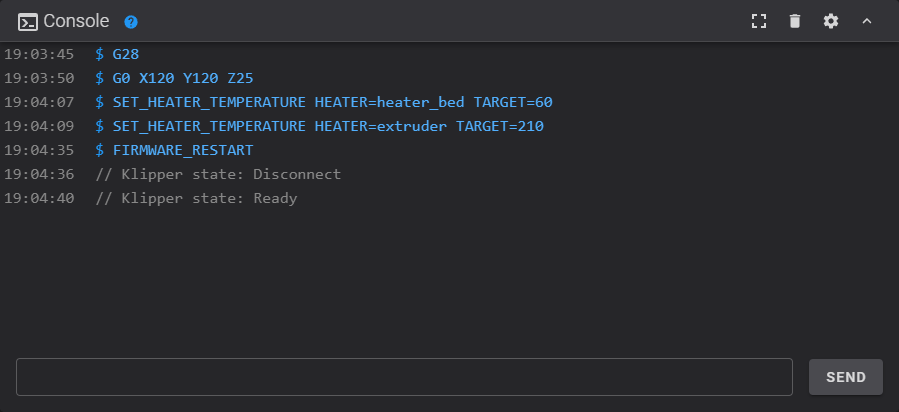
Console
Fluidd's console lets you send G-code commands to Klipper and view responses in real time. A compact console card is available on the dashboard, and a dedicated fullscreen console page is accessible from the navigation menu.
History
Use Up and Down to scroll through previously entered commands. History is preserved across sessions.
Autocomplete
Start typing a command and press Tab to autocomplete. If multiple matches exist, they are printed to the console output.
Clickable commands
Click any G-code command name that appears in the console output to copy it
into the input field. Only recognized Klipper commands are clickable — these
are the same commands listed by help.
Command reference
Type help and press Enter to list all available Klipper commands,
including built-in G-code commands and any extended commands provided by
configured modules and macros. For detailed documentation of each command,
see the Klipper G-Codes reference.
Output filters
Configure custom filters in Console Settings to hide unwanted messages:
| Filter | Description |
|---|---|
contains |
Hides messages containing the specified string (case insensitive) |
starts with |
Hides messages starting with the given string (case insensitive) |
expression |
Hides messages matching a regular expression (case sensitive) |
Layout
The console input position can be flipped between top and bottom in the console settings. Choose whichever feels more natural for your workflow.