# Code Node
The Code Node lets you write and run custom **Python** or **TypeScript** code directly inside a Stack AI workflow, with the help from an AI code assistant.
### Differences between Code Node and Python Node
{% columns %}
{% column %}
**Code Node**
* Supports Python and Typescript
* Allows importing custom libraries
* Allows custom expressions
* Reads input data from all upstream nodes
{% endcolumn %}
{% column %}
**Python Node**
* Supports Python
* Restricted to [pre-imported libraries](https://docs.stackai.com/python-code#pre-imported-python-libraries)
* Does not allow [unsafe expressions](https://docs.stackai.com/python-code#unsafe-expressions)
* Reads data from the most immediate proceeding nodes
{% endcolumn %}
{% endcolumns %}
### How the Code Node Works
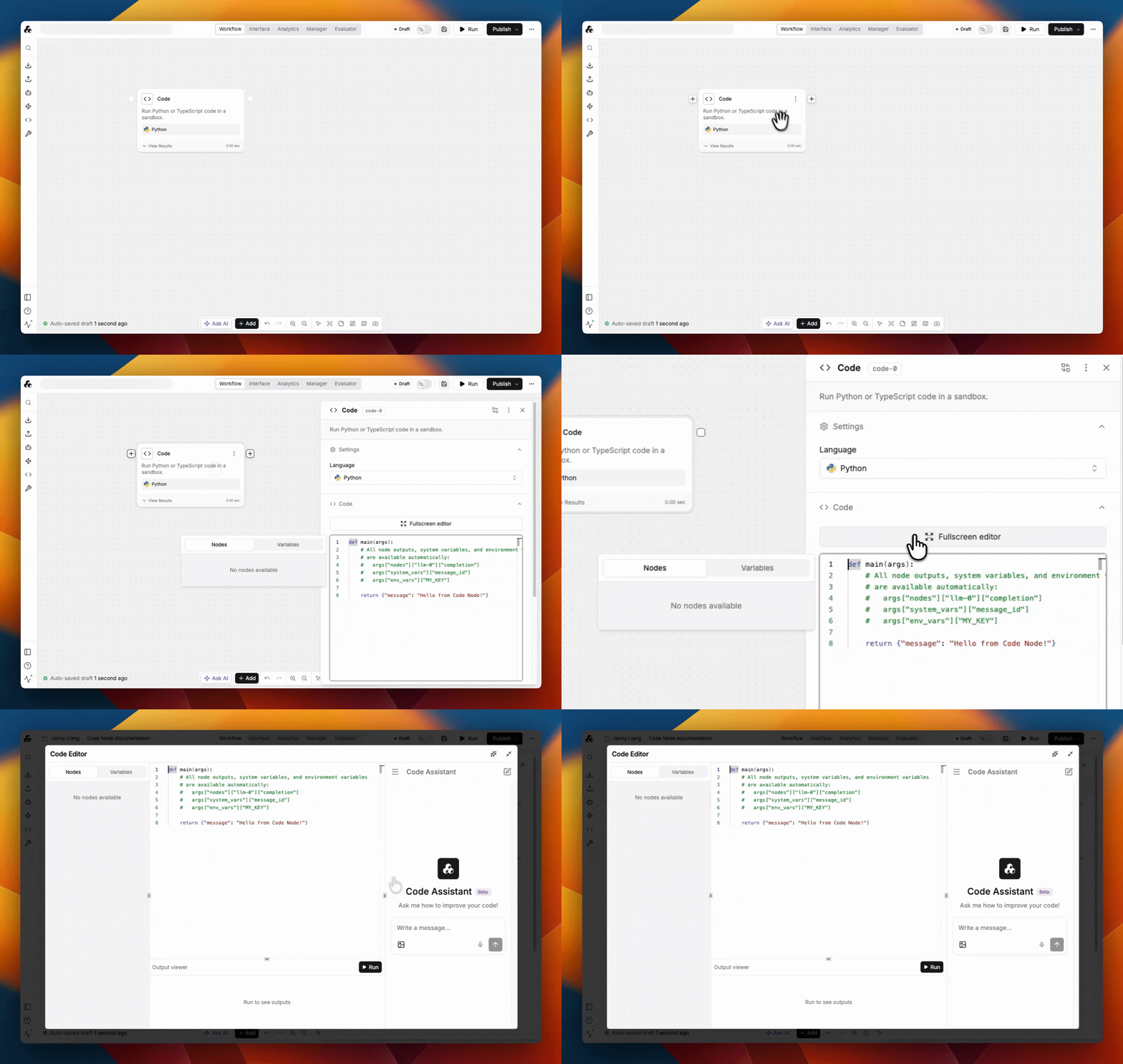
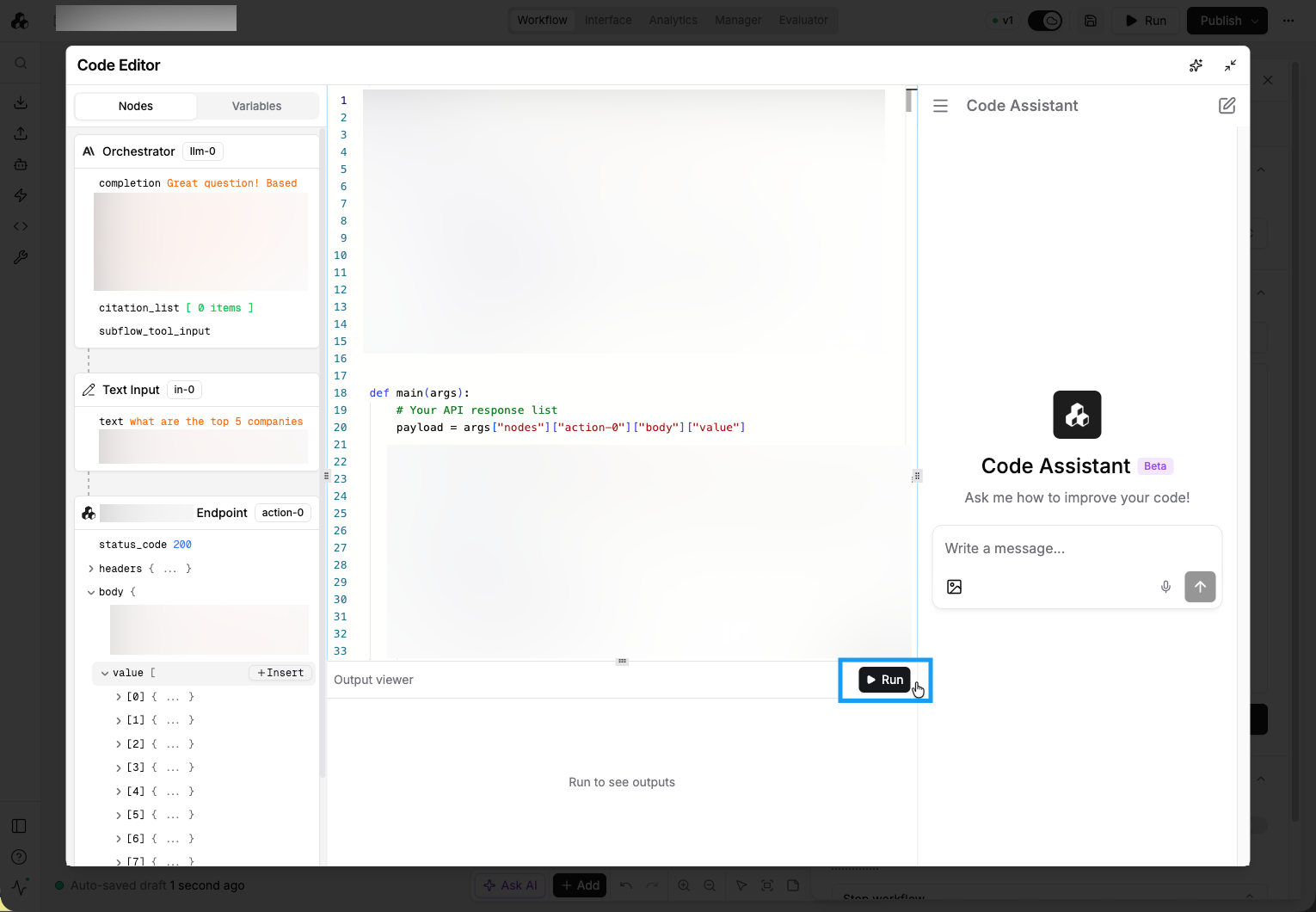
The Code Node offers a fullscreen editor with an AI code assistant.
#### Set Dependencies
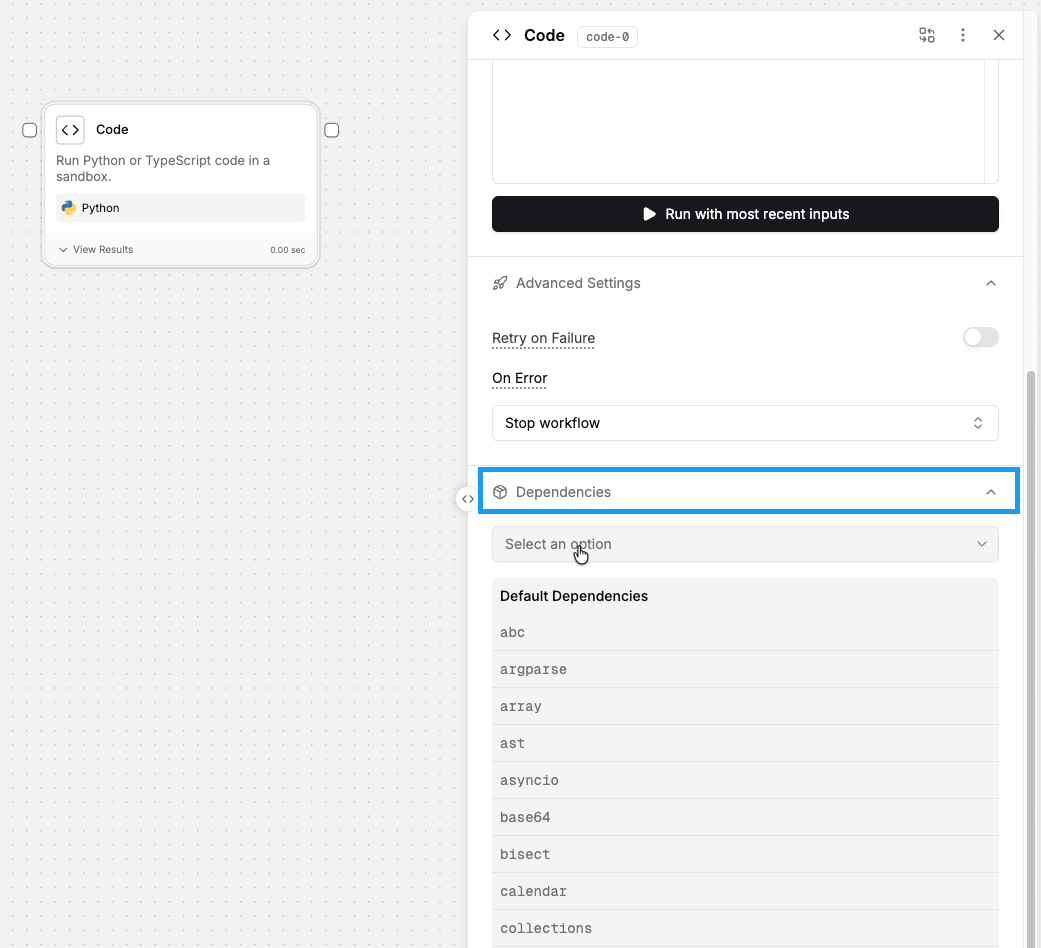
The Dependencies field is a list of package names that get installed into the sandbox before your code runs.
Dependencies are optional. When no dependencies are declared, the sandbox will run your code directly, which is a faster startup.
#### Reference Input Variables
Select a specific field within a variable
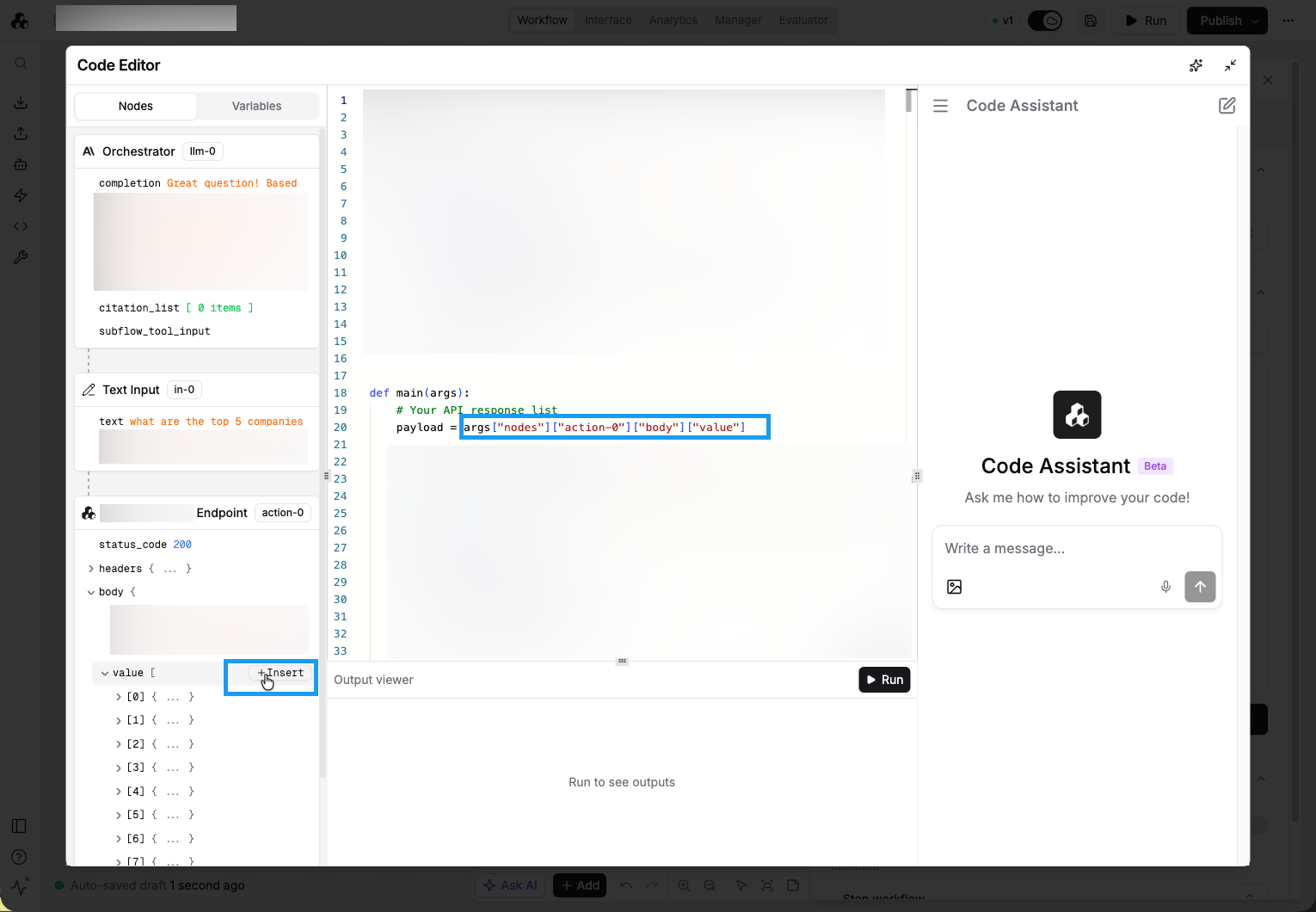
The left panel lists all upstream variables connected to the Code Node.
You can select a variable by hovering over the field and click "+Insert". The value selected will automatically populate in the code editor. The advanced expression gives the flexibility to select specific fields within a nested JSON, such as the "value" field in the example above.
#### Write Code
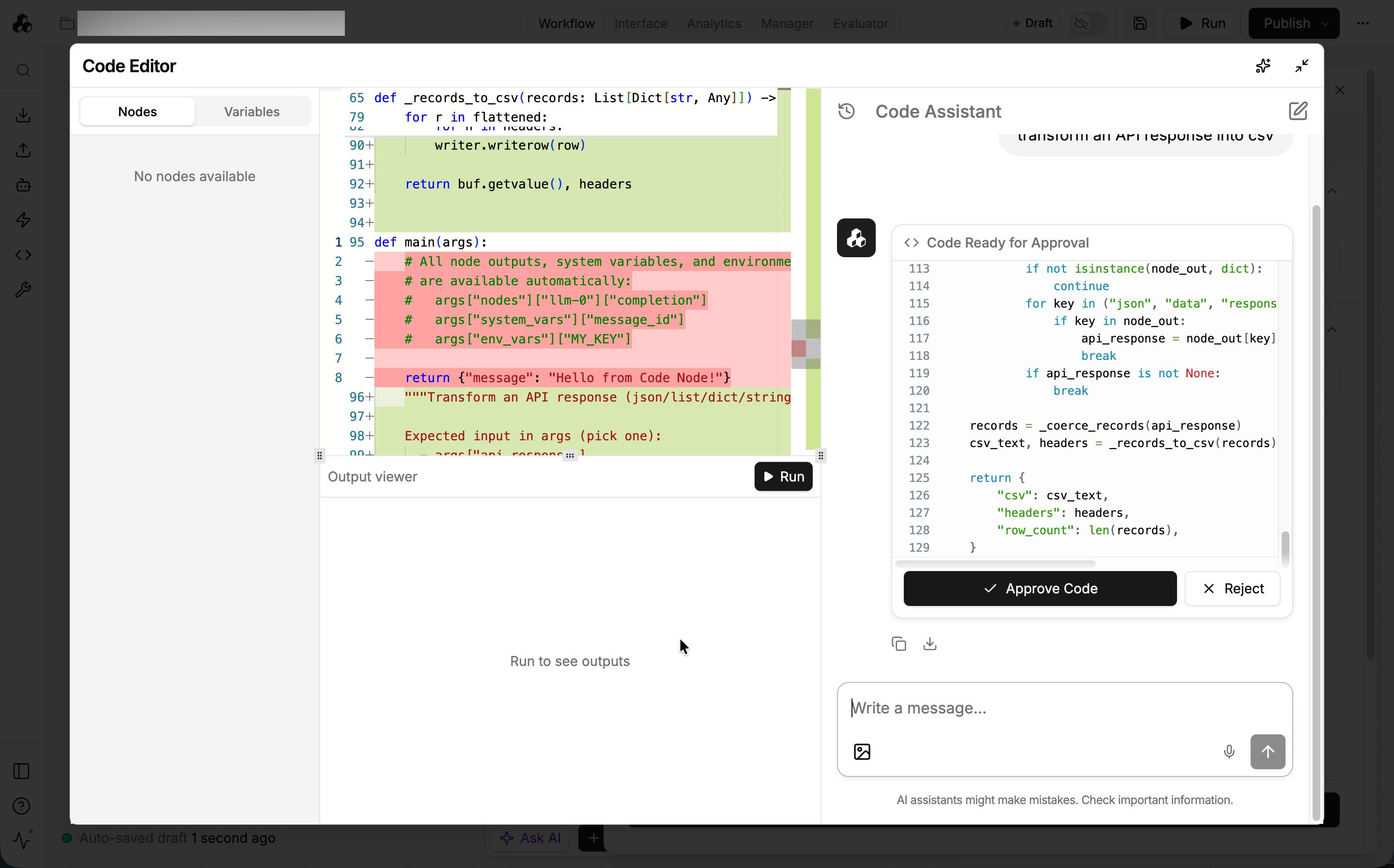
You can ask the code assistant to help you update the code. Changes proposed by the assistant are highlighted.
The code must include a `main(args)` function, which is pre-populated in the template. This function is where the logic lives. The output returned by `main()` becomes the output of the node, available to all downstream nodes.
{% hint style="info" %}
The output of the Code Node must be returned in **JSON** format**.**
{% endhint %}
You can format the output in two ways:
* Returning a Python dictionary that represents a JSON object
```python
Return {"Result":result_variable}
```
* Explicitly serializing the result using `json.dumps()`
```python
Return json.dumps(result_variable)
```
#### Test Code
Testing code is easy. You can run the code directly from the editor.
The test run will use the most recent values. This means that you need to run the upstream nodes at least once in the Builder view for the code editor to have access to test values.
#### Error Handling
If something goes wrong, the Code Node will surface an error message. Common errors include:
* Dependency install failed: a declared package couldn't be installed. Check the package name/version.
* Sandbox timed out: the environment took too long to start. Try again.
* Code execution failed: an unhandled exception in your code. Check the Error output for details.
If you've connected a failure branch to the node, errors will automatically route there instead of stopping the workflow.