Summary: This module enables simple keyframe-based animation of 3D volumes. It supports interpolation of ROI, rotations, and transfer functions for volume rendering. Individual time-tracks can be set to each of these actions. While each volume rendering action support only a pair of transfer functions (Start and End), a number volume rendering tracks can be daisy-chained to create complex volume rendering animations. Output can be either as an image sequence of frames or can be compiled into mp4 format. Animator uses the Screen Capture module to make mp4 movies, so ensure that ffmpeg is installed and configured before making movies with Animator.
Start with loading the 3D volume to be rendered into Slicer, and enable the Volume Rendering for it. Adjust the initial volume property (Scalar Opacity Map, Scalar Color Map) in whichever way you want the specimen to appear initially.
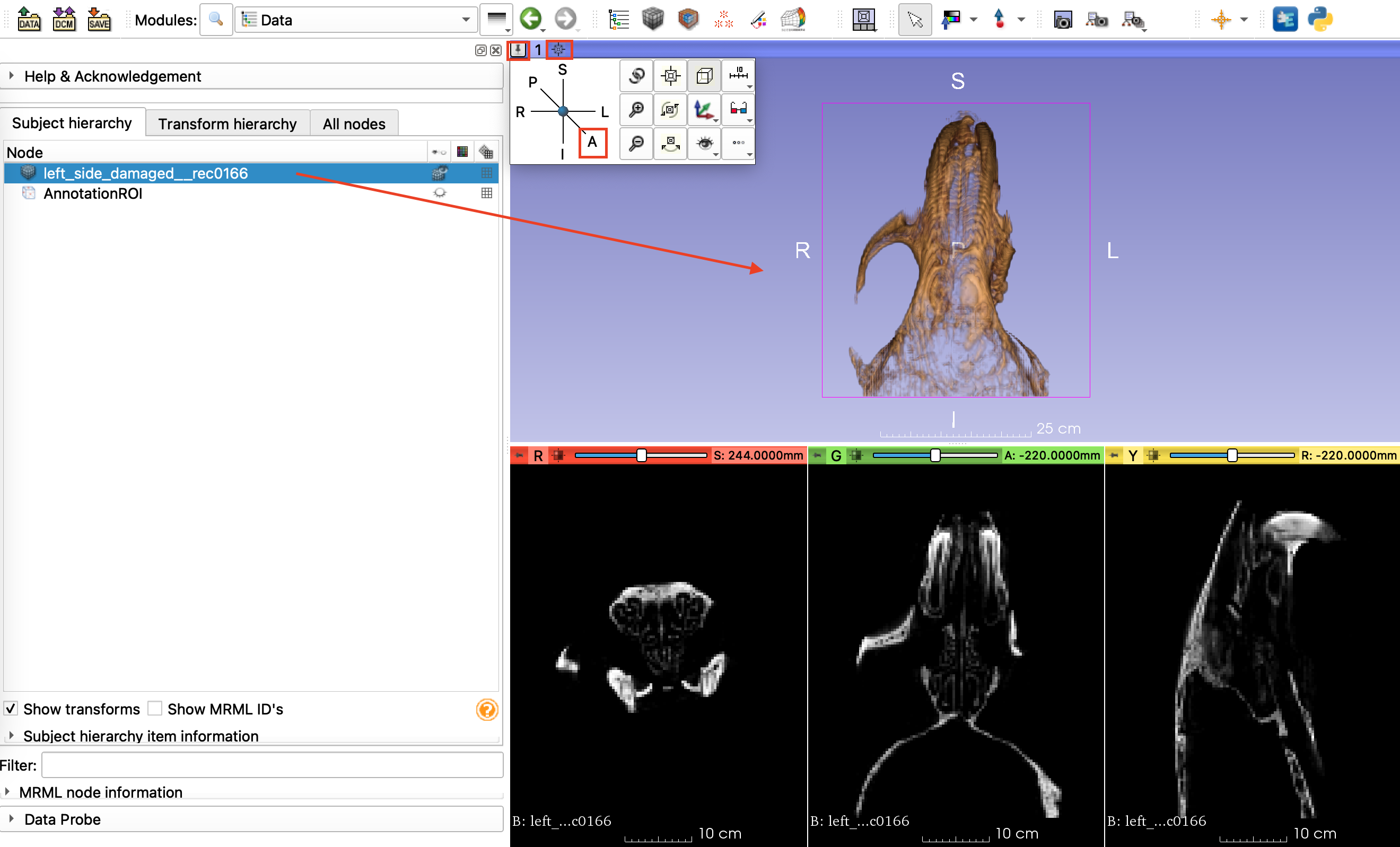
- Only one ROI and CameraRotation action per animation is currently allowed.
- Start and End Volume Properties must have identical number of control points in their Scalar Opacity and Color Maps, eitherwise interpolation will fail. As long as there are identical number of control points in across different volume property sets, their position, values and colors can be arbitrarily set.
- New Animation Duration: Default is 5 sec, can be overwritten by user (must be set before creating animation node)\
- Animation Node: Default blank, choose to create New Animation
Add Action: There are currently three possibilities:
- CameraRotationAction: User needs to choose the rotation speed (degrees per second), and the axis of rotation (yaw, pitch or roll). Default rotation speed is 90 degrees per second, and can be edited by the user.
- ROIAction: User needs to define and starting and ending ROI and the Animator will interpolate shown region of interest. Open the Inputs section in Volume Rendering to access the active ROI selector. Use the Data module to control visibility of the ROIs. Adjust start/end ROIs as desired. It is important to set the ROI node of the volume to be rendered to the Value shown in in the "Animated ROI" prior to starting the animation since that is the one that will change as a function of time.
- VolumePropertyAction: User needs to define and starting and ending Volume Property fields and the Animator will interpolate volume property of the selected volume based on these (See the limitations above). It is important to set the Volume Property node of the volume to be rendered to the Value shown in in the "Animated Volume Property" prior to starting the animation (in the Edit dialog for the action). If the user adds multiple VolumePropertyActions, Animator will split the timeline between the last VolumePropertyAction track and the newly created one. If smooth transition between multiple VolumeProperty is required, it is important to set the End Volume Property of the previous one as the Start Volume Property of the next one and uncheck "Clamp" option for both of them. That is, the "clamp" option at the start tells the effect to use the Start Volume Property for all frames before the startTime, and at the end it means to use the End Volume Property for all frames after the endTime. Be careful that only the first VolumePropertyAction in a sequence has the start clamp enabled and only the last has the end clamp enabled.
Any number of these actions can be added as separate time-tracks.
- Animation Size: Choose one of the rendering size presets, 160x120, 320x240, 640x480, 1920x1024, 1920x1080, and 3840x2160\
- Animation Format: Can be either mp4 or an animated GIF.\
- Output File: Specify the location of the output file.
Animator module needs the FFMPEG library to produce mp4 output. Slicer will automatically download the binaries for Windows. For Mac & Linux See instructions here.
Please see https://github.com/SlicerMorph/Tutorials/tree/main/Animator Animator video tutorial: