
Q: How do you install Node?
A: Well, you don’t!
You install NVM (Node Version Manager) because every project uses a different version and they are not always that compatible!
Q: How do you install Node?
A: Well, you don’t!
You install NVM (Node Version Manager) because every project uses a different version and they are not always that compatible!

winget install CoreyButler.NVMforWindows
Or with chocolatey:
choco install nvm
NVM usage typically requires an Administrative prompt.
# List help
nvm

# List available node versions
nvm list available

# Use a specific node version
nvm install 22.1.0
nvm use 22.1.0
An alternative to nvm is fnm (Fast Node Manager), which is significantly faster and doesn’t require an admin prompt:
winget install Schniz.fnm

fnm install 22
fnm use 22
The Github repo of the session lists the Node version used at the top of the README.
Looks like it’s already 5 years since I switched from Sublime Text 3 to Visual Studio Code. While all attendees can obviously pick whichever IDE they fancy, if you don’t have strong convictions about your IDE for frontend development (yet), you can’t go wrong with VSC.
Learning to use your IDE well is Pragmatic Tip 22. Learn those shortcuts, macro’s, install fancy plugins, learn how to work with multiple cursors etc. You’ll be typing quite a lot during your career, better do it elegantly!
Previous blog posts on setting up and learning about Visual Studio Code:
Back when those posts were written, Visual Studio Code didn’t have a builtin option to sync your settings so I did it with our dotfiles. But now it’s just a menu option away.
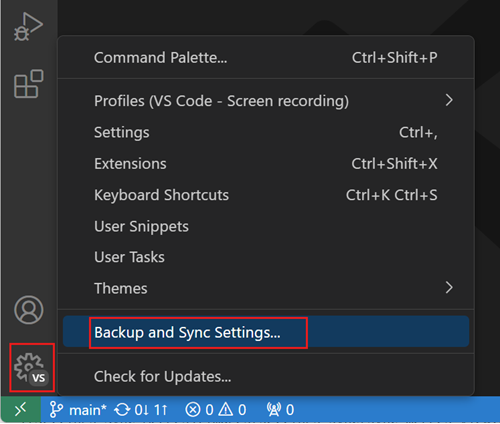
Especially useful when you have an installation on your home and work laptops, or when you change projects!
Each itenium session lists its own set of suggested Visual Studio Code plugins in the README.
If you start doing “Angular” development, or “Flutter”, just Control + Shift + X and search for it, you see a plugin with a few million downloads? It’s probably worth checking out.
You can’t go wrong with these for frontend development:
| Plugin | Installs | Description | Repo |
|---|---|---|---|
| JavaScript | |||
| Toggle Quotes | 260k | Quote toggler to cycle through “ ‘ and ` | Github |
| Live Server | 53M | Local Server with live reload | Github |
| Live Preview | 12M | Microsoft’s alternative to Live Server | Github |
| Importing | |||
| npm Intellisense | 8M | Autocompletes import statements | Github |
| Import Cost | 4M | Display import/require package size | Github |
| Path Intellisense | 13M | Autocompletes filenames | Github |
| CSS | |||
| Tailwind IntelliSense | 14M | Autocomplete, linting, previews for Tailwind CSS | Github |
| CSS Peek | 6M | Peek and Go to definition for CSS | Github |
| CSS Completion | 8M | IntelliSense for CSS class names | Github |
| Styling | |||
| EditorConfig | 10M | Automatically follow .editorconfig |
Github |
| Prettier | 48M | Prettier code formatter | Github |
| ESLint | 37M | ESLint code formatter | Github |
| Indent-Rainbow | 8M | Makes indentation easier to read | Github |
| Better Comments | 7M | Make those TODOs stand out | Github |
| Other | |||
| Markdown All In One | 9M | All you need to write Markdown | Github |
| Git Blame | 2M | Git blame information in the status bar | Github |
| Git History | 12M | Git log, file history, compare branches or commit | Github |
| Gitlens | 34M | Supercharge Git | Github |
Unlike your preferred IDE, while you can use whichever browser you like for your day-to-day development, you do need all browsers installed so that you can at least do some initial testing in Chrome, Firefox and Edge; and maybe in a few less known ones, like Opera.
This can also come in handy when testing something for which you need users with different roles. Have the Admin use Chrome and the regular user Firefox and you can perform tests without having to logout/login all the time.
That being said, the browser extensions are available for pretty much all browsers:
| Plugin | Installs | Rating | Description | Repo |
|---|---|---|---|---|
| Libraries | ||||
| Redux | 1M | 4.6 (700) | Current state of the store, time travel & more | Github |
| Angular | 300k | 3.9 (160) | Angular specific debugging and profiling capabilities | Github |
| React | 4M | 4.0 (1.6k) | ⚛️ Components” and “⚛️ Profiler Tabs | Github |
| Vue | 2M | 4.2 (2.1k) | Debug Vue.js applications | Github |
| Tools | ||||
| Clear Cache | 900k | 4.5 (1.1k) | Powerful, user-friendly browser data management | Website |
| JSON Formatter | 2M | 4.6 (1.8k) | Make JSON easy to read | Github |
| ModHeader | 700k | 3.2 (1.1k) | Modify HTTP request/response headers, redirect URLs | |
| Requestly | 200k | 4.4 (1.2k) | Redirect URLs, Modify HTTP Headers, Mock APIs, … | Github |
| Lightshot | 2M | 4.4 (6.9k) | Screenshot tool | |
| Wappalyzer | 2M | 4.6 (1.9k) | Technology profiler | Github |
| Web Developer | 1M | 4.5 (2.8k) | Toolbar with various web developer tools | Github |
| Rulers | ||||
| Page Ruler | 400k | 3.9 (77) | Measure page elements size in pixel | |
| PixGrid Ruler | 1M | 4.1 (12) | Your Pixel-Perfect Ruler | |
| Dimensions | 200k | 4.1 (453) | A tool for designers to measure screen dimensions | Github |
| Color Pickers | ||||
| ColorZilla | 4M | 4.6 (3.8k) | Eyedropper, Color Picker, Gradient Generator | Website |
| ColorPick-Eyedropper | 2M | 4.2 (1.2k) | A zoomed eyedropper & color chooser |
We use Bun as our package manager and test runner. Bun is a fast all-in-one JavaScript runtime that comes with a bundler, test runner, and Node.js-compatible package manager. If you prefer, you can also use npm or pnpm instead — just swap bun for npm/pnpm in the commands below.
# Always use source control ;)
git init

# And always have a README 😀
touch README.md

# Start a frontend project
# This creates a package.json
bun init
After having installed the EditorConfig VSCode plugin, you also need an .editorconfig. Pretty much every template generator creates one of these.
# See https://editorconfig.org
root = true

[*]
charset = utf-8
indent_style = space
indent_size = 2
trim_trailing_whitespace = true
insert_final_newline = true
end_of_line = crlf

[*.md]
max_line_length = off
trim_trailing_whitespace = false

[*.sh]
# If you have shell scripts, make
# sure to also have a .gitattributes
# With: *.sh text eol=lf
end_of_line = lf
While there are some devs out there that don’t like TypeScript, personally I use TypeScript even for the smallest of projects.
We covered the latest features of ECMAScript and the power of TypeScript in our session ModernJS
These days most libraries ship their own type definitions but if one doesn’t it’s probably available in DefinitelyTyped
# Add TypeScript to package.json
bun add -d typescript
You want to configure yourself a tsconfig.json. See this tsconfig cheat sheet
{
  "compilerOptions": {
    // Use all the latest ECMAScript goodness
    "lib": ["es2024", "dom", "dom.iterable"]
    // Fix the module.exports and export x mess
    "esModuleInterop": true,
    // Performance: don't check all node_module types
    "skipLibCheck": true,
    // Use all the latest ECMAScript goodness
    "target": "es6",
    // Import js/json files
    "allowJs": true,
    "resolveJsonModule": true,
    // Treat everything as a module
    "moduleDetection": "force",
    // Always use import/export
    "verbatimModuleSyntax": true,
    // Enables strictNullChecks, noImplicitAny etc
    "strict": true,
    // If you access it, it must be defined
    "noUncheckedIndexedAccess": true,
    // For all modern projects use this module system
    "module": "NodeNext",
    // Where to put the generated js files
    "outDir": "dist",
    // For libraries: generate .d.ts files
    "declaration": true
  }
}
Bun comes with a built-in test runner that works with TypeScript out of the box — no extra configuration needed!
# For bun:test type definitions
bun add -d @types/bun

# Run tests
bun test
Your test files just import from bun:test:
import { describe, it, expect } from 'bun:test';
import { adder } from '../src/adder';

describe('adder', () => {
  it('works', () => {
    expect(adder(1, 5)).toBe(6);
  });
});
That’s it. No config files, no extra dependencies, no TypeScript workarounds. The API is compatible with Jest so switching between the two is straightforward.
If you prefer Jest (e.g. because your project already uses it, or you need specific Jest features like snapshot testing):
bun add -d jest ts-jest @types/jest @jest/globals

# Setup a jest.config.ts that works with TypeScript
bunx ts-jest config:init

# Run tests
bun test
This complains about:
TS1286: ESM syntax is not allowed in a CommonJS module when 'verbatimModuleSyntax' is enabled.
We override this for the tests with an extra __test__ or spec tsconfig:
{
  "extends": "../tsconfig.json",
  "compilerOptions": {
    "verbatimModuleSyntax": false
  }
}
And update the jest.config.js to use this tsconfig:
/** @type {import('ts-jest').JestConfigWithTsJest} **/
module.exports = {
  testEnvironment: "node",
  transform: {
    "^.+.tsx?$": ["ts-jest",{
      tsconfig: './spec/tsconfig.json'
    }],
  },
};
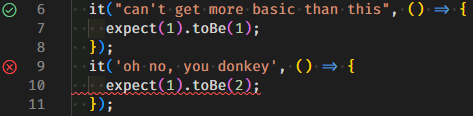
Run the tests directly in Visual Studio Code with the Jest Plugin.
And add a .vscode/launch.json:
{
  "name": "Debug Jest Tests",
  "type": "node",
  "request": "launch",
  "runtimeArgs": [
    "--inspect-brk",
    "${workspaceRoot}/node_modules/.bin/jest",
    "--runInBand"
  ],
  "console": "integratedTerminal",
  "internalConsoleOptions": "neverOpen",
  "port": 9229
}
If you can’t see failure details, open the Terminal Ctrl+J!
Some of our frontend development sessions at itenium.
JavaScript/TypeScript:
React:
Angular:
Stuff that came into being during the making of this post