The post How to add reCAPTCHA (or other types of CAPTCHA) to your WordPress website appeared first on Captcha4WP.
]]>With many different CAPTCHA services and types to choose from, many administrators may find themselves at a loss. reCAPTCHA is the Google CAPTCHA service however, it is not the only one. While it certainly is one of the most popular, other contenders such as hCaptcha and Cloudflare Turnstile can also be integrated just as easily when using CAPTCHA 4WP.
What we’ll cover…
- How to add reCAPTCHA (or other types of CAPTCHA) to your WordPress website
How to add CAPTCHA to WordPress
Adding CAPTCHA to your WordPress website is easy when choosing CAPTCHA 4WP. It stands out as one of the best WordPress plugins thanks to its support for multiple providers, enabling you to choose the one that best fits your requirements. It also comes with many useful features designed with WordPress users in mind, such as Failover Action, which helps prevent false positives from falling through the cracks.
Step 1. Install and activate CAPTCHA 4WP
CAPTCHA 4WP is a CAPTCHA plugin for WordPress websites. It comes with a lot of useful features that easily make it a must-have CAPTCHA plugin.
With multiple plans to choose from, CAPTCHA 4WP will easily fit into your workflows and budget. Once you buy the plugin, you will receive an email with the CAPTCHA 4WP license key and plugin download link. Download the plugin and upload the plugin ZIP file to your WordPress website. Next, install and activate the plugin.
Once activated, CAPTCHA 4WP will show you the following prompt:

Enter your license key in the input field and then click the Activate License button to activate the plugin. You’ll find the license key in the email that you received after purchasing the plugin.

Step 2. Get the site key and secret key
Different CAPTCHA services, such as Google reCAPTCHA, hCaptcha, and Cloudflare Turnstile, provide their versions of CAPTCHAs that you can integrate into your forms.
CAPTCHA 4WP enables you to add the following types of CAPTCHAs to your WordPress site:
- Google reCAPTCHA v2 (I’m not a robot): Visitors have to check an “I’m not a robot” checkbox.
- Google reCAPTCHA v2 (Invisible reCAPTCHA): Visitors are only asked to solve a CAPTCHA if Google deems their activities to be suspicious.
- Google reCAPTCHA v3: Assesses visitor behavior to issue a score without any user interaction.
- hCaptcha: Visitors have to check an “I’m not a robot” checkbox.
- Cloudflare Turnstile: where users occasionally have to check a checkbox if the service thinks that the request is suspicious.
Google reCAPTCHA v3 and other CAPTCHA services require a site key and a secret key to work. The site key is passed in the HTML code of your web pages. The secret key is used for server-side integration. CAPTCHA 4WP automatically takes care of all this for you.
You can get your site key and secret key by visiting the service provider’s website. We will illustrate how this works using reCAPTCHA V3. First, you’ll need to log in to the service provider’s dashboard. In our case, we’ll be logging in to Google’s reCAPTCHA admin dashboard using a Google account.

Google will take you to its register a new site page if you don’t have any reCAPTCHA keys associated with your account. Otherwise, you can click the + icon in the secondary header menu to create a new pair of keys.
Keep in mind that the reCAPTCHA API keys are tied to a specific website and a specific version of reCAPTCHA. Therefore, it is essential to ensure that the website domain and reCAPTCHA version match what is configured on your WordPress website.
Register your site with Google reCAPTCHA
You’ll need to fill out a few details to register a site to enable reCAPTCHA:
- Label: The label is meant for you to identify a pair of keys. You can choose any name for it that you like. It won’t affect how reCAPTCHA works on your site. In this tutorial, we have named it Melapress v3. This tells us the associated website as well as the type of integrated reCAPTCHA.
- reCAPTCHA type: Here. you’ll need to choose the reCA{PTCHA version you would like to set up. In this example, we’re selecting reCAPTCHA v3 since this is what we will be using in this tutorial.
- Domains: enter the domain name that you want to register. You only need to enter the hostname and the TLD of the domain. It should not include the protocol (http:// or https://) or other such information as part of the URL string. Also, remember that registering a domain automatically registers all its subdomains.
- Owners: The account you used to log in to get the site key and secret key is the owner of those keys by default. It is also possible to add other owners if you want by providing their email addresses.

Once all fields have been filled in, you’ll need to check the box to accept the reCAPTCHA terms of service if you want to use reCAPTCHA. You can also optionally check the box that says “Send alerts to owners”. This will make sure that you receive alerts from Google if it detects any problems, such as an increase in suspicious traffic or some misconfiguration.
Click the Submit button once you have filled and verified the entered values to make sure there are no errors, such as the selection of the wrong reCAPTCHA type or misspelled domain.
You should now see a message about successful registration on the next page, as shown in the screenshot below:

A note on API keys
You’ll need to supply the generated site key and secret key to the CAPTCHA 4WP plugin in the next section, so make sure you take note of them.
While we’re covering the process for reCAPTCHA V3 here, the process works similarly for other versions and methods. The Melapress Knowledge Base includes detailed how-tos that will help you configure any type of CAPTCHA covered by the plugin.

Stop spam bots in their tracks
Protect your WordPress and 3rd party forms with effortless CAPTCHA integration.
Download CAPTCHA 4WP today & secure your site!
Step 3. Configure CAPTCHA integration in the plugin
We are now ready to configure CAPTCHA on our website using the CAPTCHA integration wizard offered by CAPTCHA 4WP.
Select the type of CAPTCHA
With CAPTCHA 4WP configured, navigate to CAPTCHA 4WP > CAPTCHA Configuration from the WordPress dashboard. Next, click the Configure CAPTCHA integration button. This will start the CAPTCHA integration wizard, which will walk you through the entire setup process.
First, select the type of CAPTCHA service that you want to use on your website.

In this example, we’re selecting Google reCAPTCHA v3. However, you can choose the service that best fits your requirements. Just make sure that you’ve configured the right keys, as covered in the previous step. Once ready, click on Next. This will take you to the next step, where you’ll need to enter the site key.
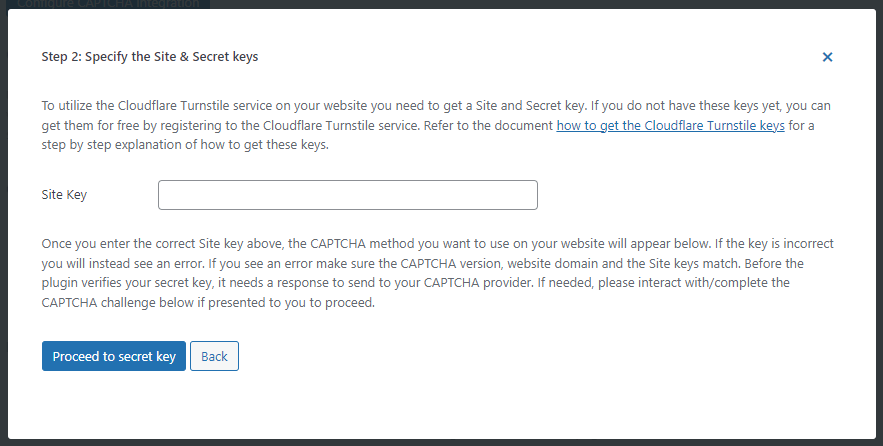
Provide your site key
In Step 2 of the configuration process, you’ll need to enter the site key. If the key is valid, CAPTCHA 4WP will display the CAPTCHA, signaling it it able to connect to the vendor successfully.

Click the Proceed to secret key button now.
Provide your secret key
In the third step, you need to enter the secret key and click the Validate and Proceed button.

Configure a failover action (optional)
One important thing to remember about Google reCAPTCHA v3 is that it is fully automated. This means that, by default, it won’t allow visitors to proceed if they fail the CAPTCHA check. This could prevent legitimate visitors from proceeding forward.
We can prevent this from happening by configuring a failover action. A failover action determines what happens when visitors fail the reCAPTCHA v3 test.
CAPTCHA 4WP gives you the option to choose from three different failover actions:
- Show a v2 CAPTCHA checkbox.
- Redirect the visitor to a URL.
- Take no action.

If you decide to show your visitors a Google reCAPTCHA checkbox, you will need to provide the reCAPTCHA v2 site key and secret key to CAPTCHA 4WP. Keep in mind that these site key and secret key values are separate from the reCAPTCHA V3 keys.
You can easily generate a new pair of keys by following the instructions we covered earlier. You’ll just make sure that you set the reCAPTCHA type to reCAPTCHA v2 “I’m not a robot” checkbox.
Click on the Next button to continue.
Finally, click the Finish button, and your basic configuration to integrate reCAPTCHA v3 into your website will be complete.
Step 4. Add reCAPTCHA to the WordPress login and registration forms
CAPTCHA 4WP is a very versatile plugin that you can use to integrate CAPTCHA in any type of form.
Support for native WordPress forms
You can use CAPTCHA 4WP to add CAPTCHA to the WordPress login form, registration form, reset password form, lost password form, and comments form. You can also use the plugin to add CAPTCHA checks to WooCommerce pages, such as the WooCommerce checkout page, WooCommerce login page, WooCommerce password reset page, etc.
Support for third-party plugins
There are a lot of popular form builder plugins in WordPress that website administrators use to create different types of forms, such as a WordPress contact form. Protecting your WordPress contact forms with CAPTCHA 4WP means that you will be able to drastically reduce spam submissions.
CAPTCHA 4WP comes out of the box with very good support for third-party plugins like Contact Form 7, WPForms, Gravity Forms, MailChimp for WordPress, BuddyPress, and bbPress.
This means that you can easily integrate CAPTCHA into any form using CAPTCHA 4WP via a simple mouse click or drag and drop. There is no need for any customization.
Custom WordPress forms
Let’s say you have a custom form running on WordPress on your website.
You can still use CAPTCHA 4WP to protect this form from spam bots and prevent fraudulent submissions. Our plugin allows you to display a CAPTCHA field in custom WordPress forms very easily.
Adding CAPTCHA to WordPress forms
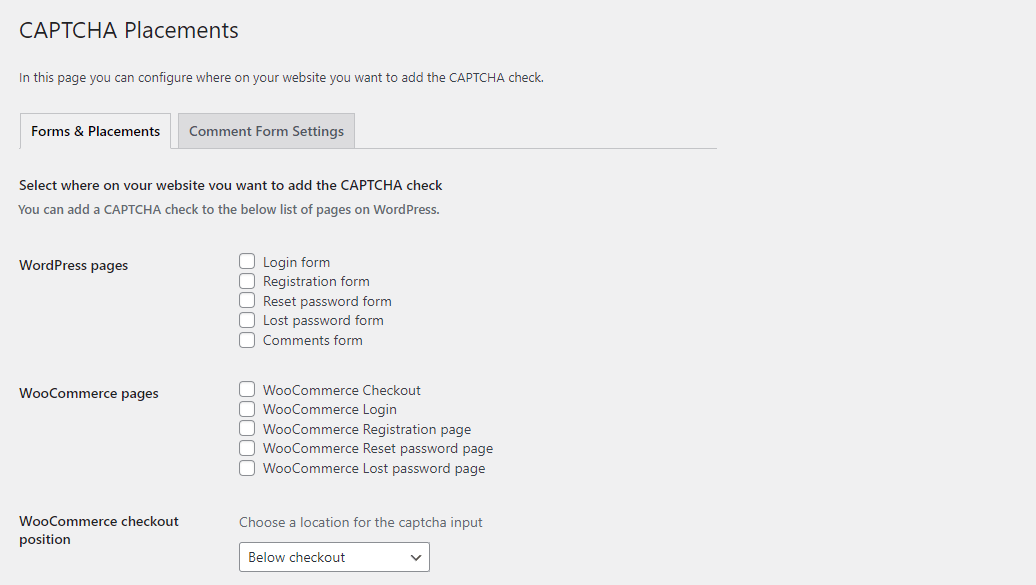
Now that the plugin has been configured navigate to CAPTCHA 4WP > Settings & Placements to specify the forms where you want to add the CAPTCHA check. In this tutorial, we just select the Login form and Registration form.

Scroll down to the bottom of the page and click Save Changes.
To verify that CAPTCHA is working, log out from your WordPress account, and you should see the reCAPTCHA badge on the login page.

The same badge should also be visible on the registration page.
Seeing the Google reCAPTCHA badge on the login and registration page means that you have successfully added CAPTCHA to your WordPress site.
Step 5. Optional: Make reCAPTCHA more user-friendly, effective, and accessible
There are some optional settings in CAPTCHA 4WP that you can tweak to fine-tune CAPTCHA behavior and appearance according to your requirements. We will discuss some of them here.
Selectively enable and disable CAPTCHA tests
The primary purpose of CAPTCHA tests is to tell apart human visitors from bots. This means that you might not need to enable CAPTCHA for visitors who already have a registered account on your site. Using CAPTCHA only when necessary can improve user experience.

By default, CAPTCHA tests are set to be always active in CAPTCHA 4WP. However, it also gives you the option to disable CAPTCHA tests for logged-in users. It is up to you to specify if the plugin should disable CAPTCHA for all logged-in users or only for users with specific user roles.

Similarly, you also have the option to show the CAPTCHA test on the login page only if the visitors made some failed login attempts. This can help combat brute-force attacks meant to gain unauthorized access to a user’s account.
Change placement of the reCAPTCHA badge
As we have mentioned earlier, reCAPTCHA v3 does not directly interact with visitors. A reCAPTCHA badge that shows up on pages protected by Google’s reCAPTCHA v3 will let visitors know that reCAPTCHA is active on the page.

You can set the placement of this reCAPTCHA badge to either the bottom left or the bottom right of the page to match your WordPress theme.
Change reCAPTCHA domain
reCAPTCHA is a Google service. This means that visitors from regions where Google is blocked will not be served CAPTCHAs. Google does provide some alternate domains that you can use to load the reCAPTCHA script or other Google reCAPTCHA-related resources.
The CAPTCHA 4WP plugin provides an easy way for you to switch to alternate domains that serve the reCAPTCHA script without worrying about making changes to any code.

Please note that other CAPTCHA service providers, such as hCaptcha and Cloudflare Turnstile, are not blocked in different regions like Google reCAPTCHA.
There are a few other important (differences between other CAPTCHA services and reCAPTCHA, such as GDPR compliance, that you might want to consider when determining which service to use on your site to protect it against spambots.
The good news is that CAPTCHA 4WP supports both hCaptcha and Cloudflare turnstile in case you decide to use a different service in the future.
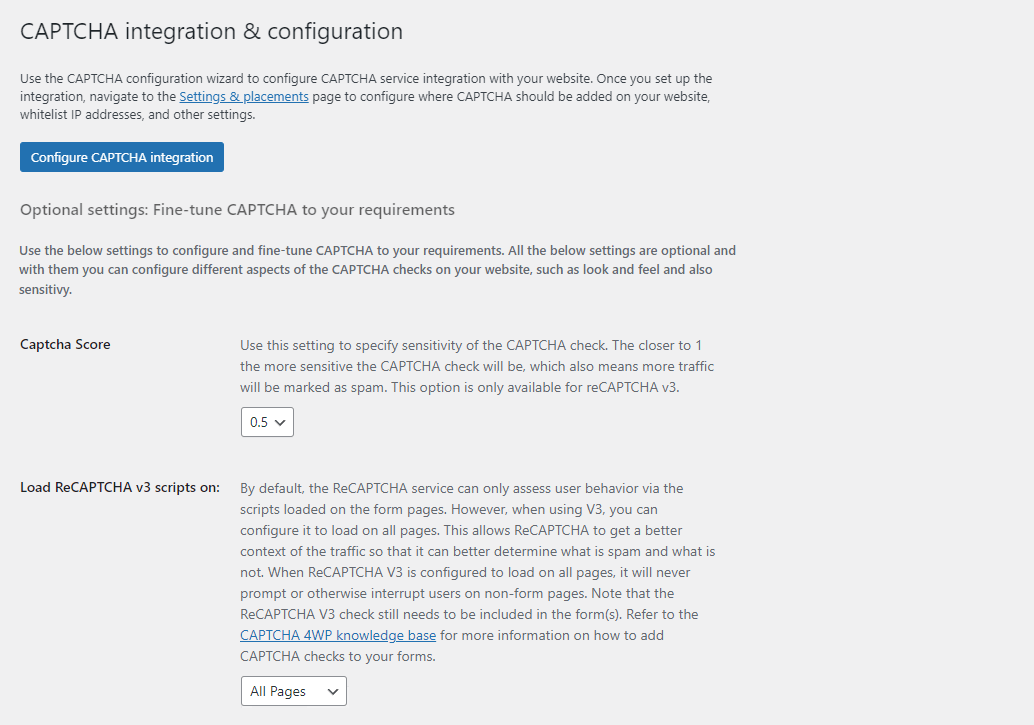
reCAPTCHA v3 sensitivity
Google reCAPTCHA v3 returns a score for each visitor based on their interaction with your website.
This score can range from 0.0 to 1.0. The closer a score is to 1.0, the more likely it is that the interaction was likely initiated by a human.
How users interact with a website is also determined by the type of content it hosts. Therefore, Google lets website administrators set their own threshold for this CAPTCHA score.

CAPTCHA 4WP allows you to specify the threshold below which the traffic is marked as spam. Please keep in mind that this configuration option is only available for reCAPTCHA v3. The default value of this score is 0.5.
reCAPTCHA loading options
Google reCAPTCHA can only keep track of visitor behavior through scripts loaded on the form pages by default. However, reCAPTCHA v3 works best when it can assess how visitors are behaving across the entire site.

You can load reCAPTCHA v3 on all pages of your WordPress website by selecting the All Pages option from the dropdown for the “Load reCAPTCHA v3 scripts on” setting.
More about CAPTCHA 4WP
CAPTCHA 4WP is our dedicated CAPTCHA WordPress plugin, built with security and ease of use in mind. It is more than a reCAPTCHA plugin, making it easy for you to add different types of CAPTCHA to your WordPress websites and protect yourself from spam comments.
CAPTCHA 4WP offers wide support with WordPress itself and many 3rd party plugins. It allows you to add CAPTCHA to any form on your website, including the comment, login, registration, and checkout forms. It also makes it easy to add CAPTCHAs to your favorite contact form plugin, thanks to its out-of-the-box support.
Get CAPTCHA 4WP
If you’re looking to prevent spam and protect yourself from malicious bots, adding reCAPTCHA or anything type of CAPTCHA is a low-hanging fruit that can be of great benefit. It is also quick and easy when using the CAPTCHA 4WP plugin. The CAPTCHA integration wizard in CAPTCHA 4WP guides you throughout the process.
The CAPTCHA 4WP plugin includes a valuable set of additional features that make it better than other CAPTCHA plugins. For instance, you get reCAPTCHA v3 failover action, one-click WooCommerce support, ability to add CAPTCHA to any form, among other things.
CAPTCHAs can prove very effective in protecting your website against spambots. Our plugin, CAPTCHA 4WP, does an excellent job of stopping attacks from bots while still being very user-friendly. Get the CAPTCHA 4WP plugin today and see the amount of spam you encounter on your WordPress website effectively go to zero.
The post How to add reCAPTCHA (or other types of CAPTCHA) to your WordPress website appeared first on Captcha4WP.
]]>The post How to Stop Elementor Contact Form Spam: 2 Best Methods appeared first on Captcha4WP.
]]>Elementor’s form builder makes it easy to create beautiful, user-friendly forms, but spam can turn those carefully crafted forms from an asset into a nuisance.
That’s where this post comes in.
In it, we’ll discuss why Elementor contact forms get spammed and which two methods you can use to stop spam in its tracks.
Let’s dive in!
Table of contents
Why are Elementor Contact Forms spammed?
Elementor forms are no different from any other forms you add to your website, so the reasons they might be spammed are the same as for other contact form plugins. And there are plenty of them…
Contact forms offer a method of contacting a website’s owner or administrator. And if there’s a way of getting a message in front of someone, you better believe a spammer will find it and use it to promote something. This could include things like products, services, or webpages, often with the goal of making money.
However, the reasons for spam emails aren’t limited to mere promotion. It can also be used to deliver malware, send mass phishing emails, or even to sabotage your business by flooding your inbox, preventing you from receiving messages from real customers.
Ultimately, most spam is sent with the goal of making money – whether through the promotion of real products/services or more nefarious means.
Why is it important to stop contact form spam in Elementor?
Spam may seem like a minor nuisance at first, but it can cause some major issues if not dealt with. Some important reasons to mitigate contact form spam sent through your Elementor forms include:
- Preserve website performance: A flood of spam submissions can slow down your site or, in extreme cases, lead to server overload.
- Boost productivity: Filtering through spam wastes valuable time and distracts from genuine inquiries.
- Protect against phishing attacks: Spam emails can contain links to phishing sites designed to steal sensitive information.
- Minimize malware risks: Spam is often used as a vector to spread malicious software.
- Maintain accurate metrics: Spam skews contact form data, making it harder to track legitimate leads and conversions.
Method 1: Stopping Spam Using a CAPTCHA Plugin
Most spam is sent by bots so stopping bots is by far the most effective way of reducing the number of spam form submissions you receive. And when it comes to stopping bots, almost nothing beats CAPTCHA.
CAPTCHA stands for Completely Automated Public Turing test to tell Computers and Humans Apart. And it does exactly that!
CAPTCHA works by asking a person or bot to complete a challenge before submitting your form. These challenges usually consist of clicking on images that depict something specific while not clicking on others.

It’s not easy to build a bot that can solve these challenges but they’re very easy for humans to complete. By only submitting forms where the CAPTCHA has been completed successfully, you can prevent a large chunk of the automated form submissions you receive.
Some CAPTCHA solutions go a step further and try to detect the likelihood of a user being a bot based on their browsing behavior. These solutions will only show the challenge to those bots or users whose browsing behavior is similar to that of a bot.
Different Types of CAPTCHA
There are a few different types of CAPTCHA that are commonly used today. Three of the most common ones include:
ReCAPTCHA
ReCAPTCHA is Google’s CAPTCHA solution, and it’s the most commonly used solution today. There are three versions:
- reCAPTCHA v2: This version requires users to solve visual challenges, such as selecting images with specific objects.
- reCAPTCHA v2 (I’m not a robot): Requires users to tick a checkbox verifying they are not, in fact, a robot.
- reCAPTCHA v3: This is a more advanced version that doesn’t require user interaction. Instead, it runs in the background and assigns a “risk score” to form submissions, only challenging users if the score indicates suspicious behavior.
hCAPTCHA
hCAPTCHA is similar to reCAPTCHA in that it also works with images. However, hCAPTCHA is considered more privacy-friendly than reCAPTCHA, as it collects less user data. The challenges are also considered slightly harder, making it more effective at blocking bots but also slightly harder for users to complete.
Cloudflare Turnstile
Cloudflare Turnstile is one of the most user-friendly options, designed to be as easy as possible for humans but hard for bots. It integrates well with WordPress and offers a highly effective yet less obtrusive spam prevention solution compared to other providers.
Implementing CAPTCHA on your Elementor Contact Forms Using CAPTCHA 4WP
When it comes to adding CAPTCHA to your Elementor forms, our very own anti-spam plugin CAPTCHA 4WP is a superb option. CAPTCHA 4WP allows you to choose the type of CAPTCHA you want to implement, be it reCAPTCHA v2/v3, hCAPTCHA, or Cloudflare Turnstile.
It also comes with many customization options and a failover feature, so you can ensure false positives don’t lead to missed messages or income. Most importantly, it works on all your WordPress forms, meaning it’s not just limited to Elementor.
It’s also very easy to set up…
Downloading the plugin files
First, choose the plan you want and sign up. Plans start from as little as $14 per year and they all come with a 30-day money-back guarantee. Once you’ve signed up, you’ll be sent an email with a step-by-step guide showing you how to download the plugin files.

Installing the plugin
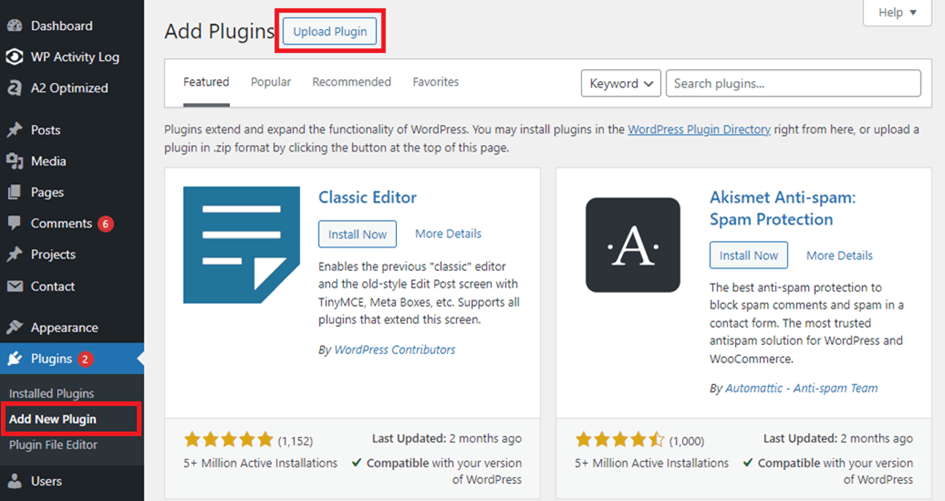
Once you’ve downloaded the plugin files, it’s time to install them. Go to your WordPress website dashboard and navigate to the Add New Plugin section (Dashboard > Plugins > Add New Plugin).
Now, click on Upload Plugin > Choose File to upload the plugin files.
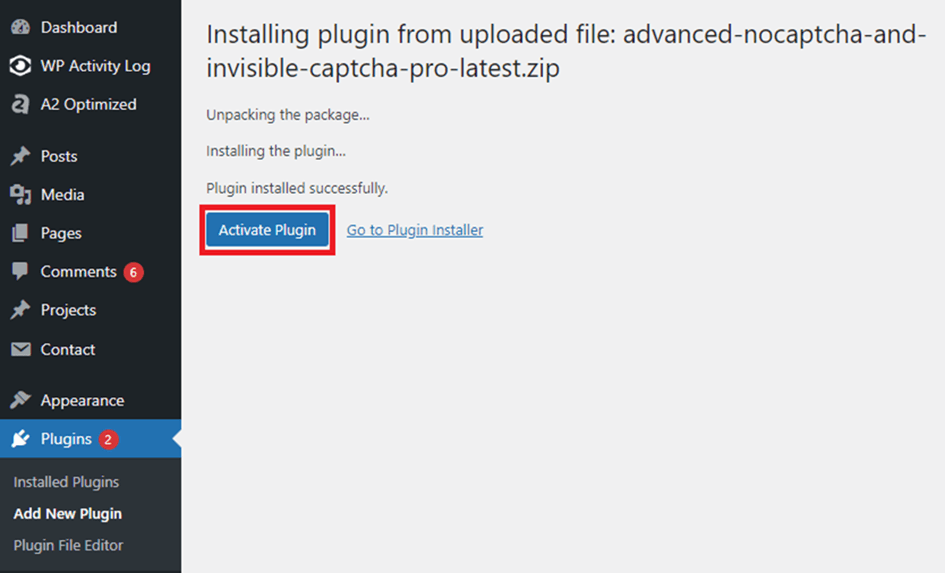
Once the plugin files are done uploading, click on Activate Plugin to activate the plugin and start the setup wizard.
Follow the setup wizard
The setup wizard will first prompt you to enter your license key.
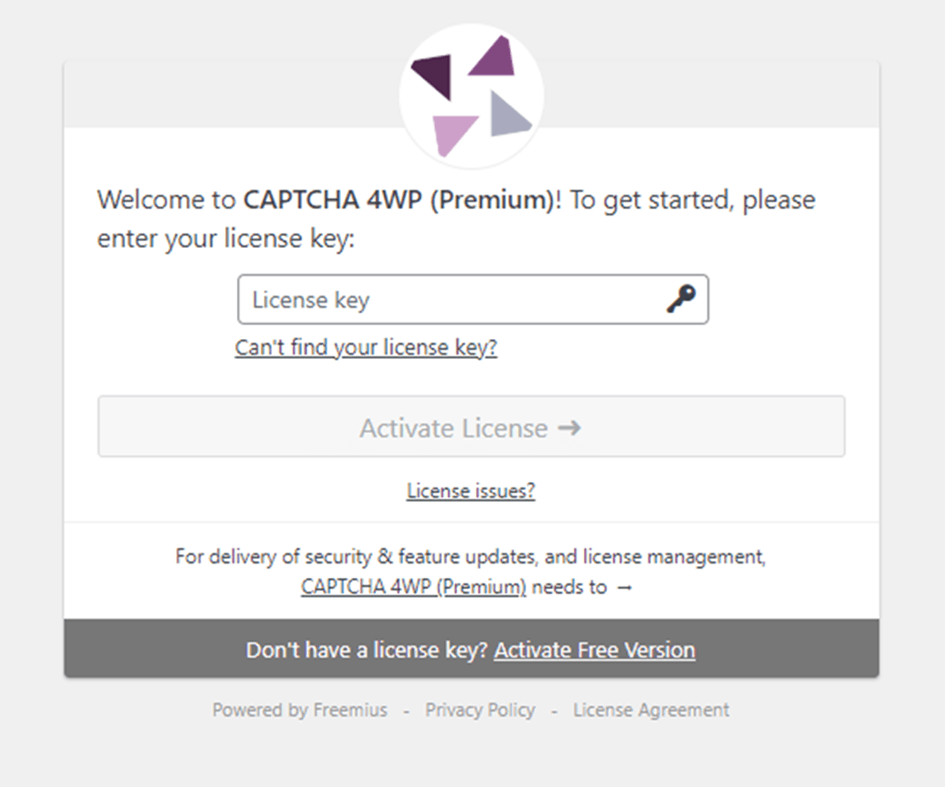
After clicking on Activate License you’ll see the following prompt:
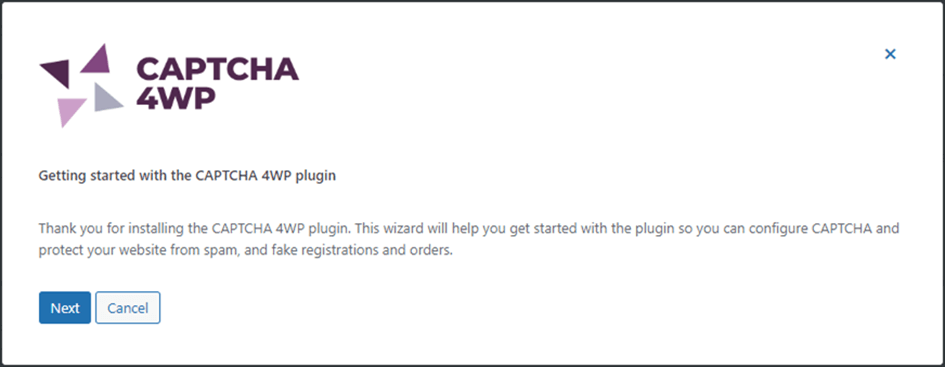
After clicking on next, you’ll be able to select the type of CAPTCHA you want to use. I’ll be using hCAPTCHA in this example, but feel free to select a different option.
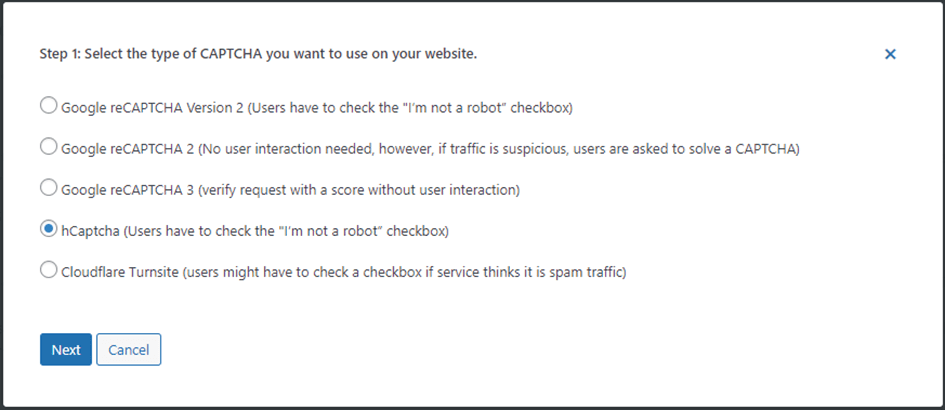
In the next step, you’ll be asked to insert your hCAPTCHA keys. To do this, you first need to generate hCAPTCHA keys. Go to the hCAPTCHA website and sign up by clicking on the Sign Up button at the top right of the page.
After following the prompts to create an account, you should end up on the following page:
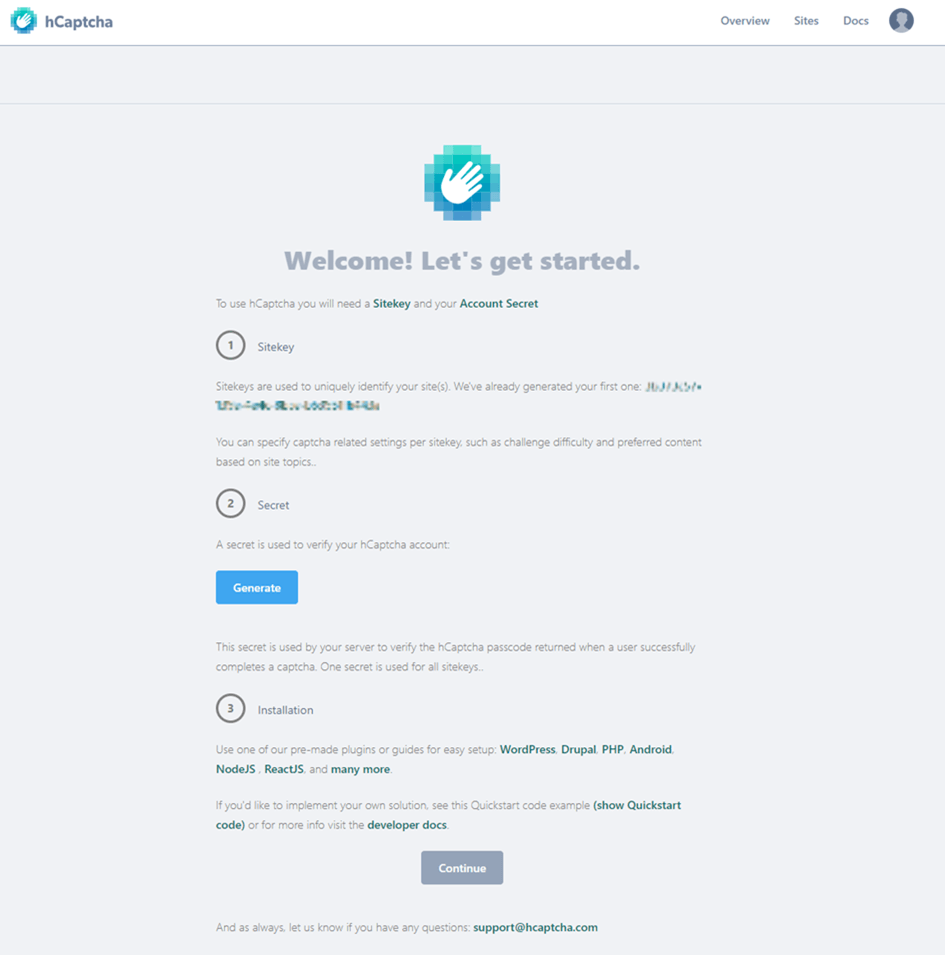
Click on Generate to get your secret key.
You now have both a site key and a secret key. Head back over to the tab with your WordPress site, enter your site key, and click on Proceed to secret key.

Next, enter your secret key and select Validate & proceed.
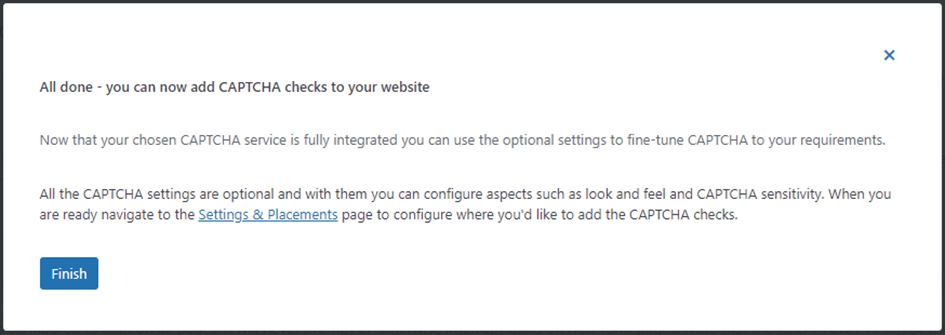
Adding hCAPTCHA to your Elementor form
There are just a few more steps you need to take in order to add hCAPTCHA to your Elementor form using CAPTCHA 4WP.
We have a detailed guide in our knowledge base that shows you how to add CAPTCHA to a WordPress website form. After installing and configuring the plugin, you can follow this guide to get hCAPTCHA working on your Elementor form.
Method 2: Adding reCAPTCHA using Elementor’s built-in CAPTCHA integration
Elementor also has a built-in reCAPTCHA integration that allows you to add reCAPTCHA to your forms. This can be a good option for smaller websites that don’t need the same level of control/customization or protection that third-party plugins offer.
Keep in mind that this solution only adds reCAPTCHA to Elementor forms and can’t be used for other forms/pages on your site. If you’d like to protect other forms on your site from spam, a third-party plugin like CAPTCHA 4WP might be a better option.
To use Elementor’s built-in CAPTCHA integration, first generate your Google reCAPTCHA keys.
Then, in WordPress, go to Dashboard > Elementor > Settings > Integrations. Enter your newly generated API keys under the reCAPTCHA section and click Save Changes.
Next, navigate to your form (or create a new form) and edit your Form Fields. Then, simply select reCAPTCHA under Type to add reCAPTCHA to the form. The reCAPTCHA integration should now be added to your form. Click Save, and you’re ready to rock. It’s that easy!
Other Methods of Stopping Elementor Contact Form Spam
CAPTCHA is generally considered the best method for preventing spam, including contact form spam. However, there are many other controls you can implement to reduce spam sent through your Elementor contact form(s).
Honeypot
A honeypot is an extra form field that is hidden on the screen but that’s visible to bots. Since many spam bots automatically fill in every single form field, they also fill in the honeypot field. This is a clear sign that it’s a bot filling in the form since normal users don’t see the field and therefore can’t fill in this field.
By blocking all form submissions where the honeypot field is filled in, you can stop (some) bots in their tracks.
The upside of using a honeypot is that it’s a very easy security control to implement. It’s also great to use together with other spam prevention controls like CAPTCHA to add a second layer of security.
However, it does have its downsides too. Most notably that it doesn’t work too well for more sophisticated bots.
Math question
Asking the user to answer a simple question before submitting a form can be used as an alternative to CAPTCHA. This can stop basic bots but isn’t very effective at stopping advanced bots – even when used together with other controls like a honeypot.
This solution also comes with some accessibility concerns. CAPTCHA solutions generally offer an alternative challenge for people with visual impairments but this isn’t the case for maths questions. This can prevent visually impaired people from submitting your content forms.
Adding a math question to Elementor forms is very easy using a feature built into Elementor’s form builder. However, given the drawbacks, we don’t recommend this option.
Frequently Asked Questions
There are many steps you can take to stop spam from being submitted through your Elementor contact form. Implementing a CAPTCHA solution is generally considered the most effective option, but you can also use a honeypot, a maths question, or manually block certain bots from spamming your forms. It’s often best to combine multiple methods for the best results.
One of the easiest and most effective ways of filtering spam in your Elementor forms is by using a plugin like CAPTCHA 4WP. This plugin can help you implement the right CAPTCHA solution for your site and filter out any spam form submissions by bots. Alternatively, Elementor has built-in reCAPTCHA integration that can help reduce spam form submissions with reCAPTCHA.
There are also true spam filters you can implement on your WordPress website to stop unsolicited messages.
To be able to use Elementor’s form builder, you need Elementor Pro which is the premium version. Elementor Pro starts at $49 and comes with a range of different features, one of which is the Form Builder.
This post is specifically geared towards stopping spam contact form submissions in Elementor and not general WordPress contact forms. Our guide on stopping WordPress contact form spam is a good resource for stopping general WordPress contact form spam.
Spam protection refers to all of the measures you implement to prevent spam form submissions and other unwanted communications. Effective spam protection can help improve your site’s user experience, improve website security, and help maintain your website’s performance.
The post How to Stop Elementor Contact Form Spam: 2 Best Methods appeared first on Captcha4WP.
]]>The post Best security measures for WordPress Spam Protection appeared first on Captcha4WP.
]]>While spam is in decline, thanks to improved filtering technologies, it still costs businesses an average of $712 per employee each year. This figure does not include time spent looking for lost messages, which would raise the cost even higher.
In this article, we will look at the best spam protection technologies available for WordPress today. From CAPTCHA and geo-blocking to whitelisting and filtering, we will look at the best anti-spam plugin or service for each category.
Table of contents
CAPTCHA
CAPTCHA is a battle-tested spam protection security measure. It can protect your WordPress site from WordPress spam comments and other submissions through a test. The test is optimized in such a way that humans find it easy while bots struggle to complete it.
CAPTCHA comes in different flavors, enabling you to pick and choose the type of CAPTCHA that works best for you and your websites. While reCAPTCHA is the most known, hCAPTCHA and Cloudflare Turnstile are more than worthy contenders. You’ll also find different versions of reCAPTCHA, which will give you control over the balance between WordPress spam protection and user experience.
CAPTCHA 4WP is our anti-spam plugin for WordPress that offers a slew of features for spam protection. It offers five different CAPTCHAs to choose from, as well as features such as:
Configurable reCAPTCHA score
reCAPTCHA V3 failover
3rd-party plugin support
CAPTCHA customization options
How to add CAPTCHA to forms on your WordPress website
Getting CAPTCHA anti-spam protection is easy when using our own CAPTCHA 4WP. The free edition includes all versions of ReCAPTCHA. The premium edition, on the other hand, adds hCAPTCHA and Cloudflare Turnstile among many other features, for even more CAPTCHA options.
You can install the free version directly from your WordPress admin by navigating to Plugins > Add New Plugin. Search for CAPTCHA 4WP and then click Install, as shown in the screenshot below.

The configuration wizard will automatically kick in once you install and activate the plugin. Do keep in mind that regardless of which method you choose, you will need to obtain a Secret Key and a Site Key. Together, this key pair enables the CAPTCHA you choose to work on your site.
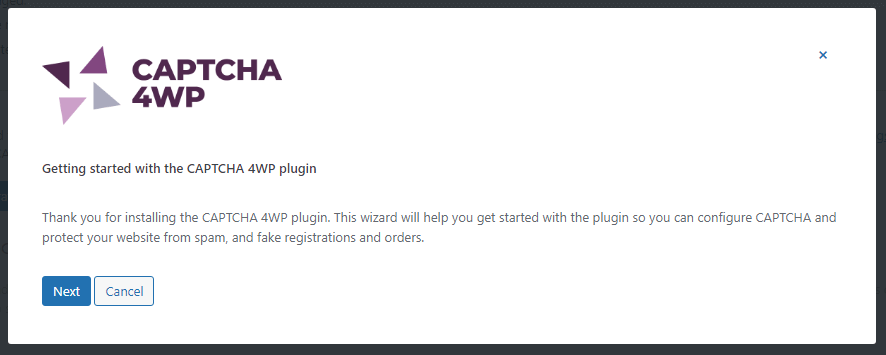
The wizard will walk you through the entire process of setting up CAPTCHA. The plugin itself includes numerous options, such as ReCAPTCHA V3 adjustable score and failover, 3rd party plugin integration, and much more.
Geo-blocking
Some regions tend to be more prone to sending spam comments and messages than others. Tools like Cisco Talos make it easy to identify problematic areas. If you do not service these areas, geo-blocking is a great tool you can deploy to reduce message and comment spam on your WordPress site.
It should be noted that spammers often use VPNs and proxies to circumvent geo-blocking measures. As such, geo-blocking on its own is not enough of a deterrent. However, it is a great supplement to other measures such as CAPTCHA.

The easiest way to enable geo-blocking on your website is through a plugin. You can also implement geo-blocking rules through the CDN or Firewall—if the feature is available. Since we used CAPTCHA 4WP before, we will use this same plugin to walk through WordPress geo-blocking implementation.
To enable ge-blocking with CAPTCHA 4WP:
First, we need an IPLocate API key. To configure this, go to CAPTCHA 4WP > Settings and click on the Integrations tab.
Follow the provided instructions to obtain your key. Then, enter it in the IPLocate API Key textbox and remember to click Save.
Next, navigate to CAPTCHA 4WP > Form Placements.
Scroll down to the very last section titled Do you want block/allow protected form submissions based on a users location?, choose location rule and enter the ISO of the countries you would like to block or allow.
Whitelisting
Whitelists, also known as allowlists, block all submissions except from the sources listed in the list. This is a very restrictive measure that should only be deployed when you know exactly who will be making submissions.
Typically, allowlists include the IP addresses of those people who are allowed to submit comments or emails. Do be aware that most people do not have a static IP. As such, you may need to update the list regularly – even if you only have a few people in your list.
Plugins such as WPForms enable you to configure email address allowlists by form. The option is included in the free version of the plugin, making it accessible to everyone.
To add an allowlist to a WPForms forms:
Using an existing or new form, make sure that one of the fields is Email
Click on the Email field in the form builder and then click on Advanced in the left-hand menu
Scroll down to the section titled Allowlist / Denylist and choose Allowlist from the drop-down menu
Enter the email addresses you want to include in your Allowlist, and remember to save.

Blacklisting
Blacklists, also known as disallowlists, are a form of spam protection that prohibit specific IP addresses from posting comments or submitting forms. While spammers can very easily change their IP address, blacklisting allows us to block the worst offenders.
Do note that it is impractical to blacklist every IP that sends spam. Keeping up with the list would require full-time staff just to manage the process.
Disallowlists can be added in different ways. If you would like to completely disallow certain IPs from interacting with your site, you’ll need to add the proper directives to the .htaccess file.
Keyword filtering
Another WordPress spam protection mechanism is keyword filtering. This functionality is available in WordPress straight out of the box without needing to install any specific WordPress anti-spam plugins.
Keyword filtering is a form of spam protection that looks for specific words in comments. WordPress can do one of two things whenever these words are detected – automatically delete the comment or hold it for moderation.
Which keywords you want to filter will largely depend on the topics you cover on your website. For example, if you cover the latest tech news, any medical product reference is likely a spam message. However, if you do cover health topics your audience is more likely to mention medicinal products.
To get started with keyword filtering, log into your WordPress dashboard, then navigate to Settings > Discussion.

Comment Moderation
The comment moderation feature enables us to automatically move comments to the moderation queue when they meet certain criteria. These are as follows:
Number of links
WordPress allows us to automatically move comments to moderation if they have a given number of links. Spam comments typically include a large number of links, enticing people reading to comment to click on them.
By default, WordPress sets this limit to 2 or more. However, you can increase or decrease this by entering the appropriate number in the relevant files.
Keywords
We can also define specific words in the Comment Moderation text box, which, when present, will automatically move the comment to the moderation queue. Keywords will be matched against:
Content
IP addresses
URLs
Author name
Email
User-agent string

Equally, we can define keywords, that when present, the comment will be moved to the Trash automatically. These keywords need to be entered in the Disallowed Comment Keys section.

Notable mention: Akismet anti spam plugin
If you do not want to manually manage keywords and IP addresses, a WordPress anti-spam plugin might very well be a better choice for you. Akismet, which is developed by Automattic, uses machine learning and algorithms to filter out spam.
Akismet is installed by default with all WordPress sites. However, you can also install it by navigating to Plugins > Add New Plugin and searching for Akimet.
Once you’ve installed the plugin, you will need to get an API key from the Akismet website. There are different plans available, depending on your requirements.

Akismet uses machine learning to determine whether a comment is spam. Processing is done on the cloud, thus consuming minimal resources on your WordPress server.
Akismet also integrates with 3rd party plugins such as Contact Form 7 and Gravity Forms for more consistent WordPress spam protection across your website.
How to decide which method or plugin to use
With many spam plugins for WordPress to choose from, finding the right one (or more) can feel like an intimidating task. Whether you’re working on your own website or that of a client, balancing security and performance is surely at the top of your list. So, how do you go about it?
Spam evolves to counteract the security measures we put in place. As such, when looking to combat spam, you need to ensure that any anti-spam tools you use evolve with it.
The best anti-spam plugins receive regular updates with new functionality. This ensures that you can continue keeping spam at bay.
While there is no such thing as a WordPress zero-spam plugin (some spam will inevitably get through), finding a plugin that offers multiple ways to eliminate spam comments can prove to be a more effective solution.
Frequently Asked Questions
WordPress comes with built-in comment moderation tools, targeting spam comments. Available through the WordPress dashboard, these moderation tools enable you to automatically delete or move to the moderation queue any comments with specific keywords or the number of links.
While WordPress includes moderation tools out of the box, you can enhance spam protection with plugins. CAPTCHA 4WP is one such plugin with the free edition offering integration with all ReCAPTCHA versions, including ReCAPTCHA V3 failover, to avoid genuine users falling through the cracks.
The post Best security measures for WordPress Spam Protection appeared first on Captcha4WP.
]]>The post [Solved] CAPTCHA or reCAPTCHA Not Working on WordPress Website appeared first on Captcha4WP.
]]>Common causes for CAPTCHA or ReCAPTCHA malfunction include
- Incorrect domain name and site key
- Cached data problems
- Plugin incompatibility issues
- Inappropriately high CAPTCHA score
In this article, we will show you how to find a solution for CAPTCHA not working on your WordPress website.
How to Fix CAPTCHA Not Working on WordPress

To fix malfunctioning CAPTCHAs on your website, you need to carry out the following steps. We recommend carrying out one step at a time and checking if the solution fixed the issue, before moving on to the next one.
IMPORTANT: Take a backup of your entire website because, in the following solutions, we will ask you to update software installed on your website or add new plugins to your site among other things.
Although rare, adding new plugins or making updates can sometimes cause websites to break. So a backup will be your safety net, ensuring you can recover your website in case something does go wrong.
While implementing the following solutions, if your website breaks, you can easily get it up and running using the backup and then proceed with the solutions again. So take a backup before moving forward with this tutorial.
1. Fix Incorrect Site, Secret Keys & Domain Name
When you set up reCAPTCHA on your WordPress site, you are required to register your domain with Google reCAPTCHA and obtain a Site Key. Incorrect domain names or key entries in your configuration can lead to reCAPTCHA not working.
Below, we’ll show you how to fix incorrect entries when using Google reCAPTCHA. Cloudflare Turnstile and hCAPTCHA users need to follow these tutorials instead:
Fix Incorrect Key Entries
To fix the incorrect key entries, open your Google reCAPTCHA dashboard, select your WordPress website from the dropdown menu, and open the Settings option.

Next, go to reCAPTCHA keys and copy the Site Key and the Secret Key.

Once you have the keys, open your WordPress dashboard, go to the CAPTCHA settings of your CAPTCHA plugin, and paste the copied site and secret keys. You can easily do this by clicking the Reconfigure CAPTCHA integration button when using CAPTCHA 4WP.
CAPTCHA 4WP is our very own WordPress CAPTCHA plugin, which we will be using throughout this tutorial. Keep in mind that you might be using a different CAPTCHA plugin and the steps might differ slightly.

Fix Incorrect Domain Name
Next, make sure you are using the correct domain name by returning to your Google reCAPTCHA account and scrolling down to the Domains section.
Here you need to ensure that the domain name is correct and that it does not include “https://” or the trailing slash (“/”) found at the end of a URL. The domain name should look like this:
example.comAfter ensuring you’re using the correct domain name, be sure to scroll down to the end of the page and hit the Save button. Then proceed to check your website CAPTCHA.

2. Ensure Requests Are Reaching the CAPTCHA Service Provider
For CAPTCHA to work, your WordPress website must be able to communicate with the CAPTCHA service provider. This is important since the tests are run on the service provider’s servers.
If your website requests are not reaching the CAPTCHA service provider correctly, due to network connectivity issues, firewall rules, hosting server down, etc, the CAPTCHA on your website won’t work.
To verify that the requests from a WordPress website are reaching the CAPTCHA service provider correctly, you can follow the steps below:
Check Your Hosting Server Status
You need to ensure that your hosting server is up and running.
When a visitor submits a form or logs into your WordPress website, the site needs to communicate with the CAPTCHA service provider (be it Google reCAPTCHA, hCAPTCHA, or Cloudflare Turnstile) to validate the user’s CAPTCHA response.
However, if your hosting server is down, it cannot connect with the external CAPTCHA service provider. This causes CAPTCHA validation failure even if the user correctly solves the CAPTCHA.
To check whether your hosting server is down you can use tools like Is It Down Right Now or Hosting Checker or simply reach out to your hosting support team and enquire.
Disable Firewall
Website firewalls offer security measures that inspect incoming traffic and prevent malicious traffic from accessing the website.
In some cases, firewalls may inadvertently block or interfere with connections between a WordPress website and an external CAPTCHA service.
Ensure traffic can flow through by checking whether the firewall is allowing traffic to the service provider’s IP addresses. You can also check the service provider console to see when the latest requests came through.
If requests are not coming through, this typically indicates a firewall or a network issue. Check your firewall log for any blocked outgoing requests. Next, try pinging the service provider server to ensure a good connection.
3. Adjust CAPTCHA Score
In Google reCAPTCHA V3, each visitor interaction with the CAPTCHA generates a score ranging from 0.0 to 1.0 based on user behavior.
A high score indicates a higher likelihood of the visitor being a bot and vice versa.
We recommend reviewing the score threshold set for reCAPTCHA v3 on your website. The score threshold may be set too high, causing genuine human users to be rejected.
You can adjust the CAPTCHA score using the CAPTCHA or reCAPTCHA plugin installed on your website. Here’s what this would look like on CAPTCHA 4WP.

4. Clear Server Cache
Caching is the process of saving web pages, images, CSS, JavaScript, and other assets so that when someone revisits that same page, the web server can quickly retrieve the resources and display them on your screen. It helps reduce loading time and improve user experience.
A significant drawback of server caching, particularly in relation to CAPTCHAs, is that it may store and display outdated CAPTCHA challenges or validation tokens. This can lead to several issues like the display of expired CAPTCHA image that no longer matches the expected response. The cached version might contain old CAPTCHA scripts that are incompatible with the current validation process.
These caching-related problems can prevent your website visitors from successfully completing CAPTCHA verification.
So by clearing your server-side cache, you can ensure that the latest CAPTCHA challenges and validation processes are being served to your visitors.
Some hosting accounts offer cache management systems that can be accessed from the cPanel or the hosting’s custom panel. For example, NameCheap has LiteSpeed Web Cache Manager that can be used to flush server cache.
We recommend looking for a similar feature in your hosting account.
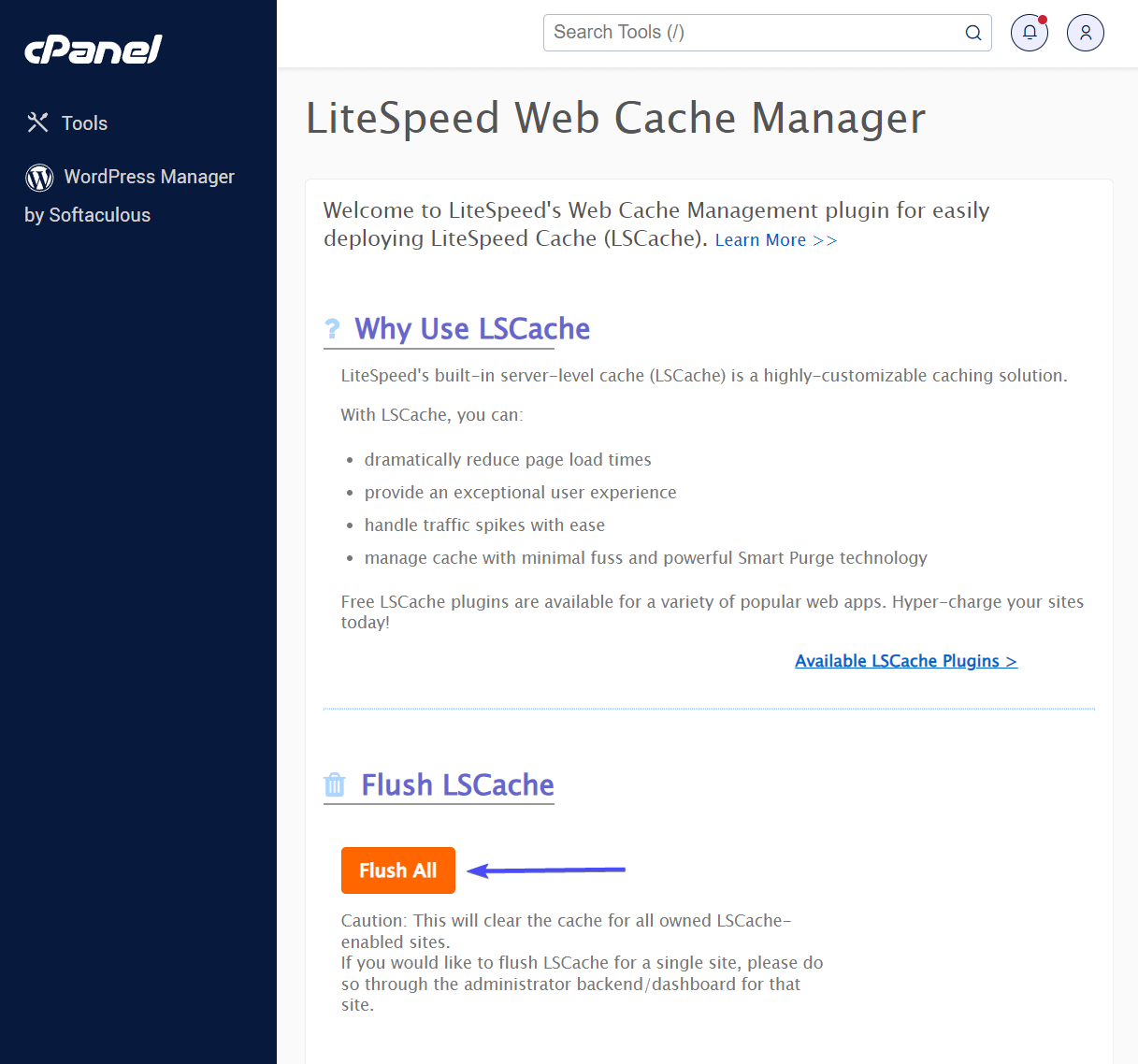
Another option is to exclude CAPTCHA from caching. This ensures that the script is loaded from the source every time rather than using a cached version.
5. Update Plugins, Themes & WordPress Core
In a WordPress website, CAPTCHAs are frequently implemented through plugins.
Plugin developers release updates to fix bugs and improve compatibility with the latest WordPress versions. Outdated CAPTCHA or ReCAPTCHA plugins have a higher risk of conflicting with other plugins or the WordPress core, leading to CAPTCHA malfunctions.
By updating the CAPTCHA plugin and other plugins installed on your website, you can ensure maximum compatibility and resolve conflicts that might be causing the CAPTCHA to fail.
As for themes, outdated themes can sometimes interfere with the functionality of CAPTCHA plugins.
Likewise, outdated WordPress core versions can also cause compatibility issues with CAPTCHA plugins.
When troubleshooting compatibility issues, you should immediately update the current theme and WordPress core.
6. Use Different Form Plugins
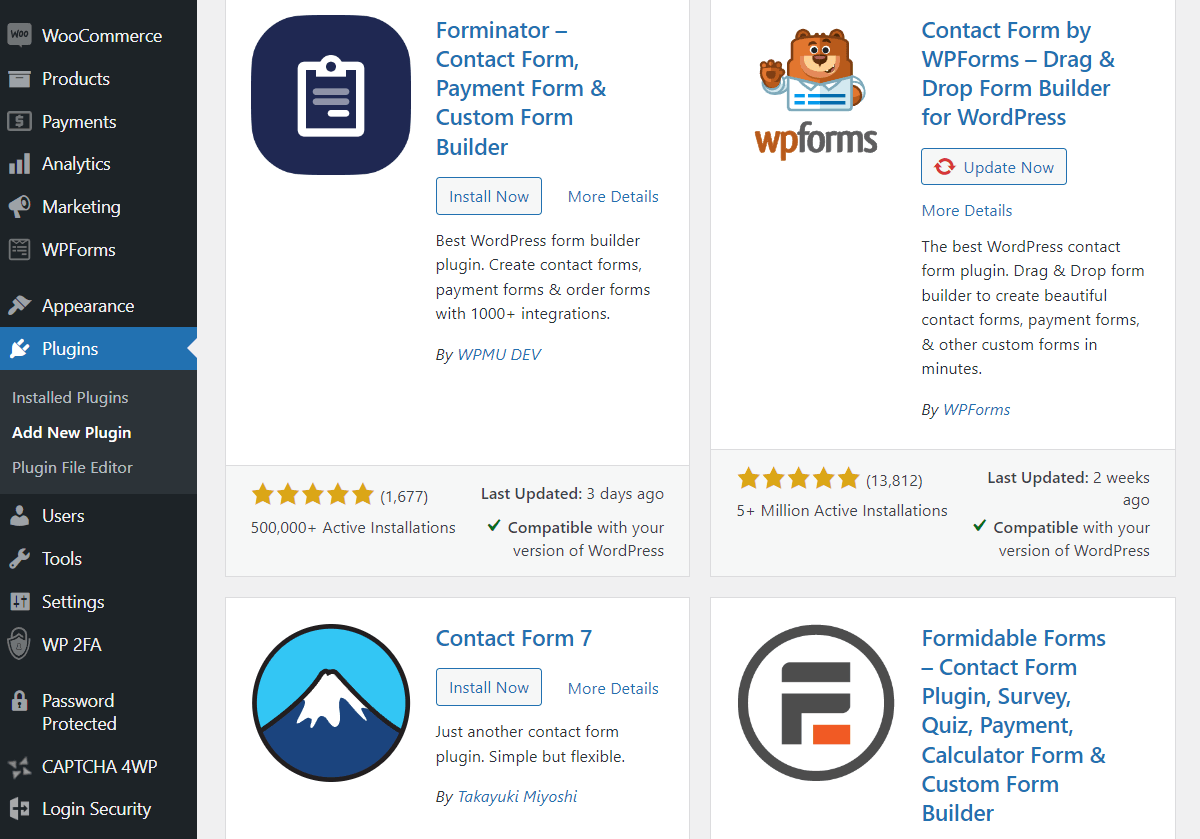
Despite setting up your CAPTCHA plugin correctly and updating your website, you might still encounter CAPTCHA or reCAPTCHA problems due to incompatibilities with your form plugins.
There are several reasons why your form plugin might be incompatible with your CAPTCHA or reCAPTCHA plugin.
For instance, CAPTCHA plugins are known to have trouble interacting with a form that’s inside a frame, also known as iframe. The use of iframes in a form plugin is often necessary for design and functionality-related purposes. But it could also prevent the CAPTCHA feature from working properly on a WordPress website.
AJAX validation issues are another common cause for incompatibilities between form and CAPTCHA plugins. AJAX technology allows websites to update parts of a page without refreshing the whole page, ensuring a smooth user experience.
Both form and CAPTCHA plugins may use AJAX to handle form submissions and CAPTCHA validations but in different ways. The AJAX validation process of the form may bypass or interfere with the standard CAPTCHA verification process, leading to issues with form submissions and CAPTCHA verifications.
So how will you know if your form plugin is incompatible with the CAPTCHA plugin installed on your website?
Try switching to a different form or CAPTCHA plugin to see if it resolves the compatibility issue. If your form is the main culprit, you need to seek help from the developers. Reputable developers offer one-to-one support that will help you get back up and running in no time at all.
7. Switch to a dedicated CAPTCHA Plugin
Switching to a dedicated CAPTCHA plugin might be a good idea as these tend to offer more features and better compatibility with different 3rd party plugins
While there are numerous CAPTCHA plugins out there, we recommend trying out our very own CAPTCHA 4WP plugin.
CAPTCHA 4WP is a powerful and user-friendly CAPTCHA plugin built for WordPress websites, WooCommerce, and multisite networks. It also offers out-of-the-box compatibility with many popular plugins such as Contact Form 7, Gravity Forms, BuddyPress, and others
CAPTCHA 4WP also supports multiple CAPTCHA providers such as Google reCAPTCHA service, hCAPTCHA, and Cloudflare Turnstile.
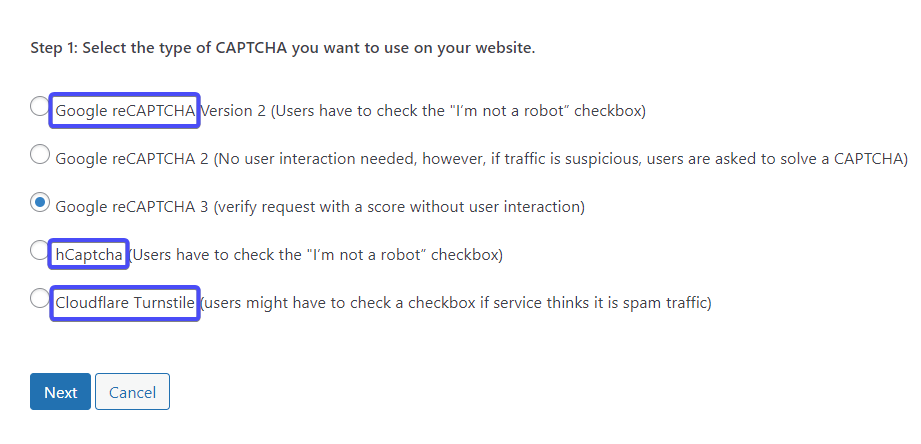
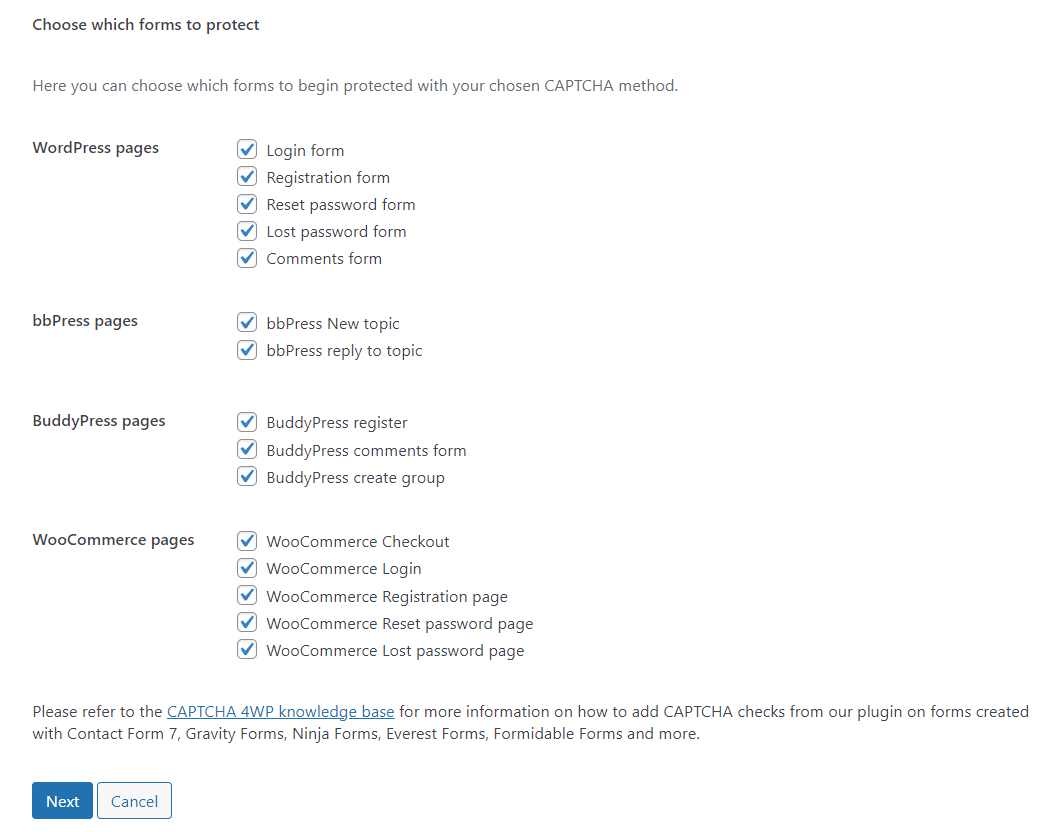
The plugin offers Geoblocking capabilities and complete control over CAPTCHA settings including language, error message, colors, size, and location of the CAPTCHA badge, among other things.
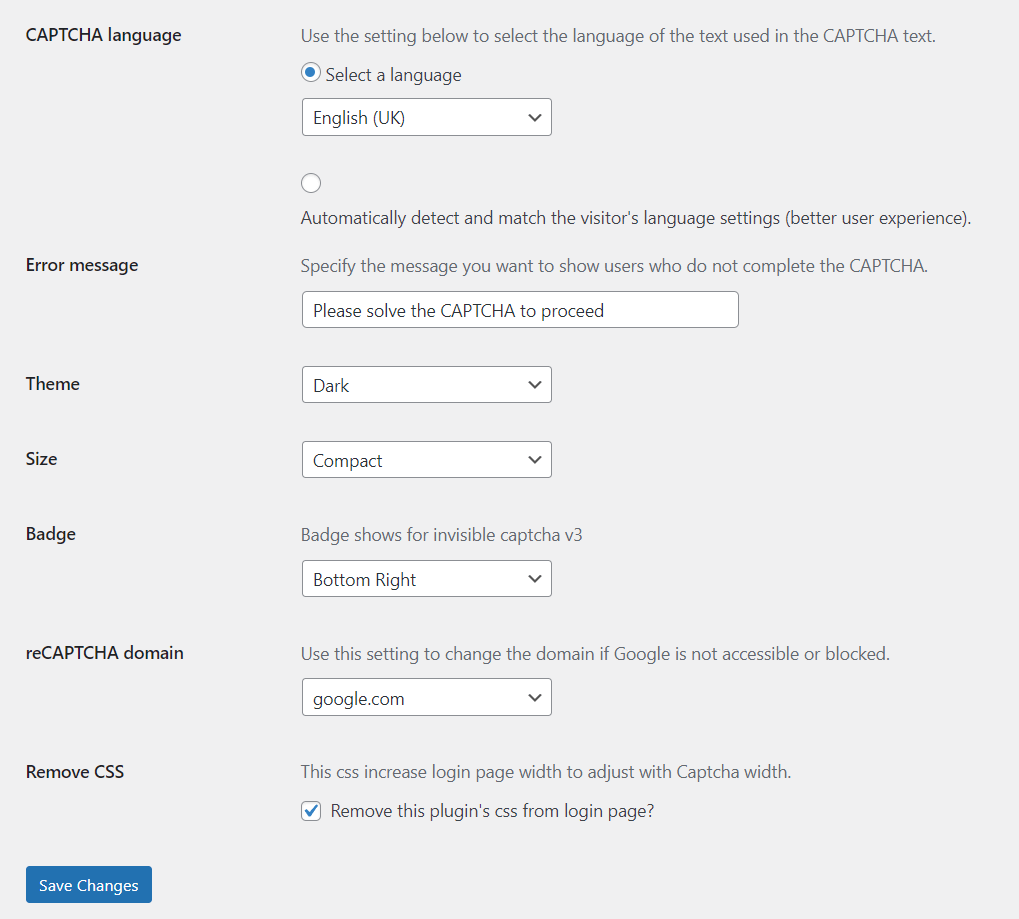
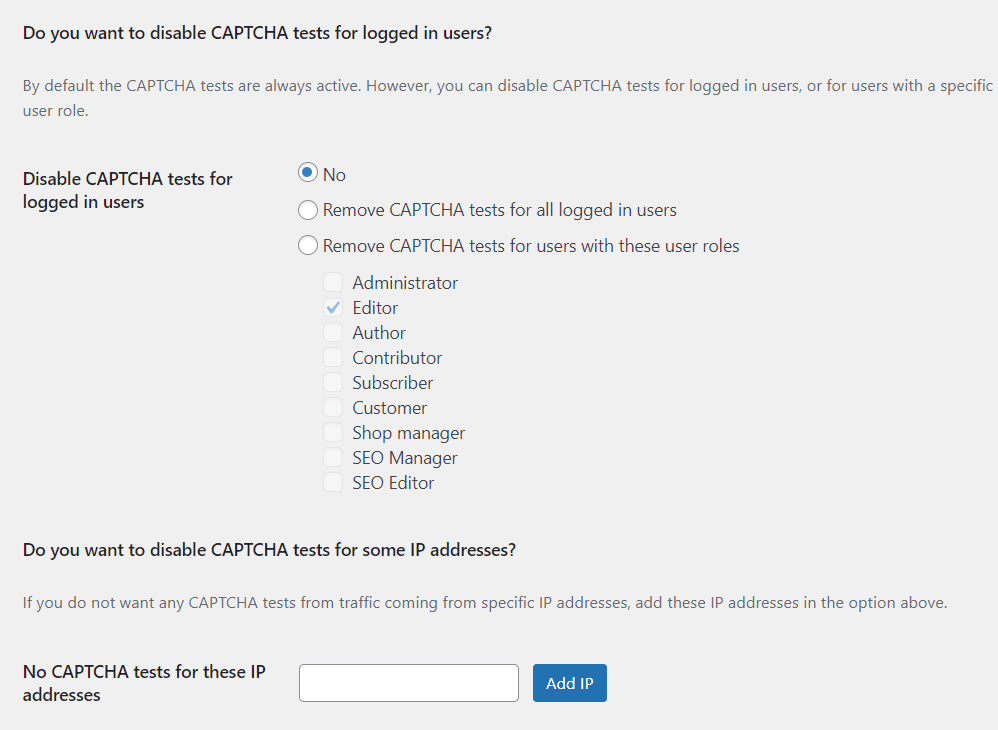
With features like CAPTCHA display only for failed logins, CAPTCHA removal from specific pages, whitelisting IP address, disabling the CAPTCHA challenge for logged-in users, and professional support, CAPTCHA 4WP offers a comprehensive solution for securing your website and enhancing user interactions.
You can try the free version of the plugin or install the premium plugin right away.
Test Your CAPTCHA Plugin
After implementing the solutions we listed in the previous section, you need to ensure that the plugin works on the user side (i.e., visitors to your website).
CAPTCHA issues are known to create user-side problems like CAPTCHA failing to load, or loading very slowly, image or audio not displaying, CAPTCHA validation timeout, multiple CAPTCHA refreshes required, form submission failures, etc.
Most of these problems occur due to reasons like unstable internet connection, outdated browser versions, and extensions, proxy server or VPN issues, among other things.
To ensure a smooth user experience, offer clear instructions and links to troubleshooting help docs and video tutorials advising visitors to check internet connection stability, clear Google Chrome or Mozilla Firefox browser cache, disable all browser extensions, disable VPN or proxy servers, and update Google Chrome or whatever browser they are using to prevent any interference with the CAPTCHA or reCAPTCHA verification process.
By anticipating and addressing these potential user-side issues, you can help ensure that your CAPTCHA plugin functions reliably for all visitors of your website.
Conclusion
CAPTCHA or reCAPTCHA are important tools to help protect a WordPress website against spam, fake registrations & fake orders.
When these tools stop functioning properly, your website becomes vulnerable to potential security threats.
To fix a malfunctioning CAPTCHA or reCAPTCHA, you need to carry out steps like
- Fix incorrect domain name and site key
- Ensure website requests are reaching the CAPTCHA service provider
- Adjust inappropriately high CAPTCHA score
- Clear server cache
- Update plugins, themes, and WordPress score
- Use different form plugins
- Lastly, switch to a better CAPTCHA plugin
If you have any questions about reCAPTCHA or CAPTCHA not working on your WordPress website, let us know in the comment section below.
The post [Solved] CAPTCHA or reCAPTCHA Not Working on WordPress Website appeared first on Captcha4WP.
]]>The post How to stop Contact Form 7 spam: protection & prevention appeared first on Captcha4WP.
]]>But its popularity also means that its users are often faced with spam issues.
Luckily, there are plenty of ways to stop Contact Form 7 Spam, including CAPTCHA, honeypots, spam filtering, and others.
Together, we’ll dive into a number of the most effective ones in this post.
Let’s get started!
Table of contents
Why are spam messages so prevalent in Contact Form 7?
Contact Form 7 forms are some of the most spammed contact forms in WordPress. This might seem like there’s something wrong with the plugin, but it has more to do with its popularity than any bad security practices on the part of the team maintaining it.
Its popularity increases its exposure, meaning that as the plugin is used on more sites, more spam messages are received by its users.
It also doesn’t help that many people using the plugin don’t know how to correctly configure it to prevent spam, which is a must if you don’t want to spend your free time sifting through hundreds of spam form submissions.
In the following section, we’ll show you how to effectively prevent this influx of spam messages.
Reducing Contact Form 7 spam using a CAPTCHA/reCAPTCHA solution
When you want to stop spam submissions, there are a number of tools you have at your disposal. They’re not all built equal though, so it’s important to consider the method(s) you use carefully to ensure they’re effective for your situation.
Contact Form 7 makes it really easy for you to implement a wide range of anti-spam measures, including CAPTCHA.
CAPTCHA remains one of the best methods of stopping spam form submissions.
It works by presenting suspected bots with a challenge that’s easy for humans to complete but hard for bots. By only submitting the form if the challenge is completed successfully, bot submissions are greatly reduced. Since bots send the majority of spam online these days, this will help prevent the majority of spam form submissions you receive.
Since it’s so important, we have an entire post dedicated to explaining why you need CAPTCHA on your WordPress website – check it out!
In Contact Form 7, there are two main ways of adding CAPTCHA to your form. You can use a third-party plugin or Contact Form 7’s own reCAPTCHA integration.
Third-party plugins have the benefit of offering more features and can often be used on other forms or pages on your website, too. On the flip side, however, they also introduce added complexity to your site, so it’s vital that you stick to trusted, secure plugins.
I’ll cover both options below so you can implement the one that’s right for you.
Third-party plugin
Using a third-party plugin is a good option if you require more features for your CAPTCHA integration, like the ability to use hCAPTCHA or integrate with your WooCommerce store.
I’ll be using CAPTCHA 4WP in this post, which comes with Contact Form 7 integration out of the box. It also has the ability to use hCAPTCHA and CloudFlare Turnstile – something you can’t do with Contact Form 7’s built-in CAPTCHA solution.


Stop spam with multiple CAPTCHA services & support for 3rd party plugins.
Lastly, and perhaps most importantly for those planning on using reCAPTCHA, it also comes with a failover for Google reCAPTCHA v3. This handy feature ensures there’s a way to handle false positives. As such, if a real person gets flagged as a bot, they will still be able to submit the contact form.
Step 1: Get and install CAPTCHA 4WP
You’ll first need to choose the plan you want.
Each plan comes with different features and a 30-day money-back guarantee, with prices starting at just $14 per year.
Since we’ll be taking advantage of hCAPTCHA for this example, I’ll be using the business plan.
After signing up for the plan of your choice, you’ll receive an email showing you how to download the plugin files.
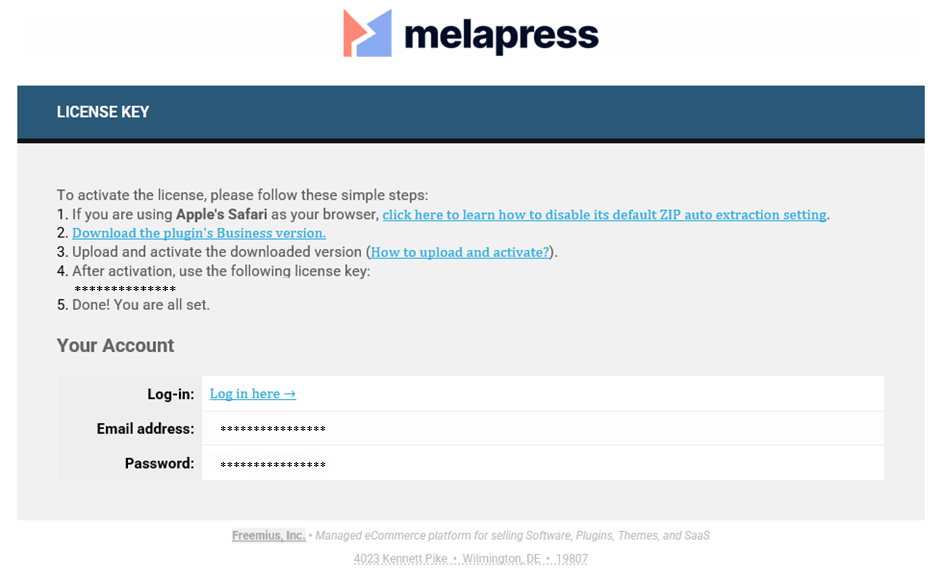
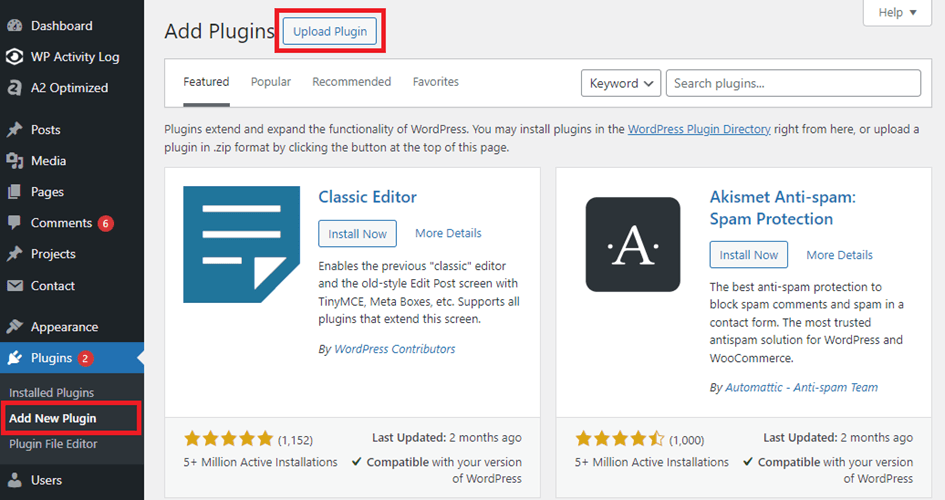
After downloading the plugin files, head over to your WordPress dashboard and navigate to Dashboard > Plugins > Add New Plugin.
Then, click on Upload Plugin > Choose File and upload the plugin files.
Once you’ve uploaded the plugin, click on the blue Activate Plugin button to activate it.
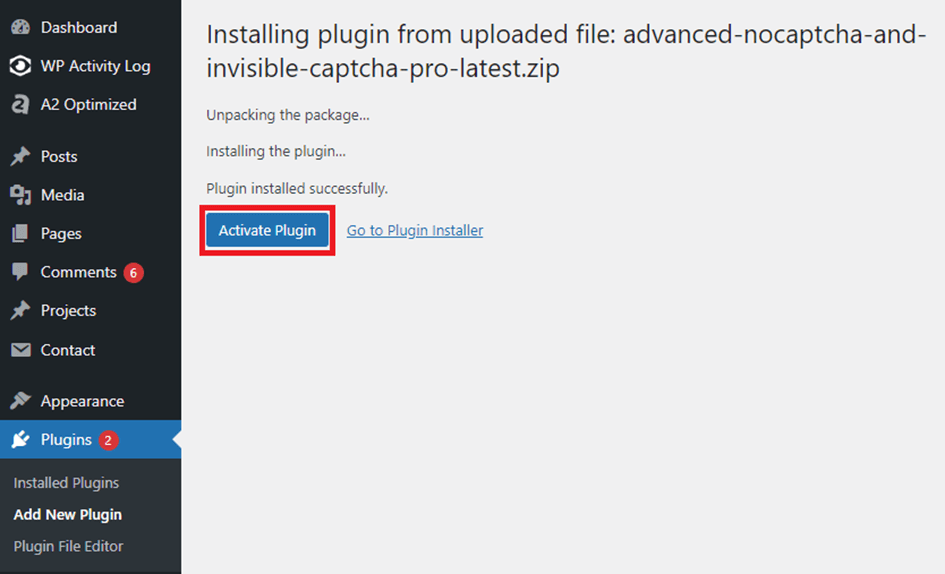
This will take you to the setup wizard.
Step 2: Complete the setup wizard
First, you need to enter your license key.
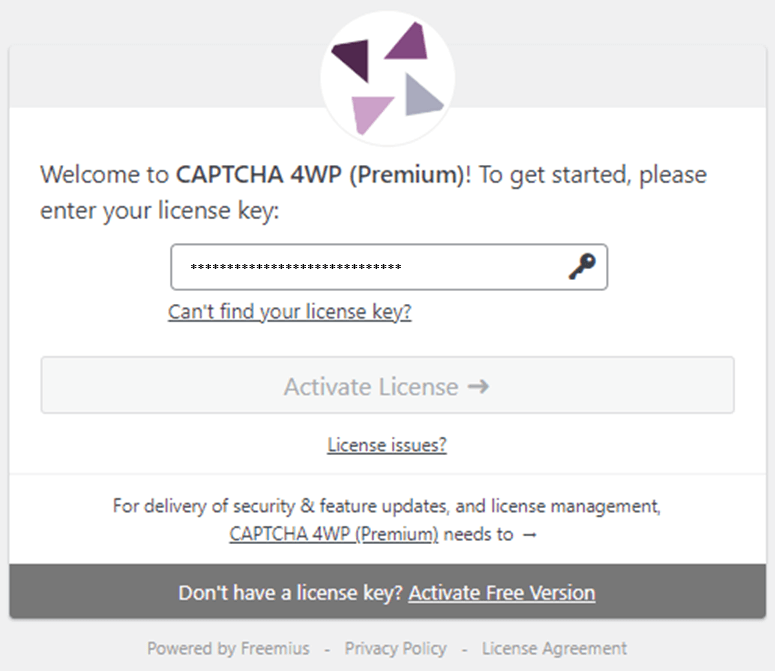
Then click Activate License.
You’ll then be shown the following prompt:
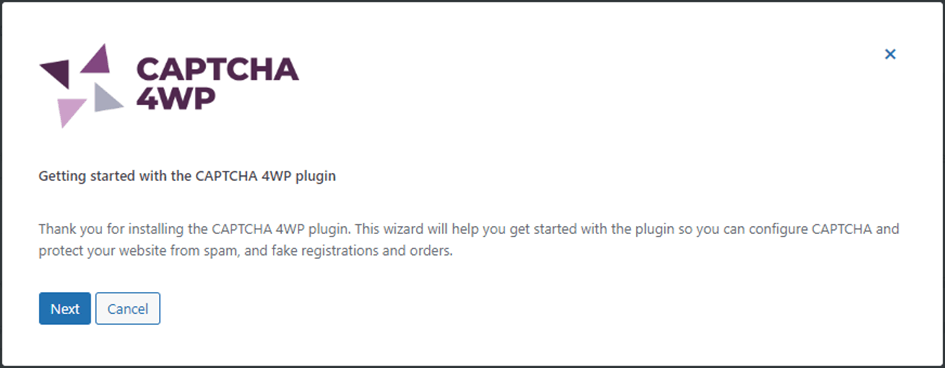
Click Next and choose the type of CAPTCHA you want to use on your website.
I’ll be using the hCAPTCHA option for this example.
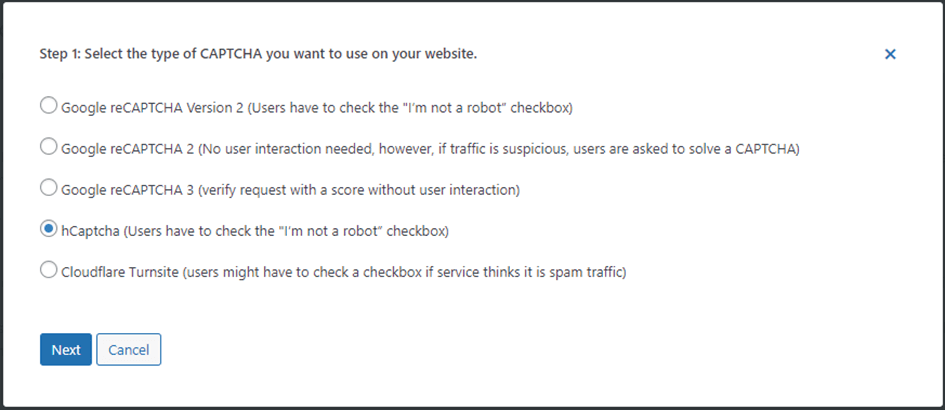
You’ll be prompted to insert your hCAPTCHA keys after clicking Next.
First, you’ll need to generate the hCAPTCHA keys, though!
To do this, go to the hCAPTCHA website and click on Sign Up at the top right.
Follow the steps to create an account until you reach this page:
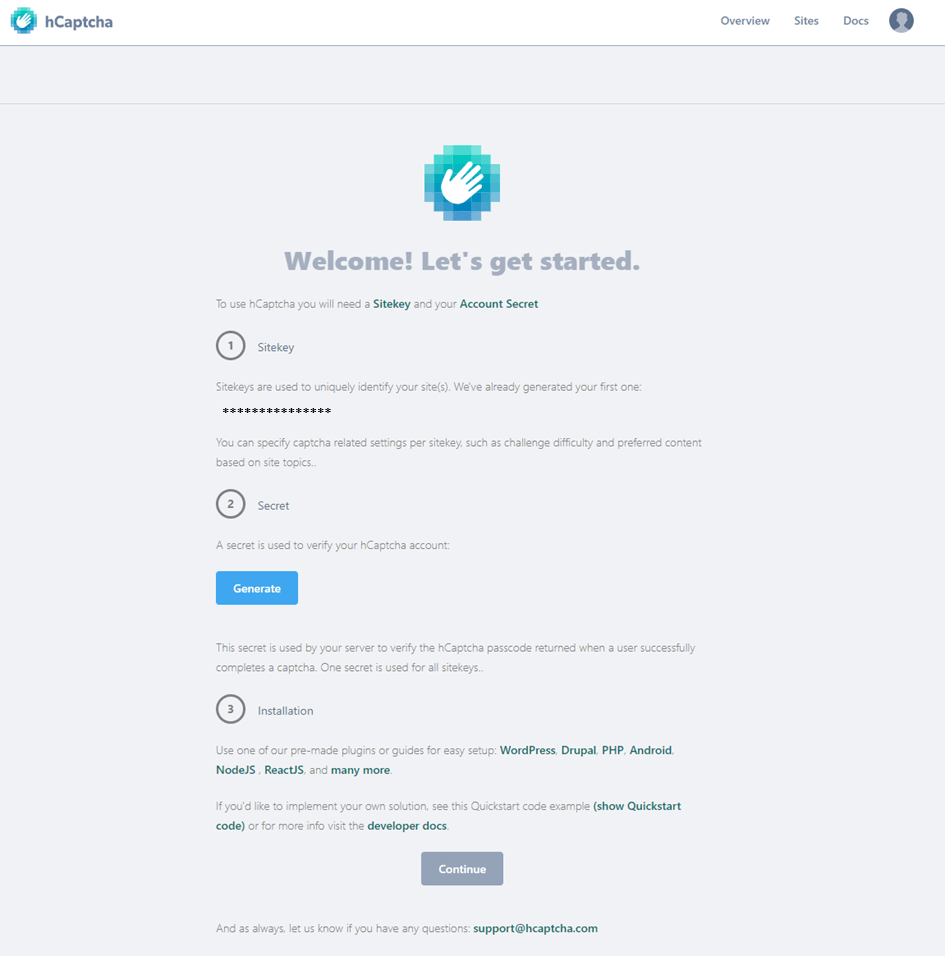
Click on the blue Generate button to get your secret key.
Then, go back to your WordPress dashboard, enter your site key, and click on Proceed to secret key.

Then, enter your secret key and click on Validate & proceed.
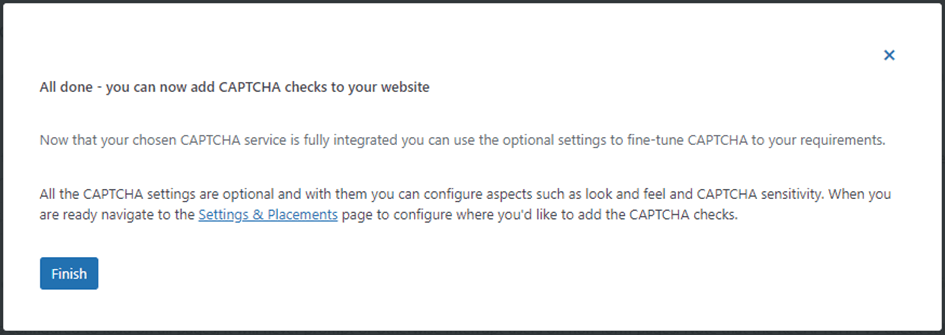
You’re now ready to start using CAPTCHA on your forms!
Step 3: Implementing CAPTCHA on your Contact Form 7 forms
Head over to your contact form under Contact > Contact Forms, then click on “Edit” under the form you want to add CATPCHA to.
In the form section, you should see a button labeled Add CAPTCHA.

You should be shown a form tag to add to your form after clicking it.

Click on the insert tab and then click on save underneath the form input.
Your form should now be using hCAPTCHA to protect it from spam.

Contact Form 7 reCAPTCHA
Contact Form 7 also has its own CAPTCHA integration, which is great for small personal/hobby websites. If you just want a very simple solution without the flexibility, added security, and extra features that third-party plugins offer, this option can work well.
The only thing to keep in mind is that it can only protect Contact Form 7 forms, so your other forms will still be vulnerable to spammers.
It uses Google reCAPTCHA, which does a pretty good job of blocking spam.
First, generate your Google reCAPTCHA keys. The linked article will show you how.
Then head over to Contact > Integration and click on the setup integration button in the section on reCAPTCHA.
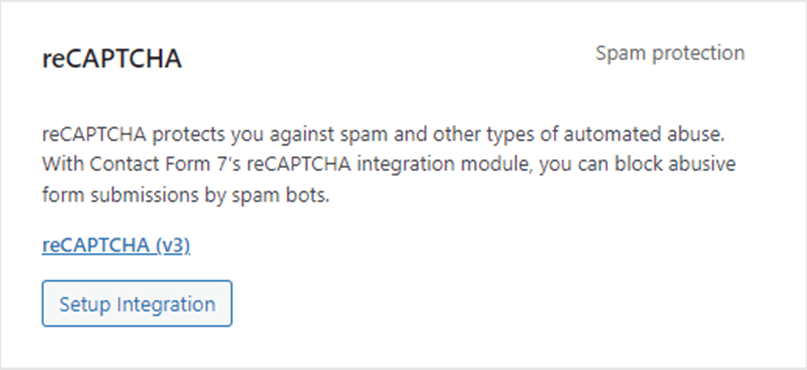
Next, copy and paste the keys into the text fields, taking care to paste the correct key in each field.
After clicking Save Changes your form should now be using reCAPTCHA.
Implement a honeypot
A honeypot is an additional hidden form field that’s not visible on the screen but is visible to bots. Since the code for the input field is still there, many bots will fill this form field in automatically, resulting in the form submission being flagged as spam.
You can use a honeypot in combination with CAPTCHA as an additional measure. However, it shouldn’t be used as a replacement. This is because many honeypots are very easy to bypass. Third-party honeypot plugins will implement the same type of honeypot on each site they protect, so it’s enticing for spammers to develop bots tailored specifically to bypass these honeypots.
Nevertheless, it’s still a good idea to implement a honeypot in your form, as it does protect against various less advanced bots.
It’s also very easy to implement by simply downloading the honeypot plugin of your choice and following the installation instructions.A good place to start is Honeypot for Contact Form 7, which is both effective and easy to implement.
Use a spam filter for your contact forms
A spam filter analyzes the content submitted in the form for common indications of spam and filters spam emails out. For example, the analyzer will not submit the form if it includes words related to popular spam topics, like viagra.
Although there are a number of different providers of spam filters, the most used is Akismet. Contact Form 7 has an Akismet integration that allows you to set up spam filtering on your form. You can achieve this in just a few clicks.
The only downside to using a WordPress plugin like Akismet is that it costs money to use. If it’s just for a personal blog, Akismet is free/pay what you want. However, for regular sites, you’ll have to pay.
To implement Ankismet, follow this guide.
Spam filtering is a great way of reducing contact form spam and is also a great supplemental spam prevention control to CAPTCHA. Since some very advanced bots can bypass CAPTCHA, an additional spam filter will ensure spam emails never reach your inbox.
However, if you want a free solution that can still help filter out some of your form submissions, you can use Contact Form 7’s disallowed list.
Disallowed list
Contact Form 7 can use the disallowed list feature WordPress offers to block messages containing specific words as well as specific IP addresses. Although it’s far from the level of spam filtering you get with Akismet and other specially designed spam filters, it can be a great way to block obvious spam form submissions.
To use this, simply head over to Settings > Discussion. Fill in the keywords you want to filter for in the Disallowed Comment Keys section and Save Changes.
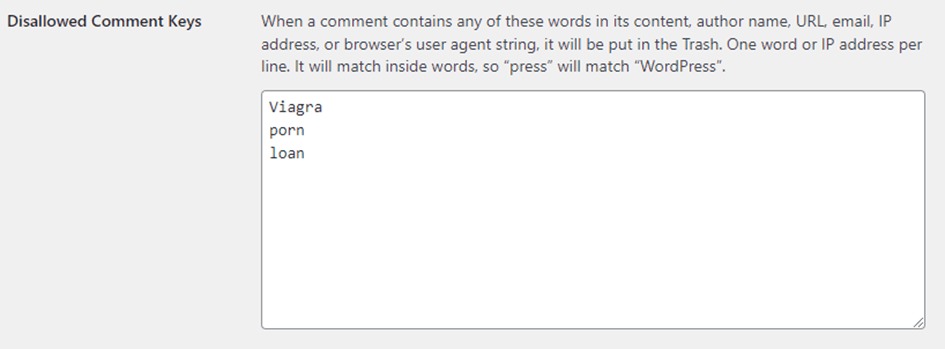
Be careful not to go overboard. You can accidentally block real form submissions if you include words that your real visitors may use in their messages.
Form validation
Form validation can help reduce spam form submissions, especially when it comes to spam that contains just a few characters. For example, you can add a minimum and maximum number of characters that the content inside of a form field needs to include to prevent these random, short spam messages from being sent to you.
More information about text fields and how to add min/max character lengths can be found here.
Use the Contact Form 7 quiz functionality
You can add a short quiz to your contact form as an alternative to CAPTCHA using the Contact Form 7 quiz feature. This feature makes users answer a question before being able to submit the form, much like CAPTCHA does.
Although this can be reasonably effective at stopping basic bots, it’s far less effective than a real CAPTCHA solution. Therefore, it is not recommended. It also forces all users to answer the question, which creates more friction. It can also result in more false positives. If it’s just for a small website or blog, however, it can be a good fit.
You can use the quiz feature by adding a simple tag to your form.
There’s the capital quiz tag:
[quiz capital-quiz "What’s the capital of England?|London"]And the math quiz tag:
[quiz math-quiz "1+1=?|2"]Frequently Asked Questions
The best way to stop spam in Contact Form 7 is by implementing a CAPTCHA solution. This can be done using the reCAPTCHA integration built into the plugin or by using a third-party plugin like CAPTCHA 4WP, which often provides more features and customization options.
Although CAPTCHA is the most effective way of preventing contact form spam, there are other techniques you can use to reduce the amount of spam you receive. These include implementing a honeypot, using spam filtering on your contact form submissions, and using effective form validation.
Not by default, but it’s a highly recommended integration to make sure of. Akismet offers a form of spam filtering based on the text that users input. By identifying common words, phrases, emails, and other text inputs used by spammers it helps to filter out a lot of spam.
Although bugs and vulnerabilities can (and often do) creep into all software, including WordPress plugins, the most up-to-date version of Contact Form 7 is considered secure. However, the same cannot be said for older versions. As such, it’s important to keep this (and other) plugin(s) updated.
It is one of the most-used contact form plugins in WordPress. It’s secure and offers many different integrations. It’s also very well documented and there are tonnes of tutorials online showing you how to use the plugin and how to resolve common and not-so-common issues.
Contact Form 7 has its own reCAPTCHA integration you can use to implement reCAPTCHA into your form. However, if you want something more granular or you want to use other forms of CAPTCHA, like hCAPTCHA or CloudFlare Turnstile, a plugin like CAPTCHA 4WP can be a good option. Not only does it offer more features and functionality, it also allows you to secure other forms/pages on your site.
There are a number of reasons why CAPTCHA may not be working in Contact Form 7, including incorrect installation/integration or a bug (especially if it was caused by a recent update). If you’re using CAPTCHA 4WP and you’re experiencing issues, please reach out to customer support to let us know.
Although this post is specifically about preventing Contact Form 7 spam, the methods covered can also help protect against spam sent through other forms on your WordPress websites, including spam comments and email list registrations. For example, the Akismet plug-in automatically checks for the publishing of malicious content, and CAPTCHA 4WP can block bots from submitting this content in the first place.
The post How to stop Contact Form 7 spam: protection & prevention appeared first on Captcha4WP.
]]>The post How to Stop WordPress Comment Spam: Top 7 Methods appeared first on Captcha4WP.
]]>Thankfully, there are plenty of ways to manage the issue. Some are as simple as turning on a few WordPress settings, like requiring user registration to post. Others require installing plugins — like adding CAPTCHA challenges — but more comprehensively block bots.
Ready to finally clean up your site and stop WordPress spam comments for good? This guide will walk you through the top 11 methods to effectively combat WordPress comment spam.
Table of contents
- The negative impact of WordPress comment spam
- Method 1: Using a CAPTCHA solution to stop comment spam
- Method 2. Require user registration
- Method 3. Blacklisting keywords and phrases
- Method 4. Use a honeypot
- Method 5. Geolocation blocking
- Method 6: Add a firewall
- Method 7: Disable comments on posts
- Other methods to reduce spam comments
- Stop spam with CAPTCHA and other methods
The negative impact of WordPress comment spam
WordPress comment spam may just seem like a minor annoyance. Sure, it clogs up comment sections and drowns out genuine conversation if it is accidentally accepted and published, but how bad can it be? After all, most comments aren’t auto-approved so visitors are unlikely to see them.
But the truth is that spam comments can have a bigger impact on site admins than you might expect.
- Wasted time on moderation – Reviewing and filtering spam comments takes up valuable time, which could be used for more productive tasks like site updates, content creation, or user engagement. Without an efficient solution, admins are left spending hours dealing with an influx of irrelevant spam comments.
- Strained user engagement tools – Many plugins and themes with engagement features, like comment rating or reply threading, can start to malfunction or slow down under a flood of spam. Admins may experience performance issues not just in comment moderation but across other engagement features.
- Poor user experience – People check your comment sections because they want to engage in conversation. When you have comments set to auto-approve, then you’ll be left with a ton of spam visible on your website. If your visitors find nothing but useless comments full of harmful links, they’ll immediately be turned off. A comment section full of spam makes your site look unprofessional and can subtly damage your reputation.
- Damaged SEO –Even if you didn’t post the spam links, Google expects site admins to maintain quality control on all content, including user comments. If spammy links make it past your filters, Google could potentially penalize your site, impacting your rankings and lowering visibility. Admins need to prevent harmful links from entering the site in the first place to protect their SEO.
- Security vulnerabilities – Although spam comments themselves may not pose a direct threat, they can open doors to more serious risks. Many spam links lead to phishing sites or malware, and even a minor slip in moderation could expose both you and your visitors to security threats. Staying vigilant is a must.
- Resource strain – Spam bots can increase server load by posting thousands of spam comments. This affects site performance, causing slower load times, and can also increase hosting costs if the spam overloads your server. Admins must actively manage or prevent spam to avoid these resource strains.
Even if you aren’t dealing with tons of spam yet, it’s best to be proactive before you get hit by the flood.

Where does spam come from?
Most WordPress spam comments are automated by bots, looking to direct traffic to third-party sites. There, they make money off ads or through affiliate links. Some also intend to boost their spam site’s SEO by farming external links from highly-ranked websites.
Spammers target WordPress websites specifically because of the platform’s popularity and consistent underlying design between sites. Most WordPress blogs have a comment section, and bots are programmed to find and target these.
While some WordPress spam comments are left by humans being paid to post links on blogs, this is a small percentage of spammy traffic. Since the bulk of spam comes from bots, methods that target bot traffic, like CAPTCHA challenges, work well at stopping it.
Now let’s get into all the ways to stop WordPress comment spam.
Method 1: Using a CAPTCHA solution to stop comment spam
One of the most effective ways to stop WordPress comment spam is by using CAPTCHA. You’ve certainly seen a CAPTCHA challenge for yourself before; distorted text, identifying elements of an image, and solving simple logic puzzles are all ways to stop bots in their tracks.
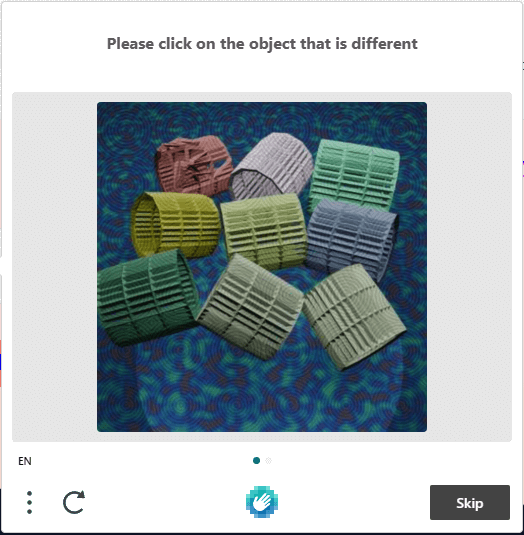
Some types of CAPTCHAs are even simpler, identifying bots from humans by how quickly they click a single button or by suspicious traffic markers. Others are entirely invisible to visitors, so they never disrupt the user experience unless there are signs the visitor might be a bot.
While not 100% foolproof, CAPTCHA will stop most automated spammers in their tracks.
How to install and set up CAPTCHA 4WP
CAPTCHA 4WP is the best way to add CAPTCHA challenges to your website. It integrates seamlessly into your site’s comment forms, login pages, and other forms on your site.
It’s also extremely flexible, working with several different types of CAPTCHA, including Google ReCAPTCHA V2, V3, hCAPTCHA, and invisible varieties. It also comes with a failover feature, which means that even if a real human accidentally fales the test, they aren’t locked out for good.
And since it’s so easy to set up, anyone can use it.
Here’s how to set up CAPTCHA 4WP.
1. Install the CAPTCHA 4WP
WordPress comment spam can be stopped using the free version of CAPTCHA 4WP in many situations. It supports multiple types of Google reCAPTCHA out of the box and is very easy to set up. To install this, go to Plugins > Add New Plugin.
However, if you’d like more advanced features, like GDPR-compliant CAPTCHA using hCAPTCHA or Cloudflare Turnstile, you can install the premium version. This also includes WooCommerce support and support for adding CAPTCHA to third-party form plugins like Gravity Forms and WPForms.
We’ll be using the premium version below, but you can follow most of the steps with the free version too. Once purchased, upload the zip file in Plugins > Add New Plugin > Upload Plugin and enter your license key.
2. Configure the plugin
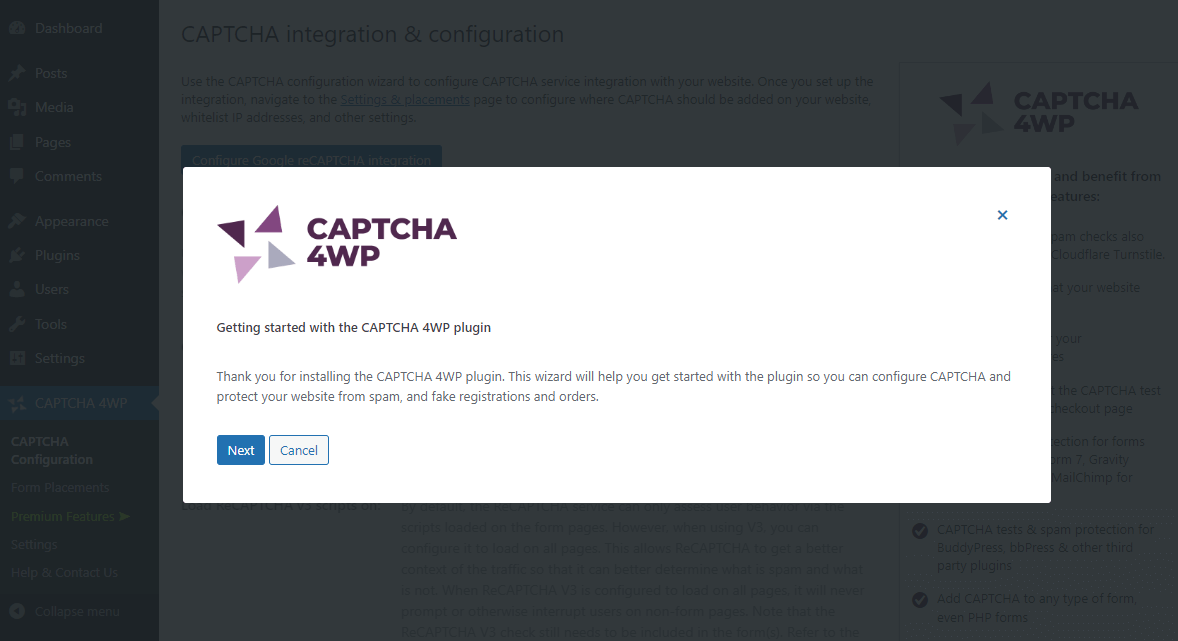
Once installed, visit CAPTCHA 4WP > CAPTCHA Configuration. The wizard will pop up, walking you through setting up the plugin.
3. Pick the type of CAPTCHA you want
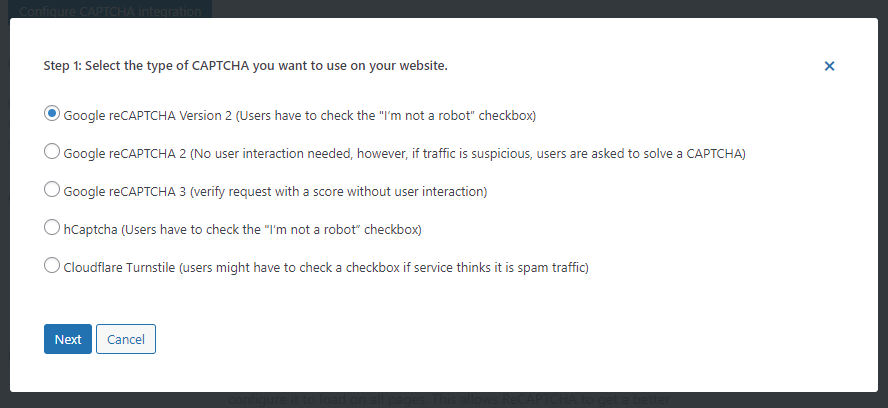
You can select from a few different CAPTCHA options. Note that hCAPTCHA and Cloudflare Turnstile require a premium plan. Then click Next.
4. Input your Site Key
Whichever CAPTCHA type you pick, you’ll need a Site Key. Check this guide to learn how to get reCAPTCHA keys, how to get hCAPTCHA keys, or how to get Cloudflare Turnstile keys. You’ll also get a secret key you’ll enter in the next step of the wizard, and this pair allows CAPTCHA to work on your site.
5. Finish setup
Once you’ve entered your site and secret keys, click Finish to complete the wizard.
After that, CAPTCHA should be working on your website. Now we just need to add it to your comment forms.
6. Configure CAPTCHA 4WP
On the same page (CAPTCHA 4WP > CAPTCHA Configuration), you can set up how your CAPTCHA messages look and their sensitivity if using a score-based system.
7. Add CAPTCHA to your forms
Finally, to actually place the CAPTCHA challenges in your forms, head over to CAPTCHA 4WP > Form Placements and tick the boxes for each location. In the premium version, you can add CAPTCHA to third-party forms, WooCommerce, and more. For now, we’ll only be selecting Comments form.
While this is a great method for stopping automated spam, it works even better when combined with other methods.
Method 2. Require user registration
Requiring users to register before they can comment on your posts is a straightforward and effective method to cut down on spam. When only logged-in and verified users can post, it’s harder for bots to flood your site.
- Open your dashboard and navigate to Settings > Discussion.
- Look for the Other comment settings section. Tick Users must be registered and logged in to comment.
- Click Save Changes.
- If you have CAPTCHA 4WP installed, make sure you go to CAPTCHA 4WP > Form Placements and tick Registration form to add CAPTCHA to your account creation forms too.
On the other hand, many spam bots are coded to get around this requirement, since it’s easy to make an account with a fake email. So you may just be unnecessarily limiting legitimate readers from leaving comments.
If you’re experiencing an influx of spam, it’s not a bad idea to turn on this setting and see if it helps, but it’s definitely not something you should rely on alone.
Method 3. Blacklisting keywords and phrases
Blacklisting can be a great option for filtering a portion of the spam comments submitted on your site. Blacklisting allows you to filter out spam based on common spam words and phrases, like “buy now”, “click here”, and so on.
As you get more spam comments, you’ll get a sense of what topics they tend to post about. Many spam comments are exactly the same, so once you pick up on common patterns, you can blacklist the words your legitimate commenters are unlikely to ever mention.
Here’s how to set it up:
- Go to Settings > Discussion in your WordPress dashboard.
- Look for the Comment Moderation section. Enter any words, phrases, emails, IP addresses, and so on that you want to block. When comments that fit the criteria are submitted, they’ll be sent to the moderation queue in Comments.
- Now scroll down to the Disallowed Comment Keys section. When people use words, phrases, and so on typed in this box, their comments will be sent directly to the trash and deleted in 30 days.
- Click Save Changes.
You have to be careful with this method since being too restrictive can result in genuine comments being deleted and more work having to approve them. For example, a keyword like “free” might be a common part of spam messages, but there are plenty of legitimate reasons for actual commenters to use it.
That being said, there are many words used by spammers that won’t ever be used by real commentors. By blocking these, you can effectively stop a portion of the comment spam you get without ever having to moderate it.
Method 4. Use a honeypot
A honeypot is an effective, invisible method to trap spam bots without affecting your typical users. It works by adding a hidden field to your comment form that is invisible to human visitors but visible to bots. Since bots often automatically fill in all form fields, they unknowingly complete this hidden field, triggering the honeypot and flagging the submission as spam.
While this form is typically hidden, they are sometimes visible. You may have seen an extra option on some forms labeled “leave this form blank if you’re not a bot”. It’s the same concept.
To add a honeypot to your site, you’ll need a form plugin. Most major form plugins will allow you to add a honeypot, including Contact Form 7 and Gravity Forms. The honeypot technique is a fairly effective, low-maintenance option, but it’s not foolproof. Bots have long been coded to detect and ignore hidden fields. The effectiveness depends on how sophisticated the spam bots you’re targeted by are and how well your form plugin circumvents these bots.
So, it can be worth combining this with other methods, like CAPTCHA. If you do decide to use CAPTCHA 4WP, then know that it is compatible with all the popular choices: Contact Form 7, Gravity Forms, Ninja Forms, and plenty more. But it also allows you to add CAPTCHA to any other type of form too.
Method 5. Geolocation blocking
Sometimes a flood of spam can come from particular geographic regions, and blocking those regions from submitting comments may be a good move. This can be a temporary or permanent measure, depending on whether you would like to prevent submissions from specific regions by default.
This can have major user experience implications depending on what countries you end up blocking. Effectively banning certain people from leaving comments may be a bad move if you’re looking to foster a global audience. However, if your website is only intended for users from a certain region, it’s not a bad idea.
You can use geolocation tools to identify the geographic location of users based on their IP address. However, this can be a lot of work. CAPTCHA 4WP includes geoblocking in the premium version of the plugin. Here’s how to set it up.
1. Install CAPTCHA 4WP if you haven’t already through Plugins > Add New Plugin. See above for step-by-step instructions on how to set up the plugin.
2. Navigate to the CAPTCHA 4WP > Settings page. Click the Integrations tab.
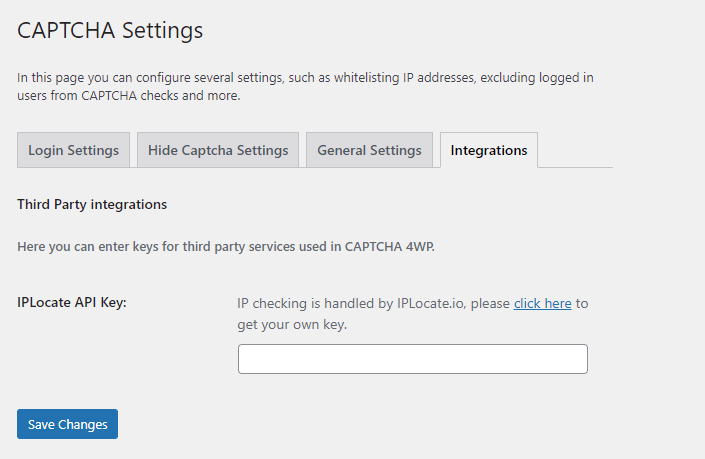
3. Follow the link to IPLocate’s login page. Sign up for the service – it’s free for up to 1,000 requests per day.
4. Once you have an IPLocate API key, go back to WordPress, enter it in the IPLocate API Key box, and click Save Changes.
5. Head over to CAPTCHA 4WP > Form Placements and scroll down to the Do you want to block/allow protected form submissions based on a user’s location? section.
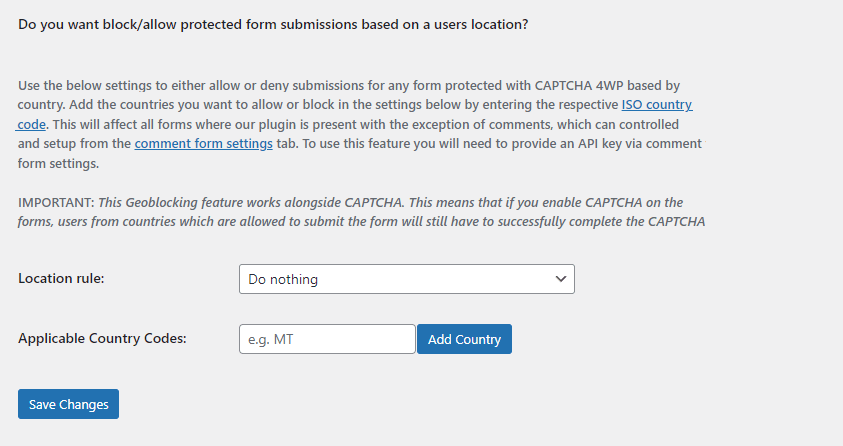
6. Enter the ISO country codes you want to either whitelist (all other countries are blocked) or blacklist (only those countries are blocked).
7. Click Save Changes.
Now commenters from outside the allowed countries (or within the denied countries) won’t be able to leave comments.
While spammers can and do use VPNs to hide where their traffic is really coming from, you can use geolocation blocking as a reactive measure if you notice a lot of spam coming from certain regions.
Method 6: Add a firewall
A WordPress firewall serves as a protective barrier between your website and potential threats, including malicious bots that generate spam comments.
A firewall is an effective spam deterrent since it detects and blocks bots before they ever get to your comment form. They do this by analyzing web traffic and detecting bots through suspicious network patterns or known IPs that have been blacklisted.
That being said, as is the case with other controls on this list, they’re far from foolproof. By combining a firewall with other security measures, you’ll have a better chance at stopping more comment spam.
There are plenty of WordPress plugins and services that offer web application firewalls that detect and block malicious traffic. You could also set up a network firewall, though this is more difficult and expensive.
Platforms like Cloudflare and Sucuri can help you easily install a firewall that will put a stop to most spam bots.
Method 7: Disable comments on posts
If you don’t want any user interaction on your site, disabling comments is a good and quick option to prevent spam comment submissions. This is certainly the most effective way to get rid of spam forever, but it comes with the obvious drawback that you won’t be able to get comments or encourage discussion anymore.
If you feel the ability to leave comments isn’t worth having on your website, it may be time to just shut off the comments section altogether.
This can also serve as an effective, temporary measure, either to wait out the spam or while you work on implementing these other methods. Or if you find that certain posts are attracting the most spam, you can shut off comments for those individually.
If you want to disable comments on individual posts, just look for the posts in Posts > All Posts. Hover the post, click Quick Edit, and untick Allow Comments. Then click Update. Repeat for each post or use the Bulk Actions dropdown to do this for multiple posts at once.
If you want to disable comments site-wide, here’s what to do.
1. Navigate to Settings > Discussion.
2. In the Default post settings section, untick Allow people to submit comments on new posts.

3. Scroll down and click Save Changes.
4. This will stop new posts from having comment sections, but your old posts will still have them. Let’s fix this by going to Posts > All Posts.
5. Click the checkbox at the top of the list, next to Title, to select all. Then click the Bulk Actions dropdown, select Edit, and click Apply.
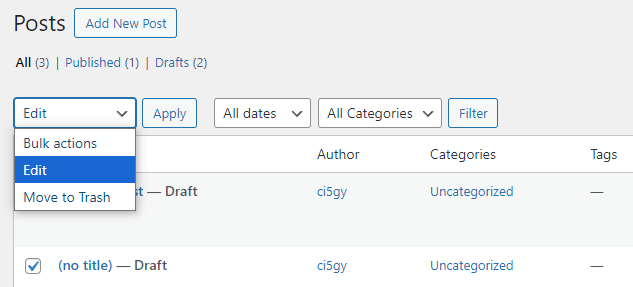
6. This will open up a menu on the same page. Look for the Comments dropdown on the far right, select Do not allow, and click the blue Update button.
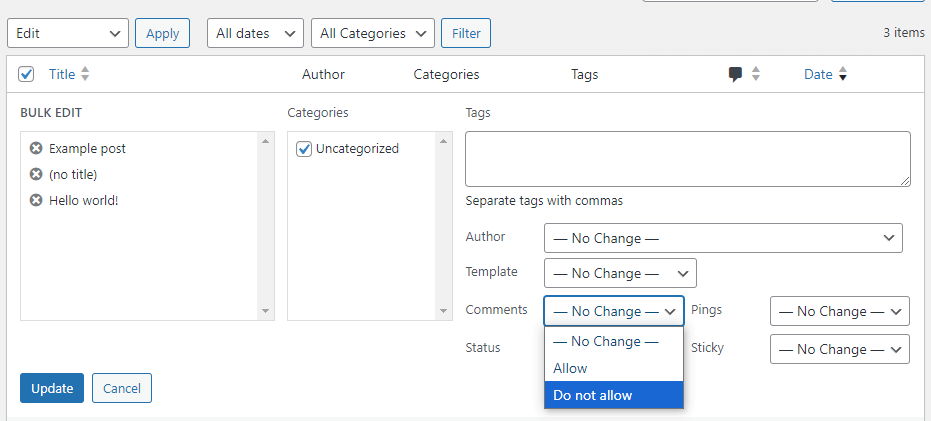
Now, all your posts will have comments closed until you decide to open them again. If you ever do want to do that, just follow the same steps but turn comments on new posts back on and change the comments on existing posts to Allow.
Other methods to reduce spam comments
When it comes to taming comment spam, every extra measure counts. By now, you’ve seen some powerful ways to keep spammy content at bay. However, for whatever reason, they might not be for you. Luckily, there are a number of other steps you can take.
The steps below won’t block spam comments outright, but they might help reduce the number of spam comments you get. These small steps reduce spam and help you maintain a more welcoming, professional space for real, engaged readers. They can even be used on conjunction with some of the other methods mentioned above, for even better results.
1. Enable comment moderation
Enabling comment moderation is the standard these days, but it’s still an important one to mention. If you don’t want to take any risks for what shows up on your site, enabling comment moderation is the way to go. When you turn on this setting, you’ll need to manually review all comments and approve them before they show up on your site.
This works really well paired with CAPTCHA. Use CAPTCHA to cut out all the junk that makes moderating comments take forever, and manual moderation will let you catch any stragglers that leak through.
Here’s how to turn on comment moderation (if it’s not enabled already), no plugins required:
1. Visit your WordPress dashboard and navigate to Settings > Discussion.
2. Look for the Before a comment appears option. Tick Comment must be manually approved.

3. You can also tick Comment author must have a previously approved comment. Commenters will not need to have their content moderated more than once if you tick this box.
4. Click Save Changes when you’re done.
Once this setting is on, you’ll need to manually approve all comments on the Comments page. Look for Pending.
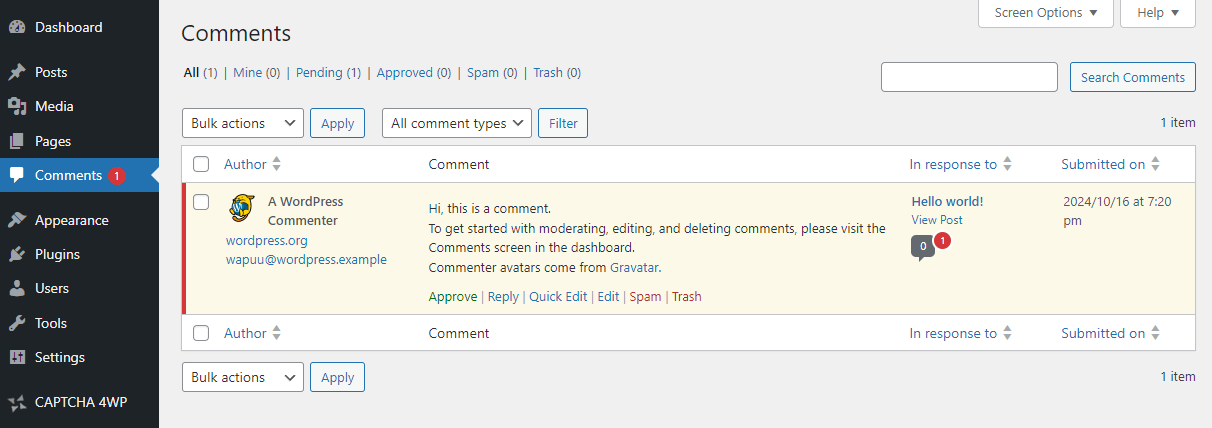
This is one of the most foolproof ways to stop spam from getting onto your site. The only issue is that it’s not really viable for larger sites, even with spam filtered out. When you get hundreds of legitimate comments per week or more, you’ll need to turn to other methods.
2. Limit or disable links in comments
One of the primary reasons spammers target WordPress comment sections is to insert links and get free traffic. Limiting links, or disabling them entirely, can effectively reduce your site’s appeal to these spammers.
Many spam comments contain multiple links to different websites, but this isn’t always true – some have only one. It’s most effective to just stop people from posting URLs entirely. While not all spam comments involve links (some direct you to emails or phone numbers instead), the majority do.
Some users may get frustrated when they try to share genuinely helpful links and have their comments disappear, so it’s up to you how restrictive to make this setting. You can manually approve legitimate comments through the Comments page.
You’ll find this setting in Settings > Discussion. Look for the Comment Moderation section, then Hold a comment in the queue if it contains x or more links. Set the number of links users can post before their comment is hidden.

Don’t forget to click Save Changes.
Blocking links doesn’t always work, since spammers can get around it by posting URLs broken up with spaces or symbols. While not as enticing as a clickable hyperlink, it still means spam is showing up on your site. You should rely on other methods along with limiting links.
3. Disable comments on old posts
Moderating comments on hundreds of posts can quickly get out of control, and you may get to a point where the only people commenting on your older posts are spam bots. When the time spent moderating overtakes the few legitimate comments you get, it may be time to disable comments on your older posts.
Spammers may even target older posts since they tend to be less actively moderated despite potentially getting just as much traffic as your new posts. Rather than shutting off comments entirely, you can just turn them off once posts get too old, and users tend not to comment much on them anyway.
WordPress allows you to set a time limit, after which the comment section on a post is automatically closed. You can find this option in Settings > Discussion.
Look for Automatically close comments on posts older than x days and enter how many days you want your comment section to stay open for. The default is 14 days (two weeks) but you may want to keep comments open for a week, a month, or several months.

This technique lets you focus on moderating a handful of new posts rather than dealing with dozens of comments across your entire site. But it can result in a lot less engagement, so keep that in mind.
4. Disable trackbacks and pingbacks
Trackbacks and pingbacks are legacy features in WordPress that allow other blogs to notify you when they link to your content. While it’s nice to be able to network with other bloggers, these features are frequently abused by spammers who use them to flood your website with unwanted links.
Trackbacks are manual notifications sent from one website to another when content is referenced. For instance, if someone writes a blog post and includes a link to your post, they can send a trackback to notify you about the link with an excerpt of the content.
Pingbacks are similar but automated; when you link to another post on a blog where pingbacks are automated, they receive a notification and the pingback is displayed as a comment on their post.
Both of these let other blogs “ping” your site, notifying you that they’ve linked to your content. Unfortunately, spammers exploit this by spamming links to legitimate blog posts on their illegitimate websites, filling your comments section with unwanted spam.
They’re basically using your website to give free traffic to their spam website, which is why most people disable trackbacks and pingbacks.
Disabling this can be a bit involved, so here’s what you need to do.
1. Navigate to Settings > Discussion in the WordPress dashboard.
2. Look for the first Default post settings section. Untick Allow link notifications from other blogs (pingbacks and trackbacks) on new posts to disable trackbacks and pingbacks.
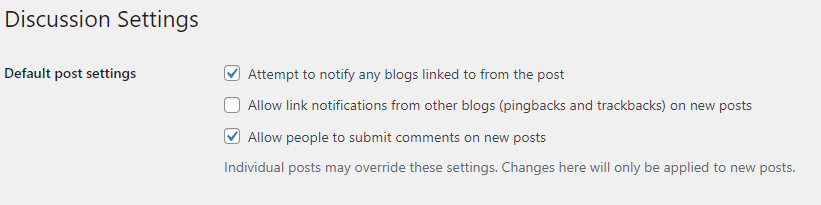
3. This will turn off trackbacks and pingbacks on all new posts, but you still need to turn it off for existing posts. Go over to Posts > All Posts.
4. Click the checkbox at the top of the list, next to Title, to select all. Then click the Bulk Actions dropdown, select Edit, and click Apply
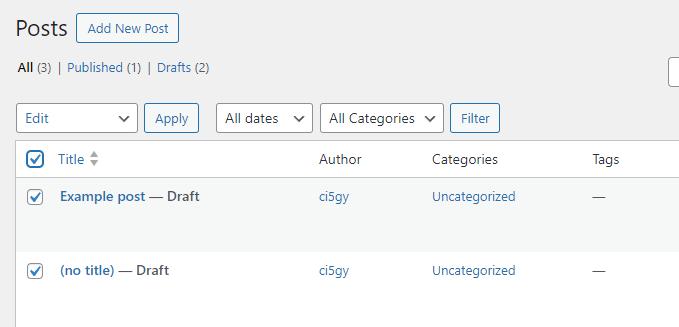
5. This will open up a menu on the same page. Look for the Pings dropdown on the far right, select Do not allow, and click the blue Update button.
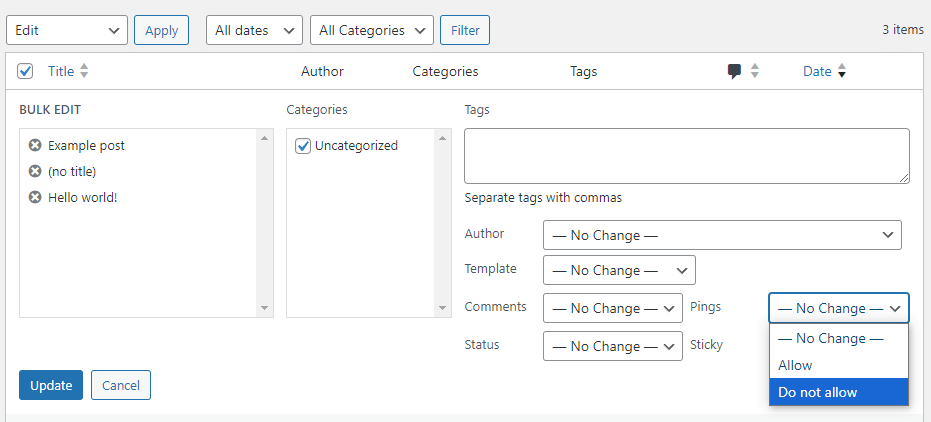
Now, all current and future posts will have trackbacks and pingbacks disabled.
Trackbacks and pingbacks are both heavily abused by spammers, so turning them off can be a good way to keep your comments clean.
Stop spam with CAPTCHA and other methods
Comment spam can be a persistent problem for WordPress users. It’s best to be proactive and start putting anti-spam measures in place now, rather than after it’s become a major problem.
It’s also best to take a multi-layered approach. Despite what any plugin or solution may promise, no one method is 100% foolproof. Spammers are constantly evolving, but when you put enough barriers in the way, they’re likely to leave your site alone and go for easier targets.
Each method offers its own benefits and drawbacks, so try out a variety of different ones to find the right combination that works for your site.
Ready to get started with CAPTCHA 4WP and kill spam on your site for good? Try the free version or buy the premium version of CAPTCHA 4WP.
The post How to Stop WordPress Comment Spam: Top 7 Methods appeared first on Captcha4WP.
]]>The post What is reCAPTCHA, and how does it work? appeared first on Captcha4WP.
]]>ReCAPTCHA is simply a type of CAPTCHA. Google acquired reCAPTCHA in 2009 and then developed it further to make it better.
In this post, we will discuss important aspects related to reCAPTCHA. This will help us gain a better insight into how different versions of reCAPTCHA work.
Table of contents
A brief history of reCAPTCHA
Humans are exceptionally good at identifying patterns when compared to computers. This is why a lot of CAPTCHAs in the past relied on text or image recognition to distinguish bots from humans.
Luis von Ahn, the founder of reCAPTCHA, realized that we could use this pattern recognition ability of humans to help digitize public domain material.
He reasoned that humans should identify scanned text that returns two different results when processed through two different OCRs.
The first version of reCAPTCHA usually did this by presenting two words to users. One was the control word that the system already knew. The second was the suspicious word that people had to identify for the OCRs.
If two or more users provide the same guess for the control word, then the program assumes it to be the actual value of the word. The program considers a word unreadable if six users in a row can’t form a consensus about the word.
So, filling out the control word correctly helped the website separate bots from humans, while filling out the second word helped with OCR.
The first version of Google reCAPTCHA was updated in 2012 when Google started asking people to identify images of street lights, crosswalks, etc.
In its first version of reCAPTCHA, Google was showing visitors two types of CAPTCHAs. One is based on distorted text, and the other one is based on identifying images. For better accessibility, visually impaired visitors also had the option to complete a challenge by passing the audio CAPTCHA tests. The first version of Google reCAPTCHA was named reCAPTCHA v1, and it was shut down in March 2018.
Currently, Google has three active versions of reCPATCHA. These are
- reCAPTCHA v2 checkbox or No CAPTCHA reCAPTCHA
- reCAPTCHA v2 invisible CAPTCHA
- reCAPTCHA v3
You can easily add any active version of reCAPTCHA and other types of CAPTCHA to your WordPress website using the CAPTCHA 4WP plugin. Besides including all active versions of reCAPTCHA, this plugin also supports other popular CAPTCHA services, such as hCaptcha and Cloudflare Turnstile.
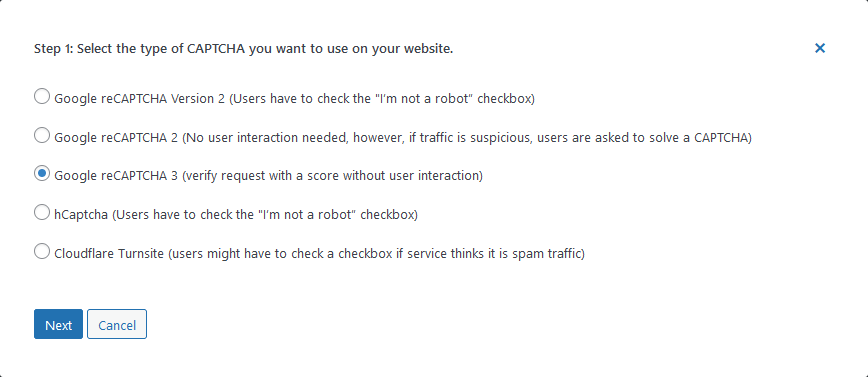
What is reCAPTCHA v2, and how does it work?
By mid-2012, some researchers were able to crack around 82% of reCAPTCHA images and, in some cases, solve 99% of reCAPTCHA texts by taking advantage of artificial intelligence based on machine learning. Google was releasing regular updates to their CAPTCHA systems to keep it one step ahead of spam bots.
However, it got to the point where human users also started having a difficult time figuring out the correct answer to CAPTCHAs.

For example, the above text-based CAPTCHA puzzles were successfully solved by bots.
An updated version of reCAPTCHA called reCAPTCHA v2 was released to overcome this challenge. There are two different ways of using reCAPTCHA v2. You can either use No CAPTCHA reCAPTCHA or the Invisible CAPTCHA.
How reCAPTCHA v2 improves upon reCAPTCHA v1
Learning how Google determines whether a visitor is a human in reCAPTCHA v2 can help us understand how V2 is better than reCAPTCHA v1.
According to Google, the trick here is to perform an advanced risk analysis in the background. The algorithm actively observes the visitor’s behavior before, during, and after they engage with the CAPTCHA.
This allows Google to rely on visitors’ behavior instead of asking them to type text and label images. Text typing and image labeling were getting increasingly difficult for humans, but anyway, bots relying on machine learning got better and better at solving and identifying text.
The risk analysis that Google performs lets it divide website visitors into categories. Keep in mind that Google does not explicitly state how it performs this risk analysis. Releasing the details of the risk analysis algorithm to the public can compromise its effectiveness by allowing advanced bots to take some countermeasures.
However, Google has dropped hints that let us examine their thought process while designing reCAPTCHA v2.
Let’s see how Google does it with the No CAPTCHA reCAPTCHA (also called reCAPTCHA v2 checkbox).
No CAPTCHA reCAPTCHA
The reCAPTCHA v2 version, where visitors have to click on a checkbox that says “I am not a robot,” is called No CAPTCHA reCAPTCHA. This is because there is no CAPTCHA involved at the beginning.

As we just mentioned, visitors simply click a checkbox that asks them to confirm that they are not a robot. Google is keeping track of the visitor’s behavior at this point.
Some people speculate that Google tracks how the visitor’s cursor is moving before they click the checkbox to determine if the visitor is a human or a bot. However, other reports indicate that Google reCAPTCHAv2 does not track mouse movements.
The consensus is that Google relies on the browsing history of visitors and tracking cookies to determine if they are human. It also takes into account the browser environment and user-agent.
Google’s analysis has two outcomes:
- Google concludes that a visitor poses no risk and is most probably a human. Those visitors will be let through with just the checkbox click.
- Google concludes that the visitor behavior is suspicious and resembles that of a bot. The visitor will have to pass additional tests. The CAPTCHA difficulty level for a visitor depends on how risky the algorithm considers them.
Visitors who are assigned a low probability of being bots by the risk-analysis algorithm get easy-to-solve CAPTCHAs. However, visitors who are highly likely to be bots get very hard CAPTCHA challenges.
Initially, the CAPTCHAs that Google presented to visitors were a mix of text CAPTCHAs and image CAPTCHAs. However, Google almost exclusively sends image CAPTCHAs now. Their analysis showed that image CAPTCHAs are still easier for humans to solve compared to bots. On the other hand, bots have gotten better at solving text CAPTCHAs than humans.
Google has tried to limit the number of times a visitor has to solve a CAPTCHA challenge. Using visitor behavior instead of their ability to solve a CAPTCHA while determining if they are humans has given rise to the concept of no CAPTCHA reCAPTCHA.
Invisible reCAPTCHA
Some websites that don’t have a visible reCAPTCHA v2 checkbox can still be under its protection. This is possible due to the invisible reCAPTCHA.
In this case, website owners bind the invisible reCAPTCHA to a button on their website. They can also just invoke the CAPTCHA programmatically to render a challenge if necessary.
CAPTCHA 4WP gives you the option to display a badge on the webpages protected by invisible reCAPTCHA. This lets the visitors know that reCAPTCHA is active on the page.

You would generally add the reCAPTCHA v2 check at the end of the forms that you want visitors to submit. This can include contact forms, comment forms, or registration forms.
What is reCAPTCHA v3, and how does it work?
Google has been moving away from showing visitors any challenges. Its focus has now shifted to tracking visitor behavior to determine if they are human or a bot.
This approach solves two problems. First, people don’t like it when the tasks they want to complete on a website get interrupted due to CAPTCHAs. Second, bots have been getting better and better at solving CAPTCHAs. They are likely to pass these CAPTCHA tests anyway.
reCAPTCHA v3 works without direct user interaction
The reCAPTCHA v3 update takes the philosophy of not showing CAPTCHAs to the visitors to the next level by keeping track of visitor behavior in a site-wide manner. It makes sense because the behavior of a bot will likely differ from that of a human visitor. Some advanced bots might still be able to fool the system.
It is also important to understand that the behavior of visitors themselves is likely to change from one website to the next. On one website, you may find yourself browsing the content. On another website, you might be actively liking or disliking content.
Google solves this problem by allowing website owners to set their own threshold for what is considered human and what is considered bot behavior. The scores range from 0.0 to 1.0. A score of 1.0 means that the interacting visitor is almost definitely a human. A score of 0.0 means that the interacting visitor is almost definitely a bot. For general websites, Google recommends that you use a threshold of 0.5.
You have the option to only add reCAPTCHA v3 to the form pages on your website. However, this latest version of reCAPTCHA works best when it gets a chance to analyze your website traffic across multiple web pages. This allows it to properly assign scores that can help you separate genuine human visitors from bots.
The risk analysis engine is also likely to give you different scores on the production website compared to a website in the testing phase. This is because the behavior of your actual website visitors will probably differ from the behavior of people who test the website.
Making sense of reCAPTCHA v3 scores
The reCAPTCHA v3 API has built-in functionality that puts a lot of information at your disposal. This helps you decide when and how to proceed with visitor verification.
The admin console provides a detailed breakdown of stats on visitor behavior for each website that implements reCAPTCHA. You can tag specific actions on your website with names before executing reCAPTCHA. This will help identify those actions inside the console.
The behavior of malicious bots can vary depending on the task that they are trying to accomplish. For example, a bot that is trying to post a comment will behave differently than a bot trying to scrape content or log in. Tagging different actions with names allows you to perform adaptive risk analysis based on the context in which a visitor acted.
With some help from reCAPTCHA v3, your website visitors won’t have to solve any reCAPTCHA tests. This creates an improved user experience. The fact that they are human is determined by their interactions with the website.
reCAPTCHA v3 failover
Older reCAPTCHA implementations asked visitors to solve challenges either upfront or if the visitors seemed suspicious. However, reCAPTCHA v3 leaves the implementation of visitor authentication or visitor verification up to you.
If you decide that you want to take some additional action, such as asking visitors to solve a CAPTCHA puzzle or redirect them to a different URL, you can do so based on scores returned by reCAPTCHA v3 API in its JSON response.
The CAPTCHA 4WP plugin has this feature already built into it. This means that visitors who fail the automated reCAPTCHA v3 test can still get a chance to prove they are humans.
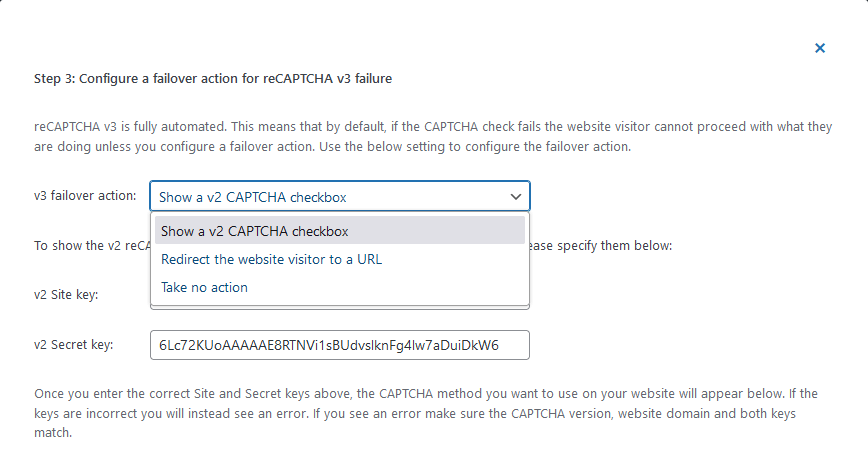
Google reCAPTCHA relies on a site key and secret key for proper verification and functioning of its CAPTCHA system. Knowing how to get Google reCAPTCHA keys for your website will help you quickly add reCAPTCHA to your website.
Google recommends that you verify the visitor’s response to a reCAPTCHA challenge in the backend. This prevents any chances of manipulation of the response by bad actors. It also helps avoid the exposure of your keys. As a WordPress user, you don’t have to worry about any of it. The CAPTCHA 4WP plugin will automatically take care of things for you once you supply the keys.
Pros and cons of using reCAPTCHA
There are some pros and cons associated with the usage of reCAPTCHA on your website. Let’s go over them briefly. We will begin with the advantages.
- You can get rid of a lot of spam that automated bots post through different forms on your website. Using reCAPTCHA also allows you to slow down and prevent attack bots from trying to log in to your website to some extent if you ask them to complete a CAPTCHA. You should still have other security measures, such as WordPress two-factor authentication, put in place for improved security.
- Using the reCAPTCHA service on your website doesn’t cost anything as long as you are doing up to 1 million assessments per month. This means that you won’t have to pay anything unless your website gets a significant amount of traffic.
- A wide variety of tools, libraries, and platforms support reCAPTCHA out-of-box. This means that you won’t find it too difficult to integrate it into your website. For instance, the CAPTCHA 4WP plugin allows you to easily integrate any active version of reCAPTCHA on your website.
There are also some disadvantages to using reCAPTCHA. They are mostly centered around GDPR compliance and user privacy.
- You have the option to add the reCAPTCHA v3 script only on form pages that you want to protect against bots. However, it works best when you add it to all pages of your website. This means that your website visitors are bound to lose some privacy as reCAPTCHA v3 tries to analyze their behavior by capturing data.
- Research suggests that Google also relies on some cookies to determine if a visitor is legitimate, and people who are browsing a website in a browser connected to their Google account will generally receive a higher score compared to others. You will have to include a cookie banner on your website to inform visitors about your privacy policy and cookie policy concerning Google reCAPTCHA. Alternatively, you might want to consider Cloudflare Turnstile or hCaptcha. Both solutions are solid alternatives that can easily be implemented on WordPress websites with CAPTCHA 4WP.
- As you know, Google is blocked in certain regions around the world. This means that reCAPTCHA won’t work on any websites within that region if it is loaded through the Google domain. Google provides an alternate domain called recaptcha.net that you can use to replace google.com to get around this limitation. With CAPTCHA 4WP, you can simply select this recaptcha.net domain from the dropdown in the configuration options.
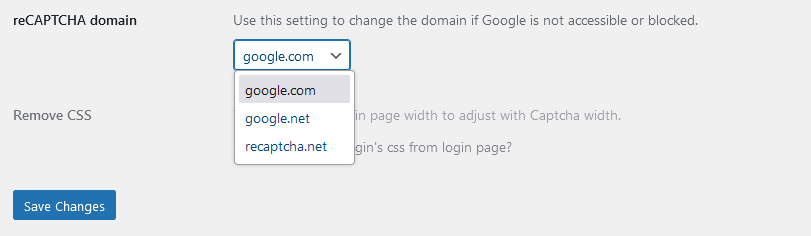
Overall, the benefits of installing reCAPTCHA on your website outweigh the disadvantages. Both you and your website visitors will have to deal with much less spam with Google reCAPTCHA in place. However, you might still want to take a look at some of the reCAPTCHA alternatives before making a final decision.
If you are doing things from scratch, installing reCAPTCHA requires you to load a JavaScript file and add appropriate code to your website. However, WordPress administrators can install CAPTCHA 4P to easily integrate Google reCAPTCHA into a WordPress website. The CAPTCHA 4WP plugin allows you to integrate not only Google reCAPTCHA but also the CAPTCHA services of other providers.
Installing reCAPTCHA on your WordPress website is easy and safe with so many reputable plugins available. Reducing spam with the help of reCAPTCHA is one of the many steps you can take to make WordPress websites more secure for you and your users.
How to get the most out of reCAPTCHA
The CAPTCHA 4WP plugin offers a range of features to help you fully utilize the capabilities of reCAPTCHA.
Use reCAPTCHA on multiple forms
The CAPTCHA 4WP plugin allows you to select all the WordPress and WooCommerce forms where you want to add reCAPTCHA. This includes the login form, registration form, comments form, WooCommerce checkout, WooCommerce login, and more.
You can also add reCAPTCHA to any contact forms created through popular plugins such as Contact Form 7, Gravity Forms, WP Forms, and more.
Display a badge on your website
The CAPTCHA 4WP plugin also has an option that allows you to display a badge to visitors on different pages of your site. This badge is available for the invisible reCAPTCHA v3, which works behind the scenes without any user interactions.
Displaying a badge lets the users know that your website is protected by reCAPTCA v3.
Set a CAPTCHA language for better accessibility
One general criticism of different CAPTCHAs has been that the usage of the English language in the challenges can make it difficult for non-native speakers to solve them.
CAPTCHA 4WP gives you the option of selecting the language of the text used in the CAPTCHA text. You can also let it automatically detect and match the CAPTCHA text language to that of the visitor’s language settings.

Frequently Asked Questions
In the web development context, the term “bot” refers to scripts that automate tasks such as scraping a website, filling out forms, etc. These bots can be benign or malicious. They work by following a specific set of instructions embedded into their programming.
The goal of CAPTCHA (Completely Automated Public Turing test to tell Computers and Humans Apart) is to help website owners distinguish human visitors of their websites from bots using automated tests. It helps prevent the spread of spam on their website by bots.
Earlier versions of reCAPTCHA worked by asking visitors to type distorted letters or identify images. New versions work by observing visitor behavior on the website.
CAPTCHA refers to a general term for different tests that websites and services can use to distinguish bots from humans. The term reCAPTCHA refers to the Google-specific implementation of CAPTCHA.
The post What is reCAPTCHA, and how does it work? appeared first on Captcha4WP.
]]>The post ReCAPTCHA Not Stopping Spam in WordPress: Here’s What to Do appeared first on Captcha4WP.
]]>CAPTCHA is one of the best tools WordPress administrators and website owners have at their disposal in their fight against spam. Spam comments, spam messages, and fake user registrations can strain WordPress websites, and CAPTCHA is there to help. However, just like any other tool, it sometimes needs to be sharpened and serviced to continue working at its best.
If you have ReCAPTCHA configured on your WordPress website but you’re still getting spam, this article is for you. We will start with a brief introduction and some background information about how CAPTCHA works before delving into step-by-step instructions on actions you can take to limit spam. Let’s get to it.
Table of contents
What is reCAPTCHA?
ReCAPTCHA is a CAPTCHA service provided by Google. CAPTCHA plugins that use the Google ReCAPTCHA service act as a connector to the Google reCAPTCHA service – which essentially does the bulk of the work,
CAPTCHA is an acronym that stands for Completely Automated Public Turing Test to Tell Computers and Humans Apart.

This means that the ReCAPTCHA service effectively tries to determine if a visitor is a computer or a person through a test. The test is ‘rigged’ in favor of humans – which is what we ultimately want. Computers, however, keep getting smarter, and sometimes they are able to pass off as humans and ace the test. To learn more about CAPTCHA, what it is and how it works, read What is CAPTCHA.
ReCAPTCHA comes in three different versions:
- ReCAPTCHA – V2 I’m not a robot
- V2 Invisible
- V3
V3 is the latest version, launched in 2018. The V2’s were first launched in 2014. Each of these versions includes a different type of test, with the test that’s run by V3 being more technologically advanced. It’s a type of invisible reCAPTCHA that analyses user behavior to determine how likely it is that they’re humans or bots.
Furthermore, it even lets you set the test’s pass mark yourself. This control allows you to tweak the test, making it more difficult for computers to pass the test. This is what we will be configuring in the next section.
Step 1: Check the ReCAPTCHA dashboard
The Google reCAPTCHA dashboard offers several stats that can help you determine what is going on, including passed and failed login requests and the number of sessions completed. If you do see an error message, make sure you investigate it thoroughly. This will help you ensure that reCAPTCHA is working properly.
Number of suspicious requests
The first statistics we need to look at are Total requests and Suspicious Requests. These numbers will tell us what kind of traffic we’re getting and what percentage of spam is getting through.

In the screenshot above, we can see that in 7 days, our WordPress website made 12,554 requests. None of these requests were considered suspicious since we have 0% under Suspicious requests.
Had we received spam during that time, then we can ascertain that something was amiss.
What you need to consider here is the number of spam messages over a period of time. Not all spam messages come from bots. Many spammers resort to cheap labor to spam websites. They do this because they know CAPTCHA is designed to stop bots, not humans (more on this later, so keep reading). If you received a handful of spam messages, it might have been the work of humans. However, if you received a large number of spam messages over a short period of time, reCAPTCHA, as it is configured, might not be stopping bots. We will cover different solutions for this issue as well.
Step 2: Enable WordPress spam protection
WordPress has a few tools up its sleeve that can help you reduce spam. These tools work whether the submissions come from a person or a bot. As such, they complement reCAPTCHA nicely as they offer another layer of anti-spam security.
To access the tools discussed in this section, first log in to your WordPress dashboard and then navigate to Settings > Discussion.
Step 2.1: Comment approval
Comment approval enables you to stop comments from being automatically approved. There are two settings available, providing you with granularity over how comment approval is handled. While you can ask WordPress to require manual approval for every comment, you can also automatically approve comments by someone who has previously posted before.
- To manually approve every comment, tick the checkbox next to Comment must be manually approved
- To allow users who have posted before to bypass this restriction, tick the checkbox next to Comment author must have a previously approved comment

Step 2.2: WordPress comment moderation
Comment moderation is an effective way to limit spam. It requires manual approval of certain comments before they appear on your WordPress site. The feasibility of comment moderation will depend on the size of your community and the human resources that you can dedicate to comment approval or denial.
Comment moderation does not delete or disallow comments. Rather, it holds them in a separate queue called moderation queue when they meet certain criteria. You, or a team member, can then approve or deny comments.
There are two criteria you can set for comment moderation. These are the number of links and keywords.
- To set the minimum number of links a comment must have to be held in the moderation queue, enter the number in the provided text field. This is marked in orange in the screenshot below.
- To move comments to the moderation queue when they contain specific words, enter the words in the provided text field. This is marked in blue in the the screenshot below.
You need to be mindful of your industry and community. Certain words and phrases that might be considered spammy on one website might be of legitimate interest on another. As such, you should always filter any lists to ensure they apply to you. This ensures genuine users can still post relevant comments.

Step 2.3: WordPress disallowed comment keys
Should you rather have comments automatically moved to trash when they contain certain words, you can use the Disallowed Comment Keys. All you need to do is enter the troublesome words in the Disallowed Comment Keys, as shown in the screenshot below.

Step 3: Enable CAPTCHA on all forms
CAPTCHA is very good at helping you prevent spam on the forms it is enabled on, whether it’s a simple contact form or something more complex like a WooCommerce checkout form. The important thing is to make sure CAPTCHA is enabled on all forms on your WordPress site.
This might not be possible if you’re not using a dedicated CAPTCHA plugin. Plugins like our very own CAPTCHA 4WP plugin are compatible with many third-party plugins, including WooCommerce, Contact Form 7, Gravity Forms, and many others. You can also add CAPTCHA to custom WordPress forms for 360-degree spam protection.
Step 4: Upgrade to reCAPTCHA V3
As mentioned earlier, V3 is the latest version of Google ReCAPTCHA. By switching to this version, you’ll gain control over the test’s pass mark, making it more difficult for spam to get through. This version also requires less user interaction, helping you decrease friction with your users and visitors without compromising on security.

The first step you need to undertake is to check which Google ReCAPTCHA version you’ve configured on your website. As mentioned earlier, V3 is the newer version. If you’re running an earlier version, make sure you enable ReCAPTCHA V3.
We will showcase how you can do this on CAPTCHA 4WP. Keep in mind that the exact process will vary from one plugin to the next.
P.S. The free version of CAPTCHA 4WP includes all reCAPTCHA versions. You can download it from here.
Step 1: Get a new key pair
You will need a Secret Key and a Site Key for ReCAPTCHA V3. You can do this through the Google ReCAPTCHA admin console.
Step 2: Configure CAPTCHA 4WP to use reCAPTCHA V3
With the key pair at hand, it is time to configure reCAPTCHA V3 on your WordPress site:
- Navigate to CAPTCHA 4WP > CAPTCHA Configuration
- Click on the blue Reconfigure CAPTCHA integration button
- Select the reCAPTCHA V3 option in Step 1 of the wizard
- Finish the CAPTCHA configuration wizard

Step 3: Set the pass mark
As mentioned earlier, CAPTCHA is a test, and like other tests, it has a pass mark. Adjusting the score can make it more difficult for spam bots to pass as humans and leave spam messages.
In CAPTCHA 4WP, we can do this through the ReCAPTCHA settings by adjusting the Captcha Score. By default, the score is set at 0.5, which equates to 50%. Increase the value to make the test more difficult to pass.

Increase the value by 0.1 and re-assess the situation. Increasing the score by multiple points is not advisable without first seeing how this affects spam and users.
Step 4: Enable CAPTCHA on all pages
The last step is to enable CAPTCHA on all pages. This setting loads the ReCAPTCHA script, allowing the ReCAPTCHA service to better understand how visitors/users are behaving across the website. Enabling this option should yield better results.
Under the v3 Script Load option, select All Pages.

Once ready, make sure you save the settings by clicking the Save Changes button.
Next Steps
If you’re still getting a high number of spam messages, consider following these steps next:
Geo-blocking
CAPTCHA 4WP also offers other options for fighting spam emails and comments.
One such option is geo-blocking. With this feature, you can easily block form submissions from specific countries or allow submissions from specific countries only.
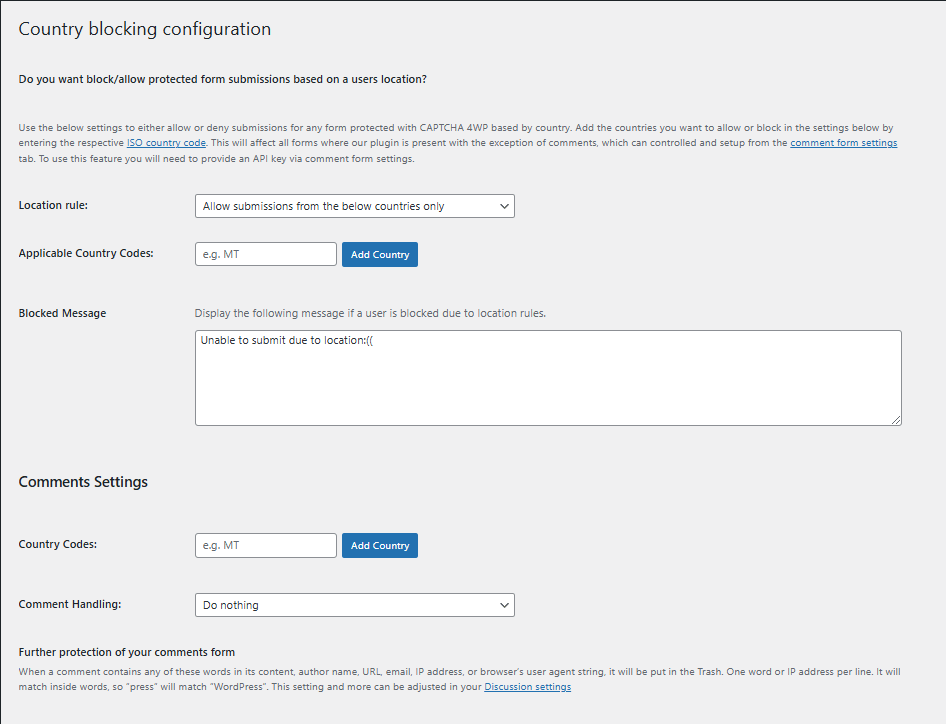
You’ll need an IPLocate API key, with the free version good for 1,000 verifications per day. Once you have the key, you can configure this in the plugin’s settings by navigating to CAPTCHA 4WP > Form Placements. You can then send location rules based on whether you want to allow or block WordPress form submissions from specific countries.
Smart fields
Smart fields are additional fields that you can add to your form that make it even more difficult to get through when used in conjunction with CAPTCHA.
Honeypot fields are essentially hidden fields that only a bot would see. If an input is registered in the field, the form will not be sent, helping you reduce instances of automated spam. Form plugins may include this as a feature – all you need to do is enable it.
Test questions are simple questions that a human can answer, but a bot would struggle with. Test questions are included as mandatory fields in the submission form and can ask questions such as How many legs does a puppy have? Or 5 + 2 = ?.
You can also use plugins such as WP Armour, which automatically adds a honeypot field to your forms, adding an additional anti-spam layer.
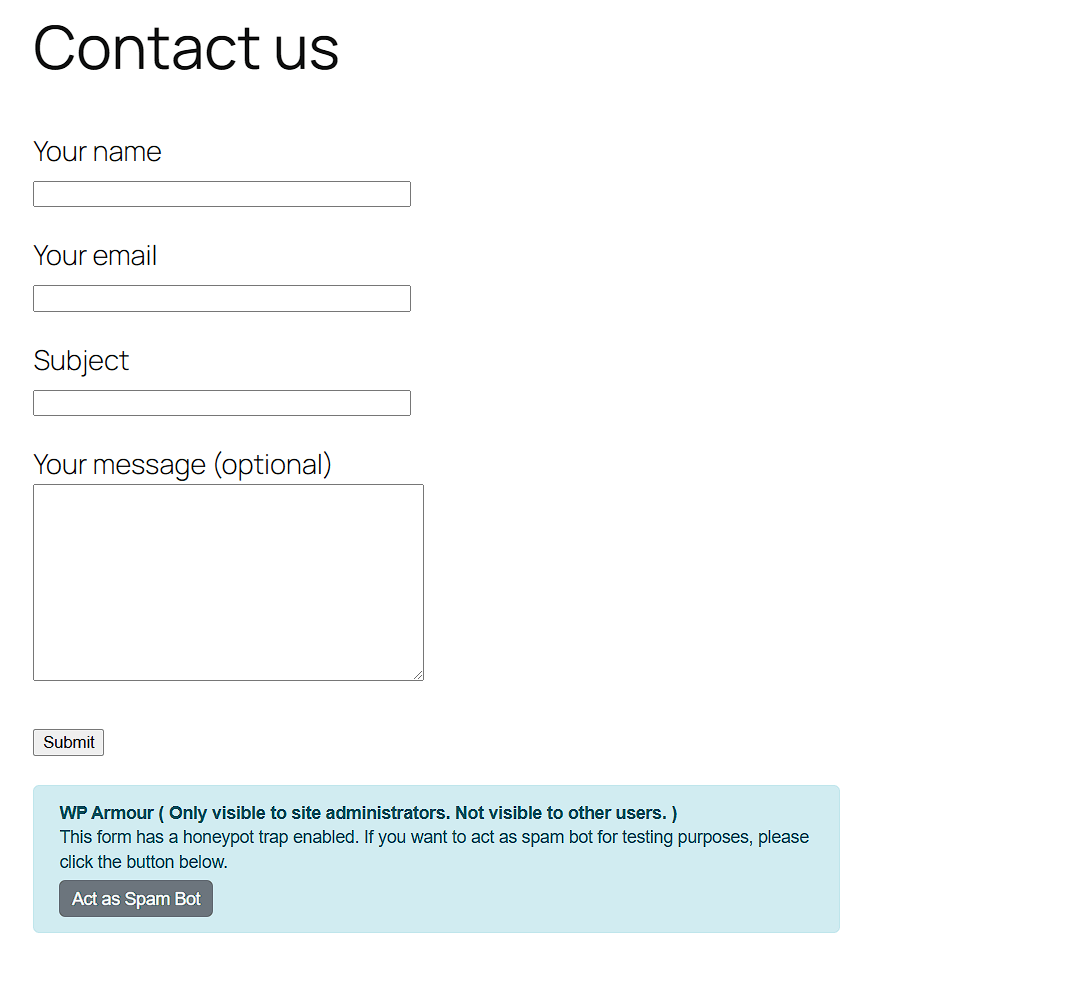
Try a different service provider
If you continue to receive spam after carrying out optimizations, you may want to try a different service provider instead. CAPTCHA 4WP offers easy integration with Cloudflare Turnstile and hCAPTCHA – providing you with multiple options to prevent spam.

ReCAPTCHA – A useful tool for stopping spam
ReCAPTCHA, and other CAPTCHA services are good at stopping bot spam from inundating your website. However, we need to keep in mind that no solution is 100% foolproof, especially when it comes to internet and computer security. Spammers, like hackers, are always looking for ways to circumvent the checks and balances we put in place to keep our websites safe. This means that some spam might still get through, even with reCAPTCHA enabled; however, using the latest version will ensure this is kept to a minimum.
Frequently Asked Questions
reCAPTCHA might not be stopping spam for a number of reasons. Updating to the latest version of reCAPTCHA ensures you get the best protection against more sophisticated bots. Supplementing CAPTCHA with measures such as geo-blocking adds another line of defense against bots.
Keep in mind that CAPTCHA provides protection from spam bots, which is why many spammers use human labor to spam websites.
Google reCAPTCHA is an effective deterrent for contact form spam. Using V3, the latest version, provides the best protection. Not only is it the most advanced reCAPTCHA, but it also allows you to set the passmark score to further limit spam.
Using our CAPTCHA 4WP plugin, you can also set a failover action to avoid false positives from falling through the cracks.
The post ReCAPTCHA Not Stopping Spam in WordPress: Here’s What to Do appeared first on Captcha4WP.
]]>The post CAPTCHA vs. reCAPTCHA: 7 Key Differences and How to Choose appeared first on Captcha4WP.
]]>
Stop spam with multiple CAPTCHA services & support for 3rd party plugins.
This post will focus on reCAPTCHA (a service owned by Google) and how it differs from other CAPTCHA services in several key aspects. This should help you make an informed decision when it comes to integrating a CAPTCHA into your website.
Table of contents
What is reCAPTCHA?
As mentioned earlier, reCAPTCHA is a variation or type of CAPTCHA. Google acquired it a while ago and has been releasing newer and improved versions of reCAPTCHA ever since.
The first version of reCAPTCHA, called reCAPTCHA v1, was shut down in March 2018. There are now three different active versions:
- Google ReCAPTCHA V2 “I’m not a robot”
- Google ReCAPTCHA V2 Invisible
- Google ReCAPTCHA V3
All reCAPTCHA versions employ different methodologies to detect bots. With each one having its own set of pros and cons, which one you choose will largely depend on your needs and requirements. All reCAPTCHA versions, as well as other types of CAPTCHAs, can be implemented on WordPress using a plugin.
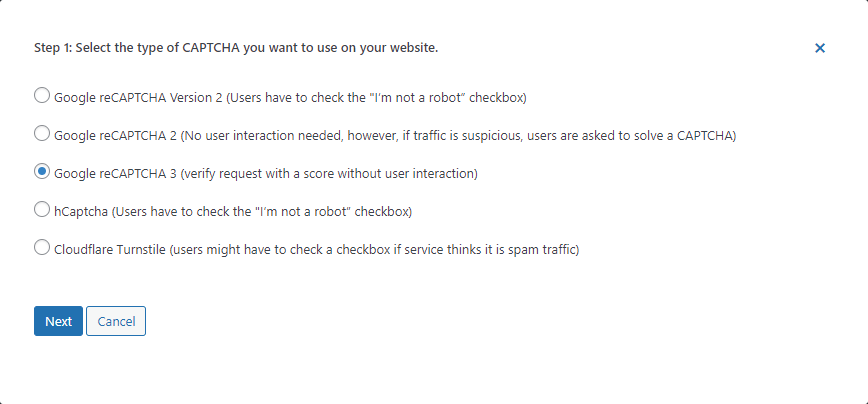
All CAPTCHA services have the same goal of protecting your WordPress from malicious bots while letting in legitimate visitors. This includes reCAPTCHA as well as alternatives such as hCAPTCHA and Turnstile. However, they have some important differences that you should keep in mind when deciding which one to use on your site.
Google reCAPTCHA is currently the most popular CAPTCHA service out there. Therefore, this post will revolve around reCAPTCHA and how it compares with other CAPTCHA services. We will divide the discussion into several important topics, such as the visitor verification process, security, accessibility, privacy, etc.
Keep in mind that not all of these criteria will be equally important for everyone reading this article. You should give more weight to what’s important for your particular situation before choosing a CAPTCHA service to use on your website.
Visitor Verification
Visitors on a website can either be humans or bots. The bots can be good or bad. The bad ones will try to access secure parts of your website, post spam comments, create fake orders, etc.
Having a proper visitor verification mechanism in place will help you stop most of these bad bots.
reCAPTCHA
Google reCPATCHA v1 primarily used text identification and image classification to determine if the website visitors were humans or bots. It has been shut down since March 2018. One challenge that Google faced with reCAPTCHA v1 was that bots were getting better and better at solving CAPTCHAs.
For this reason, reCAPTCHA v2 reduced its reliance on traditional CAPTCHA challenges. It offers two different versions to verify that a visitor is human and not a bot, as explained below.
You can use this Google ReCAPTCHA V2 “I’m not a robot” that explicitly asks visitors to click on a checkbox that says “I’m not a robot” as a test. At this point, Google is running its algorithm in the background to determine if the visitor’s behavior is similar to a human or a bot. If the visitor passes the test, they are let through. However, if they fail the test, they will be asked to solve a CAPTCHA challenge in order to proceed.
You can also use the Google reCAPTCHA v2 invisible version to verify that the visitors are humans. As the name suggests, there is no CAPTCHA visible to visitors in this case. You simply tie the reCAPTCHA verification to an existing button on your website, such as the form submission button. In its default configuration, this version only asks the most suspicious traffic to solve a CAPTCHA. However, you can update the security preferences for your website from the settings in the Google reCAPTCHA admin dashboard.
Google reCAPTCHA v3 relies solely on user interactions on web pages. It loads a script that determines how likely a particular visitor is a human or a bot. The script, which is often handled by a CAPTCHA plugin, needs to be loaded on form pages at a minimum. CAPTCHA 4WP comes with an option to load the script on all pages. While this offers a negligible performance hit, it increases the accuracy of the test. This is easy to do with the help of the CAPTCHA 4WP plugin, which gives you the option to configure reCAPTCHA v3 to load only on form pages or all pages.

Google reCAPTCHA v3 doesn’t ask visitors to solve any captcha challenge. It analyzes user behavior and returns a score. The lower the score, the more likely it is that the visitor is a bot. The higher the score, the more likely it is that the visitor is human.
Google reCAPTCHA v3 leaves the implementation of an additional test for visitors (who fail the automated reCAPTCHA v3 test) up to website owners. The CAPTCHA 4WP plugin provides a failover feature to help you here. You can configure the plugin so that it asks visitors to verify themselves using a reCAPTCHA v2 checkbox if they have failed the reCAPTCHA v3 test. Other configuration options include the ability to redirect visitors to a different URL or to do nothing.
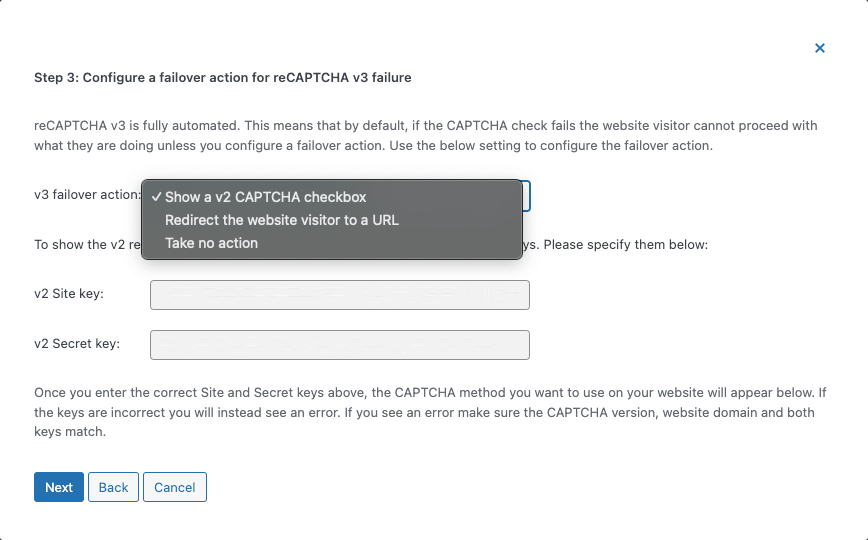
Other CAPTCHA services
Usually, CAPTCHA challenges involve solving puzzles such as typing distorted text and image classification. Some of them might require solving a simple math problem.
Some of the newer CAPTCHA services, such as hCaptcha, sometimes ask visitors very simple questions, such as what their favorite fruit or vegetable is. Others, like Friendly Captcha, generate a crypto puzzle for the visitor’s device to solve. The visitors can just fill out their forms normally. The puzzle automatically starts getting solved when visitors start to fill out a form protected by the CAPTCHA.
Cloudflare Turnstile also avoids asking visitors any questions or solving some puzzles to determine if they are humans. It takes several other aspects into consideration, such as the reputation of the visiting IP, probing the user-agent, checking for support of web APIs, and human behavior patterns.

The CAPTCHA 4WP plugin also supports popular reCAPTCHA alternatives like hCaptcha, and Cloudflare Turnstile.
User Interaction and Experience
A good CAPTCHA service will always try to determine if a visitor is a human or bot with as little direct interaction with the CAPTCHA as possible. In fact, a lot of new CAPTCHA providers rely on either the information gathered about the visitor’s device or their behavior across a website to determine if they are bots.
User experience is something that you should definitely consider when determining which CAPTCHA service to use on your website. A service that regularly asks visitors to solve CAPTCHA puzzles could result in you losing out some business to your competitors due to a bad user experience.
reCAPTCHA
Google reCAPTCHA has continuously made improvements in its bot detection algorithm to avoid showing visitors any puzzles. This means that you will get a high level of security on your website without compromising on the user experience.
With reCAPTCHA v2, Google started relying mostly on behavioral analysis to determine if a visitor is a bot. This implementation of reCAPTCHA v2 is also known as the No CAPTCHA reCAPTCHA.
Visitors can simply click a checkbox to verify that they are humans. This makes reCAPTCHA v2 much more user-friendly compared to its predecessor reCAPTCHA v1.
Google took it a step further with the invisible reCAPTCHA, where the verification occurs entirely in the background, and visitors don’t even see the checkbox. Only the most suspicious visitors are asked to solve CAPTCHA puzzles with reCAPTCHA v2.
Finally, we come to the latest version. Google reCAPTCHA v3 does not give visitors any CAPTCHAs to solve at all. Visitors don’t have to interact with a CAPTCHA or see it on the pages of your website. The JavaScript code that reCAPTCHA v3 loads works silently in the background while a visitor is accessing your website to determine if they are human. It simply relies on the data it collects from the visitors to give them a score.
Keep in mind that visitor behavior varies across websites. Therefore, Google suggests that you let the script run freely in the background for some time to collect enough data. Once you have the data, you will be able to make an informed decision about the threshold at which to take further action to verify the legitimacy of the visitors.
This reluctance to show visitors any actual CAPTCHA challenges to solve makes reCAPTCHA v3 the most user-friendly reCAPTCHA.
In the spirit of improving user experience, the CAPTCHA 4WP plugin allows you to allowlist IP addresses and users that you trust. This means that those particular users will never have to deal with a CAPTCHA on your website. This arrangement strikes the perfect balance between a better user experience and security.
Other CAPTCHA services
Some basic CAPTCHA implementations require all their visitors to solve CAPTCHA challenges. One such example would be the Really Simple CAPTCHA WordPress plugin. Many of these services don’t take visitor behavior into account at all. They may also ask the same visitor to solve a new CAPTCHA every time they fill out a form. This isn’t very user-friendly and will likely annoy regular website visitors.
A few other CAPTCHA solutions, such as hCAPTCHA, try to avoid showing visitors any CAPTCHA in around 99.9% of cases. You also have complete control over the way CAPTCHAs are shown to visitors.
Others, such as Cloudflare Turnstile and Friendly Captcha, don’t show any puzzles to visitors at all. The CAPTCHA technology used in these services provides a comparatively better user experience than basic implementations.
Accessibility
You should aim to create a WordPress site that is accessible to everyone regardless of their visual or auditory capabilities. Accessibility best practices require that images have an alternate text to identify them. This goes directly against the basic principle of any CAPTCHA, which requires visitors to classify images. Providing descriptive text for images defeats the purpose of CAPTCHA.
One of the biggest criticisms of CAPTCHAs has been that they are not usually accessible to everyone. Historically, CAPTCHAs have been known to be inaccessible to people with visual or auditory impairments. For example, any CAPTCHA that asks visitors to classify images will keep your site out of reach for people with poor vision. Language barriers could be another reason that makes a CAPTCHA service inaccessible.
reCAPTCHA
Google’s reCAPTCHA v2 has moved away from asking every visitor to label images to become more accessible. Most of the time, reCAPTCHA v2 only asks visitors to click a checkbox. If the website owners integrate the invisible CAPTCHA, visitors don’t even have to click the checkbox. Their verification continues in the background. Only rarely does it ask visitors to complete a CAPTCHA challenge.
With reCAPTCHA v3, Google completely stopped asking visitors to solve a CAPTCHA. It simply relies on data collected from your web traffic and gives visitors a score. The decision to handle what reCAPTCHA v3 considers bots is left up to site owners.
Relying on visitor behavior has made reCAPTCHA v2 and v3 more accessible compared to the now obsolete Google reCAPTCHA v1.
Other CAPTCHA services
People with visual or auditory impairments may not be the only ones who’ll have a tough time solving CAPTCHA challenges. Solving some of these puzzles can be problematic, even for non-native English speakers. They might not fully understand the task that they are supposed to perform in order to pass the test.
Any CAPTCHA service that uses these visual, auditory, or language-based tests faces the possibility of becoming inaccessible to visitors.
Some services, such as Cloudflare Turnstile and Friendly Captcha, have tried to get over this limitation. They analyze the visitor’s device and session data instead of relying on their ability to solve a CAPTCHA. This makes them much more accessibility friendly.
One more thing to keep in mind is that Google is blocked in some regions, such as China. This means that no version of reCAPTCHA can work there. Google does provide a solution by asking you to use a different domain to load the scripts. Alternatives like Turnstile, hCAPTCHA, and Friendly Captcha do not face this issue.
If you decide to use Google reCAPTCHA on your website, CAPTCHA 4WP makes it very easy for you to switch to a non-blocked domain provided by Google through a dropdown menu on the configuration page.
Integration Process
The integration process refers to the steps that you have to take from your end to use a CAPTCHA service on your website. Ideally, any CAPTCHA service that you use on your website should be easy to integrate.
Most of them usually just require adding a script to load the CAPTCHA functionality. You might also need to generate some keys for proper authentication of requests. All this becomes a lot easier with a dedicated CAPTCHA plugin such as CAPTCHA 4WP.
reCAPTCHA
Both reCAPTCHA v2 and reCAPTCHA v3 require some work from your end in order to work properly. If you are not using WordPress, you will have to begin by loading the scripts. Add some JavaScript code to your web pages and so on. You will also have to get your Google reCAPTCHA keys.
Integration becomes a lot easier if you have a WordPress site. You can simply install the CAPTCHA 4WP plugin, which has a user-friendly setup wizard that only asks you to supply your reCAPTCHA keys.
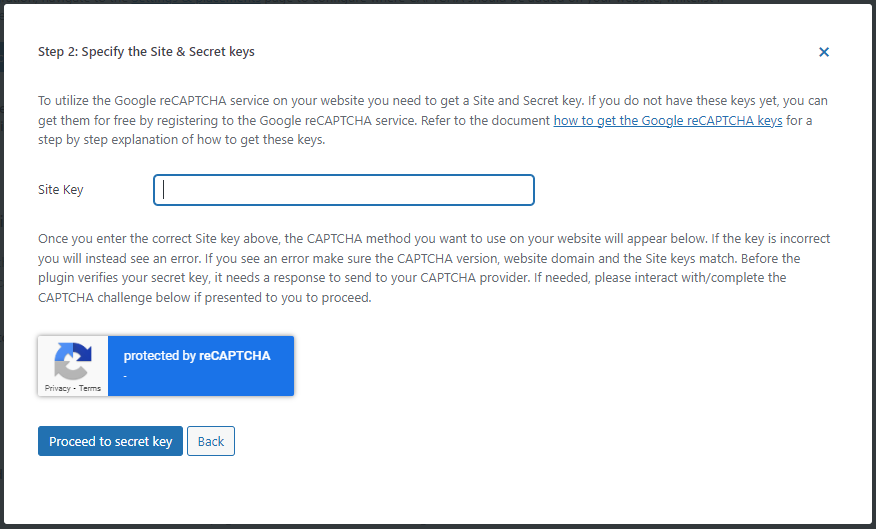
You might want to read our step-by-step guide on getting Google reCAPTCHA keys for your website to get up and running quickly.
Other CAPTCHA services
There are a few CAPTCHA solutions, such as the Really Simple CAPTCHA plugin that you can install on your WordPress site. You won’t need to add any script or get any keys for it to work. This is because it comes with its own basic CAPTCHA checks. However, the CAPTCHAs that the plugin generates aren’t very secure. The plugin itself clarifies this in its description.
More advanced CAPTCHA services, such as hCAPTCHA and Turnstile, require you to acquire some API keys and add some code to your website. The basic process will be similar to integrating Google reCAPTCHA. For example, if someone is using Google reCAPTCHA, they could switch to hCAPTCHA with just two lines of code as claimed on the website.
People who are using WordPress can install the CAPTCHA 4WP plugin and simply provide the keys for hCAPTCHA or Cloudflare Turnstile in the setup wizard.
For further guidance, you can also read our tutorials that detail how to get hCAPTCHA keys and how to get Cloudflare Turnstile keys.
CAPTCHA 4WP works well with multiple CAPTCHA service providers such as hCAPTCHA, Cloudflare Turnstile, and Google reCAPTCHA. This means that switching from one service provider to another won’t be a time-consuming process.
Security
The primary reason people add CAPTCHA to their websites is to reduce spam and improve security. You should always make it a priority to improve your WordPress website security. It is a good idea to add multiple layers of protection to your website that keep it safe from malicious bots as well as malicious users.
The use of a good CAPTCHA solution on a website keeps it safe from most spam bots and stops many automated bot attacks. It ability to secure your website by doing things like controlling spam user registrations or limiting brute-force login attacks depends on how the CAPTCHA works behind the scenes.
reCAPTCHA
Advances in artificial intelligence technology, especially in the field of machine learning, mean that bots are going to get better and better at solving challenges, such as image classification tasks based on labeled data. The same is true for decoding distorted audio or typing distorted text.
For this reason, any CAPTCHA services that rely solely on the visitor’s ability to answer such questions correctly will be less effective with time.
Google’s analysis across multiple websites had shown that bots were getting better at solving CAPTCHA puzzles. Therefore, Google’s reCAPTCHA implementation was updated in later versions to provide better security to your website against spam. With v2 and v3, reCAPTCHA relies on visitor behavior to determine if they are bots.
When compared to basic CAPTCHA solutions, reCAPTCHA is a lot better at keeping your website safe and secure.
Other CAPTCHA services
Services such as hCaptcha take a different approach here. Instead of asking straightforward questions based on labeled data, they ask visitors questions based on the idiosyncrasy that is typical of humans. The service regularly includes new types of challenges in its test to keep itself one step ahead of some advanced bots.
Cloudflare Turnstile looks at the visitor’s session data, such as the headers, user agent, and browser support for APIs to distinguish bots from humans. Discarding the use of images and distorted text in CAPTCHA puzzles makes it better in terms of security against advanced machine learning bots. For devices such as Apple, it also relies on private access tokens to let the vendor validate the device.
Securing all forms on a website against bots
A WordPress website can have multiple forms that you want to protect from spambots. Adding a CAPTCHA to all these forms is better for overall website security. Luckily, you can use the CAPTCHA 4WP plugin to add CAPTCHAs to login, comment, registration, or even custom forms.
What’s even better? CAPTCHA 4WP is compatible with all major third-party plugins that generate forms. A few examples of such plugins would be Gravity Forms, WP Forms, and Contact Form 7.
Privacy
One big concern for people who want to integrate a CAPTCHA service into their website could be the privacy of their visitors. Ideally, you would like to minimize the amount of data that a CAPTCHA service collects to determine if a visitor is a bot or human.
reCAPTCHA
As you might know, Google owns reCAPTCHA. It also has access to a lot of data about people through their use of different Google services. Whether a user is logged into their account or not is also a factor in determining how frequently you are asked to manually solve a CAPTCHA with Google reCAPTCHA v2.
reCAPTCHA v3 takes things one step further and asks website owners to add CAPTCHA script to multiple pages on their website to better track visitors and their behavior.
This means that you will have to compromise with the visitor’s privacy if you decide to use Google reCAPTCHA v2 or reCAPTCHA v3 on your website.
Other CAPTCHA Services
Privacy is one of the areas where many other CAPTCHA solutions shine. Popular services such as hCAPTCHA, Turnstile, and Friendly Captcha claim that they don’t track users.
For example, hCAPTCHA mentions that their service does not store any personally identifiable information. The same goes for Friendly CAPTCHA, which does not rely on cookies to determine if the visitor is a bot. It also does not store any personal data of users.
As we mentioned earlier, Cloudflare Turnstile relies on private access tokens to verify a visitor on modern Apple devices. The validation is then left up to the vendor. This means that Turnstile will not collect or store any data about you if you are using a newer Apple device.
For other devices, Turnstile still provides better privacy in comparison to reCAPTCHA because it doesn’t use cookies to store or collect any information.
The CAPTCHA 4WP plugin allows you to easily switch to hCAPTCHA or Cloudflare turnstile if you decide to limit the amount of data tracked about your website’s visitors.
GDPR compliance of different CAPTCHA services
Both reCAPTCHA v2 and v3 rely on cookies to distinguish bots from humans. This means that your website will no longer be GDPR compliant if you integrate them without making any changes. You need to add cookie banners and consent buttons to your website for compliance.
The strict adherence to the protection of user privacy and no use of cookies make Turnstile, hCAPTCHA, and Friendly Captcha GDPR compliant out-of-box. You won’t have to display any notices about these services anywhere on your website.
Please keep in mind that not all CAPTCHA services will be GDPR-compliant out of the box. It is advisable that you thoroughly read about them before adding them to your website.
Costs
Bad actors will always try to circumvent or pass security measures, including CAPTCHAs. CAPTCHA service providers have to dedicate resources to actively implement solutions and perform calculations that keep sites safe from spam bots. Running CAPTCHA checks costs money, and as such, it is understandable that some services may require payment.
Any associated costs that you might have to pay can be an important deciding factor when deciding which CAPTCHA service to use on your website.
reCAPTCHA
Google reCAPTCHA v2 and v3 offer generous limits of up to one million free monthly assessments to help you fight spam.
You can hop on to their enterprise plan if you need to make more calls. Their enterprise users also get free assessments up to one million per month. After that, the price depends on the number of calls you make. For one million to up to ten million assessment calls per month, it charges $1 per 1,000 calls.
Compared to non-enterprise customers, enterprise customers also get access to customization features, product support, and comprehensive coverage.
Other CAPTCHA services
The cost of integrating a CAPTCHA into your website will vary depending on the service you use. The price is usually determined by the volume and capability of the service to stop spam bots.
Some very basic CAPTCHA services might either be free or have a one-time fee.
Almost all premium CAPTCHA services also offer free plans that you can use on your sites. The free tier is generally limited in either the capabilities or the number of requests that you can make.
Consider hCATPCHA, which offers up to 1 million free requests per month under its Publisher plan. One disadvantage of the Publisher plan is that it doesn’t offer the No CAPTCHA and 99.9% passive modes. Those are only available to the Pro and Enterprise plan customers.
Customers subscribed to the Enterprise plan also get other features such as bot categorization, control over the types of challenges shown, fine-grained difficulty levels, and much more.
The Cloudflare Turnstile plan has no limit on assessments in either the free plan or the enterprise plan. However, the number of widgets is limited to 10 in the free plan.
Friendly Captcha does not offer any free plans. Their starter plan costs €9 per month and offers 1000 requests. However, it is free for use on non-commercial websites.
Should you use ReCAPTCHA or CAPTCHA?
We have covered the key differences between multiple CAPTCHA services in relation to reCAPTCHA. It is time to decide which one you should use.
We will first look at the alternative CAPTCHA services covered in this article, including hCAPTCHA, Turnstile, and Friendly Captcha.
These are all GDPR-compliant and respect user privacy. Friendly Captcha and Turnstile never show any CAPTCHA puzzles to visitors. This makes them much more accessible. While the hCAPTCHA service does show visitors puzzles in the free tier, it is fully compliant with Web Content Accessibility Guidelines (WCAG 2.1).
Google reCAPTCHA has also become more accessible in its latest v3 version. It no longer shows visitors challenges to solve. It does monitor their behavior across multiple pages of the website, raising concerns about privacy.
If you are concerned about user privacy and GDPR compliance, you may want to choose services that are compliant straight out of the box. Otherwise, you may need to update your consent notices and policies to make sure everything is covered and above board.
Don’t forget that you can easily integrate Google reCAPTCHA, hCAPTCHA, and Cloudflare Turnstile into your website with the help of our CAPTCHA 4WP plugin.
Frequently Asked Questions – FAQs
What is the difference between reCAPTCHA and CAPTCHA?
The term CAPTCHA refers to all the automated tests and services that you can use to prevent a bot from spamming your website. This includes hCAPTCHA, Friendly Captcha, and Turnstile, etc. reCAPTCHA is also just a type of CAPTCHA that you can use to block spam. Google acquired reCAPTCHA a while back.
What is the difference between reCAPTCHA v2 and v3?
The primary difference between reCAPTCHA v2 and reCAPTCHA v3 is that the latter works entirely in the background. Google reCAPTCHA v2 might show you a checkbox now and ask you to solve some puzzles every now and then. However, reCAPTCHA v3 only provides a score that specifies the probability of a visitor being a human.
Which CAPTCHA should I use?
It depends entirely on your goal and budget. You can consider using hCAPTCHA or Turnstile if user privacy and GDPR compliance are a concern. Otherwise, reCAPTCHA v2 and reCAPTCHA v3 also work fine.
The post CAPTCHA vs. reCAPTCHA: 7 Key Differences and How to Choose appeared first on Captcha4WP.
]]>The post How to Stop WordPress Contact Form Spam in 7 Easy Steps appeared first on Captcha4WP.
]]>Unsolicited spam emails sent through contact forms not only eat into your time they also pose a security threat and waste precious resources.
Unfortunately, when it comes to the internet, spam is pretty much unavoidable.
If there’s a way to contact you, there’s a spammer who can, and likely will, take advantage. Luckily, there are many tools and strategies to shield yourself from the constant barrage of contact form spam.
In this guide, I’ll walk you through a number of actionable steps you can take to reduce or even completely stop contact form spam on your WordPress site.


Stop spam with multiple CAPTCHA services & support for 3rd party plugins.
Table of contents
- Step 1: CAPTCHA – The easiest way to stop contact form spam in WordPress
- Step 2: Using a honeypot
- Step 3: Awareness and training
- Step 4: Use a firewall plugin
- Step 5: Update plugins regularly
- Step 6: Block the spammer directly
- Step 7: Password protecting the form
- Step 8: Block copy/paste on the page/site
- Frequently Asked Questions
Step 1: CAPTCHA – The easiest way to stop contact form spam in WordPress
When it comes to spam, the first and often best line of defense is implementing a WordPress CAPTCHA solution.
CAPTCHA stands for Completely Automated Public Turing Test to Tell Computers and Humans Apart. Not exactly the most catchy name for a spam prevention solution, but that’s exactly what it does – it tells humans and computers apart. It does this using challenges that humans can complete easily but bots can’t.
By forcing users to verify they are indeed real visitors and not automated bots, bots can no longer submit the form, and the amount of spam you receive is greatly reduced.
Some of the main benefits of CAPTCHA include:
- Blocking most automated bots, including many advanced bots, from submitting your form
- It’s very easy to implement across all your contact forms in WordPress using CAPTCHA 4WP
- It provides a fantastic user experience, as only a small group of users will have to complete the challenges, and the challenges are familiar to most users
Still not convinced? Check out our post on why you need CAPTCHA on your WordPress website!
How to implement CAPTCHA on your WordPress contact forms
Considering all of the benefits that a CAPTCHA solution offers, you might expect it to be hard to implement on your contact forms. However, you’d be wrong.
It’s actually surprisingly easy to add CAPTCHA to your contact forms in WordPress. I’ll be using CAPTCHA 4 WP in this example.
It offers access to multiple CAPTCHA service providers, including reCAPTCHA, hCAPTCHA, and Cloudflare Turnstile, allowing you to choose the right provider/version for your website. It also integrates with native WordPress forms and several third-party themes and plugins out of the box, allowing you to implement CATPCHA across different forms on your WordPress site.
Best of all, it offers many customization options and can be added to your WordPress forms in just a few clicks!
Preventing spam contact form submissions with CAPTCHA 4WP
First, you need to choose the CAPTCHA 4WP license you want.
So, for the same price as a few cups of coffee, you can save yourself hours of time sifting through spam emails. The free version gives you access to everything you need to implement CAPTCHA on native WordPress forms.
However, if you need more features, like support for 3rd party form plugins, the ability to disable CAPTCHA for certain IP addresses, or the ability to add hCAPTCHA or Cloudflare Turnsite, the premium edition might be a better fit.
All packages come with a 30-day money-back guarantee, so if, for whatever reason, you don’t like the plugin, you can get your money back.
Downloading and installing CAPTCHA 4WP
Once you’ve chosen a package, you’ll get an email with instructions on how to download the plugin.

After you’ve downloaded the plugin files, open your site’s WordPress dashboard and navigate to Plugins > Add New Plugin. Then, click on the Upload Plugin button on the top-left of your screen and select Choose File.
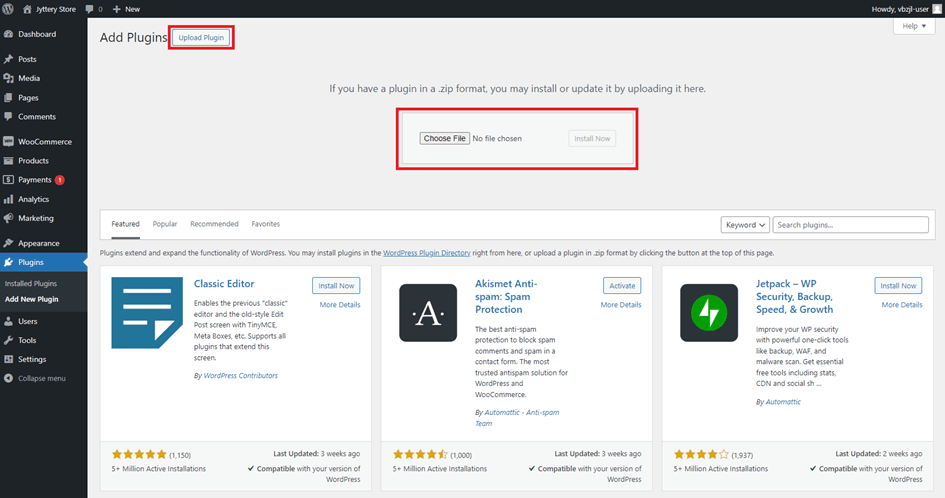
Once you’ve uploaded, installed, and activated the plugin, you should automatically be taken to the setup wizard after clicking on the CAPTCHA 4WP tab.
The setup wizard is pretty self-explanatory, but I’ll walk you through the steps below, just in case. First, select the type of CAPTCHA you want to use. I’ll go with Google reCAPTCHA v2 for this example.
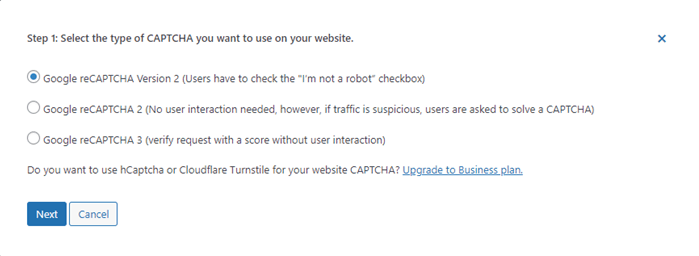
After clicking Next, you’ll be prompted to add your Site Key.
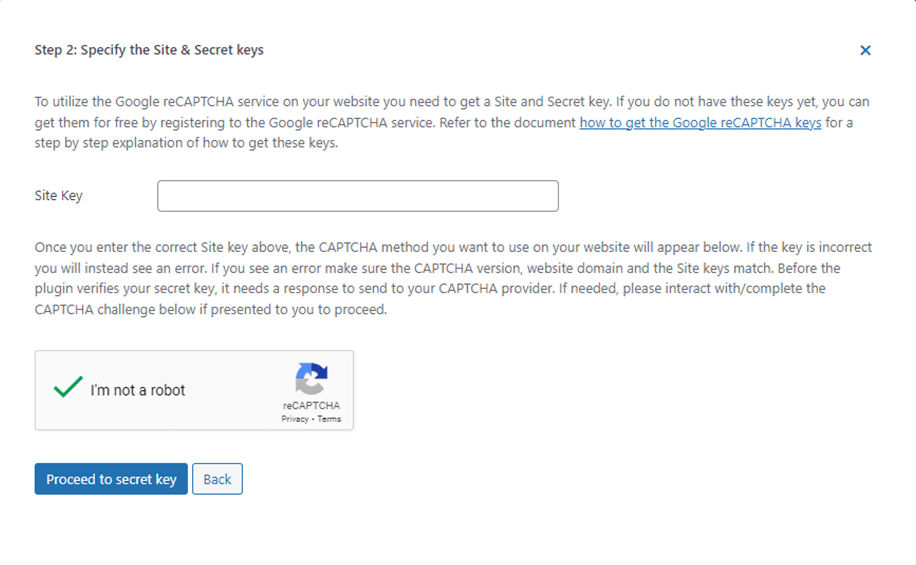
We’ve written a separate post on our blog that shows you how to generate a Google reCAPTCHA key you can follow.
After following the steps laid out in that post, paste your site key into the site key field and click on Proceed to secret key. Then, enter your secret key in the secret key field.
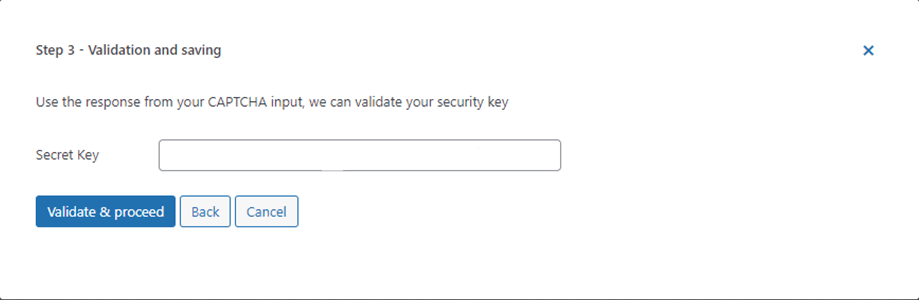
After clicking Validate & proceed, you will be redirected to the main CAPTCHA 4WP dashboard.
Adding CAPTCHA to contact forms
Now that you’ve configured CAPTCHA 4WP, you can add CAPTCHA to your contact form. How exactly you go about this will depend on the form plugin you’re using. Our knowledge base covers each one in detail:
After following the steps detailed above, you should now be protected against most contact form submission bots.
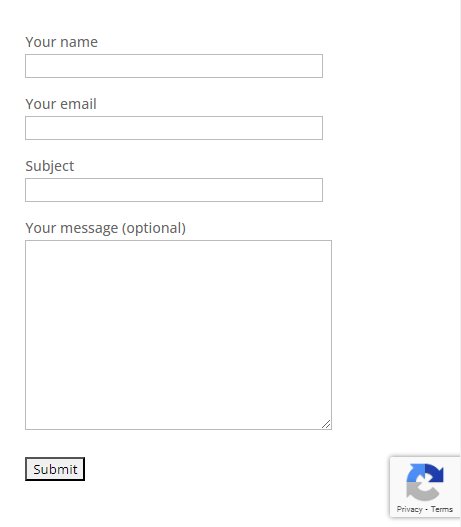
Step 2: Using a honeypot
A honeypot is a hidden field added to a form. This ensures that real users don’t see the field and therefore can’t fill it in. Many bots, especially less sophisticated bots, will automatically fill in every field regardless of whether it’s visible on the page. This means that the honeypot field is also filled in, which is a clear indication that the form was filled in by a bot and not a real user.
How effective a honeypot is varies greatly depending on how it is implemented. It tends to be very effective at stopping basic bots, but more advanced bots can be programmed to spot and avoid filling in certain types of honeypots.
So, although it’s a great addition to CAPTCHA to add an extra layer of control, it’s generally considered less effective as a standalone solution.
Many form plugins have this feature built-in, including Gravity Forms and WP Forms. If not, there are many third-party honeypot plugins you can use, both paid and free.
Simply activate the honeypot functionality, and you’ve added another layer of protection against contact form spam.
Step 3: Awareness and training
When it comes to cyber security, awareness and training are vital.
Email is one of the most common attack vectors that bad actors use to infect computers with malware. It’s also the most common channel used for phishing.
Although not all spam consists of phishing emails or contains malicious links, many spam emails do. This means it’s vital that everyone who could be exposed to these messages knows how to spot spam and deal with it accordingly.
Identifying spam emails
Even if you manage to stop the bulk of the spam emails that spammers submit through your WordPress contact forms, the occasional spam email will slip through. This means that distinguishing between real messages and spam messages is important.
Some of the most common forms of spam include:
- Unsolicited marketing emails
- Phishing emails
- Malicious link spam
- Random characters/empty form submissions
Although not all spam is easy to detect, there are a few common signs to look out for:
- The email is in a different language than you normally communicate in
- The email is an unsolicited marketing email you did not subscribe to
- The email address doesn’t match what you would expect based on the email content (for example, the email content claims the email is from PayPal, but the email address is “[email protected]”
- The email includes links or attachments that seem odd or out of place
- The email content mentions porn, hacking, viagra, guest posts, or other terms commonly used by spammers
- The email uses urgent or threatening language
- Personal information or other sensitive information is requested in the email
Examples of spam emails
Examples are a great way of building your understanding of spam and what it might look like. So, to help you identify spam form submissions, here are some examples I recently received on my WordPress sites.
Quick tips for handling spam contact form submissions
This post covers spam prevention in-depth. However, there are a few important tips worth mentioning when it comes to handling those spam contact form submissions that do make it through.
Never reply to spam contact form submissions
By replying, you tell spammers that the contact form is live and you are receiving/reading their spam messages. You also give them your direct email address. Attackers can then use this to spam you further, bypassing the security measures you implement on your contact form.
Tip: This post is about contact form spam specifically and not email spam more generally. However, one thing worth mentioning is that some spammers use email tracking when sending bulk email spam. This means that they get notified if an email is opened, which is pretty much the same as you responding to it.
They can only do this when sending emails directly, so not when submitting a contact form. However, it’s important to block email tracking to ensure spammers aren’t notified if they do get hold of a direct email address.
Create a separate email folder/email address for form submissions
By keeping form submissions out of your “normal” direct email folder, you ensure users are more alert to spam. This also protects your regular inbox from being flooded with spam caused by issues with your technical controls.
Educate your team
Education is the most cost-effective cyber security measure, and this is also the case when it comes to spam. Training your team to be able to identify spam helps prevent many of the unwanted side effects that come with spam form submissions.
Step 4: Use a firewall plugin
Firewalls filter website traffic and block bots, which helps to reduce spam. A good firewall can also help protect your website from other malicious traffic. The added benefit makes it a good security control to implement regardless of whether you’re experiencing spam issues.
A WordPress firewall works at the website level instead of the form level, meaning it can help stop bots from accessing/crawling your site altogether if they behave suspiciously. This makes it a fantastic additional security measure against contact form spam since it operates on a different level from CAPTCHA and honeypots.
There are many WordPress firewall plugins available on the market today, so I won’t go into all of them in this post.
What I’ll do instead is refer you to our post on WordPress firewalls, which dives deeper into how they work and how they can help enhance your site’s security.
Step 5: Update plugins regularly
Although regularly updating your plugins might not seem like a very proactive step you can take to prevent spam, it is an important one.
Whether you’re dealing with your contact form plugin or your anti-spam plugin, it’s crucial to keep updating them to ensure they can handle the latest bots.
Updates often come in the form of bug fixes, security enhancements, or patches, which can help to improve the plugin’s security. If there’s a vulnerability that allows spammers to surpass your security plugins’ security controls, you could see an increase in spam.
Cyber security is a constant tug-of-war between bad actors and the companies and individuals trying to reduce their impact. As spammers and bad actors learn new ways of sending contact form spam, plugins need to adapt to stop them and keep their users secure. If you don’t update your plugins, the updates won’t reach you, and spam could slowly become more prevalent until you update them.
Regularly checking for updates and updating your plugins/themes can help you keep your site secure and your contact forms spam-free.
Step 6: Block the spammer directly
Blocking the culprit directly can be highly effective, but only if you have some information about the source of the spam you want to block. There are a number of ways to achieve this, including:
Restricting submissions by country
You can restrict contact form submissions from specific countries. Doing so prevents anyone accessing your website from that country from submitting your contact form. This is very beneficial if your website targets a specific region, but it’s not suitable for sites that target a broader region.
Block specific email addresses
You can choose to block specific email addresses from submitting your contact form if you observe a lot of spam originating from the same email address. While this can seem very impractical, it can actually be very useful.
For example, restriction submissions from certain well-known free email providers or emails containing certain character combinations.
Many spammers send contact form spam using fake emails, often with just a few letters or even an incomplete email address. By blocking these kinds of submissions, you can prevent them from reaching your inbox.
Block traffic by IP
If you’re encountering spam issues from specific IP addresses, then you can block this traffic on your website. This isn’t a practical solution in 99% of cases since spammers can simply use a proxy to circumvent the block. However, if you’re seeing a large quantity of spam from the same IP address(es), blocking those IPs can be very effective.
Blocking specific languages
Blocking specific languages allows you to block contact form submissions in languages commonly used for spam, like Russian and Chinese. This only works if your website doesn’t target these countries specifically, of course.
Language blocking can be a good secondary measure, especially when combined with the blocking of specific regions.
Step 7: Password protecting the form
Although it’s generally not the best option, you can password-protect contact forms. This prevents bots or spammers from having access to them. This can work well on websites with login functionality, forcing users to create an account before submitting the contact form.
Obviously, this is only an option in very specific situations. However, when it is an option, it’s generally a highly effective one.
Step 8: Block copy/paste on the page/site
Just like the last one, this isn’t the most user-friendly option for reducing contact form spam.
That said, several WordPress plugins enable you to block copy/paste on a page or across a website. This can prevent manual spammers from surpassing your bot detection/prevention measures and spamming you with copied/pasted messages.
Frequently Asked Questions
There are a number of ways to stop WordPress contact form spam, with CAPTCHA being the most effective and most commonly used.
A good reCAPTCHA/hCAPTCHA solution can prevent most bots from submitting your contact forms. This will dramatically reduce the amount of spam you receive through it.
Other ways to block contact form spam include adding a honeypot field, using an anti-spam plugin, password protecting your contact form, and blocking certain user actions on the page the contact form is on and/or across the entire website.
Contact form spam can take many forms, from unsolicited marketing emails to scams and malware. Oftentimes, spam is very easy to detect, like in the examples provided in the section “What is contact form spam?” in this post.
However, this isn’t always the case.
Sophisticated contact form spam can actually look like a real email. This can make it hard to know you’re dealing with spam. By preventing spam form submissions as much as possible, you can prevent these spam emails from ever reaching you. Thus, you reduce the risk to your website/business.
Spammers will target any communication channel they can. Therefore, live WordPress websites get spam submissions at some point, whether it’s in the form of spam comments or unwanted messages.
But don’t worry; you can avoid spam altogether. By following the steps laid out in this post, you can combat contact form spam and drastically reduce the amount of spam you receive through your contact form.
You can disable your WordPress contact form by going to the contact form plugin you use (Dashboard > Plugins > Installed plugins) and clicking on “Deactivate.”
However, you don’t have to take such drastic measures if it’s your goal to reduce spam. Implementing a CAPTCHA solution on your contact form actively prevents most spam submissions from bots. These bots typically generate the bulk of spam sent through contact forms.
WordPress doesn’t have a built-in spam blocker, but it does offer a range of plugins with various spam-prevention features. I used the CAPTCHA 4WP plugin in this blog post. It is highly effective at blocking many different types of spam.
With Contact Form 7 being one of the most used contact form plugins, it’s no surprise there are so many people looking to reduce spam specifically for this plugin. That’s why we recently wrote an article specifically focused on blocking contact form 7 spam in WordPress. Check it out!
The post How to Stop WordPress Contact Form Spam in 7 Easy Steps appeared first on Captcha4WP.
]]>