This feature ensures that recovery messages are suppressed for unwanted or disposable addresses without affecting cart visibility or checkout functionality.
1. Where to Find It
Admin Path: WooCommerce > Cart Abandonment Recovery > Settings > Blacklist

This section is available only in the Pro version with an active license.
2. Settings
1. Enable Blacklist (Toggle)
- Default: Off
- Turns the blacklist feature on or off.
- When disabled, no blacklist checks are performed, even if entries exist.
2. Blacklisted Emails & Domains (Textarea with Dropdown)
- Default: Empty
- Multiline input; each line represents one blacklist rule.
- Includes a searchable dropdown of 5,100+ known disposable email domains (e.g., tempmail.com, 10minutemail.com) that can be added with a click.
3. How to Add Entries
Formats Supported:
- Exact Email Address
- Example:
[email protected] - Blocks only this specific email.
- Example:
- Domain Wildcard
- Example:
*tempmail.com - Blocks all emails from
@tempmail.com.
- Example:
Rules:
- One entry per line.
- Case-insensitive matching.
- Domain wildcard must start with an asterisk (*).
4. How It Works
1. Automatic Blacklist Check (On Cart Abandonment)
- Customer abandons cart and enters email.
- Plugin saves the abandonment record.
- Blacklist check runs automatically.
- Customer email/domain is compared against blacklist entries.
- If a match is found, cart status is set to “Blacklisted.”
- Recovery message scheduler skips blacklisted carts — no emails, SMS, or WhatsApp messages are sent.
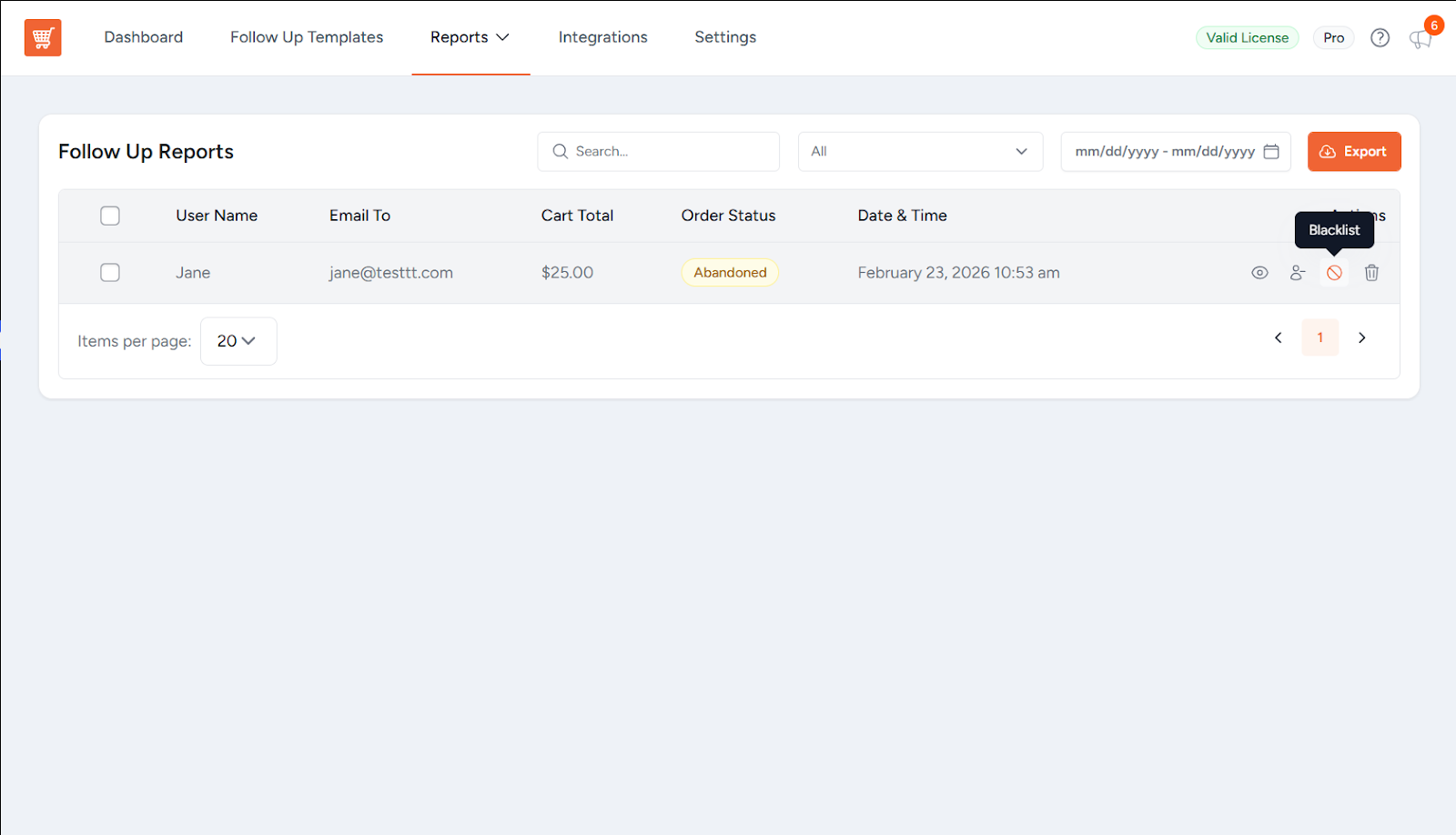
2. Manual Blacklisting from Admin Dashboard
- Go to abandoned cart details page.
- Click Blacklist button.
- Cart status updates to “Blacklisted.”
- Customer email is added to Blacklisted Emails & Domains list.
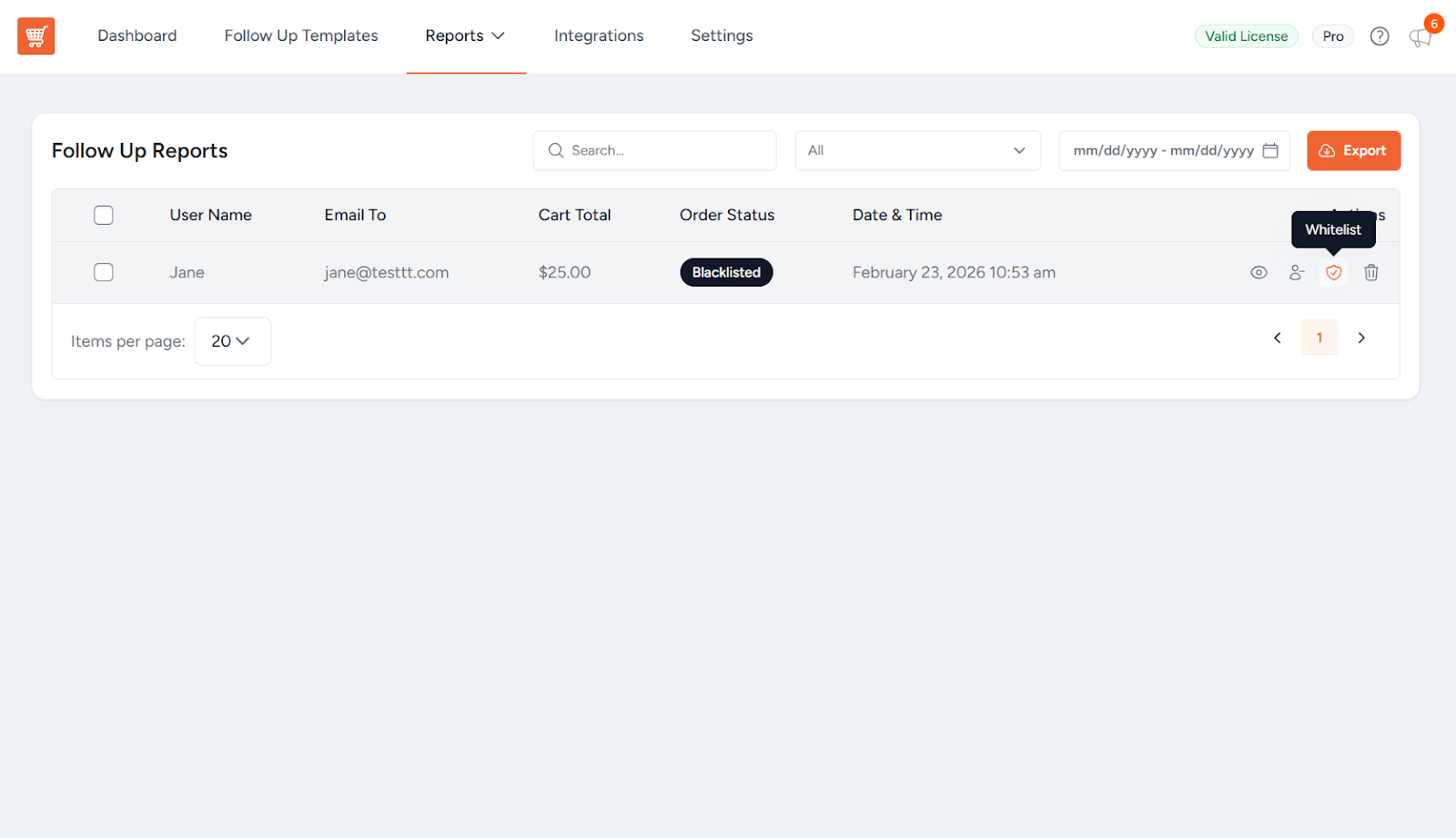
3. Removing from Blacklist (Whitelisting)
- Go to blacklisted cart details page.
- Click Whitelist button.
- Cart status restores to “Abandoned.”
- Customer email is removed from blacklist.
5. What Gets Blocked
When a cart is blacklisted, the following are suppressed:
- Recovery Emails
- Recovery SMS messages
- Recovery WhatsApp messages
All three channels respect the blacklist status.
6. What Does NOT Happen
- Cart data is not deleted; blacklisted carts remain visible.
- Customers can still complete purchases.
- Already-sent messages are unaffected; blacklist only applies to future messages.
- WooCommerce checkout and order creation are unaffected.
7. Disposable/Temporary Email Domain Suggestions
The textarea includes a searchable dropdown with 5,100+ pre-configured temporary email domains. These suggestions are not blacklisted by default; the store owner must explicitly add them.
8. Frequently Asked Questions
Read more at CartFlows – High-Converting Sales Funnels & Checkout for WooCommerce
]]>This feature allows multiple follow-up templates with customizable delays, discount coupons, and targeting conditions. A global integration settings section and per-template configuration system provide full control over message automation.
How It Works – The Big Picture
Before diving into setup, here’s what you’re building and why each piece matters:
| Component | What It Does |
|---|---|
| Meta (WhatsApp Cloud API) | The platform that actually delivers WhatsApp messages to your customers. You need a Meta Business account to use it. |
| Message Templates | Pre-written message formats that Meta approves before you can send them. You create these in Meta, then use them in Cart Abandonment Recovery.Cart Abandonment Recovery |
| Cart Abandonment Pro Plugin | Detects when someone leaves without buying, and triggers your approved WhatsApp templates automatically. |
| Customer Phone Consent | WhatsApp legally requires customers to opt in before you message them. This is captured at checkout. |
Time Estimate
The setup has two sides: (1) Setting up your Meta/WhatsApp account and creating message templates, and (2) Connecting those templates to Cart Abandonment RecoCart Abandonment Recovery. Plan for 30–60 minutes for your first-time setup.
1. Prerequisites
Make sure you have all of the following ready. Missing any one of these will block the setup.
- Cart Abandonment Recovery Pro – an active Pro license is required. The WhatsApp feature is not available in the free version.
- Meta (Facebook) Business Account – if you don’t have one, create it at business.facebook.com.
- WhatsApp Business Account – must be linked to your Meta Business account.
- A verified phone number – added to your WhatsApp Business account. This is the sender number your customers will see.
- At least one approved message template – you’ll create this in Meta Business Manager. Templates must be approved before Cart Abandonment Recovery can use them.
- Phone Number and Phone Consent fields – must be enabled on your WooCommerce checkout page (covered in Step 3).
2. Setting Up Your Meta WhatsApp Account
This is the most technical part of the setup. Follow each sub-step carefully – you’ll be collecting three pieces of information you’ll need later: a Phone Number ID, a WhatsApp Business Account ID, and an Access Token.
2A. Create a Meta Developer App
- Log in at Meta for Developers.
- Navigate to My Apps > Create App.
- Select Business as the app type.
- Give your app a name (e.g., “My Store WhatsApp”), then click Create App.
- After creation, click Add Product > WhatsApp > Set Up.
2B. Retrieve Phone Number ID and WhatsApp Business Account ID
- Go to WhatsApp > Getting Started in your app.
- Copy and save somewhere safe the Phone Number ID and WhatsApp Business Account ID.
2C. Create a Permanent Access Token
Important
Why “permanent”? Temporary tokens expire and will break your WhatsApp messages silently. Always generate a token set to “Never” expire.
- Visit Meta Business Suite > Settings > Business Settings > Users > System Users.
- Create a new system user (e.g., “WhatsApp Bot”) with Admin role.
- Add your app as an asset with Full Control.
- Generate a new token with permissions:
whatsapp_business_messagingandwhatsapp_business_management. - Set expiration to Never and copy the token immediately – Meta only shows it once. Store it securely.
2D. Create a WhatsApp Message Template
Message templates are the pre-approved messages Meta allows you to send. You must create and get at least one approved before Cart Abandonment Recovery can send any messages.
- Go to Meta Business Suite > Account Tools > Message Templates (or search for “Message Templates” in the search bar).
- Click Create Template, choose Marketing (for promotional messages with discounts) or Utility (for transactional/recovery messages).
- Add a name (e.g., cart_recovery_reminder) and select the language.
- Build your template:
- Header (optional): A short title or image shown at the top of the message.
- Body (required): The main message. Use {{1}}, {{2}} etc. as placeholders for dynamic content like customer name, cart total, or recovery link.
- Buttons (optional): You can add a “Complete Purchase” button that links to the cart recovery URL.
- Submit for approval. Approval usually takes a few minutes to a few hours.
Important
Only Approved templates will appear in Cart Abandonment Recovery. If your template shows as Pending or Rejected, it won’t show up in the plugin dropdown. Check your template status in Meta Business Manager before continuing.
3. Enable Phone & Consent Fields on Your Checkout
WhatsApp messages can only be sent to customers who provided their phone number AND explicitly agreed to receive WhatsApp messages at checkout. This is a legal requirement.
1. In your WordPress admin, go to WooCommerce > Cart Abandonment Recovery > Settings.
2. Find the GDPR options and make sure both Phone Number and Phone Consent (GDPR opt-in checkbox) are enabled.

3. These fields will now appear on your Checkout page – customers must fill them in and check the box for WhatsApp messages to be sent to them.

Note:
Customers who don’t check the consent box will never receive WhatsApp messages – even if they provide a phone number. This is by design to stay compliant with messaging regulations.
4. Configure Global WhatsApp Settings
Now you’ll connect the Meta credentials you collected earlier to the Cart Abandonment Recovery plugin.
Navigate to: WooCommerce > Cart Abandonment Recovery > Settings > Integrations > WhatsApp
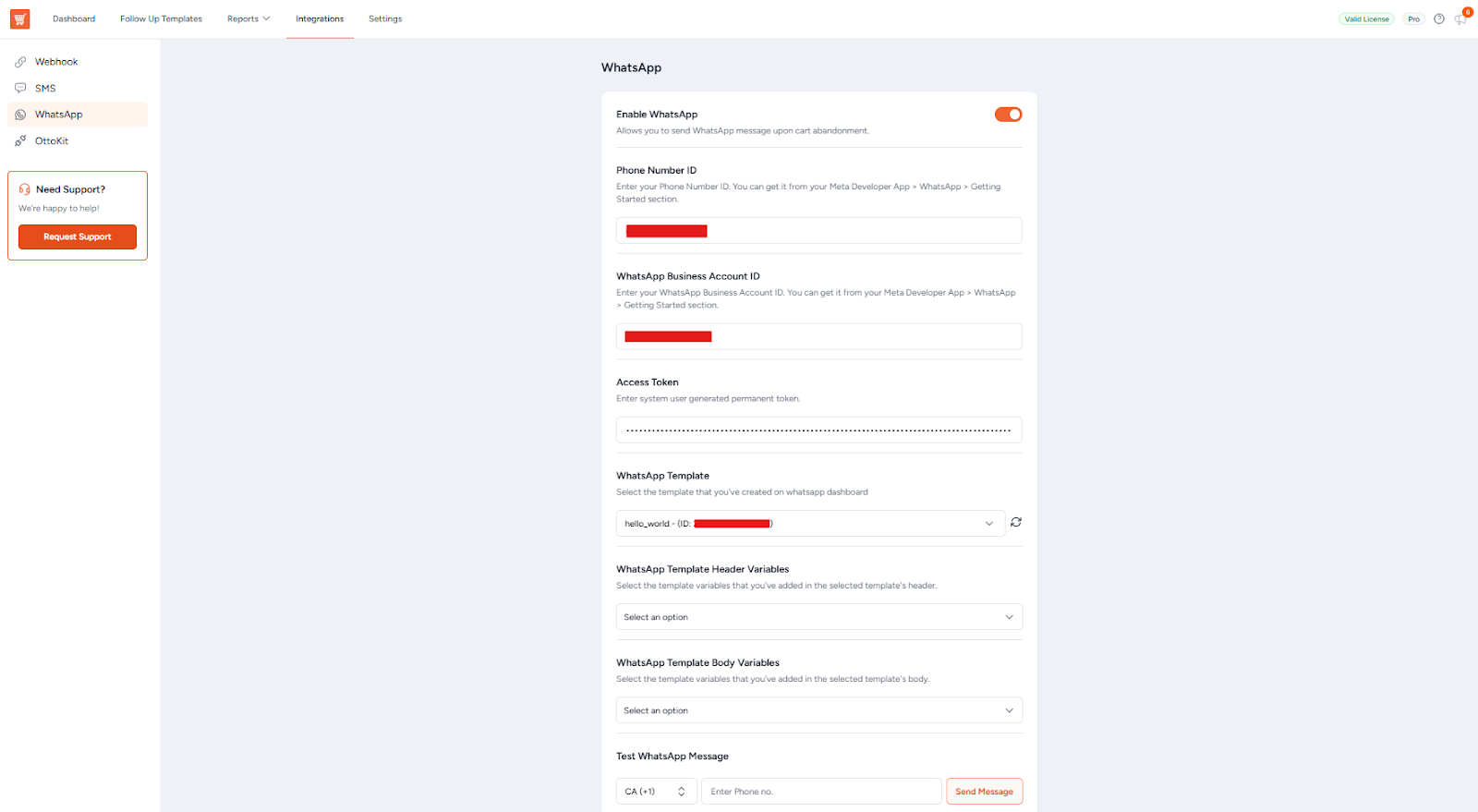
1. Enable WhatsApp – Toggle to activate the feature (default: off).
2. Phone Number ID – Enter the Phone Number ID from Meta Developer App you saved in the earlier step.
3. WhatsApp Business Account ID – Enter your WABA ID from Meta Developer App you saved in the earlier step.
4. Access Token – Enter the permanent token created earlier.
5. WhatsApp Template – Select an approved template from Meta. Use the refresh button to fetch updates.
6. Map Variables – for Header and Body placeholders (e.g., {{1}}, {{2}}), select which Cart Abandonment Recovery data should fill each one:
| Available Variable | What It Inserts |
|---|---|
| Customer First Name | The first name from the checkout billing fields |
| Customer Last Name | The last name from the checkout billing fields |
| Cart Total | The total value of the abandoned cart |
| Coupon Code | A discount coupon if configured on the template |
| Cart Recovery URL | The unique link that restores the customer’s cart |
7. Test WhatsApp Message – use this to send a test message to your own phone number and verify the integration works before going live.
5. WhatsApp Follow-up Templates
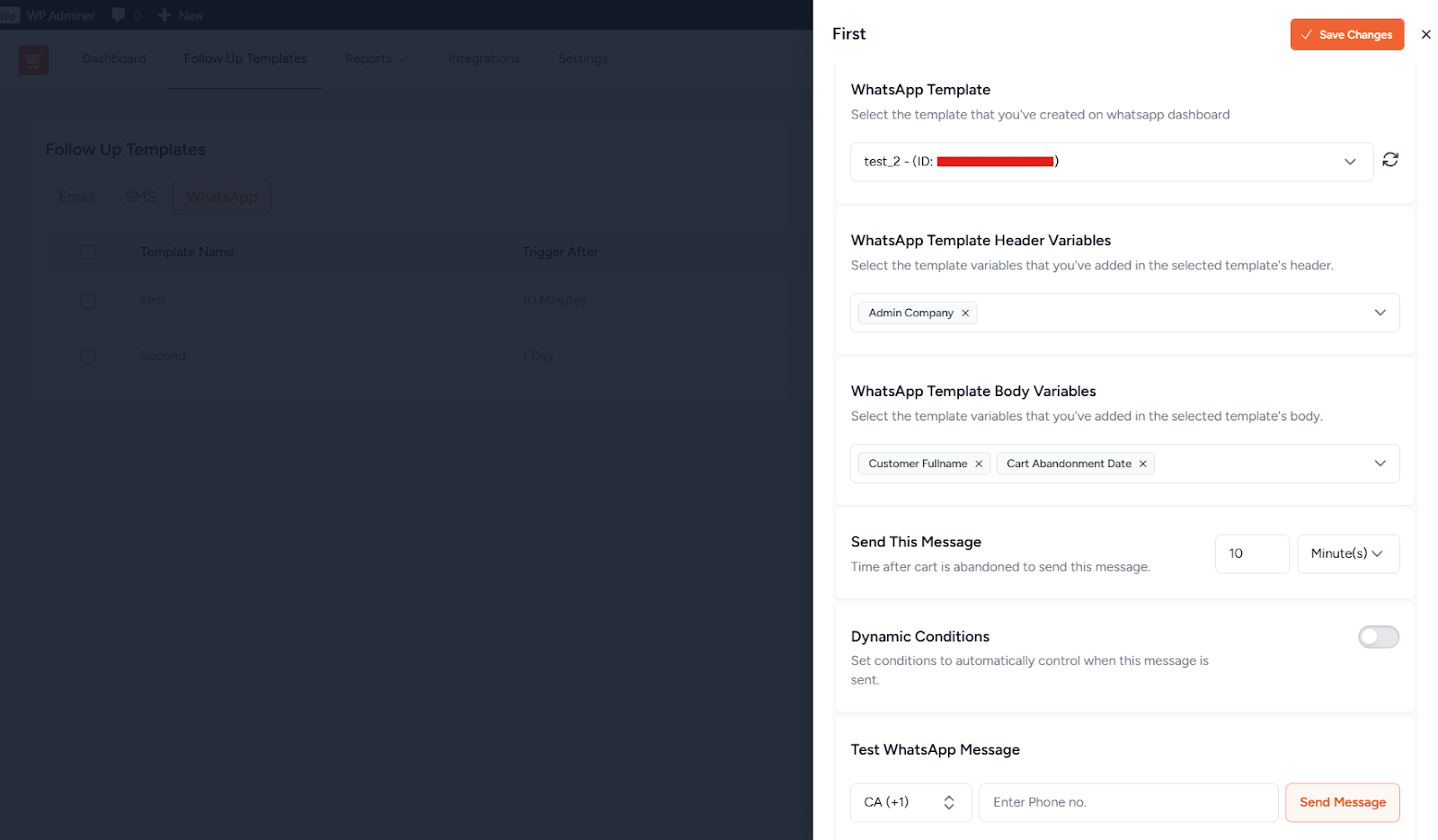
This is where you define when and how many WhatsApp messages to send after a cart is abandoned. You can create multiple templates with different time delays – for example, a gentle reminder at 1 hour and a discount offer at 24 hours.
Navigate to: WooCommerce > Cart Abandonment Recovery > Follow Up Templates > WhatsApp
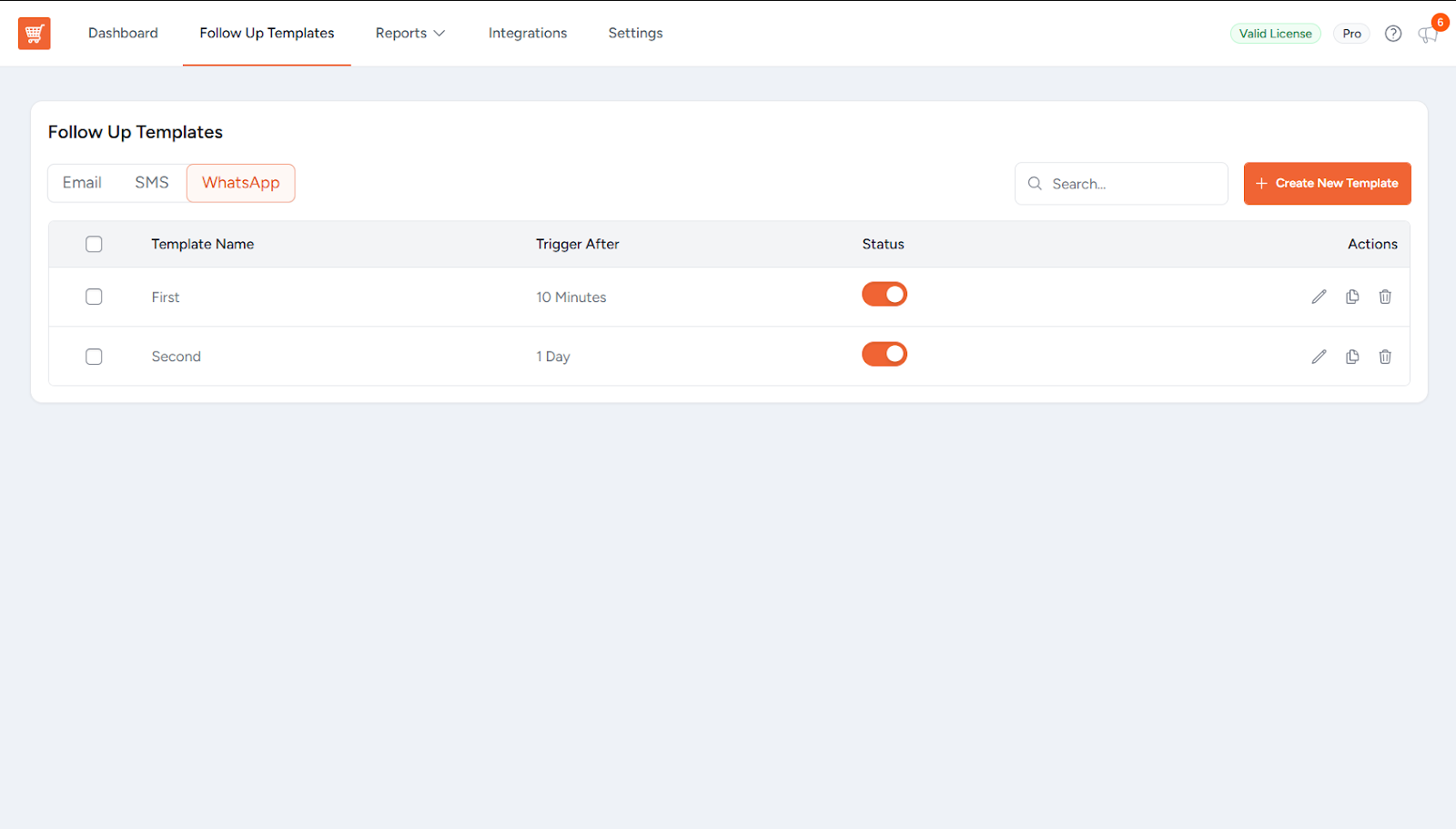
1. Click Create New Template to create your first followup.
2. Template Name – this is just an internal label for your reference (e.g., “1-hour reminder”).
3. WhatsApp Template – choose an approved Meta template from the dropdown.
4. Map Variables – same as in Step 4: assign Cart Abandonment Recovery data to each placeholder in the template.
5. Send This Message – choose how long after abandonment the message should be sent (e.g., 60 minutes, 24 hours).
6. Create Coupon Code (optional) – attach a discount coupon to this template if you want to incentivize purchase.
7. Activate Template – turn this on when you’re ready for it to go live. Inactive templates are saved but don’t send.
8. Repeat to add more followup messages at different delays.
6. Test Before Going Live
Before real customers see your messages, test the full flow:
- Open your store in an incognito/private browser window.
- Add a product to cart and go to Checkout page.
- Fill in your own name, email, and real phone number (in international format, e.g., +919876543210).
- Check the WhatsApp consent checkbox.
- Close the browser tab without completing the purchase.
- Wait for the time delay you set on your first template to pass.
- Check your WhatsApp – you should receive the message.
Phone Format:
Phone number format matters! The number must include the country code (e.g., +91 for India, +1 for US). Cart Abandonment Recovery tries to auto-add this based on billing country, but asking customers to enter their full number including country code is safest.
7. Unsubscribe / Opt-Out
Customers who unsubscribe from one channel (WhatsApp, SMS, or email) are unsubscribed from all recovery messages for that abandoned cart session. You don’t need to manage this separately per channel.
8. Troubleshooting – Common Problems & Fixes
8A: Template dropdown is empty
- Check credentials – Make sure Phone Number ID, Business Account ID, and Access Token are all saved in Settings.
- Click Refresh – Use the refresh button next to the template dropdown to fetch from Meta.
- Check template status – Only templates with Approved status in Meta Business Manager appear here. Pending or Rejected templates are excluded.
8B:Test message works, but live messages aren’t sending
- Toggle check – Confirm the WhatsApp Enable toggle is turned ON in global settings.
- Template activation – Make sure at least one followup template has “Activate Template” turned on.
- Customer consent – The customer must have checked the phone consent checkbox at checkout. Without it, no message is sent – even if a phone number was entered.
8C: Customer didn’t receive the message
- Phone number format – Must include country code (e.g., +91XXXXXXXXXX, +1XXXXXXXXXX). Missing the country code will cause silent delivery failure.
- No consent given – Customer didn’t check the consent checkbox at checkout.
- WhatsApp not installed – The customer’s phone number must be registered and active on WhatsApp. If they don’t have the app, delivery fails.
- Template status changed – If the Meta template was edited or rejected after being selected in the plugin, messages will stop working. Re-check the template’s status in Meta.
8D: Access token expired or became invalid
- Go back to Meta Business Suite > Settings > Business Settings > Users > System Users and regenerate a new token with the same permissions.
- Update the token in Cart Abandonment Recovery > Integrations > WhatsApp and save.
- Send a test message to confirm it works again.
9. Frequently Asked Questions
| What You Need to Do | Where to Go |
|---|---|
| Enable WhatsApp & enter credentials | WooCommerce > Cart Abandonment Recovery > Settings > Integrations > WhatsApp |
| Create / manage followup templates | WooCommerce > Cart Abandonment Recovery > WhatsApp |
| Enable phone & consent fields | WooCommerce > Cart Abandonment Recovery > Settings |
| Create / manage message templates | Meta Business Suite > Account Tools > Message Templates |
| Generate / renew access token | Meta Business Suite > Settings > System Users |
| Find Phone Number ID & WABA ID | Meta Developer App > WhatsApp > Getting Started |
Read more at CartFlows – High-Converting Sales Funnels & Checkout for WooCommerce
]]>Each step includes action controls and dedicated configuration tabs depending on its function within the funnel.
1. General Step Actions (Available on Every Step)
On the right side of every funnel step, you will see four action options:
View Step
Opens the step on the frontend to preview how it appears to users.
Edit Step
Opens the step inside the page builder or editor to modify its design and content.
Settings
Opens the step configuration panel where you can manage products, behavior, scripts, and advanced options.
More Options
Provides additional actions such as:
- Duplicate Step
- A/B Test (Pro)
- Delete Step

These options help you manage and organize your funnel efficiently.
The Settings option is where most functional customization takes place. The available tabs inside the Settings panel depend on the type of step.
2. Landing Step
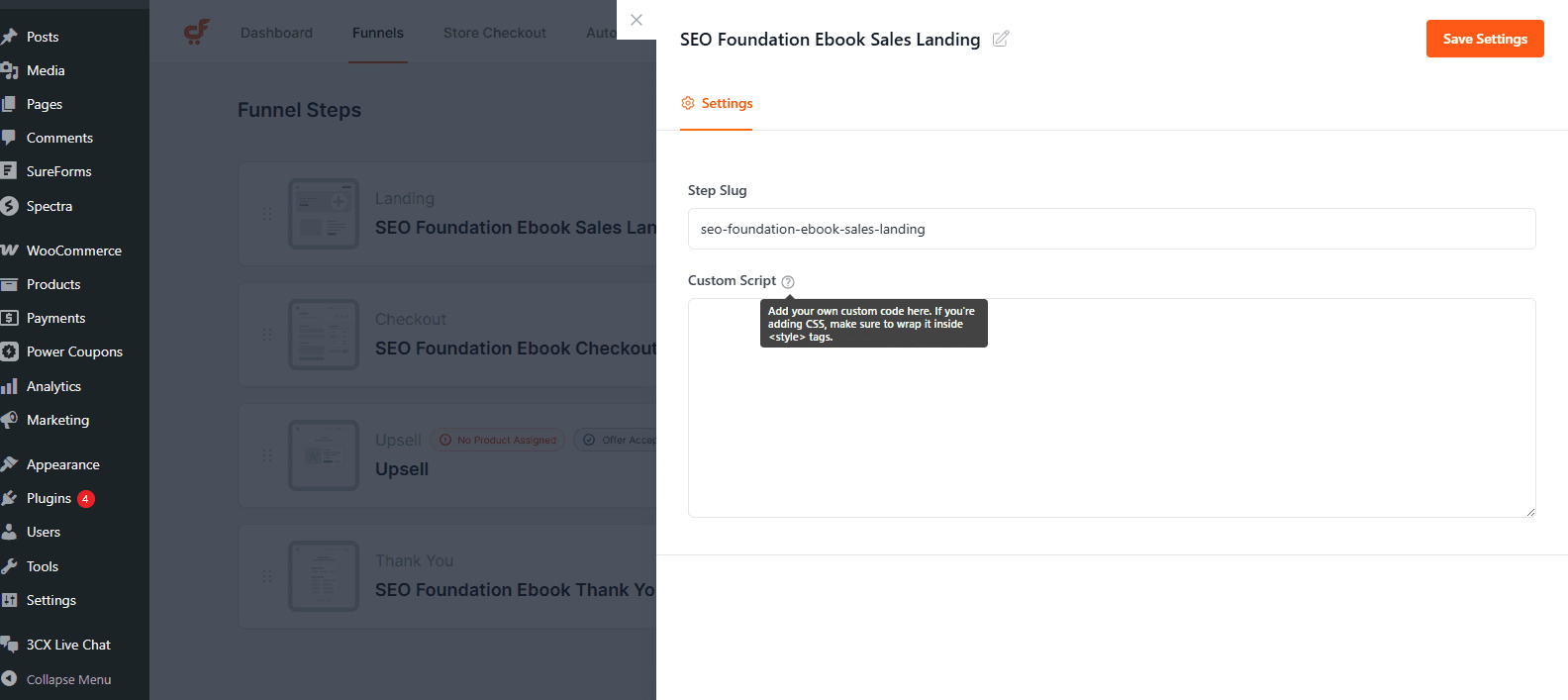
The Landing step is typically used to present your offer before sending users to checkout. It does not process payments. When you click Settings on a Landing step, a settings panel appears with configuration options specific to that step.
Settings Tab
Step Slug
Defines the URL path of the landing page.
Custom CSS/Scripts
Allows adding custom CSS, custom JavaScript or tracking scripts specific to this step.
3. Checkout Step
The Checkout step processes payments and finalizes purchases. It includes multiple configuration tabs. Clicking Settings on the Checkout step opens several tabs that control products, checkout layout, conditional logic, and advanced behavior.
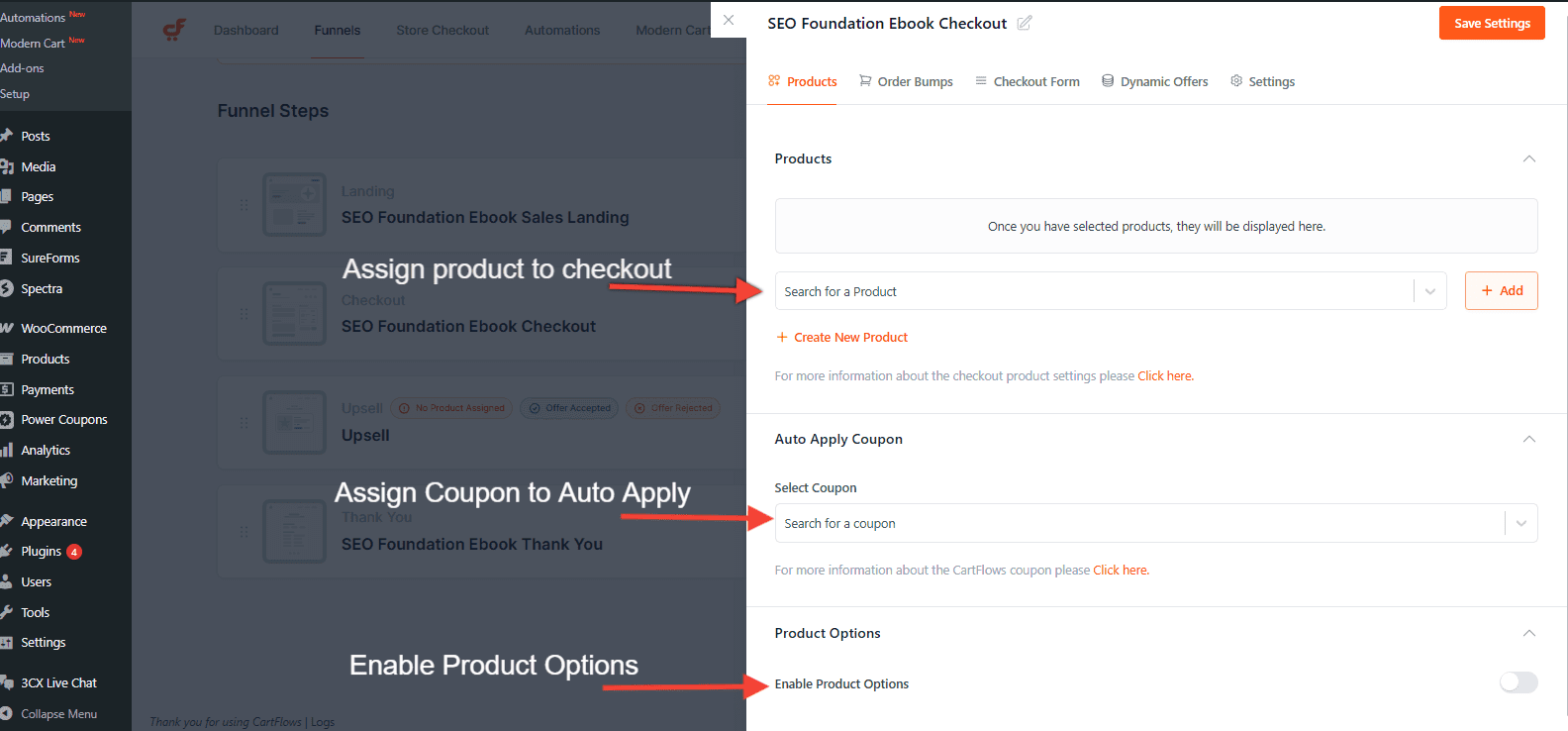
Products:
Products
Assign WooCommerce products to this checkout step. Here is Doc for the step by step guide.
Auto Apply Coupon
Automatically applies a selected coupon when customers land on the checkout page.
Product Options
Controls how products are displayed and selected at checkout. You can refer to this related Doc
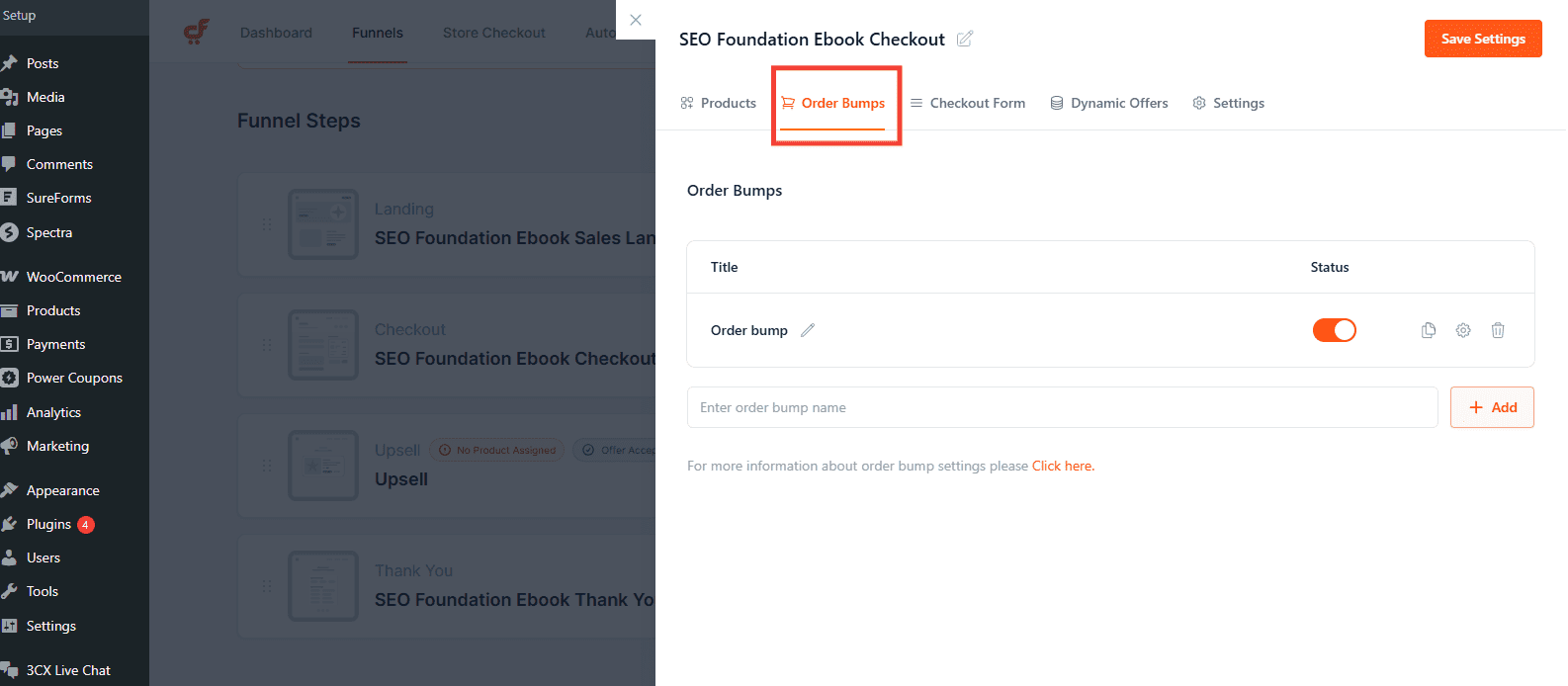
Order Bumps:
Turn your checkout into a powerful upsell moment. Add an order bump offer directly on the checkout page and let customers add it with a single click. No friction, no redirects.
In this section, you can:
- Enable or disable the bump anytime
- Select the product you want to offer
- Customize the headline, description, layout, and overall design
Refer to the Order Bump documentation for detailed setup instructions.
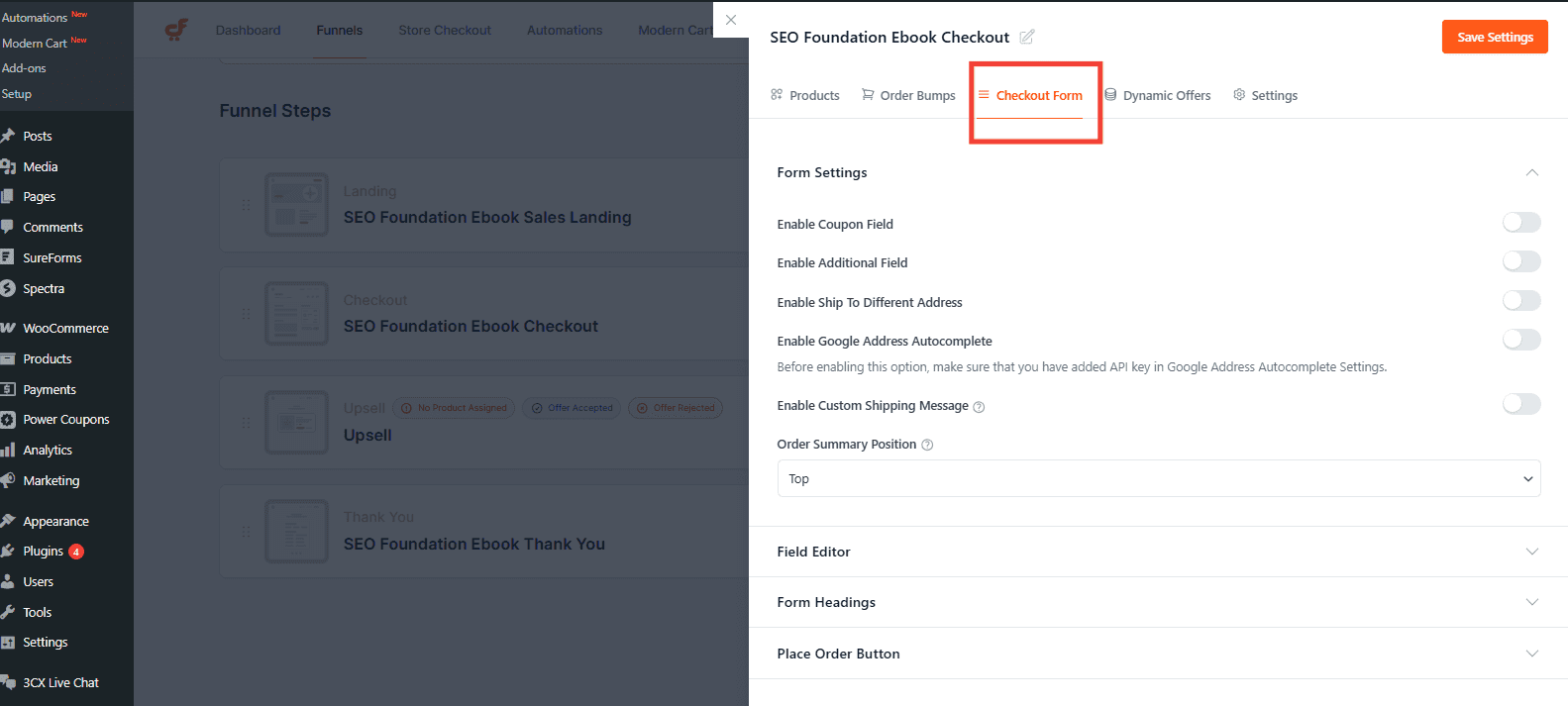
Checkout Form:
Design your checkout form to work best for your store. Improve clarity, reduce friction, and create a smoother buying experience.
With this section, you can:
- Modify checkout fields (add, remove, or edit)
- Customize the field layout and positioning
- Adjust and organize form sections
Need step by step guidance? Check this documentation.
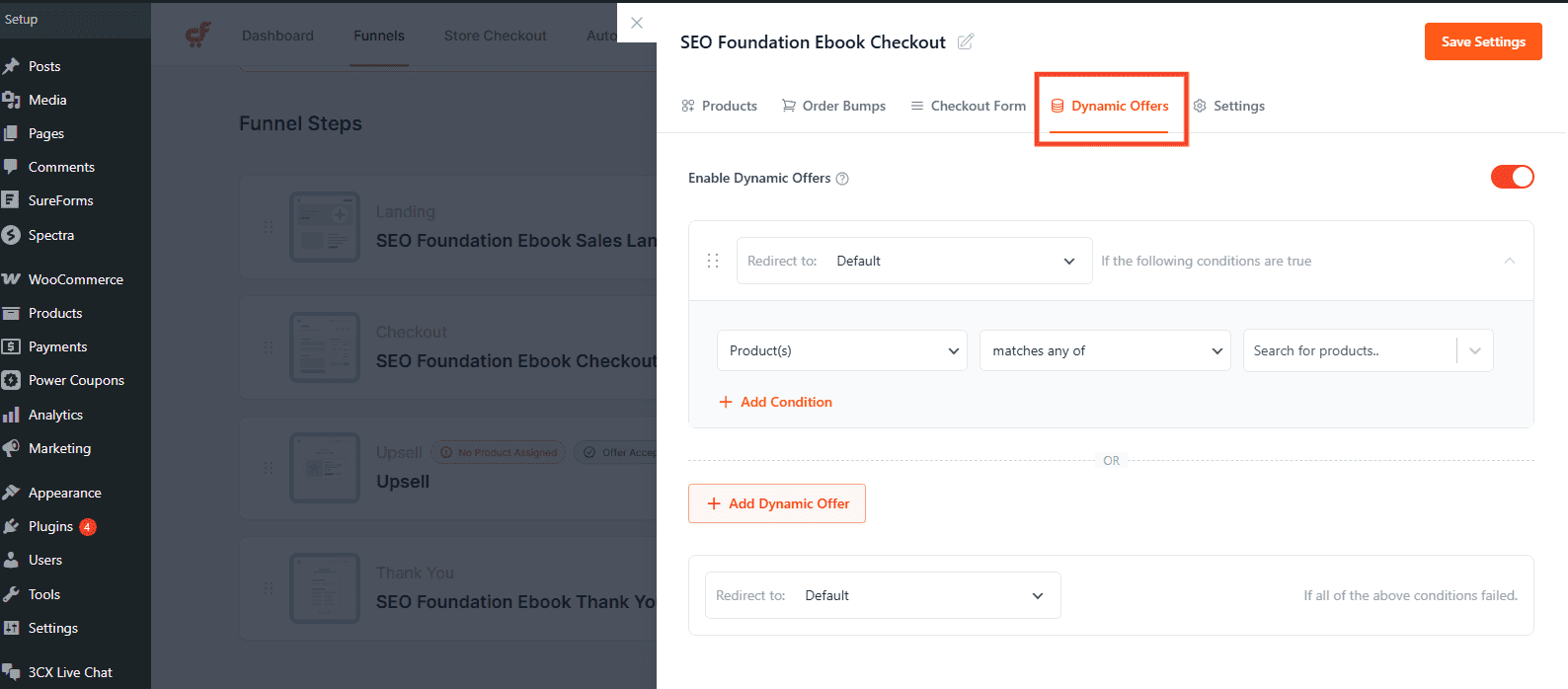
Dynamic Offers:
Send customers to the right offer at the right time with rule-based conditional redirection. Show different upsell or downsell steps based on what they buy and how they behave.
With dynamic offers, you can:
- Create multiple rule groups
- Define specific conditions
- Dynamically redirect customers to relevant upsell/downsell steps
Need help? Check this documentation.
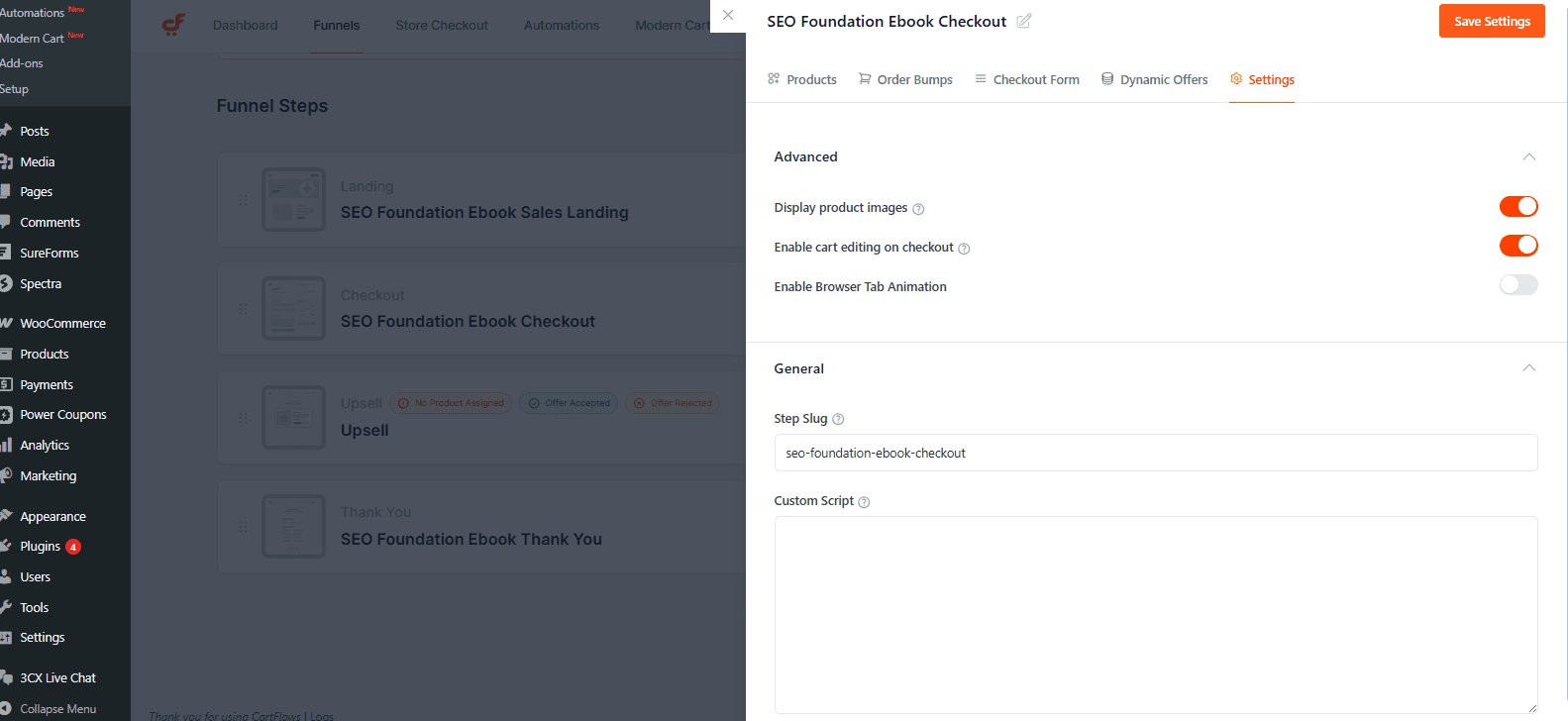
Settings:
Advanced Section:
Display Product Images
Shows or hides product images in the order summary.
Enable Cart Editing on Checkout
Allows customers to remove cart items directly on the checkout page.
Enable Browser Tab Animation
Adds attention-grabbing animation to the browser tab.
General Section:
Step Slug
Defines the URL path of the checkout step.
Custom CSS/Script
Adds custom CSS, tracking or custom JavaScript specific to this step.
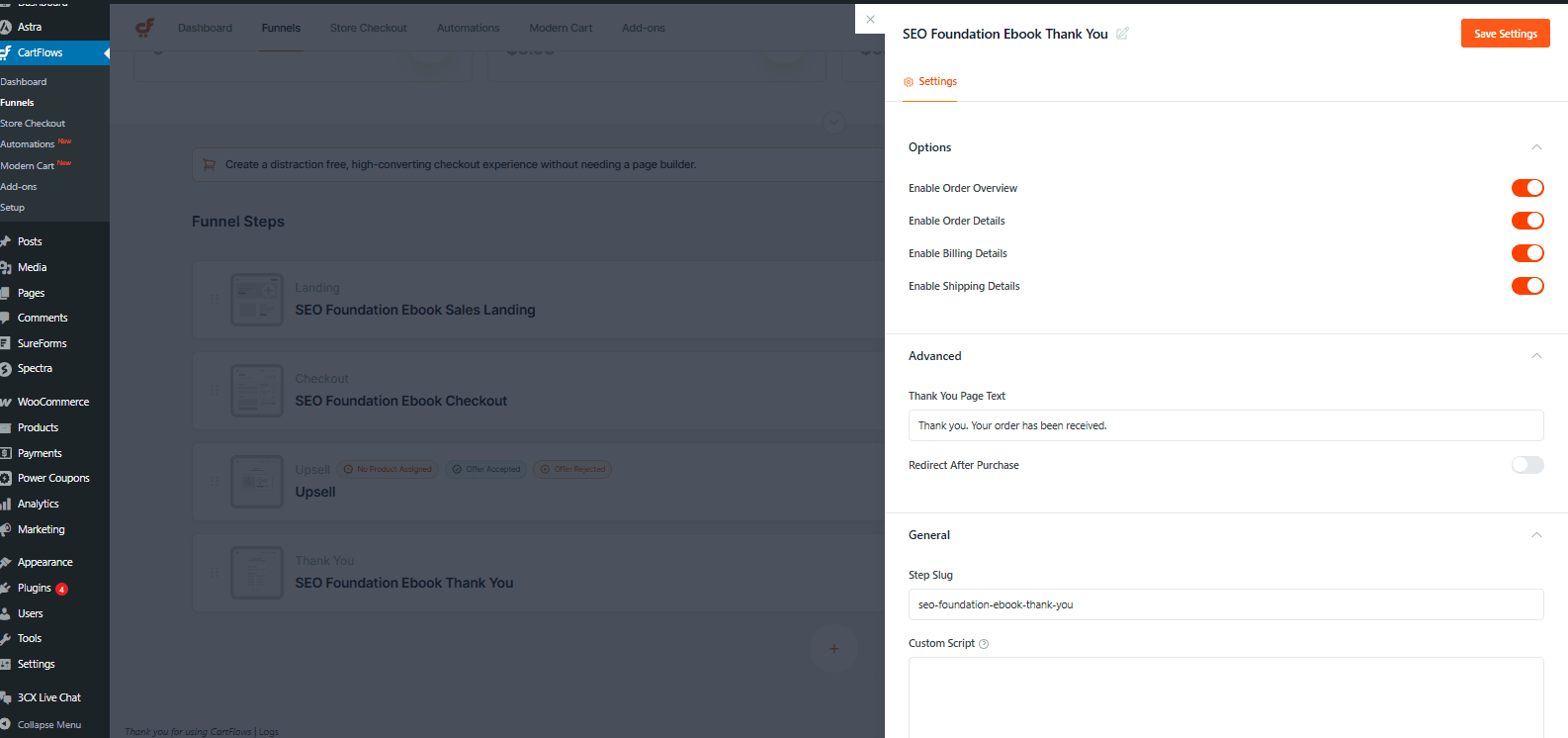
4. Thank You Step
Displayed after successful order completion. Clicking Settings opens configuration options for controlling what information is displayed and what happens after purchase.
Settings:
Options Section:
Enable Order Overview
Displays a summary of purchased items.
Enable Order Details
Shows full order breakdown.
Enable Billing Details
Displays billing information.
Enable Shipping Details
Displays shipping information (if applicable).
Advanced Section:
Thank You Page Text
Customize the confirmation message shown to customers.
Redirect After Purchase
Redirect customers to a different URL after the Thank You page loads.
General Section:
Step Slug
Defines the URL path of the step.
Custom Script
Add step-specific scripts or tracking code.
5. Upsell/Downsell Steps:
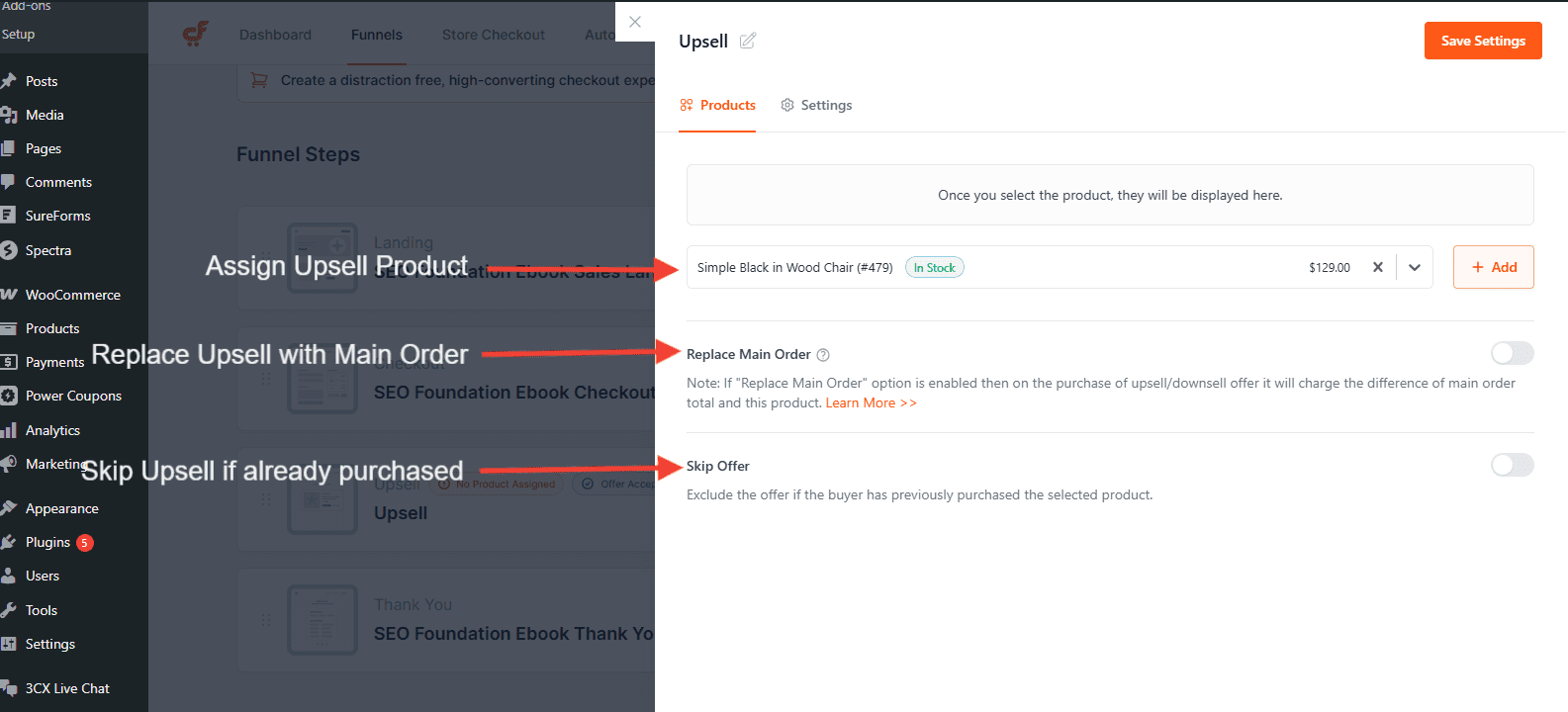
The Upsell/Downsell step allows you to offer an additional product immediately after checkout using one-click purchase functionality. When you click Settings, you can configure the offer product and its behavior.
Products:
Search for a Product / Add
Select the WooCommerce product to offer as the upsell. Once selected, the product details are displayed in this section.
Replace Main Order
If enabled, the upsell replaces the original product in the order. Instead of charging full price, the customer is charged the price difference between the main order and the upsell product. Here is the detailed Doc on how this feature works.
Skip Offer
Excludes the offer if the buyer has already previously purchased the selected product.
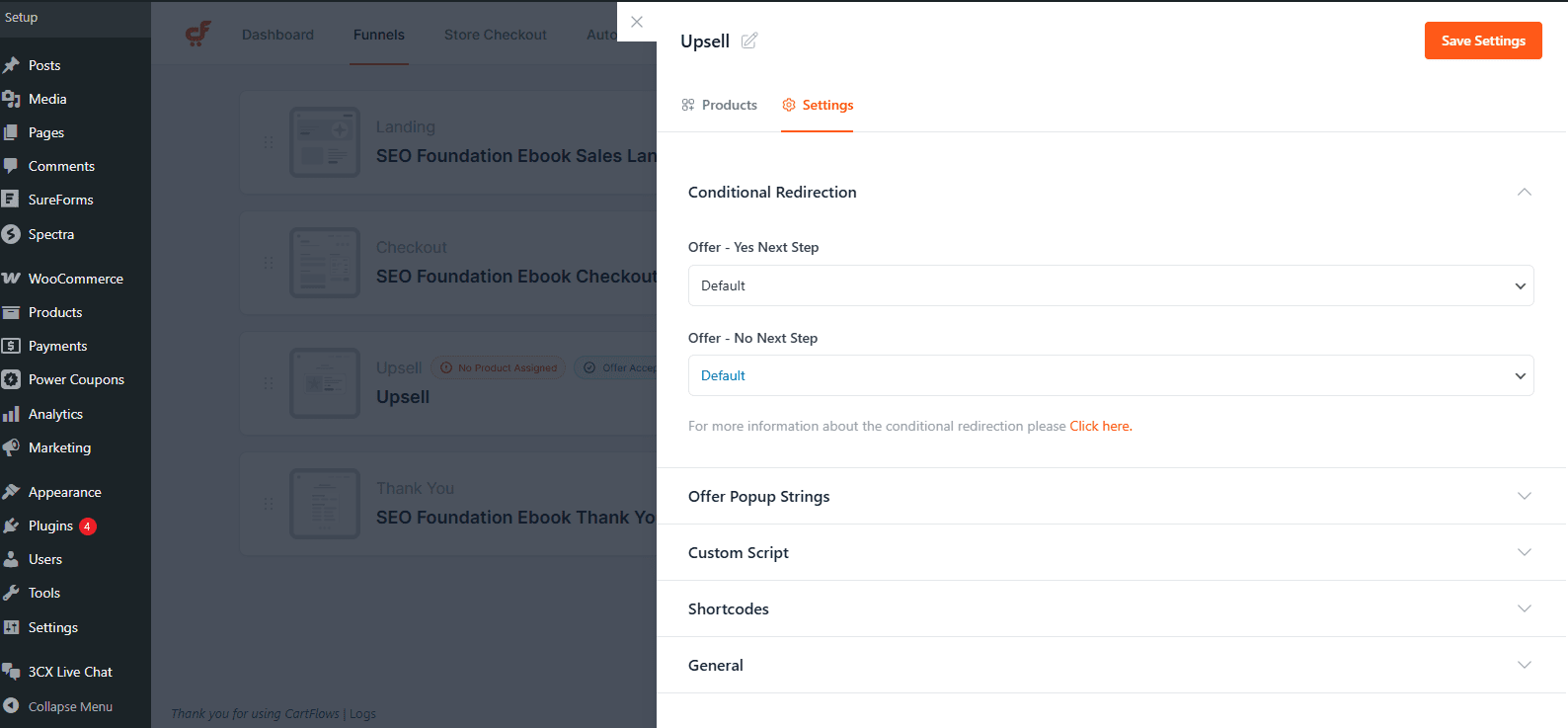
Settings:
Conditional Redirection
Allows redirecting users to different steps based on whether they accept or reject the offer.
Offer Popup Strings
Customize the confirmation popup text displayed when customers accept or decline the offer.
Custom Script
Add step-specific JavaScript or tracking code.
Shortcodes
Provides available shortcodes that can be used within the upsell page.
General Section:
Step Slug
Defines the URL path of the upsell step.
Read more at CartFlows – High-Converting Sales Funnels & Checkout for WooCommerce
]]>Step 1: Create or Edit a Funnel
Navigate to CartFlows > Funnels in your WordPress dashboard. Select an existing funnel or click Add New to start a fresh funnel.

Step 2: Add Upsell/Downsell Step
Within your selected funnel, click Add New Step and choose Upsell or Downsell from the available step types.
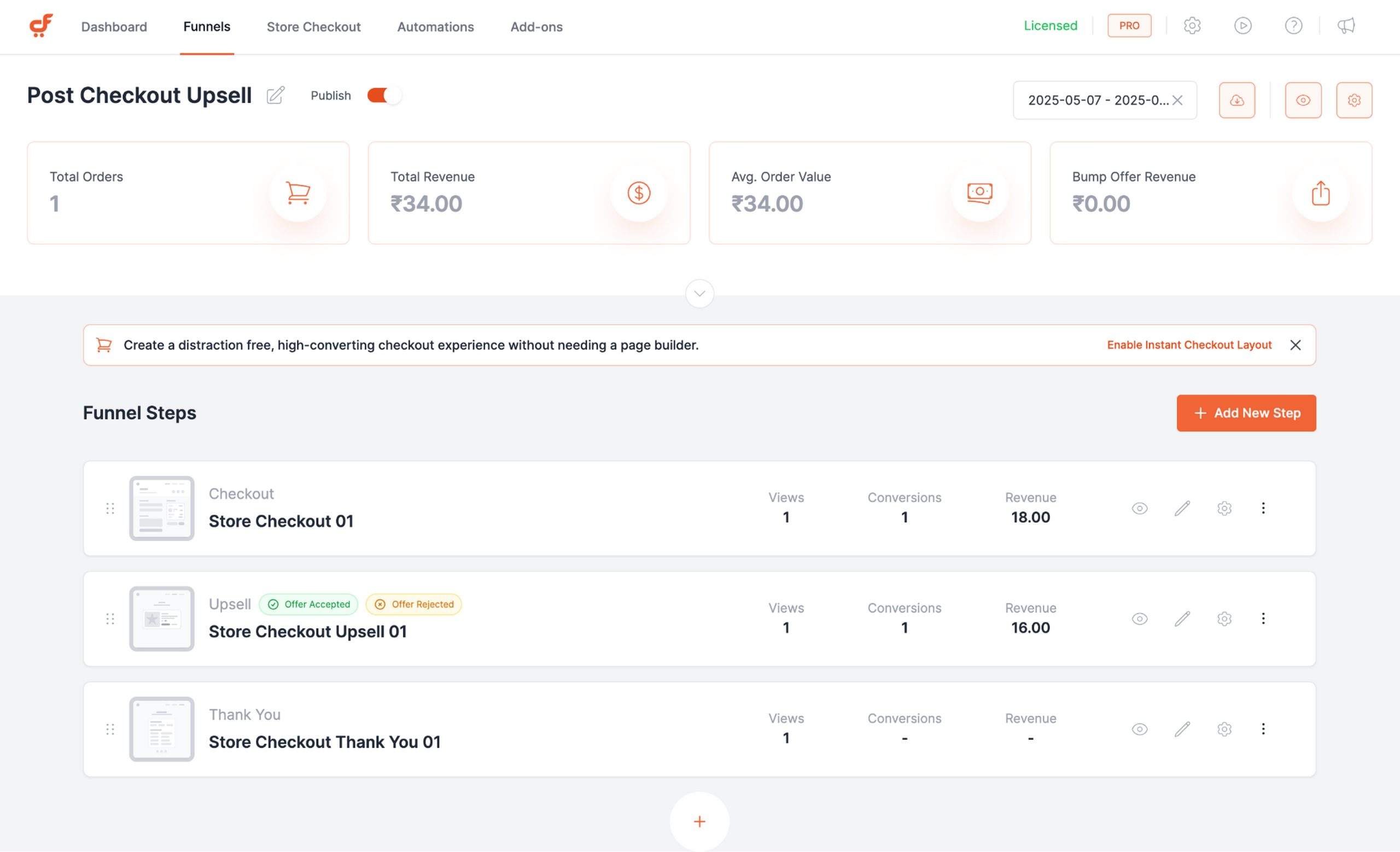
Step 3: Position the Step
Ensure the new Upsell or Downsell step is placed after the Checkout step and before the Thank You page.
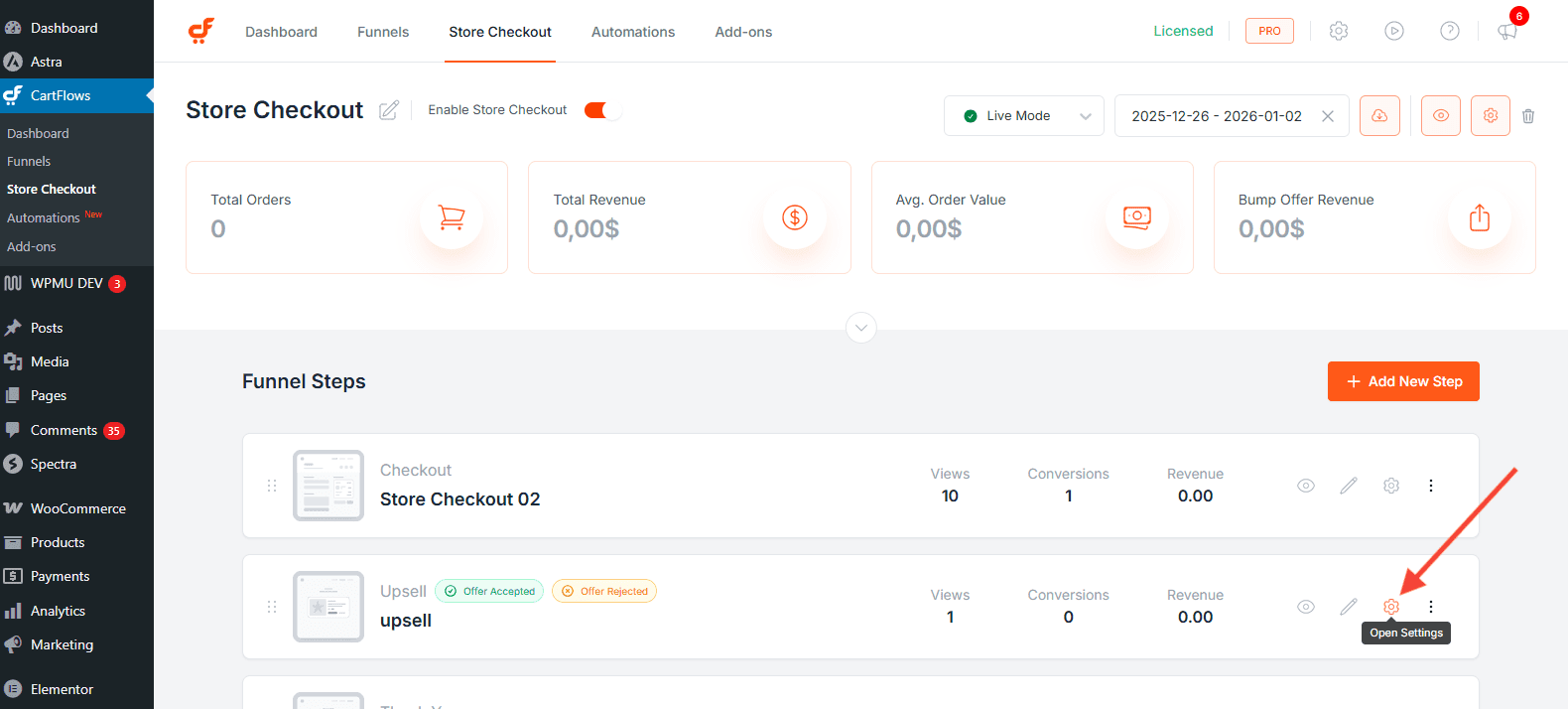
Step 4: Assign Products
Click on the settings icon on the upsell step. Under the Products tab, assign the specific product you want to offer for upsell or downsell.
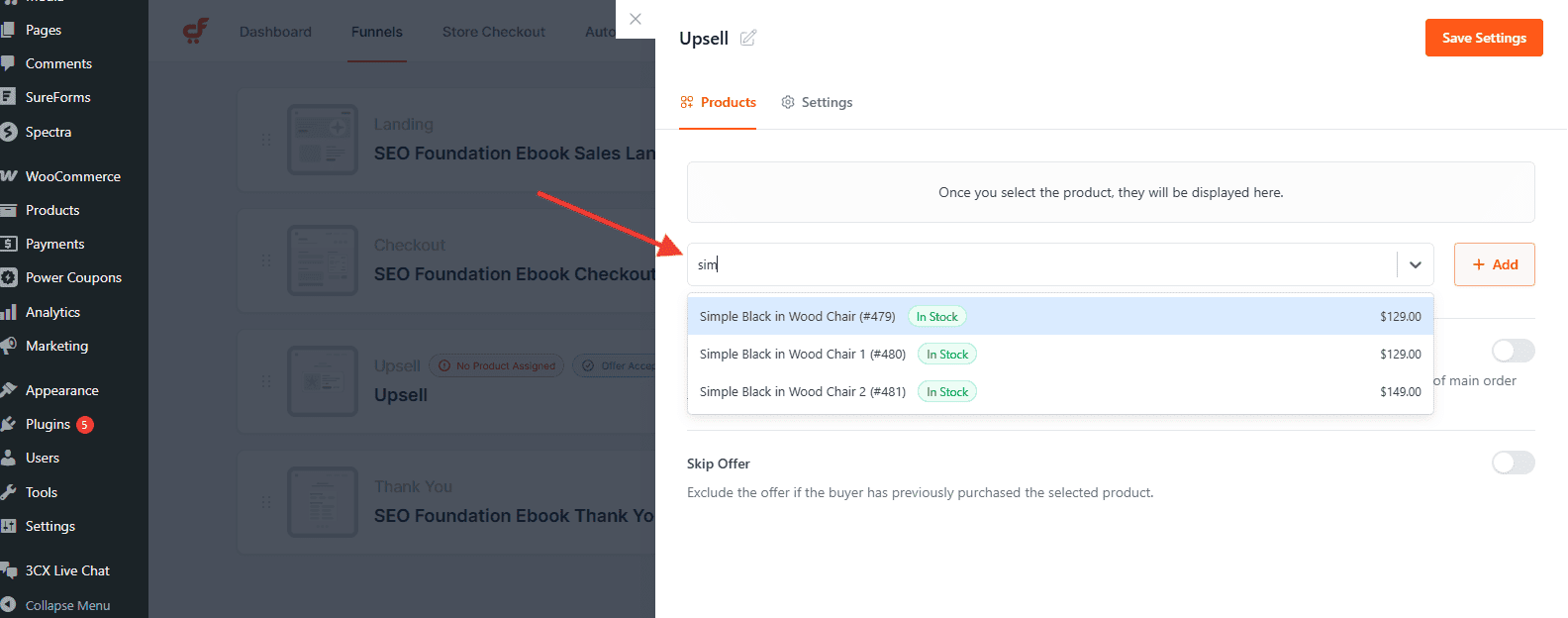
Step 5: Configure the Conditional Redirection
Under Settings Tab ,Configure the conditional redirection to direct customers who decline the upsell to either a downsell page (if applicable) or the final Thank You page.

Step 6: Use a Supported Payment Gateway
Ensure your WooCommerce store uses a payment gateway that supports Upsell/Downsell, to allow seamless purchases.
Step 7: Save and Publish
Save your changes and publish the flow. Test the upsell and downsell steps to confirm that accepting or declining the offers works correctly and updates the order.
Read more at CartFlows – High-Converting Sales Funnels & Checkout for WooCommerce
]]>Before You Start
Make sure WooCommerce is installed and activated on your WordPress site. You also need sufficient permissions to create and manage products.
Access the Add Product Screen
To create a new product:
1. o to WordPress Dashboard > Products > Add New
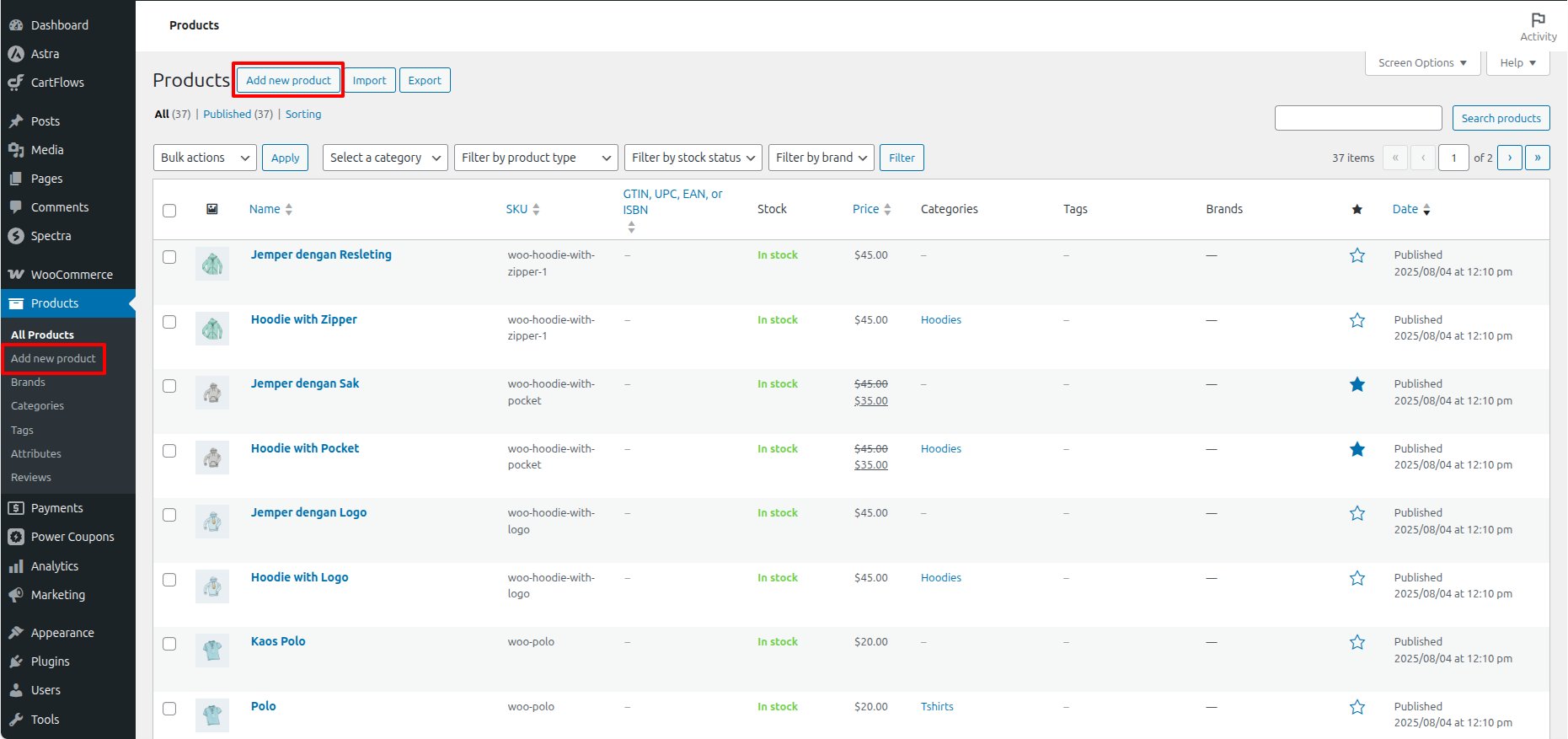
2. Enter the product name
3. Add the product description
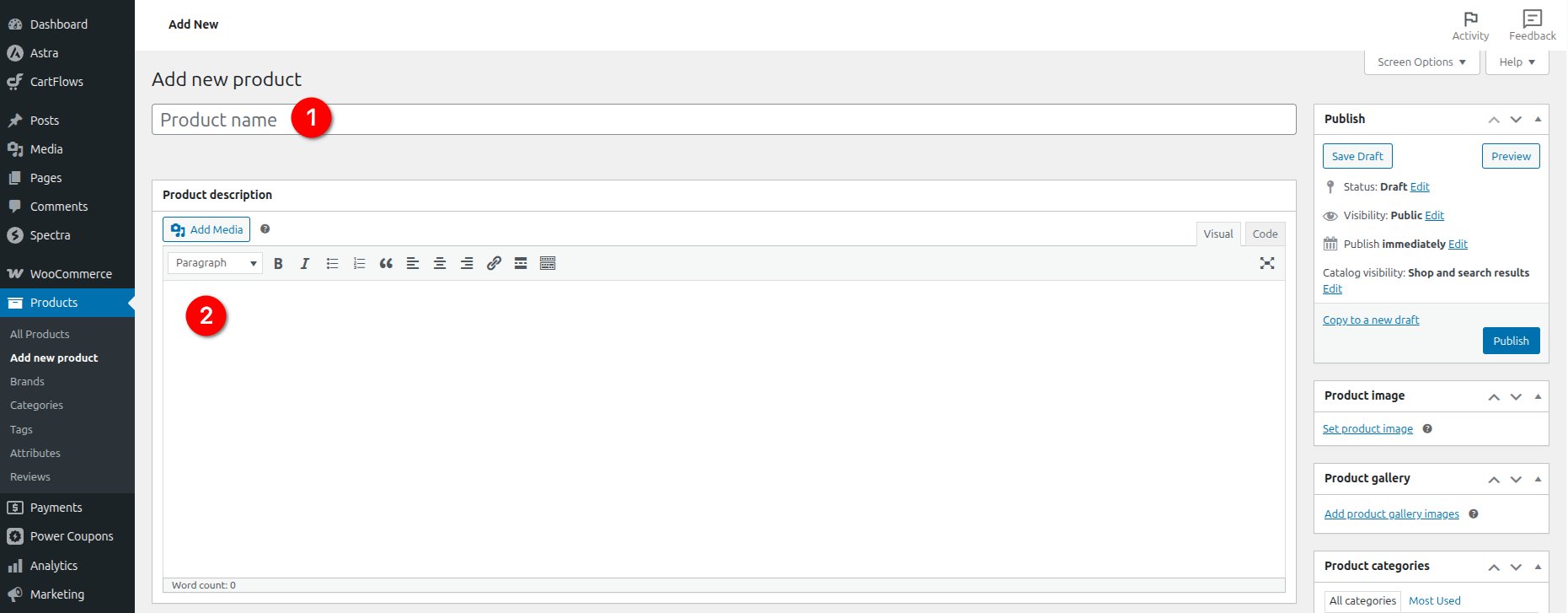
You can now configure the product using the Product data panel.
WooCommerce Product Types
WooCommerce supports several product types. This documentation covers the most commonly used ones.
- Simple product
- Grouped product
- Variable product
- Virtual product
Add a Simple Product in WooCommerce
A Simple product is a single product without variations. This is the most commonly used product type.
- From the Product data dropdown, select Simple product
- Set the regular price and optional sale price
- Configure inventory, shipping, and tax settings if required
- Add a product image and optional gallery
- Click Publish

Add a Grouped Product in WooCommerce
A Grouped product lets you display multiple related products together on a single product page.
- Select Grouped product from the Product data dropdown
- Leave pricing fields empty
- Open the Linked Products tab
- Select the products you want to include
- Publish the product

Add a Variable Product in WooCommerce
A Variable product allows you to offer different variations of the same product, such as size or color.
Because variable products require additional configuration, please refer to the dedicated documentation below:
How to Add a Variable Product in WooCommerce
https://cartflows.com/docs/creating-variable-products/
Add a Virtual Product in WooCommerce
A Virtual product is used for items that do not require shipping, such as services or digital offerings.
- Select Simple product from the Product data dropdown
- Enable the Virtual option
- Configure pricing and relevant settings
- Add a product image and optional gallery
- Publish the product

When the Virtual option is enabled, shipping related settings are automatically disabled.
Additional Product Settings
Depending on the product type, you may also configure the following settings:
- Inventory and stock status
- Linked products such as upsells and cross sells
- Product categories and tags
- Short description shown on the product page
Publish the Product
Once all required details are set, click Publish to make the product live. You can update or edit the product at any time from Products > All Products.
Learn More About WooCommerce Products
For a complete explanation of all product options and advanced configurations, refer to the official WooCommerce documentation: https://woocommerce.com/document/managing-products/add-product/
Read more at CartFlows – High-Converting Sales Funnels & Checkout for WooCommerce
]]>Step-by-Step: Add Products to a CartFlows Checkout Step
Step 1: Open the Funnel Checkout Step
Navigate to CartFlows > Funnels from your WordPress dashboard.
Open the funnel you want to edit and click the Edit (gear icon) on the Checkout step.
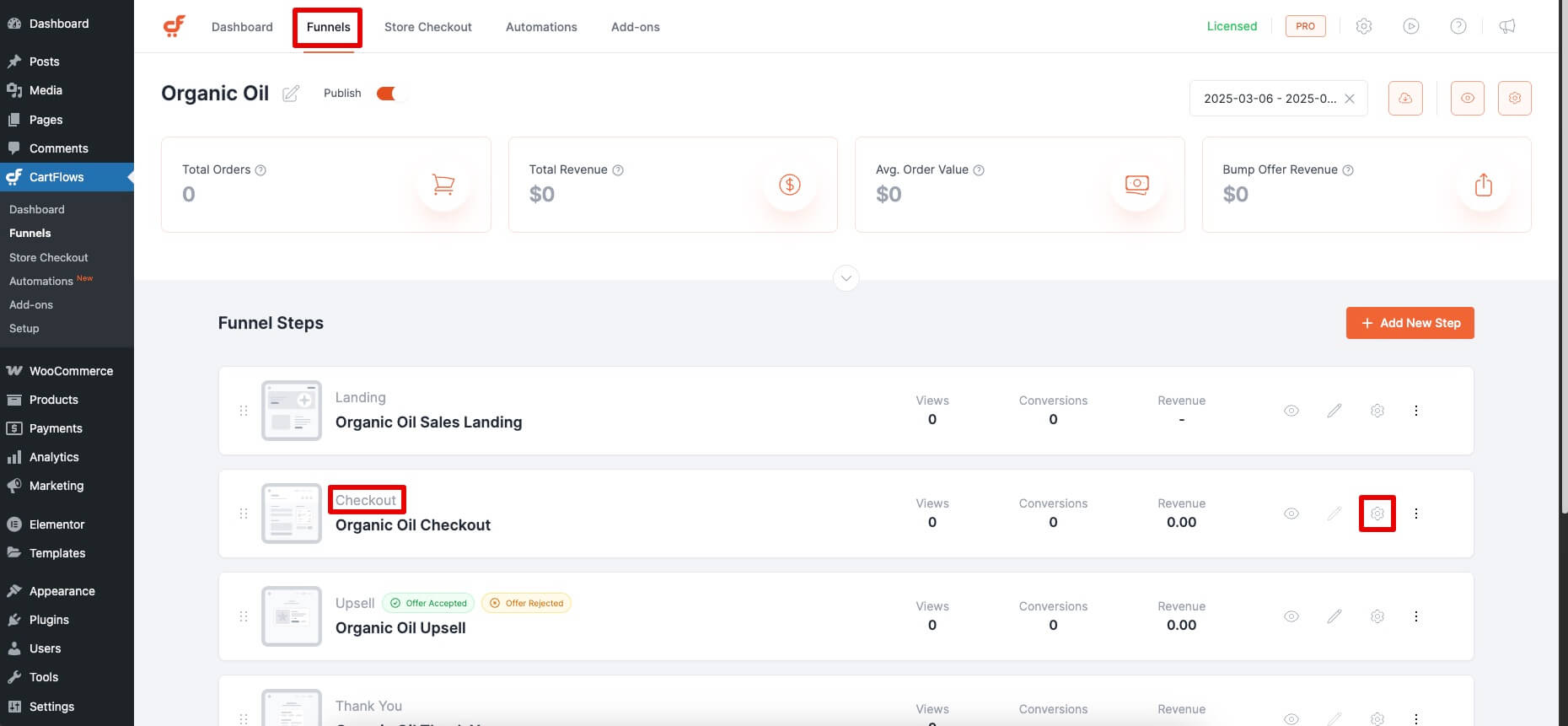
Step 2: Access the Products Tab
In the checkout step editor, go to the Products tab.
Click on + Add New Product to begin.
Step 3: Add Products to the Checkout
Use the search field to find your WooCommerce product.
Select the product and click Add.

You can repeat this process to add multiple products to the same checkout step.
Not sure how to create products in WooCommerce? Check this guide.
Configure Product Options (Optional)
Once a product is added, you can further customize how it appears and behaves on the checkout page:
- Variable Products: If you’ve added a variable product, enable the Variation option to display variation choices (such as size or color) directly on the checkout page.
- Set Default Product: When multiple products are added, you can choose one as the default selection by enabling the radio button next to it in the Product Options section.
- Quantity Selector: Enable the quantity option to allow customers to adjust product quantity directly on the checkout page.
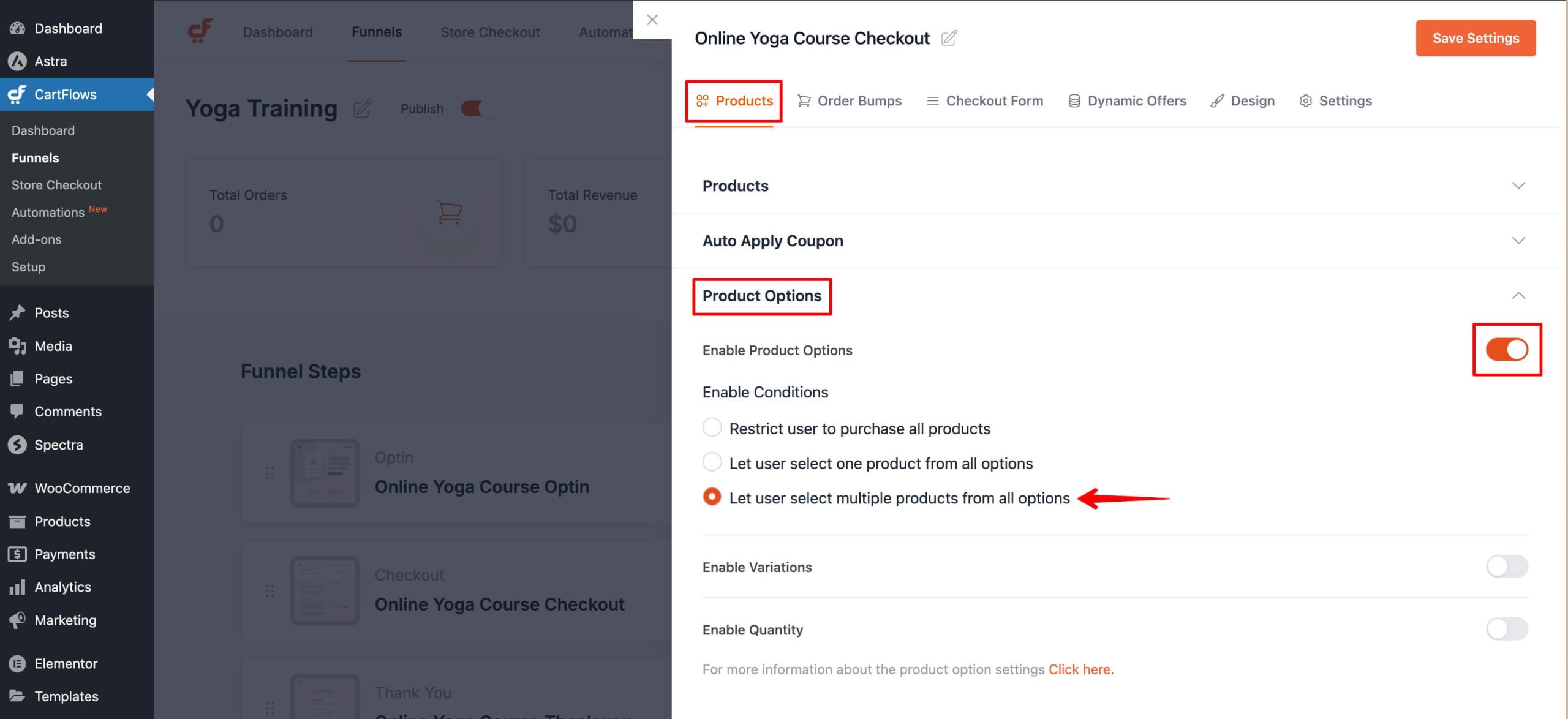
Step 4: Save Your Changes
After configuring your products and options, click Save Settings to apply the changes to the checkout step.
Alternative Ways to Add Products to a Checkout
CartFlows also provides additional methods to assign products to a checkout step:
Add Products via URL Parameter
You can dynamically add products to the checkout using a URL parameter such as:
https://yourdomain.com/checkout-page/?wcf-add-to-cart=3&wcf-qty=4This is useful for targeted campaigns or custom links. Here is the Doc for further details
Assign Product from WooCommerce Product Page
From the WooCommerce product edit screen, use the CartFlows tab to force the product to start a specific funnel. This automatically adds the product to the checkout step when the funnel starts.
Important Notes
- If you see the error “No product is selected”, make sure at least one product is assigned in the Backend Settings of the checkout step.
- For subscription products, ensure the WooCommerce Subscriptions plugin is installed and active before assigning the product to the checkout.
Read more at CartFlows – High-Converting Sales Funnels & Checkout for WooCommerce
]]>