The post Setup Marketplaces Payments with ClickPesa BillPay appeared first on ClickPesa.
]]>That is where ClickPesa BillPay comes in.
Give Every Client Their Own BillPay Number
If you are a marketplace or platform managing multiple vendors, ClickPesa enables you to assign dedicated BillPay numbers to each of your clients, together with your own system this can functioning like sub-accounts. These can be used to collect payments from their end customers directly, whether for goods, services, subscriptions, or deliveries.
Each BillPay number connects your merchants, whereby you ensure instant settlement to their account together with clean reporting and easy reconciliation.
Structured References: Why Custom Codes Matter
To make reconciliation even easier, we support custom merchant and transaction reference codes, combining a unique merchant ID and order number into a single payment reference string.
For example:
- Merchant Code:
FDS002 - Order Reference:
FDS0027482
This approach brings several advantages:
- Accurate matching of payments to specific orders
- Easier support and dispute resolution
- Strong audit trail for internal and external use
- Seamless integration into your order management and accounting tools
Unlike static payment codes or shared references, structured codes like MERCHANT0009999 are scalable and future-proof.
A Better Alternative to Till Numbers
You may be familiar with systems like M-Pesa Lipa Kwa Simu, where each merchant collects through a separate number. ClickPesa offers a smarter, more flexible alternative:
- Merchant-specific BillPay numbers that act like till numbers
- Mobile money, bank, and card acceptance, all through APIs or dashboard
- Real-time visibility into each merchant’s collections
- Instant settlement to ClickPesa account
This setup is perfect for logistics companies, delivery apps, e-commerce platforms, service marketplaces, or any platform managing merchant payments.
Common Use Cases
- Online Marketplaces: Let each seller accept payments under their own code.
- Delivery and Logistics Platforms: Track parcel payments per route or vendor.
- Multi-brand Platforms: Offer merchants their own branded payment experience.
- Subscription or Booking Platforms: Tie payments directly to customer bookings or recurring invoices.
Is This Right for You?
If you’ are looking to enable structured, merchant-specific payment flows that scale with your business, ClickPesa BillPay offers the flexibility and infrastructure to support it.
The post Setup Marketplaces Payments with ClickPesa BillPay appeared first on ClickPesa.
]]>The post How to use Customer BillPay for School Management Systems appeared first on ClickPesa.
]]>How Customer BillPay Works
A Customer BillPay Control Number is a static, unique number assigned by a merchant to a specific customer (e.g., a student, guardian, or fee category). It is reusable for multiple transactions, making it ideal for frequent or subscription-style payments.
In a school context, you assign each student, or each fee bucket for that student, a control number. Parents then pay using Tanzanian mobile money and CRDB channels. Control numbers can be created manually in the dashboard or programmatically via the Customer BillPay API.
Docs: Customer BillPay Control Numbers
Flow
1) Generate
Create a static control number tied to a specific customer or fee bucket. This enables automatic payment tracking and clean, student-level reconciliation.
- Ideal for repeating or subscription payments
- Allows multiple control numbers per customer (e.g., Tuition, Transport, Meals)
Two ways to generate:
- Merchant Dashboard: Assign a control number to the customer in the dashboard.
- API: Use the BillPay API with full flexibility to:
- Include customer name (e.g., student)
- Add bill description
- Set payment behavior (full amount only, allow partials, accept overpayments)
- Provide a custom reference or let ClickPesa auto-generate one
- Receive instant confirmations via webhooks and query transactions for reconciliation
API: Create Customer Control Number
Webhooks: Overview & Checksum
2) Share
Communicate the control number clearly in the parent portal, SMS reminders, and printed slips. The same number works across all supported channels, so parents never need to ask for “the latest” payment details.
3) Pay
Parents can pay using:
- Mobile Money: Tigo Pesa, Airtel Money, HaloPesa, M-Pesa
- CRDB Banking: SIM Banking (App/USSD), Internet Banking, CRDB Wakala agents
Step-by-step instructions are available on each control number page and can be shared with parents: Instructions
4) Confirm & Reconcile
Your system receives real-time webhooks for each successful payment. Use these to update the student balance immediately, apply the receipt to the correct fee bucket, and post journals. For audits and nightly checks, query the Payments API and match against settlement files.
Automation: Integration with Your School Management System or Finance Module
This integration keeps data consistent from collection through accounting.
- Create Customer BillPay Control Numbers
- Via API when you publish fee plans or enroll a student.
- Receive Webhooks
- Implement a secure webhook endpoint and verify payloads using the checksum.
- Docs: Setting up webhooks
- Persist & Apply
- Log each event in your database (student, fee bucket, amount, references).
- Apply to the outstanding invoice or fee plan.
- (Optional) Create accounting journals automatically.
- Issue Receipts(optional)
- Generate a receipt per payment and deliver via portal or SMS/email.
- Reconcile(optional but recommended)
- Run a daily reconciliation against the Payments Query API and settlement files.
- Docs: Querying for Payments
Best Practices for Customer BillPay
Good setup prevents most issues and simplifies audits.
- Use one control number per student per fee for clean reporting.
- Decide partial/overpayment rules per fee before term start.
- Store raw webhook payloads for audit and troubleshooting.
- Make webhook processing idempotent to handle retries safely.
- Show parents the exact control number consistently in every channel.
Vendor Payouts & Staff Disbursements
Use the same platform to pay transport providers, caterers, book suppliers, and casual staff, keeping your audit trail intact.
- Prepare payables from approved invoices in your finance module.
- Execute disbursements to mobile money or bank accounts, tagging vendor IDs, invoice numbers, and cost centers.
- Capture results via webhook confirmations and post to Accounts Payable.
- Maintain audit trails that link each payout to the original bill and approval record.
Docs: Payout API
Frequently Asked Questions
Do parents need a special app?
No. They pay through their usual mobile money or CRDB channel using the control number you provide. Your system receives a confirmation immediately and updates balances.
What if parents do not want to use their customer bill pay number?
We also support USSD Push Payments, this can be implemented in your app and trigger a USSD popup asking the parents to pay. They do not have to enter a reference number, we make sure the payment is automatically booked to the right reference. Docs: USSD Push Payments
How are refunds handled?
Issue a payout to the parent and link it to the original payment reference for audit.
The post How to use Customer BillPay for School Management Systems appeared first on ClickPesa.
]]>The post Introducing BillPay APIs for Invoices and Customers appeared first on ClickPesa.
]]>Recap: What is a BillPay Control Number?
A BillPay Control Number (BillPay-Namba) is a static, unique number linked to a specific customer or bill. It acts like a payment rail that you can reuse for multiple transactions if you allow partial or recurring payments. Because each payment against the number triggers a webhook, your system can update balances, post entries, and reconcile automatically.
The APIs let you programmatically generate and manage control numbers, removing manual setup and reducing operational overhead. You can:
- Generate Customer or Order Control Numbers on demand
- Set amounts, descriptions, and custom references
- Automate tracking with real-time webhooks or the Payment Query API
- Operate across all Tanzanian mobile money and CRDB banking channels
Read more: https://docs.clickpesa.com/bill-pay/bill-pay-overview
Types of BillPay Control Numbers
Customer BillPay Control Numbers
A single, permanent number linked to a customer, contract, or cost center that accepts multiple payments against the same reference. Ideal for ongoing relationships, installments, subscriptions/retainers, maintenance, repeat donations, because the number never changes, reducing payer confusion and making reconciliation predictable.
Read more: https://docs.clickpesa.com/bill-pay/customer-billpay-namba
Order BillPay Control Numbers
A one-time number tied to a specific bill (invoice, order, POS/restaurant tab) so the payer completes that transaction in a single flow. You control its behavior and lifespan (amount rules, partial/overpayment settings, expiry/closure) and can add a description and custom reference.
Read more: https://docs.clickpesa.com/bill-pay/order-billpay-namba
How BillPay APIs works, end to end
- Generate
Create a control number for a customer, bill, or order using the Merchant Dashboard or the API. Set behavior to full amount only, allow partial payments, or accept overpayments. - Share
Present the number in your customer portal, send it by SMS or email, or print it on a slip. The same number works across supported channels. - Pay
Customers pay via Tanzanian mobile money and CRDB channels. No new apps or unfamiliar steps for the payer. - Confirm
Every successful payment triggers a real-time webhook. Your system can apply the payment immediately, update balances, and record clean accounting entries. - Verify and Reconcile
Use webhook events or the Payment Query API to verify totals, match payments to invoices or customers, and close the loop in finance.
Read more: https://docs.clickpesa.com/bill-pay/billpay-api-overview
Setup and Implementation BillPay APIs
We here explain how to integrate the BillPay APIs with your system and keeps data consistent from collection through accounting.
- Integrate the Create BillPay Control Numbers via the API
- API Docs for Customer BillPay Control Numbers: https://docs.clickpesa.com/api-reference/collection/billpay/create-customer-control-number
- API Docs for Order BillPay Control Numbers: https://docs.clickpesa.com/api-reference/collection/billpay/create-order-control-number
- Receive Webhooks
- Implement a secure webhook endpoint and verify payloads using the checksum.
- Docs: https://docs.clickpesa.com/home/webhooks#setting-up-webhooks
- Add webhook response in your database
This is not an API and has to happen on your side.- Log each payment event in your database
- Apply to the outstanding customer, order, invoice.
- (Optional) Create accounting journals automatically.
- Issue Receipts from your app (optional)
This is not an API and has to happen on your side.- Generate a receipt per payment and provide that to your customer
- Reconcile (optional but recommended)
- Run a daily reconciliation against the Payments Query API and settlement files.
Docs: https://docs.clickpesa.com/api-reference/collection/querying-for-payments/querying-for-payments
How do we charge
The BillPay API (for creating and managing Customer and Order Control Numbers) is a secure, maintained service that we operate end-to-end, cloud infrastructure, uptime monitoring, webhook delivery, fraud/abuse safeguards, and ongoing product support. That work carries real operating costs, so we charge a 1% per successful transaction. In return, businesses typically cut manual administration and reconciliation dramatically (companies report up to 85% less admin), turning BillPay into a net cost saver.
Why teams choose BillPay APIs
- Flexibility: Structure bills the way your business operates
- Cost Saving: Automate, reduce manual effort and remove errors
- Instant confirmation: See payments as they clear, in real time
- Market reach: Accept payments across Tanzanian mobile money and CRDB channels
FAQ
Can one customer have multiple control numbers?
Yes. Use separate numbers for different services, projects, or income centers.
Do you support partial payments and overpayments?
Yes, this can be done through Customer BillPay Control Numbers. You choose the behavior per control number.
How are confirmations delivered?
Each successful payment triggers a webhook so your system can update balances immediately.
What is my customers do not want to pay with a reference, can I still track payments coming from them?
Yes, we also provide USSD Push Payments. It triggers a USSD prompt from your app to ask the customer to pay, no reference entry required. The payment is automatically matched to the correct reference.
Which channels are supported?
All major Tanzanian mobile money networks and CRDB banking channels.
Why does it cost my business 1% per transaction?
The fee covers the secure operation and continuous improvement of the BillPay API, hosting, monitoring, webhook reliability, integrations and support. It is designed to reduce manual work and errors; many customers see up to 85% less admin effort.
What’s included in the fee?
API access, real-time webhooks, control-number management, observability/monitoring, and merchant support.
Does the 1% apply to both Customer and Order Control Numbers?
Yes. The fee applies to each successful payment processed via BillPay channels, regardless of control-number type.
How are partial payments handled?
Each successful payment against a control number (including partials) is processed and charged individually.
Can I still assign control numbers from the Merchant Dashboard without using the API?
Yes. The Dashboard flow remains available for manual workflows and quick starts; the API adds automation and system-to-system control.
Who pays the fee, us or our customers?
By default, fees for BillPay are charged to the merchant account.
Where do I see the fees and settlements?
In your settlement reports and transaction detail within the Merchant Dashboard (and via our reporting/Query APIs)
Do you have any questions about this setup? Contact us here: https://clickpesa.com/customer-support/
The post Introducing BillPay APIs for Invoices and Customers appeared first on ClickPesa.
]]>The post Simplifying Donation Payments for NGOs with ClickPesa appeared first on ClickPesa.
]]>ClickPesa is designed to solve that problem. It brings all your donation payments into one simple, structured, and reliable system. Whether you are collecting small recurring donations from local supporters or large one-time contributions from abroad, ClickPesa gives NGOs a unified payment gateway that is easy to set up, easy to use, and built for scale.
One Platform for Every Type of Donor
ClickPesa enables NGOs to receive donations from anyone, anywhere, whether through mobile money, bank transfers, or credit and debit cards. Instead of managing multiple accounts or payment processors, your organization can use a single, consolidated system that handles every incoming donation.
This eliminates the traditional bottlenecks that come with managing separate bank accounts, mobile money lines or donation platforms. Donors enjoy a simple and trustworthy payment experience, while NGOs gain real-time visibility and control over their inflows.
Structured Payment References for Clarity and Transparency
When donations come from multiple sources, maintaining clarity is crucial. ClickPesa’s structured reference system makes it possible to organize and monitor donations with precision. NGOs can define custom codes for each campaign, program, or project, allowing both donors and finance teams to see exactly where every contribution belongs.
For example:
EDU001– Education FundHLT002– Health CampaignWOM003– Women Empowerment Initiative
Each donation carries its unique reference, automatically linked to your internal reporting. This ensures every payment can be traced to its purpose, making audits and donor reporting effortless. It also improves transparency, a vital factor in maintaining donor trust.
Why ClickPesa Works Better for Donation Payments
Traditional donation systems are often either too localized or too fragmented. Mobile money is ideal for local supporters but doesn’t support international cards. Bank transfers are reliable but can take days to clear. Payment gateways for cards often lack strong reconciliation and local integrations.
ClickPesa bridges all these gaps with a single infrastructure that connects every payment source. NGOs benefit from:
- Multi-channel acceptance: Receive payments from mobile money, bank transfers, and credit/debit cards in one place.
- Real-time settlement: Donations are instantly available in your ClickPesa account.
- Automated reconciliation: Every donation is automatically matched to its campaign or purpose.
- Transparency and traceability: Each transaction can be tracked from donor to project.
- Regulatory compliance: Built to meet financial reporting and audit requirements.
By simplifying financial management, NGOs can focus on their mission, not their payment logistics.
Built for NGOs of All Sizes
Whether you are a small community-based organization or a large international NGO, ClickPesa BillPay scales with your needs. Smaller organizations can easily create a single BillPay number to start collecting donations immediately, while larger NGOs can segment their payment flow by department, project, or country.
The platform supports enabling long-term fundraising campaigns. Integration with your website or mobile app via the ClickPesa API allows for seamless online donation experiences, complete with automatic notifications and digital receipts.
Because ClickPesa is designed for transparency and flexibility, it also helps NGOs comply with the financial reporting requirements often set by international donors, foundations, and governments.
Strengthening Donor Relationships Through Simplicity
In the world of fundraising, simplicity builds trust. Donors are far more likely to complete a contribution when the process feels intuitive, transparent, and secure. ClickPesa’s unified payment experience achieves just that, it reduces friction for the donor while giving the NGO full visibility into every transaction.
This transparency creates stronger donor relationships and a higher likelihood of repeat contributions. Donors can see exactly where their funds go, NGOs can issue acknowledgments promptly, and internal teams spend less time chasing payment confirmations.
For global NGOs, this also means they can bridge local and international funding streams effortlessly. A donor in Tanzania can pay through M-Pesa or Tigo Pesa, while a donor in Europe or the U.S. can use a credit card or bank payment.
Empowering Impact Through Financial Infrastructure
Every NGO’s mission depends on effective resource management. The more efficiently funds are collected, tracked, and reported, the more time and energy can be devoted to impact. ClickPesa BillPay helps NGOs build that foundation by transforming donation payments into a transparent, automated, and trusted process.
Start Accepting Donation Payments with ClickPesa
Whether your organization supports education, healthcare, women empowerment, or climate initiatives, ClickPesa is designed to simplify how you collect and manage funds.
With support for mobile money, bank transfers, and credit card payments, ClickPesa gives NGOs and donors a single, unified experience that’s fast, transparent, and built for the modern financial ecosystem.
The post Simplifying Donation Payments for NGOs with ClickPesa appeared first on ClickPesa.
]]>The post International Money Transfer and Remittances to Tanzania through TIPS appeared first on ClickPesa.
]]>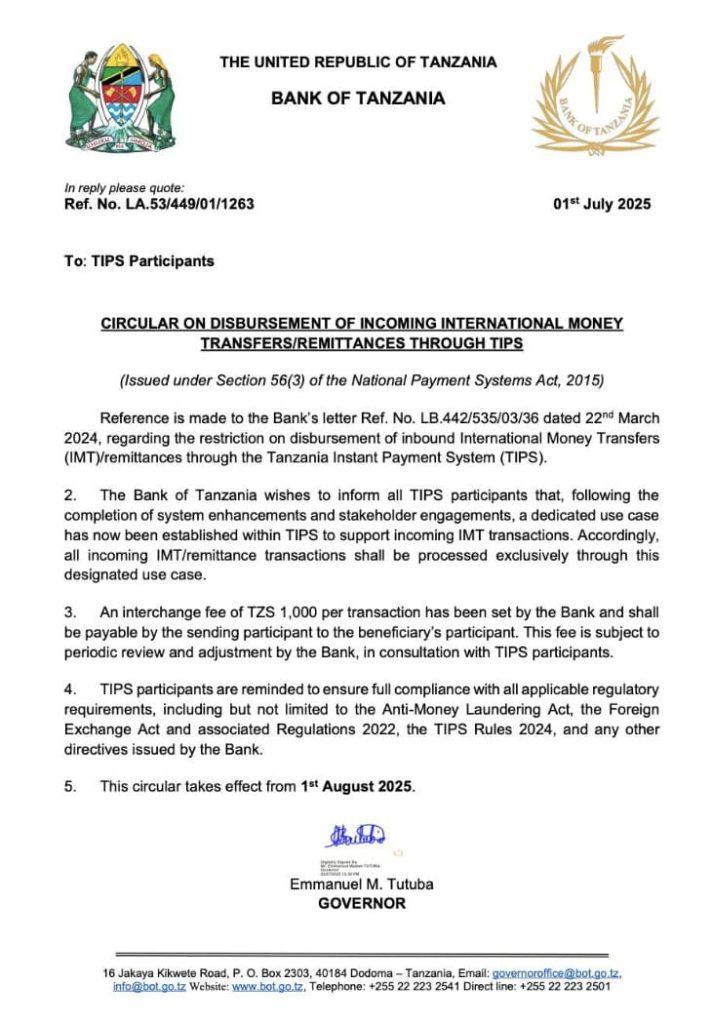
The directive mandates that all banks, mobile money operators, and financial service providers receiving inbound remittances must route these transactions exclusively through TIPS, the national real-time payment system managed by the Bank of Tanzania.
What Is TIPS?
The Tanzania Instant Payment System (TIPS) is a central payment infrastructure that facilitates real-time money transfers between financial institutions in Tanzania. Initially launched for domestic payments, TIPS has grown to support interoperability between banks, mobile money operators, and other financial players. The new directive expands TIPS’ role to handle all inbound international remittances.
This upgrade follows a period of system enhancements and stakeholder consultations. The Bank of Tanzania has now introduced a dedicated use case within TIPS specifically for managing international money transfer (IMT) transactions.
Key Policy Details
According to the official circular issued on 1st July 2025:
- All inbound international money transfers must be processed exclusively through TIPS, starting 1st August 2025.
- A fixed interchange fee of TZS 1,000 per transaction (approximately USD 0.38) will apply. This fee is payable by the sending institution to the receiving participant.
- All TIPS participants must ensure full compliance with Anti-Money Laundering (AML) laws, Foreign Exchange regulations, and other relevant rules issued by the Bank of Tanzania.
- The rule applies to all banks, mobile money operators, and other financial institutions integrated with TIPS.
Why This Change Matters
The directive represents a major evolution in Tanzania’s financial system. It is part of a broader trend across Africa to digitize financial services, improve regulatory control, and support innovation in cross-border payments.
Benefits of the New System
Faster Settlement:
Routing all transactions through TIPS means recipients will receive funds more quickly. Real-time settlement improves access and reduces delays, especially in rural or underserved areas.
Transparency and Predictability:
The flat fee of TZS 1,000 per transaction introduces consistency in pricing, eliminating the complexity and unpredictability that often accompanies cross-border remittances.
Stronger Regulatory Compliance:
TIPS enables better enforcement of financial regulations, including AML and foreign exchange rules. It provides the central bank with greater oversight and reduces the risk of fraud and illicit transfers.
Enablement of Fintech Innovation:
By creating a standardized infrastructure, this policy makes it easier for fintechs and new market entrants to integrate with the national system and offer compliant, efficient remittance solutions.
Better Data and Analytics:
Centralizing remittance flows into TIPS gives policymakers and regulators access to high-quality, real-time data, supporting better decision-making and planning.
Potential Challenges
While the directive offers clear benefits, it also introduces new challenges for financial institutions, remittance providers, and end users.
Integration Pressures:
Financial service providers must prioritize technical integration with TIPS to remain compliant. For those not yet fully integrated, the timeline may be tight, especially for smaller providers.
Impact on Small Transfers:
The fixed fee model, while transparent, may represent a significant cost for small-value transfers. For example, a fee of TZS 1,000 on a TZS 10,000 remittance translates to a 10% transaction cost.
Reduced Provider Flexibility:
Customers may have fewer choices in how they send and receive money. All providers must comply with the TIPS framework, which could limit differentiation and service customization.
Transition Risks:
Any major change in infrastructure carries risks of service disruption. Ensuring that all participants are ready and tested before the go-live date will be critical to avoid issues for customers.
A Step Toward Financial Inclusion and Digital Transformation
This shift positions Tanzania as a regional leader in digital payments and regulatory innovation. With an estimated USD 500 million flowing into the country each year through remittances, the new system is poised to make a significant impact on financial inclusion, especially among underserved populations.
By enabling real-time access to funds through both bank accounts and mobile wallets, the new TIPS requirement could improve household liquidity and strengthen the link between diaspora communities and the domestic economy.
At the same time, centralizing inbound remittances will help the Bank of Tanzania achieve more accurate monitoring of foreign currency flows and reduce reliance on informal channels.
How ClickPesa Supports This Transition
ClickPesa is fully integrated with the Tanzania Instant Payment System (TIPS) and ready to support this policy transition. For international remittance companies, financial institutions, and payment service providers looking to enter or expand in the Tanzanian market, ClickPesa provides a compliant, efficient, and user-friendly platform for cross-border transfers.
Our platform simplifies integration with TIPS, helps manage regulatory requirements, and ensures your customers can access real-time payment capabilities across Tanzania.
Whether you’re navigating the upcoming mandate or looking to improve your remittance infrastructure, ClickPesa can help.
Contact us today to learn how we can support your business ahead of the 1st August 2025 deadline.
The post International Money Transfer and Remittances to Tanzania through TIPS appeared first on ClickPesa.
]]>The post How to Safely Make Payments to Safari Tour Operators in Tanzania appeared first on ClickPesa.
]]>This article explores safely how to make payments to safari tour operators in Tanzania, key things to check before paying, and how payment service providers like ClickPesa help simplify the payment process using SEPA, RTP, and card payments.
1. Verify the Operator Before Making a Payment
Before transferring any money, take a moment to verify that the safari company is legitimate. Here’s how:
- Check licenses: Look for registration with the Tanzania Tourist Board or Tanzania Association of Tour Operators (TATO).
- Read independent reviews: Websites like TripAdvisor and SafariBookings often provide detailed feedback from past clients.
- Inspect the website: A professional website with full contact details, clear pricing, and terms is usually a good sign.
- Avoid red flags: Be cautious if you’re asked to send money to a personal bank or mobile account, or if communication feels inconsistent.
Taking these steps reduces the risk of scams and ensures that you’re dealing with a legitimate business.
2. Common Payment Methods for Safari Operators in Tanzania
Credit or Debit Card
Most larger safari operators accept international card payments via Visa or Mastercard. This is one of the fastest and most familiar methods for travelers.
Pros:
- Instant confirmation
- Some level of buyer protection
- Easy to use across currencies
Cons:
- Potential foreign transaction or currency conversion fees
- Smaller operators may avoid cards due to chargeback risks
ClickPesa supports card payments, giving operators a secure and reliable way to accept international bookings.
SEPA Bank Transfer – for European Customers
If you’re based in the European Union or EEA, a SEPA bank transfer is one of the most affordable and efficient options.
Why SEPA works well:
- Lower transaction fees than SWIFT
- Transfers typically settle instantly
- Familiar interface for most EU-based users
ClickPesa allows safari operators to receive SEPA payments directly into their Tanzanian accounts, avoiding high intermediary fees.
RTP (Real-Time Payments) – for U.S. Customers
Real-Time Payments (RTP) are supported by many major U.S. banks and provide an instant alternative to traditional wire transfers.
Advantages:
- Instant transfers, even outside business hours
- Lower cost than international SWIFT transfers
- No need for intermediary banks
ClickPesa enables RTP from the U.S. directly to Tanzanian operators, making it ideal for American travelers who want to pay quickly and securely.
SWIFT Bank Transfer
SWIFT transfers are the traditional go-to for international payments, but they are increasingly outdated in terms of speed and cost.
Limitations include:
- High fees, including intermediary deductions
- Slower processing times (2–5 days)
- Potential for unclear deductions or incomplete transfers
Use SWIFT only if SEPA, RTP, or card payments are unavailable.
3. Why ClickPesa Is a Smart Choice
ClickPesa bridges the gap between international travelers and Tanzanian safari operators by offering a secure, regulated platform that supports:
- SEPA payments for European customers
- RTP payments for U.S. customers
- Card payments for fast, global transactions
Operators using ClickPesa benefit from lower fees, instant confirmation options, and a payment infrastructure built for cross-border transparency. Travelers get peace of mind knowing their funds are sent through a trusted, traceable process.
4. Payment Tips for Travelers
To protect your funds and ensure a smooth booking process, keep the following in mind:
- Confirm bank details directly with the operator before sending money.
- Ask for an official invoice or contract before making payment.
- Avoid sending funds to personal accounts unless clearly verified.
- Request a payment receipt or booking confirmation once paid.
- Choose platforms like ClickPesa that work with licensed and regulated providers.
5. Conclusion
Paying your safari operator in Tanzania doesn’t need to be stressful or expensive. Travelers in Europe can take advantage of SEPA transfers via ClickPesa for fast, low-cost payments. U.S. travelers can use RTP for instant settlements without SWIFT delays. And for anyone preferring card payments, ClickPesa offers a secure and straightforward solution.
Before you make payments to Safari Tour Operators, always confirm who you are dealing with, and choose a payment method that protects your time, money, and travel experience.
The post How to Safely Make Payments to Safari Tour Operators in Tanzania appeared first on ClickPesa.
]]>The post How to Add Developers to the ClickPesa Developers Portal for Payment Integration appeared first on ClickPesa.
]]>This guide outlines how to add developers through the dashboard, what permissions they receive, and how to manage their roles.
Why Add Developers?
Giving your developers access to our developer portal ensures they can:
- Access API keys, webhooks, and integration settings
- View payment and payout transaction data within the dashboard for debugging or verification
- Collaborate efficiently with your operations team without bottlenecks or back-and-forth credential sharing
Developers cannot create or authorize payouts, ensuring your financial workflows remain secure while enabling effective troubleshooting and integration.
How to Add a Developer
The process to add a developer to the developer portal is identical to adding any other team member.
Steps:
- Navigate to:
From the dashboard, go toSettings→Team - Click “Add” to open the invitation drawer
- Fill in the required information, including the developer’s name and email
- Select the role “Developer” in the role selector
- Submit to send the invitation
The invited user will receive an email with access instructions.
What Developer Access Includes
Once the developer accepts the invitation to the developer portal, they will have access to:
- Developer Settings:
- API Keys
- Applications management
- Webhooks
- Integration security settings
- Transaction Visibility:
- View payments
- View payouts
- This access is helpful for diagnosing webhook issues or transaction sync errors
Developers cannot authorize or create payouts, preserving security and financial control.
Managing Developer Access
While developer access is limited to integration settings and transaction visibility, admins still retain full control over who has access and what roles they hold.
As an admin, you can:
- Remove or disable a developer at any time
- Change their role from Developer to Employee or Manager if their responsibilities evolve
- Monitor activity and access via your team settings
There are no further role-based permission granularity for developers—what they see is fixed to integration tools and transaction viewing only.
Final Notes
Adding a developer to ClickPesa Developers Portal takes less than a minute and ensures a smooth, secure integration process. Whether you’re managing APIs, monitoring payouts, or troubleshooting webhooks, proper access makes collaboration easier and keeps your workflows clean.
Log in to your ClickPesa dashboard, navigate to your team settings, and invite your developers today.
The post How to Add Developers to the ClickPesa Developers Portal for Payment Integration appeared first on ClickPesa.
]]>The post Track Invoice Payments in Excel Using ClickPesa Control Numbers appeared first on ClickPesa.
]]>ClickPesa’s Order BillPay Control Number system makes it possible to generate unique payment references per invoice and automatically track payments, even from a simple Excel sheet.
ClickPesa’s Order BillPay Control Number system makes it possible to generate unique payment references per invoice and automatically track payments, even from a simple Excel sheet.
This guide walks through how to:
- Create Order BillPay Control Numbers in Excel
- Share them with customers
- Automatically update the Excel sheet when payments are received
The Problem
Imagine you have a list of 50 unpaid invoices in an Excel file. For each invoice, you want to:
- Assign a unique, trackable payment reference
- Let customers pay via mobile money or bank
- Automatically see which invoice has been paid (or partially paid)
- Avoid manually checking statements or guessing who paid what
This is exactly what Order BillPay Control Numbers solve.
What Is an Order BillPay Control Number?
An Order BillPay Control Number is a dynamic number used by customers when making a payment. It is generated by combining:
- Your Merchant BillPay-Namba (a 4-digit number assigned to you by ClickPesa)
- Your Order Reference (e.g., the invoice number from your Excel sheet)
Formula:
Order BillPay Control Number = [BillPay-Namba] + [Order Reference]Example:
- BillPay-Namba:
1122 - Invoice Number:
INV0045 - Control Number:
1122INV0045
This control number is shared with the customer, who uses it when paying via mobile money or bank.
Step-by-Step: Tracking Invoice Payments in Excel
Step 1: Prepare Your Excel Sheet
Start with a basic sheet containing your invoice data. Include the following columns:
| Invoice Number | Customer Name | Amount Due | Control Number | Payment Status | Amount Paid |
|---|---|---|---|---|---|
| INV001 | Jane Doe | 150,000 TZS | 1122INV001 | Unpaid | 0 |
| INV002 | John Smith | 200,000 TZS | 1122INV002 | Unpaid | 0 |
- Column A: Invoice number
- Column D: Concatenate your BillPay-Namba with the invoice number
- Formula:
="1122"&A2
- Formula:
- Columns E and F will be automatically updated when payments are received
Step 2: Share the Control Numbers with Customers
You can now send payment instructions to each customer using their unique control number. This can be done via:
- PDF invoice
- SMS or WhatsApp message
Make sure to clearly display the Order BillPay Control Number and inform customers that they can pay using:
- M-Pesa
- Airtel Money
- Tigopesa
- Halopesa
- CRDB Bank (App, USSD, Wakalas, Internet Banking)
Step 3: Set Up Webhook Integration with Power Automate
ClickPesa sends a webhook whenever a payment is made using a BillPay Control Number. To automatically update your Excel sheet, you’ll use Power Automate, Microsoft’s no-code automation tool.
Why Power Automate?
- Excel (VBA or Office Scripts) can’t receive incoming webhooks
- Power Automate can create an HTTP endpoint and update Excel Online
How It Works:
- Create a new Power Automate flow with the trigger “When an HTTP request is received”
- Paste the following JSON schema for the request body:
{
  "type": "object",
  "properties": {
    "orderReference": { "type": "string" },
    "controlNumber": { "type": "string" },
    "amountPaid": { "type": "number" },
    "status": { "type": "string" }
  }
}- Add Excel Online (Business) action: “List rows present in a table”
- File: Choose your invoice tracker Excel file on OneDrive or SharePoint
- Table: Ensure your Excel file has a table defined
- Add a “Filter array” step to match the row where
Invoice NumberequalsorderReference - Add “Update a row” action to:
- Set
Payment Statusto “Paid” or “Partially Paid” based onamountPaid - Set
Amount Paidto the received value
- Set
- Save the flow. Power Automate gives you a URL. Paste this URL into ClickPesa as your webhook endpoint.
Bonus: Add Conditional Formatting
In Excel, use conditional formatting to visually mark:
- Green: Paid
- Yellow: Partially Paid
- Red: Unpaid
This gives you a fast visual overview of the invoice status.
Summary Workflow
- List invoices in Excel
- Generate control numbers using your BillPay-Namba + invoice number
- Share the numbers with customers
- Set up a Power Automate webhook to update Excel
- Automatically update payment status when payment is received
Final Thoughts
You don’t need expensive tools to track mobile money and bank payments. With ClickPesa’s Order BillPay Control Numbers and a basic Excel setup, you can fully automate invoice tracking with just a bit of Power Automate integration.
If you like any other integration, reach out to ClickPesa, anything is possible with the APIs
The post Track Invoice Payments in Excel Using ClickPesa Control Numbers appeared first on ClickPesa.
]]>The post Automatically Reconcile Payments Using Order BillPay Control Numbers appeared first on ClickPesa.
]]>Organizations like schools, SaaS providers, utilities, and NGOs frequently deal with the challenge of matching anonymous payments from mobile money or banks to specific customers or invoices. Manual bank statement checks, Excel spreadsheets, and phone confirmations are common, and incredibly time demanding.
ClickPesa offers a better way. Through Order BillPay Control Number, ClickPesa enables automatic, real-time reconciliation of payments tied to specific transactions. Whether you are collecting school fees or managing e-commerce payments, this solution makes it possible to track who paid what, when, and for which invoice, without manual intervention.
Understanding the Types of BillPay Control Numbers
ClickPesa BillPay supports three types of control numbers, each designed for different payment collection needs:
- Merchant BillPay-Namba: A 4-digit static number assigned to every merchant. It serves as the foundation for generating other types of control numbers and can be used for direct deposits into the merchant’s account. This is only used for deposit, there is currently no webhook notification. More
- Order BillPay Control Number (this article’s focus): A dynamic control number created for a specific transaction or invoice. It is best for one-time or ad-hoc payments like individual invoices or e-commerce orders. This number exists out of Merchant BillPay-Namba + a dynamic unique number. More
- Customer BillPay Control Number: A static number assigned to a specific customer, ideal for repeat or subscription-style payments (e.g., school fees paid termly using the same reference). This number exists out of your Merchant BillPay-Namba + a static unique number. More
In this article, we focus exclusively on the Order BillPay Control Number, how it works, how to implement it, and how it helps you automatically reconcile specific transactions in real time.
What Is an Order BillPay Control Number?
An Order BillPay Control Number is a dynamic payment reference created for a specific transaction. It is intended for one-time use and is ideal for e-commerce checkouts, unique invoices, or cases where individual customers must make specific payments.
Important to note is that there is no API endpoint to create an Order BillPay Control Number. Instead, you create it on your side by combining your Merchant BillPay-Namba (assigned by ClickPesa) with a unique order reference from your system. This combined value is what you share with the customer as the payment reference. When a customer makes a payment using that BillPay number, ClickPesa uses the BillPay-Namba to route the payment to your account and sends you a webhook notification containing the full BillPay number and payment details.
Each Order BillPay Control Number is generated by combining two components:
- Merchant BillPay-Namba – a 4-digit identifier assigned to you by ClickPesa.
- Order Reference – any unique reference from your internal system (like an invoice number, customer ID, or transaction token). Length does not matter. Any letter or number works or both.
How It Is Generated:
Order BillPay Control Number = [Merchant BillPay-Namba] + [Order Reference]Example:
- Merchant BillPay-Namba: 1122
- Order Reference: 231256
- Order BillPay Control Number: 1122231256
This method gives you full control over reference formatting, allowing it to reflect your internal system logic.
Making a Payment Using an Order BillPay Control Number
Once created, the customer can use the control number to pay through a wide range of payment channels, including:
- Tigopesa
- Airtel Money
- Halopesa
- M-Pesa
- CRDB SIM Banking (App & USSD)
- CRDB Internet Banking
- CRDB Wakalas
This accessibility ensures customers can easily pay from anywhere using their preferred mobile money or banking option.
The Workflow: How It All Comes Together
Here’s a step-by-step breakdown of how you would implement the Order BillPay Control Number for automated reconciliation:
- Your system generates a unique Order Reference for each invoice or transaction.
- You concatenate it with your ClickPesa-assigned BillPay-Namba, creating a unique control number.
- The control number is shared with the customer, typically via invoice, SMS, or email.
- The customer pays using this control number through any of the supported payment channels.
- ClickPesa detects the payment and sends a webhook to your system, including:
- The control number used
- The Order Reference you set
- Payment amount and status
- Your system automatically matches the payment to the corresponding invoice and updates it as “paid.”
IMPORTANT: Once paid, the control number is closed or fulfilled, ensuring it’s not reused or misattributed. When it is partly paid or a transaction fails, the control number is also closed.
Real-World Example: School Fee Management
Lets say you run a school or provide school billing software. You want each parent to pay school fees for their child without confusion or manual intervention.
Here is how you would use Order BillPay Control Numbers:
- A parent receives an invoice for their child’s Term 1 fees.
- Your system creates an Order Reference: studentA2025term1.
- Your BillPay-Namba is 1122, so the full control number becomes 1122studentA2025term1.
- The parent pays using this control number via M-Pesa.
- ClickPesa detects the payment and sends a webhook to your backend with the orderReference.
- Your system finds the matching record and updates the payment status to “paid.”
This provides a closed-loop, automated flow with no manual verification needed.
Why This Beats Manual Reconciliation
Many businesses rely on bank statements or mobile money summaries, but this method is:
- Slow – statements are often delayed.
- Ambiguous – names and references may be unclear.
- Manual – requires time-consuming verification.
- Error-prone – duplication, typos, and missed payments are common.
With Order BillPay Control Numbers, you get:
- Real-time payment visibility via webhook
- Transaction-specific matching
- Automated updates to your backend systems
- Clean audit trails tied to invoice numbers or customer IDs
Implementation Guide
1. Get Your BillPay-Namba
Sign up with ClickPesa and request access to BillPay. You will receive your unique Merchant BillPay-Namba: a 4-digit code tied to your merchant account.
2. Generate Order References
In your system, generate a unique Order Reference for each transaction. These should be meaningful and structured, such as:
- INV20250023
- studentMusaTerm2
- purchaseorder9876
3. Combine and Display
Concatenate your BillPay-Namba with the Order Reference to create the Order BillPay Control Number, and display this prominently on your invoice, email, or SMS.
4. Setup Webhook Notification Receiver
Find more information about Webhook Notifications. Webhooks only work for order and customer billpay order number.
Build a secure webhook listener to receive ClickPesa notifications when payments are completed. A good endpoint name would be /api/payments/webhook.
The webhook payload will include:
- controlNumber
- orderReference
- amount
- status (e.g., “fulfilled”)
Alternative:
It is also possible to use the API query for payments using the order / customer billpay order number.
5. Match and Update
When your backend receives the webhook:
- Use orderReference to find the corresponding invoice
- Mark it as paid
- Optionally, log the transaction and send a confirmation to the customer
Best Practices
- Use consistent formatting for orderReference values so they are easy to query and debug.
- Store webhook logs to ensure traceability and resolve disputes if needed.
- Secure your webhook endpoint with checksum.
Use Cases Beyond Schools
Order BillPay Control Numbers can be used across many industries:
- E-commerce – automatically reconcile checkout payments
- Property management – match rent payments to tenant records
- Subscription services – tag recurring invoices with unique references
- Government services – accept fines or fees with transparent tracking
- NGOs – tie incoming donations to specific campaigns or grant reports
Conclusion
ClickPesa’s Order BillPay Control Number system is a simple but powerful innovation for real-time, automated payment reconciliation. It helps businesses and platforms to move beyond static account numbers and vague references, replacing them with clear, structured, and automatically tracked transactions.
By combining your Merchant BillPay-Namba with custom Order References, and using ClickPesa’s webhook system, you can build a fully automated reconciliation flow, one that saves time, reduces errors, and scales with your business.Whether you’re building a school platform, invoicing tool, or payment portal, if you’re handling mobile or bank payments in Tanzania, this tool is a must.
The post Automatically Reconcile Payments Using Order BillPay Control Numbers appeared first on ClickPesa.
]]>The post How to connect ClickPesa with Google Sheet appeared first on ClickPesa.
]]>When you are a larger company and handling payments through a platform like ClickPesa, automating transaction logging is not just convenient, it is a large time-saver. This article will guide you through how to automatically receive mobile money and bank transaction confirmations in a Google Sheet. This is done setting up a Google Apps Script Web App that logs incoming payment webhooks to a Google Sheet. We will cover webhook formats, scripting and deployment.
1. What Are Webhooks?
Webhooks are HTTP callbacks triggered by an event in a third-party system (like a payment platform). When an event such as “PAYMENT RECEIVED” or “PAYMENT FAILED” occurs, the payment gateway sends a POST request to a URL you specify.
Example webhook payloads:
Payment Received
(Full spec: ClickPesa PAYMENT RECEIVED)
{
  "event": "PAYMENT RECEIVED",
  "data": {
    "paymentId": "PAY123456",
    "orderReference": "ORD987654",
    "collectedAmount": "10000.00",
    "collectedCurrency": "TZS",
    "status": "SUCCESS",
    "customer": {
      "name": "John Doe",
      "email": "[email protected]",
      "phone": "255700000000"
    },
    "createdAt": "2024-04-10T18:22:16.949Z",
    "updatedAt": "2024-04-10T18:22:56.153Z"
  }
}
Payment Failed
(Full spec: ClickPesa PAYMENT FAILED)
{
  "eventType": "PAYMENT FAILED",
  "data": {
    "id": "0969231256LCP2C95",
    "status": "FAILED",
    "orderReference": "0969231256",
    "message": "Insufficient balance",
    "updatedAt": "2024-04-11T04:58:31.036Z",
    "createdAt": "2024-04-11T04:58:31.036Z"
  }
}
You can view all webhook formats here: ClickPesa Webhook Docs
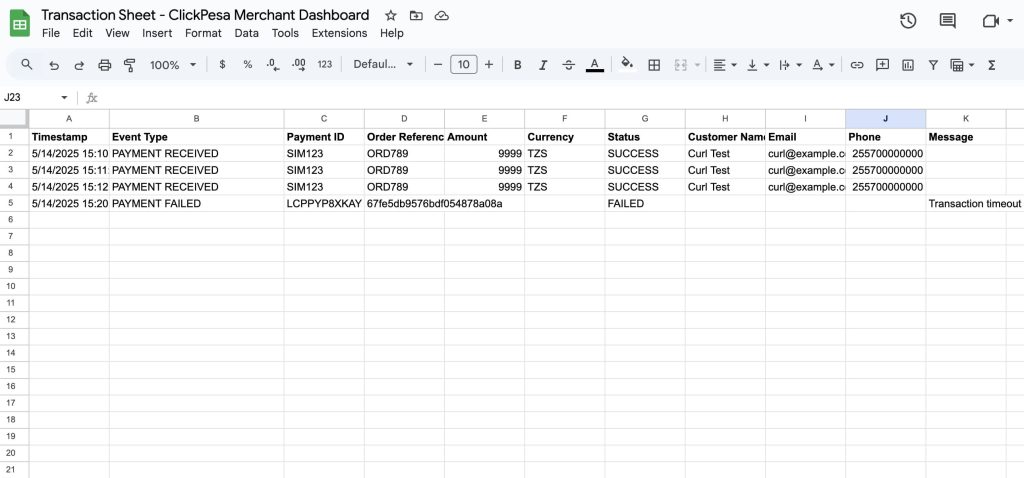
Our goal is to capture these transaction events and have them automatically appear into a Google Sheet.
2. Set Up Your Google Sheet
Open Google Sheets and create a sheet named “Sheet1” (or any other name you prefer). Set up your columns:
| Timestamp | Event Type | Payment ID | Order Reference | Amount | Currency | Status | Customer Name | Phone | Message |
You can customize this further, but this layout will allow you to track all key details. Find here the Template
3. Create the Google Script
Go to Extensions > Apps Script in your Google Sheet.
Paste the following code:
function doPost(e) {
  if (!e || !e.postData) {
    throw new Error("This function must be triggered by a POST request.");
  }

  const spreadsheet = SpreadsheetApp.openById("1mVIoG2LaVojwfBRkfKw1libR4KonhHYfYtlaQOZcRmo");
  const logSheet = spreadsheet.getSheetByName("Webhook Log") || spreadsheet.insertSheet("Webhook Log");
  const sheet = spreadsheet.getSheetByName("Sheet1");
  const now = new Date();
  let payload;

  try {
    payload = JSON.parse(e.postData.contents);
  } catch (err) {
    logSheet.appendRow([now, "Invalid JSON", e.postData.contents]);
    return ContentService.createTextOutput("Invalid JSON").setMimeType(ContentService.MimeType.TEXT);
  }

  // Log the raw JSON payload
  logSheet.appendRow([now, JSON.stringify(payload)]);

  const event = payload.event || payload.eventType;
  let row = [now];

  if (event === "PAYMENT RECEIVED") {
    const data = payload.data;
    row.push(
      event,
      data.paymentId,
      data.orderReference,
      data.collectedAmount,
      data.collectedCurrency,
      data.status,
      data.customer.name,
      data.customer.email,
      data.customer.phone,
      ""
    );
  } else if (event === "PAYMENT FAILED") {
    const data = payload.data;
    row.push(
      event,
      data.id,
      data.orderReference,
      "",
      "",
      data.status,
      "",
      "",
      "",
      data.message
    );
  } else {
    row.push("UNKNOWN EVENT");
  }

  sheet.appendRow(row);
  return ContentService.createTextOutput("OK").setMimeType(ContentService.MimeType.TEXT);
}
Code Explanation
- Handles incoming POST requests from your payment gateway
- Parses the request body and extracts key payment data
- Optionally verifies a secret token for security
- Appends the data as a new row in your Google Sheet
Gracefully handles success and failure responses
4. Deploy the Web App
- Click Deploy > Manage deployments
- Click New deployment
- Select Web App as the type
- Fill in the form:
- Description: “ClickPesa Transaction Logger”
- Execute as: Me
- Who has access: Anyone (or Anyone with the link, depending on your gateway)
- Click Deploy and authorize access
- Copy the Web App URL

This is the URL you will provide to ClickPesa or another gateway as your webhook endpoint.
5. Setting Up Webhooks in ClickPesa
To configure your webhook with ClickPesa:
- Access Webhooks Settings
Log in to your ClickPesa Dashboard.
Navigate to Settings → Developers.
Locate the Webhooks Settings section. - Add a Webhook URL
Select the event types you want to subscribe to, such as PAYMENT RECEIVED, or PAYMENT FAILED.
Enter your Web App URL - Receiving Webhook Calls
The gateway sends HTTP POST requests to your URL when events occur.
Your server (or script) must respond with a 2xx HTTP status code to acknowledge receipt.
For more: ClickPesa Webhook Setup
Now it works and you are ready to receive transaction confirmations in your sheet.
The post How to connect ClickPesa with Google Sheet appeared first on ClickPesa.
]]>