TL;DR
I built a simple Fabric Python notebook to orchestrate sequential SQL transformation tasks in OneLake using DuckDB and delta-rs. It handles task order, stops on failure, fetches SQL from external sources (like GitHub or a Onelake folder), manages Delta Lake writes, and uses Arrow recordbacth for efficient data transfer, even for large datasets. This approach helps separate SQL logic from Python code and simulates external table behavior in DuckDB. Check out the code on GitHub: https://github.com/djouallah/duckrun
pip install duckrunIntroduction
Inspired by tools like dbt and sqlmesh, I started thinking about building a simple SQL orchestrator directly within a Python notebook. I was showing a colleague a Fabric notebook doing a non-trivial transformation, and although it worked perfectly, I noticed that the SQL logic and Python code were mixed together – clear to me, but spaghetti code to anyone else. With Fabric’s release of the user data function, I saw the perfect opportunity to restructure my workflow:
- Data ingestion using a User-Defined Function (UDF), which runs in a separate workspace.
- Data transformation in another workspace, reading data from the ingestion workspace as read-only.
- All transformations are done in pure SQL, there 8 tables, every table has a sql file, I used DuckDB, but feel free to use anything else that understands SQL and output arrow (datafusion, chdb, etc).
- Built Python code to orchestrate the transformation steps.
- PowerBI reports are in another workspace
I think this is much easier to present 

I did try yato, which is a very interesting orchestrator, but it does not support parquet materialization
How It Works
The logic is pretty simple, inspired by the need for reliable steps:
- Your Task List: You provide the function with a list (tasks_list). Each item has table_name (same SQL filename, table_name.sql) and how to materilize the data in OneLake (‘append’ , ‘overwrite’,ignore and None)
- Going Down the List: The function loops through your tasks_list, taking one task at a time.
- Checking Progress: It keeps track of whether the last task worked out using a flag (like previous_task_successful). This flag starts optimistically as True.
- Do or Don’t: Before tackling the current task, it checks that flag.
- If the flag is True, it retrieves the table_name and mode from the current task entry and passes them to another function, likely called run_sql. This function performs the actual work of running your transformation SQL and writing to OneLake.
- If the flag is False, it knows something went wrong earlier, prints a quick “skipping” message, and importantly, uses a break statement to exit the loop immediately. No more tasks are run after a failure.
- Updating the Status: After run_sql finishes, run_sql_sequence checks if run_sql returned 1 (our signal for success). If it returns 1, the previous_task_successful flag stays True. If not, the flag flips to False.
- Wrap Up: When the loop is done (either having completed all tasks or broken early), it prints a final message letting you know if everything went smoothly or if there was a hiccup.
The run_sql function is the workhorse called by run_sql_sequence. It’s responsible for fetching your actual transformation SQL (that SELECT … FROM raw_table). A neat part here is that your SQL files don’t have to live right next to your notebook; they can be stored anywhere accessible, like a GitHub repository, and the run_sql function can fetch them. It then sends the SQL to your DuckDB connection and handles the writing part to your target OneLake table using write_deltalake for those specific modes. It also includes basic error checks built in for file reading, network stuff, and database errors, returning 1 if it succeeds and something else if it doesn’t.
You’ll notice the line con.sql(f””” CREATE or replace SECRET onelake … “””) inside run_sql; this is intentionally placed there to ensure a fresh access token for OneLake is obtained with every call, as these tokens typically have a limited validity period (around 1 hour), keeping your connection authorized throughout the sequence.
When using the overwrite mode, you might notice a line that drops DuckDB view (con.sql(f’drop VIEW if exists {table_name}’)). This is done because while DuckDB can query the latest state of the Delta Lake files, the view definition in the current session needs to be refreshed after the underlying data is completely replaced by write_deltalake in overwrite mode. Dropping and recreating the view ensures that subsequent queries against this view name correctly point to the newly overwritten data.
The reason we do this kind of hacks is, duckdb does not support external table yet, so we are just simulating the same behavior by combining duckdb and delta rs, spark obviousely has native support
Handling Materialization in Python
One design choice here is handling the materialization strategy (whether to overwrite or append data) within the Python code (run_sql function) rather than embedding that logic directly into the SQL scripts.
Why do it this way?
Consider a table like summary. You might have a nightly job that completely recalculates and overwrites the summary table, but an intraday job that just appends the latest data. If the overwrite or append command was inside the SQL script itself, you’d need two separate SQL files for the exact same transformation logic – one with CREATE OR REPLACE TABLE … AS SELECT … and another with INSERT INTO … SELECT ….
By keeping the materialization mode in the Python run_sql function and passing it to write_deltalake, you can use the same core SQL transformation script for the summary table in both your nightly and intraday pipelines. The Python code dictates how the results of that SQL query are written to the Delta Lake table in OneLake. This keeps your SQL scripts cleaner, more focused on the transformation logic itself, and allows for greater flexibility in how you materialize the results depending on the context of your pipeline run.
Efficient Data Transfer with Arrow Record batch
A key efficiency point is how data moves from DuckDB to Delta Lake. When DuckDB executes the transformation SQL, it returns the results as an Apache Arrow RecordBatch. Arrow’s columnar format is highly efficient for analytical processing. Since both DuckDB and the deltalake library understand Arrow, data transfers with minimal overhead. This “zero-copy” capability is especially powerful for handling datasets larger than your notebook’s available RAM, allowing write_deltalake to process and write data efficiently without loading everything into memory at once.
Example:
you pass Onelake location, schema and the number of files before doing any compaction

first it will load all the existing Delta table
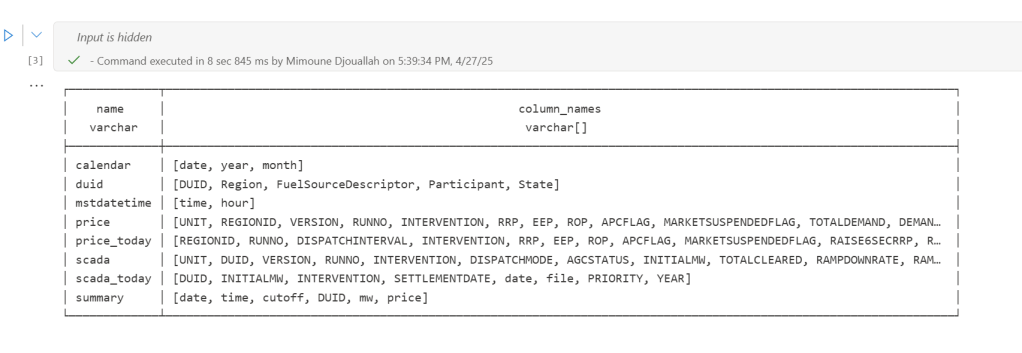
Here’s an example showing how you might define and run different task lists for different scenarios:
sql_tasks_to_run_nightly = [
    ['price', 'append'],
    ['scada', 'append'],
    ['duid', 'ignore'],
    ['summary', 'overwrite'], # Overwrite summary nightly
    ['calendar', 'ignore'],
    ['mstdatetime', 'ignore'],
]

sql_tasks_to_intraday = [
    ['price_today', 'append'],
    ['scada_today', 'append'],
    ['duid', 'ignore'],
    ['summary', 'append'] # Append to summary intraday using the *same* SQL script
]
You can then use Python logic to decide which pipeline to run based on conditions, like the time of day:
start = time(4, 0)
end = time(5, 30)

if start <= now_brisbane <= end:
    run_sql_sequence(sql_tasks_to_run_nightly)
Here’s an example of an error I encountered during a run, it will automatically stop the remaining tasks:
Attempting to run SQL for table: price_today with mode: append
Running in mode: append for table: price_today
Error writing to delta table price_today in mode append: Parser Error: read_csv cannot take NULL list as parameter
Error updating data or creating view in append mode for price_today: Parser Error: read_csv cannot take NULL list as parameter
Failed to run SQL for table: price_today. Stopping sequence.
One or more SQL tasks failed.
here is some screenshots from actual runs
as it is a delta table, I can use SQL endpoints to get some stats
For example the table scada has nearly 300 Million rows, the raw data is around 1 billion of gz.csv

It took nearly 50 minutes to process using 2 cpu and 16 GB of RAM, notice although arrow is supposed to be zero copy, writing parquet directly from Duckdb is substantially faster !!! but anyway, the fact it works at all is a miracle
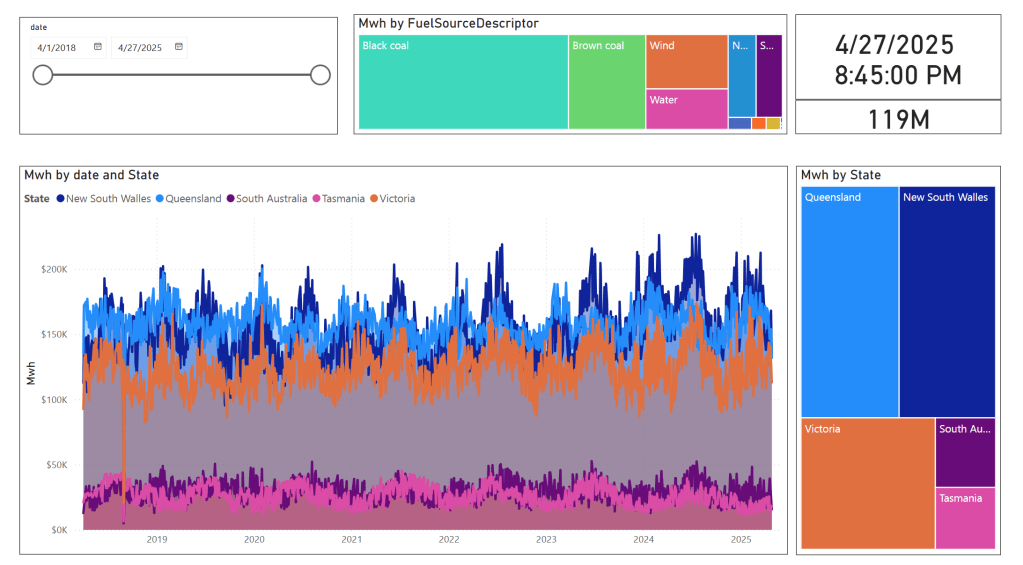
in the summary table we remove empty rows and other business logic, which reduce the total size to 119 Million rows.
here is an example report using PowerBI direct lake mode, basically reading delta directly from storage
In this run, it did detect that the the night batch table has changed

Conclusion
To be clear, I am not suggesting that I did anything novel, it is a very naive orchestrator, but the point is I could not have done it before, somehow the combination of open table table format, robust query engines and an easy to use platform to run it make it possible and for that’s progress !!!
I am very bad at remembering python libraries syntax but with those coding assistants, I can just focus on the business logic and let the machine do the coding. I think that’s good news for business users.
]]>deltalake library (Delta_rs, not Spark), you may encounter the following error:
import deltalake

DeltaTable('/lakehouse/default/Tables/xxx').to_pyarrow_dataset()
DeltaProtocolError: The table has set these reader features: {'deletionVectors'} but these are not yet supported by the deltalake reader.
Alternative: Using DuckDB
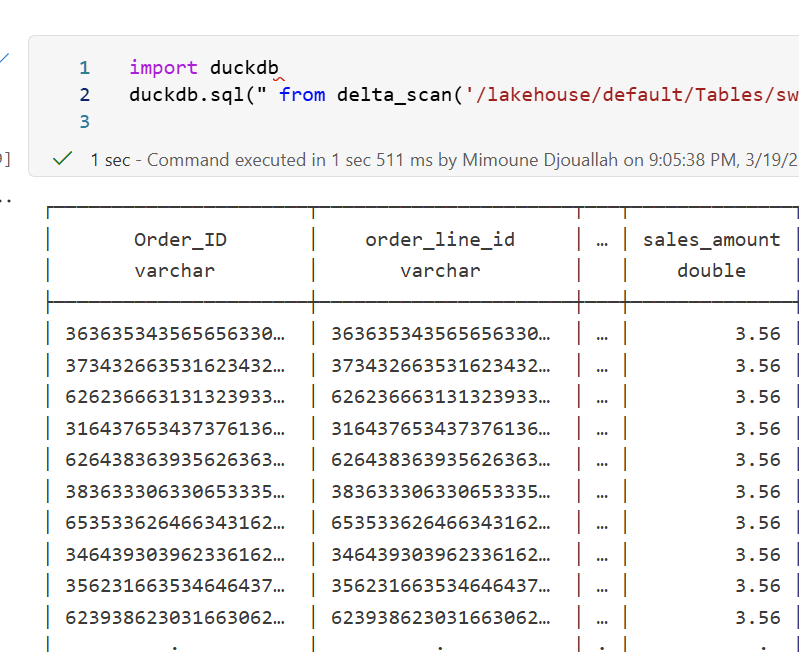
A simple alternative is to use DuckDB:
import duckdb

duckdb.sql("SELECT COUNT(*) FROM delta_scan('/lakehouse/default/Tables/xxx')")
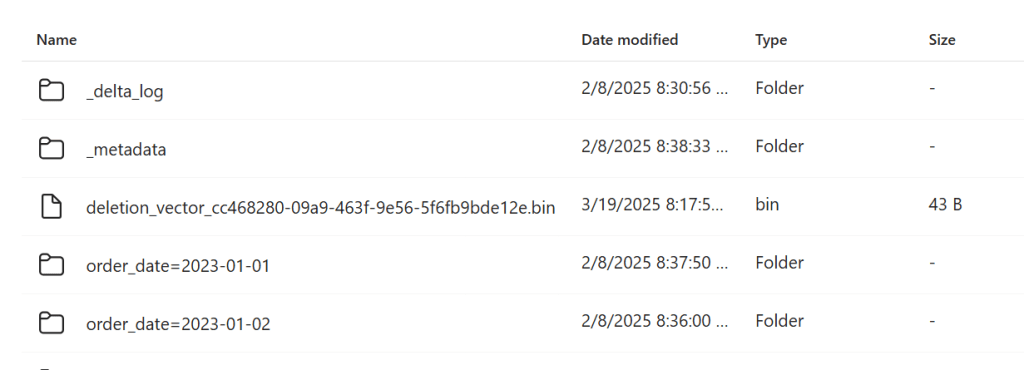
Tested with a file that contains Deletion vectors
Column Mapping
The same approach applies to column mapping as well.
Upgrading DuckDB
Currently, Fabric Notebook comes preinstalled with DuckDB version 1.1.3. To use the latest features, you need to upgrade to the latest stable release (1.2.1) :
!pip install duckdb --upgrade
import sys
sys.exit(0)
Note: Installing packages using
%pip installdoes not restart the kernel when you run the notebook , you need to usesys.exit(0)to apply the changes, as some packages may already be loaded into memory.
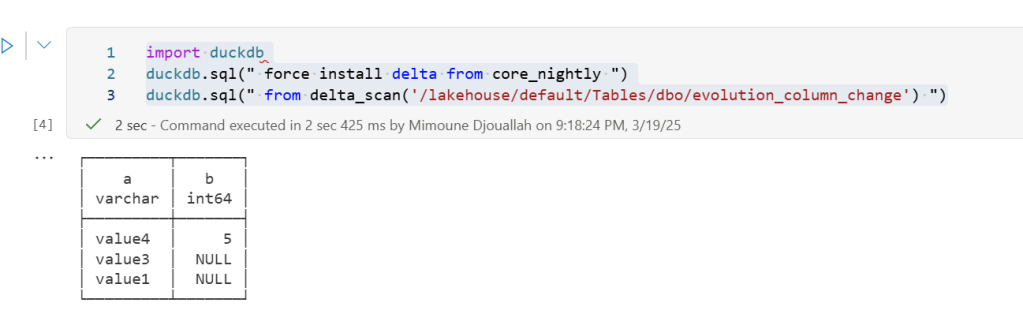
import duckdb
duckdb.sql(" force install delta from core_nightly ")
duckdb.sql(" from delta_scan('/lakehouse/default/Tables/dbo/evolution_column_change') ")
The Future of Delta Rust .
Currently, there are two Rust-based implementations of Delta:
- Delta_rs: The first and more mature implementation, developed by the community. It is an independent implementation of the Delta protocol and utilizes DataFusion and PyArrow (which will soon be deprecated) as its engine. However, Delta_rs does not support deletion vectors or column mapping, though it does support writing Delta tables.
- Delta Kernel_rs: The newer, “official” implementation of Delta, providing a low-level API for query engines. It is currently being adopted by DuckDB ( and Clickhouse apparently) with more engines likely to follow. However, it is still a work in progress and does not yet support writing.
There are ongoing efforts to merge Delta_rs with Delta Kernel_rs to streamline development and reduce duplication of work.
Note : although they are written in Rust, we mainly care about the Python API
Conclusion
At least for now, in my personal opinion, the best approach is to:
- Use DuckDB for reading Delta tables
- Use Python Deltalake (Delta_rs) for writing
If you’ve ever worked with Delta tables, for example using delta_rs, you know that writing to one is as simple as passing the URL and credentials. It doesn’t matter whether the URL points to OneLake, S3, Google Cloud, or any other major object store — the process works seamlessly. The same applies whether you’re writing data using Spark or even working with Iceberg tables.
However, things get complicated when you try to list a bucket or copy a file. That’s when the chaos sets in. There is no standard method for these tasks, and every vendor has its own library. For instance, if you have a piece of code that works with S3, and you want to replicate it in Azure, you’ll need to rewrite it from scratch.
This is where OpenDal comes in. OpenDal is an open-source library written in Rust (with Python bindings) that aims to simplify this problem. It provides a unified library to abstract all object store primitives, offering the same API for file management across multiple platforms (or “unstructured data” if you want to sound smart). While the library has broader capabilities, I’ll focus on this particular aspect for now.
I tested OpenDal with Azure ADLS Gen2, OneLake, and Cloudflare R2. To do so, I created a small Python notebook (with the help of ChatGPT) that syncs any local folder to remote storage. It works both ways: if you add a file to the remote storage, it gets replicated locally as well.
Currently, there’s a limitation: OpenDal doesn’t work with OneLake yet, as it doesn’t support OAuth tokens, and SAS tokens have a limited functionality ( it is by design, you can’t list a container for example from OneLake)
You can download the notebook here
Here’s an example of how it works:

you need just to define your object store and the rest is the same, list, create folder, copy, write etc all the same !!! this is really a very good job
you can see the presentation but it is too technical to my taste https://www.youtube.com/watch?v=eVMIzY1K5iQ
Local folder :

Cloudflare R2:


And Instead of sharing a conceptual piece, perhaps focus on presenting some dollar figures
Scenario: A Small Consultancy
According to local regulations, a small enterprise is defined as having fewer than 15 employees. Let’s consider this setup:
- Data Storage: The data resides in Microsoft OneLake, utilizing an F2 SKU.
- Number of Users: 15 employees.
- Data Size: Approximately 94 million rows.
- Pricing Model: For simplicity, assume the F2 SKU uses a reserved pricing model.
Monthly Costs:
- Power BI Licensing: 15 users × 15 AUD = 225 AUD.
- F2 SKU Reserved Pricing: 293 AUD.
- Total Cost: 518 AUD per month.
ETL Workload
Currently, the ETL workload consumes approximately 50% of the available capacity.

For comparison, I ran the same workload on another Lakehouse vendor. To minimize costs, the schedule was adjusted to operate only from 8 AM to 6 PM. Despite this adjustment, the cost amounted to:
- Daily Cost: 40 AUD.
- Monthly Cost: 1,200 AUD.

In contrast, the F2 SKU’s reserved price of 293 AUD per month is significantly more economical. Even the pay-as-you-go model, which costs 500 AUD per month, remains competitive.
Key Insight:
While serverless billing is attractive, what matter is how much you end up paying per month.
For smaller workloads (less than 100 GB of data), data transformation becomes commoditized, and charging a premium for it is increasingly challenging.
Analytics in Power BI
I prefer to separate Power BI reports from the workspace used for data transformation. End users care primarily about clean, well-structured tables—not the underlying complexities.
With OneLake, there are multiple ways to access the stored data:
- Import Mode: Directly import data from OneLake.
- DirectQuery: Use the Fabric SQL Endpoint for querying.
- Direct Lake Model: Access data with minimal latency.
- Composite Models: All the above ( this is me trying to be funny)
All the Semantic Models and reports are hosted in the Pro license workspace, Notice that an import model works even when the capacity is suspended ( if you are using pay as you go pricing)

The Trade-Off Triangle

In analytical databases, including Power BI, there is always a trade-off between cost, freshness, and query latency. Here’s a breakdown:
- Import Mode: Ideal if eight refreshes per day suffice and the model size is small. Reports won’t consume Fabric capacity (Onelake Transactions cost are insignificant for small data import)
- Direct Lake Model: Provides excellent freshness and latency but will probably impacts F2 capacity, in other words, it will cost more.
- DirectQuery: Balances freshness and latency (seconds rather than milliseconds) while consuming less capacity. This approach is particularly efficient as Fabric treats those Queries as background operations, with low consumption rates in many cases. Looking forward to the release of Fabric DWH result cache.
Key Takeaways
- Cost-Effectiveness: Reserved pricing for smaller Fabric F SKUs combined with Power BI Pro license offers a compelling value proposition for small enterprises.
- Versatility: OneLake provides flexible options for ETL workflows, even when using import mode exclusively.
The Lakehouse architecture and Power BI’s diverse access modes make it possible to efficiently handle analytics, even for smaller enterprises with limited budgets.
]]>Notice; I am using lakehouse mounted storage, for a background on the different access mode, you can read the previous blog
Data Generation Challenges
Initially, I encountered an out-of-memory error while generating the dataset. Upgrading to the development release of DuckDB resolved this issue. However, the development release currently lacks support for reading Delta tables, as Delta functionality is provided as an extension available only in the stable release.
Here are some workarounds:
- Increase the available RAM.
- Use the development release to generate the data, then switch back to version 1.1.3 for querying.
- Wait for the upcoming version 1.2, which should resolve this limitation.
The data is stored as Delta tables in OneLake, it was exported as a parquet files by duckdb and converted to delta table using delta_rs (the conversion was very quick as it is a metadata only operation)
Query Performance
Running all 99 TPC-DS queries worked without errors, albeit very slowly( again using only 2 cores ).
I also experimented with different configurations:
4, 8, and 16 cores: Predictably, performance improved as more cores were utilized.
For comparison, I ran the same test on my laptop, which has 8 cores and reads my from local SSD storage, The Data was generated using the same notebook.
Results
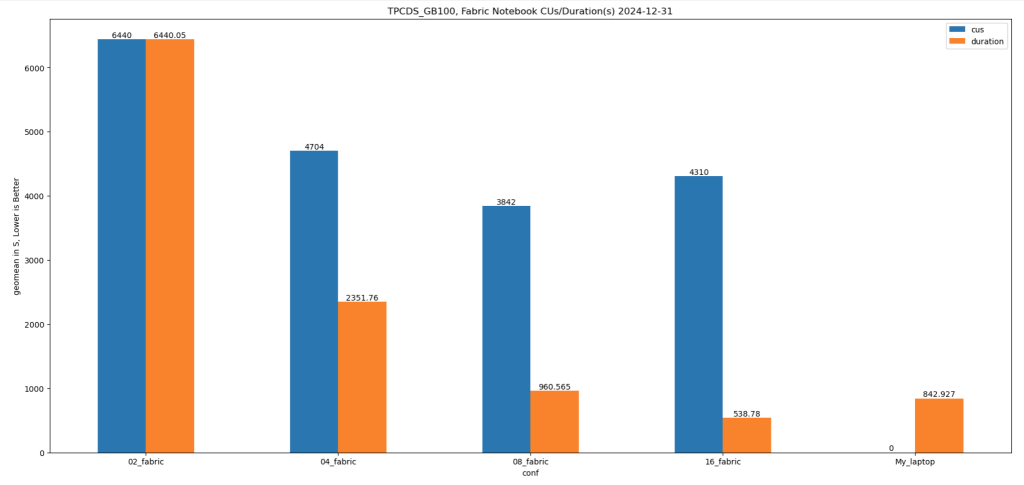
Python notebook compute consumption is straightforward, 2 cores = 1 CUs, the cheapest option is the one that consume less capacity units, assuming speed of execution is not a priority.
- Cheapest configuration: 8 cores offered a good balance between cost and performance.
- Fastest configuration: 16 cores delivered the best performance.
Interestingly, the performance of a Fabric notebook with 8 cores reading from OneLake was comparable to my laptop with 8 cores and an SSD. This suggests that OneLake’s throughput is competitive with local SSDs.
Honestly, It’s About the Experience
At the end of the day, it’s not just about the numbers. There’s a certain joy in using a Python notebook—it just feels right. DuckDB paired with Python creates an intuitive, seamless experience that makes analytical work enjoyable. It’s simply a very good product.
Conclusion
While this experiment may not have practical applications, it highlights DuckDB’s robustness and adaptability. Running TPC-DS with such limited resources showcases its potential for lightweight analytical workloads.
You can download the notebook for this experiment here:
]]>First in spark notebook you need to install those two package ( this step will be unnecessary with pure Python notebook)
%pip install deltalake
!pip install duckdb
Then get the abfss path of the table, it can be anywhere, even in different workspace.
from deltalake import DeltaTable
import duckdb
access_token = notebookutils.credentials.getToken('storage')
storage_options=     {"bearer_token": access_token, "use_fabric_endpoint": "true"}
TAXI = DeltaTable('abfss://[email protected]/NY.Lakehouse/Tables/ny/taxi',storage_options = storage_options).to_pyarrow_dataset()
For this example the table is not small ( 1.3 billion rows) , having filter pushdown is a must for a good user experience, for smaller data it does not matter.
let’s show 5 rows, the limit is pushed to the source, we don’t need to scan 20 GB just to see some rows.
display(duckdb.sql(f''' SELECT * from TAXI limit 5 ''').df())
Note : you can use any Engine that understand arrow dataset , personally I prefer duckdb but it is a personal taste
Now let’s filter the data only for this year, again, filter pruning works, what I really like ; although the table is not partitioned somehow the scan is leveraging the stats in the delta table log
data = duckdb.sql(f''' SELECT date ,  ROUND (SUM (fare_amount),0) as TotalFares , ROUND (AVG (fare_amount),0) as AVGFares
             FROM TAXI where year = 2024 GROUP BY ALL ''').df()
display(data)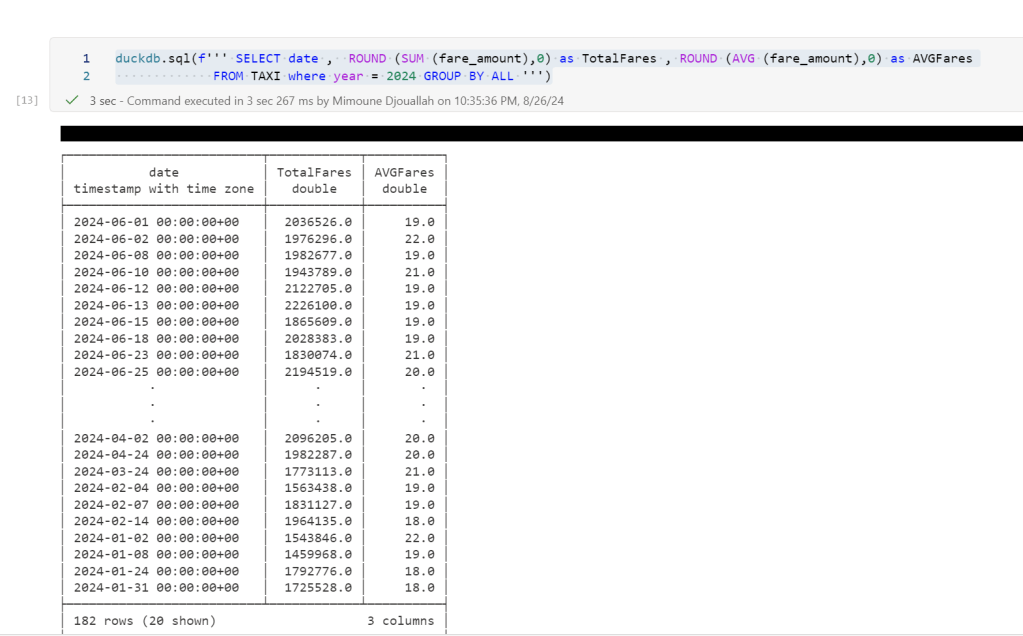
Not everything is perfect yet 
max (column) , count(*) unfortunately does not use the delta log and trigger a whole table scan.
let’s show some interactive chart
I have the aggregated data already, using the excellent library Altair, I can easily plot an interactive chart
import altair as alt
brush = alt.selection_interval()
details = alt.Chart(data).mark_bar().encode(alt.X('date:T'),  alt.Y('TotalFares:Q'), tooltip=[alt.Tooltip('date:T',format='%Y-%m-%d %H'),'TotalFares:Q']
).properties( width=1400,  height=400 ).add_params( brush)

summary = alt.Chart(data).mark_square().encode( alt.X('date:T'), alt.Y('AVGFares:Q'), tooltip=['AVGFares:Q'] ).properties(  width=1400,  height=400).transform_filter( brush)
details & summary
honestly, I did not know how much covid had impacted the Taxi industry
You can use Other Engines too
as I said it is not specific to duckdb, for example using Polars
import polars as pl
access_token = notebookutils.credentials.getToken('storage')
storage_options=     {"bearer_token": access_token, "use_fabric_endpoint": "true"}
scada = pl.scan_delta('abfss://[email protected]/NY.Lakehouse/Tables/ny/taxi', storage_options=storage_options)
x = scada.limit(10).collect()
and Daft
import daft
from daft.io import IOConfig, AzureConfig
io_config = IOConfig(azure=AzureConfig(storage_account="onelake",endpoint_url="https://onelake.blob.fabric.microsoft.com",bearer_token=access_token))
df = daft.read_deltalake('abfss://[email protected]/NY.Lakehouse/Tables/ny/taxi', io_config=io_config)
dfUpdate 26-Oct-2024 : using DuckDB 1.1.2, you don’t need to to mount a lakehouse to the notebooks and add support for reading Onelake Lakehouse outside of Fabric . currently it is read only, for writing you need Delta_rs
it is a very simple Python script how you can attach a Lakehouse to DuckDB in a Fabric notebook (you can use the same logic for Polars,Daft etc)
it is read only and will create views based on your existing Delta tables, it assumes you are using schemas, but you can edit it for simpler use cases, or if you have a lot of tables, maybe it is more practical just to attach one specific schema.
import duckdb
from glob import glob
def attach_lakehouse(base_path):
    list_tables = glob(f"{base_path}*/*/", recursive=True)
    sql_schema = set()
    sql_statements = set()
    for table_path in list_tables:
        parts = table_path.strip("/").split("/")
        schema = parts[-2]
        table = parts[-1]
        sql_schema.add(f"CREATE SCHEMA IF NOT EXISTS {schema};")
        sql_statements.add(f"CREATE OR REPLACE VIEW {schema}.{table} AS SELECT * FROM delta_scan('{table_path}');")
    duckdb.sql(" ".join(sql_schema))
    duckdb.sql(" ".join(sql_statements))
    display(duckdb.sql("SHOW ALL TABLES").df())
attach_lakehouse('/lakehouse/default/Tables/')
and here is an example
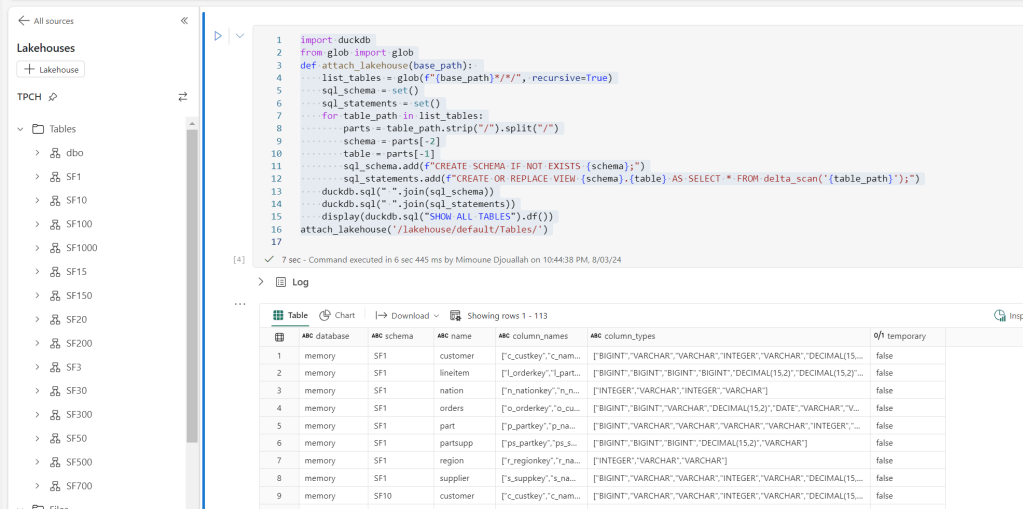
now you can read and joins any tables even from different schemas
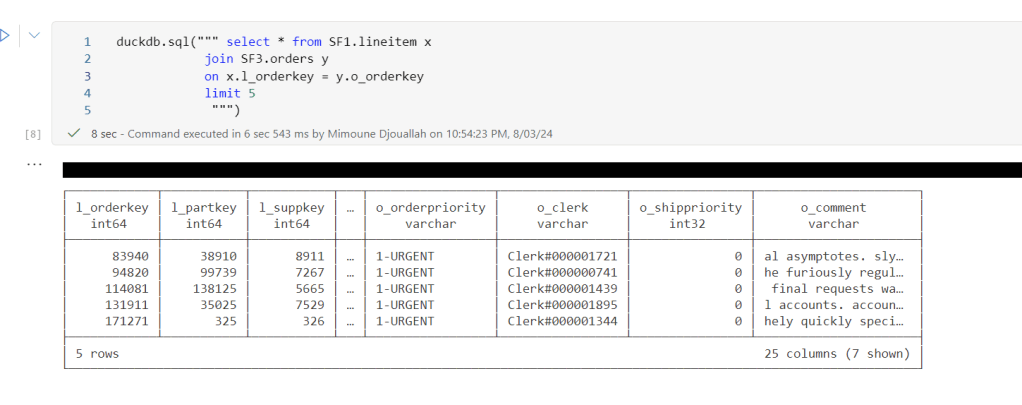
Notice Delta support in DuckDB is not very performant at this stage, compared to pure Parquet, but I suspect we will see a massive improvement in the next version 1.1
]]>You can download the notebook here
All you have to do is to import the notebook and attach the lakehouse you want to analyze.
You can use append to keep the history.
It is using two packages
Delta Lake Python to get the delta stats
DuckDB to get the Parquet stats ( number of row groups)
And a SQL Query to combine the results from the two previous packages
The notebook is very simple and show only the major metrics for a Table, total rows, number of files, number of row groups and average row per row group, and if V-Order is applied
If you want more details, you can use the excellent delta analyser

Why you should care about Table stats
Fabric Direct Lake mode has some guardrails as of today for example, the maximum number of row groups in a table for F SKU less than F64 is 1000, which is reasonably a very big number but if you do frequent small insert without Table maintenance you may end up quickly generate a lot of files ( and row groups), so it is important to be aware of the table layout, especially when using Lakehouse, DWH do support automatic Table maintenance though.
Parting Thoughts
Hopefully in the near future, Lakehouse will expose the basic information about Tables in the UI, in the meantime, you can use code as a workaround.
]]>https://github.com/djouallah/aemo_fabric
Howto
0- Create a Fabric Workspace
1- Create a lakehouse
2-Download the notebooks from Github and import it to Fabric Workspace
3-Open a notebook, attached it to the Lakehouse
4-Run the notebook in sequence just to have the initial load
5-Build your semantic Model either using Direct Lake for better “latency” , or use the attached template for import mode if you are happy with 8 refreshes per day( for people with a pro license), all you need is to input the Lakehouse SQL Endpoint, my initial plan was to read Delta Table directly from OneLake but currently filter pushdown works only at the partition level ( but apparently further stuff are coming)
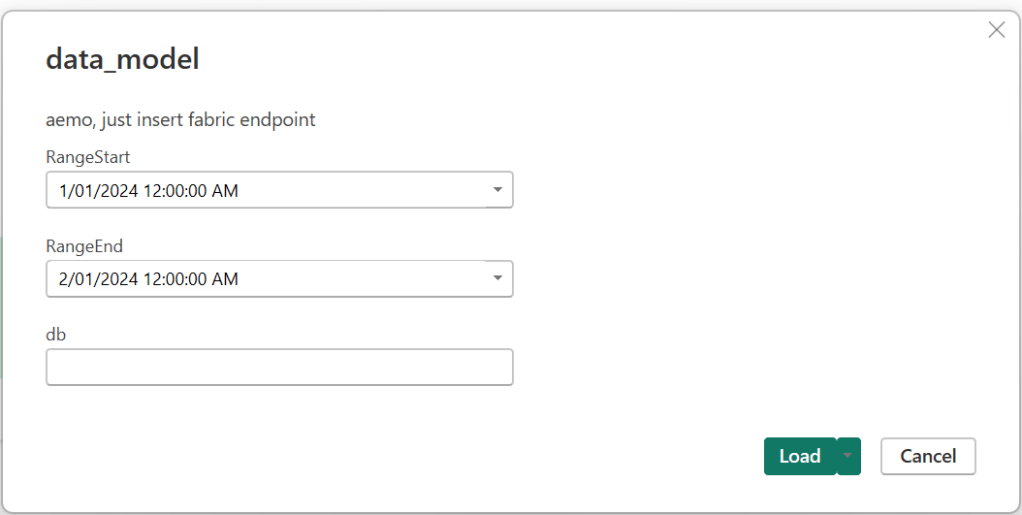
6- Use a scheduler to run the jobs, 5 minutes and 24 Hours
Show me the Money
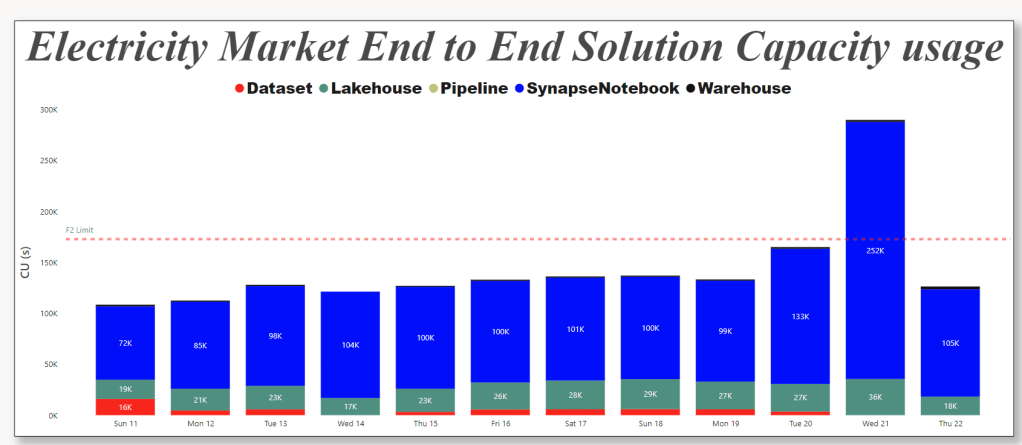
For developpement use Starter Pool, but for scheduling use Small Single Node, it is good enough, medium is faster but will consume more capacity Unit, still within F2 limits.
This is the actual usage of capacity unit for this scenario, yesterday I was messing around trying to further optimize which end up consuming more
Spark Dataframe API is amazing
When reading the csv files, I need to convert a lot of columns to double, using SQL you have to manually type all the fields names, in Spark , you can just do it in a loop, that was the exact moment, I *understood* why people like Spark API !!!
df_cols = list(set(df.columns) -{'SETTLEMENTDATE','DUID','file','UNIT','transactionId','PRIORITY'})
for col_name in df_cols:
    df = df.withColumn(col_name, f.col(col_name).cast('double'))
Source Data around 1 Billion of dirty csv, data added every 5 minutes and backfilled every 24 hours, all data is saved in OneLake using Spark Delta Table.
not everything is csv though, there is some data in Json and Excel of course
Although the main code is using PySpark , I used Pandas and DuckDB too, no philosophical reasons, basically I use whatever Stackoverflow give me first and then I just copy the result to a Spark dataframe and save it as Delta Tables, you don’t want to miss on VOrder
For example this is the code to generate a calendar Table using DuckDB SQL, the unnest syntax is very elegant !!!
df=duckdb.sql(""" SELECT cast(unnest(generate_series(cast ('2018-04-01' as date), cast('2024-12-31' as date), interval 1 day)) as date) as date,
           EXTRACT(year from date) as year,
           EXTRACT(month from date) as month
           """).df()

x=spark.createDataFrame(df)
x.write.mode("overwrite").format("delta").saveAsTable("Calendar")
The Semantic Model
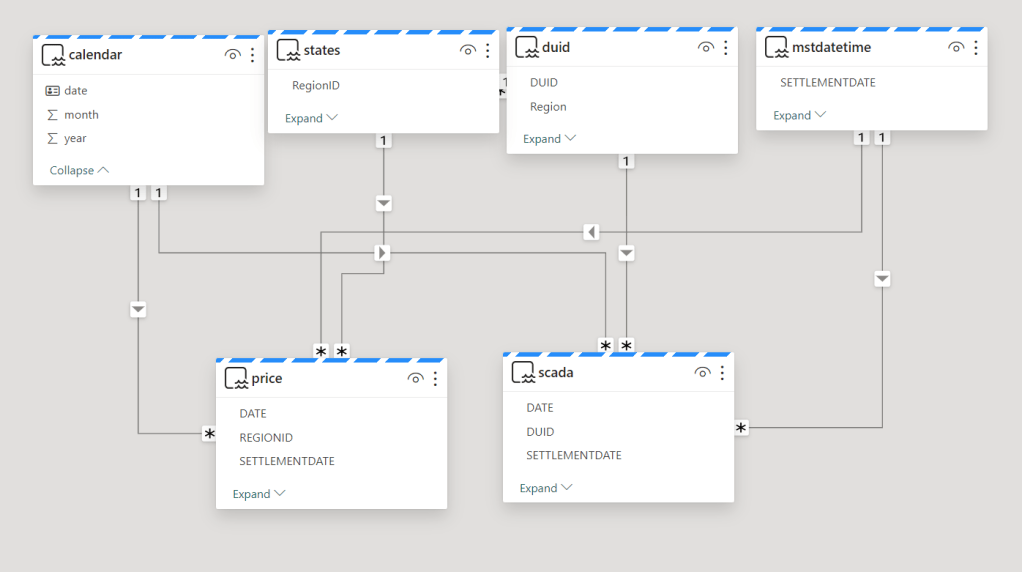
The Model is not too complex but not trivial, 2 facts tables, 4 dimensions, biggest table 240 M rows.
Stuff that needs improvements
1- have an option to download the semantic Model from the service using pbit, it has to be one file for ease of distribution.
2- More options for the scheduler, something like run this job only between 8 AM to 6 PM every 5 minutes.
Parting Thoughts
Notebook + OneLake + Direct Lake is emerging as a very Powerful Pattern , specially when the data is big and freshness is important, but somehow users needs to learn how to write Python code, I am afraid that’s not obvious at all for the average data analyst, maybe this AI thing can do something about ? that’s the big question.
Does it mean, Notebook is the best solution for all use cases ? I don’t know, and I don’t think there is such a thing as a universal best practice in ETL, as far as I am concerned, there is only one hard rule.
Save raw data when the source system is volatile.
anything else is a matter of taste
Initially I just scheduled Notebook A to run every 5 minutes and Notebook B to run at 4 AM , did not work as I got a write conflict, basically Notebook B take longer time to process the data, when it is ready to update the table, it is a bit too late as it was already modified by Notebook A and you get this error

Workarounds
Solution 1 : Schedule Notebook A to run every 5 minutes except from 4 AM to 4:15 AM, today it is not supported in Fabric scheduler ( although it works fine in Azure Data Factory).
Solution 2 : Partition by Date to avoid Spark writing to the same file at the same time, which is fine for my table as it is big enough around 230 Millions spread over 6 years, generating 2000 files is not the end of the world, but the same approach does not work for another table which is substantially smaller around 3 millions
Solution : Turn out, there is a code base orchestration tool in Fabric Notebook
I knew about MSSparkUtils mainly because Sandeep Pawar can’t stop talking about it but I did not know that it does orchestration too, in my case the solution was trivial.
Add a check in notebook A if there is a new file to backfill ; if yes call Notebook B
if len(files_to_upload_full_Path) > 0 :

 mssparkutils.notebook.run("Transform_Backfill_Previous_Day")
And it did work beautifully ( I know the feeling, it is easy when you know it)

Notice that the second Notebook runs using the same Runtime, so it is faster and maybe even cheaper.
Ok there is More
Conditionally running a notebook based on a new file arrival is a simple use case, but you can do more, for example you can run multiple notebooks in parallel or even define complex relationships between Notebooks using a DAG with just Python code !!!!

Take Away
This is just a personal observation , because Fabric was released with all the Engines at the Same time, a lot of very powerful features and patterns did not get a chance to be fully exposed and appreciated, and based on some anecdotal evidence on twitter , it seems I am not the only one who never heard about Fabric Notebook code orchestration.
For PowerBI people Starting with Fabric, Python is just too Powerful. Yes, we did fine without it all these years, but if you have any complex data transformation scenarios, Python is just too important to ignore.
Thanks Jene Zhang for answering my silly questions.
]]>