Byte Size Thought: The Good, the Bad, and the Neutral

Ever wonder how someone asks you for your opinion on something, and you immediately give your opinion as Good or Bad as if no other option exists?

We are conditioned all our lives to think in the terms of Good and Bad, Right and Wrong, Black and White. Along the way, we forgot that we can be neither of them – The Neutral.

Let’s take a very common example of someone you know ranting about what happened between them and the other person, and asks you what you think about the other person doing that to them. Immediately, you go to the conclusion of whether that is right or wrong based on what information is provided. Mostly, we go with the feedback based on what your friend comes up with. If they are upset and complain, we usually take their side and try to join them in their anger toward the other person. If the same person have a good feedback, we echo that as well. We join them and praise the other person as good. In this whole situation, we are not the first-hand witnesses who actually saw this in person, but, without realizing it, we unconsciously take our friend’s side, because they are, of course, our friend. We should be supporting them after all, right?

These types of incidents happen to me many times, and in the past, I was placed in a spot where I had to respond. Do I like responding to such situations? Hell, no, but in many situations, I almost unconsciously nodded my head, followed along, and supported them, not knowing the whole story. There are chances that we may develop the hate towards the other person as well, believing one side of the story as fact. All of this happens unconsciously.

Now, what can go wrong in these type of situations?

You are unconsciously being conditioned through other people’s opinions. Even the person who rants about others doesn’t know that they are creating this negativity. They do it unconsciously as well. Other people’s opinions don’t have to be your reality.

This is just a single example I explained here. There will be numerous incidents like these happening to us every single day. If anyone puts you in a spot where you need to answer yes or no or give you a set number of choices to choose from, you do not have to oblige to give the answer in between those choices. You always have another choice – to stay Neutral. To tell them that you do not have an opinion.

I learnt this lesson the hard way in my life. Something very insignificant-looking can make a huge impact.

So, the next time you are asked for your opinions, remember you also have another option to choose- Being Neutral! Do not feel uncomfortable about telling that you don’t have an opinion. This will only help you and protect your peace.

That’s all from me today. Thank you for reading!

Migrating Traditional SQL Server Service Accounts to Group Managed Service Accounts(gMSA)- Part 2

This post is about the Failover cluster Instances and SQL Servers with high availability groups enabled.

A Failover Cluster Instance (FCI) is a SQL Server high-availability solution where multiple servers share the same storage. If the active node fails, SQL Server automatically fails over to another node with minimal downtime.

You need to follow all the steps mentioned in the first blog post, which you can find here.

Steps to Change Service Account with FCI or Servers with HA to gMSA Service accounts

  1. In Failover Cluster Manager (or PowerShell): Get-ClusterGroup on open it
  2. Find the cluster group for your SQL instance: e.g. SQL Server (MSSQLSERVER).
  3. Note which node is OwnerNode (active).
  4. On the active node (the one currently owning the SQL FCI resources):
  5. Open SQL Server Configuration Manager.
  6. Right-click SQL Server (MSSQLSERVER) select Properties.
  7. Click Log On tab.
  8. Change Account Name to: domain\gms{func}{env}sql$, including the $ at the end of the account. NOTE: Include the $ at the end. That tells Windows it’s a gMSA.
  9. Repeat process for SQL Server Agent (MSSQLSERVER)
  10. NOTE: Do not enter a password, leave it blank. gMSA handles passwords automatically
  11. Restart SQL services
  12. Open the Cluster Manager > Right-click the SQL Server role > Stop Role
  13. Right click the FCI SQL Role again, select Start Role
  14. Open the SQL Sevrer Configuration Manager
  15. Verify the SQL Server and Agent services started successfully under the gMSA and the SQL instance comes online.
  16. Note: For the FCI, you must change the service account once in the active node server. The changes will be replicated over to the other nodes (active or not) automatically. That’s the magic of gMSA.

Failover Testing (Safe Procedure)

Once verified on one node, test failover to ensure the gMSA works cluster-wide.

  1. Open Failover Cluster Manager
  2. Right-click your SQL Server role (e.g. SQL Server (MSSQLSERVER))
  3. Click Move, then click Select Node…
  4. Choose the passive node.
  5. Watch the role come online on that node.
  6. Verify SQL services start automatically under the same gMSA on the new node. No manual intervention needed (that’s the gMSA magic).

If successful, fail back to the original node.

Validation Checks

  1. Open SQL Server Management Studio. You should be able to connect to SQL Server locally on the Server and remotely.
  2. Run SELECT servicename, service_account FROM sys.dm_server_services;
  3. Confirm both SQL and Agent show correctrly
  4. Open Event Viewer
  5. Click Application log
  6. Search for for Event ID 17162 (SQL Server) startup success.
  7. Confirm there were no login or service control errors.
  8. Test logins, linked servers, backups, and Agent jobs.

Rollback Plan

Should testing fail, or services not come back online:

  1. Request Server engineering team to revert the SPN’s back to the previous service account from the gMSA account.
  2. Change the gMSA SQL Server and SQL Server agent service accounts back to the regular service account.
  3. Restart the SQL Services.

References: Manage group Managed Service Accounts

Thank you for reading!

Migrating Traditional SQL Server Service Accounts to Group Managed Service Accounts(gMSA)- Part 1

I recently started working on a project migrating all the SQL Server regular service accounts to Group Managed Service Accounts (gMSA) for both SQL Server and SQL Server Agent accounts.

A Service Account is something that applications like the SQL Server, IIS, or scheduled tasks need to run under using Microsoft Active Directory. These are the regular domain user accounts, where the passwords needs to be manually managed and rotated. As these needs to be manually updated, downtime to the services are required if the password needs to be changed. Not only that but syncing these passwords across multiple servers can be an issue. This problem is resolved by using the Standalone Managed Service Account as Windows can manage the password automatically.

What is a Standalone Managed Service Account (sMSA) and a Group Managed Service Account?

Both the sMSA (Introduced in Windows Server 2008 R2) and gMSA (Introduced in Windows Server 2012) are managed domain account that provides automatic password management, simplified service principal name (SPN) management, and the ability to delegate the management to other administrators. The main difference is that an sMSA account can run the service on a single Server, whereas a gMSA account can manage a single account across multiple Servers.

Group Managed Service Account (gMSA)

A gMSA works just like the sMSA but can be used by multiple Servers. The password is automatically managed and updated every 30 days by default. These are best for password management and best for the server farms, web farms, distributed applications or load-balancing applications. Passwords are managed by Microsoft Key Distribution Service (KDS) where the domain controller rotates the account password and is securely used by the authorized servers. The password is very secure as no one can see it and not visible to anyone. Easy for the auditing as well as these passwords will be automatically updated without any manual work.

Minimum requirement to use gMSA

  1. Can only be used on Windows Server 2012 or later
  2. Active Directory Domain Services
  3. Creation of a KDS root key for password generation

Preferred Naming convention for the gMSA accounts for SQL Server

Note: gMSA Service Account can’t exceed 15 characters including the $ symbol which needs to be included at the end of every gMSA account.

Server service account: Domain\ + gms + {func} + {env} + sql 

Server Agent service account: Domain\ + gms +{func} + {env} + sqlagt

where

{func} can be the primary function of the Server. This can be a 3 character limit.

{env} can be the 3 character enviroment like DEV, TST, QA, PRD

Note: If you wanted to implement the gMSA Service accounts for new SQL Servers, these Windows Servers first need to be built before requesting the gMSA Service accounts to your Server Engineers. They will be creating these gMSA Service Accounts for you.

What SQL Servers can use gMSA?

SQL Server standalone or SQL Servers on multiple nodes in a cluster or Always on Availability Groups can use gMSA Service Accounts.

Prerequisite Steps Before the Service Account Migration to gMSA Service Account on a Server

  1. Document the SPN details of the old Service account so we can migrate the same SPN’s to the new gMSA Service accounts. This is an important step because you need to have these details to migrate over these to the new gMSA and in case if you need to revert back, you need to have this list readily available. Remind your Server Engineer to place a copy of the SPN’s.
  2. Copy over the delegation and file share (FS) groups from the old SQL server engine account to the new gMSA Service accounts.
  3. Copy over the SQL permissions from the old Service Account to the new gMSA service account.
  4. Grant Windows permissions on the Data Domain shares, data, log and backup directories, registry keys (if applicable), Endpoint access if Availability groups are used, local group memberships, application specific permissions (if applicable) to the gMSA service accounts.
  5. Replicate the permissions from the existing service account to the corresponding gMSA service accounts if there are any scheduled tasks that needs be run under.
  6. Log on as a Service permissions, as this permission is required to run Windows Services. Without this permission, the SQL Server Service will fail to start.
  7. Log on as a batch job for the SQL Server agent gMSA account for the SQL Agent jobs, scheduled tasks or any automated scripts.

Migration Steps for a Standalone SQL Server

Change Service Accounts on SQL and Restart the Services.

  1. RDP into the SQL Server and search for “SQL Server configuration manager”. Do not change the Service account in Services.msc
  2. Under SQL Server Services, right click the SQL Server (MSSQLSERVER) and Stop the services.
  3. Open SQL Server Configuration Manager.
  4. Right-click SQL Server (MSSQLSERVER) and select Properties.
  5. Click the Log On tab.
  6. Change Account Name to: domain\gms{func}{env}sql$ including the $ at the end of the account.
  7. Leave the password section blank. You do not have to enter anything into it.
  8. Click Apply. The automated password field will populate automatically.
  9. Then click OK.
  10. Repeat process for SQL Server Agent (MSSQLSERVER)
  11. Right click on the SQL Server and SQL Server Agent service, and select Start.

Copying SPN’s to the New gMSA Service Account

Request the Server Engineering team to copy the SPN’s from regular Service account to gMSA SQL Server service account.

Test the SQL Server Connectivity

  1. Open SQL Server management studio
  2. Test the Linked Servers using the dbatools cmd command:  

Test-DbaLinkedServerConnection -SqlInstance instancename

Limitations:

SQL Server Reporting Services (SSRS) does not support running under a Group Managed Service Account (gMSA). Domain Service account is commonly used for SSRS.

If you are planning to use the gMSA for any other third party applications, you need to make sure those applications support gMSA. The best way to find that out is to contact the application support. For example, we migrated the Solarwinds DPA to gMSA without issues, but backup tools like PPDM don’t support gMSA Service accounts.

In the Part 2 of this series, I will write about how to migrate the regular Service account to gMSA Service account for Fail Over Cluster Instances (FCI) and for the SQL Server accounts using High Availability Groups.

Thanks for reading!

Resources:

Manage group Managed Service Accounts

Byte Size Thought: Breaking the Spell of Unquestioned Beliefs

Suddenly one random day, we are born and by the time we learn to smile, we are introduced to our first words, mama and papa. Beautiful, right?

By the time you learn to crawl and then walk, you are slowly taught where to step and how far you can walk.

By the age of three, you are already into learning what good behavior is and what is not.

By the age of five, school taught you how to obey, how not to question back, and how to ask permission to do anything before actually doing it. Within the limits of what knowledge has been shared in the school, credits and grades are given based on how well you do on the given test. If you get good grades, awesome. You are loved by your teachers and by other kids.

You are taught what to think and not how to think.

If you obey each and every rule, you are obedient and a kind person. If you live on your terms, that’s bad and irresponsible. You spend all your school with the mindset of learn what is taught, take exams, get good grades, play if you get some additional time, eat, sleep, repeat.

But as per elders say, once you complete the school and get good grades, you end up in great college and so you can be happy for the rest of your life. So, you get good grades and end up in so called great university. You expect to be happy but all you see is a pileup of reading material and the complexity of exams only went to next level.

Well, elders come again and say, college days are always tough, but only if you could do your undergrad, you will be just fine, like something is already wrong at the current state. So, you believe something is fundamentally wrong with you. You believe that there is a road that needs to be travelled so you can end up in a place where happiness awaits you.

You are taught all your life, starting with your name, the place and the country you were born, the culture you are born into, which religion you should follow, what can and cannot be done in your culture, what is considered good and bad in your culture, and how to behave depending on whether you are a girl or a boy.

We trusted every bit of information we were told but never questioned any because we started learning even before we were able to speak, since childhood. We can’t even ask any questions at the time. So, we followed. We followed and believed everything all along, and are so used to believing everything we have been taught. Without even knowing, we have fallen into the trap of the belief system that society has created even before we were born.

If we are deep down into these belief systems, we will be living all our lives in that small bubble, never questioning if what we believe is actually true in the first place.

Question everything. Until you see the truth yourself, everything should be questioned.

I have been questioning a lot for a couple of years and realized some things in life. I do not want to keep this to myself, but I wanted to share with my community here. So, I started this blog series called “Byte Size Thought”. In this series, you will see all my crazy thoughts in a short format. These are general, random feelings I would like to share with you all. I hope you will love it, and we can all learn from each other by questioning and staying curious to see things clearly.

Do not be afraid to stand alone, fearing the tribe. Once you start seeing things clearly, True Freedom begins!

That’s all from me for today. Thank you for reading!

Power BI January 2026 Update Enforces Stricter Certificate Validation

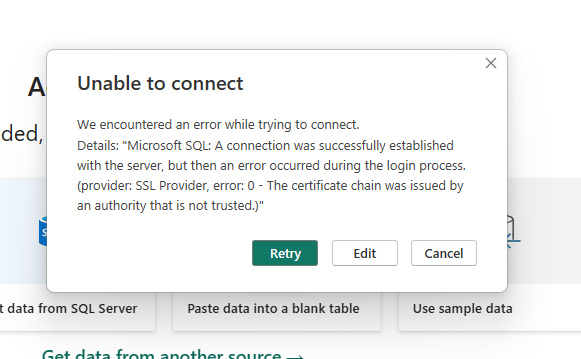
When trying to connect to a SQL database within Power BI Desktop January 2026 met with certificate chain trust error when trying to connect to the SQL Database using database DNS. Below is the error:

Microsoft SQL: A connection was successfully established with the server, but then an error occurred during the login process. (provider: SSL Provider, error: 0 – The certificate chain was issued by an authority that is not trusted.)”

Recently, after we applied the January 2026 Power BI Report Server update, we received several complaints from our developers building reports that they are having issues connecting to on-premises SQL Servers. After digging into the issue, I found that Power BI automatically attempts to encrypt connections (even when SQL Server is set to “Force Encryption=NO”, which is the option we had on the SQL Servers). We use CNAME entries for each database to have its own DNS name entry. For this reason, we didn’t create the SSL certificate. We can only chose one certificate per instance of SQL Server and in the case of having multiple database DNS entries, this option is not possible. Because of not having the certificate assigned to SQL Server, connection isn’t trusted on client machines where the Power BI Desktop is hosted. so the connection fails.

There is also no option shown in the Power BI Desktop advanced options to check the box for Trust Server Certificate. The kind we have in SQL Server Management Studio.

So, how do you resolve this when you can’t install the certificate on the SQL Server? There is a way we can resolve this. We can add the environment variable on all the client windows machines using the PowerBI Desktop.

I have found these steps on Microsoft website (please see the resources section down below) but I didn’t understand why we were seeing these issues all of a sudden after the January update. I contacted Microsoft support and they mentioned it that with Jan 2026 update, the connections are enforcing strict certificate validation. So, here I am following their suggestion.

Steps

Connect to the Windows machine. In the search bar at the bottom > search settings > system > about > Advanced system settings > Environmental variables

Click on the New under the Environment Variables > create new variable with name PBI_SQL_TRUSTED_SERVERS. In the variable value (usually, the value shown in your datasource of the direct query report)- give the FQDN (example – mysvr.microsoft.com) or Servernames seperated by commas (example – contososql, contososql2) or Machinename with the * at the end if you want to include all the SQL Server instances on the machine (example – contososql* which includes contososqlinstance1, contososqlinstance2 and so on). Click OK.

Repeat the same by creating the same variable with value in the System Variables too. Click OK.

Restart the Power BI Report Server and now try to connect to the report and you should be able to open it.

Set this environment variable on Windows machines using the powershell script to make the process simple.

In Windows PowerShell, type this in the console and hit enter. [System.Environment]::SetEnvironmentVariable(‘PBI_SQL_TRUSTED_SERVERS’,’*.contoso.com’, ‘User’)

Restart Power BI Desktop

This will help connect normally. Works on all your machines including Jan 2026 versions.

Test this on one machine first, then you can deploy via Group Policy for all affected machines. With the January 2026 update, Power BI enforces stricter certificate validation. When using SQL Server 2022 with Server DNS or AG listeners, the server certificate must match the DNS name exactly. Earlier versions allowed this without strict checks, so this is a security change. If the database DNS are used, adding the environmental variable is the best option.

Resources:

https://learn.microsoft.com/en-us/power-query/connectors/sql-server#limitations-and-considerations

Thank you for reading!

T-SQL Tuesday #196: My Boldest Career Moves

Thanks, James Serra for hosting March month of T-SQL Tuesday! You can find the invitation here.

There are some life-changing decisions I had to make in my life, sometimes willingly and sometimes for the good, even when my heart doesn’t want to, but for the greater good. I would like to share here some of the decisions that made a major impact on my life.

From Pharamcist to Computer Technology

I am not a science person at all. I had to become a pharmacist for my Dad’s wish. With all the love in the world, my dad wanted me to chose a career which I hated. He only wished me well and sincerely thought I would have a better life if I could pursue a career in science. He regrets it now, but I know how much my Father loves me, so I forgave him. I learnt a lot through the journey though. I changed my career later and applied to do my master’s degree in Computer Technology here in the USA. For the first time ever, I learnt SQL in my Master’s degree. I loved it, and I decided to become a Database Administrator. Here I am, I love the work I do. This decision was not easy for me. Not knowing if I will be able to survive in technology, I made a decision that changed my career forever. At the time, the only thing that was running in my mind was I had only one choice and I need to take the leap. If I fail, I fail, but there is no going back. I applied to many universities, many rejected me as there is no link between pharmacy and Computers. Universities don’t want to take the science students into computers. One professor, Peter Ping Liu, understood my problem and stood as my Ally. He believed that I can survive with hard work and gave me a chance. I can never forget him in my life. He was my first Ally. Thank you so much, Professor Liu.

From Introvert to International Speaker

I am an Introvert even now. I like spending time alone and do great in 1:1 interactions, but I struggle to speak in front of large groups. At the darkest times in my professional career, I had to choose to speak just to regain my confidence. The New Stars of Data conference by Ben Weissman and William Durkin gave me the opportunity to speak for the first time. I had low self-esteem during that time, and I didn’t know how to stand up for myself. I didn’t have words to share what I was going through at the time. Speaking was not something that I willingly chose; it was just a way out of the struggles I faced due to a toxic manager from my previous company. I vigorously presented day and night at user groups throughout the world. It was mostly virtual, but each time I presented, I picked up a piece of my lost self. At least, I thought that way. When you have no other choice, you choose to gain strength from anything that will help you survive. At the time, speaking was my breath.

From Chaos to Inner Journey

I always felt something was missing, but didnt know what it was and I didn’t dare to look into myself. There comes a phase in life for many of us where we want to literally run from ourselves because of the internal conflict. I tried running away from myself all the time. Anytime I felt any uncomfortable emotion, I always tried to find a temporary escape, like eating, to escape the feeling of anxiety. I used to ruminate on the things I don’t have any control over. I had enough running away from myself and there came a point where I decided not to. I decided to look within myself. It was a scary place I never wanted to visit but I slowly tapped into looking inward to face my wounds. Trust me when I tell you this, I was not able to stay a few minutes with myself. I tried this multiple times to be able to sit with myself for few minutes. This is an endless journey but I was able to meet my inner child, who was struggling to get love. This was the no.1 bold move in my life, to look into myself. Though this internal journey is chaos but for the first time in my life, I am attending to myself. It may take years, decades and heck, it may take my whole life but it is totally worth it. If not us, who will understand us better than ourselves?

This was an emotional post from me. I hope you understand. I am being very vulnerable here, and I don’t mind sharing how I feel.

Well, that’s all from me today. Thank you for reading!

Microsoft Power BI Report Server January 2026 Update- Issue and the Fix

I recently updated all the PowerBI Report Servers to the January 2026 update. You can find the download link here and the feature summary here.

Picture Source

I first updated the lower environments and then prod, but since most of the reports were used only in production, I didn’t see the issue coming. So, the issue with this release was that crash dump files were generated in the logfiles (C:\Program Files\Microsoft Power BI Report Server\PBIRS\LogFiles).

Excessive Crash Dump files generated in the logfile folder

Due to the Excessive Crash Dump files generated on two nodes of the cluster (two-node scale-out deployment), the D drive, where these logfiles are generated filled up the space very quickly. We deleted the files manually until we had a quick fix for the issue.

I had contacted Microsoft support for help on this issue. They suggested to update the configuration file (C:\Program Files\Microsoft Power BI Report Server\PBIRS\LogFiles\ASEngine\msmdsrv)for the flag from <CreateAndSendCrashReports>1</CreateAndSendCrashReports> to <CreateAndSendCrashReports>0</CreateAndSendCrashReports> to stop creating these dumps. After making this change, I restarted the PowerBI Report Services. I made this change to both the nodes.

I didn’t see any crash dumps generated after making the change.

After that, Microsoft also reported the issue, and they released the fix mentioned on the Microsoft website here. You can download the February 25, 2026 release from here.

Before updating your PowerBI Report Servers, make sure to follow the steps below. All the steps below are needed in case you need to roll back the change.

  • Take a snapshot of the Server if it is a VM
  • Take a backup copy of rsreportserver.config file located C:\Program Files\Microsoft Power BI Report Server\PBIRS\ReportServer folder
  • Take a full backup of ReportServer and ReportServerTempDB database (Both database backups are a must if you need to revert back the update)
  • Take the backup of the encryption key and store the secret in a safe location for later use. I usually save it in Secret Server.

Summary:

Roll back plan is really important during situations like this. I had to update the update documentation with all the steps I mentioned above just in case if we had issues with the updates and we need to have a fix immediately. In this case, Microsoft provided the quick fix but what if it takes time for the fix to be released and the only way to roll back? Without the proper backups, rollback will be impossible.

That’s all from me for today. Thank you for reading!

T-SQL Tuesday #190 – Learning a Technical Skill

September 2025 Month of T-SQL Tuesday is hosted by Todd Kleinhans, asking us to write about “Mastering a Technical Skill”. Thank you Todd for hosting this month of T-SQL Tuesday.

I would like to write about my learning about Microsoft Fabric recently. I have been a Database Administrator all my career and recently started learning Fabric by signing up to Amit Chandak’s Microsoft Fabric Bootcamp.

I really appreciate Amit for doing this for the community. This bootcamp is totally free and has been taught both in English and Hindi (the Indian national language). We can also access all the videos on Amit’s YouTube channel here.

Since I registered for this boot camp, I have had the chance to watch a couple of sessions about Fabric and am looking forward to catching up with the rest of the ongoing sessions. It is always good to learn about the technology that you are already familiar with, but want to go deeper into learning more about. I have been working with Power BI and Fabric for quite some time, but I am more into the administrative side of things. I believe listening to experts through the community-led bootcamps is an excellent way to learn a new or existing technical skill and get good at it.

There is always something new to learn in fast-moving technology, and having resources like these bootcamps is a great way to learn from experts. Not only bootcamps, but many online free conferences are going on throughout the year, and it is a great way to take advantage of these resources to learn new technologies.

By the way, I am one of the co-organizers for the upcoming free online conferences- Future Data Driven Summit (September 24th) and DataBash 2025 (September 27th). If you are interested in learning new technologies or you would like to dive deep into the topics that you are already familiar with, I highly suggest you register for these conferences. If you would like to know more about the topics and speakers, please visit the website to learn more.

I am happy to write this T-SQL Tuesday post, and thanks to Todd for the invitation!

Thank you for reading!

T-SQL Tuesday #181 – SQL Database in Microsoft Fabric

Thanks to Kevin Chant for inviting us to write this month’s T-SQL Tuesday. This month is special, as Kevin mentioned due to the Festive Tech Calendar, which I have been speaking about for a couple of years now. Every day of the December month, a new recording or a blog post will be released for you to view. If you are not following their youtube channel yet, you must subscribe to get the wealth of information on the latest and the greatest features in Microsoft space.

As Kevin invited us to write about our most exciting feature, I would love to write about the SQL Database in Fabric.

Note: This is a new feature that was announced in the Microsoft Ignite 2024 in November.

As per Microsoft docs,

“SQL database in Microsoft Fabric is a developer-friendly transactional database, based on Azure SQL Database, that allows you to easily create your operational database in Fabric. A SQL database in Fabric uses the same SQL Database Engine as Azure SQL Database.”

As you read, this is a transactional database that can be created in fabric and can be replicated to Data Lake for the analytical workloads. The other main goal is to help build AI apps faster using the SQL Databases in Fabric. The data is replicated in near real time and converted to Parquet, in an analytics-ready format. This database can be shared with different users without giving them the access to the workspaces but giving the access to the database will automatically give them the access to the SQL analytics endpoint and associated default semantic model. You can use the SQL database in Fabric for the data engineering and data science purposes. The other cool thing is, you can use the built-in git repository to manage your SQL database.

As you know Microsoft Fabric is a software as a service (SaaS) platform that combines data engineering, data science, and data warehousing into a unified analytics solution for enterprises. All of these services within the fabric can access the SQL Database in Fabric through the Data Lake for analytical purposes.

This feature is in Public preview now. You can test the SQL Database in Fabric for free for 60 Days. You need to have a fabric capacity.

Make sure to Enable SQL database in Fabric using Admin Portal tenant settings. For more details, you can follow this Microsoft doc.

You can query the database in fabric using the query editor, SQL Server Management Studio (SSMS), sqlcmd, bcp utility and GitHub Copilot.

As this is a new feature, there are resources available on Microsoft Reactor youtube channel. There are series of videos being released by this channel since couple of days ago. Please look below for the list of the videos and dates they are released:

You can find the first video here

For more information, do not forget to read these blogs from Anna Hoffman and Slindsay

Resources:

Microsoft docs

Thank you for reading!

T-SQL Tuesday #178 Invitation – Recent Technical Issue You Resolved

I am honored to invite you all to the September Month of T-SQL Tuesday blog party!

If you are new here and want to be part of the blog party every month, learn all about T-SQL Tuesday here.

Have you had any recent technological problems at work that you were able to fix? You might have tried very hard for days to figure out the answer to the technical issue you faced, but it turns out that a minor modification you made may have resolved the issue. Alternatively, the error message you see might be completely different from the solution you adopted to resolve the issue. Please blog for me about any problem, no matter how big or minor, that you may have encountered lately. I’d like to see all kinds of issues you’ve faced and how you fixed them.

I’ll share my latest experience here.

The DEV and UAT migrations for the SSRS migration project I was working on recently went well, but when we opened the webpage URL, we noticed the following HTTP address problem. ReportServer services servers and databases are housed on separate servers. The servers were set up correctly, the SSRS service delegation was established, and the Report Server service accounts had the appropriate rights to the Report Server databases. Days passed before I was able to work with the Server team member to resolve the problem—that is, we missed creating an SPN for the Report Service server using the Server name. The problem was fixed by adding the SPN made for the service using HTTP and the Servername. We also had to change the authentication configuration file to RSWindowsNegotiate instead of RSWindowsNTLM.

Until this problem was resolved, we had seen weird errors from an application running the reports, testing the data sources showed the login failure error message – “Login failed for user ‘NT AUTHORITY\ANONYMOUS LOGON'”.

This article really helped us pinpoint the issue.

Kindly submit your piece by Tuesday, September 10th, and leave a comment below. Also, post it to your social media platforms like Linkedin and Twitter with a hashtag #tsql2sday.

I’m excited to read posts from many SQL Family members.