Table of Contents
- Using Maven (MVN)
- Maven Architecture
- Maven Commands
- Useful Maven Command Line Options
- Essential Maven Plugins
- Final Thoughts
Using Maven (MVN)
The complexity of using Maven comes from the fact that it tries to do multiple things at the same time. First, it needs to describe the project, its structure, submodules, the necessary build steps and so on. Then, it needs a mechanism to provide the information about what other libraries are required for the project to build. After that, it has to actually assemble the project, run the tests, and perhaps even push it out to your artifact repository.
Creating a Project in MVN
Let’s start with the first task Maven can accomplish for you. Often the projects get created by an IDE wizard, by cloning a template from Github, or by using a generator like JHipster for the Spring Boot Angular projects. However, the template functionality is baked into Maven itself. Maven templates are called archetypes, and one can use them to kickstart a working Maven project. For example, if you execute the following command:
mvn archetype:generate -DgroupId=org.yourcompany.project -DartifactId=application
Maven will obtain a list of all available archetypes, ask you for some configuration, and generate a working project. If, for example, you select the maven-archetype-quickstart archetype, you’ll get the following project structure:

You can also simplify your choice by providing a archetypeArtifactId property to pick the archetype in advance. For example, -DarchetypeArtifactId=maven-archetype-webapp will help you create a Java web app project. You can also package your MVN project into an archetype for the future use with the following command:
mvn archetype:create-from-project
Maven Architecture
Let’s talk about the main infrastructural components involved in Maven. Maven itself is a binary on your machine. In the internet, there’s a central repository that stores and distributes all available artifacts, both the dependencies and the plugins for Maven. You can configure your own remote repositories, but in a nutshell, all of that sits in the cloud.

Maven Commands
For performance purposes, and so you don’t download the internet every time you invoke Maven commands, Maven caches everything that it downloads in a local repository. Think of it as a cache — if something is not yet in the local repository, but is required to execute a Maven command line option, Maven checks the remote repositories.
The local repository typically resides in the ~/.m2 directory. This directory also stores the Maven configuration in the form of the settings.xml file. You can use it to configure the remote repositories, credentials to access them, and so on.
MVN Command Execution Phases
MVN command execution is separated into phases. They form the lifecycle of the build.
| Phase | Action |
|---|---|
| clean | Delete target directory. |
| validate | Validate if the project is correct. |
| compile | Compile source code, classes stored in target/classes. |
| test | Run tests. |
| package | Take the compiled code and package it in its distributable format, e.g. JAR, WAR. |
| verify | Run any checks to verify the MVN package is valid and meets quality criteria. |
| install | Install the package into the local repository. |
| deploy | Copies the final MVN package to the remote repository. |
Maven Build Commands Are Declarative
The instructions of what to execute during every phase are detailed in plugins. Maven is a declarative build system, which means that you indicate what your Maven build command should accomplish, but not exactly what to execute. For example, you can configure the build to use a maven-compiler-plugin to compile the Java sources, but you don’t tell Maven when to run it.
All Maven configuration comes from the pom.xml files, which declare the model for the project. They contain the configuration of the build, declaration of the dependencies, and which plugins to use.
Plugins functionality is divided into goals. A goal is a build step. The goals are registered to be executed during the phases of the build. The goals perform the actual work during the phases that come from the lifecycle of the project.Back to top
Useful Maven Command Line Options
Besides understanding what Maven lifecycle is or what plugins are available, you can also remember a list of Maven command line options that can simplify or speed up your work with Maven. Here is a list of a few Maven command line options that we think are relevant to almost anyone.
What Is a Maven Command Line Option?
Maven command line options are used to customize and configure how Maven builds.
| Command | Action |
| -DskipTests=true | Compiles the tests, but skips running them. |
| -Dmaven.test.skip=true | Skips compiling the tests and does not run them. |
| -T | Specify number of parallel threads involved in the build. If your project can be built in parallel, for example the modules that do not depend on each other, this option, say -T 4 (to use 4 threads) can significantly speed up your build time. Also if you’re interested, we’ve looked into speeding up the Maven build before. |
| -rf –resume-from makes | Maven resume the build from the specified project, if one invocation of the Maven option fails, you pretty much don’t want to repeat the work that succeeded, so you can start from where the build get interrupted. |
| -pl–projects | Makes Maven build only specified modules and not the whole project. When you’re working in one module of the multi-module project, you know that your changes are localized there, so you’d likely want to avoid doing empty work by building everything else. |
| -am –also-make | Use this syntax to build a Maven project offline. It uses the local repository for everything, and doesn’t check the internet. |
| -o–offline | Build a Maven project offline. It uses the local repository for everything, and doesn’t check the internet. |
| -X–debug | Enables the debug output. When things go wrong, Maven doesn’t always print the most useful error messages, enabling the debug can get you the needed hint to what went wrong. |
| -U–update-snapshots | Forces a check for updated dependencies from the remote repositories. When you depend on a project that is still in development, you’ll need to depend on the SNAPSHOT versions. And Maven will cache them in the local repository as usual. However, the problem with the snapshots is that one version identifier can mean different artifacts, when a new version of the snapshot is pushed to the repository. To make Maven ignore the local cache, use this option. |
Essential Maven Plugins
These Maven plugins are good ones to keep in your toolkit:
1. Maven Help Plugin
Help plugin is used to get relative information about a project or the system. Think of it as the main pages of Maven. Here are a couple of MVN command types that you can play with.
- mvn help:describe describes the attributes of a plugin. You can get information about a plugin, a specific goal, and so on.
- mvn help:effective-pom displays the effective POM as an XML for the current build, with the active profiles factored in. This is really useful when something goes wrong with the build and you need to verify that what you think you configured in the pom files is what Maven thinks is configured there.
2. Maven Dependency Plugin
Dependency plugin provides the capability to manipulate and inspect the dependencies.
- mvn dependency:analyze analyzes the dependencies of this project, prints unused, outdated dependencies, and so on. For example, if you run it on a fresh Maven project, you’ll probably see something like the following:
[WARNING] Unused declared dependencies found:
[WARNING]    junit:junit:jar:3.8.1:test
- mvn dependency:tree will print a tree of dependencies in the project. It’s extremely useful to see the transitive dependencies (the dependencies of your dependencies), figure out the version conflicts, and see what exactly you depend upon.
3. Maven Compiler Plugin
Compiler plugin, not surprisingly, compiles your java code. It’s pretty self-explanatory, but with this one, you’ll configure again and again to comply with modern Java versions. Set the language level with the following configuration:
 org.apache.maven.plugins
 maven-compiler-plugin
 3.6.1

   1.8
   1.8
4. Maven Version Plugin
Version plugin can be used to manage the versions of artifacts in a project’s POM. If you want to compare the versions of the dependencies between two projects, make sure you don’t use any SNAPSHOT dependencies, or update the versions to use the latest releases, you can do it programmatically with the version plugin.
5. Maven Wrapper Plugin
Wrapper plugin is an easy way to ensure a user of your Maven build has everything that is necessary. It will generate a couple of shell scripts that can download a specific Maven version, so you’ll have reproducible builds. It’s also useful to bake in some configuration, like the remote repositories declaration into the maven archive. That way, the wrapper will ensure that you get the correct configuration out of the box.
6. Maven Spring Boot Plugin
There’s also a Spring Boot plugin which compiles your Spring Boot app and builds an executable fat jar. It comes with a more sensible configuration that the compiler plugin’s default. Pretty handy.
7. Maven Exec Plugin
Last but not least in our list is the Exec plugin. The exec plugin is used to execute Java commands as part of your build process. If you need to achieve something for which you don’t have a plugin yet, you can substitute it with an invocation of the exec plugin.Back to top
Final Thoughts
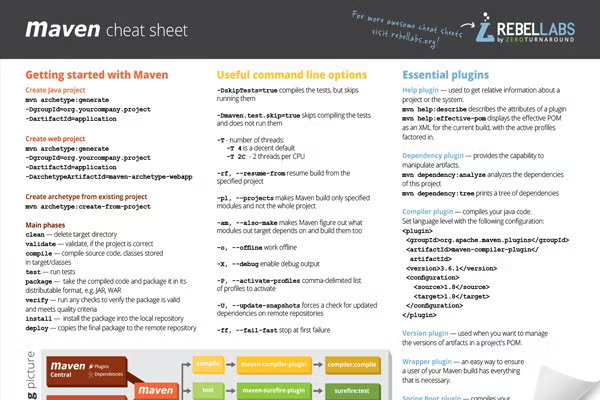
In this post, we looked at the some of the Maven vocabulary — repositories, dependencies, and so on — plugins that you can find useful, and some Maven command line options to make your usage with Maven easier. The best part is that all this information is neatly organized on a single A4 page cheat sheet that you can print out and have handy — whether you need to explain how Maven works to a less experienced colleague, you find yourself Googling how to configure the compiler plugin to build a Java 8 plugin, or just because it’s colorful and packs useful information. Be sure to grab your copy!
Download the One-Page Maven Cheat Sheet
If you’re working in Maven, you’ve probably scribbled some commands on a piece of paper and taped it to your wall. Now, we’re not ones to judge — we’ve been there — but we think you can do better. Our Maven Commands Cheat Sheet covers the need-to-know MVN options, and does it on a one-page PDF. Download a copy today by clicking the button below.
Original Sourse: https://www.jrebel.com/blog/maven-cheat-sheet
]]>- ABAP
- ABC
- ActionScript
- Ada
- Agilent VEE
- Algol
- Alice
- Angelscript
- Apex
- APL
- AppleScript
- Arc
- Arduino
- ASP
- AspectJ
- Assembly
- ATLAS
- Augeas
- AutoHotkey
- AutoIt
- AutoLISP
- Automator
- Avenue
- Awk
- Bash
- (Visual) Basic
- bc
- BCPL
- BETA
- BlitzMax
- Boo
- Bourne Shell
- Bro
- C
- C Shell
- C#
- C++
- C++/CLI
- C-Omega
- Caml
- Ceylon
- CFML
- cg
- Ch
- CHILL
- CIL
- CL (OS/400)
- Clarion
- Clean
- Clipper
- Clojure
- CLU
- COBOL
- Cobra
- CoffeeScript
- ColdFusion
- COMAL
- Common Lisp
- Coq
- cT
- Curl
- D
- Dart
- DCL
- DCPU-16 ASM
- Delphi/Object Pascal
- DiBOL
- Dylan
- E
- eC
- Ecl
- ECMAScript
- EGL
- Eiffel
- Elixir
- Emacs Lisp
- Erlang
- Etoys
- Euphoria
- EXEC
- F#
- Factor
- Falcon
- Fancy
- Fantom
- Felix
- Forth
- Fortran
- Fortress
- (Visual) FoxPro
- Gambas
- GNU Octave
- Go
- Google AppsScript
- Gosu
- Groovy
- Haskell
- haXe
- Heron
- HPL
- HyperTalk
- Icon
- IDL
- Inform
- Informix-4GL
- INTERCAL
- Io
- Ioke
- J
- J#
- JADE
- Java
- Java FX Script
- JavaScript
- JScript
- JScript.NET
- Julia
- Korn Shell
- Kotlin
- LabVIEW
- Ladder Logic
- Lasso
- Limbo
- Lingo
- Lisp
- Logo
- Logtalk
- LotusScript
- LPC
- Lua
- Lustre
- M4
- MAD
- Magic
- Magik
- Malbolge
- MANTIS
- Maple
- Mathematica
- MATLAB
- Max/MSP
- MAXScript
- MEL
- Mercury
- Mirah
- Miva
- ML
- Monkey
- Modula-2
- Modula-3
- MOO
- Moto
- MS-DOS Batch
- MUMPS
- NATURAL
- Nemerle
- Nimrod
- NQC
- NSIS
- Nu
- NXT-G
- Oberon
- Object Rexx
- Objective-C
- Objective-J
- OCaml
- Occam
- ooc
- Opa
- OpenCL
- OpenEdge ABL
- OPL
- Oz
- Paradox
- Parrot
- Pascal
- Perl
- PHP
- Pike
- PILOT
- PL/I
- PL/SQL
- Pliant
- PostScript
- POV-Ray
- PowerBasic
- PowerScript
- PowerShell
- Processing
- Prolog
- Puppet
- Pure Data
- Python
- Q
- R
- Racket
- REALBasic
- REBOL
- Revolution
- REXX
- RPG (OS/400)
- Ruby
- Rust
- S
- S-PLUS
- SAS
- Sather
- Scala
- Scheme
- Scilab
- Scratch
- sed
- Seed7
- Self
- Shell
- SIGNAL
- Simula
- Simulink
- Slate
- Smalltalk
- Smarty
- SPARK
- SPSS
- SQR
- Squeak
- Squirrel
- Standard ML
- Suneido
- SuperCollider
- TACL
- Tcl
- Tex
- thinBasic
- TOM
- Transact-SQL
- Turing
- TypeScript
- Vala/Genie
- VBScript
- Verilog
- VHDL
- VimL
- Visual Basic .NET
- WebDNA
- Whitespace
- X10
- xBase
- XBase++
- Xen
- XPL
- XSLT
- XQuery
- yacc
- Yorick
- Z shell
plink -ssh -i c:\home\user\.ssh\id_rsa.ppk [email protected] “dumpcap -P -w – -f ‘not port 22 and port not 443′” | “C:\Program Files\Wireshark\Wireshark.exe” -k -i –
Cel mai comod e, dacă nu necesar, să ai o cheie privată în format ppk, ușor de obținut cu „puttygen.exe„
]]>Add-WebConfigurationProperty //system.webServer/httpProtocol/customHeaders "IIS:\sites\test.test1.com" -AtIndex 0 -Name collection -Value @{name='Access-Control-Allow-Origin';value='*'}
Add-WebConfigurationProperty //system.webServer/httpProtocol/customHeaders "IIS:\sites\test.test1.com" -AtIndex 0 -Name collection -Value @{name='Access-Control-Allow-Headers';value='Content-Type'}
Add-WebConfigurationProperty //system.webServer/httpProtocol/customHeaders "IIS:\sites\test.test1.com" -AtIndex 0 -Name collection -Value @{name='Access-Control-Allow-Methods';value='GET, OPTIONS'}
![windows_xp-100154667-large[1]](proxy.php?url=http://dev.md/wp-content/uploads/2015/08/windows_xp-100154667-large1-300x201.png) Windows XP vine cu Internet Explorer 6.x, o versiune suficient de veche pentru a fi refuzată de o parte importantă a site-urilor (chiar și de Google). Vrei să instalezi un alt browser, te trezești că pagina nu se încarcă, pe motiv de incompatibilitate.
Windows XP vine cu Internet Explorer 6.x, o versiune suficient de veche pentru a fi refuzată de o parte importantă a site-urilor (chiar și de Google). Vrei să instalezi un alt browser, te trezești că pagina nu se încarcă, pe motiv de incompatibilitate.
 Așa că, ori faci update la Internet Exlorer, pentru ca, ulterior să poți instala Google Chrome sau Firefox, sau, copiezi executabilul de pe un site mai puțin “pretențios”, cum ar fi de aici.

Folosesc acest model de UPS (powercom BNT-1000AP) de vreo câțiva ani și tot nu-mi ajungea timp să mă lămuresc cum să-l fac să meargă în FreeBSD cu vreun soft de monitorizare UPS. Azi am reușit să dedic ceva timp acestui subiect și m-am oprit la NUT. Mai jos, va urma pas cu pas descrierea cum am reușit să-l fac să meargă și ceva detalii cum de configurat Cacti pentru a genera grafici. Pe viitor, cred că voi adăuga și ceva ce ține de monitorizarea cu ajutorul lui Nagios.

 23:59:60 – e ceva real. Ocazional, anul are o secundă în plus. Această practică a fost adoptată pentru a ține pasul cu timpul solar din cauza că Terra încetinește câte puțin, adică se mărește timpul care e necesar pentru o rotație completă în jurul Soarelui.
Teoretic e simplu – plus o secundă. Însă când ajungem la sistemele informaționale, apare problema similară Y2K. Ca și în cazul Y2K, utilizatorii simpli nu vor fi afectați. Problema apare pe sisteme unde se petrec sute și mii de operațiuni pe secundă și toate acestea trebuie procesate, stocate, monitorizate.
Partea proastă este că secunda nu este adăugată la un interval prestabilit de timp ca în cazul anumul bisect, ci este efectuată de către Serviciul Internațional pentru Rotația Terestră și Sisteme de Referință (IERS) când este considerat de cuviință. Ca urmare, producătorii de software nu au cum să anticipeze și să introducă în cod ajustările necesare pentru a evita eventualele probleme. Ajustarea se face la nivel de OS, deci e important de a aplica patch-urile de rigoare. Oricum, rămâne pe seama softul capabilitatea de a procesa și valida ora 23:59:60.
Google a soluționat problema prin a împărți secunda în milesecunde.
Nu mulți însă își pot permite o abordare serioasă a acestei probleme, așa că majoritatea o ignoră, iar foarte puțini sun cei ce pătimesc pe urma ei.
Articol inspirat din Wikipedia
]]>Ca și orice sistem, FreeBSD are diverse unelte ce ușurează viața admin-ului. Spre exemplu eu, folosesc portupgrade, unealtă comodă pentru a face upgrade la softul instalat și dependențele lui. Scopul acestui articol este de a scoate la suprafață o “problemă” de care m-am împiedicat chiar azi făcând ugrade la portupgrade folosind portupgrade :)
Să nu întind pe câteva pagini, iată detaliile – portupgrade este un script scris în Ruby, respectiv Ruby este o dependență pentru el. Astăzi am re-împrospătat colecția de port-uri
# portsnap fetch update
după care, am verificat dacă portupgrade e up to date
# pkg_version -vs portupg
portupgrade-2.4.9.5,2               <   needs updating (port has 2.4.12,2)
Am decis să-l re-înoiesc, inclusiv și softul de care depinde
# portupgrade -R portupgrade
La un moment dat, m-am trezit cu niște erori
...
gzip -cn pkgtools.conf.5 > pkgtools.conf.5.gz
===> misc (all)
===> misc/bash (all)
Warning: Object directory not changed from original /usr/ports/ports-mgmt/portup
===> misc/tcsh (all)
Warning: Object directory not changed from original /usr/ports/ports-mgmt/portup
===> misc/zsh (all)
Warning: Object directory not changed from original /usr/ports/ports-mgmt/portup
Puțin am căzut pe gânduri, căci mai făceam și alte chestii în paralel, apoi mi-am dat seama, Ruby s-a pus cu versiunea 1.9 pe când portupgrade curent folosea versiunea 1.8
Soluția este de a șterge pachetele și de a le instala din nou (în cazul meu, am re-instalat și bash-4.2.45 cu versiune mai nouă)
# pkg_info -Rr portupgrade-2.4.9.5,2
Information for portupgrade-2.4.9.5,2:

Depends on:
Dependency: ruby-1.9.3.484_1,1
Dependency: db42-4.2.52_5
Dependency: ruby18-bdb-0.6.6

# pkg_delete portupgrade-2.4.12,2 ruby18-bdb-0.6.6
# cd /usr/ports/ports-mgmt/portupgrade
# make install clean
Până la urmă, m-am trezit cu mult mai multe probleme, greu de descris în acest articol.
Și la final, o mică concluzie – e bine de făcut upgrade la soft periodic, căci cu timpul apar tot mai multe versiuni noi, dependențe și incompatibilități și te trezești că ai de rezolvat un puzzle complicat și pierzi o grămadă de timp. Chiar, uneori îți vine să ștergi totul și să reinstalezi de l capăt :)
]]> A ajuns “rândul” și serverului DEV.MD să fie ținta unui atac DDoS. De fapt, nu cred că era vizat anume serverul DEV.MD, mai degrabă a fost o punte pentru a ataca altă destinație. Nu am date, căci am fost nevoit să opresc serviciul NTP fără a avea posibilitatea să analizez ce se întâmplă.
Poate voi avea inspirația și timp, și voi întinde plasa, să văd care-i cozul :)
Update: 78.108.80.148 este IP-ul sursă
role: MAJORDOMO.RU NOC
address: Torfyanaya doroga 7 lit F, of 1323 197342 Saint-Petersburg Russia
phone: +7 812 3353545
phone: +7 495 7272278
fax-no: +7 812 3353545
fax-no: +7 495 7272278
abuse-mailbox: [email protected]