Using SQLCMD to your advantage

A few weeks ago, I came across something called SQLCMD (or SQLCommand). I’ve never heard of this, so the curious developer in me wanted to know what it was. The official definition according to MSDN is this:

The sqlcmd utility lets you enter Transact-SQL statements, system procedures, and script files at the command prompt, in Query Editor in SQLCMD mode, in a Windows script file or in an operating system (Cmd.exe) job step of a SQL Server Agent job. This utility uses ODBC to execute Transact-SQL batches.

You can either run a SQLCMD query via command-line or in SQL Server Management Studio (SSMS). If you want to run it via SSMS, open a new query and press the hotkey combination: ALT+Q, ALT+M. You could also use the menu Query -> SQLCMD Mode.

Once you’ve done that, you can run queries in SQLCMD mode. This means you can use your query window as a commandline tool. The advantage of this, is that you can query multiple servers and instances in one query.

To run queries in SQLCMD mode you need the commands listed below:

Command Parameters Description
:!! <command> Directly executes a cmd command from SQLCMD
:CONNECT <server>(\instance) Connects to the specified servers default or specified instance
  [-l timeout]  
  [-U user]  
  [-P password]  
:ERROR <destination> Redirects error output to a file, stderr or stdout
:EXIT   Quits SQLCMD immediately
  (<query>) Executes the specified query and returens numeric result
GO [n] Executes the specified query (parameter: x times)
:ONERROR <exit / ignore> Specifies which action to take if the query encounteres error
:OUT <filename> Redirects query output to a file, stderr or stdout
  [stderr / stdout]  
: PERFTRACE <filename> Redirects timing output to a file, stderr or stdout
  [stderr / stdout]  
:QUIT   Quits SQLCMD immediately
:R <filename> Append a file to statement cache (ready to execute)
:RESET   Discards the statement cache (reset session)
:SERVERLIST   Lists local and network SQL servers
:SETVAR <varname> <"value"> Sets a SQLCMD scripting variable

Remember, not all commands are listed above, but just the once I found usefull at this time. Parameters listed in are mandatory, and in [ ] are optional.

To write all queries out would be too much, so I created some scripts for you to download. Here’s a list of files you can download and try on your local SQL server:

Get database info with screen output, from multiple SQL servers
Execute script file, and output to file
Get directory content via commandline
Collection of commands in 1 script file
Script file used in the example above

The first script file is the most interesting if you ask me. In this script, I connect to multiple instances of SQL server to retrieve data. You can use this instead of a Multiserver query I blogged about earlier. Instead of registering a group of servers and running your query against that, you can now specify the servers you want by server name or IP-address.

With this information you could start writing your own SQLCMD queries. If you want, you can do this via SSMS or command line. The command line utility can be found at this location:

C:\Program Files\Microsoft SQL Server\100\Tools\Binn\SQLCMD.exe

If you have any questions or need some help, just contact me. I’d love to help you out! 🙂

Multiserver Query

As a developer it’s common practice that you work on a server farm with 2 or more servers, and a clustered or redundant production environment. Sometimes it’s necessary to run certain queries on all the machines you’re developing on or that you’re maintaining. For example if you want to know if all your instances run the same version (and/or Service Pack) of SQL Server. One of the options you’ve got is to run the query in multiple tabs or windows; one for each server or instance. This seems okay for 2 or 3 instances, but not for an entire OLAP environment.

Luckily the SQL Server team has build in the opportunity to run a query against multiple instances simultaneously. This can be accomplished by running a Multiserver query. It will run your query on a complete group of SQL Server instances. In the example below, I retrieve the version of each instance I connect to. I’ve done this by using the @@VERSION function that is shipped with SQL Server.

First, I’ve created a group of servers in the Registered Servers window in SSMS:

This group contains our development instances. These instances run on 1 hardware-platform, which contains different virtual machines. Each development team has it’s own machine with dedicated SQL Server instance.

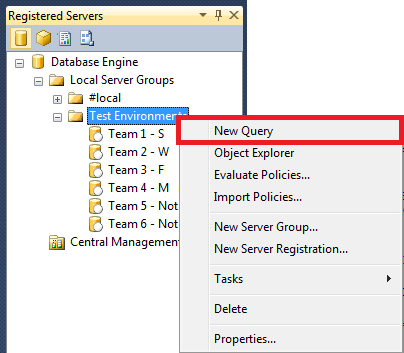
If you right-click on the server group, you choose “New Query”:

If the new query window opens, you will see a different status bar. With the default settings of SSMS set, the bar will change to a pink color:

Also in the left corner of the status bar, you can see how many instances are in the group, and how much of these instances are (still) running. In my case, all six instances in the group are running, and will return the result.

For this example I used the query:

SELECT @@VERSION AS VersionInfo

The @@VERSION function returns the version, processor architecture, build date and operating system for the current installation of SQL Server. For more info, see the MSDN article. Also, by default the servername you used to register the server will be shown:

As you see, all of our development machines run on the same version. That’s because we copied the instances from 1 base-image. As an example, I ran the same query on my local server group:

These are obviously different versions: I have a SQL Server 2008 R2 and 2012 Developer instance running on my laptop.

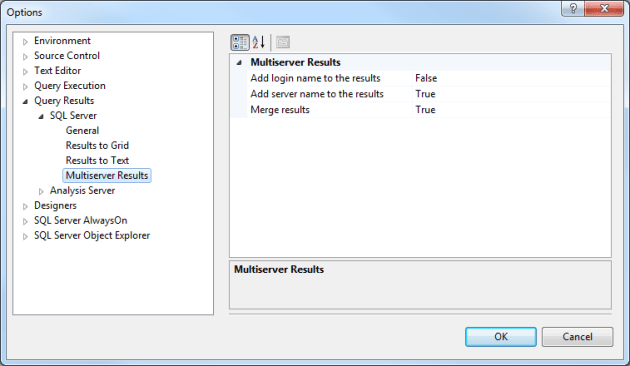
If you want to, you can change the options for Multiserver queries. For example, you can choose NOT to merge all results into 1 result set. You can do this via Tools -> Options -> Query Results -> SQL Server -> Multiserver Results. There you can change these options:

Only one remarkt is left. Writing this post I tried several things, but one thing I still don’t understand: why is the result ordered differently every time you run a Multiserver query? This might be because the results of the different instances are collected, and merged together to return a single result set. I’m not sure about this though! So if you know the answer to this question, please let me know!

Reporting Services – Query database

After reading a tweet by Ray Martinez, I decided to share the scripts for Reporting Services that I often use.

One of the scripts I used a lot, is a script that shows the Reports that were successfully executed in 2012. For these Reports you will see the last execution time, rows and bytes returned, and how long it took to gather and show the results:

USE ReportServer

SELECT
	CL.Name						AS ReportName,
	CL.Description				AS ReportDescription,
	CL.Path						AS ReportPath,
	CL.CreationDate				AS ReportCreationDate,
	SUM(1)						AS TotalNumberOfTimesExecuted,
	MAX(EL.TimeStart)			AS LastTimeExecuted,
	AVG(EL.[RowCount])			AS AVG_NumberOfRows,
	AVG(EL.TimeDataRetrieval)	AS AVG_DataRetrievalTime,
	AVG(EL.TimeProcessing)		AS AVG_TimeProcessing,
	AVG(EL.TimeRendering)		AS AVG_TimeRendering
FROM ExecutionLog EL
JOIN Catalog CL
	ON CL.ItemID = EL.ReportID
WHERE 1 = 1
AND CL.Name IS NOT NULL
AND EL.Status ='rsSuccess'
GROUP BY
	CL.Name,
	CL.Path,
	CL.CreationDate,
	CL.Description
HAVING YEAR(MAX(EL.TimeStart)) = 2012
ORDER BY COUNT(EL.ReportID) DESC

The second script I want to share with you, shows the first 1000 successfully executed Reports. The data that is returned includes Report format, parameters used to query the data, information about the returned resultset and time needed to return and render the data and Report, etc. I uses a top 1000 because our Report server returned a lot of rows, where I only needed a few for my analysis.

USE ReportServer

SELECT TOP 1000
	EL.InstanceName				AS SQLInstanceName,
	EL.UserName					AS ExecuterUserName,
	EL.Format					AS ReportFormat,
	EL.Parameters				AS ReportParameters,
	EL.TimeStart				AS TimeStarted,
	EL.TimeEnd					AS TimeEnded,
	EL.TimeDataRetrieval		AS TimeDataRetrieval,
	EL.TimeProcessing			AS TimeProcessing,
	EL.TimeRendering			AS TimeRendering,
	EL2.Source					AS Source,
	EL.ByteCount				AS ReportInBytes,
	EL.[RowCount]				AS ReportRows,
	CL.Name						AS ReportName,
	CL.Path						AS ReportPath,
	CL.Hidden					AS ReportHidden,
	CL.CreationDate				AS CreationDate,
	CL.ModifiedDate				AS ModifiedDate,
	EL2.Format					AS RenderingFormat,
	EL2.ReportAction			AS ReportAction,
	EL2.Status					AS ExectionResult,
	DS.Name						AS DataSourceName,
	DS.Extension				AS DataSourceExtension
FROM ExecutionLog EL
JOIN Catalog CL
	ON CL.ItemID = EL.ReportID
LEFT JOIN ExecutionLog2 EL2
	ON EL2.ReportPath = CL.Path
JOIN DataSource DS
	ON DS.ItemID = CL.ItemID
WHERE 1 = 1
AND EL.Status = 'rsSuccess'
ORDER BY EL.TimeStart DESC

The next script returns an overview of the folder and Reports on your Report server. For every object on your server, you can see the creation- and modify date. The joined Executionlog table is used to get the number of times the Report was executed, by which user, and how much data was returned in which time:

USE ReportServer

SELECT
	CASE CL.Type
		WHEN 1 THEN 'Folder'
		WHEN 2 THEN 'Report'
		WHEN 3 THEN 'Resource'
		WHEN 4 THEN 'Linked Report'
		WHEN 5 THEN 'Data Source'
	END									AS ObjectType,
	CP.Name								AS ParentName,
	CL.Name								AS Name,
	CL.Path								AS Path,
	CU.UserName							AS CreatedBy,
	CL.CreationDate						AS CreationDate,
	UM.UserName							AS ModifiedBy,
	CL.ModifiedDate						AS ModifiedDate,
	CE.CountStart						AS TotalExecutions,
	EL.InstanceName						AS LastExecutedInstanceName,
	EL.UserName							AS LastExecuter,
	EL.Format							AS LastFormat,
	EL.TimeStart						AS LastTimeStarted,
	EL.TimeEnd							AS LastTimeEnded,
	EL.TimeDataRetrieval				AS LastTimeDataRetrieval,
	EL.TimeProcessing					AS LastTimeProcessing,
	EL.TimeRendering					AS LastTimeRendering,
	EL.Status							AS LastResult,
	EL.ByteCount						AS LastByteCount,
	EL.[RowCount]						AS LastRowCount,
	SO.UserName							AS SubscriptionOwner,
	SU.UserName							AS SubscriptionModifiedBy,
	SS.ModifiedDate						AS SubscriptionModifiedDate,
	SS.Description						AS SubscriptionDescription,
	SS.LastStatus						AS SubscriptionLastResult,
	SS.LastRunTime						AS SubscriptionLastRunTime
FROM Catalog CL
JOIN Catalog CP
	ON CP.ItemID = CL.ParentID
JOIN Users CU
	ON CU.UserID = CL.CreatedByID
JOIN Users UM
	ON UM.UserID = CL.ModifiedByID
LEFT JOIN ( SELECT
				ReportID,
				MAX(TimeStart) LastTimeStart
			FROM ExecutionLog
			GROUP BY ReportID) LE
	ON LE.ReportID = CL.ItemID
LEFT JOIN ( SELECT
				ReportID,
				COUNT(TimeStart) CountStart
			FROM ExecutionLog
			GROUP BY ReportID) CE
	ON CE.ReportID = CL.ItemID
LEFT JOIN ExecutionLog EL
	ON EL.ReportID = LE.ReportID
	AND EL.TimeStart = LE.LastTimeStart
LEFT JOIN Subscriptions SS
	ON SS.Report_OID = CL.ItemID
LEFT JOIN Users SO
	ON SO.UserID = SS.OwnerID
LEFT JOIN Users SU
	ON SU.UserID = SS.ModifiedByID
WHERE 1 = 1
ORDER BY CP.Name, CL.Name ASC

The last query is a short one. This returns the Reports that don’t inherit permissions, that are set in the site settings menu.

USE ReportServer


SELECT
	Path,
	Name
FROM Catalog
WHERE PolicyRoot = 1 

Hopefully there will be more where this came from. So follow my blog, or contact me by email or Twitter!

Importing and using GIS Spatial Data

For a project I’m working on right now, we (the team I’m currently a part of) decided to research the use of GIS data. The GIS data is available for free at DIVA-GIS. If you want to download the GIS data, choose the country and in the Subject drop-down, choose “Administrative areas”.

To import the data, I’ve used an easy to use .NET Tool: Shape2SQL. This tool is created by Morten Nielsen (Blog | @dotMorten), and allows the user to import Shapefiles (.SHP) into SQL Server without problems. If you want to download this tool-set, I advise you to download the “SqlSpatialTools”, which also contains “SQLSpatial.exe”, which allows you to query and visualize the data.

After downloading the GIS data and tools, run the “Sharp2Sql.exe”. You will see the following screen pop up (at first run only):

Fill in the server and database information. In my case, I imported the data on a local SQL Server:

After that, you will see a start screen like this:

Now you need to select a SHP file. If you press the button, the following window shows:

As you can see, I picked the GIS data of The Netherlands as an example. After selecting a source file, you need to chance the settings of the import:

I also changed the “Geometry Name” on the right from “geom” to “geog”, just to remind myself that the content of the column is Geography- and not Geometry-data.

Once you decided about the options and naming conventions, press “Upload to Database”, and wait for the file to be processed:

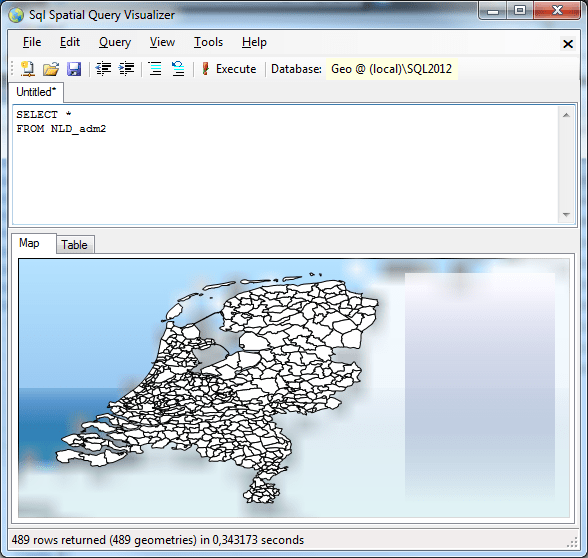
Once the processing is completed, you can start using the GIS data. You can do this straight from SQL Server, but you could also use the “SqlSpatial.exe” that you downloaded as part of the “SqlSpatialTools”. If you choose to use this tool, it would look something like this:

You can run the same query in SQL Server Management Studio (SSMS), and you will get an extra tab in the resultset:

There’s only one more thing to remember: In SQL Server 2008 and 2008 R2 you can only select 1 hemisphere at a time. SQL Server 2012 has a new version of the Geography assembly, and supports querying multiple hemispheres at the same time. For more information about this, read the MSDN article about Spatial Data Types.

Data Type and Operator Precedence

In SQL Server you will encounter a lot of cases, in which an operator combines two expressions of different data types. The rules that specify which value is converted to another data type, can be found on MSDN. But the precedence of data types are different for the different versions of SQL Server. Therefore I created the schema below, so you can compare the different versions:

  SQL Server 2005 SQL Server 2008 / 2008 R2 SQL Server 2012
1 user-defined data types (highest) user-defined data types (highest) user-defined data types (highest)
2 sql_variant sql_variant sql_variant
3 xml xml xml
4 datetime datetimeoffset datetimeoffset
5 smalldatetime datetime2 datetime2
6 float datetime datetime
7 real smalldatetime smalldatetime
8 decimal date date
9 money time time
10 smallmoney float float
11 bigint real real
12 int decimal decimal
13 smallint money money
14 tinyint smallmoney smallmoney
15 bit bigint bigint
16 ntext int int
17 text smallint smallint
18 image tinyint tinyint
19 timestamp bit bit
20 uniqueidentifier ntext ntext
21 nvarchar
(including nvarchar(max))
text text
22 nchar image image
23 varchar
(including varchar(max))
timestamp timestamp
24 char uniqueidentifier uniqueidentifier
25 varbinary
(including varbinary(max))
nvarchar
(including nvarchar(max))
nvarchar
(including nvarchar(max))
26 binary
(lowest)
nchar nchar
27 varchar
(including varchar(max))
varchar
(including varchar(max))
28 char char
29 varbinary
(including varbinary(max))
varbinary
(including varbinary(max))
30 binary
(lowest)
binary
(lowest)

The same counts for Operators. There are differences in the precedence between SQL Server versions. I took the data from different versions of SQL Server, and created the schema below:

  SQL Server 2005 SQL Server 2008 / 2008 R2 SQL Server 2012
1 ~ (Bitwise NOT) ~ (Bitwise NOT) ~ (Bitwise NOT)
2 * (Multiply), / (Division),
% (Modulo)
* (Multiply), / (Division),
% (Modulo)
* (Multiply), / (Division),
% (Modulo)
3 + (Positive), – (Negative), + (Add), (+ Concatenate), – (Subtract), &
(Bitwise AND)
+ (Positive), – (Negative), + (Add), (+ Concatenate), – (Subtract), &
(Bitwise AND), ^ (Bitwise Exclusive OR), | (Bitwise OR)
+ (Positive), – (Negative), + (Add), (+ Concatenate), – (Subtract), &
(Bitwise AND), ^ (Bitwise Exclusive OR), | (Bitwise OR)
4 =, >, =, <=, ,
!=, !>, !< (Comparison operators)
=, >, =, <=, ,
!=, !>, !< (Comparison operators)
=, >, =, <=, ,
!=, !>, !< (Comparison operators)
5 ^ (Bitwise Exlusive OR),
| (Bitwise OR)
Text Text
6 NOT NOT NOT
7 AND AND AND
8 ALL, ANY, BETWEEN, IN, LIKE, OR, SOME ALL, ANY, BETWEEN, IN, LIKE, OR, SOME ALL, ANY, BETWEEN, IN, LIKE, OR, SOME
9 = (Assignment) = (Assignment) = (Assignment)


This post was inspired by a SQL Server session by Bob Beauchemin (Blog | @bobbeauch), at the last version of TechDays NL. Bob, thank you for that! 😉

Error: Permissions denied mssqlsystemresource – configurations

Last week I encountered a strange issue on a production SQL Server. We weren’t able to connect to some of them. If we tried to connect with a normal Windows NT (Active Directory) or SQL account, we got the following error (I recreated the error locally):

Message: The SELECT permission was denied on the object ‘configurations’, database ‘mssqlsystemresource’, schema ‘sys’. (Microsoft SQL Server, Error: 229)

For further information about the mssqlsystemresource database, please read my previous post about this database.

But in my case, there was nothing wrong with this Resource database. After all, no other database was unavailable or corrupt. So I needed a little bit more research. After a while I found out that the issue is coming from a security setting.

We allowed an external company of Data Warehouse consultants (KVL) to access our production SQL Server. They needed to create a Snapshot, and the person responsible for making this possible created 2 Stored Procedures (SP’s) for this task. One SP to create a Snapshot, and one to drop the Snapshot. These SP’s are stored in the Master database.

But because he wanted them to only access the SP’s, the created a user for this (again, created this locally):

And he added a server mapping for the user:

After that he tested it, and it worked like a charm! He e-mailed me the location of the SP’s and the names, so I could send them to our consultants. Then he added one more thing to the User Mappings without any of us knowing:

When the consultants tried to create the Snapshot, they couldn’t get it to work. After some research I found out that the User Mapping on the Master database was set to db_denydatareader. As you all know, deny permissions always overrule access permissions. In this case this worked against us.

So if you ever encounter this issue, please take a look at your security settings. If all of your other databases are still accessible, the error is coming from a lack of permissions. You’ll encounter this issue most of the time when a user (NT or SQL user) is a member of 2 separate groups with different permissions.

SQL Server system database – mssqlsystemresource

The database mssqlsystemresource is a read-only database that is shipped with SQL Server from version SQL Server 2005. It contains all the system objects that are included in SQL Server. An example of this are the sys.objects. These are stored in the Resource database, but appear in every other database. The sys.objects from a user database refer to the Resource database.

SQL Server cannot backup this database. You can create a backup yourself, but don’t back it up like a normal .MDF file. It also can’t be restored via SQL Server, but you can do it manually.

The Resource database makes upgrading to a new version easier and faster.

The mssqlsystemresource database is invisible for users, even for the System Administrator (sa). The database can be restored by copying the .ldf and .mdf files from the folder “[Drive]\Program Files\Microsoft SQL Server\MSSQL10_50.[Instance Name]\MSSQL\Binn” to a folder of your choice (in this case D:\Databases). After that, start a query with the user sa, and run the following script:

USE [master]
GO

CREATE DATABASE [mssqlsystemresource_RESTORED] ON 
	(FILENAME = N'D:\Databases\mssqlsystemresource.mdf'),
	(FILENAME = N'D:\Databases\mssqlsystemresource.ldf')
FOR ATTACH
GO

Once you’ve done this, you can query the restored version of the Resource database.

Comparison: Ad-hoc vs Stored Procedure vs Dynamic SQL

Sometimes when you are creating a SQL query, you wonder if it’s more sensible to use a standard T-SQL, or some other possibility. In this post I will try to compare the three different possibilities, so that you can make your own decision. If you read the comparison below, keep in mind that there is no right or wrong in this. Each situation requires a different point of view, and may offer it’s own difficulties.

  Ad-Hoc Query Stored Procedure Dynamic SQL
Use it for Long, complex queries
(OLAP; for example Reporting or Analysis)
Short, simple queries
(OLTP; for example Insert, Update, Delete, Select)
Short, simple queries
(OLTP; for example Insert, Update, Delete, Select)
Performance Compiled at runtime, Execution Plan stored in Cache

Changed data is no issues because of re-compile

Compiled once at first run, and stored in Procedure Cache

Changed data might be a performance bottleneck. Can be
solved with recompile

Compiled at runtime, and execution plan is not stored

(unless
using the more efficient sp_executesql)

Changed data is no issue because of re-compile

Security Permissions (read/write) on all objects (database(s)/table(s)) Execute permissions on SP are enough Permissions (read/write) on all objects (database(s)/table(s))
Flexibility If changed, your application needs to be recompiled If changed, only need to change the SP in the database If changed, your application needs to be recompiled
Number of Statements Only 1 statement possible Multiple statements possible Multiple statements possible
Memory Usage Uses more memory then an SP Uses less memory then an ad-hoc query Uses more memory then an SP
Network traffic Query executes server side

Query and resultset are send across
network/internet

Query executes server side

Execute statement
and resultset are send
across network/internet

Query executes server side

Statement
and resultset are send across
network/internet

Separation Database logic and business logic are mostly combined in the query Seperate database logic from business logic Seperate database logic from business logic
Troubleshoot Relatively easy to troubleshoot Relatively easy to troubleshoot Difficult to troubleshoot
Maintaining Difficult because of several locations in applications and database Easy because of single location Difficult because of several locations in
applications and database
Access Difficult to access multiple objects in different databases,
or in dynamic databases
Difficult to access multiple objects in different databases,
or in dynamic
database
Allows any object (database, table, columns, etc) to be referenced
WHERE clause Fairly static WHERE clause Fairly static WHERE clause Dynamic WHERE clause (add/remove), based on parameters
Versioning Only possible via Source Controlling your application Possible via Source Controlling your database, and by commenting your SP Only possible via Source Controlling your application
CRUD Can be created by getting all your  queries together, and looking for
specific
keywords

(Update, Delete, Select, Etc)
Difficult to catch in a CRUD

(Create, Read, Update, Delete) diagram
Difficult to catch in a CRUD (Create, Read, Update, Delete) diagram
Structure Update Can be changed
simultaneously with structure changes
Needs to be altered when the underlying structure is changed Can be changed simultaneously with structure changes
Searching No standard way to search through Possible to use sys.procedures to search through SP contents.

Dependency window in SSMS shows SP content

No standard way to search through
Testing Can be compiled/tested in code Impossible to automatically compile without 3rd party tools Difficult to test in code
Mapping ORM (Object-relational mapping) is possible ORM (Object-relational mapping) is impossible ORM (Object-relational mapping) is impossible
Compiling Compiles the whole statement Compiles the whole statement Only static elements can be compiled

For the design of this comparison chart, I need to thank my buddy and colleague Pascal (Blog | @pdejonge). For the record: I’m not a designer, and my “design” was what you guys might call Fugly.

These comparison chart covers the main reasons for me to use or not use a specific option. These are my personal beliefs. If you have any suggestions to add, please don’t hesitate to contact me.

Row_Number: Unique ID in select statement

Last week I was asked by a colleague, Sander (Blog | @SanderKooij), “What’s the easiest way of adding a unique identifier (or row ID) to a result set?”. That’s an interesting question. There are several ways to do this. For example, you could insert the resultset into a temp table (physical or memory temp table), with an extra column (Identity). But what if you want to do this in a Select statement itself? Here’s a solution.

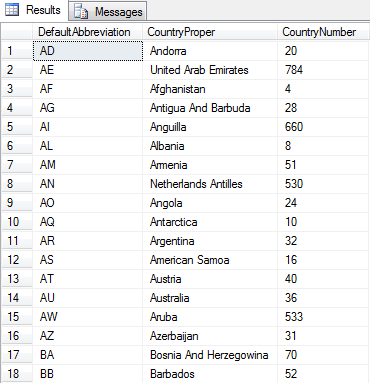
If you use the scripts I’ve added to this post (check Code Samples), you’ve created a table with country abbreviation codes. This table contains the data as shown below:

If you select the data, and want to add a record ID to your result set, you can use the following script:

SELECT
	DefaultAbbreviation,
	CountryProper,
	CountryNumber,
	ROW_NUMBER() OVER(ORDER BY DefaultAbbreviation ASC) AS RowNumber
FROM CountryAbbreviationCodes

The statement above uses the ROW_NUMBER built-in function to generate a row number for the result set. The ORDER BY clause in the functions is used to tell SQL Server what column(s) to use, to create a row number. In this case, the result set is ordered by the abbreviation column.

But what if you want to select the data with a specific row number? If you try to use the ROW_NUMBER function in the where clause, you get the following error:

“Windowed functions can only appear in the SELECT or ORDER BY clauses.”

So you need another solution. From SQL Server 2005 onwards we can use a Common Table Expression (CTE). With a CTE you can use a select statement as a table. So if you want to return the rows that are numbered 50 through 60, you can use the following query:

WITH OrderedCountries AS
(
	SELECT
		DefaultAbbreviation,
		CountryProper,
		CountryNumber,
		ROW_NUMBER() OVER(ORDER BY DefaultAbbreviation ASC) AS RowNumber
	FROM CountryAbbreviationCodes
)

SELECT
	DefaultAbbreviation,
	CountryProper,
	CountryNumber,
	RowNumber
FROM OrderedCountries
WHERE 1 = 1
AND RowNumber BETWEEN 50 AND 60

The result of this statement is the 10 rows we requested. So with a CTE we can use the ROW_NUMBER function to return specific rows from a table.

With the ROW_NUMBER functions, you can also delete duplicate records from your tables. If interested, post a comment, mail or tweet me, and I might write a blog post about it.


Code samples:
CreateSources.sql
SelectStatement.sql
CTESelectStatement.sql

SQL Joins – The Differences

In SQL Server you can find several joins. In this post I will try to explain the diffences between them, and how you can use them in your advantage.

Joins
There are several different types of joins. Some of them look different, but are actually the same. For example, a Left Join is the same as a Left Outer Join. This also counts for Right/Right Outer Joins. And if you ever encounter a statement with just Join in it, this is converted by SQL Server to an Inner Join.

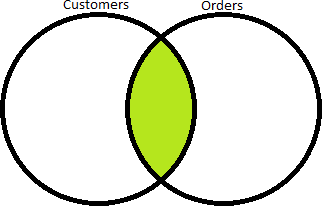
(Inner) Join
An Inner Join takes the results from both tables in the join, and combines data that matches. All data that doesn’t match the ON clause, isn’t shown in the result set.

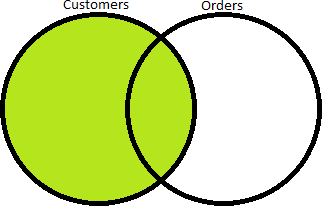
Left (Outer) Join
A Left Join takes the 2 tables used in the join, and takes all records from the left table (1st table in your join), and matches and adds data from the right (2nd table in your join). All data from the 2nd table that doesn’t match the ON clause is filtered out.

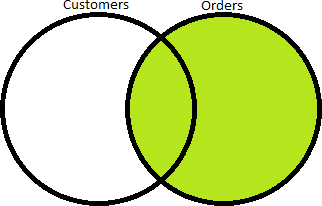
Right (Outer) Join
A Right Join takes the 2 tables used in the join, and takes all records from the right (2nd table in your join), and matches and adds data from the left (1st table in your join). All data from the 1st table that doesn’t match the ON clause is filtered out.

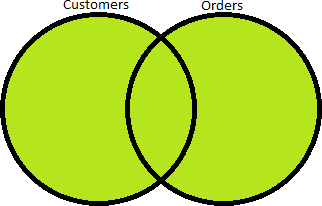
Full (Outer) Join
A Full Join takes the records from both tables, and matches all the data. The data that doesn’t match is also shown, except with NULL values in the columns that are missing on the other side.

Left (Outer) Join – Right Key Is NULL
With this Join (can be found in code samples, download below), you will get all the results that are not included in the Left Join.

Right (Outer) Join – Left Key Is NULL
With this statement (can be found in code samples, download below), you will get all the results that are not included in the Right Join.

Full (Outer) Join – Both Keys Are NULL
With this join you get all the data that isn’t included in the Full Join result set.

Cross Join
The Cross Join is a “special” Join. This Join type selects all the possible combinations it can. This sounds weird, but in the image below and in the code samples, it’s much clearer.


Code samples:
CreateSources.sql
SelectStatements.sql

Design a site like this with WordPress.com
Get started