Moving files with SSIS

In the last few weeks, I’ve seen the ugly side of being a DBA: Server maintenance. Most of the time this is only needed when things go wrong, checking the backups, etc. But last week I had something that makes every DBA on earth shiver: diskspace shortage.

One of the ETL processes that runs on our server, downloads a bunch of XML files from an external source, and stores those on local disk. After that, the XML files are imported into a database, so our business analysts can use the content for their analysis. After the import, the XML files are zipped, and stored in a folder called “Backup”. But because the files are never deleted after the imported (they might want to audit the data and files), the disk they were stored on was running low on diskspace.

 
Thinking about the options
As a DBA, it’s your job make your own life as easy as possible. So moving the files by hand is okay if you only need to do it once. But I’d rather solve this once and for all, because maybe next time the disk will run out of space in the middle of the night, instead of during the day like this time.

So to prevent this issue in the future, I’ve created an SSIS solution to run directly after the import. This SSIS package moves the files from local disk to SAN storage. This way, we’re getting rid of the local files, but the files are still available when needed.

 
Creating your test environment
The first thing I did was create a copy of the directory structure that exists on the server, on my local machine. I’ve just copied the structure, and put a single .txt file in every directory. You can download the “test environment” setup here. Unzip the contents of the folder to “C:\Temp”, so you can use the SSIS package like described below, without making changes to it.

 
Creating the package
I started by creating a new package, and added a “Foreach Loop Container” for every folder that contains XML- and text-files. In every “Foreach Loop Container” I’ve placed a “File System Task”. After that, I’ve created the variables needed for this package:

Some of the variables are created just for the scope of the corresponding “Foreach Loop Container”. So if you want to see all variables in one overview, click the “Show All Variables” button that I’ve marked in the image above.

 
Configuring the components
Now you can start configuring the components. The “Foreach Loop Container” needs to be configured like this:

And:

And the “File System Task” needs to be configured like this:

You can also download the SSIS package as shown above, directly here (save the XML as dtsx file).

 
Test run
Now you’re ready for a test run! If you didn’t download the directories and files (the “test environment”) above, make sure you create all the destination directories. If you don’t, the package will fail. I didn’t build it into this version, but you might want to add a feature like that to the package.

Error deleting checkpoint file

One of the many tasks of being a DBA is to monitor the SQL Server. This doesn’t mean you only keep an eye on daily performance, but you need to monitor the whole process. This means you need to monitor jobs, ad-hoc queries, maintenance plans, etc. But what if you come across an error, and nothing fails…?

 
Finding the error
A few weeks ago I worked on a software release on my SQL Server environment, and the BI developers needed an extra copy of a database for their tests. We didn’t want to test the new functionality on the production database, but the test needed production data. So I decided to restore a backup of the database under a different name.

After a restore of the database, the developers started working on the database. After a few hours, I encountered an error myself (not related to the backup restore), and decided to check the SQL Server error log. But what I saw there was not the error I was looking for:


Error: 3634, Severity: 16, State: 2.
The operating system returned the error ‘3(failed to retrieve text for this error. Reason: 15105)’ while attempting ‘DeleteFile’ on ‘E:\Backup\RestoreCheckpointDB70.CKP’.

The actual error message can be found, by running a command prompt, and starting “net helpmsg 3” (where 3 is the error number from the message above). The actual error is:


The system cannot find the path specified.

This error occurred at the same time my restore finished. Strange… And looking at the location in the error, there was no folder called “Backup”. But then I remembered something…

The week before something went wrong with the backup process. We currently use the default maintenance plans in SQL Server, and something went wrong with the job. Because of a lack of diskspace on the machine, I cleaned up the drive were the backups were dropped. But strangely enough the drive contained 3 backup folders, of which 2 were completely empty. So without properly checking, I deleted 2 of the 3 folders. The only folder left, was the one that was referenced in the maintenance job.

 
Finding the source of the issue
But now, how to solve this issue. Apparently my cleanup didn’t help SQL Server, but it actually harmed it…

During my search, I found several helpful websites, that led me to this registry key:


HKEY_LOCAL_MACHINE\SOFTWARE\Microsoft\Microsoft SQL Server\MSSQL10_50.[Instance Name]\MSSQLServer

In this registry key, you’ll find the default backup location that SQL Server uses to write (for example) your checkpoint file to. And guess what… You’re right! This was one of the empty folders I deleted.

 
Resolving the issue
Once I knew what caused the issue, I created a new folder with the same name on the location, and added the security permissions needed. But what if you don’t want to do that, or restoring a directory isn’t possible?

There are several other ways to solve an issue like this. For example (for you gutsy ones!) you could edit the registry. No, seriously, please don’t! 🙂

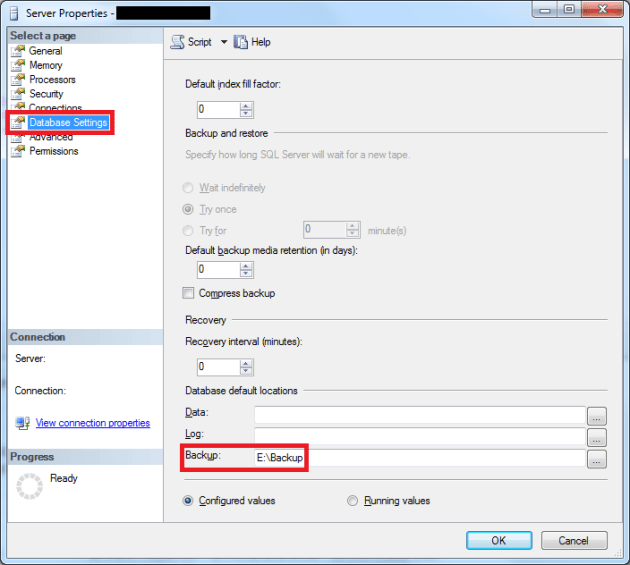
One of the ways to change this, is by right-clicking your instance name in SSMSS, open the server properties, and chose “Database Settings”:

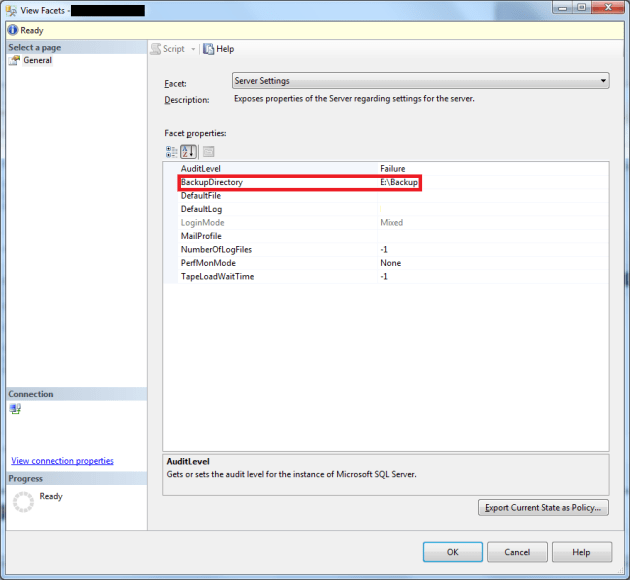
Another way to change the default locations, is to right-click your instance name in SSMS, and chose “Facets”:

Conclusion
One of the things I’ve learned in the past, and and that I was reminded of is:

When you’re dealing with SQL Server, always check, double check, and triple check the changes you make!

So the same goes for the setting I’ve showed you above! Always check what you change, because some changes will be affected after the next service restart, or machine reboot. So if you change something, and you don’t see the effects immediately, that doesn’t mean it was a safe change!

T-SQL Tuesday #43 – Hello, Operator?

T-SQL Tuesday is a recurring blog party, that is started by Adam Machanic (Blog | @AdamMachanic). Each month a blog will host the party, and everyone that want’s to can write a blog about a specific subject.

This month the subject is “Hello, Operator?”. If you want to read the opening post, please click the image below to go to the party-starter: Rob Farley (Blog | @rob_farley).


Execution Plan
Everybody that ever got serious with SQL Server, knows about execution plans. And like Rob said in his opening post, if you don’t, start looking into that! But if you start working with execution plans, it gets confusing really fast. All those weird “building blocks” that tell you what SQL Server did with your query?! It almost looks like magic…!

But when you dive into it, they become easier to read and they suddenly are somewhat understandable. But hey, even after all those years looking at execution plans, some things still amaze me.

Last week I was asked to look at a query, that was used in an SSIS package. This package was one of the slowest from the nightly ETL processes. So I started of by looking at the execution plan:

 
Start pinpointing the first issue
Then I started digging, and I noticed this:

LEFT JOIN DB.dbo.T1 m
	ON m.Col1 = ISNULL(LOWER(t.Col1) COLLATE Latin1_General_CS_AS, '(N/A)')
LEFT JOIN DB.dbo.T2 s
	ON s.Col2 = ISNULL(LOWER(t.Col2) COLLATE Latin1_General_CS_AS, '(N/A)')
LEFT JOIN DB.dbo.T3 k
	ON k.Col3 = ISNULL(LOWER(t.Col3) COLLATE Latin1_General_CS_AS, '(N/A)')

 
But wait a minute… The collations we use aren’t Case Sensitive, so why use the LOWER() function anyway? And the collations are practically the same for the 2 databases used in the query (“SQL_Latin1_General_CP1_CI_AS” and “Latin1_General_CI_AS”). But the column collations are both the same (“SQL_Latin1_General_CP1_CI_AS”). SQL Server doesn’t throw an error if I join both sets, and the results aren’t different if I use COLLATE or not. So we learned another thing: the column collation is used in the ON clause of the JOIN. So both functions aren’t necessary because the collations are equal, and thus their wasting our precious CPU cycles…

Now here comes the moment you’ve all been waiting for. How does the execution plan differ? This is what the new execution plan looks like:

So what are we missing? You guessed right! We’re missing this bad boy:

So what does the “Compute Scalar” actually do? According to MSDN:


The Compute Scalar operator evaluates an expression to produce a computed scalar value

So that means it calculates a new value for every input column. This calculation can be as simple as a conversion of the value, or a concatenation of multiple values. Most of the time these “Compute Scalar” aren’t a major cost in your execution plan, but it can become an issue that uses a lot of CPU.

But what does this “Compute Scalar” do in this query? If I remove the ISNULL() from the query, it’s still there. It disappears if I remove the COLLATE. So in this case, the “Compute Scalar” is “calculating” a new value for every record. This “calculation” actually is a conversion from 1 collation to the other.

 
But what’s the difference?
If we compare both versions of the query, the modified version has a lot less impact on the server:

And this is only without the LOWER() and COLLATE functions. So with a little bit more effort, you can rewrite a part of the query, maybe add an index, etc. So as you can see, small changes can have a huge impact!

 
Conclusion
A “Compute Scalar” isn’t that hard to understand, but you’ll find it very often in your execution plans. So even though it isn’t the worst performance blocker in the world, it’s an interesting one to get familiar with.

If you don’t use SQL Sentry Plan Explorer yet, download your copy now!

Huge operator costs in execution plan

If you work with SQL Server, you’ll need to look at execution plans sooner or later. Now and in the past, I’ve had the privilege of introducing many of my (former) colleagues to these “works of magic”. But what happens if you can’t trust the plans you’re looking at…?

Say what…?
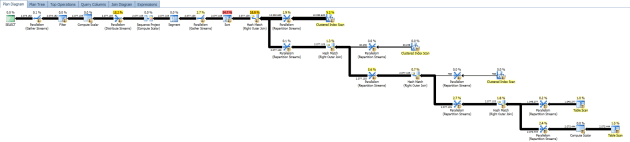
Last week I was asked to look at a slow running query. The first thing I did was look at the execution plan. It hit me pretty fast that this might be a “less optimized” query:

As you can see, it was a query with a lot of CTE’s and sub-selects, that was build by multiple developers and analysts. No one took the time to review or rewrite parts of the query, but they all build their additions on top of the old version. This isn’t uncommon in most companies, because time is precious and costs a company money. And people often find it difficult to ask or make time for quality control.

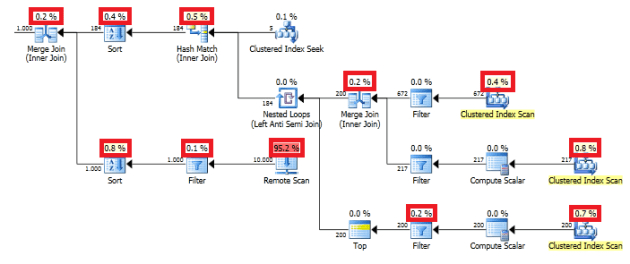
But looking a little bit closer, I started noticing that the operators in the execution plan were a little bit too high if you ask me:

This couldn’t be correct! So I asked the help of a life saver, called SQL Sentry Plan Explorer. If you don’t already have it, and are using it, start doing that now! And no, they don’t pay me to say this (but if they want to, I have nothing against that…). The main reason I use Plan Explorer, is that it shows you a little bit more information, and the layout is better then the default execution plans from SQL Server. But what does Plan Explorer show us, if we load the same plan?

It seems that the Plan Explorer shows the right numbers. But how is this possible? After some online searching, I came to the conclusion that I’m not the only one having this issue:

Huge operator cost in estimated execution plan
Query plan iterator cost percentage way off
SSMS execution plan sometimes exceeds 100
Katmai also 2005 graphical plan operator costs exceed 100

But unfortunately, all of these issues are marked for “future release”, and only 1 is from last year. The other connect items are much older. So maybe they will fix it for the next release that is just announced.

But keep in mind, even though the numbers look weird, it doesn’t affect performance.

T-SQL Tuesday #42 – The Long and Winding Road

T-SQL Tuesday is a recurring blog party, that is started by Adam Machanic (Blog | @AdamMachanic). Each month a blog will host the party, and everyone that want’s to can write a blog about a specific subject.

This month the subject is “The Long and Winding Road”. If you want to read the opening post, please click the image below to go to the party-starter: Wendy Pastrick (Blog | @wendy_dance).


After I skipped the last few T-SQL Tuesday posts, I saw the topic Wendy suggested for this month. That’s an interesting one, so I’m kind of back again…

One particular sentences that stuck with me, was “Let’s make these stories about the tech and how that has led you down a certain path”. A few months ago, I blogged about leaving my former employer. There I got a change to discover a bunch of new technologies and discover what I really wanted. But the path started earlier.

During my first internship, I started working as a desktop support engineer and help desk employee. This meant I needed to install, replace and fix PC’s, phones, network, etc. After the first internship (6 months), I stayed with the company as a part-time employee. Then I decided to stay there for my second internship of 6 months, which I filled working as a system administrator.

When I was still busy with exams and finishing my education, the company asked me to stay with them. They had an interesting role in mind for me: SQL Server consultant. At that time, I’ve never wrote a single query (except a few trials in my database classes at school), but I accepted the offer. The learning curve was pretty steep, but I managed with the help of my wonderful colleagues. My first experiences with SQL Server were very interesting, and it really triggered me to learn more about it, even though it was SQL Server 2000 back then.

After 2 years I got the opportunity to start as a .NET developer within the same company. Because several colleagues left, there was a high demand for software engineers. So with no knowledge of ASP and VB, I started to discover this new world. After a few months, I moved from ASP to ASP.NET, from VB to C#, and eventually worked with WCF, Silverlight, NHibernate, etc.

After 2.5 years of being a software engineer, I came back to the database world. I can’t explain why, but I missed something in my daily job that I had before. When searching for a new job, I found a company that seemed to fit my ideas of a great company and a huge challenge: multinational, young team, great colleagues, lots of learning opportunities, etc. There I started out as a BI- and SQL Server developer, and I found what I was missing in my previous job: data!

One thing I’ve learned after this wide variety of jobs, is that I love databases and data. In my current job of DBA I can combine the 2 things I love the most: data and technology. As a DBA I’m not only responsible for keeping the databases alive, but also for data quality, database performance, etc.

So this is the ultimate job for me, at least at the moment. But if I ever change jobs, I’m definitely not leaving the SQL Server world! Not only because I love working with databases and data, but also because of the wonderful community. At first I didn’t know what to think about the “SQL Family”, but now I know it practically IS a family. The people have the same issues as you, the same interests, and they love to help you out. So I’m never going to leave that behind again!

Draw.io – Free Modelling Tool

One of the many tasks of a DBA, is to create documentation or designing your (new) environment. Last week, I started this journey myself. Normally I would use Microsoft Office Visio, but unfortunately I wasn’t able to get myself a license for that, and I didn’t want to use a trial version. So what other options do you have then?

In my quest to find a free to use modelling tool, I found draw.io. It’s a free online modelling tool, with an amazing amount of options!

If you open the link, the web application will load. Once it’s loaded, you see a blank drawing. In this blank drawing, you can add your shapes, texts, etc.

You can click on General in the left column to collapse it, and then right-click on General. Now a menu will pop up that allows you to add more shapes to the menu:


For example, if you add the Rack shapes to the menu, you’re able to add all kinds of server rack images to your diagram. For example the racks from Dell:


So as you can see, there are a lot of possibilities when you use draw.io. And if you ask me, it’s a good alternative if you need to draw up a diagram quickly, and don’t have Visio installed.

Moving system database: rocket science or piece of cake?

Being a DBA often makes you the “Default Blame Acceptor”, according to Buck Woody (Website | @buckwoody). This means that everything is your fault by default. Server broke down? Your fault! Database corrupt? Your fault! Query of a user doesn’t compile because of a syntax error? Yeah, you guessed right… Your fault!

But on the other hand, you have a lot of opportunities to find out the best practices of doing things. An example of that is moving a system database. About two weeks ago we decided to order 4 SSD’s for our SQL Server. We plan to store tempdb and the SSAS data on these disks, hoping that it will reduce resource costs on our environment.

So with no experience of moving system databases, I started thinking about how to do this. You probably need to stop the SQL Server, move the MDF and LDF files, change the start-up options of SQL Server, start the service, hope that SQL Server finds the new location, etc. But after a quick peek I found a much simpler solution: just modify the current file location!

 
Check the current location and file sizes
Before moving your database (in this case I’m moving my tempdb), run the query below, and store the result just in case all goes south:

SELECT name, physical_name, state_desc, (size * 8 / 1024.00) AS InitialSize
FROM sys.master_files
WHERE database_id = DB_ID('tempdb');

 
The reason you also want to store the initial sizes, is that if you restart the SQL Service (one of the next steps), SQL Server will set the files to the default file sizes. And you don’t want to run on those default settings of course!

 
Set the new file location
You can set the new file location for your tempdb, by running the query below. In this example I’m moving my datafiles to the D:\ volume of my machine:

USE master
GO

ALTER DATABASE tempdb 
	MODIFY FILE (NAME = tempdev, FILENAME = 'D:\MSSQL\DATA\tempdb.mdf')
GO
ALTER DATABASE tempdb 
	MODIFY FILE (NAME = templog, FILENAME = 'D:\LOG\templog.ldf')
GO

 
After executing this statement, you’ll see a message like this appear in the Messages window:


The file “tempdev” has been modified in the system catalog. The new path will be used the next time the database is started.
The file “templog” has been modified in the system catalog. The new path will be used the next time the database is started.

 
So the file location is altered, but the running values are not changed until your machine is rebooted, or the SQL Service is restarted.

Now just restart the SQL Service (or the machine if you like to), and run the first query again. This way you can check if your tempdb is stored in the right folder, and if the initial sizes are correct:

SELECT name, physical_name, state_desc, (size * 8 / 1024.00) AS InitialSize
FROM sys.master_files
WHERE database_id = DB_ID('tempdb');

 
The service should stop and start without issues. After the restart you’ll see that SQL Server created a new MDF and LDF file at the new file location. After a successful restart, you can delete the MDF and LDF files from the old location.

 
Now, was that so hard?
So as you can see, not all changes in SQL Server are rocket science. One thing I’ve learned, is that from now on, I’m not going to assume the worst, and hope for the best!

 
UPDATE
As Pieter Vanhove (Blog | @Pieter_Vanhove) mentions in his tweets about msdb/model and master, in some cases you need to do a little bit more work. Because the tempdb is the database with the least probable cause of breaking SQL Server (it’s recreated if the SQL service starts), you can move it by changing the settings.

On the restart, the “Running values” (current settings) are overwritten by the “Configured values” (new settings) you set with the query you ran, and tempdb is recreated.

But the other system databases require a little bit more effort. If you want to move master, model or msdb, check out this link.

And thank you Pieter, for pointing out this stupid mishap to me!

Deadlock Detector: Drop it like it’s hot!

Last time I talked about the right tool for the right job. After that post, I noticed that during the nightly backups and job-runs, the SQL Server log filled up with deadlocks. Hoping to find the cause of this issue, I installed SQL Solutions Deadlock Detector. But I must warn you: it’s easier to install it, then to get rid of it!

 
Downloading it
The drama starts with downloading the tool. If you go to the download location of the tool, there’s no mention of a trial-version. They do like to tell you that it’s free… A lot of times… But guess what… It isn’t!

 
Installing it
After downloading the tool, I started the installation. Again, there’s no mention of any kind that I’ve just downloaded a trial version, and that you need to pay for the tool after 7 days.

 
Use it
After the installation I started the tool. The tool shows you for the first time that you’re actually running a triall:

After I clicked on “Try”, I was prompted to enter a SQL instance to run the tool on. After giving it my SQL Server instance location and name, it showed a pop-up really quick. Apparently it installed a bunch of crap on my SQL instance! Again, there is NO mention that it needs to install objects in your msdb! Also, SQL Server Agent needs to run on your instance, because Deadlock Detector can’t run without that.

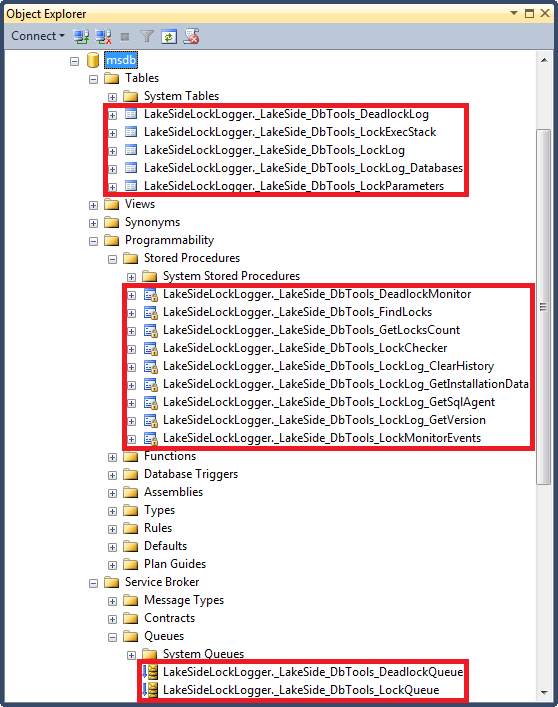
So what does Deadlock Detector install? I’ve created a screenshot of all the objects that are installed:

 
Uninstalling it
Okay, the tool wasn’t what I was looking for, so I wanted to uninstall it. But how do I get rid of all those objects that were created in my msdb database?

First I uninstalled the tool, hoping that it would also drop all the objects it created. But at the end of the uninstall, it sent me to this webpage. So I’m suppost to download a special uninstaller to get rid of your installer?

Okay, so I downloaded the special installer-uninstaller, and ran it. Close, but no cigar… The tool ran, returned no errors, but the objects still existed. Running it again, ended with the same results.

To check it yourself, run this query:

SELECT *
FROM msdb.LakeSideLockLogger._LakeSide_DbTools_LockLog

If it’s still running you’ll see record appear that tell you that there were deadlocks on your system. Even though you closed the tool and, like me, expect it to shutdown, the services still run.

To check if the objects still exist on your server, run this query:

SELECT *
FROM msdb.sys.objects
WHERE 1 = 1
AND is_ms_shipped = 0
AND Name LIKE '_LakeSide%'

So what do you do then? Right, I sent the company a support call. I’ve waited more than a week by now, but still no reply. Not even a reply that they’ve received my mail. So a really, really bad service of SQL Solutions if you ask me…

So after a lot of searching, I saw a really small reference to another uninstall method: from the tool itself. So I’ve re-installed the tool, and tried that:

And that worked for me!

 
Conclusion
Apparently more people had issues with uninstalling the tool, looking at results like this.

The thing I learned from this, is to dig a little bit deeper if I look at a new tool. The website of the tool’s manufacturer might not be the best source to find out how a tools functions…

 
UPDATE
In the mean while, I found some more objects that aren’t uninstalled by Deadlock Detector: Operators and Alerts. Even though you’ve “uninstalled” the tool, objects, queues, etc, there are still some leftovers: 1 operator, and 3 alerts.

You can drop them by running the script below:

--Drop Operator
EXEC msdb.dbo.sp_delete_operator @name=N'Deadlock Detector – Default operator'
GO

--Drop Alerts
EXEC msdb.dbo.sp_delete_alert @name=N'Deadlock Detector – Process is killed'
GO

EXEC msdb.dbo.sp_delete_alert @name=N'Deadlock Detector – Lock is detected'
GO

EXEC msdb.dbo.sp_delete_alert @name=N'Deadlock Detector – Deadlock is detected'
GO

My first month as DBA – The right tools for the job

Last month I started my first real DBA job. Until then I only had “accidental DBA” experience, and I’m glad I got the opportunity to prove myself as a real full time DBA.

As a SQL Server developer you and I both know that using the right tools can be a lifesaver. But my first weeks as DBA gave me the feeling this is more important than ever before. Having the right tools can save you a lot of time, and can actually help you make time for the important stuff. In this blog I’ll try to show you which tools I use nowadays, and the reason why you should use them as well.

 
SQL Server Management Studio (SSMS) for SQL Server 2012
If you’re working with SQL Server, you’ll need a version of SSMS (3rd party tools excluded). My first experience was with SQL Server 2000, and back then the “Enterpise Manager” and “Query Analyzer” were a drama to work with. If you look at the last version of the SSMS that is shipped with SQL Server 2012, then you’ll see that SSMS has come a long way!

Because I’m administering SQL Server 2008R2, I can’t use SSMS 2012 for everything, but it’s still my main tool. Just because of the performance enhancements, and the Visual Studio look and feel.

You can download the studio as a separate installation from this location.

 
SSMSBoost
One of my favorite SSMS add-ins is SSMSBoost. This allows you to quickly create and use snippets in your SSMS, script data with a few clicks, and quickly find objects in your databases.

SSMSBoost won the Bronze Community award for “Best Database Development Product” 2012, so I’m not the only one who appreciates this add-in! You can download the tool from their website. After the installation, you can request a free community license on the website.

 
sp_Blitz
If you take over a server as DBA, there’s only one way to determine the health of that server: sp_Blitz! This script, build by Brent Ozar’s company “Brent Ozar Unlimited” (Website | @BrentOzarULTD ), gives you a full overview of the “health status” of your SQL Server.

This also gives you a list of items you might want to fix, in order to ensure a stable and maintainable environment. The items are sorted based on importance, so you know which items you need to fix first. An excellent start for every new environment!

You can download the sp_Blitz code from this location.

 
sp_WhoIsActive
If you start out as a DBA it’s hard to find a good point to start from. What do you want to fix first? Your users keep complaining that they’re queries are running slow, your manager wants more and more performance from the same hardware without any real hardware changes, etc. A good point to start from is finding our which slow running queries and stored procedures your users are executing.

sp_WhoIsActive, written by Adam Machanic (Blog | @AdamMachanic ), gives you the ability to quickly gather this information, without any hassle. Once you’ve deployed the stored procedure to your machine, you can start using it to pinpoint issues on your SQL Server.

You can download the sp_WhoIsActive code from this location.

 
SQLjobvis
The last hurdle I needed to take, is to find out which SQL Server Agent Jobs were running on our environment, and at which time. Because I didn’t want to document this manually, I tried to find a tool that did this for me. Then I came across SQLjobvis.

SQLjobvis, written by SQLsoft (Website), is a free tool that visualizes the jobs on your SQL Server. It shows you all jobs and the result of the execution. You can select the data you want to see by date, and with color codes it shows the result within the date range you set.

You can download SQLjobvis from this location.

 
SQL Sentry Plan Explorer
And last, but not least: SQL Sentry Plan Explorer. I’m glad Pieter Vanhove (Blog | @Pieter_Vanhove) reminded me I forgot an important tool!

SQL Sentry Plan Explorer, written by SQL Sentry Inc. (Website), is a lightweight standalone app that helps you analyse execution plans. By making it more graphical than the default execution plan viewer in SSMS, it’s easier to spot the bottleneck.

You can download the tool from this location. And don’t forget to install the SSMS add-in, so you can directly view your execution plan in the SQL Sentry Plan Explorer from SSMS, when you right-click your execution plan.

 
What tools do you use?
There are many more DBA’s out there, and every DBA has it’s own toolbelt. So I’d like to know which tools do YOU use to get the job done? Let me now by leaving a comment, or contact me by Twitter or mail, and I’ll add it to the list of must-haves!

Visualizing Spatial Data – Toggling map layers

Last time I showed you how to add a PushPin to your map control. But what if you want to toggle that (or any other) layer in your map control?

The reason I wanted to do this, is that I want to allow the users of my report to toggle different layers in the map control. That way, you can pre-build all the different layers you think your users need into a single report, and just let them toggle the layers themselves. That saves you a lot of time building a report for every single combination of layer-types.

Multi-layer map control
In order to keep it simple, I used the report from my previous post. Specifically, the version with the standard PushPins. And the only layer I want them to be able to toggle, is the PushPin layer on top of the basic map.

Creating a parameter
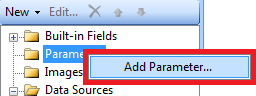
Because your want to present an easy solution to your users, I want to create a Boolean parameter that they can use to toggle the PushPin layer. To create this parameter, right-click on Parameters in Report Builder, and choose “Add Parameter”:

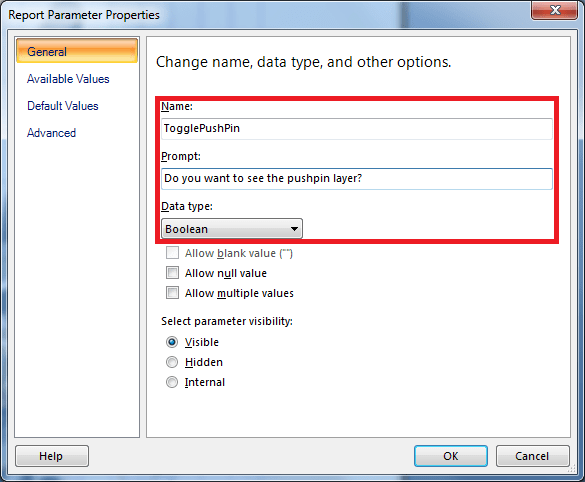
In the general options window, make sure you fill in a Parameter Name, a question for your users (so they understand what they need to do), and a Data Type (in this case a Boolean, that’s either True or False):

Because you don’t want to keep your users waiting if they open your report, you might want to give the Boolean a default value. You can do this by adding a default value to your Boolean:

By doing this, the Boolean is True by default. So the user doesn’t have to pick a value if he runs the report for the first time. This might come in handy if you need this as an extra feature in your report, and not a feature you need to configure before the report shows your data.

Expression
Now you need to configure your map layer to use the parameter you created to toggle it. Double-click on your map control, and once you see the Map Layers menu on the right, you can do this by right-clicking on “Layer Data”:

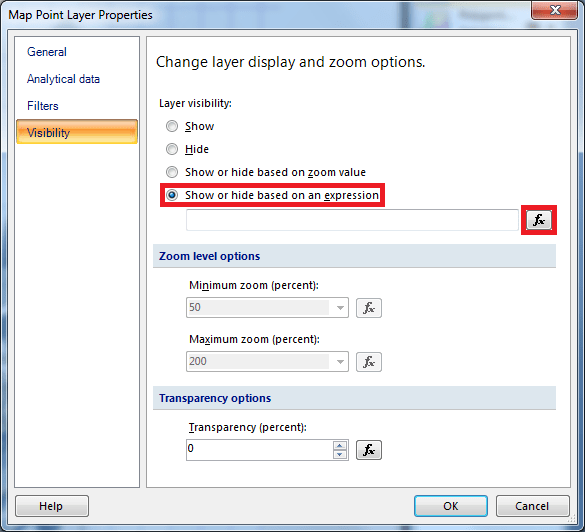
Now click on Visibility, and under Layer visibility, click the last option, and press the Fx button:

In the Expression window, fill in the following expression:

Now if you run the report, you’ll see the Boolean appear in the top bar of your report. By default, it’ll show the PushPins:

And if you change the Boolean to False and press “View Report”, you’ll see the may without PushPins:

With a little help from my friends…
This post isn’t just written by me, but also with the help of Valentino Vranken (Blog | @ValentinoV42. He helped me out on Twitter, because my expression didn’t work as expected. So Valentino: I really appreciated your help! Thank you! 😉

Design a site like this with WordPress.com
Get started