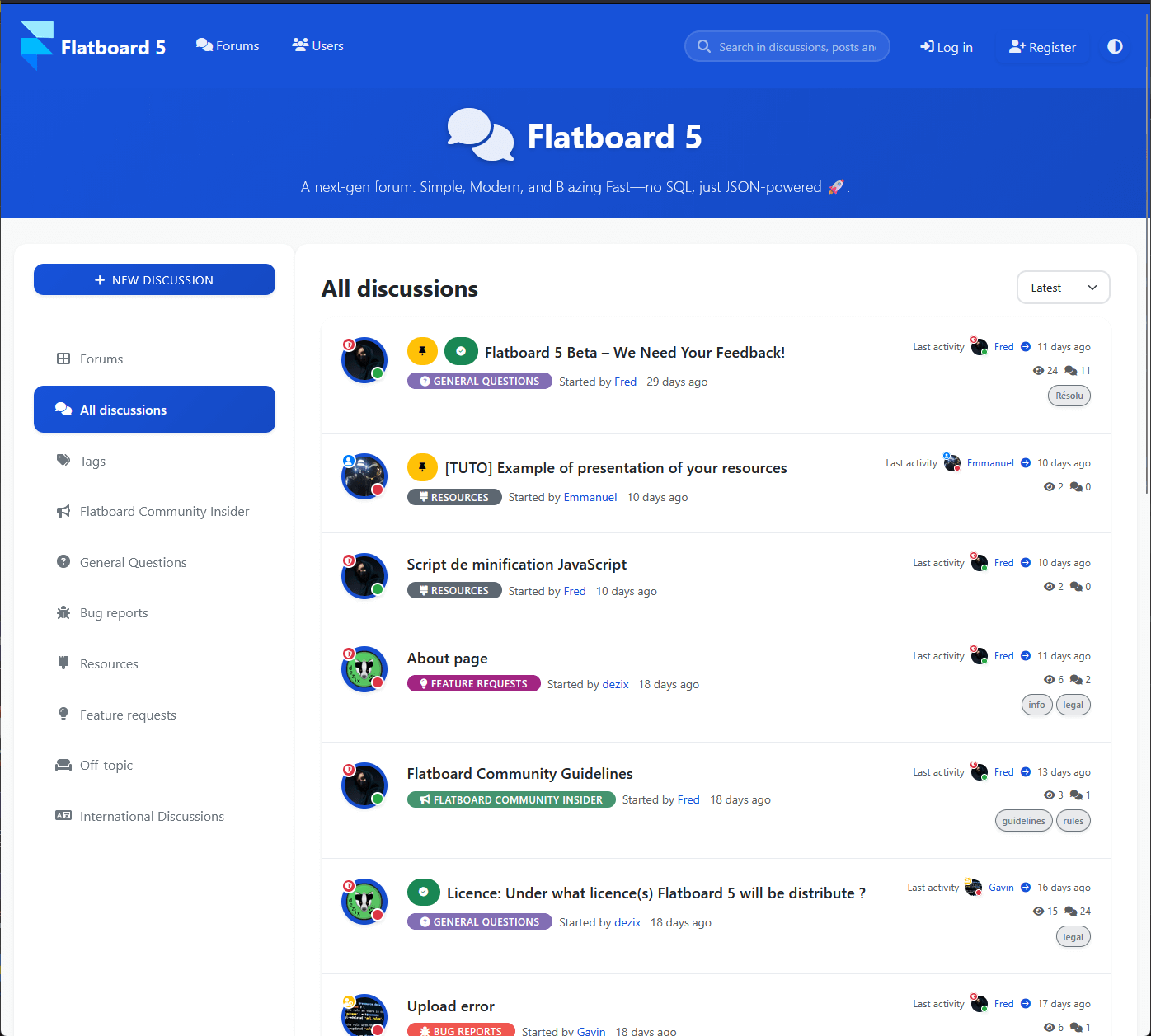
Current Version: 5.2.1 — License: GPL3 (Community & Pro)
Quick Start
- Getting Started — Prerequisites and server preparation
- Installation — Step-by-step installation guide
- Configuration — Forum settings
- Admin Panel — Administration interface overview
About Flatboard 5
Flatboard 5 is a complete rewrite of the forum software with a modern MVC architecture.
Editions:
| Edition | Price | Storage | Extras |
|---|---|---|---|
| Community | Free | JSON | Core features |
| Pro | €49 one-time | JSON + SQLite | Premium plugins & themes |
System Requirements
- Web Server: Apache 2.4 (mod_rewrite) or Nginx
- PHP: 8.0 or higher
- Required extensions:
json,mbstring,openssl - Recommended:
fileinfo,zip,pdo_sqlite(Pro),gdorimagick
Technology Stack
| Layer | Technology |
|---|---|
| Backend | PHP 8.0+ |
| Storage | JSON flat-file / SQLite |
| Frontend | HTML5, CSS3, JavaScript |
| Text formatting | Markdown Extra (Parsedown) |
Key Dependencies
| Library | Version | License |
|---|---|---|
| PHPMailer | 7.0.2 | LGPL-2.1 |
| Parsedown | 1.8.0 | MIT |
| Bootstrap | 5.3.8 | MIT |
| Font Awesome | 7.2.0 | Free (CC BY 4.0 / SIL OFL 1.1 / MIT) |
| SortableJS | 1.15.7 | MIT |
Contributors
Translations
- JPRuehmann — German translation (de)
- Thalles — Portuguese translation (pt)
- magu — Simplified Chinese translation (zh)
Active Bug Reporters
Thanks
Special thanks to all community members who have contributed feedback, ideas, and support — your involvement makes Flatboard better for everyone.
Support
- Website: flatboard.org
- GitHub: github.com/Fred89/flatboard
Sommaire
- What is Flatboard 5?
- Key Features
- System Requirements
- Community vs Pro Edition
- Installation Overview
- Pre-Installation Checklist
- Next Steps
- Common Questions
- Resources
Getting Started with Flatboard 5
What is Flatboard 5?
Flatboard 5 is a modern, lightweight forum platform built with PHP 8.0+. It combines simplicity with powerful features, making it perfect for communities of all sizes.

Flatboard 5 is a complete refactoring of the forum software with a new architecture. This means:
- Flatboard 3 and 4 are NOT compatible with Flatboard 5
- Flatboard 5 introduces a modern MVC architecture, improved performance, enhanced security, and many new features
- Flatboard 4 is the last supported version of the previous architecture
Key Features
Flatboard 5 is a next-generation forum software that offers:
- Lightweight Architecture - JSON or SQLite storage, no heavy database required
- Modern PHP 8.0+ - Built with the latest PHP features and best practices
- MVC Pattern - Clean, maintainable code structure
- Plugin System - Extensible through a powerful plugin architecture
- Theme Support - Fully customizable themes
- Security First - Built-in CSRF protection, rate limiting, and input validation
- Multi-language - Support for multiple languages out of the box
- SEO Optimized - Complete SEO features with meta tags, structured data, and sitemaps
- Markdown Extra - Rich text formatting with Markdown Extra support
- Performance Optimized - Denormalized counters, Markdown caching, atomic file operations
- Dual Edition - Available in both Community (free) and Pro (paid) editions, both licensed under GPL3
System Requirements
Server Requirements
- Web Server: Apache 2.4+ (with mod_rewrite) or Nginx
- PHP Version: 8.0 or higher (8.1+ recommended)
- Disk Space: At least 100MB free space (more for uploads and content)
Required PHP Extensions
These extensions are mandatory for Flatboard 5 to function:
- json - JSON manipulation (usually included by default)
- mbstring - Full UTF-8 support for international characters
- openssl - Security features (encryption, HTTPS support)
Recommended PHP Extensions
These extensions enhance functionality but are not strictly required:
- fileinfo - Secure MIME type validation of uploaded files
- zip - ZIP archive content analysis
- pdo_sqlite - For SQLite storage (Pro edition only)
- gd or imagick - Avatar generation and image processing
- curl - For external API calls and updates
Checking Your PHP Configuration
You can check your PHP version and extensions using:
# Check PHP version
php -v

# List all loaded extensions
php -m

# Check specific extension
php -m | grep json
php -m | grep mbstring
php -m | grep openssl
Or create a temporary phpinfo.php file:
<?php
phpinfo();phpinfo.php file after checking your configuration for security reasons.Community vs Pro Edition
Flatboard 5 is available in two distinct editions:
Community Edition
Free (Forever) - Licensed under GPL3
Features:
- ✅ Complete Forum System - Full forum functionality
- ✅ User Management - Comprehensive user account system
- ✅ Discussion & Post System - Create and manage discussions and posts
- ✅ Core Plugins & Themes - Essential plugins and themes included
- ✅ REST API - API access for integration
- ✅ JSON Storage - File-based storage system (default)
- ✅ Complete Documentation - Full documentation access
- ✅ Open Source (GPL3) - Full source code access
- ✅ Community Support - Community-driven support
- ✅ Regular Updates - Free updates and improvements
Over 10 years of continuous development. Free and regularly updated for the community.
Pro Edition
€49 (One-time payment, no subscription) - Licensed under GPL3
Includes everything in Community Edition, plus:
- ✅ SQLite Storage - Database storage option for enhanced performance (Pro exclusive)
- ✅ Premium Plugin Pack - Private Messaging, Forum Monitoring, EasyPage, and more
- ✅ Premium Themes - Additional professional themes
- ✅ Advanced Analytics - Enhanced statistics and reporting features
- ✅ Extended API Features - Additional API endpoints and capabilities
- ✅ Priority Support - Direct support access
- ✅ 3 Years of Feature Updates - Guaranteed feature updates for 3 years
- ✅ No Subscription Required - One-time payment, no recurring fees
- Choose Community Edition if you need basic forum functionality with JSON storage
- Choose Pro Edition if you need SQLite storage, premium plugins, premium themes, or priority support
Both editions are fully open source under GPL3. The Pro edition provides additional features and support, not proprietary code.
Pricing: €49 (One-time payment)
Where to Buy: flatboard.org
Installation Overview
The installation process is straightforward and typically takes 10-15 minutes:
- Download - Get the latest Flatboard 5 release
- Upload - Extract files to your web server
- Set Permissions - Configure file and directory permissions
- Run Installer - Follow the web-based installation wizard
- Configure - Set up your site settings and admin account
Pre-Installation Checklist
Before starting the installation, verify:
- [ ] PHP 8.0+ is installed and active
- [ ] Required PHP extensions are enabled (json, mbstring, openssl)
- [ ] Web server is configured (Apache with mod_rewrite or Nginx)
- [ ] Write permissions are available for installation directory
- [ ] At least 100MB free disk space
- [ ] You have FTP/SFTP or shell access to your server
- [ ] You know your domain name and server paths
Next Steps
Once you've verified the requirements:
- Read the Installation Guide - Detailed step-by-step instructions
- Prepare Your Server - Ensure all prerequisites are met
- Download Flatboard 5 - Get the latest release from flatboard.org
Common Questions
What is the difference between Community and Pro editions?
The main differences are:
- Storage: Community uses JSON storage, Pro includes SQLite storage option
- Plugins: Pro includes premium plugins (Private Messaging, Forum Monitoring, EasyPage)
- Themes: Pro includes additional premium themes
- Support: Pro includes priority support
- Price: Community is free, Pro costs €49 (one-time payment)
Both editions are open source under GPL3.
Can I run both versions side by side?
Yes, you can run Flatboard 4 and Flatboard 5 on different directories or subdomains. They are completely independent installations.
Resources
- Installation Guide - Step-by-step installation instructions
- Configuration Guide - Configure your forum settings
- Admin Panel Guide - Learn the administration interface
Last updated: February 23, 2026
]]>Sommaire
- Pre-Installation Checklist
- Installation Methods
- Storage Type Selection
- Post-Installation
- Troubleshooting Installation
- Next Steps
- Resources
Installation Guide
Pre-Installation Checklist
- ✅ PHP 8.0 or higher installed
- ✅ Required PHP extensions:
json,mbstring,openssl - ✅ Recommended PHP extensions:
fileinfo(for secure file uploads),zip(for archive analysis) - ✅ For SQLite (Pro Edition only):
pdo_sqliteextension required - ✅ Web server (Apache/Nginx) configured
- ✅ Write permissions for installation directory
- ✅ At least 100MB free disk space
Installation Methods
Method 1: Web Installer (Recommended)
The web installer is the easiest way to install Flatboard 5.
Step 1: Download and Extract
Download the latest Flatboard 5 release from flatboard.org and extract it to your web server directory:
# Download and extract ZIP file
unzip flatboard-5-latest.zip

# Or using wget
wget https://flatboard.org/download/flatboard-5-latest.zip
unzip flatboard-5-latest.zip
Step 2: Set Permissions
Set the correct permissions for directories and files:
# Directories (readable and executable)
chmod 755 app/ themes/ plugins/ languages/ vendor/

# Storage and uploads (readable, writable, executable)
chmod 750 stockage/ uploads/

# Files (readable)
chmod 644 *.php
chmod 644 public/*.php

# Configuration file (readable and writable by owner only)
chmod 600 stockage/json/config.json 2>/dev/null || true

# CLI executable
chmod 755 app/Cli/console.phpstockage/ directory contains sensitive configuration files. Ensure it's protected by .htaccess files (automatically created) to prevent direct web access.Step 3: Access Installer
Open your browser and navigate to:
https://yourdomain.comor
https://yourdomain.com/install.phpThe installer will automatically detect if Flatboard 5 is not yet installed and redirect you to the installation wizard.
Step 4: Follow Installation Wizard
The installer will guide you through:
-
System Check
- PHP version verification
- Extension availability check
- Directory permissions check
- Storage type selection (JSON or SQLite for Pro)
-
Site Configuration
- Site name
- Site URL
- Base URL (if installed in subdirectory)
- Default language
- Timezone
-
Admin Account Creation
- Username
- Email address
- Password (with strength indicator)
-
SMTP Configuration (Optional)
- Email server settings
- Authentication credentials
- Test email sending
-
Finalization
- Review all settings
- Complete installation
- Access admin panel
.install.lock file after successful installation. This prevents accidental re-installation. To reinstall, delete this file.Method 2: Manual Installation
For advanced users who prefer manual setup:
Step 1: Extract Files
Extract the Flatboard 5 archive to your web root:
cd /var/www/html  # or your web root
unzip flatboard-5-latest.zip
Step 2: Create Configuration
Create the configuration directory and file:
mkdir -p stockage/json
touch stockage/json/config.json
chmod 600 stockage/json/config.json
Step 3: Set Permissions
chmod 755 app/ themes/ plugins/ languages/
chmod 750 stockage/ uploads/
chmod 644 *.php
Step 4: Configure Web Server
Apache Configuration:
Ensure mod_rewrite is enabled and create/update .htaccess:
<IfModule mod_rewrite.c>
    RewriteEngine On
    RewriteBase /
    RewriteCond %{REQUEST_FILENAME} !-f
    RewriteCond %{REQUEST_FILENAME} !-d
    RewriteRule ^(.*)$ public/index.php [QSA,L]
</IfModule>
Nginx Configuration:
server {
    listen 80;
    server_name yourdomain.com;
    root /var/www/html/public;
    index index.php;

    location / {
        try_files $uri $uri/ /index.php?$query_string;
    }

    location ~ \.php$ {
        fastcgi_pass unix:/var/run/php/php8.1-fpm.sock;
        fastcgi_index index.php;
        include fastcgi_params;
        fastcgi_param SCRIPT_FILENAME $document_root$fastcgi_script_name;
    }
}
Step 5: Run Installation
Access install.php in your browser to complete the setup.
Storage Type Selection
During installation, you'll choose a storage type:
JSON Storage (Default)
- Available in: Community and Pro editions
- Best for: Small to medium communities
- Pros: Simple, no database required, easy backups
- Cons: Slower for very large datasets
SQLite Storage (Pro Only)
- Available in: Pro edition only
- Best for: Medium to large communities
- Pros: Better performance, SQL queries, transactions
- Cons: Requires
pdo_sqliteextension
Post-Installation
Verify Installation
-
Check Admin Panel Access
- Navigate to
/admin - Log in with your admin credentials
- Navigate to
-
Test Forum Functionality
- Create a test category
- Create a test discussion
- Verify file uploads work
-
Check File Permissions
- Verify
stockage/is writable - Verify
uploads/is writable
- Verify
Security Hardening
After installation, perform these security steps:
-
Remove Installer
rm install.php -
Protect Configuration
chmod 600 stockage/json/config.json -
Review .htaccess Files
- Ensure
stockage/has.htaccessprotection - Verify
uploads/has proper restrictions
- Ensure
-
Set Debug Mode to False
- In admin panel: Settings > General > Debug Mode = Off
Troubleshooting Installation
Common Issues
Issue: "PHP version too old"
Solution: Upgrade to PHP 8.0 or higher.
# Check current version
php -v

# Update PHP (Ubuntu/Debian)
sudo apt update
sudo apt install php8.1 php8.1-cli php8.1-fpm
Issue: "Extension missing"
Solution: Install missing PHP extensions.
# Ubuntu/Debian
sudo apt install php8.1-json php8.1-mbstring php8.1-openssl php8.1-fileinfo

# CentOS/RHEL
sudo yum install php-json php-mbstring php-openssl php-fileinfo
Issue: "Permission denied"
Solution: Fix directory permissions.
# Set ownership (replace www-data with your web server user)
sudo chown -R www-data:www-data /var/www/html
sudo chmod -R 755 /var/www/html
sudo chmod -R 750 /var/www/html/stockage
sudo chmod -R 750 /var/www/html/uploads
Issue: "Cannot write to stockage/"
Solution: Ensure the directory is writable.
chmod 750 stockage/
chmod 750 stockage/json/
touch stockage/json/.htaccess
Issue: "Installation wizard not loading"
Solution: Check web server configuration and file paths.
- Verify
public/index.phpexists - Check Apache
mod_rewriteis enabled - Verify Nginx configuration is correct
- Check PHP error logs:
tail -f /var/log/php-errors.log
Next Steps
After successful installation:
- Configure Your Forum - Set up site settings
- Explore Admin Panel - Learn the administration interface
- Create Categories - Organize your forum
- Install Plugins - Extend functionality
- Customize Theme - Personalize appearance
Resources
- Getting Started - Prerequisites and overview
- Configuration Guide - Detailed configuration options
- Troubleshooting - Common problems and solutions
- Migration Guide - Migrate from previous versions
Last updated: February 23, 2026
]]>Sommaire
- Configuration File
- General Settings
- User Settings
- Email Configuration
- Security Settings
- Performance Settings
- Maintenance Mode
- Advanced Settings
- Configuration via Admin Panel
- Configuration via CLI
- Backup Configuration
- Troubleshooting Configuration
- Resources
Forum Configuration
Configuration File
Flatboard 5 stores its main configuration in /stockage/json/config.json.
config.json manually while the forum is running. Always use the admin panel or ensure the forum is in maintenance mode.Configuration Structure
{
  "site_name": "My Forum",
  "site_url": "https://example.com",
  "base_url": "",
  "default_language": "fr",
  "timezone": "Europe/Paris",
  "storage_type": "json",
  "debug": false,
  "maintenance_mode": false,
  "registration_enabled": true,
  "email_verification": false,
  "pagination_type": "classic",
  "smtp": {
    "enabled": false,
    "host": "",
    "port": 587,
    "username": "",
    "password": "",
    "from_email": "",
    "from_name": ""
  },
  "assets": {
    "minify_css": true,
    "minify_js": false,
    "cache_enabled": true
  }
}
General Settings
Site Information
Access: Admin Panel > Settings > General
-
Site Name - Your forum's display name
- Appears in page titles, headers, and emails
- Maximum 100 characters
-
Site URL - Full URL including protocol
- Format:
https://example.comorhttp://example.com - Used for email links and redirects
- Format:
-
Site Description - Brief description for SEO
- Appears in meta tags
- Recommended: 150-160 characters
-
Base URL - Subdirectory path if installed in subfolder
- Leave empty if installed in root
- Example:
/forumif installed athttps://example.com/forum
Language and Timezone
Configure localization settings:
-
Default Language - Choose from available languages
- Available: English (en), French (fr), and more
- Users can override in their profile
-
Timezone - Set your server's timezone for correct timestamps
- Examples:
Europe/Paris,America/New_York,Asia/Tokyo - See PHP timezone list
- Examples:
Storage Configuration
Storage Type:
- JSON - File-based storage (default, all editions)
- SQLite - Database storage (Pro Edition only)
User Settings
Registration
-
Enable Registration - Allow new users to register
- When disabled, only admins can create accounts
-
Email Verification - Require email verification
- Users must verify email before account activation
- Requires SMTP to be configured
-
Default User Group - Group assigned to new users
- Typically: "Member" or "Guest"
Profile Settings
- Allow Avatar Upload - Enable user avatar uploads
- Avatar Max Size - Maximum file size (e.g., 2MB)
- Avatar Dimensions - Maximum width/height (e.g., 200x200)
- Allow Signature - Enable user signatures in posts
- Signature Max Length - Maximum characters (e.g., 500)
Email Configuration
SMTP Settings
Access: Admin Panel > Settings > Email
Configure SMTP for reliable email delivery:
- Enable SMTP - Turn on SMTP sending
- SMTP Host - Your mail server (e.g.,
smtp.gmail.com) - SMTP Port - Usually 587 (TLS) or 465 (SSL)
- Username - SMTP authentication username
- Password - SMTP authentication password
- From Email - Sender email address
- From Name - Sender display name
Sensitive SMTP credentials can also be supplied via environment variables, which take precedence over config.json values:
export FLATBOARD_SMTP_HOST="smtp.example.com"
export FLATBOARD_SMTP_USERNAME="[email protected]"
export FLATBOARD_SMTP_PASSWORD="secret"
Common SMTP Providers
Gmail:
Host: smtp.gmail.com
Port: 587
Encryption: tls
Username: [email protected]
Password: (App Password, not regular password)
Outlook/Office 365:
Host: smtp.office365.com
Port: 587
Encryption: tls
SendGrid:
Host: smtp.sendgrid.net
Port: 587
Encryption: tls
Username: apikey
Password: (Your SendGrid API key)Test Email
Use the "Send Test Email" button to verify your SMTP configuration.
Security Settings
CSRF Protection
- Enabled by default - Protects against Cross-Site Request Forgery
- No configuration needed - automatically handled
Rate Limiting
Configure request rate limits:
- Login Attempts - Max attempts per IP (default: 5)
- Registration Attempts - Max registrations per IP (default: 3)
- Password Reset - Max requests per hour (default: 3)
Password Requirements
- Minimum Length - Minimum password characters (default: 8)
- Require Uppercase - Require uppercase letters
- Require Numbers - Require numeric characters
- Require Special Characters - Require special chars (!@#$% etc.)
Performance Settings
Caching
- Enable Cache - Enable Markdown and template caching
- Cache Duration - Cache lifetime in seconds (default: 3600)
Asset Optimization
- Minify CSS - Automatically minify CSS files
- Minify JavaScript - Automatically minify JS files
- Combine Assets - Combine multiple files into one
Maintenance Mode
Access: Admin Panel > Settings > Maintenance
Enable maintenance mode to perform updates or maintenance:
- Maintenance Mode - Enable/disable
- Maintenance Message - Message shown to visitors
- Allow Admin Access - Admins can still access during maintenance
Advanced Settings
Debug Mode
- Debug Mode - Enable detailed error messages
- Never enable in production - Security risk
- Use only for development/troubleshooting
- When enabled, HTML assets (CSS/JS) are not minified - Assets are served in their original, readable format for easier debugging
- When enabled, the Maintenance Tools section becomes visible in the Admin Dashboard — All rebuild, cleanup, and file-permission actions (Admin → Dashboard → Maintenance) are hidden in production and only appear when
debugistrue. A warning notice is displayed inside the section to remind administrators that these tools are exposed because debug mode is active.
Logging
- Enable Logging - Log errors and events
- Log Level -
error,warning,info,debug - Log File - Location:
/stockage/logs/
SEO Settings
- Meta Title - Default page title
- Meta Description - Default meta description
- Meta Keywords - Default keywords (comma-separated)
- Enable Sitemap - Generate sitemap.xml
- Enable Robots.txt - Generate robots.txt
Configuration via Admin Panel
Most settings can be configured through the admin panel:
- Navigate to Admin Panel -
/admin - Go to Settings - Click "Settings" in the menu
- Select Category - General, Users, Email, Security, etc.
- Modify Settings - Change values as needed
- Save Changes - Click "Save" button
Configuration via CLI
Some settings can be configured via command line:
# Set a configuration value
php app/Cli/console.php config:set site_name "My Forum"

# Get a configuration value
php app/Cli/console.php config:get site_name

# List all configuration
php app/Cli/console.php config:list

# Reload config from disk (discards in-memory cache — useful after manual edits)
php app/Cli/console.php config:reload
Backup Configuration
Always backup your configuration before making changes:
# Backup config.json
cp stockage/json/config.json stockage/json/config.json.backup

# Restore from backup
cp stockage/json/config.json.backup stockage/json/config.json
Troubleshooting Configuration
Settings Not Saving
Possible causes:
- Insufficient file permissions
- Configuration file locked
- Disk space full
Solution:
chmod 600 stockage/json/config.json
chown www-data:www-data stockage/json/config.json
Email Not Sending
Check:
- SMTP settings are correct
- Firewall allows outbound connections on SMTP port
- Credentials are valid
- Test email function works
Timezone Issues
Solution: Use proper timezone identifier:
- Correct:
Europe/Paris - Incorrect:
Paris,GMT+1,UTC+1
Resources
- Installation Guide - Initial setup
- Admin Panel Guide - Administration interface
- Email and SMTP - Detailed email configuration
- Security Guide - Security best practices
- Troubleshooting - Common issues
Last updated: February 26, 2026
]]>Sommaire
- Accessing the Admin Panel
- Navigation Menu
- Managing Categories
- User Management
- Moderation Tools
- Settings Management
- Plugin Management
- Theme Management
- Tools and Utilities
- Best Practices
- Keyboard Shortcuts
- Troubleshooting
- Resources
Admin Panel Guide
Accessing the Admin Panel
Login
- Navigate to
/adminon your forum - Enter your admin credentials
- Click "Login"
Dashboard Overview
After logging in, you'll see the admin dashboard with:
- Statistics - Forum activity, user counts, discussion counts
- Recent Activity - Latest discussions, registrations, reports
- Quick Actions - Common administrative tasks
- System Status - Server information, PHP version, storage type
Navigation Menu
The admin panel is organized into sections:
Dashboard
- Overview of forum statistics and activity
- Quick access to common tasks
Discussions
- Manage categories
- Moderate discussions and posts
- Handle reports
Users
- User management
- Group management
- Permission configuration
- Ban management
Settings
- General settings
- Email configuration
- Security settings
- Performance options
Plugins
- Install and activate plugins
- Configure plugin settings
- Manage plugin dependencies
Themes
- Activate themes
- Customize theme settings
- Manage theme assets
Tools
- Backup and restore
- Cache management
- Log viewer
- System information
Managing Categories
Access: Admin Panel > Discussions > Categories
Creating Categories
- Click "New Category"
- Fill in category details:
- Name - Category display name
- Slug - URL-friendly identifier
- Description - Category description (supports Markdown)
- Parent Category - For subcategories
- Icon - Category icon (optional)
- Color - Category color (optional)
- Order - Display order
- Set permissions (who can view/post)
- Click "Create Category"
Editing Categories
- Find category in list
- Click "Edit"
- Modify settings
- Click "Save"
Deleting Categories
- Click "Delete" on category
- Confirm deletion
- Choose to delete or move discussions
User Management
Access: Admin Panel > Users
Viewing Users
- List View - All users with search and filters
- User Details - Click username to view profile
- User Activity - Discussions, posts, reputation
Editing Users
- Find user in list
- Click "Edit"
- Modify:
- Username, email, password
- User group
- Profile information
- Permissions
- Click "Save"
Banning Users
- Find user in list
- Click "Ban"
- Set ban details:
- Reason - Why user is banned
- Duration - Temporary or permanent
- IP Ban - Ban by IP address
- Click "Ban User"
User Groups
Access: Admin Panel > Users > Groups
Manage user groups and permissions:
- Default Groups - Guest, Member, Moderator, Admin
- Custom Groups - Create custom groups
- Permissions - Configure per-group permissions
Moderation Tools
Reports
Access: Admin Panel > Discussions > Reports
Handle user reports:
- View reported content
- Review report details
- Take action:
- Dismiss - Report is invalid
- Warn User - Send warning
- Delete Content - Remove content
- Ban User - Ban the user
Discussion Moderation
- Pin Discussions - Keep at top of category
- Lock Discussions - Prevent new replies
- Move Discussions - Move to different category
- Delete Discussions - Remove permanently
Post Moderation
- Edit Posts - Modify content
- Delete Posts - Remove posts
- Split Posts - Move to new discussion
- Merge Posts - Combine posts
Settings Management
General Settings
Access: Admin Panel > Settings > General
- Site name, URL, description
- Language and timezone
- Registration settings
- Storage configuration
Email Settings
Access: Admin Panel > Settings > Email
- SMTP configuration
- Email templates
- Test email sending
Security Settings
Access: Admin Panel > Settings > Security
- CSRF protection
- Rate limiting
- Password requirements
- Two-factor authentication
Performance Settings
Access: Admin Panel > Settings > Performance
- Caching options
- Asset optimization
- Database optimization (Pro)
Plugin Management
Access: Admin Panel > Plugins
Installing Plugins
- Download plugin
- Extract to
plugins/directory - Refresh plugin list
- Click "Activate"
Configuring Plugins
- Find plugin in list
- Click "Settings"
- Configure options
- Click "Save"
Updating Plugins
- Download new version
- Replace plugin files
- Refresh plugin list
- Check for compatibility
Theme Management
Access: Admin Panel > Themes
Activating Themes
- Find theme in list
- Click "Activate"
- Theme is immediately active
Customizing Themes
- Select active theme
- Click "Customize"
- Modify:
- Colors and fonts
- Layout options
- CSS variables
- Preview changes
- Click "Save"
Tools and Utilities
Backup
Access: Admin Panel > Tools > Backup
- Create Backup - Full forum backup
- Download Backup - Download backup file
- Restore Backup - Restore from backup
Cache Management
Access: Admin Panel > Tools > Cache
- Clear Cache - Remove cached files
- Rebuild Cache - Regenerate cache
- Cache Statistics - View cache usage
Log Viewer
Access: Admin Panel > Tools > Logs
- View error logs
- View access logs
- Filter by date/type
- Download logs
System Information
Access: Admin Panel > Tools > System
- PHP version and extensions
- Server information
- Storage statistics
- Performance metrics
Best Practices
Regular Maintenance
- Review reports daily
- Monitor user activity
- Check error logs weekly
- Update plugins regularly
- Create backups regularly
Security
- Use strong admin passwords
- Enable two-factor authentication
- Review user permissions regularly
- Monitor for suspicious activity
- Keep Flatboard 5 updated
Performance
- Clear cache when needed
- Optimize images before upload
- Monitor storage usage
- Review slow queries (Pro)
Keyboard Shortcuts
Ctrl+K- Quick searchCtrl+/- Show shortcutsEsc- Close modals
Troubleshooting
Can't Access Admin Panel
Check:
- You have admin permissions
- Session is valid
- No maintenance mode active
- Check error logs
Settings Not Saving
Solution:
- Check file permissions
- Verify disk space
- Check error logs
- Try browser cache clear
Plugin Issues
Solution:
- Deactivate problematic plugin
- Check plugin compatibility
- Review error logs
- Contact plugin developer
Resources
- Configuration Guide - Detailed settings
- User Management - User and group management
- Security Guide - Security best practices
- Plugin Guide - Plugin management
- Theme Guide - Theme customization
Last updated: February 23, 2026
]]>Sommaire
- User Management
- User Groups
- Permission System
- User Bans
- User Statistics
- Best Practices
- Troubleshooting
- Resources
Users and Groups Management
User Management
Viewing Users
Access: Admin Panel > Users
The user list displays:
- Username and email
- User group
- Registration date
- Last activity
- Post count
- Reputation
Filters:
- Search by username or email
- Filter by group
- Filter by status (active, banned, pending)
User Profiles
Click on a username to view:
- Profile information
- Activity statistics
- Recent posts and discussions
- Reputation history
- Badges and achievements
Creating Users
- Click "Add User"
- Fill in details:
- Username - Unique identifier
- Email - Valid email address
- Password - Strong password
- User Group - Assign initial group
- Click "Create User"
Editing Users
- Find user in list
- Click "Edit"
- Modify:
- Account Info - Username, email, password
- Profile - Bio, location, website, avatar
- Preferences - Language, timezone, notifications
- Group - Change user group
- Permissions - Override group permissions
- Click "Save"
Deleting Users
- Find user in list
- Click "Delete"
- Choose deletion options:
- Delete Posts - Remove all user posts
- Anonymize Posts - Keep posts but remove author
- Transfer Content - Move to another user
- Confirm deletion
User Groups
Default Groups
Flatboard 5 includes these default groups:
Guest
- Permissions: View discussions and posts
- Cannot: Post, reply, or access member features
- Use Case: Unregistered visitors
Member
- Permissions: Full posting and interaction
- Can: Create discussions, reply, upload files
- Use Case: Regular registered users
Moderator
- Permissions: All member permissions plus moderation
- Can: Edit/delete posts, manage discussions, handle reports
- Use Case: Community moderators
Admin
- Permissions: Full system access
- Can: Everything, including system settings
- Use Case: Forum administrators
Creating Custom Groups
- Go to Admin Panel > Users > Groups
- Click "New Group"
- Configure:
- Name - Group display name
- Color - Group color (for badges)
- Icon - Group icon
- Description - Group description
- Set permissions (see Permission System below)
- Click "Create Group"
Editing Groups
- Find group in list
- Click "Edit"
- Modify settings and permissions
- Click "Save"
Deleting Groups
- Reassign all users to another group
- Click "Delete" on group
- Confirm deletion
Permission System
Permission Types
Flatboard 5 uses a hierarchical permission system:
View Permissions
- View Forum - Access the forum
- View Categories - See category listings
- View Discussions - Read discussions
- View Posts - Read posts
Post Permissions
- Create Discussions - Start new discussions
- Reply to Discussions - Post replies
- Edit Own Posts - Edit own content
- Delete Own Posts - Remove own content
Moderation Permissions
- Edit Any Post - Edit all posts
- Delete Any Post - Delete all posts
- Pin Discussions - Pin to top
- Lock Discussions - Lock discussions
- Move Discussions - Move between categories
- Manage Reports - Handle user reports
Administrative Permissions
- Manage Users - User administration
- Manage Groups - Group management
- Manage Categories - Category management
- Manage Settings - System settings
- Manage Plugins - Plugin administration
- Manage Themes - Theme management
Setting Permissions
Group Permissions
- Go to Admin Panel > Users > Groups
- Select group
- Click "Permissions"
- Enable/disable permissions
- Click "Save"
User-Specific Permissions
- Edit user
- Go to "Permissions" tab
- Override group permissions
- Click "Save"
Permission Inheritance
Permissions follow this hierarchy:
- User-specific - Highest priority
- Group permissions - Default for group members
- Category permissions - Category-specific overrides
- Default permissions - System defaults
User Bans
Banning Users
- Find user in list
- Click "Ban"
- Configure ban:
- Reason - Why user is banned
- Duration - Temporary (with end date) or permanent
- IP Ban - Ban by IP address
- Email Ban - Ban by email domain
- Click "Ban User"
Ban Types
Temporary Ban
- Set end date
- User can return after ban expires
- Automatic unban on expiration
Permanent Ban
- No end date
- Requires manual unban
- Use for serious violations
IP Ban
- Bans by IP address
- Affects all users from that IP
- Use carefully (may affect legitimate users)
Managing Bans
Access: Admin Panel > Users > Bans
- View all active bans
- Edit ban details
- Unban users
- View ban history
Unbanning Users
- Go to Admin Panel > Users > Bans
- Find banned user
- Click "Unban"
- Confirm unban
User Statistics
Viewing Statistics
Access user profile to see:
- Posts Count - Total posts made
- Discussions Count - Discussions created
- Reputation - Reputation points
- Registration Date - When user joined
- Last Activity - Last login/activity
- Online Status - Currently online/offline
User Activity
View detailed activity:
- Recent posts
- Recent discussions
- Reactions given/received
- Mentions
- Subscriptions
Best Practices
User Management
- Regular Review - Review user list periodically
- Monitor Activity - Watch for inactive accounts
- Handle Reports - Respond to user reports promptly
- Clear Communication - Explain bans and actions
Group Management
- Minimal Groups - Create only necessary groups
- Clear Permissions - Set explicit permissions
- Document Groups - Document group purposes
- Regular Review - Review group permissions regularly
Permission Management
- Principle of Least Privilege - Grant minimum necessary permissions
- Test Permissions - Test after changes
- Document Changes - Keep permission change log
- Regular Audit - Review permissions periodically
Troubleshooting
User Can't Post
Check:
- User group has post permissions
- Category allows posting
- User is not banned
- No rate limiting blocking
Permission Not Working
Solution:
- Check group permissions
- Check user-specific overrides
- Check category permissions
- Clear cache and test
Ban Not Working
Check:
- Ban is active (not expired)
- IP ban matches user IP
- User hasn't changed IP
- Check ban logs
Resources
- Admin Panel Guide - Administration interface
- Security Guide - Security and permissions
- Moderation Guide - Content moderation
- Troubleshooting - Common issues
Last updated: February 23, 2026
]]>Sommaire
- Categories
- Discussions
- Posts
- Tags
- Search and Discovery
- Moderation Tools
- Best Practices
- Troubleshooting
- Resources
Categories and Discussions
Categories
Understanding Categories
Categories are the top-level organizational structure of your forum. They group related discussions together and help users find content easily.
Best Practices:
- Keep category count manageable (5-15 categories)
- Use clear, descriptive names
- Add helpful descriptions
- Organize hierarchically when needed
Creating Categories
Access: Admin Panel > Discussions > Categories
- Click "New Category"
- Fill in details:
- Name - Category display name (e.g., "General Discussion")
- Slug - URL-friendly identifier (auto-generated from name)
- Description - Category description (supports Markdown)
- Parent Category - For subcategories (optional)
- Icon - Category icon (Font Awesome class)
- Color - Category color (hex code)
- Order - Display order (lower numbers appear first)
- Set permissions:
- View - Who can view this category
- Post - Who can create discussions
- Reply - Who can reply to discussions
- Click "Create Category"
Category Structure Example
General
├── Announcements (subcategory)
├── Introductions (subcategory)
└── Off-Topic (subcategory)

Support
├── Installation Help
├── Configuration
└── Troubleshooting

Development
├── Feature Requests
├── Bug Reports
└── Code Sharing
Editing Categories
- Find category in list
- Click "Edit"
- Modify settings
- Click "Save"
Deleting Categories
- Click "Delete" on category
- Choose action:
- Delete All Content - Remove category and all content
- Move Discussions - Move discussions to another category
- Confirm deletion
Category Permissions
Set category-specific permissions:
- View Category - Who can see the category
- Create Discussions - Who can start discussions
- Reply to Discussions - Who can post replies
- Moderate - Who can moderate this category
Discussions
Creating Discussions
As a User:
- Navigate to a category
- Click "New Discussion"
- Fill in:
- Title - Clear, descriptive title
- Content - Discussion content (Markdown supported)
- Tags - Relevant tags (optional)
- Attachments - Upload files (if enabled)
- Click "Create Discussion"
Best Practices for Titles:
- Be specific and descriptive
- Use proper capitalization
- Avoid all caps or excessive punctuation
- Search before posting to avoid duplicates
Discussion Features
Pinning Discussions
Pin important discussions to the top:
- Open discussion
- Click "Pin" (admin/moderator only)
- Discussion appears at top of category
Locking Discussions
Lock discussions to prevent new replies:
- Open discussion
- Click "Lock" (admin/moderator only)
- Users can view but not reply
Moving Discussions
Move discussions between categories:
- Open discussion
- Click "Move" (admin/moderator only)
- Select target category
- Confirm move
Deleting Discussions
- Open discussion
- Click "Delete" (admin/moderator only)
- Confirm deletion
Discussion Sorting
Users can sort discussions by:
- Latest - Most recently active
- Oldest - Oldest first
- Most Replies - Highest reply count
- Most Views - Highest view count
- Title - Alphabetical
Discussion Filtering
Filter discussions by:
- Tags - Filter by specific tags
- Author - Filter by discussion creator
- Date Range - Filter by creation date
- Status - Pinned, locked, normal
Posts
Creating Posts
Posts are replies within discussions:
- Open a discussion
- Scroll to reply box
- Write your reply (Markdown supported)
- Add attachments if needed
- Click "Post Reply"
Post Features
Editing Posts
- Own Posts - Users can edit their own posts (if enabled)
- Time Limit - Edit window may be limited (e.g., 15 minutes)
- Edit History - Previous versions are saved
Deleting Posts
- Own Posts - Users can delete their own posts (if enabled)
- Moderator Delete - Moderators can delete any post
- Soft Delete - Posts may be soft-deleted (hidden but recoverable)
Post Reactions
Users can react to posts:
- Like, Love, Laugh, etc.
- Reactions appear below post
- View who reacted
Post Mentions
Mention users in posts:
- Use
@usernamesyntax - Mentioned users receive notifications
- Mentions are clickable links
Post Moderation
Moderators can:
- Edit Posts - Modify content
- Delete Posts - Remove posts
- Split Posts - Move to new discussion
- Merge Posts - Combine multiple posts
- Warn User - Send warning about post
Tags
Using Tags
Tags help organize and find content:
- When creating a discussion, add tags
- Separate multiple tags with commas
- Use existing tags or create new ones
- Tags are clickable for filtering
Tag Management
Access: Admin Panel > Discussions > Tags
- View all tags
- Edit tag names
- Merge duplicate tags
- Delete unused tags
Tag Best Practices
- Use consistent naming
- Keep tag count reasonable (3-5 per discussion)
- Use descriptive, specific tags
- Review and clean up tags regularly
Search and Discovery
Search Functionality
Users can search for:
- Discussions by title
- Posts by content
- Users by username
- Tags
Search Options:
- Search in specific categories
- Filter by date range
- Filter by author
- Advanced search operators
Discovery Features
- Recent Discussions - Latest activity
- Popular Discussions - Most viewed/replied
- Trending Tags - Popular tags
- User Activity - Recent posts by users
Moderation Tools
Reports
Handle user reports:
- Access reports in admin panel
- Review reported content
- Take appropriate action:
- Dismiss invalid reports
- Warn users
- Delete content
- Ban users
Bulk Actions
Perform actions on multiple items:
- Bulk delete discussions
- Bulk move discussions
- Bulk lock/unlock
- Bulk pin/unpin
Best Practices
Category Organization
- Logical Structure - Organize by topic or purpose
- Clear Names - Use descriptive category names
- Helpful Descriptions - Explain category purpose
- Reasonable Count - Don't create too many categories
Discussion Management
- Clear Titles - Descriptive discussion titles
- Proper Categorization - Place in correct category
- Use Tags - Tag appropriately
- Moderate Actively - Handle reports and issues
Content Quality
- Encourage Quality - Guide users to post well
- Set Guidelines - Create posting guidelines
- Moderate Fairly - Consistent moderation
- Engage Community - Participate in discussions
Troubleshooting
Discussion Not Appearing
Check:
- Category permissions
- User permissions
- Discussion is not deleted
- Cache issues
Can't Create Discussion
Check:
- User has create permission
- Category allows new discussions
- Rate limiting not blocking
- User is not banned
Search Not Working
Solution:
- Clear search cache
- Rebuild search index
- Check search permissions
- Verify search configuration
Resources
- Admin Panel Guide - Administration interface
- Users and Groups - User management
- Security Guide - Security and permissions
- Troubleshooting - Common issues
Last updated: February 23, 2026
]]>Sommaire
- Understanding Plugins
- Installing Plugins
- Creating a Plugin
- Plugin Hooks
- Plugin Configuration
- Best Practices
- Managing Plugins
- Troubleshooting
- Resources
Plugin System
Understanding Plugins
What are Plugins?
Plugins are self-contained extensions that:
- Extend Functionality - Add new features to your forum
- Modify Behavior - Change how things work
- Integrate Services - Connect with external APIs
- Customize Experience - Tailor forum to your needs
Plugin Architecture
Plugins follow a structured architecture:
plugins/
└── my-plugin/
    ├── plugin.json          # Plugin metadata
    ├── MyPlugin.php         # Main plugin class
    ├── assets/              # CSS, JS, images
    │   ├── css/
    │   ├── js/
    │   └── img/
    ├── views/               # Template files
    │   └── admin.php
    └── README.md            # Documentation
Installing Plugins
Method 1: From the Admin Panel (Recommended, since 5.2.2)
.zip archive — no FTP or shell access required.- Download the plugin
.zipfrom the Flatboard Resource Center or from the plugin author - Go to Admin → Plugins
- Click "Install a plugin"
- Select the
.ziparchive and confirm — the archive is validated, extracted, and the plugin appears in the list automatically
The server validates the archive integrity, MIME type, size, and the presence of a valid plugin.json before extracting.
Method 2: Manual Installation (FTP / SSH)
Plugin packages are distributed as .zip archives. The manual workflow is: download → extract locally → upload the folder → activate.
Step 1: Download and Extract
- Download the plugin
.zipfrom the Flatboard Resource Center or from the plugin author - Verify that the plugin is compatible with your Flatboard 5 version
- Extract the archive on your local machine — you should get a folder (e.g.
my-plugin/) withplugin.jsonat its root
.zip file itself to the server. FTP transfers files individually — you must extract the archive first, then upload the resulting folder.Step 2: Upload the Plugin Folder
Via FTP
Connect to your server with an FTP client (FileZilla, Cyberduck, etc.) and upload the extracted plugin folder into the plugins/ directory of your Flatboard installation:
your-flatboard/
└── plugins/
    └── my-plugin/        ← upload this folder (not the .zip)
        ├── plugin.json
        └── ...
Via SSH
If you have shell access, you can extract the archive directly on the server:
cd /path/to/your-flatboard/plugins/
unzip my-plugin.zip          # extracts to my-plugin/
chmod 755 my-plugin/ -R      # adjust permissions if needed
Step 3: Activate the Plugin
Once the plugin folder is in place:
- Go to Admin → Plugins
- Find the plugin in the list — it will appear as inactive
- Click Activate
Step 4: Configure (if applicable)
If the plugin has settings, click the settings icon next to the plugin name, fill in the options, and save.
Plugins from Flatboard 3 and 4 are NOT compatible with Flatboard 5 due to the complete architecture rewrite. You'll need to:
- Wait for plugin developers to release Flatboard 5 versions
- Contact plugin developers for updates
- Consider alternative plugins if updates aren't available
Creating a Plugin
Step 1: Create Plugin Structure
mkdir -p plugins/my-plugin/{assets/{css,js,img},views}Step 2: Create plugin.json
{
  "id": "my-plugin",
  "name": "My Plugin",
  "version": "1.0.0",
  "description": "A custom plugin for Flatboard 5",
  "author": "Your Name",
  "license": "GPL3",
  "requires": {
    "flatboard": ">=5.0.0"
  },
  "class": "App\\Plugins\\MyPlugin\\MyPluginPlugin"
}
Step 3: Create Plugin Class
plugins/my-plugin/MyPluginPlugin.php:
<?php
namespace App\Plugins\MyPlugin;

use App\Core\Plugin;

class MyPluginPlugin
{
    public function boot()
    {
        // Register hooks
        Plugin::hook('view.header.content', [$this, 'addHeaderContent']);
        Plugin::hook('app.routes.register', [$this, 'registerRoutes']);
    }

    public function addHeaderContent(&$content)
    {
        $content .= '<link rel="stylesheet" href="proxy.php?url=/plugins/my-plugin/assets/css/style.css">';
    }

    public function registerRoutes($router)
    {
        $router->get('/my-plugin', function() {
            return 'Hello from my plugin!';
        });
    }
}
Step 4: Register Hooks
Flatboard 5 provides many hooks:
app.routes.register- Register custom routesview.header.styles- Add CSS styles to headerview.footer.content- Add content to footerview.post.avatar- Override post avatar renderingview.user.avatar- Override user avatar rendering anywhere on the forumdiscussion.created- When discussion is createdpost.created- When post is createduser.registered- When user registersuser.updated- When user is updatednotification.types.register- Register custom notification typesvisitor.page_info- Provide page metadata for presence indicator
See the complete hook list below for all available hooks.
Plugin Hooks
Available Hooks
Complete reference of all 74 hooks available in Flatboard 5. All data arguments marked by ref are passed by PHP reference — modifying them changes the actual value used by the framework.
Application
| Hook | Trigger point | Data |
|---|---|---|
app.routes.register |
Application bootstrap | Router instance |
router.plugins.register |
Router dispatch | Router instance |
security.csp.directives |
CSP header generation | CSP directives array by ref |
View — Layout
| Hook | Trigger point | Data |
|---|---|---|
view.header.styles |
<head> (frontend + backend) |
Styles array by ref |
view.footer.scripts |
</body> (frontend + backend) |
Scripts array by ref |
view.footer.content |
Footer (frontend) | HTML content array by ref |
view.footer.links |
Footer links (frontend) | Links array by ref |
view.navbar.items |
Main navigation bar | Nav items array by ref |
view.main.before |
Before main content (frontend) | HTML string by ref |
view.main.after |
After main content (frontend) | HTML string by ref |
view.admin.sidebar.items |
Admin sidebar | Sidebar items array by ref |
view.admin.main.before |
Before admin main content | HTML string by ref |
view.admin.main.after |
After admin main content | HTML string by ref |
View — Banner
| Hook | Trigger point | Data |
|---|---|---|
view.banner.data |
Banner component render | Banner data array by ref |
view.banner.content |
Banner component render | HTML string by ref, banner data |
View — SEO
| Hook | Trigger point | Data |
|---|---|---|
seo.meta.before |
<head> meta tags |
SEO data array by ref |
seo.meta.after |
After default meta tags | Additional meta HTML string by ref |
View — Auth Forms
| Hook | Trigger point | Data |
|---|---|---|
view.login.form |
Login page + login modal | Form fields array by ref |
view.login.validation |
Login form submission | Validation error by ref |
view.user.register.form |
Registration page + modal | Form fields array by ref |
view.user.register.validation |
Registration form submission | Validation error by ref |
View — Discussions & Replies
| Hook | Trigger point | Data |
|---|---|---|
view.discussion.create.form |
New discussion form | Form fields array by ref |
view.discussion.create.validation |
Discussion creation submission | Validation error by ref |
view.discussion.show.before_content |
Discussion view (before first post) | Event data array by ref |
view.discussion.show.after_content |
Discussion view (after first post) | Event data array by ref |
view.reply.create.form |
Reply form | Form fields array by ref |
view.reply.create.validation |
Reply submission | Validation error by ref |
view.sidebar.navigation |
Discussion list sidebar | Sidebar items array by ref |
view.post.avatar |
Post thread component — avatar render | ['user_id', 'username', 'avatar', 'size', 'html'] by ref — set html to override the default <img> output |
view.user.avatar |
components/avatar.php and discussion-item list (author + last-post author) |
['user_id', 'username', 'avatar', 'size', 'html'] by ref — set html to override the rendered avatar for any user across the forum |
Content Events
| Hook | Trigger point | Data |
|---|---|---|
discussion.created |
After discussion saved | Enriched event data array |
discussion.created.legacy |
After discussion saved | Created discussion (legacy format) |
discussion.deleted |
After discussion deleted | Discussion data |
best_answer.set |
Best answer selected | ['discussion_id', 'post_id', 'user_id'] |
post.created |
After reply saved | Created post data |
post.updated |
After reply edited | Updated post data |
post.deleted |
After reply deleted | Post data |
category.created |
After category saved | Created category data |
category.updated |
After category updated | Updated category data |
category.deleted |
After category deleted | Category data |
tag.created |
After tag saved | Tag data |
User Events
| Hook | Trigger point | Data |
|---|---|---|
user.registered |
After registration | Created user data |
user.updated |
After user profile saved | Updated user data |
user.deleted |
After user account deleted | User data |
ban.created |
After ban applied | Updated user data |
ban.removed |
After ban lifted | Updated user data |
user.profile.tabs |
Profile page render | Tabs array by ref, user array, isOwnProfile bool |
user.profile.tab.contents |
Profile page render | Tab contents array by ref, user array, isOwnProfile bool |
user.settings.notifications |
Notifications settings form | Options array by ref, preferences array |
user.settings.notifications.save |
Notifications settings save | Preferences array by ref, request data, user |
user.settings.preferences.save |
General preferences save | Preferences array by ref, request data, user |
Moderation
| Hook | Trigger point | Data |
|---|---|---|
report.created |
After content report saved | Created report data |
Search
| Hook | Trigger point | Data |
|---|---|---|
search.results |
Search service (all types) | Results array by ref, query, type, keywords, filters |
search.before.display |
Before HTML search results | Results array by ref, query, type, filters |
search.ajax.results |
Before AJAX search results | Results array by ref, query, type, filters |
Notifications
| Hook | Trigger point | Data |
|---|---|---|
notification.types.register |
NotificationService::validateNotificationType() — called at boot time |
$allowedTypes array by ref — append custom type strings to extend the core whitelist |
notification.before.create |
Before notification written | Notification data array by ref, type string |
notification.after.create |
After notification written | Notification ID, notification data |
notification.email.body |
Before notification email sent | Email body string by ref, notification data |
Markdown & Editor
| Hook | Trigger point | Data |
|---|---|---|
markdown.parse |
Markdown rendering (all contexts) | Result array by ref, raw markdown string |
markdown.editor.config |
Editor component init | Config array by ref, $editorId |
component.markdown-editor.before |
Before editor textarea | HTML string by ref, $editorId |
component.markdown-editor.attributes |
Editor textarea tag | Attributes array by ref, $editorId, config |
markdown.editor.init |
Editor JS init script | Script string by ref, $editorId, config |
markdown.editor.getValue |
Editor getValue script | Script string by ref, $editorId |
markdown.editor.setValue |
Editor setValue script | Script string by ref, $editorId, value path |
component.markdown-editor.after |
After editor textarea | HTML string by ref, $editorId |
Presence & Visitor Tracking
| Hook | Trigger point | Data |
|---|---|---|
visitor.page_info |
Visitor::getPageInfo() — unknown URLs only |
['page' => string, 'info' => array] by ref — set info['type'], info['title'], info['url'] |
visitor.before_track |
VisitorTrackingMiddleware before write |
['ip_address', 'user_agent', 'page', 'user_id'] by ref |
presence.anonymous_visitors |
PresenceService::getActiveAnonymousVisitorsDetailed() |
Visitors array by ref |
presence.bots |
PresenceService::getActiveBotsDetailed() |
Bots array by ref |
presence.users |
PresenceService::getActiveUsersDetailed() |
Users array by ref |
Admin
| Hook | Trigger point | Data |
|---|---|---|
admin.dashboard.widgets |
Admin dashboard render | Widgets array by ref |
Plugin Views
| Hook | Trigger point | Data |
|---|---|---|
plugin.view.index |
Plugin index view rendered | ['pluginId', 'viewName', 'viewVars'] by ref |
plugin.view.{viewName} |
Named plugin view rendered | ['pluginId', 'viewName', 'viewVars'] by ref |
plugin.view.index.permissions |
Before plugin index view | Permissions array by ref, pluginId, 'index' |
plugin.view.{viewName}.permissions |
Before named plugin view | Permissions array by ref, pluginId, viewName |
plugin.view.{viewName}.vars |
Before named plugin view | ViewVars array by ref, pluginId, viewName |
plugin.view.admin.vars |
Before plugin admin view | ViewVars array by ref, pluginId, 'admin' |
plugin.view.privacy.vars |
Before plugin privacy view | ViewVars array by ref, pluginId, 'privacy' |
plugin.view.cookies.vars |
Before plugin cookies view | ViewVars array by ref, pluginId, 'cookies' |
Webhooks
| Hook | Trigger point | Data |
|---|---|---|
webhook.received |
Inbound webhook payload | Webhook data array |
Using Hooks
// Register a hook
Plugin::hook('discussion.created', function($discussion) {
    // Do something when discussion is created
    Logger::info("New discussion: " . $discussion['title']);
});

// Register with priority
Plugin::hook('post.created', [$this, 'handlePostCreated'], 10);

// Extend the notification type whitelist (by reference)
Plugin::hook('notification.types.register', function(array &$types): void {
    $types[] = 'my_custom_type';
    $types[] = 'reputation_badge';
});

// Override avatar rendering for a virtual user (by reference)
Plugin::hook('view.user.avatar', function(array &$data): void {
    if ($data['user_id'] === 'my-bot') {
        $data['html'] = '<span class="avatar-bot"><i class="fas fa-robot"></i></span>';
    }
});
Plugin Configuration
Settings Storage
Plugin settings are stored in the "plugin" section of plugin.json and accessed via Plugin::getData(). Do not use Config::get/set for plugin-specific settings.
use App\Core\Plugin;

// Read a setting (with optional default)
$value = Plugin::getData('my-plugin', 'setting', 'default');

// Dot-notation is supported for nested keys
$host = Plugin::getData('my-plugin', 'smtp.host', '');

// Write a setting (in-memory only)
Plugin::setData('my-plugin', 'setting', 'value');

// Persist all settings to plugin.json
Plugin::saveData('my-plugin', ['setting' => 'value', 'another' => 'data']);
Admin Interface
Create admin settings page:
- Create view file:
views/admin.php - Register admin route
- Handle form submission
- Save settings to config
Best Practices
Plugin Development
- Follow Structure - Use standard plugin structure
- Namespace Properly - Use proper namespaces
- Document Code - Add comments and documentation
- Handle Errors - Implement error handling
- Test Thoroughly - Test before release
Security
- Validate Input - Always validate user input
- Sanitize Output - Sanitize all output
- Check Permissions - Verify user permissions
- Use CSRF Protection - Protect forms with CSRF tokens
Performance
- Lazy Load - Load assets only when needed
- Cache When Possible - Cache expensive operations
- Minimize Queries - Optimize database/file access
- Use Hooks Efficiently - Don't overload hooks
Managing Plugins
Activating/Deactivating
- Activate - Enable plugin functionality
- Deactivate - Disable without uninstalling
Uninstalling a Plugin
Uninstalling permanently removes a plugin and all its data from your forum.
Using the Admin Panel
- Navigate to Admin → Plugins
- Deactivate the plugin first — the Uninstall button is blocked for active plugins
- Click the Uninstall button (trash icon, red/danger style) next to the plugin
- Confirm in the confirmation dialog that appears
- The server will:
- Run the plugin's
uninstall()hook (if defined), thendeactivate()hook - Remove all plugin permissions
- Clear asset and translation caches
- Remove the plugin's entry from
plugins.enabled - Recursively delete the plugin directory from
plugins/
- Run the plugin's
stockage/ (JSON or SQLite) is not automatically removed — consult the plugin's documentation for manual cleanup steps if needed.
Always create a backup before uninstalling a plugin you may want to restore later.
Restrictions
- Core plugins (marked
cantDisable = "1"inplugin.json) cannot be uninstalled — the button is hidden - Active plugins cannot be uninstalled — deactivate the plugin first
Implementing the Uninstall Hook
Plugins can run cleanup logic when uninstalled:
public function uninstall(): void
{
    // Clean up plugin-specific data in stockage/, custom tables, etc.
    // Called before the plugin directory is deleted
}

public function deactivate(): void
{
    // Called when plugin is deactivated (also called during uninstall)
}
Updating Plugins
- Backup - Backup your forum first
- Download - Get new plugin version
- Replace Files - Replace plugin files
- Clear Cache - Clear forum cache
- Test - Test plugin functionality
Plugin Dependencies
Some plugins require other plugins:
{
  "requires": {
    "flatboard": ">=5.0.0",
    "plugins": {
      "another-plugin": ">=1.0.0"
    }
  }
}
Troubleshooting
Plugin Not Loading
Check:
- Plugin structure is correct
plugin.jsonis valid- Plugin class exists and is correct
- Check error logs
Plugin Conflicts
Solution:
- Deactivate conflicting plugins
- Check hook priorities
- Review plugin code
- Contact plugin developers
Plugin Errors
Solution:
- Check error logs
- Enable debug mode (temporarily)
- Review plugin code
- Check Flatboard 5 compatibility
Resources
- Developer Guide - Advanced development
- API Documentation - API integration
- Theme Guide - Theme integration
- Troubleshooting - Common issues
Last updated: March 10, 2026
]]>Sommaire
- Theme Overview
- Theme Configuration
- Creating a Theme
- Theme Customization
- Installing a Theme
- Activating an Installed Theme
- Template Overrides
- Theme Best Practices
- Default Themes
- Theme Customization via Admin
- Troubleshooting
- Migration from Flatboard 4
- Publishing Your Theme
- Resources
Theme System
Theme Overview
What are Themes?
Themes control the visual appearance and layout of your forum:
- Colors and Styles - Visual design
- Layout Structure - Page organization
- Typography - Fonts and text styling
- Components - UI elements styling
Theme Structure
themes/
└── my-theme/
    ├── theme.json           # Theme metadata
    ├── assets/              # CSS, JS, images
    │   ├── css/
    │   │   ├── frontend.css
    │   │   └── admin.css
    │   ├── js/
    │   │   └── main.js
    │   └── img/
    │       └── logo.png
    └── views/               # Template overrides (optional)
        └── layouts/
Theme Configuration
theme.json
Every theme requires a theme.json file:
{
  "name": "My Theme",
  "id": "my-theme",
  "version": "1.0.0",
  "description": "A custom theme for Flatboard 5",
  "author": "Your Name",
  "author_url": "https://example.com",
  "author_email": "[email protected]",
  "screenshot": "screenshot.png",
  "requires": {
    "flatboard": ">=5.0.0"
  },
  "styles": [
    "assets/css/frontend.css"
  ],
  "scripts": [
    "assets/js/main.js"
  ],
  "variables": {
    "primary_color": "#007bff",
    "secondary_color": "#6c757d"
  },
  "hide_color_settings": false,
  "theme_settings": {},
  "form_config": {}
}
Advanced Configuration Options
Hide Color Settings
If your theme manages colors differently (e.g., using CSS variables or external frameworks), you can hide the color customization panel:
{
  "hide_color_settings": true
}
When set to true, the color settings section will not appear in the admin panel. This is useful for themes like Bootswatch that manage colors through their own system.
Advanced Theme Settings
Add custom configuration options that appear in the admin panel:
{
  "theme_settings": {
    "layout_style": "default",
    "enable_animations": true,
    "custom_option": "value"
  }
}
Form Configuration (form_config)
Create advanced configuration forms with multiple field types:
{
  "form_config": {
    "form_id": "my_theme_config",
    "form_title": "Theme Configuration",
    "submit_text": "Save Settings",
    "fields": {
      "layout_style": {
        "type": "select",
        "label": "Layout Style",
        "description": "Choose the layout style",
        "default": "default",
        "category": "general",
        "options": {
          "default": "Default",
          "wide": "Wide",
          "compact": "Compact"
        }
      },
      "enable_animations": {
        "type": "checkbox",
        "label": "Enable Animations",
        "description": "Enable smooth animations",
        "default": true,
        "category": "general"
      },
      "custom_html": {
        "type": "textarea",
        "label": "Custom HTML",
        "description": "Add custom HTML content",
        "default": "",
        "category": "advanced"
      }
    },
    "categories": {
      "general": "General",
      "advanced": "Advanced"
    }
  }
}
Supported field types:
select- Dropdown menu with optionscheckbox- Boolean checkboxtextarea- Multi-line text input (supports HTML)text- Single-line text input
- Minified via
AssetMinifier(unless.min.*files are provided) - Cached via
AssetLoaderwith automatic cache invalidation - Optimized for production performance
Creating a Theme
Step 1: Create Directory
mkdir -p themes/my-theme/assets/{css,js,img}Step 2: Create theme.json
Create the theme configuration file with metadata.
Step 3: Create Stylesheet
assets/css/frontend.css:
/* Theme Variables */
:root {
  --primary-color: #007bff;
  --secondary-color: #6c757d;
  --background-color: #ffffff;
  --text-color: #212529;
  --border-color: #dee2e6;
}

/* Global Styles */
body {
  font-family: -apple-system, BlinkMacSystemFont, "Segoe UI", Roboto, sans-serif;
  background-color: var(--background-color);
  color: var(--text-color);
}

/* Header */
.header {
  background-color: var(--primary-color);
  color: white;
  padding: 1rem;
}

/* Navigation */
.nav {
  display: flex;
  gap: 1rem;
}

/* Buttons */
.btn {
  padding: 0.5rem 1rem;
  border: none;
  border-radius: 0.25rem;
  background-color: var(--primary-color);
  color: white;
  cursor: pointer;
}

.btn:hover {
  opacity: 0.9;
}
Step 4: Create JavaScript (Optional)
assets/js/main.js:
// Theme JavaScript
document.addEventListener('DOMContentLoaded', function() {
  // Your theme-specific JavaScript
  console.log('Theme loaded!');
});
Theme Customization
CSS Variables
Use CSS variables for easy customization:
:root {
  --theme-primary: #007bff;
  --theme-secondary: #6c757d;
  --theme-background: #ffffff;
  --theme-text: #212529;
}
Color Schemes
Support light/dark modes:
/* Light mode */
:root {
  --bg-color: #ffffff;
  --text-color: #000000;
}

/* Dark mode */
[data-theme="dark"] {
  --bg-color: #1a1a1a;
  --text-color: #ffffff;
}
Responsive Design
Use media queries for mobile support:
/* Desktop */
.container {
  max-width: 1200px;
  margin: 0 auto;
}

/* Tablet */
@media (max-width: 768px) {
  .container {
    max-width: 100%;
    padding: 0 1rem;
  }
}

/* Mobile */
@media (max-width: 480px) {
  .container {
    padding: 0 0.5rem;
  }
}
Installing a Theme
Method 1: From the Admin Panel (Recommended, since 5.2.2)
.zip archive — no FTP or shell access required.- Download the theme
.zipfrom the Flatboard Resource Center or from the theme author - Go to Admin → Themes
- Click "Install a theme"
- Select the
.ziparchive and confirm — the archive is validated, extracted, and the theme appears in the list automatically
The server validates the archive integrity, MIME type, size, and the presence of a valid theme.json before extracting.
Method 2: Manual Installation (FTP / SSH)
The manual workflow is: download → extract locally → upload the folder → activate.
Step 1: Download and Extract
- Download the theme
.zipfrom the Flatboard Resource Center or from the theme author - Extract the archive on your local machine — you should get a folder (e.g.
my-theme/) withtheme.jsonat its root
.zip file to the server directly. Extract the archive first, then upload the resulting folder.Step 2: Upload the Theme Folder
Via FTP
Connect to your server with an FTP client (FileZilla, Cyberduck, etc.) and upload the extracted theme folder into the themes/ directory of your Flatboard installation:
your-flatboard/
└── themes/
    └── my-theme/         ← upload this folder (not the .zip)
        ├── theme.json
        └── assets/
Via SSH
If you have shell access, extract directly on the server:
cd /path/to/your-flatboard/themes/
unzip my-theme.zip     # extracts to my-theme/
Step 3: Activate the Theme
Once the folder is uploaded, go to Admin → Themes, find your theme in the list, and click Activate. The theme is applied immediately.
Activating an Installed Theme
From Admin Panel
- Go to Admin → Themes
- Find your theme in the list
- Click Activate
- Theme is immediately active
Manual Activation
If needed, you can manually set the active theme by editing config.json:
{
  "theme": {
    "active": "my-theme"
  }
}
Template Overrides
Override Views
Create custom templates:
themes/my-theme/views/
├── layouts/
│   └── main.php
├── discussions/
│   └── list.php
└── posts/
    └── view.php
Template Hierarchy
Flatboard 5 checks in this order:
- Theme views (if exists)
- Default views
Theme Best Practices
Design Principles
- Consistency - Maintain consistent styling
- Accessibility - Ensure WCAG compliance
- Performance - Optimize CSS and JS
- Responsiveness - Support all screen sizes
Code Quality
- Organize CSS - Use logical structure
- Comment Code - Add helpful comments
- Minimize CSS - Remove unused styles
- Validate - Validate CSS/HTML
Testing
- Multiple Browsers - Test in Chrome, Firefox, Safari, Edge
- Mobile Devices - Test on phones and tablets
- Different Resolutions - Test various screen sizes
- Accessibility - Test with screen readers
Default Themes
Flatboard 5 includes several default themes:
Default Theme
- Name: Default
- Description: Thème par défaut de Flatboard 5 avec un design moderne et épuré, supportant les modes clair et sombre
- Version: 5.0.0
- Edition: Available in both Community and Pro editions
- Clean, modern design
- Responsive layout
- Light and dark mode support
- Customizable color variables
- Standard theme settings
Premium Theme
- Name: Premium
- Description: Thème premium sophistiqué démontrant toutes les possibilités avancées de personnalisation de Flatboard 5
- Version: 5.0.0
- Edition: Available in Pro edition only
- Advanced customization options
- Multiple layout options (default, centered, wide, compact)
- Animation support (none, subtle, normal, high)
- Parallax effects
- Customizable hero sections
- Advanced form configuration (
form_config) - Multiple navbar styles (default, glass, solid, transparent)
- Card styles (elevated, bordered, minimal)
- Extensive theme settings
Bootswatch Theme
- Name: Bootswatch
- Description: Thème intégrant tous les thèmes Bootswatch pour Bootstrap 5. Sélectionnez parmi 26 thèmes Bootswatch disponibles
- Version: 1.0.0
- Edition: Available in both Community and Pro editions
- Based on Bootstrap 5
- 26 color schemes available (Brite, Cerulean, Cosmo, Cyborg, Darkly, Flatly, Journal, Litera, Lumen, Lux, Materia, Minty, Morph, Pulse, Quartz, Sandstone, Simplex, Sketchy, Slate, Solar, Spacelab, Superhero, United, Vapor, Yeti, Zephyr)
- Professional appearance
- Theme selector in admin panel
- Color settings hidden (
hide_color_settings: true) - colors managed by Bootswatch system
Futurist CyberNeon Theme
- Name: Futurist CyberNeon
- Description: Thème futuriste ultra-moderne avec des néons cyberpunk, des effets lumineux dynamiques et un design immersif
- Version: 5.1.0
- Cyberpunk aesthetic
- Neon glow effects
- Holographic effects
- Animated gradients
- Perfect for tech and gaming communities
Nord Theme
- Name: Nord
- Description: Thème arctique inspiré de Nord Theme avec une palette de couleurs polaire harmonieuse
- Version: 1.0.0
- Arctic color palette
- Polar-inspired design
- Clean and minimal
Christmas Theme
- Name: Christmas 2025
- Description: Thème festif de Noël avec animations de flocons de neige, couleurs chaleureuses et effets visuels magiques
- Version: 1.0.0
- Festive holiday design
- Snowflake animations
- Garland effects
- Warm color scheme
Theme Customization via Admin
Most themes support admin customization through the admin panel:
- Go to Admin → Themes
- Select active theme
- Click "Customize" or "Configure"
- Modify settings:
- Color Variables - Customize primary, secondary, background, and text colors (unless
hide_color_settingsis enabled) - Theme Settings - Configure theme-specific options defined in
theme_settings - Advanced Configuration - Use
form_configfor complex settings with multiple field types - Logo Configuration - Upload and configure theme logo
- Color Variables - Customize primary, secondary, background, and text colors (unless
- Preview changes
- Save
Color Customization
By default, themes expose color variables that can be customized in the admin panel:
- Primary and secondary colors
- Success, danger, warning, info colors
- Background colors (light and dark modes)
- Text colors (light and dark modes)
"hide_color_settings": true in theme.json to hide the color customization panel.Advanced Configuration
Themes can define advanced configuration forms using form_config:
- Select Fields - Dropdown menus with predefined options
- Checkboxes - Boolean toggles for features
- Text Areas - Multi-line inputs (supports HTML for custom content)
- Text Fields - Single-line inputs
- Categories - Organize settings into groups
These settings are automatically saved and can be accessed in your theme's PHP templates via the theme configuration system.
Troubleshooting
Theme Not Loading
Check:
- Theme directory structure is correct
theme.jsonis valid- CSS/JS files exist
- Check error logs
Styles Not Applying
Solution:
- Clear browser cache
- Clear Flatboard cache
- Check CSS file paths
- Verify file permissions
Theme Conflicts
Solution:
- Deactivate other themes
- Check for CSS conflicts
- Review theme code
- Test in isolation
Migration from Flatboard 4
Themes from Flatboard 3 and 4 are NOT compatible with Flatboard 5 due to the complete architecture rewrite. You'll need to:
- Recreate themes for Flatboard 5
- Adapt existing designs to new structure
- Update CSS to match new HTML structure
- Test thoroughly after migration
Migration Steps
- Analyze Old Theme - Review structure and styles
- Create New Structure - Set up Flatboard 5 theme structure
- Port Styles - Adapt CSS to new HTML
- Update Templates - Recreate template overrides
- Test - Test all pages and features
Publishing Your Theme
Once you've created your theme, you can share it with the Flatboard community by publishing it in the Flatboard Resource Center.
Publishing Requirements
Before submitting your theme, ensure:
- ✅ Theme follows Flatboard 5 structure
- ✅
theme.jsonis complete and valid - ✅ Screenshot included (
screenshot.png) - ✅ Theme is tested and working
- ✅ Documentation included (README.md)
- ✅ No security vulnerabilities
- ✅ Compatible with latest Flatboard 5 version
Submit Your Theme
- Visit the Flatboard Resource Center
- Log in to your account
- Select "Theme" as resource type
- Fill in theme information:
- Theme name and description
- Version number
- Compatibility (Community/Pro/Both)
- Screenshot
- Download link or file
- Submit for review
Theme Distribution
After approval, your theme will be:
- Listed in the Resource Center
- Searchable by users
- Available for download
- Rated and reviewed by users
- Potentially featured if exceptional
Resources
- Plugin Guide - Plugin integration
- Developer Guide - Advanced development
- Troubleshooting - Common issues
- Flatboard Resource Center - Submit your theme
Last updated: March 12, 2026
]]>Sommaire
- Security Overview
- CSRF Protection
- Rate Limiting
- Input Validation
- Permission System
- Password Security
- File Upload Security
- Session Security
- Server Hardening
- Security Headers
- Regular Security Maintenance
- Incident Response
- Resources
Security Best Practices
Security Overview
Flatboard 5 includes multiple security layers:
- CSRF Protection - Prevents cross-site request forgery
- Rate Limiting - Prevents abuse and brute force attacks
- Input Validation - Sanitizes all user input
- Permission System - Granular access control
- Secure Sessions - Encrypted session management
- File Upload Security - Validates and restricts uploads
CSRF Protection
What is CSRF?
Cross-Site Request Forgery (CSRF) attacks trick users into performing actions they didn't intend.
How Flatboard 5 Protects
- CSRF Tokens - All forms include CSRF tokens
- Token Validation - Tokens are validated on submission
- Automatic Handling - Protection is automatic, no configuration needed
Best Practices
- Never Disable CSRF - Always keep CSRF protection enabled
- Use HTTPS - Encrypt connections to protect tokens
- Validate Tokens - Always validate in custom code
Rate Limiting
Purpose
Rate limiting prevents:
- Brute force attacks
- Spam and abuse
- Resource exhaustion
- DDoS attacks
Configuration
Access: Admin Panel > Settings > Security
Configure limits for:
- Login Attempts - Max attempts per IP (default: 5)
- Registration Attempts - Max registrations per IP (default: 3)
- Password Reset - Max requests per hour (default: 3)
- Post Creation - Max posts per time period
- API Requests - Max API calls per key
Rate Limit Headers
Flatboard 5 sends rate limit headers:
X-RateLimit-Limit: 100
X-RateLimit-Remaining: 95
X-RateLimit-Reset: 1640995200
Input Validation
Sanitization
All user input is sanitized:
- HTML Sanitization - Removes dangerous HTML
- SQL Injection Prevention - Parameterized queries (SQLite)
- XSS Prevention - Escapes output
- Path Traversal Prevention - Validates file paths
Validation Rules
- Email - Valid email format
- URL - Valid URL format
- Username - Alphanumeric and allowed characters
- Password - Meets strength requirements
- File Uploads - Valid file types and sizes
Permission System
Principle of Least Privilege
Grant minimum necessary permissions:
- Default Deny - Deny by default
- Explicit Allow - Explicitly grant permissions
- Regular Review - Review permissions regularly
- Document Changes - Keep permission change log
Permission Levels
- Guest - View only
- Member - Post and interact
- Moderator - Moderate content
- Admin - Full system access
Best Practices
- Separate Roles - Use different accounts for admin/moderator
- Limit Admin Count - Keep admin accounts minimal
- Review Regularly - Audit permissions periodically
- Use Groups - Manage via groups, not individual users
Password Security
Requirements
Configure strong password requirements:
- Minimum Length - At least 8 characters (recommended: 12+)
- Complexity - Require uppercase, numbers, special characters
- No Common Passwords - Block common passwords
- Password History - Prevent password reuse
Password Hashing
Flatboard 5 uses:
- bcrypt - Secure password hashing
- Salt - Unique salt per password
- Cost Factor - Configurable bcrypt cost
Two-Factor Authentication (2FA)
Enable 2FA for additional security:
- Enable in Settings - Admin Panel > Settings > Security
- User Setup - Users configure in profile
- Backup Codes - Generate backup codes
- Recovery - Account recovery options
File Upload Security
Restrictions
- File Types - Only allowed MIME types
- File Size - Maximum file size limits
- File Validation - Validates actual file content
- Virus Scanning - Optional virus scanning
Configuration
// Allowed file types
$allowedTypes = ['image/jpeg', 'image/png', 'application/pdf'];

// Maximum file size (2MB)
$maxSize = 2 * 1024 * 1024;

// Upload directory
$uploadDir = 'uploads/attachments/';
Best Practices
- Whitelist Types - Only allow necessary file types
- Scan Uploads - Scan for malware
- Isolate Uploads - Store outside web root when possible
- Validate Content - Check actual file content, not just extension
Session Security
Configuration
- Secure Cookies - Use HTTPS-only cookies
- HttpOnly - Prevent JavaScript access
- SameSite - CSRF protection
- Session Timeout - Automatic logout after inactivity
Session Timeouts & Fingerprinting
Flatboard 5 enforces layered session protection via App\Core\Session:
| Constant | Value | Effect |
|---|---|---|
REGENERATE_INTERVAL |
1800 s | Session ID is automatically regenerated every 30 minutes |
IDLE_TIMEOUT |
3600 s | Session expires after 1 hour of inactivity |
MAX_LIFETIME |
86400 s | Absolute session maximum regardless of activity (24 hours) |
REMEMBER_ME_LIFETIME |
2592000 s | Cookie and session lifetime when "Remember Me" is checked (30 days) |
Session fingerprinting — on each request, a fingerprint is computed as SHA-256(User-Agent + Accept-Language). If the fingerprint changes mid-session, the session is immediately invalidated to prevent hijacking. IP validation is also performed by default and can be toggled for CDN/mobile environments:
Session::disableIpValidation();   // e.g., for users behind a CDN or mobile network
Session::enableIpValidation();    // default — re-enable IP binding
Advanced Session Methods
Available for plugin developers:
// Get and immediately remove a value (useful for one-time tokens)
$value = Session::pull('key', $default);

// Atomically increment/decrement a session counter
Session::increment('login_attempts', 1);
Session::decrement('credits', 1);

// Set a flash value visible only on the NEXT request
Session::flashNext('success', 'Saved!');
$message = Session::getFlash('success');

// Get only user-scoped session data (excludes internal _security, _remember_me, etc.)
$userData = Session::allUser();

// Session metadata for debugging
$meta = Session::metadata();
// Returns: id, started_at, last_activity, fingerprint, age, idle_time

// Migrate session data to a new ID without destroying the old one
Session::migrate();
Best Practices
- Use HTTPS - Always use HTTPS in production
- Regenerate IDs - Regenerate session ID on login
- Short Timeout - Set reasonable session timeout
- Secure Storage - Store sessions securely
Server Hardening
File Permissions
Set correct permissions:
# Directories
chmod 755 app/ themes/ plugins/ languages/
chmod 750 stockage/ uploads/

# Files
chmod 644 *.php
chmod 600 stockage/json/config.json
Directory Protection
Protect sensitive directories:
# .htaccess in stockage/
<FilesMatch "\.(json|log)$">
    Deny from all
</FilesMatch>
PHP Configuration
Secure PHP settings:
; Disable dangerous functions
disable_functions = exec,passthru,shell_exec,system

; Hide PHP version
expose_php = Off

; Error reporting (production)
display_errors = Off
log_errors = On
Security Headers
Recommended Headers
Add security headers:
# Apache .htaccess
Header set X-Content-Type-Options "nosniff"
Header set X-Frame-Options "SAMEORIGIN"
Header set X-XSS-Protection "1; mode=block"
Header set Referrer-Policy "strict-origin-when-cross-origin"
# Nginx configuration
add_header X-Content-Type-Options "nosniff";
add_header X-Frame-Options "SAMEORIGIN";
add_header X-XSS-Protection "1; mode=block";
add_header Referrer-Policy "strict-origin-when-cross-origin";Regular Security Maintenance
Checklist
- [ ] Update Regularly - Keep Flatboard 5 updated
- [ ] Update Plugins - Update plugins regularly
- [ ] Review Logs - Check error and access logs
- [ ] Monitor Activity - Watch for suspicious activity
- [ ] Backup Regularly - Maintain regular backups
- [ ] Review Permissions - Audit user permissions
- [ ] Test Security - Perform security audits
Security Audits
Regular security audits:
- Review Users - Check for suspicious accounts
- Check Permissions - Verify permission settings
- Review Logs - Analyze error and access logs
- Test Updates - Test updates in staging
- Monitor Performance - Watch for unusual activity
Incident Response
If Compromised
- Isolate - Take site offline if necessary
- Assess - Determine extent of compromise
- Contain - Prevent further damage
- Remediate - Fix vulnerabilities
- Notify - Inform users if data exposed
- Document - Document incident and response
Prevention
- Regular Backups - Maintain backups
- Monitor Logs - Watch for anomalies
- Update Promptly - Apply security updates
- Limit Access - Minimize admin access
- Use HTTPS - Encrypt all connections
Resources
- Configuration Guide - Security settings
- Users and Groups - Permission management
- Troubleshooting - Security issues
- Backup Guide - Backup and recovery
Last updated: February 23, 2026
]]>Sommaire
- Performance Overview
- Caching
- Asset Optimization
- Storage Optimization
- Server Optimization
- Database Optimization (Pro Edition)
- Monitoring Performance
- Best Practices
- Troubleshooting
- Resources
Performance Optimization
Performance Overview
Flatboard 5 is designed for performance:
- Denormalized Counters - Fast statistics without complex queries
- Markdown Caching - Pre-rendered Markdown content
- Atomic File Operations - Safe concurrent file access
- Asset Optimization - Minified and combined assets
- Efficient Storage - Optimized JSON/SQLite access
Caching
Markdown Cache
Flatboard 5 caches rendered Markdown:
- Automatic Caching - Markdown is cached after first render
- Cache Invalidation - Cache cleared when content updated
- Performance Gain - Up to 70% faster page loads
Enable/Disable:
- Admin Panel > Settings > Performance > Enable Cache
Template Cache
Cache compiled templates:
- Faster Rendering - Templates compiled once
- Reduced CPU - Less processing per request
- Automatic Updates - Cache cleared on template changes
Cache Management
Clear Cache:
- Admin Panel > Tools > Cache > Clear Cache
Rebuild Cache:
- Admin Panel > Tools > Cache > Rebuild Cache
# Clear cache via CLI
php app/Cli/console.php cache:clear

# Rebuild cache
php app/Cli/console.php cache:rebuild
Asset Optimization
CSS/JavaScript Minification
Flatboard 5 automatically minifies assets:
- Automatic - Minification happens automatically
- Cache Busting - Versioned filenames for cache invalidation
- Combined Files - Multiple files combined when possible
- Debug Mode Override - When debug mode is enabled, assets are not minified (served in original format for easier debugging)
Configuration:
- Admin Panel > Settings > Performance > Asset Optimization
Image Optimization
Optimize images before upload:
- Compress Images - Use tools like TinyPNG
- Correct Formats - Use WebP when possible
- Appropriate Sizes - Resize to needed dimensions
- Lazy Loading - Load images on demand
CDN Integration
Use a CDN for static assets:
- Configure CDN - Set CDN URL in settings
- Upload Assets - Upload to CDN
- Update Paths - Update asset paths
- Test - Verify CDN delivery
Storage Optimization
JSON Storage
Optimize JSON storage:
- Regular Cleanup - Remove old/unused data
- Archive Old Content - Move old discussions to archive
- Optimize Structure - Keep JSON files organized
SQLite Optimization (Pro Edition)
Optimize SQLite database:
-- Vacuum database
VACUUM;

-- Analyze tables
ANALYZE;

-- Reindex
REINDEX;
Via Admin Panel:
- Admin Panel > Tools > Database > Optimize
Storage Cleanup
Regular cleanup tasks:
# Clean old cache files
php app/Cli/console.php cleanup:cache

# Clean empty discussions
php app/Cli/console.php cleanup:empty-discussions

# Clean old storage
php app/Cli/console.php cleanup:storage
Server Optimization
PHP Configuration
Optimize PHP settings:
; Increase memory limit
memory_limit = 256M

; Optimize opcache
opcache.enable = 1
opcache.memory_consumption = 128
opcache.max_accelerated_files = 10000

; Increase execution time if needed
max_execution_time = 60
Web Server Configuration
Apache:
# Enable compression
<IfModule mod_deflate.c>
    AddOutputFilterByType DEFLATE text/html text/plain text/xml text/css text/javascript application/javascript
</IfModule>

# Enable caching
<IfModule mod_expires.c>
    ExpiresActive On
    ExpiresByType image/jpg "access plus 1 year"
    ExpiresByType image/jpeg "access plus 1 year"
    ExpiresByType image/png "access plus 1 year"
    ExpiresByType text/css "access plus 1 month"
    ExpiresByType application/javascript "access plus 1 month"
</IfModule>
Nginx:
# Enable compression
gzip on;
gzip_types text/plain text/css application/json application/javascript text/xml application/xml;

# Enable caching
location ~* \.(jpg|jpeg|png|gif|ico|css|js)$ {
    expires 1y;
    add_header Cache-Control "public, immutable";
}
Database Optimization (Pro Edition)
Indexes
Ensure proper indexes:
-- Check indexes
.schema

-- Create indexes if needed
CREATE INDEX idx_discussion_category ON discussions(category_id);
CREATE INDEX idx_post_discussion ON posts(discussion_id);
CREATE INDEX idx_user_email ON users(email);
Query Optimization
Optimize queries:
- Use Indexes - Ensure indexes on frequently queried columns
- Limit Results - Use LIMIT for large result sets
- Avoid N+1 - Batch queries when possible
- Use Transactions - Group related operations
Monitoring Performance
Performance Metrics
Monitor key metrics:
- Page Load Time - Target: < 2 seconds
- Database Queries - Minimize query count
- Memory Usage - Monitor PHP memory
- CPU Usage - Watch server CPU
Tools
Browser DevTools:
- Network tab - Check load times
- Performance tab - Profile page rendering
Server Monitoring:
- PHP-FPM status
- Server resource usage
- Database query logs
Performance Testing
Test performance:
- Load Testing - Use tools like Apache Bench
- Profile Code - Use Xdebug profiler
- Monitor Logs - Check error and access logs
- User Feedback - Gather user experience feedback
Best Practices
General
- Enable Caching - Always enable caching in production
- Optimize Assets - Minify and compress assets
- Use CDN - Serve static assets from CDN
- Monitor Performance - Regular performance monitoring
Content
- Limit Post Length - Encourage concise posts
- Optimize Images - Compress images before upload
- Archive Old Content - Move old discussions to archive
- Regular Cleanup - Clean up old/unused data
Server
- Use PHP 8.1+ - Latest PHP versions are faster
- Enable OPcache - Enable PHP OPcache
- Use SSD Storage - Faster disk I/O
- Adequate Resources - Ensure sufficient RAM/CPU
Troubleshooting
Slow Page Loads
Check:
- Cache is enabled
- Assets are optimized
- Server resources adequate
- Database queries optimized
- Network latency
High Memory Usage
Solution:
- Increase PHP memory limit
- Optimize queries
- Reduce cache size
- Review plugins
Database Slow
Solution:
- Add indexes
- Optimize queries
- Vacuum database (SQLite)
- Consider JSON storage for small sites
Resources
- Configuration Guide - Performance settings
- Storage Guide - Storage optimization
- Troubleshooting - Performance issues
Last updated: February 23, 2026
]]>Sommaire
- Email Overview
- SMTP Configuration
- Testing Email Configuration
- Email Templates
- Email Verification
- Password Reset
- Email Notifications
- Email Best Practices
- Troubleshooting
- Advanced Configuration
- Resources
Email and SMTP Configuration
Email Overview
Flatboard 5 uses email for:
- User Registration - Email verification
- Password Reset - Password recovery links
- Notifications - Discussion and post notifications
- Administrative - System notifications
- User Communication - Private messages (if enabled)
SMTP Configuration
Why SMTP?
SMTP (Simple Mail Transfer Protocol) provides:
- Reliable Delivery - Better delivery rates than PHP mail()
- Authentication - Secure email sending
- Tracking - Delivery and bounce tracking
- Professional - Proper email headers and formatting
Basic SMTP Setup
Access: Admin Panel > Settings > Email
- Enable SMTP - Turn on SMTP sending
- SMTP Host - Your mail server address
- SMTP Port - Usually 587 (TLS) or 465 (SSL)
- Encryption - Choose TLS or SSL
- Username - SMTP authentication username
- Password - SMTP authentication password
- From Email - Sender email address
- From Name - Sender display name
Common SMTP Providers
Gmail
Host: smtp.gmail.com
Port: 587
Encryption: tls
Username: [email protected]
Password: (App Password - see below)Gmail requires an "App Password" instead of your regular password:
- Enable 2-Step Verification in Google Account
- Go to Google Account > Security > App Passwords
- Generate app password for "Mail"
- Use this password in SMTP settings
Outlook/Office 365
Host: smtp.office365.com
Port: 587
Encryption: tls
Username: [email protected]
Password: (Your account password)
SendGrid
Host: smtp.sendgrid.net
Port: 587
Encryption: tls
Username: apikey
Password: (Your SendGrid API key)
Mailgun
Host: smtp.mailgun.org
Port: 587
Encryption: tls
Username: (Your Mailgun SMTP username)
Password: (Your Mailgun SMTP password)
Amazon SES
Host: email-smtp.region.amazonaws.com
Port: 587
Encryption: tls
Username: (Your SES SMTP username)
Password: (Your SES SMTP password)
Testing Email Configuration
Test Email Function
Use the built-in test email:
- Go to Admin Panel > Settings > Email
- Enter test email address
- Click "Send Test Email"
- Check inbox for test email
Manual Testing
Test via CLI:
php app/Cli/console.php email:test [email protected]Troubleshooting Test Emails
If test email fails:
- Check SMTP Settings - Verify all settings correct
- Check Credentials - Ensure username/password correct
- Check Firewall - Ensure SMTP port not blocked
- Check Logs - Review error logs for details
- Test Connection - Use telnet to test SMTP connection
# Test SMTP connection
telnet smtp.gmail.com 587
Email Templates
Customizing Templates
Email templates can be customized:
- Registration Email - Welcome message
- Password Reset - Reset instructions
- Notification Email - Discussion/post notifications
- Admin Notifications - System notifications
Template Variables
Use variables in templates:
{site_name}- Forum name{site_url}- Forum URL{user_name}- User's name{reset_link}- Password reset link{verification_link}- Email verification link
Email Verification
Enabling Email Verification
- Go to Admin Panel > Settings > Users
- Enable "Email Verification"
- Configure verification email template
- Save settings
Verification Process
- User registers account
- Verification email sent
- User clicks verification link
- Account activated
- User can log in
Resending Verification
Users can request new verification email:
- Login page > "Resend Verification Email"
- Enter email address
- New email sent
Password Reset
Password Reset Flow
- User clicks "Forgot Password"
- Enters email address
- Reset email sent with link
- User clicks link
- User sets new password
- User can log in
Reset Email Configuration
Configure reset email:
- Reset Link Expiry - How long link is valid (default: 1 hour)
- Reset Email Template - Customize email content
- Rate Limiting - Limit reset requests per hour
Email Notifications
User Notifications
Users receive emails for:
- New Replies - Replies to subscribed discussions
- Mentions - When mentioned in posts
- Private Messages - New private messages (if enabled)
- Quotes - When quoted in posts
Notification Preferences
Users can configure:
- Email Frequency - Immediate, daily digest, weekly
- Notification Types - Which notifications to receive
- Unsubscribe - Unsubscribe from specific notifications
Access: User Profile > Settings > Notifications
Email Best Practices
Deliverability
Improve email deliverability:
- SPF Records - Configure SPF for your domain
- DKIM - Set up DKIM signing
- DMARC - Configure DMARC policy
- Reputation - Maintain good sender reputation
Content
- Clear Subject Lines - Descriptive subjects
- Plain Text Alternative - Include plain text version
- Unsubscribe Links - Include unsubscribe option
- Professional Formatting - Clean, professional design
Security
- Use TLS/SSL - Encrypt SMTP connections
- Strong Passwords - Use strong SMTP passwords
- Limit Access - Restrict SMTP access
- Monitor Logs - Review email logs regularly
Troubleshooting
Emails Not Sending
Check:
- SMTP settings are correct
- Credentials are valid
- Firewall allows SMTP port
- SMTP server is accessible
- Check error logs
Common Issues:
- Authentication Failed - Wrong username/password
- Connection Timeout - Firewall blocking or wrong host
- SSL/TLS Error - Wrong encryption type
- Port Blocked - ISP blocking SMTP port
Emails Going to Spam
Solutions:
- Configure SPF records
- Set up DKIM signing
- Use reputable SMTP provider
- Avoid spam trigger words
- Include unsubscribe links
Rate Limiting
Some providers limit sending:
- Gmail - 500 emails/day (free), 2000/day (Workspace)
- SendGrid - Based on plan
- Mailgun - Based on plan
- Amazon SES - Starts with sandbox mode
Advanced Configuration
Multiple SMTP Accounts
For high-volume sites, consider:
- Multiple Providers - Use different providers
- Load Balancing - Distribute across providers
- Failover - Automatic failover if one fails
Email Queue
For better performance:
- Queue Emails - Queue instead of sending immediately
- Background Processing - Process queue in background
- Retry Logic - Retry failed sends
Email Logging
Enable email logging:
- Log All Emails - Log sent emails
- Log Failures - Log failed sends
- Delivery Tracking - Track delivery status
Resources
- Configuration Guide - General settings
- Troubleshooting - Common issues
- Security Guide - Email security
Last updated: February 23, 2026
]]>Sommaire
- API Overview
- Authentication
- Rate Limiting
- Endpoints
- Code Examples
- Error Codes
- Best Practices
- Presence Endpoint
- Webhooks
- Resources
API Documentation
API Overview
Base URL
https://yourdomain.com/apiAPI Version
Current API version: v1
All endpoints are prefixed with /api/v1/
Response Format
All responses are in JSON format:
{
  "success": true,
  "data": {
    // Response data
  },
  "message": "Operation successful"
}
Error Responses
{
  "success": false,
  "error": {
    "code": "ERROR_CODE",
    "message": "Error description"
  }
}
Authentication
API Keys
Generate API keys:
- Go to Admin Panel > Settings > API
- Click "Generate API Key"
- Copy and save the key securely
- Use key in API requests
Using API Keys
Include API key in requests:
Header:
X-API-Key: your-api-key-hereQuery Parameter:
?api_key=your-api-key-hereOAuth 2.0 (Coming Soon)
OAuth 2.0 support for more advanced authentication.
Rate Limiting
API requests are rate limited:
- Default Limit: 100 requests per hour per API key
- Headers:
X-RateLimit-Limit- Request limitX-RateLimit-Remaining- Remaining requestsX-RateLimit-Reset- Reset timestamp
Endpoints
Discussions
List Discussions
GET /api/v1/discussionsParameters:
category- Filter by category IDpage- Page number (default: 1)limit- Results per page (default: 20)sort- Sort order (latest, oldest, popular)
Response:
{
  "success": true,
  "data": {
    "discussions": [
      {
        "id": "123",
        "title": "Discussion Title",
        "slug": "discussion-title",
        "category_id": "456",
        "author": {
          "id": "789",
          "username": "john_doe"
        },
        "created_at": "2025-12-25T10:00:00Z",
        "reply_count": 5,
        "view_count": 100
      }
    ],
    "pagination": {
      "page": 1,
      "limit": 20,
      "total": 50,
      "pages": 3
    }
  }
}
Get Discussion
GET /api/v1/discussions/{id}Response:
{
  "success": true,
  "data": {
    "discussion": {
      "id": "123",
      "title": "Discussion Title",
      "content": "Discussion content...",
      "category_id": "456",
      "author": {
        "id": "789",
        "username": "john_doe",
        "avatar": "https://example.com/avatar.jpg"
      },
      "created_at": "2025-12-25T10:00:00Z",
      "updated_at": "2025-12-25T11:00:00Z",
      "reply_count": 5,
      "view_count": 100,
      "tags": ["tag1", "tag2"]
    }
  }
}
Create Discussion
POST /api/v1/discussionsRequest Body:
{
  "title": "New Discussion",
  "content": "Discussion content...",
  "category_id": "456",
  "tags": ["tag1", "tag2"]
}
Response:
{
  "success": true,
  "data": {
    "discussion": {
      "id": "123",
      "title": "New Discussion",
      // ... full discussion object
    }
  }
}
Posts
List Posts
GET /api/v1/discussions/{discussion_id}/postsParameters:
page- Page numberlimit- Results per page
Get Post
GET /api/v1/posts/{id}Create Post
POST /api/v1/discussions/{discussion_id}/postsRequest Body:
{
  "content": "Post content..."
}
Users
Get User
GET /api/v1/users/{id}List Users
GET /api/v1/usersParameters:
page- Page numberlimit- Results per pagesearch- Search by username
Categories
List Categories
GET /api/v1/categoriesGet Category
GET /api/v1/categories/{id}Code Examples
JavaScript (Fetch)
// Get discussions
fetch('https://yourdomain.com/api/v1/discussions', {
  headers: {
    'X-API-Key': 'your-api-key'
  }
})
.then(response => response.json())
.then(data => {
  console.log(data);
});
PHP (cURL)
$ch = curl_init();
curl_setopt($ch, CURLOPT_URL, 'https://yourdomain.com/api/v1/discussions');
curl_setopt($ch, CURLOPT_RETURNTRANSFER, true);
curl_setopt($ch, CURLOPT_HTTPHEADER, [
    'X-API-Key: your-api-key'
]);

$response = curl_exec($ch);
$data = json_decode($response, true);
curl_close($ch);
Python (Requests)
import requests

headers = {
    'X-API-Key': 'your-api-key'
}

response = requests.get(
    'https://yourdomain.com/api/v1/discussions',
    headers=headers
)

data = response.json()
Error Codes
Common error codes:
400- Bad Request401- Unauthorized403- Forbidden404- Not Found429- Too Many Requests500- Internal Server Error
Best Practices
Security
- Use HTTPS - Always use HTTPS for API requests
- Protect API Keys - Never expose API keys in client-side code
- Rate Limiting - Respect rate limits
- Validate Input - Validate all input data
Performance
- Use Pagination - Always paginate large result sets
- Cache Responses - Cache API responses when appropriate
- Minimize Requests - Batch requests when possible
- Use Filters - Use filters to reduce data transfer
Error Handling
- Check Status Codes - Always check HTTP status codes
- Handle Errors Gracefully - Implement proper error handling
- Retry Logic - Implement retry for transient errors
- Log Errors - Log API errors for debugging
Presence Endpoint
Flatboard 5 provides a presence update endpoint used by the frontend heartbeat to track the current visitor's page in real time.
POST /presence/update         (authenticated users — CSRF protected)
POST /api/presence/update     (API clients)
Request Body:
{
  "page": "/d/123/discussion-title"
}
Response:
{ "success": true }Webhooks
Flatboard 5 includes a built-in webhook system for real-time notifications to external services. Configure webhooks at Admin Panel → Webhooks.
Webhook Endpoints
| Method | Endpoint | Description |
|---|---|---|
POST |
/api/webhooks |
Receive inbound webhook payloads |
GET |
/admin/webhooks |
List configured webhooks |
GET |
/admin/webhooks/history |
View delivery history |
POST |
/admin/webhooks/save |
Create or update a webhook |
POST |
/admin/webhooks/test |
Send a test payload to a webhook |
GET |
/admin/webhooks/stats |
Webhook delivery statistics |
Supported Events
discussion.created— New discussion publishedpost.created— New reply publisheduser.registered— New user registeredreport.created— Content report submitted
Delivery
Each event sends a POST request to the configured URL with a JSON body and an X-Flatboard-Event header identifying the event type. Delivery history and retry status are available in the admin panel.
Resources
- Developer Guide - Advanced development
- Troubleshooting - API issues
Last updated: February 23, 2026
]]>Sommaire
- Storage Overview
- JSON Storage
- SQLite Storage (Pro Edition)
- Choosing Storage Type
- Migration Between Storage Types
- Storage Optimization
- Backup and Restore
- Storage Maintenance
- Troubleshooting
- Best Practices
- Resources
Storage System
Storage Overview
JSON Storage
- Available in: Community and Pro Editions
- Type: File-based storage
- Format: JSON files in
/stockage/json/ - Best for: Small to medium communities
- Pros: Simple, no database, easy backups
- Cons: Slower for very large datasets
SQLite Storage
- Available in: Pro Edition only
- Type: Database storage
- Format: SQLite database file
- Best for: Medium to large communities
- Pros: Better performance, SQL queries, transactions
- Cons: Requires
pdo_sqliteextension
JSON Storage
Structure
JSON storage uses organized file structure:
stockage/json/
├── config.json          # Configuration
├── users/               # User data
│   ├── user_123.json
│   └── user_456.json
├── categories/          # Categories
│   ├── category_1.json
│   └── category_2.json
├── discussions/        # Discussions
│   ├── discussion_1.json
│   └── discussion_2.json
└── posts/              # Posts
    ├── post_1.json
    └── post_2.json
File Format
Example user file (users/user_123.json):
{
  "id": "123",
  "username": "john_doe",
  "email": "[email protected]",
  "password_hash": "$2y$10$...",
  "created_at": "2025-12-25T10:00:00Z",
  "group_id": "member",
  "reputation": 100
}
Advantages
- No Database Required - Works without database setup
- Easy Backups - Simple file copy
- Human Readable - JSON files are readable
- Portable - Easy to move between servers
- Version Control - Can use Git for versioning
Limitations
- Performance - Slower for large datasets
- Concurrent Access - File locking required
- No SQL Queries - Limited query capabilities
- File System - Depends on file system performance
SQLite Storage (Pro Edition)
Database Structure
SQLite uses standard relational database:
-- Users table
CREATE TABLE users (
    id TEXT PRIMARY KEY,
    username TEXT UNIQUE NOT NULL,
    email TEXT UNIQUE NOT NULL,
    password_hash TEXT NOT NULL,
    created_at TEXT NOT NULL,
    group_id TEXT NOT NULL,
    reputation INTEGER DEFAULT 0
);

-- Discussions table
CREATE TABLE discussions (
    id TEXT PRIMARY KEY,
    title TEXT NOT NULL,
    content TEXT NOT NULL,
    category_id TEXT NOT NULL,
    author_id TEXT NOT NULL,
    created_at TEXT NOT NULL,
    reply_count INTEGER DEFAULT 0,
    view_count INTEGER DEFAULT 0
);
Advantages
- Performance - Faster for large datasets
- SQL Queries - Full SQL query support
- Transactions - ACID transactions
- Indexes - Database indexes for speed
- Concurrent Access - Better concurrency
Limitations
- Pro Edition Only - Requires Pro Edition
- Extension Required - Needs
pdo_sqlite - Backup Complexity - Database backup required
- Less Portable - Database file management
Choosing Storage Type
Use JSON When:
- Small to medium community (< 10,000 users)
- Simple setup preferred
- Easy backups needed
- No database experience
- Community Edition
Use SQLite When:
- Medium to large community (> 10,000 users)
- Better performance needed
- Complex queries required
- Pro Edition available
- Database experience
Migration Between Storage Types
Using StorageMigrator Plugin
- Install StorageMigrator plugin
- Go to Admin Panel > Storage Migrator
- Select target storage type
- Review migration preview
- Start migration
- Verify data after migration
Manual Migration
For advanced users:
- Backup Current Data - Full backup
- Export Data - Export from current storage
- Import Data - Import to new storage
- Verify - Check all data migrated
- Update Config - Change storage type in config
Storage Optimization
JSON Optimization
- Regular Cleanup - Remove old/unused files
- Archive Old Data - Move old content to archive
- Organize Files - Keep structure organized
- File Permissions - Set correct permissions
SQLite Optimization
-- Vacuum database
VACUUM;

-- Analyze tables
ANALYZE;

-- Reindex
REINDEX;

-- Optimize
PRAGMA optimize;
Via Admin Panel:
- Admin Panel > Tools > Database > Optimize
Backup and Restore
JSON Backup
# Backup JSON storage
tar -czf backup-json-$(date +%Y%m%d).tar.gz stockage/json/

# Restore JSON storage
tar -xzf backup-json-20251225.tar.gz
SQLite Backup
# Backup SQLite database
sqlite3 stockage/sqlite/flatboard.db ".backup backup.db"

# Restore SQLite database
sqlite3 stockage/sqlite/flatboard.db < backup.sql
Automated Backups
Set up automated backups:
#!/bin/bash
# Backup script
DATE=$(date +%Y%m%d)
BACKUP_DIR="/backups"

# JSON backup
tar -czf $BACKUP_DIR/json-$DATE.tar.gz stockage/json/

# SQLite backup (if Pro)
if [ -f "stockage/sqlite/flatboard.db" ]; then
    sqlite3 stockage/sqlite/flatboard.db ".backup $BACKUP_DIR/sqlite-$DATE.db"
fi
Storage Maintenance
Regular Maintenance
- Clean Old Data - Remove old/unused content
- Optimize Storage - Run optimization commands
- Check Disk Space - Monitor available space
- Verify Integrity - Check data integrity
Cleanup Commands
# Clean old cache
php app/Cli/console.php cleanup:cache

# Clean empty discussions
php app/Cli/console.php cleanup:empty-discussions

# Clean old storage
php app/Cli/console.php cleanup:storage
Troubleshooting
Storage Issues
JSON:
- Check file permissions
- Verify disk space
- Check for file locks
- Review error logs
SQLite:
- Check database file permissions
- Verify
pdo_sqliteextension - Check database integrity
- Review error logs
Performance Issues
JSON:
- Consider migrating to SQLite
- Optimize file structure
- Archive old data
- Increase server resources
SQLite:
- Add indexes
- Optimize queries
- Vacuum database
- Consider JSON for small sites
Best Practices
General
- Regular Backups - Backup storage regularly
- Monitor Space - Watch disk usage
- Optimize Regularly - Run optimization
- Test Restores - Test backup restoration
JSON Specific
- Organize Files - Keep structure clean
- Archive Old Data - Move old content
- Set Permissions - Correct file permissions
- Monitor Performance - Watch for slowdowns
SQLite Specific
- Regular VACUUM - Vacuum database regularly
- Use Indexes - Add indexes for queries
- Optimize Queries - Write efficient queries
- Monitor Size - Watch database growth
Resources
- Configuration Guide - Storage configuration
- Performance Guide - Storage optimization
- Backup Guide - Backup and restore
- Troubleshooting - Storage issues
Last updated: February 23, 2026
]]>Sommaire
- Installation Issues
- Configuration Issues
- Performance Issues
- User and Permission Issues
- Plugin and Theme Issues
- Storage Issues
- Email Issues
- Security Issues
- Getting Help
- Common Error Messages
- Prevention
- Resources
Troubleshooting Guide
Installation Issues
PHP Version Too Old
Error: "PHP version 8.0 or higher required"
Solution:
# Check current version
php -v

# Update PHP (Ubuntu/Debian)
sudo apt update
sudo apt install php8.1 php8.1-cli php8.1-fpm

# Update PHP (CentOS/RHEL)
sudo yum install php81 php81-php-cli php81-php-fpm
Missing PHP Extensions
Error: "Required PHP extension missing"
Solution:
# Install required extensions (Ubuntu/Debian)
sudo apt install php8.1-json php8.1-mbstring php8.1-openssl php8.1-fileinfo

# Install required extensions (CentOS/RHEL)
sudo yum install php-json php-mbstring php-openssl php-fileinfo
Permission Denied
Error: "Permission denied" or "Cannot write to directory"
Solution:
# Set ownership (replace www-data with your web server user)
sudo chown -R www-data:www-data /var/www/html
sudo chmod -R 755 /var/www/html
sudo chmod -R 750 /var/www/html/stockage
sudo chmod -R 750 /var/www/html/uploads
Installer Not Loading
Symptoms: Blank page or 404 error
Solution:
- Check
public/index.phpexists - Verify Apache
mod_rewriteis enabled - Check Nginx configuration
- Review PHP error logs:
tail -f /var/log/php-errors.log - Verify file permissions
Configuration Issues
Settings Not Saving
Symptoms: Changes not persisting
Solution:
# Check file permissions
chmod 600 stockage/json/config.json
chown www-data:www-data stockage/json/config.json

# Check disk space
df -h

# Check error logs
tail -f stockage/logs/error.log
Email Not Sending
Symptoms: Emails not delivered
Check:
- SMTP settings are correct
- Credentials are valid
- Firewall allows SMTP port
- Test email function works
Solution:
- Verify SMTP host and port
- Check username/password
- Test with telnet:
telnet smtp.gmail.com 587 - Review email logs
Timezone Issues
Symptoms: Incorrect timestamps
Solution:
- Use proper timezone identifier:
Europe/Paris(notParis) - Set in Admin Panel > Settings > General
- Verify PHP timezone:
php -i | grep timezone
Performance Issues
Slow Page Loads
Symptoms: Pages load slowly
Check:
- Cache is enabled
- Assets are optimized
- Server resources adequate
- Database queries optimized
Solution:
# Enable caching
# Admin Panel > Settings > Performance > Enable Cache

# Clear cache
php app/Cli/console.php cache:clear

# Optimize assets
# Admin Panel > Settings > Performance > Asset Optimization
High Memory Usage
Symptoms: PHP memory errors
Solution:
# Increase PHP memory limit (php.ini)
memory_limit = 256M
Database Slow (SQLite)
Symptoms: Slow queries
Solution:
-- Vacuum database
VACUUM;

-- Analyze tables
ANALYZE;

-- Reindex
REINDEX;
User and Permission Issues
Can't Log In
Symptoms: Login fails
Check:
- Username/password correct
- Account not banned
- Email verified (if required)
- Rate limiting not blocking
Solution:
- Reset password via "Forgot Password"
- Check user status in admin panel
- Review rate limit settings
- Check error logs
Permission Denied
Symptoms: "You don't have permission"
Solution:
- Check user group permissions
- Verify category permissions
- Review user-specific overrides
- Clear cache and test
Can't Create Discussion
Symptoms: "Permission denied" when posting
Check:
- User has create permission
- Category allows new discussions
- Rate limiting not blocking
- User is not banned
Solution:
- Verify group permissions
- Check category settings
- Review rate limits
- Check user status
Plugin and Theme Issues
Plugin Not Loading
Symptoms: Plugin doesn't activate
Check:
- Plugin structure is correct
plugin.jsonis valid- Plugin class exists
- Check error logs
Solution:
# Check plugin structure
ls -la plugins/my-plugin/

# Validate plugin.json
cat plugins/my-plugin/plugin.json | jq .

# Check error logs
tail -f stockage/logs/error.log
Theme Not Loading
Symptoms: Theme doesn't apply
Check:
- Theme directory structure
theme.jsonis valid- CSS/JS files exist
- File permissions
Solution:
- Verify theme structure
- Check
theme.jsonsyntax - Clear browser cache
- Clear Flatboard cache
Plugin Conflicts
Symptoms: Errors after plugin activation
Solution:
- Deactivate conflicting plugins
- Check hook priorities
- Review plugin code
- Contact plugin developers
Storage Issues
JSON Storage Errors
Symptoms: "Cannot write to file" or data loss
Solution:
# Check permissions
chmod 750 stockage/json/
chmod 644 stockage/json/*.json

# Check disk space
df -h

# Verify file locks
lsof stockage/json/
SQLite Errors
Symptoms: Database errors
Check:
pdo_sqliteextension enabled- Database file permissions
- Disk space available
- Database integrity
Solution:
# Check extension
php -m | grep pdo_sqlite

# Check database
sqlite3 stockage/sqlite/flatboard.db "PRAGMA integrity_check;"

# Repair database
sqlite3 stockage/sqlite/flatboard.db ".recover" | sqlite3 recovered.db
Email Issues
Emails Not Sending
Symptoms: No emails received
Check:
- SMTP settings correct
- Credentials valid
- Firewall allows SMTP
- Test email works
Solution:
- Verify SMTP configuration
- Test connection:
telnet smtp.gmail.com 587 - Check email logs
- Review spam folder
Emails Going to Spam
Symptoms: Emails in spam folder
Solution:
- Configure SPF records
- Set up DKIM signing
- Use reputable SMTP provider
- Avoid spam trigger words
Security Issues
CSRF Errors
Symptoms: "CSRF token mismatch"
Solution:
- Clear browser cache
- Ensure cookies enabled
- Check session configuration
- Verify HTTPS if using
Rate Limiting Issues
Symptoms: "Too many requests"
Solution:
- Wait for rate limit reset
- Review rate limit settings
- Contact admin if legitimate
- Check for abuse
Getting Help
Check Logs
Always check logs first:
# Error logs
tail -f stockage/logs/error.log

# PHP errors
tail -f stockage/logs/php-errors.log

# Access logs (if available)
tail -f /var/log/apache2/access.log
Enable Debug Mode
Temporarily enable debug mode:
// In config.json or via admin panel
"debug": trueCommunity Support
- Official Forum: flatboard.org
- GitHub Issues: github.com/Fred89/flatboard
- Documentation: This documentation
Common Error Messages
"Class not found"
Solution: Clear cache and check autoloader
"File not writable"
Solution: Fix file permissions
"Database connection failed"
Solution: Check SQLite extension and permissions
"Plugin incompatible"
Solution: Update plugin or check compatibility
Prevention
Regular Maintenance
- Update Regularly - Keep Flatboard 5 updated
- Backup Regularly - Maintain backups
- Monitor Logs - Review logs regularly
- Test Changes - Test in staging first
Best Practices
- Follow Installation Guide - Follow official guides
- Set Correct Permissions - Use recommended permissions
- Use HTTPS - Always use HTTPS in production
- Keep Updated - Apply security updates promptly
Resources
- Installation Guide - Installation help
- Configuration Guide - Configuration help
- Security Guide - Security issues
- Performance Guide - Performance issues
Last updated: February 23, 2026
]]>Sommaire
- License Overview
- Community Edition
- Pro Edition
- Version Compatibility
- License Comparison
- Frequently Asked Questions
- Legal Information
- Resources
License Information
License Overview
GPL3 License
Both Flatboard Community and Flatboard Pro are licensed under the GNU General Public License version 3 (GPL3).
What this means:
- ✅ Free and Open Source - Source code is freely available
- ✅ Freedom to Use - Use for any purpose
- ✅ Freedom to Modify - Modify the code as needed
- ✅ Freedom to Distribute - Share and distribute
- ✅ Freedom to Study - Study how it works
GPL3 Requirements:
- If you modify and distribute, you must share your modifications
- You must include the original license
- You must include source code
Community Edition
License
- License: GPL3
- Cost: Free (Forever)
- Source Code: Open source
- Access: Free download from flatboard.org
Features
- Basic Forum Functionality - Complete forum system
- User Management - Full user account system
- Discussion & Post System - Create discussions and posts
- Core Plugins & Themes - Essential plugins and themes included
- API Endpoints - REST API access
- JSON Storage - File-based storage system
- Documentation - Complete documentation
- Open Source (GPL3) - Full source code access
- Community Support - Community-driven support
- Regular Updates - Free updates and improvements
Usage Rights
You can:
- ✅ Use for personal or commercial projects
- ✅ Modify the code
- ✅ Distribute modified versions (must include GPL3)
- ✅ Sell services based on Flatboard
- ✅ Use in client projects
Note: All usage is free and unrestricted for Community edition. Over 10 years of continuous development, free and regularly updated for the community.
Pro Edition
License
- License: GPL3
- Cost: €49 (One-time payment, no subscription)
- Source Code: Open source (GPL3)
- Access: Purchase required to download
Pricing: €49 (One-time payment, no subscription)
Where to Buy: flatboard.org
Features
Everything in Community Edition, plus:
- Premium Plugin Pack - Private Messaging, Forum Monitoring, EasyPages, TUI Editor, Storage Migrator, FlatSEO
- Premium Theme - Fully-customizable professional theme with dark/light mode, 4 layout styles, 4 navbar styles, and complete color system
- SQLite Storage - Database storage option for better performance
- Advanced Analytics - Visit tracking, referrer analysis, engagement metrics, and traffic source dashboard
- FlatSEO - Complete SEO toolkit: meta management, JSON-LD structured data, XML sitemap, robots.txt editor, 301/302 redirect manager, GA4/GTM integration, per-page overrides, SEO audit
- Priority Support - Direct support access
- 3 Years of Feature Updates - Guaranteed feature updates for 3 years
- No Subscription Required - One-time payment, no recurring fees
Purchase Information
- Where to Buy: flatboard.org
- Pricing: €49 (One-time payment)
- Payment Methods: Various payment options available
- Delivery: Instant download after purchase
- Updates: 3 years of feature updates included
Usage Rights
You can:
- ✅ Use for personal or commercial projects (if you purchased Pro)
- ✅ Modify the code
- ✅ Distribute (if you purchased Pro - see distribution conditions below)
- ✅ Sell services based on Flatboard Pro
- ✅ Use in client projects
No License Tracking
- License keys to enter
- Online activation required
- License validation servers
- Usage tracking
Once you purchase and download Flatboard 5 Pro, you have full GPL3 rights to use, modify, and distribute (with GPL3 requirements and the condition that you must have purchased it first).
Distribution Conditions
- ✅ You purchased Flatboard Pro → You can distribute it (with GPL3 requirements)
- ❌ You received it from someone else who didn't purchase it → You cannot distribute it
- ❌ You downloaded it from an unauthorized source → You cannot distribute it
Each person who distributes Flatboard Pro must have purchased their own copy. This is a condition of distribution, separate from GPL3 requirements.
Version Compatibility
Architecture Information
Flatboard 5 is a complete refactoring of the forum software with a new architecture:
- Different Architecture - Complete rewrite with MVC architecture
- Different Storage - New storage system structure
- Different Plugins - Plugins from v3/v4 don't work
- Different Themes - Themes from v3/v4 don't work
Version Support
- Flatboard 5 - Current version, actively supported
- Flatboard 4 - Last version of previous architecture, may receive security updates
- Flatboard 3 - No longer supported
License Comparison
| Feature | Community | Pro |
|---|---|---|
| License | GPL3 | GPL3 |
| Cost | Free (Forever) | €49 (One-time payment) |
| Source Code | Open | Open |
| Storage | ||
| JSON Storage | ✅ | ✅ |
| SQLite Storage | ❌ | ✅ (Better performance) |
| Core Features | ||
| Basic Forum Functionality | ✅ | ✅ (Everything in Community) |
| User Management | ✅ | ✅ |
| Discussion & Post System | ✅ | ✅ |
| Plugins & Themes | ||
| Core Plugins & Themes | ✅ | ✅ |
| Premium Plugin Pack | ❌ | ✅ (Private Messaging, Forum Monitoring, EasyPages, TUI Editor, Storage Migrator, FlatSEO) |
| Premium Themes | ❌ | ✅ |
| API & Development | ||
| API Endpoints | ✅ | ✅ |
| Extended API Features | ❌ | ✅ |
| Support & Updates | ||
| Documentation | ✅ | ✅ |
| Community Support | ✅ | ✅ |
| Priority Support | ❌ | ✅ |
| Feature Updates | ✅ (Regular) | ✅ (3 years guaranteed) |
| Additional | ||
| Advanced Analytics | ❌ | ✅ |
| License Tracking | ❌ | ❌ |
| Subscription Required | ❌ | ❌ (No subscription) |
Frequently Asked Questions
What is the difference between Community and Pro editions?
Community Edition is free and includes JSON storage and core features. Pro Edition costs €49 (one-time) and includes SQLite storage, premium plugins, premium themes, and priority support. Both editions are open source under GPL3.
Is Pro really GPL3 if I have to pay?
Yes. GPL3 allows charging for distribution. The source code is still open source and you have full GPL3 rights once you obtain it.
Can I use Pro in commercial projects?
Yes, if you purchased it. GPL3 allows commercial use. You can use Flatboard Pro in any project, commercial or personal, provided you have legally purchased Flatboard Pro first.
Do I need to share my modifications?
Only if you distribute. If you modify Flatboard and distribute it (share with others), you must share your modifications under GPL3. If you only use it internally, you don't need to share.
Can I remove the GPL3 license?
No. GPL3 is a copyleft license. You cannot remove it or change the license. All derivatives must remain GPL3.
Is there license tracking?
No. Flatboard Pro does not use any license tracking, activation, or validation systems. Once you download it, you have it.
Can I resell Flatboard Pro?
Yes, with conditions. You can distribute Flatboard Pro, but you must:
- Have purchased Flatboard Pro first - You can only distribute Flatboard Pro if you have legally purchased it
- Include the GPL3 license
- Provide source code
- Allow recipients the same GPL3 rights
Legal Information
License Text
The full GPL3 license text is available:
- Online: gnu.org/licenses/gpl-3.0.html
- In Repository:
LICENSEfile in Flatboard 5 source code
Copyright
Copyright (c) 2015-2026 Frédéric Kaplon and contributors
All Flatboard code is released under the GPL3 license.
Disclaimer
This software is provided "as is" without warranty of any kind. Use at your own risk.
Resources
- Getting Started - Installation and setup
- Migration Guide - Migrating from previous versions
- Official Website - Purchase and downloads
- GPL3 License - Full license text
Last updated: March 6, 2026
]]>Sommaire
- Advanced Configuration
- CLI Commands
- Advanced Permissions
- Custom Integrations
- Performance Tuning
- Custom Views
- Advanced Security
- Monitoring and Logging
- Advanced Storage
- Custom Features
- Integration Examples
- Best Practices
- Resources
Advanced Features
Advanced Configuration
Custom Configuration
Edit stockage/json/config.json directly (with caution):
{
  "custom_setting": "value",
  "advanced_option": {
    "enabled": true,
    "config": {}
  }
}config.json before editing manually. Ensure the forum is in maintenance mode or not running.Environment Variables
Use environment variables for sensitive data:
# Set environment variable
export FLATBOARD_DB_PASSWORD="secret"

# Use in PHP
$password = getenv('FLATBOARD_DB_PASSWORD');
Custom Hooks
Create custom hooks in plugins:
Plugin::hook('custom.event', function($data) {
    // Handle custom event
});
CLI Commands
Available Commands
# Configuration
php app/Cli/console.php config:get <key>
php app/Cli/console.php config:set <key> <value>
php app/Cli/console.php config:list

# Cache
php app/Cli/console.php cache:clear
php app/Cli/console.php cache:rebuild

# Plugins
php app/Cli/console.php plugin:activate <plugin>
php app/Cli/console.php plugin:deactivate <plugin>
php app/Cli/console.php plugin:list

# Cleanup
php app/Cli/console.php cleanup:cache
php app/Cli/console.php cleanup:empty-discussions
php app/Cli/console.php cleanup:storage

# Database (Pro Edition)
php app/Cli/console.php db:optimize
php app/Cli/console.php db:backup
php app/Cli/console.php db:restore <file>
Custom Commands
Create custom CLI commands:
// app/Cli/Commands/CustomCommand.php
namespace App\Cli\Commands;

class CustomCommand
{
    public function handle($args)
    {
        // Command logic
    }
}
Advanced Permissions
Custom Permission Checks
Check permissions programmatically:
use App\Helpers\PermissionHelper;

if (PermissionHelper::can('create_discussion', $categoryId)) {
    // User can create discussion
}
Permission Overrides
Override permissions for specific users:
// In user profile
$user->setPermissionOverride('create_discussion', true);
Custom Integrations
Webhook Integration
Set up webhooks for external services:
Plugin::hook('discussion.created', function($discussion) {
    // Send webhook
    $payload = json_encode($discussion);
    file_get_contents('https://webhook.url', [
        'http' => [
            'method' => 'POST',
            'content' => $payload
        ]
    ]);
});
API Integration
Integrate with external APIs:
$response = file_get_contents('https://api.example.com/data', [
    'http' => [
        'header' => 'Authorization: Bearer ' . $apiKey
    ]
]);
Performance Tuning
Advanced Caching
Configure custom cache:
use App\Core\Cache;

Cache::set('custom_key', $data, 3600);
$data = Cache::get('custom_key');
Database Optimization (Pro Edition)
Advanced SQLite optimization:
-- Custom indexes
CREATE INDEX idx_custom ON table(column);

-- Query optimization
EXPLAIN QUERY PLAN SELECT * FROM table WHERE column = ?;

-- Statistics
ANALYZE table;
Custom Views
Override Templates
Create custom template overrides:
themes/my-theme/views/
├── discussions/
│   └── custom-view.php
└── layouts/
    └── custom-layout.php
Custom Routes
Register custom routes:
Plugin::hook('app.routes.register', function($router) {
    $router->get('/custom', function() {
        return view('custom.template');
    });
});
Advanced Security
Custom Middleware
Create custom middleware:
namespace App\Middleware;

use App\Core\Request;
use App\Core\Response;

class CustomMiddleware implements MiddlewareInterface
{
    public function handle(Request $request, Response $response): bool
    {
        // Custom logic — return true to continue, false to stop
        return true;
    }
}
Security Headers
Add custom security headers:
header('X-Custom-Header', 'value');
header('Content-Security-Policy', "default-src 'self'");
Monitoring and Logging
Custom Logging
Create custom log entries:
use App\Core\Logger;

Logger::info('Custom event', ['data' => $data]);
Logger::error('Error occurred', ['error' => $error]);
Performance Monitoring
Monitor performance:
$start = microtime(true);
// Code to monitor
$duration = microtime(true) - $start;
Logger::info('Performance', ['duration' => $duration]);
Advanced Storage
Custom Storage Drivers
Create custom storage drivers (advanced):
class CustomStorageDriver implements StorageInterface
{
    public function save($data) { }
    public function load($id) { }
    public function delete($id) { }
}
Storage Migration
Advanced migration techniques:
// Custom migration script
$oldData = loadFromOldStorage();
$newData = transformData($oldData);
saveToNewStorage($newData);
Custom Features
Custom User Fields
Add custom user fields:
// In plugin
Plugin::hook('user.profile.fields', function(&$fields) {
    $fields[] = [
        'name' => 'custom_field',
        'label' => 'Custom Field',
        'type' => 'text'
    ];
});
Custom Post Types
Create custom post types:
Plugin::hook('post.types.register', function(&$types) {
    $types['custom'] = [
        'name' => 'Custom Post',
        'handler' => CustomPostHandler::class
    ];
});
Integration Examples
Discord Integration
Send notifications to Discord:
Plugin::hook('discussion.created', function($discussion) {
    $webhook = 'https://discord.com/api/webhooks/...';
    $payload = [
        'content' => "New discussion: {$discussion['title']}"
    ];
    file_get_contents($webhook, [
        'http' => [
            'method' => 'POST',
            'content' => json_encode($payload)
        ]
    ]);
});
Slack Integration
Integrate with Slack:
$slackWebhook = 'https://hooks.slack.com/services/...';
$message = ['text' => 'Forum notification'];
file_get_contents($slackWebhook, [
    'http' => [
        'method' => 'POST',
        'content' => json_encode($message)
    ]
]);
Best Practices
Code Organization
- Use Namespaces - Organize code with namespaces
- Follow PSR Standards - Adhere to PSR coding standards
- Document Code - Add comments and documentation
- Test Thoroughly - Test custom code
Security
- Validate Input - Always validate user input
- Sanitize Output - Sanitize all output
- Use CSRF Protection - Protect forms
- Check Permissions - Verify permissions
Performance
- Cache When Possible - Cache expensive operations
- Optimize Queries - Write efficient queries
- Minimize Requests - Reduce HTTP requests
- Use Async - Use asynchronous operations
Resources
- Developer Guide - Development documentation
- Plugin Guide - Plugin development
- API Documentation - API integration
- Troubleshooting - Advanced issues
Last updated: February 23, 2026
]]>Sommaire
Updates and Version Management
Version Information
Current Status
Flatboard 5 is a stable release.
Version numbering:
5.x.y— stable releases- Minor updates (
5.0.x) contain bug fixes and small improvements - No data migration is required between minor versions of Flatboard 5
Architecture Information
Flatboard 5 is a complete refactoring of the forum software with a new architecture:
- New MVC Architecture - Completely rewritten codebase
- Different Storage Structure - New JSON/SQLite storage format
- Incompatible Plugins - Plugins from v3/v4 don't work
- Incompatible Themes - Themes from v3/v4 don't work
Edition Information
Community and Pro Editions
Flatboard 5 is available in two editions:
- Community Edition - Free, includes JSON storage and core features
- Pro Edition - €49 one-time payment, includes SQLite storage, premium plugins, premium themes, and priority support
Both editions are open source under GPL3.
Updating Flatboard 5
Local Update System (since 5.2.1) — Recommended
Starting with Flatboard 5.2.1, you can update Flatboard directly from the admin panel without FTP or shell access:
- Download the update archive from the resource manager (Community or Pro edition)
- Upload the archive via Admin Panel > Tools > Backups — the system automatically detects update archives and routes them to
admin/updates - Apply the update from Admin Panel > Tools > Updates — click the Update button on the available archive card
stockage/backups/ and can be restored from Admin Panel > Tools > Backups if needed.The update is applied in 5 steps (verify → backup → extract → deploy → cleanup). Protected paths (stockage/, uploads/, .env, .htaccess) are never overwritten during deployment.
Manual Update
For minor version updates (e.g., 5.2.3 to 5.2.4):
- Backup - Create a backup before updating
- Download - Get latest version
- Replace Files - Replace files (keep
stockage/anduploads/) - Clear Cache - Clear cache after update
- Test - Test functionality
Creating a Backup Before Update:
- Go to Admin Panel > Tools > Backups
- Click "Create Backup"
- Select what to include (recommended: select all options for a full backup):
- ✅ Configuration - System settings
- ✅ Data - All user data (users, discussions, posts, etc.)
- ✅ Uploads - User-uploaded files (avatars, attachments, images)
- ⬜ Logs - System logs (optional)
- ⬜ Cache - Cache files (optional, can be regenerated)
- ⬜ Plugins - Installed plugins (optional, can be reinstalled)
- ⬜ Themes - Installed themes (optional, can be reinstalled)
- Click "Create" and wait for the backup to complete
- Download the backup file by clicking the download icon (⬇️) next to the backup
- Save the backup file (
backup_YYYY-MM-DD_HH-MM-SS.zip) to a safe location on your computer
This backup can be restored after updating files if needed. See the Backup Guide for more details.
Update Process
Step 1: Create Backup
Using Admin Panel (Recommended):
- Navigate to Admin Panel > Tools > Backups
- Click "Create Backup"
- Select backup options (recommended: select all for full backup)
- Wait for backup to complete
- Download the backup file by clicking the download icon (⬇️) next to the backup
- Save the backup file (
backup_YYYY-MM-DD_HH-MM-SS.zip) to your computer
Step 2: Download Latest Version
Download the latest version from the official resources page:
- Download Page: https://flatboard.org/resources/flatboard
- Pro Edition: Download
Flatboard_Pro.zip - Community Edition: Download
Flatboard_Community.zip
Step 3: Replace Files
Replace application files while preserving your data:
# Backup current installation (if not done via admin panel)
tar -czf backup-$(date +%Y%m%d).tar.gz .

# Extract new version to temporary directory
unzip Flatboard_Pro.zip -d flatboard-new/  # or Flatboard_Community.zip

# Replace files (keep data directories)
cp -r flatboard-new/app/* app/
cp -r flatboard-new/public/* public/
cp -r flatboard-new/themes/* themes/
cp -r flatboard-new/plugins/* plugins/
cp -r flatboard-new/vendor/* vendor/ 2>/dev/null || true

# DO NOT overwrite these directories:
# - stockage/ (contains your data and configuration)
# - uploads/ (contains user uploads)

# Clean up
rm -rf flatboard-new/
Step 4: Clear Cache
After updating, clear the cache:
# Clear cache via CLI
php app/Cli/console.php cache:clear

# Or via Admin Panel
# Go to Admin Panel > Tools > Cache > Clear Cache
Step 5: Verify Update
- Check Version - Verify version in Admin Panel
- Test Functionality - Test key features
- Check Logs - Review error logs for issues
- Test Plugins - Verify plugins still work
- Test Themes - Verify themes still work
Future Migration Support
Migration tools and detailed procedures will be provided when Flatboard 5 reaches stable release. For now:
- Flatboard 5 requires a fresh installation
- Data migration will be supported in future releases
- Both Community and Pro editions are available for new installations
Resources
- Installation Guide - Fresh installation
- Getting Started - Setup guide
- Backup Guide - Backup and restore procedures
- Troubleshooting - Common issues
- Official Support - Get help
Last updated: March 12, 2026
]]>Sommaire
- Why Backups Matter
- What to Backup
- Backup Methods
- Backup Storage
- Restore Procedures
- Updating Flatboard (Local Update System)
- Disaster Recovery
- Backup Best Practices
- Troubleshooting
- Resources
Backup and Restore
Why Backups Matter
Importance of Backups
Backups protect against:
- Data Loss - Accidental deletion or corruption
- Hardware Failure - Server or disk failures
- Security Breaches - Malicious attacks
- Human Error - Mistakes during updates
- Disasters - Natural disasters or outages
Backup Frequency
Recommended backup schedule:
- Daily - Full backups for active forums
- Weekly - Full backups for smaller forums
- Before Updates - Always backup before updates
- Before Major Changes - Backup before configuration changes
What to Backup
Essential Files
Backup these directories and files:
Flatboard5/
├── stockage/          # Configuration and data (CRITICAL)
│   ├── json/         # JSON storage files
│   └── sqlite/       # SQLite database (Pro)
├── uploads/          # User uploads (IMPORTANT)
│   ├── avatars/
│   ├── attachments/
│   └── markdown/
├── plugins/          # Installed plugins (OPTIONAL)
├── themes/           # Custom themes (OPTIONAL)
└── languages/        # Custom translations (OPTIONAL)
Critical Data
Must Backup:
stockage/json/- All JSON files (users, discussions, posts, config)stockage/sqlite/- SQLite database file (Pro)uploads/- User-uploaded files
Should Backup:
stockage/logs/- Log files- Custom plugins and themes
- Configuration files
Optional:
- Core application files (can re-download)
- Default themes and plugins
Backup Methods
Method 1: Admin Panel Backup (Recommended)
The easiest way to create backups is using the built-in backup feature in the admin panel:
Creating a Backup
-
Navigate to Admin Panel
- Go to Admin Panel > Tools > Backups
-
Create Backup
- Click the "Create Backup" button
- Select what to include:
- ✅ Configuration - System configuration files
- ✅ Data - All user data (JSON or SQLite)
- ⬜ Uploads - User-uploaded files (avatars, attachments, images)
- ⬜ Logs - System logs
- ⬜ Cache - Cache files
- ⬜ Plugins - Installed plugins (select specific plugins or all)
- ⬜ Themes - Installed themes (select specific themes or all)
- Click "Create" and wait for the backup to complete
-
Download Backup
- Once created, click the download icon (⬇️) next to the backup in the list
- The backup file will be downloaded to your computer
- Backup files are named:
backup_YYYY-MM-DD_HH-MM-SS.zip
Uploading a Backup
You can also upload a backup file to the server:
-
Navigate to Admin Panel
- Go to Admin Panel > Tools > Backups
-
Upload Backup
- Click the "Upload Backup" button
- Select a ZIP file from your computer
- The file must:
- Be a valid ZIP archive
- Contain a
manifest.jsonfile - Have a
.zipextension - Be within your PHP
upload_max_filesize/post_max_sizelimit (displayed on the upload page)
- Click "Upload" and wait for the upload to complete
Restoring a Backup
-
Navigate to Admin Panel
- Go to Admin Panel > Tools > Backups
-
Restore Backup
- Find the backup you want to restore in the list
- Click the "Restore" button
- Confirm the restoration (this action is irreversible)
- Wait for the restore to complete
- Important: You will be logged out after restoring data - you must log in again with the restored admin account
- All user data (if data was included in backup)
- All uploads (if uploads were included in backup)
- Selected plugins/themes (if they were included in backup)
Make sure you have a current backup before restoring an older backup!
Method 2: Manual Backup
JSON Storage Backup
# Create backup directory
mkdir -p /backups/flatboard-$(date +%Y%m%d)

# Backup JSON storage
tar -czf /backups/flatboard-$(date +%Y%m%d)/json-backup.tar.gz stockage/json/

# Backup uploads
tar -czf /backups/flatboard-$(date +%Y%m%d)/uploads-backup.tar.gz uploads/

# Backup plugins (if custom)
tar -czf /backups/flatboard-$(date +%Y%m%d)/plugins-backup.tar.gz plugins/

# Backup themes (if custom)
tar -czf /backups/flatboard-$(date +%Y%m%d)/themes-backup.tar.gz themes/
SQLite Backup (Pro)
# Backup SQLite database
sqlite3 stockage/sqlite/flatboard.db ".backup /backups/flatboard-$(date +%Y%m%d)/flatboard.db"

# Or copy the file
cp stockage/sqlite/flatboard.db /backups/flatboard-$(date +%Y%m%d)/flatboard.db
Full Backup
# Backup entire installation (excluding core files)
tar -czf /backups/flatboard-full-$(date +%Y%m%d).tar.gz \
    stockage/ \
    uploads/ \
    plugins/ \
    themes/ \
    languages/
Method 3: Automated Backup Script
Create automated backup script:
#!/bin/bash
# backup-flatboard.sh

BACKUP_DIR="/backups/flatboard"
DATE=$(date +%Y%m%d-%H%M%S)
BACKUP_PATH="$BACKUP_DIR/$DATE"

# Create backup directory
mkdir -p "$BACKUP_PATH"

# Backup JSON storage
tar -czf "$BACKUP_PATH/json.tar.gz" stockage/json/

# Backup SQLite (if exists)
if [ -f "stockage/sqlite/flatboard.db" ]; then
    sqlite3 stockage/sqlite/flatboard.db ".backup $BACKUP_PATH/flatboard.db"
fi

# Backup uploads
tar -czf "$BACKUP_PATH/uploads.tar.gz" uploads/

# Backup custom plugins
tar -czf "$BACKUP_PATH/plugins.tar.gz" plugins/

# Backup custom themes
tar -czf "$BACKUP_PATH/themes.tar.gz" themes/

# Create manifest
echo "Backup created: $DATE" > "$BACKUP_PATH/manifest.txt"
echo "Files:" >> "$BACKUP_PATH/manifest.txt"
ls -lh "$BACKUP_PATH" >> "$BACKUP_PATH/manifest.txt"

# Compress everything
tar -czf "$BACKUP_DIR/flatboard-$DATE.tar.gz" -C "$BACKUP_DIR" "$DATE"

# Remove uncompressed directory
rm -rf "$BACKUP_PATH"

# Keep only last 7 days of backups
find "$BACKUP_DIR" -name "flatboard-*.tar.gz" -mtime +7 -delete

echo "Backup completed: $BACKUP_DIR/flatboard-$DATE.tar.gz"
Make executable:
chmod +x backup-flatboard.shMethod 4: Cron Job Automation
Set up automated daily backups:
# Edit crontab
crontab -e

# Add daily backup at 2 AM
0 2 * * * /path/to/backup-flatboard.sh >> /var/log/flatboard-backup.log 2>&1
Backup Storage
Local Storage
Store backups on the same server:
- Pros: Fast, easy access
- Cons: Lost if server fails
Remote Storage
Store backups off-site:
FTP/SFTP
# Upload backup via SFTP
scp backup.tar.gz user@backup-server:/backups/
Cloud Storage
AWS S3:
aws s3 cp backup.tar.gz s3://your-bucket/backups/Google Cloud Storage:
gsutil cp backup.tar.gz gs://your-bucket/backups/Dropbox/OneDrive:
- Use rclone or similar tools
Backup Rotation
Keep multiple backup versions:
# Keep daily backups for 7 days
# Keep weekly backups for 4 weeks
# Keep monthly backups for 12 months
Restore Procedures
Restore from Admin Panel (Recommended)
The easiest way to restore a backup is using the built-in restore feature in the admin panel:
Step 1: Upload Backup (If Needed)
If your backup is on your computer and not on the server:
- Go to Admin Panel > Tools > Backups
- Click "Upload Backup" button
- Select the backup ZIP file from your computer
- Click "Upload" and wait for the upload to complete
The backup file must:
- Be a valid ZIP archive
- Contain a
manifest.jsonfile - Have a
.zipextension - Be smaller than 500MB (or your PHP
upload_max_filesizelimit)
Step 2: Restore Backup
- Go to Admin Panel > Tools > Backups
- Find the backup you want to restore in the list
- Click the "Restore" button
- Confirm the restoration (this action is irreversible)
- Wait for the restore to complete
- You will be automatically logged out after restoring data
- Log in again with the restored admin account credentials
- Delete all existing data that was included in the backup (users, discussions, posts, etc.)
- Delete all existing uploads if uploads were included in the backup
- Delete selected plugins/themes if they were included in the backup
- Then restore all data from the backup
This ensures a clean restore without conflicts. Make sure you have a current backup before restoring an older backup!
What Gets Restored
The restore process will restore only what was included in the backup:
- Configuration - System settings (if included)
- Data - All user data (users, discussions, posts, categories, etc.) (if included)
- Uploads - User-uploaded files (avatars, attachments, images) (if included)
- Logs - System logs (if included)
- Cache - Cache files (if included)
- Plugins - Selected plugins (if included)
- Themes - Selected themes (if included)
Restore from Command Line
Restore JSON Storage
# Stop forum (put in maintenance mode)
# Extract backup
tar -xzf json-backup.tar.gz

# Restore files
cp -r json/* stockage/json/

# Set permissions
chmod 600 stockage/json/config.json
chmod 644 stockage/json/*.json

# Clear cache
php app/Cli/console.php cache:clear
Restore SQLite Database (Pro)
# Stop forum
# Restore database
sqlite3 stockage/sqlite/flatboard.db < backup.sql

# Or restore from backup file
cp backup.db stockage/sqlite/flatboard.db

# Set permissions
chmod 600 stockage/sqlite/flatboard.db

# Verify integrity
sqlite3 stockage/sqlite/flatboard.db "PRAGMA integrity_check;"
Restore Uploads
# Extract backup
tar -xzf uploads-backup.tar.gz

# Restore files
cp -r uploads/* uploads/

# Set permissions
chmod -R 750 uploads/
Full Restore
# Extract full backup
tar -xzf flatboard-full-20251225.tar.gz

# Restore directories
cp -r stockage/ stockage/
cp -r uploads/ uploads/
cp -r plugins/ plugins/
cp -r themes/ themes/

# Set permissions
chmod -R 750 stockage/
chmod -R 750 uploads/
chmod 755 plugins/
chmod 755 themes/

# Clear cache
php app/Cli/console.php cache:clear
Verify Restore
After restoring:
- Check Files - Verify all files restored
- Test Forum - Access forum and test functionality
- Check Data - Verify discussions, posts, users
- Test Features - Test key features
- Check Logs - Review error logs
Updating Flatboard (Local Update System)
Flatboard supports a local update workflow for offline or self-hosted deployments where the automatic update check URL is not configured or not reachable. This lets you apply official update archives manually without internet access during the update itself.
How It Works
- Download a Flatboard update archive (
.zip) from the official site or your distribution channel - Upload it via the Backups page — the system detects it as an update and routes it automatically
- Apply it from Admin → Tools → Updates using a guided 5-step process
Update archives are standard ZIP files with an embedded manifest.json that identifies them as Flatboard updates:
{
  "type": "update",
  "software": "flatboard",
  "edition": "pro",
  "version": "5.2.1",
  "build_date": "2026-03-10",
  "checksum": "sha256:...",
  "compatible_from": "5.0.0"
}manifest.json into every Community and Pro archive it produces.Step 1: Upload the Update Archive
-
Go to Admin Panel → Tools → Backups
-
Click "Upload Backup"
-
Select the Flatboard update
.zipfile from your computer:::info The upload page displays the effective PHP upload size limit (
upload_max_filesize/post_max_size). The client validates the file size before submitting to avoid a failed round-trip. ::: -
Click "Upload" and wait for the upload to complete
The server detects the archive as a Flatboard update (manifest.type == "update" and manifest.software == "flatboard") and routes it to storage/updates/ instead of storage/backups/. A success notice with a link to Admin → Tools → Updates is displayed.
Step 2: Apply the Update
-
Go to Admin Panel → Tools → Updates
The page scans
storage/updates/and displays one card per valid archive:Card style Meaning Green ("Update") Archive version is newer than the installed version Yellow ("Reinstall") Archive version matches the installed version Listed for deletion only Archive version is older than the installed version -
Click "Update" or "Reinstall" on the desired archive
-
The 5-step progress UI runs automatically:
Step What it does 1 — Verify Validates manifest (edition, semver ≥ current version, checksum) 2 — Backup Creates a full automatic backup of your forum before touching any files 3 — Extract Extracts the archive to a temporary directory 4 — Deploy Copies new files into the installation, skipping protected paths 5 — Cleanup Removes the temporary extraction directory Each step is executed over a separate CSRF-protected AJAX call with retry logic. The UI shows real-time progress and stops with an error message if any step fails.
Protected Paths
The deploy step never overwrites these paths regardless of what the archive contains:
stockage/— all forum data (JSON / SQLite)uploads/— user-uploaded files.env— environment configuration.htaccess— web server configurationinstall.php— installer
Managing Old Archives
Archives older than the currently installed version are listed separately on the Updates page with a Delete button. They cannot be applied. Clean them up once you no longer need them.
Disaster Recovery
Complete Server Failure
If server is completely lost:
- Provision New Server - Set up new server
- Install Flatboard 5 - Fresh installation
- Restore Backup - Restore from latest backup
- Verify - Test everything
- Update DNS - Point domain to new server
Partial Data Loss
If only some data is lost:
- Identify Lost Data - Determine what's missing
- Restore from Backup - Restore specific files
- Merge Data - Merge with existing data if needed
- Verify - Check data integrity
Corrupted Data
If data is corrupted:
- Stop Forum - Put in maintenance mode
- Restore from Backup - Restore last known good backup
- Verify Integrity - Check data integrity
- Test - Test functionality
Backup Best Practices
Regular Schedule
- Automate - Use cron jobs for automation
- Test Restores - Regularly test backup restoration
- Monitor - Check backup logs regularly
- Verify - Verify backup integrity
Security
- Encrypt Backups - Encrypt sensitive backups
- Secure Storage - Store backups securely
- Access Control - Limit backup access
- Off-Site - Keep backups off-site
Documentation
- Document Process - Document backup procedures
- Label Backups - Clearly label backup files
- Keep Logs - Maintain backup logs
- Update Procedures - Keep procedures current
Troubleshooting
Backup Fails
Check:
- Disk space available
- File permissions
- Backup script permissions
- Error logs
Restore Fails
Check:
- Backup file integrity
- File permissions
- Disk space
- Compatibility with current version
Backup Too Large
Solutions:
- Exclude unnecessary files
- Compress more aggressively
- Split into multiple backups
- Use incremental backups
Resources
- Installation Guide - Fresh installation
- Storage Guide - Storage information
- Troubleshooting - Backup issues
Last updated: March 10, 2026
]]>Sommaire
- Architecture Overview
- Core Components
- Coding Standards
- Plugin Development
- Theme Development
- Plugin Settings API
- Presence Service
- Translation System
- Storage Development
- Security Best Practices
- Testing
- Performance
- Contributing
- Version Compatibility
- Resources
Developer Guide
Architecture Overview
MVC Pattern
Flatboard 5 follows the Model-View-Controller (MVC) pattern:
app/
├── Controllers/    # Handle requests and logic
├── Models/         # Data models and business logic
├── Views/          # Template files
├── Core/           # Core framework classes
├── Helpers/        # Helper functions
├── Middleware/     # Request middleware
└── Services/      # Service classes
Directory Structure
Flatboard5/
├── app/                    # Application code
│   ├── Controllers/       # Controllers
│   ├── Models/            # Models
│   ├── Views/             # Views
│   ├── Core/              # Core classes
│   ├── Helpers/           # Helpers
│   ├── Middleware/        # Middleware
│   └── Services/          # Services
├── public/                # Public files
│   └── index.php         # Entry point
├── stockage/             # Data storage
├── uploads/              # User uploads
├── plugins/              # Plugins
├── themes/               # Themes
└── vendor/               # Dependencies
Core Components
Autoloader
PSR-4 autoloading:
use App\Core\Autoloader;

Autoloader::register(BASE_PATH);
Router
Route registration (the Router requires Request and Response instances):
use App\Core\Router;
use App\Core\Request;
use App\Core\Response;

$router = new Router($request, $response);
$router->get('/path', 'Controller@method');
$router->post('/path', 'Controller@method');

// Named routes
$router->get('/forum', 'ForumController@index')->name('forum.index');
$url = $router->url('forum.index');                      // Generate URL
$url = $router->url('discussion.show', ['id' => 42]);    // With params

// Route groups (shared prefix + middleware)
$router->group(['prefix' => '/admin', 'middleware' => ['App\Middleware\AuthMiddleware']], function($router) {
    $router->get('/dashboard', 'Admin\DashboardController@index');
});

// Parameter constraints
$router->get('/user/{id}', 'UserController@show')->where('id', '[0-9]+');

// RESTful resource routes (generates GET list, GET show, POST, PUT, DELETE)
$router->resource('/posts', 'PostController');

// Regex-based routes
$router->regex('GET', '#^/custom/(.+)$#', function($matches) { /* ... */ });

// Global before/after hooks (for monitoring, logging)
$router->beforeEach(function($request) { /* ... */ });
$router->afterEach(function($request, $response) { /* ... */ });

// Route cache for production (cached to stockage/cache/routes.php)
$router->enableCache();
Controller
Base controller:
namespace App\Controllers;

use App\Core\Controller;

class MyController extends Controller
{
    public function index()
    {
        return $this->view('template', ['data' => $data]);
    }
}
Model
Base model:
namespace App\Models;

class MyModel
{
    public static function find($id)
    {
        // Load from storage
    }

    public static function create($data)
    {
        // Create new record
    }
}
Coding Standards
PSR Standards
Follow PSR standards:
- PSR-1 - Basic coding standard
- PSR-4 - Autoloading standard
- PSR-12 - Extended coding style
Code Style
<?php
namespace App\Controllers;

use App\Core\Controller;
use App\Models\User;

class UserController extends Controller
{
    public function index()
    {
        $users = User::all();
        return $this->view('users.index', ['users' => $users]);
    }

    public function show($id)
    {
        $user = User::find($id);
        if (!$user) {
            return $this->notFound();
        }
        return $this->view('users.show', ['user' => $user]);
    }
}
Naming Conventions
- Classes: PascalCase -
UserController - Methods: camelCase -
getUserData() - Variables: camelCase -
$userData - Constants: UPPER_SNAKE_CASE -
MAX_FILE_SIZE - Files: Match class name -
UserController.php
Plugin Development
Plugin Structure
plugins/my-plugin/
├── plugin.json
├── MyPluginPlugin.php
├── assets/
├── views/
└── README.md
Plugin Class
<?php
namespace App\Plugins\MyPlugin;

use App\Core\Plugin;

class MyPluginPlugin
{
    public function boot()
    {
        // Register plugin routes
        Plugin::hook('router.plugins.register', [$this, 'registerRoutes']);
        // Add CSS to page header
        Plugin::hook('view.header.styles', [$this, 'addStyles']);
    }

    public function registerRoutes($router)
    {
        $router->get('/my-plugin', function() {
            return 'Hello from plugin!';
        });
    }

    public function addStyles(&$styles)
    {
        $styles[] = \App\Helpers\PluginAssetHelper::loadCss('my-plugin', 'css/style.css');
    }
}
Available Hooks
Below are the most commonly used hooks for plugin development:
| Hook | Use case |
|---|---|
router.plugins.register |
Register plugin routes (preferred for plugins) |
app.routes.register |
Register application-level routes |
view.header.styles |
Inject CSS into <head> |
view.footer.scripts |
Inject JS before </body> |
view.footer.content |
Inject HTML into footer |
view.navbar.items |
Add items to the main navigation bar |
view.admin.sidebar.items |
Add items to the admin sidebar |
admin.dashboard.widgets |
Add widgets to the admin dashboard |
discussion.created |
After a discussion is saved |
post.created |
After a reply is saved |
user.registered |
After a user account is created |
search.results |
Filter or augment search results |
notification.before.create |
Intercept notifications before they are written |
markdown.editor.config |
Modify the Markdown editor configuration |
visitor.page_info |
Resolve page info for unknown URLs (presence) |
presence.users |
Filter/enrich active users list |
Theme Development
Theme Structure
themes/my-theme/
├── theme.json
├── assets/
│   ├── css/
│   ├── js/
│   └── img/
└── views/
Template Overrides
Override default templates:
themes/my-theme/views/
├── layouts/
│   └── main.php
└── discussions/
    └── list.php
CSS Variables
Use CSS variables for customization:
:root {
  --primary-color: #007bff;
  --secondary-color: #6c757d;
  --background-color: #ffffff;
  --text-color: #212529;
}
Plugin Settings API
Plugin settings live in the "plugin" section of plugin.json. Always use Plugin::getData/setData/saveData — never Config::get/set — for plugin-specific values:
use App\Core\Plugin;

// Read a setting (third arg is default value)
$apiKey = Plugin::getData('my-plugin', 'api_key', '');

// Dot-notation for nested keys
$host = Plugin::getData('my-plugin', 'smtp.host', 'localhost');

// Write a setting (in-memory only)
Plugin::setData('my-plugin', 'api_key', 'abc123');

// Persist all settings to plugin.json
Plugin::saveData('my-plugin', ['api_key' => 'abc123', 'enabled' => true]);

// Get plugin stats (for monitoring)
$stats = Plugin::getStats();
// Returns: ['total' => int, 'active' => int, 'inactive' => int, 'hooks' => int]
Presence Service
App\Services\PresenceService provides a unified API for querying who is currently on the forum (all methods are static):
use App\Services\PresenceService;

// All presence data (anonymous visitors + bots + logged-in users)
$all = PresenceService::getAllPresence(minutes: 15, includeBots: true);
// Returns: ['visitors' => [...], 'bots' => [...], 'users' => [...], 'all' => [...], 'stats' => [...]]

// Presence on a specific page
$page = PresenceService::getPresenceByPage('/d/123', minutes: 15);

// Aggregate stats only
$stats = PresenceService::getPresenceStats(minutes: 15);
// Returns: ['total' => int, 'anonymous' => int, 'authenticated' => int, 'bots' => int]

// Filter helpers (work on any presence array)
$filtered = PresenceService::filterByPageType($all['all'], 'discussion');
$filtered = PresenceService::filterByCategory($all['all'], 'general');
$filtered = PresenceService::filterByUserGroup($all['users'], 'moderator');

// Sorting
$sorted = PresenceService::sortPresence($all['all'], sortBy: 'last_activity', order: 'desc');
VisitorTrackingMiddleware runs automatically on every non-AJAX HTML request. It skips: authenticated users, paths under /api/, /presence/update, /favicon.ico, /robots.txt, static file extensions. It fires visitor.before_track before writing each record.
Translation System
Global helper
// Both are equivalent
$text = Translator::trans('key', ['var' => 'value'], 'domain');
$text = __('key', ['var' => 'value'], 'domain');
Advanced methods
// Get current language code
$lang = Translator::getLanguage();   // e.g., 'fr', 'en'

// Change language for the current request
Translator::setLanguage('en');

// Reload all translations from disk
Translator::reload();

// Reload only theme translation overrides
Translator::reloadThemeTranslations();

// Get all keys for a domain (useful for debugging)
$all = Translator::getAll('main');

// Register plugin translations programmatically
Translator::addPluginTranslations('my-plugin', ['key' => 'value']);
Storage Development
JSON Storage
Working with JSON storage:
use App\Core\AtomicFileHelper;

// Read (returns array or null if file absent)
$data = AtomicFileHelper::readAtomic('path/to/file.json');

// Write (returns bool)
AtomicFileHelper::writeAtomic('path/to/file.json', $data);

// Batch read multiple files in one pass
$results = AtomicFileHelper::readAtomicBatch([
    'path/to/file1.json',
    'path/to/file2.json',
]);
SQLite Storage (Pro)
Working with SQLite:
use App\Storage\SqliteStorage;

$storage = new SqliteStorage();
$result = $storage->query('SELECT * FROM users WHERE id = ?', [$id]);
Security Best Practices
Input Validation
Always validate input:
use App\Core\Validator;

$validator = new Validator();
$validator->required('email')->email('email');
if (!$validator->validate($data)) {
    return $this->error($validator->errors());
}
Output Sanitization
Sanitize all output:
use App\Core\Sanitizer;

$clean = Sanitizer::clean($userInput);
echo htmlspecialchars($clean, ENT_QUOTES, 'UTF-8');
CSRF Protection
Use CSRF tokens:
use App\Core\Csrf;

// Generate token
$token = Csrf::token();

// Verify token
if (!Csrf::verify($token)) {
    return $this->error('Invalid CSRF token');
}
Testing
Unit Tests
Write unit tests:
use PHPUnit\Framework\TestCase;

class UserTest extends TestCase
{
    public function testUserCreation()
    {
        $user = User::create([
            'username' => 'testuser',
            'email' => '[email protected]'
        ]);
        $this->assertNotNull($user);
    }
}
Integration Tests
Test integrations:
public function testApiEndpoint()
{
    $response = $this->get('/api/v1/discussions');
    $this->assertEquals(200, $response->getStatusCode());
}
Performance
Caching
Use caching:
use App\Core\Cache;

// Set cache
Cache::set('key', $data, 3600);

// Get cache
$data = Cache::get('key');

// Clear cache
Cache::clear('key');
Database Optimization
Optimize queries:
// Use indexes
// Limit results
// Avoid N+1 queries
// Use transactions
Contributing
Code Contribution
- Fork Repository - Fork on GitHub
- Create Branch - Create feature branch
- Write Code - Follow coding standards
- Test - Write and run tests
- Submit PR - Submit pull request
Documentation
- Code Comments - Add helpful comments
- PHPDoc - Document functions and classes
- README - Update README if needed
- Changelog - Update changelog
Version Compatibility
When developing plugins, themes, or customizations:
- Target Flatboard 5 - Code for Flatboard 5 architecture
- Not Compatible with v3/v4 - Code won't work on older versions
- Use Modern PHP - Take advantage of PHP 8 features
- Follow Architecture - Follow Flatboard 5 patterns
Resources
- Plugin Guide - Plugin development
- Theme Guide - Theme development
- API Documentation - API development
- GitHub Repository - Source code
Last updated: February 23, 2026
]]>