To activate the service you need to click on the link and enter your data (Fig. 1); then you must select the “Activate user” checkbox and finally click on the [Activate] button.
 Fig.1
Fig.1
NOTE: if clicking on the [Activate] button an activation error appears, wait 10 seconds and click the [Activate] button again.
At this point a page is shown in which it is possible to see a wait countdown during which the virtual machine is prepared (Fig. 2).
 Fig. 2
Wait 10 minutes for the virtual machine to complete without closing the browser.
As soon as the virtual machine is ready, a link appears on which you have to click, in this way the login page for the FAW CLOUD service appears (Fig. 3).
 Fig. 3
NOTE: if clicking on the link a connection error appears, wait 10 seconds and click again on the link or on the [Reconnect] button.
Wait for the service to start, on the home screen you will have to choose the language in which you want to use the application, wait for the start to complete and, for non-expert users, click on the [Use simple mode] button.
For the correct use of the FAW software it is advisable to consult the application guide at this link: https://en.fawproject.com/user-manual/
]]>When the tool is started, a window opens in which you must enter the URL of the live stream (Fig. 1).
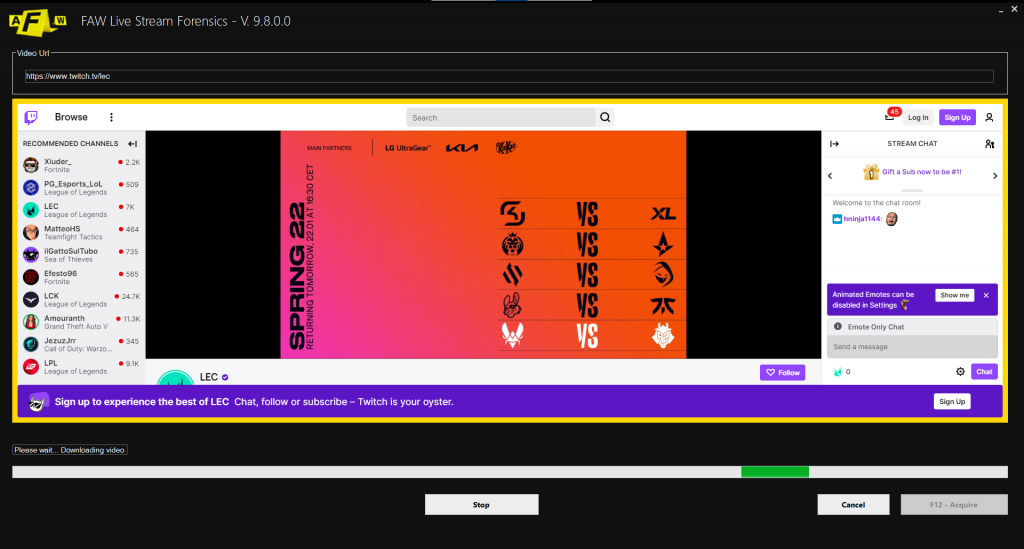
Fig. 1
At this point, press the [F12 – Acquire] button and the acquisition will begin; the tool will start acquiring the live stream.
The acquisition must be ended manually by clicking on the [Stop] button; at the end of the procedure a window will open showing all the acquired files.
]]>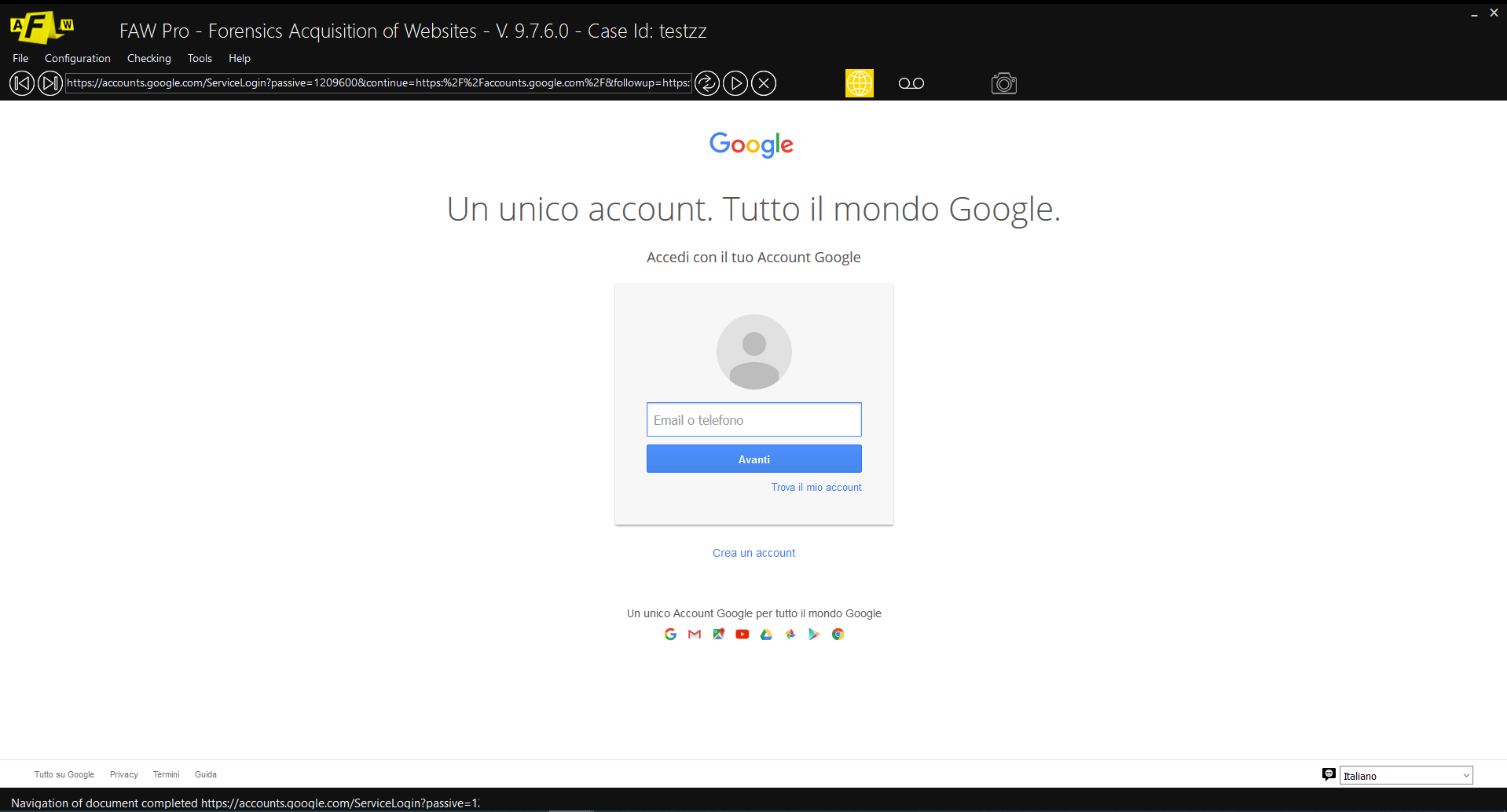
At this point it will be possible to proceed with a normal FAW acquisition.
]]>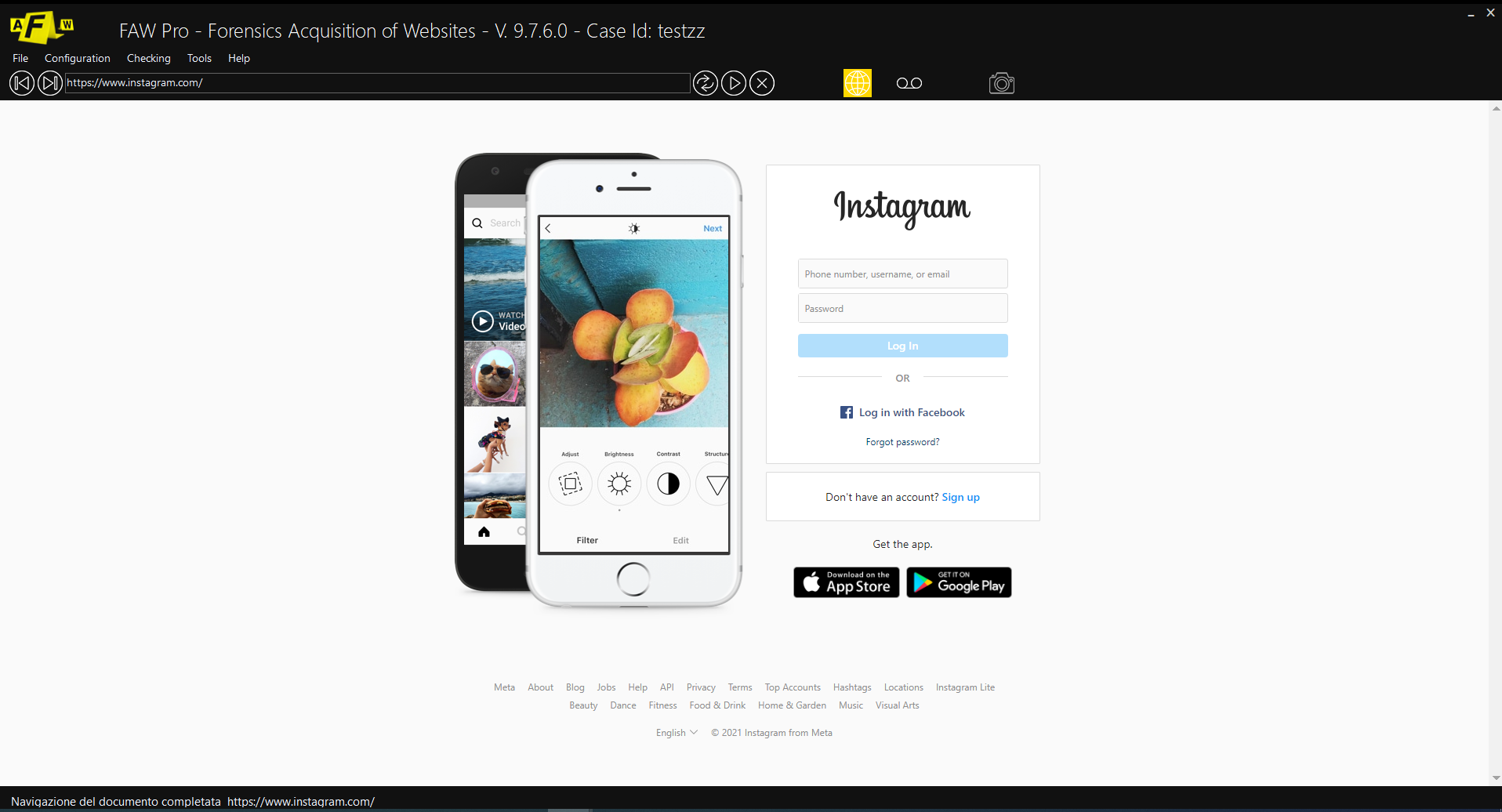
At this point it will be possible to proceed with a normal FAW acquisition.
]]>The FAW VIDEO tool allows you to capture and certify a video (not live stream) by downloading it.
At the start of the tool a window is opened where the video URL must be inserted (Fig. 1).

At the end of the procedure a window will open showing all the acquired files.
At the start of the tool a window is opened where the video URL must be inserted (Fig. 1).

Fig. 1
At this point you have to press the button [F12 – Go to Faw]; the standard FAW window will open with the URL loaded and you can proceed with the acquisition.
The Youtube video file will be acquired and will be available in the Object folder of the acquisition.
]]>All’avvio del tool viene aperta una Finestra in cui si può inserire un file torrent (cerncardolo sul proprio computer) oppure indicando un magnetic URL (Fig. 1).

Fig. 1
At this point you have to press the [F12 – Acquire] button and the acquisition will begin; a progress bar will show the download progress.
]]>
Fig. 1
Once you have entered all the access data to the mailbox you must click on the button [Get Emails] at this point the software will start to download the mail messages and display them in the area below (Fig. 2).
WARNING: some mail services like Gmail prevent the use of mail clients to download emails, in this case you need to enter your email account settings and disable this control.

At this point you can choose the emails to be acquired by selecting the relevant checkbox and then clicking the [Acquire emails] button. The acquisition includes the body of the mail message, the headers, the attachments and all the messages exchanged between client and mail server.
]]>- Close FAW
- Deactivate the FAW license from this URL: https://www.fawproject.com/Licenses/Disable
- Insert the dongle into a USB port on the computer
- Open FAW
- If a message appears saying “Dongle not inserted”, ignore it and click OK
- The window opens where the license code and data of the holder must be entered, fill in all the fields and click OK.
From now on, the FAW license is associated with the dongle.
]]>
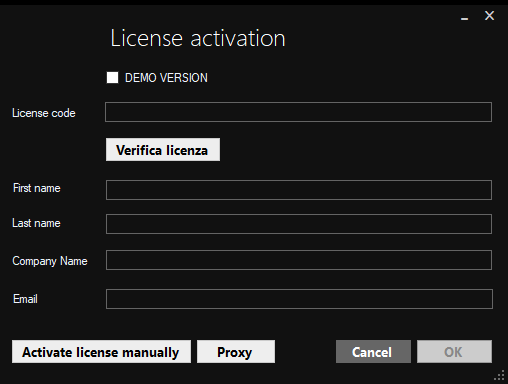
Fig. 1
Continue with the activation by entering the required data: Name, Surname, Company or Organization, and the email address.
Press the [OK] button, the license is activated and a success message is shown.
Now you can open FAW and use it.
Using a Proxy
If the computer from which the Faw license is being activated is under a proxy network, before clicking on the [OK] button, click on the [Proxy] button and enter the required data (Fig. 2).
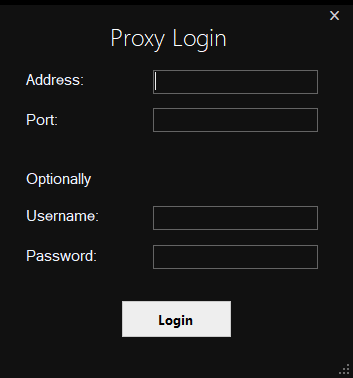
Fig. 2
Manual activation
If it is not possible to activate the license automatically by following the instructions above, you can activate the license manually. Click on the [Activate License Manually] button and the browser will open from which you can activate the license by following the instructions on the screen. At the end, the license file with the name FAW.lic will be generated which must be downloaded and copied to the FAW installation folder on the computer – by default the path is the following: C: \ Program Files (x86) \ FAW – Forensics Acquisition of Websites .
License activation issues
For activation problems, you can contact technical support at: [email protected]