How to Play Downloaded Videos on Your iPod, Xbox 360, or DVD Player

I’ve been slumming through the support forums at answers.yahoo.com lately and this is a question I see come up often: how do I download a video and put it on my electronic device? More and more consumer electronics devices that can play videos, but that means we have to learn more about the big, bad scary world of video codecs.
The steps are simple:
- Find a video source (source)
- video from your camera/phone, off the Internet, or from a DVD you own
- Get the video on to your computer (source/download)
- Convert the format of the video to something your portable media player can play (convert)
- Copy the video to your portable media player (destination)
…but the devil is in the details.
What is a Codec?
Codec stands for coder-decoder. It’s a mathematical algorithm that stores the video into a file. It’s like VHS vs beta or HD-DVD vs Blu-ray — different codecs have different formats and they aren’t interchangeable. There are many different video codecs, and that’s where the headache with downloaded content comes from. Your computer can play many more codec formats that your iPod, Xbox 360 or DVD player.
What Codecs Can My iPod, Xbox 360 or DVD Player Play?
This is the hardest part, especially when you aren’t familiar with video codecs. You’re going to have to do some research and find out what your portable media player supports. This is how I find information for any electronic device I’m having problems with:
- Find the model number for the electronic device
- Go to the company who makes the product and search for the model number
- Search Google using the model number and keywords about what you want to find
Once you’ve found the information make sure to save it somewhere you can find it again. I keep a folder on my computer with PDFs of the manuals for all my electronic devices so that I can quickly find the information again later.
Here’s a list of codecs for popular devices to get you started.
- Official list of Xbox 360 supported codecs
- Official list of iPod Nano supported codecs
- Official list of iTouch supported codecs
- Official list of iPhone supported codecs

How to Copy a DVD to Your Computer
These guides will show you how to copy a DVD to your computer’s hard drive so that you can work on it with other software to change the format to something you can play on your portable media device.
How to Download Videos
I’m not going to go into detail because of the questionable legality. There are videos out there that you can legitimately download but there are even more where you would be breaking the law if you downloaded them. I’ll let my friends at Lifehacker give you the skinny on downloading videos instead:
- The Beginner’s Guide to BitTorrent
- The Intermediate Guide to BitTorrent
- How to Find BitTorrent Files
- 6 Ways to Watch TV on the Internet
- How to Download YouTube Videos
- Software to Download YouTube Videos directly to your iPod
- How to Automatically Download and Covert Video
How to Watch Any Video Format on your Computer
If you’re downloading videos from unknown sources, quite often you’re going to end up with a file that your computer doesn’t know how to play back. The solution is to use the free VLC Media Player that is available for Windows, Mac, Linux and a million other operating systems you’ve never heard of.
Quick tip: always test playing a file with VLC before you do anything else with it. If it doesn’t play in VLC, chances are you won’t be able to convert it to work with your portable media player.
When VLC doesn’t work, there’s the Combined Community Codec Pack to the rescue.
How to Tell Which Codec Format the Video Uses
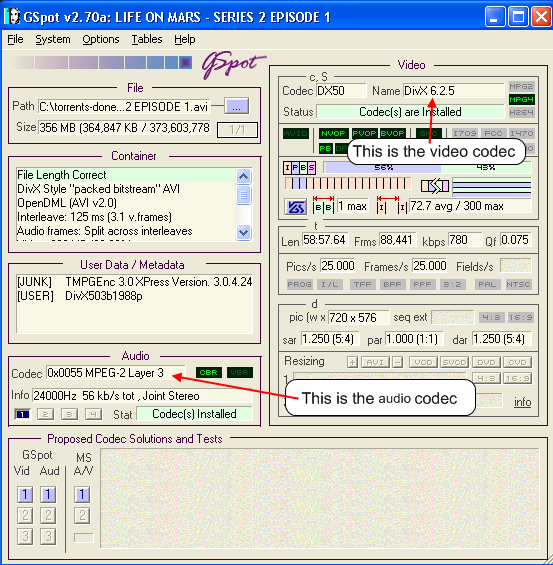
The best advice I can give anyone who is downloading content from unknown sources is do not trust the file extension. Just because the file says .divx or .mp4 doesn’t mean it’s is. Use the free GSpot software to find out the real details of what codec format the file you downloaded is.
I’m not going to lie to you — GSpot isn’t the most userfriendly application I’ve ever seen. But it gives you the two pieces of essential information you need: the video codec and audio codec the file is using.
How to Convert Codec Formats
The world of video codecs is very confusing, with lots of formats that sound similar but have minor differences that will prevent them with playing on different devices. I use Any Video Converter when I need to change codec formats of a file. It has a very simple interface that requires only three clicks to convert a file:
- Add a file
- Choose the profile for the output format I want
- Encode
 Any Video Converter also has pay versions with added features like easy converting to iPod, Zune, PSP. But the free version works well for converting if you set up the profile for the output file format correctly. The free version also supports YouTube.
It is often easier to find specialty software that supports the electronic device you want to play videos on. When looking for how to specific software for converting video the first thing I do is go to lifehacker.com and do a search. They often discuss free software for video converting, and the comments are full of excellent information.
Specialty Software for Converting Video
Here are some examples of software that converts specifically to the file formats you need. I haven’t tried all of them, and some of them are pay software with trial versions while others are freeware and available for multiple operating systems.
- DVDFlick converts any file format to DVD
- Handbrake is a freeware converter for DVD to MP4 (iPod)
- 3GP Converter can convert 3GP/AVI/DivX/MP4/XviD to 3GP/MP4 for iPod, Sony PSP and most cell phones
- Videora BitTorrent client that supports conversion to all iPod formats including AppleTV
- Any Video Converter supports conversion to all iPod formats
- PSPVideo9 – convert to Sony PSP
- DVD Catalyst – dvd to ipod
- Pocket DVD Wizard – dvd to any portable device
- ZuneMyTube – youtube/google video to zune
This was written as part of the Daily Blog Tips tutorials group writing project.


 Most Popular Posts
 Most Recent Posts
 Site Map
 Random Post
 About Me
 Subscription Options
 Free Software
 Wordpress Tools
 // Internet Duct Tape
17 comments