Search the Community
Showing results for tags 'controller'.
-
Can anyone offer advice on using xbox360ce for an arcade cab using a xinmotech decoder? It will set up and configure within launchbox initially, but will stop working randomly. Is there a better alternative, a setting I'm missing? Thank you.
-
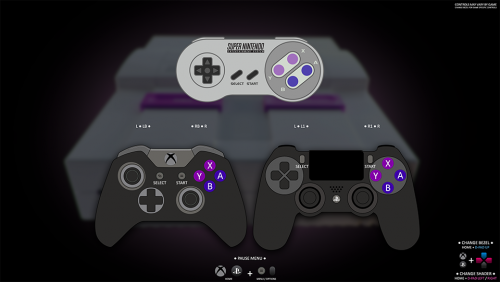
Version 3.1.4
2,140 downloads
These are for use with @Retro808's Game Controls Pause Theme, which can be found here (These images are already included with his theme): RELEVANT INFO: Most of the backgrounds are from this thread in the RetroPie forums, with a 6.6 pixel Gaussian blur applied twice: https://retropie.org.uk/forum/topic/720/background-images-coming-back/68 Controller images were taken from various parts of the internet, and modified to fit the theme. You are free to use and modify these files to use in your own uncommercial purposes. Please do don’t use these for commercial purposes, as these are modifications of various artist’s work, from the RetroPie thread.- 11 comments
-
- 13
-

-

-
-

-
- controls
- controller
- (and 1 more)
-
SteamLauncher View File SteamLauncher A LaunchBox plugin designed to allow roms/emulators to easily be launched with Steam, directly from the LaunchBox/BigBox interface, without any complicated setup or technical know-how. Simply enable SteamLauncher and all LaunchBox/BigBox game/rom launches will be intercepted and launched via Steam. This will provide access to the Steam overlay, custom controller configurations, and will display the game/rom your are currently playing to any of your Steam friends. Features Here are a few of the features provided by SteamLauncher: Allow LaunchBox to do what its good at - be the sole organizer and maintainer of your rom/game collection, without having to duplicate its functionality in Steam (something it was not designed for). Keep the Steam library clean and uncluttered by hundreds of emulator/rom shortcuts. Get all of the benefits of Steam's excellent overlay system while playing any rom or emulator. Take advantage of Steam's infinitely customizable controller configuration (bindings) for both the Steam Controller and nearly all other DirectInput/XInput controllers. Use per-rom/per-emulator/per-game controller configurations that are automatically remembered between gaming sessions (without having to create convoluted Steam shortcuts for every rom). Bypass or improve upon many emulators' extremely limited controller bindings and hotkey options. Share the game/rom currently being played with Steam friends (ex: JohnDoe is currently playing 'Super Metroid (SNES)'). Requirements .NET Core 3.1 Steam for Windows LaunchBox/BigBox Getting Started Installation Download the latest plugin release from the LaunchBox forum plugin download page. This GitHub repository is meant as more of a resource for developers. While test builds and other pre-release packages may occassionally be posted on GitHub, the latest public release builds will always be posted on the LaunchBox forum plugin download page first: LaunchBox Plugin Download: https://forums.launchbox-app.com/files/file/972-steamlauncher/ Extract the 'SteamLauncher' directory from the compressed package into your LaunchBox plugins directory. Example: If LaunchBox is located at 'C:\LaunchBox', you would copy the 'SteamLauncher' directory to 'C:\LaunchBox\Plugins'. This would result in 'SteamLauncher.dll' and any additional files being inside the directory 'C:\LaunchBox\Plugins\SteamLauncher'. How to Use Note: Obviously, Steam must be running to launch games via Steam so one can either manually start Steam before opening LaunchBox/BigBox or SteamLauncher will automatically launch Steam when needed. To launch a game/rom/emulator in LaunchBox/BigBox via Steam: Ensure SteamLauncher is enabled by using 1 of the 2 following methods: Selecting the 'Tools' menu item and clicking 'Use SteamLauncher'. When SteamLauncher is enabled the menu item will be labeled '(ON)'. This menu item can also be found in BigBox. Selecting the 'Tools' menu item and clicking 'SteamLauncher Settings', resulting in the SteamLauncher settings dialog being displayed. By then checking the checkbox labeled 'Enable SteamLauncher' and clicking the 'Save' button, SteamLauncher will be enabled. The SteamLauncher settings dialog cannot be accessed in BigBox. Once SteamLauncher is enabled, all games/roms/emulators will be intercepted by SteamLauncher and launched through Steam. Customize Platform Names When games/roms are launched with SteamLauncher enabled, the title and platform of the game/rom will be displayed in one's Steam status in the format of: 'Game Title (Platform Name)'. Example: Super Mario Bros. (Nintendo Entertainment System) Friends on Steam will see this title in one's status whenever a particular game/rom is being played. If desired, the platform name displayed can be customized. For example, the platform 'Nintendo Entertainment System' can be changed to 'NES'. This customization can be performed by navigating to the 'Platform Names' tab in the SteamLauncher settings dialog. Note: To entirely omit a platform name from one's Steam status, leave the 'Custom Platform Name' entry blank (as seen in the 'Windows' entry in the screenshot below). Selective Use The 'Selective Use' feature allows one to precisely customize the circumstances under which SteamLauncher will be enabled/disabled. The settings for this feature can be found in the 'Selective Use' tab in the SteamLauncher settings dialog. Filter Mode 'Filter Mode' defines how the entries in the 'Filter List' will be applied. Blacklist: SteamLauncher will always be enabled except when a matching filter is found. Whitelist: SteamLauncher will always be disabled except when a matching filter is found. Off: Disable the 'Selective Use' feature entirely. Filters List The 'Filters List' is a list of user defined filters that control when SteamLauncher will be enabled/disabled. Enable: This checkbox must be checked for a particular filter list entry to be enabled. If not checked, it will be completely ignored. Description: Used purely as a means of helping the user describe what the filter list entry does. It is entirely optional and has no impact on the actual functionality of the entry. Filter String: This is the string which is matched against the target 'Filter Type', dictating whether or not this entry matches a particular game title, platform name, etc. The filter string is not case sensitive and it supports 2 types of wildcards: '*' Wilcard: matches one or more of any character. '?' Wildcard: matches any single character. Filter Type: Dicates what field the 'Filter String' is compared against. The 'Filter Type' options are: Game Title: Title of the game or rom (ex: Celeste, Super Mario World, Donkey Kong Country, etc). Platform Name: Name of the platform (ex: Windows, Nintendo 64, Sony Playstation, etc). Emulator Title: Title of the emulator (ex: Retroarch, Dolphin, Cemu, etc). Exe Path: The path of the game or emulator EXE file (ex: 'C:\PC_Games\GOG\*', 'D:\*', '*\DOSBox\*', etc). Additional Application Name: Name of an 'Additional App' (a LaunchBox feature which allows you to specify additional commands to run for a game). Status: A field in LaunchBox's metadata for games (right click game, 'Edit' -> 'Edit Metadata') which specifies what platform/launcher/store a game was imported from (ex: '*Xbox*', '*Microsoft Store*', '*GOG*', etc). Ignore Custom Fields: Enabling this feature causes SteamLauncher to ignore all 'SLEnabled' custom field entries. What are 'SLEnabled' custom field entries? Right click on a game in LaunchBox, click 'Edit' -> 'Edit Metadata', and then select the 'Custom Fields' menu item. By adding a new entry named 'SLEnabled' and setting its value to '1' or '0', SteamLauncher can be made to always be enabled for this game (1) or always be disabled for this game (0). This custom field value will always take precedent over all other filtering features (filter strings, filter modes, etc). The only exception to this is when 'Ignore Custom Fields' is enabled (which will cause all 'SLEnabled' custom field entries to be ignored). VTables 'Automatic Online Updates' 'Automatic Online Updates' of vtables definitions can be enabled/disabled in the 'Miscellaneous' tab of the SteamLauncher settings dialog. For SteamLauncher to properly work it has to access internal Steam features that are not meant to be accessed by developers outside of Valve. To access these undocumented, unexported functions, SteamLauncher uses a set of definitions which define what these functions are, their function signatures (their parameters, return values, and how to call them), and where to find them within the Steam client DLL. These definitions can change whenever Valve releases a new Steam update and if they change significantly, they can cause SteamLauncher to stop working correctly. In order for SteamLauncher to continue working properly, without the author manually patching the plugin and releasing a new SteamLauncher update every time this happens, an online database was created that can be updated when one of these changes happens, allowing SteamLauncher to continue functioning normally. If 'Automatic Online Updates' is enabled, SteamLauncher will automatically check for new updates every time LaunchBox/BigBox is launched. If new definitions are available, it will silently update and continue working normally. If automatic updates are not enabled, one can manually check for new updates by clicking the 'Force Update' button. Support If you have ANY problems with the plugin, I want to know about them. If you need help with any technical issue (see 'Logs'), want to suggest a new feature (I'm very open to any ideas), just want to chat, or anything else related to the plugin, visit the support thread at the link below. I am also available to chat on Steam for any urgent issues or if more direct help is needed. Plugin Support Thread: https://forums.launchbox-app.com/topic/43142-steamlauncher/ Logs To provide help with any technical problems or to investigate a bug, I will need a copy of the debug log that is generated whenever 'Log Level' is set to 'Verbose'. To enable and collect 'Verbose' debug logs, do the following: Open the SteamLauncher settings dialog. Click the dropdown box under 'Log Level' and select 'Verbose'. Click the 'Save' button. Restart LaunchBox/BigBox. Now simply repeat whatever behavior was causing the issue and/or bug, and after you're sure you've replicated the behavior, close LaunchBox/BigBox. Look inside of the SteamLauncher directory for a file named 'debug.log' (there may be more than one sequentially named log file if there was an enormous amount of output but this is unlikely if verbose logging was turned on just briefly). Open this 'debug.log' file in a text editor, copy its entire contents, and paste/upload it to pastebin.com. In the SteamLauncher support thread, provide the PasteBin URL, the details of the problem you encountered, and the particulars of your setup (Windows version, 32-bit or 64-bit, LaunchBox version, Steam version, SteamLauncher plugin version, etc). The more information the better. Contact Information Alias: Lahma Email: [email protected] Steam Alias: lahma0 Friend me on Steam: You can click on my alias above or you can copy/paste the following URL into your address bar: steam://friends/add/76561198237461630 GitHub Project URL: https://github.com/lahma0/SteamLauncher LaunchBox Community Forums Profile: https://forums.launchbox-app.com/profile/89710-lahma/ Plugin Support Thread: https://forums.launchbox-app.com/topic/43142-steamlauncher/ Credits ChippiHeppu: Logo m4dengi: steamclient_tracker (unfortunately, no longer updated) cammelspit: Help with developing the idea and direction for the project Nielk1: Initial inspiration for the project and just a talented programmer to bounce ideas off of Helpful members of the LaunchBox community: The_Keeper86, JedExodus, FromLostDays, HTPCei, Corgana, Benuno, Neil9000 (sorry for anyone I'm forgetting) Known Issues MAME Compatibility Fix It has been observed that MAME crashes when launched through a non-Steam shortcut. This problem is not directly related to SteamLauncher, but since SteamLauncher relies on non-Steam shortcuts, launching MAME via SteamLauncher was no longer working. After a lot of investigation and tinkering by some dedicated users on the LaunchBox forums (cammelspit and JedExodus), a fix was eventually found for the issue. Whether launching MAME directly via a non-Steam shortcut or via SteamLauncher using LaunchBox/BigBox, the fix is simply to modify the launch parameters to include the following: -joystickprovider xinput -keyboardprovider win32 If one of these parameters already exists when modifying MAME within LaunchBox, you will obviously need to replace it (don't just add a 2nd instance of '-joystickprovider' or '-keyboardprovider'). You can safely ignore any popups/warnings that LaunchBox displays about pause screen compatibility. Legal Stuff ©2022 Valve Corporation. Steam and the Steam logo are trademarks and/or registered trademarks of Valve Corporation in the U.S. and/or other countries. Submitter Lahma Submitted 02/11/2018 Category Third-party Apps and Plugins
-
I am able to contol Big Box, without issue; I am able to control Dolphin without issue. However, once I am done playing a Dolphin game (specifically Nintendo GameCube) I am unable to control Big Box again unless I restart my PS4 controller. Once I restart the controller, I gain perfect access to Big Box. If this helps when I first boot up Big Box my PS4 controller LED is white, when I launch Dolphin it turns blue. Controler setup. PS4 controller. Dolphin Settings: Set in Dolphin as Standard controller, in Config set as SDL/0/PS4 Controller All other functions work perfectly for the rest of my emulators. Any help you can provide would be awesome!
-
 I am currently using moonlight/sunshine to stream Big Box to my Apple TV 4K in another room. I have tried launching a switch game using ryujinx that I have setup and configured in Launchbox. I After launching the game, I am able to use the controller to navigate Big Box's UI and all, but in the game, none of the buttons or controls seems to work at all. Anyone know how to fix this?
 -
 Hello all, I am having some issues with controller configuration and hoping someone can help. I play my games using Big Box launched through SteamLink. I recently bought some Vilros Retro Gaming USB controllers. I have setup custom controller config and set the parameters in LaunchBox to use them. All of that works great. However, if I launch Big Box from Steam (both on the PC and using SteamLink), the controllers no longer work correctly inside RetroArch. The controllers work in Big Box and in SteamLink just fine. Its just once I am in game. I went to the quick menu to check the config and everything is working fine. I tested it launching from the PC, launching it from Steam and launch it from SteamLink. Only Steam and SteamLink cause this issue. Has anyone else experienced this issue? Any help would be greatly appreciated. I like use these controllers but need to use the SteamLink as I play in a different room from the PC. I also don’t want to build another PC or use the Raspberry Pi. Also, as a side note. I noticed that when launching from Steam and SteamLink, that the RetroArch control configuration loads 4 times with two controllers plugged in. I think once I saw it load 6 times. See attached image. While taking these screenshots, I also noticed that from the PC it says Retro-bit Genesis and from Steam it says XInput Controller.
-
Im not sure the mixup, but for some reason all the sudden, when I load LB, my xbox pad is acting as a mouse (analog controls the pointer / B button acts as right click / etc) Any help on what can be causing this? BTW, I dont have Steam installed as thats the answer Im finding everywhere online
-
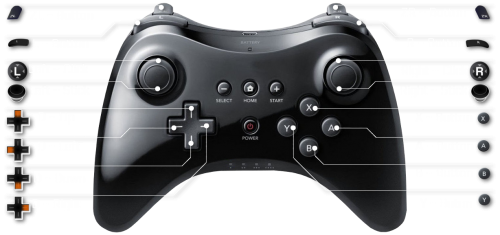
Version .6
489 downloads
So, there wasn't an actual category for this, so I put it here because I think it best suits what I'm doing. So, there is a theme that I love, and it utilizes the ability to set an individual controller graphic per game, so to help with this, I thought it would be nice to have a template. Right now I only have PS1 and PS2 controllers in there but I'll update periodically to include more controllers. I might even fill some out with in-game controls. Anyway, I think I saw somewhere that this might be implemented as a feature in a future LB build, but that might not be the case, regardless, I know that specific themes can take advantage of this, so for anyone using those themes, I hope this helps make your library look a bit cooler and more helpful- 4 comments
-
- 12
-
-
-
- playstation
- ps1
- (and 10 more)
-

Version NETCore 0.9.8.5
3,005 downloads
SteamLauncher A LaunchBox plugin designed to allow roms/emulators to easily be launched with Steam, directly from the LaunchBox/BigBox interface, without any complicated setup or technical know-how. Simply enable SteamLauncher and all LaunchBox/BigBox game/rom launches will be intercepted and launched via Steam. This will provide access to the Steam overlay, custom controller configurations, and will display the game/rom your are currently playing to any of your Steam friends. Features Here are a few of the features provided by SteamLauncher: Allow LaunchBox to do what its good at - be the sole organizer and maintainer of your rom/game collection, without having to duplicate its functionality in Steam (something it was not designed for). Keep the Steam library clean and uncluttered by hundreds of emulator/rom shortcuts. Get all of the benefits of Steam's excellent overlay system while playing any rom or emulator. Take advantage of Steam's infinitely customizable controller configuration (bindings) for both the Steam Controller and nearly all other DirectInput/XInput controllers. Use per-rom/per-emulator/per-game controller configurations that are automatically remembered between gaming sessions (without having to create convoluted Steam shortcuts for every rom). Bypass or improve upon many emulators' extremely limited controller bindings and hotkey options. Share the game/rom currently being played with Steam friends (ex: JohnDoe is currently playing 'Super Metroid (SNES)'). Requirements .NET Core 3.1 Steam for Windows LaunchBox/BigBox Getting Started Installation Download the latest plugin release from the LaunchBox forum plugin download page. This GitHub repository is meant as more of a resource for developers. While test builds and other pre-release packages may occassionally be posted on GitHub, the latest public release builds will always be posted on the LaunchBox forum plugin download page first: LaunchBox Plugin Download: https://forums.launchbox-app.com/files/file/972-steamlauncher/ Extract the 'SteamLauncher' directory from the compressed package into your LaunchBox plugins directory. Example: If LaunchBox is located at 'C:\LaunchBox', you would copy the 'SteamLauncher' directory to 'C:\LaunchBox\Plugins'. This would result in 'SteamLauncher.dll' and any additional files being inside the directory 'C:\LaunchBox\Plugins\SteamLauncher'. How to Use Note: Obviously, Steam must be running to launch games via Steam so one can either manually start Steam before opening LaunchBox/BigBox or SteamLauncher will automatically launch Steam when needed. To launch a game/rom/emulator in LaunchBox/BigBox via Steam: Ensure SteamLauncher is enabled by using 1 of the 2 following methods: Selecting the 'Tools' menu item and clicking 'Use SteamLauncher'. When SteamLauncher is enabled the menu item will be labeled '(ON)'. This menu item can also be found in BigBox. Selecting the 'Tools' menu item and clicking 'SteamLauncher Settings', resulting in the SteamLauncher settings dialog being displayed. By then checking the checkbox labeled 'Enable SteamLauncher' and clicking the 'Save' button, SteamLauncher will be enabled. The SteamLauncher settings dialog cannot be accessed in BigBox. Once SteamLauncher is enabled, all games/roms/emulators will be intercepted by SteamLauncher and launched through Steam. Customize Platform Names When games/roms are launched with SteamLauncher enabled, the title and platform of the game/rom will be displayed in one's Steam status in the format of: 'Game Title (Platform Name)'. Example: Super Mario Bros. (Nintendo Entertainment System) Friends on Steam will see this title in one's status whenever a particular game/rom is being played. If desired, the platform name displayed can be customized. For example, the platform 'Nintendo Entertainment System' can be changed to 'NES'. This customization can be performed by navigating to the 'Platform Names' tab in the SteamLauncher settings dialog. Note: To entirely omit a platform name from one's Steam status, leave the 'Custom Platform Name' entry blank (as seen in the 'Windows' entry in the screenshot below). Selective Use The 'Selective Use' feature allows one to precisely customize the circumstances under which SteamLauncher will be enabled/disabled. The settings for this feature can be found in the 'Selective Use' tab in the SteamLauncher settings dialog. Filter Mode 'Filter Mode' defines how the entries in the 'Filter List' will be applied. Blacklist: SteamLauncher will always be enabled except when a matching filter is found. Whitelist: SteamLauncher will always be disabled except when a matching filter is found. Off: Disable the 'Selective Use' feature entirely. Filters List The 'Filters List' is a list of user defined filters that control when SteamLauncher will be enabled/disabled. Enable: This checkbox must be checked for a particular filter list entry to be enabled. If not checked, it will be completely ignored. Description: Used purely as a means of helping the user describe what the filter list entry does. It is entirely optional and has no impact on the actual functionality of the entry. Filter String: This is the string which is matched against the target 'Filter Type', dictating whether or not this entry matches a particular game title, platform name, etc. The filter string is not case sensitive and it supports 2 types of wildcards: '*' Wilcard: matches one or more of any character. '?' Wildcard: matches any single character. Filter Type: Dicates what field the 'Filter String' is compared against. The 'Filter Type' options are: Game Title: Title of the game or rom (ex: Celeste, Super Mario World, Donkey Kong Country, etc). Platform Name: Name of the platform (ex: Windows, Nintendo 64, Sony Playstation, etc). Emulator Title: Title of the emulator (ex: Retroarch, Dolphin, Cemu, etc). Exe Path: The path of the game or emulator EXE file (ex: 'C:\PC_Games\GOG\*', 'D:\*', '*\DOSBox\*', etc). Additional Application Name: Name of an 'Additional App' (a LaunchBox feature which allows you to specify additional commands to run for a game). Status: A field in LaunchBox's metadata for games (right click game, 'Edit' -> 'Edit Metadata') which specifies what platform/launcher/store a game was imported from (ex: '*Xbox*', '*Microsoft Store*', '*GOG*', etc). Ignore Custom Fields: Enabling this feature causes SteamLauncher to ignore all 'SLEnabled' custom field entries. What are 'SLEnabled' custom field entries? Right click on a game in LaunchBox, click 'Edit' -> 'Edit Metadata', and then select the 'Custom Fields' menu item. By adding a new entry named 'SLEnabled' and setting its value to '1' or '0', SteamLauncher can be made to always be enabled for this game (1) or always be disabled for this game (0). This custom field value will always take precedent over all other filtering features (filter strings, filter modes, etc). The only exception to this is when 'Ignore Custom Fields' is enabled (which will cause all 'SLEnabled' custom field entries to be ignored). VTables 'Automatic Online Updates' 'Automatic Online Updates' of vtables definitions can be enabled/disabled in the 'Miscellaneous' tab of the SteamLauncher settings dialog. For SteamLauncher to properly work it has to access internal Steam features that are not meant to be accessed by developers outside of Valve. To access these undocumented, unexported functions, SteamLauncher uses a set of definitions which define what these functions are, their function signatures (their parameters, return values, and how to call them), and where to find them within the Steam client DLL. These definitions can change whenever Valve releases a new Steam update and if they change significantly, they can cause SteamLauncher to stop working correctly. In order for SteamLauncher to continue working properly, without the author manually patching the plugin and releasing a new SteamLauncher update every time this happens, an online database was created that can be updated when one of these changes happens, allowing SteamLauncher to continue functioning normally. If 'Automatic Online Updates' is enabled, SteamLauncher will automatically check for new updates every time LaunchBox/BigBox is launched. If new definitions are available, it will silently update and continue working normally. If automatic updates are not enabled, one can manually check for new updates by clicking the 'Force Update' button. Support If you have ANY problems with the plugin, I want to know about them. If you need help with any technical issue (see 'Logs'), want to suggest a new feature (I'm very open to any ideas), just want to chat, or anything else related to the plugin, visit the support thread at the link below. I am also available to chat on Steam for any urgent issues or if more direct help is needed. Plugin Support Thread: https://forums.launchbox-app.com/topic/43142-steamlauncher/ Logs To provide help with any technical problems or to investigate a bug, I will need a copy of the debug log that is generated whenever 'Log Level' is set to 'Verbose'. To enable and collect 'Verbose' debug logs, do the following: Open the SteamLauncher settings dialog. Click the dropdown box under 'Log Level' and select 'Verbose'. Click the 'Save' button. Restart LaunchBox/BigBox. Now simply repeat whatever behavior was causing the issue and/or bug, and after you're sure you've replicated the behavior, close LaunchBox/BigBox. Look inside of the SteamLauncher directory for a file named 'debug.log' (there may be more than one sequentially named log file if there was an enormous amount of output but this is unlikely if verbose logging was turned on just briefly). Open this 'debug.log' file in a text editor, copy its entire contents, and paste/upload it to pastebin.com. In the SteamLauncher support thread, provide the PasteBin URL, the details of the problem you encountered, and the particulars of your setup (Windows version, 32-bit or 64-bit, LaunchBox version, Steam version, SteamLauncher plugin version, etc). The more information the better. Contact Information Alias: Lahma Email: [email protected] Steam Alias: lahma0 Friend me on Steam: You can click on my alias above or you can copy/paste the following URL into your address bar: steam://friends/add/76561198237461630 GitHub Project URL: https://github.com/lahma0/SteamLauncher LaunchBox Community Forums Profile: https://forums.launchbox-app.com/profile/89710-lahma/ Plugin Support Thread: https://forums.launchbox-app.com/topic/43142-steamlauncher/ Credits ChippiHeppu: Logo m4dengi: steamclient_tracker (unfortunately, no longer updated) cammelspit: Help with developing the idea and direction for the project Nielk1: Initial inspiration for the project and just a talented programmer to bounce ideas off of Helpful members of the LaunchBox community: The_Keeper86, JedExodus, FromLostDays, HTPCei, Corgana, Benuno, Neil9000 (sorry for anyone I'm forgetting) Known Issues MAME Compatibility Fix It has been observed that MAME crashes when launched through a non-Steam shortcut. This problem is not directly related to SteamLauncher, but since SteamLauncher relies on non-Steam shortcuts, launching MAME via SteamLauncher was no longer working. After a lot of investigation and tinkering by some dedicated users on the LaunchBox forums (cammelspit and JedExodus), a fix was eventually found for the issue. Whether launching MAME directly via a non-Steam shortcut or via SteamLauncher using LaunchBox/BigBox, the fix is simply to modify the launch parameters to include the following: -joystickprovider xinput -keyboardprovider win32 If one of these parameters already exists when modifying MAME within LaunchBox, you will obviously need to replace it (don't just add a 2nd instance of '-joystickprovider' or '-keyboardprovider'). You can safely ignore any popups/warnings that LaunchBox displays about pause screen compatibility. Legal Stuff ©2022 Valve Corporation. Steam and the Steam logo are trademarks and/or registered trademarks of Valve Corporation in the U.S. and/or other countries. -
Hi everybody, I just moved from Hyperspin to Launchbox (Bigbox itself) for my pleasure. I am totally a fan of this frontend. My configuration works perfectly between retroarch and retrogamming, on the other hand with regard to Steam games, I encounter a problem that horribles me. My system works with an IPAC, and to play Steam / PC games, just use a software called UCR which will simulate two xbox 360 pads. The operation is simple, you just need: Launch UCR before launching the game Then exit UCR after leaving the game. Note that on my old system (hyperspin / rocketLauncher) everything worked perfectly. Here are the scripts in question (these scripts are compiled (right click: compile) and these are the “.exe” which are called via RocketLauncher): UCR_Start.ahk Run, D: \ Path to UCR \ UCR.exe, D: \ Path to UCR { WinHide, UCR.exe Sleep, 10000 } Exitapp Return and UCR_Stop.ahk Process, close, UCR.exe Exitapp Return Explanation of my issue: When I manually launch UCR and then a STEAM game, everything is perfect. In my old system, RL did the job very well, it launched UCR perfectly before the game and left it after the execution of the game. And all in a perfectly invisible way. Well done RL. Today with Launchbox, After configuring "Additional Apps" with UCR Start in Automatically Run Before Application and UCR Stop in Automatically Run After Main Application This does not work, UCR launches well, (we see the window appear 1/10 of a second) but is left when the game launches. I hope UCR / Launchbox experts can help me ? Thank you, See you.
-
I've been racking my brain trying to get this working, and I haven't had any luck in finding a tutorial anywhere. I'm setting up a home arcade machine and wanted to use this specific arcade stick because it has two players. I got it working on Retro Arch and on PC games, but when trying to play games through Launch Box or Big Box, it does not recognize the joy stick at all. However, that's only within games. I can navigate menus and everything with the stick, but when actually trying to play games, it's not working at all. I've tried messing around with the input settings in Retro Arch to see if that will carry over to LaunchBox/BigBox, but nothing seems to be working. This is my first endeavor into emulation, so any and all help would be much appreciated.
-
Hello everybody. So I'm really new to Launchbox, just downloaded and bought premium today, and I can't figure out my controller issue. Every game I've tried through Wii, PSX, & NES so exits the game anytime I press the start/options button on my DS$ controller. Also if I press the right trigger the screen flashes and the controller won't work in the game anymore. I've searched the internet and also the forums and couldn't find anything mentioning these problems. I've gone through the pad configs on the emu and in LB and still can't fix it. Any help would be greatly appreciated. Thanks for any help.
-
Hey Everyone! This is my first forum post here, but I wanted to thank everyone involved in developing LaunchBox. I really am loving the program and can easily have all my games configured exactly how I want to; I am currently working on a retro Big Box setup so I can play games via my TV with only my Xbox One controller. Because of this some games don't have native game-pad support (some MS-DOS games, Tomb Raider for PC, etc) and I am using "Joy To Key" to map my controller to keyboard inputs so that I can play the games with my controller. My question is: would there possibly be a way to have Joy To Key exit when the game I am playing closes? Is there a certain command line input I can use? I want to make sure it can be closed if I was to play another game that didn't require Joy To Key (not that it is CPU intensive, I am just OCD like this). Thanks in advance!
-
I'm trying to use Launchbox to launch games using the retroarch->dolphin_libretro emulator. It launches fine except the game controllers don't work. If I load content just using retroarch then the game launches and the controllers work. I have other emulators and games launching with launchbox and they are all working perfectly. But for some reason, the dolphin emulator fails to find a controller when launched with launchbox. Does anyone know what I might be doing wrong?
-
Hello, I wanted to play some Sega Model 3 games like Star Wars Trilogy and Daytona but I'm a bit confused on how to configure my Xbox One x/s Controller. Would anyone be of assistance?
-
 Hi, I just realized that Big Box loses the gamepad functionality if I turn it off and then on or after entering sleep mode and then wake it up. Gamepad works as it should inside emulators and I don't remember failing like this in Big Box before. Anyone having the same problem? I've used the keyboard to see if its possible to map the gamepad buttons when this happens and the only button that worked is the "start" button, but maps it as something like "unknown". The rest of the buttons are like if they were not pressed. Thank you in advance!
 -
 I'm trying to set up the Pause Menu in BigBox. I can activate it using my keyboard (I set it to the P key), but not my Xbox Series X controller. I tried setting it to the Share button, but nothing happens. I then tried setting it to Start+Back, but still nothing. However, the controller buttons I set are able to close the pause menu after it's open! This means it's just halfway working. I'm guessing it's some kind of window focus issue? Any solutions? BigBox is fully up-to-date, and I'm running on Windows 10.
 -

silver ring Category Silver Ring Logos - Controller Support
sundogak posted a topic in Platform Media
Category Silver Ring Logos - Controller Support View File These are some quick logos I have for my system for the new LB controller support feature. These use the same naming convention that LB uses for the category level: Gamepad Joystick Keyboard Light Gun Motion Controller Mouse Paddle Rhythm Trackball VR Wheel/Yoke A few alts were included with slightly different naming for the category level ring and: Controller Category and Controller Support Joystick (2 variations with different icons) Mouse & Keyboard Paddle (a grayscale version of the paddle icon) Spinner Touchscreen Wheel/Yoke (uses a Yoke icon) Wheel Submitter sundogak Submitted 07/02/2021 Category Playlist Clear Logos -
Version 1.0.0
245 downloads
These are some quick logos I have for my system for the new LB controller support feature. These use the same naming convention that LB uses for the category level: Gamepad Joystick Keyboard Light Gun Motion Controller Mouse Paddle Rhythm Trackball VR Wheel/Yoke A few alts were included with slightly different naming for the category level ring and: Controller Category and Controller Support Joystick (2 variations with different icons) Mouse & Keyboard Paddle (a grayscale version of the paddle icon) Spinner Touchscreen Wheel/Yoke (uses a Yoke icon) Wheel -
Hi everyone, I am having some difficulties with getting my X-Arcade Tankstick to work in BigBox. I have not long converted from Hyperspin, where the X-Arcade was self explanatory and a breeze. Though, unfortunately I am not finding it so here. I have gone to BigBox > Options > Controller > and ticked "Enable Game Controllers" and "Use All Controllers". Where it says "Device:" there is nothing there. Is that because these options only apply to an actual game-pad controller instead of the X-Arcade which is mapped as a keyboard? If so, does that mean in the options I do not worry about "Controller Buttons" but just "Keyboard Mappings" instead? Also, regarding controls, using Nestopia as an example. I have gotten to the stage with BigBox where I can launch Nestopia full-screen into a chosen game but have no idea how to exit out of the emulator back into BigBox. Is someone able to point me in the right direction? Because at least to me it certainly is not obvious how (I am probable just a doofus). I have found other topics in the forum here about the X-Arcade from years ago but there were of little help as they were from a time where LaunchBox/BigBox seemed to not have compatibility issues with the X-Arcade? Thank you in advanced.
-
 I'm looking to purchase a pandora's box with the 2 arcade joystick panel. Is it as simple as me connecting the pandora's box to my pc via usb and configuring the buttons from there? Has anyone tried this before?
 -
Obligatory I'm brand new to LaunchBox / Big Box. Just bought my license a couple weeks ago to go along with the Rec Room Masters arcade cabinet I got along with the Xtension Control Board "Emulator Edition Plus" joystick controller. The controller comes preconfigured mapped to work great with MAME "out of the box", however I'm having a lot of trouble figuring out how to do mapping for other systems. I attempted to configure the controls in individual Emulators I'm launching (like Kega Fusion) however after exiting out and letting LaunchBox run a game with it, it's as if it forgets all controls I just mapped. I've attempted using launchers like RetroArch (which seems more geared toward gaming pads like RetroPad) and Rocket Launcher (which is a bit confusing, though even if I used something like AutoHotKey, I'm not sure what keys the Emulators use to map to). I would appreciate any help / guidance I could get on the topic, especially anything in regards to this specific controller. It'd be nice to keep it simple and not have to use external launchers, but at this point I really just want to get up and running...
-
Hello everybody! First time poster. I have an arcade cabinet setup and ready to go, but the only thing that got me stumped is the controllers. I'm using BigBox as the front end and the Retroarch as the emulator. When I go to configure my buttons on retroarch, i noticed that retroarch would autoconfig them as "N64 Retrolink controller". I've have been messing around with it for a couple of days and I think that autoconfig is the source of my issues but I don't know how to change it or to make it stop. Have anyone else run into issues like this? Thank you for your help and I appreciate any help I can get for this!
-
My emulation controller suddenly won't work. The controls have been reset to the keyboard. I can't change the controls. Can anyone help me? Update: I'm hearing jingle noises that activate and deactivate the controller. Anyone have a similar problem?
-
I have been using several different emulators and decided to amalgamate using launchbox. After importing the games. I noticed with epsxe and ppsspp the controller stopped functioning. Everything is fine with redream and snes9x. I am on windows 10 with a logitech f310. Xinput set for everything so I'm stumped! I even tried disabling controllers for launchbox itself and still nothing.