Search the Community
Showing results for tags 'menu'.
Found 12 results
-
Version 1.0.1
28 downloads
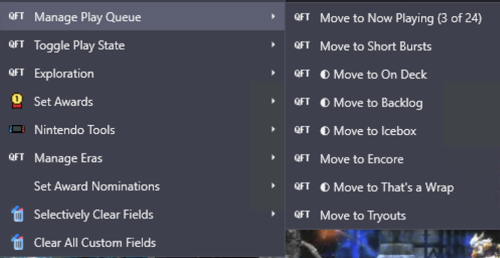
Hey everyone 👋 I built a plugin to solve a problem that's been driving me crazy, and I'm hoping it helps some of you too. The Problem I have 31,000 games in LaunchBox across 70+ platforms. I use custom fields heavily—tracking what I'm playing, managing a backlog, tagging award winners, marking first-party releases, organizing by era. It's a metadata system that works really well for discovery and organization. Except for one thing: actually maintaining it is miserable. You know the drill: Right-click → Edit → Custom Fields tab → scroll → find field → change value → OK That's 6+ clicks per field. Per game. If you're tagging a batch of games, it takes even more steps. When managing a play queue across thousands of titles, the friction compounds fast. I'd put off updating my metadata because it just wasn't worth the hassle. The Solution: QuickFieldToggle QuickFieldToggle puts your custom field actions directly in the right-click context menu. One click. Done. What It Does ✅ Single-click toggling — Toggle any custom field on/off instantly for a single game or multiple titles at once ✅ Create fields on-the-fly — No pre-setup needed, just define them in your config ✅ Multi-field actions — "Move to Now Playing" sets one field AND clears others ✅ Multi-value picker — For semicolon-separated fields, check/uncheck values from a submenu ✅ Conditional menus — Show "Nintendo Tools" only for Nintendo games ✅ Visual indicators — Checkmarks show current state ✅ Custom icons — Use platform icons or your own ✅ Hot reload — Edit config without restarting LaunchBox ✅ 100% JSON config — No coding required Example Use Case • Play Queue — "Move to Now Playing" / "Move to Backlog" / "On Deck" with mutual exclusivity • Award Tracking — Quick-add awards from your existing values, auto-set "Any Award Won" flag • Platform-Specific Tools — "First Party" toggle that only shows for Nintendo games • Era Management — Set console generation, platform era, lifecycle phase • Discovery Tags — "The Best" and "Discovery Bin" for standout titles Download Right here on the Launchbox Forums, or on GitHub: https://github.com/brandontravis/launchbox-quick-field-toggle The download includes two sample configs: • sample-simple.json — Basic play queue to get started • sample-complex.json — My actual working config for 31k games Installation 1. Download the latest release 2. Copy the QuickFieldToggle folder to your Plugins directory 3. Rename quickfieldtoggle.sample-simple.json to quickfieldtoggle.json 4. Restart LaunchBox 5. Right-click any game Documentation The GitHub repo has full documentation: • Configuration Reference — All options, operators, and settings • My Library Walkthrough — How I use QFT with 31k games, including my metadata philosophy and real examples What's Next? I'd love to hear your feedback. What custom field workflows would you like to automate? Any features you'd like to see? If you try it out, let me know how it works for you. And if you run into issues, open a GitHub issue or reply here. Enjoy! -
 QuickFieldToggle v1.0.0 View File Hey everyone 👋 I built a plugin to solve a problem that's been driving me crazy, and I'm hoping it helps some of you too. The Problem I have 31,000 games in LaunchBox across 70+ platforms. I use custom fields heavily—tracking what I'm playing, managing a backlog, tagging award winners, marking first-party releases, organizing by era. It's a metadata system that works really well for discovery and organization. Except for one thing: actually maintaining it is miserable. You know the drill: Right-click → Edit → Custom Fields tab → scroll → find field → change value → OK That's 6+ clicks per field. Per game. If you're tagging a batch of games, it takes even more steps. When managing a play queue across thousands of titles, the friction compounds fast. I'd put off updating my metadata because it just wasn't worth the hassle. The Solution: QuickFieldToggle QuickFieldToggle puts your custom field actions directly in the right-click context menu. One click. Done. What It Does ✅ Single-click toggling — Toggle any custom field on/off instantly for a single game or multiple titles at once ✅ Create fields on-the-fly — No pre-setup needed, just define them in your config ✅ Multi-field actions — "Move to Now Playing" sets one field AND clears others ✅ Multi-value picker — For semicolon-separated fields, check/uncheck values from a submenu ✅ Conditional menus — Show "Nintendo Tools" only for Nintendo games ✅ Visual indicators — Checkmarks show current state ✅ Custom icons — Use platform icons or your own ✅ Hot reload — Edit config without restarting LaunchBox ✅ 100% JSON config — No coding required Example Use Case • Play Queue — "Move to Now Playing" / "Move to Backlog" / "On Deck" with mutual exclusivity • Award Tracking — Quick-add awards from your existing values, auto-set "Any Award Won" flag • Platform-Specific Tools — "First Party" toggle that only shows for Nintendo games • Era Management — Set console generation, platform era, lifecycle phase • Discovery Tags — "The Best" and "Discovery Bin" for standout titles Download Right here on the Launchbox Forums, or on GitHub: https://github.com/brandontravis/launchbox-quick-field-toggle The download includes two sample configs: • sample-simple.json — Basic play queue to get started • sample-complex.json — My actual working config for 31k games Installation 1. Download the latest release 2. Copy the QuickFieldToggle folder to your Plugins directory 3. Rename quickfieldtoggle.sample-simple.json to quickfieldtoggle.json 4. Restart LaunchBox 5. Right-click any game Documentation The GitHub repo has full documentation: • Configuration Reference — All options, operators, and settings • My Library Walkthrough — How I use QFT with 31k games, including my metadata philosophy and real examples What's Next? I'd love to hear your feedback. What custom field workflows would you like to automate? Any features you'd like to see? If you try it out, let me know how it works for you. And if you run into issues, open a GitHub issue or reply here. Enjoy! Submitter idealbrandon Submitted 01/13/2026 Category Third-party Apps and Plugins
 -
 Hey everyone, After spending a good amount of time navigating the current Tools menu in LaunchBox, I noticed a recurring problem: cluttered options, repetitive wording, and unclear groupings. This makes the interface harder to use, especially for new users. With UX principles like YAGNI, Separation of Concerns, and SOLID in mind, I put together a proposed overhaul of the Tools and related menus — without changing functionality (which we know is not currently possible), but focusing on grouping and naming. Restructured Sections Here are the new top-level categories: 🎮 Collection → Import, Add Game, Achievements, Audit, Platforms 🧠 Metadata & Media → Update metadata/images, image packs, community ratings 🧩 Emulators & Scripts → Emulators, Plugins, DOSBox, AutoHotKey 🛠️ Tools → Scan, File operations, Cloud ⚙️ Settings & Help → System options, tutorials, support 🖥️ View → Interface layout, media options, filters, sorting Core Ideas No removed features — everything remains available. Better grouping by context: Collection, Metadata, Media, Emulators, Tools, Cloud, etc. Remove redundant verbs: e.g., “Update Metadata” → Update → Metadata Two-level max depth, easy to scan. Before & After Examples Current Label Proposed Import ROM Files → Single Platform Import → ROMs Update All Images Update → All Images Update All Missing Media Update → Missing Media Search for Achievements Collection → Achievements Consolidate ROMs Files → Consolidate Edit AutoHotKey Script for DOSBox Games AutoHotKey Scripts → DOSBox This is 100% backwards-compatible and purely an interface/UX suggestion. I believe this cleanup would make a huge difference in usability without compromising power users or existing workflows. I have attached an MD file containing the full menu overhaul proposal along with the mappings from the current version. Would love to hear your thoughts, feedback, or support to make this proposal more visible. Cheers! menu-refactor.md
 -

Version 1.0.0
53 downloads
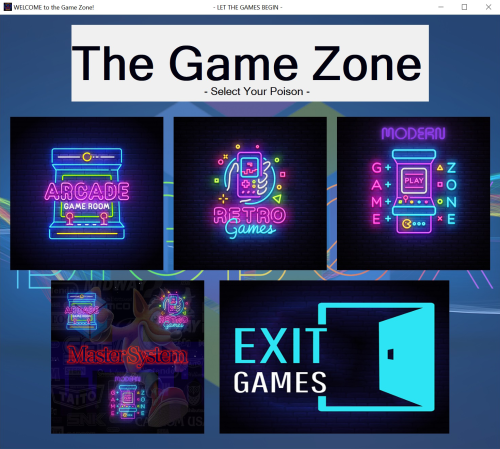
Allows you to Easily use multiple instances of Bigbox on each PC to improve speeds in navigation by splitting up platforms and running them from a single app. Also allows you to customize each instance to use different themes, platform videos, etc.. Includes a ReadMe in the folder I wrote this AHK script to make it easy to run multiple instances of Bigbox on the same PC. The reason I did this was I noticed my main LB/BB rig was getting so big that navigation was starting to slow down, especially in arcade using the newer themes. It was even worse on the older PC's thoughout he house. I got the idea that maybe if I split the platforms up into different copies of LB/BB I might get a smoother experience, especially on older PC's and it worked. The script can be easily changed and customized to your needs. It's simple to change the images, background, layout, number of instances, etc. with much more than Notepad++. It takes a little work to set things up, but works pretty well after your done. Just extract it and put the "The Game Zone" folder where you want. Here is what you need do to Prepare: - this is most of the work 1. Make a copy of your Launchbox folder before doing anything just as a backup in case you have a boo-boo and something gets messed up. That makes it easy to go back. I'd leave it alone until finished. 2. If your game media, including roms, (images, videos, music, manuals) is within your Launchbox folder, you will need to move or make a copy of it all to a centralized location Outside the default Launchbox folder. This excludes your Platform Categories, Platforms, Playlists folders and startup videos. Mine is actually on a shared NAS folder. This keeps you from creating and having multiple copies of your roms and game media in a later step. 3. Next, you need to edit the paths to each of them in the "Folders" section of Launchbox by right clicking on a platform, then Edit > Folders (tab) and navigate each of them to where you put the media OR edit the Platform xml (../Launchbox/Data/Platforms) files with Notepad++ so Launchbox uses the new centralized media locations. Notepad++ is faster and easier, but more chance of errors. 4. After your media is in a centralized location, you can delete it all from your default Launchbox folders. 5. Next, make multiple copies of your edited Launchbox folder and rename them the following (only if you wish to use the script "As Is"): LB-Arcade LB-Retro LB-Modern by default the script uses your normal Launchbox instance for the Master system. 6. Lastly, you will need to edit the AHK script to match the different path instances that you have chosen. Mine are as follows and what the script is using by default: D:\Gaming\Apps\LB-Arcade D:\Gaming\Apps\LB-Retro D:\Gaming\Apps\LB-Modern D:\Gaming\Apps\LaunchBox (master system with all platforms) After everything is all set up and working, you can play with modding to your taste and needs. TIPS: I do all my maintenance work in my master instance and use Syncthings to copy the appropriate platform xml files to the appropriate LB instances, that way I do the work once and the other instances are updated automatically. Yep, I'm lazy! There is a shortcut in the folder to drop on the desktop. You might have to fix the icon for it (copy of it in the "The Game Zone" folder), since my paths may be different than yours. I think that's it. This is my first AHK script and was fun learning about AHK. You can do much more with it than I imagined. Feel free to post questions, comments, suggestions and share what you come up with. -Enjoy -
The Game Zone (Multiple BB Instances via AHK script) View File Allows you to Easily use multiple instances of Bigbox on each PC to improve speeds in navigation by splitting up platforms and running them from a single app. Also allows you to customize each instance to use different themes, platform videos, etc.. Includes a ReadMe in the folder I wrote this AHK script to make it easy to run multiple instances of Bigbox on the same PC. The reason I did this was I noticed my main LB/BB rig was getting so big that navigation was starting to slow down, especially in arcade using the newer themes. It was even worse on the older PC's thoughout he house. I got the idea that maybe if I split the platforms up into different copies of LB/BB I might get a smoother experience, especially on older PC's and it worked. The script can be easily changed and customized to your needs. It's simple to change the images, background, layout, number of instances, etc. with much more than Notepad++. It takes a little work to set things up, but works pretty well after your done. Just extract it and put the "The Game Zone" folder where you want. Here is what you need do to Prepare: - this is most of the work 1. Make a copy of your Launchbox folder before doing anything just as a backup in case you have a boo-boo and something gets messed up. That makes it easy to go back. I'd leave it alone until finished. 2. If your game media, including roms, (images, videos, music, manuals) is within your Launchbox folder, you will need to move or make a copy of it all to a centralized location Outside the default Launchbox folder. This excludes your Platform Categories, Platforms, Playlists folders and startup videos. Mine is actually on a shared NAS folder. This keeps you from creating and having multiple copies of your roms and game media in a later step. 3. Next, you need to edit the paths to each of them in the "Folders" section of Launchbox by right clicking on a platform, then Edit > Folders (tab) and navigate each of them to where you put the media OR edit the Platform xml (../Launchbox/Data/Platforms) files with Notepad++ so Launchbox uses the new centralized media locations. Notepad++ is faster and easier, but more chance of errors. 4. After your media is in a centralized location, you can delete it all from your default Launchbox folders. 5. Next, make multiple copies of your edited Launchbox folder and rename them the following (only if you wish to use the script "As Is"): LB-Arcade LB-Retro LB-Modern by default the script uses your normal Launchbox instance for the Master system. 6. Lastly, you will need to edit the AHK script to match the different path instances that you have chosen. Mine are as follows and what the script is using by default: D:\Gaming\Apps\LB-Arcade D:\Gaming\Apps\LB-Retro D:\Gaming\Apps\LB-Modern D:\Gaming\Apps\LaunchBox (master system with all platforms) After everything is all set up and working, you can play with modding to your taste and needs. TIPS: I do all my maintenance work in my master instance and use Syncthings to copy the appropriate platform xml files to the appropriate LB instances, that way I do the work once and the other instances are updated automatically. Yep, I'm lazy! There is a shortcut in the folder to drop on the desktop. You might have to fix the icon for it (copy of it in the "The Game Zone" folder), since my paths may be different than yours. I think that's it. This is my first AHK script and was fun learning about AHK. You can do much more with it than I imagined. Feel free to post questions, comments, suggestions and share what you come up with. -Enjoy Submitter The Papaw Submitted 05/25/2022 Category Third-party Apps and Plugins
-
Hey everyone! I was goofing around in Big Box just a bit ago when I remembered that the 9.6 update came out. I opened Launchbox and downloaded it, ready to get some new themes in Big Box. Unfortunately, when I open Big Box, after the splash logo shows the screen goes black. I can still navigate and hear my movements through the menus. Sometimes I can get a super low res image of some game's art to show on the screen. The problem is that the menu does not display on my Dell LCD running at 1920x1080. Thanks in advance for your help, if you need any other info just let me know!
-
My SEGA Saturn was working just dandy in Mednafen. Then all of a sudden something happened, like a gremlin crawled in there and got all up in its' shit. When I launch a Saturn title from LaunchBox or BigBox Mednafen starts up the Saturn first showing the startup screen then goes into settings where you set the date and time. It never used to do that and although I try entering the settings it never progresses further than that into the game. Has anyone ever encountered this before? I have tried searching for information but did not come across any.
-
Sonic R Soundpack View File A sound pack using the Sonic R menu sounds. Submitter Murasaturn Submitted 07/29/2019 Category Big Box Sound Packs
-
Version 1.0.0
335 downloads
A sound pack using the Sonic R menu sounds. -
Hi guys, i have a premium LB account and have seen the option to be able to exit games inside big box but I don’t have a clue of how to set it up or if this affects on the current game controls. For instance, I’d like something like in RetroArch when you can configure going back to main menu via start+select buttons. Thanks in advance
-
This is the error I get, even though debug mode is NOT enabled at all and I have the necessary permissions. --------------------------- LaunchBox --------------------------- Voice recognition debug mode is enabled. Unable to parse start menu applications: Access to the path 'C:\ProgramData\Microsoft\Windows\Start Menu\Programas' is denied. --------------------------- OK ---------------------------
-
Hi, i'm a long time launchbox user I just write here to know if someone else is having this "issue"... When i use launchbox, and i'm in my desktop PC, i would be able to choose if i want to run the game fullscreen or not... Here is the matter: Would have helped if other than Configure, there was another entrypoint linkable to the game. For example dosbox games, i generally use my own bat files which is good for pathing purposes, but i would like to have other than GAME.bat which loads GAME.CONF another one which is GAME_FS.bat (fs for fullscreen) which loads GAME_FS.CONF but i only see 2 fixed entrypoints: Game (CTRL+P) and Configure (CTRL+G)... Let's take for granted that "Game" runs it fullscreen then (because it would be simpler that way since bigbox maybe only launch the first entrypoint), it would be nice to have another entrypoint for launching a "Game Windowed" version... (It could be also handled in bigbox with a popup, but anyway that's not the major point ) Dunno if all of this makes senses to you... i hope so Just in case it is already doable, and i missed it, please show me the way p.s.: Thank you for your app Jason, it really shows how much do you care for it, and how much do you care for your customers