Search the Community
Showing results for tags 'xml'.
Found 17 results
-
Hello, I ran the mame wizard within launchbox and cut the roms from 43k to around 3k now. I would like to get this list somehow so I can compare my LEDBlinky files (colors.ini and controls.ini) to make sure I have all games incorporated. I know this can be done manually within the ledblinky config, but that would mean I would have to open each and every 3000 games which would be incredibly tedious and I have to think there's a better way. Another solution is if anyone has a colors.ini that is more complete than the file that ledblinky provides upon download. Any help is appreciated!
-


Version 1.0.0
2 downloads
Latest version and support here : https://github.com/gravelfreeman/launchbox-xml-cleaner --- This script cleans a LaunchBox platform XML so it only keeps entries for games that actually exist in a local roms folder. It is especially useful when a MAME platform XML was created from `MAME Arcade Full Set...` import but your local ROM folder only contains part of that set, and you want the XML reduced to the games you actually have while still preserving additional applications (clones) from merged romsets. LaunchBox's Scan For Removed MAME Roms... feature removes clone entries from merged sets because those clone files are stored inside the parent rom.zip. Although it was designed around this MAME workflow, it can also be used with other LaunchBox platform XML files. What It Does The cleaner scans the current ROM folder and compares it against the provided LaunchBox XML. It keeps a game when a local ROM exists for that game, including: - the main Game and ApplicationPath - any linked AdditionalApplication entries for the same GameID After the main game pass, it removes orphaned metadata entries that no longer belong to a kept game: AdditionalApplication GameControllerSupport AlternateName How to Use Paste a <Platform>.xml file in it's corresponding roms folder Paste _LB_XML_Cleaner.ps1 and _LB_XML_Drop.cmd files in the roms folder Drag and drop the Platform.xml file onto the _LB_XML_Drop.cmd launcher Command line If you prefer using command line, run the PowerShell script directly and point it to the XML file and ROM folder you want to validate. powershell.exe -NoProfile -ExecutionPolicy Bypass -File ".\_LB_XML_Cleaner.ps1" "C:\Path\Platform.xml" -RomsPath "C:\Path\Roms" powershell.exe -NoProfile -ExecutionPolicy Bypass -File ".\_LB_XML_Cleaner.ps1" -XmlPath "C:\Path\Platform.xml" -RomsPath "C:\Path\Roms" powershell.exe -NoProfile -ExecutionPolicy Bypass -File ".\_LB_XML_Cleaner.ps1" -PreviewOnly -XmlPath "C:\Path\Platform.xml" -RomsPath "C:\Path\Roms" powershell.exe -NoProfile -ExecutionPolicy Bypass -File ".\_LB_XML_Cleaner.ps1" -OutputPath "C:\Path\Cleaned.xml" -XmlPath "C:\Path\Platform.xml" -RomsPath "C:\Path\Roms" powershell.exe -NoProfile -ExecutionPolicy Bypass -File ".\_LB_XML_Cleaner.ps1" -InPlace -XmlPath "C:\Path\Platform.xml" -RomsPath "C:\Path\Roms" Flags -XmlPath : LaunchBox XML file to clean. Can also be passed as the first positional argument. -RomsPath : Folder containing the ROMs or CHDs to scan. -PreviewOnly : Run the cleanup without writing any file. -OutputPath : Write to a specific output path instead of replacing the source XML. -InPlace : Replace the source XML directly. If -OutputPath is not provided, the default behavior already performs a safe backup-and-replace workflow. -RomExtensions : File extensions treated as ROMs. Default: .zip, .7z, .chd. The script never modifies or deletes files or folders. It only reads the folder content and writes a new XML based on local roms. -
LaunchBox XML Cleaner (great for MAME merged roms) (keep entries for games that you have) View File Latest version and support here : https://github.com/gravelfreeman/launchbox-xml-cleaner --- This script cleans a LaunchBox platform XML so it only keeps entries for games that actually exist in a local roms folder. It is especially useful when a MAME platform XML was created from `MAME Arcade Full Set...` import but your local ROM folder only contains part of that set, and you want the XML reduced to the games you actually have while still preserving additional applications (clones) from merged romsets. LaunchBox's Scan For Removed MAME Roms... feature removes clone entries from merged sets because those clone files are stored inside the parent rom.zip. Although it was designed around this MAME workflow, it can also be used with other LaunchBox platform XML files. What It Does The cleaner scans the current ROM folder and compares it against the provided LaunchBox XML. It keeps a game when a local ROM exists for that game, including: - the main Game and ApplicationPath - any linked AdditionalApplication entries for the same GameID After the main game pass, it removes orphaned metadata entries that no longer belong to a kept game: AdditionalApplication GameControllerSupport AlternateName How to Use Paste a <Platform>.xml file in it's corresponding roms folder Paste _LB_XML_Cleaner.ps1 and _LB_XML_Drop.cmd files in the roms folder Drag and drop the Platform.xml file onto the _LB_XML_Drop.cmd launcher Command line If you prefer using command line, run the PowerShell script directly and point it to the XML file and ROM folder you want to validate. powershell.exe -NoProfile -ExecutionPolicy Bypass -File ".\_LB_XML_Cleaner.ps1" "C:\Path\Platform.xml" -RomsPath "C:\Path\Roms" powershell.exe -NoProfile -ExecutionPolicy Bypass -File ".\_LB_XML_Cleaner.ps1" -XmlPath "C:\Path\Platform.xml" -RomsPath "C:\Path\Roms" powershell.exe -NoProfile -ExecutionPolicy Bypass -File ".\_LB_XML_Cleaner.ps1" -PreviewOnly -XmlPath "C:\Path\Platform.xml" -RomsPath "C:\Path\Roms" powershell.exe -NoProfile -ExecutionPolicy Bypass -File ".\_LB_XML_Cleaner.ps1" -OutputPath "C:\Path\Cleaned.xml" -XmlPath "C:\Path\Platform.xml" -RomsPath "C:\Path\Roms" powershell.exe -NoProfile -ExecutionPolicy Bypass -File ".\_LB_XML_Cleaner.ps1" -InPlace -XmlPath "C:\Path\Platform.xml" -RomsPath "C:\Path\Roms" Flags - `-XmlPath`: LaunchBox XML file to clean. Can also be passed as the first positional argument. - `-RomsPath`: Folder containing the ROMs or CHDs to scan. - `-PreviewOnly`: Run the cleanup without writing any file. - `-OutputPath`: Write to a specific output path instead of replacing the source XML. - `-InPlace`: Replace the source XML directly. If `-OutputPath` is not provided, the default behavior already performs a safe backup-and-replace workflow. - `-RomExtensions`: File extensions treated as ROMs. Default: `.zip`, `.7z`, `.chd`. The script never modifies or deletes files or folders. It only reads the folder content and writes a new XML based on local roms. Submitter Light Sock Submitted 03/09/2026 Category Platform Media
-
.thumb.png.c9faf450e4d2b690a819048b18173f61.png) Edit: (February 16, 2026) beta version 0.1.0 Fixed - Clones not getting added to the correct parents Edit: (May 16, 2025) beta version 0.0.9 Requires LB 13.19 or newer Rewritten for .NET 9 New look. New feel. Same features Except you no longer have the option to NOT import clones If clones exist in the xml, either import them as Additional Apps or import them separately (default) If updating from a previous version, replace the .dll file and delete your existing settings.xml file. Edit: (February 28, 2024) beta version 0.0.6. Fixed: Reimporting would sometimes change ROM names for existing games. Edit: (August 6, 2023) beta version 0.0.5. Parent game now included with its Additional Apps. Edit: (August 10, 2022) beta version 0.04. Fixed: Import clones as Additional Apps now works. Edit: (August 26, 2021) beta version 0.03. Now strips (regions) and (notes) from game Titles. Added notes [below] for downloading Metadata. Edit: (June 28, 2021) beta version 0.02. Now supported in LaunchBox Version 11.3 and up. This plugin will import “Custom” made MAME xml files. With this plugin, you can import games from a Custom xml file into any Platform (new or existing) and set the Emulator for the imported games to whatever you want, regardless of the Platforms default Emulator (if importing to an existing one). If you import them into a new Platform, the “Scrape As” for the Platform will be set to “Arcade”. The xml file MUST be laid out in a standard MAME Machines format. MAME’s softlist xml files are formatted differently and WILL NOT work with this plugin. (Use the other plugin) This only imports the games into LaunchBox giving them their 'proper' game Name/Title as per MAME. Use LaunchBox's built in Download Metadata and Media Wizard to get you game data, images and videos. You'll also need to setup any required Custom Command Line Parameters for your Emulators (i.e. DEmul - for Naomi needs "-run=naomi -rom= ") History Years ago I imported a personally ‘curated’ set of MAME roms into LB/BB. This left out a lot of games available in MAME Including clones and games (partially or otherwise) unplayable in MAME. Including Sega Model 2/3, and Naomi. I keep this “personally curated set” in my D:\LaunchBox\Games\Arcade folder. I have also keep a Full (non-merged) set updated on my backup drive. Thought being, keep the games available in LaunchBox, “inside” LaunchBox while maintaining my full set elsewhere. As time went on and my Cab and I ‘matured’, I discovered SuperModel and DEmul. Great! But I can’t even create Playlists because these games aren’t ‘pre-existing’ in LB. So now it’s just a matter of getting those roms from the full set into LB/BB. That’s where this plugin comes into play. Using the plugin Download and unblock the zip. Copy the folder inside the zip into your ../LaunchBox/Plugins folder. i.e. D:\LaunchBox\Plugins\ImportMAMExml\MAMExmlImporter.dll Start LaunchBox. Select Tools, MAME xml Importer beta 0.03 The process should be fairly intuitive by just going through the Import Wizard. Select the folder where your Custom xml files are located. Select an xml. Choose a Platform (new or existing). Select your Emulator. Filter the clones (Import: All, as additional apps, none). Select the roms’ source folder (if copying them). Select the roms’ destination folder (required to set the launch path for the games). Select Copy & Import or Import Only. Downloading Metadata Right click on the new Platform and select “Edit”. Make sure the Scrape As: is set to “Arcade” and then click “OK”. Click on one of the games, then press CTRL+A to select all games. Now click Tools and select Download Metadata and Media and follow the prompts. Be sure to check the box for: Search for game information and media from the LaunchBox Games Database (recommended). I recommend at this point to not download Media. [just to make sure all goes well with getting the metadata] Click on Select None when prompted (again if you have an EmuMovies account). Click Yes, download and replace all existing metadata and media. Then click Finish. Creating your own Custom xml I imagine there are many different ways to do this and even places to download them. Here’s 2 methods to create your own Custom xml. In MAME itself: You’ll need the “driver.ini” file which you can get from http://www.progettosnaps.net/renameset/. Click on “category.ini (0.22x)” to download. Inside the zip file, copy the “folders” folder into your D:\MAME\ini directory. D:\emulators\MAME\ini\folders\ You may need to add ;ini\folders to your “mame.ini”, “inipath” line. (?) # # CORE SEARCH PATH OPTIONS # homepath . rompath roms hashpath hash samplepath samples artpath artwork ctrlrpath ctrlr inipath ini;ini/folders Open MAME and click “Category” [on the left pane]. Now select “File <driver.ini>”. Under “Group” select the driver you want to sort by and then “Return to Previous Menu” You’ll now see only the games (56 in this case) for this particular driver. Now click the yellow floppy disk at top [“Export displayed list to a file”] and double click “Export list in XML format (like –listxml, but exclude devices)”. Your “Custom” xml will be saved to D:\emulators\MAME\ui\exported.xml. If you do more than one, they will be named “exported_0000.xml”, “exported_0001.xml” and so on. Tip: If you want to expand you sort filters, instead of “Category” select “Custom Filter” (selecting the File and Group as one of your filters). Using the Arcade Database website: http://adb.arcadeitalia.net/default.php Click “Machines” “Additional Filters” “Driver” tab Under “Source File”, type in the driver you want to filter by. Click Search. You’ll now be seeing just the games for that driver/source file. Now click “Options” and select “Export the results”. Give it a Title. Click “MAME (xml)” and click “Export”. Your file is now downloaded. Tip: Look through the other tabs for more filter options. I don't know if this is practical or even useful for anyone else. Or if there's already an easier way to do it. But it was fun to make AND it works. At least it does on my cab. If you decide to try it and have any thoughts, suggestion or whatever (good, bad or indifferent), ... leave a post letting me know. For LaunchBox version 13.3 through 13.18 ImportMAMExml-beta-06a.zip For LaunchBox version 13.19+ MAMExmlImporter (beta-0.0.9).7z MAMExmlImporter (beta-0.1.0).7z
Edit: (February 16, 2026) beta version 0.1.0 Fixed - Clones not getting added to the correct parents Edit: (May 16, 2025) beta version 0.0.9 Requires LB 13.19 or newer Rewritten for .NET 9 New look. New feel. Same features Except you no longer have the option to NOT import clones If clones exist in the xml, either import them as Additional Apps or import them separately (default) If updating from a previous version, replace the .dll file and delete your existing settings.xml file. Edit: (February 28, 2024) beta version 0.0.6. Fixed: Reimporting would sometimes change ROM names for existing games. Edit: (August 6, 2023) beta version 0.0.5. Parent game now included with its Additional Apps. Edit: (August 10, 2022) beta version 0.04. Fixed: Import clones as Additional Apps now works. Edit: (August 26, 2021) beta version 0.03. Now strips (regions) and (notes) from game Titles. Added notes [below] for downloading Metadata. Edit: (June 28, 2021) beta version 0.02. Now supported in LaunchBox Version 11.3 and up. This plugin will import “Custom” made MAME xml files. With this plugin, you can import games from a Custom xml file into any Platform (new or existing) and set the Emulator for the imported games to whatever you want, regardless of the Platforms default Emulator (if importing to an existing one). If you import them into a new Platform, the “Scrape As” for the Platform will be set to “Arcade”. The xml file MUST be laid out in a standard MAME Machines format. MAME’s softlist xml files are formatted differently and WILL NOT work with this plugin. (Use the other plugin) This only imports the games into LaunchBox giving them their 'proper' game Name/Title as per MAME. Use LaunchBox's built in Download Metadata and Media Wizard to get you game data, images and videos. You'll also need to setup any required Custom Command Line Parameters for your Emulators (i.e. DEmul - for Naomi needs "-run=naomi -rom= ") History Years ago I imported a personally ‘curated’ set of MAME roms into LB/BB. This left out a lot of games available in MAME Including clones and games (partially or otherwise) unplayable in MAME. Including Sega Model 2/3, and Naomi. I keep this “personally curated set” in my D:\LaunchBox\Games\Arcade folder. I have also keep a Full (non-merged) set updated on my backup drive. Thought being, keep the games available in LaunchBox, “inside” LaunchBox while maintaining my full set elsewhere. As time went on and my Cab and I ‘matured’, I discovered SuperModel and DEmul. Great! But I can’t even create Playlists because these games aren’t ‘pre-existing’ in LB. So now it’s just a matter of getting those roms from the full set into LB/BB. That’s where this plugin comes into play. Using the plugin Download and unblock the zip. Copy the folder inside the zip into your ../LaunchBox/Plugins folder. i.e. D:\LaunchBox\Plugins\ImportMAMExml\MAMExmlImporter.dll Start LaunchBox. Select Tools, MAME xml Importer beta 0.03 The process should be fairly intuitive by just going through the Import Wizard. Select the folder where your Custom xml files are located. Select an xml. Choose a Platform (new or existing). Select your Emulator. Filter the clones (Import: All, as additional apps, none). Select the roms’ source folder (if copying them). Select the roms’ destination folder (required to set the launch path for the games). Select Copy & Import or Import Only. Downloading Metadata Right click on the new Platform and select “Edit”. Make sure the Scrape As: is set to “Arcade” and then click “OK”. Click on one of the games, then press CTRL+A to select all games. Now click Tools and select Download Metadata and Media and follow the prompts. Be sure to check the box for: Search for game information and media from the LaunchBox Games Database (recommended). I recommend at this point to not download Media. [just to make sure all goes well with getting the metadata] Click on Select None when prompted (again if you have an EmuMovies account). Click Yes, download and replace all existing metadata and media. Then click Finish. Creating your own Custom xml I imagine there are many different ways to do this and even places to download them. Here’s 2 methods to create your own Custom xml. In MAME itself: You’ll need the “driver.ini” file which you can get from http://www.progettosnaps.net/renameset/. Click on “category.ini (0.22x)” to download. Inside the zip file, copy the “folders” folder into your D:\MAME\ini directory. D:\emulators\MAME\ini\folders\ You may need to add ;ini\folders to your “mame.ini”, “inipath” line. (?) # # CORE SEARCH PATH OPTIONS # homepath . rompath roms hashpath hash samplepath samples artpath artwork ctrlrpath ctrlr inipath ini;ini/folders Open MAME and click “Category” [on the left pane]. Now select “File <driver.ini>”. Under “Group” select the driver you want to sort by and then “Return to Previous Menu” You’ll now see only the games (56 in this case) for this particular driver. Now click the yellow floppy disk at top [“Export displayed list to a file”] and double click “Export list in XML format (like –listxml, but exclude devices)”. Your “Custom” xml will be saved to D:\emulators\MAME\ui\exported.xml. If you do more than one, they will be named “exported_0000.xml”, “exported_0001.xml” and so on. Tip: If you want to expand you sort filters, instead of “Category” select “Custom Filter” (selecting the File and Group as one of your filters). Using the Arcade Database website: http://adb.arcadeitalia.net/default.php Click “Machines” “Additional Filters” “Driver” tab Under “Source File”, type in the driver you want to filter by. Click Search. You’ll now be seeing just the games for that driver/source file. Now click “Options” and select “Export the results”. Give it a Title. Click “MAME (xml)” and click “Export”. Your file is now downloaded. Tip: Look through the other tabs for more filter options. I don't know if this is practical or even useful for anyone else. Or if there's already an easier way to do it. But it was fun to make AND it works. At least it does on my cab. If you decide to try it and have any thoughts, suggestion or whatever (good, bad or indifferent), ... leave a post letting me know. For LaunchBox version 13.3 through 13.18 ImportMAMExml-beta-06a.zip For LaunchBox version 13.19+ MAMExmlImporter (beta-0.0.9).7z MAMExmlImporter (beta-0.1.0).7z
-
 Hey mighty hive-mind! My MS-DOS.XML file is getting over-written with old data. Here are the steps to re-create the issue. Update the 'Progress' metadata for the MS-DOS game 'Lands of Lore: Throne of Chaos' from 'Not Started / Unplayed' to 'Active / In Progress', Launch the game. Close the game. I've manually added the line <Progress>Active / In Progress</Progress> to the MS-DOS.XML file in the following locations: \xml\all (This retains the correct progress value after performing the above steps) \xml\family (This retains the correct progress value after performing the above steps) \Data\Platforms (This version reverts the progress value back to <Not Started / Unplayed</Progress>) Please let me know if you need additional information or questions answered. I appreciate any advice! Attached is the corrected file. Chris MS-DOS.xml
 -
Hello Everybody, what is the purpose of the XML File? What happens when i delete an existing XML File? Pretty simple questions. I have found out, that this File seems to be important but i didn´t find out what this File is doing. Thanks
-
 This is probably a long shot. Not sure if this would even be possible but I thought i'd throw it out there, see if someone with scripting knowledge could help me out. I have well over 1000 rom hacks across different systems, and i've made separate platforms for each system with rom hacks. Each platform has an XML file in LaunchBox\Data\Platforms and I'd like to figure out if there is a way to create a new text file named from part of the <ApplicationPath> tag, then copy the <Notes> tag to the associated file. Example: Create Legend of Zelda [ROMHACK] (Triforce Power) (v3.6).txt from <ApplicationPath>Games\Nintendo Entertainment System (Hacks)\Legend of Zelda [ROMHACK] (Triforce Power) (v3.6).zip</ApplicationPath> , then take everything between the <Notes></Notes> tags and copy that into the associated text file Hopefully that makes sense. Obviously, if it would need to take everything between the tags, rather than just a section, I could deal with that (if the system can deal with the backslashes or create a directory structure matching the full path between the tag) Also interested in doing the reverse, finding the rom name based on the text file name, then just copying the contents of the text file into the <Notes> tag for the associated game in the XML file
 -
I have been going through my collection and revamping all the metadata I include in the game. One that is very important for me is the number of players. Now, within Launchbox I can easily edit a custom "Player" field to include this information. But when I go into the XML I cannot find that info anywhere. Can anyone give insight into where this data may be stored? Thanks.
-
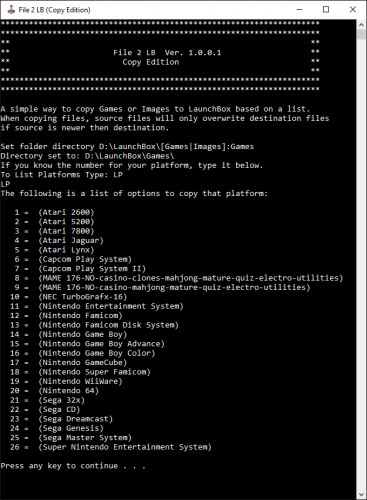
File 2 LB View File This is a basic cmd/bat script. It's main purpose is to copy full sets from a huge source folder. It's only purpose is to copy or move roms and images to your LaunchBox Games or Images folder based on a list. Because the file extension is set up with a wildcard, it can copy or move any file with the same name of the rom. Example being: Super Mario Bros. (World).zip / Super Mario Bros. (World).nes / Super Mario Bros. (World).mpg / Super Mario Bros. (World).png all can be moved/copied because it ignores the extension. Just make sure to run the .bat in the correct source folder, weather it be roms, images, videos ect. This is a .bat so you can view it in notepad if you want to see what exactly it's doing. I provided a readme file with example code I used and will continue to add more platforms. I've expanded upon my initial release of just copying mame roms, to copying or moving many platform roms or images. I know no one wants 30,0000+ mame roms in LaunchBox when most either don't work or a lot are weird mature or mahjong roms There is currently 30 platforms and 2 options for MAME and options for mame bios/device files. File names are based on the No-Intro rom/image sets. Each platform is a list of file names to be moved or copied, similar to a HyperList xml. I'm using file names only based off No-Intro sets, which is what seems to be what Hyperspin uses. So for example if the HyperList xml of Atari 2600 has 667 roms, I've created a file list to copy/move 667 roms. Files will be copied/moved within the same drive. Once it's done you can move/rename the destination folder to where ever you want. Use either .bat file: File 2 LB (Copy).bat File 2 LB (Move).bat Place the .bat file in the folder of the source of your roms, images, or whatever source your needing. Ex: D:\Nintendo Entertainment System Source <-- (Place the .bat here) Run the .bat by double-clicking it. If your running this on the root of your C:\ drive you may need to right click the .bat and "Run as Administrator" Here is an example below: Follow the instructions on screen. Set folder directory D:\LaunchBox\[Games|Images]:Games List the Platform you want to copy or move. Type: LP (This will List Platforms) The following is a list of options to copy/move that platform: 1 = (AAE) 2 = (Atari 2600) 3 = (Atari 5200) 4 = (Atari 7800) 5 = (Atari Jaguar) 6 = (Atari Lynx) 7 = (Capcom Play System) 8 = (Capcom Play System II) 9 = (Cave) 10 = (MAME NO-casino-clones-mahjong-mature-quiz-electro-utilities) 11 = (MAME NO-casino-mahjong-mature-quiz-electro-utilities) 12 = (MAME _NoFiller-Plus 675 Most Popular working roms) 13 = (Mame Bios Pack) 14 = (Mame Devices Pack) 15 = (NEC TurboGrafx-16) 16 = (Nintendo Entertainment System) 17 = (Nintendo Famicom) 18 = (Nintendo Famicom Disk System) 19 = (Nintendo Game Boy) 20 = (Nintendo Game Boy Advance) 21 = (Nintendo Game Boy Color) 22 = (Nintendo GameCube) 23 = (Nintendo Super Famicom) 24 = (Nintendo WiiWare) 25 = (Nintendo 64) 26 = (Sammy Atomiswave) 27 = (Sega 32x) 28 = (Sega CD) 29 = (Sega Dreamcast) 30 = (Sega Genesis) 31 = (Sega Master System) 32 = (Sega Naomi) 33 = (Super Nintendo Entertainment System) Type Platform number:16 Read on screen instructions and press any key to start. When it is finished it will create a LOG file in folder of the copied/moved files, and copy/move the roms or images based on the exe to the destination folder (D:\LaunchBox\Games\Nintendo Entertainment System) Read the provided ReadMe.txt file for any other information or how to read the log file. If you have any issue let me know and I'll do my best to answer them here. (As with anything, make backups of your roms and images if you are in fear of them getting deleted) Safe bet is using the Copy Version as it only copy's, but I've used both and had no issues. Thanks and enjoy! Submitter Sithel Submitted 08/15/2016 Category Third-party Apps and Plugins
-
Version 1.0.0.2
104 downloads
This is a basic cmd/bat script. It's main purpose is to copy full sets from a huge source folder. It's only purpose is to copy or move roms and images to your LaunchBox Games or Images folder based on a list. Because the file extension is set up with a wildcard, it can copy or move any file with the same name of the rom. Example being: Super Mario Bros. (World).zip / Super Mario Bros. (World).nes / Super Mario Bros. (World).mpg / Super Mario Bros. (World).png all can be moved/copied because it ignores the extension. Just make sure to run the .bat in the correct source folder, weather it be roms, images, videos ect. This is a .bat so you can view it in notepad if you want to see what exactly it's doing. I provided a readme file with example code I used and will continue to add more platforms. I've expanded upon my initial release of just copying mame roms, to copying or moving many platform roms or images. I know no one wants 30,0000+ mame roms in LaunchBox when most either don't work or a lot are weird mature or mahjong roms There is currently 30 platforms and 2 options for MAME and options for mame bios/device files. File names are based on the No-Intro rom/image sets. Each platform is a list of file names to be moved or copied, similar to a HyperList xml. I'm using file names only based off No-Intro sets, which is what seems to be what Hyperspin uses. So for example if the HyperList xml of Atari 2600 has 667 roms, I've created a file list to copy/move 667 roms. Files will be copied/moved within the same drive. Once it's done you can move/rename the destination folder to where ever you want. Use either .bat file: File 2 LB (Copy).bat File 2 LB (Move).bat Place the .bat file in the folder of the source of your roms, images, or whatever source your needing. Ex: D:\Nintendo Entertainment System Source <-- (Place the .bat here) Run the .bat by double-clicking it. If your running this on the root of your C:\ drive you may need to right click the .bat and "Run as Administrator" Here is an example below: Follow the instructions on screen. Set folder directory D:\LaunchBox\[Games|Images]:Games List the Platform you want to copy or move. Type: LP (This will List Platforms) The following is a list of options to copy/move that platform: 1 = (AAE) 2 = (Atari 2600) 3 = (Atari 5200) 4 = (Atari 7800) 5 = (Atari Jaguar) 6 = (Atari Lynx) 7 = (Capcom Play System) 8 = (Capcom Play System II) 9 = (Cave) 10 = (MAME NO-casino-clones-mahjong-mature-quiz-electro-utilities) 11 = (MAME NO-casino-mahjong-mature-quiz-electro-utilities) 12 = (MAME _NoFiller-Plus 675 Most Popular working roms) 13 = (Mame Bios Pack) 14 = (Mame Devices Pack) 15 = (NEC TurboGrafx-16) 16 = (Nintendo Entertainment System) 17 = (Nintendo Famicom) 18 = (Nintendo Famicom Disk System) 19 = (Nintendo Game Boy) 20 = (Nintendo Game Boy Advance) 21 = (Nintendo Game Boy Color) 22 = (Nintendo GameCube) 23 = (Nintendo Super Famicom) 24 = (Nintendo WiiWare) 25 = (Nintendo 64) 26 = (Sammy Atomiswave) 27 = (Sega 32x) 28 = (Sega CD) 29 = (Sega Dreamcast) 30 = (Sega Genesis) 31 = (Sega Master System) 32 = (Sega Naomi) 33 = (Super Nintendo Entertainment System) Type Platform number:16 Read on screen instructions and press any key to start. When it is finished it will create a LOG file in folder of the copied/moved files, and copy/move the roms or images based on the exe to the destination folder (D:\LaunchBox\Games\Nintendo Entertainment System) Read the provided ReadMe.txt file for any other information or how to read the log file. If you have any issue let me know and I'll do my best to answer them here. (As with anything, make backups of your roms and images if you are in fear of them getting deleted) Safe bet is using the Copy Version as it only copy's, but I've used both and had no issues. Thanks and enjoy! -
 Hi everybody, 11/05/2021: Discontinued, see the new version. it tooks more time than i expected but i finished the first version. Currently it's an alpha, i need feedback. It's in debug mode with a window tracing all the work on the game treated. I link the github profile, there is all. https://github.com/daerlnaxe/Pack-My-Game Current version Alpha10 PackMyGame x64 PackMyGame x86 Help on the git-hub page (wiki in progress) What it do: It copies then compress everything about a game contained in the db of LaunchBox app. It generates a short xml file with the main information about the game It takes images, pdf manual, video, music, rom file. It takes also the cheatcode files if you fill the path ('GameName-.') It generates a tree view file. 7z and zip compression Why ? Because as a french gamer i wanted to save everything i fill about my games and keep it for later, just in case there was a problem. Note Use it only with roms. Don't move or delete files from the source (never) Ask before to overwrite roms, manuals, music, video that are in the working directory meanwhile the copy (the target directory) Currently it ask a global permission to overwrite for the image/pictures files, even if there is no image file in the the destination folder. The clones are added only if they are grouped with a main in LaunchBox Compression 7z and zip
-
Pinball FX2 Clear Logo sets View File Here are three sets of clear logos for Zen Studio's Pinball FX2. These sets should cover all tables released as of October 31, 2017. I have also included an updated Pinball FX2.xml file that can be used to replace your current one, assuming you haven't already built the table info out already. My xml file includes notes, developer, publisher, release dates, etc. Pinball FX2.xml Submitter dragon57 Submitted 10/31/2017 Category Game Clear Logos
-

Version 1.0.0
362 downloads
Here are three sets of clear logos for Zen Studio's Pinball FX2. These sets should cover all tables released as of October 31, 2017. I have also included an updated Pinball FX2.xml file that can be used to replace your current one, assuming you haven't already built the table info out already. My xml file includes notes, developer, publisher, release dates, etc. Pinball FX2.xml-
- 4
-

-

-
- pinball fx2
- xml
- (and 1 more)
-
Hello all! So, I am having issues bulk editing Nintendo Game Boy Advance.xml in "user\LaunchBox\Data\Platforms". The issue that I'm having is that many (not all of them, about 60%) of my roms are labeled with "# GBA" at the end of the file name. This is incredibly annoying as it makes it impossible for the scraper to go through and identify each of these files with the corresponding game db entry. I also would prefer to not have to manually go through and re-tag some x-100 files. To work around this I simply attempted to do a replace all searching for " # GBA </Title>" with "</Title>. Upon saving the XML file and booting up launchbox it would appear that all of my changes have been reverted, and re-examing the xml file shows that all <Ttle></Title> Entries have been changed back to reflect their original names with the stupid # GBA in them. What am I missing my dudes?
-
Hi guys, I have a problem where I wanted to transfer my whole launchbox folder from my external hdd to a internal hdd on my computer. Long story short there are some corrupted image folders and now launchbox will not work unless I get rid of those folders. So now I'm in damage control and am trying to save all my roms. My question is what config files and xml files do I need if I wanna start a new build with out importing all my roms and images again
-
Hi all just discovered launchbox recently and I have to admit i love it and took lifetime support immediately. I start added some roms, full sets I had since a long time but wanted to start removing duplicates. I searched in the forums and found 2 ways: - custom filters by region and only keep USA, but it's not a good way for me, as it removes exclusive japan titles for example, I only want to remove roms that I have 3 or more times (japan, europe, etc.) - use launchboxtools, but unfortunately, I am under the impression that it was working for previous versions, when the xml was one big stuff, but now it's split by plateform is there anyway to achieve what i am trying to do ? thanks ! Bil
-
I just purchased the Premium edition of Launch Box, and when it sent me the file to drag-and-drop into my Launch Box folder, the files saves as a 'Untitled' file. Just a blank, white icon file. Which is weird, because I looked into the Launch Box files and saw that my computer can obviously read XML because one file is already in there. What am I to do?

.thumb.png.c9faf450e4d2b690a819048b18173f61.png)