Setup Guide
- Windows 10 21H2
- Windows 11 23H2+
Immediate display configuration, HDR and Sandbox support (Patreon-only) are only available on Windows 11 23H2+!
- Download Duo, either from GitHub or Patreon.
- Should your browser give you a warning message, choose to Keep the file anyway.
- Execute the downloaded file and follow the on-screen-instructions to finish installing it.

- Open the start menu, search for Duo Manager and execute it.

- Optional: Click on Unlock Patreon Benefits and follow the on-screen-instructions to unlock your Patreon benefits if you haven't done so yet.

- Create your first instance.
- To make the initial set-up easier, toggle the instance's Auto Start setting.

- Click on the Start button in the left pane to start Duo.

- Navigate to your instance via the left pane.

- Wait for the Pair New Client button to light up, and click on it.

- Follow the on-screen-instructions to pair your Moonlight client.
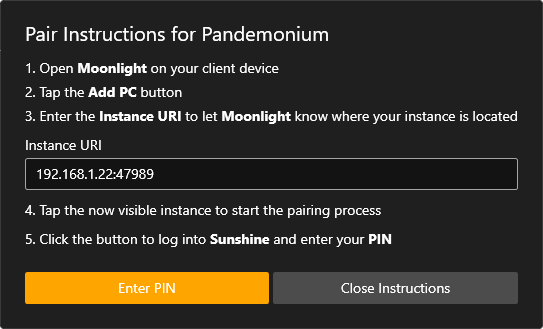
At this point, your client is paired to your new instance, and you're ready to play games.
If you're new to using Moonlight, now might be a good time to check their Wiki as well.
- Open the start menu, search for Duo Manager and execute it if you haven't already.
- Click on the New button in the left pane and follow the on-screen-instructions to create a new instance.

- Choose a local user account from the User Name list.

- Enter the chosen user's password into the Password text box.

- Optional: Adjust other instance parameters as needed.

If you've enabled Patreon benefits on Windows 11 version 23H2 or later, you'll notice a new instance setting called Run in Sandbox.

Enabling this option will fully isolate the instance from your host system by running it within the Windows Sandbox.
This feature is particularly useful for dual-boxing certain games, enhancing gamepad isolation, or granting less tech-savvy friends access to a gaming environment without the risk of them inadvertently affecting your host system.
The Assigned RAM can be changed to any value between 10% and 100% (memory overcommitment) under Settings.

Certain GPUs, especially muxed notebook GPUs, are prone to host monitor freezes upon Sandbox restarts.
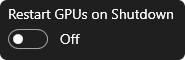
By toggling the Restart GPUs on Shutdown setting you can work around this issue by forcing a host GPU reset after every Sandbox shutdown.
Additional folders can be shared with the Sandbox by clicking on the Shared Folders button under Settings.

Duo automatically forwards all the TCP and UDP ports it needs into the Sandbox.
If you need to forward additional ports, you can do so by clicking the Forwarded Ports button under Settings.

If you ever find yourself in a situation where the Sandbox becomes unreachable, as can be the case after a failed Windows Update, you can reset it by clicking the Reset Sandbox button under Settings.

The Zygote is the template which the Sandbox is based on.
It is, in essence, a snapshot of the Sandbox's operating system, which is created and cached during the very first Sandbox start to accelerate all future Sandbox (re-)generations.
In rare cases, for example after a badly timed unexpected host system shutdown, this image can corrupt, resulting in failed Sandbox starts.
Should you suspect a Zygote image corruption, you can reset it by clicking the Reset Zygote button under Settings, after which it will be implicitly re-generated upon the first attempted Sandbox start.

Average users will, most likely, never need this button.
By default Duo's WebUI listens on port 38299, but this port can be changed under Settings.
It is suggested to bookmark the WebUI link on a companion device of choice for easy remote starting & stopping of instances.

HDR is only available on Windows 11 23H2 or newer, with enabled Patreon benefits!
- Ensure you've worked your way through the Quick Setup Instructions.
- Install the latest Moonlight Flatpak on your Steam Deck OLED.
- Add Moonlight as a non-Steam game on your Steam Deck OLED.
- Start Moonlight on your Steam Deck OLED in game mode, enable HDR in the settings, and pair it to your Duo instance.