

- The Storyboard consists of four main pages: Ingredient Storage, Recipies Book, Meal Planner, and Shopping List.
- The App will start with a login where a user must enter a valid username/email and password.
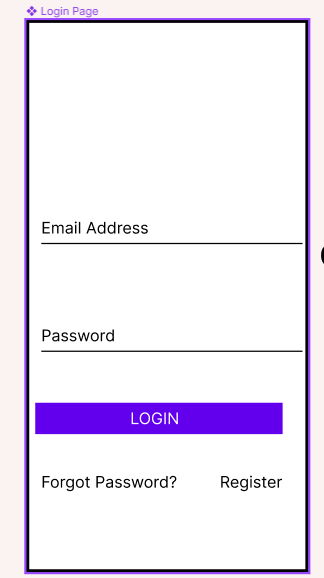
- If the user is new they can click the register new user button which will prompt them to fill in the new user form
- New users must be unique and follow account creation criteria

- If a user forgets their password. They can reset their password with the reset password page. And then login with their new password

-
Upon successful login of the app, the user will see the following Load/Title Screen where they can intuitively select which feature to use.

-
If the user selects Ingredient Storage from Load/Title Screen they are directed to the Ingredient Storage page.
-
This page shows all the stored ingredients and some details in a listview.
-
There will be a spinner at the top that when selected can sort the list by description, best before date, location, or ingredient category.
-
If the user selects an ingredient in the listview and clicks the delete button, the selected ingredient will be removed from the list.

-
The user can add an ingredient to the Ingredient Storage list by clicking on the Add button. This will change the view to the Add Ingredient page shown below where the user must provide the necessary details to add a new ingredient.

-
The user can change the details of an ingredient from the listview by selecting an ingredient from the listview and clicking the Edit button. This will change the view to the Edit Ingredient page shown below where the user can change the details of the ingredient like Unit, and once satisfied with the changes, click the Update button to see the changes in the Ingredient Storage page.

-
If the user selects Recipes Book from Load/Title Screen they are directed to the Recipes Book page.

-
The user can add a new recipe to the Recipes Book by clicking on the Add New Recipe button. This will change the view to the Add Recipe page shown below where the user must provide the necessary details to add a new recipe.
-
Currently, the design describes that a user can add a recipe without ingredients. The ingredients can be added as described in the next pages, but we may consider adding a button for the user to add ingredients to a recipe when a new recipe is being created.

-
While viewing the Recipes Book page, the user can view details of a recipe by selecting it from the listview. This will change the view to the Recipe Information page shown below.
-
The user can delete the recipe by clicking the Delete Recipe button.

-
While viewing a Recipe Information page, a user can view all the ingredients for the recipe by clicking the Ingredients button. This will change the view to the Ingredients page shown below.

-
While viewing the Ingredients page, a user can add a new ingredient to the recipe by clicking the Add New Ingredient button. This will change the view to the Add Ingredient to Recipe page shown below.

-
While viewing the Ingredients page, a user can select an ingredient from the listview to view, update details, or delete the ingredient. This will change the view to the Modify Ingredient page shown below.
-
Once satisfied with the changes to the ingredient, the user clicks the Update Ingredient button to see the changes on the Ingredients page.
-
The user can also remove the ingredient by clicking the Delete Ingredient button.

-
If the user selects Meal Planner from Load/Title Screen they are directed to the Meal Planner page.
-
Here, a listview shows any planned meals by the user with the date and quantity of meals.
-
The user can delete a planned meal by clicking the Delete button.

-
While viewing the Meal Planner page, a user can select plan a new meal by clicking the Add Meal button. This will change the view to the Add Meal page shown below.
-
Here, the user can select up to 3 meals from a spinner with their serving size to a specified date.

-
While viewing the Meal Planner page, a user can select a planned meal from the listview to view or update the details of a meal. This will change the view to the Meal Detail page shown below.

-
If the user selects Shopping List from Load/Title Screen they are directed to the Shopping List page.
-
Here, a listview shows the ingredients along with the details to purchase it.
-
The shopping list can be sorted by description or category.
-
The user can confirm the purchase of an ingredient in the shopping cart by checking off their corresponding checkbox. This will update the ingredient storage as well.

-
After the User is done shopping. They will be prompted to select an Ingredient that they picked up and either update the value in the Ingredient Storage or Add it to Ingredient Storage if it is completely new.
