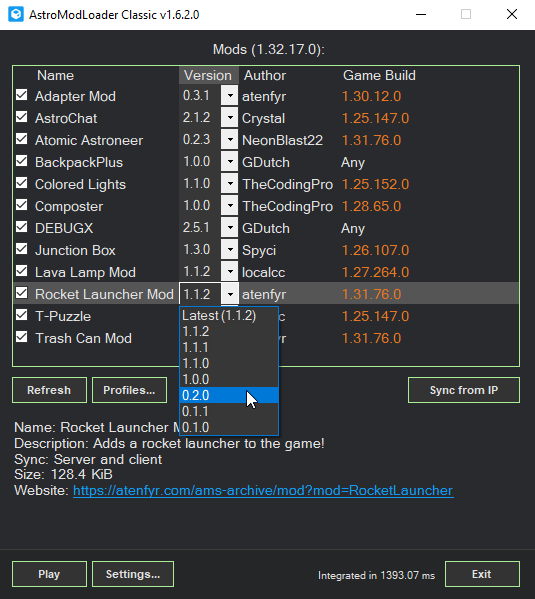
AstroModLoader Classic is a modern port of the original AstroModLoader, an open-source mod manager in C# for Astroneer .pak mods on Steam and the Microsoft Store, for modern versions of Astroneer (as of 2025). It includes support for mod profiles, automatic mod integration, and the ability to easily swap between multiple mod versions so that you can worry less about setup and more about playing.
AstroModLoader Classic includes the following features and more:
- A simple GUI to enable, disable, and switch the version of Astroneer .pak mods
- Mod metadata analysis to provide additional information about compliant mods, such as name, description, and compatible Astroneer version
- Automatic updating of supporting mods
- A profile system, to allow switching between sets of mods for different playthroughs
- Customizable appearance, with both light and dark themes as well as nine accent color presets
- Customizable mod load order by holding SHIFT and using the arrow keys in the mod list
- Easy drag-and-drop functionality to install mods
- Syncing of mods with modded AstroLauncher servers
- Built-in mod integration to help prevent mod conflict and detect mod mismatches with servers
To run a local copy of AstroModLoader Classic, visit the Releases tab to download the executable, or clone the repository and build AstroModLoader Classic yourself within Visual Studio.
To install mods, drag and drop the .zip or the .pak file of your mod onto the AstroModLoader Classic window while it is running.
Alternatively, you can also manually add mods for use with AstroModLoader Classic by placing them into the %localappdata%\Astro\Saved\Mods directory. This path works for both Steam and Microsoft Store versions of the game.
AstroModLoader Classic features a full set of hotkeys to control your list of mods. Below is a list of keyboard commands to manipulate the list of mods:
- DEL deletes all versions of the currently selected mod.
- ALT+DEL deletes all versions of the currently selected mod except for the newest from disk.
- SHIFT+UP and SHIFT+DOWN adjust the position of the currently selected mod. Mods at the top of the list (low priority) are loaded by the game before mods at the bottom of the list (high priority).
- ESC de-selects the current row in the mod list.
Additionally, the following keyboard commands can be used within the profile selector:
- DEL deletes the current profile.
- ENTER loads the current profile.
- X exports the current profile as a .zip file, which other AstroModLoader Classic users can import by dragging and dropping the .zip file onto the AstroModLoader Classic window while it is running.
Additionally, the following keyboard commands can be used within popup windows:
- ENTER and ESC can be used within confirmation windows to select "Yes" or "No" respectively, and "OK" or "Cancel" respectively in text input windows.
- TAB can be used to switch selection between buttons. ENTER can then be used to press the currently selected button.
AstroModLoader Classic can be used to install mods on dedicated servers. To do this, place the executable file into the root folder of your server installation directory, and execute it as normal to start in server mode. You can also simply pass in the --server command line parameter.
AstroModLoader Classic has support for the following command line parameters:
--server: Forces AstroModLoader Classic to operate as if it is being ran for a server.--client: Forces AstroModLoader Classic to operate as if it is being ran for a client.--data <path>: Overrides the path used for the %localappdata% folder (or the local equivalent of that folder).--next_launch_path <path>: Specifies a path to a file to store as the launch script.
- .NET Desktop Runtime 8.0
- An installed copy of Astroneer
To completely reset your installation of AstroModLoader Classic and remove all mods, perform the following steps:
- If necessary, open AstroModLoader Classic and click "Uninstall UE4SS..." under the "Settings" page. If the button instead says "Install UE4SS...", you can move on to the next step. Make sure that AstroModLoader Classic is fully closed before continuing.
- Delete the folders
%localappdata%\Astro\Saved\Paks,%localappdata%\Astro\Saved\Mods, and%localappdata%\AstroModLoader.- If using Proton on Linux, you can do this by opening a terminal window and executing
protontricks --no-bwrap 361420 shellfollowed bycd users/steamuser/AppData/Local && rm -r Astro/Saved/Paks Astro/Saved/Mods AstroModLoader; exit.
- If using Proton on Linux, you can do this by opening a terminal window and executing
- You're done!
If you would like to set up AstroModLoader Classic for Linux (Proton), perform the following steps:
- If needed, install Steam and Astroneer on your computer.
- Install the latest version of winetricks. See this guide: https://github.com/Winetricks/winetricks?tab=readme-ov-file#installing. If you are on Debian/Ubuntu, you should perform the steps under "Manual Install" on the winetricks GitHub page to make sure that winetricks is up-to-date.
- Install the latest version of protontricks. See this guide: https://github.com/Matoking/protontricks?tab=readme-ov-file#pipx. Using pipx is a good idea to make sure you have the latest version of protontricks. Execute
pipx ensurepathon the command line after installing protontricks. - To download necessary prerequisites, execute
protontricks --no-bwrap 361420 dotnetdesktop8 microsson the command line and go through all prompts that appear.- The
--no-bwrapflag is only provided here as a workaround for a crash on Ubuntu related to AppArmor. It may or may not be necessary on other distributions. The flag can be removed on Ubuntu after executing the commandsudo sysctl -w kernel.apparmor_restrict_unprivileged_userns=0if desired, but this may be undesirable (as it reduces security).
- The
- Download AstroModLoader.exe from the Releases tab of this repository. Then, execute
protontricks-launch --no-bwrap --appid 361420 /path/to/your/AstroModLoader.exe, using the correct path to your downloaded AstroModLoader.exe file. - If prompted, provide the correct paths for the local application data directory (typically
C:\users\steamuser\AppData\Local\Astro, verbatim) and the game installation directory (wherever within theZ:drive the game is installed on your machine; by default,Z:\home\<your Linux username>\.local\share\Steam\steamapps\common\ASTRONEER) - Install your mods by dragging and dropping .pak files onto the window of AstroModLoader Classic. When you are ready to play, do not press "Play;" instead, simply launch the game manually through Steam.
- Whenever the game updates or you would like to change your list of mods, execute
protontricks-launch --no-bwrap --appid 361420 /path/to/your/AstroModLoader.exeagain to launch AstroModLoader Classic again and allow the mod loader to re-integrate your mods. You may wish to create a shortcut for this command.
You may alternatively wish to consider other, simpler options for using mods on Linux, such as astro_modloader, UE4SS + AutoIntegrator, or manual execution of the ModIntegrator-linux-x64 command-line program.
AstroModLoader Classic is licensed under the MIT license, which can be found in the LICENSE.md file. In addition, necessary licenses for the third-party material used in this software can be found in the NOTICE.md file.
AstroModLoader Classic performs integration with AstroModIntegrator Classic, which supports the same fundamental integration features that astro_modloader (the Rust re-write) does, but notably has a different and more fully-featured blueprint API. You can find more information about the AstroModIntegrator Classic blueprint API here: https://github.com/atenfyr/AstroModLoader-Classic/tree/master/AstroModIntegrator/BlueprintAssets