

Any Questions?
Did you find the content in this article helpful? Feel free to leave doubts/questions in the comment section below. We’ll get back to you as soon as possible.
The post TCP Trigger and TCP Action in UDS appeared first on LeadSquared Help and Support.
]]>Universal Data Sync (UDS) now supports TCP (Transmission Control Protocol) as both a Trigger and an Action. This allows LeadSquared to integrate with healthcare and legacy systems that rely on socket-based communication instead of REST/HTTPS APIs.
With TCP support, UDS workflows can:
This capability is primarily intended for healthcare integrations and legacy platforms where message accuracy, ordering, and reliability are mandatory.
Receive Healthcare Data
Send Data to Healthcare Systems
Integrate with Legacy Systems
|
Term |
Description |
|
TCP |
Reliable, bidirectional protocol that ensures ordered and complete data delivery |
|
HL7 |
Health Level Seven – standard for exchanging healthcare data |
|
ADT |
Admission, Discharge, Transfer events |
|
SIU |
Scheduling Information Unsolicited events |
|
MLLP |
HL7-specific wrapper used to safely transmit messages over TCP |
Supported HL7 Message Types
ADT Events
SIU Events
A TCP Trigger starts a workflow when HL7 data is received over a TCP connection.
Sample HL7 Payload
Provide a sample HL7 message from the source system or send a test message. This sample is used to identify segments and enable variable mapping.
MSH|^~\\&|HIS|Hospital|LSQ|LeadSquared|202401011230||ADT^A04|MSG00001|P|2.3
EVN|A04|202401011230
PID|1||12345^^^Hospital||Doe^John||19800101|M|||123 Main St^^City^State^12345||9876543210
NK1|1|Doe^Jane|SPOUSE|9876543211
After saving the trigger, UDS generates:
Configure the external system to send HL7 messages to the provided host and port.
Note: All TCP triggers within a tenant share the same host and IP. App ID and Flow ID help identify the target workflow.

Variable Mapping
Configuration Details
Provide the following information:

Execution logs are available for monitoring and troubleshooting.

Is TCP supported for non-healthcare use cases?
TCP support is designed primarily for healthcare and legacy systems. Non-healthcare use cases are supported only if the external system uses HL7 over TCP.
Can I send or receive JSON data over TCP?
No. Currently, only HL7 data format is supported for TCP triggers and actions.
What is the difference between TCP Trigger and Webhooks?
Webhooks use HTTPS endpoints, while TCP Triggers rely on socket-based communication using IP and port. TCP is commonly required by legacy and healthcare systems.
Should I use TCP or MLLP?
MLLP is recommended for HL7 communication as it safely wraps messages over TCP.
Are UI changes expected for TCP workflows?
Yes. UI improvements for TCP configuration are ongoing and may change in future releases.
Did you find this article helpful? Please let us know any feedback you may have in the comments section below. We’d love to hear from you and help you out!
The post TCP Trigger and TCP Action in UDS appeared first on LeadSquared Help and Support.
]]>The post Combining Query Results Using Union in Analytics Report Builder appeared first on LeadSquared Help and Support.
]]>The Union and Union All options in the Analytics Report Builder allow you to combine the results of two or more queries into a single dataset by stacking rows vertically.
Unlike Joins, which merge related tables side-by-side (column-wise), Union combines datasets that share the same structure and appends them together (row-wise).
Union is useful when you want to consolidate similar data from multiple sources into one unified report.
Use Union when you want to:
|
Option |
Behavior |
|
Union |
|
|
Union All |
|
Union can only be applied between queries, not base tables.
Before applying Union, ensure:
If these conditions are not met, Analytics will show a validation error when saving the report.
For example, let’s say you want to combine Lead Source information from:
The goal is to create a single dataset that shows all sources (from both Leads and Activities) in one report. This combines Lead Source at the lead level with Traffic Source from activities (for example, form submissions or other interactions), so both the lead’s origin and activity-driven sources are included in one dataset—allowing you to see where the lead originally came from and how the lead interacted later.
If both queries follow the validation rules, the union will execute successfully and combine the datasets into a single result.

You can control query-level filters from the main report page:
This allows centralised filtering after union is applied. You
Note: User filters cannot be exposed.

1. Can I use Union directly on tables?
No. Union works only between queries.
2. What happens if column data types do not match?
The report will fail validation and show an error.
3. Which column names appear in the final report?
Column display names are inherited from the left-hand (primary) query.
We’d love to hear your feedback to help improve this article. Feel free to enter your questions or in the comments section below.
The post Combining Query Results Using Union in Analytics Report Builder appeared first on LeadSquared Help and Support.
]]>The post Customise the Tasks Page appeared first on LeadSquared Help and Support.
]]>Users can customise the Tasks page to reflect their priorities. There are two views available on the Tasks page –

Any LeadSquared user can customise their Tasks page.
The List view shows a grid with details of all tasks. By default, it displays the tasks created by you. To access it, navigate to Lead Management>Tasks, and click the List View icon.

You can add or remove task and lead fields as required. To do this –
On the List View page, you can also perform the following actions.
Note:

The Calendar view displays your tasks on a calendar, for the day, week or month you’re currently viewing. To access it, navigate to Lead Management>Tasks, and click the Calendar View icon.

Note:

You can also perform the following actions from the Calendar View. To do this, click an existing task.
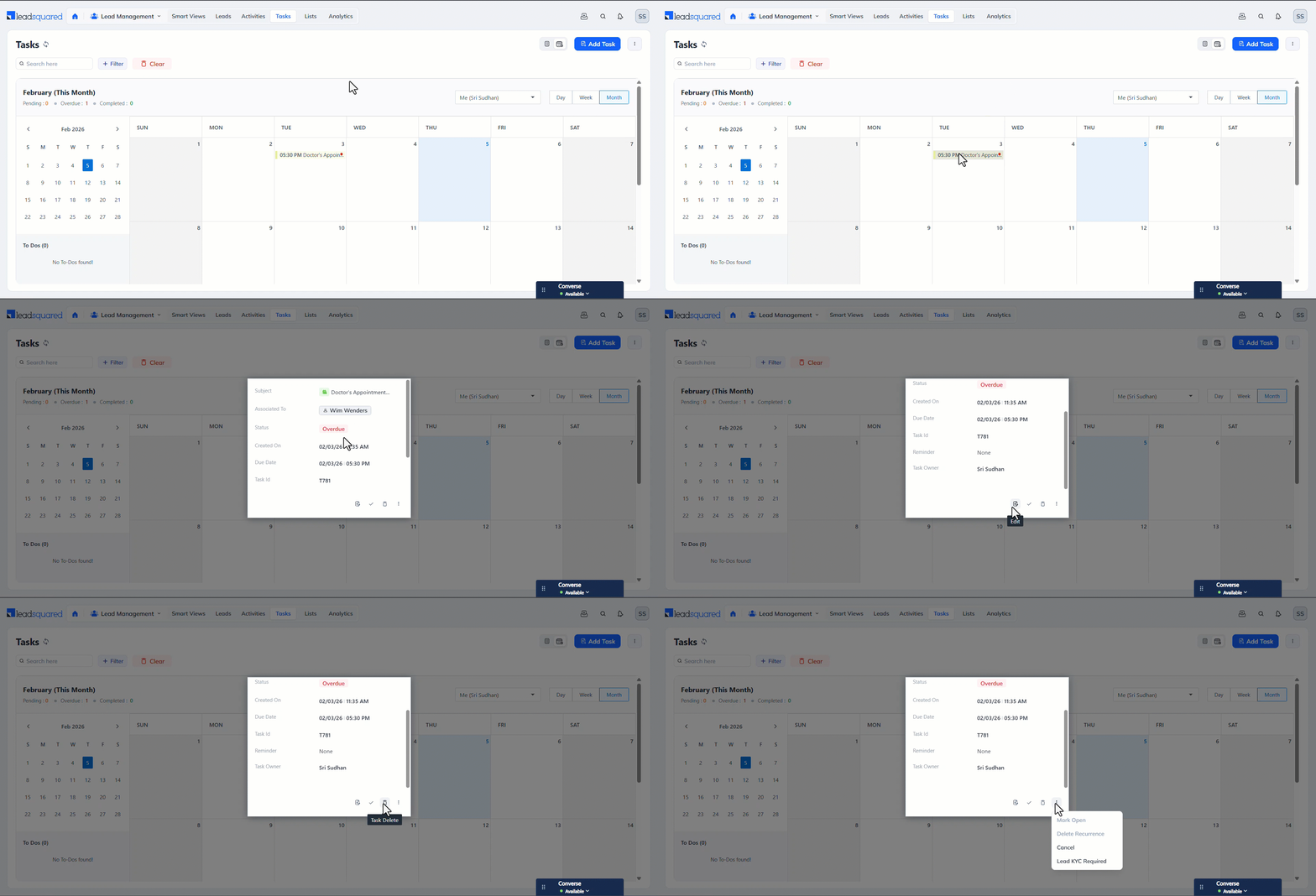
Filters help narrow down specific tasks, such as tasks with an Overdue status or a Due Date of today. The Advanced Search feature lets you search for tasks that meet one or more task and/or lead filters.

Advanced Filters let you set up If/Else conditions to identify and narrow down specific tasks in your account, such as tasks where the Status Is Pending + Overdue Lead City Is Bangalore.

We’d love to hear your thoughts on this article and the tasks feature in general. Feel free to start a conversation in the comments section below.
The post Customise the Tasks Page appeared first on LeadSquared Help and Support.
]]>The post Export Tasks out of LeadSquared appeared first on LeadSquared Help and Support.
]]>Export tasks from LeadSquared directly from the Tasks page in an Excel file. This makes it easy to analyse data, share updates, and track your users’ performance offline.
Any LeadSquared user can export tasks.

We’d love to hear your thoughts on this article and the tasks feature in general. Feel free to start a conversation in the comments section below.
The post Export Tasks out of LeadSquared appeared first on LeadSquared Help and Support.
]]>The post Complete Tasks Offline on the LeadSquared Mobile App appeared first on LeadSquared Help and Support.
]]>Offline Task Completion allows field users to complete tasks on the LeadSquared Mobile App even when they are not connected to the internet. Users can mark tasks as Completed in offline mode, fill out associated completion forms, and continue working without interruption.
When connectivity is restored, all offline task data, including form submissions, is automatically synced to the server. Until the sync is successful, tasks appear as Completed (Offline) on the mobile app, ensuring visibility while preventing data loss. This feature is especially useful for field teams working in low-connectivity or no-network environments, where task completion would otherwise be delayed.

You must be an Admin to set up Offline Task Completion on the LeadSquared Web App.
To complete tasks offline on the LeadSquared Mobile App, the admin must enable the following settings on the web app.

Additionally, configure the relevant task types for offline completion in the below JSON using the new Task Completion Offline Additional Setting on the web app.
Sample JSON
{
 "taskTypesName": [
   "<Tasktype name>"
 ]
}

Once enabled,
Note:
Offline Task Completion is currently supported for –
Irrespective of your connectivity, you can access the forms that were saved while offline and make relevant changes if required.


Offline Task Completion is currently not supported for:
Did you find this article helpful? Please let us know any feedback you may have in the comments section below. We’d love to hear from you and help you out!
The post Complete Tasks Offline on the LeadSquared Mobile App appeared first on LeadSquared Help and Support.
]]>The post Distribution Engine appeared first on LeadSquared Help and Support.
]]>Distribution Engine is a simple, rules-based way to automatically assign Leads and Opportunities to the right users. It replaces complex automation-based assignment with an easy-to-manage setup that helps you distribute records fairly, reduce manual effort, and meet response SLAs.
You can use Distribute Engine to:
When should you use Distribute Engine?
Use this feature if you want to:
How Distribute Engine works (at a glance)
Distribution Engine supports two trigger modes that control how records enter the engine for assignment.
In Entity Trigger Mode, records automatically enter the Distribute Engine based on the trigger conditions defined inside each assignment rule.
For example:
When the selected event occurs, the engine:
In Automation Trigger Mode, records enter the Distribution Engine only when explicitly sent from an Automation workflow. An automation card called Send to Distribution Engine is available in the automation.
Note: To enable this setting, contact [email protected].
If the Distribution Engine does not respond within 10 minutes, the automation card assigns the record to a default user defined inside the “send to distribution engine” card configuration.
The Send to Distribution Engine card is available only for specific automation triggers:
For Leads:
For Opportunities:
This section explains how to create and manage assignment rules.
Navigate to Distribution Engine>Distribution Rules. Click + Create Distribution Rule.
Enter basic information about the rule:
You can edit these details later using the pencil icon

Rule creation is a 4-step guided process. You can save progress at any step:
This step decides when the rule runs and which records qualify.
Select entity and event
Only records that match this entry event and conditions will enter the rule.
Define rule conditions (AND / OR logic)
Rule conditions help you narrow down exactly which records should be assigned.
| Condition | When to use | Example |
| AND | Use AND when all conditions must be true. |
|
| OR | Use OR when any one condition can be true. |
|
| Combining AND and OR using groups | Groups help you combine conditions without creating multiple rules. |
|

Choose who can receive leads when this rule runs.
You can only select one of the following and cannot combine them in a single rule:
At least one user or one group is required. Also, you can choose to Assign only if the User is available.

Select one assignment method:
Round Robin assigns records one by one in sequence.
Example with 3 users:
User A → User B → User C → User A → User B → User C → …
Note:
Weighted distribution lets you control how many records each user, team, or sales group should receive compared to others.
Instead of assigning records equally, you define a weight. A higher weight means that entity receives more records in each distribution cycle. Records are always assigned one at a time, and distribution follows a Round Robin pattern.
How It Works
Example 1: Manual Users
You configure:
Total weight = 6
This means in every 6 assignments:
Distribution still follows Round Robin, not bulk allocation.
Example sequence:
A → B → C → A → B → A → (cycle complete)
Then the cycle repeats.
Example 2: Teams or Sales Groups
When you select Teams or Sales Groups, Round Robin is followed at two levels:
Level 1: Between Groups (Based on Weight)
Example:
Total weight = 3
In every 3 assignments:
The engine distributes between East and West using Round Robin while respecting the weight.
Example sequence:
East → West → East → (cycle complete)
Then the cycle repeats.
Level 2: Inside the Group (Round Robin)
Once a record is assigned to a group:
So the full flow looks like:
Record → Group (Round Robin with weight) → User (Round Robin inside group)
Note:

If no eligible user is available, assign the lead to a default user.
Next, you can:

Rule list includes:
You can:

Reordering rules
Rule order decides which rule gets applied first when a record enters the Distribute Engine.
When a Lead or Opportunity evaluated:
Why rule order matters
If multiple rules can apply to the same record, only the highest‑priority rule will run.
Example:
If Rule 1 is above Rule 2, all website leads (including high‑score ones) will be assigned to Team A.
To ensure high‑score leads go to Team B, place Rule 2 above Rule 1.
Note:

Navigate to Distribution Engine>Home. The Home page gives you a quick distribution overview. Click the filter icon to filter the data by a date-range.

The Reports & Logs section helps you understand how records are being assigned and identify issues such as missed assignments.
You can use these reports to:
All reports can be filtered by date range, sales group, assigned user, and entity type to quickly narrow down the data you need.

The Assignment Settings section defines the global controls used by the Distribute Engine, including who can receive assignments and how many records they can be assigned.
User Assignment Limits
Admins can map user fields to control how many records a user can receive on an hourly, daily, weekly, or monthly basis. If no limit is configured, the user is treated as having unlimited capacity.
User Eligibility for Assignment
Admins can control which users are eligible to receive assignments based on their Check-in / Check-out status. Only users who meet the configured eligibility conditions are considered during assignment.

What happens if no user is available?
The record is assigned to the fallback user configured in the rule or settings.
Can I temporarily stop assignments to a user?
Yes. Mark the user unavailable, apply leave, or remove them from the rule.
Can I edit an active rule?
Yes. Changes take effect once you save and activate the rule again.
Did you find the content in this article helpful? Feel free to leave doubts/questions in the comment section below. We’ll get back to you as soon as possible.
The post Distribution Engine appeared first on LeadSquared Help and Support.
]]>The post Integrate Flostack with UDS appeared first on LeadSquared Help and Support.
]]>The FloStack–UDS integration lets you automatically sync key lead interactions—such as appointments, reschedules, cancellations, callback requests, and microsite information—from FloStack into LeadSquared.
All FloStack actions are pre-configured in UDS, so you only need to authenticate and complete field mappings. Once configured, new appointment bookings, updates, and microsite events flow directly into LeadSquared without any manual intervention.
The integration ensures that:
This helps admissions, counseling, or sales teams engage leads quickly and consistently, using the same data generated from FloStack’s routing and booking journeys.
How the Integration Works
FloStack sends data to UDS each time a relevant event occurs.
UDS then:
Once you search for “FloStack” in the UDS App, you will see the following actions already configured:
Each action serves a specific use case in the FloStack workflow.

3.1 What this action does
Captures appointment bookings from FloStack microsites and creates corresponding LeadSquared records.
Triggered When
A user books a new appointment on a FloStack microsite.
3.2 Basic Settings & Authentication
Enter the following details –
| Field | Description |
| Lead Source | Enter the lead source through which the leads were captured (e.g., Flostack). This detail will appear on the Lead Details page under Lead Source. |
| Default Country Code | Select a default country code. If the lead’s mobile number is captured without a country code, the default country code is added to the lead’s mobile number. |
| Select Time Zone | The time zone of your Flostack account. |
| Lead Capture Primary Search By Criteria | To avoid duplicate lead creation, select one unique lead field (e.g., mobile number/email) as the search key. Leads will be searched by the value mapped to this field. If a matching lead is found, it will be updated. Otherwise, a new lead will be created. To know how to mark a LeadSquared lead field as unique, please refer to How to Make a Custom Field Unique. |
| Lead Capture Secondary Search By Criteria | If lead identification and capture through the primary Search By criteria fails, the system will reattempt using the secondary Search By criteria. |
| Select User to Notify on Failure | If there’s an error in fetching leads, the selected user will receive a failure message via email. Choose a user from the list of available users in your LeadSquared account.To know more about the type of errors, please refer to Error Notifications. |
| Enable Notification | Enable the  checkbox to ensure notification emails are sent to the selected user when there’s a failed query. checkbox to ensure notification emails are sent to the selected user when there’s a failed query. |
Supports custom unique fields and composite keys (email + phone) as search keys. Once you’re done entering all the details, click Save.
3.2 Configuration Breakdown

4.1 What this action does
Updates existing appointment records in LeadSquared when the appointment is modified (rescheduled, advisor changed, etc.) from FloStack.
Triggered When
A user reschedules or edits an existing appointment on a FloStack microsite.
4.2 Basic Settings & Authentication
Enter the following details –
| Field | Description |
| Lead Source | This detail will appear as Update Appointments from Flostack on the Lead Details page under Lead Source. |
| Default Country Code | Select a default country code. If the lead’s mobile number is captured without a country code, the default country code is added to the lead’s mobile number. |
| Select Time Zone | The time zone of your Flostack account. |
| Lead Capture Primary Search By Criteria | To avoid duplicate lead creation, select one unique lead field (e.g., mobile number/email) as the search key. Leads will be searched by the value mapped to this field. If a matching lead is found, it will be updated. Otherwise, a new lead will be created. To know how to mark a LeadSquared lead field as unique, please refer to How to Make a Custom Field Unique. |
| Lead Capture Secondary Search By Criteria | If lead identification and capture through the primary Search By criteria fails, the system will reattempt using the secondary Search By criteria. |
| Select User to Notify on Failure | If there’s an error in fetching leads, the selected user will receive a failure message via email. Choose a user from the list of available users in your LeadSquared account.To know more about the type of errors, please refer to Error Notifications. |
| Enable Notification | Enable the checkbox to ensure notification emails are sent to the selected user when there’s a failed query. |
Supports custom unique fields and composite keys (email + phone) as search keys. Once you’re done entering all the details, click Save.
4.3 Configuration Breakdown

5.1 What this action does
Marks appointments as cancelled in LeadSquared when a prospect cancels via the FloStack microsite.
Triggered When
A user cancels a previously booked appointment.
5.2 Basic Settings & Authentication
Enter the following details –
| Field | Description |
| Lead Source | This detail will appear as Update Appointments from Flostack on the Lead Details page under Lead Source. |
| Default Country Code | Select a default country code. If the lead’s mobile number is captured without a country code, the default country code is added to the lead’s mobile number. |
| Select Time Zone | The time zone of your Flostack account. |
| Lead Capture Primary Search By Criteria | To avoid duplicate lead creation, select one unique lead field (e.g., mobile number/email) as the search key. Leads will be searched by the value mapped to this field. If a matching lead is found, it will be updated. Otherwise, a new lead will be created. To know how to mark a LeadSquared lead field as unique, please refer to How to Make a Custom Field Unique. |
| Lead Capture Secondary Search By Criteria | If lead identification and capture through the primary Search By criteria fails, the system will reattempt using the secondary Search By criteria. |
| Select User to Notify on Failure | If there’s an error in fetching leads, the selected user will receive a failure message via email. Choose a user from the list of available users in your LeadSquared account.To know more about the type of errors, please refer to Error Notifications. |
| Enable Notification | Enable the checkbox to ensure notification emails are sent to the selected user when there’s a failed query. |
Supports custom unique fields and composite keys (email + phone) as search keys. Once you’re done entering all the details, click Save.
5.3 Configuration Breakdown

6.1 What this action does
Creates a callback task and logs an activity whenever a prospect requests a callback from the FloStack microsite.
Triggered When
A user clicks “Request Callback” or submits a callback form on a FloStack microsite.
6.2 Basic Settings & Authentication
Enter the following details –
| Field | Description |
| Lead Source | This detail will appear as Flostack Call Back Request on the Lead Details page under Lead Source. |
| Default Country Code | Select a default country code. If the lead’s mobile number is captured without a country code, the default country code is added to the lead’s mobile number. |
| Select Time Zone | The time zone of your Flostack account. |
| Lead Capture Primary Search By Criteria | To avoid duplicate lead creation, select one unique lead field (e.g., mobile number/email) as the search key. Leads will be searched by the value mapped to this field. If a matching lead is found, it will be updated. Otherwise, a new lead will be created. To know how to mark a LeadSquared lead field as unique, please refer to How to Make a Custom Field Unique. |
| Lead Capture Secondary Search By Criteria | If lead identification and capture through the primary Search By criteria fails, the system will reattempt using the secondary Search By criteria. |
| Select User to Notify on Failure | If there’s an error in fetching leads, the selected user will receive a failure message via email. Choose a user from the list of available users in your LeadSquared account.To know more about the type of errors, please refer to Error Notifications. |
| Enable Notification | Enable the checkbox to ensure notification emails are sent to the selected user when there’s a failed query. |
Supports custom unique fields and composite keys (email + phone) as search keys. Once you’re done entering all the details, click Save.
6.3 Configuration Breakdown

7.1 What this action does
Updates lead records with:
Typical use cases
You can configure automations in LeadSquared to instantly send the personalized microsite link to the lead.
7.2 Basic Settings & Authentication
Enter the following details –
| Field | Description |
| Lead Source | This detail will appear as Flostack: Microsite Link Generated on the Lead Details page under Lead Source. |
| Default Country Code | Select a default country code. If the lead’s mobile number is captured without a country code, the default country code is added to the lead’s mobile number. |
| Select Time Zone | The time zone of your Flostack account. |
| Lead Capture Primary Search By Criteria | To avoid duplicate lead creation, select one unique lead field (e.g., mobile number/email) as the search key. Leads will be searched by the value mapped to this field. If a matching lead is found, it will be updated. Otherwise, a new lead will be created. To know how to mark a LeadSquared lead field as unique, please refer to How to Make a Custom Field Unique. |
| Lead Capture Secondary Search By Criteria | If lead identification and capture through the primary Search By criteria fails, the system will reattempt using the secondary Search By criteria. |
| Select User to Notify on Failure | If there’s an error in fetching leads, the selected user will receive a failure message via email. Choose a user from the list of available users in your LeadSquared account.To know more about the type of errors, please refer to Error Notifications. |
| Enable Notification | Enable the checkbox to ensure notification emails are sent to the selected user when there’s a failed query. |
Supports custom unique fields and composite keys (email + phone) as search keys. Once you’re done entering all the details, click Save.
7.3 Configuration Breakdown

Navigate to Settings>Workspace Settings>Integrations in FloStack, select LeadSquared and enter:
This configuration will allow FloStack to trigger the corresponding UDS actions.

Did you find the content in this article helpful? Feel free to leave doubts/questions in the comment section below. We’ll get back to you as soon as possible.
The post Integrate Flostack with UDS appeared first on LeadSquared Help and Support.
]]>The post Flostack – Booking and Events appeared first on LeadSquared Help and Support.
]]>The Bookings & Events module is the central hub for publishing, managing, and sharing all scheduling experiences created in Flostack. Whether you’re hosting personal consultations, running large-scale webinars, or offering multiple types of sessions to leads and customers, this module brings everything together in one place.
It consists of three core components:
All these components are powered by Meeting Types, which define the underlying rules—availability, duration, buffers, capacity, form fields, and more. Meeting Types ensure consistent scheduling behavior across every booking experience, while Bookings & Events determine how these experiences are shared with your audience.
To learn more about FloStack (www.flostack.io), and enable it on your account, contact [email protected].
Booking Links allow you to create personal or team scheduling pages for one-to-one meetings. Each link is powered by either your default availability or Meeting Type and automatically respects your availability, duration, buffers, and calendar sync settings.

Create a Booking Link

 icon to copy the booking link.
Events let you create group sessions such as webinars, workshops, or open houses. An event uses a meeting type as its base configuration and allows you to add presenters, capacity limits, and a fully customizable landing page.
The Events section in Flostack provides a centralized view of all scheduled and created events. It includes two primary tabs—Agenda and All Events—along with options to create new events and manage attendees.
The Agenda tab displays the full calendar of upcoming and past event occurrences, helping organizers quickly track what’s scheduled.
Key Features
This tab is ideal for tracking real-time event activity and managing participant lists.

The All Events tab shows every event that has been created in your workspace—regardless of event status or number of attendees. This tab acts as your complete repository of events.
Click Create Event to start building a new event. You will first choose between two creation modes:
4.2.1 Event Scheduler
Choose this when you want a standard scheduler-based booking experience. This option is ideal for straightforward scheduling without a custom landing page.

You can configure:
Most of the configuration for the Schedule and Booking Form section will be autopopulated with the Meeting Type configuration you’ve selected. It’s possible to further modify some of the configuration once it’s autopopulated.

4.2.2 Event Landing Page
Choose this when you want a fully branded event page with images, highlights, multimedia, and custom sections. This option provides a richer, marketing-friendly page to promote the event.

You can configure:

 icon to copy the Event link.
A Listing Page serves as a unified public catalog for all your Events and Booking Links, making it easy for visitors to discover and register for any session you offer.
Use Case

How It Works
On the Listing Page screen, you can create dedicated listings for Events or Booking Links.
For either type, you can configure:
Once saved, the listing page becomes a single, shareable destination for visitors to browse and register for your events or book one-on-one sessions.

icon to copy the listing link.
Did you find this article helpful? Please let us know any feedback you may have in the comments section below. We’d love to hear from you and help you out!
The post Flostack – Booking and Events appeared first on LeadSquared Help and Support.
]]>The post Create Meeting Types on Flostack appeared first on LeadSquared Help and Support.
]]>The Meetings Type feature in Flostack enables users to define and manage different categories of meetings with tailored scheduling rules. It supports instant scheduling, allowing users to specify availability for specific purposes, while controlling duration, time slots, visibility, and participant capacity.
Meeting types can be one-on-one or group meetings, and can be virtual (with calendar integration) or in-person. This ensures smooth scheduling, prevents conflicts, and improves the overall attendee experience.

The following are the differences between One-on-One and Group Meetings –
These are private sessions with a single attendee. They are ideal for interviews, consultations, or client calls where focused, individual attention is required. Each slot is booked by one participant, and availability is blocked automatically via calendar integration.
These sessions accommodate multiple participants at the same time. They are suitable for workshops, webinars, or training sessions. Users can define the maximum capacity for each slot, while availability is managed for the organizer, allowing multiple attendees to book until the capacity is reached.
From the FloStack dashboard, navigate to Meeting Types in the left-hand menu. You’ll see all created types with details like name, duration, and type. Click + Create Meeting Type and choose the type, One-on-One or Group.

Once you’ve set up a meeting type, you can use it in Bookings & Events and configure Meeting Type Rules to automatically route leads based on form submissions.
Did you find this article helpful? If you have any questions or comments, please let us know in the comments section below. We’d love to hear from you and help you out!
The post Create Meeting Types on Flostack appeared first on LeadSquared Help and Support.
]]>The post How to Use Iframes or Custom Code on Portals and Landing Pages Pro appeared first on LeadSquared Help and Support.
]]>Iframes let you embed custom designs or external tools inside Portals or Landing Pages Pro without affecting the main layout. To ensure your embedded content works smoothly, follow the guidelines listed on this page.
1. When using AI tools to generate custom designs or widgets
If you’re using AI to generate HTML, CSS, or JavaScript:
2. Do not use AI-generated code for forms
If you need a form next to your custom design, use the built-in drag-and-drop form builder. Place your LSQ form beside a custom code block to create a hybrid layout—this ensures proper tracking, reliable submissions, and consistent behavior across portals and landing pages.
3. Adjust spacing, width, and styling for a seamless embed
To make the iframe full width, remove padding, and align it neatly with your layout, refer to the platform’s instructional video (shown below) for spacing and container setup.
If the embedded content looks cut off or doesn’t extend fully at the bottom, add this CSS:
body, iframe {
    height: 1000px;
}
This helps the iframe appear smooth and continuous, without borders or unwanted scrolling.

The post How to Use Iframes or Custom Code on Portals and Landing Pages Pro appeared first on LeadSquared Help and Support.
]]>The post Portal Redirection & Error Handling appeared first on LeadSquared Help and Support.
]]>This document outlines the Portal’s redirection rules and provides explanations to assist in debugging your implementation.
When configuring a SmartLink—a feature designed to automatically log users into the Portal—options are available to configure associated activities and opportunities. Once an activity or opportunity is configured within the SmartLink and subsequently triggered via automation, the relevant activity ID or opportunity ID is integrated into the SmartLink’s URL.
Although this table specifically illustrates activity-based SmartLinks, the principles apply similarly to opportunity-based and combined activity-and-opportunity integrations.
Example: Activity-Based SmartLink
|
Case
|
Activity Defined
|
ActivityId Passed
|
Same Actvity Type
|
URL Has ActivityId
|
Valid Link
|
Outcome
|
|
A
|
Yes
|
Yes
|
Yes
|
Yes
|
Yes
|
Configured SmartLink target
|
|
B
|
Yes
|
Yes
|
No
|
No
|
No
|
Home Page
|
|
C
|
No
|
No
|
No
|
Yes
|
No
|
Home Page
|
|
D
|
No
|
Yes
|
No
|
Yes
|
Yes
|
Configured SmartLink target
|
If a SmartLink fails for any reason, such as expiration, the user will be redirected to the Portal’s Home Page.
|
Scenario
|
Trigger
|
Outcome
|
|
SmartLink failure
|
SmartLink cannot be validated/resolved
|
Home Page
|
If duplicate activity handling is configured within the forms (under Portal Settings), this section outlines how the system behaves when a duplicate is detected. Essentially, the system attempts to redirect to the flow configured in the Login or Signup form.
|
Step
|
Check
|
If True
|
If False
|
|
1
|
Any page with login action exists (by hierarchy)
|
Go to first page with login action
|
Home Page
|
|
2
|
Login action type = Link Page
|
Configured Link Page, likely dashboard
|
Home Page
|
|
3
|
Login action type = Rule-Based
|
Execute rules
|
Home Page
|
|
4
|
Any rule outputs “Link Page”
|
To Configured Link Page, likely dashboard
|
Home Page
|
If a user attempts to access the Portal using a Lead, Activity, or Opportunity ID not associated with their account, they will be logged out and redirected to the Home Page.
|
Scenario
|
Trigger
|
Outcome
|
|
Activity–Lead mismatch
|
Activity does not belong to the referenced Lead
|
Logout → Home Page
|
|
Unauthorized entity usage
|
Using another user’s Lead/Activity/Opportunity Id
|
Logout → Home Page
|
The post Portal Redirection & Error Handling appeared first on LeadSquared Help and Support.
]]>The post How UDS Helps You Sign-up Only Verified Users in Portals appeared first on LeadSquared Help and Support.
]]>LeadSquared Portals now support UDS-based validation for signup (registration/login) forms. This ensures that only verified and approved users can sign up on your portal
When a user submits a registration form, the portal sends the form data to a UDS flow for real-time validation before the user account is created. UDS can run any custom logic—such as checking duplicates, verifying phone or email, blocking blacklisted users, or validating against external systems.
The validation runs on the Register Save Request at each step of the signup process — applicable to both single-step and multi-step forms.
Note: Non-registration forms are not supported in this integration.
|
Parameter |
Description |
|
Integration Point |
The UDS endpoint can be integrated only with the Portal Signup Form. |
|
Execution Trigger |
The UDS flow is executed during the Registration Save Request (Save at Each Step). |
|
Form Compatibility |
Supports both single-step and multi-step signup forms. |
The Portal’s behavior depends strictly on the HTTP status code returned by the UDS endpoint.
The signup submission proceeds only if the UDS returns a 200 status code.
Example – Success Response (200)
{
  "statusCode": 200,
  "responseHeaders": {},
  "body": {
    "status": "SUCCESS",
    "success": true,
    "errors": {},
    "data": "{{Write your message here}}",
    "requestId": "c1d2e3f4-5678-9012-3456-abcdefabcdef"
  }
}
If the UDS returns any other status code (e.g., 400, 500), the save request will be restricted. The error message displayed to the user depends on the response body received from the UDS.
Here are two possible error scenarios:
If the UDS response includes a correctly formatted body with an errors message array, the portal displays the custom message returned by UDS.
Example:
As seen in the screenshot, the user enters a blacklisted number.
The UDS returns a 500 status code, the UDS response body includes a requestId and an errors.message array containing, “This is a blacklisted number. Please try with another number.“.
The portal UI correctly displays this custom message to the user.

If the UDS response is not formatted correctly or lacks required fields, the portal shows a default error message.
Default Message: “Portal-Form Validation Failed. Please check the Portal-Form Validation service.“
Triggers for Default Message:
errors.message field.status code or the request ID.Example:
The screenshot shows a 500 status in the network request, but the UI displays the default “Portal-Form Validation Failed...” error. This indicates the UDS response for that specific error did not provide the required message or Request ID in the expected format.

To ensure successful validation, the flow should be a custom configuration type with real time response. Configure the UDS flow with the following settings:
|
Configuration |
Required Setting |
|
Flow Trigger |
|
|
Action Type |
Return Response (to send data back to Portal) |

The flow must be initiated by a Custom Trigger and must use the Return Response action to send data back to the portal.

Next, copy the custom webhook URL.

On the Portal Designer, select your Registration Form. Under States, paste the webhook URL in the UDS URL field. You should see a succesful validation.

Note: The following link provides a sample custom UDS app: UDS-POR Phone Number Dup Check. You can import this file directly to create the sample UDS flow (This file contains sensitive information and is accessible only to LeadSquared’s internal team). For assistance, contact [email protected].
Below is a sample payload sent from the Portal during registration save. You can copy this payload directly into UDS to create a sample flow.
{

    "TaskId": "",

    "ActivityId": "",

    "FormId": "bf34eb59-4520-11ef-8227-064299b60867",

    "PageId": "dllkufl5y",

    "IsFormPreValidationEnabled": true,

    "OpportunityId": "",

    "FormEntity": [

        {

            "FormId": "bf34eb59-4520-11ef-8227-064299b60867",

            "TabId": "tab1",

            "SectionId": "bf34eb59-4520-11ef-8227-064299b60867_tab1_section1",

            "LeadFields": [

                {

                    "SchemaName": "EmailAddress",

                    "Value": "[email protected]",

                    "RuleAppliedInfo": {

                        "Hidden": 1,

                        "Mandatory": 0

                    },

                    "DataType": "Email",

                    "RenderType": "Email"

                },

                {

                    "SchemaName": "Phone",

                    "Value": "+91-9123411101",

                    "RuleAppliedInfo": {

                        "Hidden": 1,

                        "Mandatory": 0

                    },

                    "DataType": "Phone",

                    "RenderType": "Phone"

                },

                {

                    "SchemaName": "FirstName",

                    "Value": "firstname",

                    "RuleAppliedInfo": {

                        "Hidden": 1,

                        "Mandatory": 0

                    },

                    "DataType": "Text",

                    "RenderType": "Textbox"

                },

                {

                    "SchemaName": "mx_Street1",

                    "Value": "address",

                    "RuleAppliedInfo": {

                        "Hidden": 1,

                        "Mandatory": 0

                    },

                    "DataType": "Text",

                    "RenderType": "Textbox"

                }

            ],

            "ActivityFields": [],

            "TaskFields": [],

            "OpportunityFields": []

        }

    ],

    "ProcessFormEntity": [

        {

            "FormId": "bf34eb59-4520-11ef-8227-064299b60867",

            "TabId": "tab1",

            "SectionId": "bf34eb59-4520-11ef-8227-064299b60867_tab1_section1",

            "LeadFields": [

                {

                    "SchemaName": "EmailAddress",

                    "Value": "[email protected]",

                    "RuleAppliedInfo": {

                        "Hidden": 1,

                        "Mandatory": 0

                    },

                    "DataType": "Email",

                    "RenderType": "Email"

                },

                {

                    "SchemaName": "Phone",

                    "Value": "+91-9123411101",

                    "RuleAppliedInfo": {

                        "Hidden": 1,

                        "Mandatory": 0

                    },

                    "DataType": "Phone",

                    "RenderType": "Phone"

                },

                {

                    "SchemaName": "FirstName",

                    "Value": "firstname",

                    "RuleAppliedInfo": {

                        "Hidden": 1,

                        "Mandatory": 0

                    },

                    "DataType": "Text",

                    "RenderType": "Textbox"

                },

                {

                    "SchemaName": "mx_Street1",

                    "Value": "address",

                    "RuleAppliedInfo": {

                        "Hidden": 1,

                        "Mandatory": 0

                    },

                    "DataType": "Text",

                    "RenderType": "Textbox"

                }

            ],

            "ActivityFields": [],

            "TaskFields": [],

            "OpportunityFields": []

        }

    ],

    "ExecutionId": "",

    "ActionId": "",

    "ProcessDesignerId": "",

    "ActivityCodeToUpdate": "",

    "FormOpportunityCode": "0",

    "ActivityCodesToUpdate": [],

    "FormOperation": 1,

    "DraftId": "",

    "ActivityIdsToBeRemoved": [],

    "RemovedOriginalSubformIds": [],

    "PaymentVerificationKey": "",

    "CurrentTabId": "",

    "IsPortalRegistrationForm": true,

    "UseRegisterV2": true,

    "RegisterLeadEntity": {

        "Email": "[email protected]",

        "Password": "e5/ttqpaoGaZ8YOwJi1oMhD5G84sNxxxxxxxxxxxxxxxxxxxnQsxxxxxxxxxxxxxxxxxxxxxxxxxxxxxxxd88fnYUpUG8s4NJYLYSRPuJJiimQCZLnomE5+4E5WTCpP3ok4EAXJt9LEfZxxxxxxxxxxxxxx=",

        "ConfirmPassword": "iJtO8GCA0LWnogZ0BrjXXZ8lXQKTKxxxxxxxxxxxxxxxxxxxqErxxxxxxxxxxxxxxxxxxxxxxxxxxxxxxxDKbOvM0d19OeYujwgDx52sbZlyhry0ZilMBfQs6TqCMZttI/nOECUjaubcxPJ1CUtdKna9AZyYXLQTxxxxxxxxxxxxx="

    },

    "PortalSpecificDetails": {

        "TimeZoneInfo": "US/Central"

    },

    "URLSearchParams": {},

    "LockKey": "",

    "PortalDetails": {

        "URL": "https://landingpagecreate4-dobwavuz.marketxpander.net/",

        "IPAddress": "10.230.13.6",

        "ConnectionSpeed": "4g",

        "Platform": "Windows",

        "BrowserName": "Chrome",

        "BrowserVersion": "141.0.0.0",

        "DeviceType": "Desktop",

        "PageUrl": "https://landingpagecreate4-dobwavuz.marketxpander.net/",

        "ReferrerUrl": ""

    },

    "RenderSettings": {

        "ProcessDesignerId": "",

        "ActionId": ""

    },

    "SavedTabIds": [],

    "ConnectionSpeed": "4g",

    "Platform": "Windows",

    "BrowserName": "Chrome",

    "BrowserVersion": "141.0.0.0",

    "DeviceType": "Desktop",

    "PageUrl": "https://landingpagecreate4-dobwavuz.marketxpander.net/",

    "ReferrerUrl": ""

}
Here’s an example of how the Return Response action can handle phone number validation within a UDS Custom Flow.
const main = (input) => {

    const phoneField = input?.data?.FormEntity?.[0]?.LeadFields?.find(

        field => field?.SchemaName === "Phone"

    );


    const phone = phoneField?.Value;


    function findLead(phone) {

        if (!phone) {

            return {

                statusCode: 200,

                responseHeaders: {},

                body: {

                    status: "SUCCESS",

                    success: true,

                    errors: {},

                    data: "Number is not provided",

                    requestId: "c1d2e3f4-5678-9012-3456-abcdefabcdef"

                }

            };

        } else if (String(phone) === "+91-9876543210") {

            return {

                statusCode: 500,

                responseHeaders: {},

                body: {

                    status: "ERROR",

                    success: false,

                    errors: {

                        message: [

                            "This is a blacklisted number. Please try with another number."

                        ]

                    },

                    data: null,

                    requestId: "3bfcfe46-39dd-7c86-6a87-5196d2c65971"

                }

            };

        } else if (String(phone) === "+1-9876543210") { // +1 -> 400

            return {

                statusCode: 400,

                responseHeaders: {},

                body: {

                    status: "ERROR",

                    success: false,

                    errors: {

                        message: [

                            "Bad request for this US number."

                        ]

                    },

                    data: null,

                    requestId: "a1111111-2222-3333-4444-555555555001"

                }

            };

        } else if (String(phone) === "+93-9876543210") { // +202 -> 202

            return {

                statusCode: 202,

                responseHeaders: {},

                body: {

                    status: "SUCCESS",

                    success: true,

                    errors: {},

                    data: "Accepted for asynchronous processing",

                    requestId: "a1111111-2222-3333-4444-555555555002"

                }

            };

        } else if (String(phone) === "+98-9876543210") { // +98 -> 400

            return {

                statusCode: 400,

                responseHeaders: {},

                body: {

                    status: "ERROR",

                    success: false,

                    errors: {

                        message: [

                            "Invalid or malformed number for +98 sample."

                        ]

                    },

                    data: null,

                    requestId: "b2222222-3333-4444-5555-666666666098"

                }

            };

        } else if (String(phone) === "+95-9876543210") { // -> 401

            return {

                statusCode: 401,

                responseHeaders: {},

                body: {

                    status: "ERROR",

                    success: false,

                    errors: {

                        message: [

                            "Unauthorized - sample number."

                        ]

                    },

                    data: null,

                    requestId: "c3333333-4444-5555-6666-777777777401"

                }

            };

        } else if (String(phone) === "+355-9876543210") { // -> 405

            return {

                statusCode: 405,

                responseHeaders: {},

                body: {

                    status: "ERROR",

                    success: false,

                    errors: {

                        message: [

                            "Method Not Allowed - sample number."

                        ]

                    },

                    data: null,

                    requestId: "d4444444-5555-6666-7777-888888888405"

                }

            };

        } else if (String(phone) === "+213-9876543210") { // -> 415

            return {

                statusCode: 415,

                responseHeaders: {},

                body: {

                    status: "ERROR",

                    success: false,

                    errors: {

                        message: [

                            "Unsupported Media Type - sample number."

                        ]

                    },

                    data: null,

                    requestId: "e5555555-6666-7777-8888-999999999415"

                }

            };

        } else if (String(phone) === "+376-9876543210") { // -> 429

            return {

                statusCode: 429,

                responseHeaders: {},

                body: {

                    status: "ERROR",

                    success: false,

                    errors: {

                        message: [

                            "Too Many Requests - sample number."

                        ]

                    },

                    data: null,

                    requestId: "f6666666-7777-8888-9999-aaaaaaaa429"

                }

            };

        } else if (String(phone).toUpperCase() === "NA" || String(phone).toUpperCase() === "N/A") {

            return {

                statusCode: 422,

                responseHeaders: {},

                body: {

                    status: "ERROR",

                    success: false,

                    errors: {

                        message: [

                            "Phone value marked as NA (not applicable)."

                        ]

                    },

                    data: null,

                    requestId: "09876543-21ab-cdef-0000-00000000NA01"

                }

            };

        } else {

            return {

                statusCode: 200,

                responseHeaders: {},

                body: {

                    status: "SUCCESS",

                    success: true,

                    errors: {},

                    data: "Valid number for registration",

                    requestId: "96d8df97-0c27-821f-5cc8-ee04ac8c91b7"

                }

            };

        }

    }
Refer to the UDS logs for any failures in execution. The Logs feature in UDS allows you to monitor and troubleshoot the execution of your data sync flows: Universal Data Sync (UDS) – Logs.

If you have any questions related to forms that weren’t answered here, please leave comments below. We’ll be happy to help!
The post How UDS Helps You Sign-up Only Verified Users in Portals appeared first on LeadSquared Help and Support.
]]>The post AI Propensity Score – Automatically Predict Conversion Chances appeared first on LeadSquared Help and Support.
]]>In LeadSquared, lead conversion potential was traditionally measured using Lead Scores, Engagement Scores, and Lead Quality Scores. While these metrics offer valuable insights, they are static, require manual setup, and assess each parameter independently without understanding their interrelation.
To overcome these limitations, LeadSquared introduces the AI-powered Lead Propensity Score – a dynamic and automated way to predict how likely a lead is to convert.
This score is generated using a proprietary AI/ML model that analyzes behavioral and historical data across your account to identify the attributes most associated with conversions. It eliminates manual scoring setup and provides a unified, data-driven prediction to help you prioritize high-potential leads efficiently.

Key Benefits
This is a paid feature. To get it enabled on your account, contact your account manager, or write to [email protected].
On this page, Propensity Scores are visible by default for all leads. You can use the score in Advanced Search to filter leads based on their propensity.

The Propensity Score is visible on the vCard.

The Propensity Score can be used to create a Smart Views page.

Did you find this article helpful? Please let us know any feedback you may have in the comments section below. We’d love to hear from you and help you out!
The post AI Propensity Score – Automatically Predict Conversion Chances appeared first on LeadSquared Help and Support.
]]>The post How to Secure Sensitive Data with Field-Level Encryption appeared first on LeadSquared Help and Support.
]]>LeadSquared’s Field-Level and File-Level Encryption (FLE) enhances data security by encrypting sensitive information at the individual field level. This ensures that critical data, such as identification numbers, attached documents or financial details, remain protected from everyone outside your organization.
This feature enables secure storage and access to sensitive data across Leads, Opportunities, and Activities. Encryption can be applied to both system and custom fields, as well as Lead CFS. Additionally, LeadSquared supports Bring Your Own Key (BYOK) through AWS Key Management Service (KMS), allowing organizations to manage and control their own encryption keys for advanced security and compliance.
Suppose your sales team collects customers’ PAN Numbers and Bank Account Details in LeadSquared. With Field-Level Encryption enabled, when a PAN Number like ABCPD1234F is entered, it’s stored encrypted (e.g., M7p9aZ1Qw==).

Field-Level Encryption can protect the following types of sensitive data (non-exhaustive list):
Full Name, Phone/Mobile, Email, Address, PAN, Aadhar, ABHA, DL, Voter ID, SSN, Passport, Bank & Credit Card Info, Vehicle Plate Number, etc.
| Entity | Maximum Fields | Supported Fields & Data Types |
| Lead / Object | 10 fields per type | System Fields: First Name, Last Name, Phone, Mobile, Email, Facebook, Google Plus, Google Talk User, LinkedIn, Latitude, Longitude, Skype Name, Twitter
Default Custom Fields: Address 1, Address 2, City, State, Country, Zip, Job Title, Company Custom Fields: Text, Number, Email, Phone, Date, CFS |
| Opportunity | 10 fields per type | Custom & CFS Fields: Text, Number, Email, Phone, Date |
| Custom Activity | 10 fields per type | Custom & CFS Fields: Text, Number, Email, Phone, Date |
| Sales Activity | 10 fields | Custom Fields: String, Number, Date |
| File | Maximum File Size: 2 GB | All file types |
To access Field-Level Encryption Settings, navigate to Settings>Data Management & Privacy>Field Level Encryption.

Once Field-Level Encryption is enabled, the admin can configure the encryption by entering an Encryption Key which can either be directly generated from here or be imported from any Key Management System. This key is used to convert data (like a customer’s phone number or ID) into unreadable encrypted text when stored in the database, and to decrypt it back into readable form for authorized users.

5.1.1 Key Generation
If you select the Generate Key option, then the Encryption Key will be automatically generated. If required, you can change the key periodically by clicking the Rotate Key option. Once you update the new key, the ability to make changes to the key will be restricted for 90 days.

5.1.2 Key Import
if you select the Import Key option, you can Bring Your Own Key (BYOK) through AWS Key Management Service (KMS) copied from AWS Key Management Service (KMS) and click Import Key. If required, you can import a new key periodically by clicking the Import Key option. Once you update the new key, the ability to import a new key will be restricted for 90 days.

View a log of all the updates that were made to the encryption key. Here you can see –

View the Lead, Opportunity and Activity fields marked for encryption in dedicated tabs. The tabs contain grids with the following details –

After configuring the Encryption Key, the admin must select the relevant Lead / Object, Lead CFS, Opportunity and Activity Fields to be encrypted from the Web App Settings.
Note:
To secure a lead field –
 Actions icon alongside the relevant system or custom lead field and select Edit.
Similarly, to secure a Lead CFS field –
Actions icon alongside the relevant custom field set and select Edit.
To secure an opportunity field within an opportunity type –
Actions icon alongside the relevant opportunity type and select Edit. Actions icon alongside the relevant field.
To secure an activity field –
 Edit icon alongside the relevant activity type. Actions icon alongside the relevant field.
To see the details about your existing field encryption request, navigate to Settings>Profile>Request History.

Did you find this article helpful? Please let us know any feedback you may have in the comments section below. We’d love to hear from you and help you out!
The post How to Secure Sensitive Data with Field-Level Encryption appeared first on LeadSquared Help and Support.
]]>The post Logger Parameters in UDS appeared first on LeadSquared Help and Support.
]]>By default, users can only search UDS logs using a Request ID, making it difficult to trace business-critical records such as Loan ID, Customer ID, or Phone Number when issues arise. This slows down investigations, increases developer dependency, and delays resolution.
Logger Parameter solves this by allowing users to define up to three custom key-value pairs (like Loan ID, Applicant ID, or Phone Number) along with the Request ID.
This empowers admins to instantly locate relevant records, reduce error resolution time, and minimize reliance on developers. As a result, it helps maintain data integrity, prevent workflow disruptions, and ensure a smoother experience.
Logger Parameters are available under Flow Advanced Options. Navigate to UDS App>Flow card(⋮ menu)>Advanced Options>Logger Parameter.
Note: Advanced Options are a request-only feature. Contact your account administrator or [email protected] to enable them.
Up to three keys can be configured. Parameters can be mapped using dropdowns or custom mappings.
Keys may be selected from:
Once parameters are added and saved, they are automatically logged with every request.

You can define custom keys in Logger Parameters to capture specific values from the incoming request.
For example, you can capture values from the request URL’s query string in Logger Parameters. If the incoming request is:
https://webhook.leadsquared.com/api/v2/uds?entityType=Loan&partnerId=ACME001
You can configure the Logger Parameters as follows:
| Key Name | Source | Custom Key |
| EntityType | Query | entityType |
| PartnerId | Query | partnerId |

On the Logs screen, search is available for Request ID by default, and Logger Parameters will appear as additional searchable fields.
Notes

Did you find this article helpful? Please let us know any feedback you may have in the comments section below. We’d love to hear from you and help you out!
The post Logger Parameters in UDS appeared first on LeadSquared Help and Support.
]]>The post Field Intelligence – Feature Guide appeared first on LeadSquared Help and Support.
]]>Field Intelligence provides tools for real-time reporting and visual analytics to help admins and managers monitor their field users’ productivity and movement throughout the day from the LeadSquared web app or mobile app. It includes the following key tools:
With Field Intelligence, you can:
| Distance Travelled Report | Field Force Insights | My Teams | Device Binding | |
| Availability | Web Only | Web & Mobile | Mobile Only | Web Only |
| Enablement | Enabled automatically along with Field Intelligence | Enabled automatically along with Field Intelligence | Must be enabled separately after enabling Field Intelligence | Must be enabled separately after enabling Field Intelligence |
| Access | Admins, Sales Managers, Sales Group Managers / Reporting Managers, Sales Users (determined by the user’s role) | Admins, Sales Managers, Sales Group Managers / Reporting Managers, Sales Users (determined by the user’s role) | Sales Group Managers / Reporting Managers | Admins |
The Distance Travelled Report helps you monitor the daily travel of your field users through GPS data captured by the LeadSquared Mobile App. Displayed in a tabular format, it consolidates travel information across users, enabling better estimation of travel expenses and reimbursements.

When Field Intelligence is not enabled, the Location History Tracker Report lets you monitor your field sales users’ daily activities. With Field Intelligence, Field Force Insights provides admins and managers a detailed, real-time view of each user’s day on the LeadSquared Web and Mobile App.
It enables tracking of check-ins and check-outs, viewing live route maps and total distance travelled, monitoring time spent working, traveling, or on breaks, exporting user data, and accessing device details.

The My Teams feature on the LeadSquared Mobile App empowers sales group managers or reporting managers to monitor team performance in real time, right from their mobile device. With My Teams enabled, you can —
This mobile-only feature is especially useful for managers on the move, offering a quick snapshot of team activity and availability throughout the day.

Device Binding is a mobile security feature that locks each LeadSquared Mobile App login to a single, registered device. It safeguards sensitive business data, ensures accurate location tracking, and blocks unauthorized access. When a user logs in, their first device is automatically bound; any attempt to log in from another device is blocked until an admin approves or resets the binding.

We’d love to answer your questions or hear your own unique use cases. Feel free to share your experiences in the comments section below.
The post Field Intelligence – Feature Guide appeared first on LeadSquared Help and Support.
]]>The post Create Custom Notifications on ACE appeared first on LeadSquared Help and Support.
]]>ACE Notifications help keep users and managers engaged by sending timely nudges about their progress. Notifications can be configured as time-based (pre-defined time intervals or cycle completion based) or progress-based (triggered when a percentage of the goal is achieved).
1. Time-Based Notifications
Triggered on specific intervals during the goal cycle.
Example:
2. Progress-Based Notifications
Triggered when a user’s achievement crosses a percentage of their target.
Example: Send a nudge when a user reaches 25%, 50%, or 100% of their target.
Notification settings provide centralized control over how goal-related updates are sent. They include General Settings, which act as the high-level switch to enable or disable notifications across the account, and the Notifications Library, which stores all saved custom notification templates (both automatic and manual).
Navigate to Settings>Notifications>General Settings.
This is the high-level control for notifications. From here, you can enable or disable notifications for the entire account. If notifications are disabled at this level, no automatic or manual notifications will be sent, even if they are configured in individual goals. To start using goal-based notifications, ensure that general notifications are enabled first.
Note:

Navigate to Settings>Notifications>Notification Library. The library lists all custom notification templates.

Navigate to Settings>Notifications>Notification Library and click Create Custom Notification.
Enter a name and description for the custom notification.

Follow these steps to configure time-based notifications –


Follow these steps to configure progress-based notifications –


If you selected a manual trigger while creating a notification, you’ll need to send it manually from the Manage Goals page. You can also choose to send automated notifications manually, provided they are already assigned to that goal.

Did you find this article helpful? Please let us know any feedback you may have in the comments section below. We’d love to hear from you and help you out!
The post Create Custom Notifications on ACE appeared first on LeadSquared Help and Support.
]]>The post Device Binding – Feature Guide appeared first on LeadSquared Help and Support.
]]>Device Binding is a mobile security feature that ensures users access the LeadSquared mobile app only from a single, registered device. This protects sensitive business data, maintains accurate location tracking of the user, and prevents unauthorized access. Device Binding ties a user’s mobile app login to one specific mobile device. Once a device is bound:
Once Device Binding is enabled, the mobile user will be logged in seamlessly. This device will become their bound device for all future logins. If a user needs to switch to a different device, there are methods to do so. These options are described in the sections below.
If a user logs in on a new, unregistered device, a non-dismissible pop-up appears saying “This device is not registered with us. Please contact your admin to register this device.”
From here, the user can make one of these choices:

In certain cases, the admin can unmap a user’s device (for example, if the device is lost or stolen). If a user tries to log in from a previously registered device that has been unmapped, they will see a pop-up message: “This device is no longer linked to your account. Please contact your admin to regain access.” They will be logged out immediately. The user can then attempt logging in again, which will trigger the Login Using Unregistered Device flow.

Admins get full access to all details about the users’ registered devices from the Device Binding page on the LeadSquared Web App.
To view the bound devices of all users –

Alternatively,
| FIELDS | DESCRIPTION |
| Name | The name of the user |
| The email address of the user | |
| Platform | Whether the device is Android or iOS |
| Device Model | The name of the device to identify its make and type |
| OS Version | The version of the OS the user has installed or updated to |
| App Version | The version of the LeadSquared Mobile App the user has installed or updated to |
| Device ID | The unique code used to identify a specific device |
| Status |
|
| Registration Date | The date when the device was registered in LeadSquared in the YYYY/MM/DD format |
| Action | Unmap user devices |
To view a user’s device history, click the  icon next to their name. This will display a list of all devices the user has previously registered with LeadSquared along with its platform, model, OS version, app version and other device-related details.

Admins can approve or delete device binding requests sent by mobile users from Location Insights>Device Binding>Approval Requests tab in web app. The admins can:
Once the new device is approved, the user can log in and continue with their daily workflows.
If a user loses their device or no longer has access to it, they can request the admin to unmap it. Once unmapped, the lost or stolen device will no longer provide access to any data. Admins can complete this action directly from the web app by unmapping the user’s active device.

We’d love to answer your questions or hear your own unique use cases. Feel free to share your experiences in the comments section below.
The post Device Binding – Feature Guide appeared first on LeadSquared Help and Support.
]]>The post Lead 360 – Feature Guide appeared first on LeadSquared Help and Support.
]]>With Lead 360, you can fully customize the Lead Details Page on the LeadSquared Mobile App (including fields, details, and actions). This feature is available when Casa is enabled on your account and helps you build comprehensive Lead Details Pages that give users a clear view of each lead’s journey.


With Casa enabled, the Lead 360 page brings together all lead information in a single, customizable view on the LeadSquared Mobile App. It is made up of three main components:
Once configured, you can preview your layout and then publish it either as the default view for all users or assign it to specific teams.

The Quick View Card appears at the top of the page and can be customized to show key lead details. This helps users quickly identify and act on important information. In the example given below –

To configure the quick view card –
1. Select Identifier – Choose the best identifier for your business use case (e.g., Name, Email).
 edit icon if you want to make changes to your identifier fields.
Note:

2. Display Fields – Show up to 4 lead fields on the card
 delete icon alongside the relevant field.

3. Configure Quick Actions – Configure up to 4 actions from the given options
delete icon.

You can customize the main Lead Details Page to display key interactions with the lead. You can configure the page in two ways:
Select Page from the leftmost panel. On the Create Page panel, hover over Custom Landing Page or Classic Menu Tabs to preview how your configured page will appear with each option.

You can add both system and custom tabs to the page. Once added, you can scroll horizontally to navigate between them. In the example below, the configured tabs include Tasks, Details, Activities, etc.
To configure Classic Menu Tabs –

To add a custom link as a tab –

Click the Try Widgets button to configure the page using widgets instead of tabs.

You can add widgets from the available options or create custom widgets. You can choose to display the widgets in the Tile or Detailed view. The widgets can be configured with either an icon or an image. All widgets appear below the lead card, and tapping one navigates to the relevant screen (e.g., tapping an Opportunity widget opens the Opportunity List).
In the example shown, the image on the left is configured with Tile View while the image on the right is configured with Detailed View. This is described in the section below.
To configure widgets –

To add a custom link as a widget –

You can quickly add and rearrange actions as required to engage with leads. Select Actions from the leftmost panel and begin customizing. In the example given below, the configured actions are Call, SMS, Update Location, Add Notes and Add Activity.

To configure the Actions –
edit icon and make the relevant changes. delete icon.
 icon.
icon.
Once you’ve configured the details page, you can enable the Preview Mode toggle to view the card, tab, and action arrangement. If you’re satisfied, you can Publish it as the default view or assign it team-wise.

Did you find this article helpful? Please let us know any feedback you may have in the comments section below. We’d love to hear from you and help you out!
The post Lead 360 – Feature Guide appeared first on LeadSquared Help and Support.
]]>The post Universal Data Sync (UDS) Create Actions – API Action appeared first on LeadSquared Help and Support.
]]>This action allows you to make a call to any REST API within your UDS workflow.
We’ll be using a public API to set up data flows using UDS connector for an external system, but the same approach can be applied to any provider.
Action – Send leads data to an external system from LeadSquared.

This section allows you to define the API you want to call. Here, we’ll take an example API and configure it to send data from LeadSquared. This is a 3 steps process:
If you have a sample cURL request, you can paste it into this window. Using cURL helps automatically identify the required variables, create them, and complete the API setup for you, just in one click.
This section displays the list of all variables for your API. It refers to a placeholder used in an API request whose value can be dynamically assigned later.
If you’ve used a cURL in the previous step, variables are created automatically. However, you can also manually add, edit, or update existing variables as needed. In the next step (Variable Mapping), you’ll be able to assign values to these variables.
While defining a variable, you also need to select its type and Required for API.
Choosing the correct type is important, as it determines the transformation options available during the Variable Mapping step. For example, if the variable type is set to Date, you’ll be able to configure date format transformations while mapping.
Supported Variable Types:
"any text or value"true / false1, 2.5, 1002025-08-07, 07/08/20252025-09-05 02:00:0013:01:00+91-98xxxxxxxxThis flag gives you control over, when the API call should proceed. If enabled for a variable, and during execution the variable’s value is either missing or null, the API call will not be initiated, and the request will be marked as invalid.
The API Configuration interface allows you to define all the details of the API, you want to call, such as the endpoint, HTTP method, request body, headers, and query parameters.
You can replace static API parameters with variables, which makes your setup more flexible. These variables can come from:
LEAD_ID, ORG_ID, LSQ_SECRET_KEY, APPLICATION_ID, etc.)If you used a cURL request in the earlier step, many of these fields will already be pre-populated. You can still edit or remove any of the items as needed.

After configuring the API, the next step is to assign values to the variables used in your request. This ensures the right data flows into your API call.
When all parameters are mapped, click Save & Close.

When you want to map trigger data manually, you can use the JSON path of the field you need. This lets you directly access specific values from the request payload.
When you are trying to do custom mapping for variables then you can use the json path of data which you are using.
Example Trigger Data:
{
  "name": "leadsquared",
  "email": "[email protected]"
}
Here, the mapping for name would be {{ data.name }}.
In this case:
data is the root node, because the entire request payload is stored inside a key named data.name is the field being accessed.{{ data.name }} will return leadsquared.If you’re unsure about the correct JSON path for your data, you can use JSON path identifier tool (available in the interface) to quickly locate the exact path. If the path for the parameter (from the JSON Pathfinder) is x.name, pass it here as {{data.name}}

Transformation lets you manipulate mapped data before passing it to the API.
The available transformation options depend on the variable or field type you selected (e.g., String, Number, Date, etc.).
If a predefined transformation option isn’t available, you’ll get access to a playground where you can write your own LiquidJS code to transform the data as needed.

Response Mapping for Success allows you to define the structure of your API’s success response, specify which key’s value from the response should be stored in the defined variable, and set how long this value should be cached to avoid multiple calls (if required in case of time bound token expiry).
Here, you need to provide a sample response for the configured API, so the system understands the response structure. And then specify the exact key or path in the response that holds the value you want to extract and store in the global variable.
This section allows you to customize what success means for your API requests. By default, any response with a 2xx status code is treated as successful.
While this works for most standard scenarios, it may not be sufficient for all APIs. In some cases, an API might return a 4xx or 5xx status code even when the operation was actually successful from your workflow’s perspective. Alternatively, the response body may contain specific keywords or flags that indicate success, regardless of the status code.
With custom success conditions, you can define logic that evaluates both the status code and content of the response. This gives you complete control over how success is interpreted within your workflow.
Example:
Let’s say your API returns following response body with response status code as 400
{
"status": 400,
"message": "Previous token is not expired",
"AuthToken": "xxxxxxxxxxxxxxxxxx"
}

This section allows you to set the definition of error for your workflow and retry logic.
By default, any response outside the 2xx status code range is considered an error.
While this works for most standard scenarios, some APIs may return a 2xx status even when the operation has actually failed. In such cases, relying solely on status codes may not accurately reflect the true outcome.
Custom Error Conditions let you define logic that evaluates both the response status code and the content. This gives you complete control over how errors are identified within your workflow.
2xx range. This ensures your retry behavior remains accurate and intentional.Example:
Lets say your API returns following response body with response status code as 200
{
"status": 200,
"message": "error"
}

In this section, we’ll demonstrate a simple example of how to use the response of a previous action in subsequent actions and handle more complex workflows.
We’ll use the LeadSquared Create a Note API to post the ID received in the response of the previous action as a note on the lead.
First, we’ll create the action and configure the API.

Next, we’ll map the response received from the previous action as the value for the NOTE field.

Now that you’ve set up an app, a data flow with actions, you can create more apps or data flows if required.
Did you find this article helpful? Please let us know any feedback you may have in the comments section below. We’d love to hear from you and help you out!
The post Universal Data Sync (UDS) Create Actions – API Action appeared first on LeadSquared Help and Support.
]]>The post Network Quality Banner and Badge in LeadSquared NextGen appeared first on LeadSquared Help and Support.
]]>In the LeadSquared NextGen Web Experience, you may sometimes see a banner at the top of your screen and a badge in the header indicating:
“ Slow connectivity detected. This may take a little while longer.”
This feature appears whenever there’s a network drop that may slow down page loads or actions in the CRM. It’s not an error or outage – the application will continue to work as expected, just slower than its full potential.
To learn more about the new web experience, see LeadSquared NextGen – New Web Experience.

LeadSquared flags network drops based on the input received from your browser, using the Network Information API (navigator.connection.downlink).

Why you will see this banner and badge:
You might sometimes wonder why tools like Fast.com or Speedtest show your internet as very fast, while LeadSquared still displays a slow network banner or badge.
This happens because speed tests and your browser measure different things:
| Speed Test Tools | LeadSquared Banner and Badge |
| Run active tests by uploading/downloading large files | Use browser-reported effective downlink speed |
| Measure maximum throughput in ideal conditions | Reflect real-world device conditions |
| Ignore background apps or browser throttling | Factor in latency, congestion, and power-saving limits |
For example, your Internet Service provider may provide 100 Mbps internet, and a Speedtest may confirm this. But your browser could still report 2-4 Mbps due to the following reasons:
This is why you might see different results between the speed test platforms and the speed shown on LeadSquared.
If you see the banner or badge frequently:
Q: Can I dismiss the banner?
Yes. You can close it, but if your connection stays unstable, it may reappear.
Q: Does this mean LeadSquared is down?
No. The CRM remains fully functional. The banner and badge only indicate that your internet conditions may affect responsiveness.
Q: Why don’t I see the banner and badge all the time?
They only appear when your browser detects a drop in network quality. On stable connections, they won’t show.
Q: Why do I see a warning even though Speedtest shows high speeds?
Because Speedtest measures raw bandwidth in ideal conditions, while LeadSquared uses your browser’s real-time effective speed (which factors in latency, congestion, and device limitations).
The post Network Quality Banner and Badge in LeadSquared NextGen appeared first on LeadSquared Help and Support.
]]>The post Object Types Associations appeared first on LeadSquared Help and Support.
]]>The Object Types Associations feature allows you to link one Object Type with another. This helps you model real-world relationships between different entities (patients, students, dealers, invoices, loans, etc.) inside LeadSquared. This makes it easier to view and manage complex relationships across your data.
Example: If a loan is created as an object, it can be linked to both a customer and a nominee. When viewing the customer’s record, you’ll see all loans procured by that customer. When viewing the nominee’s record, you’ll see all loans linked to that nominee.
There are 2 types of associations – Unidirectional serves most use cases, while Bidirectional is used for more complex workflows.
In a unidirectional association, the link is created from only one side.

How it works:
Actions users can take on each object type depend on –
To learn more, see Permissions for Associated Objects.
 Loan)
Loan)In a bidirectional association, the relationship can be created from either side.

How it works:
Loan).Just like unidirectional, all actions on both objects are allowed based on the users’ permissions.
Object Type Associations can be configured as either Unidirectional or Bidirectional, depending on how you want objects to interact with each other.
To Associate Object Types –

A unidirectional association is a one-way relationship between two object types. When you create it, the association is visible from the primary and associated object’s details pages.

A bidirectional association is established when you create associations in both directions between two object types. In other words, once you associate Customer with Loan, you also create a reverse association from Loan back to Customer. Here, both objects hold the association equally.
Once you create a unidirectional association, create the reverse association by repeating the process.
Once associations are set up, add the relevant Associated Object fields to your forms so users can link related records while filling out the form
For example, while creating a loan object, you can associate both the customer and the nominee in the same form.

Once the form is configured, incorporate it in the process

Once the associations are created, add the Associations tab to the object details page.

On the Object Details page, you can view Associated objects in a grid format under the Associations Tab. If an object type has multiple associations, for example, if a Customer is associated with both Loan and Nominee, separate tabs will be displayed for each association. You can select a tab to view the relevant grid.

In a Unidirectional Association, one object acts as the child and the other as the parent. The association flows only in one direction.
Example: Customer → Loan
What you see:


In a Bidirectional Association, associated object types show up in the primary or secondary association tabs, depending on where the association was added from.

You can directly associate objects from the Object Details Page. This is helpful when objects are created individually and are not associated through the form.
If you have only one associated object type, click Add Primary Association and select the relevant object. Click the checkbox alongside the relevant objects to select multiple objects from the dropdown. If you have multiple object type associations, select the relevant tab and Add Primary Associations.

A Sales User’s ability to view, update, or remove associations depends on their ownership of the parent record or the access provided through object sharing (lead sharing), permission templates and sales group configuration.
Access to associated objects is controlled by the permissions on the parent record:
In short, the higher the access level on the parent record, the more control the user has over its associated objects.
Let’s take Sales User George as an example here.
Note:
| Scenario | View Associated Object | Perform Actions | Remove Associations |
| Parent Object Owner is Sales User George | |||
| Associated Object Owner is not Sales User George | Yes | No | Yes, since this depends on the permission of Parent Object rather than Associated Object |
| Associated Object Owner is Sales User George | Yes | Yes | Yes |
| Parent Owner is not Sales User George | No | No | No |
| Parent Object Shared with View Access | |||
| Associated Object Owner is not Sales User George | Yes | No | No |
| Associated Object Owner is Sales User George | Yes | Yes | No |
| Associated Object is also shared with View Access | Yes | No | No |
| Associated Object is also shared with Modify Access | Yes | Yes | No |
| Parent Object Shared with Modify Access | |||
| Associated Object Owner is not Sales User George | Yes | No | No |
| Associated Object Owner is Sales User George | Yes | Yes | Yes |
| Associated Object is also shared with View Access | Yes | No | Yes |
| Associated Object is also shared with Modify Access | Yes | Yes | Yes |
You can perform actions on an associated object directly from the Object Details Page of the object it is linked to. For example, if Loan #LN102 is associated with Sarah Adams and appears in the Associations tab, you can take actions such as editing the loan, adding tasks or activities, sending emails, making calls, and performing other supported actions on the #LN102 object directly from Sarah Adams’ details page.

To remove an existing association –

1. How is this different from Activities?
Activities can only be associated with one lead or object. Associations let you link one object with multiple objects at once.
2. Can I make associations mandatory?
Yes. When adding association fields to forms, you can mark them as required.
3. How many fields can I display in the Associations tab?
You can display up to 5 fields.
The post Object Types Associations appeared first on LeadSquared Help and Support.
]]>The post Create Custom Columns in SIERA appeared first on LeadSquared Help and Support.
]]>You can create Custom Columns in the Data Source section of SIERA reports. A custom column lets you build new fields by writing expressions that combine existing columns, apply conditions, or transform values.
This makes your reports more flexible by allowing you to model business-specific logic without altering the underlying data.
Once a custom column is created, it can be applied in multiple areas of your report:
Here are a few example use cases for custom columns in SIERA –
Follow these steps to create custom columns –
While building the expression, you can reference existing fields, apply conditions (`IF` statements), and use supported functions.
For example:
If('Leads.Lead Score' > 10, 'Yes', 'No')
This expression creates a column that outputs Yes if the Lead Score is greater than 10, otherwise No.
Note:

1. Can I use a custom column in multiple places in the same report?
Yes. Once saved, it’s available in grouping, values, filters, drill-downs, and list reports.
2. What happens if I mix data types in my expression?
The output defaults to String unless all outputs are consistently numeric or date-time.
3. Are custom columns available in sub-queries?
Yes. You can create them inside a query, and they will be available in the main report if included in the query grouping.
4. Do custom columns affect source data?
No. They are report-level transformations and do not alter the underlying database.
The post Create Custom Columns in SIERA appeared first on LeadSquared Help and Support.
]]>The post Object Types in LeadSquared Mobile App appeared first on LeadSquared Help and Support.
]]>This article helps Administrators enable and customize Object Types on the LeadSquared mobile app (both iOS & Android). It also shows how field sales teams can use Object Types to organize and perform their daily workflows easily within the app.
What are Object Types?
Object Types allow you to represent and manage different business entities such as Students, Parents, Agents, Partners, and more as distinct modules within your CRM. With Object Types enabled, you can customize how leads, opportunities, tasks, activities and plans are managed for each of these entities. On the LeadSquared Mobile App, Object Types help streamline your workflow by showing only the most relevant information and actions based on the type of object you’re working with.
Why use Object Types?
With Object Types, you can:
Once enabled in any of the 3 specified ways, the list pages for each Object Type are displayed on the mobile app.
Once an Admin enables and configures Object Types, they are fully supported in the mobile app—exactly as set up by the admins.
With Object Types enabled, the following pages and features become available –
| Feature | Description |
| Object Type List Page | See your objects grouped by type (e.g., Dealers, Distributors, Manufacturers) in separate, easy-to-browse list pages. |
| Custom Object Views | Personalize the details page for each object type – choose what shows in the vCard, which tabs appear, and what actions are available. |
| Add Objects | Create new objects directly from the list page for that object type (and also from Smart Views). |
| Smart Filtering | Quickly find the right records with filters made specifically for each object type (available across Objects, Tasks, Near Me, and Journeys). |
| Object Type Chips | Switch between object types instantly using quick-select chips in task and activity lists, Near Me and while creating plans on Journeys. |
| Enhanced Journeys | Build and manage plans for specific object types or use templates – all with full mobile support. |
In the mobile app, each object type has its own dedicated list page. These pages allow you to view and manage objects specific to each type.
You can view the object list pages in the mobile app by first configuring them through –
Once configured the object list pages show up in the hamburger menu on the mobile app. In the screenshot below, the object types (Manufacturer, Dealer and Distributor) are configured to be displayed on top.

To configure the hamburger menu with the object types –
In the example below, the object types are Dealer, Manufacturer and Distributor.

If you have Casa enabled, you can use the Menu Builder to add My Teams to the mobile app menu.

The Object type list pages can be added to the Mobile App Homepage by configuring it in the following Casa Widgets:

Once object type list pages are configured by the Admin and displayed on the mobile app, field sales users can easily add new object types as part of their daily workflows.
Since each object type has its own dedicated list page, adding new objects is straightforward and intuitive. You can simply navigate to the correct object type’s list page and use the default or dynamic form to add an object without the risk of mixing up types.

Admins can customize the Object Details page to display relevant information in an organized and meaningful way. For example, within the same account, you can create separate views for the Distributor and Customer object types, each with its own relevant tabs and actions.


To create a view for a particular object or opportunity type –

Configure a unique set of filters for each Object Type to ensure users can quickly find relevant information. These filters will appear in key areas of the LeadSquared Mobile App such as the Object List, Objects Near Me (when an object type chip is selected), and Journeys planning screens. This enables users to narrow down results using criteria that are meaningful to each object type.
The first screenshot displays the filters (Owner, Object Stage) configured for Customer object type and the second screenshot displays the filters (Owner, Country) configured for Manufacturer object type.


To configure and manage a distinct set of filters for each object type –

Lead, Activity and Opportunity Smart Views are created and managed separately for each Object Type. On the Mobile App, each Smart View will display only the relevant data for its assigned Object Type, including customized object cards and dynamic forms.
You can new object, activity or opportunity under a specific Smart View, directly from the mobile app. The following screenshot shows a Lead Smart View configured for the ‘Manufacturers’ object type.

Field sales users can use the Object Type chips displayed on top of the Activity List page to select the desired object type. To post an activity under a specific object type, tap the Add activity icon under the relevant object type.

Field Sales users can manage and organize tasks efficiently with Object Types. Object type is displayed on task cards alongside the object name in task lists, map views, and on My Trips task cards. You can also use the Object Type filter in the Tasks page to refine your task list.
When adding a task through default task forms, users will be prompted with an Object Type selection list, followed by a task type selection list ensuring that each task is linked to the correct object type. For dynamic forms, the appropriate form will automatically launch based on the selected object type from the list.

LeadSquared’s Casa feature lets you design homepages for your mobile application. When used with Object Types, Casa allows you to build dashboards that reflect each team’s focus area – helping sales reps, managers, and field agents see the most relevant data and actions as soon as they log in.
For example:
To see the Casa Widgets that support Object Types, see Object Types in Casa for Mobile.
LeadSquared’s Near Me feature helps users discover and manage nearby leads or objects based on their current location. When Object Types are enabled, this feature allows users to further filter, view, and add objects specific to each object type. In this section, we’ll describe how field sales users can –
Object type chips are displayed at the bottom of the Objects tab to facilitate easier object categorization. Tap the relevant object type chip to view all the objects under it. Filters apply specifically to the chosen object type, while searches span across all object types.

You can add objects in Near Me quickly from the Objects and Explore tabs.
You can add objects under specific object types from the Near Me page. In the Objects tab on the Near Me page, when you tap the Add Object icon, the default or dynamic form configured for the selected object type chip will be launched directly.

In the Explore tab, when you tap the Add New Objects button from the More (three dots) menu, an object type selector popup appears. Once you select the object type, the configured default or dynamic form will be launched directly.

My Trips is a day planning feature in the mobile app that helps you maximize productivity by optimizing your daily route. You can set your start time, start location, end time, and end location. Based on this, My Trips automatically schedules your existing appointments and tasks taking into consideration the distance and time constraints. In My Trips, you can add tasks apart from the existing ones.
When creating a new task in My Trips, you must first select the Object Type the task is associated with. This ensures the task is correctly linked and managed according to the selected object.

Journeys is a field sales planning feature available on the LeadSquared Mobile App. It enables sales users to create structured visit plans by selecting specific leads and scheduling interactions over a defined time period. From Journeys, you can –
 icon.
icon.
You can filter and add objects from Smart Views in Object-Based (Lead-Based) plans. While creating or editing a plan, tap the All Objects (Smart Views) dropdown and select the relevant Smart View. The Smart Views dropdown dynamically updates based on the Object Type selected.

Navigate to My Templates on your Mobile App and open any template. A preview pop-up displays all objects within the template, grouped by object type. This helps you view information more effectively.
To create a new template from My Templates –
 Add Template icon.
Create Plan icon.
As a Manager, you can open and review plans submitted by your team, with objects grouped by Object Type. Tapping on a day’s card opens a pop-up preview displaying all planned objects under each Object Type. Tapping the date card displays all tasks grouped under each Object Type. To learn how to approve plans, see Approve Plans.

Did you find this article helpful? Please let us know any feedback you may have in the comments section below. We’d love to hear from you and help you out!
The post Object Types in LeadSquared Mobile App appeared first on LeadSquared Help and Support.
]]>The post Object Types – Feature Guide appeared first on LeadSquared Help and Support.
]]>What are Object Types?
Object Types let you manage and track your business entities like students, parents, agents, partners, dealers, etc. as separate modules in your CRM – outside the core Leads module.
Each Object Type is fully configurable, with its own fields, forms, opportunity pipelines, and workflows. This ensures that every entity is tracked through a CRM process tailored to its real-world role – collecting only the information that’s relevant to its unique persona and business context – without cluttering your main leads module.
Why use Object Types?
With Object Types, you can:
Example: A training institute can manage students and agents as separate object types – each with their own forms, workflows, and stages – while keeping leads focused on inquiries.
Note:

Object Types can be tailored to reflect the unique business entities relevant to your industry. Below are examples of how different sectors might use Object Types:
| Industry | Example Object Types |
| BFSI | Bank Account, Branch Contact, Specified Persons Contact, Customer Leads Contact |
| Education | Student, Teacher, Parent, School Point of Contact (POC) |
| Healthcare | Patient, Doctor, Nurse, Clinic |
Example: Education Industry
A Student object type might include:
This structure ensures that each entity follows a CRM process that reflects their real-world journey, with only the relevant data, stages, and actions.
Once Object Types are enabled, you’ll see separate tabs for each object in your navigation menu – making it easy to view, track, and act on different entities like Students, Agents, or Partners.
For each object type, you can:
To create an Object type in your account –
 to add fields.
 to remove fields.
To create new lead fields, see How to Create Custom Lead Fields.
Note:

You can tailor the layout of the Object Details Page to suit your team’s workflow. This includes configuring the Tabs, Actions, Buttons, and the Object VCard – giving your users a focused view of only the most relevant information for each object type.
To customize Object Details View –
On the Create Object Details View pop-up, under the Details tab, enter the following details –
Then, select the relevant data to be displayed in the VCard, Tabs and as Actions and click Save.

Once the Object Details View is created hover your cursor over the actions  button and click Apply to Teams.

Object Stages help you track the progress of each object through its own business lifecycle, whether that’s a sales funnel, approval workflow, or onboarding process. When Object Types are enabled, you can define unique stages for each object type to reflect the journey specific to that entity.
For example:
By default, all object types have the existing default stages (Prospect, Opportunity, Customer) configured.
To configure stages for different object types –
 to save the newly created Lead Stage.
 You can select Enable Comments on Stage Change to let your Sales Users make and read comments about the Stage change. Under Other Properties, click any of checkboxes to add the available characteristics to the Lead Stage.

You can bulk import records into a specific object type using a CSV (Comma-Separated Values) file. This is useful for onboarding large volumes of data like students, agents, or dealers into your CRM quickly and accurately.
 actions button and select Import Object Type (e.g. Import Dealer) and proceed further.
Note: The fields available for mapping will depend on the Object Fields configured for that object type.

LeadSquared supports two types of forms – Default and Dynamic – both of which can be customized per Object Type. This ensures that each entity (like Students, Dealers, or Partners) is captured and updated using forms relevant to their unique attributes and workflows.
Default Object Forms allow you to create and manage forms directly from your web app settings to capture or updating object records. When Object Types are enabled in your account, these forms can be customized based on the specific attributes of each object type to capture relevant data.
For example, in an EdTech setup:
To create a new Object Form –
Dynamic forms let you build advanced lead capture forms with rules and logic tailored to specific object types. These forms can be embedded in workflows and made available across web and mobile apps.

After you publish your form, you can create processes for specific object types to control when and where the dynamic form appears.
Note:

In LeadSquared, Opportunities represent your potential deals. When Object Types are enabled, you can associate specific opportunity types with specific object types, ensuring every deal tracks the right kind of entity and context.
For example, if a manufacturer purchases Cement Basic and expresses interest in Cement Plus or Cement Star, these would be added as cross-sell or up-sell opportunities, visible directly under the manufacturer object in your CRM.
This setup allows your teams to:
While configuring an opportunity type in the web app settings, you can associate it with one or more object types. For instance, if your object types include distributors and manufacturers, you can associate specific opportunity types like Cement Super and Cement Plus to distributors as well as manufacturers. This ensures the opportunity is only available for relevant entities, and helps teams create, manage, and report on deals specific to their business context.

Admins can customize the layout of the Opportunity Details page for each opportunity type. This includes configuring tabs, action buttons, and VCards to present information that matters most for each type of opportunity.
Then, select the relevant data to be displayed in the VCard, Tabs and as Actions and click Save.

Once the Opportunity Details View is created hover your cursor over and click Apply to Teams.

You can configure different opportunity cards to be displayed on the mobile app for each opportunity type. In the hidden fields, only the fields associated with that particular object type will be displayed.

With Object Types enabled, you can assign custom activities to specific object types, ensuring that each entity (e.g., Student, Dealer, Partner) is tracked through interactions that match its role in your business process.
For example:
These activities appear only for the object types they are associated with, keeping the UI clean and relevant for your teams.
Note: The system object type will have all activity types associated with it and it cannot be modified.

Once you’ve created the required activity types, users can start posting them against individual objects.

Alternatively, navigate to the relevant Object Type page (e.g., Dealers>Manage Dealers page), select the dealer and post an activity from the dealer details page.

Tasks let you assign actionable items like follow-ups, meetings, or documentation for objects under different object types. Each task is contextually linked to the object, helping users stay focused on what needs attention.
For example:
To create and manage tasks for specific object types –

Alternatively, navigate to the Object Type page (e.g., Dealers>Manage Dealers), select the dealer and post a task from the dealer details page.
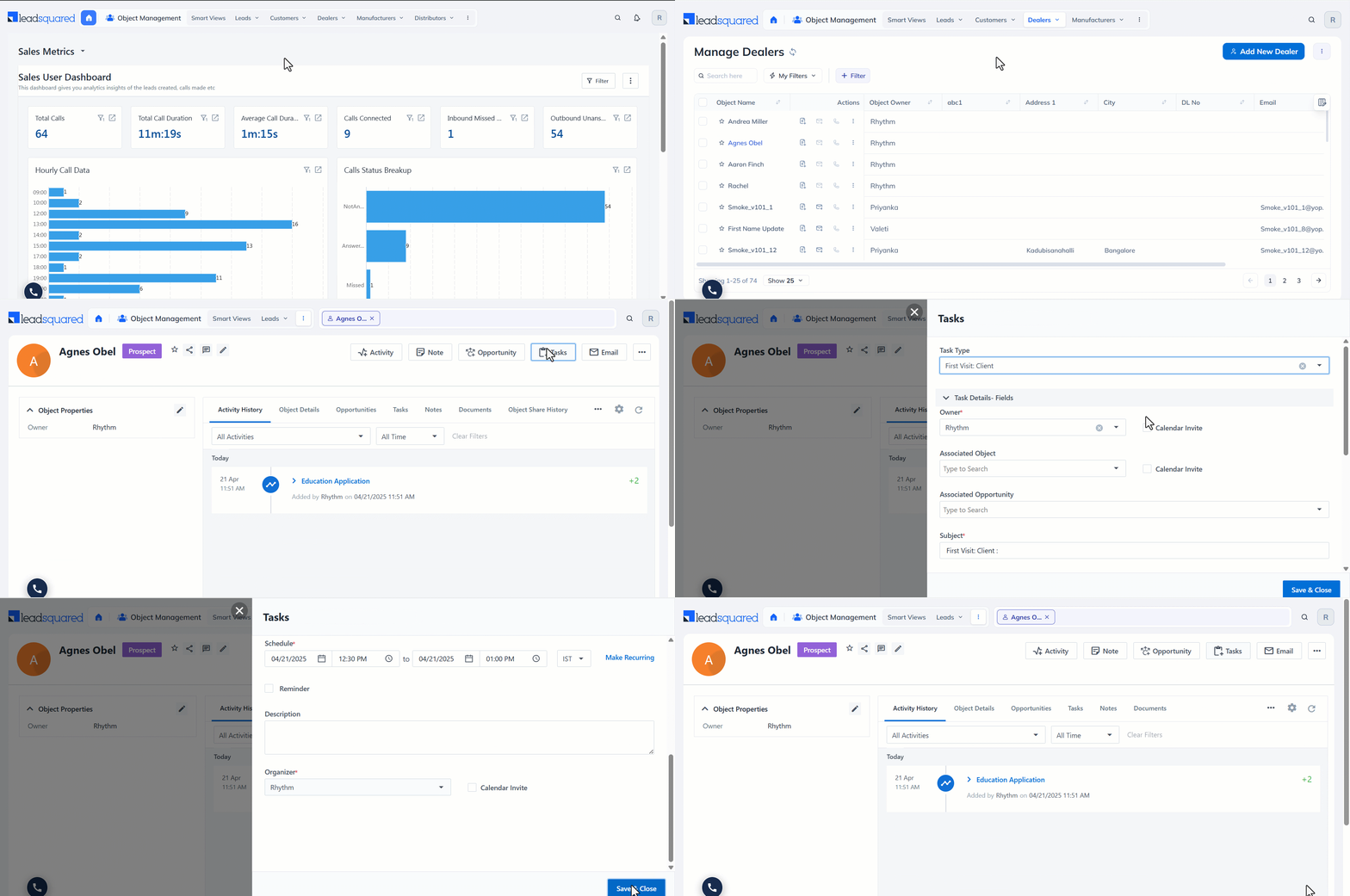
LeadSquared’s Email Campaign module allows you to run personalized outreach tailored to the sales journey of each object type.
For example:
This ensures that every email campaign speaks directly to the recipient’s role and status in your sales process.
To create email campaigns for specific object types –

Smart Views help sales teams filter and prioritize their work. When Object Types are enabled, you can create focused views for each object type to reflect their sales lifecycle. To learn more about creating a Smart Views tab, see Smart Views for Administrators or Smart Views – Feature Guide as per your role.
For example:
Note:

 icon next to the rightmost Smart Views tab on top of the page.
LeadSquared’s Casa feature lets you design tailored homepages for both your web and mobile apps. When used with Object Types, Casa allows you to build role-specific dashboards that reflect each team’s focus area – helping sales reps, managers, and field agents see the most relevant data and actions as soon as they log in.
For example:
Object Types is supported in the following Casa Widgets on the Web App –
| Widgets | Description |
| Progress Bar | View all your completed tasks in a bar format for a specific object type during a specific time period |
| Single Counter | View tasks or the data count present in the smart views based on a specific object type |
| Speedometer | View all your completed tasks in a speedometer format for a specific object type during a specific time period |
| Calendar View | View your object type-specific tasks – either complete, pending, overdue or pending and overdue in the Calendar view |
| Icon Launcher | Open an icon to navigate to a specific object list or object form |
| Banner | Open a banner to navigate to a specific object list or object form |
| Launch Bar | Open an icon on the launch bar to navigate to a specific object list or object form |
Object Types is supported in the following Casa Widgets on the Mobile App –
| Widget | Description |
| Launcher | Open an icon to navigate to a specific object list or object form |
Journeys is a field sales planning feature available on the LeadSquared Mobile App. It enables sales users to create structured visit plans by selecting specific leads and scheduling interactions over a defined time period.
To create a plan on the web app –
Navigate to Apps> Journeys.

When Object Types is enabled, you can select objects categorized based on object types. Select the relevant object type tab to view the list of objects. To learn how to create Templates, see Create Lead Templates.


To learn how to edit Lead-Based (Object-Based) plans, see Edit Pending or Approved Plans. While editing a plan submitted for approval, you can click the relevant object type chip on the right side menu and add or remove objects.

To learn how to approve or reject a plan, see Approve or Reject Plans. While attempting to approve or reject plans, you can view the objects for each date categorized based on the object types.

When you attempt to dissociate an object field from an object type configuration, a popup message displays all the areas where the field is currently in use. To proceed, you must first remove the field from each associated work area before dissociating it from the object type.
For example, if the Date of Birth field is used in Dynamic Form 10, you must remove it from the form before you can dissociate it from the object type.
Associated work areas could be:

When you attempt to unpublish an object type, a popup message displays the details of its associations. To proceed, you must first unpublish the associated work area before unpublishing the object type itself.
For example, if the Student object type is used in an Email Campaign, you must first delete the associated Email Campaign before you can unpublish the Student object type.
Areas where the Object Type may be associated:

1. Why am I unable to import objects into the default Object Types?
Import functionality is not supported for default Object Types. You can only import custom object types from LeadSquared.
2. How can I move objects from one Object Type to another?
Currently, objects can only be moved from a default Object Type to a custom Object Type. Moving objects between two default Object Types or between custom Object Types is not supported.
3. Why can’t I see Manage Activities or Manage Opportunities for an object type?
These options will only appear if at least one Activity Type or Opportunity is associated with the object type. If none are linked, the Manage Activities or Manage Opportunities tab will not be displayed in the object type menu. To resolve this, make sure you’ve associated the relevant activity types or opportunities with that specific object type.
Did you find this article helpful? Please let us know any feedback you may have in the comments section below. We’d love to hear from you and help you out!
The post Object Types – Feature Guide appeared first on LeadSquared Help and Support.
]]>
