General
What is Tabletopia?
Tabletopia is a digital sandbox system for playing board games with no AI to enforce the rules. This means that you can manipulate the game pieces any way you want, whether it follows the rules or not! Games are played the same as in real life, and you are required to know the rules of the game beforehand.
Tabletopia can be played on most modern browsers, on PC, Mac, iOS, or Android.
Please see our Beginner’s Guide on how to get started!
How do you have so many games?
All the games on Tabletopia are official and approved by the publisher. Publishers may have different reasons for putting their games on the platform. Some want their games enjoyed by a wider audience, some want to give players a chance to play their game before they decide to purchase the physical version of the game, and some want their games included as part of our Premium catalog.
Whatever the reason, because the games are created with the publisher’s approval, you know you are getting the experience that the publisher intended for you.
How does Tabletopia make money?
In September 2015, 2545 backers helped bring Tabletopia to life on our Kickstarter project. Since then, we’ve been able to expand our operations with a multinational crew as we develop more features and support more games.
Tabletopia does not run ads. The main way we are supported is through our Premium subscriptions for players and our Indie and Publisher Workshop subscriptions for game designers.
Which platforms can I play Tabletopia on?
You can play Tabletopia via web browser, Steam, or mobile app – see details below.

Requirements and Performance
What are the minimum and recommended specs required to run Tabletopia?
See System Requirements for more details.
Why is my computer very slow running Tabletopia?
Some games with a lot of game components can run slower. You can try changing the graphics quality.
You do not support my browser. What other options do I have?
Tabletopia runs well on all modern web browsers (Google Chrome, Opera GX, Mozilla, Safari, Edge). Games can take time loading for the first time (though will be quicker in subsequent loads).
Tabletopia can be downloaded for Windows & Mac through the Steam platform for free. You can also download our iOS or Android app to play supported games.
Is a Linux version planned?
Tabletopia is based on the Unity Technologies platform, which does not officially support WebPlayer for Linux. However, you can use Tabletopia on any modern web browser that supports WebGL.
I have a strict firewall. Which ports should I open for Tabletopia to work?
Open the following outgoing ports for Tabletopia to function well:
- UDP: 5055, 5056, 5057
- TCP: 843
Communication and Languages
How can I communicate with other players during the game?
Tabletopia features an in-game chat, but internal voice communication is not yet available for the browser version. You have the following option for in-game voice communication:
- In-game video chat. Read here for details.
- Built-in Steam voice chat. If all players use Steam client.
- Skype or Zoom. If you play with the people you know.
- Discord. Join the official Tabletopia Discord server to find players. Read more on using Discord with Tabletopia.
- In-game text chat. For text communication.
Are all Tabletopia games in English or there are also other languages?
The interface is in English. We plan on making other languages available later.
The languages of the games depend on the material provided by the publishers. Many games are in English at the moment, though we currently support select games in French, German, Italian, and Russian. However, nearly 500 of the games in our catalog are language independent.
Player Profile
How can I use one profile for Steam and desktop/mobile Tabletopia?
To connect your account on Tabletopia with Steam read here.
For all other questions regarding your profile, please see Managing Profile.
Playground and Games
I am on mobile/a tablet – can I play with users on other platforms?
This depends on how the game was created!
- If you create a game on Steam or from a web browser, mobile users will be unable to join.
- If you create a game on a tablet or mobile device, people on other tablets, mobile devices, Steam, or web browsers can join.
How can I sort the list of games?
The default sorting for the list of games is done by Recommended, but you can change this to sorting by Name, Modified, or Popularity. You can also sort the games by type, age, number of players, playing time, or language. Type includes categories such as “free”, “two-player”, “new releases”, and more.

I am getting an error “You have reached a limit for opened game sessions”. What can I do?
You have reached the limit of simultaneous open games for your plan (see more in Tabletopia Player Plans). You need to remove one or more opened rooms to play other games or upgrade your plan.
To do this, go to the home page while logged in. Then click on the dice  . Mouse over the game you wish to close, and click “close” in the top right. Please note this will remove your game session and all your progress in it.
Can multiple players use a single device (similar to ‘pass & play’ on a tablet)?
Yes! Almost any game in the catalog is available for Hotseat play, including those that have hidden information. Some games have a built in “turn” function (depending on the rules of the game and if the developer of the game has built it in), while others will allow you to alternate control as you wish.
How do games with hidden information work?
A lot of games with hidden information will either hide information from a player whose turn it currently is, or will allow you to flip over boards at will to reveal or hide information. The specific implementation is game dependent, but is decided on by the publisher or designer who provided the game to Tabletopia.
Read more about Hidden Areas.
Games with cards or objects that need to be hidden from other players (for example, Texas Hold ‘Em) will typically make use of the hand function, with anything in your hand being visible to you and no other players.
Can a Tabletopia user invite people or can I only play with other Tabletopia users?
You can play any of our Free games with your friends outside Tabletopia, they do not need to have a Tabletopia account to join your games (only the person who creates the game is required to). Send them the link to the room— they will be able to play in-browser for free.
If you have a Silver or Gold subscription, you can create a Premium room with any of our Premium games.
Silver users can invite other Silver or Gold subscribers to a Premium room.
Gold users can invite anyone to a Premium room (including unregistered users and users with Bronze plans).
What is a Premium room?
Premium room is a gaming room created by a player with Gold/Silver plan that allows for:
- playing Premium games
- inviting other users to play any premium games depending on their plan (the room host must be one of the players);
- managing and restricting access to the room;
- customizing the look and feel of the room;
- saving unfinished games for up to 30 days.
Each player with a Gold plan/Steam Premium can open up to 10 Premium rooms simultaneously.
Game Client
For all questions regarding game controls and actions with game objects, please see Interacting with Game Components.
I have entered a game room, but I can not move anything. What should I do?
As a spectator in a room, you can not interact with game objects. You need to take a seat if available (mouse over one of the colors at the upper part of the screen and click the ‘+’).
A player is being unresponsive/abusive.
The host of the game may kick a player by right clicking their avatar and selecting “kick player”.
If a player is being abusive or threatening, please note their username and any relevant details, and email [email protected].
Why can I not put an object into my hand by dragging it to the bottom of the screen?
- Check if your hand is hidden or not (press H on your keyboard).
- Some game objects might be restricted by the designer of the game so that they cannot be put into your hand.
- Also, in some games, the hand is disabled completely.
Is it possible to Undo/Redo my action?
There are currently no Undo/Redo functions in the Tabletopia game client. We are planning on adding them in the future.
How do I save the game progress?
Premium users do not need to save the game progress, it is automatically saved for up to seven days from the latest activity. You can leave the game room any time and continue playing at a later time. The game will carry on from where you left off.
You can access your open rooms (saved games) by visiting the home page or clicking the dice button in the navigation bar from any page on the main Tabletopia website. Games created by non-premium users are deleted 20 minutes after everyone left the room.
Please note that if you close a room for any reason (by clicking “close room” from the menu in-game or from the “open rooms” panel), your progress will be deleted. Closing your Steam client, browser window, or app will not automatically close a room.
Crashes and Other Errors
The game loading indicator freezes or does not load at all / the game freezes or crashes / some of my game pieces are missing. What can I do?
The most old-fashioned advice is sometimes the best: try restarting the room or reloading the web page. If there’s a hiccup on the server end, this will sometimes just get things back up and running.
If the problem persists, please let us know in a Facebook message or on Twitter. It may be a problem with a specific game that multiple users are facing and we should be able to let you know there. We also post any server outages or major issues there.
Please email [email protected] if the problem keeps persisting.
Feedback
How can I help?
We really appreciate all your feedback:
- Bug reports. To submit a bug, use the in-game “Send Feedback” feature.
- Your thoughts and suggestions. Send us an email on [email protected]. Tell us what you think. We’re always looking to improve our service and really appreciate any feedback!
Tabletopia and Similar Platforms
What are the differences between Tabletopia and similar platforms?
- All games on Tabletopia are 100% legal and are received from game publishers. It is a platform for the whole board gaming market and gaming community.
- Tabletopia is more than just a virtual table: there are other parts to it, like player matching service, reputation and ratings, a workshop with many game objects, tools for publishers, social events, etc.
- Tabletopia is a cross-platform system: browser based, client based (Steam), iOS, and Android.
Usability and aesthetics are a subjective issue. You can try out our free games straight from your browser, compare, and then decide for yourself which is better for you.
Why don’t you sell each premium game separately?
We do not sell each game separately because we believe that this approach would limit and narrow your experience with Tabletopia.
We want you to have instant access to hundreds of board games, not just the ones you buy and download. We want you to be able to explore and discover new games every day, on a free of charge basis with premium plans being an option for those who want unlimited access to everything.
Rules of Conduct and Privacy
What are the rules of conduct?
- Don’t break the law. Don’t take any action that infringes or violates other people’s rights, violates the law, or breaches any contract or legal duty you have toward anyone.
- Don’t lie to people (unless it’s a social deduction game!). Don’t post information you know is false, misleading, or inaccurate. Don’t do anything deceptive or fraudulent.
- Don’t cheat. Cheating is not good for anyone.
- Don’t kick other people from games without a good reason.
- Don’t curse or swear at the other players.
- Don’t victimize anyone. Don’t do anything threatening, abusive, harassing, defamatory, libelous, tortious, obscene, profane, or invasive of another person’s privacy.
- Don’t harm anyone’s computer. Don’t distribute software viruses, or anything else (code, films, programs) designed to interfere with the proper function of any software, hardware, or equipment on the site.
- Don’t abuse the personal information of others. When you use Tabletopia — especially if you create a successful project — you may receive information about other users, including things like their names, email addresses, and postal addresses. Don’t use it for other purposes, and don’t abuse it.
- Don’t try to interfere with the proper workings of Tabletopia.
- Don’t bypass any measures we’ve put in place to secure Tabletopia.
- Don’t try to damage or get unauthorized access to any system, data, password, or other information, whether it belongs to Tabletopia or another party.
- Don’t take any action that imposes an unreasonable load on our infrastructure, or on our third-party providers (we reserve the right to determine what’s reasonable).
- Don’t use any kind of software or device (whether it’s manual or automated) to “crawl” or “spider” any part of the site.
- Don’t reverse engineer any aspect of Tabletopia in an effort to access things like source code, underlying ideas, or algorithms.
- Don’t post illegal content.
- Most importantly, follow Wheaton’s Law.
What is Tabletopia’s privacy policy?
You can find our privacy policy here: https://tabletopia.com/pages/privacy-policy
]]>For creating new account on Tabletopia – read this article.
Connecting Steam with web or mobile apps accounts
If you only have a Steam account on Tabletopia and want to use the web and mobile apps:
Open Tabletopia on Steam, go to your profile, and click Manage Account.

Then choose Tabletopia Account:

Create a login and password for your Tabletopia account for the web and mobile app, then click Create Account.
You will return to the Manage profile menu on Steam.
Go to Tabletopia or launch the mobile app and Log in with login and password you just created.
You will see the same profile:

Now your Tabletopia profile on Steam can be launched on all Tabletopia platforms.
Note: If you have a Gold plan on your Steam account – you can use it on the web and mobile app too!
Connecting web or mobile apps with a Steam account
If you have a web and mobile app account on Tabletopia and want to use the Steam version:
Go to Tabletopia, open your profile and click Manage Account.
Then choose Social Accounts and Connect Steam:

You will be transferred to a Steam page; sign in with your Steam username and password.

You will return to the Manage profile menu on Tabletopia and will see Steam connected:

Now you can launch Tabletopia on Steam and use your web\mobile app profile.
Note: If you have a Premium plan on your Tabletopia account – you can use it on Steam too!
If you want to know about Tabletopia account on Steam – read Connecting Accounts on Tabletopia with Steam.
Viewing Your Plan

To see your current player plan, go to your Profile on Tabletopia.
To see details of your plan, hover the cursor over the “?” next to the plan name. You will get full information on the features you have now for the plan you select.
Plan Features and Options
Player plans give access to various Playground features and options respectively.
See below for features of various player plans available:

Premium player plans give you full access to the most demanded board games.
There are 100+ premium games and several hundreds premium setups in free games (for example, setups for maximum player counts or including expansions).
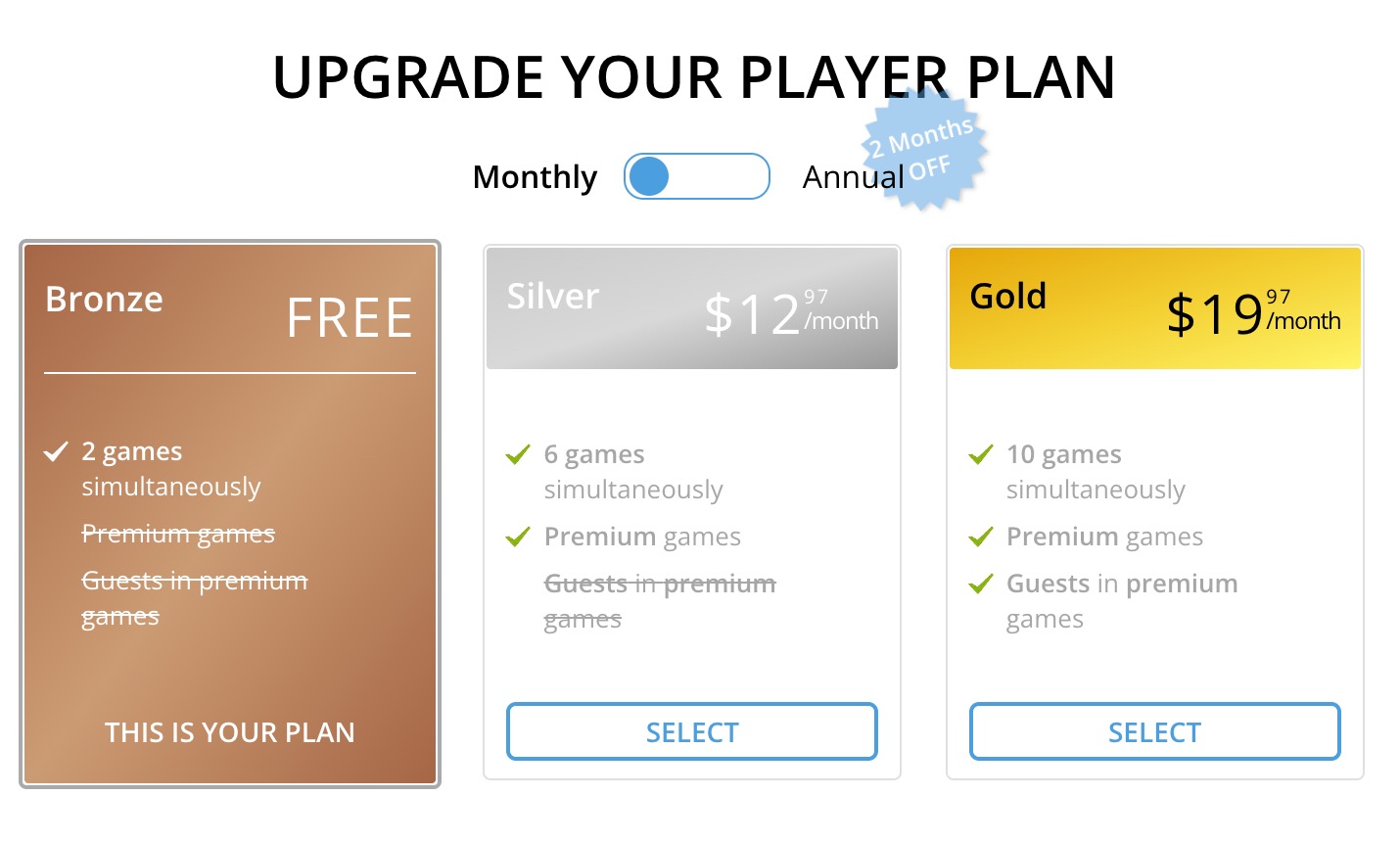
With the Silver plan you will be able to play premium games, while the Gold plan allows you to invite players with Bronze plan or unregistered users (guests) to all your games.
Moreover, with a Premium account, you can simultaneously keep open up to 6 (Silver) or up to 10 (Gold) gaming sessions and come back to your games at any time. Your gaming sessions will be kept within 30 days after you leave the room – you can come back any time and finish the game.
Also only players with premium plans can use a Video Chat (at least one of players in game need to have Premium to use it). Read more about Video chat.
Managing Your Plan
You can upgrade or downgrade your plan at any moment.
To upgrade your Bronze plan:
1.Go to your Profile on tabletopia.com.

2.Click Upgrade next to the plan name. A window will appear where you will be able to upgrade to a premium plan and proceed to the payment form.

To downgrade your Premium (Silver or Gold) plan:
1.Go to your Profile on tabletopia.com.

2.Click Manage next to the plan name. A window will appear where you will be able to switch to the Bronze plan to cancel your subscription.

Note: If you downgrade your premium plan and cancel your subscription, you will keep the remaining premium time. Your subscription will simply not renew for the next month.
For example, if you subscribe to the Gold account on 14/09 and cancel your subscription on 20/09, you will have your Gold features up until 14/10.
Very important! If you have any game rooms open with Silver or Gold plans and then cancel the subscription/downgrade your plan to Bronze – you and other players will still be able to play those games! However, you won’t be able to start any new games until you close the number of rooms that brings you under your new plan’s limit.
For example, if you subscribe to a Gold plan while you have 8 game rooms open and then downgrade to a Silver plan, you may continue to play your 8 open games, but may not open any new rooms until you close 3 rooms.
Free Trial
If you are new to Tabletopia, you can try our Premium plans for free – go to your Profile on Tabletopia and click Upgrade or click  on the homepage.
You will see the following:

Choose the Plan (Silver or Gold), click Upgrade, enter your card information, and you will get a free week access to the chosen Premium plan.
After the free week is over, a monthly payment will be charged.
You can cancel your subscription at any time in your profile (Manage button).
Subscribing via Steam
If you subscribed via Steam, you cannot cancel the subscription via Tabletopia website.
You can read more about managing your subscription via Steam here.
Note that Steam subscriptions are managed according to Steam terms of use.
Also read Connecting Accounts on Tabletopia with Steam.
]]>It is currently not possible to purchase and gift coupon codes, however we will be adding this functionality in the future.


Create a free account on Tabletopia
On Tabletopia, you can create your account in one of 4 ways:
- Email and password
- Steam
You can sign up by any of these means by clicking the “Sign Up” button in the top right of the homepage, or by visiting https://tabletopia.com/signup.
For more information on connecting an existing Steam account to a new Tabletopia account, please read more here.

If you are new to Tabletopia and creating an account for the first time, you have the option to take a free trial of our Premium tiers. If you are on the free trial and enter a coupon code, only the longer length of the two will apply – they are not additive. For more details, please see our FAQ down below.
If you already have an existing account, make sure you’re logged into the account that you wish to apply the coupon code to.
Go to your profile settings
Click your profile picture in the top right of the homepage and select “Profile”. You can also visit https://tabletopia.com/profile.
Once on your profile page, click the “Apply Coupon Code” button.

Add the coupon code
Add your coupon code exactly as provided in the pop-up box. When you refresh your profile page, you should see the appropriate “Player Plan” or “Designer Plan” applied.

FAQ
What will I get with this coupon code?
Applying a code will give you X days of a Gold account. For players, it allows you to play all Premium games and invite people with a free account or without an account to play with you. Read more about our different plan benefits here.
What is the activation window for the coupon code? If I received my code as part of a convention, can I activate it after the convention?
Each code will have its own availability conditions; please check detailed info from the code provider. In general, codes given away as part of conventions will be active for a month or two after the convention in order to allow existing paid members to redeem them, however this may vary at the discretion of the organizers.
Will the coupon work if I have an existing paid Tabletopia account?
- If you have a Silver subscription, applying a code will make your account Gold for X days. After these X days, your account will revert back to Silver as per your subscription.
- If you have a Gold subscription, applying a code will not add additional days to your subscription. Our coupon codes give you X days of Gold from the date you redeem it, regardless of existing subscriptions
When I created a Tabletopia account, I entered my credit card details and took a 7-day free Trial; will the code work for me?
- If you took a Silver account trial, applying a code will make your account Gold for X days. After these X days, your account will be Silver again (if you have any remaining days on your trial). You can always apply the code after your initial trial if it has not expired.
- If you took a 7-day free Gold account trial, applying a code will add an additional Gold subscription to your account from the date you redeem the coupon. IMPORTANT: These subscriptions will not be summed or added together; the subscription that expires at the latest date will dictate the expiration date for Gold access.
Step 1: Choose a Designer Plan
Choosing the right Designer plan is the key thing when starting to make your game on Tabletopia.
Designer plans come in three variants: Basic, Indie, and Publisher:
- Basic is free and comes with 1 game with 2 setups and 200 MB of storage. It is perfect if you’re an amateur designer who needs a place to make and test their first game.
- Indie is $14.99 and comes with 5 games (5 setups each) and storage of 1000 MB. You can also use custom sounds in your games and add music boxes to enhance the game experience. If you’re a little yet established publisher, this may be the choice for you.
- Publisher is $49.97 and is an all-in plan: 10 games with 12 setups each, 5000 MB of storage and such premium objects and features, besides sounds, as 3D pieces, surfaces. The plan is perfect for professional publishers who want to make a digital version of games from their extensive catalog.

You can upgrade or downgrade at any moment. If you cancel your subscription, your games will be kept. See Tabletopia Designer Plans for details and info.
Step 2: Find Components and Prepare Graphics
Now that you have a plan with Tabletopia, you can start creating the game. Your game will start with components and graphics.
- Components. We already have an extensive library of default components you can use for your game: dice, cards, pieces, cubes, discs, pawns, etc. See Objects Catalog to learn about featured and other types of ready objects that we have for you.
- Graphics. If you have prepress or print-and-play graphics for your game ready, it will be easy to bring them to the screen. See How to Prepare Graphics for more info.

Step 3: Create the Game
- Making the game. Creating the game is described in a step-by-step way in How to Create a Game and Game Setups articles. This is very important information. You can also watch our video tutorials.
- Enhancing the game. After you’re done, we recommend using the Designer’s Checklist to make sure everything is correct. Also, consider adding some extra shine and final touches to create a special look and feel of your game, see Tips to Improve Visual Design of Your Game for suggestions.
Also see our Usability Guide for Creating Games on Tabletopia for more information.
And if you don’t have much time, we can import your game for you, see How to Import Your Game with Help of Tabletopia Team.
Step 4: Share the Game
After the game is done and looking great, it’s time to share it with other people and testers.
You can share the game privately with choice playtesters, open it to all Tabletopia users or make available to the whole wide world, whichever suits you best. Read more in Opening and Sharing Games.

Step 5: Find Testers
Tabletopia’s greatest advantage is that you can find testers for your games literally anywhere in the world. Here are some suggestions on where to look for them:
- Tabletopia. Post a message and link to your room in the Find & Play chat to start playtesting with whoever is online and ready to play. Alternatively, you can invite players directly (create a room and click Invite in the lobby).
- Discord. Use Tabletopia’s Discord channel not only to find testers but for in-game voice communication and chat. See more in Tabletopia and Discord.
- Social media. Publish announcements about playtesting sessions on your social media to invite people around the globe. Contact us for reposts and additional promotion!

Step 6: Promote and Demonstrate the Game
After your game is playtested and polished, you can start promoting and demonstrating it in various ways.
- Kickstarter. If you’re planning to launch your game on Kickstarter, there’s a lot Tabletopia can help you with. See 5 Steps to Boost Your Kickstarter Campaign with Tabletopia for details.
- Publication on Tabletopia. Make your game available to thousands of players from all over the world. See the Licence Summary for details.
- Demonstration and promotion. Demonstrate your game to publishers and partners, or promote it before or after release to the whole world, arrange live demos, etc.
Account Questions
What can I do as a game designer?
You can create, test your games and publish them to be accessible to a wider audience, with the following limitations:
- On the Basic (free) Workshop plan, you can create 1 game with 2 setups each using 200 MB of storage for game objects. The Indie and Publisher Workshop plans offer more features as listed below:

Read more in Tabletopia Designer Plans.
I would like to both play games and create my own. Is it possible?
Yes. The free player plan comes with any designer plan and vice versa.
To play premium games, though, you will have to purchase a premium player plan, and to create more games and have more designer features, you will have to purchase a premium designer plan. These are separate and need to be purchased separately.
Are there any limitations for me in Workshop?
Only the Indie and Publisher plans will allow you to use custom sounds for objects and will receive priority moderation.
Only the Publisher plan will allow you to create 3D objects and surfaces.
The Indie and Publisher plans also allow you to publish additional games, with more setups per game, and with additional storage space.
All other features are available with the Basic plan.
Can I give another person access to my account or sell it to another person?
No, this is not allowed, and we will suspend such accounts immediately.
Can I play premium games and open many tables simultaneously with Indie or Publisher Designer plans?
No, for playing games on Tabletopia with all the features you need a Premium plan for players. Read more in this article: Premium Player plans.
Creating Games
What content can I publish on Tabletopia?
You may publish any objects or components from the games which you wish to run on Tabletopia.
Make sure that you use only content you have rights or permission to publish. Please make sure that you are legally able to do so. We will delete all content which is “pirated” or illegal.
What do I need to learn to create games?
- First we recommend playing some existing games to figure out how our game client works. Also see Player’s User Guide and FAQ for Players.
- Read “Basics” in the Workshop section of the Help Center or watch Workshop Video tutorials.
- Adapt all graphics for the game for Tabletopia.
- Read our Usability Guide for Creating Games on Tabletopia.
- Now you are ready to start! Follow the special checklist we have published for all game designers.
How does the Workshop work?
We recommend reading the articles in the Help Center to get acquainted with the system and processes.
What is the basic flow of creating a game?
- Prepare your game graphics.
- Create your game page and setup page in Workshop.
- Create groups for objects, upload your graphics and publish objects in the game group. If needed, add standard objects from Favorites.
- Place and arrange objects in the setup editor, then publish one or more setups.
- Test and check your game, create play zones if needed.
- Publish the game.
I want to create more games or setups, but I get the message that I have exceeded my account limitations. What can I do?
Upgrade your plan to the next level. The Publisher plan which allows you to have up to 10 games with 12 setups each.
If you already on the Publisher plan and have reached the limit of 10 games or 12 setups, please contact our support team ([email protected]) with the details and we will help you.
Can I get access to Tabletopia’s API?
No, we are not providing API access yet. However, you may contact us with a feature request if you have an idea for something.
Access to Games
Can other players see my games, setups and objects if I publish them?
Even after you publish your games and setups, nobody except administrators and yourself can see them while their access level is set to For personal use only (default). Change your game or setup access level to be Public to make them visible to other users.
How can I invite game testers to my game?
You can send a link to the game to your friends (they can play for free in browser), or find people on the Tabletopia Discord server. Read also How to Find Opponents.
Can I make my game available to a wider audience?
Yes, check our Play zones guide to find out more about demonstrating your game to people outside Tabletopia and making your game free-to-play.
I have made my game public, but other users can not create a new room and play the game. What is wrong?
Check your setups. At least one of them must be “Published” with access level set to “Public” for the game to be playable.
Can I post links from my game’s page on Tabletopia to an external resource?
Yes, you can! We welcome you to post links on your official website, the App Store, Google Play, etc. Also, you can connect your game page with your game on Amazon. We are happy to help you promote the game and sell physical copies of it. You can read about Tabletopia Widget Module.
Can I publish screenshots from my game on public media resources?
Yes, but you should mention that they were created on Tabletopia.
Setup Editor
Is the game setup automatically saved when I edit it?
No, the game setup is not automatically saved. You can lose your work if you accidentally close the browser or if the connection to the server is lost. Consider saving often to prevent these situations.
My colleague and I have two accounts. Can we use them to edit one game simultaneously?
No, this is not possible. The game setup can be edited only by its author.
Can I automate any in-game actions, such as fill empty spaces with cards, obtain victory points, add computer players, etc.?
No, at the moment Tabletopia is a sandbox. Most of the actions must be done by players themselves. We are planning to implement more automation features in the future.
I have made changes in the setup, but I do not see them in the game. What is wrong?
Check your setup. It must be “Published” and no objects must be listed under “Updates” on the setup page. To update the objects listed in Updates,
- Select all objects.
- Click Update.
- Click More > Publish to publish the setup.
I do not see the object I created or the object does not change after modifying it. How can I access the correct object?
Most likely you did not publish your object. To use an object, you must publish it. Clicking Save creates only a temporary object and does not allow it to be used. Make sure you click Publish to change the state of your object to ‘Published’.
How do I duplicate several objects at once?
- Select several objects while pressing Shift.
- Right-click one of the selected objects and select Duplicate in the radial menu.
How do I make a random deck or stack?
Do not place all the cards or tiles from your random deck on the table, instead:
- Enable Random element in the Objects section of the game.
- Drag one random element and duplicate it up to the number of cards in the deck.
- Select all the duplicates (excluding one card) while holding Shift.
- Drag the elements all on top of the card to create a deck.
The random elements will be shuffled at the start of each game (note that non-random cards will be shuffled too).
Read our article for more information.
How do I set initial cameras for players and spectators in the setup editor?
- Align the camera.
- Right-click anywhere on the table and select Set Initial Camera in the radial menu, or right-click one of the player seats in the upper part of the screen and select Save Seat Camera.
- Publish your setup.
Is it possible to deal the cards to player hands in the setup editor, so players can start the game with cards in their hands?
No, it is not possible to deal players any initial objects into their hands.
However, you can place the objects on the table near player zones or initial player cameras, so players will be able to take the cards/objects themselves at game start.
The color of the player seat I want to use in my game is not available. Can I set a custom color?
No, only the standard color set can be used, including: Blue, Red, Green, Yellow, Black, Purple, Brown, White.
Game Objects
How do I customize my object behaviors, such as disable or enable rotation, flip, stickiness, actions in deck, etc.)
The object behaviors are set on the setup page. You can find more information in the corresponding article.
I have enabled Sticky for my hexagonal (or other non-rectangular) tiles. How do I make it work correctly?
Sticky works only for rectangular tiles at the moment. Consider creating a Magnetic map on the game board or surface instead of using Sticky.
I have created an object with inner transparent areas, but it does not work the way I want. How can I fix this?
Images which consist of several parts divided by transparent areas can not be correctly recognized by the system. Two possible solutions are available:
- Make the area between parts of the image non-transparent.
- If you really need all the areas between parts to be transparent, then consider creating several different images, each image containing only one part of the initial image. Thus you will need to combine all the parts in the setup by hand.
My non-convex objects or stacks of objects collide with other objects by the transparent areas. How can I fix this?
The only way to fix this for non-convex objects is to convert them into convex ones. Stacks colliding by transparent areas can not be fixed at the moment.
I have created a magnetic map for my object, but it does not work correctly. How can I fix this?
- Use an image in PNG for the magnetic map.
- Magnetic map should be exactly the same size in pixels as the main image for your object.
- Check the colors, they should be exactly #000000, #FF0000, #0000FF in hex without mixing.
- Do not use resizing or antialiasing.
- The snap spots have to be at least 1 pixel away from each other and can not touch, even diagonally.
I am creating my own pieces and I want their colors to be the same as objects in the Featured. What are the standard objects colors?
- Black #000000 0, 0, 0
- Blue #2D79D3 45, 121, 211
- Brown #5E391F 94, 57, 31
- Green #3E9E1E 62, 158, 30
- Grey #6F6F6F 111, 111, 111
- Orange #FF8105 255, 129, 5
- Pink #FD6EF0 253, 110, 240
- Purple #6E1AA6 110, 26, 166
- Red #C71E1E 199, 30, 30
- White #FFFFFF 255, 255, 255
- Yellow #E9C300 233, 195, 0
What are the specifications to create a custom 3D model for Tabletopia?
You can find the 3D model specifications here. You can also see and test the example model we have prepared by following this link.
My custom 3D object is falling through everything when I put it on the table or it has some transparent sides. How can I fix this?
Most likely the mesh has some holes in it and it is not closed. Fix this in your 3D model editor. Also, there might be too many faces connected in the one vertex. Consider simplifying your model.
How do I create a Normal map for my custom die or 3D object?
Search the web for manuals on how to create normal maps for Unity.
Also there are some services which allow you to create normal maps using your object texture image. Do not change the default normal map with some random image or texture if you do not want to use it.
Requirements for a Complex Collider ?
Complex collider picture should be the same as your tile picture with two exceptions:
1. Tile area should be filled with black color.
2. Tile area should be a bit smaller (about 5-10 pixels) than original tile area.
In other words you need to fill tile with black color and scale it down to about 5-10 pixels. Then save it as PNG keeping the transparency around the tile. Picture size should be kept the same as well.
Business & Legal
What does Tabletopia offer game authors and publishers?
Tabletopia allows for sharing games with thousands of Tabletopia users, playtesting prototypes, and demonstrating games to a wider audience. You also have the option of releasing your game as a monetized Premium game. Your potential partners and casual players can see and test your game providing you with additional feedback. Check out our Play zones guide to learn more about demonstrating your game to people outside Tabletopia.
What will happen if I publish content without having any rights to it?
Your content will be removed from the system and you will be given a warning. If you continue doing this, we will ban your account. If we suspect that you don’t have rights to publish this content, we will contact you and request for you to provide proof that you have the necessary rights and permissions.
Someone has published my piece of work without my permission!
Please contact Tabletopia’s customer support [email protected] with details about the incident.
Is there a legal bond between me and Tabletopia while I am publishing content?
Yes. You grant Tabletopia and its affiliates the worldwide the non-exclusive and revocable right to use, reproduce, modify, and create derivative works from, distribute, transmit, transcode, translate, broadcast, and otherwise communicate, and publicly display and publicly perform, your content, and derivative works of your content, in connection with the operation and promotion of the Tabletopia service. We need these rights to host your game within our system and promote it (if you set it in “public mode”).
What terms are you offering for commercial games?
Read our licensing summary. Please contact our business development department to discuss the details: [email protected].
How can I make my game commercial?
You may apply for your game to be monetized in Tabletopia (email to [email protected]) and our marketing department will contact you to work out the best approach.
Still Have Questions?
Contact us at [email protected].
]]>A Gift Card is a coupon with a unique code that enables Gold premium access to Tabletopia for 6 or 12 months. You can purchase it and tell us whom you want to give it to as a gift – this person will receive an email with an invitation to apply it.


How much does it cost?
There are two options of Gift Cards – you can either purchase a 6 month card for $99.97 USD or a 12 month card for $199.97 USD.
What benefits does the Gold membership offer?
Player Gold is the highest player plan at Tabletopia and provides full access to the games catalog. The player with Gold membership can create and participate in all published games and can invite guests without premium membership to premium games. Please read more about our membership plans here.

What information do I need to provide about the recipient?
When purchasing a Gift Card you will only need to enter the email of the recipient. This person will receive an email with their personal code and all the necessary instructions.
What if I don’t know the email of the recipient?
In that case you simply type in your own email and send it to yourself. After that you can copy either the whole page link or the gift code and send it directly to your recipient via any messenger. But the gift should be first sent to any email for security reasons, otherwise it will not be activated.
Will the recipient know how much my gift cost?
No. They will only see that their friend has gifted them 6 or 12 months of Tabletopia premium membership, not how much it cost.
What if this email is lost or deleted accidentally?
The information of all the Gift Cards you purchased is kept in your profile. There is now a new section called ‘Gifts’ for that where you see all the codes you gifted or received. If the code you bought is not yet applied you can always resend it again via email or by copying the link and sharing it.
When will the code expire?
The gift codes expire 90 days after the purchase, so your friends will have plenty of time to apply them. Their Gold membership will start only when the code is applied, not when you purchase the Gift Card.
Can I buy a Gift Card and use it myself?
Yes, but it would be easier for you to switch to the yearly subscription which has a discount compared to the monthly payments. You can do that in the ‘Manage Profile’ section of your profile page.
]]>Tabletopia is free-to-play. With our basic account, you will not be charged for any games and will be able to invite friends to join free games, but some limitations will apply.
Or you can choose to purchase one of our Premiums — Silver or Gold monthly plans in browser, Premium short-term in-apps in Steam — for more awesome benefits and features, including unlimited access to our premium game catalog, more games played simultaneously, the ability to play premium games with unregistered friends, and more. See Tabletopia Player Plans.
Basic and Premium Game Catalogs
Over 95% of the games are available for free in the basic catalog, but with some limitations, such as only specific setups, no expansions, etc.
The premium catalog contains all games in full functionality, including multiple setups, expansions, and so on. Most games have only some setups as Premium while some setups are available for free.
A part of all revenue from the games in the premium catalog goes directly to the game publishers, giving you the ability to support your favorite game companies and authors by playing on Tabletopia.
Why Don’t We Sell Each Premium Game Separately?
We do not sell each game separately because we believe that this approach would limit and narrow your experience with Tabletopia.
We want you to have instant access to hundreds of board games, not just the ones you buy and download. We want you to be able to explore and discover new games every day, on a free of charge basis with Premium as an option for those who want unlimited access to everything.
Plans for Players
The Bronze plan is free, and paid plans are available which give you more playing options and features. See Tabletopia Player Plans.
| Unregistered |
|
| Bronze |
|
| Silver |
|
| Gold/Steam Premium |
|
Premium Room
A Premium room is a gaming room created by a player with Gold plan/Steam Premium that allows for:
- inviting anyone, including unregistered users and users with Bronze and Silver plans, to play any premium games (the room host must be one of the players)
- managing and restricting access to the room
- customizing the look and feel of the room
Each player with Gold plan/Steam Premium can open up to 10 Premium rooms simultaneously.
Plans for Designers
The basic Designer plan is free-of-charge with the Advanced and Pro plans available for a fee. The paid plans will give you access to more advanced features and functionality. See Tabletopia Designer Plans.
Testing Room
Testing room is a special mode for previewing and testing game prototypes that allows you to:
- manage access rights for your team members
- modify your game directly on the fly during testing
- make notes and systematize information during testing
The KS additional testing room will allow for running two separate projects at the same time.
]]>- 1.2 GHz (Gigahertz), 2 cores
- 4GB (Gigabyte) RAM
- Graphics card: 1024 MB, DirectX 11
Recommended Hardware
- Intel® Core
 i3 or higher, 1.5+ GHz, 2+ cores
 - 8GB (Gigabyte) RAM (64-bit OS)
- Graphics card: 1024 MB, DirectX 11 or higher, discrete video card
Software
- OS: Windows Vista/7/8/10, Mac OS X 10.6 or newer
- Browsers: Internet Explorer, Safari, Chrome, Firefox, Opera GX, Edge
- Plugin: Unity Web Player (click to download) for Internet Explorer and Safari
- Steam: you can use Tabletopia Steam App instead browsers
- Additional requirements to use certain features: Internet access
Communication Software
- In-Game Video Chat. Read more here for details.
- Built-in Steam Voice Chat. If all players use Steam client.
- Discord. Read more on using Discord with Tabletopia.
- In-Game Text Chat. For text communication.
Launching on M1 Mac
- In Steam, right-click Tabletopia in your Games library and go to Manage > Browse Local Files.
- In the Finder window that opens, right-click on Tabletopia.app and choose “Get Info.”
- In the Tabletopia.app Info window that opens, add a checkmark to “Open using Rosetta.”
- Launch Tabletopia as normal through Steam.
Please also see our guides to enhancing your visuals, sound, and spatial management.
Player Seats
- Please check the default seat color order and compare it with the available player colors in the game. If needed, remove or add some seat colors. Clockwise order of the seats should coincide with the layout of the player elements in the game, especially when the game has a strict clockwise turn order.

Architects of the West Kingdom: The order of seats FOLLOWS the order of player boards clockwise 
Calico beta version: The order of seats DOES NOT follow the order of the player boards
- If player components are not marked by player color, you can optionally add some small element or colour mark on the surface to remind players of their color during the game. See our surface guide.

Bonfire: The color player glows are part of the surface to visually indicate assigned seating 
Village Pillage: color shows where each player should place both cards from hand
Positioning of Game Elements
- In a two-player setup, the players need to sit next to each other on the same side of the table. Exceptions are possible, but rare. In case they do not have many components in front of them, more than two players can sit on the same side as well. This makes it so that players don’t need to be constantly rotating the play space to access components or see other player’s boards. Your goal is to reduce the amount of zipping around the play space players need to do, as this can introduce unnecessary down time.

Wingspan 
Hansa Teutonica
Number of Game Setups
- In general, we make separate setups for each player count. For some games however, especially small fillers, there is not always a separate setup for each player count needed. Evaluate how many elements there are on the table and decide how many setups are needed. Read more about setups here.

Natives
Game Logistics
- Be aware of the rules of the game and set up components taking into account the most frequent actions. If the players often have to move objects of the game, those should be located as close as possible to each other. There can be more than one pile of resources, for example, if not every player can easily reach the same pile without moving back and forth.

In Zooloretto, players first take a tile from one of the piles and put them onto a brown truck, and then take a whole truck to their player board. The dragging distances are minimized here 
In RailRoad Ink every player has all the possible tiles near their board 
In Dragon Castle, VP tokens lay on both sides of the game board, so that all the players easily reach them
Overall Game Layout
- Even though there are no physical constraints to lay out game components. they should not be too far from each other, please keep the minimal comfortable distance.

Village Dragon Castle - The setup should fit into the standard rectangle of a computer screen. Please check the vertical camera view (hot key “0”).

RailRoad Ink 
Dominant Species
Creative Ways to Use Game Components
- Unlike physical games, there are no component quantity constraints on Tabletopia. We can add more tokens or other components than are actually present in a game box.

In Viscounts of the West Kingdom, instead of resource piles, there are three bags with a supply of each resource 
In Scythe, dice are used during the combat phase instead of a secret dial in the physical game 
Roll Player - Likewise, we can change and/or modify components of the physical game for the sake of usability. Consider using counters instead of numerous identical tokens, bags for hiding or randomizing objects (even if there are no bags in the original game) etc.

In Cartographers, instead of drawing images with a pencil in a physical game, tiles are used to fill the player board. They are stored in bags. 
In Call to Adventure, randomizing of picture counters is used as rolling d2 (runes) - You can use a Hidden Area when players need to hide objects from everyone except its owner. They can be used for hiding secret information, taking a random card from another player, revealing a card to your ally while keeping it secret from others, or just as a supplement to your hand. We also recommend using Hidden Areas for drafting and deck building games. To draft cards or other elements, players can simultaneously change HA’s ownership, thus passing the elements around the table.

The Isle of Cats. The red player`s view. The player can see their own hidden area and the amount of components in the blue player’s hidden area, but not the components themselves. While playing a deck building game, using Hidden Area instead of playing cards from hand saves much time.

Only blue player can see open cards in the blue hidden area. - If there is a scoresheet among the game materials, add a counter to every cell so that the players can use it to count point.

Calico - You can also customize counters’ design using that of coins or resource tokens in your game to track money or resources each player has. It can save a lot of time, however, as some players prefer dragging coins manually, we recommend leaving both options in your setup.

Viticulture 
Orleans
Pay Attention to Component Sizes
- If a game uses tile laying, polyominoes or a modular board, check how well they stick together and how easy it is to place them next to each other.

The layout of the modular board tiles was not optimal in the beta version of Winter Kingdom, although it looked good on the distance
Player Aid
- Player aids can be added directly on the surface even if it is not done in the original game. There can be marked zones for decks or tokens of a particular type, turn order summaries, help tokens and other objects.

Keyflower 
Roll Player - Some games have player aids printed directly on the board which makes them hardly legible on the screen. In such cases you may cut the aid and make a separate zoomable card out of it.

Nemo’s War - Dice can be used as in-game elements for marking progress, bidding, decoration etc. even if in the physical game another mechanism is used.
Decorations
- Tokens and other game pieces may be used as decoration elements in the games. In this case consider to lock them permanently or to enable unlock function.

In Everdell some of the decorative elements are actually tiles that can be interacted with. The tree is made of 3d models and is used not only as a decoration but also to put some game elements onto it.