The post Academic Technology Equipment Event Request Form appeared first on Fairleigh Dickinson University | IT.
]]>The post Academic Technology Equipment Event Request Form appeared first on Fairleigh Dickinson University | IT.
]]>The post Accept a New Certificate for FDU-Secure Wireless Network appeared first on Fairleigh Dickinson University | IT.
]]>FDU-Secure uses current encryption standards to connect to the FDU wireless network via secure wireless traffic. This is an evolving technology and occasionally, one of the changes made by FDU IT requires us to issue a new certificate. When this occurs, you will need to accept the certificate using the process below.
Note
Your process may vary slightly based on the version of the Operating System that your device is using.
SAMI Support
If you have any questions or concerns, please visit SAMI Support, where you can request additional information or search our extensive IT knowledge base. While SAMISupport provides the quickest and easiest access for IT support, you can contact the SAMI Service Desk by phone (973)-443-8822 or email at [email protected].
How to Accept the New Certificate for FDU-Secure Wireless
- Login to your Windows computer
- Go to the bottom right taskbar > Click on the “Networks” icon:
- From the Networks list, select: “FDU-Secure“
- Click “Connect“
- At the “Continue connection?” prompt, click “Connect“

- Open your browser and test your Internet connection
- Login to your Mac computer
- Go to top right menu bar > Click “Wi-Fi” icon:
- From the Wi-Fi list, select: “FDU-Secure“
- Click “Join“
- At the “Authenticating to network FDU-Secure” prompt, click “Continue“

- Click “OK“
- Open your browser and test your Internet connection
- Login your iOS device (eg. iPhone)
- Go to your device’s Settings App > Select “Wi-Fi” > Select “FDU-Secure” > Click “Forget This Network“
- Tap the “Back” button and select “Wi-Fi “once again to reload the available Wi-Fi networks:
- From the Wi-Fi list, select: “FDU-Secure“
- Enter your complete FDU NetID as in the examples below: “[email protected], [email protected], [email protected]”
- Enter your FDU NetID Password
- Click Join
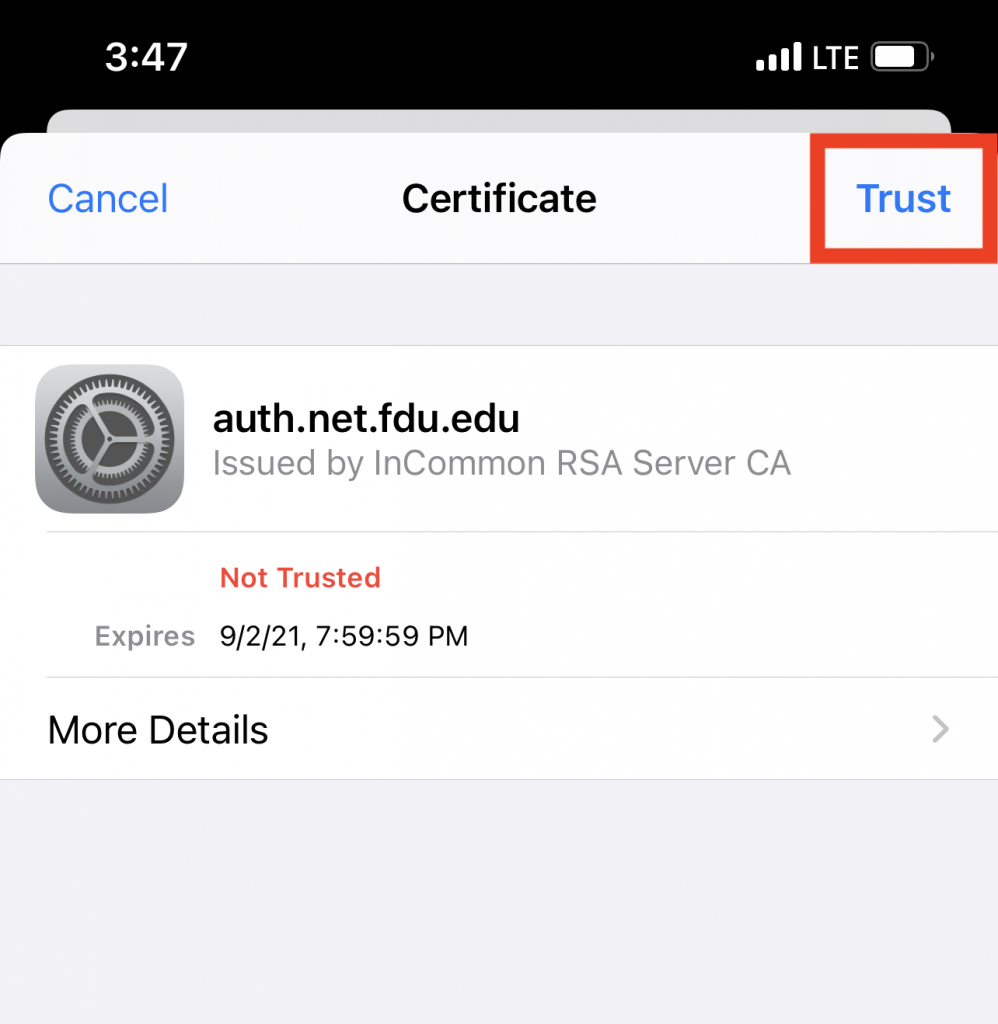
- At the “Certificate” prompt, tap “Trust“
- Open your browser and test your Internet connection
- Login to your Android Device
- Open the “Settings” Application > Select “Wi-Fi” > Select the Gear icon next to FDU-Secure

- Select “Forget This Network“

- Select FDU-Secure from the Wi-Fi menu

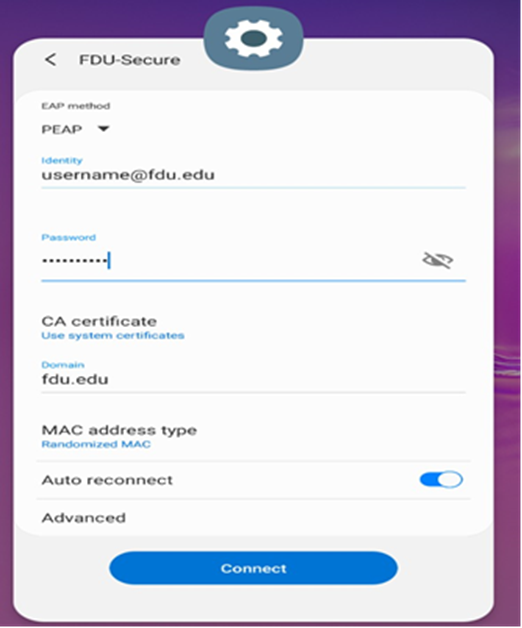
- Select “EAP method” and select “PEAP” from the dropdown menu
- Enter your complete FDU NetID and password
- In the “CA Certificate” field, select “Use System Certificates”
- In the Domain field, enter fdu.edu
- Enable “Auto Reconnect“
- Tap “Connect”
- Open your browser and test your Internet connection
The post Accept a New Certificate for FDU-Secure Wireless Network appeared first on Fairleigh Dickinson University | IT.
]]>The post Acceptable Use Policy for Computer Usage appeared first on Fairleigh Dickinson University | IT.
]]>Original Effective Date: 02/17/2013
Revised Date: 04/20/2023
The computing and electronic communications facilities at Fairleigh Dickinson University support the instructional, research, and administrative activities of the University. Users of these facilities may have access to University resources, sensitive data, and external networks. Consequently, it is imperative for all users to behave in a responsible, ethical, and legal manner. This document presents specific guidelines for appropriate behavior and use of FDU computing resources.
SCOPE
These guidelines apply to all users of FDU computing resources. Users include all students, faculty, staff, visiting faculty, volunteers, guests of the administration, and external individuals or organizations.
Computing resources include, but are not limited to, desktop and laptop computers, file servers, smart phones, email and electronic communications, software, University-assigned email accounts, data storage, and networking equipment used to link these components together and to the Internet, whether owned, leased, or licensed by FDU. In addition, computing resources include use of the University network via a physical or wireless connection, regardless of the ownership of the computer or device connected to the network. Moreover, this policy applies to all usage of university computing resources, whether that usage occurs through a university owned device or personal device.
University property, including computing resources, are provided to you for University business. Although security protocols have been put in place to restrict access to computing resources to protect them against unauthorized access by external parties, it is important that all members of the University community take appropriate measures to safeguard these resources.
Users – and not the University — are responsible for the materials that users prepare, receive, or transmit through computing resources. Thus, as a condition of using the University’s computer system, all users represent that they are in compliance with applicable laws and University policies, including l federal, state, and international copyright and other intellectual property laws and laws regarding defamation.
ACCEPTABLE USE
Those who make use of the FDU computing resources are required to behave in a manner consistent with FDU’s codes of conduct. As a user of this network, you agree to the following usage guidelines:
- You will not use an account that does not belong to you. You will use only the computers, computer accounts, and computer files for which you have authorization. You may not share accounts, files, or access to computer resources with any unauthorized person.
- You are responsible for any computer account you have been given. You will set a password on the account that is in compliance with university password policies, and you may not share this password with any other person. If you discover that someone has made unauthorized use of your account, you should change your password immediately and immediately report the event to one of the individuals listed in Appendix 1.
- You agree not to intentionally seek out information about, copy, or modify password files, other users’ files, or disks and tapes belonging to other people, unless specifically authorized by those persons, whether at FDU or other facilities.
- You should not attempt to decrypt material to which you are not entitled or attempt to gain rights you have not been specifically granted by the owner. If you observe or discover a gap in system or network security, you agree to inform one of the individuals listed in Appendix 1 and not to exploit the gap.
- You agree to refrain from any activity that interferes with a computer’s operating system or its logging and security systems, or that may cause such effects. Additionally, users are not authorized to remove any security software installed on FDU equipment by FDU Systems personnel.
- You must be sensitive to the public nature of computing resources and agree not to transmit, post, or otherwise display material that is threatening, obscene, harassing, or defamatory. The use of University computing resources to libel, slander, or harass any other person is not allowed and could lead to University discipline as well as legal action by those who are the recipients of these actions.
- You agree not to make copies of or distribute software the University owns or uses under license, unless the owner of the software or the owner of the license has specifically granted permission to copy. If in doubt as to whether you have permission to copy software, assume you don’t.
- Messages, statements, and declarations sent as electronic mail or public postings should be treated as if they were tangible documents. From electronic identifiers used in the transmission of messages, addressees can see the University is the source of the message or its system is being used to transmit it, similar to how letterhead or return addresses on a tangible document would identify the University. Therefore, as a representative of the FDU community, you are expected to respect the University’s good name in your electronic dealings with those both within and outside the University. Moreover, in so far as employees make use of FDU computing resources to relay personal opinions, it is their obligation to make sure that no addressee can infer that their personal opinions are necessarily shared or authorized by the University, and they are obligated to clearly identify their opinions as their own and not those of the University.
- You agree not to create, alter, or delete any electronic information contained in any system that is not your own work, unless specifically authorized by the owner of that information.
- You agree not to create, send, or forward electronic chain mail letters. You agree not to attempt to alter or forge the “From” line or any other attribution of origin contained in electronic mail or postings. You agree not to use any of the University systems for sending what is commonly referred to as “SPAM” mail (unsolicited bulk email).
- You may not use FDU computing resources as a means of obtaining unauthorized access to any other computing systems.
- FDU’s data storage on University servers, hosted servers, third party storage, or hosted storage, is an FDU computing resource with costs attached and should be used with care and discretion. It is primarily meant for current class work, research and development projects, business files, and temporary storage of other files. Users are expected to keep their disk usage reasonably minimized, in keeping with their University role.
- Network addresses such as TCP/IP addresses and machine addresses are assigned by University Systems and Networking staff and may not be altered or otherwise assigned without the explicit permission of the Associate Vice President of Systems and Networking (or other designee). In addition, no equipment may be attached to the network without the explicit permission of the Associate Vice President of Systems and Networking (or other designee). This applies to all staff as well as academic departments.
- FDU’s computing resources are not to be used for the transmission of commercial or personal advertisements, solicitations, and promotions or for extended reproduction of political, ideological or commercial material originated by a person or organization. This includes but is not limited to the execution of revenue-generating advertising programs which pay users when the programs are run. The Associate Vice President of Systems and Networking (or other designee) may suspend this rule when it is in FDU’s best interest to permit such activity.
- Users may not contract with external Internet services, service providers, or the like without the explicit written approval of the Associate Vice President of Systems (or designee) and Networking and compliance with Finance and Office of General Counsel policies.
- Without the explicit written permission of the Associate Vice President of Systems and Networking (or designee) you agree not to run any of the following protocols or services:
- Port scanners, network monitors or other types of utilities that probe any other computer, be they inside or outside FDU’s network.
- Routing or network serving protocols such as RIP, IGRP, OOTP or DHCP on the network.
- Daemons, processes or programs that accept incoming connections, as a server would.
- Streaming media servers or any other server that broadcasts continuous data streams.
- Port scanners, network monitors or other types of utilities that probe any other computer, be they inside or outside FDU’s network.
- FDU’s computing resources, including equipment, network, services, and wiring may not be modified or extended beyond the areas of their intended use.
- Network connections may not be used to provide network access to anyone outside the University community or for any purposes other than those that are in direct support of the academic mission of the University.
- All computers connected to FDU’s network must run an operating system and configuration that is supported by its vendor with regard to security patches and updates, as well as antivirus software with current virus definitions. It is the user’s responsibility to keep their virus definitions up to date and to apply all critical operating system updates. More information is available at it.fdu.edu or submit questions through the SAMI Support portal or by emailing [email protected].
- Users may not alter the operating system or configuration of University owned computers without the explicit written authorization of the Associate Vice President of Systems and Networking (or designee).
PERSONAL USE
Computing resources are created to support the instructional, research, and administrative activities of the University, and are the property of the University. Personal use of the University’s computing resources, except for students enrolled at the University, should be incidental and kept to a minimum. Use of such resources by an employee for other than work-related matters should be reasonable and limited so that it does not prevent the employee from attending to and completing work effectively and efficiently, does not incur additional cost to the University, and does not preclude others with work-related needs from using the resources, including the shared campus and Internet bandwidth.
Department Heads and other administrators may enact additional restrictions to further limit employees’ personal use of University computing resources. These restrictions may include but are not limited to: limiting time spent reading or writing personal email or visiting web pages, and limitations on acceptable content due to the possible exposure of screens to other individuals. Human Resources must be consulted, in advance, about any proposed restrictions.
SECURITY
Users should use reasonable available methods to safeguard their data, including regular changes of passwords, and encrypting sensitive data. In the event that files have been corrupted as a result of intrusion, you should notify a system administrator immediately. Please note that FDU’s computing resources are not completely secure. It is possible that others will be able to access files by exploiting shortcomings in system security. For this and other reasons, FDU cannot assure confidentiality of files and other transmissions.
The Office of Information Resources and Technology (“OIRT”) and each of its departments attempt to provide reasonable security against damage to files stored on FDU’s computing resources by filtering all outgoing and incoming electronic mail for viruses and junk mail and making regular backups of systems.
In connection with the University’s migration to Office 365, the University adopted a policy of retaining copy of each fdu.edu email for three (3) years. This means, regardless of individual user action, the University will maintain a copy of all email traffic for a period of 3 years.
In the event of lost or damaged files, a reasonable attempt will be made to recover the information; however, the University and the University Information Technology staff cannot guarantee recovery of the data or loss of data due to media failure, floods, fires, etc.
OIRT and each of its departments will make reasonable attempts to provide error-free hardware and software on our computing resources, however, it is not possible to guarantee this, and information provided by staff members is not guaranteed to be correct.
PRIVACY
Users should exercise caution when storing any confidential information in electronic format, because the privacy of such information cannot be guaranteed. User(s) must be aware that any personal files, including e-mail, maintained on University computing resources are University property and are subject to University storage, retrieval, and review. Individuals using FDU computing resources should have no expectation that any information transmitted through or stored on FDU computing resources, whether the information is contained on a computer hard drive, computer disks, University or third party server or in any other manner, will be private. By using FDU computing resources, the user consents to the University’s (and its designees’, both internal and external) access to their electronic files, documents, and materials stored, transmitted, or otherwise accessible on those resources.
Examples of where the University might access a user’s electronic files include system backups, which access all files in a user’s account; software upgrades which may require editing startup files in a user’s account; diagnostic and trouble-shooting activities, which may, for example, require viewing the address headers of e-mail messages to determine the cause of problems; keystroke monitoring of sessions to determine inappropriate use of the computing facilities; searches in connection with a litigation, threatened litigation, governmental proceeding or investigation; investigation of a possible data breach; investigation of possible breach of University policy, rules, handbooks, or protocols; and other measures to safeguard the University’s systems and compliance with laws. These examples are not intended to limit the University’s right to access a user’s electronic files under circumstances deemed appropriate by the University. In such situation(s), University computer resources in the possession of a user, or otherwise assigned to an individual, may be accessed, reviewed, duplicated, stored, and forwarded by appropriate personnel without the user’s permission or knowledge.
Without limitation, because employees are granted access to and use of FDU computing resources to conduct University business, the University reserves the right to access electronic mail messages left on or transmitted through the University’s computing resources. Employees should not assume that such messages are private and confidential or that the University or its designated representatives will not have a need to access and review this information.
The Family Education Rights and Privacy Act (FERPA) binds all users who have access to student data and this policy is subject to FERPA requirements. In general, FERPA gives students more control over their educational records, and it prohibits educational institutions from disclosing “personally identifiable information in education records” without the written consent of the student (subject to specified exceptions). To find out specifically what information you may or may not give out and to whom, contact the office of the Vice President for Student Affairs.
POLICY VIOLATIONS
Policy violations should be reported immediately to any one of the individuals listed in Appendix 1.
Violations of this policy will be addressed as described in the Student, Faculty and/or Employee Handbooks, any relevant contracts, and, if applicable, State and Federal law or regulations. University students and employees who violate this Policy will be met with appropriate disciplinary action, up to and including dismissal, expulsion, or termination from the University. Third parties who violate this Policy may have their relationship with the University terminated and their access to campus restricted. In addition, a user’s system privileges can be suspended for a specified time period or revoked and/or a monetary fine may be imposed on those in violation to reimburse the University for the staff time and other costs of investigating and rectifying the violation.
The University reserves the right to suspend computing resource privileges while investigating a complaint or troubleshooting a system or network problem.
This policy is subject to revision. Comments and suggestions are welcome and should be sent to Stuart Alper, Associate Vice President of Systems and Networking, mailstop T-BH1-01, or [email protected].
It is the user’s responsibility to remain informed about the contents of this document.
CONTACTS
Stuart Alper
Associate Vice President of Systems and Networking
Mailstop T-BH1-01
(201)-692-2414
[email protected]
Saul Kleinman
Associate Vice President of Management Information Systems
Mailstop T-BH2-03
(201)-692-2065
[email protected]

The post Acceptable Use Policy for Computer Usage appeared first on Fairleigh Dickinson University | IT.
]]>The post Accessing an FDU Email Account on a Mobile Device Using the Outlook App appeared first on Fairleigh Dickinson University | IT.
]]>The easiest way to access your FDU email account on your mobile device is to install the Outlook app from either the App Store (Apple) or the Play Store (Android). We support and advise using this method due to the program’s robustness and integration of all Office365 features. Follow the steps below to install and set up the Outlook app on your phone.
- Use the links below to install the Outlook app onto your mobile device.


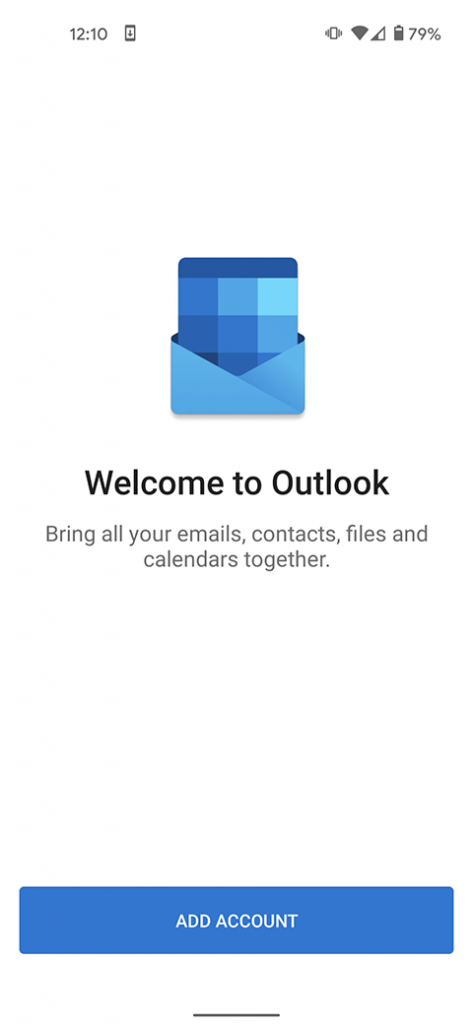
- Launch the app and press on “Add Account” if on an Android device. It will then prompt you to input your FDU email address. On iOS, the app will launch and immediately ask you for your FDU email address. Once filled out press “Continue” on Android. On iOS press “Add Account”


- You will be routed to the FDU Single Sign On Page, from here input your FDU email address and password and press “Sign In”
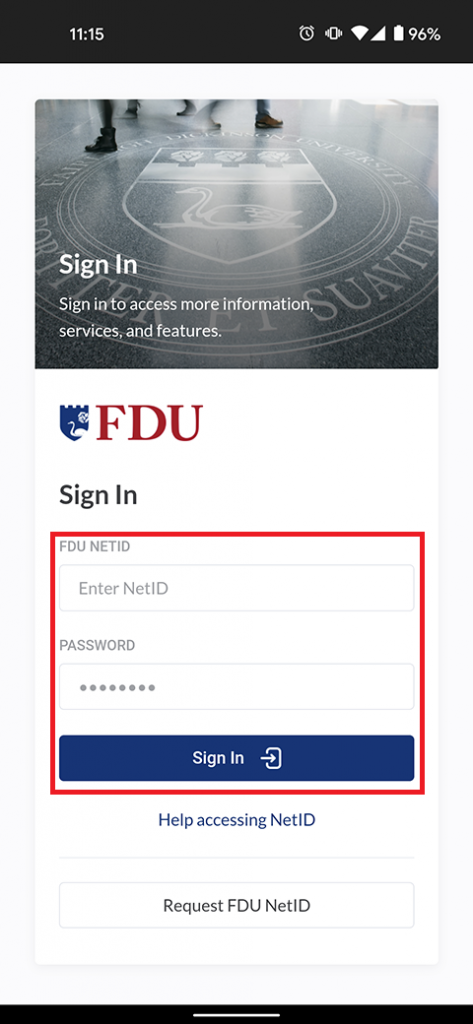
- For security purposes, all applications which use FDU’s Single Sign On (NetID) require Duo two-factor authentication. After inputting your FDU NetID login information, Duo requires you to complete a method of second-factor authentication

- Your FDU email account has now been added to your device successfully. Ensure the email account is listed on your Outlook application.

The post Accessing an FDU Email Account on a Mobile Device Using the Outlook App appeared first on Fairleigh Dickinson University | IT.
]]>The post ADA Compliance appeared first on Fairleigh Dickinson University | IT.
]]>Any videos distributed on various platforms by FDU must comply with federal regulations concerning accessibility for individuals who are deaf or hard of hearing. It’s essential to ensure that our content is accessible to all members of our community, in line with these important guidelines.
To read the Americans with Disabilities Act rules and regulations, visit the link below:
Americans with Disabilities Act
Transcription and Closed Captioning
All video projects produced by Multimedia Services must be closed captioned and transcribed. Captions appear onscreen simultaneously with the audio and video and follows the same timing. It exists within the video player. A transcript is the same word-for-word content as captions, but presented in a separate document, whether it is a text file, word processing document, PDF, or web page.
The post ADA Compliance appeared first on Fairleigh Dickinson University | IT.
]]>The post Adding a FDU Email Account to a Mobile Device’s Native ‘Mail’ App appeared first on Fairleigh Dickinson University | IT.
]]>These instructions demonstrate adding an FDU email account to an Apple mobile device’s native Apple “Mail” app. Unfortunately, adding an FDU email account on an Android OS mobile device’s native “Mail” app is currently unsupported by FDU IT support. Information regarding adding an FDU email account to an Android OS mobile device via the Outlook App can be found below for Android OS mobile device users.
Note:
The easiest way to access your FDU email account on your mobile device is to install the Outlook app from either the App Store (Apple) or the Play Store (Android). FDU IT supports and advises using this method due to the program’s robustness and integration of all Microsoft 365 features. A link with instructions for the Outlook app on mobile devices can be found at the bottom of this page.
- Go to the “Settings” app

- Tap “Mail”

- Tap “Accounts”

- Tap “Add Account” and then select or tap “Microsoft Exchange”


- Enter your FDU email address and a description of your email account in the corresponding text boxes. Please note that the default description name for the account will be ‘Exchange’ if left unchanged. Tap “Next” to continue

- Tap “Sign In”

- Enter your FDU email address and password. Tap “Sign In” to continue

- For security purposes, all applications which use FDU’s Single Sign-On require Duo Two-Factor Authentication (2FA). After entering your FDU NetID login credentials, Duo requires you to complete a method of second-factor authentication

- Choose the FDU NetID account information you want to synchronize or access on your iOS mobile device by toggling the choices on/off. Tap “Save” to continue

- Your FDU email account has successfully been added to your iOS mobile device

Due to the multiple Android OS mobile device manufacturers (Samsung, Google, or LG) each having their own native ‘Mail’ app, email setup and features differ depending on the manufacturer of the Android OS devices. For this reason, it is best practice to use the Microsoft ‘Outlook’ app found in the Google Play Store. Follow the instructions below to set up Outlook on Android OS.
The post Adding a FDU Email Account to a Mobile Device’s Native ‘Mail’ App appeared first on Fairleigh Dickinson University | IT.
]]>The post Advising Appointment Scheduling through MyFDUConnect appeared first on Fairleigh Dickinson University | IT.
]]>than ever with the Appointment Scheduling Card in myFDUConnect.
Follow these quick steps to access and use the tool:
- Go to myfduconnect.fdu.edu or open the myFDUConnect mobile app
- Click the hamburger icon (three stacked lines) in the top-left corner of the screen
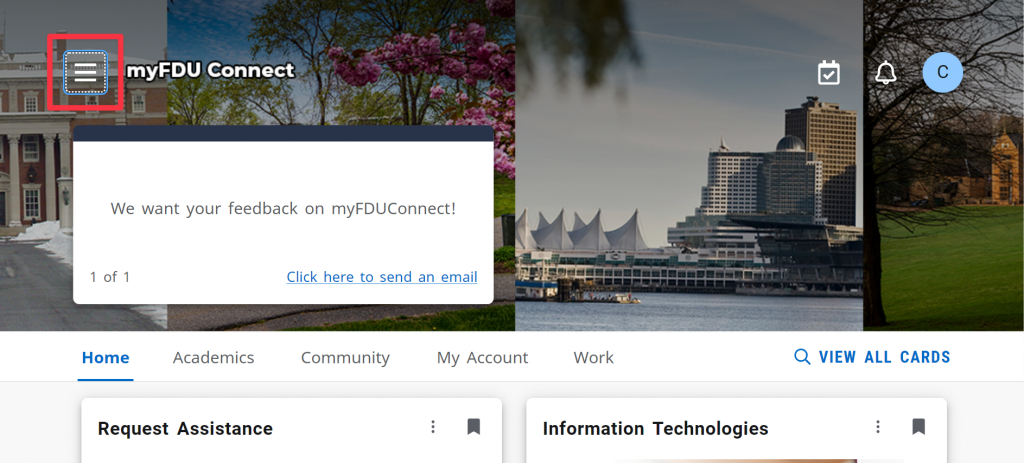
- Click “All Cards”

- Search for “My Appointments” and click the bookmark icon in the top-right corner of the card to add it to your homepage

- Click myFDUConnect at the top to return to your homepage

- Click “Schedule Appointment” on the card
- Select the Appointment Type
- Choose your Advisor
- Pick your preferred Date, Time, and Location
- Click “Schedule”
- Confirm by clicking “Schedule” again in the pop-up window

The post Advising Appointment Scheduling through MyFDUConnect appeared first on Fairleigh Dickinson University | IT.
]]>The post Authorization for Turning in Desktop Request Form appeared first on Fairleigh Dickinson University | IT.
]]>The post Authorization, Authentication and Access Management Policy appeared first on Fairleigh Dickinson University | IT.
]]>Revision Date: New Policy
Effective Date: 11/1/2023
Section A – University Systems and Applications
I. Purpose
The purpose of this policy is to establish information security standards for individuals receiving credentials to Fairleigh Dickinson University (“FDU” or “University”) resources and how those resources are accessed.
II. Scope and Applicability
This policy applies to all university system resources. All Users are responsible for adhering to this policy.
III. Definitions
Capitalized terms shall have the meaning ascribed to them herein and shall have the same meaning when used in the singular or plural form or any appropriate tense.
- Account: An established relationship between a User and a computer, network, or Information System which is assigned a credential such as a username and password.
- System Administrative Account: An Account with elevated privileges intended to be used only when performing management tasks, such as installing updates and application software, managing user accounts, and modifying operating system and application settings.
- Entitled Account: A user who has met the minimum requirement to be granted authorization to access electronic Fairleigh Dickinson University Resources.
- Authorized User: A User who has been granted authorization to access electronic Fairleigh Dickinson University Resources and is current and active in their privileges.
- Contractor or Vendor: A person or a company that undertakes a contract to provide materials or labor to perform a service.
- Employee: University staff faculty and adjunct, including nonexempt, exempt, and overseas staff and collegiate faculty.
- Multi-Factor Authentication (MFA): Authentication using two or more different factors to achieve authentication. Factors include something you know (e.g., PIN, password); something you have (e.g., cryptographic identification device, token); or something you are (e.g., biometric).
- Privileged Account: An Account that is authorized to perform security-relevant functions that an ordinary Account is not authorized to perform.
- Single Sign-On (SSO): An authentication process that allows an Authorized User to access multiple applications with one set of login credentials. SSO is a common procedure in enterprises, where a client accesses multiple resources connected to a local area network (LAN).
- User: A member of the University community, including but not limited to Staff and Faculty, and other individuals performing services on behalf of University, including Contractors, volunteers and other individuals who may have a need to access, use or control University Data.
IV. Authentication
- Any service, application or Information System, whether on-premise or in the cloud, that contains WISP protected information, especially PI or PHI; OR is accessed by a large group of employees (20 or more), must use Single Sign-on authentication.
- If the service or application is being provisioned by a business unit, the unit must engage University Systems to work with the provider to enable SSO.
- If SSO is not supported by the service or application, it will not be approved for use by the university.
- See Section V for exceptions.
- If the service or application is being provisioned by a business unit, the unit must engage University Systems to work with the provider to enable SSO.
- Multi-factor authentication (MFA) must be used to access University resources.
- Passwords must be constructed in accordance with the minimum requirements as listed below:
- Authorized User Account passwords must meet a minimum length of 8 characters.
- Administrative and Privileged Account passwords must meet a minimum of 10 characters.
- Passwords must contain a mix of alphanumeric characters. Passwords must not consist of all digits, all special characters, or all alphabetic characters.
- Automated controls must ensure that passwords are changed at 90-day intervals for both general users and administrative-level accounts.
- NetIDs associated with a password must be disabled for a period of time after 10 consecutive failed login attempts. A minimum of 30 minutes is required for the reset period.
- Passwords must not be the same as the NetID.
- Passwords must not be displayed on screens.
- Users must not share passwords.
- Initial passwords and password resets must be issued pre-expired forcing the user to change the password upon first use.
- Password reuse must be limited by not allowing the last 10 passwords to be reused. In addition, the password must be at least 2 days old in order to be voluntarily changed.
- Access will be disabled 90 days past the date that a password expired if not changed.
- Access will be disabled after 30 days of creation if NetID is not claimed.
- Expired passwords must be changed before any other system activity is allowed.
- Authorized User Account passwords must meet a minimum length of 8 characters.
- Server Password Protocol
- If, at any time, a member of the Community is granted permission to install a server, and access to that server is restricted via Login, and if that process is granted SSO exception through section VII., that system can not hold passwords in clear text. That system must use an approved irreversible cryptographic transform to protect its users’ passwords.
VI. Enforcement
- This policy will be enforced by technical controls wherever feasible; otherwise, this policy will be enforced by OIRT under the direction of the CIO. All members of FDU’s faculty and staff have a responsibility to promptly report any known instances of noncompliance to AVP of University Systems and Networking or the Director of Systems.
- Failure to comply with this policy can result in disciplinary action. Any such discipline shall be in accordance with processes and procedures of Human Resources and subject to any protections afforded under the University’s agreement with “Office & Professional Employees International Union”, the “Faculty Handbook”, and similar documents. Third parties who violate this Policy may have their relationship with the University terminated and their access to campus restricted.
VII. Exceptions
- Exceptions to this policy should be submitted to the AVP, USAN for review. Approval of the Chief Information Officer (CIO) or Data Security Incident Response Team (DSIRT) may be required.
The post Authorization, Authentication and Access Management Policy appeared first on Fairleigh Dickinson University | IT.
]]>The post Availability and Use of Google Apps appeared first on Fairleigh Dickinson University | IT.
]]>Effective Date: April 1st, 2021
I. Objective
Fairleigh Dickinson University (FDU) has adopted and standardized use of the Microsoft Office 365 Suite of products for University business. Some external entities, however, that conduct business with University employees utilize the Google Suite of products. This policy stipulates which Google applications will be made available to faculty and staff (not students) to enable collaboration with these external entities to conduct University business.
II. Purpose
Fairleigh Dickinson University (FDU) has adopted and standardized use of the Microsoft Office 365 Suite of products for University business. However, it is recognized that not all entities use Microsoft Office 365 as their platform and, from time to time, FDU faculty and staff may need the ability to collaborate with external entities that may be using the Google Suite of products. This policy stipulates which Google applications will be made available to faculty and staff to enable collaboration with these external entities.
- Faculty and staff are reminded that in accordance with the University’s WISP policy, WISP protected data must not be stored or transmitted through any service, without the prior written authorization from the University Chief Information Security Officer.
- As stated in the “Policy for Acceptable Use for Email”, Google Gmail is not available for use. All University business must be conducted through an FDU email account on Microsoft Office 365.
- Faculty and staff may not use, or attempt to use, Google apps as a method of collaboration with students, faculty or staff. This FDU Policy on the Availability and use of Google Apps is expressly for the use with external entities only.
- This Policy on the Availability and use of Google Apps applies only to use of Google applications by faculty and staff, and not FDU students.
- Microsoft Office 365 is the only FDU supported platform for email and collaboration.
- Google Apps are not supported by FDU IT personnel.
III. Scope
This policy applies to all FDU faculty and staff, wherever located throughout the world. Students will NOT have access to the fdu.edu Google Apps suite of products.
IV. Data Security Coordinator
The University has designated the Chief Information Security Officer, working together with the Data Security Information Response Team (DSIRT) and the USAN Director of Systems, to implement, supervise and maintain this Policy.
V. Internal Risks
To combat internal risks to the security, confidentiality, and integrity of any electronic, paper or other records, adherence to this Policy and the WISP will be strictly enforced.
VI. External Risks
To combat external internal risks to the security, confidentiality, and integrity of any electronic, paper or other records, adherence to this policy and the WISP will be strictly enforced.
VII. In Case of Questions
Questions regarding the availability of Google Apps can be directed to the SAMI Support Desk.
Note:
Please note that the UTAC is not able to provide application support on the Google suite of products.
VIII. Other Applicable Policies
IX. Exceptions
Requests for exceptions to this Policy should be directed in writing to the Chief Information Security Officer via the SAMI Support Desk.
X1.1 Google Apps Available to Faculty and Staff
Note
These applications may only be used in collaboration with outside entities who use Google applications as their sole source of collaboration and request the use of any one of these application for official FDU business use. Any other use of these applications by FDU faculty and staff is a violation of this Policy.
| Services | Descriptions |
|---|---|
| Assignments | Assignments brings together the capabilities of Google Docs, Drive and Search into a tool for collecting and grading student work. |
| Calendar | Google Calendar is a web-based tool for personal scheduling and calendar sharing. It can be accessed through either a Web browser or through a third-party calendar client. |
| Classroom | Google Classroom enables teachers to create an online classroom area in which they can manage all the documents that their students need. |
| Drive and Docs | Google Docs is an online word processor that lets you create and format text documents and collaborate with other people in real time. Google Drive on the web lets you store, access, and edit your files anywhere — on the web, on your hard drive, or on the go. |
| Google Meet | Google Meet enables conversations with photos, emoji, group video calls for free. You can connect across computers, Android and Apple devices. |
| Google Vault | Vault is an information governance and eDiscovery tool for Google Workspace. With Vault, you can retain, hold, search, and export users’ Google Workspace data. |
| Groups for Business | Google Groups for Business is an extended service available for G Suite users that allows you and other members in your organization to access the main Google Groups interface located at groups.google.com. |
| Jamboard | Google Jamboard is an online, collaborative whiteboarding application that lets you create, edit, and collaborate with other people in real time. Google Jamboard applications can be accessed on the Web, Android, and iOS. |
| Keep | Google Keep is a note-taking service included as part of the free, web-based Google Docs Editors suite offered by Google |
| Tasks | Google Tasks is a simple to-do list—but with lists, subtasks, and mobile notifications, it has the basics you need to stay productive and keep track of the most important things you need to do. |
| Applied Digital Skills | Applied Digital Skills is a free, flexible video-based curriculum that prepares students for the growing number of jobs that require basic digital skills, such as email and spreadsheets. |
| Google Ad Manager | Google Ad Manager is an ad exchange platform introduced by Google on June 27, 2018. It combines the features of two former services from Google’s DoubleClick subsidiary, DoubleClick for Publishers and DoubleClick Ad Exchange. |
| Google Ads | Google Ads is Google’s online advertising program. Through Google Ads, you can create online ads to reach people exactly when they’re interested in the products and services that you offer |
| Google AdSense | Google AdSense is an advertising program launched by Google in 2003 that allows website publishers to display targeted text, video, or image advertisements on website pages. |
| Google Alerts | Google Alerts is a tool that allows you to track your chosen keywords and phrases so that you never miss another important conversation. |
| Google Analytics | Google Analytics generates detailed statistics about a website’s traffic and traffic sources and measures conversions and sales |
| Google Cloud Platform | Google Cloud Platform is a suite of public cloud computing services offered by Google. The platform includes a range of hosted services for compute, storage and application development that run on Google hardware. |
| Google Cloud Print | Google Cloud Print is a web service offered by Google. Users associate printers with their Google Account. |
| Google Data Studio | Data Studio is Google’s reporting solution for power users who want to go beyond the data and dashboards of Google Analytics. |
| Google Earth | Google Earth is the most photorealistic, digital version of our planet. |
| Google My Maps | Google My Maps is your way to keep track of the places that matter to you. |
| Google Payments | Google Pay (stylized as G Pay; formerly Pay with Google and Android Pay) is a digital wallet platform and online payment system developed by Google to power in-app and tap-to-pay purchases on mobile devices, enabling users to make payments with Android phones, tablets or watches. |
| Google Play | In Google Play, the app description is split into two fields: Short Description, a limited 80 characters preview field and. the Full Description field, giving you space for an up to 4000 characters long app description. |
| Google Play Console | Google App Store |
| Google Search Console | The Search Console lets you, as a webmaster, check on the status of the indexing Google does on your site, helping you to optimize your page visibility in Google search results. Get data, tools and diagnostics for a healthy, Google-friendly site. |
| Google Takeout | Google Takeout is a service that allows users of Google products, such as YouTube, Gmail, etc., to export their data to a downloadable ZIP file. |
| Managed Google Play | Managed Google Play Managed Google Play is a version of Google Play that’s optimized for enterprises. |
| Material Gallery | Material Gallery is a collaborative tool for uploading design work, getting feedback, and tracking revisions – quickly and efficiently. |
| Partner Dash | Partner Dash is a service that hosts several applications used by Google’s partners to manage their relationships with us. Some of these applications are invite-only, while others are publicly available to anyone logged in with a Google Account. |
| Scholar Profiles | The Google Scholar Profile search pane in Publish or Perish allows you to look up a Google Scholar profile and analyze the associated publication metrics. |
| Search And Assistant | Google Assistant is Google’s artificial intelligence-powered voice assistant, which grew out of Google Now. |
The post Availability and Use of Google Apps appeared first on Fairleigh Dickinson University | IT.
]]>