This was all done on iOS 13.5.1, macOS 10.15.5, and Safari 13.1.1.
On your iPhone, open the Settings app. Go to Safari and scroll down to Advanced. Enable Web Inspector.
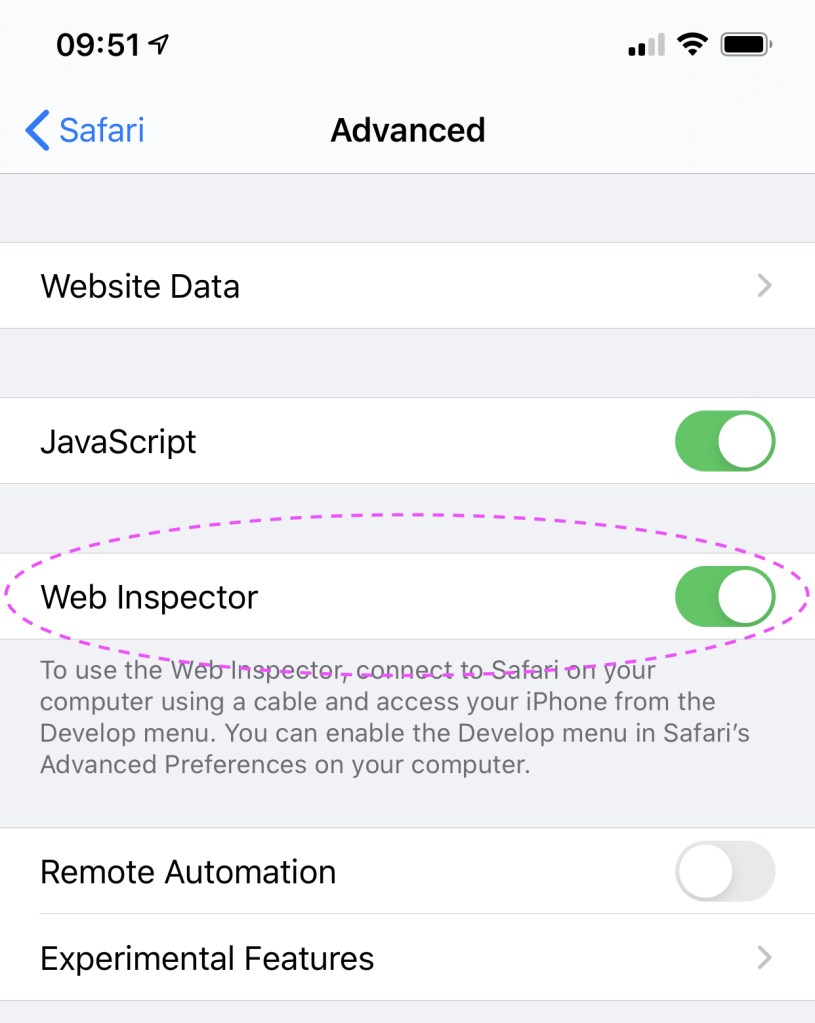
Next, connect your iPhone to your Mac using your Lightning to USB cable. Open Safari on your Mac. If you don’t already have the Develop menu in your menu bar, open Preferences (⌘,) and in the Advanced tab, enable show Develop menu in menu bar.

With your iPhone connected to your Mac and unlocked, open the Develop menu. You should see your iPhone listed as a device. Mine is named  Pro
Pro 

 . Select Use for Development…

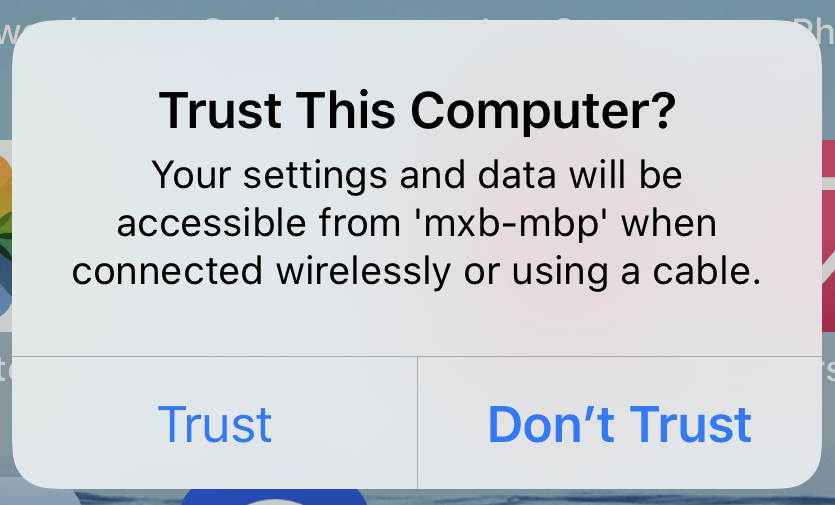
On your iPhone, trust your computer.
Open Safari on your iPhone (and go to a web page if you don’t already have one loaded). On your Mac in the Safari Develop menu under your iPhone, you should see the web page you have open on your iPhone. Hovering over the name of the page in the menu will highlight the page blue on your iPhone! 

Selecting the page will open a Web Inspector on your Mac. You can now develop and debug just like on desktop. 

Pro Tip
Before unplugging your iPhone from your Mac, enable Connect via Network. This will allow you to wirelessly inspect web pages on this device in the future.

Another tip for another time is accessing your local development servers on your iPhone (hint: mxb-mbp.local). Until then, happy debugging!
Every deploy, after all, is a unique and never-to-be-replicated combination of artifact, environment, infra, and time of day.
https://increment.com/testing/i-test-in-production/ ]]>— Read on basecamp.com/shapeup
Fantastic tactical guide! I’d love to work on a team that practices this.
]]>/passplum to generate a secure, simple, easy-to-type passphrase.

The first “extension” of the website was a twitter account. A serverless function would execute on a schedule requesting the website, extracting the passphrase from the HTML, and finally tweeting it out. It was naive but got the job done. Performance wasn’t a concern because the two network requests (one to Pass Plum, one to Twitter) had 30 seconds to complete. For a Slack slash command, responsiveness is important so a network round trip wouldn’t cut it. Luckily, the “vault” had been refactored to store its dictionary in a database instead of a flat file so the website, tweeter, and new Slack slash endpoint could all use the same method to generate a passphrase. Here’s how simple the slash endpoint began:
const { Vault } = require("../lib/vault");

const v = new Vault();

module.exports = async (req, res) => {
  try {
    await v.load();
    const passphrase = await v.fetch();

    res.json({
      response_type: "ephemeral",
      text: "Here's a great password: `" + passphrase + "`"
    });
  } catch (err) {
    res.json({
      response_type: "ephemeral",
      text: "Sorry, that didn't work. Please try again."
    });
  }
};
Slack supports verifying requests which I wanted to do to reduce abuse of the endpoint. Anyone considering the app and also digging through the source code would also be more encouraged to try the app. This was the most difficult part of building the slash command because I was using ZEIT Now helpers and not Slack’s SDK. After digging into their source code along with much trial and error, I arrived at:
const crypto = require("crypto");
const querystring = require("querystring");
const timingSafeCompare = require("tsscmp");

// similar to https://github.com/slackapi/node-slack-sdk/blob/a76b3ee5b3e77e6520889b9026a157996d35b84a/packages/interactive-messages/src/http-handler.js#L63
function verifyRequest(reqHeaders, reqBody) {
  // Divide current date to match Slack ts format
  // Subtract 5 minutes from current time
  const fiveMinutesAgo = Math.floor(Date.now() / 1000) - 60 * 5;
  const ts = reqHeaders["x-slack-request-timestamp"];
  if (ts < fiveMinutesAgo) {
    throw new Error("Ignoring request older than 5 minutes from local time");
  }

  const hmac = crypto.createHmac("sha256", SLACK_SIGNING_SECRET);
  const [version, hash] = reqHeaders["x-slack-signature"].split("=");
  // undo @now/node helper
  const rawBody = querystring.stringify(reqBody);
  hmac.update(`${version}:${ts}:${rawBody}`);

  if (!timingSafeCompare(hash, hmac.digest("hex"))) {
    throw new Error("Slack request signing verification failed");
  }
}
Slack’s walkthrough of the logic (linked above) is excellent so I won’t rehash it here. I still got tripped up on a few things along the way.
- While Slack’s pseudocode shows header names with capitalization, Node lowercases them which is important when referencing in objects like
reqHeaders. - You’ll notice I’m undoing
@now/nodehelper from ZEIT in order to build the digest which was thankfully straightforward. - Comparing
hashfrom the request header and the hex digest I built was the most problematic because I was debugging withconsole.log(hmac.digest("hex")). Callingdigestagain in the actual comparison resulted in an error that looked to be part of the verification failing but was actually poor debugging habits by me.
- When this
ssl_checkparameter is provided for Slack to occasionally verify the server’s SSL certificate, theirx-slack-*headers are not present which makes verifying the request fail. A quick fix but still a head scratcher.
With the slash command endpoint built, it was time to let other workspaces install the app. Slack’s OAuth documentation was also great. I’ll just link to the resulting code instead of pasting it here because of how clean it became thanks to request. Fifty lines of JavaScript and three lines of HTML was all it took to make “Add to Slack” work.
<a class="db u-center" style="margin-top: 1rem;margin-bottom: -1rem;" href="https://slack.com/oauth/authorize?scope=commands&client_id=3648710574.686574293780">
    <img alt="Add to Slack" height="40" width="139" src="https://platform.slack-edge.com/img/add_to_slack.png" srcset="https://platform.slack-edge.com/img/add_to_slack.png 1x, https://platform.slack-edge.com/img/[email protected] 2x" />
</a>
See the whole Pull Request on GitHub
Future Development
The first version is limited as you can only get a passphrase with four words separated by a hyphen. I’d like to allow for customization like on the website but want to make sure it’s usable within Slack’s UI constraints. /passplum 3 _ would be fine for folks familiar with command lines but would likely leave a lot of people unsure of what to do. Slack’s interactive message menus may be the way forward for everyone.
Do you have other ideas what for Pass Plum could do in Slack? Leave a comment or tweet at @PassPlum!
]]>]]>Sometimes part of rebranding a team means rebranding people—especially those who were seen as responsible for the team’s previous underperformance, or who had struggled to be effective under the previous structure.
Sometimes the reputation is deserved, but far from always. Most people don’t want to fail. The challenge of rebranding is to understand the reasons for the failure—perhaps some were structural, and some were personal—and working to address them. Were people in the wrong role? Had they not gotten the right feedback? Were they not set up to succeed?
Once you feel the structure is addressed, you can start positioning them more positively, working with and showcasing their strengths. Often you also need to rebrand people in their own eyes too—helping them see themselves as a leader when they used to be an individual contributor, or helping them understand their strengths lie in technical leadership, not people management. You also might need to rebrand the environment to them, moving them out of a victim mindset into one that is more empowered.
In every failing team I’ve encountered, there were people who weren’t a good fit and needed to leave to move forward. But also in every situation there were far more people who, with the right feedback, coaching, and encouragement, were able to surprise everyone (not least themselves) with what they were capable of. Making sure those people got the recognition and credit for their work, in terms of both personal growth and business impact, is a key part of a good team rebrand.