Perfect for building targeted email campaigns, abandoned cart sequences, or customer segmentation based on purchase behavior.
What You’ll Need
Before you start, make sure you have:
- SureCart installed and activated on your WordPress site
- OttoKit plugin installed and activated on the same site (Download from WordPress.org)
- An OttoKit account (sign up for free if you don’t have one yet)
- A SureCart account with at least one product created
- A Brevo account for email marketing
Step 1: Connect OttoKit to Your WordPress Site
First, establish the connection between OttoKit and your WordPress site.
- In your WordPress dashboard, go to OttoKit in the sidebar.
- Click Sign In and log in with your OttoKit account credentials.
- This creates a connection between OttoKit and your site.
Step 2: Create a SureCart API Connection
Unlike WordPress plugins that connect automatically, SureCart requires an API token for secure communication.
Generate Your SureCart API Token
- Go to https://app.surecart.com/api_tokens
- Click New Token
- Enter a name for your API token (e.g., “OttoKit Integration”)
- Click Create
- Copy the token that appears (you won’t be able to see it again)
Connect SureCart in OttoKit
- In your WordPress dashboard, go to OttoKit → Apps
- Click the “Create Connection” button and select “Create New.”
- Search for SureCart and select it
- Enter a name for the connection (e.g., “My SureCart Store”)
- Paste the API token you copied
- Click Connect SureCart
Step 3: Create a Brevo API Connection
Now, let’s connect your Brevo account so OttoKit can automatically add contacts.
Generate Your Brevo API Key
- Go to https://app.brevo.com/settings/keys/api
- Click Generate a new API key
- Enter a name for the key (e.g., “OttoKit Integration”)
- Click Generate
- Copy the API key that appears
Connect Brevo in OttoKit
- In your WordPress dashboard, go to OttoKit → Apps
- Click on the “Create Connection” button, choose Create New
- Search for Brevo and select it
- Enter a name for the connection (e.g., “My SureCart Store”)
- Paste the API key you copied
- Click Connect Brevo
Step 4: Create a Test Order in SureCart
Before setting up the workflow, you need to create a test order, so OttoKit has real data to work with.
- Go to SureCart in your WordPress dashboard
- Navigate to your shop page on the front end
- Select a product and go through the checkout process
- Complete the purchase to create an order
This test order will be used to fetch sample data when configuring your workflow.
Step 5: Create Your Workflow in OttoKit
Now let’s build the automation that connects your orders to Brevo.
Create a New Workflow
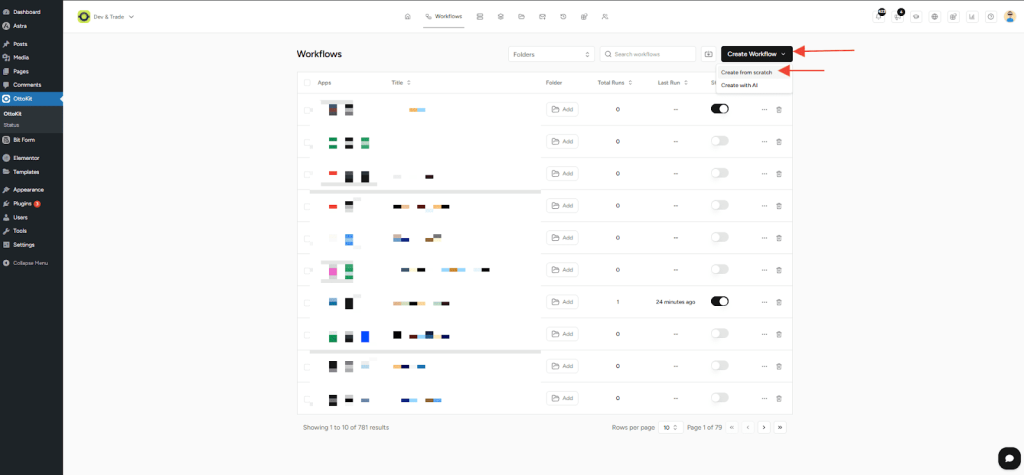
- In your WordPress dashboard, go to OttoKit → Workflows
- Click Create Workflow
- From the dropdown, select Create from Scratch
- Enter a name for your workflow, like “SureCart Orders to Brevo.”
- Click Create
Add the SureCart Trigger
The trigger is what starts your workflow, in this case, when an order is paid.
- Click the plus (+) button to add a trigger step
- In the apps search field, type SureCart and select it
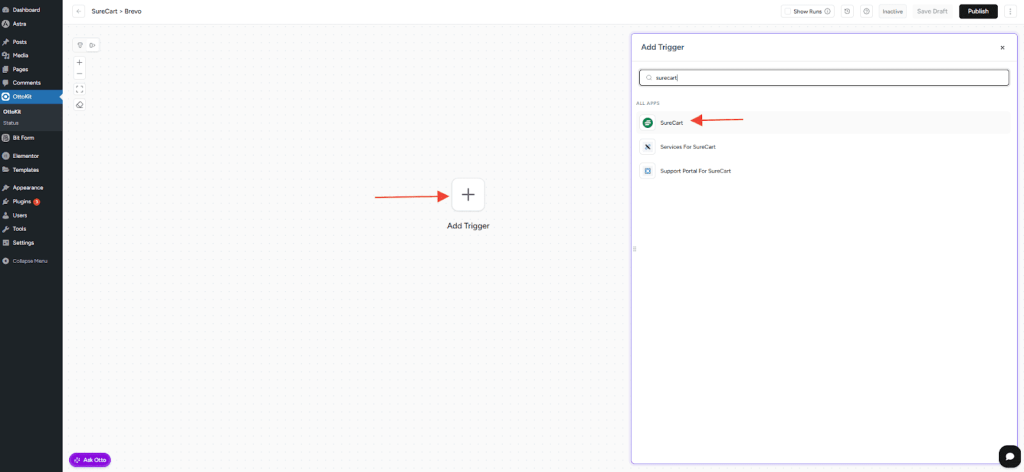
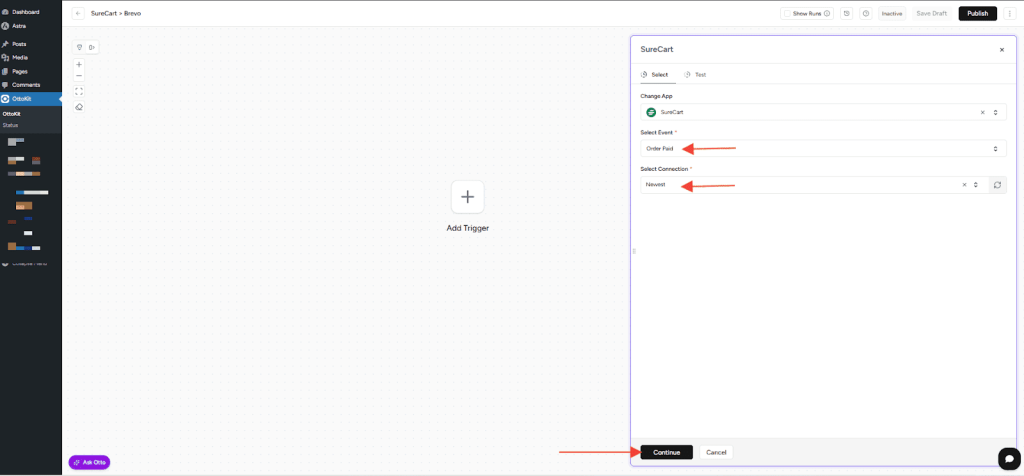
- Choose the Order Paid trigger event
- Click Select Connection, then choose the SureCart connection you created earlier
- Click Continue to move to the Test tab
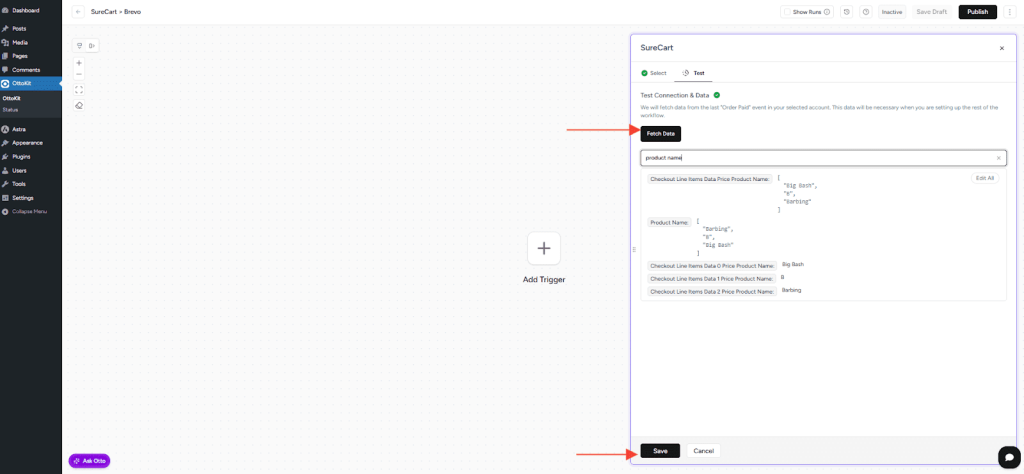
- Click Fetch Data
- OttoKit will pull the details from your most recent order
- Review the data to confirm everything looks correct
- Click Save
Add a Filter (Optional but Recommended)
If you sell multiple products but only want to add customers to Brevo when they purchase a specific product, add a filter step.
Why use a filter? If someone orders multiple products and you only want to track purchases of a specific item (like a premium course or membership), the filter ensures only the right customers get added to your Brevo list.
- Click the plus (+) icon below your trigger to add a new step
- Search for and select Filter
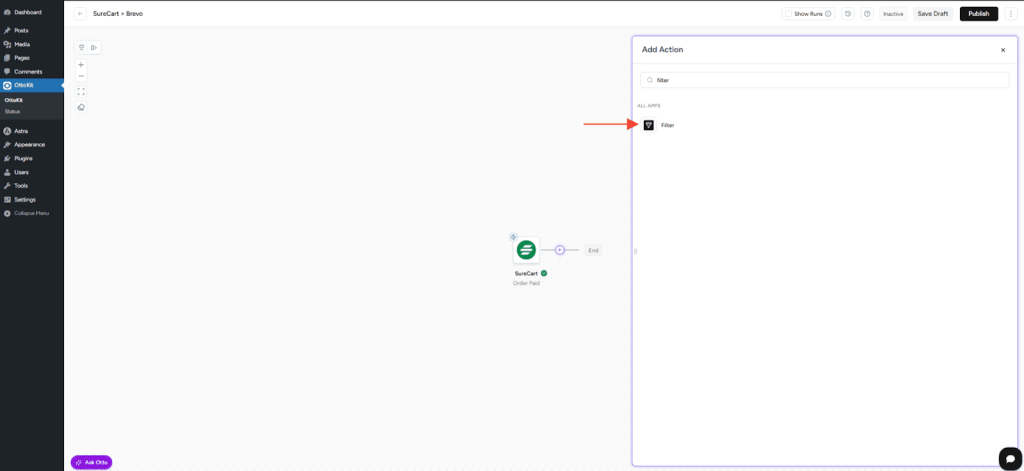
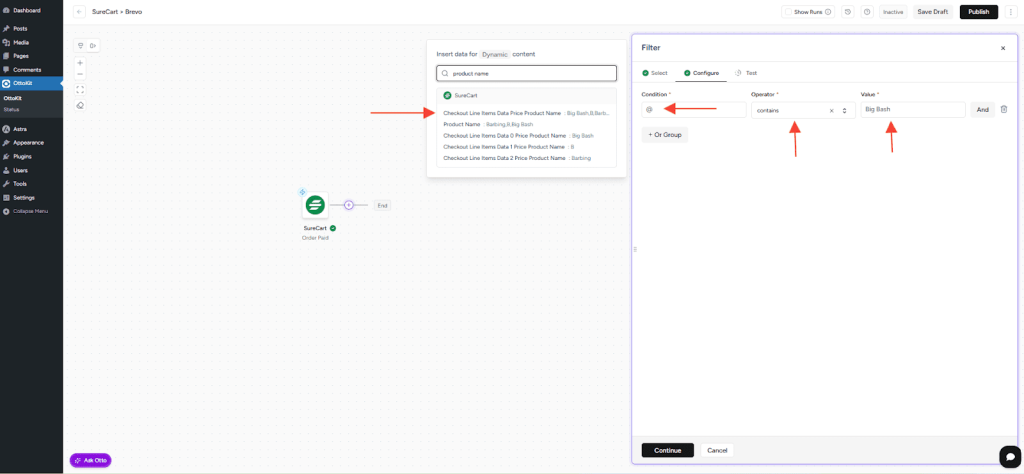
- Under the Configure tab, set up your condition:
- Field: Type @ and select the product name field from your SureCart order data
- Operator: Select Contains
- Value: Type the name of the specific product you want to target
- Click Continue to move to the Test tab
- Click Test Action to verify the filter works correctly
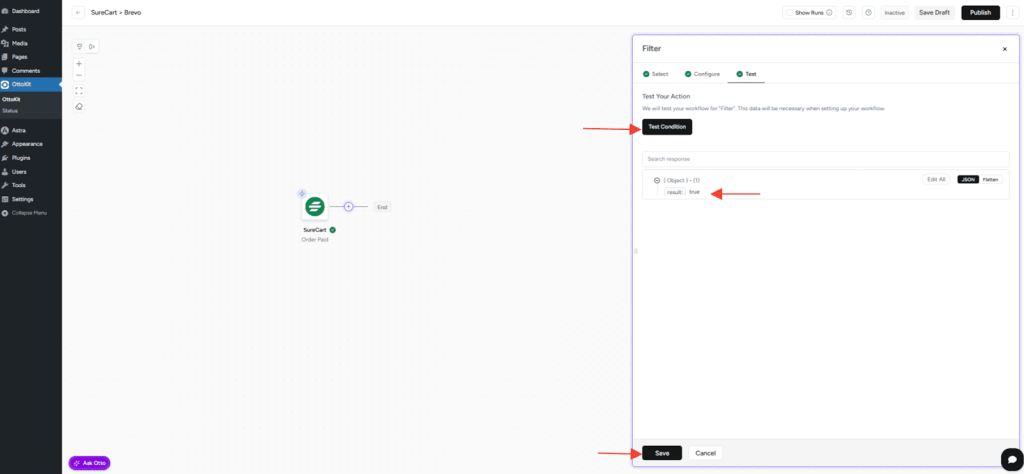
- If the condition is met, it will return either “False” or “True”. In this case, it returns true as the product line item contains the searched product.
- Click Save
Note:
- If you want to add all customers to Brevo regardless of what they purchase, you can skip this filter step entirely.
- Workflows that use the Filter app can only be published on OttoKit premium plans.
Add the Brevo Action
Now let’s tell OttoKit what to do with that order data, add or update the customer in Brevo.
- Click the plus (+) icon below your filter (or trigger, if you skipped the filter)
- In the apps search field, type Brevo and select it
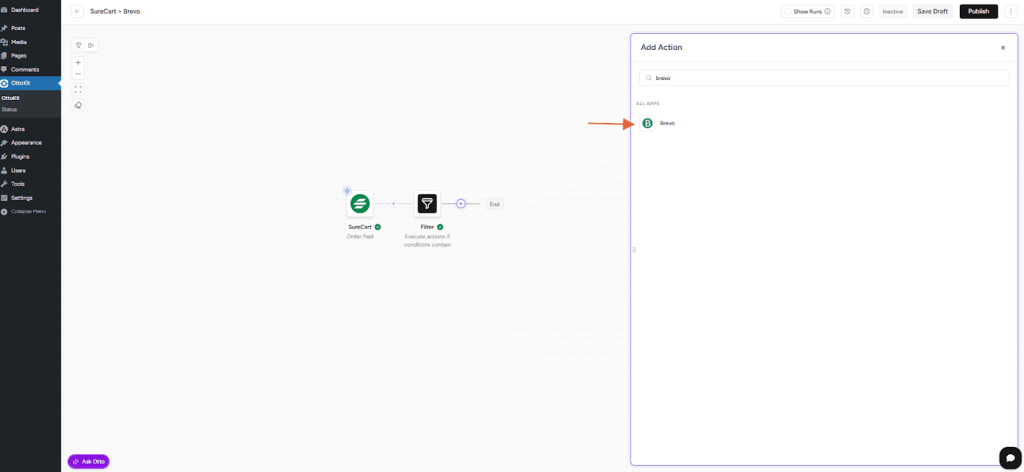
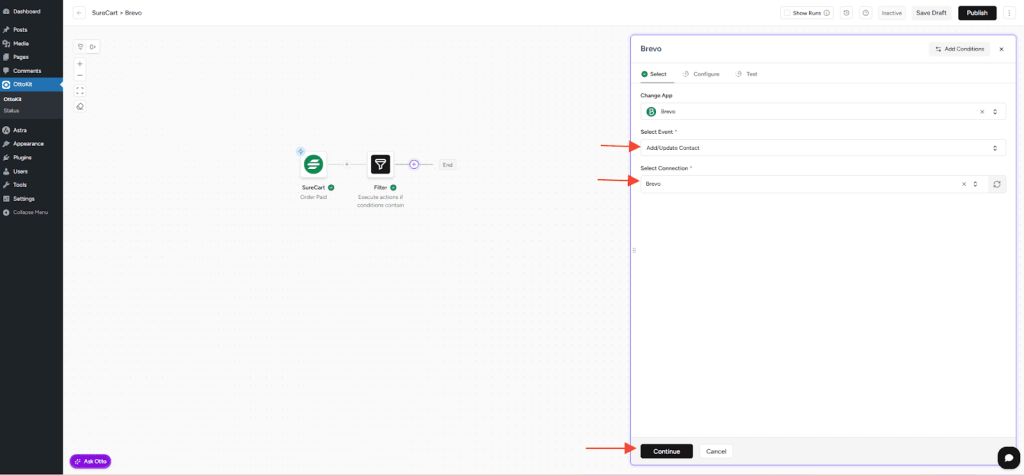
- Choose the Add/Update Contact action
- Click Select Connection, then choose your Brevo connection
- Click Continue to open the Configure tab
Configure the Brevo Contact
- User Email: Type @ in the field and select the customer email from your SureCart order data
- Folder: Select the Brevo list/folder where you want to add this contact
- Map customer name, phone number, or other order details to Brevo contact attributes
- Optional fields (click Show Optional Fields if you want to access more options)
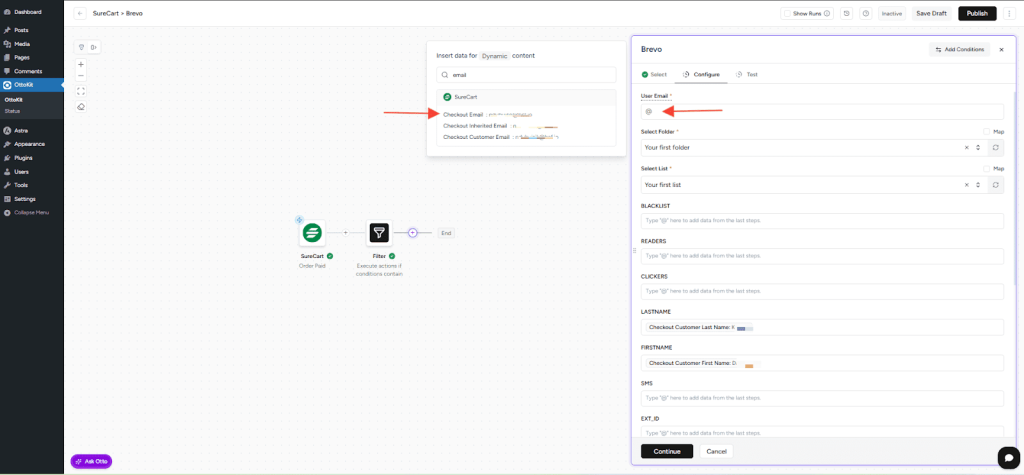
- Click Continue to move to the Test tab
Test Your Action
- Click Test Action
- OttoKit will send the test order data to Brevo
- Check your Brevo account to verify the contact was added successfully
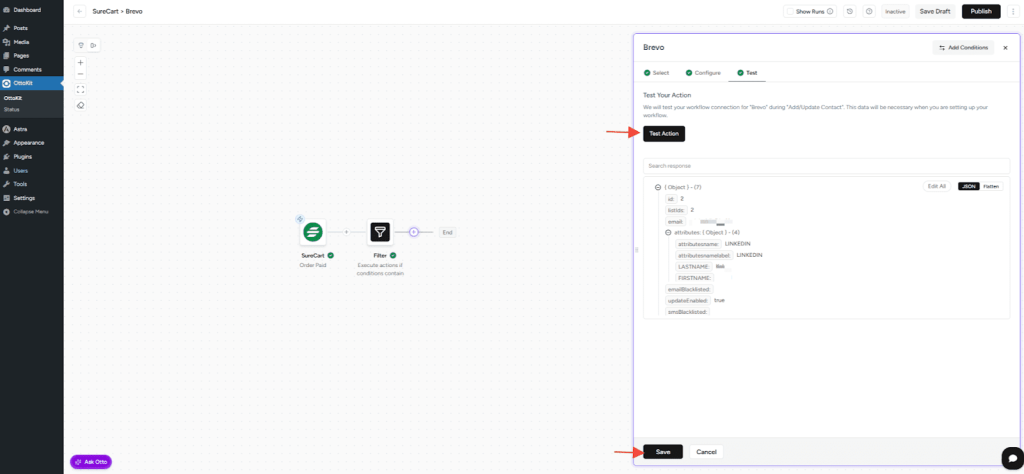
- If everything looks good, click Save
Step 6: Activate Your Workflow
Your workflow is built and tested, now let’s turn it on.
- At the top of the workflow builder, click the Publish button
- You’ll see the status change to Update
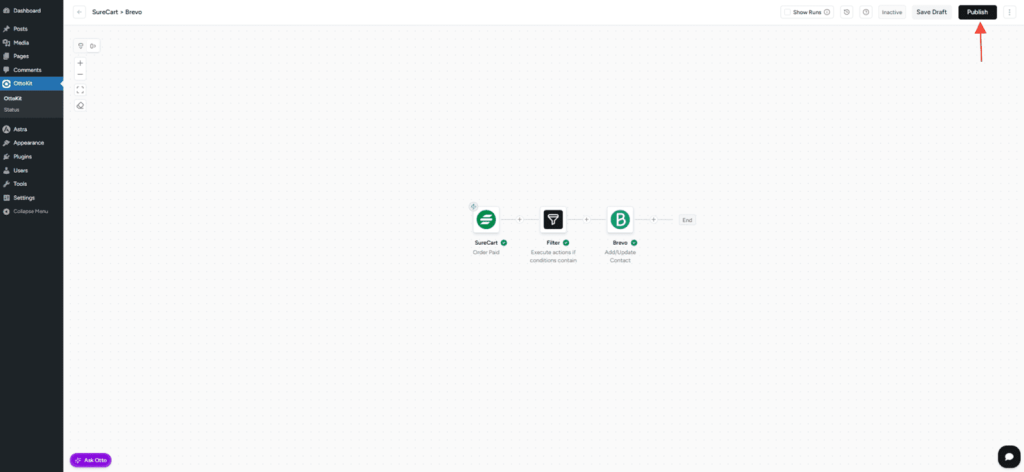
That’s it! Your workflow is now live and monitoring your SureCart store.
How It Works
From now on, every time a customer completes a purchase on your SureCart store:
- OttoKit detects the “Order Paid” event instantly
- If you added a filter, it checks whether the order matches your criteria
- The customer’s email and details are automatically sent to Brevo
- The contact is added to your chosen list (or updated if they already exist)
No manual data entry. No CSV imports. Everything happens automatically in the background.
Tips for Success
- Test with real orders – After activating, complete a test purchase to verify everything flows correctly
- Check your Brevo lists – Make sure contacts are appearing in the right folder
- Monitor your workflow – Check the workflow history in OttoKit occasionally to ensure everything is running smoothly
- Update field mappings – If you add new products or change your Brevo list structure, update your workflow accordingly
Read more at OttoKit
]]>This is where automation tools like OttoKit can make a real difference.
OttoKit helps you connect WooCommerce with Gmail and automate order confirmation emails—without writing a single line of code.
In this guide, you’ll learn how to connect WooCommerce to Gmail so that a personalized order confirmation email is automatically sent whenever a new order is placed in your store.
By setting up this automation, you can ensure customers receive accurate and timely order confirmations, while you save time and reduce manual effort.
Whether you’re selling physical products, digital downloads, or subscriptions, this step-by-step guide will help you streamline customer communication and improve the post-purchase experience.
Let’s dive in 🚀
Imagine This Scenario
Imagine you run an online store using WooCommerce.
Every time a customer places an order, you want to:
- Send a professional order confirmation email
- Include key details like order number, items purchased, total amount, and billing information
- Ensure the email is delivered instantly and reliably via Gmail
- Avoid manually checking orders or sending emails one by one
This confirmation email helps reassure customers that their order was successful and sets clear expectations for delivery or next steps.
Without automation, the process often looks like this:
- Log in to your WooCommerce dashboard
- Open the new order details
- Copy order information
- Manually draft or trigger an email
- Repeat this for every single order
As order volume increases, this workflow quickly becomes inefficient. Delays or missed confirmations can negatively impact customer trust, and support requests may increase.
The Solution with OttoKit
With OttoKit, you can automate the entire order confirmation process from WooCommerce to Gmail.
By creating a simple workflow, OttoKit will automatically:
- Detect when a new order is created in WooCommerce
- Capture essential order and customer details
- Send a customized order confirmation email via Gmail in real time
This means:
- Instant order confirmation emails
- Consistent and professional communication
- Reduced manual work
- Fewer customer support inquiries
- More time to focus on marketing and growth
Once the workflow is active, OttoKit continuously monitors new WooCommerce orders and ensures every customer receives a timely confirmation email—automatically and reliably.
In the next steps, we’ll walk you through exactly how to set this up.
Let’s get started.
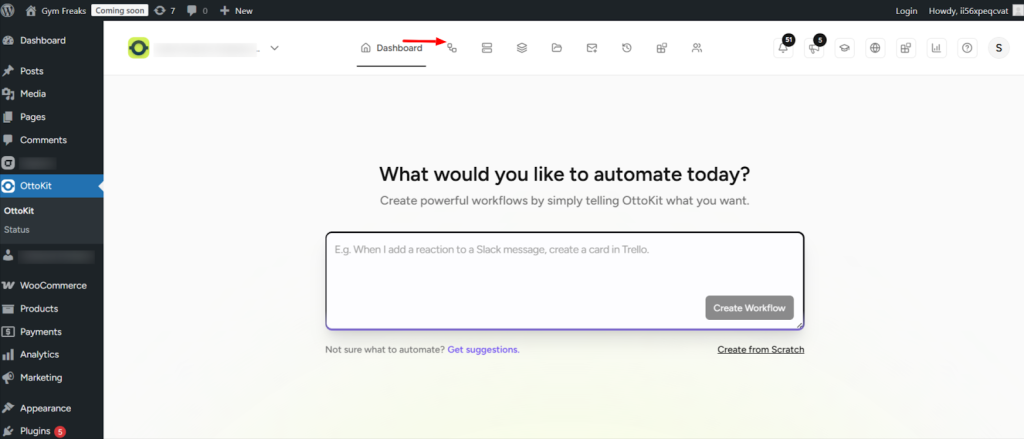
- Go to the OttoKit Dashboard.
- Click on Workflow, as shown below-
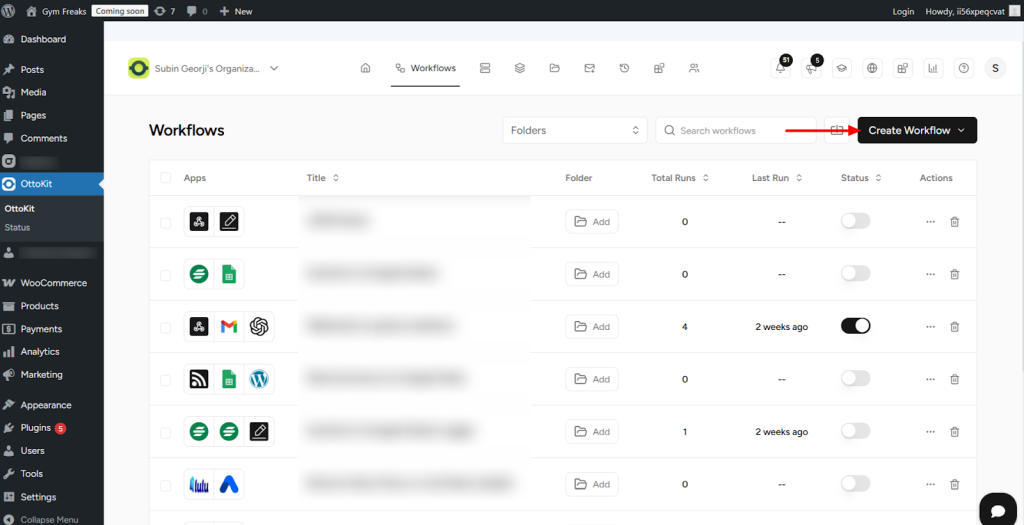
- Now, click on the Create Workflow button.
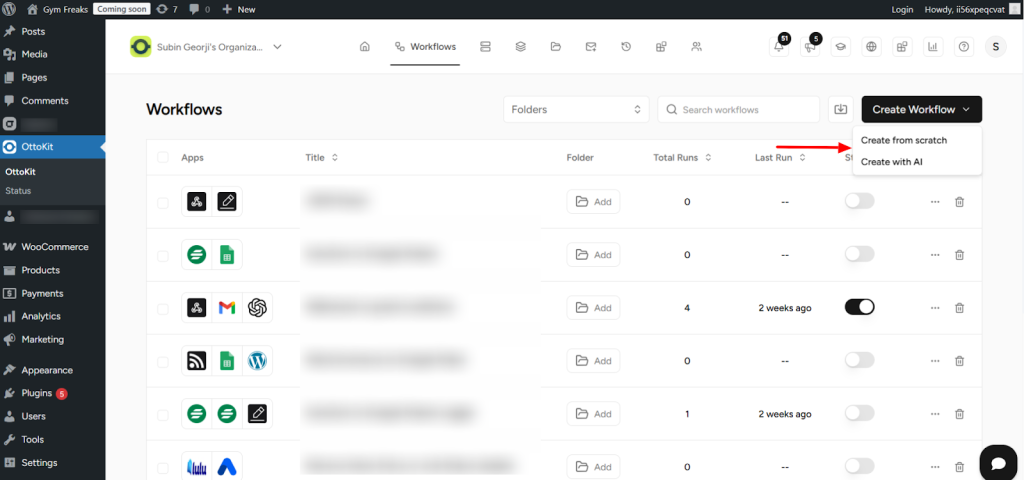
- From the dropdown, select Create from Scratch.
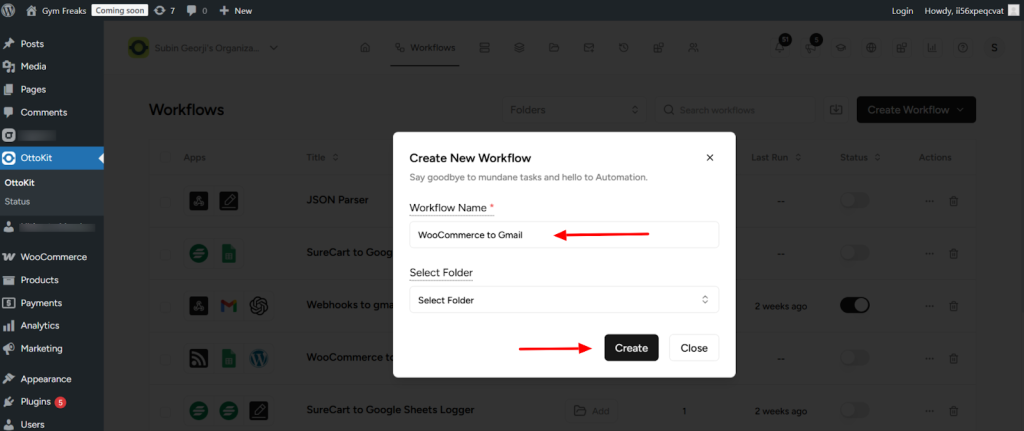
- Enter a name for your workflow and click Create.
- Next, click on the plus (+) button to add a trigger step.
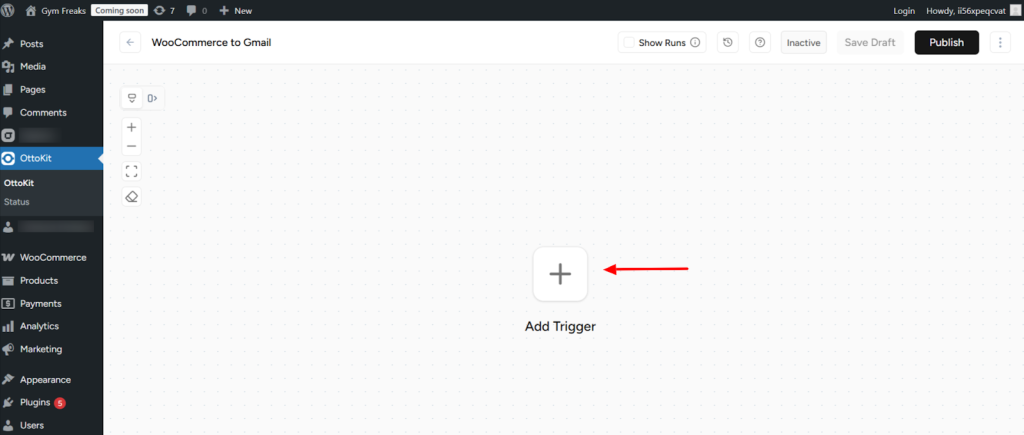
- In the apps search field, type and select WooCommerce as the trigger app
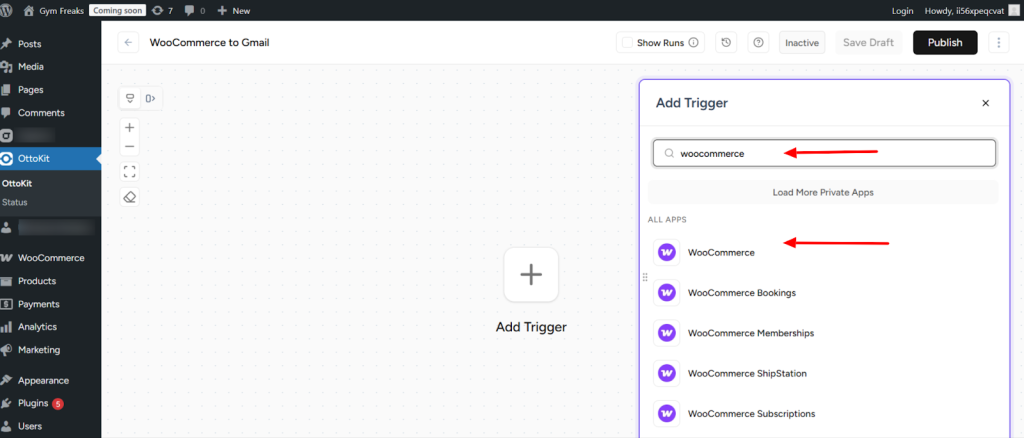
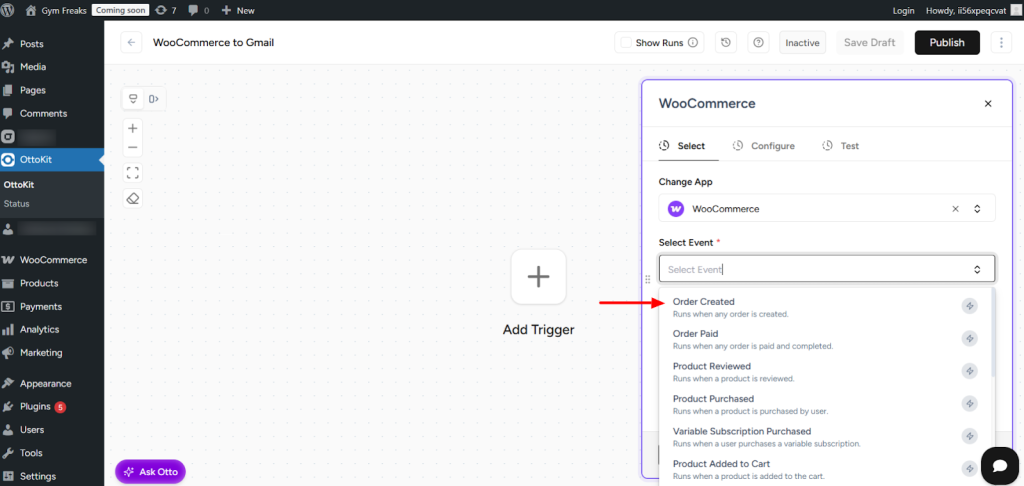
- Choose Order Created as the trigger action.
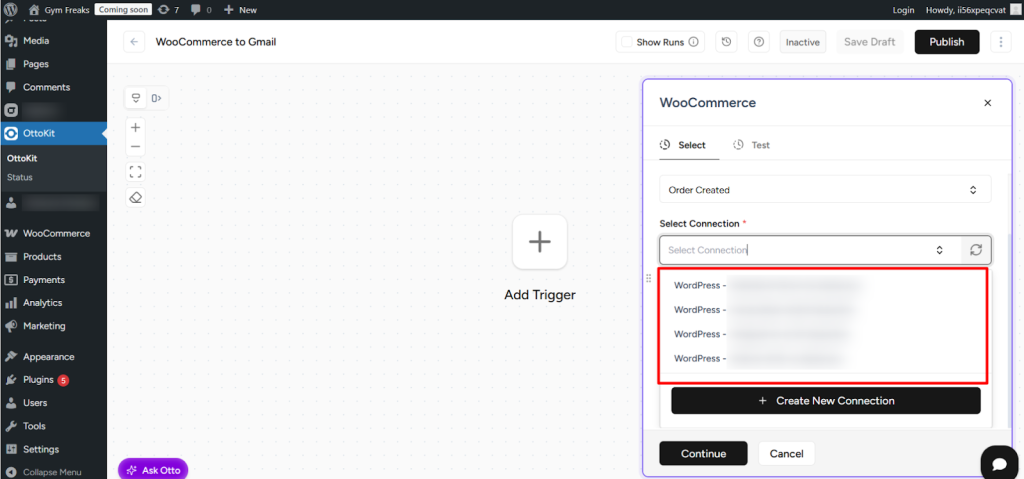
- Click on Select Connection, then choose the WordPress site you want to connect from the dropdown and click Continue.
- Now, click on Fetch Data
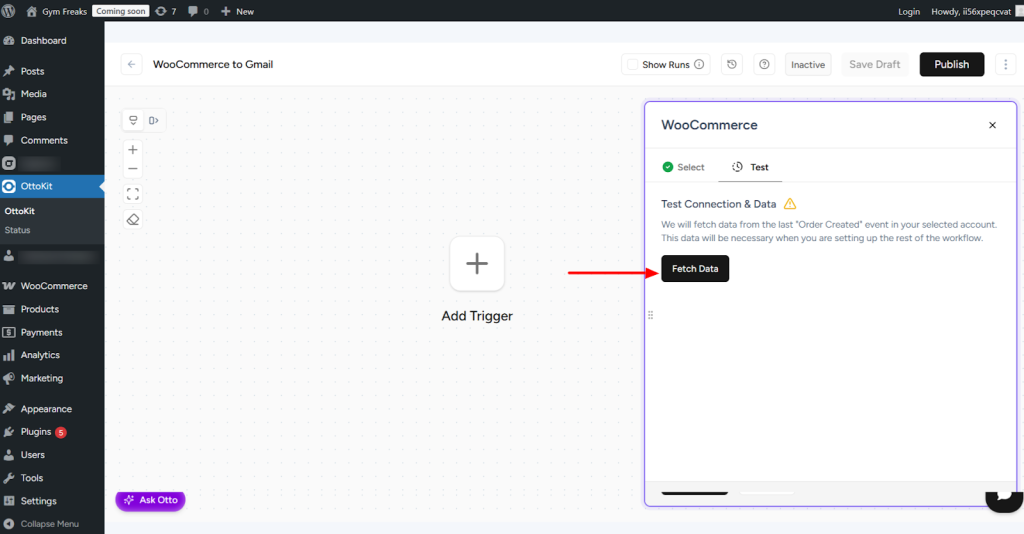
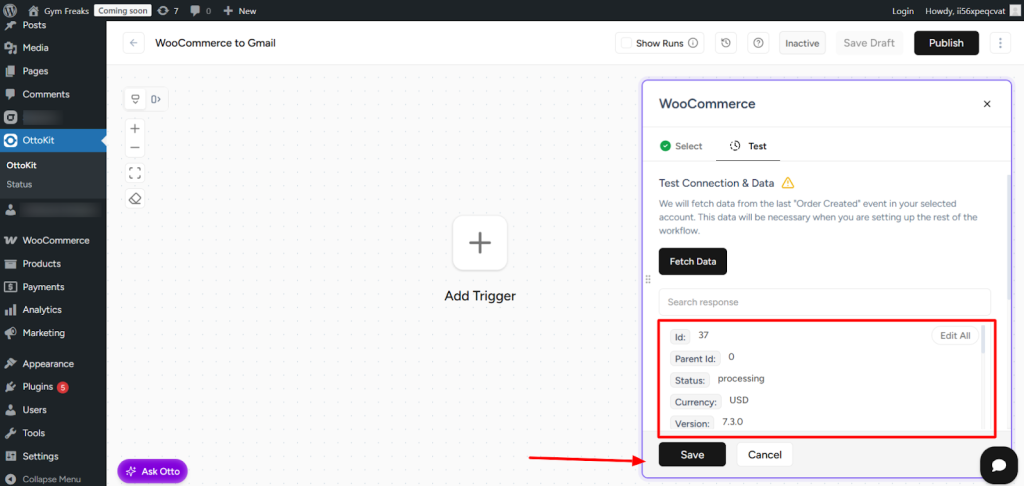
- OttoKit will automatically fetch recent order data or add sample data from your WooCommerce store (no test order is required). Once the data is fetched, click Save
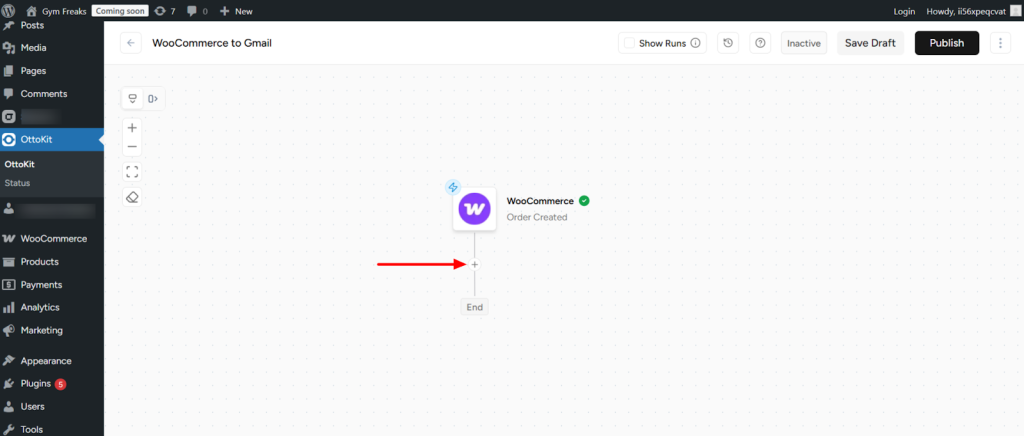
- Next, click on the plus (+) button, and in the search box, select Gmail
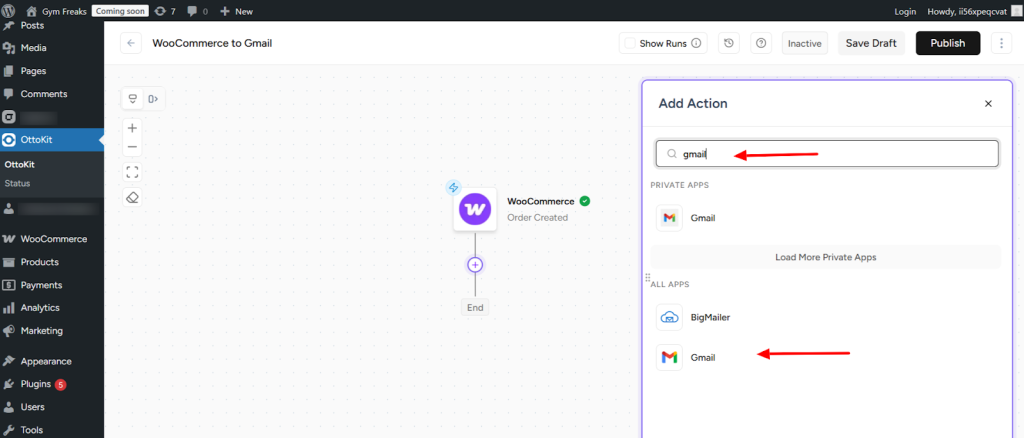
- Choose Send Email in the Gmail action step
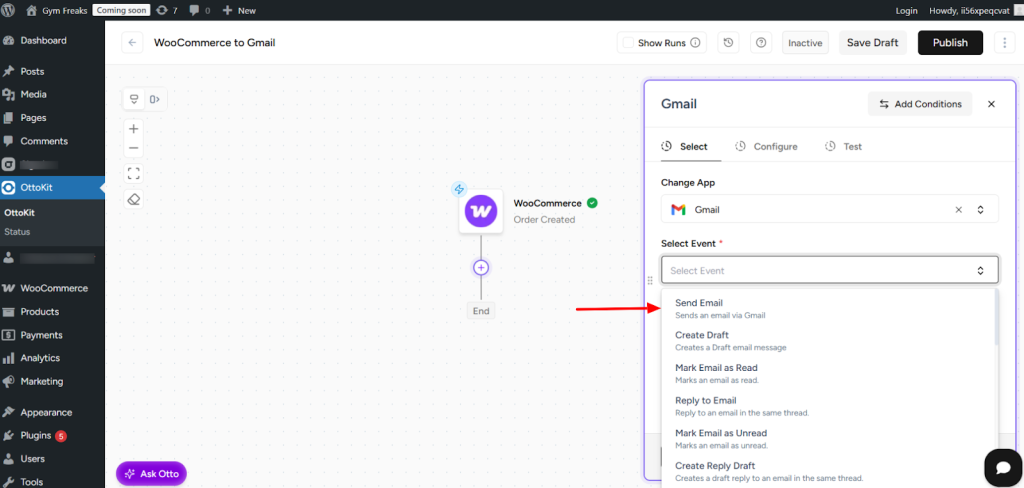
- Click on Create New Connection.
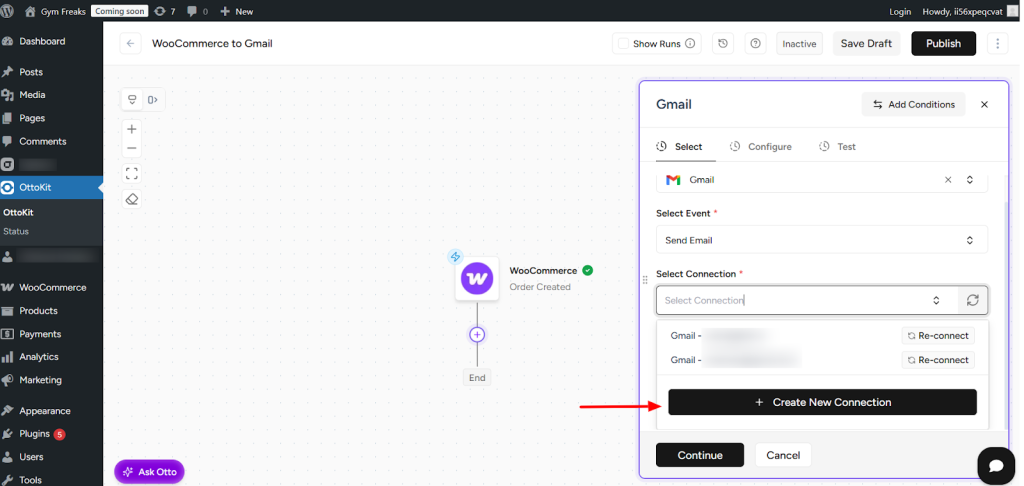
- A pop-up will appear asking you to select the email address to connect to Google account. Choose the appropriate email and continue.
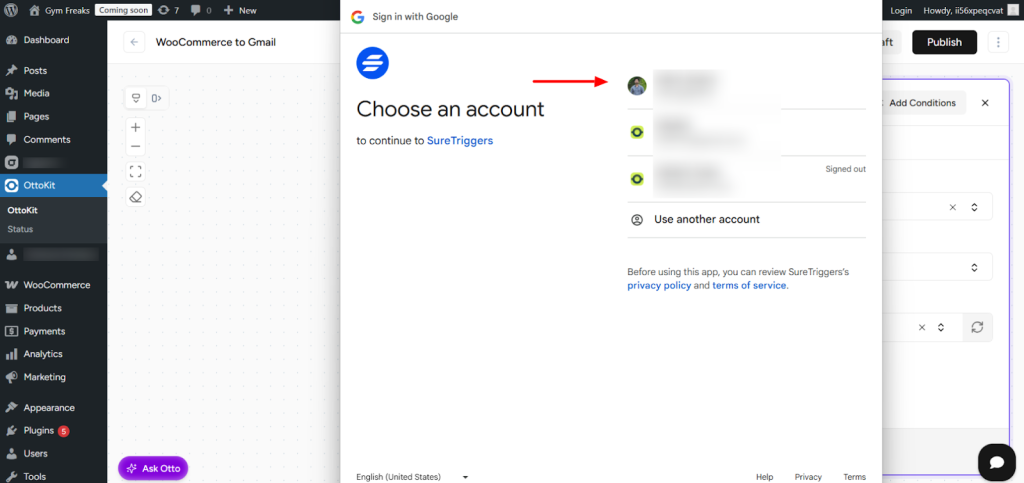
- Click Continue.
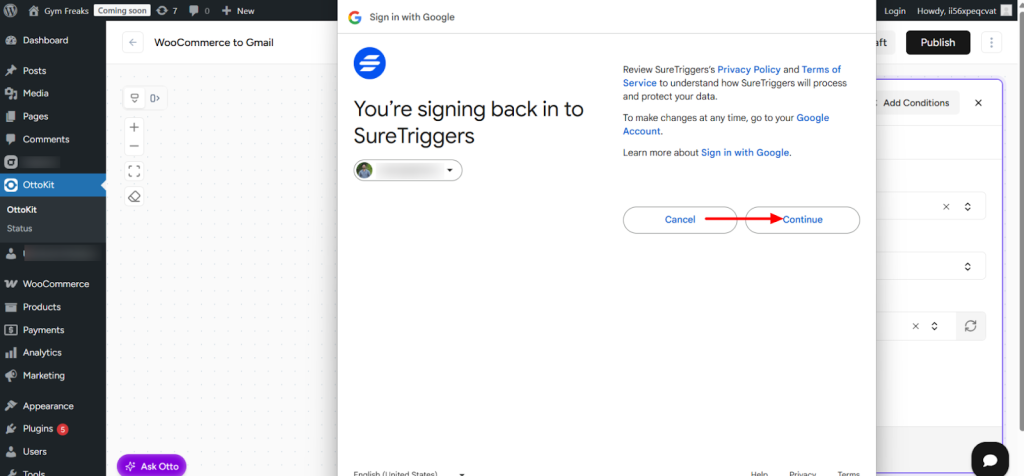
- Click Continue again
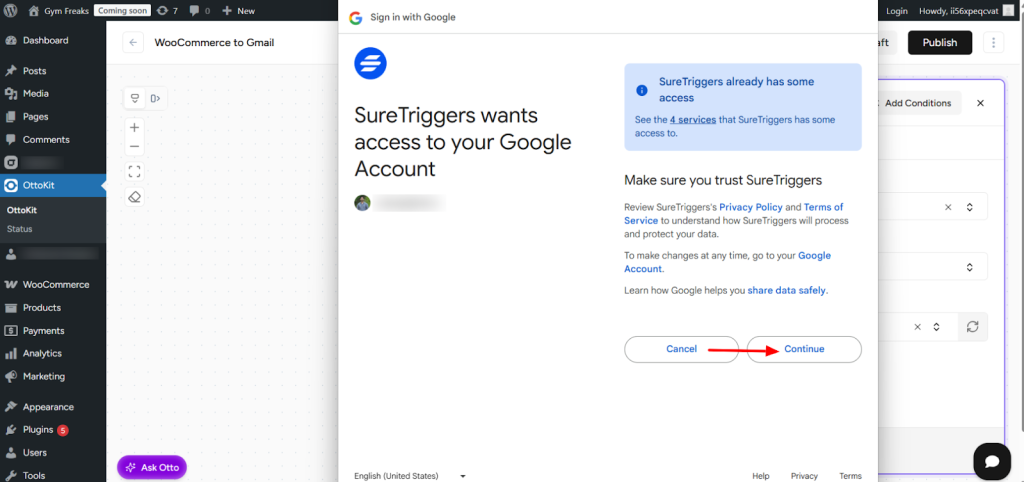
- The connection will now be created. Click Continue to proceed.
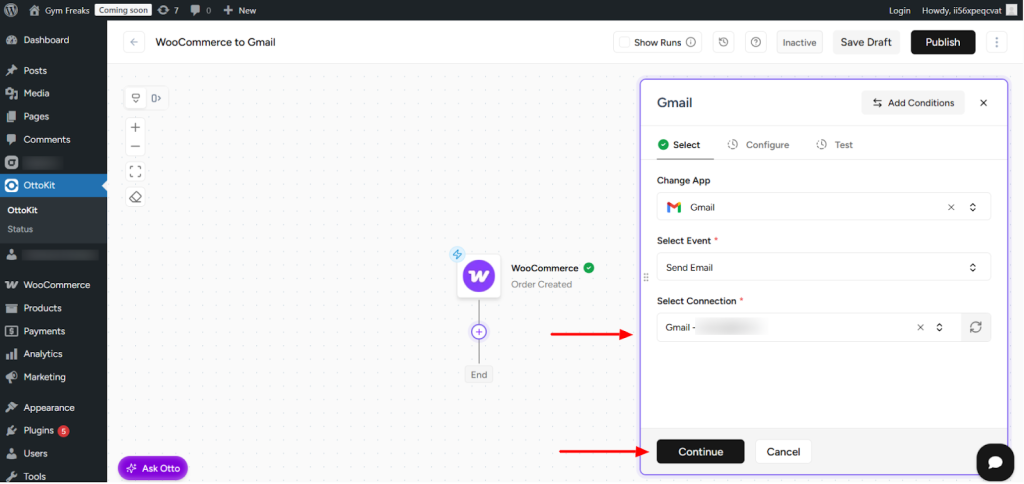
- In the To field, type @. Do the same for the other fields. A pop-up will appear showing dynamic fields from the WooCommerce response.
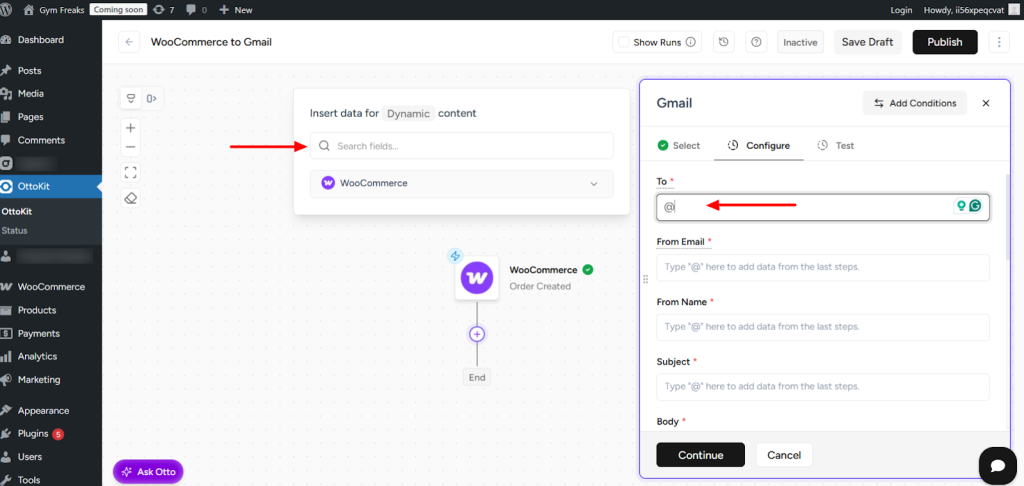
- You can search using a keyword and select the appropriate response field to map it to the column.
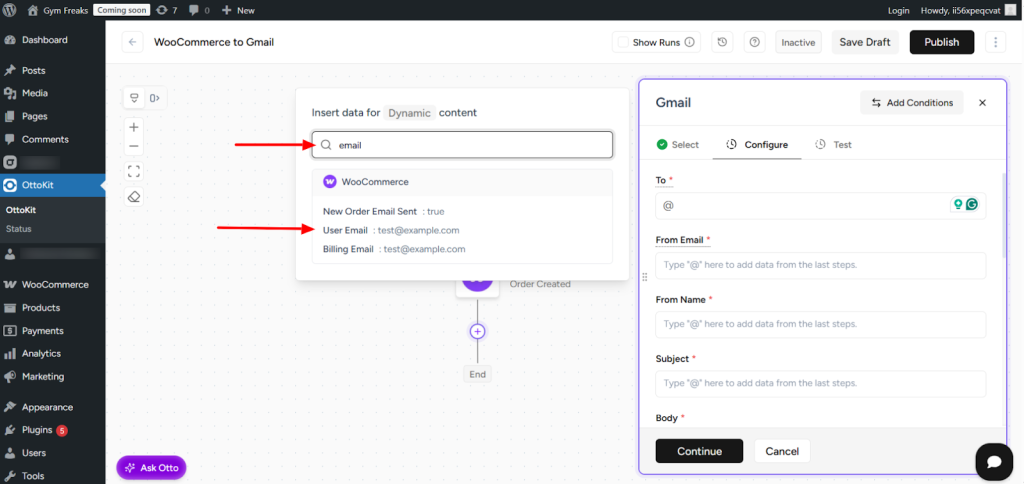
- The selected value will be added automatically. Repeat the same process for the remaining fields, then click Continue.
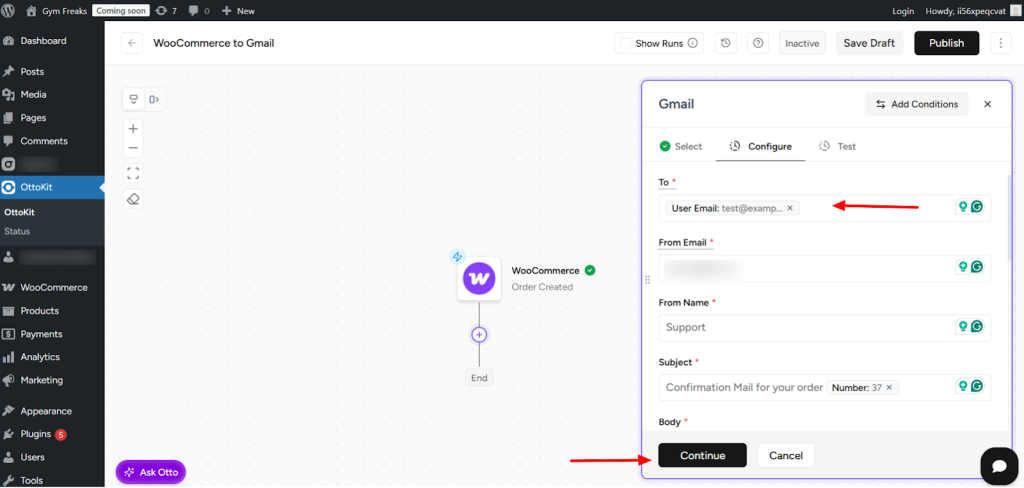
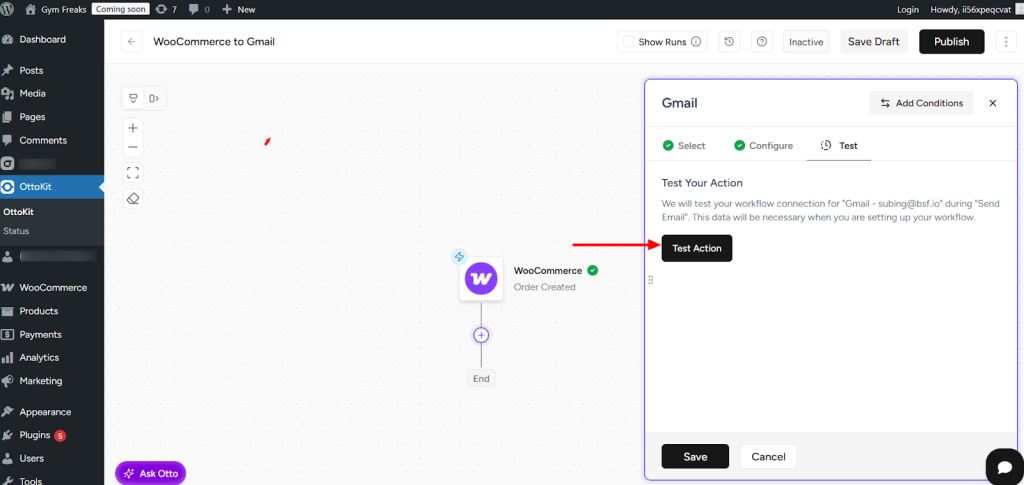
- Click on Test Action.
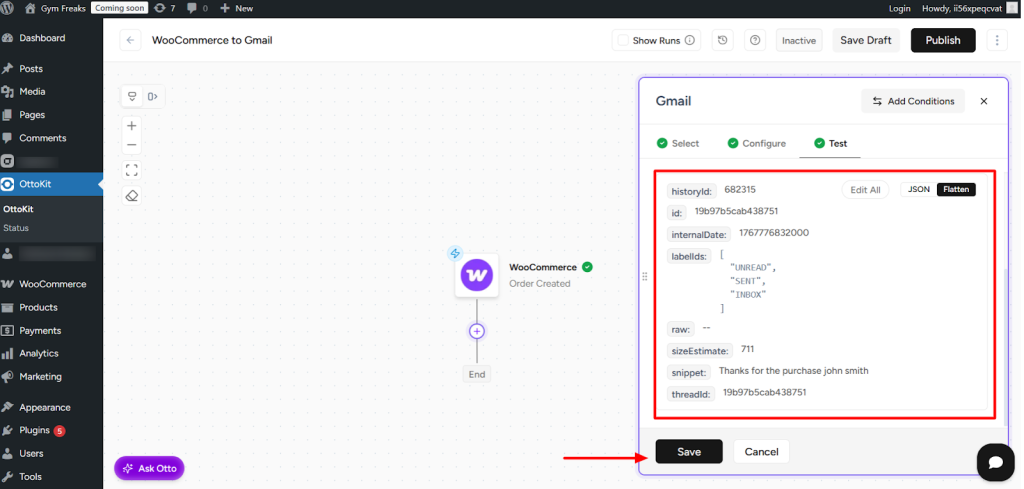
- You will see confirmation that data has been sent via Gmail. Once verified, click Save.
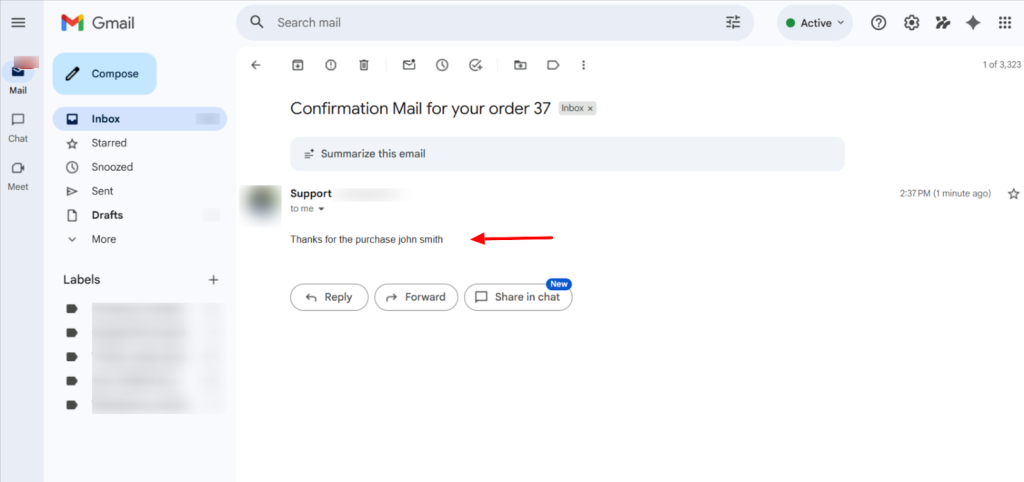
- Check your Gmail to confirm that the test data has been received successfully.
- Finally, click on Publish Workflow located at the top-right corner.
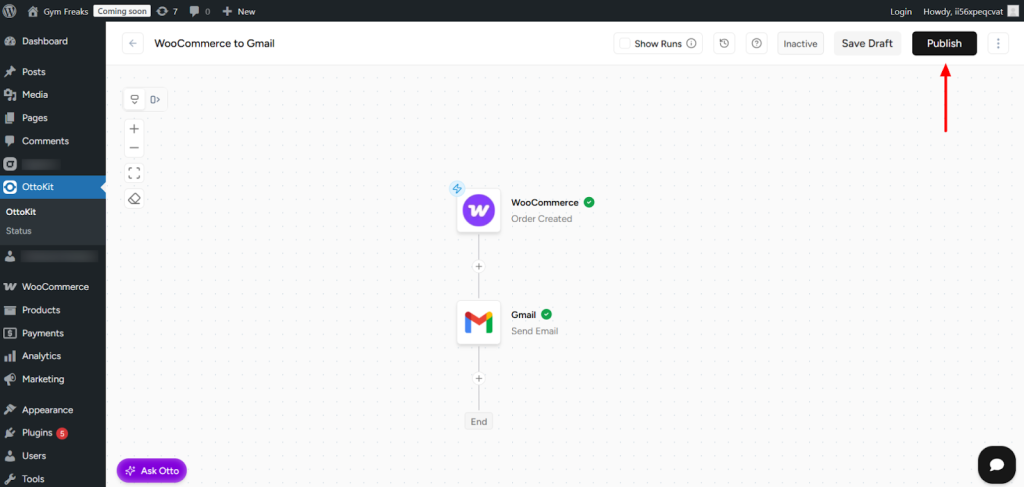
That’s it, your workflow is set up and is now Live.
You can perform a test submission by creating a new WooCommerce order and checking inside the email.
Need Help?
If you get stuck, don’t hesitate to reach out to our support team at [email protected]. We will be happy to assist you and ensure that everything works smoothly.
Read more at OttoKit
]]>Perfect for content teams, editors, managers, or anyone who needs to track new content as it’s published.
What You’ll Need
Before you start, make sure you have:
- OttoKit plugin installed and activated on your WordPress site (Download from WordPress.org)
- An OttoKit account (sign up for free if you don’t have one yet)
- A Gmail account for sending notifications
Step 1: Connect OttoKit to Your WordPress Site
First, let’s establish the connection between OttoKit and your WordPress site.
- In your WordPress dashboard, go to OttoKit in the sidebar.
- Click Sign In and log in with your OttoKit account credentials.
- This creates a connection between OttoKit and your site.
Good to know: WordPress automatically connects to OttoKit once you sign in. You won’t need to create a separate connection for WordPress; it’s ready to use right away.
Step 2: Create Your Workflow in OttoKit
Let’s build the automation that sends an email whenever a new post is created.
Create a New Workflow
- In your WordPress dashboard, go to OttoKit → Workflows.
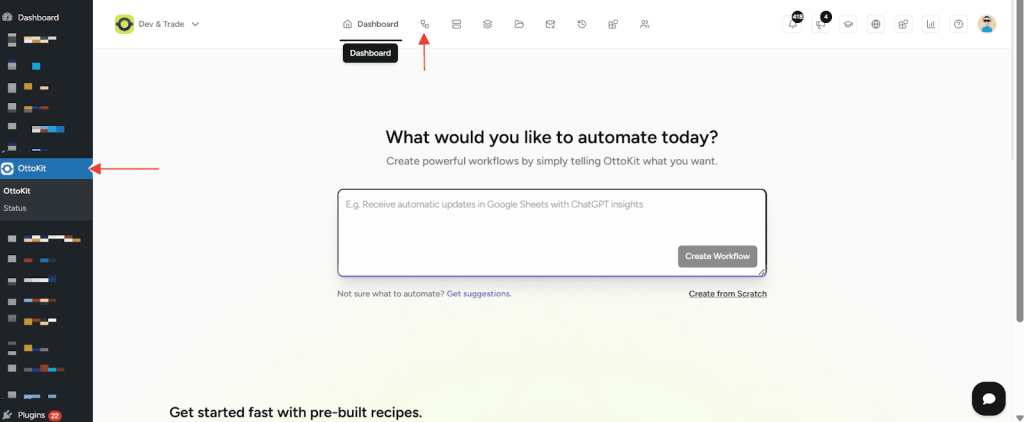
- Click Create Workflow.
- From the dropdown, select Create from Scratch.
- Enter a name for your workflow, like “New Post Email Notification” or “Team Post Alerts”.
- Click Create.
Add the WordPress Trigger
The trigger is what starts your workflow. In this case, it’s whenever a post is created or updated.
- Click the plus (+) button to add a trigger step.
- In the apps search field, type WordPress and select it.
- Choose the Post Created/Updated trigger event.
- Click Select Connection, then choose your WordPress site from the list. (It should appear automatically since you signed in earlier.)
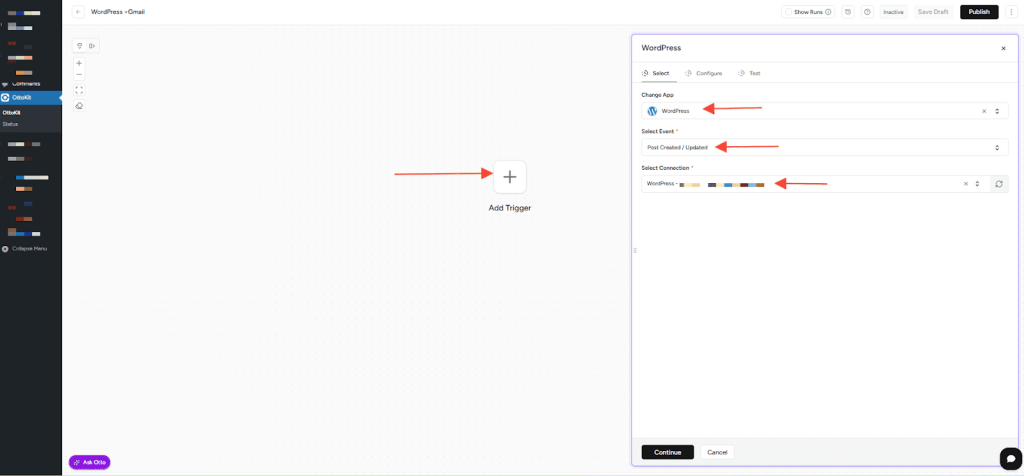
- Click Continue to open the Configure tab.
Configure the Trigger
- Post Type – Select the type of post you want to track (typically “Post”, but you can choose “Page” or any custom post type).
- Post – Select Any One to trigger the workflow for any post, or choose a specific post if you only want to track certain content.
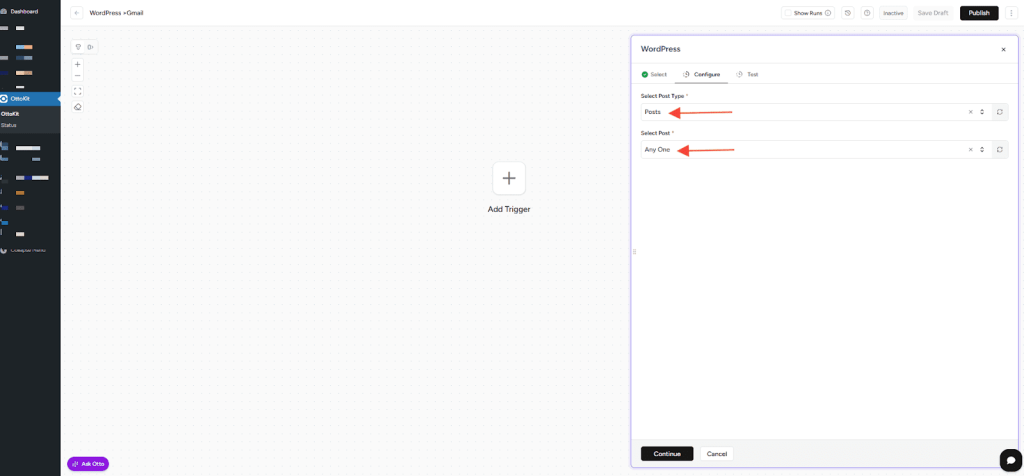
- Click Continue to move to the Test Step.
Test Your Trigger
OttoKit needs sample data from an actual post to map fields correctly.
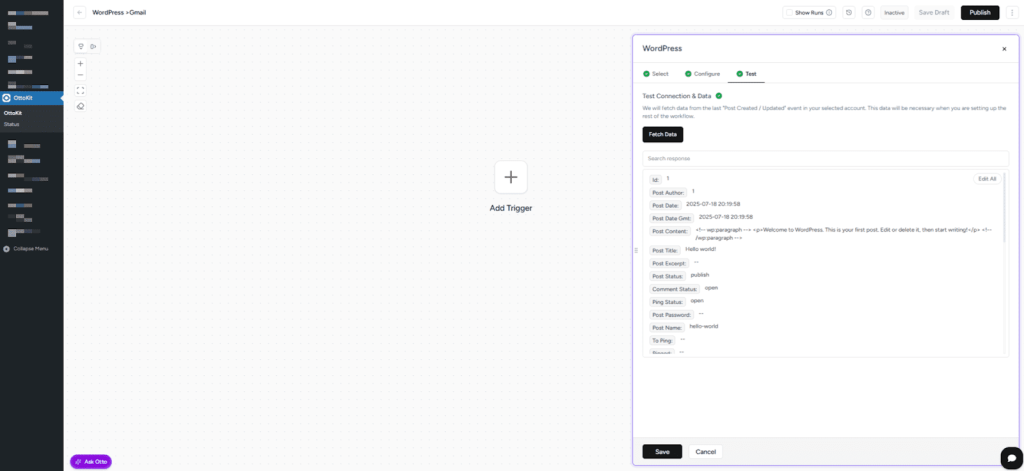
- On the Test Step page, click Fetch Data.
- OttoKit will pull data from a recent post on your site.
- You’ll see the post details appear (title, author, publish date, etc.).
- Click Save to confirm and save the trigger data.
Perfect! Your trigger is now set up and knows what information to pull from new posts.
Step 3: Add the Gmail Action
Now let’s instruct OttoKit on what to do with the post data—send an email notification via Gmail.
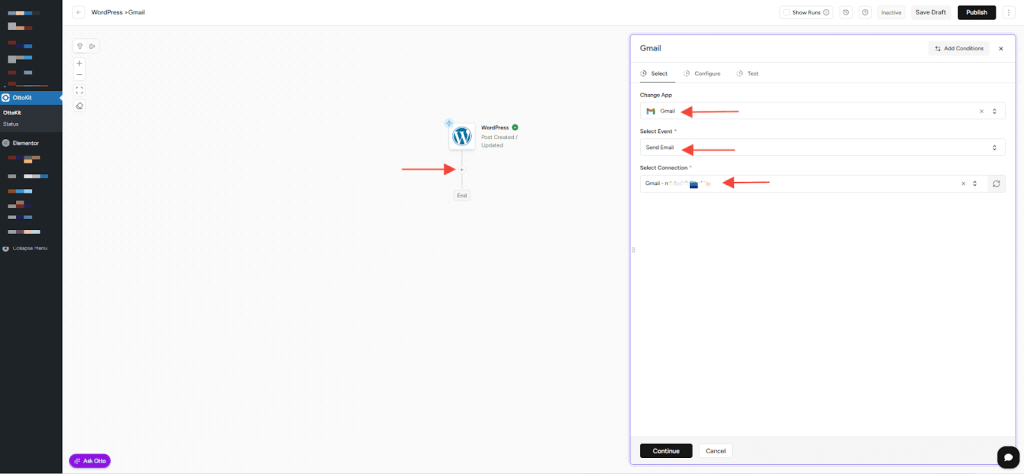
- Click the plus (+) icon below your trigger step to add an action.
- In the apps search field, type Gmail and select it.
- Choose the Send Email action.
- Click Select Connection, then click the Create Connection button.
Connect Your Gmail Account
- A pop-up window will appear asking you to connect your Gmail account.
- Follow the prompts to sign in to your Google account.
- Review the permissions OttoKit needs (send emails on your behalf) and click Allow.
- The pop-up will close, and your Gmail connection will appear in OttoKit.
Configure the Email
Now, let’s set up what the notification email will say.
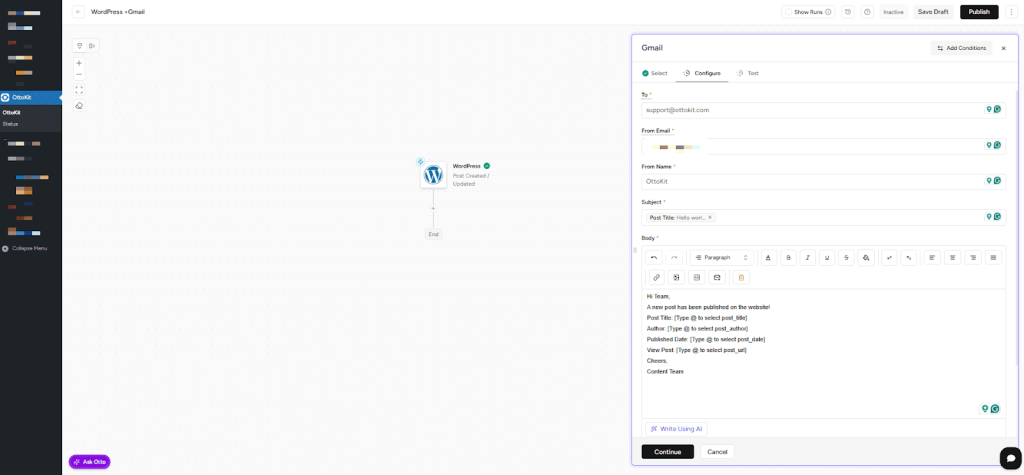
- To – Enter the recipient’s email address (or multiple addresses separated by commas).
- From – This field automatically shows your connected Gmail address.
- From Name – Enter your name or your organization’s name (e.g., “Content Team” or “WordPress Site”).
- Subject – Write the email subject. You can include dynamic data from the post by typing @ in the field to see available data from your trigger.
- Example: New Post Published: [Post Title]
- Body – Compose the email message. Type @ in any field to map data from your WordPress trigger or previous steps:
Example:
Hi Team,
A new post has been published on the website!
Post Title: [Type @ to select post_title]
Author: [Type @ to select post_author]
Published Date: [Type @ to select post_date]
View Post: [Type @ to select post_url]
Cheers,
Content Team
- Label – Select Sent to file the email in your Gmail Sent folder.
Pro tip: Typing @ in any field brings up a dropdown of all available data from your trigger and previous workflow steps. This makes it easy to personalize your emails with real post data.
Add Optional Fields (If Needed)
Click Show Optional Fields to access additional email options:
- CC – Add any email addresses that should receive a copy.
- BCC – Add addresses for blind carbon copy.
- Reply To – Specify a different reply-to address if needed.
- Attachments – Add file attachments if you want to include documents.
Test Your Action
- Click Continue to move to the Test Step.
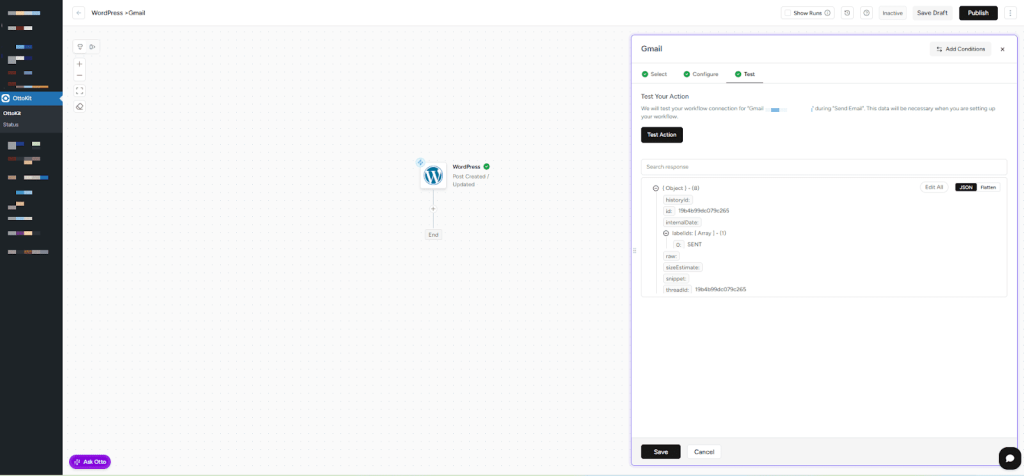
- Click Test Action.
- OttoKit will send a test email using the configuration you just set up.
- Check the recipient’s inbox to verify the email arrived correctly.
- If everything appears to be in order, click Save.
Step 4: Activate Your Workflow
Your workflow is built and tested, now let’s turn it on.
- At the top right corner of the workflow builder, click on the Publish button
- You’ll see the status change to Update.
That’s it! Your workflow is now live and monitoring your WordPress site.
How It Works
From now on, every time a post is created or updated on your WordPress site:
- OttoKit detects the change instantly
- It pulls the post details (title, author, link, etc.)
- A notification email is automatically sent to your team via Gmail
No manual work required. Your team stays informed in real-time, automatically.
Tips for Success
- Customize your email – Make the subject and body clear and actionable for your team
- Use dynamic fields – Include post title, author, and link so recipients have all the context they need
- Test with a real post – Create or update a test post to make sure the email looks exactly how you want it
- Add multiple recipients – Use the To field to notify your entire team at once, or use CC for optional recipients
- Check your spam folder – If test emails don’t arrive, check spam/junk folders and mark OttoKit emails as “Not Spam.”
What’s Next?
Now that you’ve automated post notifications, you can expand this workflow:
- Add conditional logic to only notify for specific post categories or tags
- Send notifications to different people based on the post author
- Include post featured images in the email
- Send notifications to Slack, Microsoft Teams, or other platforms
- Create separate workflows for different post types (posts, pages, custom post types)
You’ve just automated your first WordPress-to-email workflow with OttoKit. There’s so much more you can do from here.
Ready to automate something else? Head back to OttoKit → Workflows and start building your next automation.
Read more at OttoKit
]]>Every time someone fills out your form, their information is automatically entered into your spreadsheet, keeping your data organized and accessible in real-time.
What You’ll Need
Before you start, make sure:
- Elementor Pro is installed and activated on your WordPress site
- The OttoKit plugin is installed and activated on the same site (Download from WordPress.org)
- An OttoKit account (sign up for free if you don’t have one yet)
- A Google Sheets account
Step 1: Connect OttoKit to Your WordPress Site
First, you need to establish a connection between OttoKit and your WordPress site.
- In your WordPress dashboard, go to OttoKit in the sidebar.
- Click Sign In and log in with your OttoKit account credentials.
- This creates a connection between OttoKit and your site.
You can refer to this document for more information: Connect WordPress to OttoKit
Good to know: WordPress plugins like Elementor Pro don’t need a separate connection in OttoKit. Once Elementor Pro is installed and activated, you can immediately start building workflows with it.
Step 2: Create Your Form in Elementor
If you haven’t already created your form, here’s how:
- Go to Pages in WordPress and open the page where you want your form (or create a new page).
- Click Edit with Elementor.
- In the Elementor sidebar, search for “Form” in the widgets search bar.
- Drag and drop your preferred form widget onto the page.
- Customize the form fields as needed (e.g., name, email, message).
- Click Publish to save your page.
Make sure your form is live and accessible on the front end—you’ll need to submit a test entry later.
Step 3: Create Your Workflow in OttoKit
Now let’s set up the automation that connects your form to Google Sheets.
Create a New Workflow
- In your WordPress dashboard, go to OttoKit → Workflows.
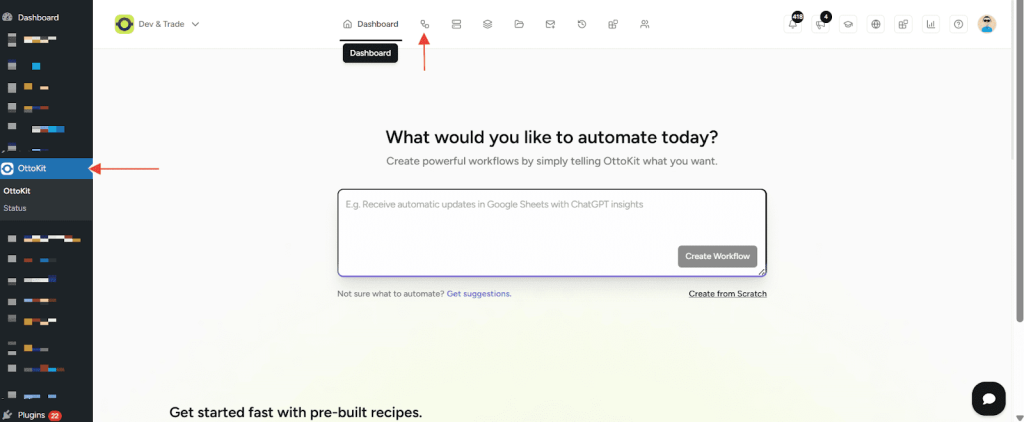
- Click Create Workflow, from the dropdown, select Create from Scratch.
- Enter a name for your workflow, like “Elementor to Google Sheets” or “Form Submissions Tracker”.
- Click Create.
Add the Elementor Pro Trigger
A trigger is what kicks off your workflow. In this case, it’s whenever someone submits your form.
- Click the plus (+) button to add a trigger step.
- In the app’s search field, type Elementor Pro and select it.
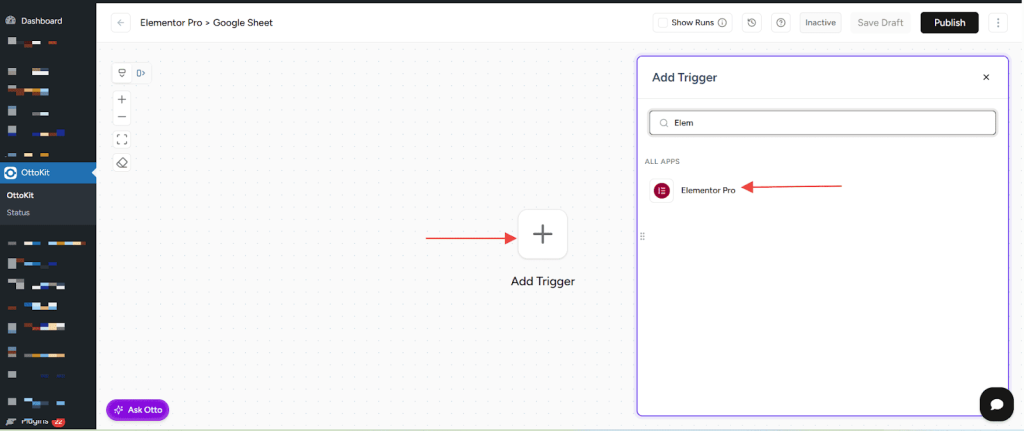
- Choose the Form Submitted trigger event.
- Click Select Connection, then choose your WordPress site from the list. (Your site should appear automatically since you signed in earlier.)
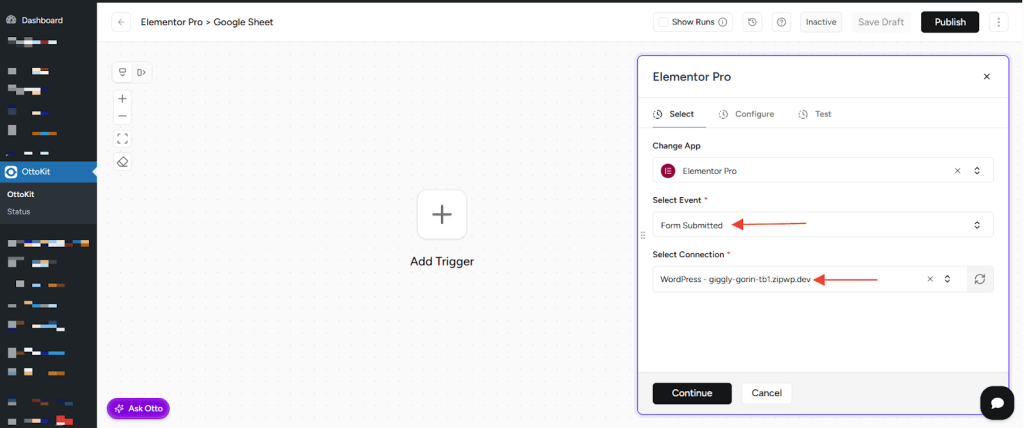
- Click Continue to open the Configure tab.
- From the dropdown, select the specific form you want to track.
- Click Continue to move to the Test Step.
Test Your Trigger
OttoKit needs to capture a real form submission to map the data correctly.
- You’ll see a message: “We are waiting for the Form Submitted event…” with a 5-minute countdown timer.
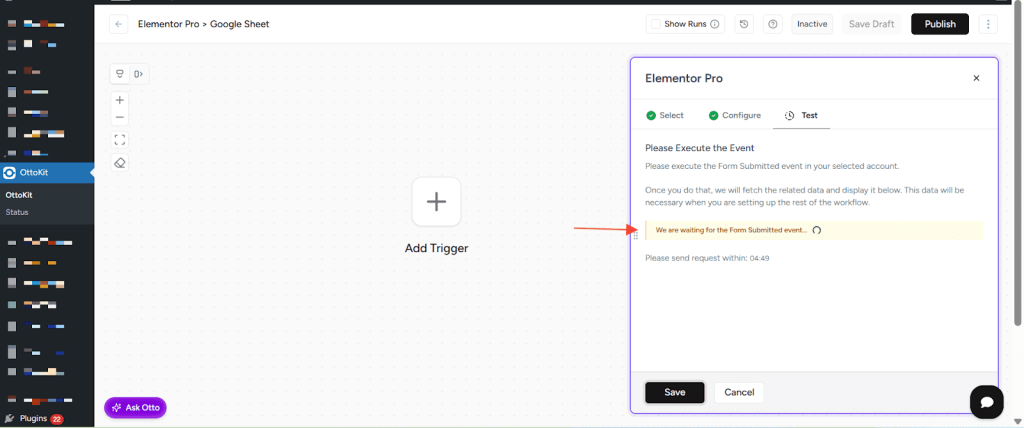
- Open a new browser tab and visit your form page on the front end (where visitors would see it).
- Fill out the form with test data and click Submit.
- Switch back to OttoKit. The form data should appear automatically.
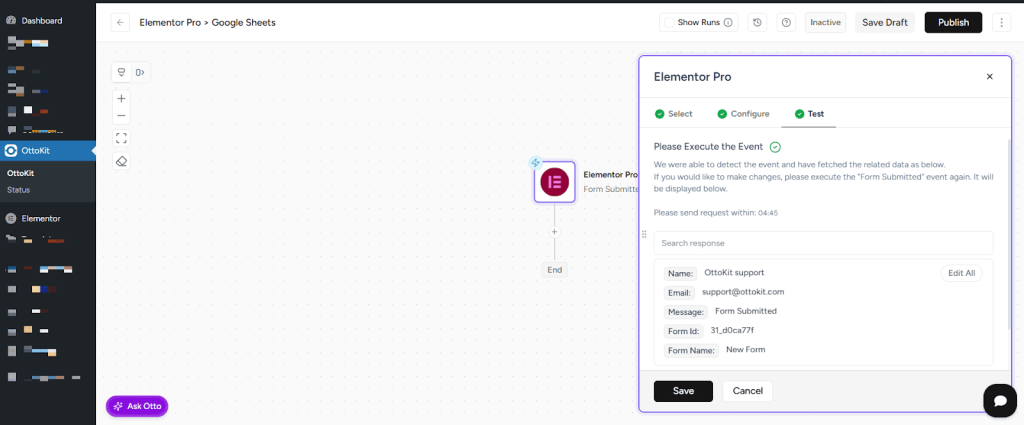
- Click Save to confirm and save the trigger data.
Great! Your trigger is now set up and knows what data to expect from your form.
Step 4: Add the Google Sheets Action
Now let’s tell OttoKit what to do with that form data, send it to Google Sheets.
- Click the plus (+) icon below your trigger step to add an action.
- In the apps search field, type Google Sheets and select it.
- Choose the Add Row to Sheet action (or your preferred action).
- Click Select Connection:
- If this is your first time connecting to Google Sheets, click Create New Connection and follow the prompts to authorize OttoKit to access your Google account.
- If you’ve already connected to Google Sheets, select your existing connection.
- Click Continue to open the Configure tab.
Configure Google Sheets
- Select Spreadsheet – Choose the Google Sheets file where you want the data to go (or create a new one in Google Sheets first).
- Select Worksheet – Choose the specific sheet/tab within that spreadsheet.
- Map Your Fields – Match your form fields to the spreadsheet columns:
- For example, if your form has “Name”, “Email”, and “Message” fields, map them to the corresponding columns in your sheet.
- Click in each field and select the matching data from your Elementor Pro trigger (they’ll appear with a purple tag icon).
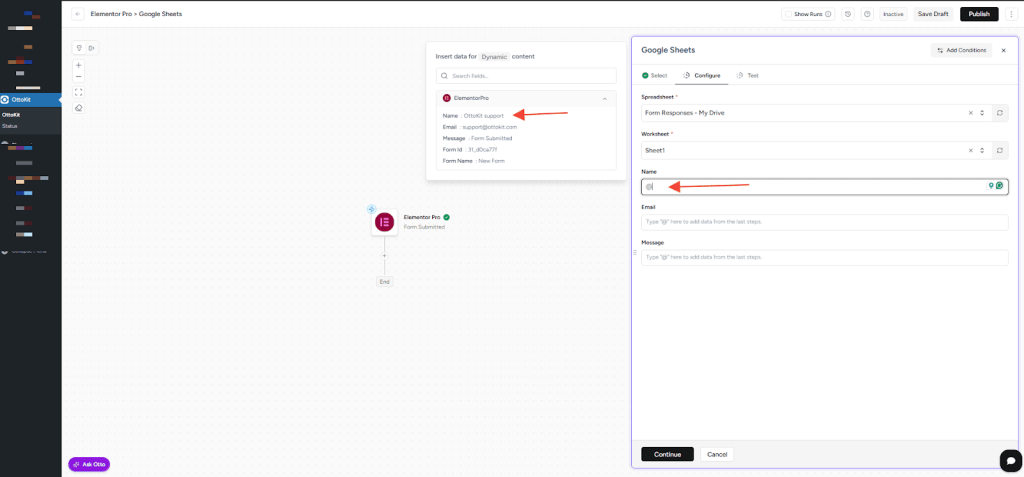
- Click Continue to move to the Test Step.
Test Your Action
- Click Test to send your test data to Google Sheets.
- OttoKit will attempt to add the row to your spreadsheet.
- If successful, you’ll see a confirmation message.
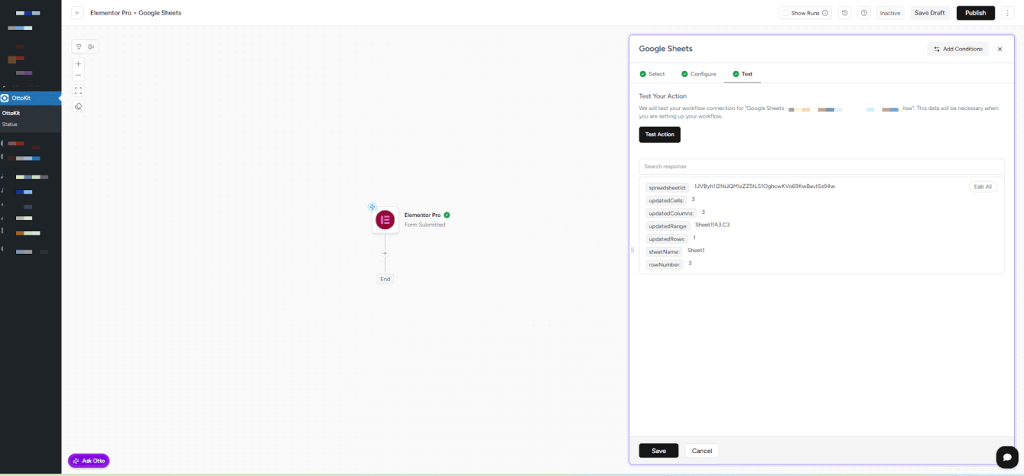
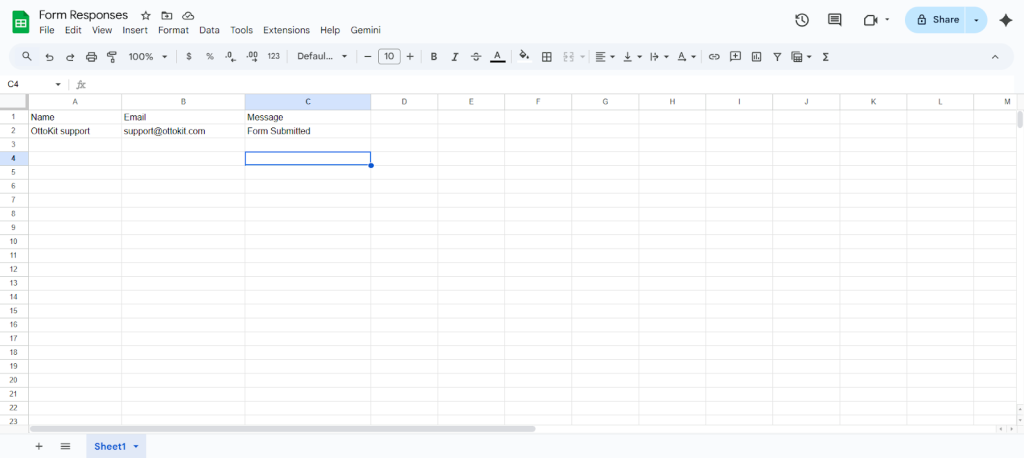
- Open your Google Sheet in a new tab to verify that the data appears correctly.
- If everything appears to be in order, click Save.
Step 5: Activate Your Workflow
Your workflow is built, but it’s not running yet. Let’s turn it on.
- At the top right corner of the workflow builder, click on the Publish button
- You’ll see the status change to Update, showing it’s now active.
That’s it! Your workflow is now live and running in the background.
How It Works
From now on, every time someone submits your Elementor Pro form:
- OttoKit instantly captures the submission
- The data is automatically sent to your Google Sheets spreadsheet
- A new row is added with all the form details
You don’t have to do anything manually. Your data flows automatically from form to sheet, keeping everything organized and up-to-date.
Tips for Success
- Test thoroughly – Submit a few test entries to make sure everything maps correctly
- Check your sheet structure – Make sure your Google Sheets columns match the data you’re sending
- Monitor your workflow – Check the workflow history in OttoKit occasionally to ensure everything is running smoothly
- Update field mappings – If you add or change form fields in Elementor, update your workflow by doing a new fetch data and updating the Google sheet action to reflect those changes
What’s Next?
Now that you’ve automated your form-to-sheets process, you can build on this workflow:
- Add email notifications when forms are submitted
- Send data to multiple sheets
- Filter submissions based on specific criteria
- Create conditional logic to handle different form responses
The possibilities are endless. You’ve just taken your first step into workflow automation with OttoKit, and there’s so much more you can do from here.
Ready to automate something else? Head back to OttoKit → Workflows and start building your next automation.
Read more at OttoKit
]]>That’s where automation tools like OttoKit come in. OttoKit allows you to connect your apps and automate repetitive tasks—without writing any code.
In this guide, we’ll show you how to connect SureCart with Google Sheets and automatically add a new row to a spreadsheet whenever a new order is created in SureCart.
By setting up this automation, you can maintain a real-time, organized record of your orders in Google Sheets—without copying and pasting data manually.
Whether you’re running a membership site, selling digital products, or managing subscriptions, this step-by-step guide will help you streamline order tracking and improve operational efficiency.
Let’s get started!
Imagine This Scenario
Imagine you sell digital products or subscriptions using SureCart.
Each time a customer completes a purchase, you want to keep track of important order details—such as the order ID, customer email, product name, purchase amount, and order date—in a Google Sheet.
This Google Sheet might be used for:
- Internal reporting
- Accounting or reconciliation
- Customer management
- Sharing data with your team
If done manually, the process usually looks like this:
- Log in to your SureCart dashboard
- Open the order details
- Copy the required information
- Paste it into Google Sheets
- Repeat this process for every new order
As your sales grow, this quickly becomes time-consuming and error-prone. Important updates may be missed, and your spreadsheet may not reflect the latest data.
The Solution with OttoKit
With OttoKit, you can automate this entire process.
By creating a simple workflow, OttoKit will automatically:
- Detect when a new order is created in SureCart
- Capture the relevant order details
- Add a new row to your Google Sheet in real time
This means:
- No manual data entry
- Accurate and up-to-date order records
- Better visibility for reporting and decision-making
- More time to focus on growing your business
Once the workflow is set up, OttoKit continuously syncs your SureCart orders to Google Sheets—so everything stays organized automatically.
Let’s get started.
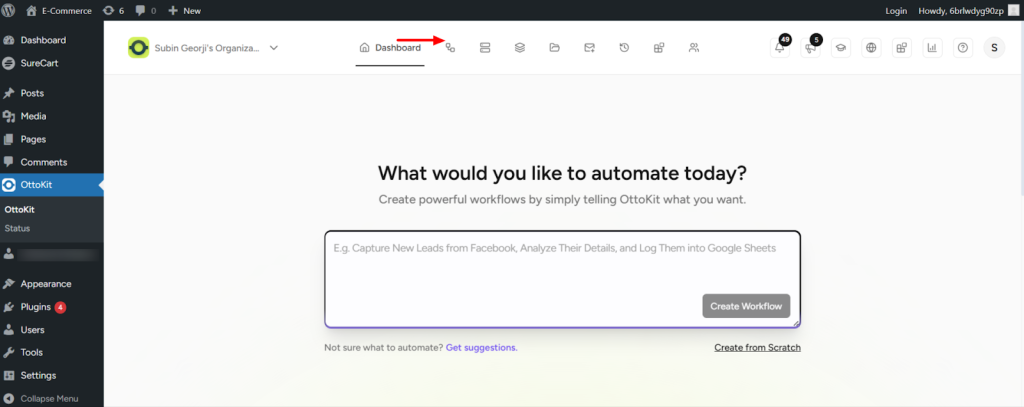
- Go to the OttoKit Dashboard.
- Click on Workflow, as shown below-
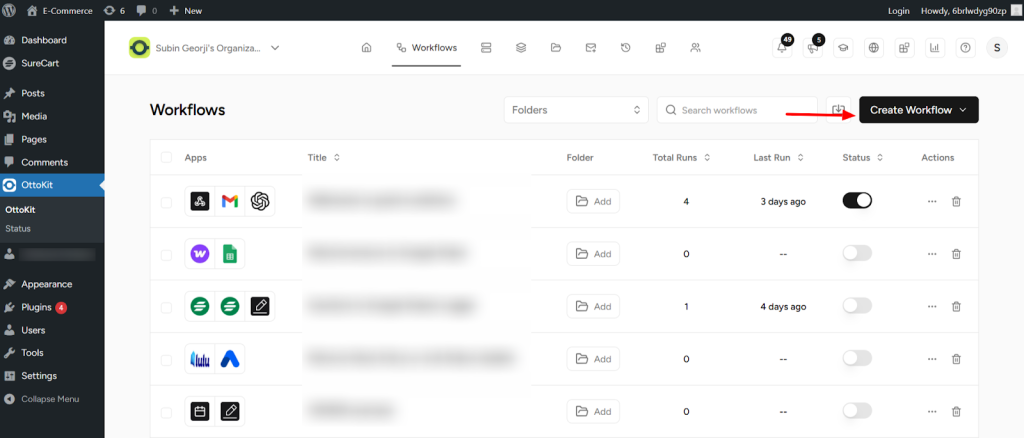
- Now, click on the Create Workflow button.
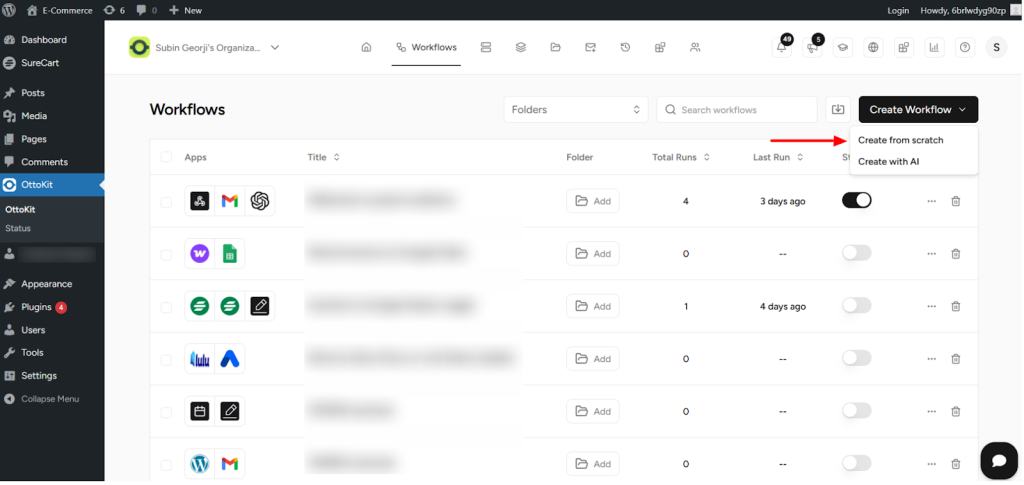
- From the dropdown, select Create from Scratch.
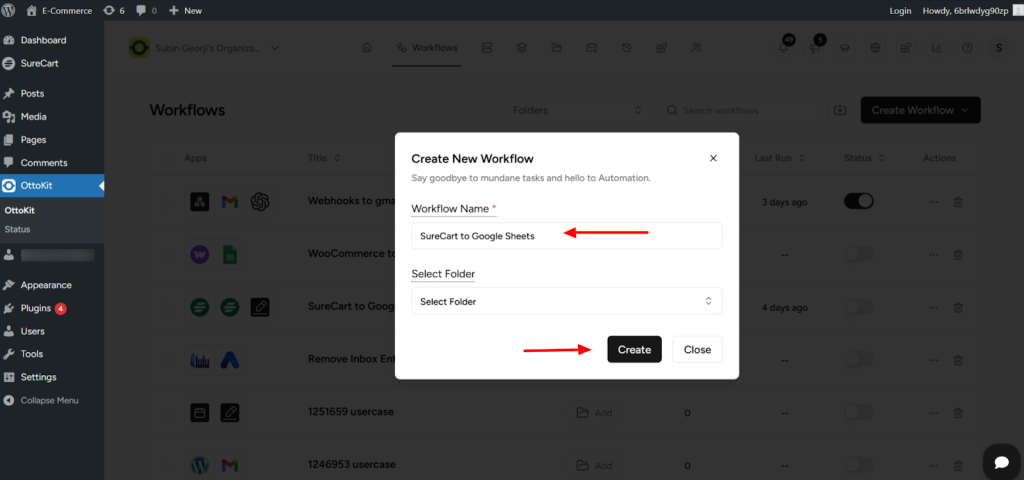
- Enter a name for your workflow and click Create.
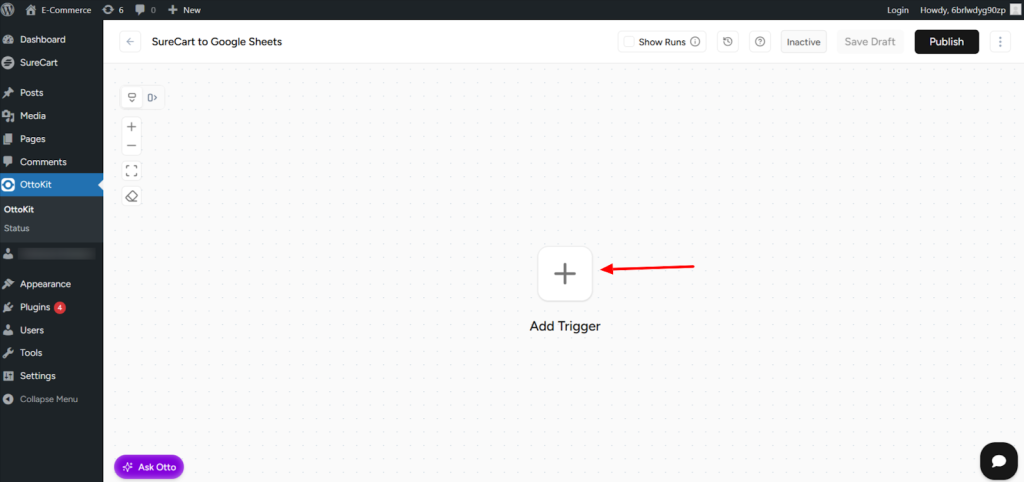
- Next, click on the plus (+) button to add a trigger step.
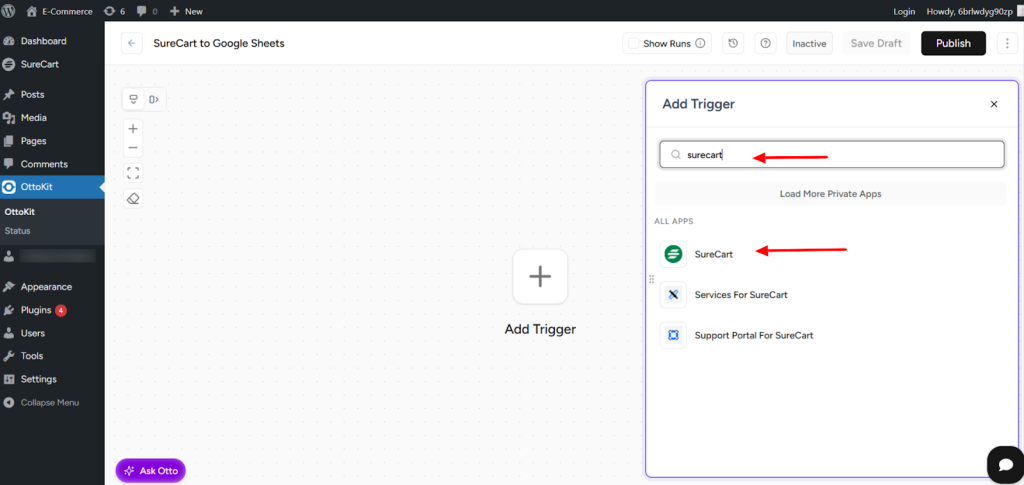
- In the apps search field, type and select SureCart as the trigger app
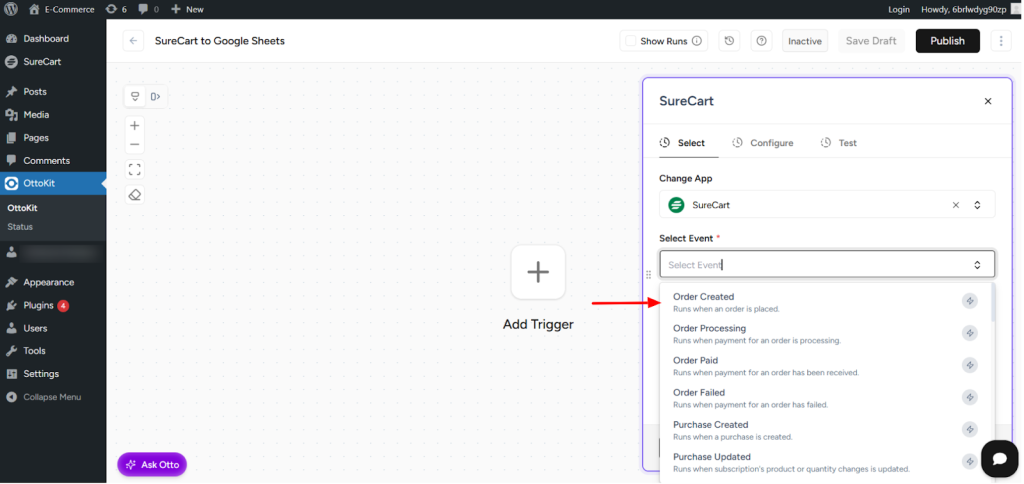
- Choose Order Created as the trigger action.
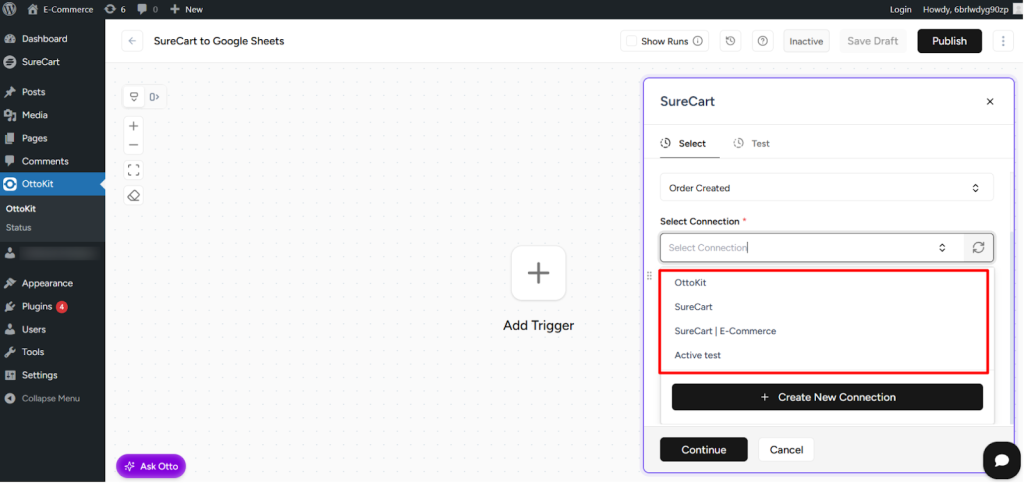
- Click on Select Connection, then choose the WordPress site you want to connect from the dropdown and click Continue.
- Now, click on Fetch Data
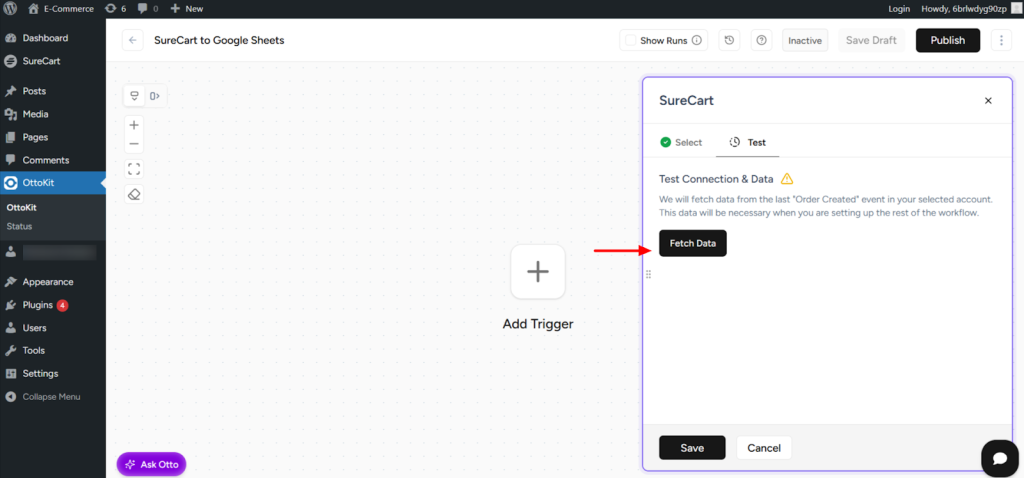
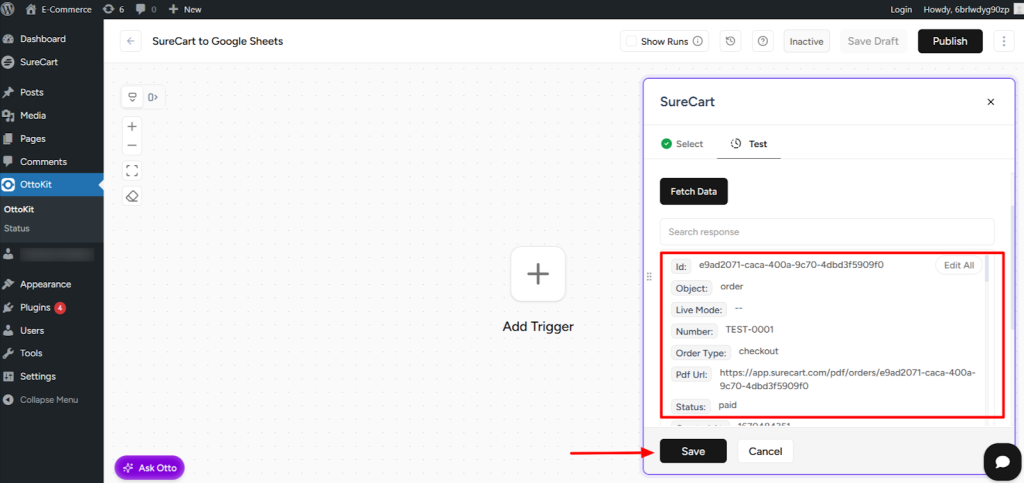
- OttoKit will automatically fetch recent order data or add sample data from your SureCart store (no test order is required). Once the data is fetched, click Save
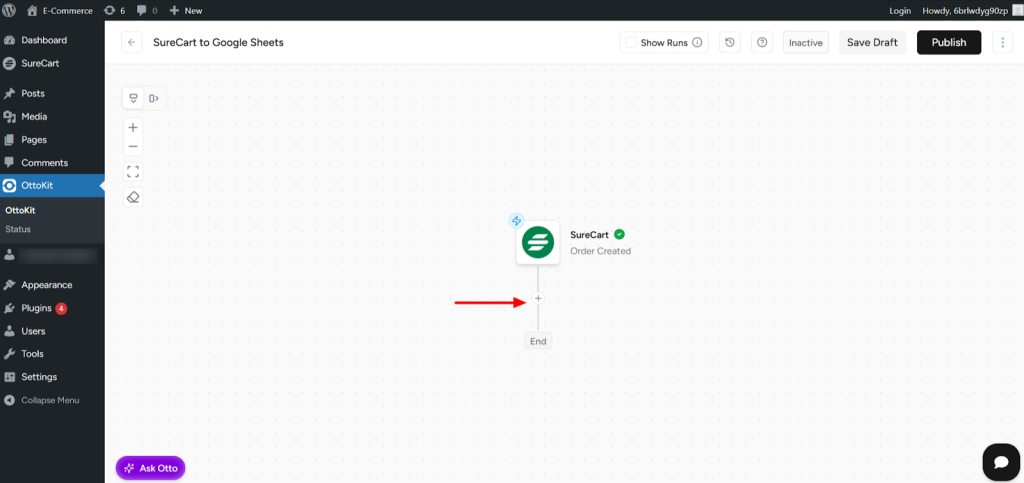
- Next, click on the plus (+) button, and in the search box, select Google Sheets
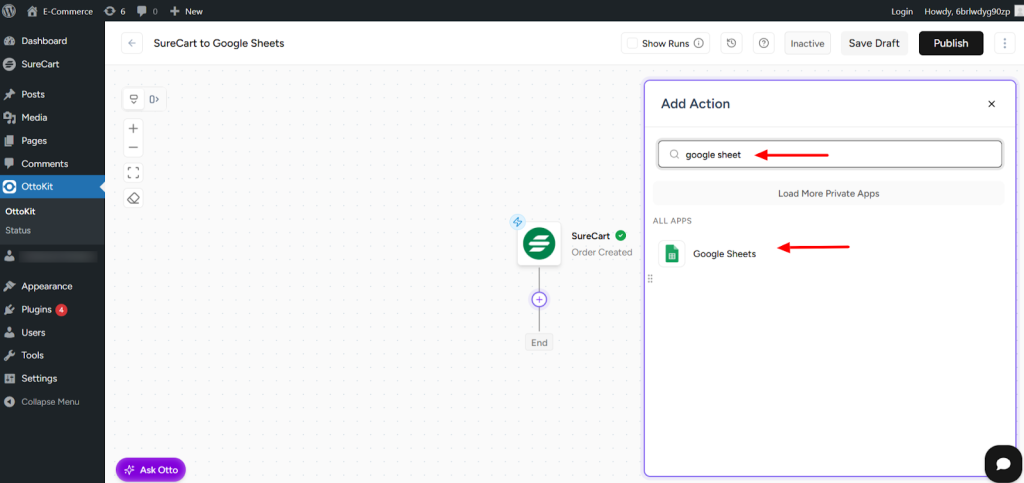
- Choose Add New Rows as the Google Sheets action
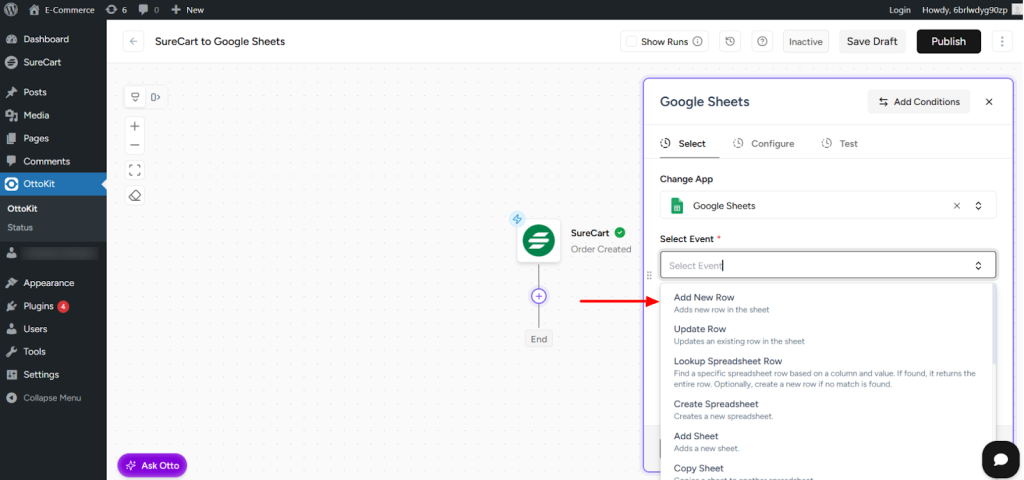
- Click on Create New Connection.
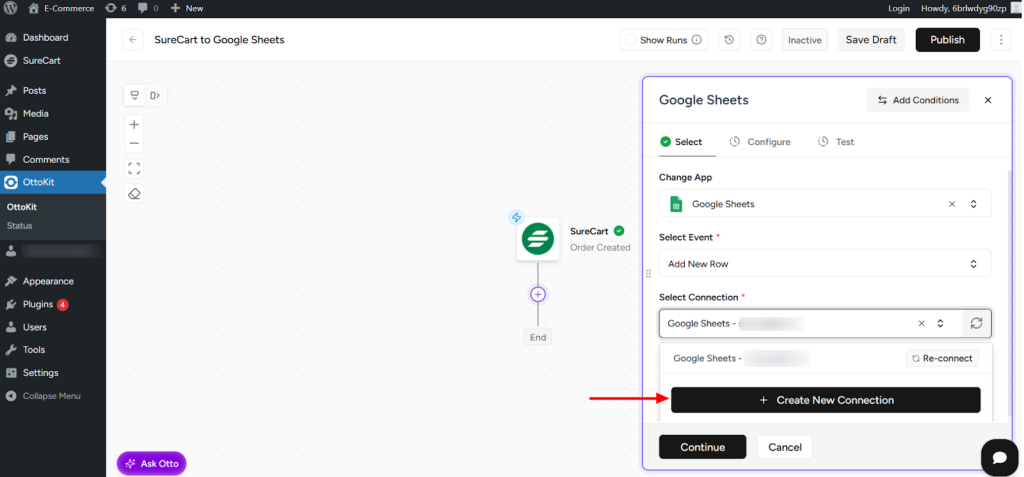
- A popup will appear asking you to select the email address to connect Google Sheets. Choose the appropriate email and continue.
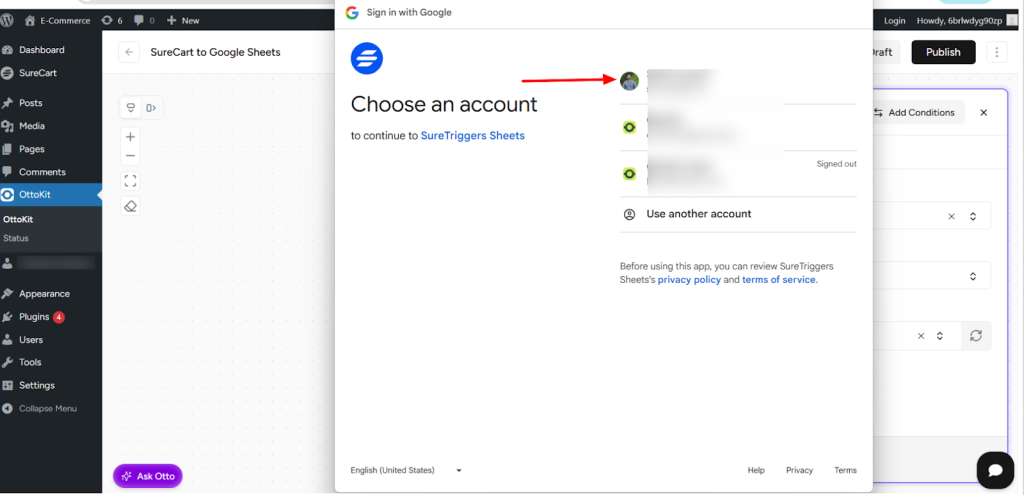
- Click Continue.
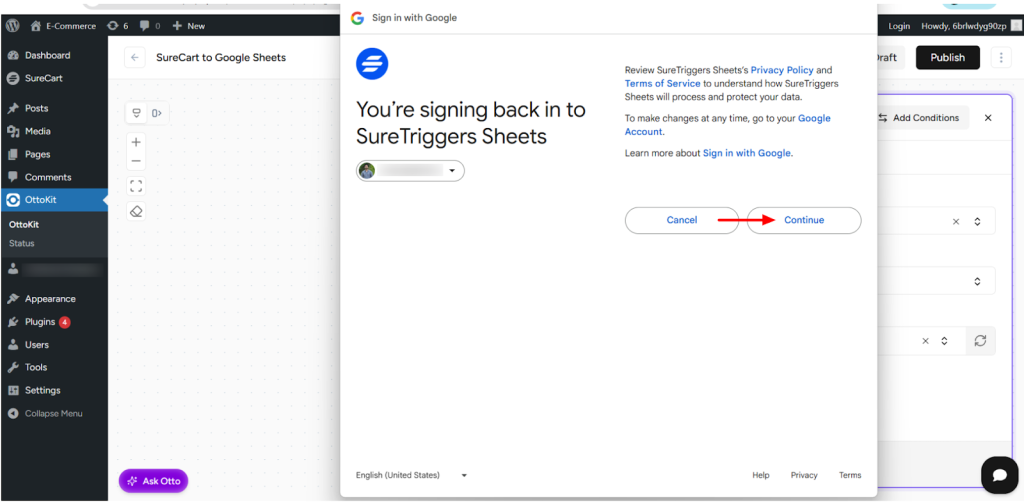
- Click Continue again
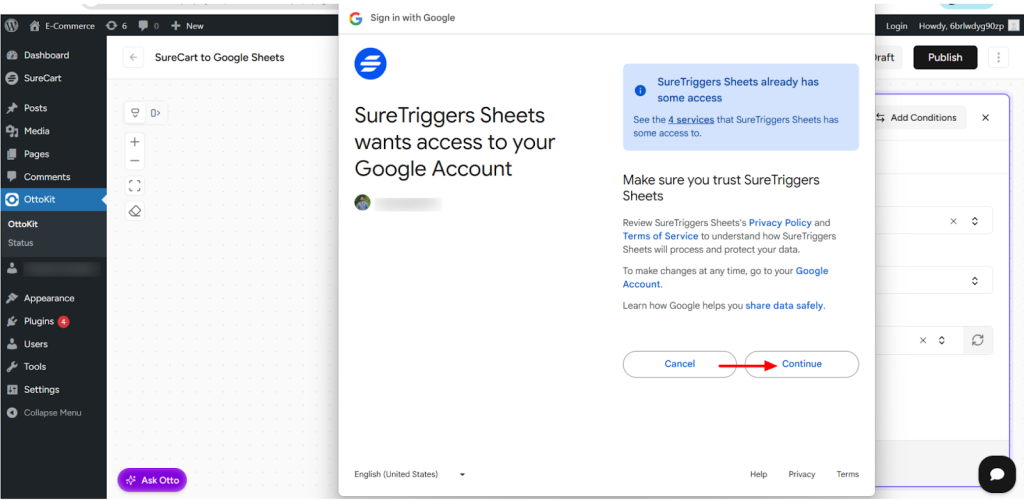
- The connection will now be created. Click Continue to proceed.
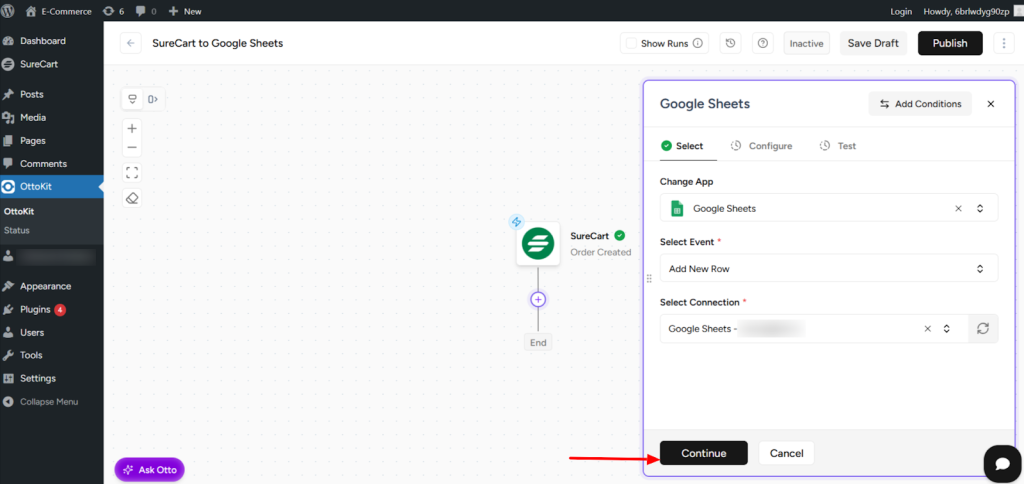
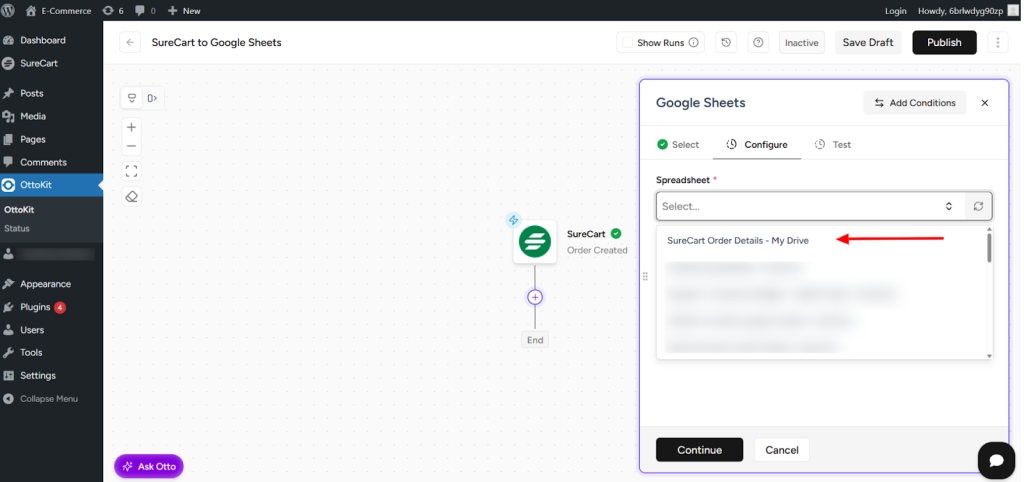
- Select the Spreadsheet name from the dropdown
- Next, select the Sheet name.
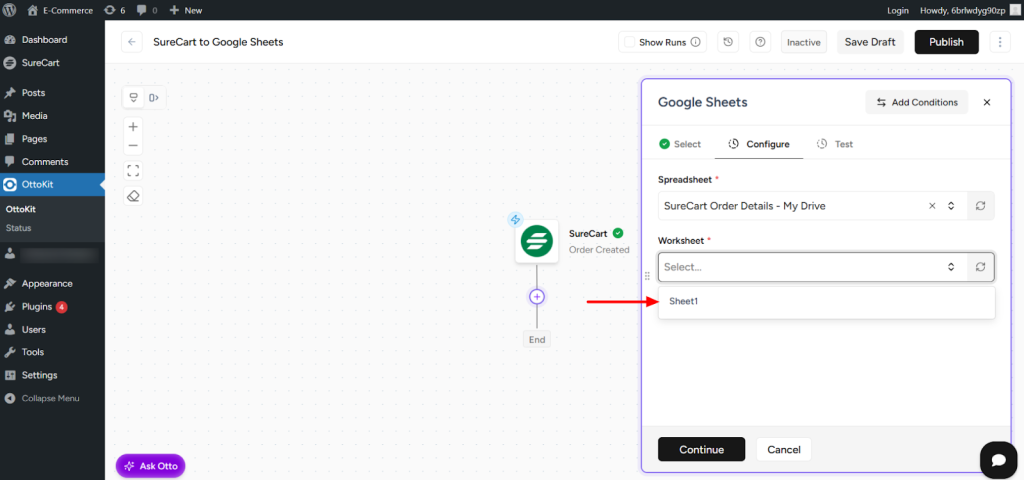
- This is the Google Sheet where you have already added column headers. These headers will be used for mapping data in the workflow
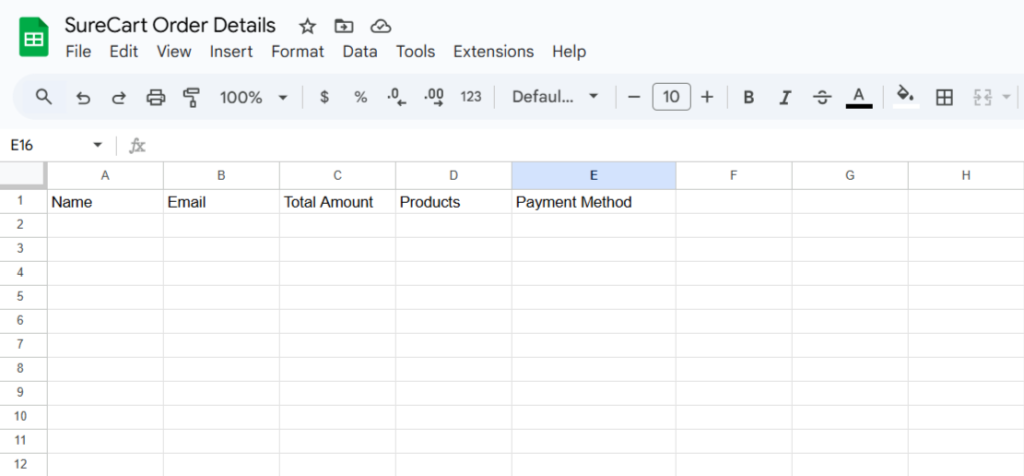
- You will now see all the Google Sheet headers displayed in the action step. Here, you need to map data from the SureCart response.
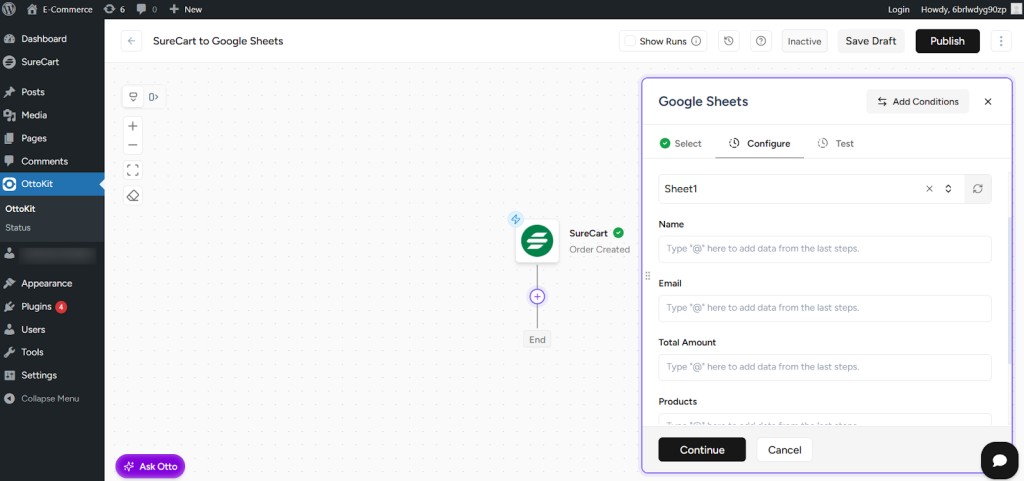
- In the Name field, type @. Do the same for the other fields. A popup will appear showing dynamic fields from the SureCart response.
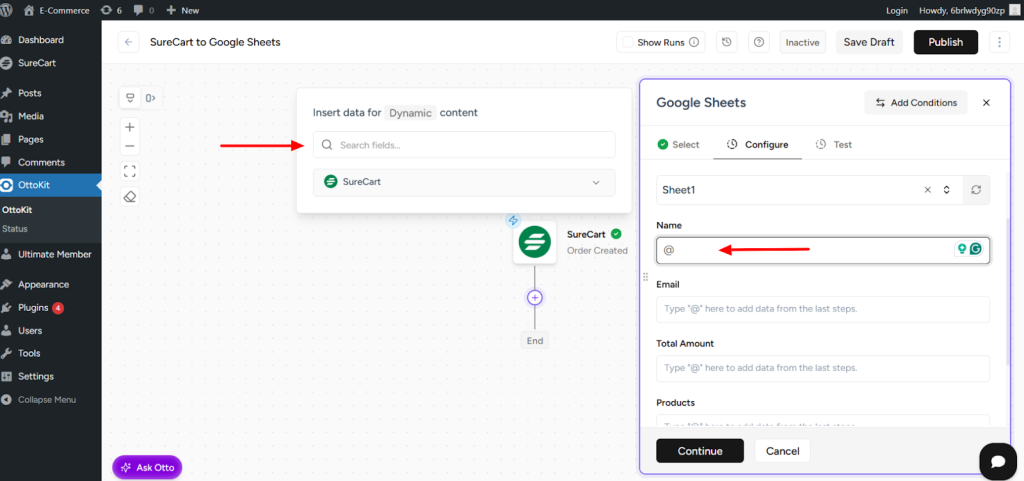
- You can search using a keyword and select the appropriate response field to map it to the column.
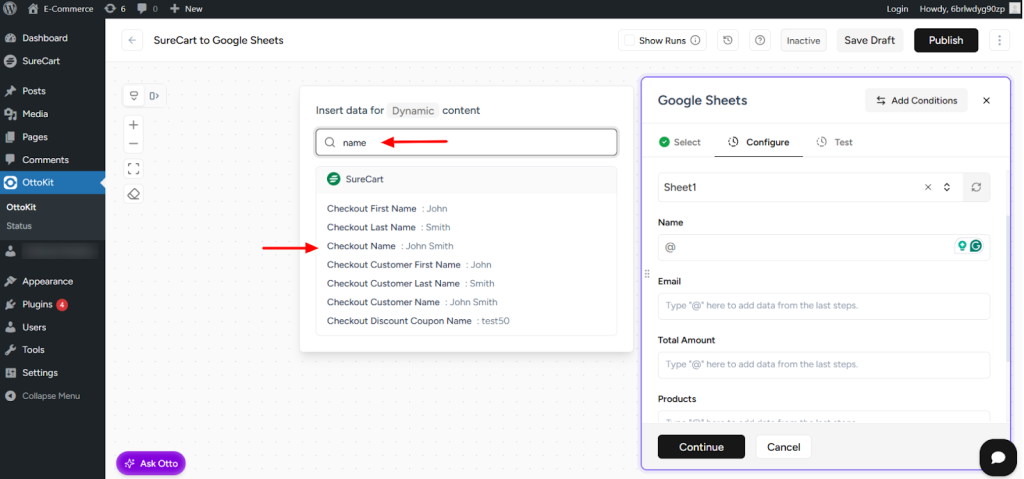
- The selected value will be added automatically. Repeat the same process for the remaining fields, then click Continue.
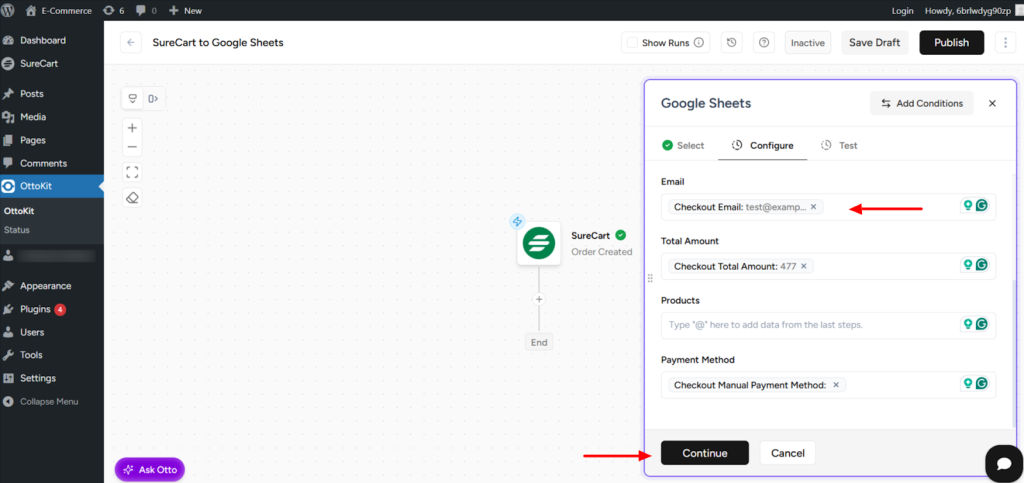
- Click on Test Action.
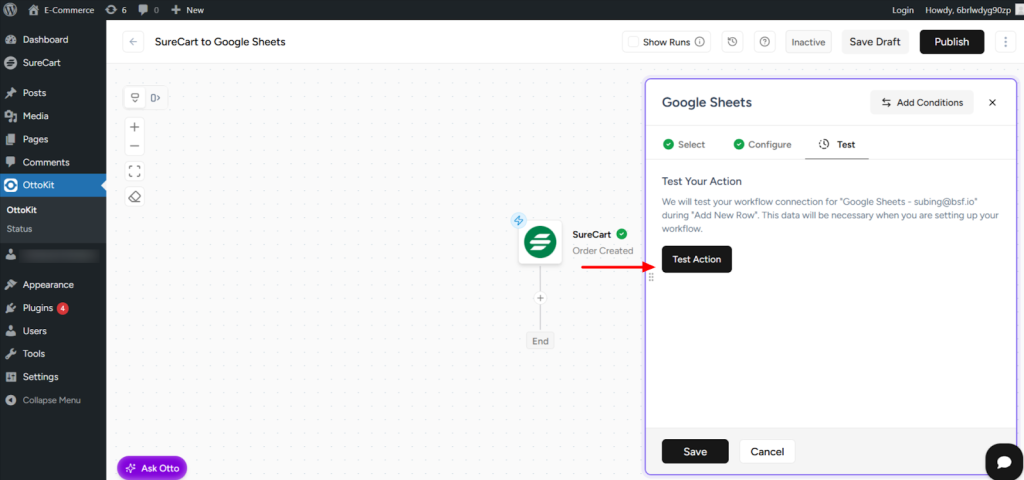
- You will see confirmation that data has been added to your Google Sheet. Once verified, click Save.
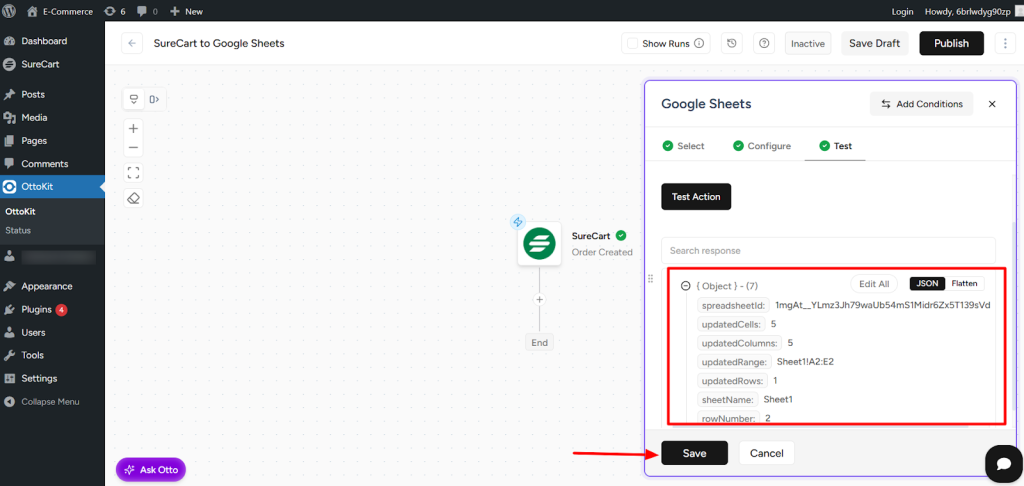
- Check your Google Sheet to confirm that the test data has been added successfully.

- Finally, click on Publish Workflow located at the top-right corner.
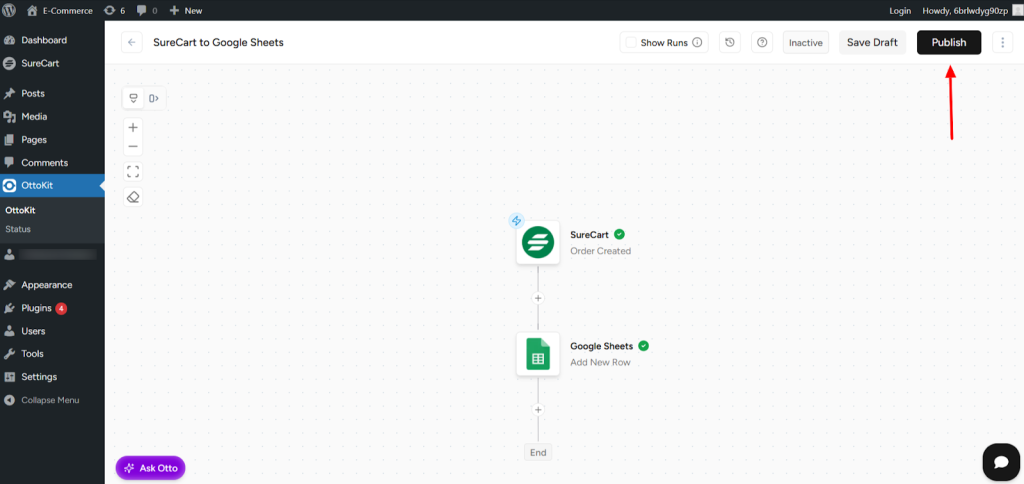
That’s it, your workflow is set up and is now Live.
You can perform a test submission by creating a new SureCart order and checking inside the Google Sheet.
Need Help?
If you get stuck, don’t hesitate to reach out to our support team at [email protected]. We will be happy to assist you and ensure that everything works smoothly.
Read more at OttoKit
]]>