The post Connecting a Streamlit App to Autodesk Construction Cloud appeared first on RevThat.
]]>This is not a general OAuth tutorial, and these methods only work with Autodesk Construction Cloud. The API endpoints, authentication flow, and project identifiers described here are specific to Autodesk Platform Services (APS) and the ACC API.
The big picture
Before an app can read anything from ACC, it needs permission. That permission comes in the form of an access token — a temporary password that proves “this user said it’s okay for this app to read the data.”
Getting that token is a three-step handshake:
- Send the user to Autodesk’s login page. They type their username and password there, not in our app.
- Autodesk redirects back to our app with a short-lived
codein the URL. - Our app exchanges that
codefor an access token by calling Autodesk’s token endpoint.
Once we have the access token, every API call includes it in a header so Autodesk knows who we are.
User clicks login
       |
       v
  Autodesk login page
       |
       v
  Redirect back with ?code=abc123
       |
       v
  Our app sends code to Autodesk --> gets back access_token
       |
       v
  Use access_token to call ACC APIs (issues, RFIs, etc.)
Step 1 — Build the login link
The function get_auth_url in auth.py builds a URL that points to Autodesk’s login page. It includes our app’s client_id (which identifies our app), a redirect_uri (where Autodesk should send the user after login), and the scope (what permissions we are asking for, like reading data or account info).
def get_auth_url(client_id, redirect_uri, scope):
    auth_url = "https://developer.api.autodesk.com/authentication/v2/authorize"
    params = {
        "response_type": "code",
        "client_id": client_id,
        "redirect_uri": redirect_uri,
        "scope": scope
    }
    return f"{auth_url}?{urlencode(params)}"
In app.py, we attach this URL to a button. When the user clicks it, their browser goes to Autodesk, they log in, and Autodesk redirects them back to our app with a code parameter in the URL.
How the callback code gets back into the app
After the user logs in, Autodesk redirects their browser to our redirect_uri with the authorization code appended as a query parameter. The URL looks something like:
https://your-app-url.com/?code=abc123xyz
Streamlit makes it easy to read query parameters from the URL with st.query_params. Every time the page loads, the app checks whether a code parameter is present:
params = st.query_params
if "code" in params:
    code = params["code"]
    try:
        token_response = get_token(
            st.secrets["CLIENT_ID"], st.secrets["CLIENT_SECRET"], code, REDIRECT_URI
        )
        st.session_state.access_token = token_response['access_token']
        st.session_state.refresh_token = token_response.get('refresh_token')
        st.query_params.clear()
        st.rerun()
    except Exception as e:
        st.session_state.access_token = None
        st.session_state.refresh_token = None
        st.query_params.clear()
Here is what is happening line by line:
st.query_paramsreads the URL’s query string. If Autodesk just redirected back, it will containcode.- We pass that
codetoget_token(...), which exchanges it for an access token (see Step 2 below). - On success, we store the tokens in
st.session_stateso they persist across Streamlit reruns. st.query_params.clear()strips the code from the URL. This is important because the code is single-use — if the user refreshes the page, we do not want the app to try exchanging an already-used code and getting an error.st.rerun()restarts the app so the UI updates to show the authenticated state.
If the exchange fails (for example, the code expired), we clear everything and ask the user to log in again.
Step 2 — Exchange the code for a token
This is the critical part. The code from the URL is temporary and can only be used once. We send it to Autodesk’s token endpoint along with proof that we are who we say we are.
Autodesk’s current authentication system (APS v2) requires that our app’s client_id and client_secret are sent as a special encoded header — not in the body of the request. This is called Basic authentication. A helper function handles the encoding:
def _build_basic_auth_header(client_id, client_secret):
    """Build the Authorization: Basic header required by APS Authentication v2."""
    auth_str = f"{client_id}:{client_secret}"
    encoded = base64.b64encode(auth_str.encode()).decode()
    return {"Authorization": f"Basic {encoded}"}
What this does in plain English: it takes the client_id and client_secret, joins them with a colon, encodes that string in Base64, and wraps it in an Authorization: Basic ... header. This is how Autodesk verifies that the request is coming from our registered app.
The actual token exchange function uses that header:
def get_token(client_id, client_secret, code, redirect_uri):
    token_url = "https://developer.api.autodesk.com/authentication/v2/token"
    headers = _build_basic_auth_header(client_id, client_secret)
    headers["Content-Type"] = "application/x-www-form-urlencoded"
    data = {
        'grant_type': 'authorization_code',
        'code': code,
        'redirect_uri': redirect_uri
    }

    response = requests.post(token_url, headers=headers, data=data)
    if response.status_code == 200:
        return response.json()
    else:
        error_data = response.json()
        if error_data.get('error') == 'invalid_grant':
            raise Exception("Invalid or expired authorization code. Please try authenticating again.")
        else:
            raise Exception("Authentication failed: " + response.text)
If this succeeds (status code 200), we get back a JSON object that contains an access_token and a refresh_token. We store both in Streamlit’s session state so the rest of the app can use them.
In app.py, this looks like:
token_response = get_token(st.secrets["CLIENT_ID"], st.secrets["CLIENT_SECRET"], code, REDIRECT_URI)
st.session_state.access_token = token_response['access_token']
st.session_state.refresh_token = token_response.get('refresh_token')
st.secrets is Streamlit’s built-in way of reading secrets from a .streamlit/secrets.toml file so you never hardcode passwords in your code.
Step 3 — Refresh when the token expires
Access tokens do not last forever. When one expires, instead of making the user log in again, we use the refresh_token to get a new access token behind the scenes:
def refresh_token(client_id, client_secret, refresh_token):
    token_url = "https://developer.api.autodesk.com/authentication/v2/token"
    headers = _build_basic_auth_header(client_id, client_secret)
    headers["Content-Type"] = "application/x-www-form-urlencoded"
    data = {
        'grant_type': 'refresh_token',
        'refresh_token': refresh_token
    }

    response = requests.post(token_url, headers=headers, data=data)
    if response.status_code == 200:
        return response.json()
    else:
        raise Exception("Token refresh failed: " + response.text)
Same pattern as before — Basic auth header, minimal body, POST to the token endpoint. The only difference is grant_type is refresh_token instead of authorization_code.
Step 4 — Identify the ACC project with its GUID
Every project in Autodesk Construction Cloud has a globally unique identifier (GUID) — a long string of letters, numbers, and dashes that looks like this:
a1b2c3d4-e5f6-7890-abcd-ef1234567890
This GUID is how the ACC API knows which project you are asking about. It is not something you make up — Autodesk assigns it when the project is created in ACC. You can find it in the ACC admin panel or through the APS API.
In our app, we store a mapping of human-readable project names to their GUIDs in projects_list.py:
PROJECTS = {
    "10050 - Riverside Office Tower": "a1b2c3d4-e5f6-7890-abcd-ef1234567890",
    "Harbor View Mixed-Use 200 Waterfront Drive": "f9e8d7c6-b5a4-3210-fedc-ba0987654321",
    "Greenfield Elementary School Renovation": "1a2b3c4d-5e6f-7a8b-9c0d-e1f2a3b4c5d6",
    # ... more projects
}
The user picks a project by name in the Streamlit sidebar, and the app looks up the corresponding GUID. That GUID then gets passed into every ACC API call as the project_id. Without it, Autodesk has no way to know which project’s data you want.
These GUIDs are specific to Autodesk Construction Cloud. Other Autodesk products use different project systems and different identifiers — you cannot use an ACC GUID to query Fusion or Revit Cloud data.
Step 5 — Use the token to get ACC project data
Now comes the payoff. With a valid access_token and a project GUID, we can call ACC API endpoints. For example, here is how acc_issues.py fetches issues from a project:
def get_issues(access_token, project_id, status_filter=None, limit=100, page=1):
    url = f"https://developer.api.autodesk.com/construction/issues/v1/projects/{project_id}/issues"
    headers = {
        "Authorization": f"Bearer {access_token}",
        "Content-Type": "application/json"
    }

    params = {
        "limit": limit,
        "offset": (page - 1) * limit
    }

    if status_filter:
        params["filter[status]"] = status_filter

    response = requests.get(url, headers=headers, params=params)

    if response.status_code == 200:
        return response.json()
    else:
        raise Exception(f"Failed to retrieve issues: {response.text}")
Notice the pattern:
- The
access_tokengoes in aBearerheader — this is different from theBasicheader used during login.Bearerjust means “here is my token, let me in.” - The
project_id(the GUID from Step 4) is embedded directly in the URL. This tells the ACC API exactly which project’s issues to return. limitandoffsethandle pagination so you don’t download thousands of issues at once.- The URL path starts with
/construction/— this is the ACC-specific portion of the Autodesk API. These endpoints only exist for Autodesk Construction Cloud projects.
In app.py, calling this is straightforward:
response = get_issues(
    st.session_state.access_token,
    current_project_id,
    status_filter=filter_value,
    limit=items_limit
)
items = response.get('results', [])
The same pattern works for RFIs (get_rfis) and submittals (get_submittals) — different URL, same header, same structure.
Where everything lives
| File | What it does |
|---|---|
auth.py | Builds the login URL, exchanges codes for tokens, refreshes tokens |
acc_issues.py | Calls ACC APIs to fetch issues, RFIs, submittals, and attachments |
projects_list.py | Maps human-readable project names to their ACC project GUIDs |
app.py | The Streamlit UI — buttons, sidebar, chat, displays data |
.streamlit/secrets.toml | Stores CLIENT_ID, CLIENT_SECRET, GROQ_API_KEY, REDIRECT_URI |
Glossary for vibe coders
| Term | What it means |
|---|---|
| OAuth 2.0 | A standard way for apps to get permission to access a user’s data without seeing their password |
| access_token | A temporary key that lets the app make API calls on behalf of the user |
| refresh_token | A longer-lived key used to get a new access_token when the old one expires |
| client_id | A public identifier for your app, assigned when you register it with Autodesk |
| client_secret | A private key for your app — never share this or put it in your code |
| Basic auth | Sending credentials encoded in Base64 in a header (used during token exchange) |
| Bearer token | Sending the access_token in a header (used for all API calls after login) |
| scope | What permissions your app is asking for (e.g. data:read, account:read) |
| GUID | Globally Unique Identifier — the long ID string (e.g. 7d5c351e-a9b7-...) that identifies a specific ACC project |
| redirect_uri | The URL Autodesk sends the user back to after login |
| APS | Autodesk Platform Services — the umbrella name for Autodesk’s developer APIs |
| ACC | Autodesk Construction Cloud — the product that holds project issues, RFIs, submittals, etc. |
The post Connecting a Streamlit App to Autodesk Construction Cloud appeared first on RevThat.
]]>The post When Autodesk API Auth Fails appeared first on RevThat.
]]>I searched with Gemini and ChatGPT to try to find what the problem was. I did not directly find the correct answer but eventually with Gemini Deep Research I got a clue.

I was eventually able to find a page that explained what happened. Autodesk had changed its whole system for application registering to something they call hubs.

https://aps.autodesk.com/blog/how-create-developer-hub-and-migrate-your-applications explains how to make things work again. Video by Autodesk is at https://youtu.be/ee_p29UUUvo?t=270

I created a new hub and gave it a credit card even though it’s “free” and then migrated apps to it.
https://aps.autodesk.com/hubs/@personal/applications is the old page for managing Autodesk apps. The new one is at https://aps.autodesk.com/hubs
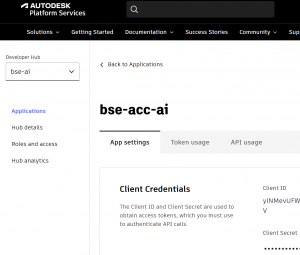
My apps worked right away without any changes in their code after the migration.

The post When Autodesk API Auth Fails appeared first on RevThat.
]]>The post Using QA Pairs for Recursive Chatbot Performance Improvement appeared first on RevThat.
]]>TL;DR — The Pipeline
- Generate QA pairs by running real questions through the same retrieval and prompt stack as production.
- Judge each pair on response quality and keyword quality with an independent LLM.
- Turn results into a report with trends, outliers, and concrete prompt/search fixes.
- Apply improvements, rerun until satisfied with the results.
ASCII map of the loop:
Questions → Hybrid Retrieval → Prompted LLM → QA Pairs
            ↓                                     ↑
       LLM-as-Judge  ←  Reports & Trends  ←  Scores
            ↓                                     ↑
     Prompt/Retrieval Tweaks  →  Deploy (if gates pass)
Mini-results example (after 1 iteration):
Avg response score: 0.86 (prev 0.72)
High (>= 0.8): 12   Medium (0.6–0.79): 6   Low (< 0.6): 2
Keyword score avg: 0.83 (prev 0.68)
Quickstart
If you want to run this loop end to end, here’s a straightforward way to set it up in your own environment.
- A document store or index that supports both semantic search (embeddings) and keyword/boolean search.
- Access to an LLM for generation and an optional reranker for ordering results.
Stable prompts for generation, keyword extraction, and judging (kept consistent between prod and evaluation).
Run the pipeline
- Generate QA pairs by running representative questions through your retrieval + prompting stack.
- Evaluate with a separate “judge” prompt/model for response quality and keyword quality.
- Produce a human-readable report that summarizes metrics and highlights outliers.
Optionally visualize distributions and trends in a dashboard of your choice.
Outputs
- A JSON list of QA pairs (prompt, response, model, timestamp, keywords, search_terms, explanation).
- An evaluation JSON (per-item scores + a summary block).
- A Markdown or HTML report for quick review.
The Recursive Improvement Cycle
Step 1 — Run the QA pipeline
- Create QA pairs by mirroring production: same system prompt, same hybrid retrieval, same context formatting.
Step 2 — Analyze with an independent judge
- Score response quality and keyword quality. Capture explanations and error types.
Step 3 — Implement improvements
- Update system prompt, tighten retrieval, and adjust formatting rules based on patterns.
Step 4 — Test and repeat
- Ship only if results pass: e.g., avg response ≥ 0.85, low-score share ≤ 5%, keyword avg ≥ 0.8, and no regressions on critical questions.
Why Hybrid Retrieval Matters (and how it works here)
The chatbot’s accuracy is bounded by what it retrieves. Our knowledge-base method combines three pieces to maximize both recall and precision:
1) Vector search (semantic recall)
- Create a query embedding and search a document store or index that holds text plus precomputed embeddings.
- Cosine similarity ranks the most semantically relevant pages.
2) Text search with LLM-extracted terms (precision)
- An LLM extracts up to ~5 domain-specific terms (e.g., Section numbers, equipment, environments) and we build a simple boolean string:
term1 OR term2 OR term3. - We run a case-insensitive REGEXP search over page content, catching exact technical matches.
3) Reranking (final ordering)
- Merge semantic results with text matches, limit overly long lists, truncate long texts for efficiency, and rerank all candidates with a reranking model.
Important implementation details from the actual codebase:
- Storage: any document store that can return both text and embeddings; normalize vectors and support multiple formats/dimensions as needed.
- Text search: build a boolean string from extracted terms and apply it against full-text indices.
- Rerank: use a dedicated reranking model to order the final set for the specific query.
This end-to-end retrieval is used for both production and QA so the evaluation reflects real behavior, not idealized retrieval.
Retrieval notes (practical behavior)
- Boolean grammar: text search supports
AND,OR, andNOTwith case-insensitive word boundaries. Basic plural handling applies (e.g.,conduitmatchesconduits). - Keywords vs search terms: a small list of focused keywords is joined with
ORinto a boolean string for the text search. - Rerank fallback: if a reranker isn’t available, return results without reranking (still usable, just less precise ordering).
- Context length: long candidates are truncated and the final set is limited to keep prompting efficient.
Automated Evaluation: Two Judges, Clear Rubrics
We evaluate each QA pair along two tracks and aggregate results:
- Response quality (0.0–1.0): completeness, factual accuracy from supplied context, structure, and correct citations.
- Keyword quality (0.0–1.0): relevance and completeness of the extracted terms that drive text search.
We report: average, median, p25/p75, min/max, and counts for High (>= 0.8), Medium (0.6-0.79), Low (< 0.6). We mitigate LLM-as-judge bias by using a separate judge model and keeping temperature low. Periodic human spot-checks keep the system honest.
Evaluation Prompt Samples
Use these as a starting point. Keep temperature low and require strict JSON to reduce drift.
Response quality (single score)
System:
You are an impartial evaluator. Score how well the assistant’s response answers the user’s prompt, relying only on the provided context when present. Use a 0.0–1.0 scale with decimals. Penalize unsupported claims, factual errors, missing key steps, weak structure, and citation issues (when sources are included). Reward completeness, correctness, clarity, and good use of supplied context. Do not add new facts. Return ONLY a JSON object.
Rubric (guide):
1.0 = comprehensive, correct, well-structured, grounded in context (if provided)
0.8–0.9 = strong, minor gaps/omissions
0.6–0.7 = adequate but misses important points or has clarity issues
0.4–0.5 = weak coverage or notable errors
0.0–0.3 = largely incorrect/unsupported/off-topic
Output JSON schema:
{ "score": number, "explanation": string }
User:
<prompt>
{{USER_PROMPT}}
</prompt>
<context>
{{OPTIONAL_CONTEXT_OR_EMPTY}}
</context>
<response>
{{ASSISTANT_RESPONSE}}
</response>
Keyword quality (retrieval terms)
System:
You are evaluating a list of keywords proposed for retrieving documents relevant to the user’s prompt. Score 0.0–1.0 for relevance, coverage of core concepts, specificity (not too generic), and non-redundancy. Penalize missing key terms or overly broad terms. Return ONLY a JSON object.
Rubric (guide):
1.0 = highly relevant, comprehensive, specific, minimal redundancy
0.8–0.9 = mostly relevant with minor gaps or minor redundancy
0.6–0.7 = generally relevant but misses important concepts or is too generic
<=0.5 = poor coverage or many irrelevant items
Output JSON schema:
{ "score": number, "explanation": string }
User:
<prompt>
{{USER_PROMPT}}
</prompt>
<keywords>
{{["term 1", "term 2", "term 3"]}}
</keywords>
Pairwise A/B (optional)
System:
You are an impartial judge. Compare Response A vs Response B for the same prompt (and optional context). Choose the better answer based on correctness, completeness, clarity, and grounding in the provided context. Do not invent facts. Return ONLY a JSON object.
Output JSON schema:
{ "winner": "A" | "B", "margin": number, "rationale": string }
Notes:
- margin in [0.0, 1.0] where higher = stronger win
- keep rationale concise
User:
<prompt>
{{USER_PROMPT}}
</prompt>
<context>
{{OPTIONAL_CONTEXT_OR_EMPTY}}
</context>
<response_A>
{{ASSISTANT_RESPONSE_A}}
</response_A>
<response_B>
{{ASSISTANT_RESPONSE_B}}
</response_B>
Using QA to Compare Models (not just prompts)
This same setup compares different LLMs easily. Because generation and judging are decoupled, you can run the same question set and retrieval context across multiple models, then evaluate and chart the deltas. Most clients let you swap models via configuration.
Example flow:
- Pick a fixed question set.
- For each candidate model, generate responses, evaluate with the same judge, and record scores.
- Compare averages, low-score counts, and per-item winners.
A Concrete Before/After
Before (score ~0.70): unstructured and generic
We should consider NEC rules and general mounting practices. Typically panels are installed at reasonable heights...
After (score ~0.90): structured, citation-forward (post-cleanup Markdown)
**Verdict.** The switchgear mounting height must comply with NEC workspace clearances and project specifications (e.g., Section 26 05 XX, p. ####).
**Supporting Details**
- Materials: Equipment clearances and working space per NEC 110.26; verify final pad height does not create violations.
- Installation: Coordinate housekeeping pad thickness so the topmost device remains within allowable reach.
- Constraints / Exclusions: No explicit numeric panel height found beyond NEC workspace; do not assume outside supplied context.
**Terminology Notes**
- “Switchgear” vs “panelboard”: confirm the equipment type referenced in the spec section.
**Gaps & Follow-Up**
- Exact inches-to-center not specified in supplied context. Confirm with drawings and AHJ if needed.
**Verification & Coordination**
- Verify NEC 110.26 clearances and any inspection/commissioning references in the spec.
**Sources**
- Source 1: <exact PDF URL>
Retrieval Ablation Snapshot
- Vector-only: strong semantic recall, weaker precision on code sections → avg 0.78
- Text-only: precise on section numbers/terms, misses paraphrases → avg 0.74
- Hybrid + rerank: best of both → avg 0.86
Score Distributions (example)
Compact view across three iterations (n = 20 QA pairs):
Iteration   Avg   Median   High (>= 0.8)   Medium (0.6–0.79)   Low (< 0.6)
Baseline    0.72  0.71     6               8                    6
Iter 1      0.86  0.86     12              6                    2
Iter 2      0.89  0.90     14              4                    2
Measuring Success (beyond accuracy)
- Response consistency: similar questions receive similar structure and citations.
- Error types: track reductions in retrieval misses, unsupported claims, and sourcing mistakes.
Acceptance Gates
Use clear gates to decide when to ship:
- Response quality: average >= 0.85; share of low scores (< 0.6) <= 5%.
- Keyword quality: average >= 0.80.
- Non-regression: for a small “critical” subset, no score decrease > 0.05.
- Judge discipline: keep the judge model and rubric fixed between comparative runs.
Tips:
– Keep a stable holdout set you never tune on.
– Add a small challenge set to catch new failure modes.
Common failure types
- Retrieval miss (nothing relevant surfaced)
- Weak sourcing (claims not supported by provided sources)
- Unsupported claim (hallucinated requirement)
- Formatting drift (missing sections or citations)
- Keyword gap (too generic or misses core terms)
Reproduce This (minimal steps)
1) Prepare inputs
- A set of representative prompts or questions (10–25 to start).
- A corpus indexed for both vector and text search (document text + embeddings).
- API keys for an LLM provider and a reranker.
2) Generate QA pairs
- Run each question through hybrid retrieval and your system prompt to produce entries like
{prompt, response, model, timestamp, keywords, search_terms, explanation}and write them to a JSON file.
Note: keywords is the list of extracted terms (e.g., ["Section 26 05 33", "EMT"]). search_terms is the boolean string used for text search (e.g., term1 OR term2 OR term3).
3) Evaluate
- For each pair, run two judge prompts (response quality and keyword quality) and write results plus a summary block to an evaluation JSON.
4) Report
- Produce a Markdown report with overall stats (avg, median, p25/p75, high/med/low counts), per-item scores, and highlights.
5) Gate and iterate
- Apply acceptance gates, update prompts/retrieval, rerun. Keep a changelog tying changes to score deltas.
Reliability tips
- Incremental writes after each item to avoid losing progress.
- Backoff on 429s errors from LLMs; use fallback models.
Repro and Ops
- Version your runs: record model names, prompt versions, DB checksum, and a commit hash alongside results.
- Keep judge and generator models separate when comparing changes.
- Be careful with sensitive content: avoid logging full context; prefer IDs in logs. Never print API keys.
Simplified Code Sketches (illustrative)
Generation
def generate_pairs(questions, system_prompt, retrieve, llm):
    items = []
    for q in questions:
        terms = llm.extract_terms(q)              # ["Section 26 05 33", "EMT", ...]
        search_terms = " OR ".join(terms)
        context = retrieve(q, search_terms)       # hybrid search returns concatenated snippets
        prompt = f"<context>{context}</context>\n<query>{q}</query>"
        resp = llm.generate(system_prompt, prompt)
        items.append({
            "prompt": q,
            "response": resp,
            "model": llm.name,
            "keywords": terms,
            "search_terms": search_terms,
            "explanation": "Term extraction rationale here"
        })
    return items  # write to a JSON file
Evaluation
def judge_pairs(pairs, judge):
    results, r_scores, k_scores = [], [], []
    for p in pairs:
        rq = judge.score_response(p["prompt"], p["response"])   # {score, explanation}
        kq = judge.score_keywords(p["prompt"], p.get("keywords", []))
        results.append({
            "prompt": p["prompt"],
            "score": rq["score"],
            "explanation": rq["explanation"],
            "keywords": p.get("keywords", []),
            "search_terms": p.get("search_terms", ""),
            "keywords_evaluation": kq,
        })
        r_scores.append(rq["score"])
        k_scores.append(kq["score"])
    summary = compute_stats(r_scores, k_scores)
    return {"results": results, "summary": summary}  # write to an evaluation JSON
Model comparison (generation side only)
def compare_models(questions, system_prompt, retrieve, models, judge):
    leaderboard = []
    for m in models:
        pairs = generate_pairs(questions, system_prompt, retrieve, m)
        evald = judge_pairs(pairs, judge)
        leaderboard.append({"model": m.name, "avg": evald["summary"]["response_quality"]["average_score"]})
    return sorted(leaderboard, key=lambda x: x["avg"], reverse=True)
Stats helper
def compute_stats(resp_scores, kw_scores):
    def stats(xs):
        xs = sorted(xs)
        n = len(xs)
        mid = n // 2
        return {
            "average_score": sum(xs) / n if n else 0.0,
            "median": (xs[mid] if n % 2 else (xs[mid - 1] + xs[mid]) / 2) if n else 0.0,
            "p25": xs[max(0, (n * 25) // 100 - 1)] if n else 0.0,
            "p75": xs[max(0, (n * 75) // 100 - 1)] if n else 0.0,
            "min_score": xs[0] if n else 0.0,
            "max_score": xs[-1] if n else 0.0,
            "high_scores_count": sum(1 for s in xs if s >= 0.8),
            "medium_scores_count": sum(1 for s in xs if 0.6 <= s < 0.8),
            "low_scores_count": sum(1 for s in xs if s < 0.6),
        }
    return {
        "response_quality": stats(resp_scores),
        "keyword_extraction_quality": stats(kw_scores)
    }
LLM-Assisted Prompt Refinement (from QA reports)
When scores plateau or you see recurring error patterns, feed your QA report into an LLM agent (e.g., Codex) to propose targeted system prompt improvements. Use the report’s summary, top low-scoring items, and the current system prompt as inputs.
What to include
- Summary metrics: average, median, p25/p75, and high/medium/low counts.
- Top 5–10 lowest-scoring pairs: question, response (truncated), judge explanation, and any keyword quality notes.
- Current system prompt text.
Analyst prompt (template)
You are an expert prompt engineer. Read the QA report and propose precise edits to the system prompt that will:
- Improve factual grounding and citation discipline
- Reduce unsupported claims and formatting drift
- Preserve sourcing and “base only on supplied context” constraints
Return JSON with fields:
- revised_system_prompt: string (full prompt)
- change_log: [ {section, before, after, reason} ]
- risks: [string] (potential regressions to watch)
- acceptance_gates: { avg>=, max_low_share<=, notes }
Use only concrete, minimal edits. Do not relax safety/citation requirements.
Minimal code sketch (agent call)
def build_prompt_for_agent(report_md: str, current_prompt: str):
    system = (
        "You are a rigorous prompt engineer. "
        "Suggest minimal, surgical edits with clear rationale."
    )
    user = f"""
<qa_report>
{report_md}
</qa_report>
<current_system_prompt>
{current_prompt}
</current_system_prompt>
Follow the JSON output schema exactly.
"""
    return system, user
# agent is your LLM client (e.g., Codex-style agent)
system, user = build_prompt_for_agent(report_md, system_prompt)
result = agent.chat(system=system, messages=[{"role": "user", "content": user}])
proposal = json.loads(result)
# Apply proposal.revised_system_prompt, re-run QA, check acceptance_gates
Iteration flow
- Compile the newest QA report and current system prompt.
- Ask the agent for JSON diff-style changes and reasons.
- Apply suggested edits, re-run QA on the same question set.
- Gate on acceptance thresholds; keep or revert based on results.
Case Study — QA report → prompt edits
Example: We fed a recent QA report to the agent. The agent proposed surgical edits focused on consistency, citation discipline, and calling out gaps. We then re-ran QA with the revised prompt.
Post-change results (from that run):
- Avg: 0.88, Median: 0.90, Range: 0.80–0.90
- High (>= 0.8): 10/10, Medium: 0, Low: 0
- Avg eval time per item: ~6.5s (n=10)
Case Study — mixed results → prioritized fixes
Another run surfaced more mixed scores. We sent that report to the agent and asked for the smallest set of fixes that should move the most items from Medium to High without increasing Low counts.
Post-change results (example):
- Avg: 0.85 (prev 0.81), Median: 0.85
- High (>= 0.8): 13/20 (prev 9/20)
- Medium: 6/20 (prev 8/20)
- Low: 1/20 (prev 3/20)
- Notes: Majority of upgrades were items penalized for weak sourcing and missing explicit gaps.
Agent Prompt
Sample agent prompt:
You are an expert prompt engineer for electrical building specifications. Read the QA report and propose minimal, surgical edits to ALL LLM system prompts used to: (a) generate answers and (b) extract keywords for retrieval.
Inputs you will receive:
1) QA report (score summary, highs/mediums/lows, judge explanations, a few lowest-scoring items)
2) Orchestrator overview (how generation/retrieval/evaluation flow)
3) Current prompts: answering, keyword-extraction, and judge rubrics
Tasks:
- Find recurring failure patterns (unsupported claims, weak/irrelevant sources, formatting drift, retrieval misses)
- Propose possible edits to the answering and keyword-extraction prompts; adjust judge rubrics only if they mis-score intended behavior
- Preserve constraints: base only on supplied context, enforce a Sources section (deduplicated, max 5, direct-support URLs), maintain professional electrical-engineering tone and structure
Target prompts to refine in this workflow:
- Answering prompt (governs structure, citations, tone)
- Keyword-extraction prompt (drives precise text search terms)
- Judge rubrics (response and keyword quality; only adjust if they mis-score intended behavior)
Best Practices
- Start small (10–15 questions), then expand coverage.
- Keep generation and judging models separate to avoid self-reinforcement.
- Maintain a changelog tying prompt/retrieval changes to score deltas.
Conclusion
The QA Pairs method turns chatbot improvement into a measurable, repeatable process. By mirroring production retrieval, judging responses on clear rubrics, and gating releases on objective thresholds, the system improves predictably. The same pipeline also lets you compare models (and other parameters) quickly: swap the generator model, keep the judge constant, and let the data decide. Start small, iterate fast, and let the scores guide the work.
The post Using QA Pairs for Recursive Chatbot Performance Improvement appeared first on RevThat.
]]>The post Your Personal UX Critic: Using Gemini LLM to Roast Your App Demos appeared first on RevThat.
]]>Usually, getting feedback means pestering a coworker, your neighbor at coworking, or paying a consultant. But there’s a better way. You can use Google AI Studio to analyze your screen recordings.
The Gemini models have the ability to “watch” video, “hear” audio, and reason across massive context window. It’s surprisingly good at acting like a grumpy creative director and a marketing intern rolled into one.
Here is exactly what you need to do to get a full critique (and your YouTube metadata) in under two minutes.
The Workflow
Step 1: Get into the Studio – Head over to aistudio.google.com .
Step 2: Select the Heavy Hitter – On the right-hand panel, under the “Model” dropdown, ensure you select Gemini 3 Pro (models/gemini-3-pro-preview). You want the smartest multimodal model available for video analysis.
Step 3: Upload your Video or Provide a YouTube URL – Click the + button (Add to prompt) and select Upload to drop in an MP4 of your app walkthrough, or paste a YouTube URL directly. Don’t worry about file size or length because Gemini 3 Pro has a 1M token context window.
Step 4: The Prompt – Add prompt this into the text box and hit Run:
 - Give me suggestions on how to improve showing this app
 - Give me a video summary
Optional, add - suggest improvements to the app
The Result
I tried this with a raw, unedited recording of a construction schedule analysis app which is published at https://www.youtube.com/watch?v=3k-5zJbVJso . The video was rough, with some silence while loading, small text, and a wandering mouse cursor.
Here is what Gemini 3 Pro gave me back:
Gemini 3 Pro:
Suggestions for Improvement:
- Edit Out “Dead Air”: Around the 4:50 mark, there is a significant pause while the system generates the report. You should cut this or speed it up (2x) in post-production.
- Zoom and Focus: The text on the sidebar settings is quite small. When you are explaining the “Strict Mode” vs “Inference Mode” toggle, zoom in on that section so mobile viewers can read it.
- The “Hook”: You started with a dry CSV file. Try starting with the final result (the Word Document report) to grab attention immediately, then rewind to show the process.
- Mouse Visibility: Your cursor gets lost against the white background. Use a highlighter tool or click effects to make navigation easier to follow.
Video Summary: Title: BSE Schedule Analysis Platform Walkthrough Duration: 6:15
Overview: A walkthrough of the BSE platform, demonstrating how to use AI to analyze complex construction CSV data and generate inference-based reports.
Chapters:
- 0:00 – The Problem: The user shows a raw CSV construction schedule, illustrating the difficulty of manual data entry.
- 1:45 – Analysis Mode: The user demonstrates the “Inference Mode” using a paid model, allowing the AI to deduct manpower needs from activity descriptions.
- 3:20 – The Stress Test: A comparison is shown where “Strict Mode” fails to find manpower data, but “Inference Mode” successfully generates a trade-by-trade breakdown.
- 5:00 – Export: The final analysis is downloaded as a clean Microsoft Word document.
Why do this?
First, you get an objective critique. Gemini didn’t just transcribe; it saw that the text was small and felt that the pause at 4:50 was awkward. It helps you fix pacing issues before you ever hit “Publish.”
Bonus productivity hack:
Take that Video Summary response and copy-paste it straight into your YouTube description. It’s already formatted with an overview and timestamps for chapters. You just saved yourself 15 minutes of writing and optimized your video for SEO. Plus, it adds chapter headings to the video slider under the video.

If you are building in public or recording demos for clients, this workflow is a superpower.
The post Your Personal UX Critic: Using Gemini LLM to Roast Your App Demos appeared first on RevThat.
]]>The post Deploying a Streamlit App on Your VPS (with Cloudflare for the Subdomain) appeared first on RevThat.
]]>1. Prep the VPS (Ubuntu)
# connect
ssh [email protected]        # replace with your real IP

# update & install basics
apt update && apt upgrade -y
apt install python3 python3-pip git nginx -y

# install docker
apt install apt-transport-https ca-certificates curl software-properties-common -y
curl -fsSL https://download.docker.com/linux/ubuntu/gpg | apt-key add -
add-apt-repository \
  "deb [arch=amd64] https://download.docker.com/linux/ubuntu $(lsb_release -cs) stable"
apt update && apt install docker-ce -y
systemctl enable --now docker
2. Clone Your GitHub Repo
2 a. Create a Personal Access Token
- GitHub → Settings > Developer settings > Personal access tokens > Generate new token (classic)
- Select
reposcope only → Generate - Copy the token (example
ghp_XXXXXXXXXXXXXXXX)
2 b. Clone with the Token
# replace USER and TOKEN
git clone https://USER:[email protected]/USER/your-streamlit-repo.git /root/app
cd /root/app
(Safer: add git config --global credential.helper store, or switch to SSH keys later.)
3. Add a Minimal Dockerfile
# Dockerfile
FROM python:3.10-slim
WORKDIR /app
COPY requirements.txt .
RUN pip install --no-cache-dir -r requirements.txt
COPY . .
EXPOSE 8501
CMD ["streamlit","run","app.py","--server.port=8501","--server.address=0.0.0.0"]
No requirements.txt? Auto-generate from imports:
pip install pipreqs
pipreqs /root/app --force
4. Build & Run the Container
docker build -t streamlit-app .
docker run -d -p 8501:8501 --name streamlit --restart unless-stopped streamlit-app

# quick test
curl -I http://localhost:8501   # expect 200 OK
5. Simple Nginx Proxy
nano /etc/nginx/sites-available/app.example.comserver {
listen 80;
server_name app.example.com;
location / {
proxy_pass http://localhost:8501;
proxy_http_version 1.1;
proxy_set_header Upgrade $http_upgrade;
proxy_set_header Connection "upgrade";
proxy_set_header Host $host;
proxy_set_header X-Real-IP $remote_addr;
proxy_set_header X-Forwarded-For $proxy_add_x_forwarded_for;
proxy_read_timeout 300s;
proxy_connect_timeout 300s;
proxy_send_timeout 300s;
}
}ln -s /etc/nginx/sites-available/app.example.com /etc/nginx/sites-enabled/
nginx -t && systemctl reload nginx6. Point a Cloudflare Sub-Domain
- Cloudflare → DNS → Add an A record:
app 203.0.113.10(orange cloud) - Cloudflare → SSL/TLS → choose Flexible for quick testing (later switch to Full)
Give DNS a minute, then visit https://app.example.com. Your Streamlit app is live.
7. Pull Updates & Redeploy
cd /root/app
git pull
docker build -t streamlit-app .
docker rm -f streamlit
docker run -d -p 8501:8501 --name streamlit --restart unless-stopped streamlit-app
Automate that block with a script or cron job.
Notes:
A. Streamlit Config Behind Proxy
.streamlit/config.toml in your repo should be:
[server]
enableCORS = false
enableXsrfProtection = false
B. Simple UFW Firewall
ufw allow 22 80 443
ufw enable
C. Optional End-to-End TLS
# switch Cloudflare to "Full (strict)"
apt install certbot python3-certbot-nginx -y
certbot --nginx -d app.example.com
The post Deploying a Streamlit App on Your VPS (with Cloudflare for the Subdomain) appeared first on RevThat.
]]>The post Keyword and Semantic Search with Contextual Reranking for Enhanced LLM Queries appeared first on RevThat.
]]>By Eric Boehlke – truevis.com
Abstract
In the era of large language models (LLMs), efficient and accurate information retrieval is crucial. This paper introduces a novel hybrid approach that integrates keyword extraction, text-based search, semantic vector search, and reranking. By combining syntactic and semantic representations, it enhances retrieval and improves LLM-generated responses. We highlight limitations of semantic vector search with obscure jargon and show keyword-based methods address these issues.
Introduction
Large language models have advanced natural language processing capabilities, but their effectiveness depends on the quality of contextual information. Traditional keyword and semantic searches have gaps: keyword search might miss conceptually related terms, while semantic search may struggle with domain-specific jargon. We propose a hybrid approach that extracts keywords, performs text and semantic searches, then reranks results, improving contextual relevance for LLM queries.
Background
Keyword-Based Text Search
Keyword search matches exact terms and excels with technical jargon but misses documents that use different wording for similar concepts.
Semantic Vector Search
Semantic search uses embeddings to find conceptually similar documents even without exact term matches. However, it can fail with obscure jargon or terms with multiple meanings.
Limitations with Obscure Jargon
Semantic models trained on general data may misinterpret specialized terms. For example, “set screws” might be confused due to multiple meanings of “set.”
Reranking Techniques
Reranking orders search results by relevance after initial retrieval, ensuring the most pertinent documents are prioritized.
Methodology
Our approach:
- Extract keywords from user query
- Text-based search using keywords
- Semantic vector search
- Combine and rerank results
- Provide top-ranked context to LLM
1. Keyword Extraction
We use an LLM system prompt to extract key terms, ensuring inclusion of at least one query term verbatim. This focuses on technical concepts and constructs a Boolean “OR” search phrase.
key_phrase_system_prompt = """

You are an expert at understanding technical queries in electrical construction building specifications and extracting key concepts for searching documentation. Analyze the given query and follow these steps:


1. Extract the most important terms, prioritizing specific technical concepts over general words.
2. ALWAYS include at least one word from the original query verbatim.
3. Construct a search phrase using Boolean operator 'OR' to refine results.
4. Limit the search phrase to 3-5 key terms for focused results.
5. Never repeat the same term more than once.


Return the extracted search phrase in JSON format under the key "important term", along with a brief explanation:

{
  "important term": "extracted OR search OR phrase",
  "explanation": "Brief rationale for chosen terms"
}


Input query: "ground requirements?"

Output:
{
  "important term": "ground OR grounding OR earthing",
  "explanation": "Included 'ground' verbatim from the query, added related terms 'grounding' and 'earthing' to cover electrical safety concepts."
}


"""
2. Text-Based Search
The extracted keywords query an SQLite database. Regex patterns handle variations in terms.
def parse_search_input(phrase):
    operators = {'AND', 'OR', 'NOT'}
    pattern = re.compile(r'\b(AND|OR|NOT)\b')
    parts = pattern.split(phrase)
    parts = [part.strip() for part in parts if part.strip()]
    query_conditions = []
    params = []
    i = 0
    while i < len(parts):
        part = parts[i]
        is_operator = part in operators and part.isupper()
        if is_operator and i + 1 < len(parts):
            next_part = parts[i + 1]
            if part == 'AND':
                if query_conditions:
                    query_conditions.append("AND")
                query_conditions.append("t.file_content REGEXP ?")
                params.append(create_word_pattern(next_part))
            elif part == 'OR':
                if query_conditions:
                    query_conditions.append("OR")
                query_conditions.append("t.file_content REGEXP ?")
                params.append(create_word_pattern(next_part))
            elif part == 'NOT':
                if query_conditions:
                    query_conditions.append("AND")
                query_conditions.append("t.file_content NOT REGEXP ?")
                params.append(create_word_pattern(next_part))
            i += 1
        elif not is_operator:
            if query_conditions:
                query_conditions.append("AND")
            query_conditions.append("t.file_content REGEXP ?")
            params.append(create_word_pattern(part))
        i += 1

    query = "SELECT t.file_name, t.file_content FROM text_files t WHERE " + " ".join(query_conditions)
    return query, params
3. Semantic Vector Search
We generate embeddings of the user query and query a vector database (e.g., Pinecone).
def generate_embeddings(text):
    response = openai.embeddings.create(model=EMBEDDINGS_MODEL, input=[text])
    embeddings = response.data[0].embedding
    return embeddings

def search_documents(user_input, top_k):
    query_embeddings = generate_embeddings(user_input)
    index = initialize_pinecone(PINECONE_API_KEY, PINECONE_INDEX_NAME)
    query_results = query_pinecone(index, query_embeddings, top_k)
    # Process query_results to extract document texts
4. Combining and Reranking Results
We merge text-based and semantic results and use a reranker (e.g., Voyage AI) to reorder by relevance.
def truncate_text(text, max_tokens=500):
    # Truncate text to the last 'max_tokens' tokens

def rerank_results(flattened_results, test_query, voyage_api_key):
    vo = voyageai.Client(api_key=voyage_api_key)
    chunk_size = 100
    all_reranked_results = []
    total_chunks = (len(flattened_results) + chunk_size - 1) // chunk_size

    for i in range(0, len(flattened_results), chunk_size):
        chunk = flattened_results[i:i+chunk_size]
        reranked_chunk = vo.rerank(test_query, chunk, model="rerank-1")
        all_reranked_results.extend(reranked_chunk.results)

    sorted_results = sorted(all_reranked_results, key=lambda x: x.relevance_score, reverse=True)
    return sorted_results
5. Context to LLM
Top documents become the LLM’s context, improving accuracy and relevance of the final response.
Application
In electrical construction specifications, precision is key. For “grounding requirements,” we extract “ground OR grounding OR earthing” and retrieve exact matches and semantically similar documents, then rerank.
For “set screws,” keyword search handles domain-specific jargon that semantic search alone might misinterpret.
Conclusion
By combining keyword and semantic searches with reranking, we improve retrieval and context for LLMs, especially in domains with complex jargon.
The post Keyword and Semantic Search with Contextual Reranking for Enhanced LLM Queries appeared first on RevThat.
]]>The post Optimizing Vector Storage: Moving from Pinecone to SQLite for Static LLM Applications appeared first on RevThat.
]]>When building LLM-powered search applications, vector databases like Pinecone are often the go-to solution for storing and querying embeddings. However, for static datasets that are only written once and don’t require real-time updates, paying for a hosted vector database service might be overkill.
In our case, we had a document search application that processes specification documents, generates embeddings using OpenAI’s text-embedding-3-large model, and allows semantic search through the content. Initially, we used Pinecone’s serverless offering (as seen in our original upserter script):
if __name__ == "__main__":
    # Get paths and index name from UI
    folder_path, move_to_folder, log_file_path, PINECONE_INDEX_NAME = setup_folders()

    # Initialize clients - simplified initialization
    pinecone_client = Pinecone(api_key=PINECONE_API_KEY)
    client = OpenAI(api_key=OPENAI_API_KEY)
The Solution: SQLite for Vector Storage
We decided to switch to SQLite for storing our vectors. SQLite offers several advantages for our use case:
- Zero hosting costs
- Simple deployment (single file database)
- No network latency
- Built-in data persistence
- Familiar SQL interface
Database Schema
Our SQLite implementation uses a simple but effective schema:
CREATE TABLE vectors (
    id TEXT PRIMARY KEY,
    vector BLOB NOT NULL,
    text TEXT,
    page TEXT,
    enh TEXT
);
The vector column stores the embeddings as binary data using Python’s struct module for efficient serialization:
def serialize_vector(vector):
    return struct.pack("%sf" % len(vector), *vector)

def deserialize_vector(blob):
    return np.array(struct.unpack('f' * (len(blob)//4), blob))
Vector Search Implementation
The similarity search functionality remains unchanged – we still use cosine similarity to find the most relevant documents. Here’s how we implemented it with SQLite:
def main():
    # Get database path
    db_path = select_db_file()
    if not db_path:
        print("No database selected. Exiting...")
        return

    # Connect to the database
    conn = sqlite3.connect(db_path)
    cursor = conn.cursor()

    # Get prompt embedding
    prompt = "ceiling grid supports"
    prompt_embedding = get_embedding(prompt)

    # Fetch all vectors from database
    cursor.execute("SELECT id, vector, text, page, enh FROM vectors")
    results = cursor.fetchall()

    # Calculate similarities and store results
    similarities = []
    for row in results:
        vector_id, vector_blob, text, page, enh = row
        vector = deserialize_vector(vector_blob)
        similarity = cosine_similarity(prompt_embedding, vector)
        similarities.append((similarity, vector_id, text, page, enh))

    # Sort by similarity (highest first)
    similarities.sort(reverse=True)

    # Print top 5 results
    print(f"\nTop 5 results for prompt: '{prompt}'\n")
    for i, (similarity, vector_id, text, page, enh) in enumerate(similarities[:5], 1):
        print(f"\n{i}. Similarity: {similarity:.4f}")
        print(f"Page: {page}")
        print(f"Enhancement: {enh}")
        print(f"Text preview: {text}...")
        print("-" * 80)
This code:
- Loads the query text
- Generates an embedding using OpenAI’s API
- Compares it against all vectors in the database
- Returns the top 5 most similar results
Results
Looking at the search results from our test query “ceiling grid supports”:
1. Similarity: 0.5149
Page: Comb_E_Specifications_page_26
Enhancement: 0
--------------------------------------------------------------------------------

2. Similarity: 0.5008
Page: Comb_E_Specifications_page_76
Enhancement: 0
Cost Comparison
Pinecone Serverless
- Base cost: ~$0.08/hour
- Monthly cost: ~$60 (assuming constant uptime)
- Additional costs for storage and operations
SQLite
- One-time development cost
- Zero ongoing infrastructure costs
- Free storage and queries
- Minimal maintenance required
Implementation Notes
The migration process involved creating two main scripts:
1. Vector Upserter: Handles the initial data ingestion
def init_db(db_path):
    db = sqlite3.connect(db_path)
    db.execute("""
    CREATE TABLE IF NOT EXISTS vectors (
        id TEXT PRIMARY KEY,
        vector BLOB NOT NULL,
        text TEXT,
        page TEXT,
        enh TEXT
    );
    """)
    return db

def serialize_vector(vector):
    return struct.pack("%sf" % len(vector), *vector)

def insert_vector(db, vector_id, vector, text, page, enh):
    serialized_vector = serialize_vector(vector)
    db.execute(
        "INSERT OR REPLACE INTO vectors (id, vector, text, page, enh) VALUES (?, ?, ?, ?, ?)",
        (vector_id, serialized_vector, text, page, enh)
    )
    db.commit()
2. Vector Retrieval: Manages similarity searches
def deserialize_vector(blob):
    return np.array(struct.unpack('f' * (len(blob)//4), blob))

def cosine_similarity(a, b):
    return np.dot(a, b) / (np.linalg.norm(a) * np.linalg.norm(b))

def get_embedding(text, model="text-embedding-3-large"):
    client = OpenAI(api_key=OPENAI_API_KEY)
    response = client.embeddings.create(input=[text], model=model)
    return response.data[0].embedding
Conclusion

For static datasets that don’t require real-time updates, SQLite provides a cost-effective alternative to hosted vector databases. While it may not offer the same scalability and real-time capabilities as Pinecone, it’s perfectly suitable for many LLM applications, especially those with predetermined document sets.
The switch from Pinecone to SQLite resulted in cost savings while maintaining the same search functionality and performance for our use case. This approach might not suit every application, but for static document search implementations, it’s worth considering SQLite as a viable alternative to hosted vector databases.
Remember to evaluate your specific needs – if you require real-time updates, multi-user concurrent access, or need to handle massive scale, a dedicated vector database might still be the better choice.
The post Optimizing Vector Storage: Moving from Pinecone to SQLite for Static LLM Applications appeared first on RevThat.
]]>The post Using a Prompt File with Cursor Streamlit appeared first on RevThat.
]]>Composer Prompt
@make_app_look_better.md only apply to @app2.pyPrompt File
Enhance the visual appeal and user experience of this Streamlit app by implementing the following improvements:

1. Add a favicon:
   - Choose a relevant icons.
   - Implement it as the app's favicon using Streamlit's page configuration.

2. Improve the app title:
   - Create a catchy, professional title for the app.
   - Update the browser tab title to reflect this new app name.

4. Implement a color scheme:
   - Choose a cohesive color palette appropriate for a medical app.
   - Apply these colors to various elements (background, buttons, headers) using custom CSS.

5. Improve typography:
   - Select and apply appropriate fonts for headers and body text.
   - Ensure text is easily readable and professional-looking.

6. Add visual elements to main pages:
   - Include relevant icons or small illustrations for each main section.
   - Use these visual elements consistently across the app.

7. Enhance button and input field styling:
   - Style buttons to be more visually appealing and clearly clickable.
   - Improve the appearance of input fields and selectors.

8. Implement responsive design:
   - Ensure the app looks good and functions well on both desktop and mobile devices.

9. Add subtle animations or transitions:
   - Consider adding minimal animations for page transitions or when displaying new information.

10. Improve error and success messages:
    - Style error and success messages to be more noticeable and user-friendly.

Implement these improvements in this Streamlit app, focusing on both functionality and aesthetic appeal.
Results

Before

After
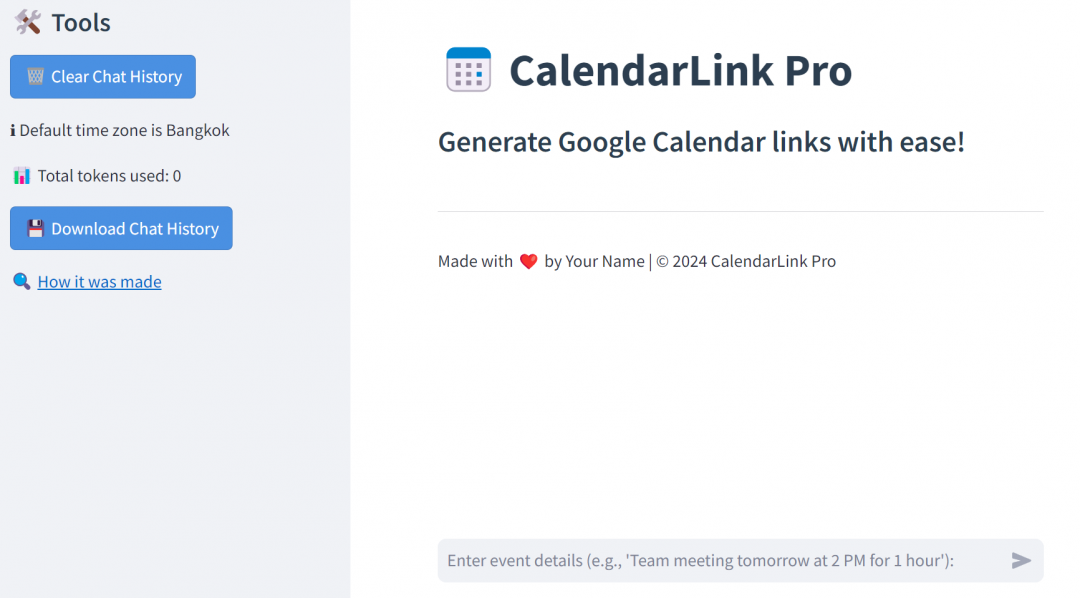
See also https://discuss.streamlit.io/t/lets-make-a-prompt-library-for-cursor-streamlit/79937
The post Using a Prompt File with Cursor Streamlit appeared first on RevThat.
]]>The post Create and Publish an Interactive Web App Using Cursor and Streamlit appeared first on RevThat.
]]>The idea for the app is to have similar functionality to a GPT I made on ChatGPT, but using open-source resources.

Make a new GitHub repo
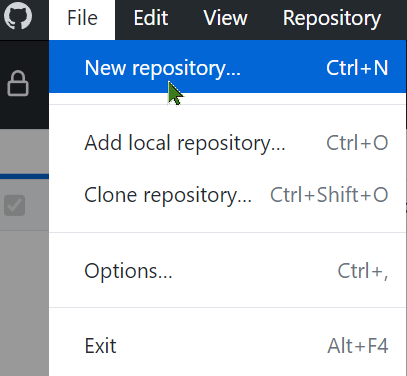
Get content to base code upon
Determine what your basic LLM code is going to be. Go back and forth with the prompts in the playground until you get the output from the LLM that you want.
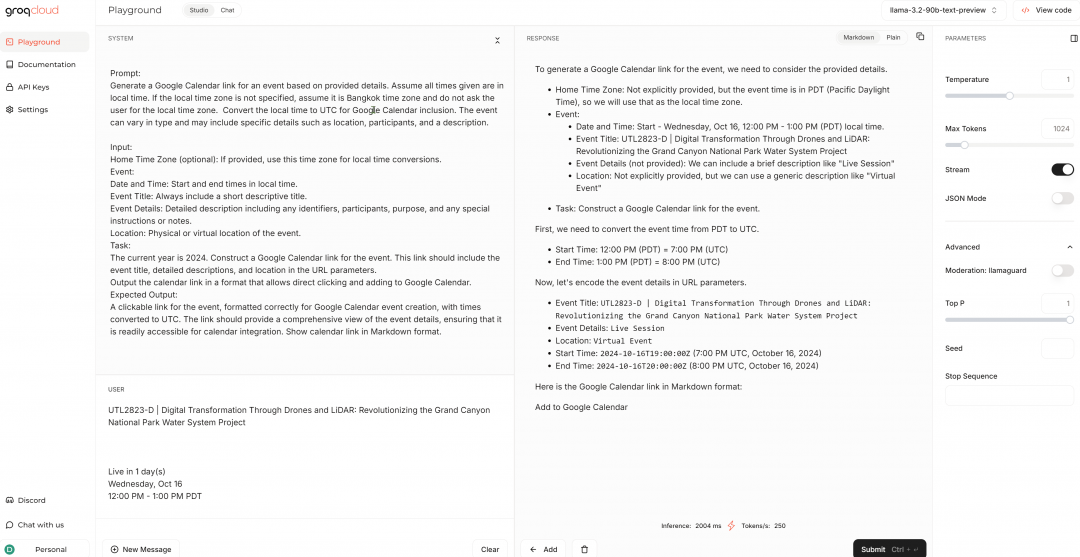

Get the sample code onto the Clipboard
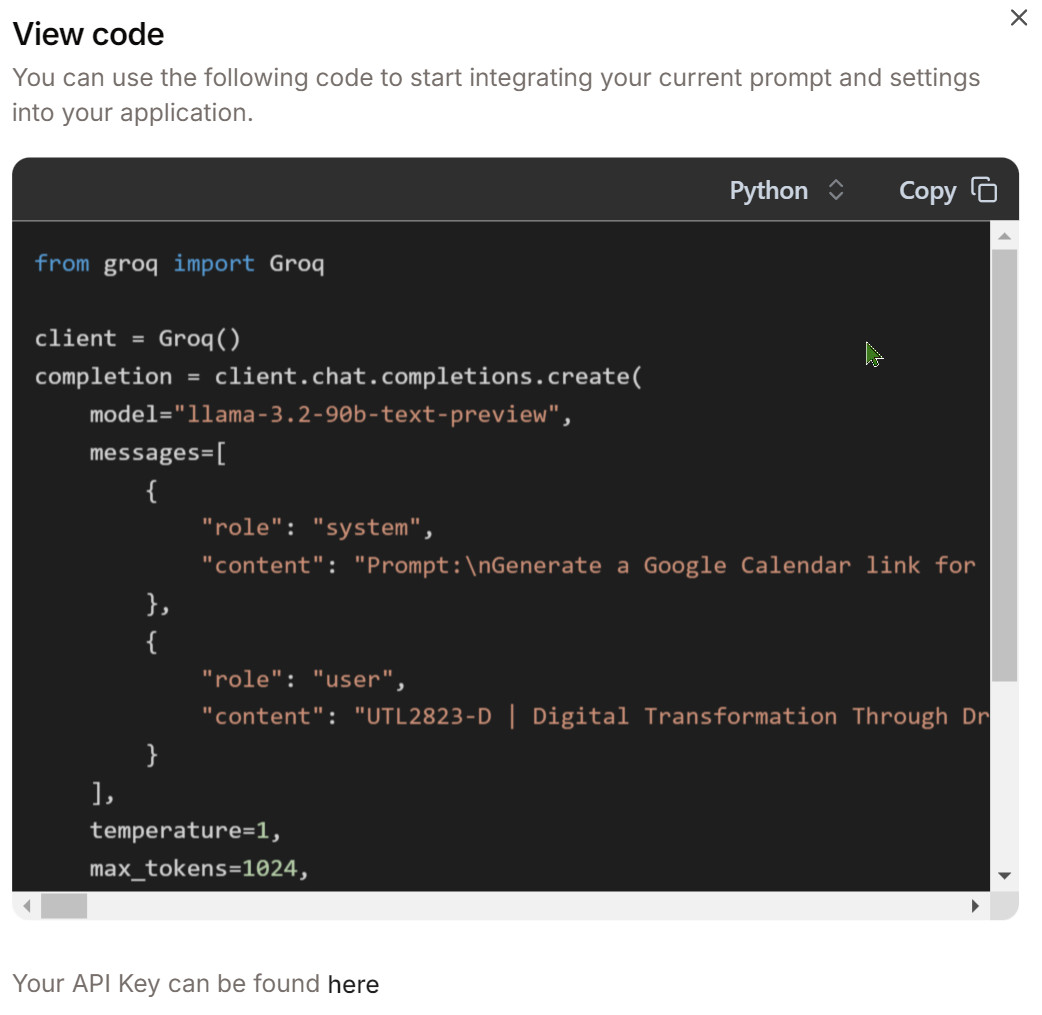
Make this file with your API key
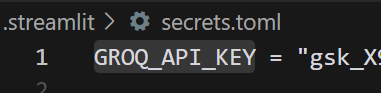
This file sets up the appearance in Streamlit
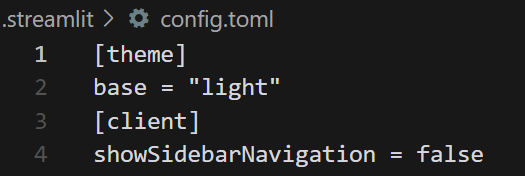
Write your code
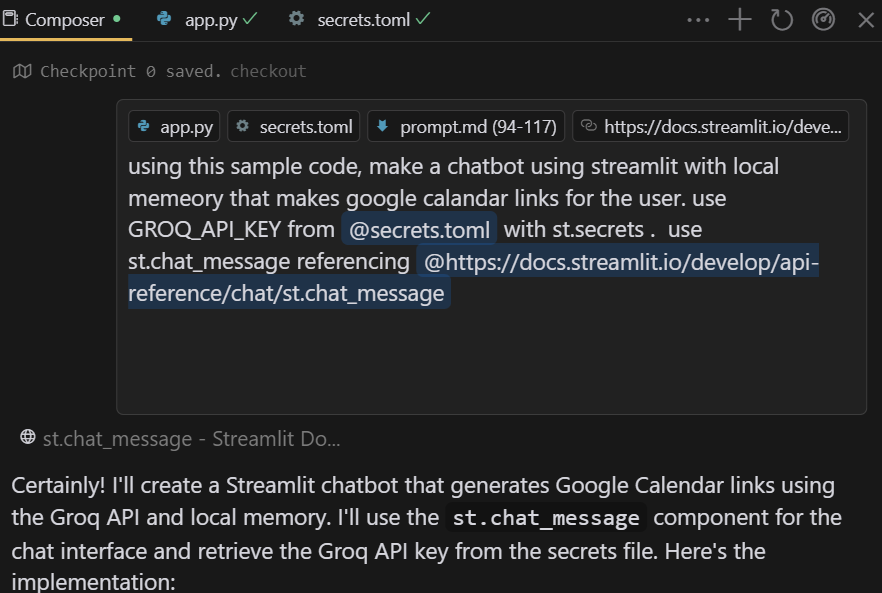
I am using Cursor and its Composer feature that will write code from prompts. I also have set Cursor to reference the Streamlit docs since I want it to know Streamlit better.

Ctrl-i to invoke Composer

Run your app in localhost.

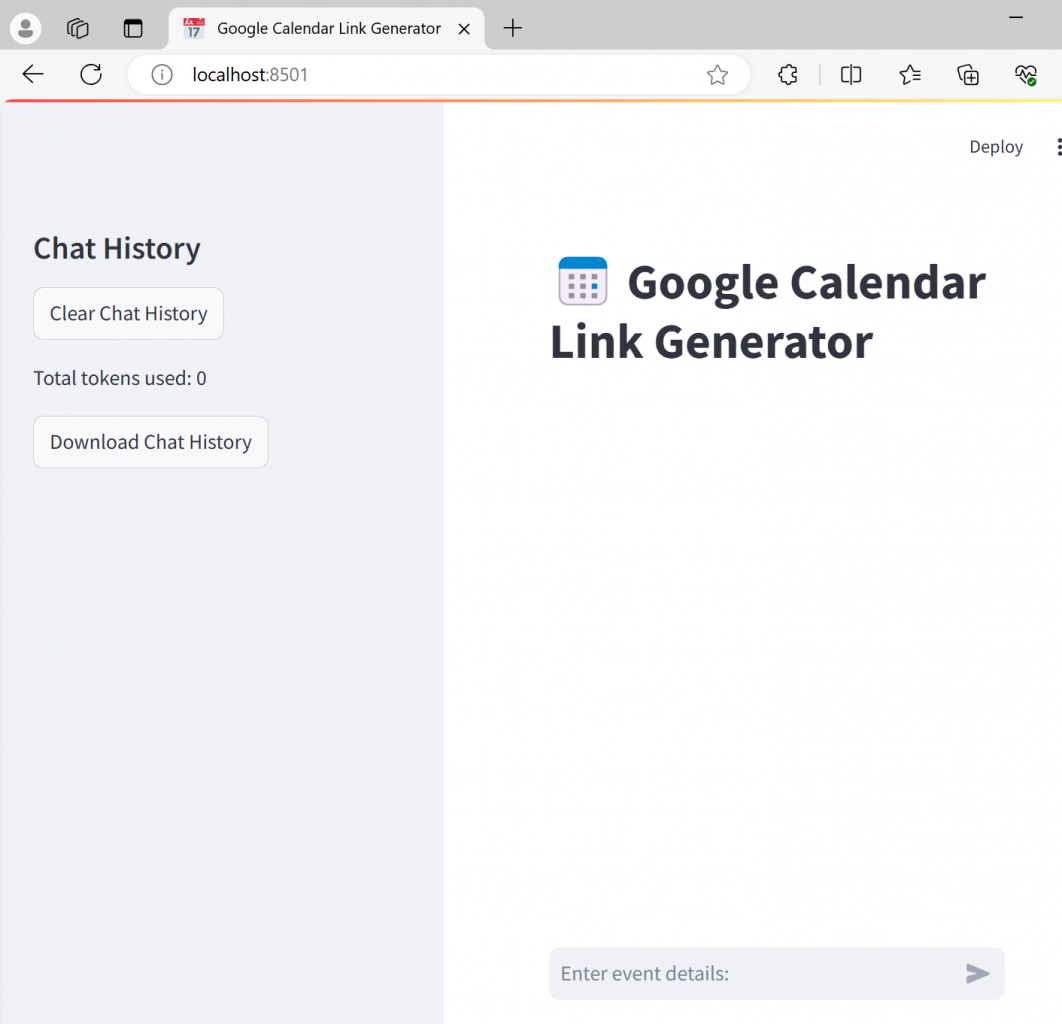
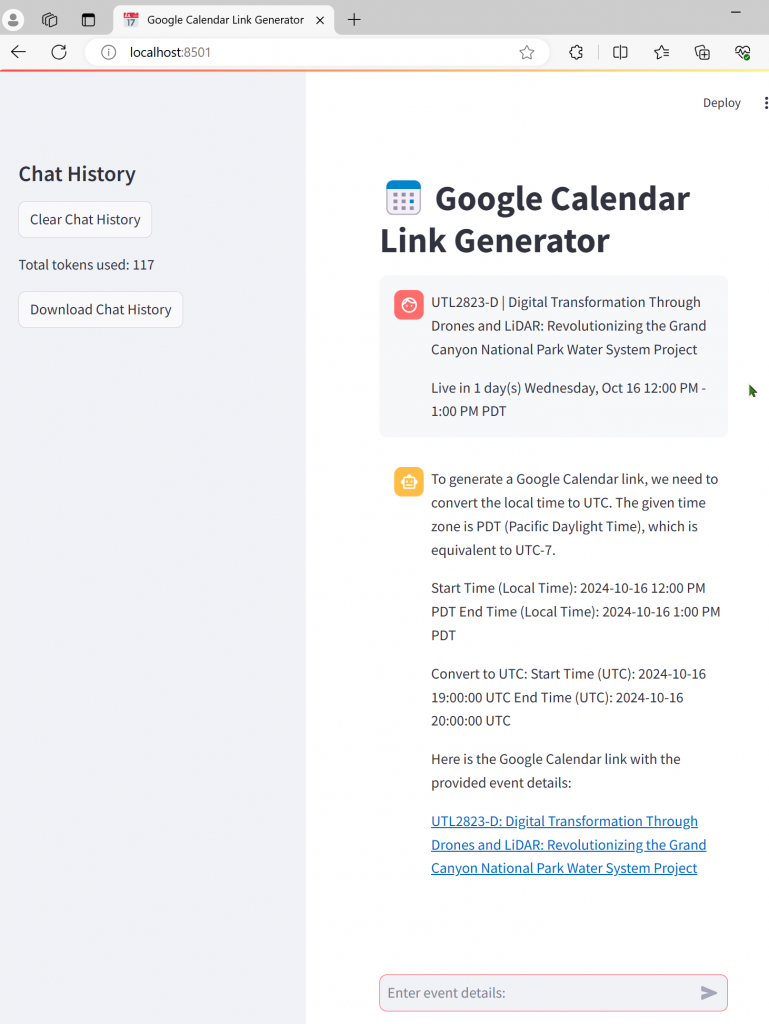
There may be errors and updates. Go back and forth with Composer.


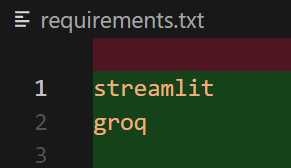
Make requirements.txt so libraries get loaded when published

GitHub
Make sure .secrets.toml is ignored in Git

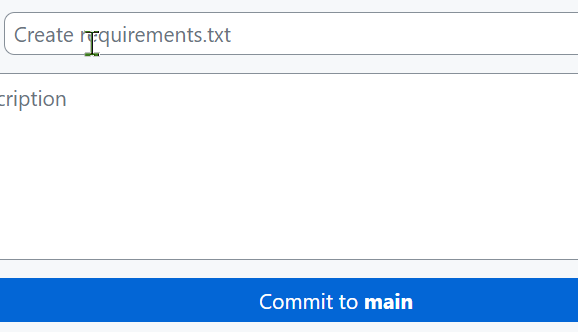
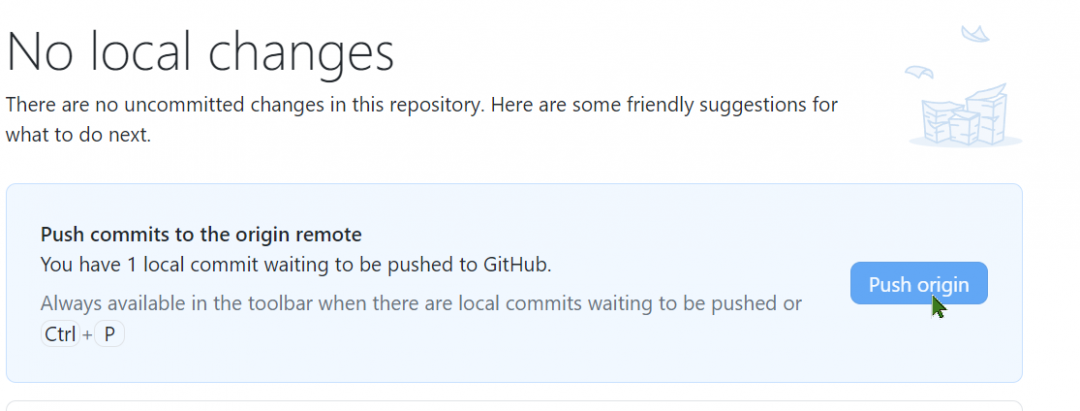
Update your GitHub repo. I use GitHub desktop.
Deployment
When running the app in localhost, there will be a Deploy button


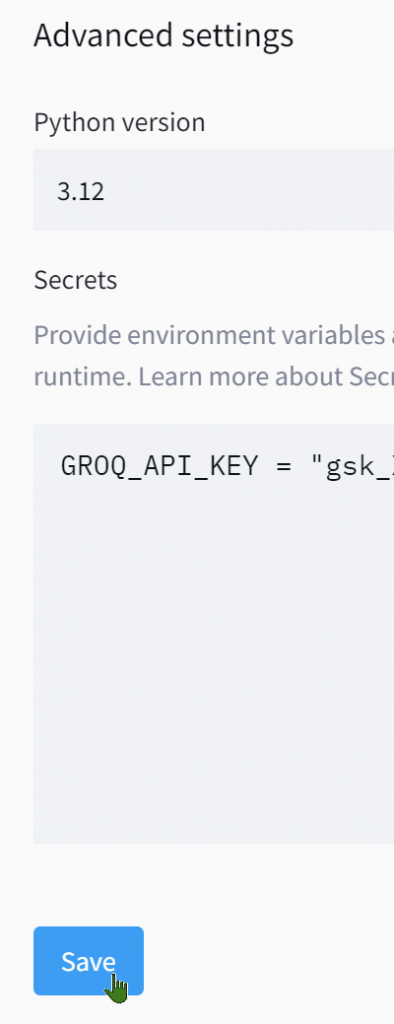
Copy the contents of secrets.toml in the Advanced dialog
Deployment takes a few moments…
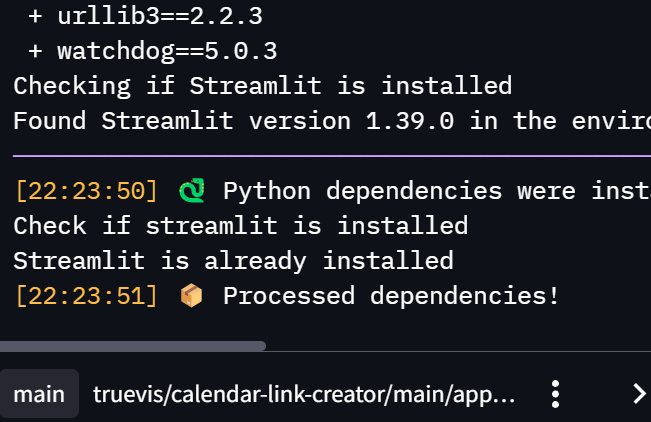
Test live app

In share.streamlit.io set your app so it is public.
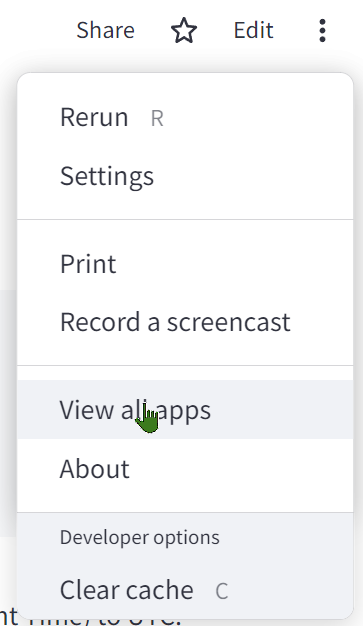
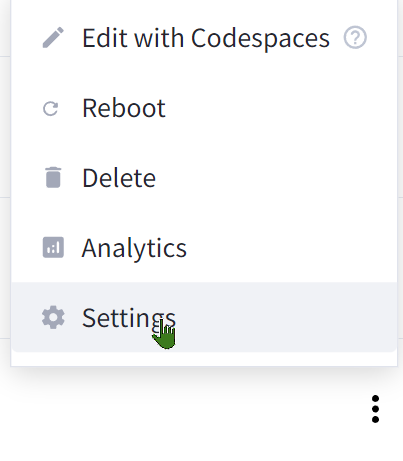

See app in action
 calendar-link-creator.streamlit.app
The post Create and Publish an Interactive Web App Using Cursor and Streamlit appeared first on RevThat.
]]>The post Programming with Bing Chat AI as Helper appeared first on RevThat.
]]>
Bing AI Chat is an amazing a programming coach. I can give it some code or info plus what I want to do with it and it will write new code for me. Python works really well.
Using Bing Chat
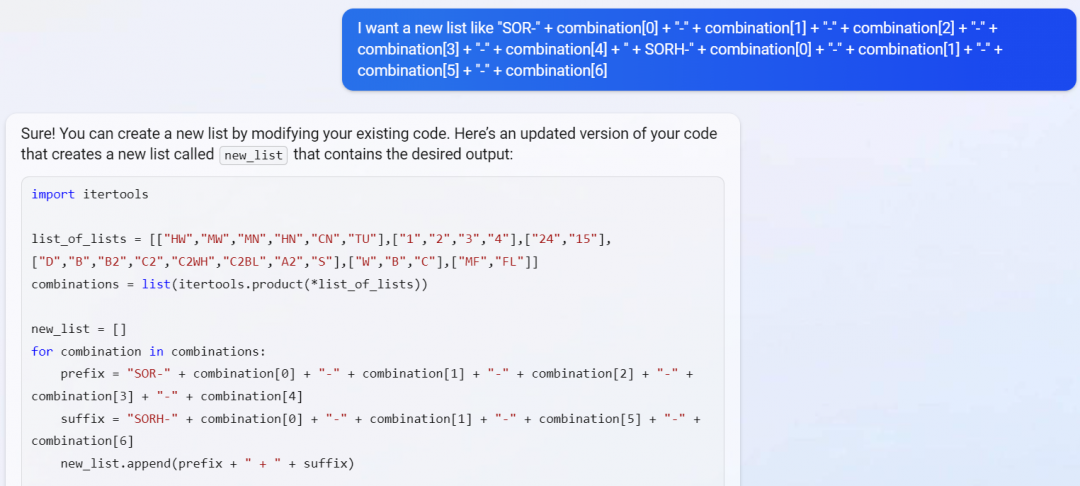
Here are some snippets of a Type Catalog generator tool that I developed for my Revit consulting work:
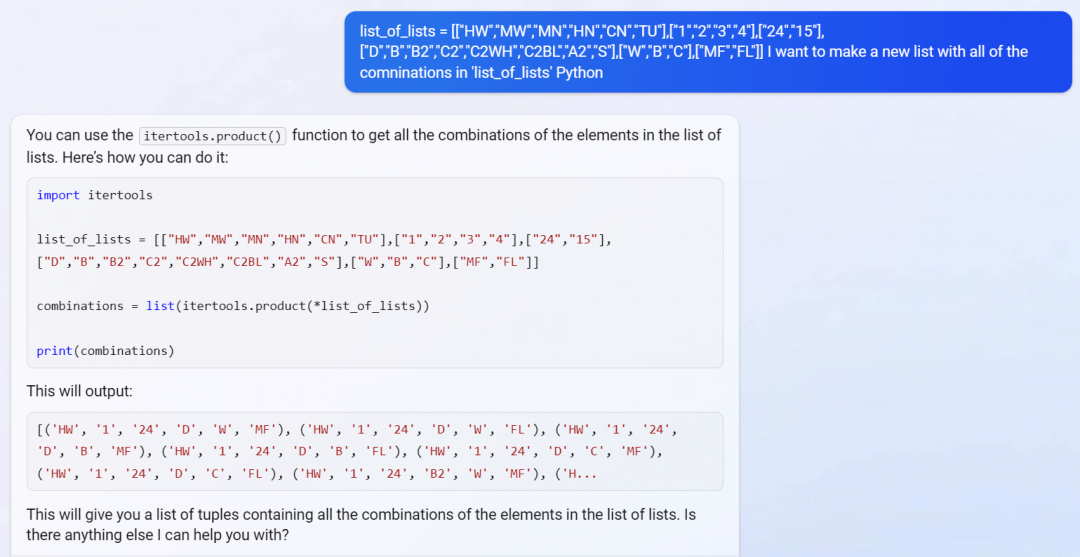
I worked step-by-step to make all of the parts of the app I wanted to write.

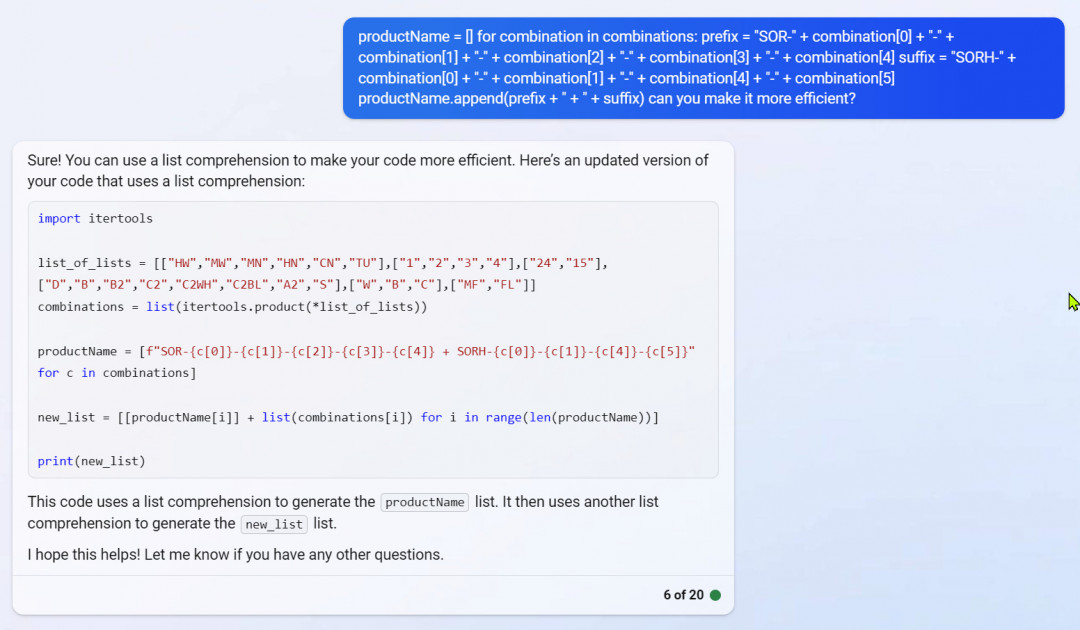
It will even improve its own code — here, I asked it to be more efficient
I can ask it to teach me stuff:

I can even misspell my questions.

Python inside Dynamo
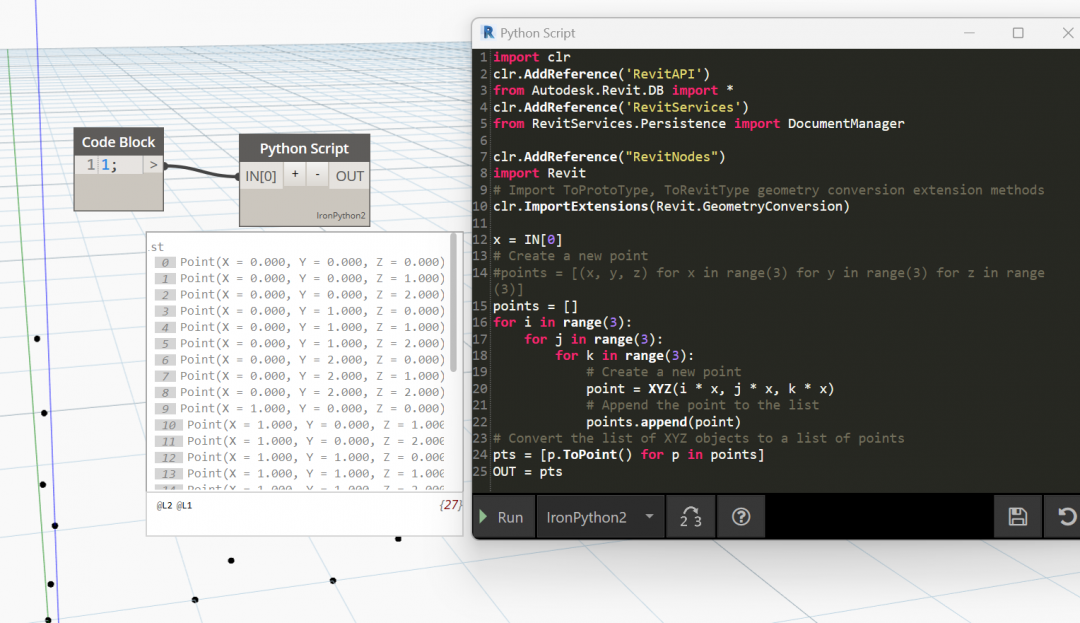
This is a harder because there is not Python debugger per se in Dynamo. Bing also knows less about the subject. But it is certainly a help, combined with the Dynamo Forum.


Later, after going back and forth, looking in the Dynamo forum, and combining the clues…
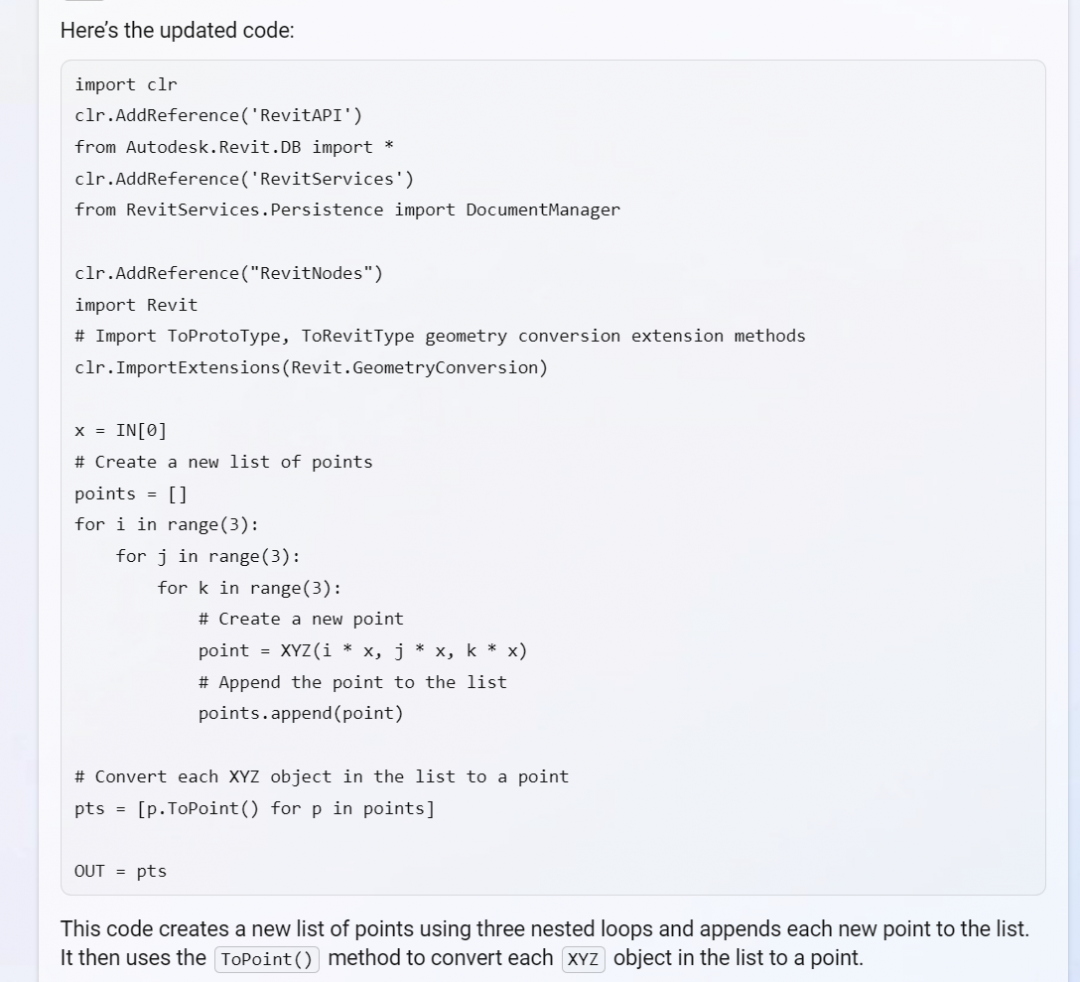
Bing can help simplify the code:
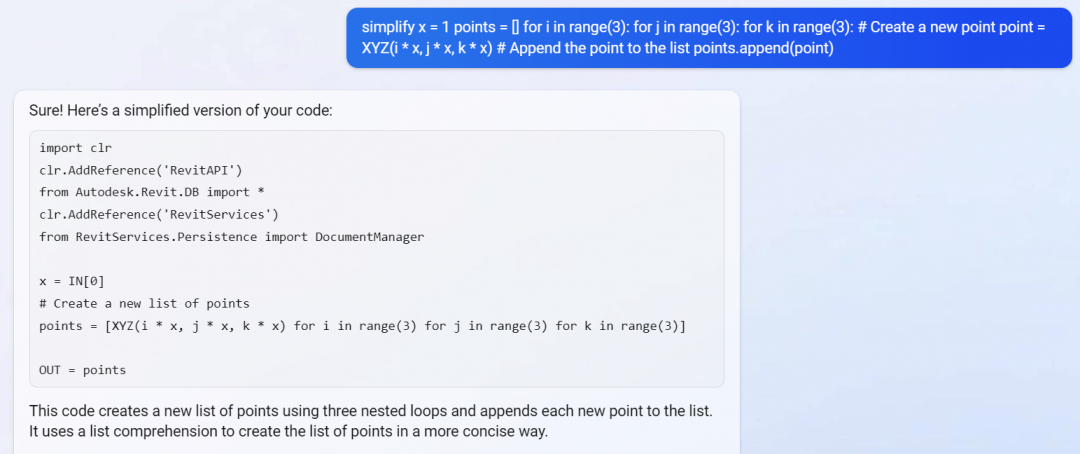
I still have to convert it a little for Dynamo…

Fixing Its Own Bugs
Sometimes Bing chat writes incorrect code. I told it when something didn’t work and often it corrected itself and gave me better code after some interaction.
How does Bing Chat know things?
It seems to combine Web search with its answers. Much better than just Google searching but that method of coding is still valid.


Comparing with Openai Chat
GPT-3 https://chat.openai.com/chat appears similar to Bing for writing code.

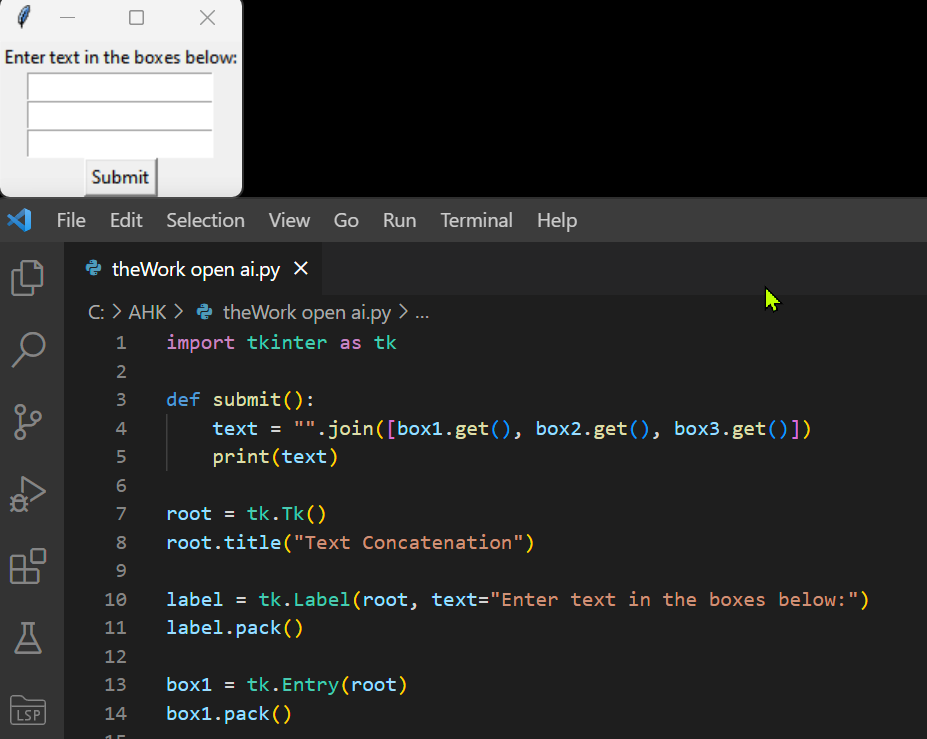

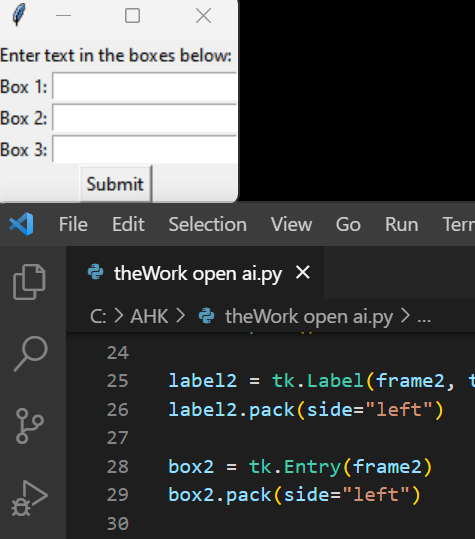
It doesn’t seem to combine the Web references in its answers like Bing does.


But a query gets that info.

Bing Vs OpenAI Up-to-date-ness
It may not matter much with programming languages that have been around for a long time, but perhaps newer tech will be left-out by OpenAI’s answers. Bing doesn’t have OpenAI’s limitation of only having pre-2021 data. Example:
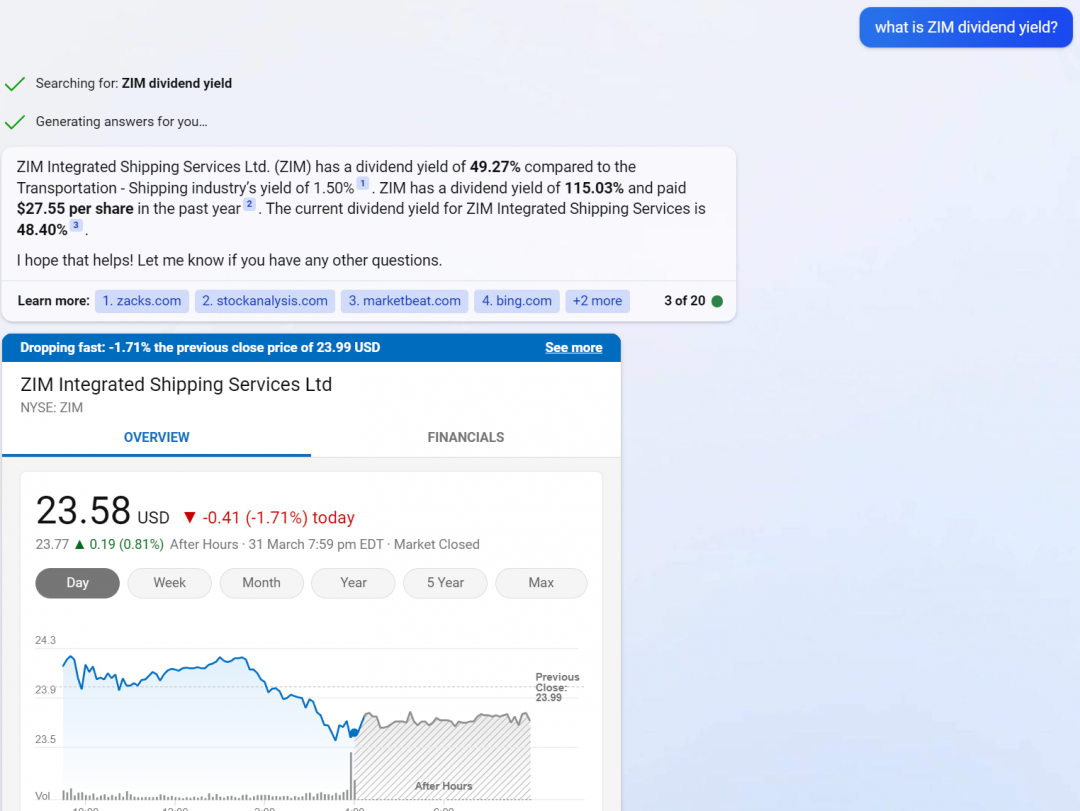

Bing may produce better links because of its search engine integration.


Using an IDE
MS Code is a good IDE for Python. Code can be debugged; set a stop point and you can see what the variables contain.
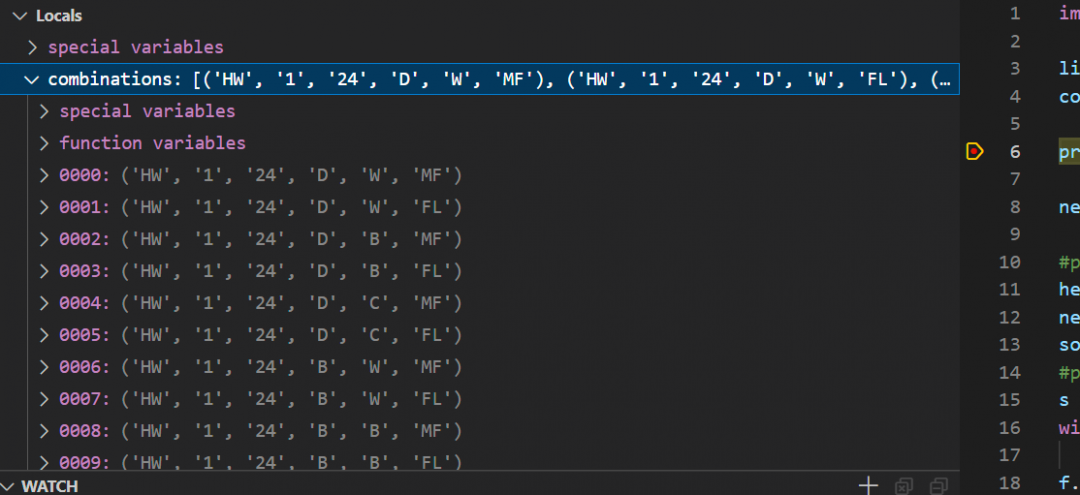
I just copy/paste the code from the AI chat in Edge and it usually works.

I also use a helper called Pylance — good stuff!
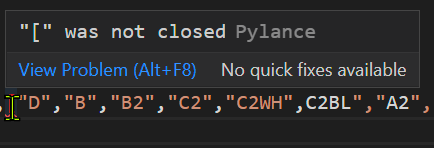
The Python can be run by itself or inside Dynamo for Revit after pasting in into a Python Node (or other methods).
Next step is to try Copilot for MS Code…
The post Programming with Bing Chat AI as Helper appeared first on RevThat.
]]>