Read More "How to Fix a Critical Error on Your WordPress Website with Solutions"
The post How to Fix a Critical Error on Your WordPress Website with Solutions appeared first on ScriptsTown.
]]>If you have a WordPress website, you may encounter errors from time to time. A critical error can appear unexpectedly or randomly on your site. It can potentially make your WordPress website partially or entirely inaccessible.
In this guide, you will learn how to troubleshoot a critical error on your WordPress website. First, you will learn how to identify the source or reason for an error, and then you will learn the steps needed to fix it.
Reasons for Errors in WordPress and How to Fix Them
There can be many reasons or causes for an error in a WordPress website. Here, we will go through them one by one. Also, you will learn how to troubleshoot and fix the error.
Critical Error After Upgrading a WordPress Plugin or Theme
Upgrading a WordPress plugin or theme can sometimes lead to a critical error. The error may arise due to conflicts with the current WordPress version, other plugins, or theme.
If you haven’t upgraded any plugin or theme on your own, then you may have auto-upgrade enabled for some or all of your plugins or themes. As a result, they automatically upgraded which can also cause incompatibility issues with your current WordPress environment.
Ultimately, these upgrade-related incompatibilities often trigger critical errors and break your website’s access. To regain access and fix the critical error, you need to find and deactivate the problematic plugins or theme. If you’ve lost admin access to the WordPress dashboard, you can still deactivate plugins/themes using your file manager.
The general process of troubleshooting involves three main steps:
- Deactivate the problematic plugin or theme via File Manager or FTP.
- Upgrade the plugin or theme to the latest or compatible version.
- Reactivate the plugin or theme after upgrading.
First of all, make sure you have access to your WordPress website files. For this, you may use your cPanel’s file manager tool or FTP. There, in the root directory of your WordPress files, you will find the “wp-content” folder.
Deactivate all Plugins at Once
To quickly deactivate all the active plugins at once, you can rename the “plugins” folder in “wp-content/plugins” to something like “wp-content/plugins-old“. Then try logging into your WordPress admin. This should deactivate all plugins and potentially resolve the critical error.
Once, you see that all plugins are deactivated, you can rename the “plugins-old” directory back to its original name “plugins” in “wp-content/plugins” using the file manager. Renaming to the original name will not reactivate the plugins on its own. You would need to return to WordPress admin and then reactivate plugins one by one to identify the problematic one.
Deactivate One Plugin At a Time
To deactivate a specific plugin via file manager, locate its folder in “wp-content/plugins”. For example, to deactivate WP Fastest Cache, rename “wp-content/plugins/wp-fastest-cache” to “wp-content/plugins/wp-fastest-cache-old“. After, you can navigate to the WordPress admin panel and the plugin should be deactivated.
Once you see that the intended plugin is deactivated, you can rename its directory to the original name, that is “wp-content/plugins/wp-fastest-cache“. This will not reactivate the plugin on its own. You would need to activate it again by going to the WordPress admin panel. Before activating it, you can update the plugin to a newer version if available.
You can check the plugin’s official website for its version compatibility with your WordPress version and PHP version, upgrade if needed, and reactivate after the upgrade.
Deactivate the Currently Active Theme
Unlike plugins, only one theme can be active at a time. To deactivate your current theme, similar steps are needed. Locate its folder in “wp-content/themes”. For example, if your currently active theme is StoreFront, then you can rename “wp-content/themes/storefront” to “wp-content/themes/storefront-old“.
This will deactivate the StoreFront theme and revert to the default theme. You can then rename the theme directory name to its original name, from “storefront-old” to “storefront” in “wp-content/themes/storefront“. This will not reactivate the theme on its own. First, check theme compatibility from its official website, upgrade if required, and then reactivate.
The key steps are deactivating the suspect plugins or theme, upgrading any incompatible versions, and selectively reactivating to pinpoint and resolve the critical error. File manager access allows you to deactivate even when you can’t access your WordPress admin panel.
Incompatible Code of a Plugin or Theme Result in an Error
If upgrading the problematic plugin or theme does not resolve the critical error, you’ll need to pinpoint the exact problematic code. This can be done by enabling WordPress debug mode to view details in the “debug.log” file.
Enabling Debug Mode and Checking the Debug.log
To enable debug mode, open the “wp-config.php” file in the root of your WordPress installation files. You can find this PHP code in “wp-config.php”.
define( 'WP_DEBUG', false );Add or modify the above PHP code in “wp-config.php” to:
define( 'WP_DEBUG', true );
define( 'WP_DEBUG_LOG', true );
Now, it will start to log any new error that you get when you visit the page again. So, you would need to visit the page on your website where you see the critical error.
This will generate a “debug.log” file in “wp-content/debug.log“. Then, you can open this “debug.log” file to view error messages with timestamps and originating file paths. This can help to identify the specific code causing fatal errors or a critical error.
You can now deactivate the problematic plugin or theme as outlined before.
Alternatively, you may want to reach out to the developer of that plugin or theme to notify them of the issue. Or you can attempt a quick code fix yourself if experienced with PHP or WordPress development.
After identifying and resolving the error, remember to disable debug mode by setting:
define( 'WP_DEBUG', false );
define( 'WP_DEBUG_LOG', false );
Leaving debug mode on can expose sensitive information and impact performance. But it’s a useful tool for drilling down on specific errors when upgrading WordPress components like plugins and themes. The debug.log provides details to pinpoint problematic code triggering a critical error on your WordPress site.
Theme or Plugin Compatibility with PHP Version
Upgrading your PHP version can also trigger a critical error on your WordPress site if your plugins or theme are not compatible with the new PHP release. This may happen if your host automatically upgrades PHP or you manually upgrade it yourself. In this case, affected plugins or the theme will break on the new PHP version running WordPress.
The solutions here are to either downgrade PHP to a compatible version or upgrade your plugins/themes to the latest releases that support the new PHP version. You can check the plugin/theme’s official websites to verify PHP compatibility.
Potential actions you can take:
- Current PHP Version: Check your current PHP version by accessing cPanel or going to the WordPress admin panel and navigating to the menu, “Tools” > “Site Health” > “Info”.
- Downgrade or Upgrade PHP Version: Contact your hosting provider or use cPanel to downgrade or upgrade the PHP version to a compatible one.
- Upgrade Plugins or Theme: Update all of your plugins and your current theme to their latest versions and ensure PHP compatibility.
Stuck Displaying Schedule Maintenance Notice “Briefly unavailable for scheduled maintenance”
Besides a critical error, a few other cases can make your WordPress site inaccessible.
Sometimes a WordPress site gets stuck displaying a “Briefly unavailable for scheduled maintenance” message. This is caused by a “.maintenance” file added to the WordPress root folder, putting the site in maintenance mode.

To resolve this:
- Locate “.maintenance” File: Use your file manager or FTP to access the WordPress file directory. Check for a “.maintenance” file in the root directory of your WordPress files.
- Delete “.maintenance” File: Once you locate the “.maintenance” file, delete it. This will remove the maintenance message and take your website out of maintenance mode.
The “.maintenance” file triggers maintenance mode when present in the root directory of your WordPress website files. Simply deleting this “.maintenance” file can quickly take a WordPress site out of maintenance mode if unintentionally added or if it fails to remove properly after scheduled maintenance.
WordPress Website Shows Critical Error Sometimes “There has been a critical error on this website.”
A critical error in WordPress can occur by an incompatible plugin, theme, or corrupted file. We have already mentioned the reasons for a critical error and how to fix a critical error.
Website Shows Critical Error Randomly Due to High Memory Usage or High I/O Usage
There are also cases when you may get critical errors on your WordPress site randomly, typically caused by high memory usage or high I/O usage. This issue is often the result of poorly coded plugins or themes.

To address this problem, you can take the following steps:
- Increase Memory Limit or I/O Limit: Use cPanel or contact your hosting provider to increase the memory limit or I/O limit for your WordPress website.
- Replace Poorly Coded Plugins or Themes: Find which plugin or theme is responsible for high memory or high I/O usage by deactivating them one by one. This way, you can isolate the poorly coded plugin or theme and upgrade or replace them.
If you’re specifically dealing with high memory usage in a WordPress site, we have a detailed guide on how to fix high memory usage issues that you may find helpful.
Fixing Database Issue “Error establishing a database connection”
When you get the error message “Error establishing a database connection” on your WordPress website, it typically indicates one of two issues. Either your database service, such as MySQL or MariaDB server, is not running, or your database credentials are incorrect.
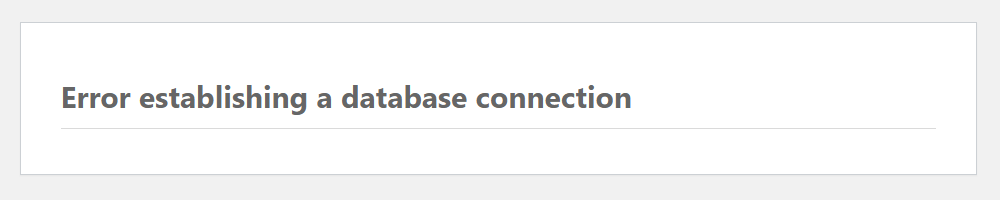
To resolve this issue, follow these steps:
- Check Database Service: Make sure that your database service, such as MySQL or MariaDB server, is running. You can do this by accessing your hosting provider’s control panel or contacting their support for assistance.
- Verify Database Credentials: Locate the “wp-config.php” file in the root directory of your WordPress files. Open the “wp-config.php” file and make sure the database credentials are correctly specified in this file. Here, make sure the database name, username, password, and host are correct.
In some instances, the “Error establishing a database connection” error can occur due to MySQL running out of available memory. This situation can arise when the database server is handling a large number of concurrent connections, complex queries, or dealing with extensive data sets. When MySQL’s memory limit is reached, it may prevent new connections from being established, including the connection attempt made by WordPress.
To address this issue, first, identify if MySQL’s memory limit is indeed the culprit by checking the server’s error logs or MySQL’s status variables. Look for entries or messages related to “out of memory” or “too many connections” errors. If the memory limit is the root cause, there are a few potential solutions:
- Optimize MySQL queries and database structure: Examine your WordPress plugins and current theme for inefficient queries or poorly optimized database structures.
- Implement query caching: Use object cache like Redis to cache database query results. Enabling query caching in MySQL can help reduce the load on the database server by storing frequently accessed query results in memory.
- Upgrade database server: Upgrade your database server’s resources (CPU, RAM, etc.) or scale to a better server configuration to handle the increased memory demands.
Conclusion
For a WordPress site owner, it is frustrating to see a critical error. Critical errors can occur for various reasons, such as upgrading WordPress core, plugins, or themes, compatibility issues with PHP versions or other plugins, and high memory or high I/O usage. There are quick and easy ways to recover from a critical error and identify its cause, as outlined in our guide. In addition, we’ve covered other potential issues that can make a WordPress site inaccessible, such as being stuck in maintenance mode or facing a database connection error, along with actionable steps to resolve them.
The post How to Fix a Critical Error on Your WordPress Website with Solutions appeared first on ScriptsTown.
]]>Read More "Best Open Source Web Servers for WordPress Speed and Security"
The post Best Open Source Web Servers for WordPress Speed and Security appeared first on ScriptsTown.
]]>You may use WordPress for blogging, eCommerce, or any business website, it’s important to have a reliable web server as it carries a significant weight on the overall performance and scalability of your WordPress site. Furthermore, it helps to protect your website by offering security features such as throttling or limiting the number of requests per second, IP blacklisting, DDoS protection, Firewall, and more.
When you get high traffic on your website, the web server starts to show its efficiency of whether it can handle the high traffic with many concurrent requests. These web servers offer further tweaks depending on the CPU, memory, and other resources. We will also highlight the unique attributes of each web server and show you how they align with the specific needs of your WordPress site.
Here is the list of the best free and open-source web servers that are recommended for running a WordPress website.
Nginx
Nginx is known for its robust performance and speed. It is a great choice as a web server for WordPress sites with heavy traffic. During high-traffic loads, With event-driven architecture, Nginx serves your WordPress site efficiently with a high number of concurrent connections and a high number of requests per second. It doesn’t slow down the response time.
It has built-in load balancing and reverse proxy capabilities. Load balancing is helpful for even traffic distribution. Also, it supports caching which includes object caching and opcode caching. Resource-wise, Nginx consumes low memory and low CPU usage with minimal disk I/O. This makes it a memory-efficient web server. The high performance and scalability of Nginx make it an excellent choice for WordPress sites with many concurrent user requests.
For security, Nginx offers a built-in rate-limiting ability to control the number of requests allowed from specific IP addresses, which mitigates DDoS attacks. You can configure it to limit requests per second, per minute, or per hour. It also supports security modules like ModSecurity and Firewall / WAF that protect against several types of web attacks and improve the security of your WordPress website.
Pros and Cons of Nginx Web Server
Pros of Nginx:
- Efficient at handling concurrent connections.
- Built-in load balancing and reverse proxy support.
- Advanced caching mechanisms for improved performance.
- Excellent for serving static content.
- Can proxy requests to a separate PHP-FPM process.
- Large community base to ensure continuous updates and enhancements.
- Robust security features.
Cons of Nginx:
- The learning curve is high compared to other web servers.
- Configuration setup can be complex for beginners.
- Lack of built-in support for .htaccess files.
- It requires third-party modules for some functionalities.
- Limited built-in monitoring and management tools.
OpenLiteSpeed
OpenLiteSpeed is a free and open-source version of the LiteSpeed web server. It is light on resources and offers an excellent speed with a focus on user-friendliness.
It supports both compiled LSAPI (LiteSpeed Application Programming Interface) in the form of LSPHP and FastCGI PHP (PHP FPM), which provide flexibility in how PHP is processed. Also, you can easily change to any specific PHP version for different WordPress installations using the simple web interface.
For security, to prevent DDoS attacks, you can set the maximum number of connections allowed per IP address. This can prevent excessive connections and conserve server resources. You can throttle the number of static and dynamic requests per second per IP address to better control the server’s load. It also comes with an option to block bad bots to reduce unnecessary traffic. Furthermore, you can install modules like the ModSecurity module and set up its Firewall / WAF rules.
For performance, you can easily enable caching and compression. Also, you can fine-tune OpenLiteSpeed depending on the availability of server resources. All these configurations can be done with an easy-to-use web server administration interface.
One major advantage of OpenLiteSpeed is its LiteSpeed Cache plugin which provides integrated server-level caching for WordPress and offers exceptional performance. This reduces the need for third-party caching solutions.
Pros and Cons of OpenLiteSpeed Web Server
Pros of OpenLiteSpeed:
- Support for LiteSpeed Cache which can skyrocket WordPress performance.
- Built-in anti-DDoS measures for high security.
- Support for both LSPHP and FastCGI.
- Moderate resource requirements.
- High performance web server with fine tuning.
- Support for Brotli compression for efficient content delivery.
- Graceful server restarts without disrupting service.
- Web control panels like Cyberpanel run on OpenLiteSpeed.
- Unlike other open-source web servers, it has a user-friendly web interface for administration with detailed statistics and monitoring tools.
Cons of OpenLiteSpeed:
- Proprietary modules and advanced features are not free with their open-source version.
- Limited availability of modules and extensions compared to other web servers.
- Potentially less detailed documentation guide compared to Apache or Nginx.
- Less flexible for complex configurations.
Apache
Apache is a reliable choice as a web server, it balances performance and resource utilization. It may not match Nginx and OpenLiteSpeed in terms of raw speed but it offers solid caching and load balancing abilities. Apache’s resource usage is also slightly higher.
It has an extensive module library for customizations. Apache’s configuration can be more complex, but it’s compatible with various web control panels. It can also be configured to work with PHP-FPM using mod_proxy_fcgi or mod_fastcgi modules.
Apache uses the mod_evasive module for DDoS protection. This module can monitor incoming requests and detect suspicious patterns. When triggered, it can block or throttle connections from the offending IP address and provides a layer of defense against DDoS.
Furthermore, Apache has .htaccess support to allow fine-grained configuration on a per-directory basis. This makes it easy to customize URL structures, authentication, and other settings for your WordPress site.
Pros and Cons of Apache Web Server
Pros of Apache:
- A wide range of modules and extensions are available for customization.
- Flexible configuration options through .htaccess files.
- Well-established and widely used web server with long-standing community support and extensive documentation.
- Compatibility with many popular control panels like cPanel, Plesk, etc.
- Includes mod_evasive module for DDoS protection in Apache.
- Cross-platform compatibility.
Cons of Apache:
- Complex configuration for beginners.
- Can be resource-intensive.
- Decline in performance under heavy loads.
- High memory usage as compared to other web servers.
- Vulnerable to DDoS attacks without proper configuration.
Caddy
Caddy web server features a modular architecture and can run on various platforms, even in containers, without dependencies. It comes with an automatic HTTPS feature that makes the process of enabling and managing SSL/TLS certificates easy.
It has an Apache 2.0 open-source license and is great for small to medium WordPress sites. Caddy prioritizes performance, it is easy to configure and performs well in most scenarios.
The Caddyfile is the configuration file used by the Caddy web server. It makes use of simple and human-friendly syntax for defining your site’s address and specifying the features or functionality you need.
It provides rate-limiting middleware to control request rates from specific IP addresses. Caddy’s community is smaller, but it is active and ensures regular updates and support.
Pros and Cons of Caddy Web Server
Pros of Caddy:
- Automatic HTTPS configuration, SSL certificate management, and Let’s Encrypt integration for SSL certificate generation.
- Fast and efficient performance with low CPU usage.
- User-friendly setup and configuration with Caddyfile.
- Caddy supports a wide range of middleware plugins to enable features like logging, caching, security headers, and more.
Cons of Caddy:
- Smaller user base and documentation compared to more popular web servers.
- It requires familiarity with Caddyfile syntax.
- Less extensive plugin and extension ecosystem.
- Limited support for complex load-balancing scenarios.
- Lack of built-in support for some advanced features found in other servers.
Lighttpd
Lighttpd, or “Lighty,” is a lightweight web server with a focus on speed. Its response time is fast, but it may not handle as many requests per second as other servers. Also, it allows you to limit request rates from specific IP addresses. It is great for hosting WordPress websites where resource efficiency and high performance are important.
Pros and Cons of Lighttpd Web Server
Pros of Lighttpd:
- Efficient resource utilization with a low memory footprint.
- Built-in URL rewriting and redirection capabilities.
- Provides granular control over access restrictions for better security.
- Fast and lightweight web server which can handle high loads with low CPU usage.
- Strong support for FastCGI, CGI, and proxying.
Cons of Lighttpd:
- Beginners might find the configuration more challenging.
- Fewer readily available plugins and modules.
- Some modules may need manual setup which can potentially increase complexity.
- Smaller user community compared to other web servers.
Summary
Open-source web servers have their unique strengths, features, and popularity with a major advantage of being free, community-driven, and customizable. You can choose a web server on the basis of preferences and the nature of your WordPress website.
Each server we’ve explored offers unique advantages in terms of performance, security, caching, and ease of use. It’s important to assess your individual requirements, whether it’s maximizing speed, handling concurrent connections, securing your website, or simplifying the SSL setup, to make an informed decision. Here’s the summary for each choice:
- Nginx performs really well in handling concurrent connections and heavy traffic loads.
- OpenLiteSpeed offers unique throttling and bot-blocking, DDos protection features.
- Apache is the oldest and most established option among the web servers mentioned.
- Caddy simplifies HTTPS and SSL certificate management for security.
- Lighttpd is lightweight and resource-efficient.
Getting Expert Guidance in Web Server Choice
If you don’t have the expertise to choose the best web server for your site, a WordPress agency can be instrumental in guiding you through the process. They can assess your website’s specific needs, considering factors like traffic volume, page load speed, server compatibility, caching performance, and security requirements.
WordPress agencies have experience working with various web servers, including shared hosting, virtual private servers (VPS), dedicated servers, and managed WordPress hosting. They can help you evaluate the pros and cons of each option, taking into account factors like cost, scalability, and technical support. Additionally, a WordPress agency can assist in transferring your website to a new server and fine-tuning its performance to ensure smooth operation and maximum efficiency.
The post Best Open Source Web Servers for WordPress Speed and Security appeared first on ScriptsTown.
]]>Read More "How to Use Object Cache with Redis to Reduce WordPress Load"
The post How to Use Object Cache with Redis to Reduce WordPress Load appeared first on ScriptsTown.
]]>Object cache with Redis can minimize the load on your WordPress database by caching frequently accessed data in memory instead of having to retrieve it from the database every time it’s needed. This can significantly reduce the number of database queries required to load a page, resulting in faster page load times and reduced server load.
By reducing the load on your WordPress database, you can also improve the overall performance and scalability of your WordPress site.
In this guide, we learn how to use object cache in Redis in WordPress using a drop-in plugin. Also, we learn the steps to install the Redis server and how to monitor its memory usage.
Installing and Configuring Object Cache Drop-in Plugin
Instead of installing Redis plugin from a WordPress repository, we can install a drop-in plugin.
A drop-in plugin is a PHP file that you can drop into the WordPress “wp-content” directory. This automatically activates the plugin without any additional configuration or settings.
To get WordPress Redis drop-in plugin, navigate to its GitHub repository, and click on the “Code” > “Download ZIP”. Next, extract the zip, you will find a PHP file “object-cache.php”. This is a drop-in WordPress plugin for enabling object cache with Redis.
Setting Default Expiration Time for Redis
Now, before installing this drop-in plugin, you can edit it and set Redis default expiration time by editing the “object-cache.php” file. You will see this line of code:
if ( ! defined( 'WP_REDIS_DEFAULT_EXPIRE_SECONDS' ) ) {
	define( 'WP_REDIS_DEFAULT_EXPIRE_SECONDS', 0 );
}
You can change the value of 0 (which means no expiration) to something like 604800 (which is 7 days). So, it will look like this:
if ( ! defined( 'WP_REDIS_DEFAULT_EXPIRE_SECONDS' ) ) {
	define( 'WP_REDIS_DEFAULT_EXPIRE_SECONDS', 604800 );
}
Setting an appropriate expiration time for cached data ensures that stale data is not being served to site visitors. Additionally, it helps to prevent the Redis cache from becoming too large and overwhelming the server’s resources.
However, there are other methods to prevent excessive memory usage by Redis that are mentioned in this guide below.
Once, you have finished editing the “object-cache.php” file, you can install it as a drop-in plugin on your WordPress site.
Installing Redis Object Cache Drop-in Plugin
Using your WordPress file manager, you can simply put “object-cache.php” inside the “wp-content” directory. So, it will look like “wp-content/object-cache.php”.
Now, in your WordPress admin panel, you can check this drop-in plugin by going to “Plugins” > “Installed Plugins” > “Drop-in”.
Next, you would need to mention the Redis server host, port, and Redis database to use for your WordPress website inside the “wp-config.php” file. You can do so by going to your WordPress file manager, then edit your “wp-config.php” file, and adding the following code just above the message as shown below:
// Redis.
$redis_server = array(
	'host'     => '127.0.0.1',
	'port'     => 6379,
	'auth'     => '',
	'database' => 0,
);

/* That's all, stop editing! Happy publishing. */
You can use database values such as 0, 1, 2, and so on depending on the specific WordPress website in case there are multiple WordPress sites on the same server.
WP Redis: Connection Attempt Failed
After installing the drop-in Redis plugin, if you see a message like “WP Redis: A connection attempt failed”, then it means Redis is not installed on your server. Below are the steps to install Redis and its PHP extension on a server.
Installing Redis Server and PHP Redis Extension
First, you need to log in to your server via SSH (terminal). To check if Redis is already installed on your server, you can check this by using the command:
> redis-cli infoIf Redis is already installed, you should get information about the Redis service, else you will get the command not found message.
If it shows command not found, then install Redis by running these commands one by one:
> sudo apt-get update
> sudo apt-get install redis-server
Next, press Y to continue installing Redis and its related packages. Now, you can re-run the “redis-cli info” command and it should return some output.
The drop-in plugin also requires a PHP Redis extension. You can enable this extension by going to your cPanel PHP settings. Or, you can install it using the SSH terminal of your server.
Enable PHP Redis Extension via cPanel
If you use a cPanel for managing server configurations, there you can enable the PHP Redis extension by going to your cPanel’s PHP settings.
Depending on the PHP version that your WordPress site runs on, you would need to enable the PHP Redis extension that corresponds to the PHP version.
Install PHP Redis Extension via SSH
If the PHP Redis extension is not installed, then you can install it via SSH terminal using the following command:
> sudo apt-get install php8.3-redisYou can adjust the above command to install the PHP Redis extension for the PHP version that your WordPress site uses.
Setup Maximum Memory Limit and Policy for Redis
It’s good to set a maximum memory limit for a Redis so it does not run out of memory. Therefore, it won’t throw any memory-related errors. To set the maximum memory limit for Redis, you can SSH on your server and run the command to edit the Redis configuration file:
> sudo nano /etc/redis/redis.confSet Maximum Memory Value
Next, in the “redis.conf” file, using the nano editor, use the “Ctrl + W” key to search for “maxmemory <bytes>”. You will see this line:
# maxmemory <bytes>Remove the “#” and change the above line to add maximum memory, so it will look like this:
maxmemory 100mbThe value “100mb” depends on the size of your actual WordPress database as well as how frequently data is accessed, you can experiment with it by setting a small value first like “40mb”, “60mb”, and so on, then you can monitor Redis memory usage and change its value depending on the Redis memory usage.
Save the file with “Ctrl + X” and then “Y”. Then, restart Redis using the command:
> sudo systemctl restart redis.serviceSet Policy for Maximum Memory
It is also necessary to set a policy for evicting keys once maximum memory usage is reached by the Redis instance, you can do so by the editing Redis configuration just like above:
> sudo nano /etc/redis/redis.confUsing “Ctrl + W”, search for “maxmemory-policy noeviction”, then you will find this line:
# maxmemory-policy noevictionRemove the “#” and change it so, it will look like this:
maxmemory-policy volatile-lruYou may also change it to “allkeys-lru” instead of “volatile-lru”.
maxmemory-policy allkeys-lruThe “allkeys-lru” value evicts the least recently used keys from the Redis cache.
The “volatile-lru” value only considers volatile keys when evicting items from the cache. Volatile keys are those that have an expiration time set, so they will be automatically deleted from the cache when that time is reached.
Save the file with “Ctrl + X” and then “Y”.
After making changes to the Redis configuration, you must restart the Redis service by running the following command:
> sudo systemctl restart redis.serviceMonitoring Redis Memory Usage
There are many useful Redis commands to check Redis keyspace and its memory usage.
To check the current memory usage of Redis, use the command:
> redis-cli info memoryThis will display a lot of information related to memory usage.
See only the used memory and memory overhead of Redis using the command:
> redis-cli info memory | grep 'used_memory'Display the current memory usage of Redis in a human-readable format:
> redis-cli info memory | grep 'used_memory.*human';You can also check the memory usage of individual Redis databases with the command:
> redis-cli info keyspaceThis will show the memory usage of each database in bytes.
You may also want to clear all cache in the Redis memory:
> redis-cli FLUSHALLFor clearing individual Redis databases like 0, you can run the following command:
> redis-cli -n 0 FLUSHDBIn conclusion, using an object cache with Redis can significantly reduce the load time of WordPress websites. By storing frequently accessed data in memory, object cache like Redis can reduce the number of database requests and improve site performance.
To use object cache with Redis in WordPress, users have to install and configure Redis, enable the PHP Redis extension, install a Redis object cache plugin, and add Redis configuration settings to the WordPress configuration file.
The post How to Use Object Cache with Redis to Reduce WordPress Load appeared first on ScriptsTown.
]]>Read More "How to Fix High Resource Usage or Memory Errors in WordPress"
The post How to Fix High Resource Usage or Memory Errors in WordPress appeared first on ScriptsTown.
]]>This guide explains some of the key points that you can consider and fixes to apply when experiencing issues related to high memory usage on your WordPress site.
Fix Memory Leaks by Poorly Coded Plugins
Badly coded plugins can be responsible for leaking memory and consuming all of the server’s memory. This can cause 500 errors or server crashes randomly.
Deactivate Plugins with High Memory Usage
In this case, you can try deactivating plugins from “Plugins” > “Installed Plugins” one at a time to find which plugin is causing the memory to be utilized fully.
If you can’t access the WordPress admin for deactivating plugins, then you can also deactivate the plugin by using the file manager of your cPanel or web control panel.
Deactivate Plugins using File Manager
To deactivate plugins using the file manager, navigate to your WordPress files, then go to the “plugins” folder inside the “wp-content” that is “wp-content/plugins”. Here, you will find a list of plugins, for example:
wp-content/plugins/jetpack
wp-content/plugins/woocommerce
You can simply rename the folder name of the plugin to deactivate it. For example, if we add “-o” after the “jetpack”. Then, this will deactivate the Jetpack plugin.
wp-content/plugins/jetpack-o
wp-content/plugins/woocommerce
After deactivating plugins one at a time, you can try to access the WordPress admin dashboard. You can repeat these steps for each plugin to find the plugin that causes memory errors.
Also, you may deactivate all of your plugins by renaming all of the folders if you still can’t access the wp-admin dashboard. Once, you are able to access the WordPress admin dashboard, you can rename them back to the original folder names.
Reactivate Plugins
Note that, simply renaming back to the original folder names of the plugins will not reactivate them. You must activate them again using the WordPress admin panel from “Plugins” > “Installed Plugins”.
For your WordPress site, it is recommended to install only well-coded plugins from reputed providers that are actively maintained and do not leave any residual or memory leak.
Increase PHP Memory Limit
If your WordPress website is an eCommerce store and has plugins like WooCommerce, then it might consume so much memory.
Generally, the PHP memory limit is 128MB or 256MB. You may increase this PHP memory limit to 512MB or 1GB to see if that fixes random errors due to memory usage on your website.
As an example, to increase the PHP memory limit using cPanel, navigate to “Select PHP Version” under the “Software” section. Then, go to the options where you find the memory limit value for the PHP as shown below:

You can increase this memory limit value to 512M or 1G.
Increase Physical Memory and I/O Limit
Besides the PHP memory limit, there is also an actual physical memory that you may need to increase to 512 MB or 1 GB as well. You can’t simply change it via cPanel. To increase that value, you might need to contact your hosting provider.
The physical memory usage and its current value are visible in the cPanel under the “Statistics” section.

Along with the physical memory, you can also ask your hosting provider to increase the I/O limit. It is the maximum speed of data transfer between the hard disk and the RAM.
The low I/O limit can cause the freezing of a website while it waits for data to transfer from the hard disk to the RAM.
Increasing the I/O limit can reduce the delay in loading a website. For eCommerce stores having WooCommerce, it’s great to increase the I/O limit to 10 MB/s.
Use Caching Plugins to Reduce Server Load
For a website with high traffic, using caching mechanism can help reduce the server load. Also, using caching can help improve the performance of a website significantly.
Caching reduces memory usage, CPU, and overall load on the server. It can help to fight against DDoS attacks. Also, it can fix random errors that may occur due to high resource usage.
There are many caching and optimization plugins available to use for a WordPress website. One thing to note is you should not activate more than one caching plugin at the same time for the same type of caching.
Upgrade WordPress and PHP Version
Keeping WordPress up to date along with all the plugins and themes may also fix issues related to high memory usage on a WordPress site. Before upgrading to any major version, the backup must be taken beforehand.
PHP is constantly evolving with its performance and new features. So, it is a good practice to make sure the PHP version that you use for your WordPress site remains up-to-date to a version that is actively maintained for security releases.
Before you upgrade PHP on your site, you should make sure all plugins and the theme that you use are compatible with the PHP version that you are going to upgrade to.
Disable XMLRPC and Improve WordPress Security
There are many bots crawling the internet that target WordPress-based sites. Having many bots crawling your WordPress site for vulnerability can slow it down or may cause high resource usage.
Therefore, it is crucial to have a firewall plugin activated or some type of server firewall to protect your WordPress site.
You should disable access to the “xmlrpc.php” file which is the most commonly targeted by the bots that may result in slowing down the WordPress site. There are many ways to disable access to “xmlrpc.php” by using a plugin or directly blocking it via the “.htaccess” file or a similar mechanism. Also, you should secure your WordPress login with a captcha security plugin or firewall whitelist.
So, all these points are important considerations to reduce high memory usage or resource usage for a WordPress website.
The post How to Fix High Resource Usage or Memory Errors in WordPress appeared first on ScriptsTown.
]]>Read More "How to Configure Postfix to Send an Email using SMTP on Linux VPS"
The post How to Configure Postfix to Send an Email using SMTP on Linux VPS appeared first on ScriptsTown.
]]>Postfix is an open-source, free, and the most widely used Mail Transfer Agent (MTA) that routes and delivers an email.
In this guide, we will install and set up Postfix to make use of Simple Mail Transfer Protocol (SMTP) for sending an email.
This will allow native mail functions in any programming language like mail() in PHP to send emails directly using SMTP configured with Postfix.
Here, we specifically configure the SMTP of Gmail with Postfix. But this would work with any SMTP provider. Also, we use Ubuntu as a Linux distribution.
Installing Postfix on Linux
First of all, make sure to update the packages list by running the following command:
> sudo apt-get updateNext, install the “mailutils” package in order to use the mail utility and test out the email:
> sudo apt-get install mailutilsNow, we are ready to install the “postfix” package:
> sudo apt-get install postfixYou may not need to install the “postfix” separately when you install the “mailutils”.
After running the install command, it will ask for “General type of mail configuration”. Set it to “Internet Site”.
Press the TAB key to highlight “Ok” and hit the Enter key to continue.
Next, it will ask for “System mail name”. Here, you will need to input your website domain name like “example.com”.
Once again, press the TAB key and continue.
Configuring Postfix for SMTP
To configure the Postfix for SMTP, we will need to edit its configuration file:
> sudo nano /etc/postfix/main.cfIn this file, find the line with “relayhost” (“Ctrl + W” to search “relayhost”) and add its value to “[smtp.gmail.com]:587”. So, it will look like this:
relayhost = [smtp.gmail.com]:587Here, we are configuring Gmail SMTP, so the host is “smtp.gmail.com” and the port number is 587.
The SMTP host and SMTP port number can vary depending upon the SMTP provider.
Now, find the following block of lines:
# TLS parameters
smtpd_tls_cert_file=/etc/ssl/certs/ssl-cert-snakeoil.pem
smtpd_tls_key_file=/etc/ssl/private/ssl-cert-snakeoil.key
smtpd_tls_security_level=may

smtp_tls_CApath=/etc/ssl/certs
smtp_tls_security_level=may
smtp_tls_session_cache_database = btree:${data_directory}/smtp_scache
Here, we will need to comment these two lines in the above block:
#smtpd_tls_security_level = may#smtp_tls_security_level = maySo, the block of lines would look like this:
# TLS parameters
smtpd_tls_cert_file=/etc/ssl/certs/ssl-cert-snakeoil.pem
smtpd_tls_key_file=/etc/ssl/private/ssl-cert-snakeoil.key
#smtpd_tls_security_level=may

smtp_tls_CApath=/etc/ssl/certs
#smtp_tls_security_level=may
smtp_tls_session_cache_database = btree:${data_directory}/smtp_scache
Also, at the bottom of the file, add the following block of lines:
# Enable SASL authentication
smtp_sasl_auth_enable = yes
# Disallow methods that allow anonymous authentication
smtp_sasl_security_options = noanonymous
# Location of sasl_passwd
smtp_sasl_password_maps = hash:/etc/postfix/sasl/sasl_passwd
# Enable STARTTLS encryption
smtp_tls_security_level = encrypt
# Location of CA certificates
smtp_tls_CAfile = /etc/ssl/certs/ca-certificates.crt
After adding these lines, save the configuration file with Ctrl + X and Y (for nano editor).
Next, we will create the following file to store the SMTP credentials of the Gmail account:
> sudo nano /etc/postfix/sasl/sasl_passwdEnter the following in this file:
[smtp.gmail.com]:587 [email protected]:YourGmailPasswordIn the above line, you will also need to replace the email: “[email protected]” and the password: “YourGmailPassword” with the actual email and password of your Gmail account to use for sending an email.
Then you can save this file (Ctrl + X and Y).
Now, for Gmail, we will need to do one additional step which is to allow less secure apps.
Make sure the “Allow less secure apps” is set to “ON” for the Gmail account that you want to use for sending emails via SMTP.
Next, run the following command:
> sudo postmap /etc/postfix/sasl/sasl_passwdAlso, set the ownership and permissions of these files by running the following commands:
> sudo chown root:root /etc/postfix/sasl/sasl_passwd /etc/postfix/sasl/sasl_passwd.db> sudo chmod 0600 /etc/postfix/sasl/sasl_passwd /etc/postfix/sasl/sasl_passwd.dbFinally, restart Postfix to load the new configuration:
> sudo systemctl restart postfixTesting Configuration by Sending a Test Email
Now, you can test sending an email with the following command:
> echo "This email confirms that Postfix is working" | mail -s "Testing Posfix" [email protected]Here, “[email protected]” is the email of the receiver. So, you would receive an email from “[email protected]” that we configure with SMTP.
Also, you can test sending emails by using native mail functions like the “mail()” in PHP.
You can check the logs of the Postfix from this file:
/var/log/mail.logIf you do not receive an email when using Gmail SMTP, then you can try to make sure to allow less secure apps and allow access for new devices.
Also, you can try changing your Gmail password and re-update the “sasl_passwd” file with this new password.
In case you still do not receive an email, then make sure your VPS provider is not blocking the SMTP port. If that is the case, then you can ask them to unblock the SMTP port numbers like 587, 25, etc.
For example, some VPS providers like Vultr block SMTP ports by default but they also unblock them when you submit a support ticket asking them to unblock SMTP ports.
If you face any issues when installing or configuring the Postfix with SMTP, then you can also reach out to us using our contact form.
The post How to Configure Postfix to Send an Email using SMTP on Linux VPS appeared first on ScriptsTown.
]]>Read More "How to Import Data from CSV File using PHP"
The post How to Import Data from CSV File using PHP appeared first on ScriptsTown.
]]>If you don’t know how to export a CSV file, you can follow this tutorial: How to Export Data to CSV File using PHP
In this tutorial, we will import the file that we export in our previous tutorial. The steps are as follows:
Let’s create a form with file input and a submit button. Here, we leave the form action attribute to an empty string. So, it submits the form to the same file.
<form action="proxy.php?url=" method="post" enctype="multipart/form-data">
    <input type="file" name="file">
    <button type="submit" name="import">Import</button>
</form>
Next, we check for a post request from a form and also the file.
if(isset($_POST['import'])) {

    if((isset($_FILES['file']) && is_array( $_FILES['file']))) {

        $csv = $_FILES['file'];

        if(isset($csv['tmp_name']) && !empty($csv['tmp_name'])) {

        }
    }
}
Now, we validate the file for the correct mime type.
$finfo = finfo_open(FILEINFO_MIME_TYPE);
$mime = finfo_file($finfo, $csv['tmp_name']);
finfo_close($finfo);

$allowed_mime = array('text/x-comma-separated-values', 'text/comma-separated-values', 'application/octet-stream', 'application/vnd.ms-excel', 'application/x-csv', 'text/x-csv', 'text/csv', 'application/csv', 'application/excel', 'application/vnd.msexcel', 'text/plain');

if(in_array($mime, $allowed_mime) && is_uploaded_file($csv['tmp_name'])) {

}
Here, we also use the is_uploaded_file() function to check if the file is uploaded via HTTP POST.
Next, open the file using fopen() with a read mode.
$f = fopen($csv['tmp_name'], 'r');Suppose the file that we upload contains the following CSV entries.
name,salary
Jane,2500
Paul,2000
Jake,3000
Tim,3500
Here, the first row contains two columns that we don’t need to parse. So, we can skip the row.
fgetcsv($f);Now, initialize an empty array where we will store the data from a CSV file.
$data = array();We can use a while loop to parse each row and push this row to the array.
while($row = fgetcsv($f)) {
    $name = $row[0];
    $age = $row[1];
    array_push($data, array($name, $age));
}
Lastly, close the file.
fclose($f);So, now we have the data from the CSV file.
echo '<pre>';
var_dump($data);
echo '<pre>';
die;
In summary below, you can find the overall PHP code to import the CSV file.
We also mention an example CSV file data (let’s say “employees.csv”) in the PHP comments that you can test in the file input field.
The code for importing a CSV file is as follows:
<?php
/*
CSV file: employees.csv
-------------
name,salary
Jane,2500
Paul,2000
Jake,3000
Tim,3500
-------------
*/

if(isset($_POST['import'])) {

    if((isset($_FILES['file']) && is_array( $_FILES['file']))) {

        $csv = $_FILES['file'];

        if(isset($csv['tmp_name']) && !empty($csv['tmp_name'])) {

            $finfo = finfo_open(FILEINFO_MIME_TYPE);
            $mime = finfo_file($finfo, $csv['tmp_name']);
            finfo_close($finfo);

            $allowed_mime = array('text/x-comma-separated-values', 'text/comma-separated-values', 'application/octet-stream', 'application/vnd.ms-excel', 'application/x-csv', 'text/x-csv', 'text/csv', 'application/csv', 'application/excel', 'application/vnd.msexcel', 'text/plain');

            if(in_array($mime, $allowed_mime) && is_uploaded_file($csv['tmp_name'])) {

                $f = fopen($csv['tmp_name'], 'r');

                fgetcsv($f);

                $data = array();

                while($row = fgetcsv($f)) {
                    $name = $row[0];
                    $age = $row[1];
                    array_push($data, array($name, $age));
                }

                fclose($f);

                echo '<pre>';
                var_dump($data);
                echo '<pre>';
                die;
            }
        }
    }
}
?>

<form action="proxy.php?url=" method="post" enctype="multipart/form-data">
    <input type="file" name="file">
    <button type="submit" name="import">Import</button>
</form>
The post How to Import Data from CSV File using PHP appeared first on ScriptsTown.
]]>Read More "How to Export Data to CSV File using PHP"
The post How to Export Data to CSV File using PHP appeared first on ScriptsTown.
]]>In this tutorial, you will learn how to export PHP array data to a CSV file, a process that can be integral to automated accounting systems. The data to export can be from any data source like a database table. The steps are as follows:
Let’s say we have an array of data in PHP, this data can be from any data source like a database table. For example, we have two fields of employees: name and salary. This can be an associative array.
$data = array(
    array('Jane', 2500),
    array('Paul', 2000),
    array('Jake', 3000),
    array('Tim', 3500),
);
Now, we will define the file name as ’employees.csv’ and delimiter as a comma.
$filename = 'employees' . '.csv';
$delimiter = ',';
Next, open the file pointer with write mode (‘w’). ‘php://memory’ represents that we are opening the file in php memory.
$f = fopen('php://memory', 'w');The first row in the CSV file contains the heading columns (name and salary).
$headings = array('name', 'salary');Next, we use fputcsv to write these heading columns to the file. Here, we also specify the delimiter (comma);
fputcsv($f, $headings, $delimiter);Similarly, we can loop through all the data array and write to the same file.
foreach($data as $row) {
    fputcsv($f, $row, $delimiter);
}
Now, we will set the position of the file pointer using fseek. The fseek() function moves the file pointer from its current position to a new position, forward or backward specified by the number of bytes.
fseek($f, 0);Next, we will set the response headers to export the CSV file.
header('Content-Type: text/csv');
header('Content-Disposition: attachment; filename="' . $filename . '";');
Now, output all remaining data on a file pointer.
fpassthru($f);Lastly, close the file pointer and exit.
fclose($f);
exit();
The code for exporting the CSV file is as follows:
<?php
$data = array(
    array('Jane', 2500),
    array('Paul', 2000),
    array('Jake', 3000),
    array('Tim', 3500),
);

$filename = 'employees' . '.csv';
$delimiter = ',';

$f = fopen('php://memory', 'w');

$headings = array('name', 'salary');

fputcsv($f, $headings, $delimiter);

foreach($data as $row) {
    fputcsv($f, $row, $delimiter);
}

fseek($f, 0);

header('Content-Type: text/csv');
header('Content-Disposition: attachment; filename="' . $filename . '";');

fpassthru($f);

fclose($f);
exit();
If you don’t know how to import a CSV file, you can follow this tutorial: How to Import Data from CSV File using PHP
The post How to Export Data to CSV File using PHP appeared first on ScriptsTown.
]]>Read More "Top 5 PHP Frameworks for Web Development"
The post Top 5 PHP Frameworks for Web Development appeared first on ScriptsTown.
]]>PHP is the most popular server-side scripting language. As of today, almost 77% of websites use PHP across the world. The complexity of websites has increased a lot in recent years. Developing such websites require a lot of work. So, it is not feasible for anyone to always start from scratch. Hence, there is a need for a more structured way to start any project.
PHP frameworks allow developers to work in a more structured way which can save a lot of time. Moreover, the websites developed on PHP frameworks offer better security and are easy to maintain and scalable. Also, they can fulfill various businesses. Here, we talk about 5 top PHP frameworks which you can learn and use in your next project.
Laravel – PHP Framework For Web Artisans
This is the most popular open-source PHP framework. With Laravel, developers can build the most robust web applications by simplifying common tasks such as routing, security, user management, authentication, and caching. Also, it comes with highly elegant syntax and a powerful templating engine called “Blade”.
One of the main reasons for its popularity is Eloquent ORM (Object-relational mapping) which allows querying databases a lot easier than any other PHP Framework. Also, it supports database migration files that keep track of changes in a database. Lastly, with Laravel API resources, developers can easily build a REST API.
Symfony
Symfony is an extensive, high-performance framework in PHP that offers developers reusable components. Also, it includes templating, routing, authentication, form creation, etc.
Symfony is highly flexible, which allows developers to integrate it with bigger projects like Drupal. It complies with web best practices and design patterns that allow seamless integration with other vendor libraries. So, if you plan to build a project for large-scale enterprises, Symfony makes the perfect choice.
Yii 2
Yii is a high-performance, component-based PHP framework for developing web applications. It extensively uses a lazy loading technique that outperforms the other PHP frameworks. Also, it is an object-oriented framework that is based on the non-repetitive DRY (Don’t Repeat Yourself) coding principle and provides a clean and logical code base.
Yii is also extremely extensible. This means you can customize nearly every piece of the core’s code.
Phalcon – PHP C-extension
Phalcon framework was written using C & C++ language. Many developers prefer this framework because it is a C-extension and offers high performance and lower resource consumption.
The features include asset management, universal autoloader, high execution speed, top security, and caching. Because of low-level architecture and optimizations, it provides the lowest overhead for MVC-based applications. Also, it is an easy-to-use framework and very well-documented.
Zend Framework
Zend framework is completely object-oriented where you can focus only on the components that you need. Also, you can easily extend its functionality with easy integration of external libraries.
Zend is a highly customizable framework that follows PHP best practices. And, it is excellent for building complex and enterprise-level projects. The key features include:
- Extensibility with open architecture: middleware and MVC components.
- Security best practices: store passwords using bcrypt, encrypt with AES-256.
- Integrate easily with external libraries.
The post Top 5 PHP Frameworks for Web Development appeared first on ScriptsTown.
]]>Read More "Upgrade PHP to a Newer Version in Ubuntu"
The post Upgrade PHP to a Newer Version in Ubuntu appeared first on ScriptsTown.
]]>Also, these same steps can be followed to upgrade PHP from any older version to a newer one by simply replacing the actual version mentioned with the version you wish to upgrade to. The process remains mostly similar across different versions of PHP.
First of all, you can check your current PHP version using this command:
> php -vThis will return your current version installed in your system. Now, to install a newer version (8.3), you will need to add a PPA repository, using the following commands:
> sudo apt-get install software-properties-common
> sudo add-apt-repository ppa:ondrej/php
> sudo apt update
The above commands will:
- Installs the “software-properties-common” package
- Adds the PPA repository
- Update the list of packages from all repositories and PPAs
Now, you can install version 8.3 and the necessary modules as per your need using this command:
> sudo apt install php8.3 libapache2-mod-php8.3 php8.3-common php8.3-mbstring php8.3-xmlrpc php8.3-soap php8.3-apcu php8.3-ldap php8.3-redis php8.3-gd php8.3-xml php8.3-intl php8.3-mysql php8.3-cli php8.3-ldap php8.3-zip php8.3-curl php8.3-bcmath php8.3-igbinary php8.3-imagick php8.3-opcache php8.3-readlineIf you want to configure PHP as per your need, then you will need to edit the configuration file which is located at “/etc/php/8.3/apache2/php.ini” for version 8.3. Also, you can find and open the configuration file for version 8.3 in the nano editor using the command:
> sudo nano /etc/php/8.3/apache2/php.iniPress Ctrl + X then Y (if using nano editor) to save the changes and exit from it.
Upgrading to PHP 8.4
If you want to upgrade to PHP 8.4 instead of PHP 8.3, then you can adjust the commands accordingly.
To install version 8.4 and the necessary modules, you can use this command:
> sudo apt install php8.4 libapache2-mod-php8.4 php8.4-common php8.4-mbstring php8.4-xmlrpc php8.4-soap php8.4-apcu php8.4-ldap php8.4-redis php8.4-gd php8.4-xml php8.4-intl php8.4-mysql php8.4-cli php8.4-ldap php8.4-zip php8.4-curl php8.4-bcmath php8.4-igbinary php8.4-imagick php8.4-opcache php8.4-readlineNow, to access the configuration file for version 8.4, you can use the following command:
> sudo nano /etc/php/8.4/apache2/php.iniIn a similar way, you can install the later PHP versions like PHP 8.5 and so on.
Switching PHP from an older to a newer version
Suppose, you also have PHP 8.2 along with PHP 8.3 on your system. Currently, if 8.2 is set to the default version on your system, then you can switch from version 8.2 to 8.3 using these commands:
Command Line:
To activate the newer version of PHP for your command line:
> sudo update-alternatives --set php /usr/bin/php8.3
> sudo update-alternatives --set phar /usr/bin/phar8.3
> sudo update-alternatives --set phar.phar /usr/bin/phar.phar8.3
> sudo update-alternatives --set phpize /usr/bin/phpize8.3
> sudo update-alternatives --set php-config /usr/bin/php-config8.3
Now, you can check if the newer version is installed properly for your command line:
> php -vApache:
To activate the newer version of PHP for the Apache server:
> sudo a2dismod php8.2
> sudo a2enmod php8.3
Now, you need to restart the apache2 server for changes to take an effect.
> sudo service apache2 restartIf you want to switch back to version 8.2 from 8.3, you can do the following commands:
Command Line:
> sudo update-alternatives --set php /usr/bin/php8.2
> sudo update-alternatives --set phar /usr/bin/phar8.2
> sudo update-alternatives --set phar.phar /usr/bin/phar.phar8.2
> sudo update-alternatives --set phpize /usr/bin/phpize8.2
> sudo update-alternatives --set php-config /usr/bin/php-config8.2
Apache:
> sudo a2dismod php8.3
> sudo a2enmod php8.2
> sudo service apache2 restart
Removing the old PHP version
If you are sure that you have installed the newer version and it works correctly, then you may want to remove the older version. To remove version 8.2, you can use the following command:
> sudo apt-get purge php8.2-commonAlso, you can remove it along with its modules using the command:
> sudo apt-get purge php8.2 libapache2-mod-php8.2 php8.2-common php8.2-mbstring php8.2-xmlrpc php8.2-soap php8.2-apcu php8.2-ldap php8.2-redis php8.2-gd php8.2-xml php8.2-intl php8.2-mysql php8.2-cli php8.2-ldap php8.2-zip php8.2-curl php8.2-bcmath php8.2-igbinary php8.2-imagick php8.2-opcache php8.2-readlineNow, you know how to install and switch to the latest version. It’s better to have the latest version of PHP installed on your server with new improvements and features. To find out the latest release, you can refer to the official website.
The post Upgrade PHP to a Newer Version in Ubuntu appeared first on ScriptsTown.
]]>