Recalculate
This menu will make it a lot easier to work with
]]>Recalculate
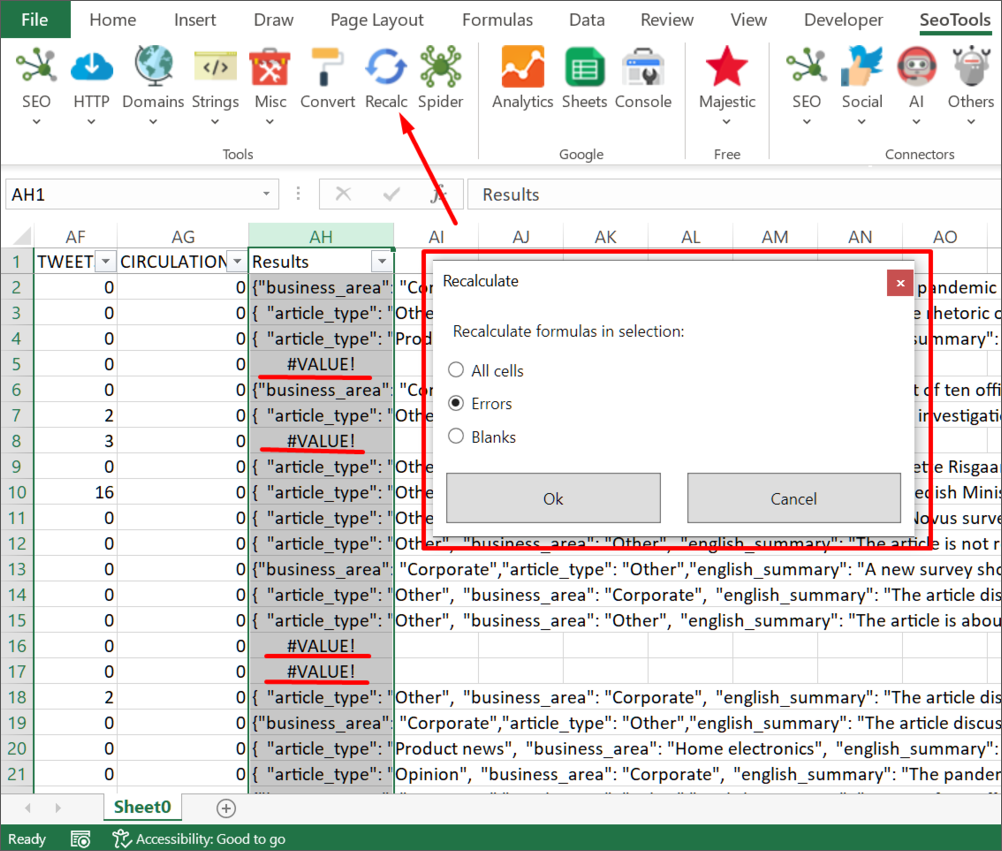
This menu will make it a lot easier to work with connector formulas when recalculations are both time-consuming and costly. In the above example, I've extracted json strings and some cells returned error because I didn't add enough delay between requests. I don't want to recalculate everything because each request costs money and it is not practical to manually update each cell. The recalculate method solves this with a single click.
New Connectors
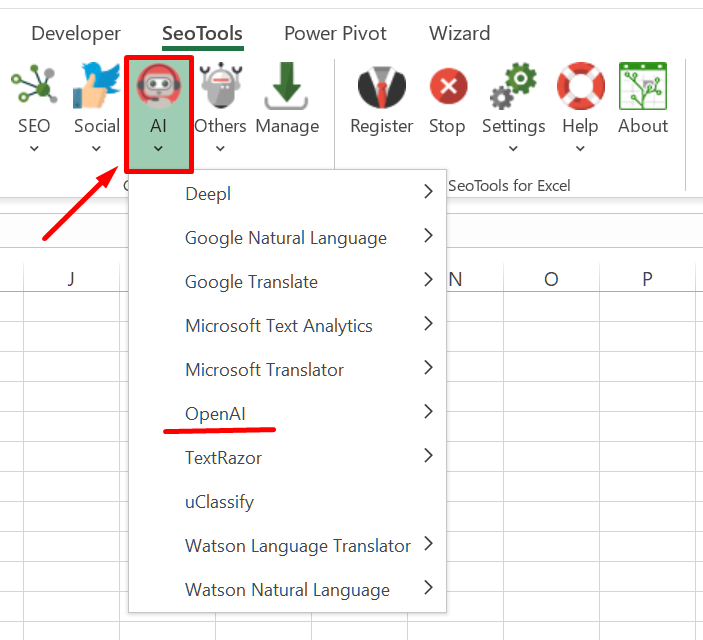
OpenAI - You can find this connector under the new connector category 'AI', located in the SeoTools ribbon. Expect a separate post about the power of ChatGPT/GPT4 with Excel formulas 🔥
- TextRazor
- TikTok
- Abstract
- ScrapingBee
- SharedCount
- Stock News
Updated Connectors
- Google Analytics - Rebuilt to Google Analytics 4.
- Mailchimp - New view: Member activity.
- Yahoo Finance - New views: Major Holders Breakdown, Key Executives.
- Spotify - New fields about album and track releases.
- DataForSEO - New view: Backlinks. Google SERP uses LIVE view instead of cached results.
- RSS Parser - Added support for podcast feeds.
- Search Console - New view: Inspect: View the indexed, or indexable, status of the provided URL.
- Instagram Insights - New views: Insights Total, Insights Product Type.
- Sistrix - New view: Keyword SEO Traffic
- Gmail - Option to extract email message bodies.
New Controls
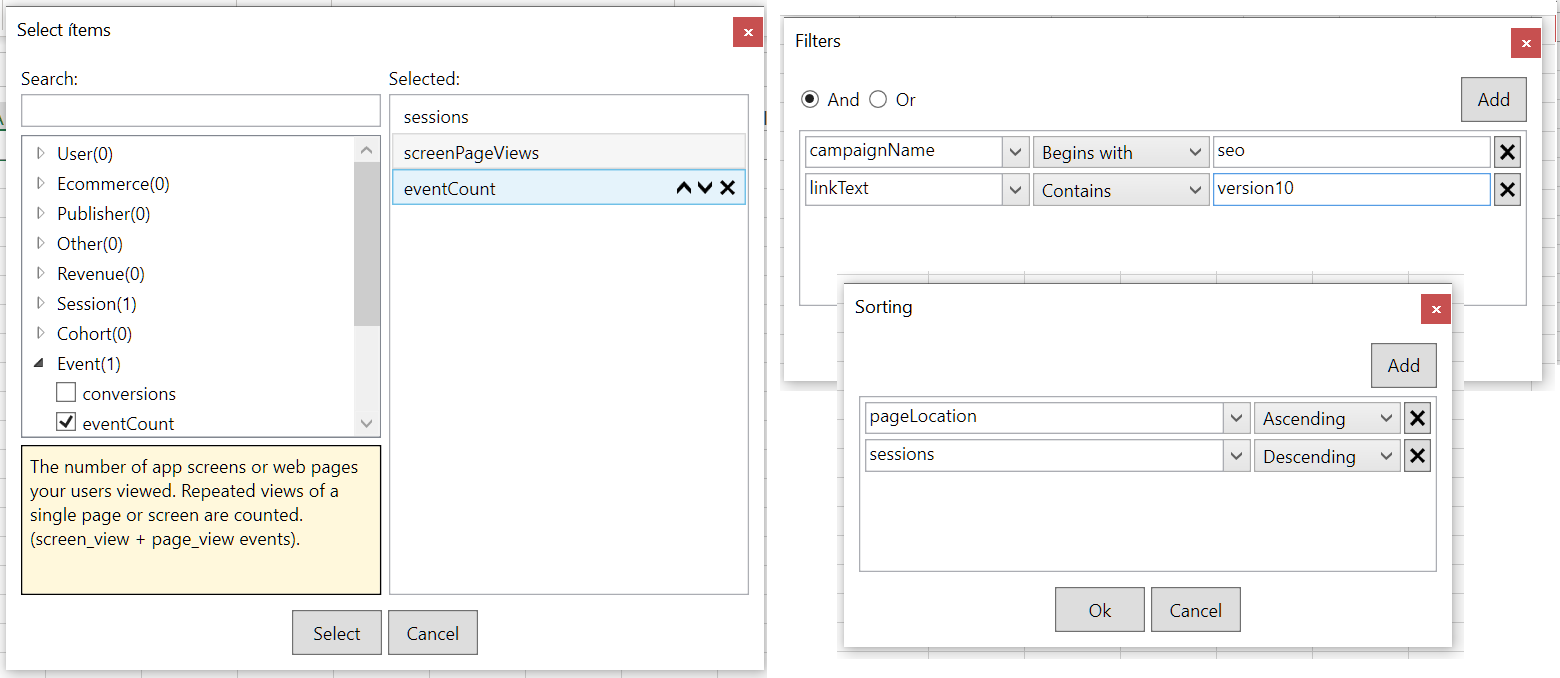
The advanced Google Analytics controls have been made available for all connectors which means these will be added to existing connectors in the near future. Expect better multi-selection, sorting and filtering with search support.
New Functions
- IsValidJson (useful when working with json responses from OpenAI connectors)
- IsValidXml
Please provide feedback and ideas for future releases. Have a great summer!
/Victor & Niels
Auto-Updater
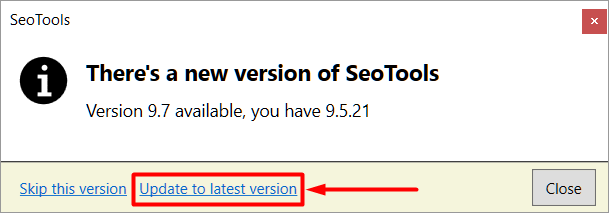
SeoTools will let you know when a new version is available and upgrade automatically. This is especially useful for organisations and users without
]]>Long time since last official update! We've got a good one packed with new and updated connectors, added functionality, and bug fixes.
Auto-Updater
SeoTools will let you know when a new version is available and upgrade automatically. This is especially useful for organisations and users without admin rights. No need to fetch the IT-guy to enter the admin password for the old installer.
New Connectors
Updated Connectors
- Google Analytics - Custom dimensions and custom metrics are directly visible in the selection list.

- Google PageSpeed - Added LCP (Largest Contentful Paint) and CLS (Cumulative Layout Shift) metrics.
- Google Search Console - Added News and Fresh Data filters.
- Google Sheets - Extract a list of all available workbooks with detailed metadata.
- Ahrefs - New view for extended ref domains statistics.
- Searchmetrics - Added 'Page Strength' lookup.
- DataForSEO - Remade to latest version with additional views, metrics, filter and more.
- Mailchimp - New views for automations and member statistics.
- Facebook - Additional fields for images, videos, and albums such as video duration, width/height, average watch time etc.
- Youtube Analytics - Added support for field selection instead of fixed report structures.
- Spotify - Extract personal statistics such as top tracks/albums.
- Pipedrive - Updated to latest version with additional filters. Also added support to extract custom fields.
- Twitch - Get total follower/following count instead of lists.
- Watson Language Translator - Automatic language detection with confidence level.
- Microsoft Computer Vision - Detect brands in images.
Updated Functions
- All functions have IntelliSense support!

We hope you enjoy this release!
/Victor & Niels
We hope everyone is safe and healthy in these crazy times. If you are forced to stay inside and spends hours in Excel, perhaps this update can make your day-to-day stuff a bit easier.
New Connectors
Oauth refresh tokens
The authentication flow has been improved so you will only need to login once and SeoTools will keep you logged in to the service next time you request data. Updated connectors: Facebook, Facebook Insights, Facebook Ads, Instagram Insights, Mailchimp, Spotify, Twitch, Ebay.
We also added login support for many connectors which previously required API keys and developer accounts: Slack, GitHub, Bitly, Dropbox, Hubspot, Tumblr, Vimeo.
Updated Connectors
- SEMRush - Added Backlinks Overview to get summary statistics such as total number of backlinks.
- Facebook Ads - Added all Action stats.
- Google Suggest - Option to get YouTube auto-suggestions.
- SE Ranking - Many new endpoints and fields, including backlinks and audit results.
- Bitly - Returns clicks over time and clicks per country.
- Instagram Scraper - Added many new views, search options and metrics.
New functions
- SeoToolsListCache - Lists all URLs currently in cache.
Updated Functions
- GetTextOnUrl - Optional InnerText argument to strip HTML tags and scripts.
- FindOnPage - LinkedinAccount now identifies both accounts from users and company pages.
New features & Improvements
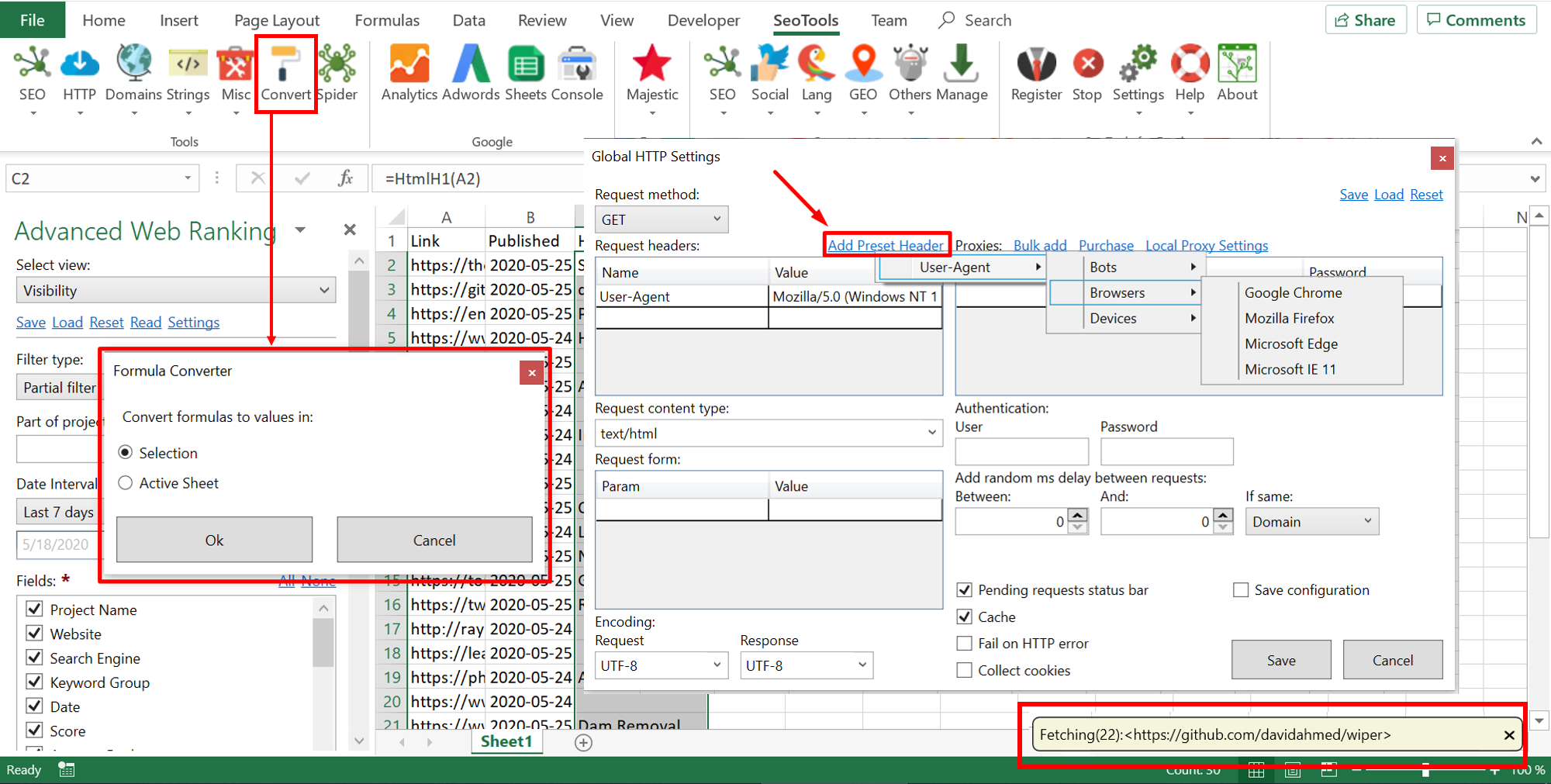
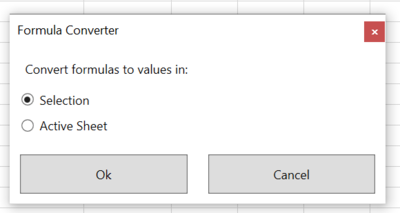
- Converter - > Converts formulas to values in either worksheet or range. Also removes the "red comment triangles" from Dump() formulas.
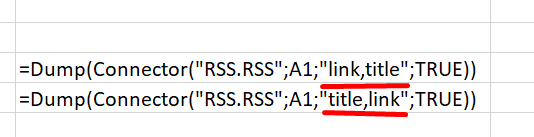
- Drag-and-drop fields in connector task-pane and Spider. Also possible to re-order the fields in connector formulas directly.
- Improved Status-bar for all formulas to show requests in queue. Show/hide the status-bar from the HttpSettings menu.

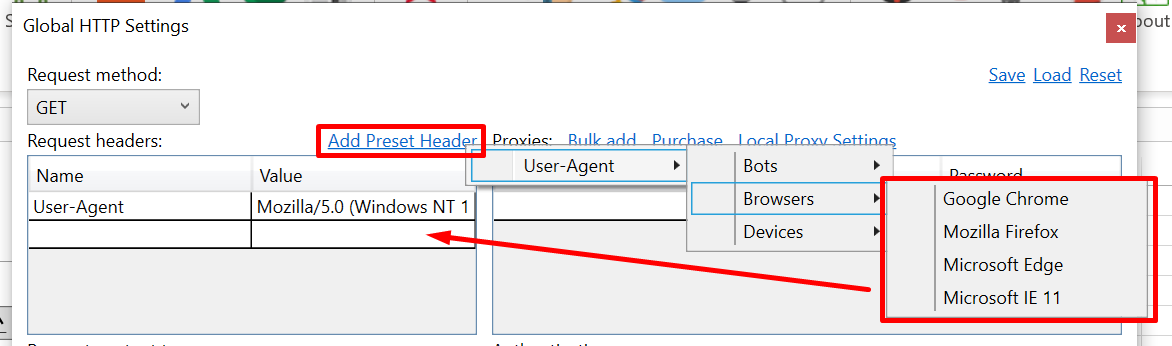
- Preset headers menu in HttpSettings. Select from a list of popular user-agents.
- Connector syntax check for text inputs with helptext. Avoids invalid requests which saves API requests and avoids rate limits. For example, Facebook post id must be
nnnn_nnnnand SeoTools checks this syntax using regular expressions^\d+_\d+$.
We hope you enjoy this release!
/Victor & Niels
It's been a while since we made an official release. New features and awesome feedback from the Community has kept us busy but we are finally ready for release. This update will be huge, perhaps the biggest in the history of SeoTools for Excel!
New Connectors
- Google Sheets
- Google Search Indexing
- Google Suggest
- Bing Webmaster Tools
- Bing Ads
- Bing Maps
- DataForSEO
- BuiltWith
- Sitemap Parser
- Watson Language Translator
- Watson Visual Recognition
- Google Natural Language
- Lusha
- Html/Css to Image
- Domains Database
- CognitiveSEO
- Genderize
- Google Contacts
- IpStack
- Scrive
- OpenStreetMap
- Google GeoCoding
- Rank Ranger
Oauth2 login support
 Previously, many of our most popular connectors required you to create and apply for an app in order to get a API access. This was tedious so now all you need to do is login with your account. Connectors with updated login:
Updated Connectors
More or less all connectors have updates. A key feature is the ability to insert a list or range of items when each item returns multiple results. For example requesting all backlinks for many URLs at once. Here is a sample of some important updates:
- Google Analytics - New profile selector which allows you to search for profiles and accounts. Option to extract all custom Dimensions and custom Metrics.
- SEMrush - Traffic Analytics data and other metrics
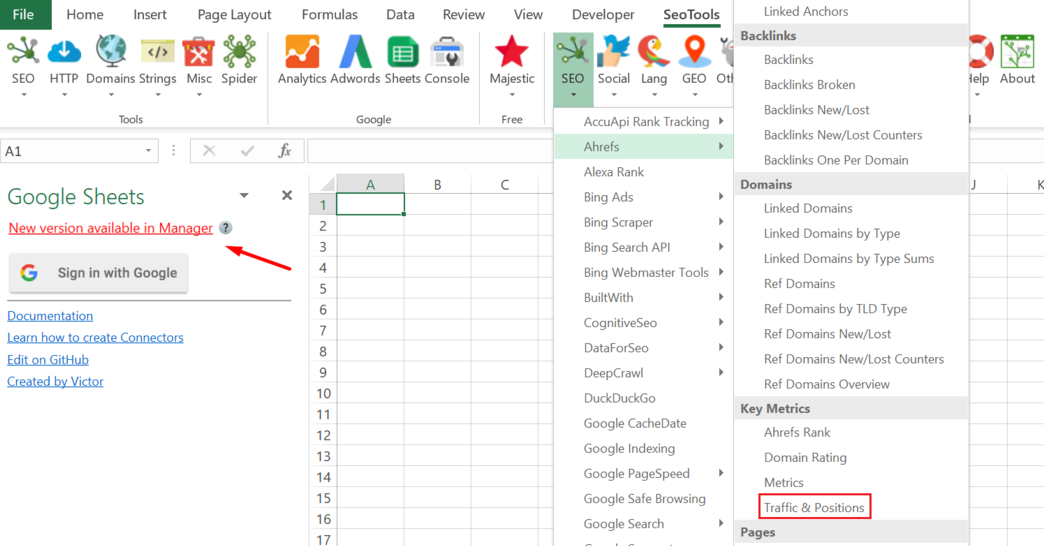
- Ahrefs - Traffic Positions and other metrics. (highly requested!)
- Majestic - New sort options, filters and metrics.
- Google Search Console - New 'Search Appearance' dimension.
- Twitter - Extract all entities in tweets, such as hashtags, mentioned users, links.
New functions
- RegexpIsMatchOnUrl - Tests if a regular expression is true or false for website HTML.
- FindOnPage - Extract various entities such as Emails, Twitter Accounts and Google Analytics Ids
- RedirectCount - Returns number of redirects to the final destination.
- RedirectList - Returns all redirects between input URL and final destination.
- StripLineBreaks - Removes all line breaks from text.
- StripTags - Removes all HTML tags from text.
- ResolveHostname - converts IP to hostname.
- ParseDate - convert text to date and time based on the ISO_8601 format.
=ParseDate("10.31.2019";"MM.dd.yyyy") => 2019-10-31
Updated Functions
- JsonPathOnUrl & RegexpFindOnUrl - Local file support. Use "file///{file path}" as url argument.
- XPathOnUrl - Optional “formatted” argument to format content based on HTML, for example line breaks and indenting.
- WhoIs - Added support for .io, .edu, .nl servers
- UrlProperty - New “origin” property (schema + host)
- HttpStatus - Optional “part” argument to extract only code or description or location.
- HttpHeader - Header argument is optional. Omitting it will return all header names and values.
New features & Improvements
- Taskpane notifications when connectors have updates. Click to open Manager and update.
- New connector view grouping layout
- Improved Manager with radio button to filter between installed and not installed connectors
- New Language category with many powerful AI Connectors
- New GEO (previously ‘Locations’) category with new converters and search engines
- Spider – increased stability & faster processing
- Local proxy setting available via Register License & Global HTTP Settings
- ImageProperties – increased stability and support for more image types
- Connector Select Value-window. Improved search with exact and case-sensitive matching
- Range selection – one-click to fetch the active selection (instead of two step range picker)
We hope everyone is safe!
/Victor & Niels
At Bosma Interactive (the company behind SeoTools) we're productivity nerds, always thinking about how we can work more efficiently with our daily tasks. Simply how to get more shit done.
A year ago we started to think about how little innovation there has been in the way we work with files since modern desktop computing was introduced.

For each “thing” you want to do with a file you need a separate application and you need to know how to use it. (* And no, web/mobile apps don’t make things much better. And yes, people still have files.)
Let's say you want to convert 5 .PDF files to .DOC files how do you do this?
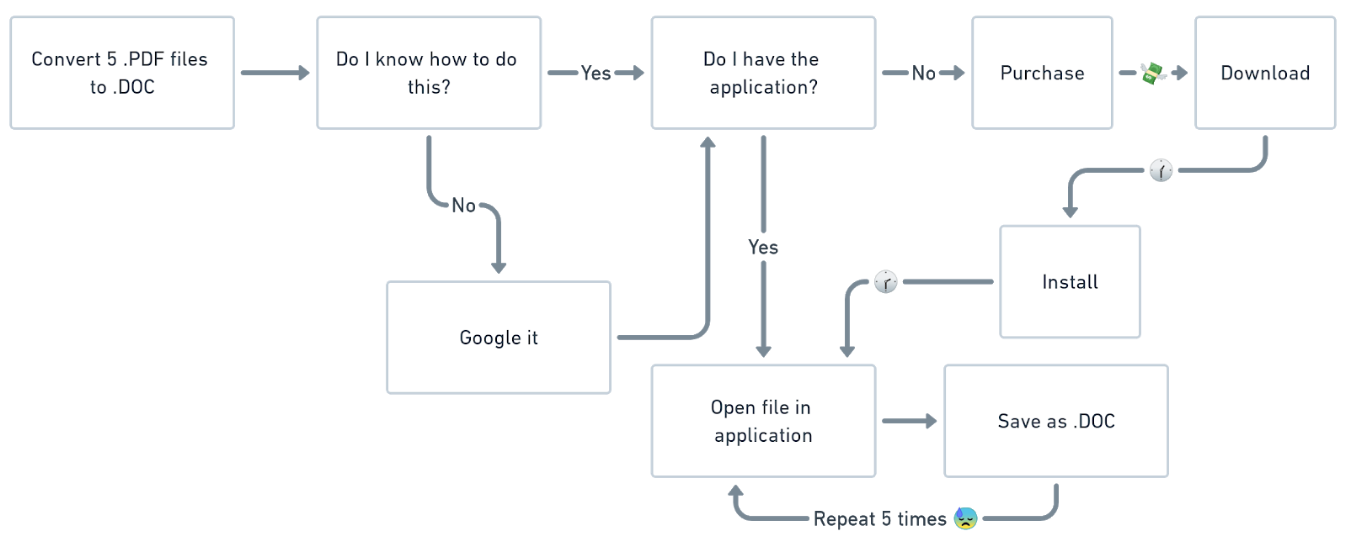
Today, with modern search engines, we are used to just search for the things we want. Why can't we just select a file on our desktop and just type what we want to?
So... one year later, we give you FileStar! We intend to fulfil the following promise: "Do anything with any file on any platform". We’re in the business of saving our users time and money.
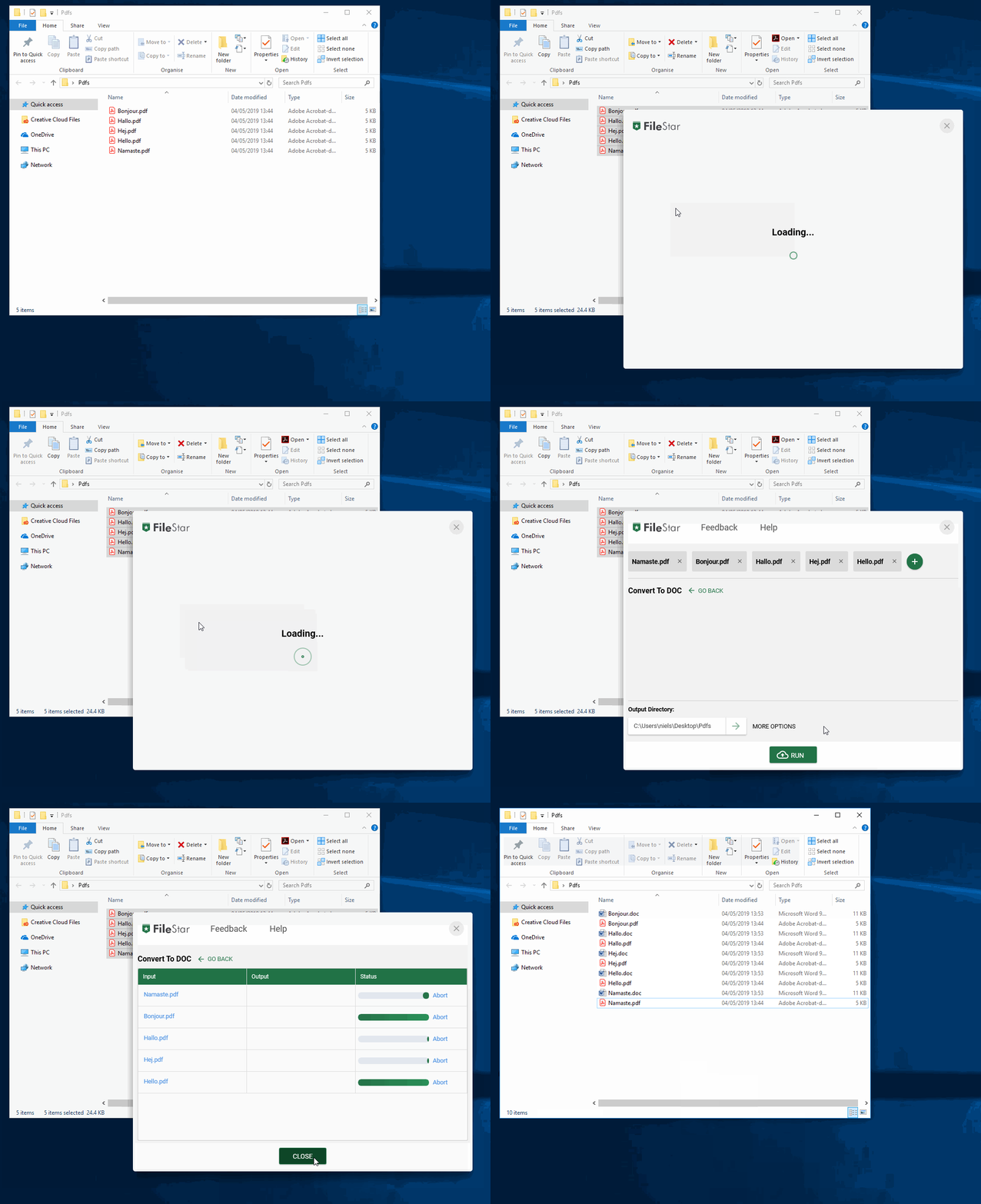
Central to FileStar is "Skills". A skill can transform a file one form into another. Examples are file conversions, image transformations, etc. We have now in our first release over 21.000 skills and we're releasing more every week.
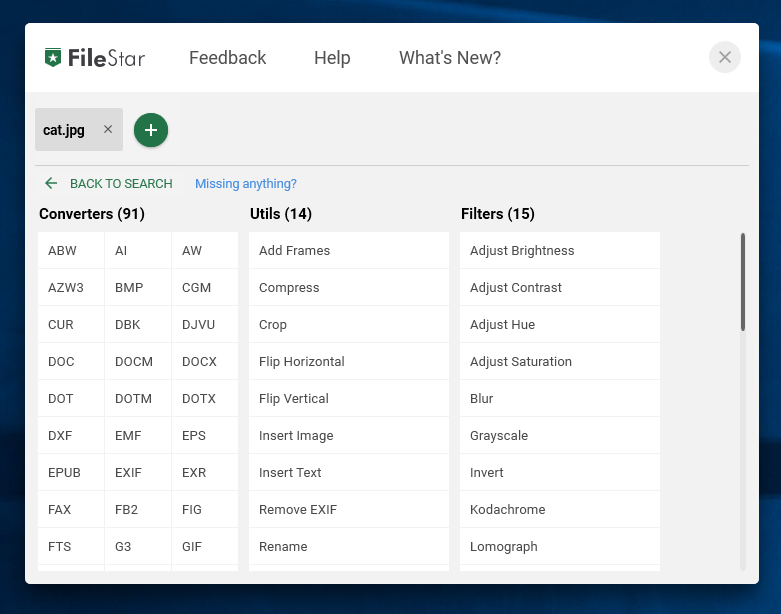
As a start, we have created a Windows client but will continue with other platforms as we go.
As SeoTools for Excel users, we hope to have earned your trust enough to give FileStar a try. FileStar can be used for free for personal usage.
Give FileStar a try and we promise you will save time by automating common tasks in your daily life.
]]>
In this release we have a bunch of new Connectors that you guys have requested. We also introduce the new Connector Manager where Connectors can be downloaded, installed and updated without having to reinstall SeoTools. There have also been some major updates to the Spider.
Dowload the latest version of SeoTools!
Loads of new Connectors
Victor and our new colleague Dovydas have been busy with building loads of new Connectors
- Blocket
- CoindeskBPI
- Deepl
- GooglePlaces
- HackerTarget
- IMDB
- Mixpanel
- Prisjakt
- StackOverflow
- Swedish Synonyms
- TripAdvisor
- Upsales
- Yelp
- KeywordTool
- Trello
- Google Calendar
- Bytbil.com
- Pricerunner
And as usual we have added loads of new features to the already released connectors.
Most of these new Connectors you need to download through the new Connector Manager. Moving forward we will release new and updated connectors every week through the Connector Manager.
Do yo have a connector that you need to save time for your business?
New Functions
- ParseNumber
- SeoToolsGetConfig (experimental)
- SeoToolsSetConfig (experimental)
Other Fixes
- Improved UrlEncode, UrlDecode and HtmlEncode to support full unicode character table.
- Added removeEmptyEntries option to StringJoin.
- IntelliSense for all SeoTools functions.
- Spider:
- Fixed memory leak and improved speed.
- New "Range" mode where you can select list of urls from your workbook.
- Spider now doesn't crash when finding binary files.
- Fixed serveral other issues.
- Spider columns can now return multi-row output. For example XPathOnUrl can now return all the values that matches an xpath.
- KeywordDensity now handles numbers in the same way as letters.
- Fixed issue with bulk adding proxies in HttpSettings.
- Added case sensititive option to RegexFind functions.
- Fixed problem with UnshortUrl not generating a timeout exception.
- Optional parameter to control case sensitivity in RegexpFind.
- All UI is now build for retina displays.
- In the task pane wizards there's now an utility in the text boxes to select a cell reference.
- Fixed issues when using Dump and Connectors that return values that begin with '='.
Dowload the latest version of SeoTools!
Best regards!
/Niels, Victor & Dovydas
]]>Tracking the progress of web pages and its content won't raise any eyebrows. There are countless tools available and you can't escape the fact that it takes time for the data to accumulate into a decent sample size. When you finally realize the correct course of action, the opportunity might have passed.
But what about going backwards? We've come up with a clever and simple solution to collect web page content and compare over time.
Take the official NASA website which tracks the number of identified exoplanets:

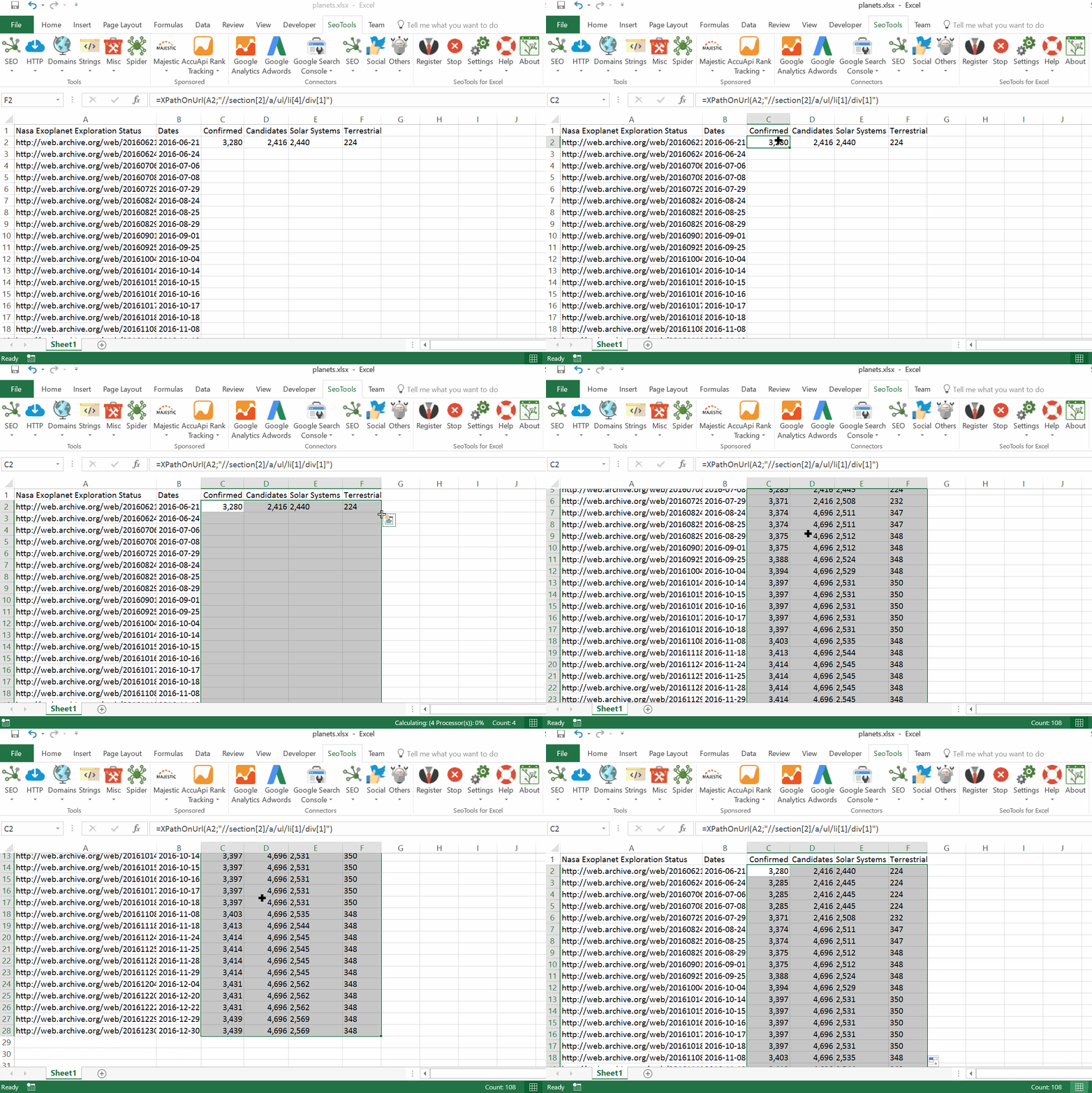
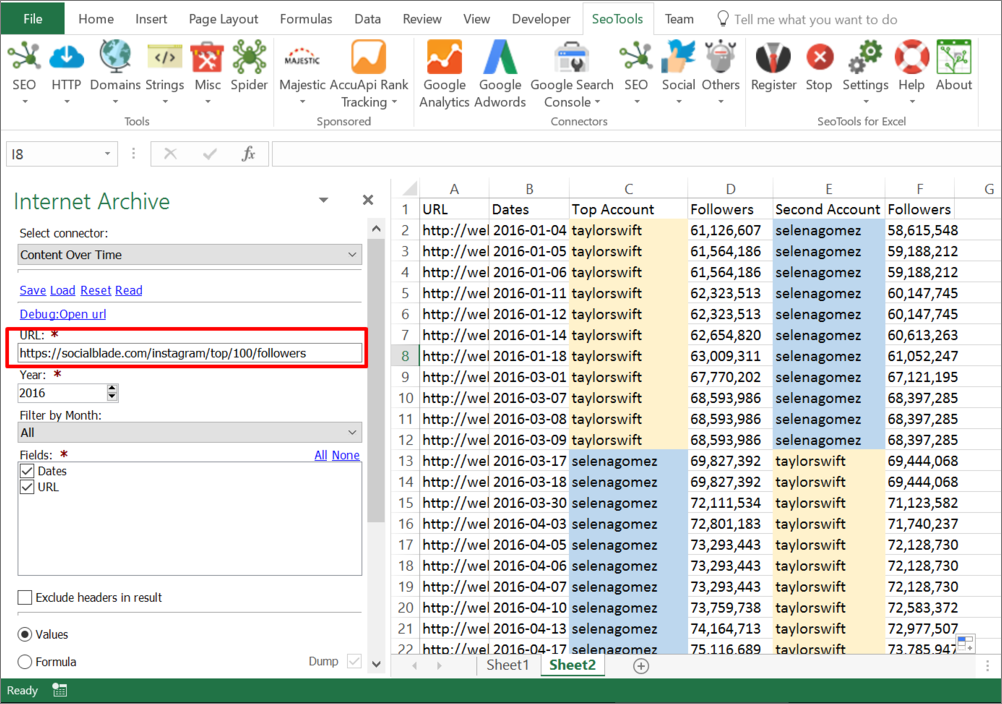
Lets combine SeoTools XPath and the new Internet Archive Connector and put them to the test:
Purpose
This exoplanet example shows the effectiveness of the method. It is applicable on all websites registered in the Internet Archive database, which means all kinds of practical marketing opportunities as well. For example,
- How has your competitor product portfolio developed over time?
- What titles have been used over time?
- What images have been used over time?
- How many interactions, such as shares or comments, have been registered over time?
How To
The Internet Archive Connector is located under SEO in the SeoTools menu ribbon:
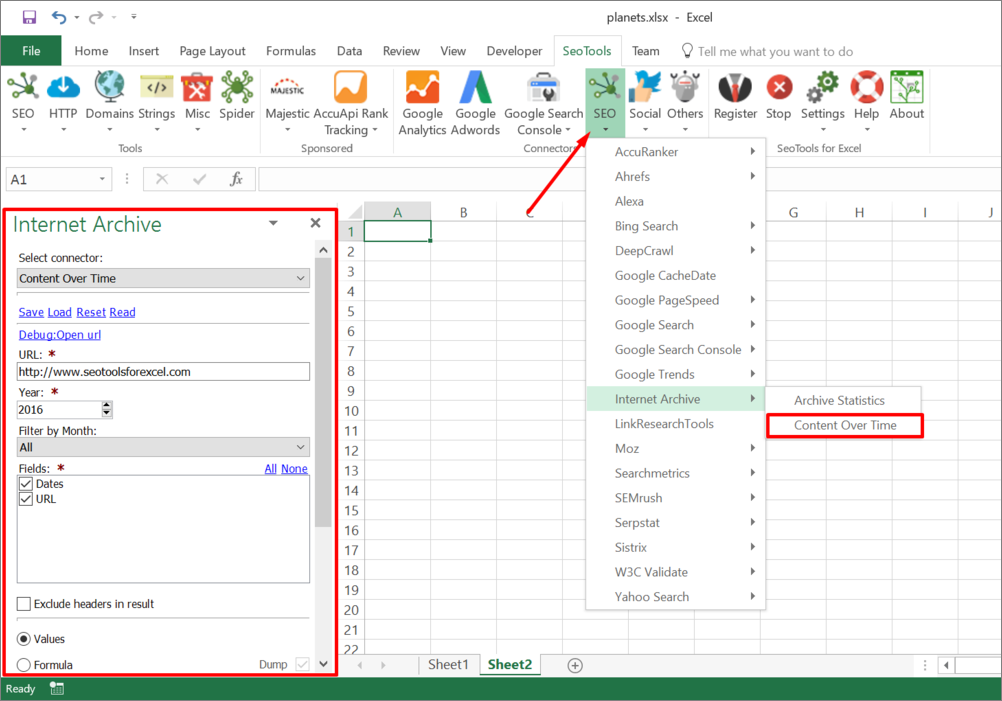
Enter your desired website and the year to collect historical "snapshot" images from. If a shorter period is desired, we've also included a filter by month.
Next, click on Insert and SeoTools will list all URLs available for the desired time span.
Inspect one of the collected URLs for a proper scraping syntax which extracts the content you are interested in. SeoTools supports many different options, for example XPath, Json, Regex, and CsQuery. The good old HTML functions works as well, for example HTMLTitle and LinkCount.
Feedback
We would love to get some feedback and hear about some cool ways the SeoTools community tracks historical data. The Internet Archive Connector is available in SeoTools for Excel 7. Grab the latest version below and sign up for a two week trial after installation.
]]>
It's time for a new release with loads of new Connectors, functions and other improvements. All features are now asynchronous and better support retina displays. We've also made some substantial improvements to the loading time and overall performance.
Dowload the latest version of SeoTools!
About Pro
We have decided to discontinue the freemium model of SeoTools from this version and forward. It's simply not working out with all the development, maintenance, and support that we're putting into this product. So from now on all users will need to get what we previously called a "Pro" license key. We hope that you understand.
14-day trial keys can be requested directly in the Register menu.
The only free features in SeoTools are now Majestic and AccuApi (read more about this below). These companies have sponsored us to integrate their APIs in SeoTools and can be used without a license key.
AccuApi
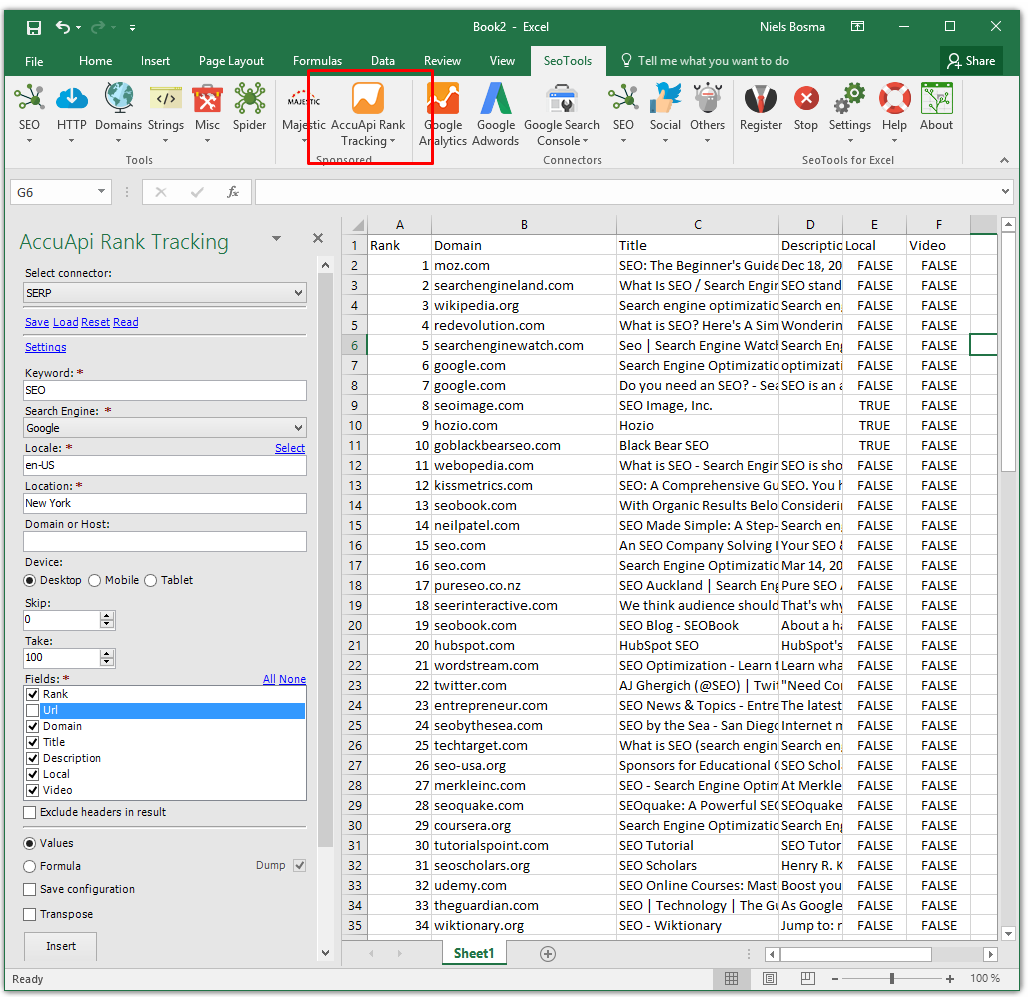
We've partnered with AccuRanker to integrate their ad-hoc rank tracking API - AccuApi. Using this Connector you can quickly explore the ranks of a set of keywords within seconds.
Loads of new Connectors
Victor has been busy with building loads of new Connectors. He has also made updates to most of the old ones.
- DeepCrawl
- Facebook Insights
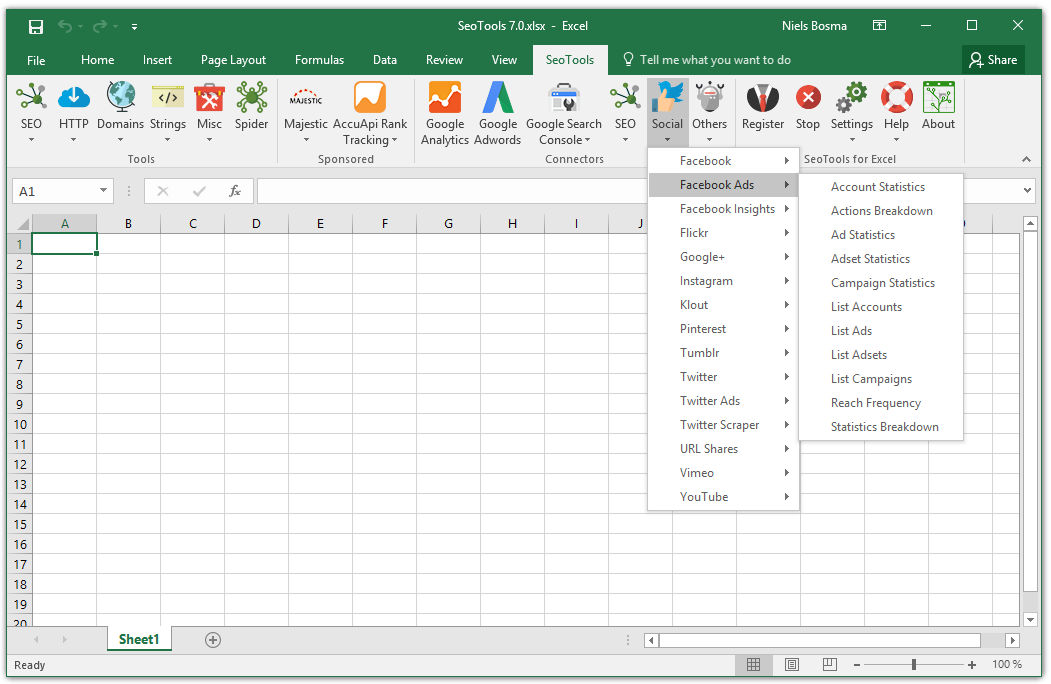
- Facebook Ads
- Twitter Ads
- Google Search
- Google BigQuery
- Hubspot
- Bing Search
- eBay
- Yahoo Search
- LinkResearchTools
- Gmail
- Face++
- Fixer.io
- Wikipedia
- Itunes
- Urban Dictionary
- TimeZoneDB
- RSS
- GeoNames
- Spotify
Majestic, Ahrefs, SEMrush, has been converted into Connectors.
New Functions
Other Fixes
- All windows now support retina displays.
- Substantial improvements to the loading time.
- Fixed bug with UnshortUrlfor certain urls.
- Fixed major performance bug in Connector engine.
- Added setting in SeoTools.config.xml for making asynchronous functions run synchronously (for VBA scripts).
- Ability to specify a proxy when registering for SeoTools.
- Added support for HTML base tags in the Spider.
- Fixed issue with Spider not naming sheets correctly.
- Google Analytics and Google Adwords are now asynchronous.
- Had to retire the Resize function. Can't make it work with the asynchronous functions properly.
- Updated Google Analytics dimensions and metrics.
- CsQueryOnUrl and JsonPathOnUrl in Spider.
Dowload the latest version of SeoTools!
Best regards!
/Niels & Victor
]]>
We've been working on SeoTools 6.0 for quite a while and there's a lot of new updates. This is probably the largest update we've ever released!
Dowload the latest version of SeoTools!

Async and Caching
MAJOR UPDATE: Most functions incl. Connectors are now asynchronous meaning that they can be stopped and can run in parallell (if the external data source permits it) and won't make it seem like Excel freezes. This translates into a HUGE boost in user experience because of multi-tasking capabilities and significantly faster calculations!
For this we also built a new cache. So hopefully no more OutOfMemoryExceptions when working with loads of data. The cache offloads onto disc and is deleted when you close Excel.
Loads of new Connectors
I have a new partner named Victor Sandberg (@diskborste in the Community) that's going to be focusing on building Connectors, and he's already been busy working with this release:
New Connectors:
Updated connectors:
- YouTube - Channel Statistics!
- Sistrix
- Searchmetrics
- Facebook (rebuilt with a new API as the previous was discontinued)
- SEMrush
- Fixed issues with GoogleResults, GoogleIndex and GoogleLinks connectors when result was empty (returned 16 instead of #NULL!).
- Fixed issue with Microsoft Translate.
- Had to retire connector "DeliciousShares" as data is not longer available.
New Functions
WhoIs Settings
We have created loads of TLD WhoIs settings.
We now parse the following TLDs: ac, ae, ag, am, as, at, au, be, bg, biz, br, by, ca, cc, ch, cl, cn, co, com, coop, cr, cx, cz, de, dk, ee, fi, fm, fr, gov, hk, hr, hu, id, ie, il, in, info, ir, is, it, jp, kr, kz, li, lt, lu, lv, ma, mk, mn, mo, ms, mx, na, name, net, nl, no, nu, nz, org, pe, pl, pt, pw, ro, ru, sa, se, sg, si, sk, st, tc, th, tk, tn,to, tr, tv, tw, ua, uk, us, uy, uz, ve, ws.
Cookbook
We've gotten some feedback that we should provide more templates and examples on how to use SeoTools. To start this, we've moved the cookbook folder to Github. Please submit your templates! The best ones will be featured in a special gallery section on the SeoTools webpage.
Pro
WhoIs and HTTP functions now require a Pro subscription. In return I've removed the much disliked startup window. Please support us by purchasing a subscription.
Get a 14-day trial or Go pro today! :)
Other Fixes
- UI for managing errors.
- Google Analytics:View for listing all profiles.
- Google Analytics: New UI for metrics, dimensions, filters and sorting making it al lot easier to work with Google Analytics queries.
- Added option to XPathOnUrl to get html output =Dump(XPathOnUrl("seotoolsforexcel.com",,"//a",,,,"html"))
- RegexpReplace and RegexpIsMatch now accepts an empty input. (Discussion)
- Fixed issue with JsonPathOnUrl not being able to parse arrays.
- Adwords is updated and working again.
- Removed the GooglePageRank function as it has been discontinued by Google.
- Fixed broken AWQL in Google Adwords integration.
- Configurable HTTP timeout in global HttpSettings. Default is 120sec.
- Removed SEOlytics as they have merged with Sistrix.
- Added support for TLS connections.
- Fixed issue with Majestic keywords.
- Added a Debugger tool (shown in debug mode) for Connector developers.
- Updated Metrics and Dimensions in Google Analytics.
- New String generator tool. Located under Strings. Very useful if you're a Razor ninja.
- Fixed issues with wizard configs.
- Updated the Adwords API.
Whether its basketball, pubic speaking, or SEO, mastering the fundamentals is key. Sure, you may be able to alter a data set manually or copy a strange looking formula, but if you want to be prepared for the challenges of tomorrow, this article will get you a long way.
Mikkel Sciegienny at Spreadsheeto has been involved with SEO for five years and in this blog post he will share 15 important tips for mastering Excel.
15 Excel tips every SEO professional must know
Excel is one of the most widely used software programs in the world, and is used in niches you can’t even think of. But in many niches and industries, there are work processes that scream for Excel.
One of the common factors for these work processes is that they include a lot of data that sometimes needs to be cleaned up before it makes sense. Other common factors are keeping track of stuff like emails, replies and links. Lots of links.
Luckily there’s a tool that’s so powerful and flexible that it covers all this – can you guess what software program I am talking about?
As an SEO professional, Excel skills can ease up your work and increase your productivity – which will make you an even better SEO.
In this article, I’ll teach you the tips you need to know to improve your Excel skills in a matter of minutes. This article and the examples are written for Excel 2016 on a machine running Windows, but almost all of the tips are universal for Excel 2007/10/13/16 for Windows, although the layout may look a bit different on your version.
We start off with the easy tips and progress to the more advanced ones.
Tip 1 - Freeze panes:
Don’t lose track of your headers
When working with tons of rows and columns, freezing the column headers will make it a lot easier to keep track of the data you’re looking for.
Scroll to the top of your spreadsheet. Go to the ‘View’ tab on the ribbon (that’s the fancy word for the menu with all the buttons by the way). Then click the ‘Freeze Panes’ button.
Now click the ‘Freeze Top Row’ option.
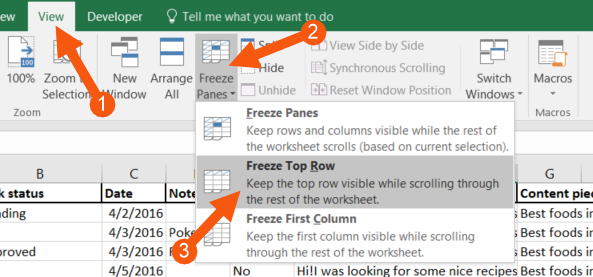
When you’ve done this, try to scroll down your sheet. You now see that the headers in row 1 follow along as you scroll down the spreadsheet.
This means that from now on, you never have to scroll to the top of your sheet to see what columns you’ve selected when you’re in in a row below the fold. And when working with SEO, you will encounter this issue sooner or later.
Tip 2 - Wrap Text:
Inserting long texts nicely
The content of a cell can be too big to fit in it properly. This is particularly true when dealing with longer strings of texts, e.g. email text for outreaching.
When copied directly into Excel the cell is by default automatically fitted to the text. That means it can ruin the design of your spreadsheet because it gets absurdly large.
When this happens, left-click the name of the column (A, B, C, D…) right above row 1 that holds the cells with a lot of text.
Then click the ‘Wrap Text’ button on the ‘Home’ tab of the ribbon so it’s deselected.
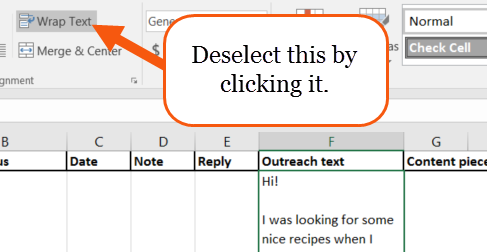
Now your text looks like it’s “hidden” behind the other cells. This is a good thing since it now doesn’t break the layout of the sheet by oversizing the rows.
Tip 3 – Paste as values:
When you just need the formula results
Copying and pasting are some of the most used features of a computer – and of course also in Excel. Pasting values only, when copying cells that include formulas, makes it possible for you to easily relocate values in your spreadsheet.
After you’ve copied one or more cells then, when pasting the cells, right click the desired destination of cells and look to the ‘Paste Options:’.
The second option here is called ‘Values (V)’ (which you’ll see when you hover your mouse over it). Click it, and the copied cells are now inserted as values instead of whatever they were before.
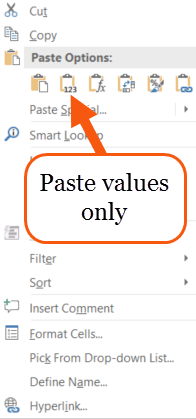
This is especially useful when you’ve done some calculations on rankings, CTR or conversion rates and need to relocate the results of your formulas.
Tip 4 – Filters:
Cut out the data you don’t need
Filters are one of the most loved features of Excel, both for its ease of use and its ability to get what you want from your massive datasheet in no time. As an SEO expert filtering in Excel is a must-know.
First, select any cell within your data.
Then click the ‘Data’ tab on the ribbon and click the ‘Filter’ button.
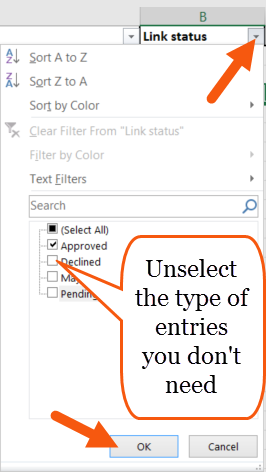
Now you’ll see a drop-down button next to each of your column headers.

When you click these buttons, you have options to filter out which rows you want and don’t want to see. When unselecting one, or more, of the options and clicking ‘OK’, the rows that contain that specific data in that specific column will not be shown.
This is also applicable the other way around. E.g., if you only want to see the rows with links that have been approved, then uncheck all the other checkboxes and click ‘OK’. Then you’ll only see the rows where the ‘Link status’ is “Approved.” The other rows will be hidden.
Tip 5 – Remove Hyperlinks:
Convert multiple hyperlinks to regular text in seconds
As a default, Excel recognizes text that starts with http:// as a hyperlink. That means that Excel automatically gets the blue font color and the underlining and when you click it, it opens in your default browser.
When keeping track of data with a lot of links all these hyperlinks are not very beneficial to you. It’s much easier if they were just regular text.
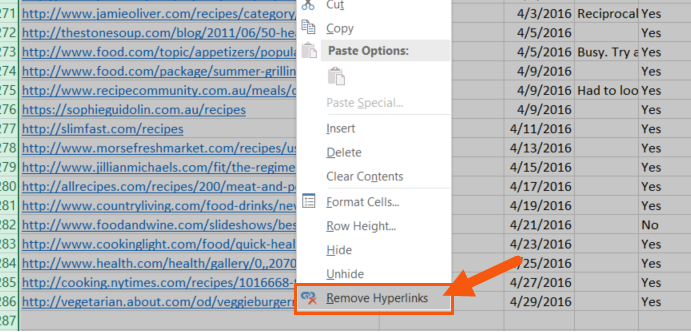
You can convert all your hyperlinks to text at once by pressing the shortcut ‘Ctrl + A’ twice to select all the cells in your sheet.
Then right-click any cell and click ‘Remove hyperlinks’.
Tip 6 – Find and Replace:
The quickest way to clean up data
The ‘Find and Replace’ feature is one of Excel’s most underused features. Most Excel users don’t imagine using it to clean up parts of a lot of text strings at once.
A great example of this is a situation where you want to remove the “www.” part of all your URLs.
Select the column that holds your URLs by left-clicking the column name right above row 1. Then use the shortcut ‘Ctrl + H’ to bring up the ‘Find and Replace’ dialog box.
In the ‘Find what:’ field type in “www.” and do nothing else. Then click ‘Replace All’.
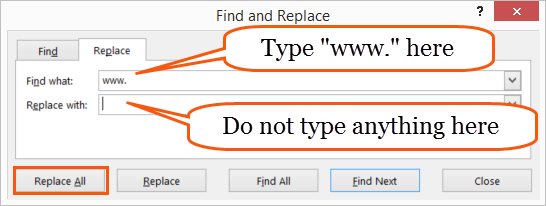
Now you’ve removed all instances of “www.” From all URLs in that column. Rinse and repeat as needed.
This is by far the fastest way of cleaning up URLs in Excel.
Tip 7 - Import a .CSV file:
Using your Excel skills on your exports.
Many SEO-tools like AHREFS, Google Analytics, SEMrush, etc., makes it possible for you to export your findings to a .CSV file. When you open that file in Excel, you can do all the manipulation with it you want. However, opening a .CSV-file is not as straightforward as it sounds. There’s a few things you need to be aware of.
Open a blank Excel sheet, then click the ‘Data’ tab on the ribbon and click the button that says ‘From Text’.
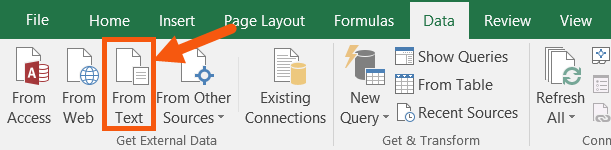
Find your .CSV-file in the browser window and hit ‘Open’.
Now a series of dialog boxes called ‘Text Import Wizard’ appears. This wizard will take you through 3 steps where 2 of them are unnecessary.
If you’ve exported as a .CSV from the above-mentioned programs, then your .CSV- file is very standard and you can just click the ‘Next >’ button in step 1 of 3.
In step 2 of 3, you simply choose the delimiter. It’s not always comma separated. Sometimes the data is separated by a semi-colon or just a tab. If you’re unsure about which delimiter to use, then look at the ‘Example’ window and try to click through them all to see which one that fits the data.
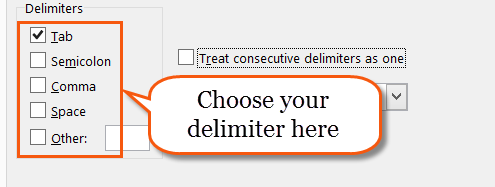
You can skip the entire step 3 of the ‘Text Import Wizard’ and just go ahead and click the ‘Finish’-button.
You may or may not get a new dialog box that asks you where you want to put this freshly imported data. I usually just click ‘OK’ as it’s defaulted to choose cell A1.
And there you have it, as CSV-file imported, correctly, in the matter of seconds.
Tip 8 – Conditional formatting:
Identifying duplicates
Conditional formatting is used for coloring your sheet if certain conditions are met. When you type in a new entry in your outreach sheet, you instantly need to know if you’ve already sent an email regarding this specific URL before.
Select the entire column with your URLs by clicking on the name of the column (A, B, C, D…) just above row 1.
Then click the ‘Conditional Formatting’ button on the ‘Home’ tab of the ribbon. Hover your mouse over ‘Highlight Cells Rules’ and chose ‘Duplicate Values…’
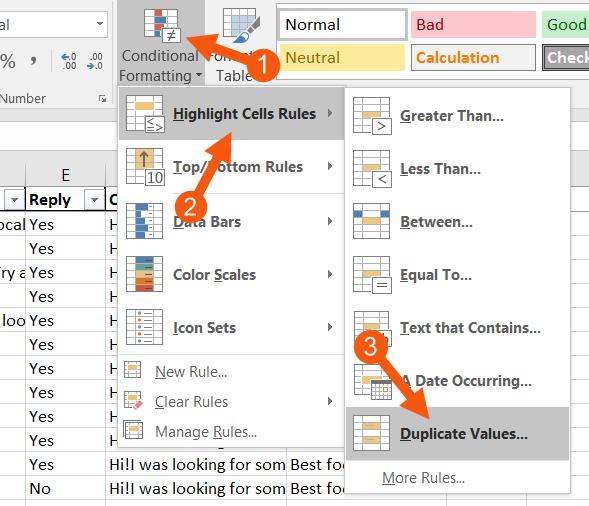
Click ‘OK’ to the next dialog box (or chose custom formatting by clicking the dropdown and selecting ‘Custom Format…’) and then watch out for those colored duplicate values in your column.
Tip 9 – Remove Duplicates:
Continuing where we left off.
If you don’t need to look through your duplicates by eye, then Excel can do the job of removing them for you.
Select any cell in your data, then go to the ‘Data’ tab of the ribbon and click ‘Remove Duplicates’.
In the dialog box that appears, you can choose how strict you want Excel to be when removing the duplicates. If you leave all the checkboxes checked then Excel will only remove the entries that match another entry in all cells in the row (within the columns of the data).
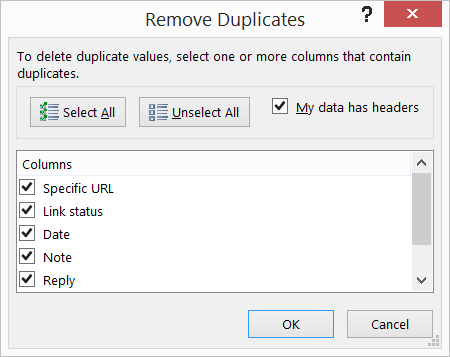
If you click ‘Unselect all’ and in this example check the ‘Specific URL’ checkbox, then Excel will only remove entries where the column with URLs match another entry’s URL.
Note: If Excel finds a duplicate it will remove the entire row, no matter how many checkboxes you’ve checked.
Tip 10 – Data validation:
Use a dropdown to control what’s in the cells
Analysis of your work gets a lot easier if you control the variety of cell input. Summing up on ‘Link status’ is time-consuming if you’ve built an outreach sheet of more than a thousand entries and haven’t had a systematic approach to what you enter in the cells.
To avoid dealing with permutations of words like “Approved”, “Declined” and “Pending”, use a drop-down menu to control the input.
Create a new sheet by using the shortcut ‘Shift + F11’. In the new sheet write all the things that you want to be able to choose from in the drop-down menu.
Go back to your original sheet and select all the cells you want to have in the drop-down menu. Then go to the ‘Data’ tab in the ribbon and click the ‘Data Validation’ button.
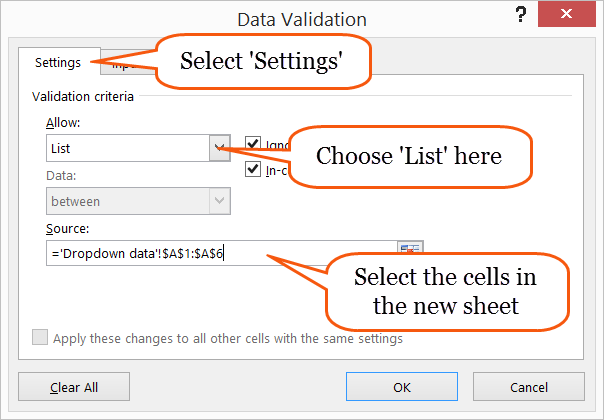
In the dialog box be sure to be in the ‘Settings’ tab. Then under ‘Allow:’ choose ‘List’ and then choose the source for your drop-down menu. The source data is the cells that holds the drop-down menu options in the new sheet you just created earlier.
Click ‘OK’ and then you’re good to go with a drop-down menu that keeps your data simple and ready for analysis.
Tip 11 – VLOOKUP:
Find a cell somewhere else and bring back corresponding data
You might’ve heard about the famous ‘VLOOKUP-function’ before. As far as usability goes, ‘VLOOKUP’ has definitely earned the hype.
Imagine having two sheets of data. One to keep track of outreach and one where you’ve imported a massive export from your keyword miner that, among much else, holds the Domain Authority (DA) for 10,000 interesting URLs.
Now you want to get that DA from that sheet to your outreach sheet on all entries.
‘VLOOKUP’ basically consists of four things:
1) The value you’re looking for.
2) The area where you are looking.
3) The data you want to bring from the area you are looking.
4) A choice of how precise in your search you want to be.
These four things are a simple explanation of what is normally called the ‘syntax’ of an Excel function. And this is how you use the function:
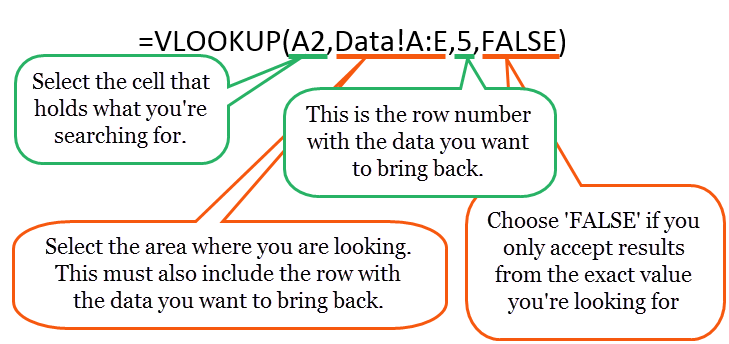
This is the quick way of learning and using ‘VLOOKUP’. There’s so much more to VLOOKUP, and I highly suggest you get yourself familiar with this function.
Tip 12 – COUNTIF:
Count cells if they meet certain criteria
Summarizing data is necessary for you to evaluate your work. In SEO, that usually comes to show in form of counting stuff. E.g. counting how many of your outreach emails that resulted in a link.
The ‘COUNIF-function’ is very simple to use. It consists of:
1) Where you want to count.
2) What you want to count.
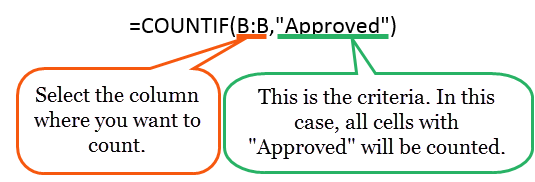
You can exchange the column where you want to count and the criteria to match your data. Remember to put text criteria in double quotes. If you’re counting specific values and not text, just type in the number.
‘COUNTIF’ is a deeper subject than what I’ve just showed you here. Check out this video by ExcelIsFun that explains 21 different examples of ‘COUNTIF’-usage.
Tip 13 – IFERROR:
Cleanup formulas that don’t give you answers
When a formula can’t give you a result it spits out an error (usually looks like #N/A). There can be multiple causes for a formula to return an error but usually, it’s because a ‘VLOOKUP’ can’t find the value you’re looking for or a ‘COUNTIF’ can’t find any cells with the criteria you’ve given.
Sometimes you will look at these errors and fix them – but sometimes they require no fix. If you keep the formulas with errors, you have to look at those ugly cells with #N/A. And they don’t look pretty.
You can remove the errors from sight by using the ‘IFERROR-function’. It’s very easy to use and consists of 2 things:
1) The formula you are using.
2) What you want instead of a potential error.
Here’s how you use ‘IFERROR’:
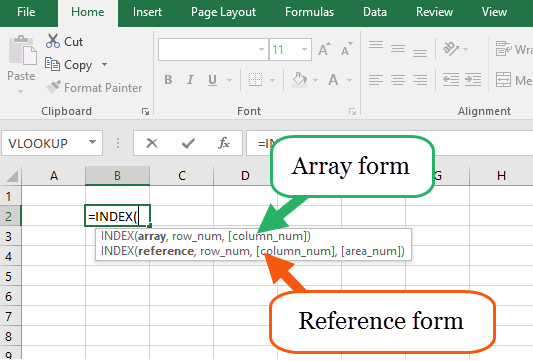
Remember that the ‘IFERROR-function’ can be used before any other function or combination of functions. You can even put another function instead of the above “Can’t find” if you need a calculation or lookup to be made if the first function doesn’t give a result.
Tip 14 – Charts:
Visualizing your SEO work
Visual overviews are always easier to read and tells you what you want to know faster than just numbers. You can feed the results from your ‘COUNTIF-functions’ into a chart to get a nice looking overview of what’s going on in your spreadsheet.
If you’ve counted your outreach progress using the ‘COUNTIF-function’ let’s throw that data into a pie chart.
Select your headers, categories and counts like the example below. Then click the ‘Insert’ tab of the ribbon and click the button that looks like a pie chart. Choose your desired design.
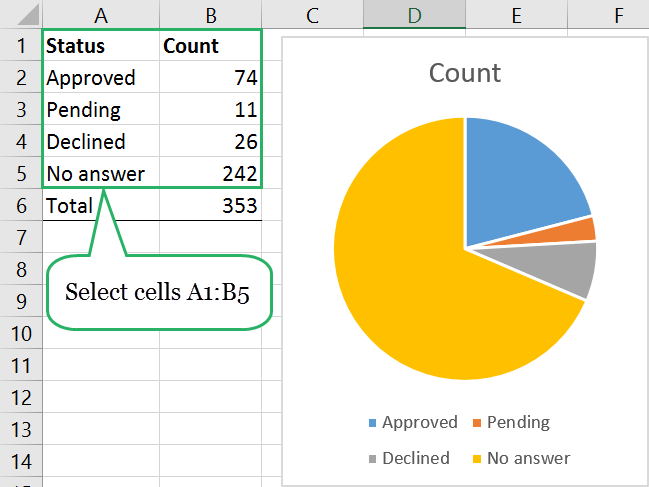
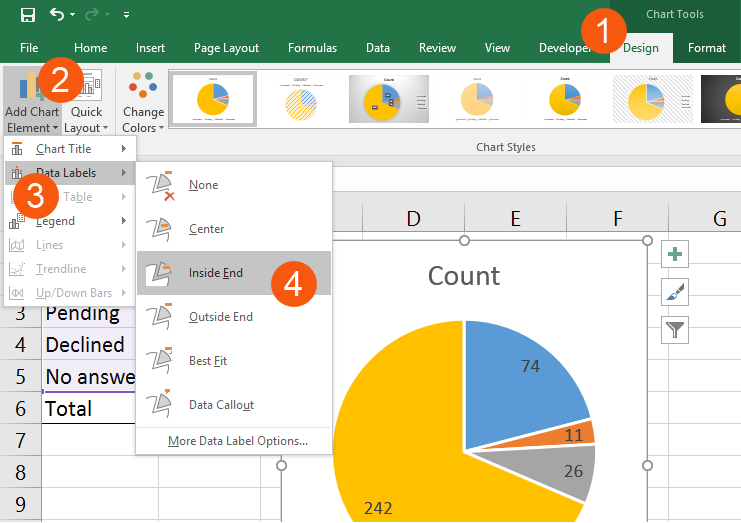
You can modify the chart to your needs by using the two new tabs that appear when you select the chart. From the ‘Design’ tab, you can easily add some data labels if you think the chart’s not precise enough.
Tip 15 – VBA:
Macro to make URLs active.
When you have lots of inactive URLs in your spreadsheet (maybe they’re inactive because you removed the hyperlinks with help from Tip 5) there’s only one way to make them all active at once: VBA.
The programming language Visual Basic for Applications offers a solution to any Excel challenge, but it requires some skill to use. In this case, you don’t have to worry - I’ve done all the work for you.
1) Use the shortcut Alt + F11 to open up the VBA-editor.
2) Click ‘Insert’ and then click ‘Module’.
3) Copy the code from below and insert it here.
4) Close the VBA-editor (click the cross in the upper right corner of the window).
Here’s the code:
Sub Activatelinks()
    Dim cell As Range
    For Each cell In Selection
        cell.Hyperlinks.Add Anchor:=cell, Address:=cell.Text
    Next cell
End Sub
Now select the cells with the URLs you want to activate and go to the ‘View’ tab of the ribbon. From here you click the ‘Macros’ button.
Select the ‘Activatelinks’ macro and hit ‘Run’.
Try to click the hyperlinks that are now underlined and colored blue as a hyperlink usually is.
Check out more content of Mikkel Sciegienny at Spreadsheeto or contact him at
[email protected]
Time for a new release!
SeoTools now ships with an installer making installation and upgrades a lot easier!
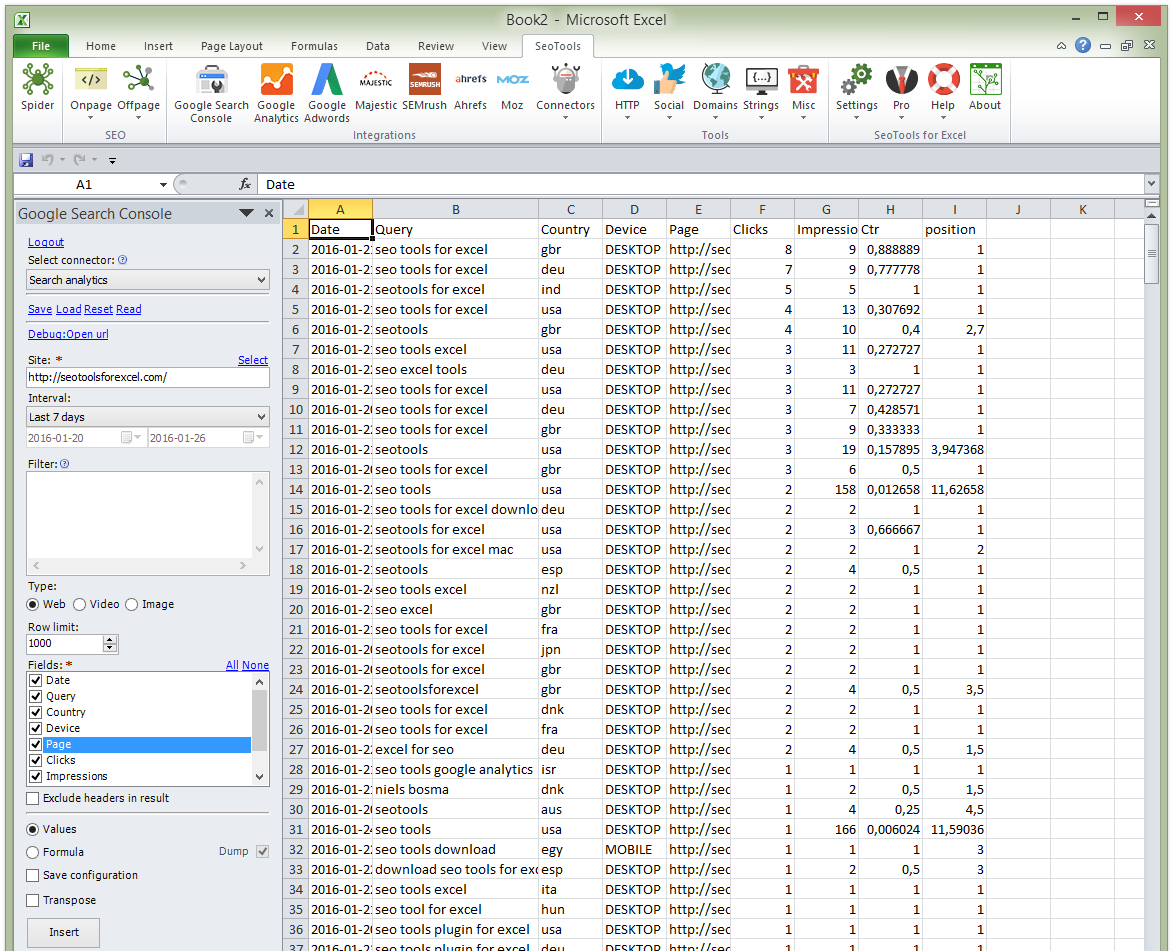
Google Search Console
Google actually released a really good API for retrieving search data! Now you can access this directly in Excel with SeoTools.
Use Google’s Search Console API & Pivot Tables To Supercharge Your Long-Tail SEO
Sistrix
First connector created by William! Implemented most of the Sistrix API. If you're a Sistrix customer, this is the connector for you.
PhantomJs Cloud
Using this headless browser SaaS you can scrape JavaScript-generated webpages in Excel!
Stay tuned for blogposts on how to use this new connector.
Other fixes
- Simple Amazon search connector.
- Little bit better support for retina displays (more work to come).
- Fixed issues with Majestic authentication not being stored correctly between sessions.
- Fixed broken WikipediaLinks connector.
- Fixed some issues with Ahrefs authentication.
- Created the Northwind connector as an example SqlConnector. Read more
- Removed TwitterTweets connector as backing API is no longer available. Read more
- Updated Google Analytics metrics and dimension metadata.
- Majestic: EnabledResourceUnitFailover=1 for Index data. Read more
- Ahrefs: Implemented "Backlinks new&lost" endpoint.
- Majestic: New "Referring domains" command.
- Fixed issue with external webpages (like Ahrefs login) not opening in default browser.
We often get this question:
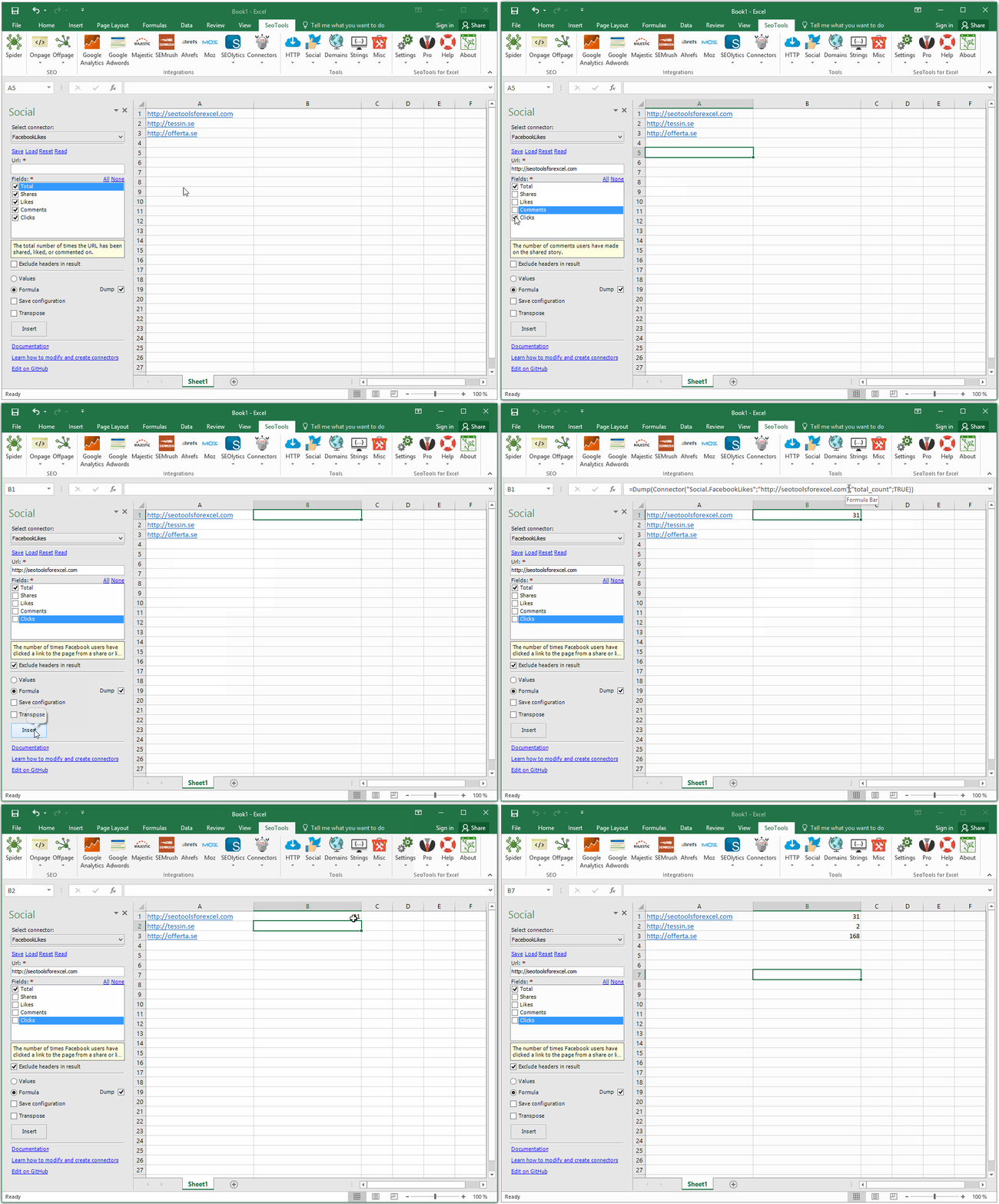
How can I pull social metrics for multiple twitter/facebook/linkedin accounts at a time? Instead of having to input the url manually for each pull.
This is actually quite easy:
In the wizard of a connector or integration generate the query as a formula and then replace the literal url with a reference to the first cell in the column of urls. Then use Excel's autofill feature to populate the rest of the cells.
Say you're negotiating a deal with an external party and to be able to move forward you need to know how many customers do we have in common? Neither party is at this stage interested in sending their list of customers.
My solution to this problem is by using the new MdFive function in SeoTools 5.0.
MD5 which stands for Message Digest algorithm 5 is a widely used cryptographic hash function that was invented by Ronald Rivest in 1991. The idea behind this algorithm is to take up a random data (text or binary) as an input and generate a fixed size “hash value” as the output. The input data can be of any size or length, but the output “hash value” size is always fixed.
(from https://www.gohacking.com/what-is-md5-hash/)
This is how to do it:
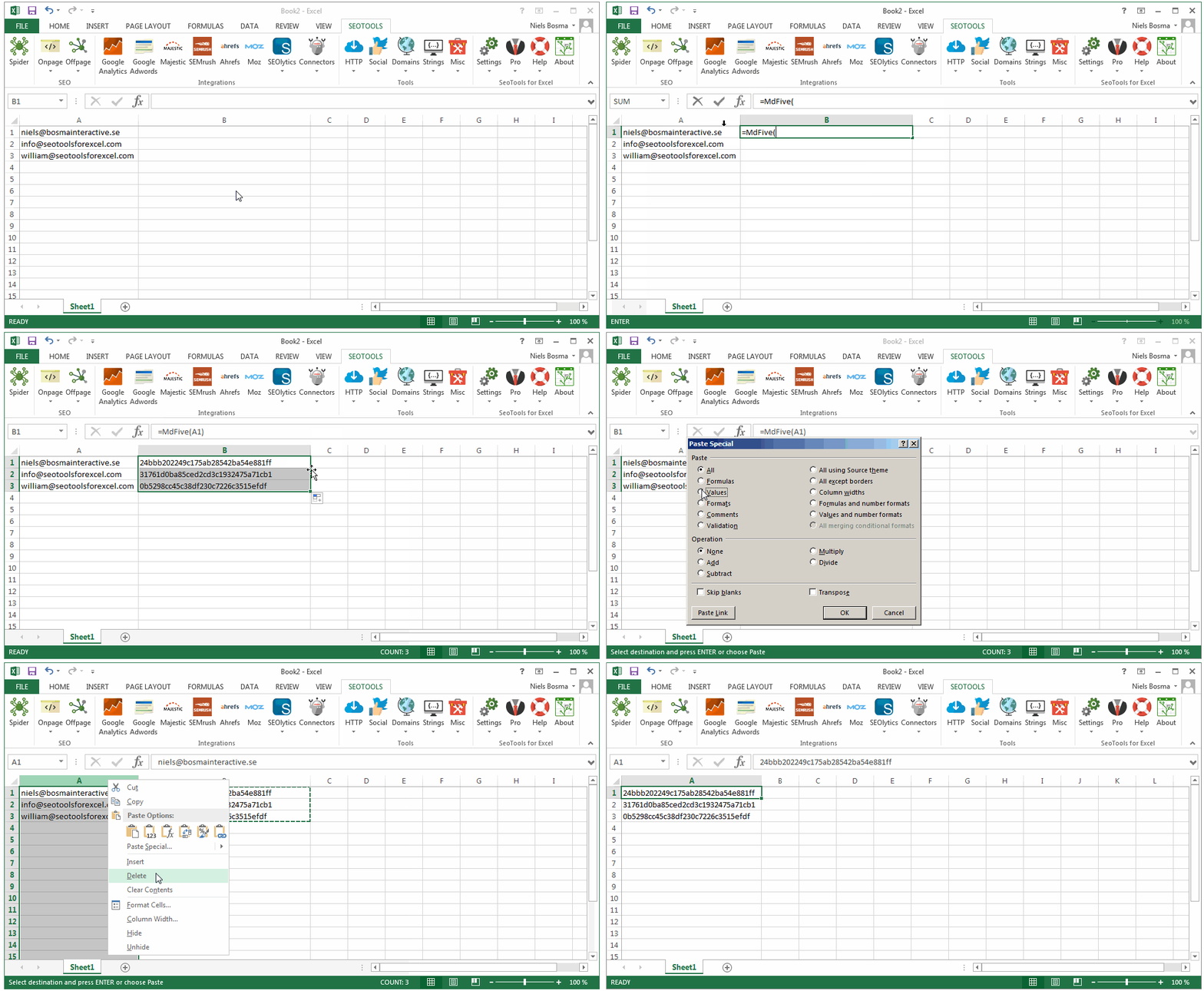
- Take all your user's emails (or what every sensitive data you want to compare) and put them in one column in Excel.
- Apply
=MdFive()on each row (enter the formula in the first row and then double-click on the black square in the lower right corner of the cell to populate all the remaining rows). - Select all the generated Md5 values and copy. Press
CTRL+ALT+Vand Paste as Values. - Delete the column with the emails.
- The other party also does step 1-4 and you can now exchange files.
- Now we need to compare what Md5 values exists on both lists. There are several ways to do this, here's a suggestion:
Let me tell you about the best secret I sneaked into SeoTools 5.0! This is a life-saving feature that I use almost every day at my day job as a growth hacker.
Wouldn't it be nice to be able to access data from your database in a structured and user-friendly way directly in Excel?
Say for example that you have a list of user ids (maybe from a custom dimension in GA?) and you need to quickly figure out the name of each user? What if you could create a SeoTools Connector based on a SQL-query that produces an user-friendly UI where you can input the id and get the name as a result through either a formula or a wizard.
Enter SqlConnectors.
SqlConnectors is something you can create yourself if you know how to query your database using SQL.
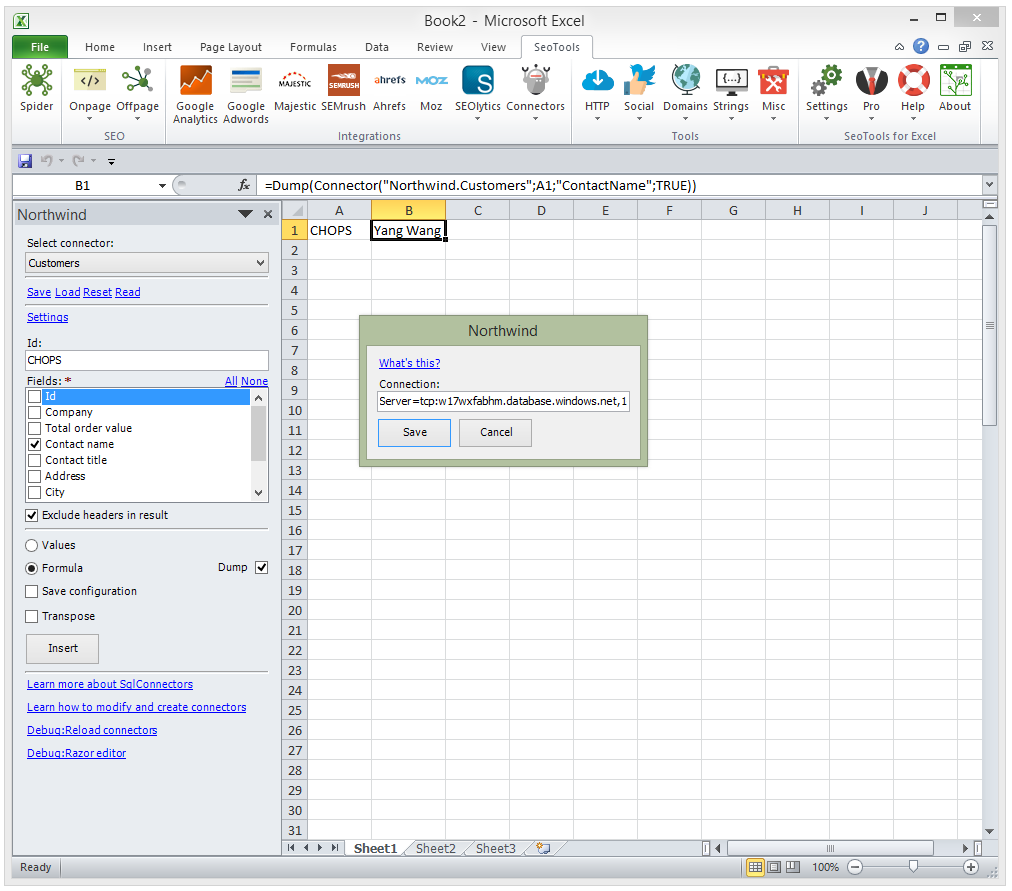
To demonstrate this I've created a SqlConnector using the classic Northwind database example.
View the source code for the Northwind example on GitHub.
This is what your get when Northwind.xml is added to the /connectors/ directory:
How to make your own SqlConnectors
Connectors are written using XML. One or more connectors are collected in a connectors suite. A Suite must have an Id and a Title. Suites with SqlConnectors also has to have a setting with the Id="ConnectionString".
<?xml version="1.0" encoding="utf-8" ?>
<Suite Id="Northwind" Title="Northwind">
    <Settings>
        <Text Id="ConnectionString" Title="Connection" DefaultValue="Data Source=,1433;Initial Catalog=;User Id=;Password="/>
    </Settings>
    ...
</Suite>
SqlConnectors have 3 parts: Parameters, Sql-template and Columns:
<SqlConnector Id="Customers" Title="Customers">
    <Parameters>
        <Text Id="Id" Title="Id"/>
    </Parameters>
    <Sql OrderBy="CompanyName">
    <![CDATA[
        SELECT
        *,
        (
            SELECT
            ISNULL(SUM(UnitPrice*Quantity*(1.0-Discount)),0)
            FROM
            [Order Details]
            INNER JOIN Orders ON Orders.OrderID = [Order Details].OrderID
            WHERE Orders.CustomerID = Customers.CustomerID
        ) AS TotalOrderValue
        FROM
        Customers
        WHERE
        1=1
        @if(Model.Id != "")
        {
           @: AND Customers.CustomerId = '@Model.Id'
        }
    ]]>
    </Sql>
    <Columns>
        <Column Id="CustomerID" Title="Id"/>
        <Column Id="CompanyName" Title="CompanyName"/>
        <Column Id="TotalOrderValue" Title="Total order value"/>
        <Column Id="ContactName" Title="Contact name" Checked="false"/>
        <Column Id="ContactTitle" Title="Contact title" Checked="false"/>
        <Column Id="Address" Title="Address" Checked="false"/>
        <Column Id="City" Title="City" Checked="false"/>
        <Column Id="PostalCode" Title="PostalCode" Checked="false"/>
        <Column Id="Country" Title="Country" Checked="false"/>
        <Column Id="Phone" Title="Phone" Checked="false"/>
    </Columns>
</SqlConnector>
A Connector also must have an Id and a Title.
The Sql-template is written in the powerful Razor template language . When compiling the Sql-query, the @Model is populated with the values of the connector-parameters and suite-settings set by the user.
See other open-sourced Connectors for more examples on how to specify parameters and work with Razor templating.
I hope you also think this is as exciting as I do. By building SqlConnectors I can automate and simplify my data-juggling extensively. Let me know what you think in the comments below!
Limitations
Only been tested with MS-SQL.
]]>
Connectors
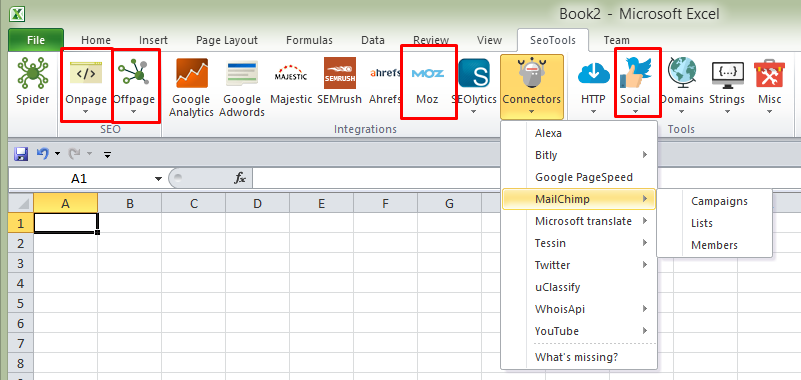
I've rebuilt Scrapers entirely. They are now called Connectors and can return table values and do all sorts of cool things.
Connectors are written using my XML format and makes it super easy to integrate most HTTP APIs with Excel.
The ones that I've written has been open-sourced on GitHub and I really hope some of you will be inspired and help integrate more APIs. I'll follow up with a post on how to write connectors and some documentation.
New integrations
(All implemented in the new connectors format)
Pro changes
I spend quite a lot of time on SeoTools and to make this a sustainable business I've decided that I need to add more value to the Pro version. Therefore I've decided to make the following changes:
- To use the Google Analytics integration you now need Pro.
- All connectors requires Pro (this includes the previous Onpage, Offpage and Social.
I'm also in a few days going to raise the price from €49 to €69 so make sure you upgrade in time.
Fixes
- New Razor() function for string templating.
- New MdFive() for Md5 one-way encryption.
- Fixed issues with HtmlTitle().
- SEMrush:
- Added Display date parameter to "Domain overview", "Keyword overview" and "Organic results".
- If you select a database in the view "Keyword overview" the SEMrush command "phrasethis" would be used instead of "phraseall" (consumes less API credits).
- Google Analytics:
- Added sampling level.
- Fixed issue with accounts with a lot of items.
- Updated MCF dimensions and metrics.
- Fixed authentication issues.
- Option to specify encoding in UrlDecode and UrlEncode:
=UrlDecode(UrlEncode("åäö";"utf-8");"utf-8") => "åäö" - Tool for bulk adding proxies in Http settings.
- Google Adwords:
- Option to retrieve search volumes from Google search only.
- Making sure authentication is remembered between sessions if StayAuthenticated is set to true.
- Majestic: Fixed problem with "Index data" when sending more than 100 urls in one batch.