The post Introducing CoreSpeed: The First Done-For-You WordPress Hosting Platform appeared first on WordPress Support & Maintenance Specialists.
]]>The Hosting Problem We’re Solving
The biggest question we’ve had since launch is people asking “how is this different than WP Engine, or Kinsta, or [insert other popular host name here]?”.
We continue to work with companies like WP Engine, Kinsta, BigScoots, etc., and they have solid platforms that deliver a nice combination of software and hardware to their clients. But they’re limited by something that we aren’t; hands-on optimization from performance specialists, and a new exciting edge technology we’re calling Astro.
For years we’ve watched clients pay for premium web hosting and still chase plugin conflicts, slow load times, performance bottlenecks, SSL certificate errors, unexpected downtime, and other frustrations while paying for a “managed” service. Part of the stack is managed, but not all of it. And client’s aren’t looking for partial ownership anymore. They’re tired of finger-pointing and want real accountability from the companies they choose to hire. They want the “full meal” experience, not the recipes and cooking classes.
A Fully-Managed End-to-End Solution
Imagine taking your car to the dealership complaining about a strange engine noise, and they tell you to try and empty and refill all of your engine fluids as a potential solution. If that doesn’t work, you might try replacing all of your engine parts with the stock parts provided during the original purchase to make sure you aren’t using unauthorized equipment. And if that doesn’t work, you’ll need to speak to your personal mechanic about potential fixes.
I know it sounds absurd, but it’s very close to the experience that most managed hosting customers endure every day. And that’s assuming they’re able to talk to a human at all. I fully understand that it’s a question of scale and cost. Because we’ve intentionally coupled CoreSpeed with our high-tier plans, we aren’t trying to support 10,000 $20/month sites. We’ve traded ‘scale’ for ‘depth,’ allowing us to provide the level of ownership that larger hosts simply can’t afford to offer. No one has cracked the code for providing exceptional developer-ready support at scale. Usually the price lever beats out the service quality and full ownership aspects of managed hosting.
With CoreSpeed, however, we believe that clients are willing to pay more for a fully-owned Done-For-You hosting and web performance experience, so we’ve built the solution we always wished existed for our clients.
What’s the Difference Between Done-for-You WordPress Hosting and Managed WordPress Hosting?
Beyond developer-help, we have some really fantastic features baked into CoreSpeed that help set it apart in meaningful ways against managed WordPress Hosting.
Dedicated Hardware
Our entire platform is built on single-tenant hardware. This means that our clients don’t ever fight with the “noisy neighbor” problem that’s rampant among managed hosts. It also means that we can optimize and fine-tune configurations at the server level as needed for each individual website. We have a stock configuration we love, but if there’s a reason your site needs something special, we can likely accommodate that too.
Application Optimization During Onboarding
Our site transfer process isn’t just a plug-n-play migration. We optimize your WordPress site before it launches on our platform. Whether your database needs cleaning up, your front end code is a mess, or something basic like big images are getting in the way of great performance, we take care of it for you.
Astro: Our Performance Special Sauce
Astro is our proprietary smart-caching system designed to deliver fast page load times globally. While many hosts point to a standard CDN as their performance solution, Astro goes significantly deeper. In our internal head-to-head testing, Astro delivered 67% better results than Cloudflare’s own APO caching.
We prefer to let the data speak for itself. Here is a look at a recent migration where we moved a high-traffic e-commerce site from a well-known managed host to CoreSpeed:
| Metric | Previous Managed Host | CoreSpeed (with Astro) | Improvement |
|---|---|---|---|
| Time to First Byte (TTFB) | 410ms | 48ms | 88% |
| Largest Contentful Paint (LCP) | 2.4s | 0.9s | 62.5% |
| First Input Delay (FID) | 45ms | 12ms | 73% |
Note: These results represent a fully functional site with active tracking scripts and global traffic, not a “stripped-down” test environment.
Solving the “Paid Traffic Penalty”
One of the most significant—yet rarely discussed—problems in managed hosting is how advertising traffic interacts with caching.
When you run ads on Google or Meta, tracking query parameters (like ?gclid or ?fbclid) are added to your URLs. Most hosting environments see these parameters and automatically bypass the cache to ensure tracking works. The result? Your most expensive visitors—the ones you are paying to acquire—receive the slowest, uncached version of your site.
Astro was built specifically to solve this. It intelligently identifies these parameters, allowing it to serve a fully cached, lightning-fast version of the page while keeping your tracking data perfectly intact. It’s the difference between a bounce and a conversion.
 Test how much money your current hosting is leaving on the table with our revenue loss calculator.
Security Without the Headache
We don’t just “manage” your security; we own it. CoreSpeed includes enterprise-level firewalls and proactive malware defense. If an issue ever arises, you don’t have to hire an outside security firm or spend hours on support chats. Our team handles the remediation from start to finish. It’s all part of the “real accountability” we promised.
Ongoing Proactive Management
Most hosting relationships end once the site is migrated. With CoreSpeed, that’s just the beginning. A “Done-For-You” platform means we take full ownership of the technical health of your site. We handle the plugin updates, monitor for compatibility issues, upgrade PHP versions, and proactively monitor your Core Web Vitals to ensure that your site remains as fast six months from now as it was on day one.
Why CoreSpeed is Only Available on Gold and Diamond Plans
Because CoreSpeed requires a high level of “hands-on” optimization and specialized hardware, we don’t sell it as a standalone hosting product. We aren’t looking to be another faceless hosting company where you’re just a number in a database.
Instead, CoreSpeed is exclusively included as the foundation of our Gold and Diamond Plans. By bundling CoreSpeed with our highest-tier service plans, we ensure that our performance specialists have the time and resources to proactively manage your site.
Ready for a Faster Done-For-You WordPress Experience?
We built CoreSpeed because we were tired of seeing great businesses held back by technical limitations they didn’t have the time (or desire) to fix. If you’re tired of being told to check your own oil while paying for a full-service warranty, it’s time for a change.
The next steps are simple:
- Explore our Gold and Diamond Plans to see the full list of deliverables included alongside CoreSpeed.
- Book a Performance Consultation with our team. We’ll take a look at your current setup and give you a transparent assessment of how CoreSpeed can move the needle for your business.
If you still have questions about CoreSpeed, check out our FAQ. Feel free to leave a comment below or get in touch with our team too. We’re very excited about CoreSpeed and look forward to talking to people about it!
The post Introducing CoreSpeed: The First Done-For-You WordPress Hosting Platform appeared first on WordPress Support & Maintenance Specialists.
]]>The post WordPress Drops Security Support for Legacy Versions in July 2025: What It Means for Your Site appeared first on WordPress Support & Maintenance Specialists.
]]>In this Article
- The WordPress legacy support numbers don’t lie (and they’re not pretty)
- Why this matters more than you think
- The PHP problem makes everything more challenging
- What happens when you do nothing
- The enterprise dilemma when WordPress legacy support isn’t available
- What your options actually look like
- The not-so-hidden costs of standing still
- Making the case for change
- How to make upgrading an opportunity
- Security support for your old websites is over
- Common questions about how we help upgrade legacy WordPress sites
- Don’t navigate this alone
Remember that old website you built back in 2015? The one that’s been humming along quietly, generating leads and serving customers without any fuss? Well, that peaceful existence just got a wake-up call. The call is coming from your legacy WordPress website.
WordPress just announced they’re pulling security support for versions 4.1 through 4.6 starting July 2025. This isn’t just another routine update notice you can ignore. For the first time in WordPress history, they’re actively cutting the cord on security patches for versions that some businesses still depend on.
While this change isn’t being called a formal “End of Life (EOL)” stage for these WordPress versions, it probably should be exactly that. End-of-life means the developers have stopped maintaining that version of the software. It will no longer receive security fixes, bug patches, or new features, so users should upgrade to a supported version to stay protected and compatible.
If you’re running one of these versions, you’re not alone. But you’re also not in great company anymore.
The WordPress legacy support numbers don’t lie (and they’re not pretty)

Here’s what makes this particularly interesting: less than 1% of WordPress sites are running these versions. That sounds small until you remember there are roughly 533 million WordPress websites out there. We’re talking about potentially millions of sites that just lost their security lifeline.
But WordPress isn’t stopping there. They’re also implementing something called “maintenance mode” for legacy components. Features like TinyMCE, the Customizer, and even XML-RPC are getting moved to maintenance status, which means no new features and minimal attention from developers.
And if that wasn’t enough to keep you awake at night, over 37% of WordPress sites are running database versions that have reached end of life. That’s MySQL and MariaDB versions that aren’t getting security patches anymore either.
Think about that for a second. There are lots of websites out there running on three different layers of deprecated technology all at once.
Why this matters more than you think

You might be wondering why these changes to WordPress legacy support are happening now. The answer comes down to resources and reality. The WordPress Security Team was spending most of their time creating security patches for less than 1% of installations. That’s like having your entire IT department focused on maintaining one old server while ignoring the rest of your infrastructure.
The shift makes sense from their perspective, but it creates a significant challenge for anyone still running these older versions. Every unpatched vulnerability that gets discovered becomes a permanent weakness in your system.
In 2024, over 1,600 plugins and themes were removed from the WordPress repository for unpatched security issues. That’s roughly four plugins getting kicked out every single day for security problems. Now imagine that same evacuation rate happening on your core WordPress installation, but with no patches coming.
The PHP problem makes everything more challenging
Here’s where things get really messy. Most sites running old WordPress versions are also running vulnerable PHP versions. PHP 7.4 reached end of life on November 28, 2022, but plenty of sites are still using it.
Only 12% of reported WordPress sites run on a PHP version actively supported by The PHP Group. The rest are essentially on a falling plane without a parachute.
The combination of outdated WordPress installations and deprecated server software creates a compounding effect. You’ve got an old WordPress version that won’t get security patches, running on old PHP that won’t get security patches, potentially using an old database that won’t get security patches. It’s like building a house of cards in a windstorm.
What happens when you do nothing
Let’s talk about what “doing nothing” actually looks like in practice. It’s not just about security vulnerabilities, though those are certainly scary enough. The deeper issue is that your website becomes increasingly isolated from the modern web ecosystem.
Applications running end-of-life versions face growing risks of downtime as their codebases become deprecated and bugs accumulate. Your site might be working fine today, but what happens when a plugin that isn’t compatible with your ancient WordPress version is updated? You end up with critical errors and the need for emergency fixes.
Performance becomes another casualty. New versions of PHP regularly add features and improvements that can reduce development, hosting, or hardware costs. Staying on old versions means missing out on speed improvements that could be making your site faster and your hosting bills smaller.

There’s also the talent problem. Try finding a developer who wants to work on PHP 5.6 code in 2025. Most developers have moved on to modern tools and frameworks. When you need updates or fixes, you’ll be shopping in an increasingly shallow talent pool, often at premium prices.
The enterprise dilemma when WordPress legacy support isn’t available
For large organizations, the situation becomes even more complex. You might have dozens of WordPress sites across different divisions, some of them critical to business operations. The idea of updating them all simultaneously feels overwhelming.
But here’s what enterprise security teams understand: the community distrust towards WordPress.org has led to alternative projects providing backup repositories and update mechanisms. When your primary software source becomes unreliable or unsupported, you need alternatives.
Some organizations are looking at extended lifecycle support services. Companies like Zend provide security updates for end-of-life PHP versions, extending their useful life by years. Similar services exist for MySQL and MariaDB.
The question becomes: do you want to bet your business on third-party security patches for abandoned software, or do you want to modernize your infrastructure?
What your options actually look like
If you’re staring at this situation thinking “great, now what?”, you’ve got several paths forward.

Recommended Approach
We recommend complete modernization for websites that are important to your business. It also makes sense to evaluate retiring old unused websites if they’re no longer serving your organization. The important thing is to not wait until vulnerabilities are discovered or systems break.
Consider partnering with SiteCare for professional modernization work, followed by ongoing support with one of our SiteCare Plans.
The obvious answer is upgrading. But anyone who’s tried to jump a WordPress site from version 4.2 to 6.8 knows it’s not exactly a smooth process. You’re looking at potential theme breaks, plugin incompatibilities, and possibly some custom code that needs rewriting.
Some hosting providers offer hardened PHP versions that backport security fixes to older versions. These “hardened” versions provide security patches for legacy applications until you’re ready to modernize. The problem is that it’s like plugging a leaky dam with your finger. If the overall infrastructure is fragile, chances are another leak will show up, and you only have so many fingers.
Our Recommended Approach
Here’s our proven process for safely upgrading legacy WordPress sites:
Site Assessment & Planning
We start by creating a complete copy of your current website and running detailed tests to identify everything that might break during the upgrade. This includes checking your theme, plugins, custom features, and any special functionality to understand exactly what we’re working with.
Building Your New Website Environment
We construct a brand-new version of your site using the latest WordPress software and security updates, working completely separately from your live website. This means your current site stays online and functional while we build the upgraded version.
Fixing All Technical Issues
We eliminate every error, warning, and compatibility problem we find. We don’t hide the issues, we actually fixing the underlying code. This includes updating outdated functions, resolving plugin conflicts, and ensuring your site meets current web standards.
Complete Testing & Quality Assurance
Before launch, we test every aspect of your website: forms, checkout flow, third-party integrations, mobile responsiveness, and loading speeds. We simulate real user interactions to guarantee everything works perfectly across all devices and browsers. We do all of this testing with detailed logging in place to catch any action that may cause an unexpected issue.
Safe Launch with Backup Plan
Once our testing has been satisfied, we deploy your upgraded site using techniques that allow us to instantly switch back to your old site if any issues arise. We then monitor your website closely to ensure everything runs smoothly and address any concerns immediately.
This methodical approach has enabled us to successfully modernize hundreds of WordPress sites while preserving critical functionality. If you’re concerned about the risks of upgrading your legacy WordPress site or have experienced problems with previous upgrade attempts, get in touch with our team to ensure a seamless process on your next attempt.
The not-so-hidden costs of standing still
Most people don’t think about what you give up when you keep supporting old versions of WordPress.
Every hour your team spends wrestling with compatibility issues or working around limitations of old software is an hour they’re not spending on improvements that could grow your business.
Modern PHP tools and frameworks significantly speed up development, but legacy applications miss out on these efficiency gains. Your competitors using modern stacks can add features faster, fix bugs quicker, and respond to market changes more efficiently.
There’s also the compliance consideration. Many industries have regulations requiring up-to-date security measures. Running software that no longer receives security updates could put you at odds with compliance requirements, especially in healthcare, finance, or government sectors.
Making the case for change
If you’re trying to convince stakeholders that modernization is worth the investment, focus on the business impact rather than the technical details. Talk about reduced downtime risk, customer trust breakdowns, improved performance, lawsuit threats, better user experience, and future-proofing the business.
Take a recent example from our work at SiteCare. In February, we took on a client whose eCommerce site was running on a very outdated software stack: PHP 5.6, MySQL 5.7, WordPress 5.2 (which was released back in 2019), and over 100 plugins with major customizations. Their business was thriving, but their technology stack was in really bad shape.
The transformation took careful planning and staged execution, but the results speak for themselves. That same site now runs on a fully modern stack with the latest PHP and MySQL versions, WordPress 6.8.1, and a streamlined, secure architecture. Their page load times improved dramatically, security vulnerabilities disappeared, and they can now take advantage of modern ecommerce features that simply weren’t available on their old setup.
Point out that WordPress security incidents increased dramatically in 2024, with AI tools making it easier for attackers to find and exploit vulnerabilities at scale. The threat landscape isn’t getting friendlier to old, unpatched systems.
Consider the cost of a security breach versus the cost of modernization. Factor in downtime, reputation damage, regulatory fines, and customer notification requirements. Suddenly that website upgrade starts looking like a pretty good investment.
How to make upgrading an opportunity
The reality is that WordPress’s decision to end legacy WordPress support isn’t going away. If anything, they’re moving toward more intentional deprecation of outdated features. This is the new normal.
Your best bet is treating this as an opportunity rather than a crisis. Yes, modernizing legacy WordPress sites takes time and resources. But it also opens up possibilities for improved performance, better security, and easier maintenance going forward.
Start by auditing what your inventory of websites and the software installed on each of them. How many sites are running legacy versions? Which ones are critical? Which ones might be candidates for retirement rather than upgrade?
Create a timeline and checklist that balances urgency with available resources. The sites handling sensitive data or generating significant revenue should go first.
Here are some of the specific items to review:
 WordPress version and EOL status
PHP version and support timeline
Database version and EOL status
Critical plugins and their update status
Custom code dependencies
All of these details can be found in the Site Health area of your WordPress dashboard.
 Scan your site for current issues
Find out the health of your current WordPress site by doing a quick scan with our WordPress Site Health Scanner.
Security support for your old websites is over
WordPress no longer provides automatic security backports for older versions, which are patches from newer releases applied to older code to keep it secure.. That safety net has been quietly protecting millions of websites for years, but it’s disappearing whether we like it or not.
The question isn’t whether change is coming. The question is whether you’ll control that change or let it control you. Organizations that get ahead of this transition will end up with more modern, secure, and maintainable websites. Those that wait until something breaks will find themselves dealing with emergency fixes while trying to explain to customers why the website is down, or worse.
The era of “set it and forget it” WordPress sites is ending. The era of intentional, ongoing maintenance is the new normal. The sooner you adapt to that reality, the better positioned you’ll be for whatever comes next.
Common questions about how we help upgrade legacy WordPress sites
Most legacy WordPress upgrades take 2-8 weeks depending on the complexity of your site, number of custom features, and extent of outdated code. Our staged approach means your current site remains fully functional throughout the entire process.
Our parallel environment approach means your live site is never at risk. If we encounter any issues, your original site continues running normally while we resolve problems in the staging environment. We also maintain complete rollback capabilities even after launch.
Yes, this is our specialty. Legacy sites with extensive customizations require the most careful handling, which is why we’ve developed our systematic migration process. We rebuild custom functionality or replace it with modern solutions rather than trying to force outdated code to work.
When executed properly, WordPress upgrades should maintain or improve your SEO performance. We preserve all your URLs, meta data, and content structure while often improving site speed and mobile performance, factors that can boost your search rankings.
Absolutely. E-commerce and membership sites require special attention during upgrades due to their complex databases and payment integrations. We have extensive experience with WooCommerce, Easy Digital Downloads, and various membership plugins.
All WordPress upgrade projects include enrollment in a SiteCare maintenance plan, which provides immediate 48-hour post-launch monitoring and priority support for any upgrade-related issues during the first 15 days. Your SiteCare plan then continues with ongoing maintenance, security monitoring, regular updates, and priority support to ensure your newly modernized site remains secure and performing optimally.
Pricing depends on your site’s complexity, current condition, and specific requirements. We provide detailed quotes after our initial assessment, and our staged approach often costs less than emergency repairs following a failed DIY upgrade attempt.
Don’t navigate this alone
If you’re running WordPress 4.6 or earlier, PHP 7.4 or older, or MySQL/MariaDB versions that have reached end of life, you’re somewhere in the risk pyramid we’ve discussed. That’s not a judgment, it’s just reality for millions of websites.
The good news? You don’t have to figure this out by yourself.
At SiteCare, we’ve guided hundreds of businesses through exactly this transition. We’ve seen the relief on executives’ faces when their legacy nightmare becomes a modern, secure, high-performing website. We’ve watched companies go from constantly worrying about security breaches to confidently focusing on growth.
Whether you’re dealing with a single critical site or managing dozens of WordPress installations across your organization, we understand the complexity you’re facing. We know the pressure of keeping business-critical systems running while trying to modernize infrastructure that feels increasingly fragile.
Your next step doesn’t have to be overwhelming. It can be as simple as a conversation about where you are now and where you need to be.
Ready to move from risk to confidence? Get in touch with our team and let’s discuss how we can help you modernize your WordPress infrastructure safely and efficiently. Your website should be driving your business forward, not holding it back. Partnering with a trusted wordpress support company like SiteCare ensures you have the expertise, processes, and long-term maintenance needed to keep your site secure, fast, and future-ready.
The post WordPress Drops Security Support for Legacy Versions in July 2025: What It Means for Your Site appeared first on WordPress Support & Maintenance Specialists.
]]>The post SiteCare Achieves SOC 2 Type II Compliance, A New Level of Assurance for WordPress Care appeared first on WordPress Support & Maintenance Specialists.
]]>No more “due diligence” or legal bottlenecks
If you’re working at a healthcare company, financial institution, or any regulated organization, you’ve probably had some version of this conversation:
We love WordPress, but our compliance team is having nightmares about working with third-party vendors who don’t meet our security standards.
Sound familiar?
That’s because until now, there wasn’t a WordPress maintenance company that could confidently say, “We’ve been independently audited and verified to meet the same security controls as enterprise software companies.” The WordPress ecosystem, for all its flexibility and power, has been missing this crucial piece of the puzzle.
SOC 2 Type II isn’t some lightweight certification you can breeze through over a weekend. It’s a comprehensive audit that examines critical trust principles including security, availability, processing, integrity, confidentiality, and privacy. Type II doesn’t just verify that you have these controls in place. It confirms that you’ve been successfully operating them for an extended period.
SOC 2 Type II is having an independent auditor shadow your every move for months, making sure you actually do what you say you do.
What makes this different from “We Take Security Seriously”
Saying we’re security-conscious is different than demonstrating our security acumen. Over several months, Johanson Group sampled real tickets, Git commits, incident logs, and change approvals, then traced each one back to written policy. When they finished, they issued an unqualified report meaning it is their opinion, without reservation, SiteCare delivers services adhering to top Security, Availability, Confidentiality, Processing Integrity and Privacy standards.
Some managed WordPress hosts have proven their infrastructure layers through similar audits, and a few plugin vendors have followed. Until now, no WordPress support and maintenance firm had endured equivalent scrutiny.
With SOC 2 Type II compliance, we’re not just meeting industry standards. We’re exceeding them. Your security team can now point to our independently verified controls and say with confidence, “These folks take security as seriously as we do.”
The different types of SOC 2 reports
SOC 2 reports come in two flavors, each answering a different question about a vendor’s security posture.
- Type I: Shows that controls exist on a given date.
- Type II: Proves those controls work over time.
Buyers (especially those in regulated industries) prefer the second option because it demonstrates security in regular operations, not just at audit time. We have received both Type I and Type II reports.
Achieving SOC 2 Type II was an intense process for our team
Getting here required us to completely reimagine how we operate. We didn’t just bolt security measures onto our existing processes. We rebuilt everything from the ground up with security and compliance at the center.
Our team underwent extensive training on information security frameworks. We implemented monitoring systems that would make a Fortune 500 company proud. We documented every process, every procedure, every decision point that could impact the security of client data. And then we had to prove, day after day, that we could maintain these standards consistently.
The audit process itself was intense. Independent auditors examined everything from our employee background check procedures to our incident response protocols. They tested our systems, interviewed our staff, and scrutinized our documentation with meticulous attention.
There were moments when we questioned whether it was worth it. The investment in time, resources, and organizational changes was significant. But every time we talked to a potential client who couldn’t work with us because of compliance requirements, we knew we were on the right path.
SOC 2 isn’t just a certificate for us. It’s a reflection of how we operate. Every process at SiteCare, from code deployment to client communication, is built on consistency, accountability, and respect for data privacy. This audit simply proves what our clients experience and have come to expect from us every day.
Drew Barton – President of SiteCare
Key controls the Auditors reviewed
To earn an unqualified report, we had to show that our safeguards cover both technology and the people who operate it. The core controls include:
- Access management: Single sign-on, multi-factor authentication, and least-privilege roles across every tool we touch
- Change management: Code moves from Git to staging to production with automated tests and peer review
- Employee background checks: Every team member passes identity verification, criminal-history screening, and reference checks before receiving production access, with results kept on file for auditor review
- Continuous monitoring: Real-time alerts for uptime, performance, and threats, with logs retained for forensic analysis
- Incident response: Documented playbooks, on-call rotations, and post-incident reviews to capture lessons learned
Auditors asked for evidence, and our team produced authentication controls evidence, endpoint security best practices evidence, Freshdesk tickets, meeting summaries, code review, and server and code build logs with matching timestamps.
How this helps Website Owners, Marketing Leads, and IT Directors
| Role | Day-to-Day Pain | How SOC 2 Type II Helps |
|---|---|---|
| Website Owner | Vendor questionnaires delay launches | Attach the report and most questions disappear |
| Marketing Lead | Campaign timeline slips while security reviews vendors | Compliance sign-off arrives sooner and creative work launches on schedule |
| IT Director | Must defend third-party risk to auditors and the board | Independent attestation backs your recommendation with hard evidence |
Immediate benefits from SiteCare’s SOC2 type II report
Passing the audit is more than a trophy on the shelf. It delivers tangible advantages from the moment you start working with us:
- Faster vendor approval: Large security questionnaires shrink when one attestation covers entire sections
- Stronger contract language: Legal teams rely on recognized standards, reducing red lines and revisions
- Lower operational risk: Continuous monitoring and rehearsed response plans keep routine issues from becoming prolonged outages
- Simpler executive reporting: One independent document replaces a patchwork of self-assessments
Together, these efficiencies mean your projects move forward sooner and with fewer headaches for everyone involved.
Looking forward: What comes next?
Achieving SOC 2 Type II compliance isn’t a destination. It’s the beginning of a new chapter. We’re already working on expanding our compliance portfolio to include additional frameworks that matter to our clients.
But more importantly, we’re using this foundation to build even better services for organizations with complex security requirements. Custom security configurations, enhanced monitoring capabilities, specialized incident response procedures… the possibilities are endless when you start from a position of proven compliance.
We’re also committed to helping other WordPress service providers understand what enterprise-grade security looks like. The more companies in our ecosystem that can meet these standards, the stronger WordPress becomes as an enterprise platform.
Final Thoughts
Security that stalls projects helps no one. Security that clears obstacles lets teams ship features, launch campaigns, and serve customers with confidence. SiteCare’s SOC 2 Type II attestation turns WordPress support and maintenance from a potential audit roadblock into a documented strength.
If your organization is ready for a partner that combines enterprise-level compliance with expert care, explore our WordPress support and maintenance services. With SiteCare, you’ll have the assurance of independently validated security controls and the peace of mind that your website is in capable hands.
Ready to move faster without adding risk? Let’s talk. We have the report, the logs, and a track record that now carries independent validation.
Request the Report
Current and prospective clients can obtain the SOC 2 Type II report under NDA by contacting our team at [email protected]. The document contains sensitive architectural details, so confidentiality is required.
The post SiteCare Achieves SOC 2 Type II Compliance, A New Level of Assurance for WordPress Care appeared first on WordPress Support & Maintenance Specialists.
]]>The post The Hidden ROI of WordPress Care Plans for SMB Leaders appeared first on WordPress Support & Maintenance Specialists.
]]>Worktrek performed a study showing that organizations typically save 12-18% compared to reactive maintenance strategies. They’re referring to physical equipment management, but the same rings true in the digital world.
WordPress Care Plans are often labeled as a “nice-to-have,” but I’d argue they’re a powerful investment with tangible returns that often go unnoticed. If you’re part of the C-Suite or you manage a department at a small or mid-sized business, you’re balancing security, compliance, and budgets. You need to show stakeholders that every dollar spent on technology is worthwhile. A structured website plan—one that includes regular software updates, security checks, and performance monitoring—can be that behind-the-scenes hero you never knew you needed.
Clearly I’m writing this from a biased position, but I’ve seen too many horror stories to believe otherwise.
Below, I’ll share the hidden ROI that many SMB leaders miss when they decide they can “wing it” with their web properties. Let’s jump in.
1. Eliminate Silent Security Threats
Security threats rarely come with a polite heads-up before they strike. If you haven’t met that dreaded moment when a hacker takes your website hostage, consider yourself lucky. Unpatched software is a top culprit for cyberattacks. And in fields like healthcare or finance, a single data breach can damage more than your bottom line—it can tarnish a reputation you’ve spent years building.
We’ve seen services charge upwards of $10,000 for a single malware cleanup. Not only are malware cleanups included in our SiteCare plans, we do significant work to prevent hacks from happening in the first place so your reputation is protected.
I’ve watched clients spend large sums on emergency fixes after an attack. It’s not just the cost of cleaning up malware; it’s also the stress of downtime and the potential legal ramifications if sensitive information is leaked. WordPress Care Plans protect your site through regular patches, continuous monitoring, and proactive threat identification. You can think of it as having a security detail that never sleeps. It’s a lot cheaper and less stressful than hiring a crisis management team down the road.
ROI: Predictable site health and fewer painful surprises. You’re not funneling cash into damage control, nor are you dealing with a dinged reputation because of a public breach.
2. WordPress Care Plans Simplify Regulatory Compliance
If you operate in a highly regulated industry—like healthcare, finance, or education—compliance is constantly on your mind. Whether it’s GDPR in Europe, CCPA in California, or the ADA for accessibility, the list of rules can feel never-ending. We once helped an inner-city school avoid an unexpected fine from the Department of Education and while the urgent work was costly, it was a lot less expensive that the impending fine.
A WordPress maintenance plan steps in by keeping your software up to date, limiting possible vulnerabilities that could cause compliance breaches. You shouldn’t have to worry every time a new regulation pops up. Regular checkups and software patches help you stay in line with ever-evolving requirements, so you can focus on the work that actually matters: serving your patients, clients, and investors.
ROI: Time saved from dealing with red tape, plus peace of mind knowing your site aligns with mandated security protocols.
3. Cut Costs on Emergency Fixes and Audits
If you’ve ever scrambled to fix a hacked site or lost sales because your website was suddenly down, you know how emergency repairs can blow a hole in your budget. These surprises always seem to happen when you’re buried in other priorities—like an upcoming product launch or a busy enrollment season.
I remember chatting with a financial services firm whose site went offline right in the middle of tax season. Imagine fielding frantic calls from clients who rely on your online resources, only to find their portal is inaccessible. After they spent thousands of dollars rushing to fix the issue, they realized how much cheaper a consistent maintenance arrangement would have been. It’s like changing your car’s oil on a regular schedule rather than rebuilding the engine after it’s destroyed. Care plans can save you from throwing money at chaotic, last-minute fixes.
ROI: Fewer high-cost emergencies and a healthier bottom line. Instead of funneling money into crisis control, you can allocate funds toward growth.
4. Boost Site Performance and User Satisfaction
People have short attention spans these days—myself included. We want quick load times and smooth transactions. If your website is lagging or glitchy, potential clients or patients are gone before you can even say, “Please wait.”
Performance isn’t just about looking good or keeping pace with competitors. It’s about user trust—and Google’s Core Web Vitals make that clearer than ever. These metrics measure how quickly your pages load, how stable they are, and how soon a visitor can interact.
So, a hospital’s portal that keeps timing out isn’t just inconvenient—it feels unsafe. A financial advisor’s site that drags during login can raise eyebrows about overall professionalism. WordPress Care Plans ensure site speed remains top-tier, reduce bounce rates, and boost user satisfaction. After all, if your site is reliable and fast, visitors are more likely to trust you with their sensitive data—and their money.
ROI: Higher customer satisfaction, reduced bounce rates, better search engine rankings, and a stronger brand reputation. Not to mention a quick, stable site suggests competence—and encourages users to stick around.
5. Avoid the Costly Burden of Technical Debt
Picture yourself renovating an older home. If you don’t deal with the wiring or plumbing issues early, they pile up until you’re forced to conduct a massive (and expensive) overhaul. It’s the same with websites. Outdated code and neglected plugins will eventually demand pricey fixes before you can move forward with new features. You can’t stack innovations on a shaky foundation.
By keeping your WordPress setup in good shape, you free up your development team from dealing with legacy problems. It’s far more efficient and cheaper to address issues as they appear, rather than letting them compound. Our team can maintain a clean, healthy codebase so you don’t face sticker shock when you want to add new features, expand your e-commerce options, or integrate with other platforms.
ROI: Smoother, less expensive upgrades. Instead of throwing time and money into solving legacy problems, you can invest in forward-thinking initiatives.
6. Safeguard Your Reputation
Your website is often the first chance you get to show visitors what your organization is all about. People want a frictionless experience that respects their time and handles their information responsibly. If your pages are broken, slow, or missing key features, they won’t just move on; they’ll wonder if your broader operations are equally disorganized.
We help you steer clear of those embarrassing mishaps with our WordPress Care Plans—think unresponsive contact forms, laggy pages, or missing images—so you can present a stable, trustworthy face to the world. In a digital space where trust is formed in seconds, a reliable and well-maintained site goes a long way toward showing you’re thorough, professional, and worthy of your audience’s confidence.
ROI: A public-facing portal that reflects the professionalism and diligence of your organization. In competitive sectors, a polished reputation can help you stand out.
7. Strengthen SEO for Better Lead Generation
Sometimes, even established SMBs pour money into marketing campaigns but forget the technical side of search engine optimization. I’ve had curious conversations where a business leader asks, “Why isn’t our site ranking any better even though we’re pumping money into ads?” The truth is, search engines care about things like site speed, security, and mobile-friendliness. If your site isn’t updated, it doesn’t matter how brilliant your blog posts are—your rankings will suffer.
A thorough maintenance plan bolsters your technical SEO. You can take it to another with a WordPress SEO plan too. We’ll keep your site quick, ensuring your theme is mobile-responsive, and guarding against security threats all send positive signals to search engines. As a result, you’ll attract more organic traffic—without spending on extra advertising. More traffic often translates into more leads, which makes everyone from Sales to the CFO very happy.
ROI: Better visibility without spending a fortune on ads. You’ll benefit from higher-quality traffic, which tends to convert at a better rate than visitors who randomly stumble upon your site.
8. Adapt to Growth Without Major Website Overhauls
Let’s say you’re a rising financial consultancy that suddenly hits a growth spurt. More business means heavier web traffic, more clients signing up online, and more data to store. That’s a good problem to have, but it can turn sour if your website crashes under the load.
A maintenance plan ensures your website’s structure can handle surges in traffic without major disruptions. It’s easier to build capacity step by step instead of tearing everything down once you’ve already outgrown your setup. When your growth curve is steep, the last thing you want is a meltdown that drives prospects into a competitor’s arms. Regular check-ins keep you prepared for tomorrow’s needs, not just today’s.
ROI: A smoother path to expansion. You won’t have to build from scratch each time your business takes a leap forward, saving you time, money, and hassle.
9. Predictable IT Spending With Fewer Surprises
Nobody likes the sinking feeling of an unexpected IT cost hitting the ledger. It’s disruptive, and it can cause friction among leadership who’d rather allocate funds to revenue-generating projects. With structured WordPress Care Plans, you know exactly what your website expenses will look like each month or quarter. That predictability is a breath of fresh air when you’re juggling multiple departments, each with its own financial demands.
I’m a big fan of cost forecasting. If the finance department sees consistent, predictable website costs, it’s easier for them to plan around big initiatives. It also lessens those awkward conversations where the CFO wonders why the IT budget just doubled overnight because of a zero-day exploit or a sudden plugin conflict.
ROI: Greater budget stability and fewer dreaded “fire-drill” expenses. You can allocate your IT and marketing budgets more effectively, pursuing growth strategies with confidence.
10. Peace of Mind and Stronger Focus on Your Core Mission
Last but certainly not least, there’s the intangible benefit of simply being able to sleep at night without stressing over random website failures. We’ve consulted with enough SMB leaders to know that half their anxieties revolve around the digital front door. It’s the gateway for investors, students, patients, or clients. If that front door breaks, you’re looking at loss of revenue, goodwill, or valuable data.
Having a dedicated team monitor and maintain your site means you can shift your focus to strategic leadership—developing new service lines, forging new partnerships, or nurturing your staff. You shouldn’t have to refresh your site at 3 a.m. to make sure it’s still working. A well-structured plan is like an insurance policy that also delivers a daily dose of relief.
ROI: A calmer leadership experience and better allocation of your team’s energy. You can direct attention to strategic growth rather than firefighting every technical glitch.
So, Is Having a WordPress Care Plan Worth It?
Ask yourself: do you want to gamble on potential fines, data breaches, or a sudden meltdown that sends your customers running elsewhere? Or do you want to treat your website like the valued asset it is? For me, that question practically answers itself.
These care plans aren’t just about ticking some boxes in a monthly report. They’re about boosting performance, reputation, and ultimately revenue—all while minimizing stress. If you’re scanning your budget for areas where cuts seem attractive, think twice before slashing website maintenance. You might save a little right now, but risk losing a lot more in the future.
Final Thoughts
We’re passionate about this because we’ve witnessed the good, the bad, and the avoidable. Don’t let your organization become a cautionary tale in a cybersecurity headline or a story about a site meltdown that forced an entire department to work all weekend. You’ve got real business goals, and stressing over code updates shouldn’t be one of them.
A WordPress Care Plan delivers invisible rewards that are very real security, compliance, and trust, wrapped together in one tidy package. And trust me, once you see how smoothly things run (and how many crises you dodge), you’ll wonder how you ever got by without it. If you’re not already covered, now’s a great time to sign up and start protecting your site the smart way.
Thanks for reading. If this has sparked any questions or you’d simply like to share your own website horror story, we’re all ears. And hey, if you’re already set up with a plan that’s working for you awesome. Let’s keep spreading the word about what a difference smart maintenance can make for SMBs everywhere. For those still weighing the options, investing in wordpress support & maintenance is a proven way to protect your site, strengthen performance, and keep your business running smoothly.
The post The Hidden ROI of WordPress Care Plans for SMB Leaders appeared first on WordPress Support & Maintenance Specialists.
]]>The post AI in WordPress Support: How We Balance Human Expertise with Automated Productivity appeared first on WordPress Support & Maintenance Specialists.
]]>“Writing new code is often more fun, but it’s the maintenance and improvement of existing code that truly tests your understanding and skill.”
That insight from The Noble Art of Maintenance Programming underscores why we believe the thoughtful, context-aware developer is irreplaceable. SiteCare uses AI behind the scenes to lighten the load, but our human experts remain the final arbiters of nuanced decisions. Let’s take a closer look at how this harmony between machine-driven efficiency and human creativity shapes our approach to WordPress Support.
IN THIS ARTICLE

When context is king
Maintenance programming—or, in our realm, maintaining and optimizing an existing WordPress site—requires a holistic view that AI alone can’t deliver. Websites aren’t static. They grow, pivot, reflect brand changes, and sometimes accumulate digital “clutter” that only a seasoned professional can sort through.
- Human oversight: Our team members can see beyond raw data. Maybe you’re running a marketing campaign next month and need certain functionality to stay intact, or maybe your brand voice is shifting from formal to playful. AI won’t automatically see that shift, but a human specialist will.
- Complex legacy decisions: WordPress sites often evolve over time, layering multiple plugins, custom fields, and occasionally outdated code. A purely algorithmic approach might mark these elements as “junk” or “in conflict,” when in reality, they’re crucial to your site’s backstory.
In his piece on maintenance programming, Jeff Atwood emphasizes that nurturing existing code is often more challenging than writing something brand new. We see the same dynamic with WordPress: ensuring an established site runs smoothly often means grappling with a tangle of historical decisions, user preferences, and brand intricacies. AI can help point out anomalies, but it can’t replicate the careful judgment of developers and account managers who truly understand the environment.
How AI is our quiet co-pilot

Think of AI as a helpful companion rather than an all-powerful replacement. GitHub’s “Copilot” branding nails this metaphor by implying the developer remains the pilot—setting the course—while the AI co-pilot aids with suggestions and technical tasks. It’s a partnership that streamlines coding without sidelining human judgment, capturing the essence of how AI can assist, not overshadow, expert decision-making.
How AI helps behind the scenes
Here are a few of the specific ways our team leverages AI without relying on it too heavily.
Plugin monitoring and conflict alerts
- AI’s role: Our system quietly keeps tabs on new plugin releases and known conflicts across a variety of sites. If a certain version is notorious for generating error logs, we’re the first to know.
- Human oversight: Our support experts step in to figure out whether these conflicts affect your site specifically—or if they’re irrelevant.
Daily security checks
- AI’s role: Automated scans highlight abnormal activity like repeated login failures or suspicious file changes.
- Human oversight: We interpret those alerts. It might be a false alarm, or it might be part of a broader issue related to your particular theme or hosting environment.
Performance optimization tips
- AI’s role: Tools measure which plugins or scripts hog resources, sometimes flagging them for removal or replacement.
- Human oversight: An in-depth check is crucial because that resource-heavy plugin might be essential to your site’s functionality, and removing it could break a core feature.
Predictive maintenance indicators
- AI’s role: By looking at trends over time (like plugin update frequency or usage spikes), AI suggests when maintenance might be due.
- Human oversight: Our pros verify the necessity of each step. Not all suggestions are relevant; some might disrupt your workflow or ignore deeper brand objectives.
Maintenance programming is harder than it looks

If you think it’s simpler to maintain an existing site than to spin up a brand-new one, think again. Referring back to The Noble Art of Maintenance Programming, Jeff talks about the complexity of working with existing codebases: they carry historical baggage, decisions made by different developers, and almost always incomplete documentation. This is exactly the kind of complexity we see with WordPress sites that have grown organically over several years.
High-level decision-making
- Long-term stability: Updating a plugin to the latest version sounds good—until you realize it conflicts with another aspect of the site. A quick fix can snowball if you don’t step back and see the full picture.
- Reading between the lines: AI might spot error patterns, but it doesn’t always know the business rationale behind your site’s structure. That’s where seasoned developers and account managers shine: they interpret the “why” behind each snippet of code or plugin setting.
SiteCare’s perspective: AI can do the grunt work of scanning and data-crunching, but it takes a thoughtful programmer to decide which changes make sense. That’s the intangible value of having true experts in the loop.
Real-world WordPress support scenarios when a pilot (human) is needed
Let’s highlight a few scenarios where contextual thinking matters just as much as pure tech-savvy.
Large e-commerce site with a legacy theme
- AI’s alert: A series of plugin updates from WooCommerce reveal potential conflicts with an older theme.
- Human decision: We note that the client’s theme includes custom functionality for product pages. Our team realizes disabling the outdated code might break the checkout process. So we create a specialized patch to ensure everything coexists.
- Outcome: Smooth updates, zero downtime, and no nasty surprises for shoppers.
Sudden traffic spike on a membership site
- AI’s alert: A massive surge in CPU usage. Could be a malicious attack, or maybe you just scored a feature on a major blog.
- Human decision: We discover it’s legitimate traffic—people are signing up faster than usual. Since it’s a membership site, we set up a short-term caching boost that still respects dynamic user-specific content.
- Outcome: A stable site that welcomes new members instead of locking them out.
Custom plugin mystery errors
- AI’s alert: Unidentified error logs from a plugin custom-built two years ago by a previous developer.
- Human decision: Our support team checks if the plugin’s logic relies on old WordPress hooks or outdated APIs. We update only what’s necessary to maintain continuity with your existing site structure.
- Outcome: No major overhaul, just targeted fixes that preserve your custom features.
Emphasizing contextual thinking in WordPress support

The onboarding audit
Our approach always includes a thorough, human-led review. We keep a detailed record of your site’s layout, theme, plugins, and any custom scripts. This record helps us diagnose issues accurately and plan for changes without risking something vital.
Brand and audience considerations
It might sound trivial, but if your site’s audience has specific usability preferences—like a certain way they navigate or an accessibility requirement—an automated suggestion might overlook those details. We ensure any performance tweak or plugin swap aligns with your brand identity and user expectations.
Communication is key
It’s easy to treat site maintenance as a purely technical exercise. But we see ourselves as partners, not just fixers. If an AI tool suggests a radical change to your plugin setup, we don’t act unilaterally. We talk with you about any potential benefits or risks. After all, you know your audience best.
Compliance and legal considerations
Maintaining a WordPress site isn’t just about performance—it also requires compliance with GDPR, CCPA, PCI-DSS, ADA/WCAG, and other regulations. AI tools might suggest optimizations that overlook data privacy, accessibility, or security requirements, but our team ensures updates align with legal standards. Whether it’s cookie consent, payment security, or user data handling, we review AI-driven recommendations through a compliance lens, keeping your site both high-performing and legally sound.
Can AI ever master context?
It’s possible that as AI evolves, it might get better at simulating understanding. But “understanding” is the keyword: machine learning currently excels at pattern detection, but struggles with the real-world nuance that experienced developers have built up over years of problem-solving.
Jeff Atwood’s perspective on maintenance programming also points to a crucial reality: every codebase has its own “story.” The same goes for WordPress sites. If AI hasn’t lived that story alongside you, it won’t instinctively know the ramifications of removing a plugin or rewriting a piece of code. It can guess, but only people can confirm if that guess aligns with your site’s identity.
Bringing it all together
At SiteCare, we understand it’s not always glamorous to step into someone else’s code, nor is it always fun to navigate decades-old WordPress plugins—but it’s absolutely vital. AI is our behind-the-scenes ally, swiftly pointing out potential pitfalls. Meanwhile, our team maintains the vantage point that only comes from direct human understanding and two decades of supporting WordPress websites.
WordPress keeps evolving, and so do we. Our team stays on top of the latest developments in AI and WordPress so that we can refine our behind-the-scenes processes. We aim to:
- Catch issues even earlier: Each iteration of AI’s algorithm gets better at recognizing subtle trends or patterns.
- Personalize suggestions further: As AI learns from historical data, it’ll begin tailoring recommendations to your site’s unique makeup.
- Deepen human expertise: Our staff trains regularly, reading about new WordPress features, refining best approaches, and learning advanced troubleshooting techniques.
Context reigns supreme
In the conversation about WordPress Support, it’s easy to get dazzled by futuristic talk of AI. But behind every powerful automation is an even more important force: human judgment. Websites live and breathe within shifting contexts, brand identities, and user expectations. The better we understand those nuances, the better we can help you navigate them.
That’s why we wholeheartedly agree with Jeff Atwood’s perspective on maintenance programming. Writing brand-new code can be exciting, but there’s something truly special and skillful about nurturing an existing system to keep it healthy, relevant, and effective over time. The same principle applies to WordPress maintenance. AI does the number-crunching, while we ensure every change aligns with who you are and what your audience expects.
If you’re looking for a WordPress support company that merges the speed of modern technology with the wisdom of experienced developers and account managers, we’re only a message away. Let’s talk about how we can keep your site in top form, year after year quietly weaving AI into the background while our human expertise shines in the spotlight. After all, real understanding takes more than a machine. It takes people who care.
The post AI in WordPress Support: How We Balance Human Expertise with Automated Productivity appeared first on WordPress Support & Maintenance Specialists.
]]>The post Best WordPress Security Plugins: A Layered Approach to Protection appeared first on WordPress Support & Maintenance Specialists.
]]>IN THIS ARTICLE
Best WordPress security plugins: Why a layered defense is key
When searching for the best WordPress security plugins, it’s easy to get dazzled by plug-and-play solutions that promise “one-click” protection. After all, WordPress runs over 40% of the web, so the need for reliable security is obvious. Yet, there’s no magic bullet. True security requires multiple lines of defense, each tailored to protect different vulnerabilities.
In this guide, we’ll unpack the layers of WordPress security, then highlight the limitations of single, all-in-one solutions. From there, we’ll explore specific single-use plugins and best practices—like regular updates—to safeguard your site properly.
Understanding the layers of WordPress security
Think of your WordPress site as a tall, multi-layer cake. Each tier has its own flavor and texture, and if you neglect even one layer, the entire dessert suffers. The same idea applies to security: every layer—server-level protections, edge-level defenses, application safeguards, and user oversight—contributes to a fully secured “cake.” You wouldn’t rely on just a fancy icing or topping to protect the whole thing. Effective security takes a layered approach, typically spanning:
- Server-Level Security – The cake foundation
- Application-Level Security – The delicious cake filling
- Edge-Level Security – The frosting
- User-Level Security – The decorations
Server-level security

Think of server-level security as your cake stand—the sturdy foundation that holds up everything else. Even the fluffiest frosting (your firewall) can’t compensate for a wobbly base. By investing in a proper managed host and ensuring solid server configurations, you’re making sure the entire cake stands firm, layer upon layer. Here’s what to consider for your security foundation:
- Hosting environment: Your hosting environment sets the tone for your entire site, so it’s wise to choose a cutting-edge managed WordPress host—like WP Engine, Kinsta, or Pagely—that invests in dependable server setups and modern PHP versions. If you’re just dipping your toes into WordPress, a shared hosting account might suffice. But upgrading to a dedicated or high-end managed hosting plan gives you a bigger say in security matters, reducing the odds of sneaky vulnerabilities slipping through the cracks.
- Malware scanning: Some hosts and other third-party services like Sucuri and Malcare scan continuously at the server level for malicious files. If malware scanning were implemented at the application level, it could easily be disabled by a WordPress user, leaving your site open to vulnerabilities.
- Secure database credentials: Your WordPress database is the beating heart of your site. If intruders get hold of it, they can tamper with your content, swipe user data, or even take over your entire website. To keep this door locked, always use a strong, random username and password—never something predictable like “root” or “admin.” For extra camouflage against automated attacks, swap out the default “wp_” table prefix for something unique (as long as your host supports it). Check out this guide from Kinsta for a step-by-step walkthrough.
Application-level security

If the server is your base layer and edge-level tools form the protective icing, then application-level security is the luscious filling of your WordPress cake. Themes, plugins, and core settings live here—and even if your foundation is solid, a flaw in these middle layers can spoil the entire dessert. That’s why specialized scanning, login safeguards, and frequent updates matter so much.
- Core WordPress: Regular updates to the WordPress core often contain crucial security fixes. If you ignore these updates, you’re leaving the door wide open for attackers who know how to exploit unpatched software. Keeping WordPress current also boosts site stability and includes performance improvements.
- Themes & plugins: Every theme and plugin is a potential vulnerability if the code is outdated or poorly maintained. Hackers routinely scan for known flaws in popular add-ons, hoping to gain backdoor access. By updating themes and plugins regularly—and removing any you no longer use—you close those loopholes and maintain a more secure, reliable site.
- Activity monitoring & vulnerability scanning: Specialized tools in this category keep a watchful eye on your site’s files, user actions, and database. They’ll detect suspicious code snippets or patterns (like known malware signatures) and send alerts right away. This proactive defense helps you contain an attack before it spreads or inflicts major damage.
- Login protection: Brute-force attacks—where bots test endless username/password combinations—are a constant threat. Limiting login attempts, using strong passwords, or enabling multi-factor authentication can drastically reduce unauthorized access. This extra guardrail ensures that even if someone stumbles upon your credentials, they’ll still need another layer of verification.
Edge-level security

If the server layer is the base of your cake, then edge-level protection is like the sweet coating around the outside—keeping germs, dust, and sticky fingers at bay before they can mess with the layers beneath. Services like a Web Application Firewall (WAF) or a CDN act as that protective icing, filtering suspicious traffic and thwarting DDoS attacks so your WordPress “cake” stays pristine inside. Here’s are some techniques available to you to protect the edge:
- Web Application Firewall (WAF): A WAF intercepts malicious traffic—such as DDoS or injection attempts—before it ever reaches your hosting server. By deploying specialized rulesets for common WordPress exploits, a service like Sucuri or Cloudflare can filter out sketchy requests at the edge. This prevents attackers from even seeing your login page or database, dramatically reducing your exposure.
- Bot management services: Instead of using a traditional WAF, you can opt for a dedicated bot management solution that weeds out harmful or suspicious bots at the perimeter. By distinguishing human visitors from automated threats, these services help keep your site’s performance intact and stop malicious scrapers or brute-force attempts before they gain traction. Cloudflare also has a number of bot management tools built into its Pro tier, which is included for every SiteCare Gold (or above) client.
- Security Headers: Implementing features like HSTS (HTTP Strict Transport Security) and disabling older TLS versions at the edge ensures all traffic between your site and visitors is encrypted and up-to-date. This setup protects against eavesdropping, downgrade attacks, and other man-in-the-middle threats, making it much harder for hackers to snoop or tamper with your data as it moves across the web. If you’re curious about HSTS implementation to protect your site, get in touch.
User-level security

If the base layer is strong, the icing pristine, and the filling scrumptious, then user-level security is the fancy piping or ornate toppers on your WordPress cake. Even a perfectly baked cake can be ruined if someone carelessly pokes their fingers into it—so think of strong passwords, limited privileges, and two-factor authentication as the decorative swirls that keep every last crumb safe and beautiful.
- Strong Passwords: Reusing the same old password makes it easy for bad actors to crack your account. Complex, random passwords—or those generated by a trusted password manager—are much harder to guess or brute-force. Requiring users to regularly update their credentials lowers the chance of someone sneaking in.
- Role Management: Handing out admin rights to everyone is like giving all your houseguests the key to your safe. Limit each user to only the permissions they need. The fewer people who can install plugins or change theme files, the lower your risk of accidental damage or deliberate tampering.
- Two-Factor Authentication: A stolen password on its own shouldn’t be enough to break in. Two-factor authentication adds a second checkpoint—like a text message or authenticator app (our recommended configuration)—so even if an attacker has your password, they still need the unique code to proceed. This extra hoop drastically reduces the chance of unauthorized logins.
- Activity Logs: If something fishy happens—like an unexpected plugin installation or a mysterious settings change—activity logs help you pinpoint who did it and when. Having a running history of actions on your site allows you to investigate quickly, fix issues, and avoid repeat incidents.
Where kitchen sink plugins fall short
Now that we’ve seen how many layers go into WordPress security, we can address why relying on a single “kitchen sink” plugin is often a bad idea.
Single point of failure
A monolithic security plugin might claim to handle malware scanning, brute-force protection, and more. But if that plugin has a critical vulnerability, a compatibility issue, or gets disabled, all your defenses can crumble at once.
Incomplete coverage
Many one-click solutions focus primarily on application-level security. But even the best WordPress security plugins can’t replace robust server configurations or edge-level WAF services. Plus, none of the popular all-in-one plugins can enforce strong user passwords or usage policies without user cooperation.
Resource hogging & bloat
All-in-one security tools can become bloated, scanning everything under the sun and hogging CPU or memory. You might end up with features you don’t need—or worse, modules that conflict with other plugins, causing slow performance or site errors.
In short: No single plugin can secure every aspect of your site. A layered approach (plus some specialized plugins) is far more effective.
The best WordPress security plugins for specific tasks
Below, you’ll find a curated list of specialized plugins. Each one tackles a distinct aspect of WordPress security, making them complementary building blocks in a layered strategy.
Patchstack: Vulnerability scanning and virtual patching

We recommend Patchstack because it keeps a vigilant eye on potential vulnerabilities in your WordPress site, especially for plugins and themes. Patchstack’s real-time scanning and “virtual patching” feature help protect you from newly discovered security flaws—sometimes before a developer can release an official fix. This proactive defense gives you peace of mind, knowing that if a known exploit emerges, Patchstack will be there to shield your site until a permanent patch is available.
- Core benefit: Patchstack continuously checks your site for known security issues in plugins and themes and WordPress core.
- Virtual patching: If a plugin is vulnerable but not yet patched by the developer, Patchstack can act as a temporary shield.
- Alerts and dashboard: You receive quick notifications when a threat is detected, and you can oversee multiple sites from one central interface.
Two-Factor (by Core WP contributors): Multi-factor authentication

We recommend the Two-Factor plugin because it adds a second checkpoint to your login process—beyond just a password. Even if an attacker somehow learns your password, they can’t get in without that extra authentication step. Maintained by WordPress core contributors, the Two-Factor plugin integrates smoothly with the WordPress login system, so you gain powerful protection without sacrificing usability. We also have a useful guide for setting up Two-Factor with 1Password.
- Core benefit: Provides secure multi-factor authentication for WordPress logins.
- Minimal overhead: Doesn’t bog you down with extra features; it focuses on making 2FA easy to implement.
- Officially recognized: Maintained by contributors to WordPress core, ensuring solid compatibility and future-proofing.
Simple history: Tracking user activity

We recommend Simple History because it keeps a clear record of who changed what on your WordPress site. If someone installs a new plugin or adjusts vital settings, you can see exactly when it happened and who was responsible. This continuous activity log helps you quickly spot suspicious behavior or pinpoint the culprit if something goes wrong—perfect for maintaining accountability and peace of mind.
- Core benefit: Logs changes like plugin installs, updates, and post edits in a chronological timeline.
- Low impact: Lightweight, so it won’t significantly slow your admin area.
- Quick forensics: Makes it easy to identify who changed what if something goes wrong or looks suspicious.
Limit Login Attempts Reloaded: Brute-force defense
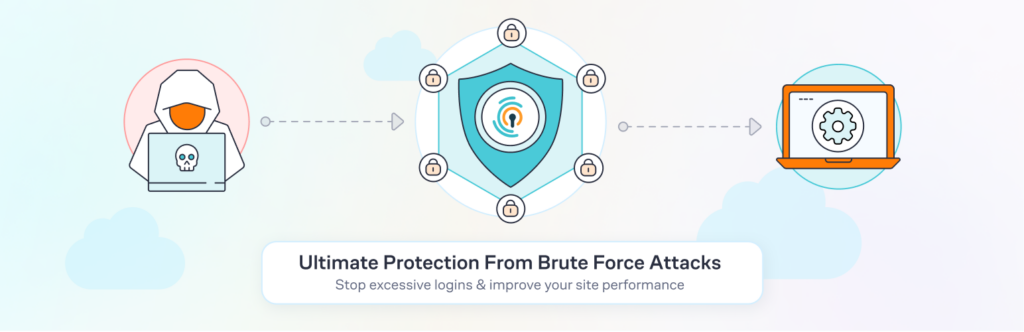
We recommend Limit Login Attempts Reloaded because brute-force attacks—where bots endlessly guess your password—are one of the most common threats to WordPress sites. This plugin thwarts those attacks by temporarily blocking IPs after a set number of failed attempts. By putting a strict limit on login tries, you make it significantly harder for automated intruders to break in, boosting your overall site security with minimal fuss.
- Core benefit: Blocks IP addresses after a set number of failed login attempts.
- Customized lockout settings: You decide how many tries to allow and how long to lock out repeat offenders.
- User-friendly notifications: Provides alerts when an IP is locked out, so you’ll know if your site is under brute-force attack.
Off-site backup services
We recommend using an off-site backup service because it protects your website data in a separate, secure environment—beyond the reach of potential hacks or server crashes. By storing backups outside your main hosting account, you can quickly restore a clean version of your site if anything goes wrong. This extra layer of insurance not only offers peace of mind but also saves countless hours of stress if disaster ever strikes.
Read our comparison of the Best WordPress Backup plugins.

- Core benefit: If your site is compromised, having a recent backup stored safely off your main server can be a lifesaver.
- Incremental and automated: Look for incremental backups (only changed data is backed up) and schedules to minimize resource usage.
- Easy restoration: One-click or guided restores, plus staging environments to test before pushing changes live.
General best practices for a secure WordPress site
Beyond plugins, effective security demands a bit of know-how. Here are some of the tactics we implement when onboarding a new client to a WordPress Maintenance Plans:
- Use SSL/TLS everywhere: Install an SSL certificate so your site always runs on HTTPS, and consider HSTS to ensure browsers only communicate securely. Enforce HSTS to force secure data transmission.
- Disable file editing: Disabling file editing ensures that even logged-in users can’t modify the code of your website directly. This prevents direct theme/plugin file edits if an attacker gains access.
- Secure your wp-config.php file: Restrict permissions (e.g.,
400or440) to limit who can read or change your WordPress configuration file. Some hosts even allow you to move it above the public HTML directory. - Enforce strong user roles: Assign roles carefully. For instance, most users don’t need the
administratororeditorprivilege—limit them toauthorif that’s all they need. - Don’t collect unnecessary data: The less user information you store, the less you have to lose in a breach. Follow data minimization principles to reduce potential targets for your website.
- Monitor activity regularly: Even with logs enabled, you have to review them or set alerts to catch anomalies early.
Keep themes, plugins, and WordPress core up to date
This point can’t be stressed enough: every update you ignore can be an open invitation to attackers.
- Plugin & theme updates: Most security vulnerabilities in WordPress arise from outdated or poorly maintained plugins/themes.
- WordPress core: Turn on auto-updates for minor versions at least, which often include critical fixes.
- Check changelogs: When a plugin update mentions “security fixes,” apply it right away.
No WordPress security plugin manages updates for you
Some plugins notify you about outdated components, but they don’t automatically perform updates—nor should they. Ignorantly auto-updating everything can break your site if there’s a conflict. It’s safer to handle updates methodically:
- Establish a baseline: Have clear documentation about the intended behavior and functionality of each component of your website.
- Test on a staging site: If possible, use a staging environment to check for compatibility.
- Incremental updates: Update one plugin at a time, testing your site after each.
- Keep backups handy: Always have a recent backup before performing a batch of updates.
A great security plan includes consistent attention to updates. No plugin can do that important human review for you.
Conclusion: Layer your defenses, then stay vigilant
While it’s tempting to install an all-in-one plugin labeled “best WordPress security plugin” and call it a day, genuine protection goes far beyond ticking a few checkboxes. By implementing security at multiple layers server, application, edge, and user levels you create a comprehensive shield that’s far tougher for attackers to penetrate.
With a layered defense and ongoing maintenance, your site stands a much better chance of repelling intruders and running smoothly for the long haul. No single plugin promises bulletproof security, but a thoughtful selection of the best WordPress security plugins combined with proper upkeep will get you as close as possible to a worry-free WordPress experience. For hands-on support and expert maintenance, consider working with WordPress SiteCare, where proactive monitoring and layered security practices are built into every plan.
The post Best WordPress Security Plugins: A Layered Approach to Protection appeared first on WordPress Support & Maintenance Specialists.
]]>The post Elementor 3.26 Update Causes Fatal Errors: Why It Happened and How to Fix It appeared first on WordPress Support & Maintenance Specialists.
]]>IN THIS ARTICLE
The release of Elementor 3.26 brought a major change that caused many websites to break: the complete removal of a legacy feature called “Schemes.” Schemes were a simple way for site owners to manage colors and typography in Elementor’s early days, but over time, this approach became outdated and inefficient.
Elementor replaced Schemes with a more flexible system years ago, but some themes and plugins never adapted to the change. When Schemes were finally removed in version 3.26, these outdated extensions—especially ones no longer maintained or updated—started throwing fatal errors that crashed websites.
This breaking change highlights how essential it is for plugins, themes, and the WordPress ecosystem as a whole to stay current with platform updates. Below, we’ll explore what happened, which products were impacted, and how you can get your site back on track if you’ve been affected by this recent update.
Why websites broke: Elementor Schemes removal

In Elementor 3.26, the Schemes API was removed entirely, forcing all plugins and themes relying on this outdated mechanism to crash or produce errors.
The impact was most severe for sites using add-ons and themes that extend Elementor’s functionality. Many of these products are no longer actively maintained or updated, or simply haven’t been updated to support these latest API changes. The situation is further complicated for users relying on plugins not hosted in the official WordPress repository—a common scenario for paid tools purchased from marketplaces like Envato.
Here’s what the Elementor team had to say about the 3.26 update:
“This change is considered very risky, especially for websites that use Elementor add-ons not hosted in the official plugin repository.”
Specific products affected by the Elementor release
Below is a list of known products impacted by Elementor 3.26, along with their current compatibility status (all statuses are current as of publishing and will be updated as we gather more information):
| Product | Developer | Compatibility with Elementor 3.26 |
|---|---|---|
| Selection Add-on Pack | merkulove | Patched December 18 |
| Neve Theme | ThemeIsle | Patched December 17 |
| Benoit Theme | WebGeniusLab | No patch available |
| Elementor Custom Skin | Dudaster | No patch available |
| Essential Addons for Elementor | WPDeveloper | Patched December 15 |
| AnWP Post Grid and Post Carousel Slider for Elementor | Andrei Strekozov | Patched December 17 |
| Royal Elementor Addons | WP Royal | Patched December 18 |
| The Plus Addons for Elementor Pro | POSIMYTH | No patch available |
For site owners using add-ons like Elementor Custom Skin or themes such as Benoit, the lack of immediate updates means you may still encounter fatal errors until patched versions are released. We recommend pausing the upgrade to Elementor 3.26 until patches are released. Or better yet, find a plugin or theme with the features you need that takes these issues seriously and is proactively releasing compatibility patches.
How to identify if your site is affected

If your site is broken or throwing errors after updating to Elementor 3.26, it likely stems from an outdated or incompatible extension. Your website will be completely broken and you’ll see a fatal error like the screenshot above.
Follow these steps to identify the issue:
- Disable Elementor add-ons: Deactivate all plugins that extend Elementor. We’ve seen some themes that have this functionality built-in as well, so you may need to change themes temporarily to identify the culprit.
- Re-enable one by one: Reactivate each plugin (or theme) individually to determine which one causes the error.
- Check plugin/theme versions: Compare your installed versions with the latest releases on their respective websites or repositories.
- For Envato-purchased tools, licensing can be complex. You may need to manually check the download section to confirm version numbers.
- Review error logs: Use WordPress debug mode or your hosting provider’s log viewing tools to pinpoint the specific plugin or file causing the conflict.
How to resolve the Elementor 3.26 issue

Here’s how you can bring your site back to stability:
- Update everything: Ensure both Elementor and its associated extensions are updated to the latest versions.
- For plugins hosted in the WordPress repository, updates should appear in your dashboard.
- For paid add-ons (e.g., Envato), manually download and install the latest files.
- Check for compatibility patches: For plugins without updates, reach out to the developer for an ETA on a fix.
- Roll back Elementor: As a temporary measure, downgrade to Elementor 3.25 using the Rollback feature.
- Consider alternatives: If a plugin or theme remains incompatible, explore alternatives with better developer support.
The importance of testing before processing WordPress upgrades
The chaos caused by Elementor 3.26 highlights a critical best practice: always test updates in a staging environment before applying them to your live site.
Additionally, ensure:
- Your software licenses are active: Some plugins, like those from Envato, require manual license activation. Tools like the Envato Market WordPress plugin can streamline updates but may still cause confusion.
- Licensing for staging: Ensure any purchased plugin licenses allow activation on multiple environments. This enables testing updates in a staging environment without manually deactivating production licenses.
- Compare version numbers: For plugins not clearly marked as “up-to-date,” manually checking version numbers is often the only way to confirm.
- Licenses cover staging sites: Without support for staging environments, testing updates safely becomes far more cumbersome.
Another breaking change in Elementor 3.26: Element Caching

Alongside the removal of Schemes, Elementor 3.26 introduced a new Element Caching feature. This feature is designed to improve page load times by caching individual elements. However, it has created conflicts with plugins and themes that rely on shortcodes to display dynamic content.
What’s particularly concerning is that this feature is enabled by default in Elementor 3.26 for all users, even if they haven’t explicitly opted in to experimental features. Here’s a screenshot of the experiments settings for a brand new Elementor installation:

You’ll see that Element Caching is enabled even though this is clearly flagged as a Beta feature. If you’re experiencing broken shortcodes after updating to Elementor 3.26 complete the following steps:
- Go to Elementor > Settings > Features in your WordPress dashboard.
- Locate the Element Caching option and set it to Inactive.
- Clear all caches, including those from your caching plugin, server-level caching, and browser.
UPDATE ON DECEMBER 19, 2024
We’re very happy to see that as of December 19, Elementor has reverted the decision to activate Element Caching by default in their 3.26.2 release.

How we Addressed the Elementor 3.26 bug for our clients
We were able to navigate the Elementor 3.26 update for all of our clients within 72 hours of the release. Our approach included:
- Automated site scanning: We used internal tools to detect sites running outdated Elementor versions or known incompatible add-ons.
- Patch prioritization: For critical sites, we applied temporary rollbacks where necessary and fast-tracked updates as patches became available.
- Clear communication: We kept our team informed every step of the way and assembled a quick sprint to resolve these errors and put longer-term solutions in place.
This proactive approach allowed us to minimize downtime, identify problem areas quickly, and ensure all sites were running smoothly with the latest updates before the upcoming holiday break.
Need help navigating Elementor updates?
Breaking changes like those in Elementor 3.26 are part of the WordPress ecosystem, but they don’t have to cause trouble for your business. With one of our WordPress Care Plans, you can:
- Have our team test updates in staging environments to avoid surprises
- Keep your plugins, themes, and WordPress core up to date
- Rely on our team to troubleshoot and resolve issues that arise
Learn more about SiteCare plans today and let us handle the complexities of WordPress maintenance for you.
Final thoughts
The Elementor 3.26 update exposed a harsh reality: the interconnected nature of WordPress plugins and themes can lead to widespread issues when breaking changes occur. By staying proactive with updates, testing changes in staging environments, and relying on expert support, you can avoid downtime and keep your site running seamlessly.
If your site is still experiencing issues or you’re unsure where to start, partnering with a trusted WordPress maintenance company like SiteCare ensures you have a dedicated team to manage updates, troubleshoot errors, and keep your website secure and performing at its best.
The post Elementor 3.26 Update Causes Fatal Errors: Why It Happened and How to Fix It appeared first on WordPress Support & Maintenance Specialists.
]]>The post How we fix INP for food publishers: Our recipe for better Core Web Vitals on ad-heavy sites appeared first on WordPress Support & Maintenance Specialists.
]]>IN THIS ARTICLE
A quick introduction to INP
Google’s Core Web Vitals have reshaped how websites are evaluated for user experience, and a new metric, Interaction to Next Paint (INP), is quickly becoming one of the most important to monitor. INP measures how quickly your site responds to user interactions—clicks, taps, or keystrokes. For food publishers, who depend on highly interactive features like “Jump to Recipe” buttons or recipe indexes, it’s critical to understand and fix INP.
But here’s the thing: INP isn’t just another box to tick. It reflects how responsive and seamless your site feels for users. And while improving it can be technically challenging, the rewards are clear: better user engagement, stronger search rankings, and happier visitors.
At SiteCare, we’ve developed a proven set of techniques to help publishers like you tackle INP head-on. This isn’t about quick fixes—it’s about delivering long-term solutions tailored to your site’s unique needs. Here’s how we do it.
Why INP matters for food publishers
Food publishing is a unique niche. Readers come to your site looking for quick, actionable content: a recipe they can make tonight, a printable list of ingredients, or inspiration for their next dinner party. If your site is slow to respond—if the “Print Recipe” button lags or the “Jump to Recipe” link takes too long to load—they’ll likely bounce and look elsewhere.
That’s where Interaction to Next Paint (INP) comes in. INP measures how long it takes for your site to respond to user interactions. Specifically, Google looks at the slowest interaction during the 75th percentile of all interactions on your site. A good score is under 200 milliseconds. Anything higher suggests a sluggish experience that could frustrate users and hurt your SEO rankings.
The challenge for food publishers? Ads. Most publishers work with providers like Raptive or Mediavine, whose third-party ad scripts can significantly impact INP. We have data to show the how ad scripts can negatively impact INP. Raptive’s documentation acknowledges their scripts contribution to higher INP scores as well. While these ads are critical for revenue, they can also be a major source of delays in user interactions if not implemented with a deft hand.
This is where SiteCare’s expertise comes into play. We’ve spent years working with publishers to optimize performance, improve responsiveness, and ensure ads coexist harmoniously with a great user experience.
Measuring INP: Why lab tools aren’t enough

Unlike other Core Web Vitals metrics like LCP or CLS, INP can’t be accurately measured in a lab. It requires real-world data, which Google collects through the Chrome User Experience Report (CrUX) and tools like Google Search Console.
For deeper insights, we use Real User Monitoring (RUM) tools like DebugBear. DebugBear provides granular data on how users interact with your site, highlighting specific elements or scripts causing delays. For example, it might reveal that your “Jump to Recipe” button is slowed by a third-party ad script—or that your comment section is impacting interaction times.
But we don’t stop there. At SiteCare, we’ve developed custom JavaScript leveraging Google’s Web Vitals guidance. This script tracks and logs real-world interaction delays directly to Google Analytics, giving us an unprecedented level of detail about what’s impacting your INP scores. It’s this level of precision that sets us apart from competitors who rely solely on generic tools.
Case study: Improving INP for a homestyle cooking site
One of our clients—a popular destination for easy and delicious homestyle cooking—came to us with a challenge: poor INP scores on both desktop and mobile, driven by heavy interactive elements and third-party ad scripts. They wanted to improve website responsiveness without sacrificing the features and ads that supported (and continue to support) their site.
Through a combination of technical optimizations, collaboration with their ad provider, and ongoing monitoring, we helped them achieve remarkable improvements in just a few months.
Why optimizing for INP takes time
Improving INP isn’t an instant fix—it’s a careful process that relies on real-world user data to identify specific performance bottlenecks. This means that we need to monitor actual interactions over time to identify specific elements causing delays.
Every site is unique, so our solutions are always tailored to address factors like site structure, interactive elements, and third-party integrations. This requires testing, validation, and iterative refinements to make changes improve performance without disrupting functionality.
Additionally, collaborating with third-party providers, like Raptive or Mediavine, to adjust ad configurations can take time as well.
The optimization results
After implementing our recommendations, the site achieved the following:
- INP reduced from 350ms to 128ms on desktop and 142ms on mobile.
- 75th percentile INP score consistently below Google’s target of 200ms
- Improved interaction times for critical features like the “Jump to Recipe” button and “Print” buttons, reducing user frustration and bounce rates.
Here’s a snapshot of the site’s progress, as shown by Google and independent monitoring tools:


The steps we took: A technical breakdown
Optimized interactive features
 Issue
Issue
The “Jump to Recipe” button had high interaction delays due to scripts being loaded asynchronously and competing for browser resources.
Solution
We restructured the button’s JavaScript to ensure it was loaded and executed as a top priority. This involved:
- Preloading critical JavaScript resources required for the button.
- Delaying non-critical JavaScript to ensure the button’s scripts were executed first.
- Testing with DebugBear to confirm the interaction time was consistently under 100ms.
Implemented “Load More Comments”
Issue
The site’s comment section loaded thousands of comments by default, significantly increasing page load time and delaying interactions.
Solution
We implemented a lazy-loading “Load More Comments” button, ensuring:
- A smaller number of comments load initially, reducing page weight and reducing AJAX requests, which can be heavy.
- Additional comments load on demand, keeping interactions responsive.
Streamlined third-party scripts
Issue
Slickstream’s script was reloading unnecessarily, causing repeated DOM manipulations.
Solution
We restructured the site’s HTML to allow Slickstream to load once without reinserting itself. This involved:
- Auditing the Slickstream implementation to identify redundant calls.
- Modifying the page structure to reduce unnecessary DOM interactions.
Enhanced image handling
Issue
The first image in each post was conflicting with lazy loading and the decoding attribute, causing delays.
Solution:
- Removed the
decodingattribute from the first image to avoid conflicts. - Added a minimum image height for the first image to prevent layout shifts.
- Enabled Cloudflare Polish to serve images in next-gen formats (WebP) for faster delivery.
Implemented Cloudflare APO
Issue
Dynamic page generation caused delays in delivering pages to users, particularly for those in remote regions.
Solution:
- Enabled Cloudflare Automatic Platform Optimization (APO) to cache WordPress content at Cloudflare’s edge servers.
- Configured APO to reduce the time it takes to serve pages by delivering cached assets directly to users.
- Verified improvements in time-to-interaction for all regions using DebugBear.
Refined WP Rocket settings
Issue
The site wasn’t fully leveraging WP Rocket’s optimization capabilities.
Solution
- Enabled JavaScript delayed loading, deferring non-essential scripts.
- Used WP Rocket’s “Delay JavaScript Execution” feature with carefully crafted exclusions for only the scripts that were necessary on initial page load.
- Optimized CSS delivery by removing unused CSS and reducing file sizes.
Custom interaction tracking
Issue
The client needed better visibility into what specific interactions were causing high INP scores.
Solution
- Developed a custom JavaScript solution based on Google’s Web Vitals guidelines to track and log high-INP interactions directly to Google Analytics.
- Configured the script to attribute delays to specific elements, such as ads, images, or interactive buttons.
- Used this data to continuously refine and improve the site’s performance.
What happened after we improved INP for the site?
While the primary goal of improving INP is to enhance user experience and meet Google’s performance standards, the benefits extend beyond better Core Web Vitals scores. For this client, the technical improvements we implemented not only made their site faster and more responsive but also led to measurable business growth.

By improving the site’s responsiveness and reducing user frustration, the client experienced a 19% increase in total traffic compared to the same period in the previous year. This growth was driven by:
- Higher search rankings: The improved INP scores contributed to better visibility in Google search results, particularly for competitive recipe-related keywords.
- Improved user engagement: Faster interaction times kept readers on the site longer, increasing exploration of additional pages and interacting with ads.
- Stronger ad performance: With more traffic and higher engagement, ad impressions and click-through rates improved, leading to a 22% boost in ad revenue year over year.
We saw noticeable improvements immediately after the INP improvements were validated by Google.
This case demonstrates how technical improvements to site performance can directly impact a publisher’s bottom line.
Ads and INP: A collaborative approach
Ads are a necessary part of food publishing, but they’re also a common culprit behind poor INP scores. Because most publishers rely on providers like Raptive or Mediavine to manage their ads, addressing these issues requires experienced collaboration.
At SiteCare, we work closely with ad providers, using DebugBear, Search Console, and Google Analytics data to highlight problem areas. For example:
- We’ve worked with providers to enable lazy loading for ads, ensuring they only load when they’re visible.
- We’ve advised on removing specific ads that have a high negative impact on INP and low earning potential.
- We’ve collaborated on deferring non-critical ad scripts, reducing their impact on interaction times.
- We’ve identified high-impact ad placements that conflicted with user interactions, helping providers adjust their configurations.
This approach ensures that publishers can maintain revenue while improving site performance.
Why SiteCare goes the extra mile
Improving INP isn’t just about completing technical tasks. It’s about understanding the specific needs of food publishers and delivering customized solutions that work.
Our custom JavaScript for tracking high-INP interactions is just one example of how we go above and beyond. By logging real-world delays to Google Analytics, we provide unparalleled visibility into what’s really happening on your site. This level of detail allows us to make precise, data-driven improvements that our competitors can’t offer.
Sustaining long-term improvements
Once INP improvements are made, it’s crucial to monitor performance over time. Even small changes like adding a new plugin, changing image formats, or adjusting ad placements can impact responsiveness. That’s why we offer ongoing performance monitoring and RUM testing through our SiteCare plans to ensure your site stays fast.
If your site is struggling with responsiveness or rankings, let us help. Contact us today to learn how we can optimize your site for better INP and a better experience for your readers. For publishers who also need reliable WordPress support & maintenance, our team provides tailored solutions to keep your site secure, optimized, and running smoothly.
The post How we fix INP for food publishers: Our recipe for better Core Web Vitals on ad-heavy sites appeared first on WordPress Support & Maintenance Specialists.
]]>The post WordPress CDN 101: Your Guide for 2025 appeared first on WordPress Support & Maintenance Specialists.
]]>Common recommendations include using a web host optimized for WordPress, installing a caching plugin, optimizing files and scripts, and compressing media files. Each helps to improve page load times and your site’s Core Web Vitals (CWV) score. There’s more you can do, however.
A content delivery network (CDN) is also an effective tool for improving site performance. Think of it as a secret weapon in the quest for blazing-fast page loads.
Building on last week’s article about optimizing images in WordPress, today, we’ll explore how a CDN works and the benefits of using one. We’ll also look at the types of sites that benefit most from this technology. Finally, we’ll discuss methods for integrating a CDN with WordPress and some things to consider before jumping in.
Ready to get started? Let’s look at how a CDN boosts WordPress performance.
What Is a Content Delivery Network?

The name may sound complicated. However, the concept behind a content delivery network is simple.
A CDN is a group of computers located throughout the world. Each one of these computers (called edge servers) includes a copy of your website’s content, media files, and scripts.
When someone visits your website, the network uses geo-targeting to connect them to the closest edge server. The goal is to speed up the page load process, regardless of a user’s location.
How does it work? Let’s explore an example scenario:
- You have a WordPress website hosted in Chicago, Illinois, USA. We’ll call this your origin server.
Next, we’ll profile two of your site’s visitors:
- Anita, who lives in Jacksonville, Florida, USA (approximately 750 miles from Chicago);
- Yoshi, who lives in Osaka, Japan (approximately 6,500 miles from Chicago);
Neither user is particularly close to the origin server’s location. That means each will experience some lag when connecting to your site. Note that the delay in connecting increases with distance. So, Yoshi will have a longer wait.
Here’s how using a CDN breaks down those geographical barriers:
When Anita visits your website, she connects to an edge server in Atlanta, Georgia, USA. That’s about 350 miles from her location.
Meanwhile, Yoshi connects to an edge server in Tokyo, Japan. It’s about 250 miles away from his location.
In this case, both users benefitted from servers closer to their location. The result is less lag time and faster page loads.
The CDN also reduced the workload of the origin server. That bodes well for the site’s continued performance and stability.
The Benefits of Using a WordPress CDN

Better geography is just one of the benefits of using a CDN. There are other ways it helps your WordPress site perform faster:
Reduced Load on Your Origin Server
Loading a page in WordPress requires a lot of behind-the-scenes work. By default, the following process happens when someone visits your site:
- WordPress is loaded;
- Your site’s theme and plugin files are loaded;
- The server parses the PHP code associated with WordPress, your theme, and plugins;
- The server renders the site’s CSS and JavaScript files;
- Media files, such as images and videos, are downloaded;
- The server retrieves content from the site’s database;
That’s a lot of work for your web server – and it repeats for each visitor. Origin server caching helps to some degree. But it can only do so much on a large site. And it won’t make large media files load any faster.
A CDN helps to ease that burden as one server no longer has to do it all. The network’s geographic locations and high-powered servers combine for a more efficient process.
It provides more bandwidth for busy sites and speeds up file delivery. The result is faster page loads for everyone!
Better Handling of Traffic Spikes

Given the information above, it’s no surprise that a traffic spike can slow your site to a crawl. Viral content or a DDoS attack can overwhelm your server with hundreds or thousands of concurrent requests. In some instances, your site may even crash.
Let’s use an eCommerce site as an example. Visitors may rush to your site on Black Friday for a can’t-miss deal. The surge leaves your site slow and unstable. Meanwhile, frustrated customers go elsewhere. And you’re left with the empty feeling of a missed opportunity.
You can help mitigate such issues by using a CDN. We learned that CDNs direct visitors based on geography – but that’s not all. These networks can also use load balancing as a virtual traffic cop.
A load balancer looks at the current traffic on the network. It will redirect you elsewhere if it detects that the closest server is too busy.
This optional feature keeps your site running smoothly during a spike. That should bring some peace of mind for those managing a mission-critical website.
Protection Against Downtime
Downtime is an expensive problem. It’s why we include a 100% uptime guarantee in all of our SiteCare plans. And using a CDN can help you greatly mitigate the downtime issue.
The network periodically checks your site for new and changed content. That ensures users won’t see an outdated version. It also comes in handy during an outage.
If your origin server goes down, the network will continue to serve the last available version of your site. The CDN returns to normal when the server is back online.
What Kinds of Sites Need a CDN?
Every website can benefit from using a CDN. However, sites in these categories tend to see the most impact:
Large WordPress Installations
The larger your WordPress site, the more burden on your web server. A content-heavy single or multisite installation can eat up CPU cycles and memory. That means fewer server resources and a degraded user experience.
How a CDN Helps: A CDN helps by ensuring there are enough resources for visitors. It splits the image and static asset load across hundreds of servers instead of having a single server as potential bottleneck. This helps with scaling and reliability.
Multimedia Websites
Large image, audio, and video files require a lot of processing power and bandwidth. They can significantly weigh down your page load times. Even fast web servers will need help keeping up.
Speaking of multimedia, food-oriented websites tend to have a lot of large files. Image galleries, how-to videos, and downloadable PDF documents come to mind. Combine them with a rush of visitors and it’s a recipe for a slowdown.
How a CDN Helps: The distributed nature of a CDN helps recipe images, video files, PDFs, and other static files load from the server closes to the visitor. That’s a big deal, especially when that Thanksgiving stuffing recipe is on the line.
News-Oriented Websites
Websites with frequently updated content are susceptible to traffic spikes. A swarm of visitors accessing your breaking news story could slow or even crash your site. It’s a missed opportunity to engage your audience.
How a CDN Helps: A CDN scales to meet increased demand. The network’s load balancer directs visitors to an edge server with the appropriate resources and that’s closest to the reader. When news breaks, a CDN delivers a more reliable foundation when earning potential is at its highest.
Websites with a Global Audience
Lag time is a problem for websites that serve a global audience (corporate and membership sites, for example). Visitors not located near your origin server will face slower page loads.
How a CDN Helps: A global network of edge servers connects visitors to the nearest server nearest to them. That provides a more consistent experience – regardless of a visitor’s location. It also decreases latency for visitors worldwide. Happier visitors results in returning visitors.
How to Integrate a CDN with WordPress
A CDN is a separate service – it doesn’t come with WordPress. Some web hosts offer one as part of your package or as an add-on. Otherwise, you must purchase the service from a provider like Cloudflare.
Integrating a CDN with WordPress depends on the provider. Some simply work in the background. That’s great, but it could make management harder. You may need a separate dashboard to perform network tasks like flushing the network cache.
Some providers offer a WordPress plugin you can install. It’s handy for performing tasks without having to leave your website. You might also have access to account and feature settings.
SiteCare includes an Enterprise CDN with our Gold and Platinum plans. You don’t have to lift a finger. And it integrates directly with your WordPress site so you don’t have to change your publishing workflows. We manage the entire process and ensure your site performs at its best. We also employ a firewall to keep your site safe from harm.
Example: Setting up Cloudflare for WordPress
Cloudflare is among the CDN providers that offer a WordPress plugin. Let’s review the setup process and look at its features.
Step 1: Install the Cloudflare Plugin
First, log in to your WordPress website and navigate to Plugins > Add New.
Next, search for “Cloudflare” and find the plugin in the search results. Click the “Install Now” button.

Allow the installation process to complete. Next, click the “Activate” button.

Step 2: Sign In or Create a Cloudflare Account
Next, it’s time to connect your Cloudflare account. Navigate to Settings > Cloudflare and enter your account’s email address and its Global API Key or API Token.
You can sign up for a free account if you don’t have one.

Step 3: Configure Cloudflare Primary Options
The Cloudflare plugin includes multiple options you can set to improve performance and security. We’ll focus on the items available on the Home and Settings screens.
On the Home screen you’ll find:

- Apply Recommended Cloudflare Settings for WordPress: Cloudflare has a recommended configuration for WordPress websites. Turning this on enables basic performance and security settings.
- Automatic Platform Optimization: Serves your site from Cloudflare’s network of edge servers for improved performance.
- Purge Cache: Manually purge the CDN’s cache. You may need to do this if you’re not seeing new or changed content on the front end of your site.
Step 4: Configure Cloudflare Speed Options
On the Settings screen:

Speed
- Always Online
 : This setting keeps your site available even if your origin server is down.
 - Image Optimization: Reduces the size of your site’s images while maintaining quality. It will also serve images to users based on their connection speed.
- Auto Purge Content On Update: Automatically purges the CDN cache when you add or edit content. The setting ensures users will always see the latest version of your site.
- Development Mode: Temporarily turns off the CDN cache. Useful when developing new features or styles on your production site.
Step 5: Configure Cloudflare Security Options

Security
- Security Level: Detects suspicious visitors and will present them with a CAPTCHA-like challenge. The higher the security level, the more aggressive the feature will be.
- Web Application Firewall (WAF): Enabling the WAF will automatically block malicious traffic from accessing your website.
- Advance DDoS: An extra level of DDoS protection is available on Cloudflare Business and Enterprise plans.
- Automatic HTTPS Rewrites: Forces all traffic to use a secure HTTPS connection.
Comparing CDN Service Providers
There are several popular CDN service providers on the market. They offer similar core functionality but differ in terms of features and pricing.
We’ve created this comparison chart of some of the most popular CDNs to help you find the best fit for your needs.
| Provider | Bandwidth Pricing | WordPress Plugin Integration | Setup Difficulty |
|---|---|---|---|
| Amazon CloudFront | Free for up to 1 TB per month. | via Offload Media | HARD |
| Bunny.net | $0.01-0.06/GB depending on location |  | EASY |
| Cloudflare | Free tier available | | EASY |
| Fastly | Free tier available for up to $50 of usage | | HARD |
| KeyCDN | First 10TB: $0.04-10/GB depending on location | | MODERATE |
| RocketCDN | $8.99 per month (unlimited bandwidth) | via WP Rocket | EASY |
What to Know Before You Commit to a WordPress CDN

A CDN is powerful and typically includes several configuration options. That brings some responsibilities, though. You’ll have to make a few decisions about how to set it up for your needs.
With that in mind, here are some things to consider before you add a CDN to your performance toolbox:
- DNS setup: Using a CDN typically requires adding records to your domain’s DNS. Also, note that some providers require you to host your DNS with them. That will require further changes on your end.
- Bandwidth restrictions and costs: Some providers have bandwidth limits on CDN usage and charge for overages. Check for limits and any additional costs you could incur before signing up. Some providers offer a calculator to help you estimate costs.
- Additional cache layer troubleshooting: CDNs cache your sites’ content on edge servers. They routinely check for new content but could miss something. That results in visitors not seeing your latest blog post, etc. It can lead to confusion – especially when using other forms of caching. You might have to flush the network cache to make the new content visible to all users. There are also a myriad of other common errors and issues that arise when a WordPress CDN is in use.
- Dynamic content concerns: Dynamic data used on eCommerce and membership sites are user-specific. The contents of a user’s shopping cart are an example. Caching this content may lead to issues when processing transactions. You’ll want to ensure this data isn’t part of the CDN’s cache.
- To push or pull: Some providers offer both push and pull zones. Push zones allow you to upload files to the CDN. It’s great for static content that isn’t likely to change. Pull zones periodically fetch content from your website and are better suited for dynamic items. Make sure you’re using the right option for your content. If there’s any doubt, use pull zones as your default.
- HTTP request headers: Do you have content you don’t want to be cached by the CDN? Should some items live in the cache for a shorter period? You can add HTTP request headers on specific pages to configure these scenarios. Be careful, as these headers could have unintended consequences.
Finding the best configuration can take some time. You might have to consult the provider’s documentation and experiment. However, expect a seamless experience once you find the right mix.
Use a CDN to Get the Most Performance Out of WordPress
Adding a CDN can be a valuable addition to your WordPress website’s infrastructure. They offer improved performance and security at a reasonable cost. You can even keep your current web host in most cases.
Large and complex sites stand to benefit the most. You’ll be able to serve a global audience while maintaining a top-notch experience. Both are crucial to building trust and making conversions.
For those looking to level up your site’s performance, a CDN may be just what you need.
Want to learn more about how a CDN can benefit your site? Need help integrating a CDN? SiteCare is here for you! Contact us and let our team guide you to a better performing WordPress site. If you’d like an expert partner to handle performance, security, and ongoing updates, working with a trusted wordpress maintenance agency like SiteCare ensures your site stays fast, stable, and ready for growth.
The post WordPress CDN 101: Your Guide for 2025 appeared first on WordPress Support & Maintenance Specialists.
]]>The post Pro Tips for WordPress Image Optimization: Lessons from the Field appeared first on WordPress Support & Maintenance Specialists.
]]>I’ve been there—thinking image optimization was just a background task until I had to learn the hard way. Imagine a bulk optimization job that ends up nearly maxing out your disk storage overnight (yep, I’ll get to that in a bit!). So, let’s walk through what our team at SiteCare has learned over the years, including tips and real-life stories about image optimization, plus tools and common mistakes to avoid. My goal? To save you from the same headaches and help you create a faster, more engaging website for everyone who stops by.
Table of Contents
- Why Image Optimization Really Matters
- Choosing the Right File Format
- When to Use SVG Files
- Prepping Images Before Uploading
- My Bulk Optimization Nightmare
- WordPress Plugins for Image Optimization
- Pitfalls of Image Optimization
- Image Optimization Best Practices
Why Image Optimization Really Matters

Think of your website as a cozy café. You want it to feel welcoming and easy to navigate. If people step in, place an order, and it takes forever to get served, they’re not coming back. Images, especially big unoptimized ones, are often the “traffic jams” in this metaphorical café, clogging up the process and frustrating visitors.
For WordPress users, optimized images mean faster load times, better SEO, and happier visitors. In fact, it’s not just a nice-to-have—it’s essential to building a site that performs well for everyone, whether they’re on a desktop or their phone. With the right approach, it doesn’t have to be complicated.
Choosing the Right File Format
Selecting the right file format is your first step in making images work harder and faster for your site.
.JPG: The Classic Standard
.jpg (or JPEG) is a long-standing standard for web images, especially photographs. It offers great quality with a small file size, thanks to lossy compression that discards some data to reduce size. However, when compressed too much, you’ll notice quality loss in the form of pixelation or blurring. It’s like making a photocopy too many times—eventually, you lose sharpness. Use JPG for photos but keep an eye on the compression levels to avoid losing clarity. Look at this example of an image that’s been overly processed by an image compression tool:

For High Quality and Higher File Size, use PNG
.png is the go-to for images requiring transparency (like logos) or when you need high quality without losing any details. PNG uses lossless compression, preserving every pixel’s data. The downside? PNG files tend to be larger, which can slow down load times. Think of PNG as a high-res print—perfect for certain images but not ideal for every occasion, especially if you’re aiming to minimize load times.
.WebP: The Modern Standard
For most WordPress sites, .webp is the ideal format. It’s the modern standard for web images, offering strong compression without sacrificing quality, and it’s widely supported across browsers. Think of .webp as a high-efficiency mode that can make your images about 30% smaller than PNGs or JPEGs without losing sharpness. Plus, it plays nice with social platforms, so you won’t run into compatibility issues.
AVIF: The New Kid on the Block
AVIF is a newer format that provides even smaller file sizes than .webp, but it’s still got some growing up to do. Major social networks and Google Image Search don’t fully support AVIF, which can limit your images’ reach. Stick with .webp for broad compatibility, but keep an eye on AVIF as it matures.
HEIC: High Efficiency for Apple Devices
HEIC (High Efficiency Image Coding) is an image format developed by Apple for high-quality photos with smaller file sizes. It’s commonly used as the default photo format on iPhones because it retains more detail than JPEG while using less storage space. However, HEIC’s compatibility outside the Apple ecosystem is very limited. Many web platforms and non-Apple devices don’t support HEIC, so using this format on websites isn’t ideal. Before uploading HEIC images to WordPress or any web platform, it’s best to convert them to a more widely supported format, like JPEG or WebP.
GIFs are Fun, but are they worth it?
GIFs (and we say it with a hard G because we live in a society!) have become popular for sharing short animations and screen recordings, thanks to their looping capability and easy compatibility across platforms. With modern screen recording tools, capturing GIFs is easier than ever; however, the files they generate are still large and not ideal for web use due to their hefty size and limited color range. We recommend using mp4 video files instead. They have a smaller file footprint and can be served from external services like Vimeo (our favorite) and YouTube, which helps with overall site performance.
When to Use SVG Files

SVG files (Scalable Vector Graphics) are a bit different from the typical image formats like JPG, PNG, and WebP. While those formats are raster images—made up of pixels and fixed in resolution—SVGs are vector graphics. This means they’re built from mathematical paths, not pixels, so they scale up and down without losing any quality. Think of SVGs as the ultimate “responsive” image format: whether you’re viewing them on a tiny phone screen or a giant desktop monitor, they stay crisp and clear. The other huge advantage to using SVG is that because they’re technically code, they have an extremely small file size footprint and load extremely quickly.
Best Use Cases for SVGs
SVGs shine when used for graphics that need to be ultra-sharp and versatile. Here’s where they’re especially useful:
- Logos and Icons: Since logos and icons are often displayed in various sizes, SVGs allow them to scale perfectly, without any pixelation. This makes SVGs ideal for branding elements on your site.
- Simple Illustrations: Illustrations with clean lines and minimal details (like diagrams or infographics) work well as SVGs and keep your file sizes small.
- Animations: SVGs support CSS and JavaScript animations, which can add subtle motion effects to your website without the need for heavy video files.
When Not to Use SVGs
While SVGs are fantastic for certain graphics, they’re not a good fit for complex images like photos or highly detailed visuals. Since SVGs are vector-based, they lack the richness needed to capture the gradients and depth of photographs. For these types of images, stick with JPG or WebP.
 SVGs and Security
One final note on SVGs: because they’re code-based, SVG files can sometimes present security risks if not properly sanitized. Make sure to use a trusted plugin like Safe SVG from 10up to handle SVGs in WordPress, especially if you’re accepting user-generated uploads, to keep your site safe.
Prepping Images Before Uploading
Before you even upload images to WordPress, there are some steps you can take on your computer that can save storage space and server resources.
For Desktop Users
Caesium: If you’re on Windows or Mac, Caesium is a nice little user-friendly tool for image compression. It compresses images quickly without sacrificing quality, allowing you to batch-process tons of images in one go. Imagine it as your “before-you-go” helper, ready to whip your images into shape so they don’t slow down your site. Try Caesium here.
ImageOptim: This is the Swiss Army knife of image optimization. It reduces file sizes by stripping out unnecessary metadata while keeping quality high. It has a broader feature set than Caesium with more granular controls. It’s also an open-source tool which we love! Download ImageOptim here.
Squash: Squash is a Mac Only app with some great tools for optimization as well as other batch optimization features. For example, you can rename 1000 images with the same naming convention, add a border or watermark, and make your file sizes smaller at in one batch process. It’s really slick! Check out Squash.
Web-Based Tool for Everyone
TinyPNG: TinyPNG is a web-based tool allows you to compress PNG and JPEG files without any software installation, so can be super handy for image optimization on the go. It allows you you download optimized files directly within your browser. Optimize with TinyPNG here. There is also an accompanying TinyPNG WordPress plugin as well that leverages the TinyPNG API.
My Bulk Image Optimization Nightmare

I’ll be the first to admit I didn’t fully understand the impact of bulk optimization until I tried it out on a WordPress site with over 100,000 media files. I figured I’d be saving some space by compressing everything. Little did I know that preserving the original files would nearly double the disk storage usage!
Waking up the next morning, I saw my disk space was almost maxed out. Bulk optimization had backfired—my host was sending me alerts, and I was scrambling to figure out what went wrong. Lesson learned: If you choose to preserve originals, be prepared for the significant storage hit. For larger media libraries, consider cloud storage solutions like Google Drive or Dropbox for originals, or double-check that your hosting plan can handle the extra space.
 Pro Corner: Server-Side Bulk WebP Conversion
If you’ve got a ton of images to handle, Austin Ginder’s bash script for bulk WebP conversion is a lifesaver. This script helps you convert large batches of images to WebP format in just a few commands, making it perfect for people managing big media libraries. It requires understanding the command line and bash, so it’s a bit more technical than most of what we’ll cover here, but it’s a great tool we felt we needed to mention. Find Austin’s webp conversion script here.
Plugins for Image Optimization in WordPress
WordPress plugins can handle the heavy lifting for image optimization directly on your site. Here are some popular plugins, with pros, cons, and tips on making the most of each one.
Important Note: If your website has over 5,000 items in the media library, consult with a professional before installing or using any of these plugins and services.
Smush

- Pros: Smush is super popular and great for beginners. It’s easy to set up, offers bulk optimization, and even has lazy loading. It’s also compatible with a large range of WordPress products. The image processing is also done “in the cloud” which reduces strain on your web server.
- Cons: The free version has a 5MB limit per image, which can be an issue if you’re working with high-resolution files. The Pro version lifts the limit but comes with a subscription cost.
- Perfect For: Site owners who want a no-fuss solution to compress images without leaving WordPress.
ShortPixel

- Pros: ShortPixel gives you flexibility, offering both lossy and lossless compression, and it can automatically convert images to WebP. It’s especially well-suited for WooCommerce sites.
- Cons: ShortPixel uses a credit system, so if you have an image-heavy site, it can get pricey.
- Perfect For: E-commerce sites that need different compression options and those who want full control over optimization.
Imagify

- Pros: Imagify, created by the team behind WP Rocket, our favorite WordPress caching plugin, is user-friendly and integrates well with other plugins. It offers a range of compression options, including “ultra” for max savings, and supports WebP conversion.
- Cons: Free usage is limited each month, so you’ll need to subscribe for more frequent optimization.
- Perfect For: Those looking for a reliable, set-it-and-forget-it solution.
EWWW Image Optimizer

- Pros: EWWW is unique because it offers unlimited image compression. It’s great for larger sites that need ongoing optimization and supports WebP conversion.
- Cons: It has a steeper learning curve, especially for users new to image optimization.
- Perfect For: Tech-savvy users who want fine-grained control and don’t mind a bit of setup.
Pitfalls of WordPress Image Optimization
Bulk Optimization Isn’t Always Your Friend
As I learned the hard way, bulk optimization can backfire. Some plugins that claim “lossless” compression may still degrade image quality slightly, so always test on a small set of images first. And if you’re preserving originals, make sure you have the storage space to accommodate both sets. Also, measure the impact of the images that are on your site already.
Avoid Relying on the WordPress Media Library for Storage
Think of WordPress as your storefront, not your warehouse. Keeping high-res originals in your media library can lead to storage bloat. WordPress automatically compresses and resizes images, so they may not stay in their original state. Store originals in cloud storage instead, like Dropbox or Google Drive, and reserve WordPress for web-ready files only.
Large Image Uploads Are a Server Strain
Uploading large images and expecting WordPress to do all the resizing and compressing is like bringing home raw beans and expecting your microwave to make chili. It can use up precious CPU and memory on your server, slowing down your site for visitors. Pre-optimize images before uploading to avoid unnecessary server strain.
Cloudflare Polish is A Smarter Alternative for Image Optimization

If you’re ready to skip plugin-based optimization altogether, Cloudflare’s Polish service offers an alternative that doesn’t rely on disk storage. Polish optimizes images “at the edge”—meaning images are optimized and compressed right before they’re delivered to your users, without taking up extra space on your server.
Polish provides automatic WebP conversion, adjusts quality as needed, and doesn’t add to your disk usage, making it a smooth, hands-off solution. At SiteCare, we recommend Polish as our go-to method for image optimization because it allows us to manage large media libraries without risking storage headaches or heavy server load. Learn more about Cloudflare Polish here.
Best Practices for Optimizing Images in WordPress
To get the most out of your image optimization efforts, here are a few practical tips that can make a big difference:
- Optimize Before Uploading: Using tools like TinyPNG, ImageOptim, or Caesium to compress images before uploading saves valuable server resources and keeps file sizes manageable from the start.
- Choose the Right Format for Each Image: Stick with WebP as your primary format for maximum compatibility and compression. Use JPGs for photography-heavy pages and PNGs or SVGs for logos, animations, or other graphics that require transparency.
- Keep Image Dimensions Under Control: Uploading high-res images straight from a camera might seem harmless, but they’re typically much larger than they need to be. Resize images to the largest display width they’ll need on your site. If the max width of your content areas is 1200px, there’s no need for 4000px-wide images.
- Audit Your Media Library Regularly: Just as you’d clear out unused files on your computer, make it a habit to clean up your WordPress media library. Delete unused images and duplicates to save disk space and keep your site organized.
- Consider Cloudflare Polish for Seamless Edge Optimization: If you’re ready for a more hands-off approach, Cloudflare Polish is a powerful solution. This approach, which we highly recommend at SiteCare, is perfect for larger sites or anyone managing a big media library.
Wrapping Up: Making Your Site Better for Everyone
Optimizing images may feel like a small part of your overall site strategy, but it’s one of those things that creates ripple effects for visitors, search engines, and your own peace of mind. With faster load times, better SEO, and a smoother browsing experience, everyone wins. Whether you’re a small business owner, a blogger, or a media-heavy site, these tools and tips will help you keep your site at its best.
By taking the time to choose the right formats, use efficient plugins, and try out services like Cloudflare Polish, you’re not just improving your own site—you’re contributing to a better web for everyone. So go ahead, give your images the optimization treatment they deserve. It’s one small step that makes a world of difference. For ongoing guidance and reliable website support, our team at SiteCare is here to keep your site fast, secure, and performing at its best.
Looking for advice on your image optimization strategy? Contact our team to get the help you need.
sitecare.com
The post Pro Tips for WordPress Image Optimization: Lessons from the Field appeared first on WordPress Support & Maintenance Specialists.
]]>