A SQL Server Hardware Nugget A Day – Day 22

For Day 22 of this series, I want to talk a little about 32-bit vs. 64-bit hardware, and the related issues of 32-bit vs. 64-bit operating systems and 32-bit vs. 64-bit versions of SQL Server.

Most recent releases of Windows Server are available in three different versions: x86 (32-bit), x64 (64-bit), and ia64 (64-bit Itanium). The sole exception is Windows Server 2008 R2, which only has x64 and ia64 versions, and will be the last version of Windows Server that will support ia64.

I have been advocating for some time that people use 64-bit versions of SQL Server 2005, and above, since the biggest barriers to its adoption, namely lack of hardware support, have largely been removed. All server-grade processors released in the last six-to-seven years have native 64-bit support. The other major obstacle, lack of 64-bit drivers for hardware components such as NICs, HBAs, and RAID controllers, is not really an issue any more, as the advent of 64-bit Windows Server 2008 R2, in 2009, has meant that 64-bit drivers are much more readily available for nearly all devices.

You can confirm if your processor has x64 support by running CPU-Z and looking at the Instructions section on the CPU tab. If you see EM64T (for Intel processors) that means it does have x64 support. Unless your processor is extremely old, it will support x64.

image

One sticking point, and the bane of many a DBA’s life when it comes to upgrades, is third party databases. Some common reasons for still using an x86 version of Windows Server include:

3rd party, ISV databases that require x86
3rd party, ISV databases that have not been “certified” on x64
3rd party applications using older data access technology, such as 32-bit ODBC drivers or 32-bit OLE-DB providers that do not work with an x64 database server

It is also very likely (but not officially decided or announced) that SQL Server Denali will be the last version of SQL Server to have x86 support. It has already been announced that there will not be ia64 support in Denali.

I am one of the lucky ones; at NewsGator, we have no 3rd party databases in our production environment, and we are a 100% Microsoft shop so all of the applications that use my databases use the ADO.NET Provider. As a result, NewsGator’s production SQL Server environment has been 100% 64-bit since April 2006.
Posted in Computer Hardware | 2 Comments

A SQL Server Hardware Nugget A Day – Day 21

For Day 21 of this series, I will talk about processor cache size and its relationship to SQL Server performance.

Cache Size and the Importance of the L2 and L3 Caches

All Intel-compatible CPUs have multiple levels of cache. The Level 1 (L1) cache has the lowest latency (i.e. the shortest delays associated with accessing the data), but the least amount of storage space, while the Level 2 (L2) cache has higher latency, but is significantly larger than the L1 cache. Finally, the Level 3 (L3) cache has the highest latency, but is even larger than the L2 cache. In many cases, the L3 cache is shared among multiple processor cores. In older processors, the L3 cache was sometimes external to the processor itself, located on the motherboard.

Whenever a processor has to execute instructions or process data, it searches for the data that it needs to complete the request in the following order:

1. internal registers on the CPU
2. L1 cache (which could contain instructions or data)
3. L2 cache
4. L3 cache
5. main memory (RAM) on the server
6. any cache that may exist in the disk subsystem
7. actual disk subsystem

The further the processor has to follow this data retrieval hierarchy, the longer it takes to satisfy the request, which is one reason why cache sizes on processors have gotten much larger in recent years.  Table 1 shows the typical size and latency ranges for these main levels in the hierarchy.

L1 Cache L2 Cache L3 Cache Main Memory Disk
32KB 256KB 12MB 72GB Terabyte
2ns 4ns 6ns 50ns 20ms

Table 1: Data Retrieval Hierarchy for a Modern System

For example, on a newer server using a 45nm Intel Nehalem-EP processor, you might see an L1 cache latency of around 2 nanoseconds (ns), L2 cache latency of 4 ns, L3 cache latency of 6 ns, and main memory latency of 50 ns. When using traditional magnetic hard drives, going out to the disk subsystem will have an average latency measured in milliseconds. A flash based storage product (like a Fusion-io card) would have an average latency of around 25 microseconds. A nanosecond is a billionth of a second; a microsecond is a millionth of a second, while a millisecond is a thousandth of a second. Hopefully, this makes it obvious why it is so important for system performance that the data is located as short a distance down the chain as possible.

The performance of SQL Server, like most other relational database engines, has a huge dependency on the size of the L2 and L3 caches. Most processor families will offer processor models with a range of different L2 and L3 cache sizes, with the cheaper processors having smaller caches and, where possible, I advise you to favor processors with larger L2 and L3 caches. Given the business importance of many SQL Server workloads, economizing on the L2 and L3 cache size is not usually a good choice.

If the hardware budget limit for your database server dictates some form of compromise, then I suggest you opt to economize on RAM in order to get the processor(s) you want. My experience as a DBA suggests that it’s often easier to get approval for additional RAM, at a later date, than it is to get approval to upgrade a processor. Most of the time, you will be “stuck” with the original processor(s) for the life of the database server, so it makes sense to get the one you need.

Posted in Computer Hardware | Tagged , | 2 Comments

A SQL Server Hardware Nugget A Day – Day 20

For Day 20 of this series, we are going to talk about some factors to consider if you are thinking about building a desktop SQL Server system for development, or testing use. I have had several questions about this subject recently, and I have been thinking about it some anyway, hence today’s topic.

In many organizations, old retired rack-mounted servers are repurposed as development and test servers. Sometimes, old retired workstations are used for this purpose. Quite often, these old machines are three to five years old (or even older). For example, I have a small testing lab at NewsGator that uses a number of old Dell PowerEdge 1850 and 6800 servers, along with a few Dell Precision P470 workstations. All of these machines are about four to six years old, and long out of warranty. Their performance and scalability is quite miserable by today’s standards.

For example, a Dell PowerEdge 1850, with two Intel Xeon Irwindale 3.0GHz processors and 8GB of RAM has a Geekbench score of about 2250. A Dell PowerEdge 6800 with four Xeon 7140M 3.4GHz processors and 64GB of RAM has a Geekbench score of 5023.

By comparison, my current main workstation has an Intel Core i7 930 processor with 12GB of RAM and a Crucial C300 128GB SSD. This relatively humble system has a Geekbench score of around 7300.

My argument is that in many situations, given a limited hardware budget, it may make more sense (for development and testing) to build or buy a new desktop system based on a modern platform rather that using relatively ancient “real” server hardware. Your main limiting factors with a new desktop system will be I/O capacity (throughput and IOPS) and memory capacity, but there are some ways around that..  You should be able to build or buy a very capable test system for less than $2000.00, perhaps far less, depending on how you configure it.

Your two main good choices right now are a 45nm Core i7 “Bloomfield” system (using a Core i7 920, 930, 950, or 960 processor) with an X58 chipset, or a newer 32nm Core i7 Sandy Bridge (using a Core i7 2600 or 2600K processor) with an H67 or P67 chipset.

The older 45nm Nehalem-based Core i7 system has six memory slots, so it can support 24GB of RAM using 4GB DDR3 RAM sticks. It will have plenty of CPU performance and capacity for most development and testing purposes (more than many older four socket rack mounted production servers), and you should not have any driver issues with Windows Server 2008 R2.

The newer 32nm Sandy Bridge Core i7 system only has four memory slots, so it can currently support 16GB of RAM (with 4GB DDR3 RAM sticks). This limit will jump to 32GB once desktop 8GB DDR3 RAM sticks become available. The Sandy Bridge system will have about 50% more CPU capacity than the Nehalem system.

CPU Type Geekbench Max RAM Notes
Core i7 2600 12000 16GB with 4GB sticks
Core i7 950 7800 24GB Has six memory slots

Figure 1: Desktop System Capacity Comparison

You need to look at the motherboard features and specifications closely to make sure you get what you need without paying too much for unnecessary features. You want to get a motherboard that has as many SATA ports as possible (preferably newer 6Gbps SATA III ports) with hardware RAID support if possible. At the same time, you don’t really need the premium gaming (such as SLI or Crossfire support) and over-clocking features in a top-of-the line motherboard. The entry level motherboards will usually have fewer SATA ports, which is a good reason to go a little higher in the lineup. You can also buy PCI-e SATA II or III expansion cards to add even more ports.

Depending on your motherboard vendor, you might run into Sandy Bridge driver issues with Windows Server 2008 R2. The problem is not that there are no drivers, but the fact that the motherboard vendors sometimes wrap the actual driver installation programs in their own installation programs that do OS version checking that fails with Windows Server 2008 R2 (since they assume you will be using Windows 7).

You can buy a large, full tower case, with lots of internal 3.5” drive bays. Then you can buy a number of 1TB Western Digital Black 6Gbps hard drives and/or some consumer grade SSDs, depending on your needs and budget. This will let you have a pretty decent amount of I/O capacity for a relatively low cost.

Posted in Computer Hardware, Processors, Windows Server 2008, Windows Server 2008 R2 | Tagged , | 2 Comments

A SQL Server Hardware Nugget A Day – Day 19

For Day 19 of this series, I am going to briefly discuss hardware RAID controllers, also known as disk array controllers. Here is what Wikipedia has to say about RAID controllers:

A disk array controller is a device which manages the physical disk drives and presents them to the computer as logical units. It almost always implements hardware RAID, thus it is sometimes referred to as RAID controller. It also often provides additional disk cache.

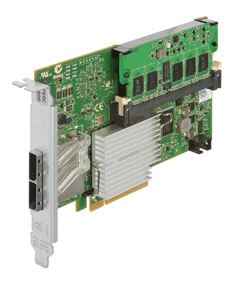
Figure 1 shows a typical hardware RAID controller.

PERC Series-7 Controllers

Figure 1: Typical Hardware RAID Controller

For database server use (with recent vintage servers), you usually have an embedded hardware RAID controller on the motherboard, that is used for your internal SAS, SATA, or SCSI drives. It is pretty standard practice to have two internal drives in a RAID 1 array, controlled by the embedded RAID controller, that are used to host the operating system and the SQL Server binaries (for standalone SQL Server instances). This gives you a somewhat better level of redundancy against losing a single drive and going down.

If you are using Direct Attached Storage (DAS), you will also have one or more (preferably at least two) hardware RAID controller cards that will look similar to what you see in Figure 1. These cards go into an available PCI-e expansion slot in your server, and then are connected by a relatively short cable to an external storage enclosure (such as you see in Figure 2).

PowerVault MD1220

Figure 2: Dell PowerVault MD1220 Direct Attached Storage Array

Each direct attached storage array will have anywhere from 14 to 24 drives. The RAID controller(s) are used to build and manage RAID arrays from these available drives, which eventually are presented to Windows as logical drives, usually with drive letters. For example, you could create a RAID 10 array with 16 drives and another RAID 10 array with eight drives from a single 24 drive direct attached storage array. These two RAID arrays would be presented to Windows, and show up as say the L: drive and the R: drive.

Enterprise level RAID controllers usually have some cache memory on the card itself. This cache memory can be used to cache reads or to cache writes, or split between both. For SQL Server OLTP workloads, it is a standard best practice to devote your cache memory entirely to write caching. You can also choose between write-back and write-through cache policies for your controller cache. Write-back caching provides better performance, but there is a slight risk of having data in the cache that has not been written to the disk if the server fails. That is why it is very important to have a battery backed cache if you decide to use write-back caching.

Posted in Computer Hardware | Tagged | 3 Comments

SQL Server 2008 R2 RTM Cumulative Update 7

Microsoft has released SQL Server 2008 R2 RTM Cumulative Update 7, which is Build 10.50.1777. 0.  I count 33 fixes in this Cumulative Update. The most interesting one for me is this one, regarding a “Non-yielding scheduler error when you run a query that uses a TVP in SQL Server 2008 or in SQL Server 2008 R2 if SQL Profiler or SQL Server Extended Events is used”.

Many people me be excited to hear that the problem with Intellisense not working correctly in SSMS after you install Visual Studio 2010 SP1 is supposed to be fixed with this Cumulative Update.

Posted in Microsoft, SQL Server 2008 R2 | Tagged | Leave a comment

A SQL Server Hardware Nugget A Day – Day 18

For Day 18 of the series, we will talk about AMD Turbo CORE technology. AMD Turbo CORE is a technology that was recently introduced in the AMD Phenom desktop processor, but the way AMD is going to implement it in the upcoming Bulldozer family of processors is greatly enhanced. AMD Turbo CORE is similar to Intel Turbo Boost technology in concept (although AMD claims that it works better).  According to AMD:

AMD Turbo CORE is deterministic, governed by power draw, not temperature as other competing products are. This means that even in warmer climates you’ll be able to take advantage of that extra headroom if you choose. This helps ensure a max frequency is workload dependent, making it more consistent and repeatable

AMD Turbo CORE allows individual cores in the processor to speed up from the base clock speed up to the TDP level, automatically adding extra single-threaded performance for the processor. Conceptually, it is the opposite of AMD PowerNow! technology. Instead of trying to watch for usage patterns and lowering the processor core speed to try to reduce power consumption, Turbo CORE is watching the power consumption to see how high it can move the clock speed up.

This feature, which is new to AMD server processors, allows individual cores to use the extra power headroom between average and maximum power, turning it into more clock speed. Bulldozer implements a significantly more aggressive version of this capability than the AMD Phenom desktop processor with more details to be disclosed by AMD in the future. Should the processor get too close to the TDP power limit, it will automatically throttle back somewhat to ensure that it is continuing to operate within the specified TDP guidelines. This allows for significantly higher maximum clock speeds for the individual cores.

AMD has stated that Bulldozer will boost the clock speed of all 16 cores by 500MHz, even when all cores are active with server workloads. Even higher boost states available with half of the cores active. AMD has not disclosed how much the clock speed boost will be when only half of the cores are active. When the Bulldozer processor is finally launched you will see processors marketed with a base and a maximum frequency, base will reflect the actual clock speed on the processor and max will reflect the highest AMD Turbo CORE state.

Just like with Intel Turbo Boost technology, I think this is a very beneficial feature that you should take advantage of for database server usage. I don’t see any controversy here (such as with hyper-threading).

Posted in Computer Hardware, Processors | Tagged , | 1 Comment

A SQL Server Hardware Nugget A Day – Day 17

For Day 17 of this series, I am going to talk about Geekbench. Geekbench is a cross-platform, synthetic benchmark tool from Primate Labs. It provides a comprehensive set of benchmarks designed to quickly and accurately measure processor and memory performance. There are 32-bit and 64-bit versions of Geekbench, but in trial mode you can only use the 32-bit version. A license for the Windows version is only $12.99. The latest released version is 2.1.13, which became available on March 12, 2011.

One nice thing about Geekbench is that there are no configuration options whatsoever. All you have to do is just install it and run it, and within two to three minutes you will have an overall benchmark score for your system, which is further broken down into four sections, two measuring processor performance, Integer (12 scores) and Floating Point (14 scores), and two measuring memory bandwidth performance, Memory (5 scores), and Stream (8 scores).

I tend to focus first on the overall Geekbench score, and then look at the top level scores for each section, as shown in Figure 1. These scores can be used to measure and compare the absolute processor and memory performance between multiple systems, or between different configurations on the same system.

image

Figure 1: Geekbench Summary and System Information

I always run each test at least three times in succession, and take the average overall Geekbench score. This, in just a few minutes, gives me a pretty good idea of the overall processor and memory performance of the system.

To get the best performance on Geekbench (and in real-life database usage), it is important that you make sure that Windows is using the High Performance Power Plan instead of the default Balanced Power Plan. On most new server systems, there are also Power Management settings in the main system BIOS that need to be set correctly to get the best performance from a system. Otherwise, the system will try to minimize electrical power usage (at the cost of performance) despite what your Windows power plan setting is trying to do. Generally speaking, you either want to disable power saving at the BIOS level or set it to OS control (so that you can dynamically control it from within Windows).  I talked more about Power Management in the Day 15 post of this series.

I like to run Geekbench on every available non-production system, so that I can save the various system configurations and Geekbench score results in a spreadsheet. Then, I can use this information to roughly compare the overall CPU/memory “horsepower” of different systems. This is very useful if you are doing capacity or consolidation planning.

For example, let’s say that you have an existing database server with (4) dual-core 3.4GHz Xeon 7140M processors and 64GB of RAM, and this system has an averaged Geekbench score of 5282. You are assessing a new system that has (2) six-core 3.33GHz Xeon X5680 processors and 72GB of RAM, and the new system has an averaged Geekbench score of 22,484. In this situation, you could feel extremely confident from a CPU and RAM perspective that the new, two-socket system could handle the workload of the old four-socket system, with plenty of room to spare. You could use the extra CPU capacity of the new system to handle additional workload, or you could use it to reduce your I/O requirements by being more aggressive with SQL Server data compression and backup compression.

In the absence of a large number of different systems on which to run Geekbench, you can still browse online the published Geekbench results for various systems. Simply look up the results for the system closest in spec to the one being evaluated. You can use the search function on that page to find systems with a particular processor, and then drill into the results to get a better idea of its relevance.

Posted in Computer Hardware | Tagged | 2 Comments

A SQL Server Hardware Nugget A Day – Day 16

For Day 16 of this series, I want to talk a little bit about the new hardware license limits that were introduced with in SQL Server 2008 R2. As you may be aware, Microsoft introduced two new high-end editions of SQL Server that are above the old “top-of-the-line” SQL Server Enterprise Edition. These are SQL Server 2008 R2 Data Center Edition and SQL Server 2008 R2 Parallel Data Warehouse

SQL Server 2008 R2 Data Center Edition is the new “top-of-the-line” edition of SQL Server 2008 R2. It allows an unlimited number of processor sockets and an unlimited amount of RAM. You are basically forced into buying Data Center Edition if you have a database server with more than eight processor sockets or (in the future), you need more than 2TB of RAM in your database server. It also allows you to have a Utility Control Point (UCP) that manages more than 25 SQL Server instances. Realistically, you would not want to manage more than about 200 SQL Server instances in a single UCP, due to resource limitations in the UCP instance.

SQL Server 2008 R2 Parallel Data Warehouse (which was code-named “Project Madison”) is a special Original Equipment Manufacturer (OEM)-only edition of SQL Server 2008 R2 that is intended for large data warehouses. This means that you cannot buy SQL Server 2008 R2 Parallel Data Warehouse by itself. Instead, you must buy it packaged with hardware from a major hardware vendor like HP. It enables SQL Server data warehouses to grow into the hundreds of terabyte range, and to be spread across multiple servers (similar to offerings from other companies, such as Teradata).

What is new for SQL Server 2008 R2 Standard Edition and SQL Server 2008 R2 Enterprise Edition, are more restrictive hardware license limits compared to the SQL Server 2008 versions of both of those editions.

SQL Server 2008 Enterprise Edition had no limit for the number of processor sockets, but was limited to 64 logical processors. SQL Server 2008 R2 Enterprise Edition imposes a new limit of eight physical processor sockets, but will theoretically let you use up to 256 logical processors (as long as you are running on Windows Server 2008 R2). However, this is not possible, currently, since it would require a processor with 32 logical cores. As of April 2011, the highest logical core count you can get in a single processor socket is 20 (if you are using the new Intel Xeon E7 series). Also, the RAM limit for R2 has changed from “operating system limit”, as it was in the 2008 release, to a hard limit of 2TB.

SQL Server 2008 R2 Standard Edition  has a new RAM limit of 64GB. This lowered limit may catch many people by surprise, since it is very easy to have much more than 64GB of RAM, even in a two-socket server. You should keep this RAM limit in mind if you are buying a new server and you know that you will be using Standard Edition. One possible workaround for this limit would be to have a second or third instance of SQL Server 2008 R2 Standard Edition installed on the same machine, so you could use more than the 64GB limit for a single instance. The physical socket limit for SQL Server 2008 R2 Standard Edition is still four processor sockets.

Make sure to keep these limits in mind if you are buying a new server that will be running SQL Server 2008 R2 (or if you are upgrading to SQL Server 2008 R2 on a large existing server, because they are different that before.

Posted in Computer Hardware, SQL Server 2008 R2 | Tagged | 2 Comments

A SQL Server Hardware Nugget A Day – Day 15

For Day 15 of this series, I am going to talk about Power Management and its effect on processor performance. I have written about this subject a couple of times before, here and here. Other people, such as Paul Randal (blog|Twitter) and Brent Ozar (blog|Twitter) have written about this subject here and here.

Power Management is when the clock speed of your processors is reduced (usually by changing the multiplier value) in order to use less electrical power when the processor is not under a heavy load. On the surface, this seems like a good idea, since electrical power costs can be pretty significant in a data center. Throttling back a processor can save some electricity and reduce your heat output, which can reduce your cooling costs in a data center. Unfortunately, with some processors, and with some types of SQL Server workloads (particularly OLTP workloads), you will pay a pretty significant performance price (in the range of 20-25%) for those electrical power savings.

When a processor has power management features that are enabled, the clock speed of the processor will vary based on the load the processor is experiencing. You can watch this in near real-time with a tool like CPU-Z, that displays the current clock speed of Core 0. The performance problem comes from the fact that some processors don’t seem to react fast enough to an increase in load to give their full performance potential, particularly for very short OLTP queries that often execute in a few milliseconds.

This problem seems to show up particularly with Intel Xeon 5500, 5600, and 7500 series processors (which are the Nehalem and Westmere families) and with AMD Opteron 6100 series (Magny Cours family). Much older processors don’t have any power management features, and some slightly older processors (such as the Intel Xeon 5300 and 5400 series) seem to handle power management slightly better. I have also noticed that the Sandy Bridge processors seem to handle power management very well, i.e. they don’t show a noticeable performance decrease when power management is enabled (at least with the desktop Core i7 2600 and 2600K that I have tested).

Basically, you have two types of power management that you need to be aware of as a database professional. The first type is hardware based power management, where the main system BIOS of a server is set to allow the processors to manage their own power states, based on the load they are seeing from the operating system. The second type is software based power management, where the operating system (with Windows Server 2008 and above) is in charge of power management using one of the standard Windows Power Plans, or a customized version of one of those plans. When you install Windows Server 2008 or above, Windows will be using the Balanced Power Plan by default. When you are using the Balanced Power Plan, Intel processors that have Turbo Boost Technology will not use Turbo Boost (meaning that they will not temporarily overclock individual processor cores for more performance).

So, after all of this, what do I recommend you do for your database server? First, check your Windows Power Plan setting, and make sure you are using the High Performance Power Plan. This can be changed dynamically without a restart. Next, run CPU-Z, and make sure your processor is running at or above its rated speed. If it is running at less than its rated speed with the High Performance Power Plan, that means that you have hardware power management over-riding what Windows has asked for. That means you are going to have to restart your server (in your next maintenance window) and go into your BIOS settings and either disable power management or set it to OS control (which I prefer).

Posted in Computer Hardware, Processors, Windows Server 2008, Windows Server 2008 R2 | Tagged | 3 Comments

A SQL Server Hardware Nugget A Day – Day 14

Since 2006, Intel has adopted a Tick-Tock strategy for developing and releasing new processor models. Every two years, they introduce a new processor family, incorporating a new microarchitecture; this is the Tock release. One year after the Tock release, they introduce a new processor family that uses the same microarchitecture as the previous year’s Tock release, but using a smaller manufacturing process technology and usually incorporating other improvements such as larger cache sizes or improved memory controllers. This is the Tick release.

This Tick-Tock release strategy benefits the DBA in a number of ways. It offers better predictability regarding when major (Tock) and minor (Tick) releases will be available. This helps the DBA plan upgrades.

Tick releases are usually socket-compatible with the previous year’s Tock release, which makes it easier for the system manufacturer to make the latest Tick release processor available in existing server models quickly, without completely redesigning the system. In most cases, only a BIOS update is required to allow an existing system to use a newer Tick release processor. This makes it easier for the DBA to maintain servers that are using the same model number (such as a Dell PowerEdge R710 server), since the server model will have a longer manufacturing life span.

As a DBA, you need to know where a particular processor falls in Intel’s processor family tree if you want to be able to meaningfully compare the relative performance of two different processors. Historically, processor performance has nearly doubled with each new Tock release, while performance usually goes up by 20-25% with a Tick release.

Some of the recent Intel Tick-Tock releases are shown in Figure 1.

image

Figure 1: Intel’s Tick-Tock Release Strategy

The manufacturing process technology refers to the size of the individual circuits and transistors on the chip. The Intel 4004 (released in 1971) series used a 10-micron process; the smallest feature on the processor was 10 millionths of a meter across. By contrast, the Intel Xeon “Westmere” 5600 series (released in 2010) uses a 32nm process. For comparison, a nanometer is one billionth of a meter, so 10-microns would be 10000 nanometers! This ever-shrinking manufacturing process is important for two main reasons:

Increased performance and lower power usage – even at the speed of light, distance matters, so having smaller components that are closer together on a processor means better performance and lower power usage.
Lower manufacturing costs – since you can produce more processors from a standard silicon wafer. This helps make more powerful and more power efficient processors available at a lower cost, which is beneficial to everyone, but especially for the database administrator.

The first Tock release was the Intel Core microarchitecture, which was introduced as the dual-core “Woodcrest” (Xeon 5100 series) in 2006, with a 65nm process technology. This was followed up by a shrink to 45nm process technology in the dual-core “Wolfdale”  (Xeon 5200 series) and quad-core “Harpertown” processors (Xeon 5400 series) in late 2007, both of which were Tick releases.

The next Tock release was the Intel “Nehalem” microarchitecture (Xeon 5500 series), which used a 45nm process technology, introduced in late 2008. In 2010, Intel released a Tick release, code-named “Westmere” (Xeon 5600 series) that shrank to 32nm process technology in the server space. In 2011, the Sandy Bridge Tock release debuted with the E3-1200 series for single socket servers and workstations.  All of these other examples are for two socket servers, but Intel uses Tick Tock for all of their processors. Figure 2 shows the recent and upcoming Tick-Tock releases in the two socket space.

Type Year Process Models Code Name
Tock 2006 65nm 5300 Core 2 Clovertown
Tick 2007 45nm 5400 Core 2 Harpertown
Tock 2008 45nm 5500 Nehalem-EP
Tick 2010 32nm 5600 Westmere-EP
Tock 2011 32nm E5 Sandy Bridge-EP
Tick 2012 22nm ?? Ivy Bridge
Tock 2013 22nm ?? Haswell

Figure 2: Intel’s Tick Tock Milestones

Posted in Computer Hardware, Processors | Tagged , | 1 Comment