SMTP providers go down, credentials expire, sending limits get hit—whatever the reason, when an email fails, it’s a problem.
Because when an email doesn’t go through, someone is left waiting.
Maybe it’s a customer expecting their order confirmation. A user waiting for a password reset. A lead who filled out your contact form and never hears back.
The worst part?
WordPress sites don’t tell you when this happens. The email just fails silently. No alerts, no notifications. You don’t even know it happened until someone complains (or worse, they never do, and you lose the opportunity).
So let’s fix that.
In this guide, I’ll walk you through how to get real-time notifications whenever an email fails to send—whether via Slack, WhatsApp, SMS, or any other app you prefer.
And the best part? You don’t need to touch a single line of code.
The Problem: Why You Need to Know When Emails Fail
If your WordPress site relies on email for things like:
- Order confirmations (WooCommerce)
- Contact form submissions
- User registrations
- Appointment bookings
- Membership site notifications
…then email failures are a disaster waiting to happen if you don’t catch them.
Most WordPress SMTP plugins only log failed emails. That’s helpful if you check logs manually, but who has time for that? You need instant alerts—so you can fix issues before they cost you customers.
That’s where OttoKit comes in.
The Solution: SureMail + OttoKit

SureMail (our email delivery plugin) doesn’t just send emails—it tracks them. It knows exactly when an email is successfully sent and when it fails.
And when an email fails, OttoKit (our automation platform) can instantly notify you via Slack, WhatsApp, SMS, or any other app you use.
Here’s how it works:
- SureMail detects a failed email and triggers an event.
- OttoKit picks it up and automatically sends a notification.
- You get notified instantly—in Slack, WhatsApp, Telegram, email, or any app you choose.
This means:
- No more guessing if emails are working.
- No more digging through SMTP logs.
- No more missing important customer messages.
You’ll always know when something goes wrong.
Step-by-Step: Set Up Instant Email Failure Alerts
Let’s set this up so you get notified the second an email fails.
Step 1: Install SureMail On Your WordPress Site
First, ensure you have SureMail installed and set up as your SMTP provider in WordPress. If you haven’t done that yet, go to SureMail settings and configure your SMTP details.

SureMail will now track all outgoing emails and detect failures automatically.
Step 2: Connect OttoKit With Your WordPress Site
Now, you need to connect OttoKit to handle the automation.
- Click on “Plugins” in the left-hand menu and select “Add New”.
- In the search box, type “OttoKit” and hit enter.
- The OttoKit plugin should appear in the search results. Click on the “Install Now” button next to it.
- Once the plugin is installed, click on the “Activate” button to activate it.
- After activation, follow the instructions on the screen to authorize OttoKit to access your WordPress site.
- Once you’ve authorized, you’ll see the OttoKit dashboard in your WordPress admin section.
Step 3: Setup The Workflow Of SureMail
- Create a new automation workflow.
- Choose SureMail as the trigger app and select the trigger: “Email Failed to send”.
- Click Next to configure what happens when this trigger fires.

Step 4: Choose Your Notification Method
Now, decide where you want to be notified. This could be:
- Slack: Get an instant message in your team’s Slack channel.
- WhatsApp: Receive a message on your phone.
- SMS: Get a text message whenever an email fails.
Let’s say you want Slack notifications. You would:
- Choose Slack as the action app.
- Select “Send a message to a channel.”
- Customize the message (e.g., “
 Email failed to send! Check SureMail logs now.”).
 - Save and activate the workflow.
That’s it. The next time an email fails, you’ll get an instant alert.
What Happens Next?
The second an email failure happens, OttoKit sends you an alert.
You can now jump in and fix it immediately. Maybe your SMTP provider is down. Maybe an API key expired. Maybe your email quota was exceeded. Whatever it is, you’ll know instantly instead of finding out days later.
No More Silent Email Failures
Your website’s email system is too important to leave to chance. With SureMail and OttoKit, you don’t have to.
- Emails fail? You know instantly.
- You get a Slack/WhatsApp/SMS notification within seconds.
- You fix the issue before it affects your customers.
And the best part? Once set up, this runs 100% on autopilot.
Stop guessing. Start knowing. Set up email failure notifications today.
Read more at SureMail
]]>“Should I use an API to connect with my SMTP provider, or should I go with the traditional SMTP settings (username, password, port, etc.)?”
The short answer? If your SMTP provider supports API integration, use it. It’s the better option in most cases. But if it’s not available, you can still get the job done using direct SMTP settings.
But let’s break this down properly so you can make the best choice for your setup.
What’s the Difference?
SMTP (Simple Mail Transfer Protocol) is the standard way emails get sent from one server to another. You have two ways to connect to an SMTP provider:
- Direct SMTP Settings – This involves entering the SMTP server details manually:
- Hostname
- Port
- Username
- Password
- Encryption (TLS/SSL)
- This method is widely supported and works with almost any email service provider.
- SMTP API Integration – Instead of manually entering server details, you connect to the SMTP provider via its API. This is how SureMail integrates with services like Amazon SES, Brevo, Mailgun, SMTP2GO, and SendGrid.
You simply enter an API key, and SureMail handles everything else behind the scenes.
So why should you care which one you use? Because while they both send emails, the how and why of each method make a big difference.
Why API-Based SMTP is the Better Choice
Whenever API-based SMTP integration is available, it’s the recommended way to go.
Here’s why:
1. More Reliable & Secure
With API-based integration, you’re not sending authentication credentials (username, password) over SMTP. Instead, you use an API key, which is more secure and less prone to unauthorized access.
Many SMTP providers also offer OAuth-based authentication, which removes the need for static credentials altogether.
If you’re concerned about security, API wins hands down.
2. Better Performance & Deliverability
API-based email sending typically performs better than direct SMTP settings because:
- Emails are processed faster with less chance of connection issues.
- Many API-based services offer auto-retries for failed emails.
- You avoid problems with ISPs or firewalls blocking SMTP ports.
For high-volume senders, API-based SMTP is way more efficient than relying on traditional SMTP connections.
3. No Worrying About SMTP Port Blocks
Some web hosts and ISPs block common SMTP ports (like 25, 465, or even 587). This means your emails might not even leave the server if you’re using direct SMTP settings.
With an API, this isn’t an issue because emails are sent over HTTP/HTTPS instead of SMTP ports. No blocked ports. No frustration.
4. Easier to Set Up & Maintain
When using API-based SMTP integration, you don’t need to manually configure SMTP settings or troubleshoot connection issues.
- No need to check if the hostname is correct.
- No worrying about SMTP authentication failures.
- No dealing with mail server timeouts.
Just grab an API key from your provider, paste it into SureMail, and you’re good to go.
When to Use Direct SMTP Settings Instead
While API-based SMTP integration is better when available, direct SMTP settings are still a solid backup option.
You should use direct SMTP settings when:
- Your SMTP provider doesn’t offer an API.
- You prefer full control over the SMTP connection.
- You’re using an internal SMTP server (like Postfix or Exim) rather than a third-party provider.
If you’re using a traditional email provider, SMTP settings are usually your only option.
Which One is Right for You?
Here’s the rule of thumb:
- If API integration is available, use it. It’s faster, more secure, and easier to maintain.
- If API isn’t available, use direct SMTP settings. It’s still reliable, but requires more manual setup and troubleshooting.
Since SureMail integrates directly with the APIs of all major SMTP providers and also offers direct SMTP settings, you’re covered either way.
Final Thoughts
Email delivery is too important to leave to chance. Choosing the right SMTP connection method can mean the difference between emails landing in inboxes vs. getting lost in the void.
If you’re using SureMail, we recommend going with API-based SMTP whenever possible. It removes the hassle, improves deliverability, and ensures your emails get sent reliably.
But if you must use the direct SMTP settings, no worries—SureMail has you covered there too.
Read more at SureMail
]]>No excuses, no failures.
Whether it’s contact form submissions, eCommerce order confirmations, password resets, or simple notifications—email is the backbone of your website’s communication.
But here’s the reality: WordPress, by default, is bad at sending emails.
That’s why SMTP plugins exist.
There are two big players in this space: FluentSMTP, and WP Mail SMTP. Each plugin claims to be the best.
But which one is right for you?
I’ll take you through our journey—what we used in the past, where we hit roadblocks, and why we eventually built SureMail, a free and bulletproof email delivery plugin.
I’ll also share the thought process and philosophy behind SureMail, because the why behind a product is often more important than the what.
WP Mail SMTP: The Old Guard That Lost Its Way
What It Was
WP Mail SMTP was one of the first major plugins that solved the problem of WordPress emails not being delivered. It was good. Simple, effective, did the job. If you were running a WordPress site 10 years ago, you probably used it.
What Happened?
Then in 2017, it got acquired. And things changed.
Upsells, cross-promotions, paywalls.
The plugin shifted from being a simple tool to an aggressive marketing machine. Suddenly, basic features that should be free were locked behind a paywall. Every other update came with a nudge to buy something. If you needed serious email functionality, you had to pay up.
The focus wasn’t on building the best SMTP plugin anymore. It was about maximizing profits.
Our Take
We used WP Mail SMTP until it became clear that it wasn’t built for users anymore—its purpose was now sales and cross promotions.
That’s when we started looking elsewhere.
FluentSMTP: A Refreshing Alternative (With Some Gotchas)
Then came FluentSMTP in 2021.
And it was a breath of fresh air. A clean and free SMTP plugin. It connected with major email providers like Mailgun, SendGrid, and Amazon SES. It had logs, and a nice UI.
For a while, it was our go-to.
The Problems We Faced
But as we scaled, bottlenecks started to appear.
- Why different email addresses for different SMTP providers?
We didn’t understand why FluentSMTP forced us to use a different “from” email when connecting multiple SMTP providers. What if our primary SMTP went down? We wanted a seamless failover without changing the sender email for our workflows.
- No retry for failed emails.
If an email failed, we had to manually resend it from the logs. That’s just not practical when you’re handling hundreds of emails.
- No built-in protection mechanisms.
We ran into a reputation issue with SMTP providers due to spam comments and contact form submissions that were submitted by visitors with questionable content and links which you have no control over. Our SMTP account even got suspended at one point. There are no safeguards in FluentSMTP to protect our sender reputation.
Our Take
FluentSMTP was decent—but we started hitting roadblocks.
It lacked critical features for reliability and protection. It required setting up different email addresses for different SMTP providers, which didn’t make sense to us and disrupted our workflow.
And that’s why we built SureMail.
SureMail: The SMTP Plugin Built for Reliability
We built SureMail because email sending should never fail. Not just for our sites, but for the thousands of users relying on our other products (Astra, Spectra, SureForms, etc.). We didn’t just want another SMTP plugin. We wanted something that would be:
 100% Free—because every WordPress site needs reliable emails. Bulletproof—so emails get delivered, no matter what. Feature-rich—so users never have to worry about email failures again.
What Makes SureMail Different?
Here’s where SureMail stands out:
1. Auto-Retry for Failed Emails
Most SMTP plugins do nothing if an email fails. SureMail automatically retries sending failed emails in the background. No manual intervention needed.
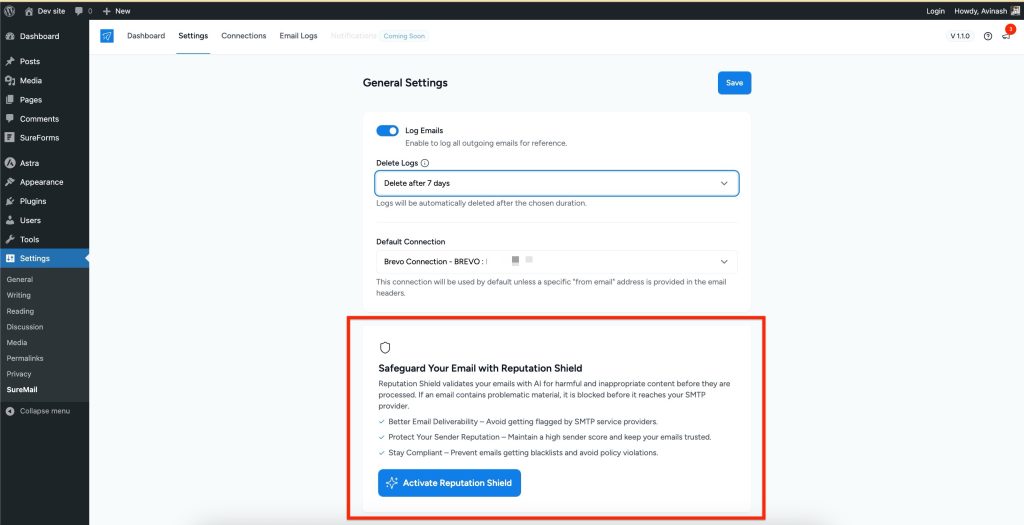
2. Reputation Shield: Protect Your Sending Reputation
If you send emails that get flagged (spam, bounces, etc.), SMTP providers will suspend your account. SureMail’s Reputation Shield feature monitors this and prevents bad emails from being sent in the first place.
3. Multiple SMTP Connections with the Same “From” Email
Unlike other plugins, SureMail lets you set up multiple backup SMTP connections without changing your sender email. If your primary SMTP fails, SureMail seamlessly switches to a secondary provider.
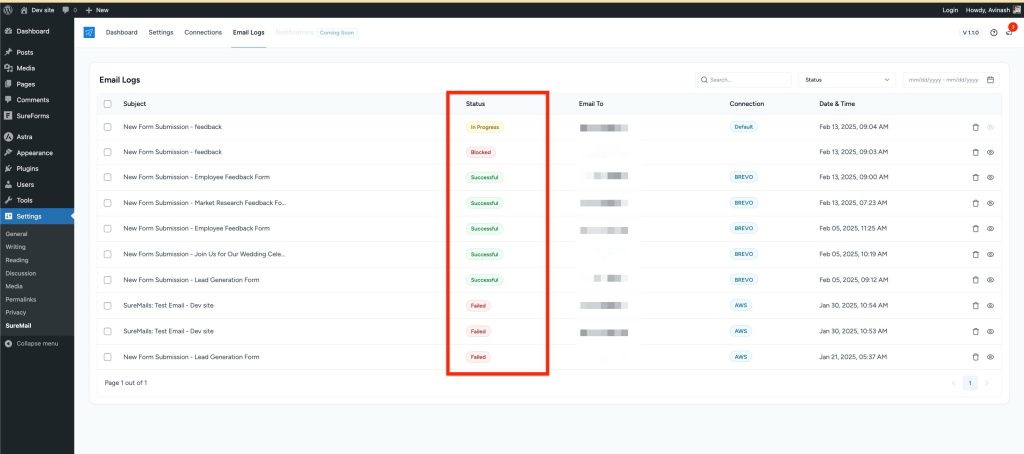
4. Complete Email Logs
Every email you send is logged and tracked. You can see failures, retry emails, and debug issues without any guesswork.
5. Beautiful, Intuitive UI
We built SureMail with design-first principles. Most SMTP plugins feel clunky. SureMail is modern, clean, and easy to use.
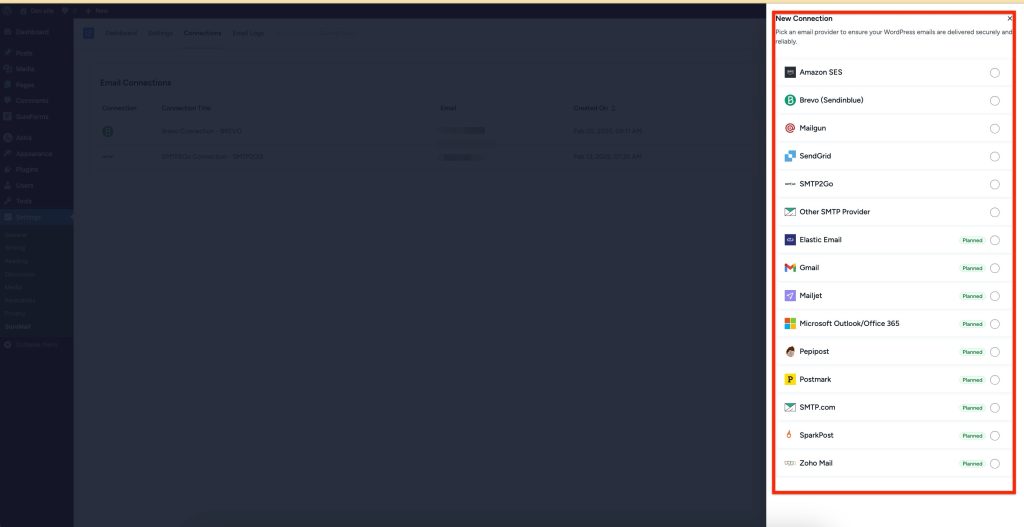
6. Works with All Major SMTP Providers
SureMail connects with Mailgun, SendGrid, Amazon SES, Postmark, SMTP2GO, and more.
7. Alerts When Email Sending Fails
If emails aren’t going out, you’ll know immediately via OttoKit. SureMail notifies you before small issues become big problems.
8. Email Fallback & Smart Routing
SureMail intelligently routes emails based on priority and fallback rules, making sure your emails always go out—even if a provider is having issues.
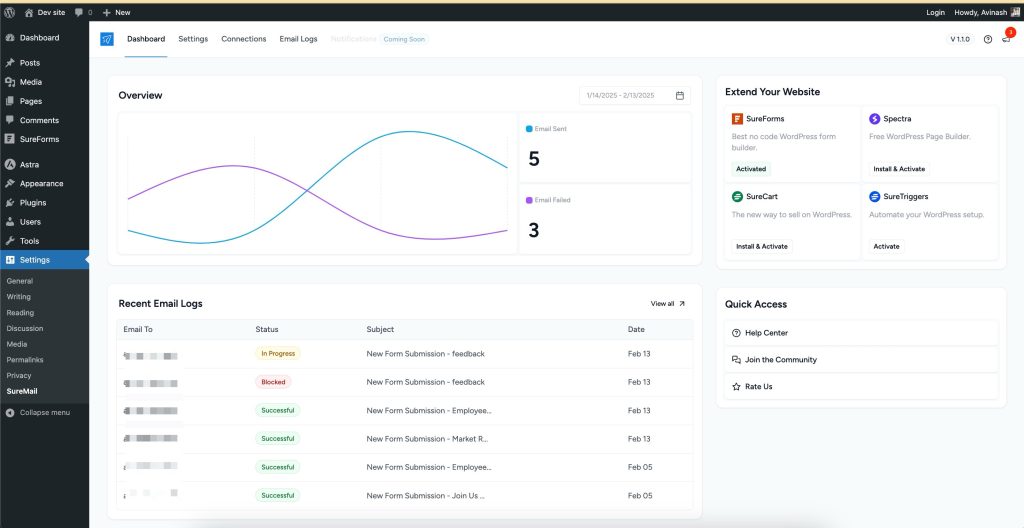
9. Analytics & Reporting
Understand how your emails are performing. Track success rates, failures, and delivery performance.
So, Which One Should You Use?
Here’s the breakdown where we will compare all three plugins:
| Feature | WP Mail SMTP Lite | FluentSMTP | SureMail |
| Auto Retry When Sending Fails |  No No | No | Yes |
| Protection from Problematic Emails | No | No | Yes |
| Multiple Connections | No | Yes | Yes |
| Connections with Same From Email | No | No | Yes |
| Complete Email Logs | No | Yes | Yes |
| Alerts on Failure | No | Only on 3 Platforms | Anywhere via OttoKit |
| Fallback Routing for Multiple From Emails | No | No | Yes |
| Great UI/UX | No | Decent | Beautiful |
| Aggressive Upsells | Yes | No | No |
This comparison is made in February 2025. If something has changed since then, and if you think we should update, please let us know, and we will be happy to update it.
Final Thoughts
If you just need basic SMTP, FluentSMTP is decent. If you’re okay with aggressive upsells and paying for features that should be free, WP Mail SMTP is an option.
But if you want the most reliable, feature-packed, and free SMTP plugin, SureMail is the clear winner. It’s built for reliability, protects your reputation, and ensures your emails never fail.
We made SureMail because we needed it ourselves. Now, we’re sharing it with the community.
PS:
This comparison was made in February 2025. If something has changed since then, and you think we should update this post, please let us know, and we’ll be happy to update it.
Read more at SureMail
]]>Did the email actually send? Did it land in spam? Did the SMTP provider block it?
You’re left guessing.
That’s Where SureMail’s Email Logs Come In
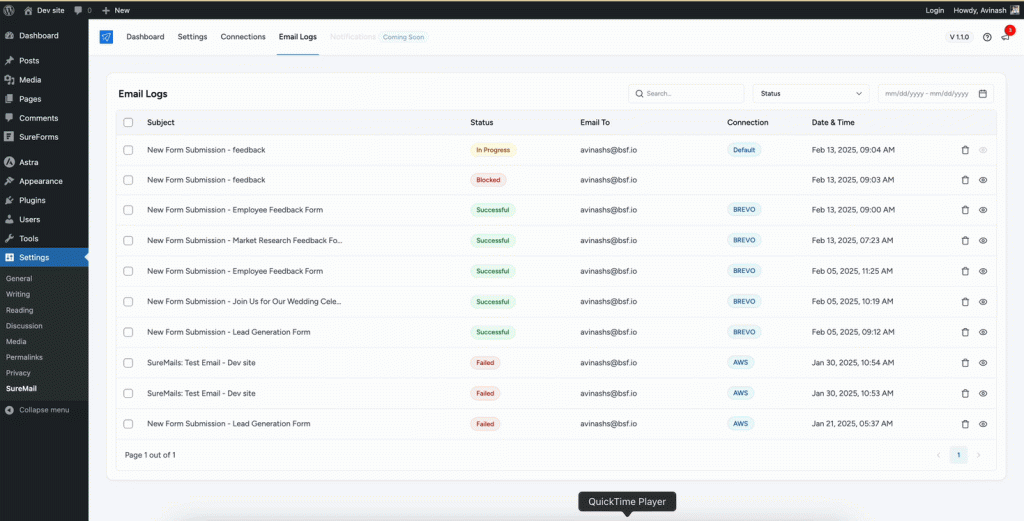
This feature saves a record of every email sent from your site so you can:
- Track all outgoing emails from your WordPress site and all plugins on the website.
- Filter and search emails by date, status, or recipient
- Resend any email in one click
- Debug delivery issues to make sure critical emails get through
It provides full visibility and control over your website’s email activity, right from your WordPress dashboard.
Why Email Logs Matter for Your WordPress Site
Most website owners assume emails will always work once an SMTP provider is set up. But issues can arise unexpectedly.
- Users may claim they didn’t receive an email, and you need proof it was sent.
- Spam filters might block emails, and you need to know why.
- Sometimes you need to resend an email manually without having to recreate it from scratch.
This is why SureMail keeps a detailed log of every email your site sends.
How to Access SureMail’s Email Logs
- Go to Settings > SureMail > Email Logs in your WordPress dashboard.
- You’ll see a list of all emails sent from your site
Filter & Search
Managing multiple emails daily can make it difficult to locate a specific one.
SureMail includes advanced filters to help you quickly find the emails you need.
You can filter emails by:
- Subject Line – Search for keywords in the email subject
- Recipient Email – Locate emails sent to a specific user
- Status – View successfully sent, failed, or pending emails
- Date Range – Find emails sent on a specific day or period
Resend with One Click
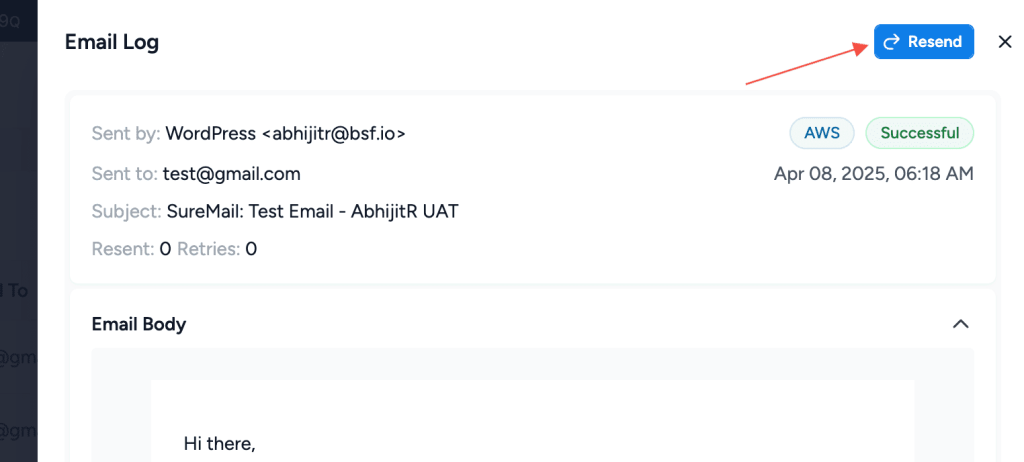
If an email failed to send, or a user reports they didn’t receive it, SureMail allows you to resend it with a single click.
Steps to resend an email:
- Locate the email in your logs.
- Click the “Resend” button in the email log.
- SureMail will automatically attempt to send it again using your SMTP provider.
Debug Email Delivery Issues
If an email fails to be sent, SureMail provides a detailed error log explaining what went wrong.
Common reasons for email failures:
- SMTP Authentication Error – SMTP settings may be incorrect.
- Rate Limits Exceeded – Some providers limit how many emails can be sent per hour or day.
- Blocked by Provider – The SMTP provider may have flagged the email.
Steps to troubleshoot email issues in SureMail:
- Click on the failed email to view details.
- Check the error message for troubleshooting hints.
- Update SMTP credentials if authentication failed.
- If the provider blocked it, switch to a backup SMTP connection and resend.
Email Log Duration
Not every website needs to store email logs permanently.
Some businesses prefer to keep logs for a certain period, while others may not want to log emails at all. SureMail allows you to customize your email log settings based on your needs.
You can set the duration for logging emails, choosing to retain logs for a specific number of days before they are automatically deleted.
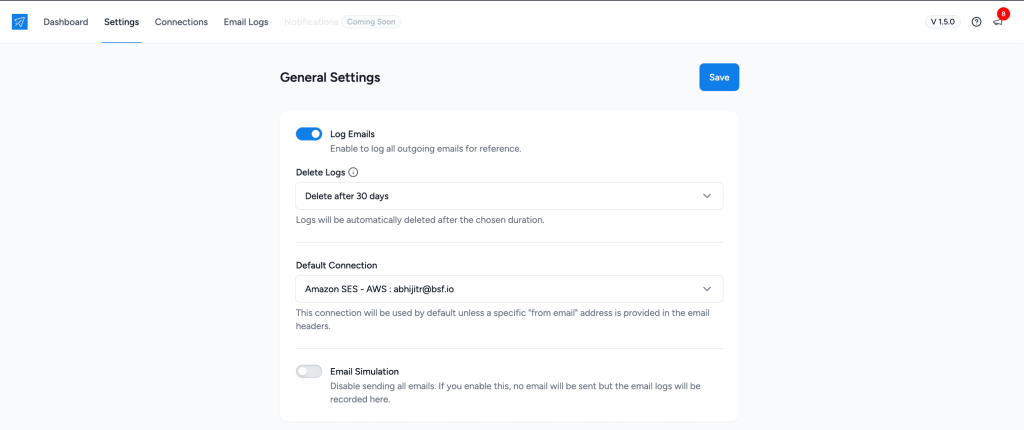
If you prefer not to store logs at all, you can completely disable logging to prevent any email records from being saved.
This flexibility ensures that you can balance email tracking with data privacy and storage efficiency.
Final Thoughts: Why You Need SureMail’s Email Logs
SureMail’s Email Logs provide complete transparency into your website’s email activity.
- Track every email sent from your site
- Use advanced search and filters to locate emails quickly
- Resend failed or lost emails with a single click
- Troubleshoot email issues with detailed error logs
- Customize log retention or disable logging entirely
Instead of wondering whether your emails are reaching users, you’ll have full control over your email delivery.
With SureMail, your WordPress emails are reliable, traceable, and easy to manage.
Read more at SureMail
]]>Order confirmations, password resets, contact form submissions—these are not just emails; they’re lifelines for your business.
But what happens when an email isn’t sent? What happens if your SMTP provider is down? Or if your sending limit for the hour is reached?
That’s where SureMail’s Auto Retry comes in.
We built this feature so your website never silently fails at email delivery. If something goes wrong, SureMail retries sending—intelligently, systematically, and without you having to lift a finger.
Let’s break it down.
How SureMail Knows an Email Failed
The first step in any retry system is detecting failure. SMTP providers always return a response—either a success confirmation or an error message. SureMail reads that response in real-time.
If the provider confirms the email was sent successfully, great!
If not, SureMail knows the email didn’t go through and immediately kicks off the Auto Retry mechanism.
What Happens When an Email Fails?
When an email fails, SureMail doesn’t just shrug and give up.
It executes a systematic retry process to make sure that email has the highest chance of getting delivered.
Here’s how:
- SureMail checks the “From” email in the email headers.
- If multiple SMTP connections are associated with that email, SureMail tries each one in order of the Connection Sequence set for each one of them.
- If the email is successfully sent using any connection, the job is marked as Successful, and the process ends.
- If none of the connections work, SureMail marks the email as In Progress and schedules a retry in 30 minutes.
- When retrying, it attempts to send the email again using all available connections for the same “From” email, following the same sequence.
- If the email still fails to be sent, SureMail finally marks it as Failed.
- Once the status changes to Failed, you can receive a notification via OttoKit, alerting you that something is wrong and requires attention.
Why This Matters
In most WordPress setups, if an email fails to send, that’s it—it’s gone.
No retries. No second chances.
If your SMTP provider is down for even a few minutes, that could mean lost orders, missed inquiries, and frustrated customers.
SureMail eliminates that risk. It works behind the scenes, ensuring that emails are always retried using every possible connection before giving up.
This means:
- If your primary SMTP provider is down for a short time, SureMail automatically switches to another.
- If other connections fail temporarily, SureMail waits and retries instead of failing outright.
- If it still fails, it can alert you requesting your attention.
The SureMail Auto Retry Algorithm (Simplified)
Here’s a simplified version of how the system works:
- Send email.
- If successful → Done.
- If failed:
- Try other SMTP connections associated with the “From” email.
- If all fail, schedule a retry in 30 minutes.
- After 30 minutes, retry all SMTP connections again.
- If still unsuccessful, mark as Failed.
How This Compares to Other Plugins
Most WordPress SMTP plugins simply log failed emails.
That’s it.
They don’t retry. They don’t intelligently attempt alternate SMTP connections. You either have to manually resend the email or hope it wasn’t something important.
SureMail does this automatically, ensuring higher email delivery rates without you ever needing to intervene.
Final Thoughts
If you’re running a WordPress website, email delivery is not optional.
You can’t afford to let emails slip through the cracks just because an SMTP provider went down for a bit. Auto Retry in SureMail ensures your emails have the highest chance of reaching their destination.
It’s not just about reliability; it’s about peace of mind.
Your WordPress site should never lose an email. And with SureMail, it won’t.
Read more at SureMail
]]>SMTP providers go down, credentials expire, sending limits get hit—whatever the reason, when an email fails, it’s a problem.
Because when an email doesn’t go through, someone is left waiting.
Maybe it’s a customer expecting their order confirmation. A user waiting for a password reset. A lead who filled out your contact form and never hears back.
The worst part?
WordPress sites don’t tell you when this happens. The email just fails silently. No alerts, no notifications. You don’t even know it happened until someone complains (or worse, they never do, and you lose the opportunity).
So let’s fix that.
In this guide, I’ll walk you through how to get real-time notifications whenever an email fails to send—whether via Slack, WhatsApp, SMS, or any other app you prefer.
And the best part? You don’t need to touch a single line of code.
The Problem: Why You Need to Know When Emails Fail
If your WordPress site relies on email for things like:
- Order confirmations (WooCommerce)
- Contact form submissions
- User registrations
- Appointment bookings
- Membership site notifications
…then email failures are a disaster waiting to happen if you don’t catch them.
Most WordPress SMTP plugins only log failed emails. That’s helpful if you check logs manually, but who has time for that? You need instant alerts—so you can fix issues before they cost you customers.
That’s where OttoKit comes in.
The Solution: SureMail + OttoKit
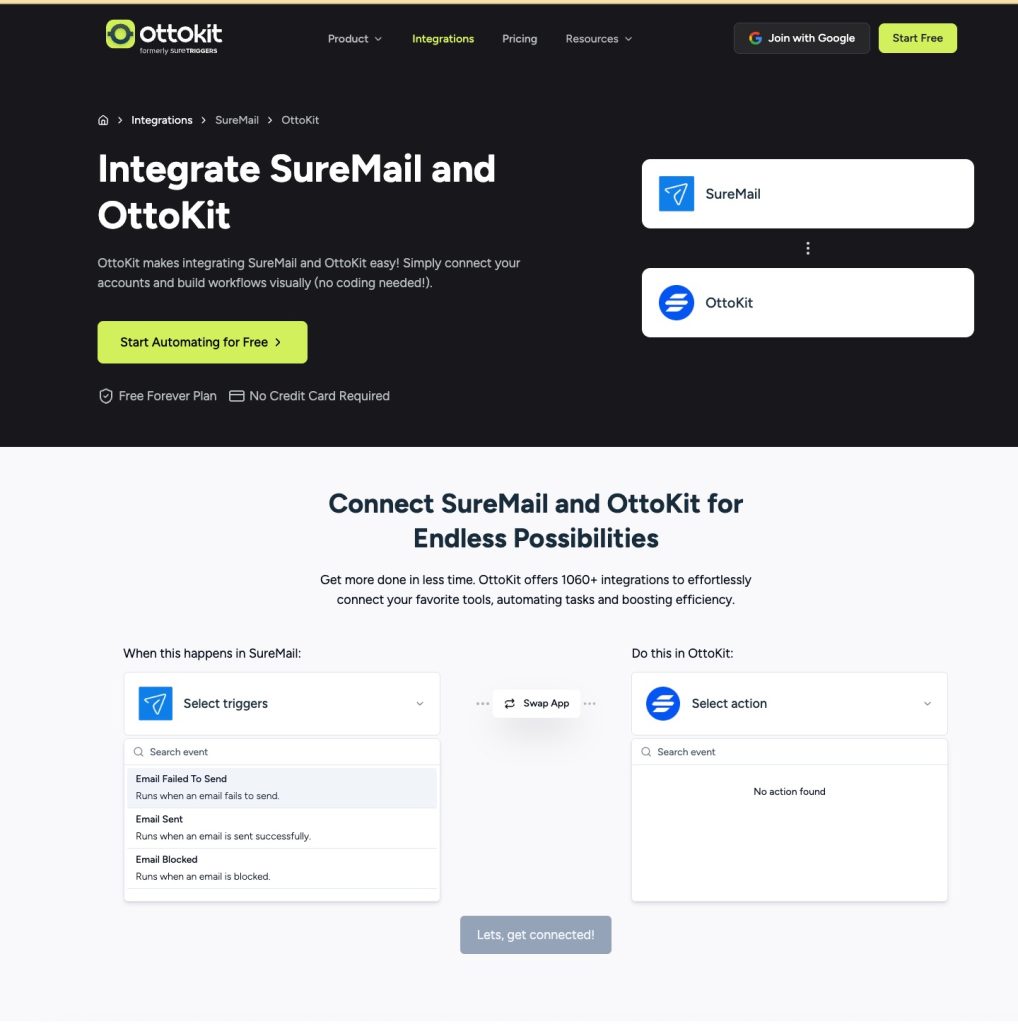
SureMail (our email delivery plugin) doesn’t just send emails—it tracks them. It knows exactly when an email is successfully sent and when it fails.
And when an email fails, OttoKit (our automation platform) can instantly notify you via Slack, WhatsApp, SMS, or any other app you use.
Here’s how it works:
- SureMail detects a failed email and triggers an event.
- OttoKit picks it up and automatically sends a notification.
- You get notified instantly—in Slack, WhatsApp, Telegram, email, or any app you choose.
This means:
- No more guessing if emails are working.
- No more digging through SMTP logs.
- No more missing important customer messages.
You’ll always know when something goes wrong.
Step-by-Step: Set Up Instant Email Failure Alerts
Let’s set this up so you get notified the second an email fails.
Step 1: Install SureMail
First, make sure you have SureMail installed and set up as your SMTP provider in WordPress. If you haven’t done that yet, go to SureMail settings and configure your SMTP details.
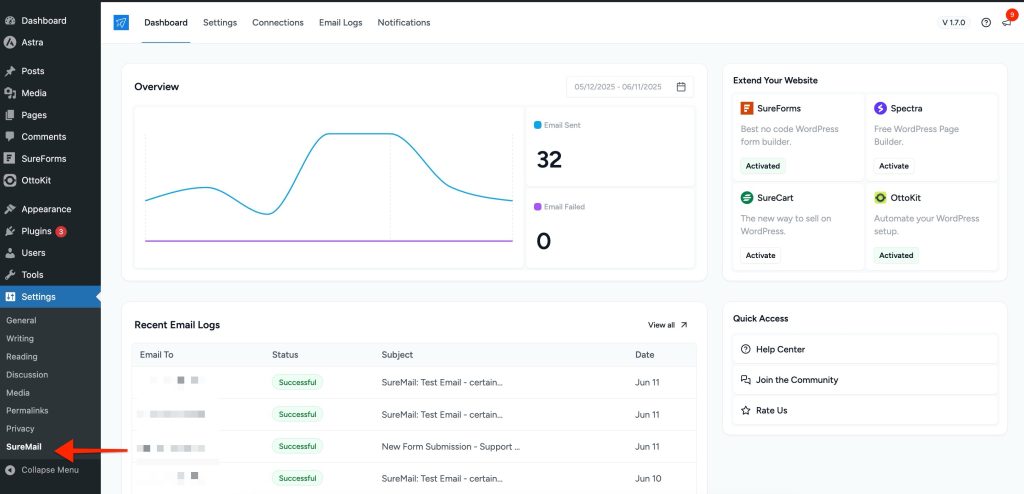
SureMail will now track all outgoing emails and detect failures automatically.
Step 2: Connect OttoKit
Now, you need to connect OttoKit to handle the automation.
- Go to OttoKit and create an account (if you haven’t already).
- Create a new automation workflow.
- Choose SureMail as the trigger app and select the trigger:
- “When an email fails to send.”
- Click Next to configure what happens when this trigger fires.

Step 3: Choose Your Notification Method
Now, decide where you want to be notified. This could be:
- Slack: Get an instant message in your team’s Slack channel.
- WhatsApp: Receive a message on your phone.
- SMS: Get a text message whenever an email fails.
Let’s say you want Slack notifications. You’d:
- Choose Slack as the action app.
- Select “Send a message to a channel.”
- Customize the message (e.g., “ Email failed to send! Check SureMail logs now.”).
- Save and activate the workflow.

That’s it. The next time an email fails, you’ll get an instant alert.
What Happens Next?
The second an email failure happens, OttoKit sends you an alert.
You can now jump in and fix it immediately. Maybe your SMTP provider is down. Maybe an API key expired. Maybe your email quota was exceeded. Whatever it is, you’ll know instantly instead of finding out days later.
No More Silent Email Failures
Your website’s email system is too important to leave to chance. With SureMail and OttoKit, you don’t have to.
- Emails fail? You know instantly.
- You get a Slack/WhatsApp/SMS notification within seconds.
- You fix the issue before it affects your customers.
And the best part? Once set up, this runs 100% on autopilot.
Stop guessing. Start knowing. Set up email failure notifications today.
Read more at SureMail
]]>Think about it.
Contact form submissions, eCommerce order receipts, password resets—every critical interaction your site has with users depends on email. And when email sending fails, things can go south fast.
Lost business. Frustrated customers. Support headaches.
That’s why we built SureMail with built-in failover mechanisms to ensure your website never stops sending emails.
One of the most important ones? Multiple SMTP Connections.
Why Email Sending Fails More Often Than You Think
Most people assume that once they set up an SMTP provider (like Mailgun, SendGrid, or Amazon SES), email sending is bulletproof. But that’s not how reality works.
Here’s what actually happens:
- Your SMTP provider’s servers go down. (Yes, it happens more often than you think.)
- You hit an email sending limit. (Maybe you got more traffic than expected—good problem to have, but still a problem.)
- Your credit card on file expires, and suddenly, your account is on hold.
- Your SMTP provider flags your account wrongly for potential spam (this happens a lot—they don’t even warn you sometimes).
- Your account gets suspended temporarily, for silly reasons, even if you did nothing wrong.
And when any of these things happen?
Your website stops sending emails.
That means:
- Contact form submissions disappear.
- Order receipts don’t get sent.
- Users trying to reset passwords are locked out of their accounts.
You don’t always notice it until users start complaining—which, let’s be honest, is the worst way to find out something is broken.
Solution: Multiple SMTP Connections That Just Work
With SureMail, you can set up multiple SMTP providers—one as your primary and another (or more) as a backup.
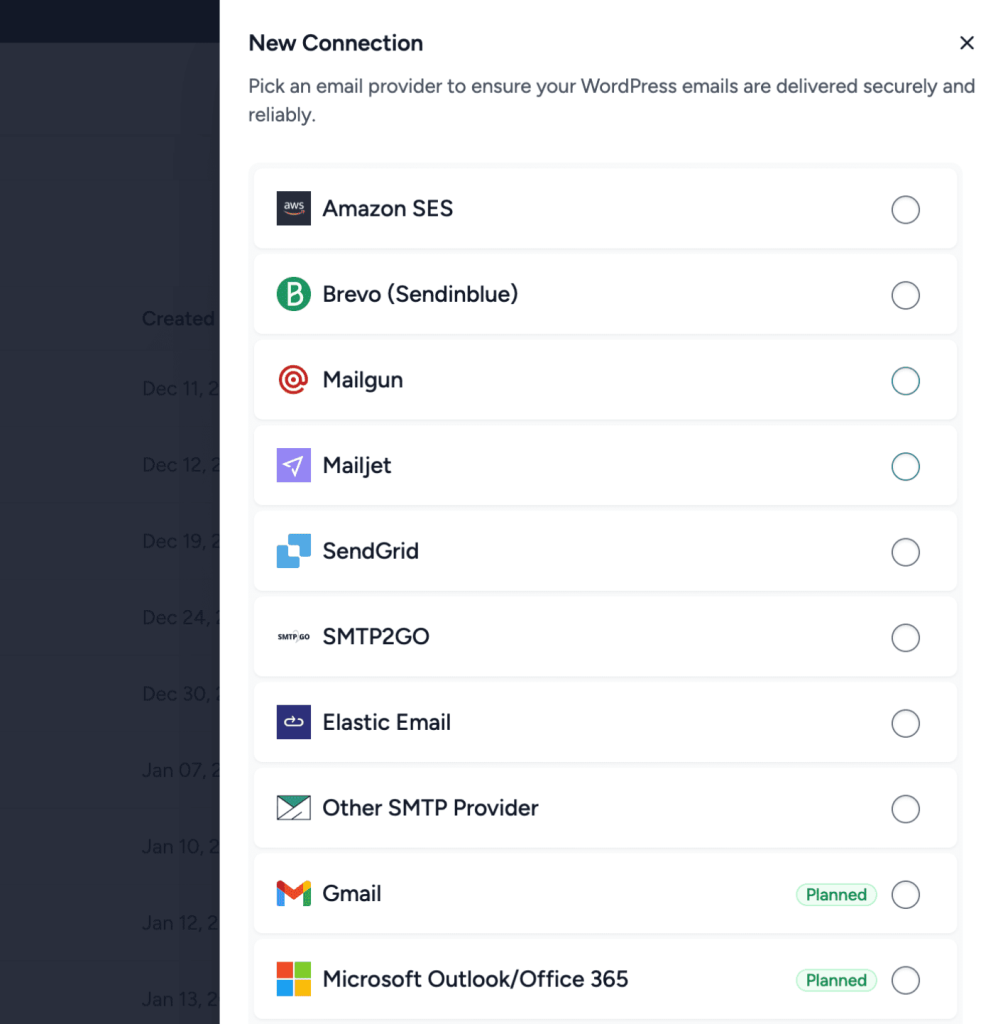
Let’s say you use Mailgun as your primary SMTP provider. Everything works fine—until one day, for whatever reason, emails stop sending.
What does SureMail do?
- It seamlessly switches to your backup SMTP provider—let’s say Amazon SES—and sends the email from there.
- If that too fails, it retries to send the email after 30 minutes through Mailgun and Amazon SES again.
No manual intervention. No lost emails. No support tickets from angry customers. Just automatic, uninterrupted email delivery.
This way, even if one provider fails, your emails still go through—keeping your business running smoothly.
How Other SMTP Plugins Do It (And Why It’s a Hassle)
Some other SMTP plugins offer something similar—but with one limitation:
They force you to use a different email address for the backup connection.
So if your Mailgun account is sending emails from [email protected], and you set up Amazon SES as a backup, they make you use a different email address—like [email protected]—for the backup.
And that’s a problem because:
- It breaks workflows and automations—your emails come from different addresses, causing confusion.
- It adds unnecessary account management—you need to maintain multiple sender addresses.
- It can look suspicious to users and email services when different addresses start sending emails inconsistently.
We hated this limitation. So when we built SureMail, we did things differently.
SureMail Solves This—The Way It Should Be
With SureMail, your backup SMTP providers can use the same email address.
If Mailgun stops working, SureMail automatically switches to Amazon SES (or any other provider you set) without requiring a different email address.
That means:
- Your emails always come from the same sender.
- Your automations and workflows stay intact.
- You don’t need to manage extra email accounts or addresses.
It’s simple. It’s seamless. And it just works.
The Bottom Line
Your website’s emails are too important to fail. SureMail’s Multiple SMTP Connection feature ensures that your emails get delivered, no matter what happens with your SMTP provider.
So instead of hoping your emails go through, you can have certainty.
Because when email sending is on the line, you shouldn’t have to worry about it.
And with SureMail, you won’t have to.
Read more at SureMail
]]>We have. And let me tell you, it was a nightmare.
Imagine waking up one morning, checking your inbox, and realizing that important emails from your website—order confirmations, password resets, customer inquiries—are not getting delivered.
Worse, your email service provider has completely shut you down.
That’s exactly what happened to us.
The Unexpected Problem That Almost Killed Our Email Reputation
WordPress, by default, sends emails for all sorts of things. If someone leaves a comment on your blog, you get an email notification.
If someone submits a contact form, you get a message with the full contents of their submission.
This is great—until it isn’t.
How Spam Comments Became Our Problem
One of our websites, as it often happens, started getting flooded with spam comments.
Because WordPress automatically sent us email notifications with the full comment text inside, our SMTP provider saw emails coming from our account with spammy content. From their perspective, we were the ones sending out spam.
And then it happened: Our SMTP provider Amazon SES banned us.

Below is a sample of the email that caused this suspension. You may have received similar comments or contact form submissions on your WordPress website.

Suddenly, all of our real emails stopped working.
Customer emails, support tickets, order receipts—everything was blocked.
It took days for us to get our account reinstated. And even after resolving the issue, our email reputation had taken a hit. Some of our emails still ended up in spam folders, and we had to work hard to rebuild trust with our provider.
We couldn’t let this happen again. And we didn’t want it happening to others.
So when we built SureMail, we made sure to solve this problem at its core.
Introducing Reputation Shield: The AI-Powered Email Bodyguard
We built a “Reputation Shield” to prevent this kind of disaster from ever happening again.
How It Works
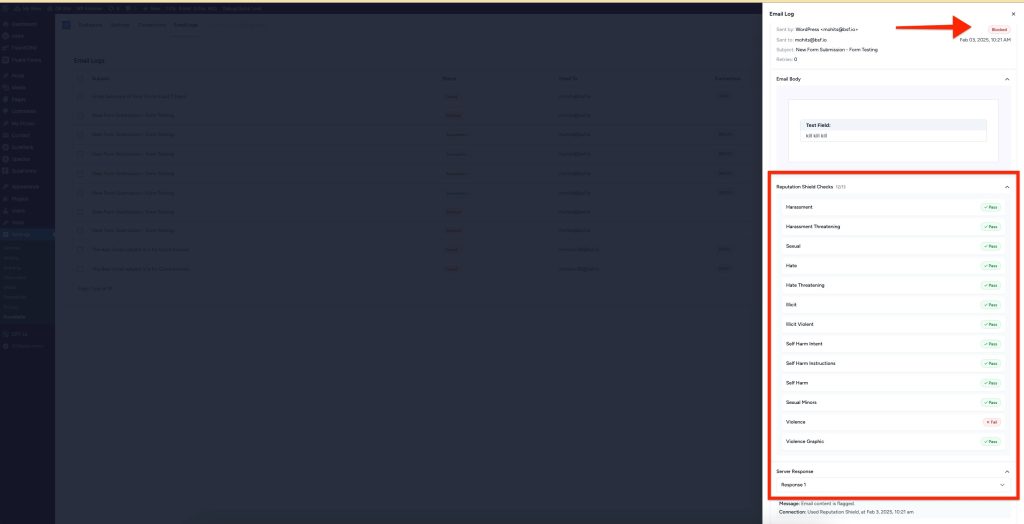
When WordPress generates an email—whether it’s a comment notification or a contact form submission—Reputation Shield AI scans the email before it even reaches your SMTP provider.
If the email contains problematic content, it’s blocked before it can be sent. This means your SMTP provider never sees it, your reputation stays clean, and you never get falsely labeled as a spammer.
It’s not a simple keyword filter. We use OpenAI’s proven moderation technology to analyze intent, so it knows the difference between real content and something spammy.
No false positives. No unnecessary blocking. Just protection when you need it.
What Happens to Blocked Emails?
They don’t just disappear. You can still review them inside WordPress admin, and if you believe something was mistakenly flagged, you can manually process it.
By keeping these emails from ever reaching your SMTP provider, Reputation Shield keeps your sending reputation intact, reducing the chances of your real emails going to spam.
What If You Don’t Want It?
Some people may not want AI scanning their WordPress emails, and that’s completely understandable. Maybe you have privacy concerns, legal policies, or just prefer to handle things manually.
That’s why Reputation Shield is off by default. If you want to use it, you’ll need to enable it in the settings. Otherwise, SureMail will function just as it always has.
Why This Feature Is Helpful
If you’ve ever had an SMTP provider block your account or noticed that your emails were ending up in spam, you know how frustrating it can be.
Reputation Shield helps prevent that from happening by stopping spam before it reaches your SMTP provider. It ensures that your email reputation stays clean and that your legitimate emails continue to be delivered.
For those who regularly receive contact form submissions or blog comments, this feature can provide peace of mind by keeping email issues at bay.
Final Thoughts
Email deliverability can be tricky. Reputation Shield is designed to be a safeguard, making sure that your emails don’t get flagged as spam just because of questionable content sent through your site.
Since this feature is optional, you can enable it if you find it useful, or leave it off if you prefer to handle things differently.
Either way, having more control over how your emails are processed can help maintain a strong sending reputation and avoid unnecessary email delivery issues.
Read more at SureMail
]]>