
sqlui-native

sqlui-native is a simple UI client for most SQL Engines written in Electron. It is compatible with most desktop OS’s and support most dialects of RDBMS like MySQL, Microsoft SQL Server, Postgres, SQLite, Cassandra, MongoDB, Redis, Azure CosmosDB, Azure Storage Table, and Salesforce.
It supports multiple Windows, so you can have different sets of queries and connections side by side. The connections and queries are all stored locally, so you can continue where you left off in later visits.
Downloads
Refer to the following link for download information.
Supported OS’s
- Windows 10/11 (Intel - AMD x64)
- Windows 10/11 (ARM architecture)
- macOS / OSX (Apple Silicon M-Series) (Tested on Mac OS Monterey and macOS 26) - See quarantine troubleshooting
- macOS / OSX (Intel x64) (Tested on Mac OS Monterey)
- Linux Mint / Ubuntu / Debian
- Linux Redhat / CentOS / Fedora : Refer to this link for Installation Instructions
- Linux Arch Linux (Tested on Steam Deck)
- Linux Other Distro (Tested on Linux Mint)
Supported Database Adapters
The list below are supported data stores. You can also refer to this link for General Queries
- MySQL
- MariaDB
- Microsoft SQL Server
- PostgresSQL
- CockroachDB (Limited Supported by using PostgresSQL driver)
- SQLite
- Cassandra (Limited Supported)
- MongoDB (Limited Supported)
- Redis (Limited Supported)
- Azure CosmosDB (Limited Supported)
- Azure Table Storage (Azure Table) (Limited Supported)
- Salesforce (SFDC) (Limited Supported)
Features
Overall Demo

Import and Export
Import and Export can be used to share connections across different machines and users. Below is a sample import config.
[
  {
    "_type": "connection",
    "id": "connection.1643485516220.4798705129674932",
    "connection": "postgres://postgres:password@localhost:5432",
    "name": "sy postgres"
  },
  {
    "_type": "query",
    "id": "query.1643561715854.5278536054107370",
    "name": "Employee Query on Postgres",
    "sql": "SELECT\n  *\nFROM\n  employees\nLIMIT\n  10",
    "connectionId": "connection.1643485516220.4798705129674932",
    "databaseId": "music_store"
  }
]
You can also drag and drop the file directly into sqlui-native application. At the moment, we only support drag and drop for a single file.

Session Management
This application supports multiple windows / instances. Sessions are used to control which instances it persist the data with. Also these sessions, and the associated connections and queries are persisted locally. So you can continue where you left off in the future.

Dark Mode
Dark mode will be turned on automatically with respect to your OS Preference. You can update settings to prefer Dark Mode or Light Mode if desired.

Query Tabs
Query Tab Orientation
When there is more than 20 tabs, the query tabs will be wrapped vertically.

Reordering Query Tabs
Query tabs can be re-ordered by drag and drop the query tabs bar.

Resizing the sidebar
The left sidebar can be resized by clicking and dragging the small section between the sidebar and the query box.

Command Palette
Similar to VS Code and Sublime Text, sqlui-native comes with a command palette that lets you reach your mostly used command via a key combo CMD + P or Ctrl + P on Windows.

Connection Hints
Sample URI connection string can be accessed by clicking on the Show Connection Hints on New / Edit Connection Page. Then you can click on the sample URI connection to use that sample connection string as a starting place.

Settings
Settings can be accessed via the top right menu icon. It allows you to set up preferred settings for things like Editor and Color Theme, etc…


Data Migration
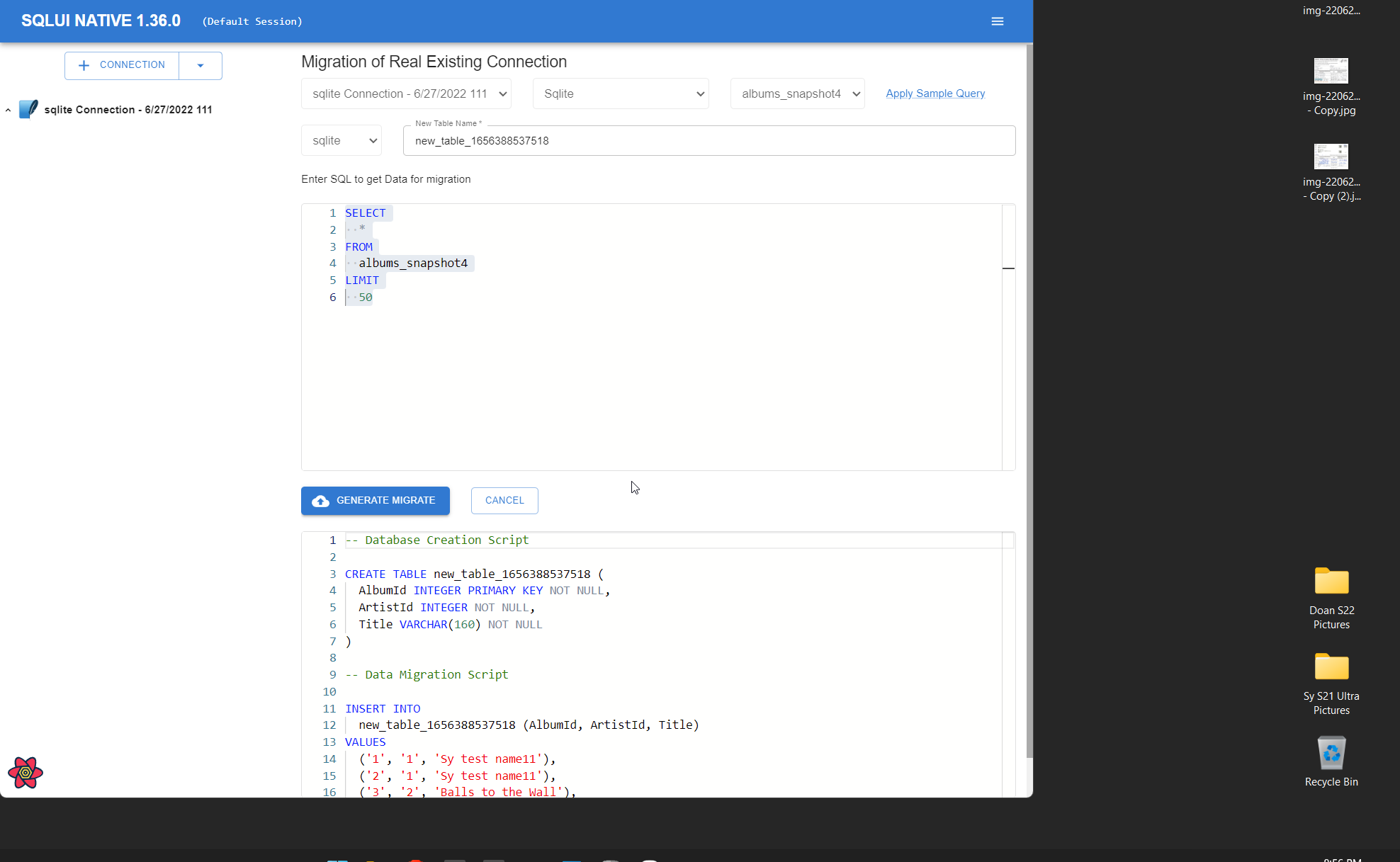
If you happens to work with different database engine, there’s a chance you want to move data from one engine to another engine. You can use Data Migration to craft a query to pull in data from the old engine and select a destination to generate the new schema / data for the new engine.
Data Migrationcan be accessed from the top right hamburger icon- From there, you have 2 options to migrate data. Either by a raw JSON or by data from an existing connection.


Migration of Real Existing Connection
Use this data migration option to move data from an existing connection
Migration of Raw JSON Data
Use this data migration option to move raw JSON data

Bookmarks
The system allows you to bookmark connections and queries. Bookmarked items can be applied to any workspace.
Adding new bookmark
- To bookmark a connection or query, open the context menu on the Connection name or Query tab name and choose
Add to Bookmark. - Give the bookmarked item a
nameand hit Save.


Open a bookmark
You can select and apply a bookmarked item from bookmarks page which can be accessed via the hamburger menu bar on the top right and select Bookmarks
- From there, you can click on the bookmarked name to apply that bookmark item.


Recycle bin
By default, all closed queries and deleted connections will be stored inside of a recycle bin which you can always restore at a later. To access the recycle bin, click on the hamburger menu bar on the top right and select Recycle Bin.
- From there you can choose to
Restorethe deleted connections or closed queries. - To permanently delete the items from sqlui-native, you can choose either
Empty TrashorDeleteindividual items permanently.


Hard Delete
If you want to permanently delete those and not put it in the recycle bin, you can set the Delete Mode to be hard delete.

Relationship Chart (FK Visualization)
For relational databases (MySQL, MariaDB, MSSQL, PostgreSQL, SQLite), you can visualize foreign key relationships between tables as an interactive diagram.
- Access it from the context menu on a table name and choose
Show Relationships - The diagram shows tables as nodes and foreign keys as edges with arrows
- Switch between Diagram (interactive React Flow chart) and Table (sortable MUI table) views
- Toggle between horizontal (3-column) and vertical (3-row) layouts
- Expand/collapse edge labels to see full FK details or a summary
- Export the diagram as a PNG image
- Zoom, pan, and drag nodes to rearrange
Code Snippets
Generate ready-to-use connection code snippets for your database in Java, JavaScript, and Python. Access code snippets from the query script dropdown for any connection.
Record Pages
New Record Page
- New record page can be opened using the
New Recordbutton underneath the query editor. - There you need to select Connection / Database / Table you want to create a new record for.
- The form will render where you need to fill out the form data.
- Click on
Generate Scriptto generate the query for the insert.


Record Details / Edit Record Page
- Clicking on any record on the query results will bring up the Record Detail page
- There you can toggle the edit mode.
- The form will render where you need to fill out the form data.
- Click on
Generate Scriptto generate the query for the insert.
Contributing
Dev Note
Here is the link where you can find information about how run this application locally.
Adding a New Database Adapter
Want to add support for a new database engine? The project uses an adapter pattern where each database engine implements a standard interface (IDataAdapter). A starter template is provided at src/common/adapters/_SampleDataAdapter_/.
The high-level steps are:
- Add a new dialect to
typings/index.ts - Copy the sample adapter template and implement the adapter class (
index.ts) and script generator (scripts.ts) - Register your adapter in
DataAdapterFactory.tsandDataScriptFactory.ts - Add a dialect icon PNG in your adapter directory and import it in
scripts.ts - Add snapshot tests in
DataScriptFactory.spec.ts
For the full step-by-step guide with code examples, see the Adding new adapters section in CONTRIBUTING.md.
Features / TODO’s:
- Consolidate the interface for mocked server and the main.ts page.
- Make a build for Windows and Darwin.
- Added Basic CI/CD to package electron
- Make a build for other systems like Debian / Ubuntu and Redhat.
- Add a configuration / option page for color mode.
- Enhance the table with pagination.
- Enhance the table for result with sorting, and searching.
- Add quick query queries (such as select from a table or do update / insert).
- Add quick query to recreate the table definition (Create Table), Drop Table, etc….
- Add a full screen mode (F11)
- Add ability to save CSV / JSON / Table to files.
- Add ability to support multiple windows and sessions..
- Add ability to import and export connections and queries.
- Add ability to work with multiple instances.
- Add autocomplete tokens for the query.
- Add dark theme (Dark mode respect system color theme).
- Add auto update features.
- Push a build to Microsoft Store.
- Add supports for Cassandra.
- Add supports for Azure CosmosDB.
- Add supports for Azure Table (Azure Table storage).
- Add supports for Salesforce (SFDC).
- Add supports for AWS Redshift.
Troubleshooting
Mac Apple Silicon (M-Series) - “App is damaged” Error
On macOS 26+ with Apple Silicon (M1/M2/M3/M4), you may see the following error when attempting to open the app:
“sqlui-native.app” is damaged and can’t be opened. You should move it to the Trash.
This is caused by macOS quarantine attributes applied to unsigned apps. To fix this, open Terminal and run:
xattr -cr /Applications/sqlui-native.app
After running the command, you should be able to open sqlui-native normally.
Limitations
sqlite Limitations
sqlite doesn’t support multiple statements. So if you have multiple inserts or updates in a single query, it will not work. Refer to this Stackoverflow post for more details related to sqlite.
If you want to do bulk inserts, use bulk inserts API instead.
INSERT INTO
  art (Name)
VALUES
  ('Queen'),
  ('Kiss'),
  ('Spyro Gyra')
CockroachDB Limitations
CockroachDB can be connected using postgresSQL. Replace ?sslmode=require with sslmode=no-verify
Sample connection will look like this
postgres://demo:[email protected]:26257/movr?sslmode=no-verify
Cassandra Limitations
Cassandra Keyspaces are mapped to sqlui-native databases. And Cassandra Column Families are mapped to sqlui-native table.
How to get connection string for CosmosDB with Cassandra API?
- Go to
Connection Stringof the Azure CosmosDB Cassandra

Sample CosmosDB with Cassandra API Connection String
It will look something like this.
cassandra://USERNAME:PRIMARY PASSWORD@CONTACT POINT:PORT
MongoDB Limitations
MongoDB Collections is mapped to sqlui-native table. We scan the first 5 Documents to come up with the schema for the columns.
Create new MongoDB Database
As of now (v1.27.0), you can create new mongodb using the following syntax
db.createDatabase("new-database-name");
Redis Limitations
Due to the size of keys within Redis connection, we will not show all keys in the Redis cache.
- As for SSL Redis support, use the
rediss://connection scheme.
How to get connection string for Azure Redis Cache?
- Go to
Access Keyson Azure Redis Cache.
- Connection will look like
rediss://<username>:<password>@<your_redis_host>:<redis_port> - Sample connection will look like this. Due to how the URL scheme is parsed, a non empty string is required for the username placeholder. It can be anything but empty string.
rediss://azure:[email protected]:6380
Azure CosmosDB Limitations
Azure CosmosDB Databases are mapped to sqlui-native Databases. And Azure CosmosDB Containers are mapped to sqlui-native Tables. We scan the first 5 items to come up with the schema for the columns.
Tested for Azure CosmosDB (with Core SQL).
How to get connection string for CosmosDB with Core SQL API?
Here’s how to set up the connection. Open your resource, and click on Keys. Then copy and use either PRIMARY CONNECTION STRING or SECONDARY CONNECTION STRING


Sample CosmosDB with Core SQL API Connection String
It will look something like this.
cosmosdb://<your_primary_connection_string>

or

cosmosdb://<your_secondary_connection_string>
Salesforce (SFDC) Limitations
Salesforce SObjects are mapped to sqlui-native Tables, and Salesforce Fields are mapped to sqlui-native Columns. Each connection represents a single Salesforce Org (mapped as a single database).
The adapter supports three query modes:
- SOQL (read-only) – Queries starting with
SELECTare executed as SOQL - SOSL (read-only search) – Queries starting with
FINDare executed as SOSL - JS API (mutations) – Queries containing
conn.are executed as JavaScript for create, update, delete, and upsert operations
Setting up connection string
- Sign up for a free Developer Org at developer.salesforce.com/signup
- Get your Security Token: Avatar > Settings > My Personal Information > Reset My Security Token
- Use JSON format for the connection string:
sfdc://{"username":"[email protected]","password":"your_password","securityToken":"your_token","loginUrl":"login.salesforce.com"}
loginUrldefaults tologin.salesforce.comif omitted. Usetest.salesforce.comfor sandbox orgs.securityTokencan be omitted if your IP is whitelisted.
OAuth2 Client Credentials Flow
For orgs using Connected Apps, you can authenticate without a username/password by providing clientId and clientSecret:
sfdc://{"clientId":"your_connected_app_client_id","clientSecret":"your_connected_app_client_secret","loginUrl":"your-org.my.salesforce.com"}
Sample queries
-- SOQL: Select accounts
SELECT Id, Name, Industry FROM Account LIMIT 10

-- SOSL: Search across objects
FIND {keyword} IN ALL FIELDS RETURNING Account(Id, Name), Contact(Id, Name) LIMIT 20
// JS API: Insert a record
conn.sobject("Account").create({ Name: "New Account", Industry: "Technology" });

// JS API: Update a record
conn.sobject("Account").update({ Id: "001xxx", Name: "Updated Name" });

// JS API: Delete a record
conn.sobject("Account").destroy("001xxx");
Azure Table Storage Limitations
Azure Table Storage tables are mapped to sqlui-native Tables. We scan the first 5 items to come up with the schema for the columns.
Setting up connection string
Here’s how to set up the connection.


Sample connection will look like this
aztable://<your_connection_string>
Suggestion?
Use the following link to file a bug or a suggestion.