Installing the necessary components to use Classic on a Mac that can’t boot from Mac OS 9

I’m writing this post to be more like a personal reminder in case I find myself in a similar situation in the future. I don’t know if this is the simplest or quickest method to install the components needed to use the Classic environment on a Mac that can’t boot from Mac OS 9 directly, but this is what worked for me, and it seems simple enough. If it helps other people, all the better.

The problem

I wanted to use a few Classic applications on my iBook G4/800 running Mac OS X 10.4.11, and I was prepared to install Mac OS 9.2 via an original CD-ROM I own. However, I had forgotten that this iBook, a late 2003 model, can’t boot into Mac OS 9. I was not at home, otherwise I would have probably tried to install Mac OS 9 from another vintage Mac capable of booting into Mac OS 9, while putting the iBook in Target Disk Mode. Or perhaps I would have just copied the Mac OS 9 System Folder from my Titanium PowerBook G4/400.

Simply copying the System Folder from my Mac OS 9 Installation CD didn’t work, in case you were wondering.

The procedure

But having only the iBook and an Internet connection, this is what I came up with:

1) Download NetBoot for Mac OS 9 from this page on the Apple KnowledgeBase. It’ll be a DMG file called NetBoot9.dmg. [Update, June 2024: the link to the Apple KnowledgeBase is dead, but NetBoot for Mac OS 9 can still be downloaded from the archived version of the page by the Internet Archive.]

2) Mount the DMG file, and you’ll see four language folders. Choose your preferred one, then double-click on the NetBoot.pkg package and follow the Installer prompts. The NetBoot Installer gives an error at the end of the installation. This doesn’t seem to matter for what we’re trying to achieve.

Installing NetBoot

3) Now, in the root directory of your Mac’s drive, you should see a folder called NetBootInstallation. If you try to open it, the Mac will warn that you don’t have sufficient access privileges. Open the Info panel for the folder (⌘-I), expand the Details in the “Ownership & Permissions” section, change the owner by clicking on the small padlock icon and authenticating with your admin credentials, and finally give yourself Read & Write permissions for the folder.

Info panels
Ignore the ‘Zero KB’ size. The folder is not empty.

4) You’ll find three files inside NetBootInstallation. Double-click on NetBoot HD.img and mount the image.

5) Copy the contents of the image — Applications (Mac OS 9) and System Folder — to the root directory of the Mac’s drive.

6) Now open System Preferences → Classic.

7) In the Classic preference pane, under “Select a system folder for Classic”, you should see the System Folder you copied on Step 5 appear below the Mac’s drive name. Select it, and start Classic.

Classic startup warning

8) You should get two warnings when you first start Classic. The first is about the version of QuickTime being old, and you can dismiss it for now. The second is about Classic having to update files in “System Folder” (see image above). Click Update. At this point, Classic will proceed with its startup process and complete successfully. The Mac OS version will be 9.2.2.


Pacifist
An alternative method is to use Pacifist (older versions for PowerPC Macs are on this page). You mount the NetBoot9.dmg image. Then, after installing Pacifist, you select Open Package from the main window, navigate until you find the NetBoot.pkg package mentioned above on Step 2. Open the package, select NetBoot HD.img, then click the Install button on Pacifist’s toolbar. Tick the “Use Administrator Privileges” checkbox, authenticate when prompted. Then it’s the same procedure we saw above from Step 3 onward. (The only difference is that when you open the NetBootInstallation folder, you’ll only find the NetBoot HD.img image).

Annotated transcription of the lecture “Origins of the Apple human interface”

Recently, the Computer History Museum has uploaded on its YouTube channel a lecture called Origins of the Apple human interface, delivered by Larry Tesler and Chris Espinosa. The lecture was held at the Computer History Museum in Mountain View, California, on October 28, 1997.

Being extremely interested in the subject myself, and seeing how apparently little thought is being given today to the subject, I wanted to quote a few selected excerpts from the talk, just to show what kind of hard work creating a user interface was back in the day when the Apple Lisa was being developed. It turns out that isolating this or that bit was futile, as the whole talk is made up of such cohesive, engrossing discourse. So I chose to transcribe it almost entirely, and add a few personal remarks here and there. You can read the full annotated transcription on my main website.

Ars Technica takes another trip to the past

After Andrew Cunningham’s experiment in 2014 with a PowerBook G4 running Mac OS 9.2.2, another tech writer from Ars Technica goes vintage, with an even older, but more fascinating setup: a Macintosh IIsi (introduced in late 1990), running System 7.5.5, and connected to a Macintosh Portrait Display (similar vintage). Back then, I wasn’t particularly satisfied with how Cunningham approached his exploration, and I wrote an article in response detailing my observations: Actual work on vintage Macs is possible.

This time I must say I enjoyed Chris Wilkinson’s article so much more than I did Cunningham’s. Chris’ approach seemed more open, and he sounded definitely more patient and willing to deal with the most challenging aspects of using a 28-year-old machine today. His is an excellent write-up of the experience, and I urge you to give it a read. As for my personal observations, I have very little to add.

In his conclusion, Chris writes [emphasis mine]:

In contrast, taking the IIsi through its paces was a joy. The limitations of the machine, with barely enough power to run more than one application at once, demands your attention to be 100 percent devoted to any single task. Paradoxically, it often felt like I was more productive with significantly fewer resources at hand. It captured and holds my attention on a single problem, rather than splitting my attention across dozens of unrelated tasks. Coming in with low expectations and knowing roughly what 20MHz can do for me these days, I came away from my sojourn pleasantly surprised.

This is something I have experienced myself numerous times when using my vintage Macs, and it’s the main reason I generally prefer to bring a vintage Mac with me when I’m not working from home (if you follow me on Twitter, you may have noticed the occasional ‘Today’s vintage mobile office‘ photo). It really helps me stay focused, especially when I need to do some creative writing.

As I said, I really liked how Chris approached his vintage challenge. A couple of things I may have done differently: first, I’d have probably got more performance out of the IIsi by keeping it on System 7.1 — less feature-rich than 7.5.5, but also less RAM-hungry. And the second thing is related to music. Instead of pushing the Macintosh IIsi to its limits by handling MP3 files, I would have looked for an external SCSI CD-ROM drive, and just listened to audio CDs while working (the Control Strip had a handy module for quick access to CD playback controls). But this is just nitpicking.

Enjoy the article: 1990, meet 2018: How far does 20MHz of Macintosh IIsi power go today? by Chris Wilkinson.


Great apps still available for PowerPC Macs (Part 4)

Links and information — the February 2018 update

According to WordPress’ analytics, my little Great apps still available for PowerPC Macs series of articles is one of the most viewed here on System Folder. I have realised, however, that some of the links and information provided in Part 1, Part 2, and Part 3 are old and in bad need of an update. So here we are.

First thing first: browsing the Web

I’ll reiterate what I wrote in Part 1: If you want to browse the Web on a PowerPC Mac with a modern, secure browser that’s still in active development, then your choice shall be TenFourFox. It runs best on G4 and G5 machines, but it’s also available for G3 processors. If you don’t like TenFourFox’s app icon, I created an alternative one you can download (see TenFourFox custom icon). If you’re running Mac OS 8.6/9, then you should use Classilla, from the same developer, Cameron Kaiser. Classilla works great also under Mac OS X 10.1.5 to 10.3.9 in the Classic Environment.

Another couple of favourites are Camino and Stainless.

I wrote about Camino in The second-best browser for PPC Macs, saying that it’s still a fine choice if your Mac isn’t powerful enough to run the excellent TenFourFox smoothly:

Camino’s development ceased in 2012. Other alternatives, such as an older version of Opera, or the last version of Safari you can run under Panther or Tiger, are simply too old to be useful. Opera 10.63, the last version you can run under Tiger, was released in 2010. Camino is newer, and it also appears to be less resource-hungry.

Check that article for the relevant download and links.

As for Stainless, see below, at the end of the next section.
 

Updated information for the apps mentioned in Part 1

(Whenever you see “Original information and links are still valid”, go back to Part 1 to retrieve them.)

AppZapper: Get the 1.8 version (compatible with Mac OS X 10.4 and 10.5) at this direct link.

Acorn: Original information and links are still valid.

Bean: Original information and links are still valid.

Audion: All versions of Audion are now available in its directory at The Panic File Museum.

Dropbox: Dropped support for PowerPC Macs running Tiger and Leopard a while back. If you’re using Leopard on a PPC Mac, check this link. I take no responsibility if things go wrong or don’t work. This link was suggested to me some time ago, and I’m just passing it along. My recommendation is to try Box instead — see this article.

Linotype FontExplorer X 1.2.3: Original information and links are still valid.

Mailsmith: Original information and links are still valid.

Notational Velocity: Original information and links are still valid.

Skim: The new link to the project’s homepage is this one, though the old one still redirects correctly. (Note: the last Tiger-compatible version is 1.2.7, which you can download here).

Xee and The Unarchiver: These and other apps by Dag Ågren have been acquired by MacPaw.

  • The new Xee website only allows you to download the latest Xee 3 version, which doesn’t work on PowerPC Macs. Here’s a direct link for the older Xee 2.2.
  • The new website for The Unarchiver is theunarchiver.com. The latest version of the utility supports Mac OS X 10.7 Lion and newer. If you click where the page says “For earlier versions click here”, you’ll be able to download version 3.11.1, a Universal Binary that should work under Mac OS X 10.4 Tiger and 10.5 Leopard (and 10.6 Snow Leopard, for those who use early Intel Macs).

Find Any File: Original information and links are still valid.

iStumbler: Previous versions of the app (dating as far back as to support Mac OS X 10.2 Jaguar) are available at the Changelog page.

Disco: Original information and links are still valid.

f.lux: Older versions of this great utility aren’t available anymore, apparently. Here are two direct links to the PPC versions (thanks, MacUpdate!)

  • f.lux 15.0 (Mac OS X 10.5 or later, Intel32/PPC32, please disable updates)
  • f.lux 11.0 (Mac OS X 10.4 or later, Intel32/PPC32)

Stainless browser: There’s something strange going on with the Stainless homepage. It still gives information about the project, but the Downloads page has a series of links that do not work. The original developer stopped developing it circa 2013, and the last official release was 0.8. The current website talks about updated versions (1.0 through 1.1.5), and that a mobile app for iOS and Android is available, but no links are provided, and a search in the iOS App Store shows that there’s no mobile browser with that name. I suspect the stainlessapp.com domain has been purchased by other parties and, well, it just smell fishy to me. You can still explore the old, genuine site, and download Stainless 0.8 through Internet Archive’s WayBack Machine. Here’s the link. (Remember, Stainless requires Mac OS X 10.5 Leopard).


Updated information for the apps mentioned in Part 2

(Whenever you see “Original information and links are still valid”, go back to Part 2 to retrieve them.)

Ulysses: In my previous article, I wrote: “The only version that is completely unlocked and doesn’t require a licence is Ulysses 1.6, for Mac OS X 10.4 and above.” It’s not available anymore. The oldest version currently provided on the Ulysses website is 2.2.2, which doesn’t work on PowerPC Macs.

CloudApp: You can’t download version 1.0.3 (the last to support PowerPC Macs) from CloudApp’s website anymore. I’ve made it available here. It should still work, although of course it’ll have a more bare-bones set of features than the current 4.x version.

Transmit and other Panic apps: Original information and links are still valid.

NetNewsWire: Version 3 (which works with PowerPC Macs) is not available anymore on the official NetNewsWire website. Here are some useful links:


Updated information for the apps mentioned in Part 3

(Whenever you see “Original information and links are still valid”, go back to Part 3 to retrieve them.)

Butler: Original information and links are still valid.

LaunchBar: Original information and links are still valid.

Quicksilver: Original information and links are still valid.

NotLight: Here’s a slightly more accurate link (you still have to scroll down a bit). Check out other apps by Matt Neuburg, like SyncMe, which you may find useful.
 

Some additions

[Updated 26 February 2018]

iScroll2: The app website tells pretty much everything you need to know: “iScroll2 is a modified trackpad driver that adds two-finger scrolling capabilities to supported pre-2005 PowerBooks and iBooks on OS X 10.3 and up. Supported models include most aluminum PowerBooks introduced from 2003 to 2004 as well as most G4 iBooks.” I have it on my 12- and 17-inch PowerBook G4 and it’s really great.

Docker: Technically, this app isn’t available anymore, since the original website has gone (domain not renewed, then purchased by someone else). But I wanted to add this app anyway because it’s perhaps the best tool I’ve used to customise my Dock. The old Blocksoft website can still be accessed via Internet Archive’s WayBack Machine, and from there it’s still possible to download version 1.6.7, which I believe to be the latest. Check out this quick review at OS X Daily, for a bit more information. Docker is a Universal Binary and should work under Mac OS X 10.5 Leopard to 10.7 Lion.

Aqua Extreme: Speaking of customisation, I really love this little utility by Max Rudberg (you may remember him, among other things, for developing Obsidian Menu Bar, a hack that gave us a black menu bar in OS X before Yosemite). Here’s the original description of what Aqua Extreme does:

Mac OS X introduced a new GUI called Aqua. The initial Aqua interface had quite a different look from the Aqua we know today. Buttons had a more distinct 3D-appearance, with stronger gloss and heavier shadows. The 10.2 installment of OS X brought a more refined style with a flatter, more crisp button appearance. Almost every element had been refined, except for the scrollbars and progressbars which was overlooked. What’s puzzling is that it has been continuously overlooked ever since. I first introduced my own refined scrollbars and progressbars for 10.2. I had a falling out and did not update them for Leopard. But now that Snow Leopard is here, still using the 10.0 style elements, I thought it was time to do something about it. This installer will replace the large and small versions of both the scrollbars and progressbars with ones that better match the appearance of the rest of the interface. They look flatter and more crisp and work with both the Blue and the Graphite appearance settings. If you decide you want to revert to the original Aqua style, please run the separate Restore Aqua installer.

You can download Aqua Extreme for Mac OS X 10.5 Leopard (and OS X 10.6 Snow Leopard) using the links at the bottom of the Obsidian Menu Bar homepage (see link above). If you like it, you can send Max a donation.

OmniDiskSweeper: A really nice utility from The Omni Group that’s been around for a long time. Their description: “OmniDiskSweeper is really great at what it does: showing you the files on your drive, in descending order by size, and letting you decide what to do with them. Delete away, but exercise caution: OmniDiskSweeper does not perform any safety checks before deleting files!”

It appears that version 1.7.2, the last to support Mac OS X 10.4 Tiger and 10.5 Leopard, isn’t available anymore from their site. Once again, the WayBack Machine is your friend. You can view the older OmniDiskSweeper page and download version 1.7.2 of the app. (You’ll be redirected a couple of times, be patient.)

Pacifist: Another terrific utility that’s been around for a long time. From the website homepage: “Pacifist is a shareware application that opens Mac OS X .pkg package files, .dmg disk images, and .zip, .tar, .tar.gz, .tar.bz2, and .xar archives and allows you to extract individual files and folders out of them. This is useful, for instance, if an application which is installed by the operating system becomes damaged and needs to be reinstalled without the hassle of reinstalling all of Mac OS X, or if you want to inspect a downloaded package to see what it will install before installing it. Pacifist is also able to verify existing installations and find missing or altered files, and Pacifist can also examine the kernel extensions installed in your system to let you see what installer installed them, and whether the installer was made by Apple or a third-party.” You can download older versions of Pacifist (that go back to Mac OS X 10.2 Jaguar) from this page.

DragThing: Another venerable Mac utility, a sort of smart Dock on steroids (but read more on the About page). The developer, James Thomson, still offers older versions for PowerPC Macs from the Download page. (Support goes as far back as Mac OS 7.5.5!)

Please note that, if you install DragThing and you want to purchase a licence from within the application, you will be directed to proceed through the old Kagi payment system, and since Kagi is no more, nothing will happen. I asked James directly via email and he confirmed that, if you purchase a licence for version 5 (the latest at the time of writing) by following the Buy Now link on the website, everything will be fine. James also told me that:

Currently we don’t have a mechanism to purchase older [version] 2 and 4 serial numbers in place right now, but if anybody bought the current version I’d be happy to send them an older number.

Default Folder X: You can download version 4.5.12 for Mac OS X 10.5 Leopard (and 10.6 Snow Leopard, it works under Rosetta), and version 4.3.10 for Mac OS X 10.4 Tiger from the FAQ page (scroll down until you reach the “What version of Default Folder X do I need?” question in the Default Folder X Compatibility section.)

JollysFastVNC by Patrick Stein. It’s a very nice “secure ARD and VNC client. Its aim is to be the best and most secure VNC client on the Mac.” Its home page is here. Older versions of the app are available at the bottom of the page. Check also other apps by Patrick, particularly ScreenRecycler, which lets you use an older computer as an additional display for your Mac. JollysFastVNC is not free. You can activate a trial licence, that will let you use the app for a couple of days, but you are encouraged to purchase a licence, which costs €26.95.

Snapz Pro X: If you’re a long-time Mac user, this software application doesn’t need an introduction, but in case you don’t know what it does, here’s the description from the developer’s website: “Snapz Pro X allows you to effortlessly record anything on your screen (Except DRM-protected content), saving it as a QuickTime® movie or screenshot that can be e-mailed, put up on the web, or passed around however you want.”

Ambrosia Software still makes available to download legacy version 2.3.3 for Mac OS X 10.4 Tiger, 10.5 Leopard, and 10.6 Snow Leopard from this page.

• Here are a couple of Torrent clients:

  • Transmission: older versions for Mac OS X 10.3 Panther, 10.4 Tiger, and 10.5 Leopard, are available at this page.
  • µTorrent: the older stable version (1.6.5) with PPC support is available at this page. I’m not sure it works under Tiger. I was able to use it under Leopard, but after installing it on my G4 Cube running Tiger, the app would quit on launch.

xScope: This great utility consists of “A powerful set of tools that are ideal for measuring, inspecting & testing on-screen graphics and layouts.” The Iconfactory still provides links to download previous versions of xScope from this Support page. You’ll have to be running Mac OS X 10.5 Leopard at the very least and, of course, you’ll still have to purchase a licence since it isn’t freeware.

DiskWarrior: This essential disk repair and data recovery utility by Alsoft still supports PowerPC Macs running at least Mac OS X 10.5.8. Make sure you check the Requirements page on Alsoft’s website for the details. Alsoft still offers version 2.1 for pre-OS X PowerPC Macs. There is no direct download, though; you’ll have to contact the company’s Tech Support.

• This is a useful resource maintained by Matej Horvat, if you want to check it out: Last versions of applications for Mac OS X on PowerPC.


Looking for more?

Check out this list of recommended interesting websites for users of vintage Macs. You’ll find several links to software archives for PowerPC Macs and even pre-OS X machines.

 
If you have trouble with any of the links to download the apps I’ve mentioned, let me know. I’ll provide a link to a copy I keep in my archives. Thanks!

Box is friendlier than Dropbox for older Macs

Ever since Dropbox dropped support for PowerPC Macs running Mac OS X 10.4 and 10.5, I’ve been trying to find a viable alternative to sync selected files and folders between my main Intel Mac, my iOS devices, and my various PowerPC machines. It was so great when Dropbox worked because I generally use my main Intel Mac at home, and tend to bring with me my PowerBook G4s when out and about. As I mentioned in A modicum of synchronisation, “When Dropbox worked, my workflow was excellent. I kept everything in sync without effort. I started working on documents on the PowerBook G4 to finish them later at home on the MacBook Pro, and vice versa. It was a seamless process.”

In the comments to that article, I was pointed to this thread at MacRumors, which explains how to make Dropbox work again if you’re using a PowerPC Mac with Mac OS X 10.5 Leopard. I haven’t tried this solution because I also have three Macs running Mac OS X 10.4 Tiger, and I’d really like to sync as many machines as possible.

In addition to the options I outlined in A modicum of synchronisation, in recent times I have often resorted to browsing my Dropbox archive using the web interface. However, and I don’t know since when exactly, I haven’t been able to simply download files from Dropbox to my local machine through the web interface (using TenFourFox, which seems to be the only browser to at least load the Dropbox web interface properly). Instead of regular files, like, say, chapter-23.rtf, I get things like wjdv6xxq.part. Frustrated, I’ve simply copied all the folders I want to keep in sync to my Box.com account, and have started using Box, which has a much friendlier web interface, that loads faster and is generally more reliable.

But it’s not all. The other day I discovered that Box supports WebDAV. In this support article, they explain how to set it up, the known issues, and so on. This is a great option because you can use (as suggested) a third-party client to access and manage the files and folders in your Box account, and it’s much more convenient than using the web interface to download and upload files. I have used Panic’s Transmit 4.2 and it works great, though I haven’t been able to use the Transmit Disk feature to mount the remote volume on the desktop and use this solution in a more Dropbox-like way (when I try, a kernel panic is triggered). You can download Transmit from here, but remember that it’s not freeware: you’ll have to purchase a licence to use it.

It gets better: you can use Goliath, a long-standing, more bare-bones WebDAV client, which presents some advantages: it still works, it’s free, and it’s available for much older versions of Mac OS: the classic Mac OS version requires Mac OS 8.1 or higher. The Carbon version runs on any Mac OS X version greater than 10.0.4. This means that you can theoretically use even older Macintoshes to connect to Box via WebDAV. (I say ‘theoretically’ simply because I haven’t tried myself yet, but I will soon. I’ll use my iBook G3/300 running Mac OS 9.2.2 and my PowerBook 1400 running Mac OS 8.1 and will update this information at a later date.)

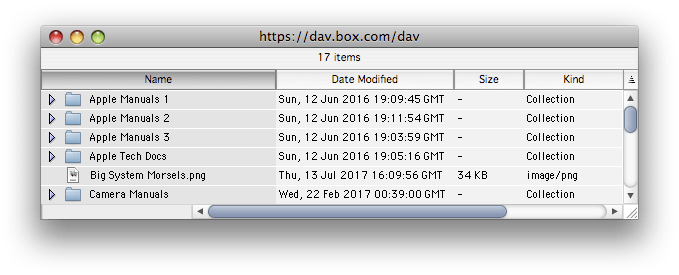
Goliath’s interface is simple and effective:

#alttext#

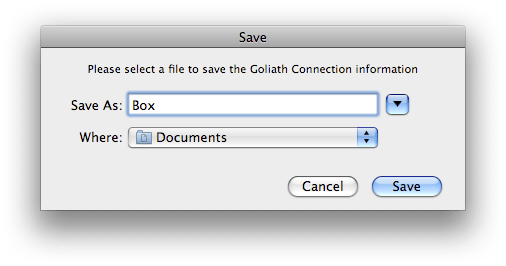
You can expand folders by clicking on the triangle next to their names, or you can double-click on a folder and have it open in a new window. It’s very easy to upload a file to a folder in your Box account: you just drag from the Finder and drop it on the destination folder in the Goliath window. To avoid having to type the WebDAV address of your Box ‘drive’ and your credentials every time, you can save them by selecting File > Save connection (⌘-S).

#alttext#

Next time you need to access your Box stuff with Goliath, you simply select File > Open connection (⌘-O). I really hope Box doesn’t remove the WebDAV functionality in the future, because it’s really useful and convenient to have quick access to your files stored in the Box cloud even from older machines. It’s another little feature that helps to put them to good use.

Addenda

[Update 1 – 19 Jul 2017] • Jeremy Sherman reminded me that WebDAV is supported directly by Mac OS X’s Finder itself since Mac OS X 10.0 (!). This means that you can simply select Go > Connect to Server (⌘-K) in the Finder, and enter Box’s WebDAV server address (https://dav.box.com/dav). In the following dialog, you’ll be requested your Box account credentials:

Box WebDAV from Finder.png


The good thing is that this solution is even more integrated with the system and works with basically any version of Mac OS X. I maintain my suggestion to use Goliath because on older machines with G3 processors it feels a little bit faster, and because it’s still a good option for Macs running Mac OS 8.1 to 9.2.2.

[Update 2 – 20 Jul 2017] • I performed some tests on my clamshell iBook G3/300 running Mac OS X 10.3.9 and Mac OS 9.2.2. I tried connecting to my Box account via the Finder under Mac OS X 10.3.9, but I got an error -36. Using Goliath, everything went well. Under Mac OS 9.2.2, I had no problems connecting to my Box account with Goliath. Navigating folders and accessing files was pleasantly fast. Now I’m updating this article while out and about, using my 12-inch PowerBook G4, and I can add this screenshot that was uploaded directly to Box from the iBook with Mac OS 9.2.2:

#alttext#

Maybe I’m not the first to have realised it, but I think this is a big deal, and a huge improvement to my workflow, much more seamless than before. Thanks to WebDAV support in Box, and thanks to a client like Goliath, you can have access to a modern cloud service with — in this instance — an 18-year old Mac running a 16-year old system software. Tonight I will conduct further testing on the PowerBook 1400c with Mac OS 8.1. If all goes well, I’ll be able to connect to Box using a Mac from 1996 running an OS version introduced in 1998.

It’s also a big deal because transferring files between obsolete Macs, vintage Macs, modern Macs and even iOS devices has become much faster and much more seamless than before. And I can quickly upload to the cloud any file I may have archived on vintage media (floppies or ZIP disks, for example) without having to figure out which vintage Mac I have to use as intermediary to move files from a machine to another.

[Update 3 – 21 Jul 2017] • I finally had the chance to do some testing on my PowerBook 1400c (with Sonnet Crescendo G3/333 upgrade) running Mac OS 8.1. I downloaded and installed Goliath, but when I launched it I was greeted with an error, saying that the application couldn’t be opened because the file ICAp;InternetConfigLib was missing. After a bit of research, it appears that the reason was that I needed a newer Internet Config Extension than the one installed in the PowerBook (v. 1.3). Using TomeViewer, I extracted a newer version (2.0.2) from the Installation CD of Mac OS 8.5, hoping it wasn’t too new, and dropped it in the System Folder. I restarted the Mac, relaunched Goliath, and all was well. After filling in the relevant credentials, I was able to connect to my Box account:

#alttext#


One thing I noticed is that — presumably to maintain a proper secure connection — when I attempted a few copy operations at first, I frequently saw this dialog popping up:

#alttext#


But it went away after checking the Install certificate option and confirming a couple of times.

I’m very glad this is working even under Mac OS 8.1. Accessing Box via WebDAV really gives this cloud service the widest system compatibility. I have two other PowerPC machines running Mac OS 8.1, the PowerBook 5300ce and the Power Macintosh 9500, that are even slightly older than the 1400; it’s exciting to be able to exchange files through Box with these older Macs I still use. Of course, another thing I’ve noticed is that uploading and downloading isn’t a particularly fast operation, possibly due to the slower network speeds and slower CPUs of these machines. But it’s still useful when uploading the occasional screenshot or image, or a bunch of text files. It may not be a fast process under Mac OS 8, but it’s still seamless. I can write without distractions on the PowerBook 1400c, upload the document to Box, then finish it (if necessary) on the iPad or MacBook Pro.

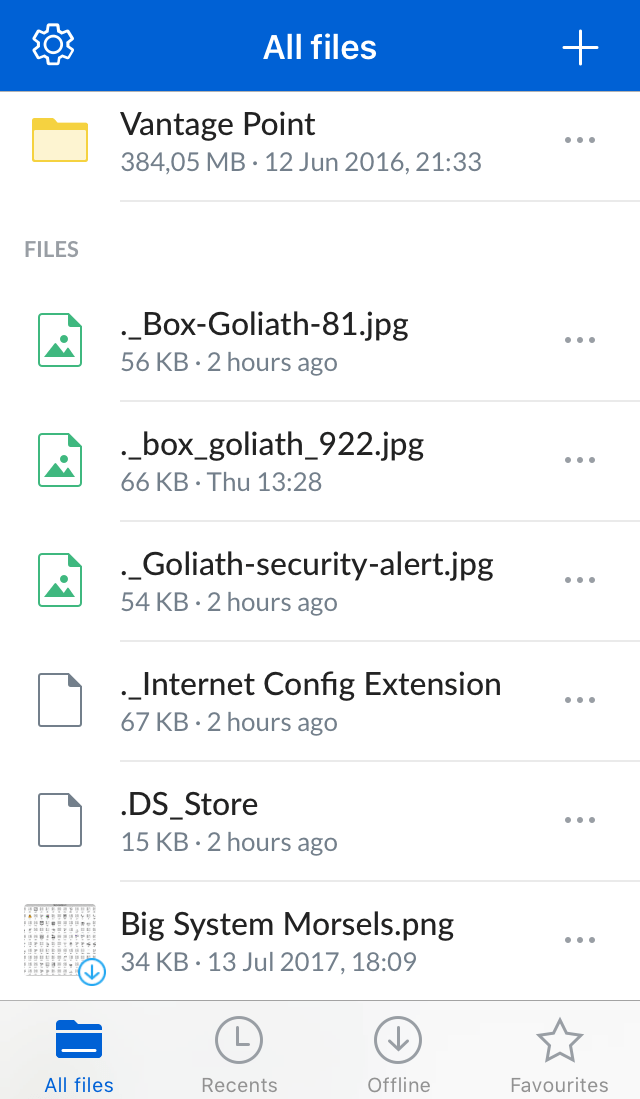
Another thing worth noting: I don’t know if this happens when mounting the Box WebDAV volume with the Finder as opposed to using Goliath, or if this happens no matter which method you use to access your Box account and files, but every copy operation leaves a ‘ghost’ file bearing the same name of the file you copied, but preceded by ‘._’ — you can see it when accessing Box from an iOS device:

#alttext#


It’s a bit of an annoyance, but I think these files can be deleted without problems.

[Update 4 – 24 Jul 2017] • Jeremy Sherman again (a very big thank-you to him, by the way): Suspect those ghost files are Apple Double files – they’re the resource fork of your files. Data fork goes in SomeFile, resource fork in ._SomeFile. And I agree. Jeremy’s been reminding me of things I knew but forgot over time.

[Update 5 – March 2020] • Apologies for being so slow in updating this document. As you’ve certainly seen in the comments, Arthur Lee points to this Box Support article where Box states:

As of October 25, 2019, Box has ended WebDAV support. If you have been using WebDAV you can continue to use it, as described in this article below. But we are no longer resolving any issues that may arise as a result.

Box recommends using third-party clients for mapping a drive to Mac OS X.

While the article says, If you have been using WebDAV you can continue to use it, I have made a few tests under Mac OS X 10.4 Tiger and 10.5 Leopard, and I wasn’t able to connect to my Box account. Under both Tiger and Leopard, the following happens:

  • When using the Finder to connect to https://dav.box.com/dav, the connection wasn’t established. I got a ‘server not found’ kind of error.
  • When using Goliath to connect to https://dav.box.com/dav, whether I added my account login credentials or not, Goliath would open an empty window.

This setback really annoys me. Sure, one could always resort to accessing Box via a browser (TenFourFox, of course), but the WebDAV method was more elegant and less resource-hungry.

This document will be updated as more information becomes available.

The second-best browser for PPC Macs

Every time someone with a vintage G3/G4/G5 PowerPC Mac asks me what browser would be my preferred choice for such systems, I always suggests TenFourFox, because it’s stable, secure, and actively maintained. However, you may have a Mac that barely meets — or doesn’t meet at all — TenFourFox’s minimum system requirements:

TenFourFox requires a G3 Power Macintosh, Mac OS X 10.4.11, 200MB of free disk space and 512MB of RAM. 1GB of RAM and a G4 or G5 processor is strongly recommended. Video playback is likely to be poor on systems slower than 1.25GHz; a G5 is recommended. Mac OS X 10.5.8 is supported. Although the browser may run under Mac OS X Server, it is not currently supported.

For example, I have three machines I use from time to time:

  • A blueberry clamshell iBook G3/300, with 288MB of RAM, running Mac OS X 10.3.9;
  • A graphite clamshell iBook G3/466 SE, with 576MB of RAM, running Mac OS X 10.4.11;
  • A PowerBook G3/400 ‘Lombard’, with 256MB of RAM, running Mac OS X 10.4.11.

Of these, the only Mac that can (barely) run TenFourFox is the iBook G3/466.

So, which is the best alternative when your Mac isn’t powerful enough to smoothly run the excellent TenFourFox? In my opinion, it’s Camino.

Camino’s development ceased in 2012. Other alternatives, such as an older version of Opera, or the last version of Safari you can run under Panther or Tiger, are simply too old to be useful. Opera 10.63, the last version you can run under Tiger, was released in 2010. Camino is newer, and it also appears to be less resource-hungry.

Using my PowerBook G3/400 ‘Lombard’ as a test machine, I did an informal comparison between Safari 4.1.3 (the last version running under Tiger), Opera 10.63, and Camino 2.1.2. I’ve loaded some of the websites I visit most frequently, and assessed how each browser could render it. Camino always ended up serving the best or most usable version. As an example of a site that’s complex enough but not overly challenging, I’ll show here how the three browsers rendered the home page of Digital Photography Review.

This is Safari 4.1.3:

DPReview-Safari.png

Note the message in the status bar: 83 errors occurred in opening the page.


This is Opera 10.63:

DPReview-Opera.png

Not much different from Safari.


Finally, this is Camino 2.1.2:

DPReview-Camino.png


Definitely better. Admittedly, while loading the site in Camino, this warning appeared:

DPReview-Camino-warning.png

I just clicked on Continue and DPReview loaded without issues. The unresponsive script mentioned in the warning is probably the website’s Twitter widget (as you can see above, it didn’t load). Nothing major.

Here’s another couple of examples, Macworld and The New York Times:

MacWorld-Camino.png

(Yes, curiously the ‘Macworld’ logo didn’t load.)


NYT-Camino.png


It’s worth pointing out that web browsing on a G3 Mac with just 256MB of RAM generally isn’t much fun. Websites take a bit to load, even those that look simple on the surface. Camino’s speed on such a Mac is the most acceptable in my experience.

Download and links

  • Camino 2.1.2 can still be downloaded from the official website. It requires Mac OS X 10.4. If your Mac won’t go past Mac OS X 10.3.9 (Panther), you could try Camino 1.6.11.
  • You can download processor-specific optimised builds of Camino from this website. While you’re there, check the home page, and you’ll find optimised builds of Firefox, Thunderbird, and SeaMonkey for PPC Macs.
  • The Wikipedia page for Camino offers a good overview of its history, timeline, and version compatibility.

Added to the collection: accessories and materials

With regard to acquisitions for my small collection, I can say that May was a really good month. After the very nice haul I talked about in my previous entry, I received a package from Morgan which contained a few items of interest:

  1. Macally 10BaseT/10Base2 Combo LC PDS Ethernet Adapter. After finally installing a similar Ethernet card in my Colour Classic, now I can give an Ethernet connection to my Performa 630, too.
  2. #alttext#

  3. PowerBook 1400 series User’s Guide in Italian. I’m a so-called ‘power user’, but it’s nice to have these manuals handy anyway. I really miss the quality of this kind of printed documentation.
  4. #alttext#

  5. Macintosh Advantage Information Kit. I saved the best for last. It seems that in the mid-1990s, Apple would send these materials for free to anyone who wanted to evangelise and spread the word about the superiority of the Macintosh platform. Here’s a scan of the envelope:
  6. #alttext#


And now the contents.

  • An introductory letter:

#alttext#

It should be readable, but here’s the full text:

Dear Mac Enthusiast:

Thank you for your order. Apple Computer is happy to provide you with these materials free of charge to help you spread the word about the Macintosh Advantage.

It’s easy to talk about the advantages of using a Macintosh if you think of them as belonging to one of these six groups:

Ease of Use: Making sophisticated technologies simple to use has always been one of Apple’s strengths. From true “Plug and Play” to active help through Apple Guide, now more than ever, the Macintosh is the easiest computer to own, use, and enjoy.

Multimedia: It takes more than capture boards, software and input devices to produce and view high quality multimedia. To combine such diverse media types as audio, video, MIDI, text, and animation, you must have an integrated solution; one designed from the ground up. With Apple’s QuickTime technology, three-dimensional graphics, video capture/playback, speech recognition and speech syntheses built into most Macintosh models, Macintosh is clearly the leader in multimedia and will continue to dominate this market.

Internet: Apple makes access to the Internet simple with the Apple Internet Connection Kit. And more web sites are authored on the Macintosh than any other platform. According to a recent Georgia Tech study, over 36% of web sites on the Internet are served by Macintosh servers.

Power: Powerful RISC technology now ships with every Macintosh. And with the introduction of the Power Macintosh 6500/300 with a 300 MHz 603e, and the 3400/240 with a 240 MHz 603e, Apple is producing some of the fastest consumer desktop and laptop computers on the planet!

Compatibility: The Macintosh fits in with almost all multi-vendor environments and can work seamlessly with PCs running MS-DOS, Windows 95 or Windows NT. For the ultimate in compatibility, the Power Macintosh 7300/180 PC Compatible with a PowerPC 604e running at 180 MHz and a Pentium 166 MHz chip on a daughter card allows you to run both Macintosh and Windows programs simultaneously.

Value: Apple is concerned about your investment. That’s why many Macintosh models ship with processors on daughter cards so they can be replaced with newer, faster processors as they become available, without having to purchase a new computer. Now configured with more RAM, bigger hard drives, faster CD ROMS, video in/out (many models), speech recognition, and the advanced features of the Mac OS, there has never been a better time to purchase a Macintosh.

Have you found more Macintosh advantages? Email us at [email protected]. Thank you for your support.

Apple Computer

Platform Marketing


  • A 4-page leaflet titled Apple and NeXT — Information about Apple’s OS strategy, January 1997:

#alttext#


  • A brochure titled Why Macintosh?, which reiterates a few points made in the accompanying letter. Here’s the introductory text:

More than 10 years after the debut of the Apple Macintosh computer, Microsoft released its Windows 95 operating system. But while Microsoft is just now adding to its Windows operating system features that Macintosh users have enjoyed since 1984, Apple has been busy moving Macintosh to the next generation of personal computing.

Apple remains the only personal computer company that makes both the hardware and the operating system, and we use that advantage to integrate advanced features quickly and seamlessly into our computers. That’s why Macintosh will continue to provide important advantages over PCs running Windows 95 in four major areas: Ease of use. Power. Multimedia. Compatibility.


  • A 14-page brochure titled 75 Macintosh Advantages — Why Macintosh computers are better than PCs running Windows:

#alttext#

As you have guessed, it’s a list of subjects and aspects where the Macintosh displays a clear advantage over a PC running Windows (Windows 95 at the time). The list covers different areas (Ease of use, Multimedia, Internet Technology, Power, Compatibility, Value — The same six areas introduced in the accompanying letter), and each point is explained in more detail.

Overall, it’s a fair assessment in my experience (I was both a Mac and PC user back then). There are points that made me smile, such as №5 Windows is loaded with ‘mystery’ files such as DLLs, INFs, and SYSs; Points that really sound dated today, such as №48 The Macintosh gives you 100 percent pure Java; Points that are a bit exaggerated, such as №27 The Macintosh trash can is easier to use than the Windows recycle bin, and №30 The two-button mouse used with Windows can cause confusion; And also points that are still valid today, such as №69 Macintosh computers retain their usability and value longer. It’s a fun read.


  • A 38-page booklet titled Why do People Prefer Macintosh?:

#alttext#

This is essentially a collection of testimonials of people who switched to the Mac from the PC. The introduction says:

Why do people prefer Macintosh?

Or more specifically, why do people think Apple Macintosh computers are better than PCs running Windows 95?

We asked this question on our web site (http://www.apple.com/whymac/), and thousands responded with their view of the Macintosh Advantage.

And you know what? We couldn’t have said it better ourselves.

See for yourself by looking at these excerpts from some of the responses. Find out how computer users — young and old, novice and experienced — sum up what they feel are the most compelling reasons to choose a Macintosh computer.

The booklet is full of different experiences, and it’s hard to pull quotes out of their context. There are, however, a few funny quips here and there:

“A Macintosh is better than Windows 95, because it connects to a Microsoft network easier!” (Hans Sorensen, Canada)

“We’re replacing my grandfather’s PC with a Power Macintosh 7500/75. And that’ll be the end of his late-night calls telling me he just wiped out his SYSTEM.INI file again.” (Tristan Bostone, Virginia)

“DOS, WIN, DLL, PIF, INI, DMA, IRQ.

MAC… The only three letters you really need to know.” (Marc Kodama, California)

“I have now connected my video camera and VCR to my Mac, and have been pumping video (and audio) in and out of my Mac. One of these days I’m going to open those manuals and really learn how to do this stuff!” (Walter Alexander, New Jersey)

This one sums it all up:

“Once you go Mac, you’ll never go back.” (Wade H. Nelson, Colorado)


  • A brochure titled Personal Computer Satisfaction — An Independent Study of People Who use Both Macintosh and Windows 95 Computers:

#alttext#


  • A brochure titled World Wide Web Server Cost-of-Ownership Study – June 1997:

#alttext#


  • And finally, some nice goodies:

#alttext#

I still haven’t had the time to properly explore the MacAdvocate II and the Mac OS 8 Demo Tour CD-ROMs (the latter is still shrink-wrapped!), having been ill for the past 2-3 weeks. The two items below the Mac OS 8 Demo Tour CD are two identical booklets containing information and statistics about the Macintosh platform as of January 1997. The three items on the right are stickers with the original rainbow Apple logo to place inside your car window. (The text on the back of the sticker reads: Show your Apple colors! Static ‘no glue’ logo for the inside of your car window. Call 800-373-0877 for more!).

Here’s how the Go figure booklet expands:

#alttext#

I may return on some of these items in future posts, and offer more details and comments. For now, I’ll just wrap this up and wholeheartedly thank my friend Morgan for sending me these materials. I had previously found a couple of low-resolution images and PDFs for one of the brochures mentioned above, but having the real thing in my hands is a whole other story!

A modicum of synchronisation

I’m still irked by Dropbox dropping support of PowerPC Macs running Tiger and Leopard. I know I’m not a typical Mac user, and that expecting support for an architecture that — at least on the Mac — was left behind in 2006 is a bit too much, especially given the short memory technology has nowadays. Still, I use a bunch of PowerPC Macs as secondary machines, they’re still useful and capable enough. When I work on some of my projects away from home, I often leave the Intel Mac at home and bring with me one of my G4 PowerBooks. When Dropbox worked, my workflow was excellent. I kept everything in sync without effort. I started working on documents on the PowerBook G4 to finish them later at home on the MacBook Pro, and vice versa. It was a seamless process.

Dropbox wasn’t the only thing I used to keep stuff in sync, but it had the best interface for handling files. Now that I’m left without it, here’s a brief overview of the tools I still use — tools that still work on PPC machines — to retain a modicum of synchronisation between my PowerPC Macs and more modern Apple devices:

  • Notational Velocity — This is an amazing tool for keeping notes in sync. The app is a Universal Binary that works great on a system as old as Mac OS X 10.4 Tiger and as new as Mac OS X 10.11 El Capitan. The syncing service is through Simplenote, so all my notes and bits of text are also available and in sync on iOS devices thanks to the Simplenote app.
  • CloudApp — It’s a great software/service for quickly sharing screenshots and all kinds of different files (images, videos, code snippets, documents, etc.), and I also use it as a sort of ‘Dropbox Lite’ whenever I need to pass one or more files from my MacBook Pro to my G4 PowerBooks and vice versa. I was an early adopter, and version 1.x of CloudApp was available for PowerPC Macs running at least Mac OS X 10.5 Leopard. Surprisingly, it still works. Up until a few months ago, if you went to CloudApp’s Download page, you could still download older versions (unsupported, of course). Not anymore. But the WayBack Machine is your friend. And if that archived link should stop working as well, I have saved version 1.0.3 for PowerPC Macs here.
  • Firefox Sync — I only recently had the proverbial ‘eureka moment’, when I realised that by creating a Firefox account, not only could I keep browser tabs, bookmarks, passwords, history, add-ons and preferences synchronised between my MacBook Pro and my iOS devices, but I could also include my PowerPC Macs because TenFourFox supports Firefox Sync — at least for now. It’s great and very handy.
  • FTP — Always an option, of course. I resort to FTP when dealing with big files. I upload them on my server and use Transmit to handle my stuff. You can download older versions of Transmit from Panic’s archives at this page (the last version supporting PowerPC Macs should be 4.2 — You’ll still need to purchase a licence to use the app, naturally).

This is an important subject: having some form of synchronisation available to create a bridge between vintage Macs and modern devices is essential in order to keep older Macs useful. If you have other ideas, use other methods, or know about other applications/services which still support PowerPC Macs, feel free to chime in. Recently, I became interested in BitTorrent Sync, but it doesn’t explicitly support PowerPC Macs. However, by looking at the supported platforms, I was thinking that maybe there was a way to make the FreeBSD versions work… I’m not fluent enough in UNIX, though; if you are, your suggestions are welcome!

Accessing Gmail from an older version of OS X Mail

I have lost more than thirty minutes trying to solve a small but annoying problem. The solution is rather simple, but it may not be apparent at first. I hope this post can help others who have stumbled upon the same issue.

I have a low-traffic Gmail account I usually check on my Power Mac G4 Cube using Mail.app in Mac OS X 10.4.11. Since it’s low-traffic, I don’t check it very often. But today I felt that a check was long overdue, so I opened Mail, clicked the Get Mail button, and I was presented with the annoying dialog box I sometimes see when there’s a network problem, the password confirmation dialog box. It appears that the pop.gmail.com server rejected my account password, so I was prompted to insert it again. I did, repeatedly, but to no avail.

So I logged in via the Web interface — without any problem — and found a message from Google that told me Google prevented the sign-in because it is from “an app that doesn’t meet modern security standards.”

At first I thought Google had updated/changed the server ports for incoming/outgoing mail, and after tweaking a few settings (I had the outgoing server port still set to ’25’ instead of ‘465’), I tried again to download my email messages. No joy. I then tried to look for an answer in the Gmail support pages, but my frustration and annoyance prevented me from finding what I was looking for more promptly.

I was about to give up, when I noticed an error message in Mail from the Gmail server that thankfully contained the link I was searching, and access to Gmail from Mail.app under Mac OS X Tiger was restored. The essential page is this one: Allowing less secure apps to access your account. You have to make sure you reach this page after you have signed in the problematic account via the Web interface.

Look down the page until you find this bit:

Gmail less secure

Click on the “Less secure apps” section of MyAccount link and you’ll be taken to the Less secure apps page. Click the Turn on radio button to allow access for less secure apps. Now go back to Mail, check for new mail, and the messages should start downloading.

Again, I hope this helps. And I hope it’s clear that in so doing, you’re choosing to weaken the security of your Gmail account(s) in exchange for the convenience of accessing the account(s) from a vintage Mac with older software. In my case, it’s not an important or primary email account, I have been downloading mail on the Cube from that account for the past six years, and I wanted to continue to do so.

A nice UI detail in NEXTSTEP’s Webster app

Nextstep webster

It’s that time of the year when I get drawn to the NeXT platform once again. Unfortunately I do not own any NeXT hardware, so I have to resort to software emulation to explore and interact with the NEXTSTEP operating system.

After starting the NEXTSTEP 3.3 virtual machine in Fusion, I was checking some unrelated information, when I remembered that NEXTSTEP had its own built-in Webster dictionary. When I opened the application, I noticed a nifty UI detail. You can tell the application to search for a term in the Dictionary, in the Thesaurus, or have both results in the same window. You can see at a glance where you’re searching, because the icon in the Dictionary and Thesaurus button will appear as an open or closed dictionary accordingly. So, in the image above, you can tell at once you’re just seeing results in the Webster Dictionary. To search the Thesaurus, you click on the Thesaurus button, and it’ll change to an open book icon. Vice versa, if you only want to see results from the Thesaurus and not the Dictionary, you click on the Dictionary button and it will ‘close’. It’s a very subtle, very clever UI detail that’s perfectly intuitive because it depicts exactly the action you’re carrying out — ‘opening’ the book you want to consult, and ‘closing’ the book you’re not interested in.

It’s interesting to note that in Mac OS X’s Dictionary app, you can’t have a concurrent view of the results from both the Dictionary and the Thesaurus, unless you open the app’s Preferences, deselect all the resources you don’t want to display except the Dictionary and Thesaurus, and select All in the sources toolbar after entering the search term in the main window. (Or you can choose File > New Window from the menu and have two app windows, one for the Dictionary, one for the Thesaurus, but it’s more cumbersome because you have to type the same search term in both windows.)