For most of the cases, you can look into Orchid Store documentation.
INSTALLATION
Since Orchid Store Pro is a plugin, we’ll follow steps that are different from installing a theme.
VIA WORDPRESS DASHBOARD:
You can install Orchid Store Pro via the WordPress admin dashboard. This will be the first process of installing Orchid Store Pro on your WordPress website. The instructions are as follows:
- Navigate to Plugins.
- Click on Add New button.
- Click on the Upload Plugin button. It will open the section below to upload the file.
- Click on the Choose File button and upload the .zip plugin file(Orchid Store Pro).
- Then click on the Install Now button.
- Once the installation is successfully completed, activate the plugin.
VIA FTP CLIENT:
- Login to your server’s file manager with an FTP client.
- Navigate to WordPress installation folder.
- Navigate to ../wp-content/plugins/ folder.
- Upload plugin folder with the FTP client into ../wp-content/plugins/ folder. Note: The plugin should be unzipped before uploading. If you’ve uploaded the zipped plugin file, you’ll have to unzip it.
- Login to WordPress dashboard & activate the plugin.
IMPORT DEMO DATA
Follow the same instructions as in Orchid Store Documentation to import demo contents.
MANAGE WIDGETS
Follow the same instructions as in Orchid Store Documentation to manage widgets.
There are 6 different additional widgets. There are extra layouts of OS: Banner, OS: Featured Product Categories, and OS: Recent Posts widgets, OS: Product deal widget, OS: Offer grid
OS: PRODUCT DEALS WIDGET
This widget also can be called a deal of the week, day or month widget to display exclusively on sale product.

In order to set display products in deal widget please do kindly follow the steps below.
- Navigate to Dashboard > Products > All products
- Edit the product that you are willing to display at the deal widget

- Click save button
- Repeat this process to at least 3 products
- Done with the products now it’s time to put Os: Product deal widget to front page widget area.
Now, navigate to Appearances > Widget
- Find OS: Product deal widget
- Drag & drop product deal widget to the front page widget area
- It should work & display all the scheduled products with the count down clock.
OS: GRID OFFER WIDGET
This widget is used to display offer banners in the grid.

This widget can be used to display 1,2 or 3 images columns in a row. If you are willing to go with 2 or 3 columns make sure you use image banner with the same height. Below are the best image size for offer banners.
- 1 Banner image: 1300px width by any px height
- 2 Banner images: 600px width by 200px – 250px height
- 3 Banner images: 450px width by 200px height
If you wish to write text within the image itself you can simply skip with other text fields but make sure you check display this block while using this widget.
OS: FEATURED BRANDS WIDGET
This widget is used to list your associate brands or companies.

OS: CTA WIDGET
This widget serves as Call To Action.

OS: TESTIMONIAL WIDGET
This widget is used to showcase your customer’s testimonial.

OS: THREE COLUMN PRODUCT WIDGET
This widget is used to display products of three different product categories.

OS: BANNER/SLIDER WIDGET

OS: RECENT POSTS WIDGET

OS: FEATURED PRODUCT CATEGORIES WIDGET

OS: INSTAGRAM WIDGET
Instagram feed widget is added in pro version addon plugin since version 1.0.2. You can use the Instagram widget in the frontpage widget area.
MANAGE HEADER
Although most of the header options are the same, Orchid Store Pro has newer pro options for the header. Orchid Store Pro has a new header layout, advanced color options and typo options for the header.

Navigate to Appearance > Customize > Header to play with advanced header options.
CUSTOMIZER: OPTIONS & SETTINGS
In the customizer, there are advanced options are added. You’ll find the advanced color and advanced typography options in most of the sections in customizer.
Navigate to Appearance > Customize, and configure front-end sections with available options.
SUPPORT
If you’re having difficulty with the theme and documentation is not helping you, you can drop your questions and queries on our Support Forum or through the support page. We will try our best to get back to you within 24 hours.
]]>Please click image if text written at image is not visible properly
THEME INSTALLATION
Every WordPress themes can be installed in two different ways. Here is the installation process below. Watch the video below.
VIA WORDPRESS DASHBOARD:
You can install a theme via the WordPress admin dashboard. This will be the first process of installing a theme on your WordPress website. The instructions are as follows:
- Navigate to Appearance > Themes.
- Click on Add New button.
- Search and install this theme from the WordPress repository or manually install the downloaded theme.
- To manually install the theme, click on Upload Theme button.
- Upload a theme file with .zip file format and click on Install Now button.
- After theme installation is completed, activate the theme.
VIA FTP CLIENT:
- Login to your server’s file manager with FTP client with your FTP user-name & password.
- Navigate to WordPress installation folder.
- Navigate to ../wp-content/themes/ folder.
- Upload theme folder with the FTP client into ../wp-content/themes/ folder.
- Login to WordPress dashboard & activate the theme.
ACTIVE HOMEPAGE
Since Orchid Store is an eCommerce WordPress theme. It has to be used activating the static front-page.
Let’s go ahead & activate a static front-page for Orchid Store. Please follow the instruction below:

- Go to Dashboard > Pages
- Create a new page with the title “Home”
- Publish or Update page “Home”
- Now go Dashboard > Appearances > Customizer > Homepage setting
- Choose static page option & enable homepage content checkbox.
- Done. Now your homepage has been activated.
Note: If you would like to build your homepage with elementor make sure you turn off “Enable homepage content” checkbox.
RECOMMENDED PLUGINS
Here is a list of few essential WordPress plugins that need to be activated in order to get full functionality in Orchid Store WordPress theme.
- Woocommerce
- YITH wishlist : for wishlist feature
- YITH quick view : for quick view feature
- Themebeez toolkit – to import demo data, icons for menu items & activate a mega menu
- Elementor: Optional plugin if you wish to extend Orchid Store using page builder
Note: You will also get recommended plugins admin notice at the dashboard while installing Orchid Store WordPress theme. If you haven’t activated those plugins yet. Please do kindly install & activate them now.
THUMBNAIL IMAGE SIZES
To minimize the page load time, Orchid Store uses appropriate image thumbnail sizes. Below are the thumbnail sizes that are used in the Orchid Store WordPress theme.
OS BANNER WIDGET:
OS: Banner widget uses two different image sizes. The bigger image at left side slider uses images of 900px width by 500px height. Whereas, thumbnail used on right side of the banner ( two small images ) is 450px width by 250px height.
BLOG POSTS FEATURED IMAGE:
The recommended thumbnail size for blog posts featured image is above 850px width by 450px height
OS: ADVERTISEMENT WIDGET:
Please use image of 1920px width by 600px height
PAGE HEADER OR BREADCRUMB IMAGE:
Recommended size is 1920px width 600px height
WOOCOMMERCE PRODUCT IMAGE:
Recommend size is above 800px width by 800px height with pure white background colour
OS: SERVICE WIDGET SMALL ICONS:
You can get small icons from flaticons or icons8 for free. Recommend size is 64px width by 64px height. Make sure you use a white colour image.
Note: If you’ve switched theme, don’t forget to regenerate all the thumbnails. Otherwise, images will be displayed in undesirable sizes. Use Regenerate Thumbnails, plugin to regenerate thumbnails.
WISHLIST
In order to implement a wishlist feature in Orchid Store WordPress theme, we have used a 3rd party plugin by YITH called YITH wishlist. Once this plugin is installed, we are supposed to assign it a wishlist page. In order to create & assign a wishlist page kindly follow the steps below.

- Navigate to Dashboard > pages
- Create a page with title “Wishlist” & click publish
- Go to dashboard > YITH > Wishlist
- Select the page that you have create for wishlist. For this example, our page is “wishlist”.
- Click save button
- Done.

IMPORT DEMO DATA
To import demo contents, you must first install & activate Themebeez Toolkit plugin. If you haven’t done yet do kindly active it.
Importing demo content is not compulsory. Import demo data speedups the work for you to quickly set up your online shop just like in our demo.
- Install and activate Themebeez Toolkit plugin.
- Once activated, you’ll see Orchid Store menu on your dashboard. Click on it.
- Then click on Starter Templates tab.
- There, you will see available demos and click on import which you like most.
- Wait ( approx: 3 – 5 minutes ) to get all data to be imported as per your internet speed.
- When demo import is done, now its time to setup widgets, banner, menu and few other settings according to your requirements.
Note: Please do make sure you install all recommended plugins before you import demo data. If you face any issue while importing demo data please do kindly let us know.
MANAGE WIDGETS
Since everything in Orchid Store WordPress theme is a widget, you can swipe their widget area to change the look & feel. Watch the video below.
Let’s look at all the available widgets in the Orchid Store WordPress theme.

Here is a brief description of what these widget do & look like:
OS: ABOUT WIDGET:
About widget is used to display store information. It has an option to display like logo, store phone number, address, description, social media & store operational time.
Note: You can use os: about widget at footer widget area or sidebar
OS: BANNER WIDGET:

This is how the os: banner widget look like. You can use this Os: Banner widget in Front-page widget area.
Note: You can use the banner widget at Front-page widget area.
OS: FEATURED PRODUCT CATEGORIES
This widget helps to display the selected category. It looks like the below screenshot.

Wondering how to set pictures in these categories?
In order to set pictures in these categories do kindly follow the instruction below.
- Go to Dashboard > Products > Category
- Edit the category
- You will notice a file upload field just next to save button
- Click at upload field & select picture from media
- Click Save.

Note: You can use the featured categories widget at Front-page widget area.
OS: OFFER ADVERTISEMENT WIDGET
We also call this widget a Call to action ( CTA ) widget. It helps to display offer advertisement. You can use this widget
Note: You can use the offer advertisement widget at Front-page widget area.
OS: PRODUCT WIDGET
Os: product widget is the main widget in Orchid Store WordPress theme. Product widget displays Woocommerce products at your website. At the moment of writing this documentation guide, we do have two types of product widget. They are as follows.
- Grid view – Displays products in a grid
- Slider view – Displays product in the carousel slider
Note: You can use the product widget at Front-page widget area.
OS: PRODUCTS BY CATEGORY FILTER
This is just a product widget but we have made this a separate widget because it has a capability to display different categories along with the product in that specific category. Below is the screenshot of how the products by category filter look like in front-end.

Note: You can use the product widget at Front-page widget area.
OS: RECENT BLOG POSTS
It helps to display your blog posts in the front page. Simply publish a post with featured image & use this widget at front page widget area.
OS: SERVICE WIDGET
We also call this widget a CTA widget. It has three columns where you can write a small title & a few lines of description along with the small image icon. You can get small icons from flaticons or icons8 for free. Recommend size is 64px width by 64px height. Make sure you use a white colour image.

REST WORDPRESS & WOOCOMMERCE DEFAULT WIDGETS
There is plenty of other default WordPress & Woocommerce under Dashboard > Appearances > Widgets. We hope you know about them. Most of the default WordPress & Woocommerce default widgets are designed to be used at sidebar or footer widget area.
MANAGE HEADER
Header layout can be managed from Dashboard > Appearances > Customizer > Header.
Regarding Menu item as always, they can be managed from Dashboard > Appearances > Menus
SITE LOGO OR SITE TITLE
Site logo or title can be changed from Appearances > Customizer > Header > Site Identity. The recommended size for the logo is 260px width by 70px height.
HEADER TOP ITEMS & SOCIAL ICONS
Header top items & social icons option is available at Appearances > Customizer > Header > Top Header. Where My-account & Wishlist automatically is displayed.
Update: since version 1.1.4 now you have option to select either 2 static links or a menu. Choose the header top menu location at Dashboard > Menus.
PRODUCT SEARCH, WISHLIST ICON & MINI CART
You can either enable or disable product search, wishlist icon & mini cart from Appearances > Customizer > WooCommerce Elements
SPECIAL/CATEGORY MENU AT HEADER

Special menu at Orchid Store WordPress theme can be used to display categories or any menu item links. It supports icon & menu description too. Unfortunately, the mega menu for the special menu is not available in the free version but it is available in pro version.

FYI: Please be informed that the maximum dept of menu items at a special menu in free versions just two.
PRIMARY NAVIGATION/MENU
This is the most important part to understand. This is how primary navigation looks like ( Screenshot below).

You can set/manage menu items to this location from Dashboard > Appearances > Menus
PRIMARY MENU LOCATION & MEGA MENU

Not sure yet how you can do it? Watch the video below.
Note: If above screenshot is not visible properly, do click on the image
The location of the primary menu should be check as “primary menu” ( Look at the bottom of the screenshot ) then click save.
MENU DESCRIPTION OR MENU LABEL

In order to enable a menu description or menu label click on screen option toggle button.

Once you check the description, click save menu button. Now you will see a menu description box inside all menu items.
MEGA MENU:
Orchid store free version is capable to display only links at the mega menu & setting up mega menu at Orchid Store is pretty straight forward. All you need to do is to check set it as mega menu group for the parent menu item that has a mega dropdown. Megamenu can have max up to 6 columns.

At the above screenshot example ( Female, Men, Health & Fitness, Furniture ) were mega menu subgroup. Make sure you maintain dept of menu items & put the mega menu child items inside mega menu subgroup.
CUSTOMIZER: OPTIONS & SETTINGS
Orchid Store is totally built with WordPress Live customizer. You can enable or disable options & settings from the customizer. You can access customizer as always from Dashboard > Appearances > Customizer
Let’s jump straight to the options & settings that are at customizer.
SITE PAGES
All options related to different pages like Blog page, Search page, Post single page, Default page, Page header image/breadcrumb image are located at Dashboard > Appearances > Customizer > Pages.
These are the options available under Dashboard > Appearances > Customizer > Pages.
- Page header/breadcrumb image option
- Enable/disable category
- Enable/disable post date
- Enable/disable post author
- Sidebar position
- Display/Hide featured image
COLOURS
Orchid store WordPress theme has 4 different colour options which are as follows:
- Primary theme skin colour
- Secondary theme hover & special menu at header colour
- Background colour
- Site title & description text colour
In order to change colours, please go to Dashboard > Appearances > Customizer > colors
FOOTER
Willing to display copyright text at footer? Is yes please go to Dashboard > Appearances > Customizer > Footer. Here you can set copyright text, Payment getway image, Number of footer columns.
Note: Recommended image size of payment getway image is 300px width by 20px height.
Note: You cannot remove Orchid Store by Themebeez.com text at the footer in Orchid Store free version. If you wish to remove that author credit text kindly purchase Orchid Store Pro.
EXCERPT
Excerpt refers to the short description. If you wish to change the number of the Words that are currently being displayed at blog, archive & search pages you can change here. Excerpt setting can be found at Dashboard > Appearances > Customizer > Excerpt
BACKGROUND IMAGE
Willing to display background image at your website? You can set background image or colour from Dashboard > Appearances > Customizer > background
WOOCOMMERCE SETTINGS
All the options related to WooCommerce can be found at Dashboard > Appearances > Customizer > WooCommerce . Followings are the options & settings available.
- Shop page – product columns
- Related product columns
- Cross-sell product columns
- Upsell products columns
- Product images aspect ratio
- Shop notice
- WooCommerce sidebar option
- Product added to cart message
- Product removed from cart message
- Cart item updated message
ELEMENTOR: OPTIONAL
Orchid store is partially compatible with the Elementor page builder. We are not saying fully because it has limitations too. As we know everything has a limitation after some point. Talking about limitation at Orchid Store you can use widgets of Orchid Store through the Elementor page builder but you will not have full control over those widgets that Elementor has offered.
Watch the video below which shows basic walk through ion how you can build your homepage with Orchid Store theme & Elementor.
Let’s look at the Elemetor page builder widget section.


You can drag and drop these widgets & you can also use default Elementor widget in between of those widgets. Hence, building custom pages with Elementor page builder & Orchid Store theme is possible.
TWEAK ELEMENTOR SETTINGS
We recommend you to change few Elemetor settings before you start building pages with Elemetor.

Followings are the settings that need to be changed while using Elemetor page builder.
- Change Elementor container size to 1170px
- Change space between widgets to 15px
- Change Tablet breakpoint to 1024px
- Change enable font awesome 4 support to yes from the Advanced tab
- Disable default Elementor font & color option from General tab
GDPR COMPLIANCE
The Orchid store theme itself does not store any user data. However other services like WooCommerce, addons for WooCommerce & WordPress do store & collect user data.
If you wish to display a simple notifier to notify users that your site makes uses of cookies and to comply with EU GDPR regulations you can install Simple GDPR Cookie Compliance plugin made by us.
If you would like to have a demo of how cookie compliance you can visit our blog.
TRANSLATE ORCHID STORE

Are you willing to translate Orchid Store Theme in your own language? Orchid Store is translation ready & has a POT file inside the theme file language folder. If you wish to contribute to translating Orchid Store please feel free to let us know at Orchid Store support forum.
GET SUPPORT
Do you need help while using Orchid Store WordPress theme? If yes please do kindly let us know at Orchid Store support forum or through the support page. We will try our best to get back to you within 24 hours.
]]>1. INTRODUCTION
Fascinate Pro is a professional version of free WordPress theme, Fascinate, which is mainly targeted for the bloggers who publish posts related to travel, gourmet, people and their lifestyle, fashion trends, latest technology etc. Fascinate Pro is a beautifully designed theme with many advance customization options for managing colors, typography, layouts, widgets and many more. Fascinate Pro is 100% responsive, multiple device compatible and cross browser compatible theme. Fascinate Pro is developed following WordPress standards and is a translation ready theme.
2. THINGS TO KNOW
Recommended Plugins
- Themebeez Toolkit: Themebeez Toolkit is a companion plugin for all our themes. This plugin consists of theme information and extends functionality of theme. Note: To import demo contents, this plugin is required.
- Contact Form 7: Contact Form 7 is a simple plugin which can be used to create contact forms and use those forms on your pages.
- Regenerate Thumbnails: Regenerate Thumbnails is a plugin to regenerate thumbnails defined in theme. Note: If you’re switching theme, then it is essential to install this plugin and regenerate all the thumbnails.
Thumbnail Sizes
To minimize the page load time, Fascinate has built in option to load image in background, technique also known as Lazy Load.
- 800px by 450px – It is the most used thumbnail size. It is used in blog/home page, archive/category page, search page, post widget and other areas.
- 450px by 450px – This thumbnail size is used only for Related Posts section of Post’s Single.
Note: If you’ve switched theme, don’t forget to regenerate all the thumbnails. Otherwise images will be displayed in undesirable sizes. Use Regenerate Thumbnails, plugin to regenerate thumbnails.
3. THEME INSTALLATION
Via WordPress Dashboard
You can install theme via WordPress admin dashboard. This will be the first process of installing theme in your WordPress website. The instructions are as follows:
- Navigate to Appearance > Themes.
- Click on Add New button.
- Search and install this theme from WordPress repository or manually install the downloaded theme.
- To manually install the theme, click on Upload Theme button.
- Upload theme file with .zip file format and click on Install Now button.
- After theme installation is completed, activate the theme.
Via FTP Client
- Login to your server’s file manager with FTP client with your FTP user-name & password.
- Navigate to WordPress installation folder.
- Navigate to ../wp-content/themes/ folder.
- Upload theme folder with the FTP client into ../wp-content/themes/ folder.
- Login to WordPress dashboard & activate the theme.
4. ACTIVATING LICENSE KEY
On purchasing Fascinate Pro theme, you’ll receive mail containing a download link for downloading theme file and License Key. Use that key to activate the theme. Instructions for activating License Key are as follow:
- Navigate to License Manager.
- Insert the License Key in the field below the title FASCINATE PRO LICENSE.
- Click on Save button.
Note: Activating License Key will allow you to receive regular update of the theme. And if you face any problem while activating the License Key, contact us.
5. IMPORTING DEMO CONTENTS
Note: To import demo contents, you must first install Themebeez Toolkit plugin. And after that install all the required plugins.
- Install and activate Themebeez Toolkit plugin.
- Once activated, you’ll see Fascinate Pro menu on your dashboard. Click on it.
- Then click on Starter Templates tab.
- There, you will see available demos and click on import which you like most.
- Wait ( approx: 3 – 5 minutes ) to get all data to be imported as per your internet speed.
- When demo import is done, now its time to setup widgets, banner, menu and few other settings according to your requirements.
6. MANAGE MENUS
This theme has two menu locations defined. They are:
- Primary Menu: This menu location is used to set primary menu in header.
- Top Header Menu: This menu location is used to set links at the top section of header.
To manage menus, navigate to Appearance > Menus on your WordPress dashboard.
Here’s a video guide to set up menu:
7. MANAGE WIDGETS & WIGET AREAS
In this theme, there are altogether Four widget areas and Three custom widgets. All the widget areas and widgets are managed at Appearance > Widgets.
The four widget areas are as follow:
- Sidebar
- Footer Left, Footer Middle and Footer Right
- Header Advertisement
- Instagram Widget Area
- Woocommerce Sidebar
Sidebar: This widget area holds the widgets displayed at sidebar.
Footer Left, Footer Middle and Footer Right: These widget areas are used to display widgets at the footer.
Header Advertisement: This widget area holds the widget for displaying advertisement. Note: Header Advertisement works only when header layout seven is selected.
Instagram Widget Area: This widget area holds the Instagram widget which is displayed above the footer.
Woocommerce Sidebar: This widget area holds the woocommerce widgets and is only displayed on woocommerce related pages.
The three widgets are as follow:
- FP: Author Widget
- FP: Posts Widget
- FP: Social Widget
- FP: Instagram Widget
- FP: Category Widget
FP: Author Widget – This widget displays information about the author. Here detail about the author comes from a page created for author detail.
FP: Posts Widget – This widget displays recent posts. There are two layouts. Select one of the layout to display recent posts.
FP: Social Widget – This widget displays the social links.
FP: Instagram Widget – This widget displays Instagram images.
FP: Category Widget – It is a custom category widget that displays list of selected categories.
Here’s a video guide to manage Widget Areas and Widgets:
8. THEME CUSTOMIZER
Almost all of the customization are included inside Theme’s Customizer. The theme customizer includes:
- Site Layout
- Site Preloader
- Site Header
- Site Pages
- Site Carousel
- Featured Categories
- Breadcrumb
- Pagination
- Site Image
- Site Sidebar
- Site Footer
- Post Excerpt
- Site Background
- Social Share
- Site Typography
- Site Color
- And so on
To find and manage customization options, navigate to Appearance > Customize.
9. MANAGE SITE LAYOUT
There are two layouts for displaying your website. One is Boxed Layout and other is Full Width Layout.

To manage the site layout, follow the instructions below:
- Navigate to Appearance > Customize > Site Layout.
- Select any one of the layout from between Boxed Layout and Full Width Layout.
10. MANAGE HEADER

To manage or customize header section, navigate to Appearance > Customize > Site Header. There you’ll find following sections:
- Site Identity(Logo): This section contains the options for managing Site Logo or Site Identity.
- Site Icon(Favicon): This section contains option to set Site Icon or Favicon.
- Header Layout: This section contains the options for selecting header layouts and configuring background colors for different sections of header.
- Header Menu: This section contains color options and typography options related to primary menu.
- Header Links: This section contains typography options and color options for social icons, search icon and top header links.
- Header Image: This section contains options to set background image for header. Note: If you’ve set header image but header image does not show up, then minimize the opacity of background color of header sections. The options are available inside Header Layout section.
Here’s a video guide to configure Site Identity:
Here’s a complete video guide to configure site header:
11. MANAGE SLIDER SECTION
To manage slider/carousel follow the instructions below:
- Navigate to Appearance > Customize > Site Carousel.
- Inside this section, you’ll find multiple options.
- Display Carousel: This option let’s you display carousel section in your home page.
- Carousel Category: This option let’s you select a post category. Posts of the category that you’ve selected will be displayed as carousel items.
- No of Carousel Items: This option let’s you set the no of posts or say carousel items to be displayed.
- Display Carousel Content: This option let’s you display post information.
- Carousel Layout: Select any one of the two carousel layouts that you prefer on your home page.
- Enable Spacing: This option let’s you set space around the carousel.
- Carousel Height: This options let’s you set height of the carousel. The height works only for the larger devices where as smaller devices use the default height.
- Post Title Typography: This section contains options for managing typography of Post Title of posts displayed for carousel.
- Once you’ve configured the options, click on Publish button to save it.
Note: Site Carousel only works for the home page. It will not work on any other pages or a static home page.
Here’s a complete video guide to manage carousel section in Fascinate Pro:
12. FEATURED CATEGORIES
Featured Categories section is displayed below the carousel in home page.
To manage this section, navigate to Appearance > Customize > Featured Categories. Here you’ll find the following options:
- Display Section – To show/hide featured categories section in home page.
- Select Categories – Categories selected are displayed.
- Select Image Thumbnail Size – Image with the selected thumbnail size will be displayed.
- Select Number of Columns – Categories will be displayed in grid with select number of columns.
Note: If you’ve selected the categories, and the selected categories are not selected, then, it is because you’ve set images for selected categories.
To add image for category, follow instructions below:
- Navigate to Posts > Categories.
- Edit any one of the categories.
- Below Description option field, you’ll find option field, Image.
- Upload image for category and then click on Save button.
You can also add to image during creating a category.
13. MANAGE FOOTER
The footer area is divided into two areas, one to display footer widgets and other to display copyright and theme credit. To manage the footer widgets, navigate to Appearance > Widgets. And to manage copyright and credit information, navigate to Appearance > Customize > Site Footer. You’ll also find color options as well as typography options for footer sections and footer elements.
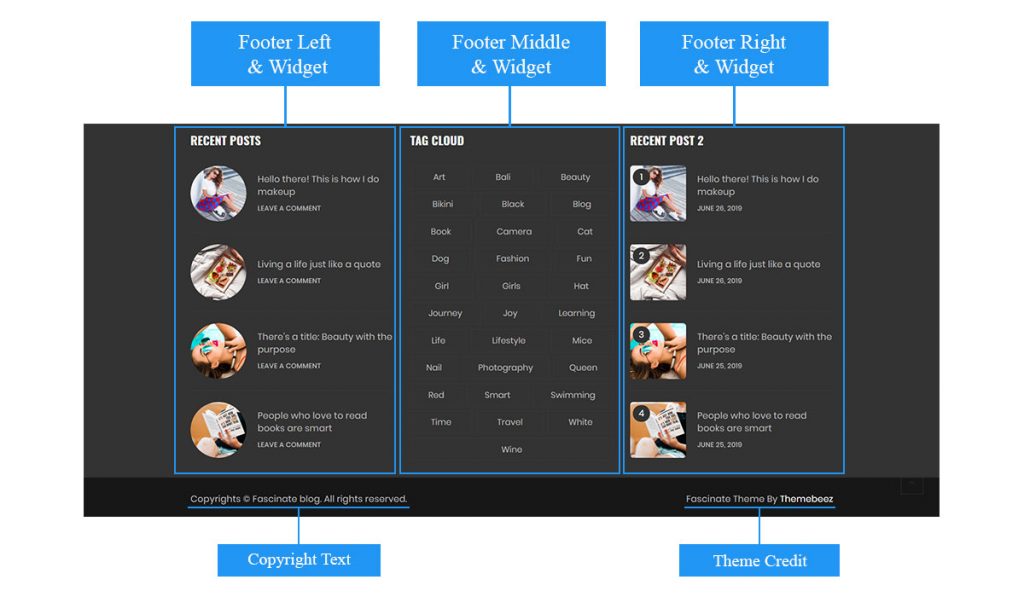
14. MANAGE HOME PAGE
By default Fascinate uses blog page as home page. To manage it, navigate to Appearance > Customize > Site Pages > Blog Page. Configure options available in the section to manage contents. Also to configure carousel section of home page instructions are mentioned above in Site Carousel.
The options available in Appearance > Customize > Site Pages > Blog Page are as follows:
- Page Layout: Select any one layout from the available layouts for listing posts on Blog Page.
- Post Content: This section contains options to manage post contents such as featured image, excerpt, post meta etc.
- Sidebar Position: Select the sidebar position for Blog Page.
- Post Title Typography: Configure typography of post title for posts displayed on Blog Page.
- Post Excerpt Typography: Set font size of post excerpt.
Here’s a video guide to manage blog page:
15. MANAGE ARCHIVE/CATEGORY PAGE
To manage Archive/Category page, navigate to Appearance > Customize > Site Pages > Archive Page. Configure the options available to manage contents of Archive/Category page.
16. MANAGE SEARCH PAGE
To manage Search page, navigate to Appearance > Customize Site Pages > Search Page. Configure the options to manage contents of Search Page.
17. MANAGE POST SINGLE
The post detail is displayed in post page or post single page. To manage the contents of displayed in post page, navigate to Appearance > Customize > Site Pages > Post Single. The options available in this section are categorized as follow:
- Post Content: Contains options for managing post’s contents such as post meta, featured image etc.
- Author Section: Contains option for managing author section.
- Related Posts Section: Contains option for managing section that displays related posts.
- Related Section Title Typography: Manage font size, line height, letter spacing, text transformation etc. of related section’s title.
- Relate Section Post Title Typography: Manage font size, line height, letter spacing, text transformation etc. of posts’ title of related section.
- Sidebar: Contains option for enabling common sidebar positions for all the posts.
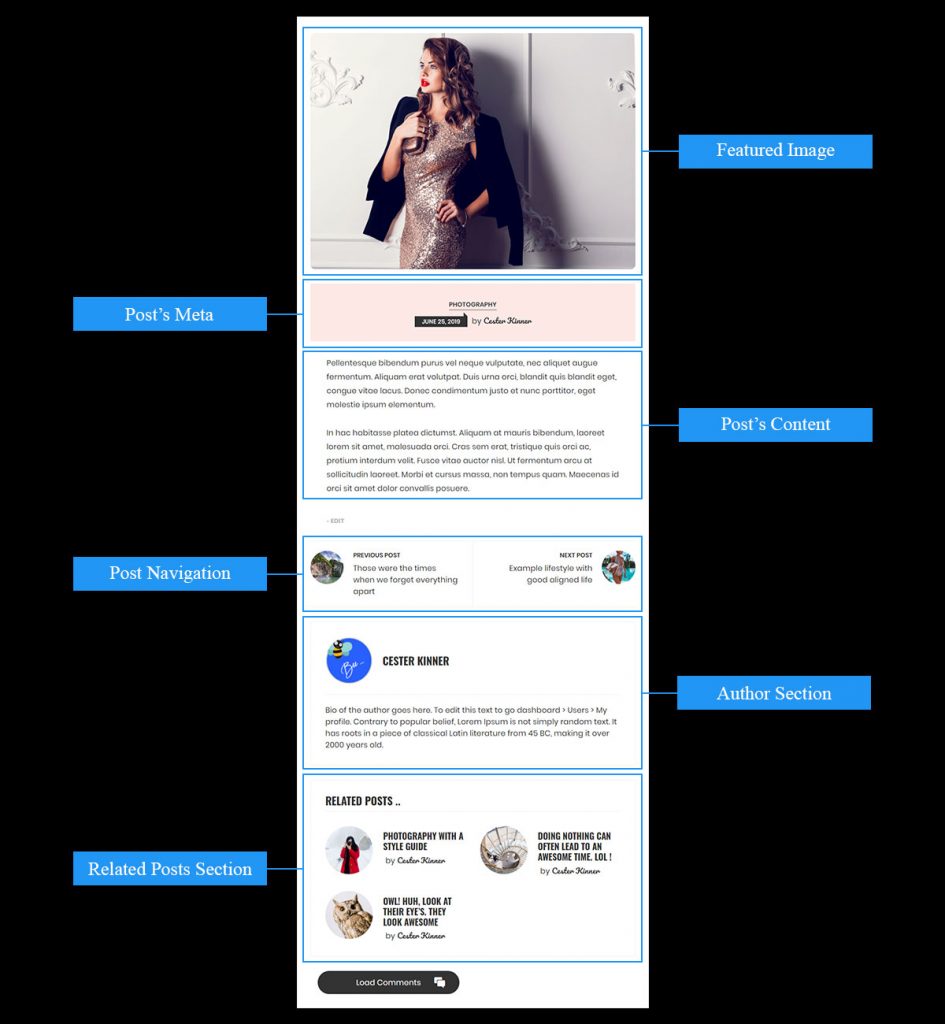
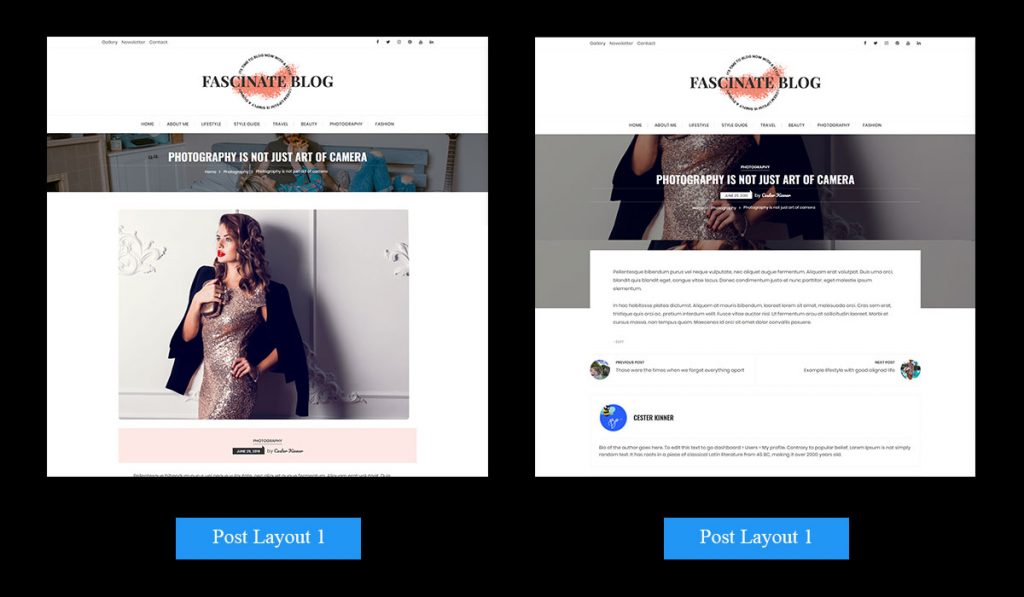
Post single has two layouts. They can be managed when creating new post or editing existing post.
To set a layout for a post, follow the instructions below:
- Navigate to Posts > All Posts.
- Click on any one of the posts to edit.
- On the right side of the editor, you’ll find an option, Layout.
- Select any one of the layout options and save the post.
Also to set sidebar for individual posts, follow the instructions below:
- Navigate to Posts > All Posts.
- Click on any one of the posts to edit.
- On the right side of the editor, you’ll find an option, Sidebar Position.
- Select any one of the sidebar position and save the post.

Below is the video guide to change individual post’s layout and sidebar position:
18. MANAGE PAGE SINGLE
To manage page contents, navigate to Appearance > Customize > Site Pages > Page Single. Configure options available in the section.
Page do have layout selection and sidebar position selection similar as to post. For that you’ve to edit page.
19. MANAGE PRELOADER
Preloader is an animation that is displayed before any page loads. To manage it, navigate to Appearance > Customize > Site Preloader.
The options that are available for preloader are as follow:
- Enable Preloader – On enabling this option, preloader will be enabled.
- Preloader Content – Select any one preloader content type.
- Preloader Layout – Select any one of the predefined preloader layout. Note: This option is enabled when Preloader Content type is Default Layouts.
- Preloader Image – Set custom image for the preloader. Note: This option is enabled when Preloader Content type is Custom Image.
- Preloader Height & Width – Set height and width of preloader.
- Preloader Color – Set color for preloader object and background.
Below is the video guide to manage preloader:
20. MANAGE POST EXCERPT
Excerpt is a short post content that is displayed instead of full post content. To manage excerpt. follow the instructions mentioned below:
- Navigate to Appearance > Customize > Post Excerpt.
- There you’ll find following options:
- Show Post Link: This option displays link of post at the end of the excerpt.
- Post Link Title: This option lets you set title of the post link. Note: This option is activated only when Show Post Link is enabled.
- Post Link Style: This option lets you select the style with which you want to display the post link. Note: This option is activated only when Show Post Link is enabled.
- Post Link Color: Manage text color and background color of post link.
- Make changes to the options.
- Click on Publish button to save.
21. MANAGE SOCIAL SHARE LINKS
To manage social share links, follow the instructions mentioned below:
- Navigate to Appearance > Customize > Social Share.
- There you’ll find following options:
- Display Social Share: This option lets you show or hide social share links.
- Share On Pages: Under this section you’ll find options to show or hide social share links on different pages.
- Share On Sites: Under this section you’ll find options to show or hide particular social link on which you want posts or pages to be shared.
- Make changes to the options.
- Click on Publish button to save.
22. MANAGE BREADCRUMB

Breadcrumb is managed via Appearance > Customize > Breadcrumb. You will find following options here:
- Display Breadcrumb – To hide/show breadcrumbs.
- Breadcrumb Color – Manage text color, background color, border color and mask(overlay) color of breadcrumb section.
- Background Image – Set background image for breadcrumb section.
23. MANAGE Pagination
To manage pagination, follow the instructions mentioned below:
- Navigate to Appearance > Customize > Pagination.
- There you’ll find following options:
- Select Pagination Alignment: This option lets you align the pagination.
- Select Pagination Layout: There are 5 pagination layout variations. This option lets you select pagination variation of your choice.
- Make changes to the options.
- Click on Publish button to save.
24. MANAGE SIDEBAR
Sidebar options can be found inside Appearance > Customize > Site Sidebar. The options that are inside this section are as follow:
- Enable Sticky Sidebar: This option on checked, sets sidebar to be sticky.
- Hide Sidebar On Small Devices: This option on checked, hide sidebar on small devices.
- Enable Global Sidebar Position: This option on checked, enables all the pages of your website have common sidebar position.
- Global Sidebar Position: You can select any one position for sidebar with this option.
- Sidebar Color: Manage text color, background color, border color, widget title color etc. of sidebar.
25. MANAGE SITE BACKGROUND
You can set Background Image or Background Color for your website. Background image and background color is set common for all of the pages.
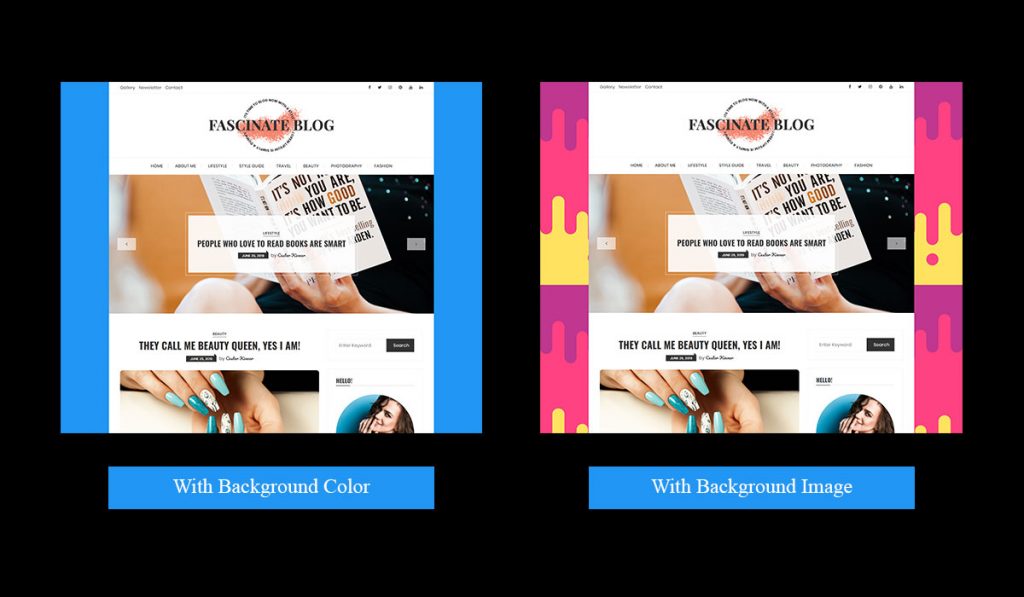
To set background image or background color, navigate to Appearance > Customize > Site Background.
Note: Background image or background color only works when Site Layout is set to Boxed Layout.
Here’s a video guide to manage background color and background image:
26. MANAGE SITE IMAGE
To manage images, navigate to Appearance > Customize > Site Image.
- There you’ll find following options:
- Enable Lazy Loading: This option lets you enable images to be lazy loaded.
- Enable Fallback Image: In case when you’ve not set featured images in posts or pages, you can display fallback image when the posts are listed.
- Set Fallback Image: This option is activated when Enable Fallback Image option is enabled. This option lets you set fallback image.
- Make changes to the options.
- Click on Publish button to save.
27. GENERAL THEME COLOR
To manage general colors, follow the instructions mentioned below:
- Navigate to Appearance > Customize > Site Color > Global Color.
- There you’ll find following options:
- Primary Theme – Color: This option sets primary color of the theme.
- Secondary Theme – Color: This option sets secondary color of the theme.
- Body – Text Color: This option sets color of paragraph texts and links.
- Headings(H1 – H6) – Text Color: This option sets color of headings text.
- Global Link – Hover Color: This option sets color of links on mouse hover.
- Global Link With Background – Color: This option sets color of links which has background color set.
- Global Link With Background – Hover Color: This option sets hover color of links which has background color set.
- Global – Border Color: This option sets border color of elements whose border is set.
- Make changes to the options.
- Click on Publish button to save.
To manage colors of icons representing different post formats, follow the instructions below:
- Navigate to Appearance > Customize > Site Color > Post Format Icon Color.
- Change text color and background color of icon.
- Click on Publish button to save.
28. THEME TYPOGRAPHY
Body Typography
To manage body typography, follow the instructions mentioned below:
- Navigate to Appearance > Customize > Site Typography > Body Typography.
- There you’ll find following options:
- Font Family: This option sets font family of body texts.
- Font Size: This option sets font size of body texts.
- Font Weight: This option sets font weight of body texts.
- Line Height: This options sets line height of body texts.
- Make changes to the options.
- Click on Publish button to save.
Heading Typography(H1-H6)
To manage headings typography, follow the instructions mentioned below:
- Navigate to Appearance > Customize > Site Typography > Heading Typography.
- There you’ll find option such as font family, font size, font weight, text transform, line height, font style and letter spacing, for setting headings typography.
- Make changes to the options.
- Click on Publish button to save.
Post Title Typography
Post Title Typography is for title of posts displayed in the site. To manage post title typography, follow the instructions mentioned below:
- Navigate to Appearance > Customize > Site Typography > Post Title Typography.
- There you’ll find only option to change font family of post title of posts.
- Make changes to the options.
- Click on Publish button to save.
Widget Title Typography
Widget Title Typography includes both sidebar and footer widgets’ title. To manage widget title typography, follow the instructions mentioned below:
- Navigate to Appearance > Customize > Site Typography > Widget Title Typography.
- There you’ll find option such as font family, font size, font weight, text transform, line height, font style and letter spacing, for setting widget title typography.
- Make changes to the options.
- Click on Publish button to save.
Post Meta Typography
Post Meta Typography contains typography options for post meta such as post author, posted date and post categories. To manage post meta typography, follow the instructions below:
- Navigate to Appearance > Customize > Site Typography > Post Meta Typography.
- There you’ll find option such as font family, font size, font weight, text transform, line height, font style and letter spacing, for setting post meta typography.
- Make changes to the options.
- Click on Publish button to save.
29. NEED HELP OR SUPPORT?
If you find any problems or any issues regarding Fascinate, feel free to contact us though live chat, support forum or you can mail us at [email protected].
30. SUPPORT US
If you like our theme, please give a nice review, click here. We’ll be much more delighted and would appreciate it.
Thank you.
]]>1. INTRODUCTION
Fascinate is a simple, clean and minimal free WordPress theme which is mainly targeted for the bloggers who publish posts related to travel, gourmet, people and their lifestyle, fashion trends, latest technology etc. Fascinate is a beautifully designed theme with many customization options. Fascinate is 100% responsive, multiple device compatible and cross browser compatible theme. Fascinate is developed following WordPress standards and is a translation ready theme.
2. THINGS TO KNOW
Recommended Plugins
- Themebeez Toolkit: Themebeez Toolkit is a companion plugin for all our themes. This plugin consists of theme information and extends functionality of theme. Note: To import demo contents, this plugin is required.
- Contact Form 7: Contact Form 7 is a simple plugin which can be used to create contact forms and use those forms on your pages.
- Regenerate Thumbnails: Regenerate Thumbnails is a plugin to regenerate thumbnails defined in theme. Note: If you’re switching theme, then it is essential to install this plugin and regenerate all the thumbnails.
Thumbnail Sizes
To minimize the page load time, Fascinate has built in option to load image in background, technique also known as Lazy Load.
- 800px by 450px – It is the most used thumbnail size. It is used in blog/home page, archive/category page, search page, post widget and other areas.
- 450px by 450px – This thumbnail size is used only for Related Posts section of Post’s Single.
Note: If you’ve switched theme, don’t forget to regenerate all the thumbnails. Otherwise images will be displayed in undesirable sizes. Use Regenerate Thumbnails, plugin to regenerate thumbnails.
3. THEME INSTALLATION
Via WordPress Dashboard
You can install theme via WordPress admin dashboard. This will be the first process of installing theme in your WordPress website. The instructions are as follows:

- Navigate to Appearance > Themes.
- Click on Add New button.
- Search and install this theme from WordPress repository or manually install the downloaded theme.
- To manually install the theme, click on Upload Theme button.
- Upload theme file with .zip file format and click on Install Now button.
- After theme installation is completed, activate the theme.
Via FTP Client
- Login to your server’s file manager with FTP client with your FTP user-name & password.
- Navigate to WordPress installation folder.
- Navigate to ../wp-content/themes/ folder.
- Upload theme folder with the FTP client into ../wp-content/themes/ folder.
- Login to WordPress dashboard & activate the theme.
4. IMPORTING DEMO CONTENTS
Note: To import demo contents, you must first install Themebeez Toolkit plugin. And after that install all the required plugins.
- Install and activate Themebeez Toolkit plugin.
- Once activated, you’ll see Fascinate menu on your dashboard. Click on it.
- Then click on Starter Templates tab.
- There, you will see available demos and click on import which you like most.
- Wait ( approx: 3 – 5 minutes ) to get all data to be imported as per your internet speed.
- When demo import is done, now its time to setup widgets, banner, menu and few other settings according to your requirements.
5. MANAGE MENUS
This theme has two menu locations defined. They are:
- Primary Menu: This menu location is used to set primary menu in header.
- Top Header Menu: This menu location is used to set links at the top section of header.
To manage menus, navigate to Appearance > Menus on your WordPress dashboard. Below is the screenshot to manage menus:

6. MANAGE WIDGETS & WIGET AREAS
In this theme, there are altogether Four widget areas and Three custom widgets. All the widget areas and widgets are managed at Appearance > Widgets.

The four widget areas are as follow:
- Sidebar
- Footer Left, Footer Middle and Footer Right
Sidebar: This widget area holds the widgets displayed at sidebar.
Footer Left, Footer Middle and Footer Right: These widget areas are used to display widgets at the footer.
The three widgets are as follow:
- F: Author Widget
- F: Posts Widget
- F: Social Widget
F: Author Widget – This widget displays information about the author. Here detail about the author comes from a page created for author detail.
F: Posts Widget – This widget displays recent posts. There are two layouts. Select one of the layout to display recent posts.
F: Social Widget – This widget displays the social links.
7. THEME CUSTOMIZER
Almost all of the customization are included inside Theme’s Customizer. The theme customizer includes:
- Site Layout
- Site Preloader
- Site Header
- Site Pages
- Site Carousel
- Breadcrumb
- Site Image
- Site Sidebar
- Site Footer
- Post Excerpt
- Site Background
- And so on
To find and manage customization options, navigate to Appearance > Customize.
8. MANAGE SITE LAYOUT
There are two layouts for displaying your website. One is Boxed Layout and other is Full Width Layout.
To manage the site layout, follow the instructions below:
- Navigate to Appearance > Customize > Site Layout.
- Select any one of the layout from between Boxed Layout and Full Width Layout.
9. MANAGE HEADER
To manage or customize header section, navigate to Appearance > Customize > Site Header. There you’ll find following sections:
- Site Logo: This section contains the options for managing Site Logo or Site Identity.
- Site Favicon: This section contains option to set Site Icon or Favicon.
- Top Header: This section contains the options for managing top header section.
10. MANAGE SLIDER SECTION
There are two slider/carousel layouts on this theme.

To manage slider/carousel follow the instructions below:
- Navigate to Appearance > Customize > Site Carousel.
- Inside this section, you’ll find multiple options.
- Display Carousel: This option let’s you display carousel section in your home page.
- Carousel Category: This option let’s you select a post category. Posts of the category that you’ve selected will be displayed as carousel items.
- No of Carousel Items: This option let’s you set the no of posts or say carousel items to be displayed.
- Display Carousel Content: This option let’s you display post information.
- Carousel Layout: Select any one of the two carousel layouts that you prefer on your home page.
- Enable Spacing: This option let’s you set space around the carousel.
- Carousel Height: This options let’s you set height of the carousel. The height works only for the larger devices where as smaller devices use the default height.
- Once you’ve configured the options, click on Publish button to save it.
Note: Site Carousel only works for the home page. It will not work on any other pages or a static home page.
11. MANAGE FOOTER
The footer area is divided into two areas, one to display footer widgets and other to display copyright and theme credit. To manage the footer widgets, navigate to Appearance > Widgets. And to manage copyright information, navigate to Appearance > Customize > Site Footer.
Note: Theme credit at bottom right side of footer can not be changed or removed. This feature is available only in the Pro version of this theme.
12. MANAGE HOME PAGE
By default Fascinate uses blog page as home page. To manage it, navigate to Appearance > Customize > Site Pages > Blog Page. Configure options available in the section to manage contents. Also to configure carousel section of home page instructions are mentioned above in Site Carousel.
13. MANAGE ARCHIVE/CATEGORY PAGE
To manage Archive/Category page, navigate to Appearance > Customize > Site Pages > Archive Page. Configure the options available to manage contents of Archive/Category page.
14. MANAGE SEARCH PAGE
To manage Search page, navigate to Appearance > Customize Site Pages > Search Page. Configure the options to manage contents of Search Page.
15. MANAGE POST SINGLE
The post detail is displayed in post page or post single page. To manage the contents of displayed in post page, navigate to Appearance > Customize > Site Pages > Post Single. The options available in this section are categorized as follow:
- Post Content: Contains options for managing post’s contents such as post meta, featured image etc.
- Author Section: Contains option for managing author section.
- Related Posts Section: Contains option for managing section that displays related posts.
- Sidebar: Contains option for enabling common sidebar positions for all the posts.
Post single has two layouts. They can be managed when creating new post or editing existing post.
To set a layout for a post, follow the instructions below:
- Navigate to Posts > All Posts.
- Click on any one of the posts to edit.
- On the right side of the editor, you’ll find an option, Layout.
- Select any one of the layout options and save the post.
Also to set sidebar for individual posts, follow the instructions below:
- Navigate to Posts > All Posts.
- Click on any one of the posts to edit.
- On the right side of the editor, you’ll find an option, Sidebar Position.
- Select any one of the sidebar position and save the post.
16. MANAGE PAGE SINGLE
To manage page contents, navigate to Appearance > Customize > Site Pages > Page Single. Configure options available in the section.
Page do have layout selection and sidebar position selection similar as to post. For that you’ve to edit page.
17. MANAGE PRELOADER
Preloader is an animation that is displayed before any page loads. To manage it, navigate to Appearance > Customize > Site Preloader.
18. MANAGE BREADCRUMB
Breadcrumb is managed via Appearance > Customize > Breadcrumb. Configure the options for the breadcrumb to manage.
19. MANAGE SIDEBAR
Sidebar options can be found inside Appearance > Customize > Site Sidebar. The options that are inside this section are as follow:
- Enable Sticky Sidebar: This option on checked, sets sidebar to be sticky.
- Hide Sidebar On Small Devices: This option on checked, hide sidebar on small devices.
- Enable Global Sidebar Position: This option on checked, enables all the pages of your website have common sidebar position.
- Global Sidebar Position: You can select any one position for sidebar with this option.
20. MANAGE SITE BACKGROUND
You can set Background Image or Background Color for your website. Background image and background color is set common for all of the pages.
To set background image or background color, navigate to Appearance > Customize > Site Background.
Note: Background image or background color only works when Site Layout is set to Boxed Layout.
21. MANAGE SITE IMAGE
To manage images, navigate to Appearance > Customize > Site Image.
Under image management, there is only one option. That is to enable Lazy Loading. This option on checked, loads images on background which drastically improves the loading speed of the site.
22. HELP OR NEED SUPPORT?
If you find any problems or any issues regarding Fascinate, feel free to contact us though live chat, support forum or you can mail us at [email protected].
23. SUPPORT US
If you like our theme, please give a nice review, click here. We’ll be much more delighted and would appreciate it.
Thank you.
]]>Check Universal Google Adsense & Ads manager Plugin Here: CLICK HERE
1. INTRODUCTION
Cream Magazine Pro is a user friendly and highly customizable WordPress theme mostly suitable for creating online publishing websites such as magazine, news-portal, blog etc. Cream Magazine Pro is SEO friendly, has fast page load speed and responsive and multiple device compatible. Cream Magazine Pro is translation ready theme.
2. THINGS TO KNOW
Recommended Plugins
- Themebeez Toolkit: Themebeez Toolkit is a companion plugin for all our themes. This plugin consists of theme information and extends functionality of theme. Note: To import demo contents, this plugin is required.
- Woocommerce: Woocommerce gives you the platform to easily set your own online shop or store and sell products and goods.
- Contact Form 7: Contact Form 7 is a simple plugin which can be used to create contact forms and use those forms on your pages.
- Regenerate Thumbnails: Regenerate Thumbnails is a plugin to regenerate thumbnails defined in theme. Note: If you’re switching theme, then it is essential to install this plugin and regenerate all the thumbnails.
Thumbnail Sizes
We have used lazy load in cream magazine theme which will help your website to save bandwidth & load faster. While implementing lazy load we maintain aspect ratio for the all images. One important thing that you should keep that in your mind is to upload image size greater then we recommend. Below are the images size that you must be uploading.
- 900px by 520px – This image dimension is used for full-width slider or banner images.
- 820px by 470px – This image dimension is used for images of posts displayed in news widget areas.
- 740px by 560px – This image dimension is used for images of posts displayed in news widget areas.
- 740px by 560px – For portrait images.
Note: If you’ve switched theme, don’t forget to regenerate all the thumbnails. Otherwise images will be displayed in undesirable sizes. Use Regenerate Thumbnails, plugin to regenerate thumbnails.
3. THEME INSTALLATION
Via WordPress Dashboard
You can install theme via WordPress admin dashboard. This will be the first process of installing theme in your WordPress website. The instructions are as follows:
- Navigate to Appearance > Themes.
- Click on Add New button.
- Click on Upload Theme button.
- Upload theme file with .zip file format and click on Install Now button.
- After theme installation is completed, activate the theme.
Via FTP Client
- Login to your server’s file manager with FTP client with your FTP user-name & password.
- Navigate to WordPress installation folder.
- Navigate to ../wp-content/themes/ folder.
- Upload theme folder with the FTP client into ../wp-content/themes/ folder.
- Login to WordPress dashboard & activate the theme.
4. IMPORTING DEMO CONTENTS
Note: To import demo contents, you must first install Themebeez Toolkit plugin. And after that install all the required plugins.
- Install and activate Themebeez Toolkit plugin.
- Once activated, you’ll see Cream Magazine Pro menu on your dashboard. Click on it.
- Then click on Starter Templates tab.
- There, you will see available demos and click on import which you like most.
- Wait ( approx: 3 – 5 minutes ) to get all data to be imported as per your internet speed.
- When demo import is done, now its time to setup widgets, banner, menu and few other settings according to your requirements.
5. THINGS TO DO AFTER THEME INSTALLATION
Activate License Key
After you’ve purchased the theme, you’ll get a email notification which will contain License Key. You can also find your License Key after logging into My Account. License Key is needed if you want get regular update of Cream Magazine Pro theme. For more detail follow this link.
Note: If you’ve not received the mail and can not find the License Key at My Account, contact us at [email protected].
Instructions for activating license key is as below:
- On your WordPress dashboard, click on License Manager.
- Insert your license key into the field. And click on Save button.
- If your license key does not activate then contact us at email mentioned above.
Below is the video instruction to setting static home page as in demo:
6. CREATE & MANAGE HOMEPAGE
Create and set a homepage
By default, WordPress will have Blog page as the default home page. But in case of our theme, Cream Magazine Pro, you need to set a static home page to get home page as in our theme demos.
Instructions for setting static home page is as below:
- In case you have not created home page, create a new page. Else edit your home page.
- Navigate to Appearance > Customize > Homepage Settings.
- Inside the Homepage Settings section, check on the option A static page.
- Select the page that you have created as homepage in the option Homepage.
- Then enable the option Enable Homepage Content.
- Then click on Publish button to save the changes.
Manage homepage sections
Homepage has four section altogether, Top News Area, Middle News Area, Bottom News Area, and Video News Section. The sections can be enabled or disabled form the options inside the Appearance > Customize > Frontpage section.
The contents displayed in the Top, Middle, and Bottom News Area come from widget areas Home Top News Area, Home Middle News Area, and Home Bottom News Area respectively. The widget areas can be found inside Appearance > Widgets on your WordPress dashboard.
7. MANAGE MENUS
Cream Magazine Pro has three menu locations:
- Primary Menu: This menu location is used to set primary menu in header.
- Top Header Menu: This menu location is used to set links at the top section of header. This menu is displayed when Header Layout One and Five are selected.
- Bottom Footer Menu: This menu location is used to set links at the bottom section of footer.
To manage menus, navigate to Appearance > Menus on your WordPress dashboard. Below is the screenshot to manage menus:
8. Manage Widgets & Widget Areas
In this theme, there are altogether Eight widget areas and Fifteen custom widgets. All the widget areas and widgets are managed at Appearance > Widgets.
The eight widget areas are as follow:
- Sidebar
- Footer Left, Footer Middle and Footer Right
- Header Advertisement
- Home Top News Area, Home Middle News Area and Home Bottom News Area
Sidebar: This widget area holds the widgets displayed at sidebar.
Footer Left, Footer Middle and Footer Right: These widget areas are used to display widgets at the footer.
Header Advertisement: This widget area holds the advertisement widget displayed at the header.
Home Top News Area, Home Middle News Area and Home Bottom News Area: These widget areas are used to displayed widgets inside the Homepage.
The 15 widgets are as follow:
- CMP: Author Widget
- CMP: Posts Widget
- CMP: Social Widget
- CMP: Woocommerce Products
- CMP Full: News Widget 1 – 5
- CMP Half: News Widget 1 – 11
CMP: Author Widget, CMP: Posts Widget and CMP: Social Widget: These widgets should be contained inside Sidebar, Footer Left, Footer Middle and Footer Right widget areas.
CMP Full: News Widget 1 – 5: These widgets should be contained inside Home Top News Area and Home Bottom News Area widget areas.
CMP Half: News Widget 1 – 11: These widgets should be contained inside Home Middle News Area widget area.
9. THEME CUSTOMIZER
Almost all of the customization are included inside Theme’s Customizer. The theme customizer includes:
- Homepage’s Banner’s options
- News Ticker’s options
- Video Section’s options
- Header’s options
- Footer’s options
- Advance Color options
- Advance Typography options
- Other many more options
To find and manage customization options, navigate to Appearance > Customize.
10. MANAGE HEADER
To manage or customize header section, navigate to Appearance > Customize > Advance Customization > Header. There you’ll find following options:
- Enable Top Header: On checking this option, top header section will be displayed. Otherwise top header section be hidden.
- Enable Top Header On Small Devices: On checking this option, top header section will not be displayed on small devices.
- Enable Home Button: On checking this option, Home Icon will be displayed along primary menu links.
- Enable Search Button: On checking this option, Search Icon will be displayed on header section.
- Select Header Layout: Select header layout that suits your site with this option.
- Header Overlay Color: This option is enabled when second header layout is selected. This options lets you set color of layer displayed.

Custom logo : You can add your custom logo under Dashboard > Appearance > Customize > Basic Customization > Site Identity.
Logo size differ from the header layout which will be described below:
- Header Layout 1 : This header layout has the two menus : Top and Primary which can be set from the menu which is described in SETUP MENU section. Social links are managed from the Dashboard > Appearance > Customizer > Advance Customization > Social Links. Make sure, the height of the advertisement and logo equal. We recommend to use 90 px of height.

- Header Layout 2 : This has the header banner image with the logo. Header banner image can be added from Dashboard > Appearance > Customize > Basic Customization > Header Image. This works best with an image with a header size of 800 × 600 pixels — you’ll be able to crop your image once you upload it for a perfect fit. You can have only main menu here.

- Header Layout 3 : It is similar to Header Layout 1 which has Top & Primary menu. Make sure logo height is 60 px and width is 200. Social links are managed from the Dashboard > Appearance > Customizer > Advance Customization > Social Links.

- Header Layout 4 : This header layout has Primary Menu which can be set from the menu which is described in SETUP MENU section. Make sure, the height of the advertisement and logo equal. We recommend to use 90 px of height.

- Header Layout 5 : This is the simple header layout having the logo and Primary Menu without any background image. Logo can be of any size you want.

BANNER/SLIDER SECTION
Cream Magazine comes with 5 types of banner options. You can find these options in the Dashboard > Appearance > Customize > Homepage Customization > Banner/Slider.

You can enable or disable as per you want. You can show categories with its feature image as a banner image with title and meta data on banner layouts which are described below :
- Banner Layout 1 : This banner layout has 3 columns which is in slider type. This shows the post title, categories, featured image and other post meta data which can be seen on screenshot below:

- Banner Layout 2 : This is the single image banner with slider where you can have post title, categories, featured image and other post meta data. See the reference from the screenshot below:

- Banner Layout 3 : It shows 3 posts from the selected categories with post title, categories, featured image and other post meta data. See the reference from the screenshot below:

- Banner Layout 4 : It is similar to Banner Layout 3but it shows 4 posts from the selected categories with post title, categories, featured image and other post meta data. See the screenshot below:

- Banner Layout 5 : This banner layout has 2 columns where first left column is in slider type and right column shows the posts in 2*2 matrix form. You can have post title, categories, featured image and other post meta data. See the reference from the screenshot below:

NEWS TICKER

You can enable or disable this section which can be found in Dashboard > Appearance > Customize > Homepage Customization > Ticker News. It is shown below the Header Section & above the Banner Section or HomeWidget. You can set the Section Title, Categories & Posts Number. You can see the layout of this section below:

VIDEO NEWS SECTION

Go to Dashboard > Appearance > Customize > Homepage Customization > Video News Section. You can enable or disable this section. This section is shown at the top of the Home Bottom News Area.You can set the Section Title,select the Video Post Categories & Posts Number.It has two different layouts which are shown below:
- Video Layout 1: This section is in slider type showing 3 videos at a time.

- Video Layout 2: This shows the Videos on the basis of Post Number.

*NOTE: Post should be of video post format which can be set on individual post. See the screenshot below:

HOMEPAGE WIDGETS SECTION
We have different widgets for homepage where each widget have a different format to display posts on the basis of category. You can find on Dashboard > Appearance > Widgets or Dashboard > Appearance > Customize > Widgets. Widgets are separated on three areas:

- Home Top News Area: This section shows the posts below the banner/Header section. It doesn’t include sidebar and it has total 5 different widgets that are applicable on this area.
- Home Middle News Area: This section shows the posts below the Home Top News Area & above the Home Bottom News Area. It includes sidebar and it has total 6 different widgets that are applicable on this area.
- Home Bottom News Area: This shows the posts below the Home Middle News Area/ Video News Sectionand above the footer. It doesn’t include sidebar and it has total 5 different widgets that are applicable on this area.

On the above screenshot, you can see the selected widgets that can be used on homepage section. Below are description of these widgets:
*NOTE: CMP Full are only for Home Top News Area & Home Bottom News Area.
CMP Half are only for Home Middle News Area.
- CMP Full: News Widget One: This widget is shown in the Home Top News Area & Home Bottom News Areawhere you can set the title, category to display or recent posts and post number (set the numbers as per the instruction shown in the widget ). See the screenshots below for widget section and layout:


- CMP Full: News Widget Two: This widget is shown in the Home Top News Area & Home Bottom News Area where you can set the title, category to display or recent posts and post number (set the numbers as per the instruction shown in the widget ). See the screenshots below for widget section and layout:


- CMP Full: News Widget Three: This widget is shown in the Home Top News Area & Home Bottom News Areawhere you can set the title, category to display or recent posts and post number (set the numbers as per the instruction shown in the widget ). See the screenshots below for widget section and layout:


- CMP Full: News Widget Four: This widget is shown in the Home Top News Area & Home Bottom News Areawhere you can set the title, category to display or recent posts and post number (set the numbers as per the instruction shown in the widget ). Posts are shown in the slider type. See the screenshots below for widget section and layout:


- CMP Full: News Widget Five: This widget is shown in the Home Top News Area & Home Bottom News Areawhere you can set the title, category to display or recent posts and post number (set the numbers as per the instruction shown in the widget ). This shows 3 different categories in 3 columns. See the screenshots below for widget section and layout:


- CMP Half: News Widget Six: This widget is shown in the Home Middle News Area onlywhere you can set the title, category to display or recent posts and post number (set the numbers as per the instruction shown in the widget ). See the screenshots below for widget section and layout:


- CMP Half: News Widget Seven: This widget is shown in the Home Middle News Area onlywhere you can set the title, category to display or recent posts and post number (set the numbers as per the instruction shown in the widget ). See the screenshots below for widget section and layout:


- CMP Half: News Widget Eight: This widget is shown in the Home Middle News Area onlywhere you can set the title, category to display or recent posts and post number (set the numbers as per the instruction shown in the widget ). See the screenshots below for widget section and layout:


- CMP Half: News Widget Nine: This widget is shown in the Home Middle News Area onlywhere you can set the title, category to display or recent posts and post number. See the screenshots below for widget section and layout:


- CMP Half: News Widget Ten: This widget is shown in the Home Middle News Area onlywhere you can set the title, category to display or recent posts and post number (set the numbers as per the instruction shown in the widget ). See the screenshots below for widget section and layout:


- CMP Half: News Widget Eleven: This widget is shown in the Home Middle News Area onlywhere you can set the title, category to display or recent posts and post number (set the numbers as per the instruction shown in the widget ). Posts are shown in the slider type. See the screenshots below for widget section and layout:


In order to set sidebar on homepage either to show on left or right, go to Dashboard > Appearance > Customize > Homepage Customization > Homepage Sidebar.
BLOG/ARCHIVE/SEARCH PAGE SECTION
In Blog/Archive/Search Page section, there are 2 different post listing layouts with sidebar position either on left or right or no sidebar options.

- Layout 1:

- Layout 2:

- Blog Page: In order to select the posting layout for the Blog page, go to Dashboard > Appearance > Customize > Advance Customization > Blog Page. You can also select the sidebar position there. See the screenshots above for posting layouts.
- Archive Page: In order to select the posting layout for the Blog page, go to Dashboard > Appearance > Customize > Advance Customization > Archive Page. You can also select the sidebar position there. See the screenshots above for posting layouts.
- Search Page: In order to select the posting layout for the Blog page, go to Dashboard > Appearance > Customize > Advance Customization > Search Page. You can also select the sidebar position there. See the screenshots above for posting layouts.
WIDGETS DETAILS
We have the custom widgets designed for Cream Magazine. They are available at Dashboard> Appearance > Widgets. All the available widgets are shown in the screenshot below:

News Widgets are described in the Home Page Widgets Section.Further details of custom widgets are described below:
- CMP: Author Widget: This widget can be use in sidebar, woo-commerce sidebar and footer. You have to create a page and select that page for showing the information.


- CMP: Posts Widget: It shows the Posts list on the basis of Recent Post, Most Commented Post and Editor Pick post also. It is only for the sidebar, woo-commerce sidebar and footer. It has two layouts:
Slider Layout: It is used to show posts in slider format. See the screenshot for layout:

Normal List Layout: It is used to show posts in listing format. See the screenshot for layout:


You can set the title, type of posts ( Recent Posts , Editor’s Pick & Most Commented ), post number and display layouts.
Editor’s Picks is the special picked post by the author from the posts. In order to set, follow the instructions below:
Selecting Editorial Picks: Go to the Dashboard > Posts and click on the post you want to include in Editor Pick then check the Editor Pick on the right bar as shown in the screenshot:


- CMP: Social Widget: It redirects link to the social network.


- CMP: Woocommerce Products: It displays the Woo-commerce products on the basis of Sale Products, Best Selling Products, Top Rated Products and Featured Products. You can set the title, products number, number of columns to display, order ( by date, id, menu order, popularity, random, rating descending and ascending ), SKUS and product categories. See the screenshots below:


FOOTER SECTION

- Footer Widgets: In order to insert widgets on footer, go to Dashboard > Appearance > Widgets. Further details are provided on widgets details above.
- Copyright & Credit Text: Go to Dashboard > Appearance > Customizer > Advance Customization > Footer.

HELP OR NEED SUPPORT ?
You are in right hand. Feel free to contact us though LIVE chat or support forum for any help and support.
]]>Check Universal Google Adsense & Ads manager Plugin Here: CLICK HERE
INTRODUCTION
One Hive is business multipurpose WordPress theme designed for running business organization, startup business, corporate business firms, portfolio showcase agency, freelancer portfolio or can be used to create any kind of multipurpose WordPress website. Below is the full documentation for One Hive WordPress Business Multipurpose Theme Documentation.
Click on the screenshot if the text written at the screenshot is not readable.
Support forum : Go Here
GETTING STARTED
First of all, Thank you so much for purchasing this theme and for being our loyal customer. You are awesome!
You are entitled to get free lifetime updates to this product + exceptional support from the us directly.
THEME INSTALLATION ( THROUGH WORDPRESS DASHBOARD )
You can install theme from WordPress admin dashboard. This will be the first process of installing theme in your WordPress website.

Select the theme from your computer & hit install. After you install Activate theme.
THEME INSTALLATION ( THROUGH FTP )
- Login to you file manager with FTP client with your FTP user-name & password
- Navigate to your WordPress installation
- Navigate to wp-content folder and then to themes folder.
- Upload our theme folder with the FTP client to Themes folder inside wp-content folder
- Log-in to wordpress dashboard & now activate the theme.
DEMO IMPORT
- Install plugin called “THEMEBEEZ : TOOLKIT” which is shown in recommended section.
- After installing, Welcome Message will be popup and click on Get Started or go to Dashboard > Appearance > One hive blog Info
- Install the plugins which are recommended from there and activate it.
- It’s time to import demo data, go to Dashboard > Appearance > Demo Import
- Now, you can see different demos and click on import which you like.
- Wait ( approx: 3 – 5 minutes ) to get all data to be imported as per your internet speed
- When demo import is done, now its time to setup widgets, banner, menu and few other settings according to your requirements.
ACTIVATE HOMEPAGE
By default WordPress sets all theme to blog page ( NOT HOME PAGE ). You have to manually set your homepage. To set your homepage you navigate to Dashboard > Appearance > Customizer > Site Option > Check the Front page option.
If you think your Frontpage/ Homepage didn’t got activated let us know.
CUSTOMIZER OPTIONS
One Hive is crafted with handy important customization options powered by wordpress live customizer. You can find all options under Dashboard > Customizer.
Font Option ( PRO ) : You can switch between 800 ++ Google fonts according to your requirements.
Colors ( PRO ) : You can switch any primary color that best match your brand or need.
Hide/Show : Some content information like date,category,date,author etc can be enabled or disabled through Dashboard > Appearance > Customizer > Content options.
Excerpt length : You can change the length of excerpt from Dashboard > Appearance > Customizer > Theme options > Others.
Fall back Default image ( PRO ) : You can enable support of fall back image if there is no image in post from Dashboard > Appearance > Customizer > Theme options > Others.
One or Multi site : One Hive can be used either Multi page or one page. You can tweak this from Dashboard > Appearance > Customizer > Site option. When One page is enabled, you can enter id for the sections and set custom link in primary navigation items like eg: ( Enter ID for blog section “blog” now go to menu & add custom link with link #blog and name it Blog. Then save ). Try it yourself. If you do not understood let us know on support.
Section re-order ( PRO ) : One Hive is crafted with section drag & drop option. You can drag and drop and change the location of sections up and down according to your need. To re-order sections navigate to Dashboard > Appearance > Customizer > Home page option > Section re-order.
Sidebars : We understand that some peoples may not like sidebars. To make your need hassle free we have added sidebar options you can have sidebar either in left, right or completely disable it. Dashboard > Appearance > Customizer > Theme options > Others.
More : More basic options are available!
HEADER SECTION
You can basically tweak header section with colors and icons as per your need. You can do that in few clicks though WordPress Customizer.
Options for Header section are placed inside WordPress customizer which are sticky header, header background color, header top icons and contact details , Header Gradient color, Changing logo.
Sticky Header ( PRO ) : Make logo & navigation portion sticky when scrolling
Header background color : Change header background color either gradient or solid colors.
Custom logo : Make sure height of logo is 60px. As header portion of One Hive is small so One Hive theme looks best with logo of 60px height. Your width of logo could be anything like 200px, 300px, 250px or something like that.
Header top & header top social icons : You can assign social icons at header top from when you enable header top section.
Header top contact details : You can show or hide contact contact details in header top when you enable header top section option.
HEADER TOP SECTION

One Hive Header top section can be enabled from customizer. Navigate to WordPress Dashboard > Appearance > Customizer > Theme options > Header > Check header top option.
For Contact details options are inside Theme options > Contact info & Social icons also can be found just under the contact info options.
HEADER SECTION PRIMARY NAVIGATION & LOGO
Logo can be changed from Site identity option inside wordpress customizer. If you are adding a custom logo make sure height of your logo is 60px.
Primary Navigation can be added from wordpress dashboard > Appearance > Menu.
See the screen shot below.

SECTIONS
One Hive is build with adequate sections to make your life easy & you can easily use them as per your need. WordPress Dashboard > Appearance > Customizer > Homepage Options.
Sections can be enabled – disabled as per your need. Sections can be drag and dropped. You can set either background color or background image for the sections. Some sections are different in nature when talking about the design. Placing background image may not look good on that case.
BANNER SECTION
One Hive Pro comes with 4 types of banner options Where as free version only has only 2 banner options.
- Image background – Create a page & set image as feature image & publish. Select the page that you have created from banner options at customizer. Page title will appear as banner title, page editor content as banner description & featured image as banner image.
- Video background ( PRO ) – Upload video to media & select video from customizer > banner options > Video background.
- Animated partials background ( PRO ) – Go to customizer > banner options > Animated background.
- Gradient background ( PRO ) – Go to customizer > banner options > Gradient background. You can select colors but if you are not getting the color that you are looking for do kindly connect with us at forum, we will share you a custom css ( style code ) which you paste in your WordPress customizer custom css area.
You can easily change the look and feel of banner section in One Hive Theme though Customizer. Navigate to WordPress Dashboard > Appearance > Customizer > Homepage Options > Banner

You can choose between Image background, Video background, Gradient background, Animated partials background.
Free version has limited choice.
AUTHOR SECTION
You can customize author section from WordPress Dashboard > Appearance > Customizer > Homepage Options > Author.

Create a page with name of author or company. Navigate to WordPress Dashboard > Appearance > Customizer > Homepage Options > Author section. Select the page that you created for Author. Theme will use Name, Short description & featured image from that page for this section.
Basically the author section is designed for long vertical image. For the best result the size of the author image should be 800px width & 1350px height.
You can enter your social network profile to enable social icons. For skills bars add items and enter value as shown below in screen shot.

FEATURES SECTION
You can customize this section from WordPress Dashboard > Appearance > Customizer > Homepage Options > Features section.
Choose between background colors, enter section title & description and add features items.
Basically features items are pages with title & little descriptions. Recommended length of item description is around 3 lines.
COUNTRY SECTION
You can customize this section from WordPress Dashboard > Appearance > Customizer > Homepage Options > Counter section.
Choose between background image & background color. We personally recommend nice background image for this section.
Add counter items, enter number & choose awesome icon as per your counter item.
TEAM SECTION
You can customize this section from WordPress Dashboard > Appearance > Customizer > Homepage Options > Team section.
Information of team members like Name, featured image, designation can be filled while creating a page from dashboard & then add team items from customizer. You can enter social icons for team members from when adding team member item.
Check below the screenshot below.

Image size of team section team members featured image is 200px width & 200px height. Image you select will be cropped but maintain aspect ratio when uploading.
SERVICE SECTION
Service section is alternative to features section. You can add featured images as background overlay in your items to make it more appealing. To customize navigate to WordPress Dashboard > Appearance > Customizer > Homepage Options > service section.
Rest everything is same as features section.

PROJECT SECTION
Navigate to Dashboard > Projects.

- Add New
- Enter the title of project
- Enter the description of project
- Create or select a category for the project which will be displayed as tab in front-end
- choose the featured image for the project
- save
Now, Navigate to Customizer > Homepage options > Project section
- Enable the section
- Choose background color if you want different from white
- Enter title & description for the section
- Choose the category that you created for project
- Done.
PRICING SECTION
To customize this section navigate to customizer > Home page options > Pricing Section.
- Choose background color for the section
- Enter title & description
- Enter the value for pricing card table as shown in screen shot below.

Important : Price features must be written serpented with coma & Max number of pricing card is 3.
NEWS SECTION
Add posts in your posts from Dashboard > Posts & assign them a category. Navigate to customizer > Home page options > News Section and choose the category.
Important : Featured image is required as it is in carousel slider.
BLOG SECTION
Add posts in your posts from Dashboard > Posts & assign them a category. Navigate to customizer > Home page options > Blog Section and choose the category.
Important : Featured image is required as it is in carousel slider.
TESTIMONIAL SECTION
To add testimonial follow the instructions below.
- Add new page
- Enter title as client name [ eg: John Deo ]
- Enter review text in editor
- Select Featured image
- Save
Navigate to Customizer > Home page options > Testimonial section.
- Select the page that you created
- Enter designation of the client
- Enter the rating [ 1 – 5 ] eg: 4
CTA ( CALL TO ACTION ) SECTION
To add testimonial follow the instructions below.
- Create a page
- Enter the title
- Enter description in editor
- Choose the featured image for call of action section ( Select big size image recommended 1920px width & 600px height )
- Publish
Navigate to customizer > Home page options > CTA section. Select the page you have recently created for call to action page & enter the button link, title and hit publish.
PARTNER SECTION ( PRO )
To add items in this section navigate to Customizer > Home page Option > Partner section.
- Add new item
- Select or upload new image to media
- Enter partner link if required
- Publish
CONTACT SECTION
Contact Form : To add an contact form follow the step below.
- Add a plug in called contact form 7
- Activate plugin
- Click on contact
- Create a form
- Adjust settings of contact form 7
- Save
- Copy Short code given by contact form 7, which basically looks like eg: [contact-form-7 404 “Not Found”]
- Navigate to Customizer > Home page options > Contact section
- Paste the short code.
Map : To enable map You can copy iframe code from Google map and paste the code in map widget from Dashboard > Appearence > Widget > Map widget. Define height and width. Recommended sizes are 600px Width & 400px Width. You can adjust this according to height of your contact form.
FOOTER SECTION
As One Hive is business multipurpose theme we do have special widget ready for one Hive. You can add widget for footer from Dashboard > Appearance > Widget

Available special footer widget are as follows:

- One Hive About widget : Crafted to show your about info along with logo & social icons
- One Hive Contact info widget : Crafted to show you contact info
- One Hive Contact form : Install contact form 7 plug-in and create a form. Copy the short code & paste in this widget. Then save.
To change the footer copyright information navigate to customizer > Theme options > Footer.
To Assign the navigation menu items in footer ( PRO ) create a menu from Dashboard > Menu
- Create a menu
- Assign menu items
- Click menu location Footer menu
- Save!
WOOCOMMERCE
One Hive both free & pro version supports WooCommerce.
- Install Woocommerce plugins from Dashboard > Appearance > Plugins
- Active WooCommerce plugin
- Add product and visit shop
Important : One Hive supports woocommerce and all basic woocommerce functionality but One Hive theme may not be good ideal solution for large e-commerce store or something like that. One Hive Woocommerce pages design may not look good if you try to extend woocommerce pages with woocommerce 3rd party extensions and plugins. We don’t guarantee you for all woocommerce 3rd party extensions and plug-ins to work perfectly as expected.
All basic woocommerce functionality should work fine & we are here for support if you face any issue in future. One can start a medium scale store with one hive theme using woocommerce plugin.
QUESTIONS & SUPPORT
You are in the right hand. Feel free to contact us though LIVE chat or support forum for any questions and support.
WANT CUSTOMIZATION ?
We are here to help :). We have a very reasonable cost per hour charge to customize theme according to your need. You can either contact us though email or Look for Live Chat option.
]]>Check Universal Google Adsense & Ads manager Plugin Here: CLICK HERE
INTRODUCTION
Hello users! This post is going to be brief user documentation for style blog WordPress theme. Almost everything that you might need is documented here for style blog. If you couldn’t find any information that you are looking for please let is know.
GETTING STARTED
First of all, Thank you so much for purchasing this theme and for being our loyal customer. You are awesome!
You are entitled to get free lifetime updates to this product + exceptional support from the us directly.
THEME INSTALLATION ( THROUGH WORDPRESS DASHBOARD )
You can install theme from wordpress admin dashboard. This will be the first process of installing theme in your wordpress website.
Select the theme from your computer ( ZIP file ) & hit install. After you install Activate theme.
DEMO IMPORT
- Install a plugin called “THEMEBEEZ: TOOLKIT” which is shown in the recommended section.
- After installing, Welcome Message will be popup and click on Get Started or go to Dashboard > Appearance > Style blog Info
- Install the plugins which are recommended from there and activate it.
- It’s time to import demo data. Go to Dashboard > Appearance > Import Demo Content or you can see option for Import Demo Content at THEMEBEEZ : TOOLKIT homepage.
- Now, you can see different available demos and click on import which you like most.
- Wait ( approx: 3 – 5 minutes ) to get all data to be imported as per your internet speed.
- When demo import is done, now its time to set up widgets, banner, menu and few other settings according to your requirements.
USE STATIC PAGE OR LATEST POSTS?
Do not set any static page to Home page here. This is blog theme, you are supposed to have your latest posts here.
If you have mistaken with the previous theme, you can change this setting from Dashboard > settings > reading or from customizer > homepage settings.
HEADER SECTION
Lean how to customize header of style blog theme.
HEADER TOP
NAVIGATION MENU HEADER TOP LEFT
You can activate social menu from Dashboard > Appearance > Menu
- Create a menu
- Name it eg: Header top menu
- Assign some menu items and set to to Header top menu location
- Hit save!

SOCIAL MENU HEADER TOP RIGHT
You can activate social menu from Dashboard > Appearance > Menu
- Create a New Menu
- Name it eg : Social Menu
- Add custom Links & Name it
- Supported Social icons are ( Facebook, Twitter, Google Plus, Instagram, Vk, LinkedIn, YouTube ).
- Select Display Location to Social & Hit save.


SITE LOGO
You can change website logo from Dashboard > Appearance > Customizer > Site identity. The recommended height of the logo is 90px. Where width recommended is around 250 – 350px.
Header two ( PRO ) : In this header, your logo comes at centre. You can set your own width & height. There is no restriction for this logo position size. Recommended size is 300 px width & 150px height.
ADVERTISEMENT
Recommended size of header advertisement is 768 * 90 px. You can use google ad-sense or something similar. To add advertisement here in this section go to Dashboard > Appearance > Widget & select HTML text box or image widget in Header advertisement Area Widget Option.
PRIMARY NAVIGATION MENU
You can add menu items from Dashboard > Appearance > Menu
- Create New Menu with Name eg: Primary Nav
- Assign some items
- IMPORTANT : Set menu location to primary
FEATURED POSTS SLIDER
In this section/slider you can display your latest posts or posts from any special category. To customize homepage featured slider navigate to Dashboard > Customizer > Homepage option > Featured slider.

Featured slider Options ( PRO ) : In style blog plus you do have option for featured slider. You can choose between standard or full width slider. We aware of image size, make sure you use image bigger then 1200 px width & 700 px height . In pro version you can choose either 1 or multiple category to display your post.

RECENT POSTS
Free version : In free version there is only one option for recent posts. Featured image at left & post description at right.
Pro Version : In pro version you have multiple option to show related post. You can tweak & get your own style.Make sure you change the excerpt text size when you change the recent post layout in pro version.

AUTHOR WIDGET ( NEXT TO FEATURED SLIDER AT SIDEBAR )
To add a Author widget Navigate to Dashboard > Pages > Add New Page > Enter title. Add short description and feature image. Now navigate to Widget from Dashboard > Appearance > Widget. Select Author widget > Select Author page that you have created recently. Enter social icons.


HOMEPAGE AFFILIATED PRODUCT SECTION ( PRO )
You can add product to this section from Dashboard > Product > Add New. Below picture will guide you for sure. To change the section title of this section you can do that from customizer.
Featured images for the affiliated product are NOT automatically cropped. We recommend 300 x 300 px size. This section is not Woo-commerce shop or any e-commerce shop, its just a external link affiliated product section.


VBLOG SECTION ( PRO )
You can add your Youtube videos in this section. To add video just nagivate to Dashboard > Videos > Add New. To change the section title of this section you can do that from customizer.Navigate to Customizer > Homepage option > Video post
Example for link to be entered : https://www.youtube.com/watch?v=JvZSZzL0hB4&t=2s


INSTAGRAM FEEDS SECTION ( PRO )
You can add your recent Instagram feeds in this section. You’ll need to install third-party Instagram Feed plugins such as Social Feed Gallery, Smash Balloon Social Photo Feed, Spotlight Social Feed, etc. to display your Instagram Feeds. Add Instagram widget provided using the plugin inside Instagram Widget Area.
COLOR OPTIONS ( PRO )

You can select any color you wish. We recommend Primary color Black & any color for secondary.
MAILCHIMP WIDGET ( PRO )

Style Blog plus is compatible with mailchimp. You can install mailchimp plugin & create form. After form is created you will find short code. Copy that short code and paste that at SBP:MailChimp widget.

RELATED POST
In free version there is only option of slider to show related post.
In Pro version you can switch related slider to grid layout too.

EXCERPT

Excerpt plays important role when tweaking layouts. While you choose between recent post layout make sure you change this value according to your requirements.
IMAGES SIZES OF STYLE BLOG
Featured slider : Please use bigger then 750 x 425 px
Featured slider Full width : Please use bigger then 1200 x 550 px
Post Images : Please use bigger then 750 x 425 px
Author featured Image : Please use 160 x 160 px
Important: When you switch different themes ( Activate ) theme your image size may not be suitable for style blog if you are expecting a problem with image sizes make sure you regenerate thumbnails again with a plugin called “Force re-generate thumbnails”.
THEME CUSTOMIZATION OPTIONS & SETTINGS
To customize & tweak theme according to your need there are few options that you can get inside Dashboard > Customizer. In customizer look for theme option.
NEED HAND TO CUSTOMIZE OR ADD OPTIONS IN YOUR THEME ?
We are here to help :). We have a very reasonable cost per hour charge to customize theme according to your need. You can either contact us though email or Look for Live Chat option.
QUESTIONS OR CONFUSIONS ?
If you have any questions or confusions please feel free to ask us in LIVE support or navigate to our support forum and create a thread.
]]>Check Universal Google Adsense & Ads manager Plugin Here: CLICK HERE
INTRODUCTION
This documentation will guide you through entire setup process of the theme, if you have any questions feel free to write us at [email protected] or drop a comment down below in comment section.
This post is dedicated Royale news wordpress theme documentation and this is only the official documentation till today for royale news theme. Royale News is a Premium WordPress Theme which is simple, clean and beautifully designed. The theme is fully responsive and cross browser compatible. Royale News is available both in premium and free version.
Let’s start learning how to use the theme according to the requirements. Click on the images if they are not visible properly.
ACTIVATE HOMEPAGE
By default WordPress sets all theme to blog page ( NOT HOME PAGE ). Follow the steps below to activate the homepage in royale news theme.
- Go to dashboard > Pages
- Create new page with name something like “Home” Check for page template at the right bottom side. Click on template like shown on figure below. Check Frontpage.

- Publish the page.
- Same way create a new page called “Blog” & select the page template Default template
- Now it’s time to set your pages as Front page & blog page
- Navigate to Dashboard > Settings > Reading settings. Check the figure below.

- Choose static pages
- Select Homepage & Blog pages that you just created.
- Now click save button.
- It’s done. Front page/ Home page has been activated along with the blog page in something like ( https://your-website-name.com/blog )
- Cheers.
DEMO IMPOTR
- Install and activate Themebeez Toolkit plugin.
- Once activated, you’ll see Royale News menu on your dashboard. Click on it.
- Then click on Starter Templates tab.
- There, you will see available demos and click on import which you like most.
- Wait ( approx: 3 – 5 minutes ) to get all data to be imported as per your internet speed.
- When demo import is done, now its time to setup widgets, banner, menu and few other settings according to your requirements.
HEADER SECTION CUSTOMIZATION
- Kindly check the video below.
BREADCRUMB CUSTOMIZATION
- Kindly check the video below.
BLOGPOST CUSTOMIZATION
- Kindly check the video below.
SOCIAL SHARING BUTTONS & RELATED POSTS CUSTOMIZATION
- Kindly check the video below.
SIDEBAR SECTION AND FOOTER COPYRIGHT TEXT EDITOR
- Kindly check the video below.
IMAGE SIZE IN ROYALE NEWS THEME
Royale News uses image of size 761px X 492px. Please upload image greater then this size. All the other thumbnail images used in theme will be automatically cropped. For more information on image size and some issues that you may in some case please go to https://themebeez.com/support-forum/
Looking for something that’s not in documentation ? or you you have custom questions ? Please ask us in our support forum.
]]>Check Universal Google Adsense & Ads manager Plugin Here: CLICK HERE
INTRODUCTION
Cream Magazine is an indispensable news & magazine WordPress theme with a clean & modern design suitable for everyone who wish to share their stories, publish a breaking daily news or write on different topics. Everything in Cream Mag is very easy to deal with, after assigning a front-page one can fully get started to build a website though WordPress Live Customizer.
Cream Mag is build taking SEO, Speed & Responsive in mind. Build-in features like lazy load for images has been implemented to make cream mag load faster & extra library files have been bundled to minimize HTTP requests.
Let’s start learning how to use the theme according to the requirements.Click on the images if they are not visible properly.
IMPORTANT FACT
- For full-width slider or banner image, we recommend to use 900 * 520 px size in image or larger.
- For featured image in news widget area, we recommend to use 820 * 470 px size in image or larger.
- For small images shown in news widget area, we recommend to use 740 * 560 px size in image or larger.
- For portrait area, use 460 * 610 px size in image or larger.
INSTALL THEME
THEME INSTALLATION ( THROUGH WORDPRESS DASHBOARD )
You can install theme from WordPress admin dashboard. This will be the first process of installing theme in your WordPress website.
Select the theme from your computer & hit install. After you install Activate theme.
- THEME INSTALLATION ( THROUGH FTP )
- Login to you file manager with FTP client with your FTP user-name & password
- Navigate to your WordPress installation
- Navigate to wp-content folder and then to themes folder.
- Upload our theme folder with the FTP client to Themes folder inside wp-content folder
- Log-in to WordPress dashboard & now activate the theme.
DEMO IMPORT
- DEMO IMPORT FOR CREAM MAGAZINE FREE VERSION
- Install and activate Themebeez Toolkit plugin.
- Once activated, you’ll see Cream Magazine menu on your dashboard. Click on it.
- Then click on Starter Templates tab.
- There, you will see available demos and click on import which you like most.
- Wait ( approx: 3 – 5 minutes ) to get all data to be imported as per your internet speed.
- When demo import is done, now its time to setup widgets, banner, menu and few other settings according to your requirements.
2. DEMO IMPORT FOR CREAM MAGAZINE PRO VERSION
It’s easy to import demo in pro version. Follow the steps below to import demo data in pro version.
- When installing theme install recommend plugins. Most importantly install plugins (One click demo import )
- After installing, activate plugin.
- Now it’s time to import demo data, go to Dashboard > Appearance > Demo Import
- Now you will see 5 demos data ready to import. Check all five previews of demos.
- Once when you are ready, click on import button
- Wait ( approx: 3 – 5 minutes ) to get all data to be imported
- When demo import is done, now its time to setup widgets, banner, menu and few other settings according to your requirements.
SETUP PRIMARY MENU/NAVIGATION
Navigation can be added from WordPress dashboard > Appearance > Menu.
See the screen shot below:
ACTIVATE HOMEPAGE/BLOG PAGE
By default, WordPress sets all theme to blog page ( NOT FRONT PAGE ). You have to manually set your Frontpage. Watch the video below to activate Your Front Page.
Here in this video we already have page ” Home ” created. If you do not have that you can create one with name ” Home ” or ” Frontpage ” etc.
If you think your FrontPage/ Homepage didn’t got activated let us know.
CUSTOMIZER OPTIONS
Cream Magazine is crafted with handy important customization options powered by WordPress live customizer. You can find all options under Dashboard > Customize.
Font Option ( PRO ) : You can switch between 800 ++ Google fonts according to your requirements which can be found on the Dashboard > Customize > Typography Customization.
Colors ( PRO ) : You can switch any primary color & secondary color that best match your brand or need. You can find all options under Dashboard > Customize > Color Customization.
Excerpt length : You can change the length of excerpt from Dashboard > Appearance > Customize > Advance Customization > Post Excerpt. If you have sidebar, then post excerpt length should be decreases up to which it makes design good and match the design. If no sidebar is chosen, then it should be increases up to which it match the design. This goes to homepage post widgets sections also.
Fall back Default image ( PRO ) : You can enable support of fall back image if there is no image in post from Dashboard > Appearance > Customize > Advance Customization > Image.
Sidebars : We understand that some peoples may not like sidebars. To make your need hassle free we have added sidebar options you can have sidebar either in left, right or completely disable it on either single page or post page or any archive pages. You can also to enable or disable to show on Small Devices and either to make it sticky or not on Dashboard > Appearance > Customize > Advance Customization > Sidebar. We will discuss more of it later.
Blog Page: Cream Magazine has 2 different archive page layouts. Go to Dashboard > Appearance > Customize > Advance Customization > Blog Page and choose the layout you want. You can also have option for sidebar to show either on right side or left side or no sidebar.
Archive Page: Cream Magazine has 2 different archive page layouts. Go to Dashboard > Appearance > Customize > Advance Customization > Archive Page and choose the layout you want. You can also have option for sidebar to show either on right side or left side or no sidebar.
Search Page: You can assign the sidebar or not to search page. For this, go to Dashboard > Appearance > Customize > Advance Customization > Search Page.
Single Post: You can enable the social share options for the single post and related post to show. You can find this on Dashboard > Appearance > Customize > Advance Customization > Single Page.
Post Meta: You can enable or disable the post author, post tag, post comment count, post categories and post date on Dashboard > Appearance > Customize > Advance Customization > Post Meta.
Breadcrumb: Cream Magazine has 1 layout for breadcrumb. You can find this on Dashboard > Appearance > Customize > Advance Customization > Breadcrumb to enable or disable and also to enable or disable to show on Small Devices.
Social Links: Social Linksare available to header section only. You can set it only on Header Layout 1 & Header Layout 3.You can customize it on Dashboard > Appearance > Customize > Advance Customization > Social Links.
More : More basic options are available!
HEADER SECTION
Options for Header section are placed inside WordPress customizer which are Top Header, Top Header On Small Devices, Home Button, Search Button and Header Layouts. You can find these options in the Dashboard > Appearance > Customizer > Advance Customization > Header.
Top Header : This appears on the top menu bar and can be able to either enable or disable. This can be set only on Header Layout 1 & Header Layout 3which are discussed on below sections.
Top Header On Small Devices : You can enable or disable to show either on small mobile devices or not.
Home Button : This appears on the menu bar and can be able to either enable or disable.
Search Button : This appears on the menu bar and can be able to either enable or disable.
Custom logo : You can add your custom logo under Dashboard > Appearance > Customize > Basic Customization > Site Identity.
Logo size differ from the header layout which will be described below:
- Header Layout 1 : This header layout has the two menus : Top and Primary which can be set from the menu which is described in SETUP MENU section. Social links are managed from the Dashboard > Appearance > Customizer > Advance Customization > Social Links. Make sure, the height of the advertisement and logo equal. We recommend to use 90 px of height.
- Header Layout 2 : This has the header banner image with the logo. Header banner image can be added from Dashboard > Appearance > Customize > Basic Customization > Header Image. This works best with an image with a header size of 800 × 600 pixels — you’ll be able to crop your image once you upload it for a perfect fit. You can have only main menu here.
- Header Layout 3 : It is similar to Header Layout 1 which has Top & Primary menu. Make sure logo height is 60 px and width is 200. Social links are managed from the Dashboard > Appearance > Customizer > Advance Customization > Social Links.
- Header Layout 4 : This header layout has Primary Menu which can be set from the menu which is described in SETUP MENU section. Make sure, the height of the advertisement and logo equal. We recommend to use 90 px of height.
- Header Layout 5 : This is the simple header layout having the logo and Primary Menu without any background image. Logo can be of any size you want.
BANNER/SLIDER SECTION
Cream Magazine comes with 5 types of banner options. You can find these options in the Dashboard > Appearance > Customize > Homepage Customization > Banner/Slider.
You can enable or disable as per you want. You can show categories with its feature image as a banner image with title and meta data on banner layouts which are described below :
- Banner Layout 1 : This banner layout has 3 columns which is in slider type. This shows the post title, categories, featured image and other post meta data which can be seen on screenshot below:
- Banner Layout 2 : This is the single image banner with slider where you can have post title, categories, featured image and other post meta data. See the reference from the screenshot below:
- Banner Layout 3 : It shows 3 posts from the selected categories with post title, categories, featured image and other post meta data. See the reference from the screenshot below:
- Banner Layout 4 : It is similar to Banner Layout 3but it shows 4 posts from the selected categories with post title, categories, featured image and other post meta data. See the screenshot below:
- Banner Layout 5 : This banner layout has 2 columns where first left column is in slider type and right column shows the posts in 2*2 matrix form. You can have post title, categories, featured image and other post meta data. See the reference from the screenshot below:
NEWS TICKER
You can enable or disable this section which can be found in Dashboard > Appearance > Customize > Homepage Customization > Ticker News. It is shown below the Header Section & above the Banner Section or HomeWidget. You can set the Section Title, Categories & Posts Number. You can see the layout of this section below:
VIDEO NEWS SECTION
Go to Dashboard > Appearance > Customize > Homepage Customization > Video News Section. You can enable or disable this section. This section is shown at the top of the Home Bottom News Area.You can set the Section Title,select the Video Post Categories & Posts Number.It has two different layouts which are shown below:
- Video Layout 1: This section is in slider type showing 3 videos at a time.
- Video Layout 2: This shows the Videos on the basis of Post Number.
*NOTE: Post should be of video post format which can be set on individual post. See the screenshot below:
HOMEPAGE WIDGETS SECTION
We have different widgets for homepage where each widget have a different format to display posts on the basis of category. You can find on Dashboard > Appearance > Widgets or Dashboard > Appearance > Customize > Widgets. Widgets are separated on three areas:
- Home Top News Area: This section shows the posts below the banner/Header section. It doesn’t include sidebar and it has total 5 different widgets that are applicable on this area.
- Home Middle News Area: This section shows the posts below the Home Top News Area & above the Home Bottom News Area. It includes sidebar and it has total 6 different widgets that are applicable on this area.
- Home Bottom News Area: This shows the posts below the Home Middle News Area/ Video News Sectionand above the footer. It doesn’t include sidebar and it has total 5 different widgets that are applicable on this area.
On the above screenshot, you can see the selected widgets that can be used on homepage section. Below are description of these widgets:
*NOTE: CMP Full are only for Home Top News Area & Home Bottom News Area.
CMP Half are only for Home Middle News Area.
- CMP Full: News Widget One: This widget is shown in the Home Top News Area & Home Bottom News Areawhere you can set the title, category to display or recent posts and post number (set the numbers as per the instruction shown in the widget ). See the screenshots below for widget section and layout:
- CMP Full: News Widget Two: This widget is shown in the Home Top News Area & Home Bottom News Area where you can set the title, category to display or recent posts and post number (set the numbers as per the instruction shown in the widget ). See the screenshots below for widget section and layout:
- CMP Full: News Widget Three: This widget is shown in the Home Top News Area & Home Bottom News Areawhere you can set the title, category to display or recent posts and post number (set the numbers as per the instruction shown in the widget ). See the screenshots below for widget section and layout:
- CMP Full: News Widget Four: This widget is shown in the Home Top News Area & Home Bottom News Areawhere you can set the title, category to display or recent posts and post number (set the numbers as per the instruction shown in the widget ). Posts are shown in the slider type. See the screenshots below for widget section and layout:
- CMP Full: News Widget Five: This widget is shown in the Home Top News Area & Home Bottom News Areawhere you can set the title, category to display or recent posts and post number (set the numbers as per the instruction shown in the widget ). This shows 3 different categories in 3 columns. See the screenshots below for widget section and layout:
- CMP Half: News Widget Six: This widget is shown in the Home Middle News Area onlywhere you can set the title, category to display or recent posts and post number (set the numbers as per the instruction shown in the widget ). See the screenshots below for widget section and layout:
- CMP Half: News Widget Seven: This widget is shown in the Home Middle News Area onlywhere you can set the title, category to display or recent posts and post number (set the numbers as per the instruction shown in the widget ). See the screenshots below for widget section and layout:
- CMP Half: News Widget Eight: This widget is shown in the Home Middle News Area onlywhere you can set the title, category to display or recent posts and post number (set the numbers as per the instruction shown in the widget ). See the screenshots below for widget section and layout:
- CMP Half: News Widget Nine: This widget is shown in the Home Middle News Area onlywhere you can set the title, category to display or recent posts and post number. See the screenshots below for widget section and layout:
- CMP Half: News Widget Ten: This widget is shown in the Home Middle News Area onlywhere you can set the title, category to display or recent posts and post number (set the numbers as per the instruction shown in the widget ). See the screenshots below for widget section and layout:
- CMP Half: News Widget Eleven: This widget is shown in the Home Middle News Area onlywhere you can set the title, category to display or recent posts and post number (set the numbers as per the instruction shown in the widget ). Posts are shown in the slider type. See the screenshots below for widget section and layout:
In order to set sidebar on homepage either to show on left or right, go to Dashboard > Appearance > Customize > Homepage Customization > Homepage Sidebar.
BLOG/ARCHIVE/SEARCH PAGE SECTION
In Blog/Archive/Search Page section, there are 2 different post listing layouts with sidebar position either on left or right or no sidebar options.
- Layout 1:
- Layout 2:
- Blog Page: In order to select the posting layout for the Blog page, go to Dashboard > Appearance > Customize > Advance Customization > Blog Page. You can also select the sidebar position there. See the screenshots above for posting layouts.
- Archive Page: In order to select the posting layout for the Blog page, go to Dashboard > Appearance > Customize > Advance Customization > Archive Page. You can also select the sidebar position there. See the screenshots above for posting layouts.
- Search Page: In order to select the posting layout for the Blog page, go to Dashboard > Appearance > Customize > Advance Customization > Search Page. You can also select the sidebar position there. See the screenshots above for posting layouts.
WIDGETS DETAILS
We have the custom widgets designed for Cream Magazine. They are available at Dashboard> Appearance > Widgets. All the available widgets are shown in the screenshot below:
News Widgets are described in the Home Page Widgets Section.Further details of custom widgets are described below:
- CMP: Author Widget: This widget can be use in sidebar, woo-commerce sidebar and footer. You have to create a page and select that page for showing the information.
- CMP: Posts Widget: It shows the Posts list on the basis of Recent Post, Most Commented Post and Editor Pick post also. It is only for the sidebar, woo-commerce sidebar and footer. It has two layouts:
Slider Layout: It is used to show posts in slider format. See the screenshot for layout:
Normal List Layout: It is used to show posts in listing format. See the screenshot for layout:
You can set the title, type of posts ( Recent Posts , Editor’s Pick & Most Commented ), post number and display layouts.
Editor’s Picks is the special picked post by the author from the posts. In order to set, follow the instructions below:
Selecting Editorial Picks: Go to the Dashboard > Posts and click on the post you want to include in Editor Pick then check the Editor Pick on the right bar as shown in the screenshot:
- CMP: Social Widget: It redirects link to the social network.
- CMP: Woocommerce Products: It displays the Woo-commerce products on the basis of Sale Products, Best Selling Products, Top Rated Products and Featured Products. You can set the title, products number, number of columns to display, order ( by date, id, menu order, popularity, random, rating descending and ascending ), SKUS and product categories. See the screenshots below:
FOOTER SECTION
- Footer Widgets: In order to insert widgets on footer, go to Dashboard > Appearance > Widgets. Further details are provided on widgets details above.
- Copyright & Credit Text: Go to Dashboard > Appearance > Customizer > Advance Customization > Footer.
HELP OR NEED SUPPORT ?
You are in right hand. Feel free to contact us though LIVE chat or support forum for any help and support.
]]>Check Universal Google Adsense & Ads manager Plugin Here: CLICK HERE
INTRODUCTION
Cream Blog is 100% responsive, cross browser compatible, clean & trendy WordPress theme designed beautifully and developed with respect to WordPress standards. Cream blog fulfills the needs of those who want to build blog to publish online contents, write blog posts on travel, food, technology, fashion etc. Cream blog supports Woo-commerce in case one is in need of setting up their own online store. Cream blog comes with tons of handy options that you can be triggered from WordPress live customizer.
Let’s start learning how to use the theme according to the requirements. Click on the images if they are not visible properly.
IMPORTANT FACT
We have used lazy load in cream blog theme which will help your website to save bandwidth & load faster. While implementing lazy load we maintain aspect ratio for the all images. One important thing that you should keep that in your mind is to upload image size greater then we recommend. Below are the images size that you must be uploading.
- For full-width slider/ banner image, use 1160 * 660 px in size of image or larger.
- For alternative post or two columns layout, we recommend to use 610 * 460 px in size of image or larger.
- For featured category, use 610 * 345 px in size of image or larger.
- For any portrait images, we recommend to use 410 * 560 px in size of image or larger.
- For grid layout in blog listing, use 560 * 320 px in size of image or larger.
- For full-width layout in blog listing, use 810 * 460 px in size of image or larger.
INSTALL THEME
- THEME INSTALLATION ( THROUGH WORDPRESS DASHBOARD )
You can install theme from WordPress admin dashboard. This will be the first process of installing theme in your WordPress website.

Select the theme from your computer & hit install. After you install Activate theme.
- THEME INSTALLATION ( THROUGH FTP )
- Login to you file manager with FTP client with your FTP user-name & password
- Navigate to your WordPress installation
- Navigate to wp-content folder and then to themes folder.
- Upload our theme folder with the FTP client to Themes folder inside wp-content folder
- Log-in to wordpress dashboard & now activate the theme.
DEMO IMPORT
- Install and activate Themebeez Toolkit plugin.
- Once activated, you’ll see Cream Blog menu on your dashboard. Click on it.
- Then click on Starter Templates tab.
- There, you will see available demos and click on import which you like most.
- Wait ( approx: 3 – 5 minutes ) to get all data to be imported as per your internet speed.
- When demo import is done, now its time to setup widgets, banner, menu and few other settings according to your requirements.
SETUP MENU/NAVIGATION
Navigation can be added from WordPress dashboard > Appearance > Menu.
See the screen shot below:

CUSTOMIZER OPTIONS
Cream Blog is crafted with handy important customization options powered by WordPress live customizer. You can find all options under Dashboard > Customize.
Font Option ( PRO ) : You can switch between 800 ++ Google fonts according to your requirements which can be found on the Dashboard > Customize > Typography Customization.
Colors ( PRO ) : You can switch any primary color that best match your brand or need. You can find all options under Dashboard > Customize > Color Customization.
Excerpt length : You can change the length of excerpt from Dashboard > Appearance > Customize > Advance Customization > Post Excerpt. If you have sidebar, then post excerpt length should be decreases up to which it makes design good and match the design. If no sidebar is chosen, then it should be increases up to which it match the design.
Fall back Default image ( PRO ) : You can enable support of fall back image if there is no image in post from Dashboard > Appearance > Customize > Advance Customization > Image.
Sidebars : We understand that some peoples may not like sidebars. To make your need hassle free we have added sidebar options you can have sidebar either in left, right or completely disable it on either homepage or single page or post page or archive page. We will discuss it later.
Archive Page: Cream Blog has 3 different archive page layout. Go to Dashboard > Appearance > Customize > Advance Customization > Archive Page and choose the layout you want. You can also have option for sidebar to show either on right side or left side or no sidebar.
Search Page: You can assign the sidebar to search page. For this, go to Dashboard > Appearance > Customize > Advance Customization > Search Page.
Single Post: You can enable the social share options for the single post and related post to show. You can find this on Dashboard > Appearance > Customize > Advance Customization > Single Page.
Post Meta: You can enable or disable the post author, post tag, post comment count, post categories and post date on Dashboard > Appearance > Customize > Advance Customization > Post Meta.
Breadcrumb: Cream Blog has 3 different layouts of the breadcrumb. You can find this on Dashboard > Appearance > Customize > Advance Customization > Breadcrumb to enable or disable and to choose layout.
Pagination: There are 3 different layouts of pagination. You can choose the layout on Dashboard > Appearance > Customize > Advance Customization > Pagination.
Miscellaneous: You can enable or disable the archive title, sticky sidebar, scroll top button and post link title on Dashboard > Appearance > Customize > Advance Customization > Miscellaneous.
More : More basic options are available!
HEADER SECTIONS
Options for Header section are placed inside WordPress customizer which are Sticky header, Sidebar Toggle Button, Search Button and Header Layouts. You can find these options in the Dashboard > Appearance > Customize > Advance Customization > Header.

Sticky Header : Make logo & navigation portion sticky when scrolling.
Sidebar Toggle Button : This is the sidebar which will be displayed on the left when the toggle button is clicked on the menu.
Search Button : This appears on the menu bar and can be able to either enable or disable.
Custom logo : You can add your custom logo under Dashboard > Appearance > Customize > Basic Customization > Site Identity.
Logo size differ from the header layout which will be described below:
- Header Layout 1 ( PRO ) : It is a simple header layout with the logo and menu in the navigation bar. Make sure logo height is 60 px and width is 200. It is suitable with the banner layout 1,2 & 3.

- Header Layout 2 : This layout has menu bar at the top. Logo and the advertisement can be added. Make sure, the height of the advertisement and logo equal. We recommend to use 90 px of height. It is also suitable with banner layout 1,2 & 3.

- Header Layout 3 : This is different header layout than above. This has the header banner image with the logo. Header banner image can be added from Dashboard > Appearance > Customize > Basic Customization > Header Image. This works best with an image with a header size of 800 × 600 pixels — you’ll be able to crop your image once you upload it for a perfect fit. It is also suitable with banner layout 1,2 & 3.

- Header Layout 4 ( PRO ) : This header layout has the two menus : Top and Primary which can be set from the menu which is described in SETUP MENU section. Social links are managed from the Dashboard > Appearance > Customize > Advance Customization > Social Links. Logo can be of any size you want. It is compatible with banner layout 4,5,6,7 & 8.

- Header Layout 5 ( PRO ) : This is similar to the header layout 2. The only difference is, it has the top menu bar and social links. They can be managed which are described above header layouts. It is also suitable with banner layout 4,5,6,7 & 8.

- Header Layout 6 ( PRO ) : This is the simple header layout having the logo and primary menu without any background image. It is compatible with banner layout 4,5,6,7 & 8.

BANNER/SLIDER SECTION
Cream Blog comes with 8 types of banner options Where as free version only has only 2 banner options. You can find these options in the Dashboard > Appearance > Customize > Homepage Customization > Banner/Slider.

You can enable or disable as per you want. You can add image as well as video ( YouTube video only ) on specific banner layout. Also, you can show categories with its feature image as a banner image with title and meta data on specific banner layouts which are described below :
- Banner Layout 1 ( PRO ) : This is the single image full-width banner where you can have a banner title, description, signature, button title, button link and banner image. This banner is compatible with Header layout 1 only. See the screenshots below:


- Banner Layout 2 ( PRO ) : This is the second full-width banner layout where video can be used as a banner. This has the same options as banner layout 1 except banner image. It supports YouTube video and compatible with Header layout 1 only. See the screenshots below:


- Banner Layout 3 ( PRO ) : This is the full-width banner images with slider options. You can select 5 images. All the options are of Banner layout 1. This is also compatible with the Header layout 1 only.

- Banner Layout 4 : This is the simple slider banner layout which can be chosen from the categories. They are displayed on the slider with post title, its category, feature image and author name at bottom. It has the slider navigation at the side of the image. You can also choose slider post number. This is compatible with the all the Header layout except Header layout 1. See the screenshots below:


- Banner Layout 5 ( PRO ): This is also the another slider banner layout which can be chosen from the categories. This is similar to the Banner layout 4 but it displays the post date instead of author name and the slider navigation is at the bottom right. It is compatible with all header layout except Header layout 1.

- Banner Layout 6 ( PRO ) : This is the different banner layout which is selected from the categories option. Only 5 number of posts are selected from the selected categories. It displays the feature image, its categories, title, and author name. This is also compatible with all header except Header layout 1. The format can be seen from the screenshot below:

- Banner Layout 7 ( PRO ) : This is similar to the Banner layout 6. See the reference from the Banner layout 6. You can see the format of this banner in the below screenshot:

- Banner Layout 8 : This is banner layout having images on the 2 column. The options for this banner is similar to the Banner layout 4. Left column is the normal image but right column is the slider. This is also compatible with all header except Header layout 1. See the reference from the screenshot below:

FEATURED CATEGORIES SECTION ( UNDER BANNER ) ( PRO )
We have the featured categories section which lies below the banner section and above footer. This can be set up through widgets. You can find widgets section on the Dashboard > Appearance > Customize > Widgets > Home Widget Area Top or simply on the Dashboard > Appearance > Widgets > Home Widget Area Top.
Home Widget Area Top is for below the banner section. For featured category, you can see the CBP: Featured Categories. Drag and drop which is shown in the screenshot below:

We have 4 layouts of Featured Categories section. These layouts show its feature image and title which are described as below:

- Layout 1 ( PRO ):

- Layout 2 ( PRO ):

- Layout 3 ( PRO ):

- Layout 4 ( PRO ):

To customize the category title, image and other, go to the Dashboard > Posts > Categories and follow the following screenshots:
- If you are adding new category then see the screenshot below:

- If you are editing for existing category follow the screenshots:


BLOG POSTS
We have 6 different layouts of Blog Posts. Go to the Dashboard > Appearance > Customize > Home Customization > Blog Posts.
See the screenshots below:

- Layout 1:

- Layout 2 ( PRO ):

- Layout 3 ( PRO ):

- Layout 4 ( PRO ):

- Layout 5:

- Layout 6:

VBLOG ( PRO )
We have two layouts of the VBlog which includes your VBlog Channel link with its title. This can be included below the banner section and above the footer section. This can be customized using widget. Follow the screenshots and instructions to set up this widget on your site :
- Adding VBlog: Go to the Dashboard > Videos > Add New.

- Showing VBlog: After adding the VBlog title and link, go to the Dashboard > Appearance > Customize > Widgets > Home Widget Area Top/Bottom.


Following are the different VBlog layouts:
- Layout 1 ( PRO ):

- Layout 2 ( PRO ):

- Layout 3 ( PRO ):

AFFILIATED PRODUCT SECTION ( PRO )
Cream Blog have Affiliated Product Section which can be managed by using widgets. This can be used below the banner section as well as above the footer section. Follow the screenshots and instructions to set up this widget on your site :
- Adding Affiliated Product: Go to the Dashboard > Products > Add New.


- Showing Affiliated Product: After adding the Affiliated Product, go to the Dashboard > Appearance > Customize > Widgets > Home Widget Area Top/Bottom.

After inserting every sections inside the Affiliated Products, you’re finally done and it looks like the screenshot below:

EDITORIAL PICKS ( PRO )
Editorial Picks is the special picked post by the author from the posts. In order to set, follow the screenshots below:
- Selecting Editorial Picks: Go to the Dashboard > Posts and click on the post you want to include in Editor Pick then check the Editor Pick on the right bar as shown in the screenshot:

- Showing Editorial Picks: After selecting the Editor Pick, go to the Dashboard > Appearance > Customize > Widgets > Home Widget Area Top/Bottom.

There are two layouts for this. See the screenshots below for layouts:
- Layout 1 ( PRO ):

- Layout 2 ( PRO ):

FOOTER

- Footer Widgets: In order to insert widgets on footer, go to Dashboard > Appearance > Widgets. All the highlighted widgets on screenshot can be inserted on the footer. Further details are provided on widgets section below.

*Note: CBP widgets are available for pro version only.
- Copyright & Credit Text: Go to Dashboard > Appearance > Customize > Advance Customization > Footer.
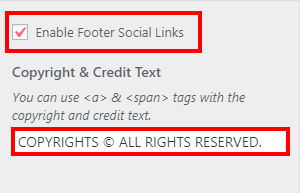
- Social Links: In order to show and set the social links, go to the Dashboard > Appearance > Customize > Advance Customization > Social Links. Also check the box which is shown in the above screenshot.

SIDE BAR / CANVAS TOGGLE SIDEBAR
- Canvas Toggle Sidebar: Go to the Dashboard > Appearance > Widgets and all the highlighted widgets on screenshot can be inserted on the Off Canvas Sidebar.

- Sidebar: You can set the sidebar to the either Right or Left or none.

- Setting up Sidebar: Go to Dashboard > Appearance > Widgets and all the highlighted widgets on screenshot can be inserted on the Sidebar. Further details are provided on widgets section below.
WIDGETS DETAILS
We have the custom widgets designed for Cream Blog. They are available at Dashboard> Appearance > Widgets. Details for those widgets are given below:
- CBP: Affiliated Products: This widget can be use on Home Widget Area Top/Bottom only. Further information are provided in Affiliated Products section above.
- CBP: Author Widget: This widget can be use in sidebar, canvas sidebar, woo-commerce sidebar and footer. You have to create a page and select that page for showing the information.


- CBP: Categories: This widget can be use in sidebar, canvas sidebar, woo-commerce sidebar andfooter to show the categories list.

- CBP: Editor Pick ( PRO ): This widget is to show the editor picked post. This is described on Editorial Pick section above.
- CBP: Featured Categories ( PRO ): It is also used to show the categories list but this can be used on Home Widget Area Top/Bottom. It is described on the Featured Categories section above.
- CBP: Posts Widget: It shows the Posts list on the basis of Recent Post, Most Commented Post and Editor Pick post also. It is only for the sidebar, canvas sidebar, woo-commerce sidebar and footer.

- CBP: Social Widgets: It redirects link to the social network.


- CBP: Videos: This widget shows the list of Videos. It is only for Home Widget Area Top/Bottom section. Further details are explained on Vblog section.
- CBP: Woo-commerce Products: It is only for the sidebar, canvas sidebar, woo-commerce sidebar and footer. This widget shows the woo-commerce products on the basis of categories, feature products and more options which is shown in screenshot below:


- CBP: Mail Chimp Sign-up Form: You can use this widget for signup purpose for the newsletter. You can use this widget on the sidebar, canvas sidebar, woo-commerce sidebar and footer.

You can also use MailChimp Signup form in Home Widget Area Top/Bottom. For this, go to Dashboard > MailChimp for WP > Form and follow the screenshots below:

MailChimp Form code is given below:
<section class="cb-newsleter newsletter-style-1">
<div class="section-inner">
<div class="newsletter-entry">
<div class="newsletter-desc">
<h3>MailChimp Newsletter Box</h3>
<p>Write description your newsletter box inside this "p" tag. Make sure you do not change this tag.</p>
</div>
<div class="cb-inputs-entry">
<input type="text" name="NAME" placeholder="Your name ..." required="">
<input type="email" name="EMAIL" placeholder="Your email ..." required="">
<input type="submit" value="Sign Up">
</div><!-- // cb-inputs-entry -->
</div>
</div>
</section>
Copy and paste this code on the form code of mailchimp and edit the text you want to show. After this, copy the short code of the mailchimp form. Go to Dashboard > Appearance > Widgets > Home Widget Area Top/Bottom. Select Custom Html from the available widget and paste the short code of mailchimp as shown in screenshot:

Here is video tuterial to setup mailchimp
HELP OR NEED SUPPORT ?
You are in right hand. Feel free to contact us though LIVE chat or support forum for any help and support.
]]>