Unity Mini-Tutorial #4 – Unity Cameras to MATLAB Images

Unity Version: 2018.3.0f2

OK, so you have camera frames spewing out of Unity into the ether. Let’s say you want to do some processing on these images in MATLAB. That is what this installment of the Unity mini tuts is all about. We will be picking up where Unity Mini-Tutorial #3 left off and adding the MATLAB code needed to read the frames from Unity.

This should be pretty easy, right? MATLAB can read from TCP/IP sockets and display images right? All we have to do is convert the data from the socket into a m x n x 3 matrix. Let’s get that a try:

% CameraCapture_Bad.m 
clc
clear all
tcpipServer = tcpip('0.0.0.0',55000,'NetworkRole','Server', 'INPUT', 1000000);
fopen(tcpipServer);
try
while(1)
imageDataLength = fread(tcpipServer, 1, 'uint32');
imageData = uint8(fread(tcpipServer, imageDataLength, 'uint8'));
imageData = reshape(imageData, 640, 480, 3);
imshow(imageData);
end
catch e
fprintf("%d -", e.identifier);
fprintf("\n %s", e.message);
end
fclose(tcpipServer);

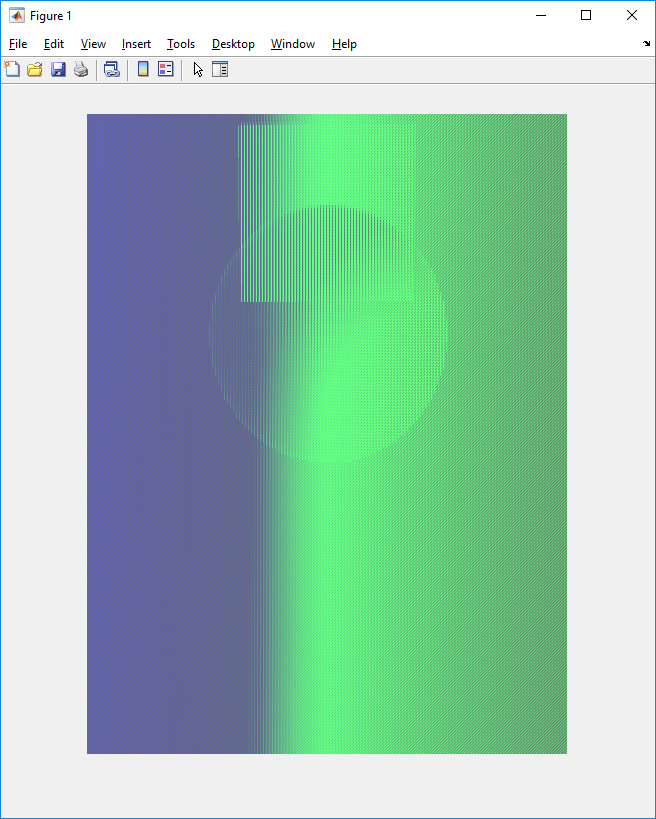
Now, if you run the Unity code and then run the above MATLAB code you get something like this:

Fail!

Hmm… that is not quite right… and this is what Reakain came to me with after he scoured the Internets high and low and could not find a solution. I love a challenge and so I pounced at the change to solve this coding riddle.

The problem here is in the difference in the way that Unity stores RGB color data in images and how MATLAB does it. Unity stores the each pixel’s color components one right after the other: RGB RGB RGB RGB MATLAB on the other hand stores the colors like this: RRRR GGGG BBBB

This is not immediately obvious in either the Unity or MATLAB documentation.

OK, let’s try this again… we need to rearrange the image data so that MATLAB likes it.

% CameraCapture.m 
clc
clear all
tcpipServer = tcpip('0.0.0.0',55000,'NetworkRole','Server', 'INPUT', 1000000);
fopen(tcpipServer);
try
while(1)
imageDataLength = fread(tcpipServer, 1, 'uint32');
imageData = uint8(fread(tcpipServer, imageDataLength, 'uint8'));
imageData = reshape(imageData, 3, []);
imageData = imageData.';
imageData = reshape(imageData, 640, 480, []);
imageData = imrotate(imageData, 90);
imshow(imageData);
end
catch e
fprintf("%d -", e.identifier);
fprintf("\n %s", e.message);
end
fclose(tcpipServer);

That’s more like it!

Success!

You can read more about how Unity handles images and how MATLAB handles images if you want to really dig into the details. Otherwise, grab the code and enjoy the pretty pictures!

The full Unity package for this is at our GitHub here. So take a look or ping us if you have any difficulties.

Unity Mini-Tutorials #3 – Piping Camera Streams Out

Unity Version: 2018.3.0f2

There’s lots of guides to pipe camera data into Unity, but a lot less on piping out. Or at least, there’s a lot of old information on piping camera information from Unity.

This tutorial builds off the TCP connections information in Tutorial 2. The TCPSendPipe.cs file from it gets very heavily modified, but if you’re comfortable with sending TCP data from Unity already, then good! I’m not covering it again.

This tutorial covers the camera specific part of actually getting your camera renders as a 2D texture.

using System.Collections;
using System.Net;
using System.Net.Sockets;
using System.Threading;
using System;
using System.IO;
using UnityEngine;
using UnityEngine.UI;
using System.Runtime.InteropServices;
using System.Collections.Generic;

namespace UnityTutorial
{
    public class CameraPipe : MonoBehaviour
    {
        // Use this for initialization
        public int resolutionWidth = 640;
        public int resolutionHeight = 480;
        public String Host = "localhost";
        public Int32 Port = 55000;
        public bool writefile = false;

        const int SEND_RECEIVE_COUNT = 4;
        private Texture2D texture2D;
        private Rect rect;
        TcpClient mySocket = null;
        NetworkStream theStream = null;
        StreamWriter theWriter = null;
        Camera controlCam;

        void Start()
        {
            Application.runInBackground = true;
            controlCam = this.GetComponent<Camera>();

            mySocket = new TcpClient();
            InitializeGameObject();

            if (SetupSocket())
            {
                Debug.Log("socket is set up");
            }

            Camera.onPostRender += SendRenderedCamera;
        }

        // Update is called once per frame
        void Update()
        {
            if (!mySocket.Connected)
            {
                SetupSocket();
            }
        }

        public bool SetupSocket()
        {
            try
            {
                mySocket.Connect(Host, Port);
                theStream = mySocket.GetStream();
                theWriter = new StreamWriter(theStream);
                return true;
            }
            catch (Exception e)
            {
                Debug.Log("Socket error: " + e);
                return false;
            }
        }

        private void InitializeGameObject()
        {
            texture2D = new Texture2D(resolutionWidth, resolutionHeight, TextureFormat.RGB24, false);
            rect = new Rect(0, 0, resolutionWidth, resolutionHeight);
            controlCam.targetTexture = new RenderTexture(resolutionWidth, resolutionHeight, 24);
        }

        //Converts the data size to byte array and put result to the fullBytes array
        void byteLengthToFrameByteArray(int byteLength, byte[] fullBytes)
        {
            //Clear old data
            Array.Clear(fullBytes, 0, fullBytes.Length);
            //Convert int to bytes
            byte[] bytesToSendCount = BitConverter.GetBytes(byteLength);
            //Copy result to fullBytes
            bytesToSendCount.CopyTo(fullBytes, 0);
        }

        public void SendRenderedCamera(Camera _camera)
        {
            if (mySocket == null || _camera != controlCam)
            {
                return;
            }

            if (texture2D != null)
            {
                texture2D.ReadPixels(rect, 0, 0);
                Texture2D t2d = texture2D;

                byte[] imgBytes = t2d.GetRawTextureData();

                // Test line to write to file
                if (writefile)
                {
                    string temp = Application.dataPath + @"/../" + controlCam.name + DateTime.Now.Ticks.ToString() + @".png";
                    Debug.Log("Writing camera frame to: " + temp);
                    File.WriteAllBytes(temp, texture2D.EncodeToPNG());
                }

                //Fill header info
                byte[] camHeaderbyte = new byte[SEND_RECEIVE_COUNT];
                byteLengthToFrameByteArray(imgBytes.Length, camHeaderbyte);

                try
                {
                    //Send Header info first
                    if (mySocket.Connected)
                    {
                        theStream.Write(camHeaderbyte, 0, camHeaderbyte.Length);
                        Debug.Log("Sent header byte Length: " + camHeaderbyte.Length);
                    }

                    //Send the image bytes
                    if (mySocket.Connected)
                    {
                        theStream.Write(imgBytes, 0, imgBytes.Length);
                        Debug.Log("Sent image frame");
                    }
                }
                catch (Exception e)
                {
                    Debug.Log("Socket error: " + e);
                }
            }
        }

        private void OnApplicationQuit()
        {
            Camera.onPostRender -= SendRenderedCamera;
            if (mySocket != null && mySocket.Connected)
                mySocket.Close();
        }
    }
}

Very first thing is to create a Texture2D and a Rect object. Then set your control camera’s target texture as a new Render texture that matches the width and height and color spectrum.

This process hinges on the inbuilt Camera signal “onPostRender”. We attach a custom function to that signal which is the SendRenderedCamera function. It first checks if the rendered camera is one we want to send, and if not it exits the function.

If it is the camera we want, we read the render texture pixels to our 2D texture. Then we convert it into raw byte data (or encoded byte data if that’s your jam). (We can also write it out from here to a static image, which you can see if we set writefile to true.)

Next we send whatever header information on the image ahead of the image, so the output knows how many bytes we’re looking for. This is also where you would put any other data that you want to send on the image.

Once the header info is sent, we send the image bytes themselves, and presto! This script will fire and send every time the camera renders.

The full Unity package for this is at our github here. So take a look or ping us if you have any difficulties.

Unity Mini-Tutorials #2 – TCP Client and Server Connections

Unity Version: 2018.3.0f2

A first point of note: Large swaths of this code is used from information found on this Matlab forum thread. I used this setup as part of a master’s capstone project. (I’m the only one on the team that’s really comfortable with Unity/C#).

A second point of note: I have so far failed to be able to talk between a server and client within a single Unity application, probably because I’m port blocking myself. So I’ve added both python and Matlab client and server scripts for testing.

It’s basically just C#, but slapped together into the Unity MonoBehaviour scripting framework to run them in a scene.

TCP Server

The TCP server/listener is in the TCPListenPipe.cs script. You feed it your address and port, and it sits there listening for clients that want to talk to it.

TCPListenPipe.cs

using System;
using System.Collections;
using System.Collections.Generic;
using System.IO;
using System.Net;
using System.Net.Sockets;
using UnityEngine;

namespace UnityTutorial
{
    public class TCPListenPipe : MonoBehaviour
    {
        public String Host = "localhost";
        public Int32 Port = 55000;

        private TcpListener listener = null;
        private TcpClient client = null;
        private NetworkStream ns = null;
        string msg;

        // Start is called before the first frame update
        void Awake()
        {
            listener = new TcpListener(Dns.GetHostEntry(Host).AddressList[1], Port);
            listener.Start();
            Debug.Log("is listening");

            if (listener.Pending())
            {
                client = listener.AcceptTcpClient();
                Debug.Log("Connected");
            }
        }

        // Update is called once per frame
        void Update()
        {
            if (client == null)
            {
                if (listener.Pending())
                {
                    client = listener.AcceptTcpClient();
                    Debug.Log("Connected");
                }
                else
                {
                    return;
                }
            }

            ns = client.GetStream();

            if ((ns != null) && (ns.DataAvailable))
            {
                StreamReader reader = new StreamReader(ns);
                msg = reader.ReadToEnd();
                Debug.Log(msg);
            }
        }

        private void OnApplicationQuit()
        {
            if (listener != null)
                listener.Stop();
        }
    }
}

A lot of this script is simply error handling so it doesn’t hang or miss seeing the client. To start, when it starts up it kicks off the listener and starts listening. If a client is already trying to make a connection then it accepts the client and it’s connected. If no one is trying to connect, it doesn’t hang up your Unity program over it, however.

Instead, in the update loop it checks if you have a client. If you don’t it checks if there’s a client asking to connect, if there is, it connects and continues on. If there’s not, then it exits the update loop and skips all attempts to read from a client (as there is no client connected!).

Once it connects to a client, then every update frame is gets new data, reads the stream, and then spits the data out in a way we can check it. (In this instance, via the Debug Log.)

TCP Client

TCPSendPipe.cs

using System;
using System.Collections;
using System.Collections.Generic;
using System.IO;
using System.Net.Sockets;
using UnityEngine;

namespace UnityTutorial
{
    public class TCPSendPipe : MonoBehaviour
    {
        public String Host = "localhost";
        public Int32 Port = 55000;

        TcpClient mySocket = null;
        NetworkStream theStream = null;
        StreamWriter theWriter = null;

        // Start is called before the first frame update
        void Start()
        {
            mySocket = new TcpClient();

            if (SetupSocket())
            {
                Debug.Log("socket is set up");
            }
        }

        // Update is called once per frame
        void Update()
        {
            if (!mySocket.Connected)
            {
                SetupSocket();
            }
        }

        public bool SetupSocket()
        {
            try
            {
                mySocket.Connect(Host, Port);
                theStream = mySocket.GetStream();
                theWriter = new StreamWriter(theStream);
                Byte[] sendBytes = System.Text.Encoding.UTF8.GetBytes("yah!! it works");
                mySocket.GetStream().Write(sendBytes, 0, sendBytes.Length);
                Debug.Log("socket is sent");
                return true;
            }
            catch (Exception e)
            {
                Debug.Log("Socket error: " + e);
                return false;
            }
        }

        private void OnApplicationQuit()
        {
            if (mySocket != null && mySocket.Connected)
                mySocket.Close();
        }
    }
}

A lot of this is also intended for error handling and good practices, so we’ll quickly jump through the different pieces.

Starting with the class variables:

Host and port are self explanatory, make sure they match so your servers and clients find each other. The socket, stream, and stream writer are the workhorses, where the socket is your actual connection, the network stream is the data feed between the client and server, and the writer takes your data, and injects it into the stream between the two.

Start and Update are just handling trying to connect to the server no matter which order you run your server and client in. The OnApplicationQuit is simply intended as cleanup of any remaining open sockets.

SetupSocket it the part we care about, which attempts to connect to the host, then gets the stream, turns our message into bytes, and then writes our stream to the socket. If it fails it lets you know it failed in the Debug Log.

Python and Matlab

As I noted earlier, both Python and Matlab client/server scripts have been provided for testing. I’m not going to go over them, because the other side of the connection is a bit out of scope for this tutorial. However, they are listed in their respective folders in the tutorial repository.

pythonReceive.py

#!/usr/bin/env python

import socket


TCP_IP = '127.0.0.1'
TCP_PORT = 55000
BUFFER_SIZE = 20  # Normally 1024, but we want fast response

s = socket.socket(socket.AF_INET, socket.SOCK_STREAM)
s.bind((TCP_IP, TCP_PORT))
s.listen(1)

conn, addr = s.accept()
print 'Connection address:', addr
while 1:
    data = conn.recv(BUFFER_SIZE)
    if not data: break
    print "received data:", data
conn.close()

pythonSend.py

#!/usr/bin/env python

import socket


TCP_IP = '127.0.0.1'
TCP_PORT = 55000
MESSAGE = "Hello, World!"

s = socket.socket(socket.AF_INET, socket.SOCK_STREAM)
s.connect((TCP_IP, TCP_PORT))
s.send(MESSAGE)
s.close()

matlabReceive.m

clc
clear all
tcpipServer = tcpip('0.0.0.0',55000,'NetworkRole','Server');
while(1)
data = membrane(1);
fopen(tcpipServer);
rawData = fread(tcpipServer,14,'char');
for i=1:14 rawwData(i)= char(rawData(i));
end
fclose(tcpipServer);
end

matlabSend.m

clc
clear all
tcpipClient = tcpip('127.0.0.1',55000,'NetworkRole','Client');
set(tcpipClient,'Timeout',30);
fopen(tcpipClient);
a='yah!! we could make it';
fwrite(tcpipClient,a);
fclose(tcpipClient);

The full Unity package for this tutorial is at our github here. So take a look or ping us if you have any difficulties.

Unity Mini-Tutorials #1 – Json Files

Unity Version: 2018.3.0f2

For Unity, a great way to store item, stat, etc info is in dictionaries, and everyone loves a good JSON dictionary. Or, rather, JSON dictionaries are a great way to store game data.

So, let’s start with a sample JSON file. This ones for an item database.

{
	"items": [
		{
			"name": "name01",
			"desc": "item description",
			"sprite": "item image in inventory",
			"action": "what the item does"
		},
		
		{
			"name": "name02",
			"desc": "item description",
			"sprite": "item image in inventory",
			"action": "what the item does"
		}
	]
}

Simple enough, right? We’ve got an array object “items” where each object in the array is an “item” with a name, description, sprite, and action. In this case we have an array of 2 items for our example.

The next part to look at is your C# scripts for reading the data in. For this example I have to script files. We’ll start by looking at Item.cs

using UnityEngine;
using System.Collections;
using UnityEngine.Serialization;
using System;

/// Scripts for loading and storing and reading json data for items
namespace UnityTutorials
{
	[Serializable]
    public class ItemDatabase
    {
        public Item[] items;
        public static ItemDatabase CreateFromJSON(string jsonString)
        {
        	return JsonUtility.FromJson(jsonString);
        }
    }
    
	[Serializable]
    public class Item
    {
        public string name = "";
        public string desc = "";
        public string sprite = "";
        public string action = "";
    }
}

Alright, what are we looking at. Item.cs has two classes. Let’s look at the second class first, the “Item” class. It has variables that correspond with the different objects within an individual item from the JSON file. So, you see name, desc, sprite, and action again. This tells the JSON parser what exactly it’s looking at when it pops open the JSON file.

Looking now at the ItemDatabase class, this class is one level up. So, one level up from your item in the JSON file has only one field “items” which is an array of Item. So, for this class we put in that variable so it can fill it out, and we make a static function to create an ItemDatabase from the JSON file.

The key pieces in here is to make sure our variable names match the names we define in the JSON file, and the static function that calls Unity’s inbuilt JSON parser.

The final piece is a script that actual generates an ItemDatabase class. I’ve labeled my script InventoryMonitor.cs and attached it to a gameobject in my example scene.

using System.Collections;
using System.Collections.Generic;
using UnityEngine;

namespace UnityTutorials
{
    public class InventoryMonitor : MonoBehaviour
    {     
        [Header("Usables")]
        public string[] usableItemNames;
             
        [Header("Item References")]
        public TextAsset usableItems;

        private ItemDatabase usables;

        void Awake()
        {
            usables = ItemDatabase.CreateFromJSON(usableItems.text);   // Read in our Json file
            usableItemNames = new string[usables.items.Length];        // Instantiate our names array
            // Iterates through our items and populates the names array with the name of each item
            for (int i = 0; i < usables.items.Length; i++)
            {
                usableItemNames[i] = usables.items[i].name;
            }
        }
    }
}

Whew! This has a lot of pieces, so starting from the top! The usableItemNames string array is purely for us to see that our code is working. The TextAsset field is where we assign our JSON file, and the ItemDatabase variable is where we put the data from the JSON file.

From there, we call our static ItemDatabase function with the text from our JSON file, which populates the item database. From there it’s just a matter of using it to fill our names array to prove it worked.

What we see in the object inspector with our attached script. Right now the Item Names is 0, as we haven’t parsed the data from our JSON file.
And once we hit the play button, we see the Item Names is populated with the data from the JSON file. Voila! It worked!

Shabam! Success! The full Unity package for this is at our github here. So take a look or ping us if you have any difficulties. I listed a version up top, but based on content, this one is likely pretty version insensitive.