This post will explore how an adaptive, intelligent system could empower users with disabilities to optimize their experience in digital environments. Even were such a system available tomorrow, developers of digital content, services, and products would still be responsible for providing equal access to ALL users.
Consider a few of the many exciting advances in assistive technology and digital accessibility over the past few years:
- Auracast: a technology that enables one device to transmit sound (e.g., language translation) wirelessly to multiple users with a compatible device, faster than traditional Bluetooth, without requiring pairing,
- PlayStation Access Controller: a highly customizable controller kit designed for gamers with limited motor control,
- The European Accessibility Act (EAA): digital accessibility legislation that applies to both the hardware and software of digital products and services.
There has also been an enormous increase in the availability, capability, and use of artificial intelligence (AI). AI methodologies such as natural language processing, computer vision, and machine learning are actively transforming both assistive technologies and digital accessibility practices. As Giansanti and Pirrera (2025) observe:
“AI itself is expanding the concept of assistive technology, shifting from traditional tools to intelligent systems capable of learning and adapting to individual needs. This evolution represents a fundamental change in assistive technology, emphasizing dynamic, adaptive systems over static solutions.”
I’d like to propose a term for the space where assistive technology, digital accessibility, and artificial intelligence converge: Intelligent Digital Accessibility Assistance.
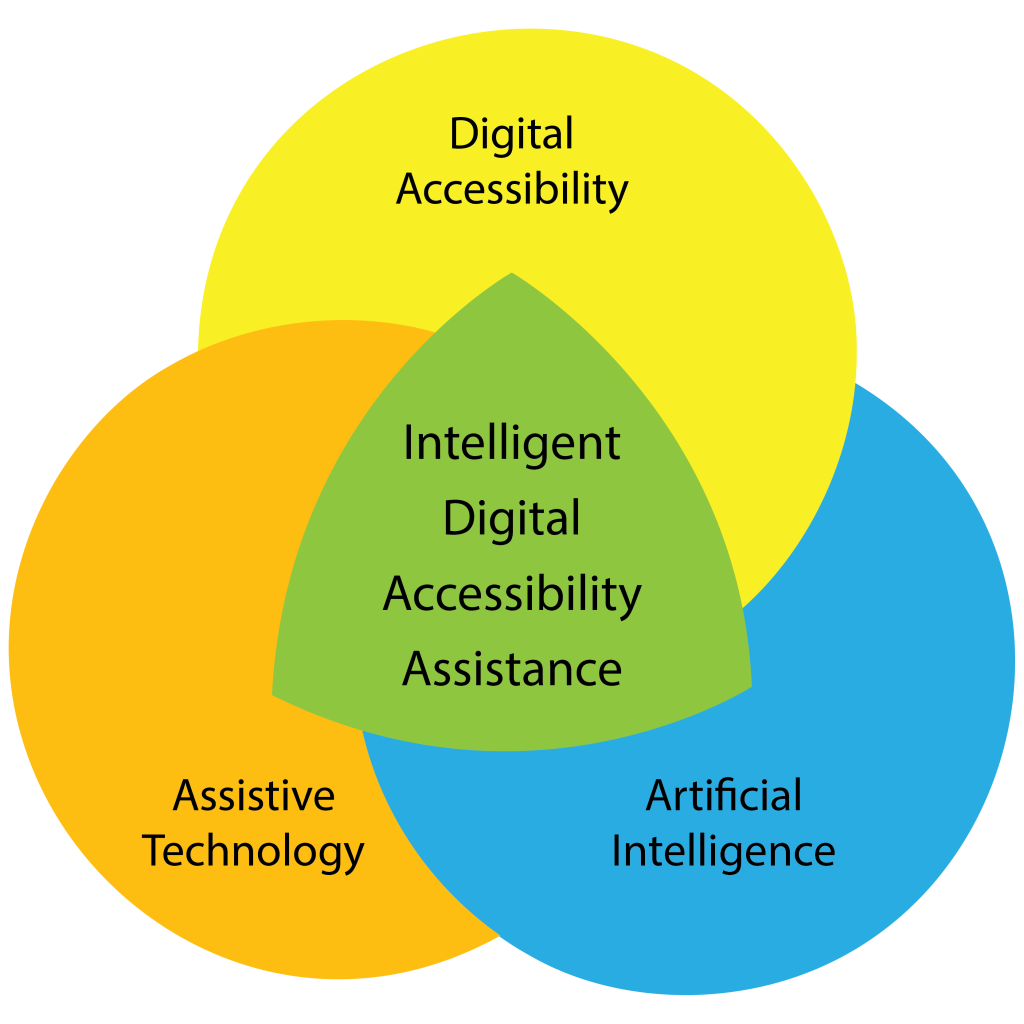
As a thought experiment, let’s explore the concept of a proactive, personalized mediator that provides assistance by empowering a user to adapt, translate, and restructure digital content and environments to match their unique preferences. I will call this an Intelligent Digital Accessibility Assistant (IDAA).
User Configuration and Training
Each user would help their IDAA develop and cultivate a comprehensive understanding of their environment, needs, preferences, abilities, and disabilities. In early versions, setup may require a manual process to understand the user’s assistive technology, preferences for interacting with digital content, and digital activities. However, as these Intelligent Assistants mature, the setup could happen automatically by observing and learning a user’s requirements and preferences. The user could then choose to have the assistant automatically adapt based on an ongoing analysis of their behavior, either autonomously, or by providing recommendations for them to authorize or reject.
Tools
In the setup stage, a blind person might specify that they use both software (e.g., screen reader) and hardware (e.g., braille display) assistive technology. The Assistant would need to know details such as software version or product model number and any customizations made to the default settings. A user could then elect to have the Assistant notify the user with real-time developments related to their assistive technology: changes to a user interface, new features, software/firmware updates, etc. An Assistant might also be tasked with identifying and sharing emerging best practices for a user’s tools.
Content
To help the IDAA understand their general preferences, a user could grant permissions that would allow the Assistant to monitor and analyze specified interactions with digital content. For example, when a screen reader encounters a legacy website with poor semantic markup, the user might instruct the Assistant to analyze the visual layout and text hierarchy to infer the missing structure required by their assistive technology. Or when reading an email with a significant amount of visual formatting styles (italics, bold, strikethrough), a user might ask the Assistant to dynamically update their screen reader’s settings to present formatted text in a distinctive speech style.
Activities
A user could also configure settings for different session “modes”. For example, in “research” mode a user could have the IDAA rapidly scan an academic paper, generate a jargon-free summary, and generate tables for any visual charts. Or a user might switch to “entertainment” mode to watch a movie. The Assistant would silence audio notifications for non-critical messages, and generate a log of messages to review later. While an Assistant would likely have some default modes, it could also help a user build custom modes based on their engagement preferences for additional types of digital content and/or specialized virtual environments.
User-driven Accessibility
After establishing a baseline awareness of a user’s current digital engagement practices, an Assistant’s ongoing encoding process would continue to optimize its alignment with the user. To facilitate this process a user might instruct an Assistant to:
- Develop recommendations for the expansion, refinement, and revision of its context awareness.
- Propose new capabilities for the user to authorize.
- Conduct web research to identify new accessibility resources aligned with the user’s preferences.
In such an environment, the degree of collaboration with an Assistant is truly open-ended, and completely determined by the user.
Conclusion
As a daily user of artificial intelligence, and a researcher seeking to understand the rapidly-evolving scope of its capabilities, I feel confident in stating that the availability of something like an Intelligent Digital Accessibility Assistant, is a “when”, not an “if”. There are significant concerns with AI that must be addressed: equity of access, bias in training data, environmental impacts, and reliability. And there is also a growing potential for a user with a disability to partner with AI to expand their access to the digital world.
I hope you found this exploration thought-provoking and inspiring, and that you will share your thoughts, concerns, and questions in the comments section.
]]>Yet, in spite of it all, accessibility does evolve, but quietly rather than dramatically. As I gaze ahead to 2026, several trends are already taking shape. These are more than theories and ideas; they are practical shifts that website owners are beginning to feel today.
Here are some likely, meaningful changes on the near horizon.
1. AI Will Improve Accessibility Tools—But Not Replace Expertise
I have to admit, over the past year, ChatGPT has become my confidante, advisor, reality checker, summarizer, and occasional Spanish interpreter. It’s like having a faithful human assistant who never grows weary of my repeated inquiries. But like a human assistant, it sometimes takes a few tries to get it right. That’s why I see AI more as a valuable helper than a project manager. It’s changing how accessibility testing tools work and getting better at identifying patterns, grouping related issues, and prioritizing findings. This trend will continue.
What will not happen is full automation of accessibility evaluation. I do not trust it with determining whether alternative text is meaningful, evaluating interaction flow and user expectations, or understanding context and intent.
In other words, AI can help raise some flags quickly, but I do not trust it to decide whether an experience actually works for a human being.
So, the real shift for 2026 will be AI’s contribution to workflow efficiency, not replacement. Organizations that pair smarter tools with knowledgeable human reviewers will gain speed and consistency. Those that expect AI to do it for them will continue to miss critical barriers—just faster than before.
2. WCAG 2.2 Will Increasingly Become the Procurement Baseline
WCAG 2.2 may no longer feel new to the industry, but many organizations are only beginning to adopt it. WebAIM began offering it to our evaluation customers as the default as soon as it was finalized, but some customers whose internal standards specify 2.1 remain hesitant. When a new version is published, there’s always an interim time when, to some, the old version still feels current and the new version feels experimental and over–the-top. During 2026, I’d like to see the landscape shift so that 2.1 feels old (which it is) and 2.2 just feels current and normal. There’s nothing really revolutionary about 2.2; the changes largely address real barriers that users experience daily: Focus appearance, accessible authentication, dragging alternatives, consistent help…
It is up to those of us in the industry to lead this shift. In the coming year, I expect WCAG 2.2 to become the default expectation in procurement language, RFPs, and accessibility evaluation.
3. Native HTML Will Gradually Come Back
After years of JavaScript-heavy, ARIA-laden custom widgets, I’m noticing a subtle and gradual shift back toward native HTML elements and browser-supported behaviors. Native HTML elements have built-in accessibility support, receive ongoing browser improvements, work more predictably across assistive technologies, and reduce the need for complex ARIA patterns.
WebAIM’s standard accessibility training presentation implores developers to “just use a button” instead of creating clickable <span> or <div> elements with JavaScript events and ARIA layered on. Out in the field, I’m seeing this becoming less of an issue. However, I regularly see custom widgets implemented where a standard <select> or <details>/<summary> would do the job.
So, in 2026, I expect to see fewer fully custom widgets and more careful use of <button>, <dialog>, <details>/<summary>, <select>, and other form controls—often styled heavily (and that’s fine), but functionally native. Teams that embrace native patterns will ship faster, debug less, and maintain accessibility more reliably than those rebuilding basic controls from scratch. I’ll be watching the WebAIM Million to see how this prediction plays out.
4. Accessibility Debt Will Be Recognized as a Business Risk
Accessibility barriers accumulate quietly through redesigns, framework updates, staff turnover, and rushed deadlines. The result is accessibility debt—a backlog of small issues that eventually snowball into large ones. The larger the backlog gets, the more onerous it appears.
However, more organizations are beginning to recognize that accessibility debt increases legal exposure (especially those organizations that are in litigation), slows down development cycles, undermines user trust, and costs more to remediate later.
Over the course of 2026, forward-thinking organizations will increasingly treat accessibility maintenance as ongoing infrastructure, not a one-time remediation project. Regular evaluations, regression testing, and staff training will increasingly be understood as risk management more than an optional “nice-to-have.”
5. Native App Accessibility Will Influence Web Practices More Directly
Native app accessibility is no longer a separate conversation—it’s actively shaping web accessibility thinking. Concepts like clear, concise control names, predictable focus management, gesture alternatives, and logical reading order apply equally to web and native platforms. As teams evaluate both web and mobile products, accessibility practices will converge around shared principles rather than platform-specific checklists. This cross-pollination will benefit users and challenge teams to think beyond traditional “web-only” paradigms and assumptions.
6. User Preferences Will Matter More Than Page-Level Settings
Users increasingly rely on system and browser preferences, like prefers-reduced-motion, high contrast, forced colors, dark mode, text size, and default zoom. During 2026, the accessibility industry will begin to treat the idea of a single “accessible” design as only the beginning, instead of the destination, and increasingly anticipate and respect user preferences across environments. Designs that override system settings, hard-code colors, or ignore user preferences will feel increasingly brittle—and increasingly inaccessible to users.
7. WCAG 3 Thinking Will Influence Practice Before the Standard Arrives
WCAG 3 is still years away, but its underlying philosophy—focusing on outcomes, tasks, and usability rather than rigid pass/fail criteria—is already influencing how accessibility professionals think.
We can expect more emphasis on task completion, more discussion of severity and impact, greater recognition of partial conformance, and broader inclusion of cognitive and learning considerations. Organizations that adopt this mindset early will be better prepared for future standards while delivering better experiences right now.
Looking Ahead
Accessibility progress rarely makes headlines. It happens through careful decisions, better defaults, and sustained attention to user needs. The most impactful changes coming next year are practical, structural, and long overdue—not the stuff that grabby news items are made of, but the kind of improvements that users will feel nonetheless.
Organizations that succeed in accessibility will be those that invest in people, not just tools, treat accessibility as a journey rather than a destination, build on native HTML foundations, recognize and respect user preferences, and focus on practical outcomes.
]]>Introduction
In Microsoft Word and PowerPoint, there are many types of non-text content that can be given alternative text. We tested the alternative text of everything that we could think of in Word and PowerPoint and then converted these files to PDFs using Adobe’s Acrobat PDFMaker (the Acrobat Tab on Windows), Adobe’s Create PDF cloud service (the Acrobat tab on Mac), and Microsoft’s built-in PDF exporting feature (save as PDF). With over 100 test cases tested first in Word and PowerPoint and then in three different PDFs (over 400 checks), here are the main takeaways.
- Alt text within Word documents and PowerPoint presentations works very well. The process for adding alt text is consistent across every image type, and it is usually easy for screen readers to discover the alt text. Images in Word no longer require a layout of “In Line with Text” to avoid accessibility issues.
- Alt text in Microsoft’s PDF exporting feature is very good. If there is one criticism, it is that the specific image type can be added to the alternative text, making it repetitive (e.g., “Pie chart of sales by quarter (Chart: Pie)”).
- Alt text support in Adobe’s PDF tools is very disappointing. PDFs created with the Acrobat tab have problems with basically every type of image except Pictures.
Details are below, including gotchas for almost every type of image.
Notes
- These tests were done in the desktop versions of Word and PowerPoint 365. Not all of these techniques apply to older or online versions of Office.
- “Alt text” is the name for alternative text in Word and PowerPoint, so it is the term typically used in this document.
- “Image” is used as a generic term for objects that can be given alt text.
- Word and PowerPoint files were created using the current versions of Microsoft 365 for Windows (2509) and PDFMaker (25.1.20). The PDFs created with Create PDF cloud service were created on October 29, 2025.
- The options to insert equations and symbols were not tested because they create text-based content.
- Forms were not tested.
Alt text in Word and PowerPoint
Adding alt text is consistent across all image types. Selecting the object will display a temporary tab that includes the word “Format” (e.g., “Shape Format”). There is an option in this tab.

You can also on the image and choose .
There will be a field to enter alt text and a checkbox for . There may also be options to add or accept AI-generated alt text (depending on your settings).

In Windows, you can keep the Alt Text pane open while using other tools like the Accessibility Assistant. To do this, click the icon > .

Accessibility Assistant
Adding and correcting alt text is usually most efficient when you combine the Accessibility Assistant with a manual review.
The Accessibility Assistant will automatically identify images with missing or suspicious alt text. There are several ways to start running the Accessibility Assistant, including on the tab. The Accessibility Assistant pane has grouped all of its alt text issues into one category—. Choosing this category will step you through adding alt text to each image with missing or AI-generated alt text.
Word has an especially useful and recommended feature that adds inline prompts for accessibility fixes. To enable this, go to tab > > (Windows) or > > (Mac) and then check . A small icon will appear to prompt you to make inline accessibility fixes. Clicking this icon (this is mouse only) will open a dialog where you can add or change alt text, approve AI-generated alt text, or mark as decorative.

Remember to save changes to the alt text by choosing the (Windows) or (Mac) after entering alt text. Unlike the Alt Text pane, changes are not saved automatically.
Microsoft’s Built-in PDF Conversion
For many years, the Acrobat tab consistently created PDFs with a clean structure that was easier to review in Acrobat. In late 2024, Microsoft announced significant improvement to the accessibility of their exported PDFs that matched Adobe in some places and surpassed it in others. While there may still be some areas where PDFs created by Adobe’s PDFMaker and cloud services are superior, Microsoft is the clear winner when it comes to alt text. Creating PDFs using or maintains alternative text for almost every image type, with emoji being the only true failure.
The main issue isn’t missing information in the alt text, but extraneous information. Except for pictures, the image type is typically added to the alt text that was defined in the document. This can sometimes be helpful, but it is often repetitive or even confusing. For example, there are about 150 types of shapes, each with a unique name, so a two-sided arrow with alt text of “Two-way communication” would have alternative text of “Two-way communication (Arrow: Left-Right)” in the PDF.
Adobe’s Acrobat Tab
PDFs created with the tab will vary based on your operating system. On Windows, it uses Acrobat PDFMaker, which is installed when you install Acrobat. On Mac, it uses Adobe’s “Create PDF” cloud service. The PDFs created by these two tools are different, but they have one thing in common-they both often lose or corrupt alt text as part of the conversion process.
If in doubt, convert it to a Picture.
A “Picture” is a specific type of image in Word and PowerPoint. Photos, as well as most images pasted from non-Office sources, are Pictures. You will know if something is a Picture if selecting it causes the tab to appear in the ribbon.
A Picture with its alternative text is consistently converted to PDFs created with both PDFMaker and the Adobe cloud service. One way to ensure that all your images are correctly tagged as a PDF is to convert them to Pictures first. To do this, first copy or cut the image. On Windows, paste it back into the page using > > .

On Mac, (or select the menu) > choose > and then select one of the 4 "Picture" file types.
While pasting as a Picture a good option for many types of images, some things cannot be pasted as pictures. This includes audio and video objects that would lose their main purpose.
If an image supports being pasted as a Picture, the new picture can no longer be edited, so do this with caution. It is probably a good idea to create a duplicate version of a file and do this as a final step before creating a PDF.
An image’s alt text will be lost when pasting it as a Picture! To avoid losing the alt text, copy—don’t cut—the image, paste as a picture, copy/paste the alt text, and then delete the original picture.
Gotchas for Different Image Types
The dozens of alt text bugs are too numerous to mention (especially creating a PDF using the Acrobat tab), but here are some notable quirks and pitfalls for different image types.
- Shapes:
- Word PDFMaker does not maintain alt text for shapes.
- In PDFs created by Microsoft, shape types will always be appended to the alt text.
- Icons maintain their alt text when converted to PDF. Just be sure to review and, if needed, change the preset alt text.
- Video and Audio: Even though embedded multimedia may not be included in PDF, the alt text for the image that presents it is converted.
- 3D Models are poorly supported in Adobe PDFs. Converting to a picture is recommended when using the Acrobat tab.
- Charts
- PDFMaker has no alt text support for charts in Word or PowerPoint.
- The text information contained in a chart is not typically added to the alt text, so be sure to include important text information in the alt text or in a nearby table or text description.
- SmartArt
- Do not bother adding alternative text to the different components within a SmartArt image. It is not easy to discover in Word and PowerPoint, and it is never included when converted to PDF.
- If SmartArt does not have alt text, the text within the SmartArt will be defined as the alt text in the resulting PDF.
- Groups:
- Microsoft PDFs will include the group alt text, plus the alt text or text of the items within the group.
- The inconsistencies of Adobe PDFs are too numerous to list. If you’re using the Acrobat tab, converting a group to a picture is recommended.
- Tables: Do not add alt text to tables. In PDFs created from PowerPoint, it can cause the table’s contents to be ignored completely.
- Draw tab
- Your drawing will be saved as a single image until you change a page or slide, change a drawing tool, or stop drawing.
- In PowerPoint, PDFMaker does not convert these drawings at all, meaning they do not even appear in the PDF.
- To make it easier to add alternative text to drawings it may be easier to group them or convert them to a Picture using Paste Options.
- Emoji: Only the Adobe cloud service provides alt text for emoji, though it does this by converting them into black and white emoji.
- Placeholders, text boxes and WordArt in PowerPoint
- Be very careful adding outlines or fills to any of these container types. This can impact how they are read (or in the case of PDFMaker, not read).
- Any content that is marked as decorative should be excluded from the tag structure when converting to PDF. This can be a useful technique when used intentionally. Unfortunately, the Adobe cloud service ignores “Mark as decorative” unless the container has an outline or fill.
- Text Boxes and WordArt in Word: PDFMaker will not convert alt text or the contents of Text Boxes or WordArt in Word. Adding outlines and fills to Word paragraphs does not cause any problems, so use this technique in Word instead.
- Text effects in Word: Applying text effects like shadows and reflections will cause the text to be ignored in PDFs created with the Acrobat tab. It can also cause issues in Microsoft PDFs (like a screen reader reading “dot” for each period). The best way to address this issue to is to cut the problematic text, paste it as a Picture and then immediately paste the same text into the Alt Text field (Windows-only).
In a Nutshell
When it comes to alt text in Word and PowerPoint files. Keep the following principles in mind:
- Use the Accessibility Assistant and Alt Text pane to add alternative text to your images.
- Choose Microsoft’s built-in PDF conversion for the best alt text results, especially if you have complex images.
- If you are using the Adobe’s Acrobat tab to create PDFs, either convert your complex images to Pictures or be ready to do significant repair in Acrobat.
For K–12 educational agencies, including state educational agencies (SEAs) and school districts, digital accessibility efforts must align with existing priorities, practices, and policies. A one-size-fits-all approach simply won’t work.
A Foundation in Special Education and Alternatives to Print Materials
Since 1975, the Individuals with Disabilities Education Act (IDEA) has required that students with disabilities be provided access to the general education curriculum. When IDEA was last reauthorized in 2004, it included a provision that SEAs and districts provide accessible formats of print materials—such as braille, large print, digital text, and audio—to eligible students with disabilities.
Each SEA is required to define what constitutes a “timely manner” for providing accessible formats. Most states have adopted a definition that aligns with the expectation that students with disabilities receive accessible formats at the same time as their peers without disabilities receive the print version of the materials.
To help meet this requirement, Congress established the National Instructional Materials Accessibility Standard (NIMAS) and the National Instructional Materials Access Center (NIMAC). Together, NIMAS and the NIMAC have supported the timely delivery of accessible formats in K–12 settings for nearly two decades.
The Shift to Digital and New Challenges for Accessibility
While IDEA remains grounded in the early 2000s, the instructional landscape in K-12 schools has rapidly shifted from print to digital. Relative to most higher education institutions, SEAs and school districts haven’t kept pace with digital accessibility. One reason for this lies in the differences between the primary disability laws that govern K–12 versus higher education. In K–12, IDEA guarantees a free appropriate public education (FAPE), which includes an individualized education program (IEP) and specially designed instruction. This model often includes individualized assistance to address the daily accessibility issues experienced by students with disabilities. For example, a paraprofessional might assist a student whose assistive technology doesn’t work with an inaccessible website assigned for homework. These interventions, although understandable in context, have interfered with progress toward removing digital barriers in K-12.
By contrast, in higher education, the Americans with Disabilities Act (ADA) emphasizes equal access through reasonable accommodations. While accommodations should be individually designed to meet the access needs of the student with a disability, the ADA states that accommodations are not required when they would result in a fundamental alteration of the student’s educational program. Because postsecondary students with disabilities are expected to make educational progress with considerable independence, higher ed institutions have had to be proactive with digital accessibility to ensure equitable and effective access to course materials and platforms.
ADA Title II Raises the Bar for Digital Accessibility in K–12
The recent ADA Title II final rule makes it clear that the responsibilities of SEAs and school districts extend beyond providing accessible formats. Under the ADA, the digital educational materials provided by schools must meet specific accessibility standards by either April 24, 2026 (SEAs and larger school districts) or April 26, 2027 (smaller school districts). This is a significant challenge for schools that have been operating for decades under the model of individualized accommodations required by IDEA.
Partnering for Progress: NCADEMI
WebAIM is proud to partner with the National Center on Accessible Digital Educational Materials & Instruction (NCADEMI), pronounced “n-cademy,” to help SEAs and school districts meet ADA Title II requirements. Launched on October 1, 2024, and funded by the Office of Special Education Programs at the U.S. Department of Education, NCADEMI supports the timely provision and effective use of accessible digital materials for learners with disabilities, from early intervention through high school graduation.
Free Tools and Training from NCADEMI
NCADEMI provides a range of no-cost resources and training to help education agencies meet digital accessibility obligations, including:
What’s Next: Quality Indicators and Implementation Tools
As NCADEMI approaches its second year, we’re preparing to launch the Quality Indicators for the Provision and Use of Accessible Materials in PreK–12 Systems. These will include research-based readiness protocols and self-assessment tools designed specifically for SEAs and school districts. Virtual coaching on best practices for implementing the Quality Indicators will be available to SEA and district teams starting in October 2025.
To stay informed about new tools and opportunities, subscribe to NCADEMI’s newsletter and follow NCADEMI on LinkedIn. Contact us directly at [email protected].
]]>aria-label, aria-labelledby, and role="dialog". But the ARIA landscape isn’t static. In fact, recent ARIA specifications (especially ARIA 1.3) include a number of emerging and lesser-known features that are quietly laying the groundwork for the next phase of inclusive web design.
In this article, we’ll look at some of the “up and coming” ARIA features—some already supported, some just getting started, and some you might not have heard of. Think of these as tools to keep on your radar as browser and screen reader support continues to evolve.
Environments Tested
- Windows 11: Current versions (May 2025) of JAWS, NVDA, and Narrator with Chrome, Firefox, and Edge.
- MacOS Sequoia: Current versions (May 2025) of VoiceOver with Safari, Chrome, and Firefox.
- iOS 18.4: VoiceOver with Safari.
- Android 15: TalkBack 15.2 with Chrome.
New and Notable ARIA Attributes
aria-errormessage
This attribute lets you explicitly associate a custom error message with a form field when aria-invalid="true" is present. Unlike aria-describedby, which is often used generically, aria-errormessage gets announced only when the field is invalid—making it purpose-built for form error feedback.
Support: Strong across JAWS, NVDA, and iOS VoiceOver, but limited elsewhere.
aria-description
This provides a programmatic description of an element that’s not necessarily visible on screen. It differs from aria-describedby in that it’s meant more as a supplement, such as content that is not visible in the page; not essential content.
A practical example: a breadcrumb trail with aria-description="You are here:"—which offers helpful orientation to screen reader users without cluttering the visual design.
Support: Surprisingly limited, with only NVDA and iOS VoiceOver currently handling it well.
aria-details
This attribute points to detailed, supplementary content—kind of like a modern replacement for the old (and poorly supported) longdesc attribute. It is intended to contain more information than would normally be provided via aria-describedby. For instance, you might have a chart with aria-details referencing a nearby data table.
Support: Announced in some screen readers, but there’s currently no way to access the details element directly from the element that references it. So, it’s more of a placeholder for future capability than a production-ready feature.
aria-keyshortcuts
Want to communicate that a button is triggered with the Escape key, or that pressing “Ctrl+M” will mute audio? aria-keyshortcuts allows you to document keyboard shortcuts directly in the DOM.
This doesn’t enable the shortcut—it just declares it. But for users navigating with screen readers, this can surface helpful hints they might not see otherwise.
Support: Decent in Chrome and Edge, less so in Firefox and mobile environments.
aria-placeholder
The HTML placeholder attribute adds text to an empty field. This text is read by a screen reader, even when the field is no longer empty. aria-placeholder text is read by the screen reader without adding the visible text and is particularly useful for custom widgets that simulate form fields. For example, if you build a div[contenteditable] component, you can add a prompt with aria-placeholder that matches the visible placeholder text.
Support: Surprisingly consistent across major screen readers—including JAWS, NVDA, VoiceOver, and TalkBack.
Lesser-Known ARIA Roles
role=”mark”, role=”comment”, and role=”suggestion”
These roles are especially useful for editorial and collaborative systems.
role="mark"= highlighted text
role="comment"= user-generated feedback or discussion
role="suggestion"= proposed content changes
Support is still inconsistent, though role="mark" (semantically equivalent to <mark>) is catching on.
role=”code” and role=”time”
These mimic the semantics of <code> and <time> respectively and are useful in component-based systems where native tags aren’t practical. Support is limited.
role=”image”
This one is more of a convenience: it’s just a synonym for role="img". It doesn’t change behavior, but it can be useful for readability or design consistency when using roles that mirror natural language.
Where Does This Leave Us?
Many of these features are in what you might call the “infrastructure stage”: they’re well-defined and ready to use in theory, but screen reader and browser support remains uneven. Still, that’s exactly when accessibility professionals should start paying attention—because by the time support is universal, the best practices will already be written.
Until then, it’s important to know what’s possible, test across multiple environments, and deploy these newer features when they add real value and degrade gracefully.
Want to Explore Some HTML Examples?
Check out the companion demo page here:
webaim.org/presentations/2025/examples/up-and-coming-aria
This survey was conducted in conjunction with the GAAD Foundation. The GAAD Foundation is a nonprofit organization whose mission is to disrupt the culture of technology and digital product development to include accessibility as a core requirement.

Survey Results Highlights
- Respondents that reported working full time reported an average salary of $109,542 US dollars (median = $96,100). Average salaries varied by country.
- 57.6% of respondents reported having a disability. Respondents with disabilities reported higher full-time salaries on average than respondents without disabilities.
- Blind respondents had the highest average salary of all disability types. Respondents with motor disabilities were the only disability category that reported lower average salaries than respondents without disabilities.
- 65% of respondents reported working at companies or organizations with over 1000 people. Employees for larger companies/organizations generally reported notably higher average salaries.
- Those who reported working in an office had notably lower salaries on average than respondents that reported working remotely or in hybrid environments.
- 22.5% of respondents worked for accessibility software, tools, or services companies. These respondents reported notably lower full-time salaries.
More results are available in the full Salary Survey results report.
]]>Who is the discussion list for?
The WebAIM email discussion list is for anyone interested in discussing web accessibility issues. It’s a forum where those just starting out in the field can ask basic questions, where seasoned pros can pose deep-dive questions, and everything in between. It’s a great resource for learning about recent fixes for accessibility issues in digital tools, job opportunities in the accessibility field, virtual webinars, and free or low-cost resources.
Do I have to post my questions to get answers?
Nope. The archives have every one of over 48,000 questions and replies that have been posted so far, organized by month and year. Want to know what the hot topics were when Barbenheimer was in theaters, just click on the link for July 2023. And, hey, if you can read one message a minute and don’t sleep or eat (not recommended), you can read them all in about a month. For a more targeted approach, we’ve recently updated our search tool to select the most relevant messages for your keywords.
What’s kept the discussion list going?
Our contributors! Without regular contributors that share their knowledge about and passion for increasing web accessibility, there would be nothing to subscribe to, and no archives to explore. To those of you that have been a part of the discussion list, whether for decades or for days, we say “thank you” from the bottom of our hearts.
What’s on the horizon—anything new in the works?
Great question! Our team has discussed a few ideas, such as creating different interest groups for topics like technical frameworks (e.g., WCAG), accessibility in digital documents, and assistive technologies (e.g., NVDA). The reality is we’re counting on the community to help us navigate the path forward, and we hope you’ll join us.
Where can I share my feedback?
We’d love to hear from you in the comments below. If you’re already a subscriber, it’s a great place to give a quick “shout out” to your favorite contributor or share an experience you’ve had. You can also send your suggestions and/or thoughts to the team on our Contact page.
]]>Critical Issues
Accessibility issues that fall under the critical rating cause web content or functionality to be completely inaccessible to some users. To determine if an issue is critical, consider if a group of users is completely unable to access a specific type of web content. Critical issues typically impact screen reader users and users who navigate using the keyboard. For example, when interactive elements cannot be reached using the keyboard, these users cannot perform important tasks like using navigation menus or selecting elements like buttons or custom form inputs. Using native HTML elements whenever possible and incorporating keyboard and screen reader testing into the development lifecycle can ensure that these issues are avoided.
Other examples of critical issues might be videos without captions that prevent users who are deaf and hard of hearing from accessing media or content that strobes or flashes in a way that may cause seizures for users with photosensitive epilepsy.
Significant Issues
Accessibility issues that fall under the significant rating cause web content or functionality to be very difficult for some users to interact with or use effectively. A common example of a significant issue is missing visual focus indicators. For users who navigate using the keyboard, missing visual focus indicators make it extremely difficult to know what interactive element has keyboard focus.
Another example of a significant issue includes empty buttons and links. Buttons and links without descriptive text make it extremely difficult for screen reader users to navigate a page, especially when tabbing between interactive elements. In these cases, users are forced to search for context elsewhere on the page, adding time and frustration to the user experience.
Moderate Issues
Accessibility issues that fall under the moderate rating cause users to spend unnecessary time or effort to access or use web content or functionality. An example of a moderate accessibility issue is a lack of semantic HTML elements like page regions and headings that help screen reader users navigate the page. Screen reader users will still be able to navigate a page without page regions and headings, but will not be able to navigate directly to specific page regions or headings using shortcuts built into their screen reader’s software.
Recommendations
Accessibility issues that fall under the recommendation rating are “nice to fix” (as in, “nice to have”), because they represent content or functionality that could be strengthened in terms of accessibility and usability. Recommendation level issues are typically related to accessibility best practices and code maintainability. For example, applying tabindex=”0” to natively keyboard focusable elements, such as links and buttons, does not change the elements’ behavior, but may cause them to be announced redundantly as “clickable” by screen readers. Additionally, the added work of including and then removing tabindex=”0” from natively focusable HTML elements adds extra time and effort to the development process. Becoming familiar with how screen readers announce different elements and considering what information is helpful for users to hear, and what information is redundant, is a straightforward way to improve user experience and code maintenance.
Conclusion
The issues explained within each level above are just examples. As you perform web accessibility evaluations, applying these severity ratings can help you efficiently prioritize fixes and significantly improve your website’s accessibility.
]]>Tip #1: When to Use Links and Buttons
Links are about navigation. Buttons are about function. To eliminate confusion for screen reader users, use a <button> element for in-page functions, not a link.
Tip #2: Give Excel Tabs Descriptive Names
When you create a new Excel file, there will be one blank Sheet open. Each sheet has a Tab located at the bottom of the user interface.To replace the Tab’s default label (e.g., “Sheet1”) with a name for the Sheet:
- Right-click the Sheet’s tab.
- Select “Rename” from the menu.
- Type in text that provides a high-level description of the Sheet’s content.
This name will be read to a screen reading software user when they open the Sheet. Descriptive sheet names help all users to navigate workbooks that have multiple sheets.
Tip #3: Test Keyboard Accessibility
When designing a website, be sure to test interactive elements using just the keyboard. Many users are not able to use a mouse, so all their interaction is done through a keyboard, or a device that simulates a keyboard.
Ensure that your website is accessible to all users by eliminating interactive elements that require a mouse.
Tip #4: Check Contrast
Color blindness is very common. Be sure that you have a good contrast between your text and its background. If colors are too similar, some individuals will not be able to see the difference.
Use WebAIM’s contrast checker to ensure appropriate contrast.
Tip #5: Use Correct Headings
Properly tagged headings allow screen reader users to “skim” a page by reading those headings. Use:
- Heading level 1 for main headings
- Heading level 2 for subsections
- Heading level 3 for subsections under H2
- Heading level 4 for subsections under H3
- Etc.
Distinct and clear headings help ALL users to find the information they need more easily.
Tip #6: Use Active Voice
Passive voice can be difficult to understand because it weakens the action of a sentence. An example of passive voice is, “The car was driven by Jim.” Active voice is much clearer and will be easily understood by a broader audience. For example, “Jim drove the car.”
If more than 20% of your document uses passive voice, consider changing some of the passive sentences to active voice.
Tip #7: Use descriptive text when creating a hyperlink
Links with descriptive text are not only easier for screen reader users to find, but also clearer for all users.
For example: Your document contains a link to an external webpage with more information. Non-descriptive text is written as “Learn More” or “Click Here”. Descriptive text indicates information that the user will find by clicking on the link. Such as, “Learn More About Best Accessibility Practices” or “Register for the WebAIM Conference”.
Tip #8: Limit ARIA use
ARIA should only be used where native HTML falls short. If it can be built without ARIA, it should be. Using ARIA as sparingly as possible is the best way to avoid accidentally creating inaccessible interactions.
Tip #9: Choose Accessible Fonts
Simple text is much easier to recognize and read than complex fonts. For example, cursive or script fonts are more difficult to recognize. Use complex fonts sparingly and do not use them for long sections of text.
Tip #10: How to Organize Regions to Optimize for Accessibility
Most web pages need four regions for an accessible structure.
- Header region: Everything that is shown to the user before the main content. For example, logins, settings, and top navigation.
- Nav region: Use a nav region if the header has a set of links or a menu for navigating to other places on the site.
- Main region: The page’s primary content.
- Footer region: The content that comes after the main region at the bottom of the page. For example, links to resources, logos, and contact information.
Tip #11: Linking Images
When creating an image link, the image alternative text must present the content of the image AND describe the destination of the link. Make sure that the image’s alt text would be sufficient if it were the text in a regular link.
Tip #12: Accessible Website Design for Different Viewport Sizes
When designing, keep in mind how page information reflows in different sized viewports, such as zoomed browsers or mobile devices. You can test your content at different viewport sizes by zooming the page or using the Device Toolbar in Developer Tools. Zoom or use the Device Toolbar allows you to simulate your website on different mobile devices.
Tip #13: 7 Ways to Support Accessibility on an Organizational Level
Web developers and content creators can learn and use accessibility techniques, but that will not sustain accessibility over the long haul because of system-level issues. Organizations need to recognize that accessibility is a requirement, and then actively support it. Supporting accessibility includes:
- Integrating it into the development and QA process.
- Creating a culture of communication, coordination, and motivation that supports accessibility.
- Hiring new employees who have relevant accessibility skills.
- Building a procurement process that accounts for accessibility in code libraries, widgets, tools, & platforms.
- Providing staff with the training, time, and support to succeed.
- Testing accessibility outcomes and using the data to improve internal processes.
- Establishing policy and governance that establishes responsibility for accessibility widely.
Tip #14: Wrapping Text with Images
In Word documents, only images with the wrap text style “in line with text” are recognized by screen readers. This is the default wrap text style in Word.
Tip #15: Optimize a Sheet in Excel for Accessibility
Adding a text description directly into a sheet can benefit users in the same way that a Heading 2 functions in a Word document. Although this text description is not a requirement, it will provide a visual user with a high-level description of the sheet, the same way that the sheet’s name functions for screen reading software users. This text should be clear, succinct, and unique in the workbook.
Tip #16: Optimize Document Link Text
Although Office will automatically create a hyperlink from the text that resembles the address of a web resource, this link text can usually be optimized by linking more descriptive text. Effective link text is descriptive, concise, unique in the document (when possible), and visually distinct from text that is not linked.
Tip #17: Why it is Important to Make Responsive Layouts Accessible
Responsive layouts aren’t just for touch interfaces on small devices. They are also for users who zoom content on full-size displays, and those who connect keyboards to small devices.
Ensure that pages remain readable and usable when the viewport is narrowed down to 320 pixels wide.
Tip #18: Organizational Leadership’s Role in Accessibility Efforts
Having organizational leadership actively advance accessibility is critical to moving from reacting to accessibility bugs after they’re live to addressing accessibility from the start. The leadership team needs an appropriate understanding of how accessibility fits into overall technology strategy. Doing so can advance things like policy, planning, hiring, and resource acquisition to help make accessibility an organizational norm.
Tip #19: How to Use DevTools to Find Page Elements
The Elements panel in DevTools provides an easy way to find page elements of a particular type.
Here are 3 ways to find page elements:
- Perform a search for the element or attribute name. For example:
<h2>aria-label
- Find elements based on their CSS selectors. For example:
[aria-label]
- Use the Console panel to quickly list elements. For example:
- Enter
document.querySelectorAll("button");into the Console - This will return a list of all buttons on the page.
- Then, click on an element in the list to view it in the Elements panel.
- Enter
Tip #20: The Difference Between aria-required and required
The semantics for aria-required="true" and the HTML required attribute are the same—screen readers present them identically. However, aria-required only indicates that a field is required, whereas the required attribute provides a functionality change. The required attribute will visually inform the user that a field is required if it is bypassed without entered content and will mark the field as invalid.
Tip #21: Avoid Defining Element Height
Be very cautious when setting a defined height for web page elements that contain text. Text can always be customized by the end user to change the typeface, make the text larger, or to increase the letter, word, line, or paragraph spacing. This may cause text to cover or move under other page elements because it no longer fits within the defined element’s height.
Either avoid defining element height or use relative height units to allow the element to scale with its text contents.
Tip #22: Provide Descriptive Page Titles
Providing a descriptive, succinct page title is important for accessibility.
The page title text usually appears at the very top of the browser window or in the web page’s browser tab. WCAG 2 requires that page titles describe the page content or purpose. Because the page title is read on each page, it should be short – generally no more than a few words. The number of visible characters in the browser tab is limited, so the information that distinguishes that page content should be presented early in the title.
Tip #23: How to Test Keyboard Navigation
When navigating with a keyboard, the navigation order of interactive elements should be logical and intuitive. It should generally align with the logical visual order. Further, each interactive element needs to have a visible focus indicator.
How to test keyboard navigation:
- Click the Tab key to navigate forward
- Click Shift + Tab to navigate backward
- Click Enter to activate a link
- Click Enter or Spacebar to activate a button
- Click Spacebar to check/uncheck a checkbox
Learn more about keyboard testing techniques.
Tip #24: Do Not Rely on Hardware Orientation or Actuation
Users with motor disabilities may not be able to manipulate hardware or a mobile device, and certain sensor actuations and inputs may not be possible. Ensure content works in both horizontal or vertical orientation. Do not rely on motion actuation (such as shaking or panning the device) or pointer gestures (such as swiping or dragging).
Tip #25: Strive for Accessible Experiences
When testing for accessibility issues in screen readers, testers can sometimes get hung up on how different screen reader software can read, present, or navigate the same content in different ways. Just as users are diverse, the software and browsers they use are also diverse.
Instead of worrying about creating an identical experience in different assistive technologies, we should strive to create an accessible experience that can be adapted by the end user.
]]>View a timeline of WebAIM’s 25-year history.
With 3 staff members and a small budget, they began the work – the WebAIM.org web site was soon launched, then the WebAIM email discussion list. Educational articles and resources were created and trainings provided. Over the years the project grew and our online resources greatly expanded. Within a few years WebAIM was providing consultation services – training, web site accessibility testing, and other technical assistance – all focused on WebAIM’s mission of expanding the potential of the web for people with disabilities by empowering individuals and organizations to create accessible content.
As WebAIM proudly celebrates 25 years of advancing web accessibility, we’re thrilled by the great progress made in this field. Our WebAIM Million work shows that many of the common accessibility issues from 1999 persist, but we remain committed to our vision of the web being universally accessible and we look forward to the next 25 years of achieving this dream.
]]>