

WordPress.com supports the Model Context Protocol (MCP). With MCP, you can use AI agents like Claude, Cursor, VS Code, and more to securely access and interact with your WordPress.com sites, posts, comments, and settings. In this guide, you will learn how to enable MCP access, configure AI clients, and understand the capabilities and limitations of this integration.
MCP (Model Context Protocol) is an open protocol that standardizes how applications provide context to LLMs (large language models). By connecting your AI agent to WordPress.com, you can interact with your WordPress.com account and websites using the natural language interfaces that these AI assistants provide.
At a high level, here’s how MCP connects your AI agent to WordPress.com:
- You ask your AI agent to retrieve information from—or make changes to—your WordPress.com account or sites.
- The AI agent uses an LLM to understand the request and determines that it needs to interact with WordPress.com. It checks for available MCP tools.
- It finds the right MCP tool and asks for your permission to use it.
- Once you give permission, the MCP tool completes the request—whether that’s retrieving data (like your site stats) or performing an action (like publishing a post).
- The LLM uses the result to generate its response or confirm the action was completed.
The MCP server never shares any data with the AI model unless you explicitly choose to send it. It also does not use the data from the MCP tools to train AI models; the data is used only once as part of the original request.
To enable MCP access for your WordPress.com account, follow these steps:
- Visit your account settings.
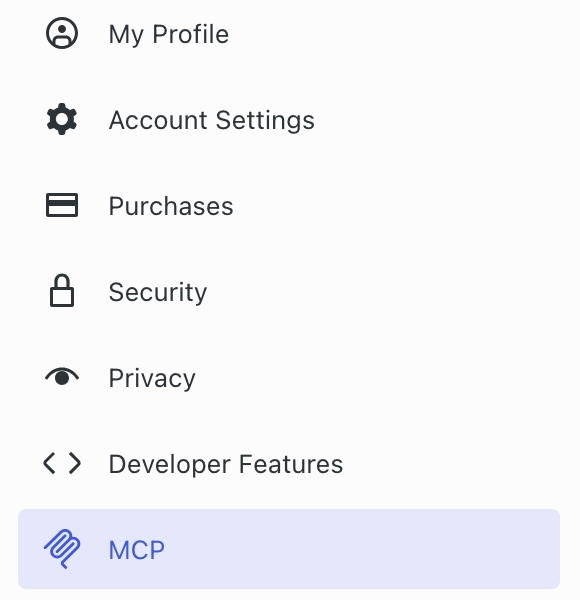
- In the left sidebar, click the MCP menu item (or navigate directly to wordpress.com/me/mcp).
- Review the permissions and capabilities that will be granted to each MCP tool.
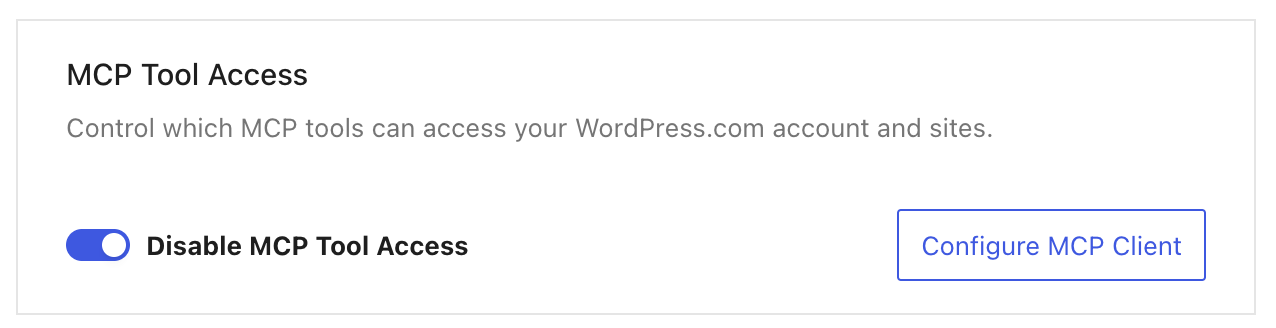
- Toggle the switch to “Enable MCP Access”.
- Once enabled, you can click on the “Configure MCP client” button to set up a secure connection to AI agents like Claude, Cursor, VS Code, and more.
- (Optional) Scroll to the “Available MCP Tools” section and toggle off any tools you don’t want AI agents to access.
Once enabled, compatible AI clients can access your WordPress.com data when you interact with them.
Note: Write operations (including delete) will request confirmation before executing the command. Deleted posts, pages, and media can be recovered from trash for 30 days, but deleted categories and tags are permanent.
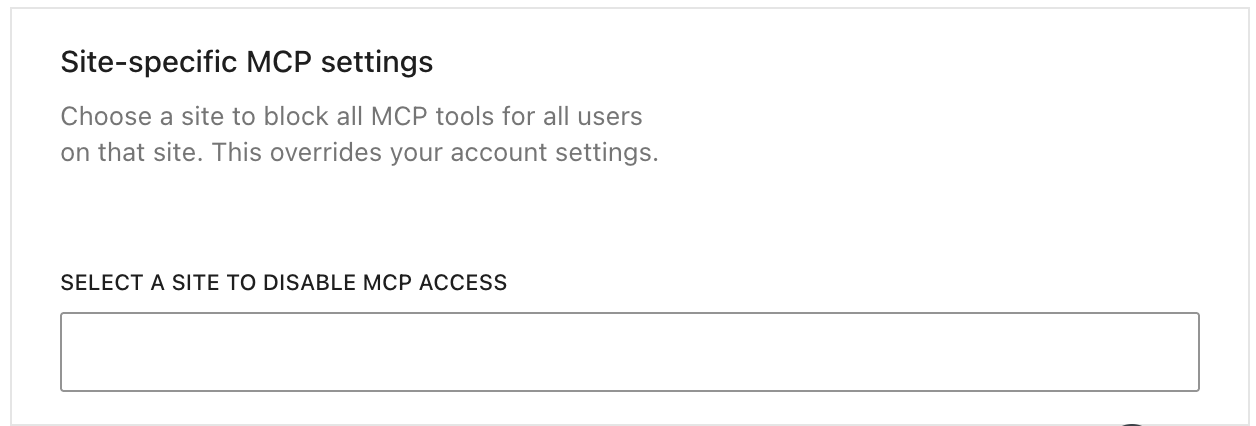
You can disable all account MCP tool access for a site:
- Visit your account settings.
- In the left sidebar, click the MCP menu item (or navigate directly to wordpress.com/me/mcp).
- Scroll to the “Site-specific MCP settings” section.
- Select a site.
- Toggle off the MCP Access.
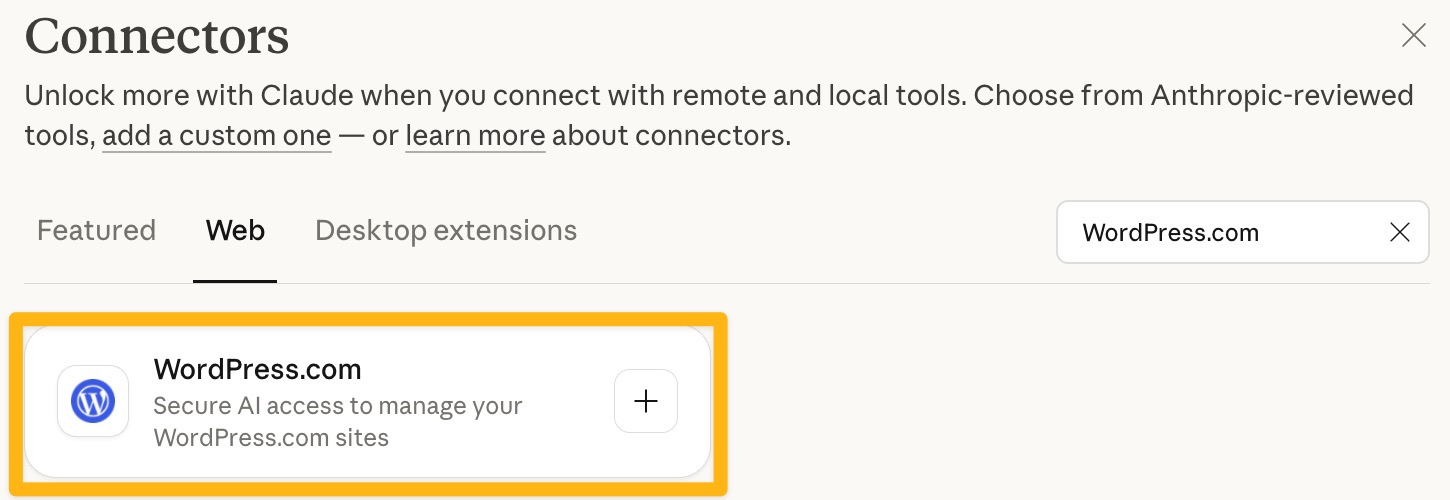
WordPress.com is an official partner in the Claude Connectors Directory, making it easy to connect Claude Desktop to your WordPress.com sites.
Once you have enabled MCP access in your WordPress.com account, connect Claude Desktop by following these steps:
- In Claude Desktop, navigate to Admin → Settings (found in the bottom-left corner).
- Click the Connectors tab.
- Click “Browse connectors” at the top-right of the screen.

- Use the search field in the top right to look for “WordPress.com” and select the official WordPress.com connector.
- Click the Connect button in the top right and grant Claude access to your WordPress.com account.

Learn how to connect other AI clients, like ChatGPT or Cursor, to your WordPress.com account.
If your MCP connection stops responding, restart or reconnect the server in your AI client. The steps vary by application—for example, in Claude Desktop, click the tools icon and select “Retry Connection.”
Once you have connected an AI client to your WordPress.com account, this AI assistant can access your WordPress.com sites through the MCP tools. AI agents can do the following:
- View your site settings and configuration
- Check site statistics and traffic data
- Search and retrieve posts
- Review comments
- Check plugin status (administrators only)
- View site users (administrators only)
- Create, edit, and delete posts and pages
- Manage comments
- Organize categories and tags
You can ask your AI assistant questions like:
Explore and monitor:
- “Which of my sites gets the most traffic?”
- “Show me my latest posts.”
- “Suggest 10 new blog post topics to write about.”
- “Summarize recent comments on my blog.”
Create content:
- “Write and save a draft post about [topic] in my usual style.”
- “Create a new page called ‘About Me’ with a short bio.”
- “Add a new category called ‘[name]’ to my site.”
- “Create a tag called ‘[name]’ and add it to my latest post.”
Edit and update:
- “Update the title of my most recent post to [new title].”
- “Add an excerpt to my latest draft post.”
- “Change the status of my draft post ‘[title]’ to published.”
Manage comments:
- “Approve the pending comments on my blog.”
- “Mark the comment from [author] as spam.”
- “Delete the most recent comment on my site.”
- “Reply to the latest comment on my post ‘[title]’.”
Update media:
- “Update the alt text on my most recently uploaded image.”
- “Update the caption on the image titled ‘[name]'”.
Clean up content:
- “Trash all posts that have been in draft for over a year.”
- “Move my post ‘[title]’ back to draft from published.”
Take a look at more MCP prompt examples. Or, if you’re interested in the full list of tools included in your connection, refer to our comprehensive MCP tools reference.
