
OS module in Python provides functions for interacting with the operating system. OS comes under Python's standard utility modules. This module provides a portable way of using operating system-dependent functionality.
OS-Module Functions
1. Handling Current Working Directory
The Current Working Directory (CWD) is the folder where Python is currently operating. When files are opened without specifying a full path, Python searches for them in this directory. This directory may be different from the location where the Python script is stored.
Getting Current Working Directory: To get the location of the current working directory, the os.getcwd() function from the os module is used. The following code prints the current working directory (CWD).
import os
cwd = os.getcwd()
print("Current working directory:", cwd)
Output
Current working directory: /home/nikhil/Desktop/gfg
Changing Current Working Directory: It can be changed using os.chdir(path), which switches Python’s context to the specified directory. The following code prints the CWD before and after changing it one level up using os.chdir('../').
import os
def current_path():
    print("Current working directory before")
    print(os.getcwd())
    print()
current_path()
os.chdir('../')
current_path()
Output
Current working directory before
C:\Users\Nikhil Aggarwal\Desktop\gfg
Current working directory after
C:\Users\Nikhil Aggarwal\Desktop
2. Creating a Directory
Using os.mkdir(): os.mkdir() is used to create a directory at the specified path and can optionally set a permission mode. It raises a FileExistsError if the directory already exists. The following code demonstrates creating directories with and without a specified mode.
import os
directory = "GeeksforGeeks"
parent_dir = "D:/Pycharm projects/"
path = os.path.join(parent_dir, directory)

os.mkdir(path)
print("Directory '% s' created" % directory)
directory = "Geeks"
parent_dir = "D:/Pycharm projects"
mode = 0o666
path = os.path.join(parent_dir, directory)
os.mkdir(path, mode)
print("Directory '% s' created" % directory)
Output
Directory 'GeeksforGeeks' created
Directory 'Geeks' created
Using os.makedirs(): os.makedirs() is used to create directories recursively, meaning it also creates any missing parent directories. The following code demonstrates creating directories with and without a specified permission mode (0o666).
import os
directory = "Nikhil"
parent_dir = "D:/Pycharm projects/GeeksForGeeks/Authors"
path = os.path.join(parent_dir, directory)
os.makedirs(path)
print("Directory '% s' created" % directory)
directory = "c"
parent_dir = "D:/Pycharm projects/GeeksforGeeks/a/b"
mode = 0o666
path = os.path.join(parent_dir, directory)
os.makedirs(path, mode)
print("Directory '% s' created" % directory)
Output
Directory 'Nikhil' created
Directory 'c' created
3. Listing out Files and Directories
os.listdir() method returns a list of files and directories in the specified path. If no path is provided, it lists the contents of the current working directory. The following code demonstrates listing files and directories from a given path.
import os
path = "/"
dir_list = os.listdir(path)
print("Files and directories in '", path, "' :")
print(dir_list)
Output
Files and directories in ' / ' :
['sys', 'run', 'tmp', 'boot', 'mnt', 'dev', 'proc', 'var', 'bin', 'lib64', 'usr',
'lib', 'srv', 'home', 'etc', 'opt', 'sbin', 'media']
4. Deleting Directory or Files
Using os.remove(): os.remove() method is used to delete a file at the specified path. It cannot delete directories and will raise an OSError if the given path refers to a directory. Suppose the file contained in the folder are:
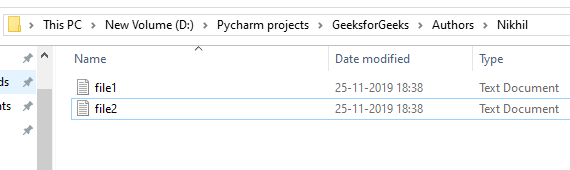
Example: This code removes a file named "file1.txt" from the specified location "D:/Pycharm/projects/GeeksforGeeks/Authors/Nikhil/". It uses the os.remove function to delete the file at the specified path.
import os
file = 'file1.txt'
location = "D:/Pycharm projects/GeeksforGeeks/Authors/Nikhil/"
path = os.path.join(location, file)
os.remove(path)
Output
 Using os.rmdir(): os.rmdir() method is used to remove or delete an empty directory. OSError will be raised if the specified path is not an empty directory. Suppose the directories are:

Example: This code removes an empty directory named "Geeks" using the os.rmdir() function. If the directory contains files or subdirectories, it will raise an error.
import os
directory = "Geeks"
parent = "D:/Pycharm projects/"
path = os.path.join(parent, directory)
os.rmdir(path)
Output

5. File Permissions and Metadata
Python’s os module provides access to lower-level file system metadata and permission handling useful for scripting, administration and system-level tasks. Three important methods in this category are:
Using os.chmod(): os.chmod() method is used to change the permissions (read, write, execute) of a file or directory. Permissions must be passed in octal format (e.g., 0o600).
import os

# Set read-write permissions for owner (0o600)
os.chmod("sample.txt", 0o600)
Explanation: 0o600 means:
- Owner: Read & write
- Group: No permission
- Others: No permission
Using os.chown(): os.chown() method allows you to change the owner and group ID of a file. This is typically used in system scripts and requires appropriate permissions. It is used in Unix/Linux systems only.
import os

# Change owner and group to user ID 1000 and group ID 1000
os.chown("example.txt", 1000, 1000)
Explanation:
- Both uid and gid must be integers.
- Requires root access to change file ownership.
- On unsupported platforms (e.g., Windows), it will raise AttributeError.
Using os.stat(): os.stat() method is used to retrieve metadata about a file such as its size, permissions and timestamps.
import os
stats = os.stat("example.txt")

print("Size:", stats.st_size, "bytes")
print("Last modified:", stats.st_mtime)
print("Permissions:", oct(stats.st_mode)[-3:])
Output
Size: 48 bytes
Last modified: 1720948800.0
Permissions: 600
Explanation:
- st_size: Size in bytes
- st_mtime: Last modified timestamp (UNIX time)
- st_mode: File mode bits; we extract the last 3 digits for permission info
- Similar to output of ls -l in Unix/Linux
Commonly Used Functions
1. Using os.name function: This function gives the name of the operating system dependent module imported. The following names have currently been registered: 'posix', 'nt', 'os2', 'ce', 'java' and 'riscos'.
import os
print(os.name)
Output
posix
Note: It may give different output on different interpreters, such as 'posix' when you run the code here.
2. Using os.error Function: All functions in this module raise OSError in the case of invalid or inaccessible file names and paths, or other arguments that have the correct type, but are not accepted by the operating system. os.error is an alias for built-in OSError exception.
import os
try:
    filename = 'GFG.txt'
    f = open(filename, 'rU')
    text = f.read()
    f.close()
except IOError:
  print('Problem reading: ' + filename)
Output
Problem reading: GFG.txt
Note: os.error is just an alias for Python’s built-in OSError. In modern Python, you should directly use OSError (or FileNotFoundError, PermissionError, etc. for more specific cases).
3. Using os.popen(): This method opens a pipe to or from command. The return value can be read or written depending on whether the mode is 'r' or 'w'. Below is the syntax:
os.popen(command[, mode[, bufsize]])
Parameters mode & bufsize are not necessary parameters, if not provided, default 'r' is taken for mode.
import os
fd = "GFG.txt"

file = open(fd, 'w')
file.write("Hello")
file.close()
file = open(fd, 'r')
text = file.read()
print(text)

file = os.popen(fd, 'w')
file.write("Hello")
Output
Hello
Note: Output for popen() will not be shown, there would be direct changes into the file.
4. Using os.close(): A file opened using open(), can be closed by close() only. But file opened through os.popen(), can be closed with close() or os.close(). If we try closing a file opened with open(), using os.close(), Python would throw TypeError.
import os
fd = "GFG.txt"
file = open(fd, 'r')
text = file.read()
print(text)
os.close(file)
Output
Traceback (most recent call last):
File "C:\Users\GFG\Desktop\GeeksForGeeksOSFile.py", line 6, in
os.close(file)
TypeError: an integer is required (got type _io.TextIOWrapper)
Note: os.close() works only with low-level file descriptors (integers from os.open()), not with file objects created by open(). That’s why the above example raises a TypeError.
5. Using os.rename(): A file "old.txt" can be renamed to "new.txt", using the function os.rename(). The name of the file changes only if, the file exists and the user has sufficient privilege permission to change the file.
import os
fd = "GFG.txt"
os.rename(fd,'New.txt')
os.rename(fd,'New.txt')
Output
Traceback (most recent call last):
File "C:\Users\GFG\Desktop\ModuleOS\GeeksForGeeksOSFile.py", line 3, in
os.rename(fd,'New.txt')
FileNotFoundError: [WinError 2] The system cannot find the
file specified: 'GFG.txt' -> 'New.txt'
- A file name "GFG.txt" exists, thus when os.rename() is used the first time, the file gets renamed.
- Upon calling the function os.rename() second time, file "New.txt" exists and not "GFG.txt" thus Python throws FileNotFoundError.
6. Using os.path.exists(): This method will check whether a file exists or not by passing the name of the file as a parameter. OS module has a sub-module named PATH by using which we can perform many more functions.
import os
result = os.path.exists("file_name")
print(result)
Output
False
As in the above code, the file does not exist it will give output False. If the file exists it will give us output True.
7. Using os.path.getsize(): os.path.getsize() function gives us the size of the file in bytes. To use this method we need to pass the name of the file as a parameter.
import os
size = os.path.getsize("filename")
print("Size of the file is", size," bytes.")
Output
Size of the file is 192 bytes.