Finding the fix can be very tiring.
That’s exactly why we built ZipWP AI Troubleshooter!

AI Troubleshooter is a smart, built-in tool in ZipWP that automatically detects, analyzes, and helps resolve common WordPress issues on any site hosted with ZipWP without manual debugging or technical guesswork.
What is ZipWP AI Troubleshooter?
AI Troubleshooter is an intelligent tool inside ZipWP that automatically detects, analyzes, and notifies you about common WordPress issues with any site you’ve hosted with ZipWP.
Instead of manually debugging or searching for solutions, the tool analyzes the problem, explains what might be causing it, and offers simple one-click actions to fix the issue.
See the demo video below to understand how it works on a site that encountered a critical error:
It’s like having a WordPress expert sitting beside you, walking you through what’s wrong and how to fix it — minus the jargon.
What kind of issues can it resolve?
AI Troubleshooter is designed to automatically catch and resolve some of the most common WordPress issues that typically cause downtime or broken functionality. Here are the key errors it can handle:
500 Internal Server Error
Often considered one of the most frustrating WordPress problems, this error means something on the server side failed unexpectedly. It can be triggered by corrupt files, plugin or theme conflicts, or misconfigured server settings.

403 Forbidden
This error appears when access to a page or resource is blocked. It can happen due to permission mismatches, incorrect .htaccess rules, or security settings that accidentally lock out visitors.

503 Service Unavailable
A 503 usually means the server is temporarily unable to respond often due to a faulty script, a plugin misbehaving, or a momentary overload.

“There has been a critical error on this website.”
This generic but alarming WordPress message usually appears when a plugin or theme breaks the site’s normal execution.

404 Not Found
A 404 means the page you’re trying to reach can’t be found — sometimes because links were updated, permalinks broke, or routes weren’t generated correctly.

How to use it?
When something isn’t working on a site, simply follow the steps below:
- Go to Live Sites
- Click on “Manage site” icon for the site that’s facing errors
- Click “Diagnose Site”, then “Start Diagnosis.”
- The AI will analyze the issue automatically.
- Once done, you’ll see: Possible causes of the problem, A simple explanation of what went wrong, Suggested fixes you can apply.
- Choose any recommended fix and click the one-click action button.
ZipWP will apply the fix instantly. You can review the site in a new tab to see if the issue has been fixed. Please refer to the video above in this article for better understanding.
If you run into any other issues that the AI Troubleshooter can’t resolve, simply reach out to us at [email protected]! We’ll be more than happy to help.
Read more at ZipWP
]]>- SureForms Teams (1 year free)
- SkillJet Academy access
This guide will walk you through exactly how to claim both of them. Don’t worry, the process is quick and simple.
Step 1: Head Over to Your Complimentary Access Page
- Log in to your ZipWP account.
- Once you’re inside, look for the “Complimentary Access” section in my account.

- You’ll see two separate Claim buttons: one for SkillJet and another for SureForms Teams.
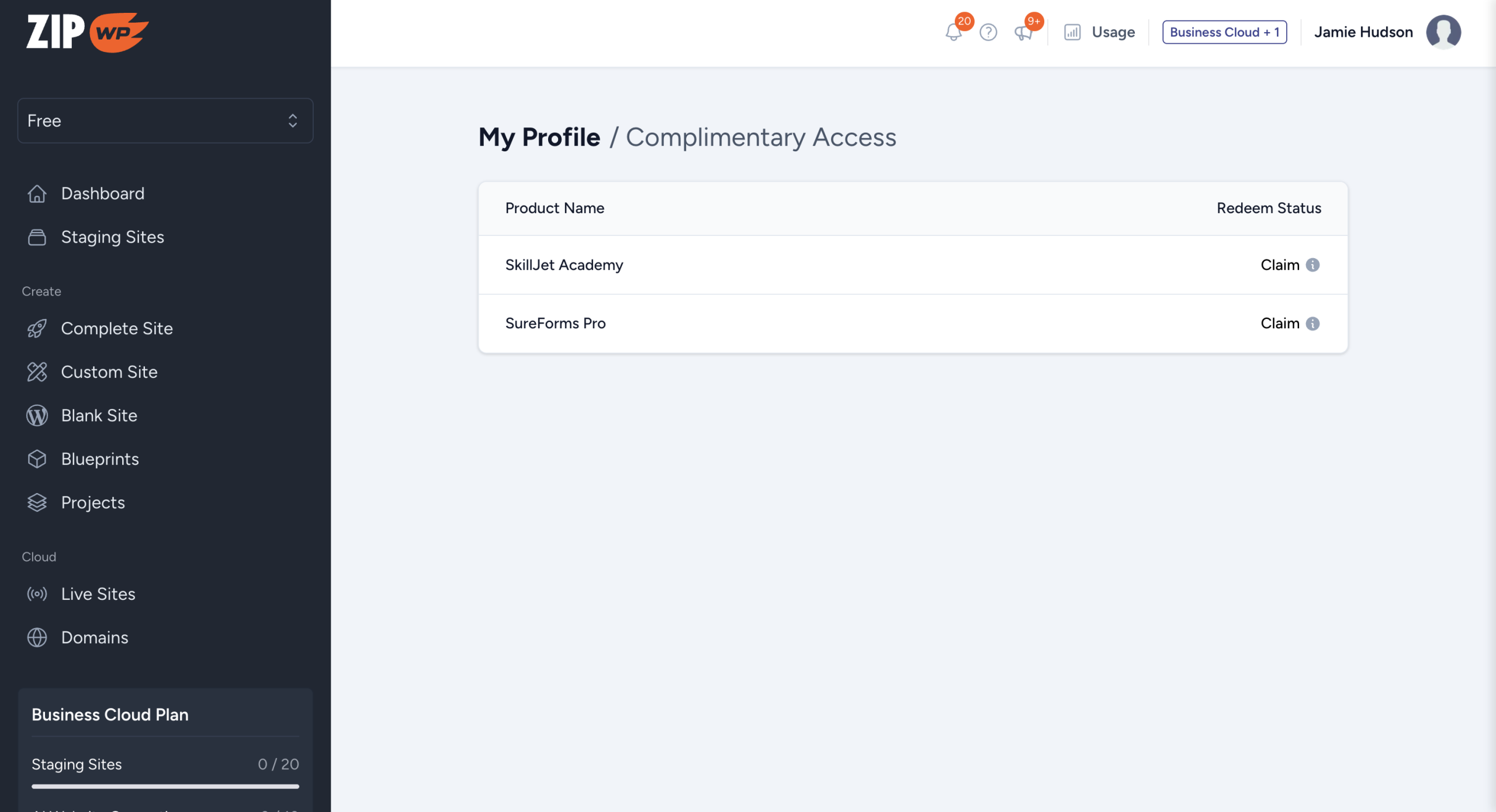
You’ll find all your complimentary access options listed on this page.
Step 2: Claim Your SkillJet Access
SkillJet is where you’ll find premium training courses to sharpen your skills. Here’s how to claim it:
- Click the “Claim SkillJet” button.
- Right after that, check your email inbox (and spam folder, just in case).
- You should see an email with your SkillJet login details.
- Use those credentials to log in to SkillJet Academy.
Once logged in, explore the wide library of marketing, design, and WordPress courses at no extra cost.
Step 3: Claim Your SureForms Pro Access
SureForms Teams lets you build smarter, more powerful forms for your WordPress websites. With Business Cloud, you get a full year free.
Here’s how to activate it:
- On the same Complimentary Access page, click “Claim SureForms Teams.”
- A special 100% off coupon code will be generated for you and sent to your email.
- Visit the SureForms Pricing Page.
- Choose the plan you’d like and apply the coupon during checkout.
- This will give you 1 year of SureForms Teams completely free.
- Once checkout is complete, you’ll get your license key.
- Use the license key on any WordPress site you want.
And just like that. You’re upgraded ????
By now, you should have access to both:
- SkillJet → for learning and growing
- SureForms Teams → for building amazing forms with AI
Both of these are included at no extra cost with your ZipWP Business Cloud or Business plan.
If you run into any issues, our support team is always ready to help.
Read more at ZipWP
]]>To purchase a domain, you can follow the steps below.
- Go to the Domain Screen
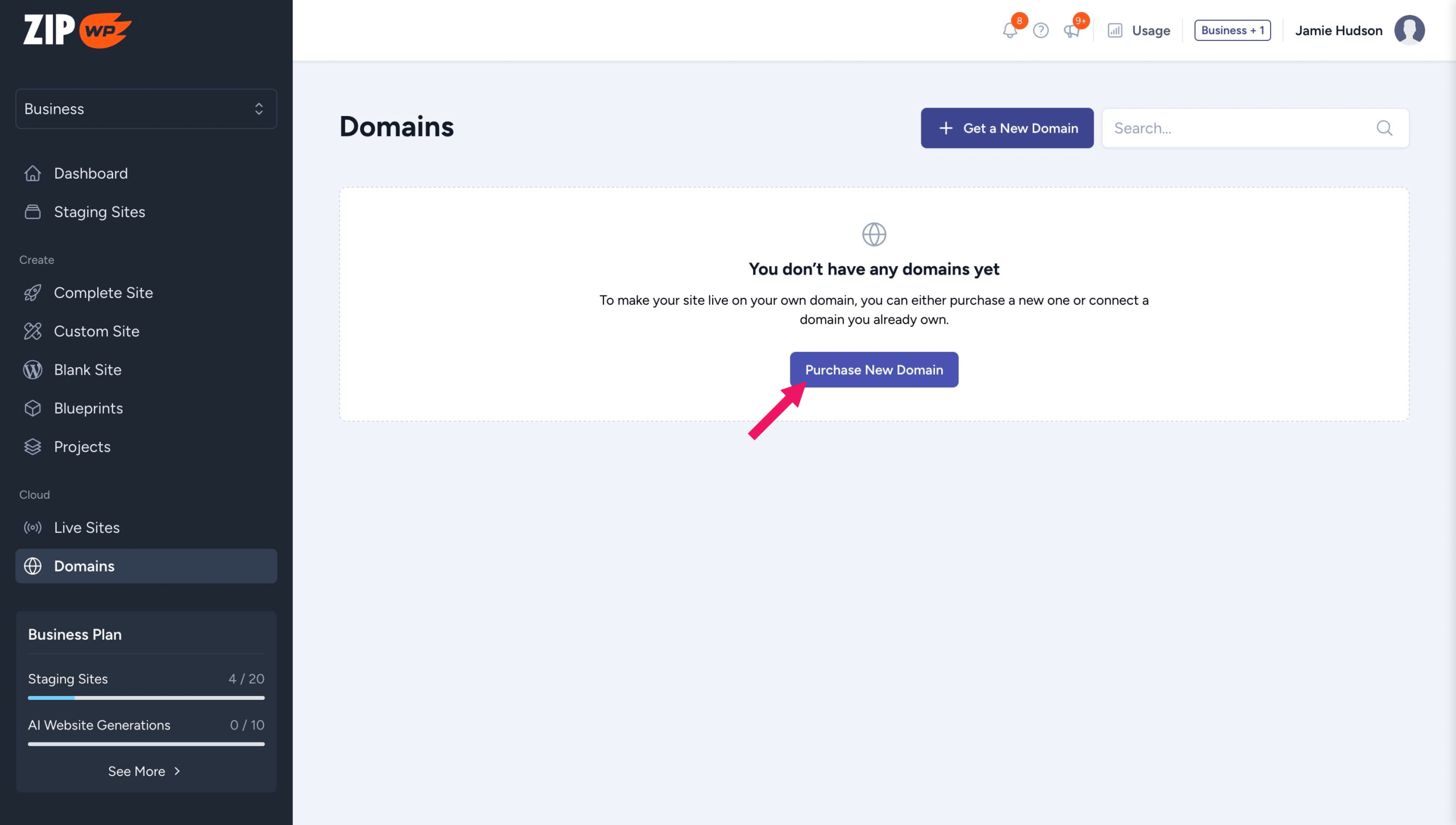
- Click Get a New Domain
- Enter the domain name you want
- Check availability and price.
- Make the purchase.
The domain will be added to your account in 5 minutes
Read more at ZipWP
]]>Understanding both helps you manage your site’s storage efficiently and avoid unexpected issues.
What is Disk Usage?
Disk usage is the total amount of storage space your site consumes on the server. This includes:
- WordPress core files
- Themes and plugins
- Media uploads (images, videos, documents)
- Database files
- Logs, cache, and backups
If your site exceeds its disk quota, you may face issues such as:
- Inability to upload new media
- Failed plugin/theme updates
- Errors during backups
How to Reduce Disk Usage:
- Delete unused themes, plugins, and media files.
- Regularly clear cache files.
- Remove old backups stored on your hosting space.
What are Inodes?
An inode is a data structure the server uses to keep track of a single file or folder. Every file, whether it’s a WordPress core file, an image, or even a tiny text document, counts as one inode.
For example:
- 1 uploaded image = 1 inode
- 1 plugin with 100 files = 100 inodes
If you reach the inode limit, you might experience:
- Inability to create or upload new files
- Errors when installing plugins or themes
- WordPress updates failing
- Not able to login to your site
How to Reduce Inodes:
- Delete unused themes, plugins, and media.
- Clean up cache directories.
- Remove old log files.
- Avoid storing backups inside your WordPress installation.
How to Check Your Usage in ZipWP Cloud
You can monitor both disk usage and inode count directly from your ZipWP Cloud site’s menu. This helps you keep track of your limits and take action before hitting any caps.

You can always upgrade to a higher plan to increase your disk space and inodes.
Conclusion
Both disk usage and inode limits play a crucial role in your site’s performance and reliability.
By keeping an eye on your storage and file counts, you’ll prevent errors and ensure your WordPress site runs smoothly.
Read more at ZipWP
]]>Quick Fix Checklist
Start here before diving into details:
- Check if DNS changes have finished propagating (use WhatsMyDNS).
- Verify your Nameserver or CNAME records match the exact values in your ZipWP dashboard.
- Wait a few minutes for SSL to activate after verification.
- Clear your browser cache or test in incognito/private mode.
- Make sure your domain and ZipWP Cloud plan are active.
- If it’s WordPress-related, try disabling recent plugins or themes from the WordPress admin area.
If your site still isn’t live after 48 hours, contact ZipWP Support with your domain details.
Common Problems Causes & Fixes
These are some common problems that people face while
Check if DNS changes have finished propagating
After switching Nameservers or adding a CNAME record, DNS takes time to update worldwide, usually 1–4 hours, sometimes up to 48.
What you might see:
- “Site not found”
- DNS_PROBE_FINISHED_NXDOMAIN
Fix:
- Use WhatsMyDNS to check propagation.
- If not fully propagated, wait a little longer.
Verify your Nameserver or CNAME records
Wrong or conflicting DNS records can stop your domain from pointing to ZipWP.
What you might see:
- Your site loads from an old host
- “Server IP address could not be found”
Fix:
- Log in to your domain registrar and check DNS settings.
- Ensure Nameservers or CNAME values exactly match what’s shown in your ZipWP dashboard.
- Remove any old or conflicting A/CNAME records.
Wait for SSL to activate
SSL certificates are issued automatically once your domain is verified, but activation may take a few minutes.
What you might see:
- “Your connection is not private”
- Security warning page
Fix:
- Wait a few minutes and refresh.
- Clear your browser cache.
- Confirm SSL status inside ZipWP.
Clear your browser cache or try incognito mode
Sometimes the issue is local. Your browser or ISP may be holding onto an old version of your site.
Fix:
- Open your site in an incognito/private window.
- Clear cache and cookies.
- Try another browser, device, or network.
Make sure your domain and hosting plan are active
An expired domain or inactive ZipWP Cloud subscription will stop your site from loading.
Fix:
- Check your domain renewal status with your registrar.
- Confirm your ZipWP Cloud plan is active.
Check for WordPress plugin or theme conflicts
A misconfigured plugin, broken theme, or recent change in WordPress can cause errors.
What you might see:
- “There has been a critical error on this website”
- Blank white screen (also called the “White Screen of Death”)
Fix:
- Log in to your WordPress Admin via ZipWP.
- Deactivate recently added plugins or themes.
- Switch temporarily to a default theme (e.g., Twenty Twenty-Four).
- Restore a backup from ZipWP if necessary.
Summary
Site not loading issues are usually caused by DNS propagation delays, SSL activation, or WordPress-level conflicts like plugins and themes.
Most problems resolve on their own within a few hours, but the quick checklist above can help you confirm the basics right away.
If you’ve tried all the steps and your site still isn’t live after 48 hours, reach out to ZipWP Support with your domain details, and we’ll help you get things back on track.
Read more at ZipWP
]]>
This article explains both methods, when to use them, and how to set them up.
What is a Nameserver Connection?
A nameserver connection means pointing your entire domain to ZipWP Cloud. Once updated, all DNS records for your domain are managed through ZipWP automatically.
Benefits
- Simplest setup. Just update your domain’s nameservers once.
- Quickly updates and propagates faster.
- No need to manually configure additional DNS records.
When to Use
You want ZipWP Cloud to handle all your website-related DNS needs. This method is completely normal, safe, and secure.
Important to Know If You Already Have DNS Records?
No problem! If you use email, verification TXT records, or other DNS settings:
- Simply copy your existing records before updating nameservers.
- Once your domain is connected to ZipWP, you can re-add those records in ZipWP’s DNS manager.
This way, you keep everything working smoothly without giving up the convenience of managing your site in one place.
What is a CNAME Connection?
A CNAME connection points only your website (usually the “www” subdomain) to ZipWP Cloud, while your domain’s nameservers remain unchanged. Your other DNS records (email, apps, third-party tools) continue to be managed with your current provider.
Benefits
- Lets you keep all your DNS management where it currently is.
- Useful if your domain is tied to services like Microsoft 365, Google Workspace, or Cloudflare.
When to Use
- You already have complex DNS configurations.
- You prefer to keep DNS management outside ZipWP.
How to Connect Your Domain
To connect your custom domain with ZipWP, you can either update your Nameservers or use a CNAME record. Choose the option that best fits your needs and follow the steps below.
Option A: Nameserver Connection
- Log in to your domain registrar (e.g., GoDaddy, Namecheap, Google Domains).
- Find the DNS/Nameserver settings for your domain.
- Replace the current nameservers with the following:
- Save your changes.
- Return to ZipWP and click Verify Domain.
Tip: If you have email or other DNS records with your registrar, copy them first. After switching nameservers, you can re-add them in ZipWP’s DNS manager so everything keeps working as before.

Option B: CNAME Connection
If you prefer to keep your existing DNS setup, you can connect your domain using a CNAME record. This points only your website to ZipWP, while other DNS records (like email) stay managed by your current provider.
- Log in to your domain registrar (e.g., GoDaddy, Namecheap, Google Domains).
- Go to the DNS settings or DNS management section.
- In your ZipWP dashboard, click on the domain you want to connect. This will display the unique CNAME record values you need to use.
- Add a new CNAME record with the details shown:
- Hostname → (your root domain, depending on what ZipWP shows)
- Points to → (the unique value generated by ZipWP, e.g., xxxxxx.zipwpcloud.com)
- TTL → 300 (or leave the default value if different)
- Save your changes.
- Return to ZipWP and click Verify Domain to complete the connection.

Note: The Hostname and Points to values are generated per site and only appear in your ZipWP dashboard once you click on the domain. Always copy those exact values.
Verifying Your Domain
After you’ve updated your DNS settings, ZipWP Cloud will handle the rest. Once the changes propagate:
- Automatic verification – Your domain is verified, SSL is provisioned, and your site goes live.
- Using Nameservers – Everything is handled automatically.
- Using CNAME – Verification is automatic once the record is correctly added.
Troubleshooting
If your site isn’t live after 48 hours:
- Check DNS records – Make sure you’ve entered the correct values and removed any conflicting A or CNAME records.
- Verify propagation – Use tools like WhatsMyDNS to confirm global updates.
- Still stuck? – Contact ZipWP Support for assistance
Summary
We hope this article helped you understand the different ways to connect your custom domain to ZipWP Cloud.
Whether you choose the simplicity of Nameservers or the flexibility of a CNAME record, your website is now just a few steps away from going live with a professional domain.
If you run into any issues or need further assistance, don’t hesitate to reach out to ZipWP Support. We’re always here to help.
Read more at ZipWP
]]>Once you move a staging site to the cloud, you can access and control every aspect of it from this dashboard.
This article walks you through the main sections of the ZipWP Cloud Dashboard, using the provided screenshots as reference.
Live Sites Overview
When you open Live Sites from the left sidebar, you’ll see a list of all your live websites.

Key Columns:
- Label – The name you’ve given to your site (e.g., My Live Site, Portfolio). You can change the site label by simply typing over the existing label.
- Site Status – Shows if your site is under verification, live or inactive.
- WP Admin – Quick access to your WordPress admin dashboard.
- Created By – Displays the team member who created the site.
- Actions – Extra options to manage your site (ellipsis menu).
You can also use the Search Bar to quickly find a specific site if you manage multiple projects.
Site Settings & Management
Clicking on the “manage site” icon takes you to its Site Settings Dashboard, where you’ll find detailed controls and insights.

Sections in the Settings Menu:
Overview
Displays the primary domain, region, PHP version, WordPress version, and creation date.

Cache
Manage LiteSpeed caching options to optimize speed and performance.

Domains
List of custom domains connect to your live site.

Staging Site
Create and sync a staging site for safe testing before pushing updates live.

PHP Config
Adjust PHP settings (e.g., version, limits) to match your site’s needs.

Backups
Create, manage, and restore backups for disaster recovery. ZipWP automatically creates backups of your site every day.

FTP Settings
Configure FTP access for advanced file management.

Summary
The ZipWP Cloud Dashboard gives you a clear, centralized view of your live WordPress sites and hosting settings. From creating new sites to managing domains, backups, and PHP configurations, everything is just a few clicks away.
Read more at ZipWP
]]>But once you’re ready to share your website with the world, you’ll need to move from staging → live hosting. That’s where ZipWP Cloud comes in.
Why ZipWP Cloud Exists
ZipWP Cloud is our managed hosting platform, built specifically for websites created with ZipWP. It gives you everything you need to:
- Connect your own custom domain (e.g., yourname.com).
- Make your site publicly accessible on the internet.
- Ensure your site is secure, fast, and reliable.
Without ZipWP Cloud (or another hosting service), your staging site remains temporary and not suitable for long-term use.
Key Benefits of ZipWP Cloud
- Go Live Instantly: Move from a staging site to a live site in just a few clicks.
- Security Built-In: Every live site comes with a free SSL certificate and server-level protection—no extra setup needed.
- Optimized Performance: Sites on ZipWP Cloud are hosted on optimized WordPress servers with built-in caching and speed improvements.
- Simple Dashboard: No technical control panels. Manage domains, sites, and usage from one clean interface.
- Team Collaboration: Invite teammates or clients to access and manage live sites.
How ZipWP Cloud Works
- Build your site on a ZipWP Staging Site (temporary environment) with AI or with your custom design.

- Once you’re done finalising the design and ready to go live, click on the “Go Live” button.

- Choose a ZipWP Cloud plan, or check if cloud sites are already included in your current plan.
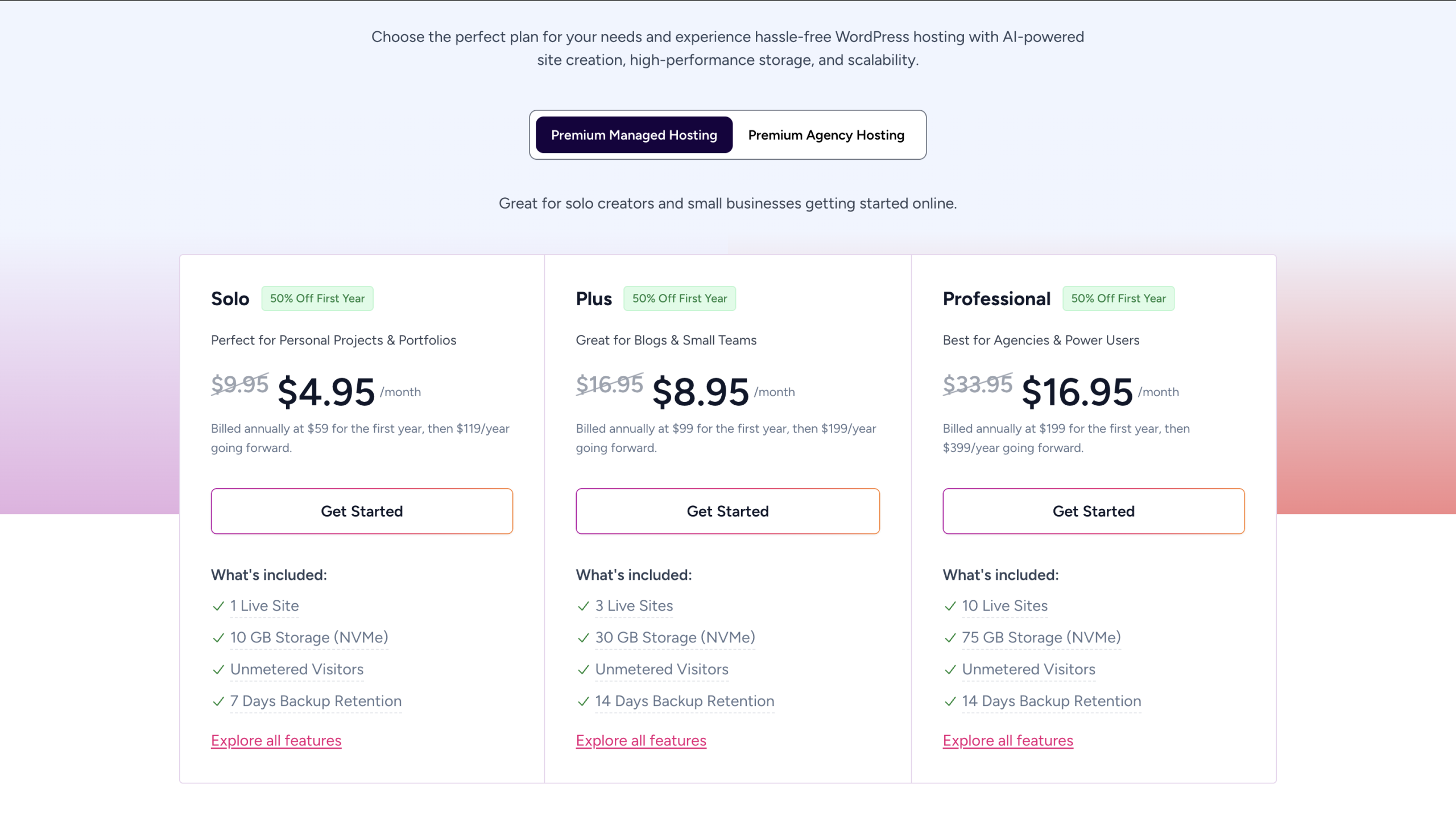
- Once the purchase is completed, start connecting your custom domain (via Nameservers or CNAME).
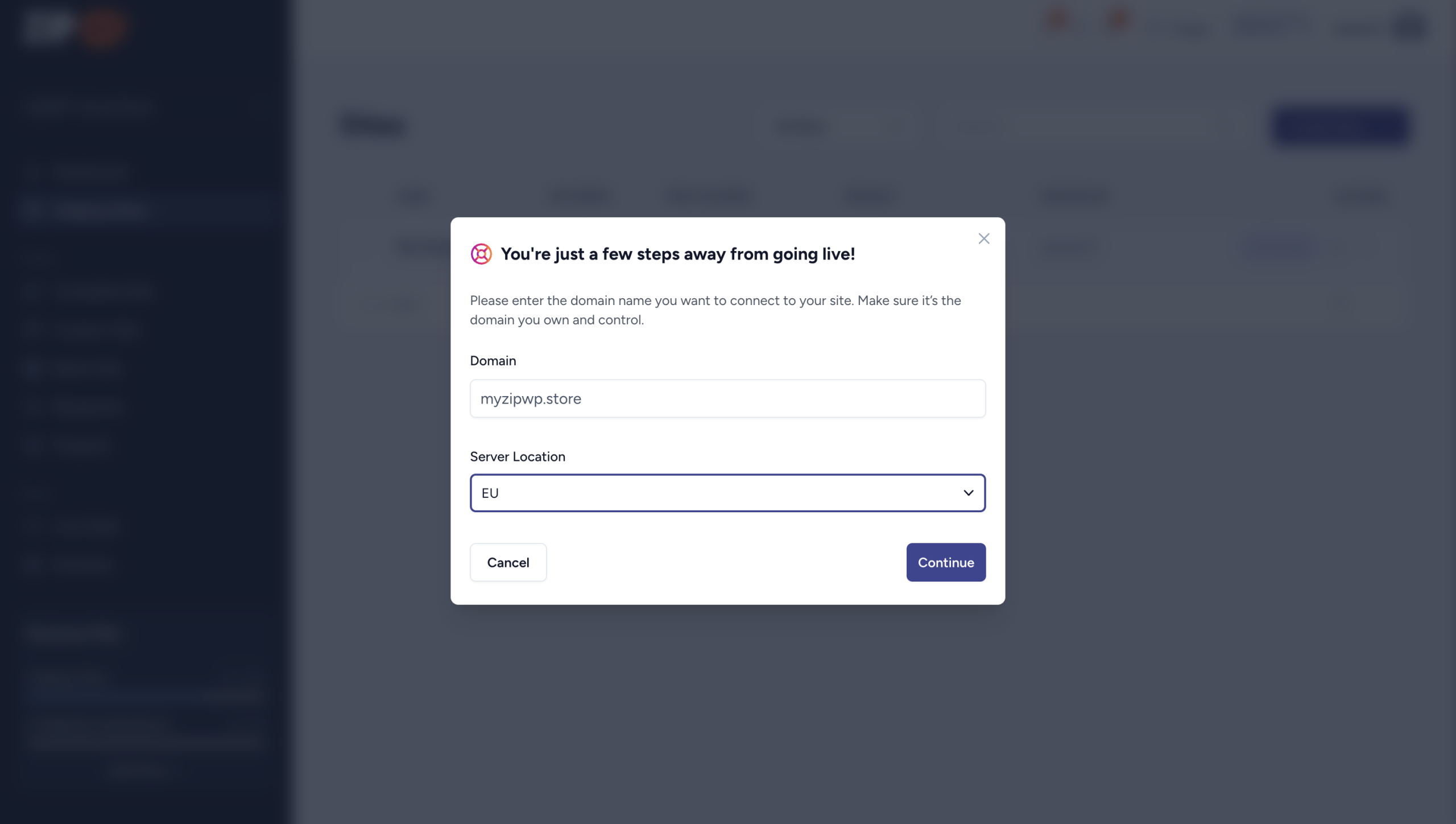

Once done, ZipWP Cloud provisions hosting and SSL automatically after the DNS records are verified. Your site is now live and ready to share with the world.
Frequently Asked Questions:-
What is the difference between a Staging Site and a Cloud Site?
A Staging Site is temporary and meant for designing, customizing, and experimenting. A Cloud Site is your live website, connected to your custom domain and accessible to the public.
Do I need ZipWP Cloud plan to make my site live?
Yes. Without ZipWP Cloud (or another hosting provider), your site will remain on a temporary domain and cannot be used as a long-term live website to manage live visitors.
Do I need to purchase a separate SSL certificate?
No. Every site hosted on ZipWP Cloud comes with a free SSL certificate automatically.
How do I connect my domain to ZipWP Cloud?
You can connect your domain by updating Nameservers or adding a CNAME record. Once DNS records are verified, hosting and SSL are provisioned automatically.
Read more at ZipWP
]]>With ZipWP Cloud, you can host your website and connect it to any domain you own. This guide provides step-by-step instructions on how to link your domain and make your website live.
Prerequisites
Before connecting your domain, make sure you have the following:
- A Domain Name: You’ll need a registered domain. If you already have one, you can proceed. If not, you can purchase a domain from any registrar, such as GoDaddy, Namecheap, Google Domains, etc.
- An Active ZipWP Cloud Plan: ZipWP Cloud includes secure hosting and domain connection capabilities. You can view available plans and subscribe here.
How to Connect Your Domain
Once your website is ready for launch, follow these steps to connect your domain:
- Click the Go Live button.

- Enter your domain name (like yourwebsite.com), then choose the region closest to your visitors to make your site load faster for them.

- ZipWP will display DNS records required to verify and connect your domain. You will typically have two options:
- CNAME Method (Recommended): This is the preferred option and is supported by most domain registrars. Access your domain registrar’s DNS settings and add the CNAME record as provided on the screen.
- A Record Method (Alternative): If your registrar doesn’t support CNAME, use the A record option to verify domain ownership.

- Update the DNS settings in your domain registrar’s dashboard. If you’re unsure how to do this, refer to your registrar’s documentation by searching: “How to add a CNAME/A record on [Registrar Name].” If you need help, you can also reach out to our support team.

- Return to the ZipWP dashboard and click Submit to confirm that the DNS records have been updated.

That’s all you need to do.
What Happens After?
DNS propagation may take anywhere between 2 to 24 hours. This means your site might not be immediately live on your domain. It’s completely normal.
While you wait, your site remains live on a temporary ZipWP URL, so you don’t lose access or functionality.

Once the DNS records are verified, ZipWP will automatically connect your domain, notify you via email, and your site will go live for everyone to see.
Frequently Asked Questions:
Do I need separate ZipWP hosting plan if I am ZipWP Hobby/Pro/Business plan?
Yes, ZipWP Cloud is an extension to ZipWP with its own offerings for you so you need a separate Hosting subscription. See all plans here.
Can I use a subdomain like blog.mydomain.com?
Yes. Both root domains and subdomains are supported.
I’m not familiar with DNS settings. What should I do?
Most domain registrars provide help articles for adding DNS records. Alternatively, you can contact their support or reach out to ZipWP support for guidance.
What if my verification failed?
If your domain verification fails, it usually means that the DNS records were either not added correctly or haven’t finished propagating yet. First, double-check that you’ve entered the DNS records exactly as shown in your ZipWP dashboard.
Make sure they are added under the correct domain and in the right format. Keep in mind that DNS changes can take up to 24 hours to fully update, so it’s normal to experience some delay.
If the issue persists, try removing and re-adding the DNS records, then re-verify the domain in ZipWP. For further assistance, you can always reach out to our support team—we’re here to help you get your site live.
Read more at ZipWP
]]>When You’re Eligible for a Refund
- You’re within 7 days of your first purchase.
- If you reached out to us and the issue couldn’t be resolved in a timely manner, you’re eligible for a refund.
When You’re Not Eligible for a Refund
- It’s past the 7-day refund period: Refunds are strictly limited to the first 7 days after purchase.
- You’re requesting a refund for a subscription renewal: Renewals and repurchases are not covered under our refund policy.
- You’ve already exported or migrated a site: This indicates that the product has been used and its core value delivered.
- You’ve heavily used ZipWP features: If you’ve created multiple sites or used most of your AI credits, we may not be able to process a refund.
- You’re unfamiliar with WordPress: We provide resources and support to help you get started, but refunds aren’t granted for general confusion or learning curves.
- You’ve changed your mind or had different expectations: ZipWP includes a free plan so you can explore features before purchasing. Refunds are not issued for buyer’s remorse or unmet expectations that weren’t part of the described offering.
How to Request a Refund
Follow these simple steps to submit a refund request:
- Navigate to the Plan and Billing section.

- Click on “Change Plan” button.

- Find the order for which you’d like to request a refund.

- If you’re within the 7-day refund period, you’ll see a Request Refund button—click it.

- Fill out the refund request form, including your feedback and submit the form.

Once submitted, our team will review your request and send you an email confirmation with the next steps in next 24-48 hours.
Note: If the Request Refund button isn’t visible, it means the 7-day refund period has expired based on your original purchase date, and you’re no longer eligible for a refund.
We hope this guide clarifies our refund process for you! If you have any further questions, feel free to reach out to our support team.
Read more at ZipWP
]]>