This example Docker Compose configuration demonstrates many components of the Elastic Stack, all running on a single machine under Docker.
-
Docker and Docker Compose.
-
Windows and Mac users get Compose installed automatically with Docker for Windows/Mac.
-
Linux users can read the install instructions or can install via pip:
pip install docker-compose
-
-
Windows Users must set the following 2 ENV vars:
COMPOSE_CONVERT_WINDOWS_PATHS=1PWD=/path/to/checkout/for/stack-docker- For example I use the path:
/c/Users/nick/elastic/stack-docker - Note: you're paths must be in the form of
/c/path/to/placeusingC:\path\to\placewill not work
- For example I use the path:
- You can set these two ways:
- Temporarily add an env var in powershell use:
$Env:COMPOSE_CONVERT_WINDOWS_PATHS=1 - Permanently add an env var in powershell use:
[Environment]::SetEnvironmentVariable("COMPOSE_CONVERT_WINDOWS_PATHS", "1", "Machine")Note: you will need to refresh or create a new powershell for this env var to take effect
- In System Properties add the environment variables.
- Temporarily add an env var in powershell use:
-
At least 4GiB of RAM for the containers. Windows and Mac users must configure their Docker virtual machine to have more than the default 2 GB of RAM:
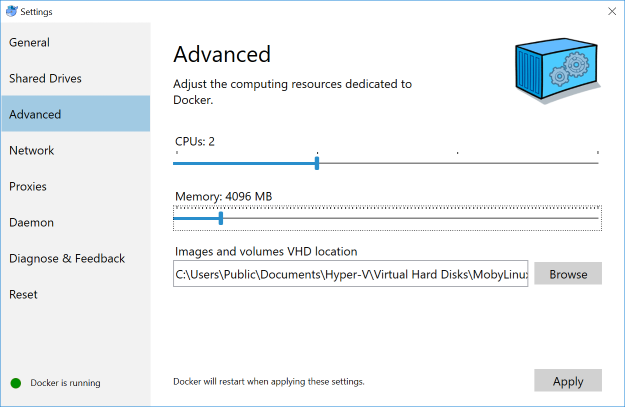
-
Linux Users must set the following configuration as
root:sysctl -w vm.max_map_count=262144
By default, the amount of Virtual Memory is not enough.

First we need to:
- Set default password
- Create keystores to store passwords
- Install dashboards, index patterns, etc.. for beats and apm
This is accomplished using the setup.yml file:
docker-compose -f setup.yml upNote: after the setup completes, it will output the password for the
elasticuser.
Now we can launch the stack with docker-compose up -d to create a demonstration Elastic Stack with Elasticsearch, Kibana, Logstash, Auditbeat, Metricbeat, Filebeat, Packetbeat and Heartbeat.
Point a browser at http://localhost:5601 to login.
Note: Elastic (Kibana) is now setup with self-signed certs.
Log in with elastic and the auto generated elastic password from the setup.
To rebuild the stack or to rerun after a failed setup:
Note: This will delete all the data in your existing elasticsearch.
docker-compose -f docker-compose.yml -f docker-compose.setup.yml -f setup.yml down -v
docker-compose -f docker-compose.yml -f docker-compose.setup.yml -f setup.yml down --remove-orphans
docker-compose -f setup.yml up --force-recreate
Other ways to start the cluster (after the setup.yml completed successfully):
# Start stack in the background (detached)
docker-compose up -d
# Start stack in the foreground (shows all logs)
docker-compose up
To stop the stack:
# If the stack is running in the background
docker-compose down
# If the stack is running in the foreground
CTRL+CIf your are having trouble with the stack, run docker-compose ps to see all of the containers and their state. If any of the containers are not running or show as not running, re-start the stack in the foreground with docker-compose up or docker-compose up | grep 'WARN\|ERROR\|FATAL' and look for errors in the output.