
This is a tutorial on how to easily host a resume using Jeykll, Markdown, Markdown editor, and Github pages. You can host other documentations using this tutorial that is not necessarily a resume.
- Whether you decide to write a resume or Software documentation, make sure to not write immediately. One of the concepts that Andrew Etter suggested is to first do research and understand what the readers want to achieve by reading your resume/documentation.
- It is important to define the audience. If you are writing a resume, you should assume that the hiring managers will understand that it is a resume.
- According to Andrew Etter's book, you should avoid writing from memory. If you include a course you completed, verify the contents you studied and what projects you did, rather than writing about it from your brief memory.
- Make sure you are consistent in your resume. If you use the word "Javascript", avoid using "javascript" somewhere in the middle of the resume. If you decide to proceed with capital "J", do this across the entire resume.
- Do not duplicate sentences, experience, knowledge in your resume/ documentation and break it into topics such as School, Experience, Skills. It will allow you to go back and change something specific rather than traversing through the entire resume to see where the change has to occur.
The following instructions will explain how to locally test your resume using Jykll and how to host it on Github pages.
- Prepared resume in Markdown format - see tips above for writing a resume, and additional resources for how to use Markdown
- Ruby version 2.1 or higher
- Markdown editor (such as Atom, Typora, Visual Code etc.)
-
Jekyll is a popular static page generator and as recommended by Andrew Etter, we will be using Jekyll.
-
Make sure you have Ruby version at least 2.1 installed. You can run
ruby -vin your terminal to verify this.If you do not have ruby or need to upgrade the version:
-
In the terminal run
gem install jekyll bundlerto install Jekyll
-
-
In this tutorial, we are using Github pages to host our resume. As was suggested by Andrew Etter, Github pages has no server dependencies and no database, so working with this is very easy. Also, Gitgub pages is compatible with Jekyll.
To use Github pages, first open a new repository in Github and name it
yourGithubUsername.github.io -
Clone your repository. To do this step, go to your repository on Github and copy HTTPS:
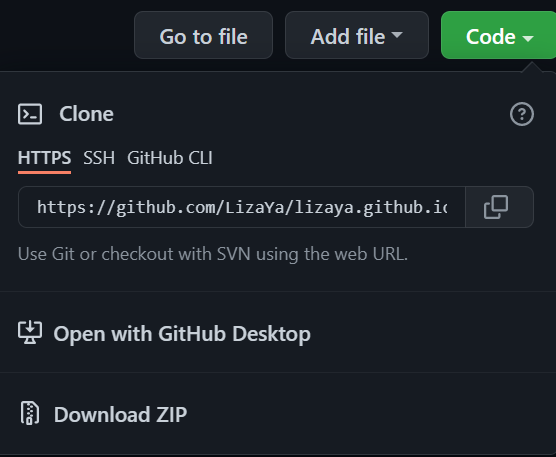
Go to a directory where you want your project to be created in your computer, open the terminal and run
git clone YOUR_HTTPS_URL
-
Open the project in your text editor (I use VS code). We are using a Markdown editor as it is much easier and convenient to edit markdown files.
-
Run the following commend inside the project directory in a terminal:
jekyll new yourProjectNameThis will create a Jekyll folder inside your project folder with all the required files.
-
Move all the generated files to your project folder and delete the empty folder that is left.
-
run
bundle add webrick. You should end up with the following files: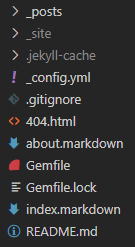
-
You can modify the file
index.markdownand write your resume there.
Testing locally your site before publishing it to your respository is very important. It allows you to view the changes and see what is the expected result.
bundle exec jekyll serve
- Commit your code to your main branch
- Your resume site should now be hosted on
https://yourGithubUsername.github.io/ - You should publish your resume frequently. If you graduated, changed jobs, gained additional knowledge, consider updating and committing your resume.

- Liza Yashin
- Group members:
- Rhushabh Patel
- Brett Lungal
- Template Authors - Github profiles:
- Billie Thompson
- CaduGoncalves96
Why is it a good idea to have a static page for your resume?
They are fast, simple, and reliable. You do not need any dependencies, databases, servers etc. It is much easier and convenient to update a static page than updating a PDF resume and saving many copies of it locally. If a company downloaded your PDF resume but it has been changed lately, they might not see the changes and proceed with your older resume.
How can I remove the header and the footer?
You can open a folder _includes in your directory and add these files: footer.html and header.html. This will overwrite the header and the footer that Jekyll uses by default. You can also choose to edit those file and customize your own footer and header. If you are also interested in removing any other text from the home page, you can add a folder called _layouts, add a file to it called home.html, copy all the content from _site/index.html and remove any line you do not need. This process overwrites the default home page.