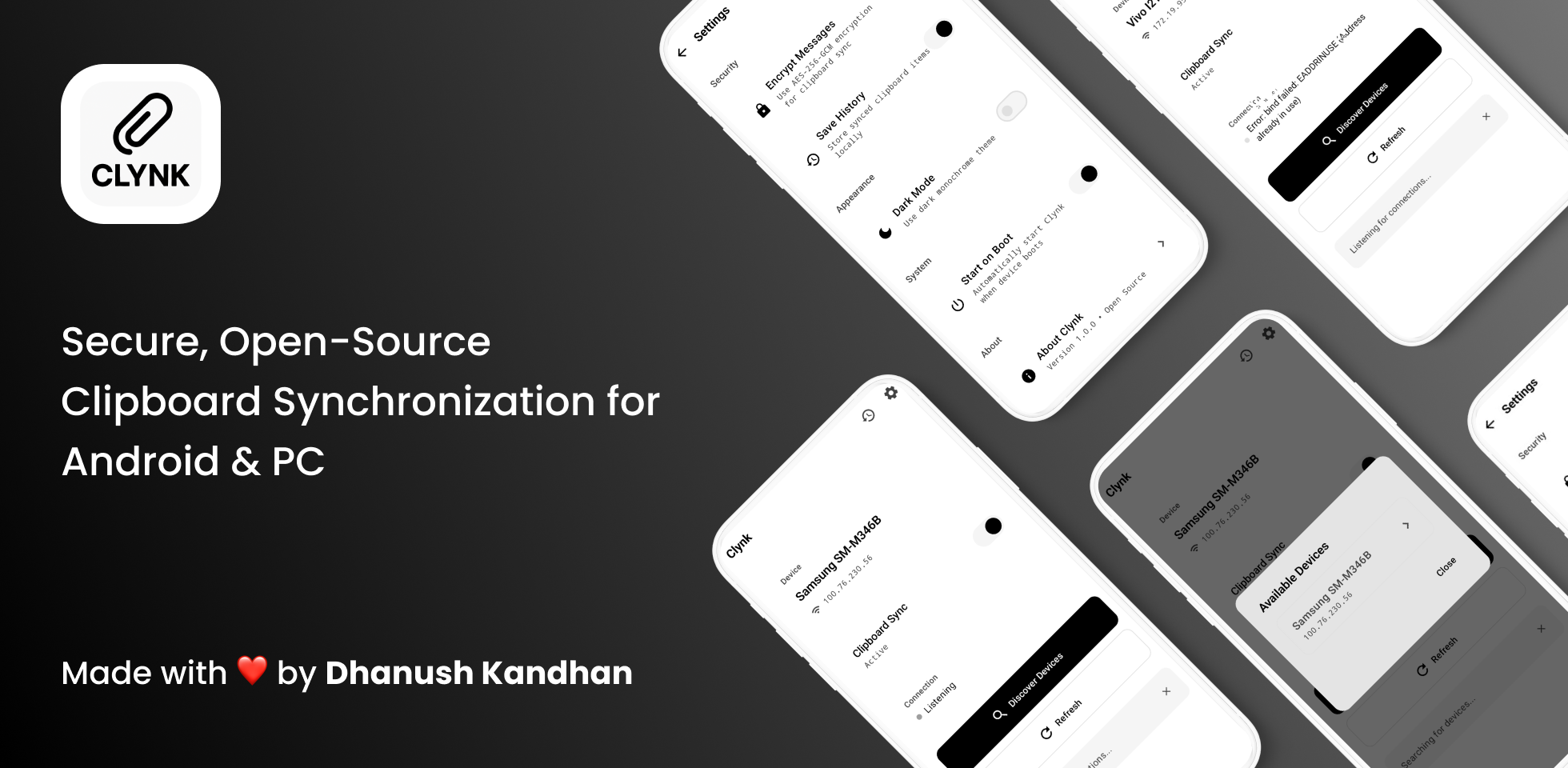
Secure, Open-Source Clipboard Synchronization for Android & PC
No cloud services, no data collection—just pure, secure, peer-to-peer clipboard sharing






Ever found yourself typing the same text on your phone that you just copied on your PC? Or emailing yourself a URL just to open it on another device? Clynk solves this.
Copy on one device, paste on another—instantly, securely, and privately. No cloud middleman, no subscription fees, no compromises on your privacy.
|
|
|
|
Clynk uses a simple but powerful architecture to keep your clipboards in sync:
graph LR
    A[📱 Android Device] <-->|Encrypted Socket Connection| B[🖥️ PC Client]
    A -->|Copy Text| C[📋 Local Clipboard Monitor]
    C -->|Encrypt with AES-256| D[🔐 Encryption Layer]
    D -->|Send over LAN| B
    B -->|Receive & Decrypt| E[📝 PC Clipboard]
    E -->|Copy on PC| B
    B -->|Encrypt & Send| D
    D -->|Receive & Decrypt| A

    style A fill:#4CAF50,stroke:#2E7D32,color:#fff
    style B fill:#2196F3,stroke:#1565C0,color:#fff
    style C fill:#FF9800,stroke:#E65100,color:#fff
    style D fill:#F44336,stroke:#C62828,color:#fff
    style E fill:#9C27B0,stroke:#6A1B9A,color:#fff
sequenceDiagram
    participant User as 👤 You
    participant Android as 📱 Android App
    participant PC as 🖥️ PC Client

    Note over User,PC: Initial Pairing
    User->>Android: Enable Sync
    User->>Android: Generate 6-digit PIN
    Android->>Android: Create AES-256 Key
    User->>PC: Enter same PIN
    PC->>PC: Create matching AES-256 Key
    Android->>PC: Establish TCP Connection (Port 8765)
    PC-->>Android: Connection Confirmed ✓

    Note over User,PC: Real-time Clipboard Sync
    User->>Android: Copy "Hello World"
    Android->>Android: Detect clipboard change
    Android->>Android: Encrypt with AES-256
    Android->>PC: Send encrypted message
    PC->>PC: Decrypt message
    PC->>PC: Update clipboard
    User->>PC: Paste "Hello World" ✨

    Note over User,PC: Bidirectional Sync
    User->>PC: Copy "https://example.com"
    PC->>PC: Detect clipboard change
    PC->>PC: Encrypt with AES-256
    PC->>Android: Send encrypted message
    Android->>Android: Decrypt message
    Android->>Android: Update clipboard
    User->>Android: Paste "https://example.com" ✨
graph TD
    A[📱 Android App] --> B[UI Layer - Jetpack Compose]
    B --> C[ViewModel Layer]
    C --> D[Repository Layer]
    D --> E[Data Sources]

    E --> F[🔌 Network - Socket Manager]
    E --> G[💾 Database - Room]
    E --> H[📋 Clipboard Service]

    F --> I[🔐 Encryption Utility]
    I --> J[AES-256-CBC]
    I --> K[PIN-based Key Derivation]

    G --> L[Clipboard History]
    G --> M[Device Pairs]

    H --> N[Clipboard Monitor]
    N --> O[Background Service]

    style A fill:#4CAF50,stroke:#2E7D32,color:#fff
    style B fill:#2196F3,stroke:#1565C0,color:#fff
    style F fill:#F44336,stroke:#C62828,color:#fff
    style G fill:#9C27B0,stroke:#6A1B9A,color:#fff
    style I fill:#FF5722,stroke:#BF360C,color:#fff
graph TB
    A[User enters 6-digit PIN] --> B[SHA-256 Hash]
    B --> C[256-bit AES Key]

    D[Clipboard Text] --> E[PKCS7 Padding]
    E --> F[Random IV Generation]
    F --> G[AES-256-CBC Encryption]

    C --> G
    G --> H[Base64 Encoding]
    H --> I[Encrypted Message]

    I --> J[Network Transmission]
    J --> K[Base64 Decoding]
    K --> L[Extract IV]
    K --> M[Extract Ciphertext]

    L --> N[AES-256-CBC Decryption]
    M --> N
    C --> N

    N --> O[Remove PKCS7 Padding]
    O --> P[Original Clipboard Text ✓]

    style A fill:#4CAF50,stroke:#2E7D32,color:#fff
    style C fill:#F44336,stroke:#C62828,color:#fff
    style I fill:#FF9800,stroke:#E65100,color:#fff
    style P fill:#4CAF50,stroke:#2E7D32,color:#fff
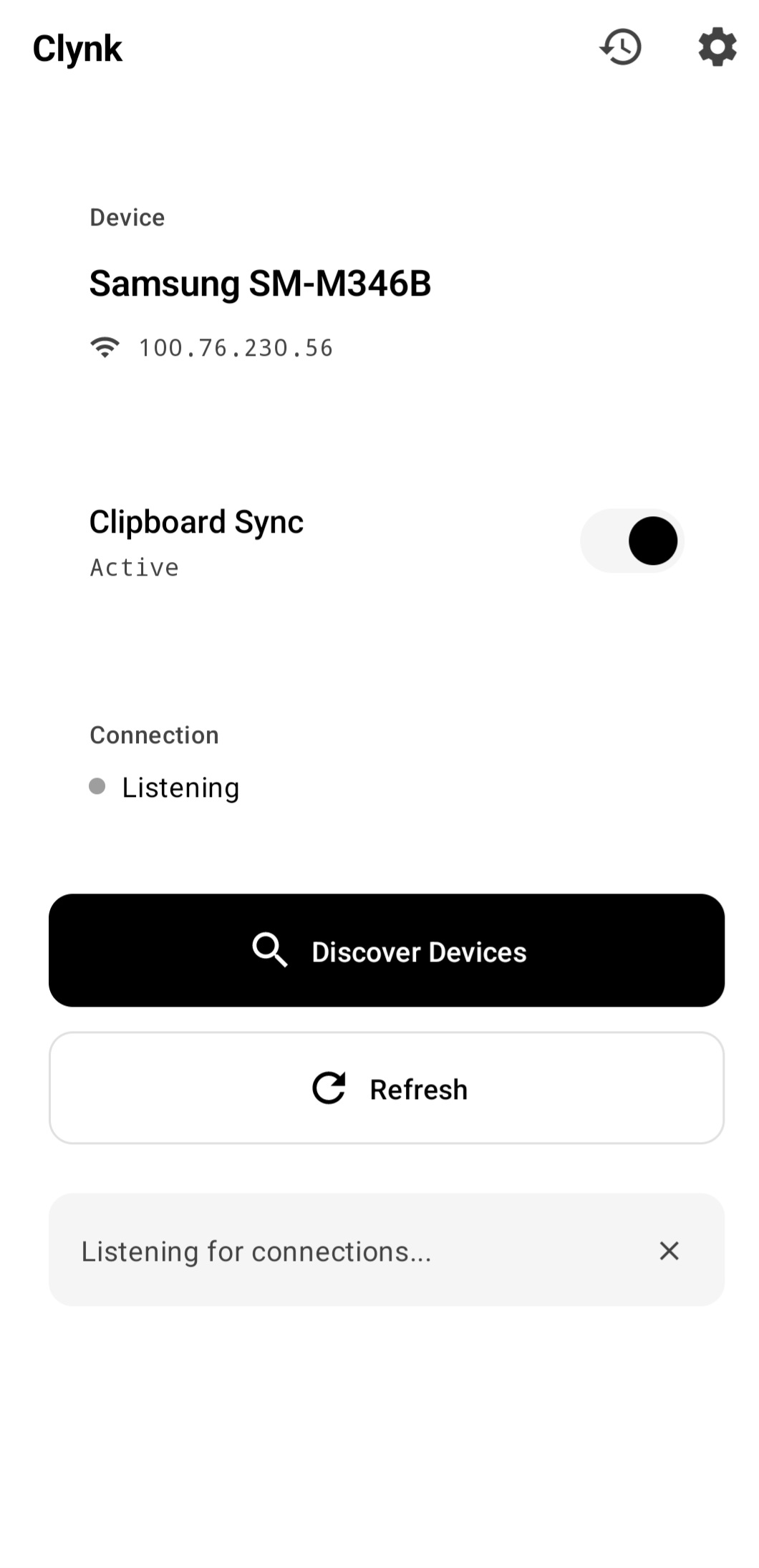
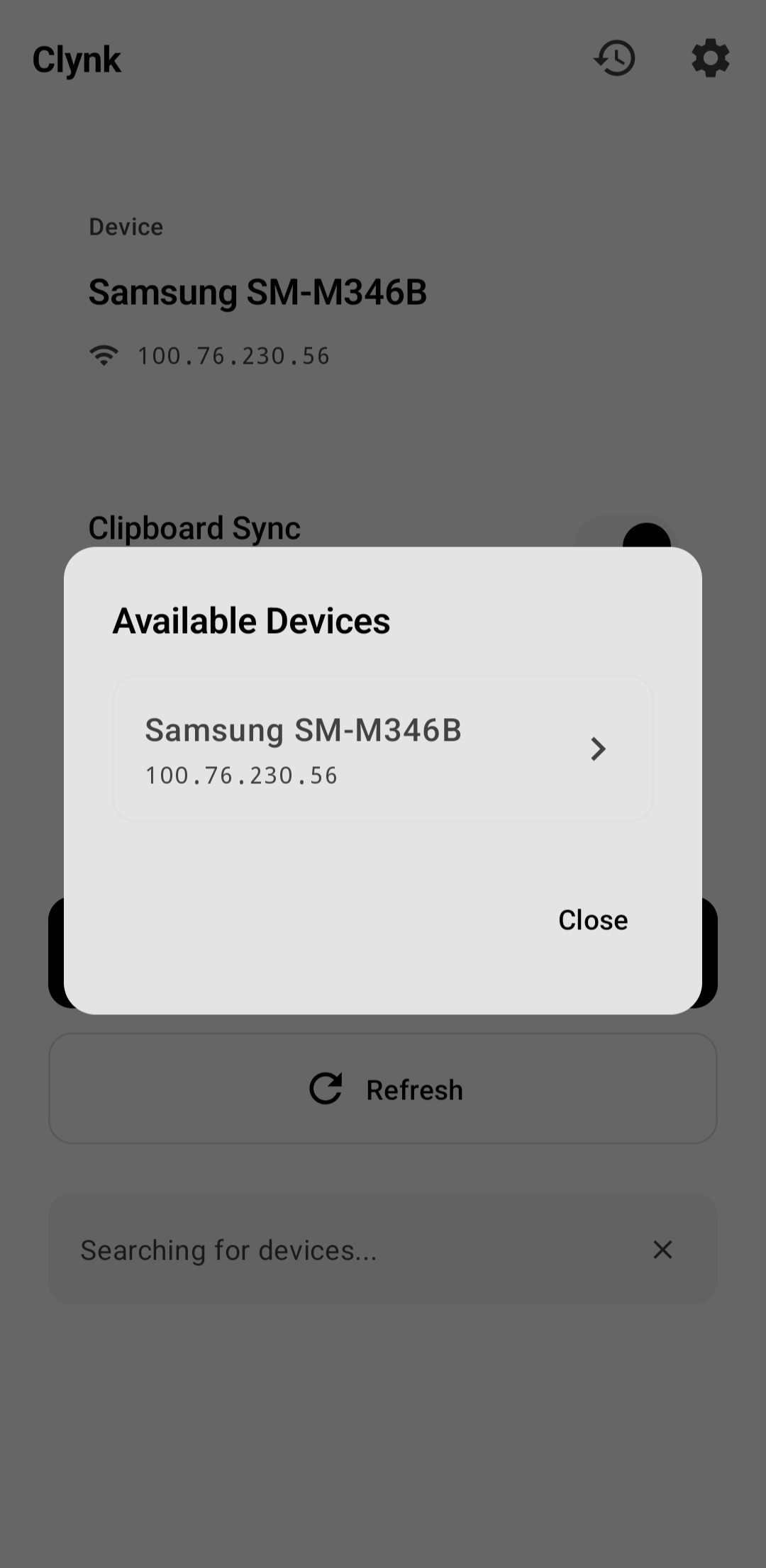
| Main Screen | History Screen | Settings Screen |
|---|---|---|
 |
 |
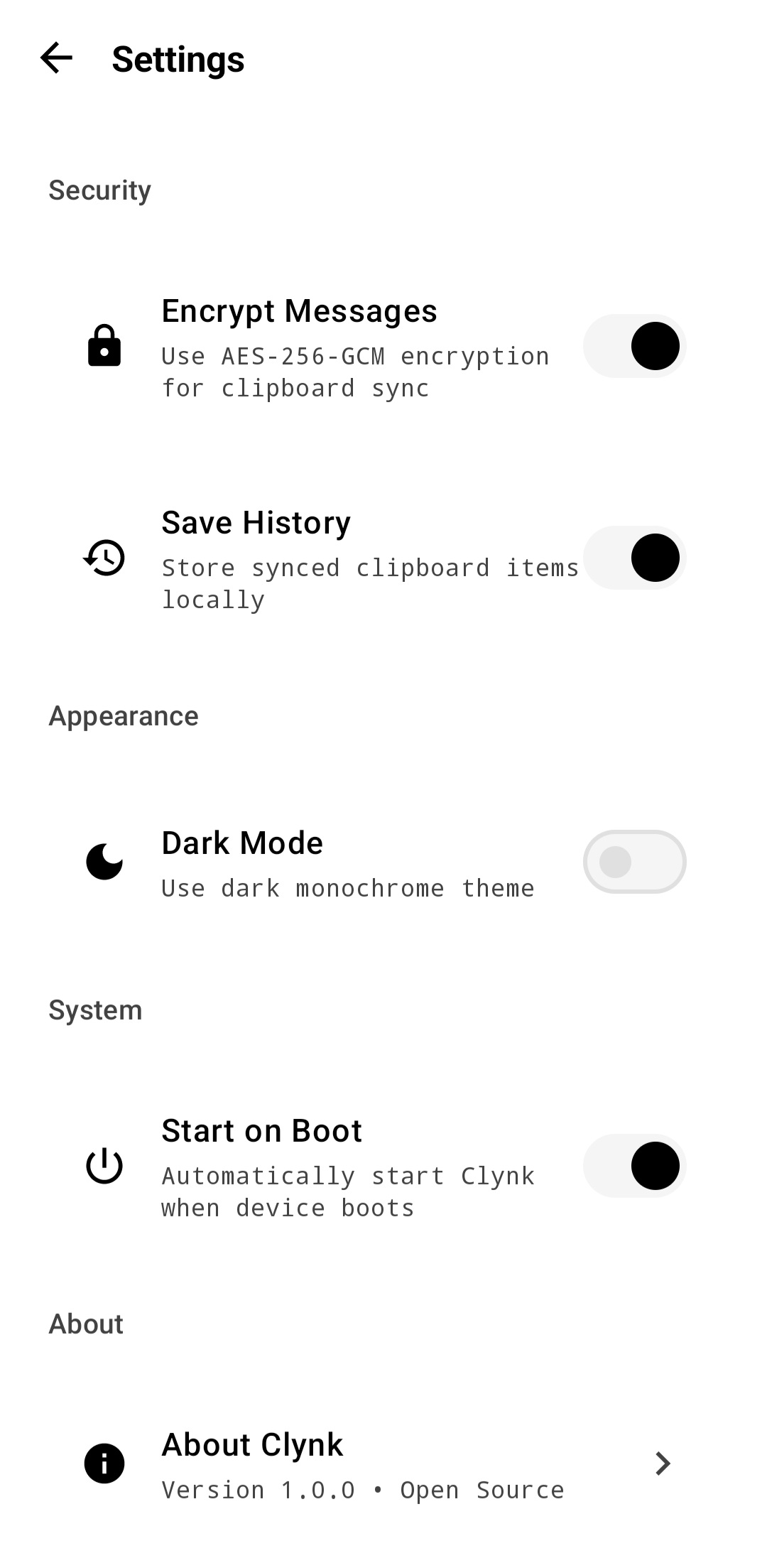 |
| Device pairing & sync status | Browse clipboard history | Configure app settings |
Before you begin, make sure you have:
- Android Studio Hedgehog (2023.1.1) or later
- Android SDK 26+ (Android 8.0 Oreo)
- JDK 17 or later
- Kotlin 1.9.20+
- Python 3.8+ or Node.js 16+ (for PC client)
git clone https://github.com/dhanushk-offl/clynk.git
cd clynk# Open Android Studio, then:
# File → Open → Select the clynk directory# Debug build (for development)
./gradlew installDebug
# Release build (for production)
./gradlew assembleReleaseThe APK will be in app/build/outputs/apk/
Choose your preferred language:
🐍 Python Client (Recommended)
Why Python? Simple, cross-platform, and easy to customize.
# Install dependencies
pip install pyperclip cryptography

# Run the client
python pc_client.py
Full Python Client Code:
#!/usr/bin/env python3
"""
Clynk PC Client (Python)
A simple clipboard synchronization client for Clynk Android app.
"""

import socket
import json
import pyperclip
import time
from cryptography.hazmat.primitives.ciphers import Cipher, algorithms, modes
from cryptography.hazmat.backends import default_backend
import hashlib
import base64
import threading

PORT = 8765
HOST = '0.0.0.0'

def generate_key(pin):
    """Generate AES key from PIN using SHA-256."""
    return hashlib.sha256(pin.encode()).digest()

def decrypt(ciphertext, key):
    """Decrypt AES-CBC encrypted message."""
    data = base64.b64decode(ciphertext)
    iv = data[:16]
    encrypted = data[16:]
    cipher = Cipher(algorithms.AES(key), modes.CBC(iv), backend=default_backend())
    decryptor = cipher.decryptor()
    decrypted = decryptor.update(encrypted) + decryptor.finalize()
    # Remove PKCS7 padding
    return decrypted[:-decrypted[-1]].decode('utf-8')

def encrypt(plaintext, key):
    """Encrypt message with AES-CBC."""
    from cryptography.hazmat.primitives import padding
    padder = padding.PKCS7(128).padder()
    padded = padder.update(plaintext.encode()) + padder.finalize()

    import os
    iv = os.urandom(16)
    cipher = Cipher(algorithms.AES(key), modes.CBC(iv), backend=default_backend())
    encryptor = cipher.encryptor()
    encrypted = encryptor.update(padded) + encryptor.finalize()

    combined = iv + encrypted
    return base64.b64encode(combined).decode('utf-8')

def main():
    print("=" * 50)
    print("  Clynk PC Client v1.0.0")
    print("  Secure Clipboard Synchronization")
    print("=" * 50)

    use_encryption = input("\n🔐 Enable encryption? (y/n): ").lower() == 'y'
    key = None

    if use_encryption:
        pin = input("🔑 Enter 6-digit PIN from Android app: ")
        key = generate_key(pin)
        print("✅ Encryption enabled with AES-256")
    else:
        print("⚠️  Running without encryption (not recommended)")

    print(f"\n🌐 Listening on {HOST}:{PORT}")
    print("⏳ Waiting for Android device to connect...\n")

    server = socket.socket(socket.AF_INET, socket.SOCK_STREAM)
    server.setsockopt(socket.SOL_SOCKET, socket.SO_REUSEADDR, 1)
    server.bind((HOST, PORT))
    server.listen(1)

    last_clipboard = ""

    while True:
        conn, addr = server.accept()
        print(f"✅ Connected to {addr[0]}:{addr[1]}")
        print("📋 Clipboard sync is now active!\n")

        try:
            def monitor_clipboard():
                nonlocal last_clipboard
                while True:
                    try:
                        current = pyperclip.paste()
                        if current != last_clipboard and current:
                            last_clipboard = current
                            msg = {
                                "type": "CLIPBOARD_UPDATE",
                                "content": encrypt(current, key) if key else current,
                                "deviceName": "PC",
                                "timestamp": int(time.time() * 1000),
                                "encrypted": key is not None
                            }
                            conn.sendall((json.dumps(msg) + '\n').encode())
                            preview = current[:50] + "..." if len(current) > 50 else current
                            print(f"📤 Sent: {preview}")
                    except Exception as e:
                        break
                    time.sleep(1)

            monitor_thread = threading.Thread(target=monitor_clipboard, daemon=True)
            monitor_thread.start()

            buffer = ""
            while True:
                data = conn.recv(4096).decode('utf-8')
                if not data:
                    break

                buffer += data
                while '\n' in buffer:
                    line, buffer = buffer.split('\n', 1)
                    msg = json.loads(line)

                    if msg['type'] == 'CLIPBOARD_UPDATE':
                        content = msg['content']
                        if msg.get('encrypted') and key:
                            content = decrypt(content, key)

                        pyperclip.copy(content)
                        last_clipboard = content
                        preview = content[:50] + "..." if len(content) > 50 else content
                        print(f"📥 Received: {preview}")

        except Exception as e:
            print(f"❌ Error: {e}")
        finally:
            conn.close()
            print("\n⚠️  Connection closed. Waiting for reconnection...\n")

if __name__ == '__main__':
    try:
        main()
    except KeyboardInterrupt:
        print("\n\n👋 Shutting down gracefully...")
🟢 Node.js Client
Why Node.js? Great for JavaScript developers, async by default.
# Install dependencies
npm install clipboardy

# Run the client
node pc_client.js
Full Node.js Client Code:
/**
 * Clynk PC Client (Node.js)
 * A simple clipboard synchronization client for Clynk Android app.
 */

const net = require('net');
const crypto = require('crypto');
const readline = require('readline');
const clipboardy = require('clipboardy');

const PORT = 8765;
const HOST = '0.0.0.0';

function generateKey(pin) {
    return crypto.createHash('sha256').update(pin).digest();
}

function decrypt(ciphertext, key) {
    const data = Buffer.from(ciphertext, 'base64');
    const iv = data.slice(0, 16);
    const encrypted = data.slice(16);
    const decipher = crypto.createDecipheriv('aes-256-cbc', key, iv);
    let decrypted = decipher.update(encrypted);
    decrypted = Buffer.concat([decrypted, decipher.final()]);
    return decrypted.toString('utf-8');
}

function encrypt(plaintext, key) {
    const iv = crypto.randomBytes(16);
    const cipher = crypto.createCipheriv('aes-256-cbc', key, iv);
    let encrypted = cipher.update(plaintext, 'utf-8');
    encrypted = Buffer.concat([encrypted, cipher.final()]);
    const combined = Buffer.concat([iv, encrypted]);
    return combined.toString('base64');
}

async function main() {
    console.log('='.repeat(50));
    console.log('  Clynk PC Client v1.0.0');
    console.log('  Secure Clipboard Synchronization');
    console.log('='.repeat(50));

    const rl = readline.createInterface({
        input: process.stdin,
        output: process.stdout
    });

    const useEncryption = await new Promise(resolve => {
        rl.question('\n🔐 Enable encryption? (y/n): ', answer => {
            resolve(answer.toLowerCase() === 'y');
        });
    });

    let key = null;
    if (useEncryption) {
        const pin = await new Promise(resolve => {
            rl.question('🔑 Enter 6-digit PIN from Android app: ', answer => {
                resolve(answer);
            });
        });
        key = generateKey(pin);
        console.log('✅ Encryption enabled with AES-256');
    } else {
        console.log('⚠️  Running without encryption (not recommended)');
    }

    rl.close();

    console.log(`\n🌐 Listening on ${HOST}:${PORT}`);
    console.log('⏳ Waiting for Android device to connect...\n');

    const server = net.createServer(socket => {
        console.log(`✅ Connected to ${socket.remoteAddress}:${socket.remotePort}`);
        console.log('📋 Clipboard sync is now active!\n');

        let lastClipboard = '';
        let buffer = '';

        const clipboardInterval = setInterval(async () => {
            try {
                const current = await clipboardy.read();
                if (current !== lastClipboard && current) {
                    lastClipboard = current;
                    const msg = {
                        type: 'CLIPBOARD_UPDATE',
                        content: key ? encrypt(current, key) : current,
                        deviceName: 'PC',
                        timestamp: Date.now(),
                        encrypted: key !== null
                    };
                    socket.write(JSON.stringify(msg) + '\n');
                    const preview = current.length > 50 ? current.substring(0, 50) + '...' : current;
                    console.log(`📤 Sent: ${preview}`);
                }
            } catch (err) {
                // Ignore clipboard errors
            }
        }, 1000);

        socket.on('data', data => {
            buffer += data.toString();

            while (buffer.includes('\n')) {
                const idx = buffer.indexOf('\n');
                const line = buffer.substring(0, idx);
                buffer = buffer.substring(idx + 1);

                try {
                    const msg = JSON.parse(line);

                    if (msg.type === 'CLIPBOARD_UPDATE') {
                        let content = msg.content;
                        if (msg.encrypted && key) {
                            content = decrypt(content, key);
                        }

                        clipboardy.writeSync(content);
                        lastClipboard = content;
                        const preview = content.length > 50 ? content.substring(0, 50) + '...' : content;
                        console.log(`📥 Received: ${preview}`);
                    }
                } catch (err) {
                    console.error('❌ Parse error:', err.message);
                }
            }
        });

        socket.on('close', () => {
            clearInterval(clipboardInterval);
            console.log('\n⚠️  Connection closed. Waiting for reconnection...\n');
        });

        socket.on('error', err => {
            console.error('❌ Socket error:', err.message);
        });
    });

    server.listen(PORT, HOST);
}

main().catch(err => {
    console.error('💥 Fatal error:', err);
    process.exit(1);
});journey
title Setting up Clynk
section Preparation
Connect to WiFi: 5: User
Install Clynk: 5: User
Start PC Client: 4: User
section Pairing
Open Clynk app: 5: User
Enable encryption: 4: User
Generate PIN: 5: User
Enter PIN on PC: 4: User
section Connection
Tap Find Devices: 5: User
Select your PC: 5: User
Enable sync toggle: 5: User
section Success
Copy text on phone: 5: User
Paste on PC: 5: User
Celebrate! 🎉: 5: User
- ✅ Connect both Android and PC to the same WiFi network
- ✅ Make sure your PC firewall allows port 8765
- ✅ Disable VPN if active (can interfere with local network)
Open a terminal and run:
# Python
python pc_client.py

# Node.js
node pc_client.js
Choose whether to enable encryption (recommended: Yes)
- Open Clynk on your Android device
- Go to Settings → Enable Encrypt Messages
- Note the 6-digit PIN shown on screen
- Enter this same PIN in your PC client when prompted
- Return to main screen
- Tap "Find Devices" button
- Select your PC from the list
- Enable the sync toggle switch
- Done! 🎉
Once set up, Clynk runs automatically:
- Copy on Android → Appears on PC instantly
- Copy on PC → Appears on Android instantly
- View history → History screen shows recent items
- Toggle sync → Turn on/off anytime in main screen
🔍 Devices Not Finding Each Other
Possible causes:
- Different WiFi networks - Ensure both devices on same network
- Firewall blocking - Allow port 8765 in firewall settings
- VPN interference - Disable VPN temporarily
- Network isolation - Some routers isolate devices (check router settings)
Solutions:
# Check if port is open (on PC)
netstat -an | grep 8765

# Manual connection (enter PC IP in app)
Settings → Manual IP → Enter: 192.168.1.100:8765
🔌 Connection Keeps Dropping
Possible causes:
- Weak WiFi signal - Move closer to router
- Battery optimization - Android kills background service
- Network congestion - Too many devices on network
Solutions:
# Disable battery optimization
Android Settings → Apps → Clynk → Battery → Unrestricted

# Use static IP (prevents IP changes)
PC Client → Use your PC's static IP address
🔐 Encryption Not Working
Symptoms: Text appears garbled on receiving device
Solutions:
- Verify same PIN on both devices
- Re-generate PIN in app settings
- Reconnect devices after PIN change
- Check encryption toggle is ON on both sides
📱 App Crashes on Startup
Quick fixes:
- Clear app data: Settings → Apps → Clynk → Clear Data
- Reinstall app: Uninstall and reinstall from latest release
- Check permissions: Ensure clipboard access is granted
- Report issue: Open GitHub Issue
clynk/
├── app/
│   ├── src/
│   │   ├── main/
│   │   │   ├── java/com/dhanu/clynk/
│   │   │   │   ├── MainActivity.kt              # 🚪 App entry point
│   │   │   │   ├── ui/
│   │   │   │   │   ├── screens/
│   │   │   │   │   │   ├── MainScreen.kt        # 🏠 Home screen with sync controls
│   │   │   │   │   │   ├── HistoryScreen.kt     # 📜 Clipboard history viewer
│   │   │   │   │   │   └── SettingsScreen.kt    # ⚙️ App configuration
│   │   │   │   │   └── theme/
│   │   │   │   │       ├── Color.kt             # 🎨 Monochrome color palette
│   │   │   │   │       ├── Typography.kt        # 📝 Text styles
│   │   │   │   │       └── Theme.kt             # 🌓 Material 3 theme
│   │   │   │   ├── data/
│   │   │   │   │   ├── ClipboardEntity.kt       # 💾 Room database entity
│   │   │   │   │   ├── ClipboardRepository.kt   # 📊 Data layer abstraction
│   │   │   │   │   ├── HistoryDao.kt            # 🗄️ Database access object
│   │   │   │   │   └── LocalSocketManager.kt    # 🔌 Network socket handler
│   │   │   │   ├── viewmodel/
│   │   │   │   │   └── ClipboardViewModel.kt    # 🧠 Business logic & state
│   │   │   │   └── utils/
│   │   │   │       ├── EncryptionUtil.kt        # 🔐 AES-256 encryption
│   │   │   │       └── NetworkUtils.kt          # 🌐 Network helpers
│   │   │   └── res/                             # 🖼️ Resources (layouts, icons)
│   │   └── test/                                # 🧪 Unit tests
│   └── build.gradle.kts                         # 🔧 Build configuration
├── pc_client.py                                 # 🐍 Python PC client
├── pc_client.js                                 # 🟢 Node.js PC client
├── README.md                                    # 📖 This file!
└── LICENSE                                      # ⚖️ MIT License
Clynk takes your privacy seriously. Here's how we protect your data:
| Feature | Implementation | Why It Matters |
|---|---|---|
| End-to-End Encryption | AES-256-CBC | Industry-standard encryption, same as banks use |
| PIN-Based Key Derivation | SHA-256 hashing | Your PIN never leaves your devices |
| Local Network Only | No internet required | Your data never touches the cloud |
| Zero Data Collection | No analytics, no tracking | We can't see what you copy |
| Open Source | Fully auditable code | Verify security yourself |
| No Cloud Storage | Everything stays local | You control your data |
- You enter a 6-digit PIN (e.g.,
123456) - SHA-256 hashing converts it to a 256-bit key
- AES-256-CBC encrypts all clipboard data
- Random IV (Initialization Vector) for each message
- PKCS7 padding ensures proper block alignment
- Base64 encoding for safe transmission
Even if someone intercepts your network traffic, they'll only see encrypted gibberish without your PIN.
- ❌ No cloud servers
- ❌ No data collection
- ❌ No analytics or telemetry
- ❌ No third-party SDKs
- ❌ No ads or tracking
- ❌ No internet access required
- Basic clipboard sync
- AES-256 encryption
- Device discovery (LAN)
- Clipboard history
- Dark mode UI
- Background service
- File transfer support (images, PDFs, etc.)
- Multi-device support (sync 3+ devices)
- Desktop GUI client (Electron-based)
- iOS app (Swift + SwiftUI)
- Image clipboard support
- QR code pairing (easier setup)
- WiFi Direct support (no router needed)
- Browser extension (Chrome, Firefox)
- Linux desktop client
- macOS menu bar app
Open a feature request and let's discuss it!
Clynk is built on the shoulders of giants. Special thanks to:
- Jetpack Compose - Modern Android UI toolkit
- Ktor - Asynchronous networking framework
- Room - Robust SQLite database
- Material Design 3 - Beautiful UI components
- Kotlin Coroutines - Async programming made easy
- CryptoGraphy - Python encryption library
- All our amazing contributors ❤️
Got questions? Need help? Want to chat?
- 💬 Discussions: GitHub Discussions - Ask questions, share ideas
- 🐛 Bug Reports: GitHub Issues - Report bugs or problems
- ✨ Feature Requests: GitHub Issues - Suggest new features
- 📧 Email: Contact Dhanush - Direct communication
If Clynk makes your life easier, consider supporting the project:
- ⭐ Star this repo - It helps others discover Clynk
- 🐛 Report bugs - Help us improve
- 💡 Share ideas - Your feedback matters
- 🔀 Contribute code - Join the development
- 📢 Spread the word - Tell your friends
- ☕ Buy me a coffee - Support on Ko-fi
Is Clynk really free?
Yes! Clynk is 100% free and open source under the MIT License. No hidden fees, no subscriptions, no premium features.
Can someone intercept my clipboard data?
When encryption is enabled (recommended), your data is protected with AES-256 encryption. Even if someone intercepts the network traffic, they can't decrypt it without your PIN. Just make sure to use a strong 6-digit PIN and don't share it.
Does Clynk work over the internet?
No, Clynk only works on your local network (LAN). This is by design for privacy and security. Your clipboard data never leaves your local network.
Can I sync more than 2 devices?
Currently, Clynk supports one Android device and one PC. Multi-device support (3+ devices) is on the roadmap!
Will this drain my phone battery?
Clynk is designed to be lightweight and efficient. It uses minimal background resources. However, you can always disable sync when not needed to save battery.
Does Clynk work with tablets?
Yes! Any Android device running Android 8.0 (API 26) or higher will work, including tablets.
Can I use Clynk with multiple PCs?
Currently, you can connect to one PC at a time. You can switch between PCs, but active sync only works with one device.
What happens to my clipboard history if I uninstall the app?
Your clipboard history is stored locally on your Android device. If you uninstall the app, the history will be deleted. Make sure to backup any important items before uninstalling.
Found a security vulnerability? Please DO NOT open a public issue.
Instead, email security details to: [email protected]
Made with ❤️ by Dhanush Kandhan
"Sync Smart, Stay Private"
⭐ If you find Clynk useful, give it a star on GitHub! ⭐