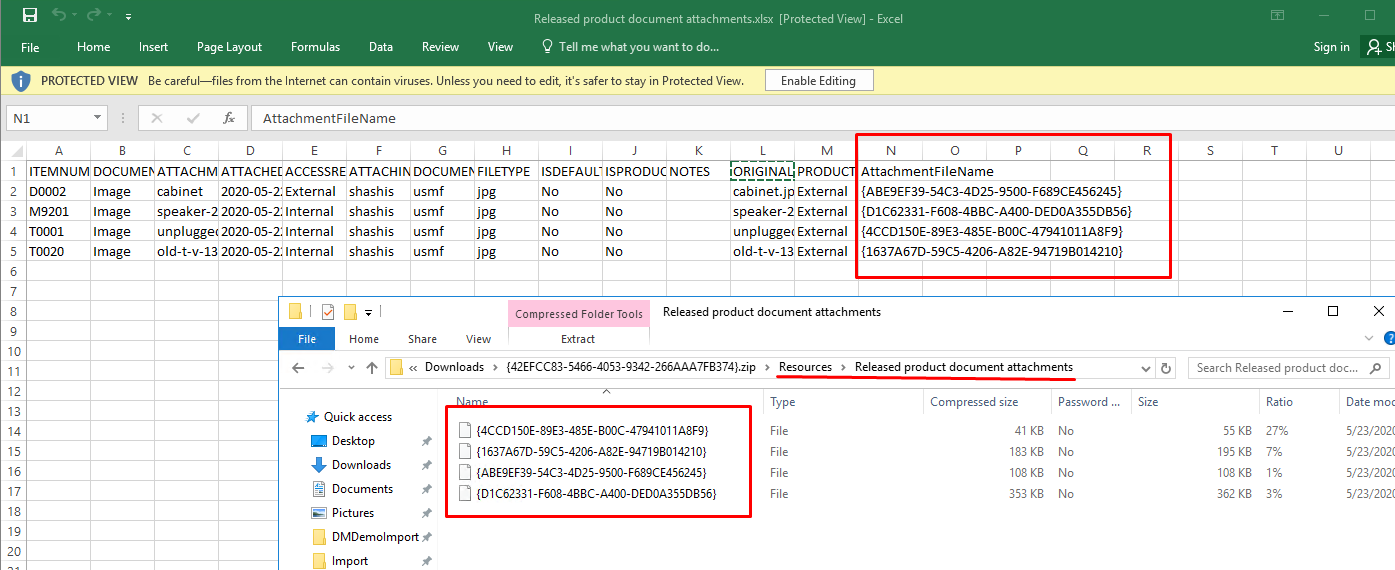
To import images in D365 can be a bit tricky, if not painstaking. If you look at the previous post for Exporting Images, we had downloaded a package which contained an excel file and a folder with the images. It also included 2 xml files.
Importing data will pretty much be done the same way using a similar zip file which includes the 2 xml files as well PackageHeader.xml and Manifest.xml . These files specify the mapping between the excel and staging table and the entity and name of the excel file.
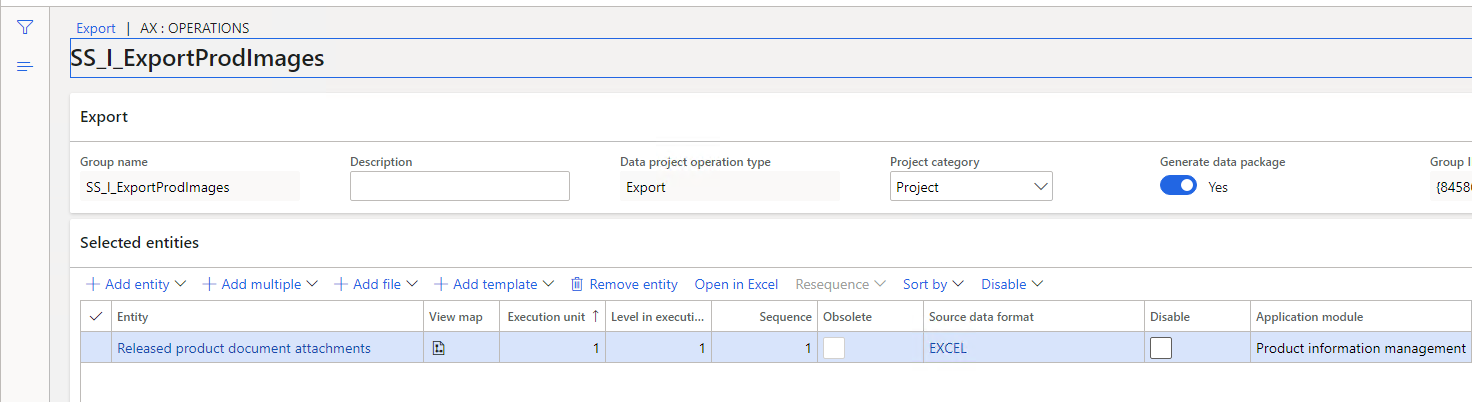
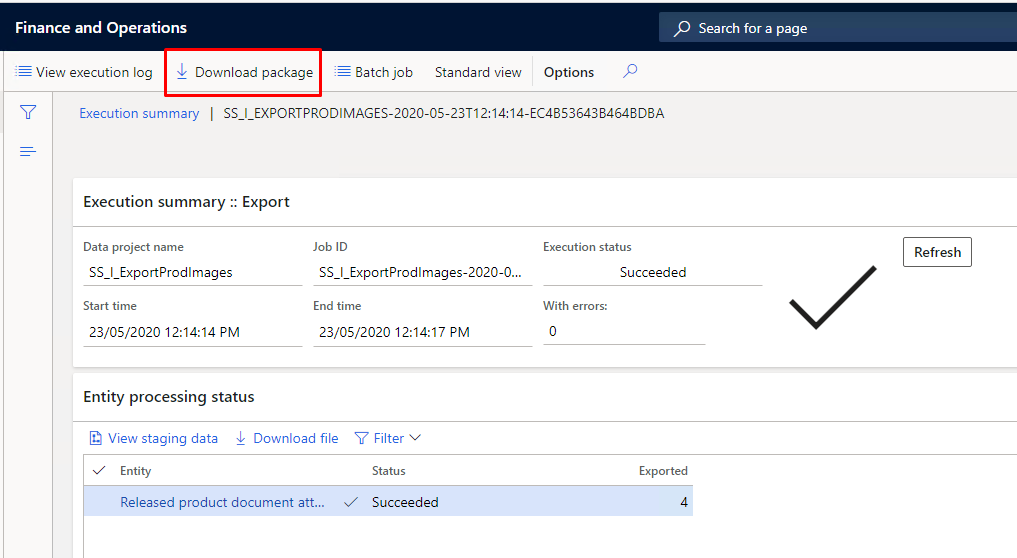
So to keep it simple, follow the Previous post and export the entity, and download the zip file.
Then you can run a powershell script which will update the filename, copy them across to a folder and rename them.
You may also want to follow this post from Munib Ahmand on importing attachments
Create your Excel file
Get the excel file and clear out the data from there. Then fill it up except for the columns FILETYPE, ORIGINALFILENAME
However, put the full path of the file into the column AttachmentFileName i.e. something like C:\myImages\MyProducts\T0001\TheProductImage1.jpg
Your excel file should now look something like this:

Run the script
Ok, so the time has come to run the script.
1. Create a new folder anywhere and copy the 2 xml files Manifest.xml and PackageHeader.xml in to the folder
2. Download the following powershell script
3. Open powershell and navigate to the folder where the above script was downloaded
4. Open the excel file that you have and find the following fields AttachmentFileName, FileType, OriginalFileName
In my case
FileType = 7
OriginalFileName = 11
AttachmentFileName = 13
Get the column number starting from 1 for these and close the excel file
5. Run the following command from powershell
PS C:\Temp\DM_Demo> .\FileUpload_ExcelResourceCreator.ps1 -ExcelFilePath “C:\Temp\DM_Demo\Import\Released product document attachments.xlsx" -TargetFolderPath C:\Temp\DM_Demo\Import\DMDemoImport -TargetEntity "Released product document attachments" -ColumnAttachmentFileName 11 -ColumnAttachmentFileType 7 -ColumnAttachmentFilePath 13“
This will create a new excel file in the Target folder and update the values inside it . It will also copy the files mentioned in the excel file, rename them to the guid value assosicated in the excel file into the Resources/<entity name> folder
6. Navigate to the target folder (You have to go into the folder)
Select all the files and Zip them
Import the Images / attachments
1. In D365 navigate to Data management
2. Create a new Import Project
3. Select “Add File” and clieck “Upload and add”
Choose your zip file and click “Close”
Because your zip file contains the information about the entities it will add the entities to the project.
4. Click “Import” and your attachment / image will be against the record
What does the Script do?
The script takes the file name from the excel file, and replaces it with a GUID. The file is then copied to the target forlder under resources and renamed to the same GUID. The script also copies the file name and the type of the file (Jpg, png, txt, xlxs, etc) and places it in the excel file

 Shashi's Ax.Net Space
You must be logged in to post a comment.